

A Powerful , Extensible CSS Parser written in pure Swift.
## Basic Usage
From CSS:
~~~css
#View {
"width" : 118;
"height" : 120.5;
"color1" : "#888888";
"color2" : RGB(200,200,200);
"color3" : RGB(200,200,200,0.5);
"font1" : "Helvetica-Bold" 18;
"font2" : "Cochin";
"size" : 10 10;
}
~~~
To Cocoa:
~~~swift
let width = css.int(selector: "#View", key: "width") // Int
let height = css.double(selector: "#View", key: "height") //Double
let color1 = css.color(selector: "#View", key: "color1") //UIColor
let font1 = css.font(selector: "#View", key: "font1") //UIFont
let font2 = css.font(selector: "#View", key: "font2", fontSize: 14) //UIFont
let size = testSwiftCSS.size(selector: "#View", key: "size") //CGsize
~~~
It's very easy to setup and parse CSS with `SwiftCssParser`:
~~~~swift
//1.Get CSS file path
let path = Bundle.main.url(forResource: "cssFileNmae", withExtension: "css")
//2.Get parsed CSS
let css = SwiftCSS(CssFileURL: path)
//3.Use it
let width = css.int(selector: "#View", key: "width")
~~~~
## Extension
It's very easy to build your own Powerful, Flexiable CSS based solutions base on `SwiftCssParser`.
#### Example1: `SwiftDeviceCss`
In most cases, `Auto Layout` can help us calculates the size and location of our views. But in some cases, we need to set specifc size and location for our views based on device type (device's screen size) to accomplish the `Pixel Perfect` design.
So, we can use `SwiftCssParser` to get layout value from CSS file. Different Device has different configuration file.
~~~swift
public let SwiftDeviceCss = SwiftCssStyleSheet.deviceCss()
class SwiftCssStyleSheet {
private enum ScreenSize {
case _320_480 //iPhone4 etc.
case _320_568 //iPhone5 etc.
//iPhone6....
}
static private let screenSize: ScreenSize = {
let screen = UIScreen.main
let size = UIScreen.main.fixedCoordinateSpace.bounds.size
switch (size.width,size.height) {
case (320,640):
return ._320_480
//......
}
}()
static func deviceCss() -> SwiftCSS {
switch self.screenSize {
case ._320_480:
return SwiftCSS(CssFileURL: URL.CssURL(name: "iPhone4"))
case ._320_568:
return SwiftCSS(CssFileURL: URL.CssURL(name: "iPhone5"))
//......
}
}
}
~~~
Then just layout:
~~~swift
view.frame.size = SwiftDeviceCss.size(selector: "#View", key: "size")
~~~
#### Exeample2: `SwiftCssTheme`
We can also create a powerful theme manager base on `SwiftCssParser`.
For example, we want to create a night & day theme.
~~~swift
public class SwiftCssTheme {
public static let updateThemeNotification = Notification.Name("SwiftCSSThemeUpdate")
public enum Theme {
case day
case night
}
public static var theme: Theme = .day {
didSet {
switch theme {
case .day:
self.themeCSS = SwiftCSS(CssFileURL: URL.CssURL(name: "day"))
case .night:
self.themeCSS = SwiftCSS(CssFileURL: URL.CssURL(name: "night"))
}
NotificationCenter.default.post(name: updateThemeNotification, object: nil)
}
}
public static var themeCSS = SwiftCSS(CssFileURL: URL.CssURL(name: "day"))
}
~~~
If we want to be able to dynamically modify the background color of UIView:
~~~swift
extension UIView {
private struct AssociatedKeys {
static var selector = "themeColorSelector"
static var key = "themeColorKey"
}
var backgroundColorCSS: (selector: String,key: String) {
get {
let selector = //Use objc_getAssociatedObject to get value.....
let key = //.....
return (selector,key)
}
set {
let selector = newValue.selector
let key = newValue.key
//Use objc_setAssociatedObject to set value......
NotificationCenter.default.addObserver(self, selector: #selector(_cssUpdateBackgroundColor), name: SwiftCssTheme.updateThemeNotification, object: nil)
_cssUpdateBackgroundColor()
}
}
private dynamic func _cssUpdateBackgroundColor() {
self.backgroundColor = SwiftCssTheme.themeCSS.color(selector: self.backgroundColorCSS.selector, key: self.backgroundColorCSS.key)
}
}
~~~
Then, we just need to specify the background color's CSS selector and key:
~~~swift
self.view.backgroundColorCSS = ("#View","color")
~~~
Changing theme is even easier:
~~~swift
@IBAction func changeColor(_ sender: UIButton) {
if SwiftCssTheme.theme == .day {
SwiftCssTheme.theme = .night
} else {
SwiftCssTheme.theme = .day
}
}
~~~
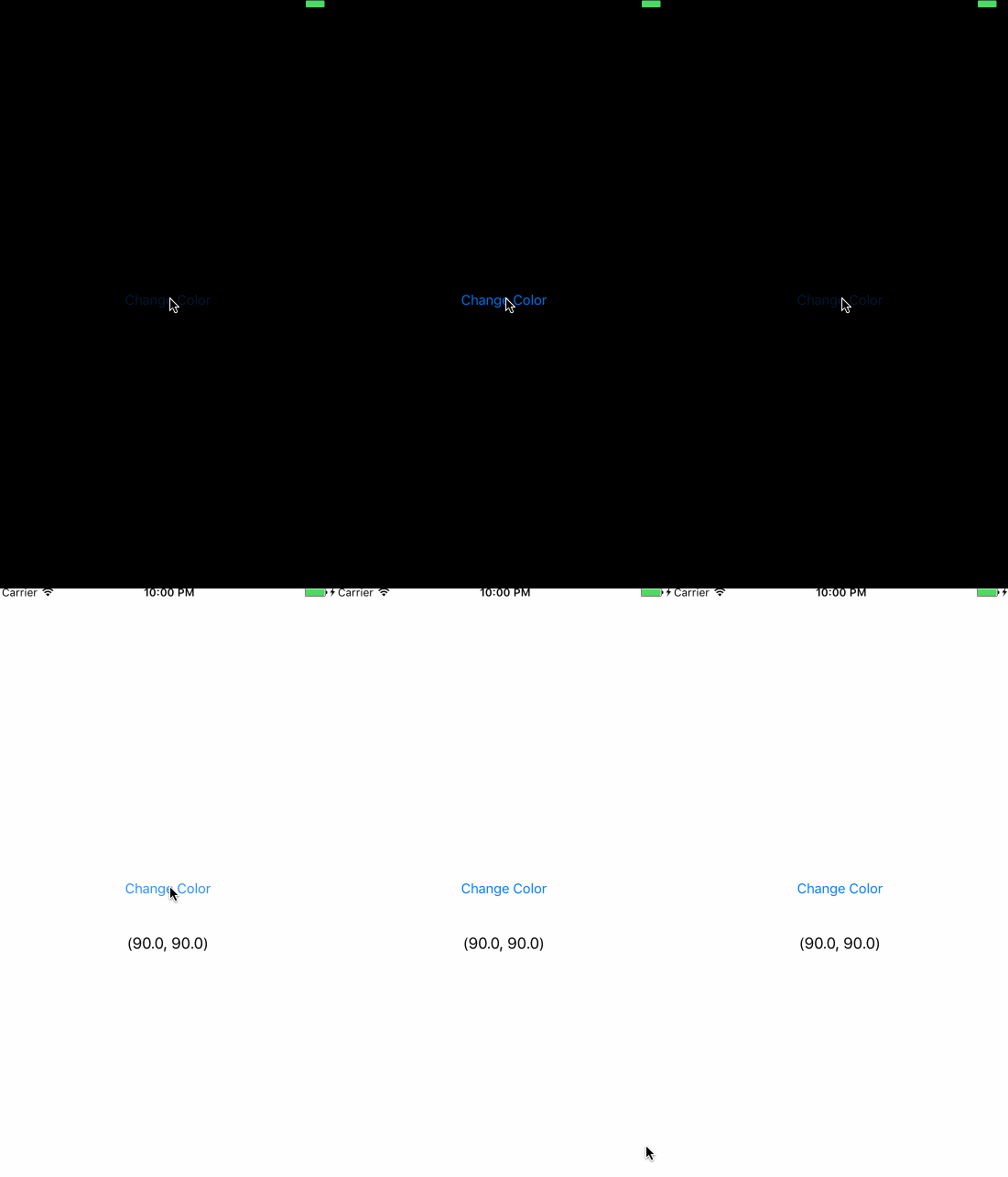
All the code and demo can be found in the project. Feel free to download and experiment. Advice and pull requests are welcome.
## Installation
### Swift Package Manager
Requires Swift 5.3 or later. `SwiftCssParser` is an iOS/UIKit library; the
package keeps the existing iOS 9.0 deployment minimum. The selected Xcode
version may impose a newer minimum. It does not support macOS or Linux builds.
In Xcode, choose **File > Add Package Dependencies**, enter
`https://github.com/100mango/SwiftCssParser.git`, and add the `SwiftCssParser`
product to your iOS target. Select version `0.2.0` or later. Version `0.1.0` predates SwiftPM support.
For a `Package.swift` dependency:
```swift
.package(url: "https://github.com/100mango/SwiftCssParser.git", from: "0.2.0")
```
Add `.product(name: "SwiftCssParser", package: "SwiftCssParser")` to your target's
`dependencies`, then use `import SwiftCssParser`.
The package includes the parser and the existing UIKit, theme, and device CSS
APIs. The demo application, storyboards, and assets are excluded. Your CSS files
still belong in your application's resource bundle: `SwiftCSS(CssFileURL:)`
accepts a URL supplied by your app. To use the sample `SwiftCssTheme` or
`SwiftDeviceCss` helpers, add their corresponding files from `Others/` to your
app target's resources; those helpers intentionally continue to read
`Bundle.main`, just as they do with CocoaPods.
### CocoaPods
~~~
pod 'SwiftCssParser'
~~~
## Input and fallback behavior
Empty CSS files and empty selector blocks are supported. Missing selectors,
missing keys, and values of the wrong type use the existing getter defaults
(`0`, an empty string, zero size, clear color, or a system font). Invalid hex
colors can be inspected with the throwing `UIColor(rgba_throws:)` initializer.
The parser is a small CSS-inspired configuration format, not a full CSS engine:
malformed syntax and unreadable file URLs still terminate through the existing
`fatalError`/`try!` behavior. Validate external inputs before using this API.
## Testing
Open `Package.swift` in Xcode, select the `SwiftCssParser` package scheme and an
iOS Simulator, then run **Product > Test**. The test CSS fixture is included in
the SwiftPM test bundle with `Bundle.module`; existing Xcode-project tests keep
using their original test bundle. The `SwiftPM` workflow runs Debug and Release tests in an isolated directory
so it cannot accidentally test the demo Xcode project. It also tests an
independent consuming package with its own CSS resource bundle. On a GitHub
release, that consumer resolves the exact published tag and checks its commit
revision before running on an iOS Simulator.
`swift package dump-package` and `swift package describe` can inspect the
manifest on any Swift host. A host-only `swift test` on macOS or Linux cannot
build UIKit; use the iOS Simulator for the complete package test suite.
## License
`SwiftCssParser` is under the MIT license.