# muxbar
**Language:** [English](README.md) | [한국어](README.ko.md)
> A native macOS menu bar app for tmux session management + caffeinate toggle.
**Use it for:** tmux session manager · Keep Awake toggle · **headless clamshell** (closed-lid mode — no external display required) · **long-running script launcher** (OCI / cloud capacity polling / backups / batch jobs).
[](LICENSE)
[](https://www.apple.com/macos/)
[](https://swift.org)
## Features
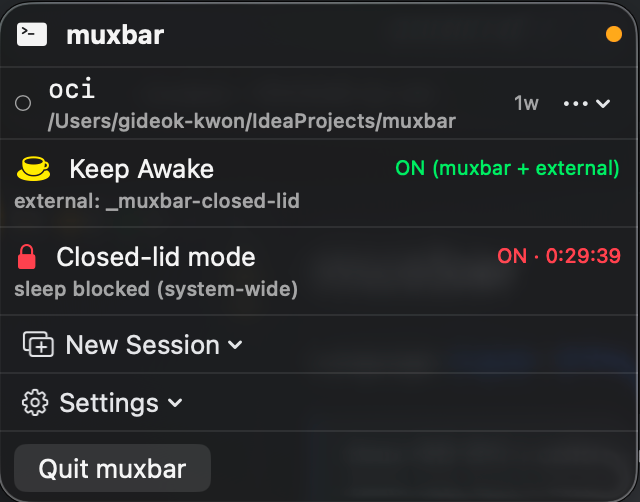
- **Session list** — All tmux sessions at a glance, sorted by attached first and creation date (latest first within each group)
- **Attach** — Open the selected session in Terminal.app / iTerm2 / Warp / Alacritty / kitty
- **Kill** — Drop a session from the menu
- **Live Preview** — Click a session row or pick "Preview" to see recent output (ANSI-rendered via SwiftTerm)
- **Keep Awake** — Toggle `caffeinate -dims` as a tracked tmux session (`_muxbar-awake`). Detects external caffeinate too (any tmux session running it, or any system-level process), and stops all of them with one click.
- **Closed-lid mode (headless clamshell)** — A "clamshell-without-the-external-display" toggle: keep the CPU running with the lid shut so your build / CI / remote session survives a bag commute. Toggle → 30m/1h/4h/8h/∞ → admin password (Touch ID). Auto-disables on timer / AC unplug / lid open / quit — timer expiry never blocks on a password prompt. See [Closed-lid mode](#closed-lid-mode-detailed) below.
- **Multilingual** — English + 한국어. Settings → Language to switch (Auto / English / 한국어).
- **Templates / script launcher** — Built-in + user-defined session layouts (YAML). Use them as one-click toggles for long-running scripts (OCI instance creation, cloud capacity polling, backups, batch jobs) — launch from the menu bar, detach/re-attach anytime, the script keeps running. See [Long-running script launcher](#long-running-script-launcher) below.
- **Global hotkeys** — `⌘⇧A` toggles Keep Awake, `⌘⇧1`~`⌘⇧9` attach the top N sessions.
- **Open at Login** — Registers as a macOS Login Item under Settings (when installed as a bundled `.app`).
## Menu bar icon
- 0 sessions: plain coffee cup
- Active sessions: cup + session count badge
- Keep Awake active: steaming cup, orange tint
- Closed-lid mode active: red lock icon (priority over Keep Awake)
## Menu layout
```
┌ ▣ muxbar ● ┐ ← header (name + connection dot)
├──────────────────────────────┤
│ ● api 1w ⋯ │ ← attached (green dot)
│ /Users │ cwd as subtitle
├──────────────────────────────┤
│ ○ dev 2w ⋯ │ ← detached
│ /Users/kgd/msa │
├──────────────────────────────┤
│ ○ logs 1w ⋯ │
│ /var/log │
├──────────────────────────────┤
│ ☕ Keep Awake ON │ ← toggle (⌘⇧A)
├──────────────────────────────┤
│ 🔒 Closed-lid mode OFF │ ← prevent sleep on lid close
├──────────────────────────────┤
│ ⊞ New Session ▸ │ ← templates submenu
├──────────────────────────────┤
│ ⚙ Settings ▸ │ ← Open at Login, future prefs
├──────────────────────────────┤
│ Quit muxbar ⌘Q │
└──────────────────────────────┘
```
- Session rows show attached (●) first, then detached (○) — each group newest-first
- More than 5 rows → list scrolls inside the menu
- `⋯` on a row opens the action menu (Attach / Preview / Kill)
- Tapping the session name itself opens the live preview popover
## Closed-lid mode
A toggle that prevents system sleep — including when the MacBook lid is closed — so unattended work keeps running.
### When you'd use it
- Long-running build / test / CI job you want to keep going while you commute
- Remote SSH session you don't want to drop while the laptop is in your bag
- Watcher / poller / data-pull script that has to stay alive overnight without an external display
### How it works
Combines two layers so the system actually stays awake under closed-lid:
| Layer | Effect |
|---|---|
| `pmset -a disablesleep 1` (kernel-level) | Blocks the lid-close → forced sleep path |
| `caffeinate -is` in `_muxbar-closed-lid` tmux session | Backs up the kernel hint with idle + system IOPM assertions |
The display is intentionally **not** kept on — `-d` is omitted. With the lid closed the lid sensor turns the internal display off in hardware anyway, which is exactly what you want for a bag-mode workload.
### Auto-off (4 triggers)
| Trigger | Why |
|---|---|
| ⏱ Timer expires | The duration you picked at toggle time |
| 🔌 AC adapter **unplugged** (transition only) | Prevent surprise battery drain. Doesn't fire if you toggled on while already on battery — your in-bag use case still works. |
| 💻 Lid opens | You're back at the laptop — flip back to normal sleep policy |
| 🚪 muxbar quits | `applicationShouldTerminate` waits for `pmset` to be restored before exiting |
**Manual OFF**: if you cancel the admin password prompt the state stays ON and the AC/lid monitors are re-armed — no zombie state.
**Auto-off (timer / AC / lid)**: no password dialog is ever shown. `sudo -n pmset` is attempted silently — if the NOPASSWD rule (below) is set it succeeds; if not, the caffeinate session is killed, state goes to OFF, and a notification asks you to toggle OFF once from the menu to restore `pmset`. The timer's "off after N minutes" promise is honored unconditionally.
### macOS clamshell mode (Apple's own) vs. this
Functionally similar — both keep the CPU running with the lid closed — but the trigger and intent differ. Closed-lid mode is essentially a **headless clamshell** (`caffeinate -is` + `pmset disablesleep 1`) that works without an external display, so the laptop can keep working inside a bag or on AC alone.
| | macOS clamshell mode | Closed-lid mode |
|---|---|---|
| Trigger | Auto when AC + external display + external keyboard/mouse all plugged in | Manual toggle |
| External display required | **Yes** | No |
| Display while lid closed | Output to external monitor | None if no external display; **routes to external monitor if one is plugged in** |
| AC required | **Yes** | No |
| External keyboard/mouse required | **Yes** | No |
| CPU while lid closed | Running | Running |
| Auto-off | Lid open / external display unplug | Timer / AC unplug / lid open |
**Bonus — closed-lid mode is a superset of Apple's clamshell.** If you happen to plug in an external display while closed-lid mode is on, macOS routes output there automatically — same desk-mode experience as Apple's clamshell, **without** Apple's "AC + external keyboard + external mouse" gate. The single toggle covers both *bag mode* (headless, on battery) and *desk mode* (external monitor, no peripherals required).
Apple's clamshell mode is for "MacBook on a stand at my desk with full peripherals." Closed-lid mode is for "MacBook in a bag" or "MacBook on the desk with just an HDMI cable."
### Cost / setup
- No Apple Developer Program needed — uses an AppleScript admin prompt for `sudo pmset`
- No helper daemon, no kernel extension
- The system caches the admin password for ~5 minutes, so toggle on → toggle off → back on doesn't re-prompt
### Passwordless setup (optional)
To skip the password prompt entirely (including when the timer expires or auto-off fires after the 5-minute credential cache), allow `pmset` via `sudoers`:
```bash
echo "$(whoami) ALL = (root) NOPASSWD: /usr/bin/pmset" | sudo tee /etc/sudoers.d/muxbar > /dev/null
sudo chmod 440 /etc/sudoers.d/muxbar
```
muxbar tries `sudo -n pmset` first; if the rule is set it runs without a prompt. For **manual OFF** the AppleScript admin dialog is used as a fallback when the rule is missing. **Auto-off (timer / AC / lid)** never shows a dialog — without the rule, the caffeinate session is killed and a notification is posted; you restore `pmset` on the next manual OFF toggle.
To revert: `sudo rm /etc/sudoers.d/muxbar`.
Security scope: only `pmset` (system sleep policy) is allowed without password — file system, network, process, and user permissions are not affected.
## Long-running script launcher
Use tmux sessions as one-click toggles for scripts that have to keep running — polling, batch jobs, infrastructure waits — without leaving a terminal window open or living inside a shell prompt.
### When it shines
- **OCI / cloud instance creation** — `oci compute instance launch ...` that retries until capacity opens up. Hours of polling, no terminal to babysit.
- **Capacity polling** — AWS Spot / GCP preemptible / Vast.ai loops that keep trying until you get the resource at your target price.
- **Long backups / data sync** — `rsync`, `restic`, `aws s3 sync` of large datasets. Kick off and detach.
- **Batch jobs** — overnight DB migrations, large `terraform apply`, training loops you launched from a personal box.
- **Local watchers / pollers** — `gh run watch`, `kubectl logs -f`, repeatable scripts that should outlive a terminal close.
### How
1. Drop a YAML template under `~/Library/Application Support/muxbar/Templates/`:
```yaml
name: OCI Create
description: Oracle Cloud instance create (polling until capacity is available)
sessionNameHint: oci
windows:
- name: create
command: ~/oci-create-instance.sh; exec $SHELL
```
2. **New Session → OCI Create** in the menu bar. The session appears immediately, with a count badge on the icon.
3. `⌘⇧1`-`⌘⇧9` to attach in your terminal, or click the row for a live preview. Detach with `⌃b d` — the script keeps running.
4. Pair with **Closed-lid mode** to toss the laptop in your bag and let the script finish on the way home.
The `; exec $SHELL` tail drops you into an interactive shell when the script finishes (or you Ctrl+C it) so the output stays — no surprise window close.
See [Custom templates](#custom-templates) for the YAML schema.
## Requirements
- macOS 13 (Ventura) or later
- `tmux` — `brew install tmux`
- Xcode Command Line Tools — `xcode-select --install` (if you haven't already)
## Quick start
Copy-paste, in one shot:
```bash
git clone https://github.com/1989v/muxbar.git
cd muxbar
./build.sh install
open /Applications/muxbar.app
```
That's it. The coffee-cup icon appears in your menu bar. Click it, and you'll see your tmux sessions.
## Installation options
### 1. Build from source (current default)
Works with just Command Line Tools — Xcode not required.
```bash
git clone https://github.com/1989v/muxbar.git
cd muxbar
./build.sh # Release build + .app bundle (creates ./muxbar.app)
./build.sh open # Build + launch from the repo directory
./build.sh install # Build + copy to /Applications
```
What `build.sh` actually does:
1. `swift build -c release`
2. Wraps the binary into `muxbar.app/Contents/{MacOS,Info.plist}`
3. Ad-hoc signs it with `codesign --sign -` (no Apple Developer account needed)
4. Strips the quarantine attribute so the app can launch without Gatekeeper prompts
### 2. Homebrew cask *(not yet published)*
Once the first release is out:
```bash
brew install --cask 1989v/tap/muxbar
```
### 3. Pre-built `.dmg` *(not yet published)*
A signed-by-hand `.dmg` will be attached to each [GitHub Release](https://github.com/1989v/muxbar/releases). On first launch, right-click → Open to pass Gatekeeper (the app uses ad-hoc signing, not notarized).
## Development
Run from sources (some features are disabled in unbundled mode — see table below):
```bash
swift build
swift run muxbar
```
Run the test suite (requires Xcode for XCTest):
```bash
swift test
```
## Feature availability by execution mode
| Feature | `swift run` (unbundled) | `.app` bundle |
|---|---|---|
| Session list / Attach / Kill / Preview | ✅ | ✅ |
| Keep Awake, Templates, Hotkeys | ✅ | ✅ |
| Open at Login (Login Item) | ⚠ (Settings → shown disabled) | ✅ |
| User notifications | ❌ | ✅ |
Features that need a proper `.app` bundle (Open at Login, notifications) fall back gracefully when running unbundled — the menu shows the item but disables the toggle with a hint.
## Keyboard shortcuts
| Shortcut | Action |
|---|---|
| `⌘⇧A` | Toggle Keep Awake |
| `⌘⇧1` ~ `⌘⇧9` | Attach the N-th visible session |
## Custom templates
Put YAML files under `~/Library/Application Support/muxbar/Templates/`:
```yaml
name: MyDev
description: My dev setup
sessionNameHint: mydev
windows:
- name: edit
command: nvim .
cwd: ~
- name: run
command: npm run dev
- name: logs
command: tail -f logs/app.log
```
- Files starting with `_` are ignored (so `_example.yaml` stays as a reference)
- Reload via menu: **New Session → Reload Templates**
- Open the folder: **New Session → Edit Templates…**
- For real-world examples (OCI polling, capacity wait, backups) see [Long-running script launcher](#long-running-script-launcher) above.
## Design & documentation
- [v0.1 Design spec](docs/specs/2026-04-17-v0.1-design.md)
- [Implementation plans](docs/README.md)
- [Architecture decisions (ADRs)](docs/adr)
## License
[MIT](LICENSE) © 2026 kgd