# react-charty [](https://badge.fury.io/js/react-charty) [](https://www.npmjs.org/package/react-charty) 
> [!WARNING]
> **Deprecated:** `react-charty` is no longer maintained. For the new charting
> library, see [Sixtyfold Charts](https://github.com/60fold/charts-js).
This component was born from the [Telegram](https://telegram.org/) programming contest where I took one of the prize places. A big thanks to the Telegram team and all contestants.
Read further to find usage instructions and how to customize this component.
Please check out the [Demo App](https://99ff00.github.io/react-charty/) and [Playground](https://codepen.io/99ff00/pen/qBWzBpY) for example charts and usage!
## Table of contents
- [Install](#install)
- [Features](#features)
- [Browsers support](#browsers-support)
- [Usage](#usage)
- [Theming](#theming)
- [Props](#props)
- [Display Data Types](#display-data-types)
- [Using as a standalone library](#using-as-a-standalone-library)
- [Demo App](https://99ff00.github.io/react-charty/)
- [Playground](https://codepen.io/99ff00/pen/qBWzBpY)
## Install
```bash
yarn add react-charty
```
or
```bash
npm install react-charty --save
```
## Features
- Small footprint (it's just 12KB minified and gzipped)
- The following chart types are supported: Line, Multi Y Axis Line, Stacked Bar, Percentage, and Pie
- Supports thousands of records (thanks to the fast Segment Tree algorithm)
- A wide variety of supported browsers on different platforms (including mobile)
- Theme support
- Fancy animations
- Zoom-in support
- No dependencies, the core is vanilla Javascript
- Can be used as a standalone library without React
- Different chart types can be combined
## Browsers support
| IE 11 / Edge | Firefox | Chrome |Safari | iOS Safari | Samsung | Opera |
| --------- | --------- | --------- | --------- | --------- | --------- | --------- |
## Usage
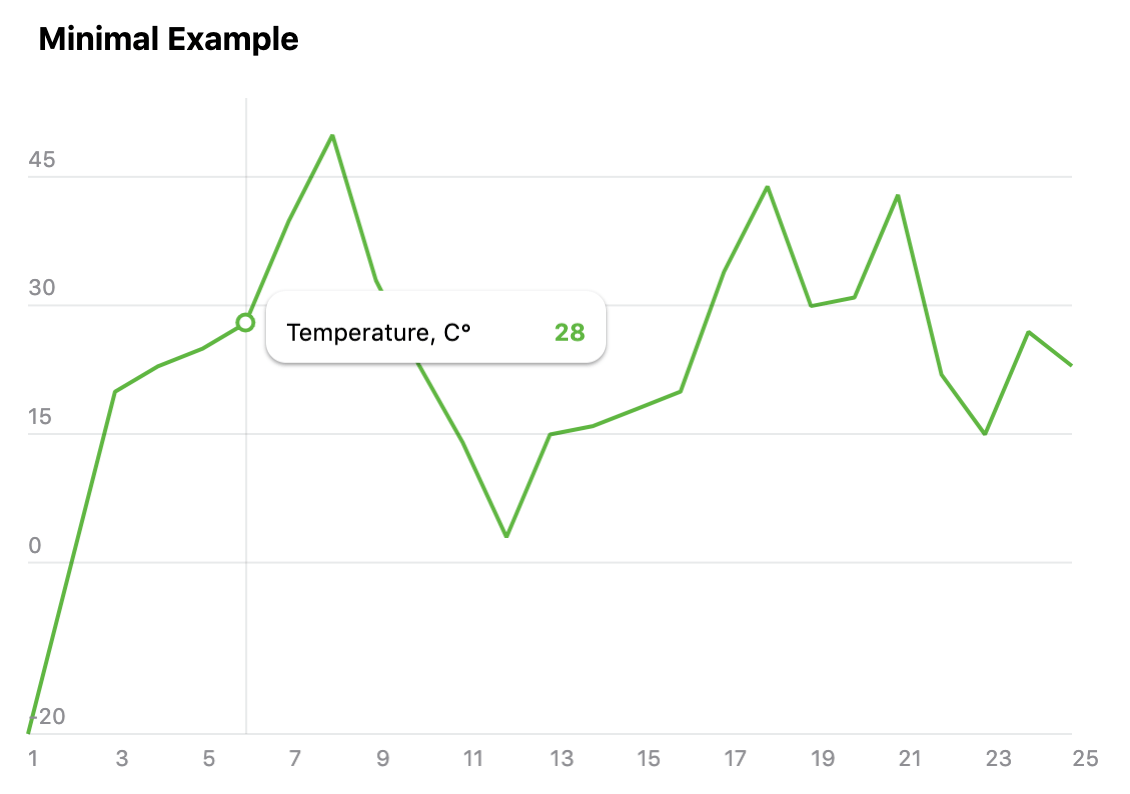
Here's an example how to get a really basic chart like the one on this screenshot below. This demo is also available in the [Playground](https://codepen.io/99ff00/pen/qBWzBpY). For more complex examples please check the [Demo App](https://99ff00.github.io/react-charty/).
```jsx static
import React, { Component } from 'react'
import Charty from 'react-charty'
const MINIMAL_EXAMPLE_DATA = {
type: 'line',
data: {
x: [1, 2, 3, 4, 5, 6, 7, 8, 9, 10, 11, 12, 13, 14, 15, 16, 17, 18, 19, 20, 21, 22, 23, 24, 25],
y0: [-20, 0, 20, 23, 25, 28, 40, 50, 33, 23, 14, 3, 15, 16, 18, 20, 34, 44, 30, 31, 43, 22, 15, 27, 23]
},
colors: {
y0: '#5FB641'
},
names: {
y0: 'Temperature, C°'
},
startX: 1,
endX: 25,
xAxisStep: 2,
showPreview: false,
showRangeText: false,
showLegendTitle: false
};
export default class App extends Component {
render () {
return (
)
}
}
```
## Theming
The chart controls can be customized via `theme` prop. Here's an example of two themes. The `LIGHT_THEME` is hardcoded in the Charty component and used if no theme is provided.
For a theme switching example please check the [Demo App](https://99ff00.github.io/react-charty/). Also, please check [styles.css](./src/styles.css) for even more customization.
```jsx static
const LIGHT_THEME = {
grid: { color: '#182D3B', alpha: 0.1, markerFillColor: '#fff', markerRadius: 0 },
legend: { background: '#fff', color: '#000' },
preview: { maskColor: '#E2EEF9', maskAlpha: 0.6, brushColor: '#C0D1E1', brushBorderColor: '#fff', brushBorderAlpha: 1, handleColor: '#fff' },
xAxis: { textColor: '#8E8E93', textAlpha: 1 },
yAxis: { textColor: '#8E8E93', textAlpha: 1 },
title: { color: '#000' },
localRange: { color: '#000' },
zoomedRange: { color: '#000' },
zoomText: { color: '#108BE3' },
zoomIcon: { fill: '#108BE3' },
buttons: { color: '#fff' },
pie: { textColor: '#fff' }
};
const DARK_THEME = {
grid: { color: '#fff', alpha: 0.1, markerFillColor: '#242f3e' },
legend: { background: '#1c2533', color: '#fff' },
preview: { maskColor: '#304259', maskAlpha: 0.6, brushColor: '#56626D', brushBorderAlpha: 0, handleColor: '#fff' },
xAxis: { textColor: '#A3B1C2', textAlpha: 0.6 },
yAxis: { textColor: '#A3B1C2', textAlpha: 0.6 },
title: { color: '#fff' },
localRange: { color: '#fff' },
zoomedRange: { color: '#fff' },
zoomText: { color: '#108BE3' },
zoomIcon: { fill: '#108BE3' },
buttons: { color: '#fff' },
pie: { textColor: '#fff' },
};
```
## Props
| Name | Type | Description |
|-------------------|-------------|---------------------------------------------------------------------|
|`title` |String |The chart title.|
|`type` |String |The chart type, can be one of the following values: `line`, `bar`, `percentage_area`, `stacked_bar`, `multi_yaxis`, `pie`. The default value is `line`. Feel free to check [Demo App](https://99ff00.github.io/react-charty/) to see them all in action.|
|`data` |Object |Contains the data points for chart series. Every key of this object is an array of data points. The `x` array is mandatory and contains the data for x-axis while other keys represent the data points for y-axis. There could be multiple series in one chart and thus several data arrays for y-axis, for example `y`, `y0`, `y1`, `yAxis` etc. The key name can be any and is used as reference for name, color etc. The key name also defines the rendering order (alphabetically).|
|`names` |Object |Contains the names for data series, referenced by key. For example, `names: { y0: 'Views', y1: 'Clicks' }`.|
|`colors` |Object |Contains the colors for data series, referenced by key. For example, `colors: { y0: '#4BD964', y1: '#FE3C30' }`.|
|`fillColors` |Object |Contains the fill colors for data series (only `line` type is supported for now), referenced by key. A gradient fill is also supported. For example, `fillColors: { "y1": "#FE3C3011", "y0": { "type": "linear_gradient_v", "colors": ["#4BD964", "#4BD964", "#FFFFFF00"] }}`.|
|`buttonTextColor` |Object |Contains the colors for button caption, referenced by key.|
|`theme` |Object |Contains the color theme for chart components. If omitted, the default theme will be used.|
|`animated` |Boolean |Enables/disables animations and transitions, default value is `true`.|
|`startX` |Number |The starting position of preview region. If not specified, the starting position of the preview region will be at 2/3 of `x` axis.|
|`endX` |Number |The ending position of preview region. If not specified, the ending position of the preview region will be at the end of `x` axis.|
|`stepX` |Number |The value to increase/decrease current `x` axis position when dragging or moving the chart preview region. For example, if you have X axis of type `timestamp` and you want to navigate by one day, you can set the `stepX` value to `86400000`. The default value is `1`.|
|`showLegend` |Boolean |If set to `false` the legend will not appear when moving the cursor over the chart (or tapping chart area on mobile). The default value is `true`.|
|`hideFromLegend` |Object |Allows to hide the series from the legend, referenced by key. For example, `hideFromLegend: { y0: true, y1: true }`|
|`disabled` |Object |Switches off series, referenced by key. For example, `disabled: { y0: true }`|
|`showLegendTitle` |Boolean |If set to `false` the legend title will not appear. The default value is `true`.|
|`legendPosition` |String |Defines the position of legend popup and can be one of the following values: `top`, `bottom`, `cursor`. The default value is `cursor`, which means the legend popup will follow the cursor position.|
|`showMainArea` |Boolean |If set to `false` the main chart area won't be visible. The default value is `true`.|
|`showPreview` |Boolean |If set to `false` the chart preview won't be visible. The default value is `true`.|
|`showBrush` |Boolean |If set to `false` the brush controls in preview area won't be visible. The default value is `true`.|
|`showButtons` |Boolean |If set to `false` the series buttons won't be visible. Also, the buttons are hidden if there's only one series of data. The default value is `true`.|
|`showRangeText` |Boolean |Show/hide current range text in top right corner. The default value is `true`.|
|`rangeTextType` |String |Defines the display type of current range. It could be one of the following [DDT](#display-data-types) or can be function that accepts the `x` value of range starting and ending positions.|
|`xAxisType` |String |Defines the type of `x` axis. It could be one of the following [DDT](#display-data-types) or can be function that accepts the `x` value and returns the formatted value.|
|`yAxisType` |String |Defines the type of `y` axis. It could be one of the following [DDT](#display-data-types) or can be function that accepts the `y` value and returns the formatted value.|
|`xAxisStep` |Number |Defines the step for `x` axis. If not specified, the step value will be calculated automatically.|
|`onZoomIn` |Function |This callback is called when some point is clicked on chart. It should accept the clicked `x` position and must return `Promise` loading the next chart data. Originally, this callback was used to zoom in, i.e. display more details chart for selected `x`. But you can also use it to load any supported chart.|
|`zoomInterval` |Number |By default, when zomming, the chart will try to figure out the start and the end of `x` axis. But you can also set the interval to zoom in (for example, if `x` axis is a timestamp and you want to zoom in one week, the interval would be `604800000`) and chart will put the current position in the middle of this interval.|
|`zoomStepX` |Number |Same as `stepX`, but for zooming chart.|
|`autoScale` |Boolean |Automatically finds the min/max `y` values and scales the chart accordingly. If this prop is set to `false`, the min/max values can be set with `minY` and `maxY` props. The default value is `true`.|
|`minY` |Number |Set the minimum value for `y` axis. This property is ignored if `autoScale` is set to `true`.|
|`maxY` |Number |Set the maximum value for `y` axis. This property is ignored if `autoScale` is set to `true`.|
## Display Data Types
Currently the following data types are supported. If no data type is specified the chart assumes it's just an integer value.
| Type | Description |
|-------------------|-----------------------------------------------------------------------------------|
|`number` |Integer value with thousands separator, i.e. `9 189 141`|
|`time` |Display time in format `HH:mm`, i.e. `09:42`|
|`date` |Display date in format `MMM D`, i.e. `Jan 1`|
|`shortDate` |Same like `date`|
|`longDate` |Display date in format `D MMM YYYY`, i.e. `8 Jun 2003`|
|`longDateWeekDay` |Same like `longDate`, but prepended with week day `ddd, D MMM YYYY`, i.e. `Sun, 8 sep 2019`|
|`float1` |Float value with one decimal place, i.e. `45.2`|
|`float2` |Float value with two decimal places, i.e. `45.24`|
## Using as a standalone library
The Charty component can be used as a standalone library without React, for example:
```html static
...
```
 # react-charty [](https://badge.fury.io/js/react-charty) [](https://www.npmjs.org/package/react-charty) 
> [!WARNING]
> **Deprecated:** `react-charty` is no longer maintained. For the new charting
> library, see [Sixtyfold Charts](https://github.com/60fold/charts-js).
This component was born from the [Telegram](https://telegram.org/) programming contest where I took one of the prize places. A big thanks to the Telegram team and all contestants.
Read further to find usage instructions and how to customize this component.
Please check out the [Demo App](https://99ff00.github.io/react-charty/) and [Playground](https://codepen.io/99ff00/pen/qBWzBpY) for example charts and usage!
## Table of contents
- [Install](#install)
- [Features](#features)
- [Browsers support](#browsers-support)
- [Usage](#usage)
- [Theming](#theming)
- [Props](#props)
- [Display Data Types](#display-data-types)
- [Using as a standalone library](#using-as-a-standalone-library)
- [Demo App](https://99ff00.github.io/react-charty/)
- [Playground](https://codepen.io/99ff00/pen/qBWzBpY)
## Install
```bash
yarn add react-charty
```
or
```bash
npm install react-charty --save
```
## Features
- Small footprint (it's just 12KB minified and gzipped)
- The following chart types are supported: Line, Multi Y Axis Line, Stacked Bar, Percentage, and Pie
- Supports thousands of records (thanks to the fast Segment Tree algorithm)
- A wide variety of supported browsers on different platforms (including mobile)
- Theme support
- Fancy animations
- Zoom-in support
- No dependencies, the core is vanilla Javascript
- Can be used as a standalone library without React
- Different chart types can be combined
## Browsers support
|
# react-charty [](https://badge.fury.io/js/react-charty) [](https://www.npmjs.org/package/react-charty) 
> [!WARNING]
> **Deprecated:** `react-charty` is no longer maintained. For the new charting
> library, see [Sixtyfold Charts](https://github.com/60fold/charts-js).
This component was born from the [Telegram](https://telegram.org/) programming contest where I took one of the prize places. A big thanks to the Telegram team and all contestants.
Read further to find usage instructions and how to customize this component.
Please check out the [Demo App](https://99ff00.github.io/react-charty/) and [Playground](https://codepen.io/99ff00/pen/qBWzBpY) for example charts and usage!
## Table of contents
- [Install](#install)
- [Features](#features)
- [Browsers support](#browsers-support)
- [Usage](#usage)
- [Theming](#theming)
- [Props](#props)
- [Display Data Types](#display-data-types)
- [Using as a standalone library](#using-as-a-standalone-library)
- [Demo App](https://99ff00.github.io/react-charty/)
- [Playground](https://codepen.io/99ff00/pen/qBWzBpY)
## Install
```bash
yarn add react-charty
```
or
```bash
npm install react-charty --save
```
## Features
- Small footprint (it's just 12KB minified and gzipped)
- The following chart types are supported: Line, Multi Y Axis Line, Stacked Bar, Percentage, and Pie
- Supports thousands of records (thanks to the fast Segment Tree algorithm)
- A wide variety of supported browsers on different platforms (including mobile)
- Theme support
- Fancy animations
- Zoom-in support
- No dependencies, the core is vanilla Javascript
- Can be used as a standalone library without React
- Different chart types can be combined
## Browsers support
|  IE 11 / Edge |
  Firefox |
  Chrome |
 Safari |
  iOS Safari |
  Samsung |
  Opera |
| --------- | --------- | --------- | --------- | --------- | --------- | --------- |
## Usage
Here's an example how to get a really basic chart like the one on this screenshot below. This demo is also available in the [Playground](https://codepen.io/99ff00/pen/qBWzBpY). For more complex examples please check the [Demo App](https://99ff00.github.io/react-charty/).
Opera |
| --------- | --------- | --------- | --------- | --------- | --------- | --------- |
## Usage
Here's an example how to get a really basic chart like the one on this screenshot below. This demo is also available in the [Playground](https://codepen.io/99ff00/pen/qBWzBpY). For more complex examples please check the [Demo App](https://99ff00.github.io/react-charty/).
 ```jsx static
import React, { Component } from 'react'
import Charty from 'react-charty'
const MINIMAL_EXAMPLE_DATA = {
type: 'line',
data: {
x: [1, 2, 3, 4, 5, 6, 7, 8, 9, 10, 11, 12, 13, 14, 15, 16, 17, 18, 19, 20, 21, 22, 23, 24, 25],
y0: [-20, 0, 20, 23, 25, 28, 40, 50, 33, 23, 14, 3, 15, 16, 18, 20, 34, 44, 30, 31, 43, 22, 15, 27, 23]
},
colors: {
y0: '#5FB641'
},
names: {
y0: 'Temperature, C°'
},
startX: 1,
endX: 25,
xAxisStep: 2,
showPreview: false,
showRangeText: false,
showLegendTitle: false
};
export default class App extends Component {
render () {
return (
```jsx static
import React, { Component } from 'react'
import Charty from 'react-charty'
const MINIMAL_EXAMPLE_DATA = {
type: 'line',
data: {
x: [1, 2, 3, 4, 5, 6, 7, 8, 9, 10, 11, 12, 13, 14, 15, 16, 17, 18, 19, 20, 21, 22, 23, 24, 25],
y0: [-20, 0, 20, 23, 25, 28, 40, 50, 33, 23, 14, 3, 15, 16, 18, 20, 34, 44, 30, 31, 43, 22, 15, 27, 23]
},
colors: {
y0: '#5FB641'
},
names: {
y0: 'Temperature, C°'
},
startX: 1,
endX: 25,
xAxisStep: 2,
showPreview: false,
showRangeText: false,
showLegendTitle: false
};
export default class App extends Component {
render () {
return (