Klein — A TIDE (Terminal Integrated Development Environment)



Overview • Features • Installation • Shortcuts • Configuration • Contributing
--- ## 🌟 Overview **Klein** is a lightweight, terminal-based text editor built in Rust. It provides an IDE-like interface using `ratatui` for the user interface and `portable-pty` for terminal integration, giving developers a keyboard‑centric coding environment directly in the command line. Whether you're editing multiple files, browsing a project directory, or compiling code from the embedded shell, Klein brings essential workflow tools into one efficient console application. 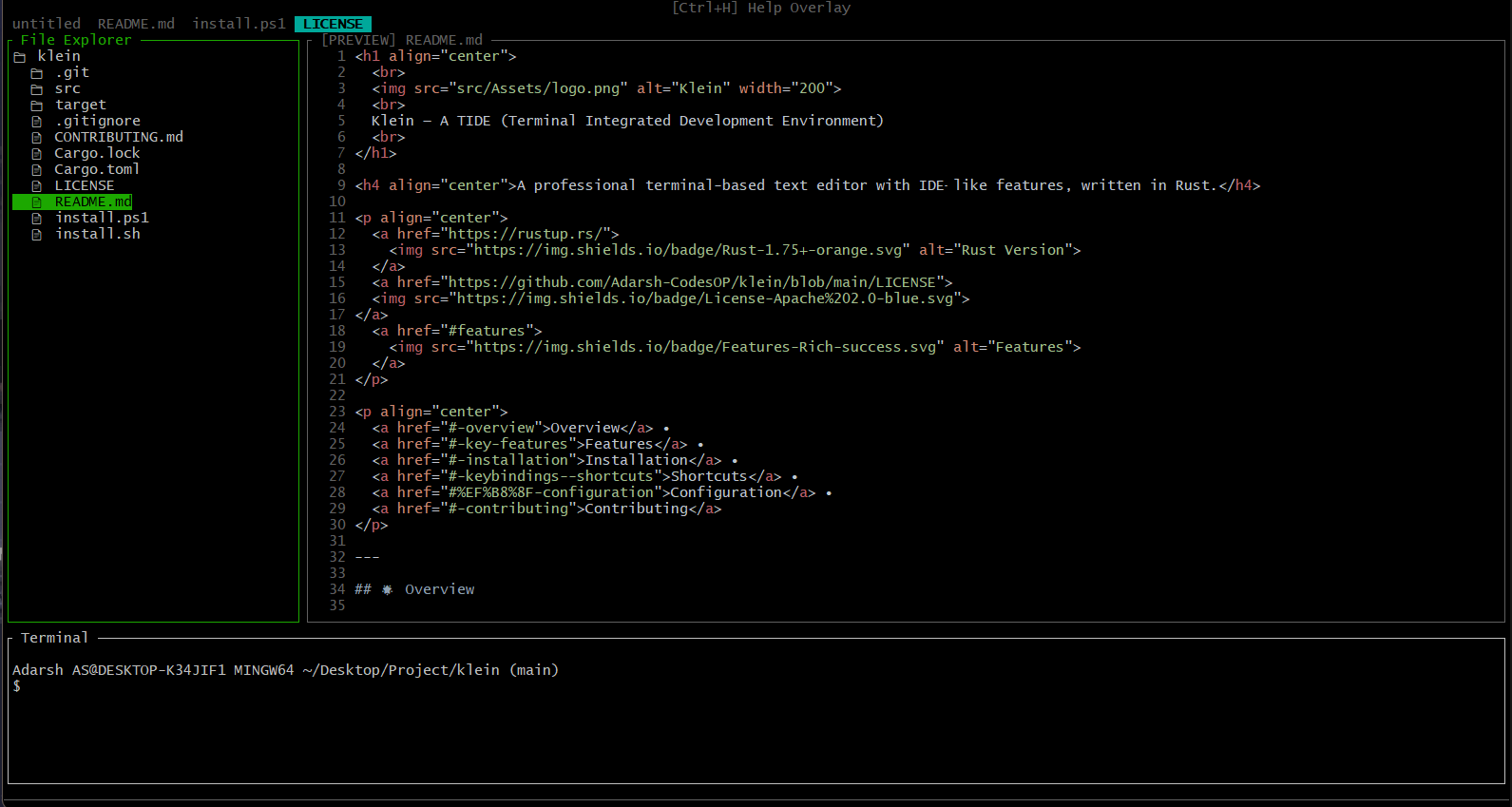 --- ## ✨ Key Features Klein doesn't compromise on functionality or looks. Here is what you get out of the box: - 🗂️ **Multi-Tab Editing:** Seamlessly open and manage multiple files using intuitive tab navigation. - 💻 **Integrated Terminal:** A fully-featured embedded terminal to execute local scripts, manage version control (Git), and run build commands without ever leaving the editor window. - 🌳 **File Explorer Sidebar:** Effortless project navigation with a collapsible, visual directory tree. - 📝 **Rich Text Editing:** - **Syntax Highlighting:** Powered by `syntect` for beautiful and accurate code coloring across various languages. - **Advanced Selection:** Support for multiline selections and bulk text manipulation. - **System Clipboard Integration:** Native copy/paste and selection operations matching standard editor workflows. - 🎨 **Sleek UI & Theming:** Informative status bars, elegant double borders, line numbers, and easily customizable color schemes. --- ## Installation ### Via mise (Linux / macOS / Windows — recommended) If you have [mise](https://mise.jdx.dev) installed, a single command downloads and activates the latest pre-built binary for your platform: ```sh mise use -g github:Adarsh-codesOP/Klein ``` > **Tip:** `mise` auto-detects your OS and architecture, so no platform-specific > flags are needed. Run `mise install github:Adarsh-codesOP/Klein@latest` to > refresh to a newer release. ### Automatic Setup Script A pair of installer scripts configure your workspace, set a preferred shell, download the latest pre-built binary, and present a colourful console interface. **Bash (Linux / macOS / Git Bash / WSL):** ```bash curl -sSL https://raw.githubusercontent.com/Adarsh-codesOP/Klein/main/install.sh | bash ``` *(Non-interactive / CI: append `-- --yes` to skip prompts)* **PowerShell (Windows):** ```powershell irm https://raw.githubusercontent.com/Adarsh-codesOP/Klein/main/install.ps1 | iex ``` *(Non-interactive: `... | iex; .\install.ps1 -Yes` or run the cloned script directly)* **Reconfiguring:** ```bash ./install.sh --reconfigure # Bash .\install.ps1 -Reconfigure # PowerShell ``` ### Manual Build and Install If you prefer to build from source: 1. Clone the repository: ```bash git clone https://github.com/adarsh-codesOP/Klein.git cd Klein ``` 2. Build and install: ```bash cargo install --path . ``` ### CLI Usage Klein supports standard command-line options: ```bash # Show help information klein --help # Show version information klein --version # Start the editor (normal usage) klein ``` --- ## ⌨️ Keybindings & Shortcuts Klein is designed to be fully navigable via keyboard, maximizing your productivity while keeping your hands on the home row. ### Navigation & Focus | Shortcut | Action | | :--- | :--- | | Ctrl + ←/→ | Switch focus cyclically between Sidebar, Editor, and Terminal | | Ctrl + R | Focus Explorer (Sidebar) | | Ctrl + E | Focus Editor | | Ctrl + T | Focus Terminal | | Ctrl + B | Toggle Sidebar Visibility | | Ctrl + \` | Toggle Terminal Visibility | ### Tab Management | Shortcut | Action | | :--- | :--- | | Ctrl + Shift + Z | Navigate to the Next Tab | | Ctrl + Shift + X | Close the Current Tab | ### Editor Actions | Shortcut | Action | | :--- | :--- | | Ctrl + S | Save Current File | | Ctrl + A | Select All text in the active buffer | | Ctrl + C | Copy the current selection | | Ctrl + V | Paste from system clipboard | | Ctrl + Shift + ↑/↓| Expand Multiline Selection | | Enter | Expand Folder (Sidebar) / Insert New Line (Editor) | ### System Commands | Shortcut | Action | | :--- | :--- | | Ctrl + H | Toggle display of the Help Command Overlay | | Ctrl + Q | Quit the Application (safeguarded against unsaved changes) | > 💡 **Tip:** Don't remember a shortcut? Just press Ctrl + H inside Klein to summon the handy help menu! --- ## ⚙️ Configuration Make Klein truly yours. Core configurations, including default shell paths, UI colors, and text banners, can be easily modified. Navigate to `src/config.rs` to adjust the TIDE's environment: ```rust // Example: Altering default focus colors in src/config.rs pub mod colors { use ratatui::style::Color; pub const EXPLORER_FOCUS: Color = Color::Green; pub const EDITOR_FOCUS: Color = Color::Yellow; pub const TERMINAL_FOCUS: Color = Color::Cyan; // ... } ``` *Note: Any changes made to `src/config.rs` require a recompilation `cargo run` to take effect.* --- ## 🤝 Contributing We welcome contributions of all shapes and sizes! Whether you are squashing a bug, adding a new feature, or simply fixing a typo, your help is greatly appreciated. Please read our [Contributing Guidelines](CONTRIBUTING.md) to understand the workflow for submitting pull requests, setting up the development environment, and reporting issues. Let's build a better terminal text editor together! --- ## 📜 License Klein TIDE is open‑sourced software licensed under the [Apache 2.0](LICENSE).