---
keywords:
- Adobe Express
- Add-on SDK
- MCP Server
- MCP (Model Context Protocol)
- Development Tools
- JavaScript
- TypeScript
- API References
- LLM tools
- AI-assisted coding
- AI-assisted debugging
- Vibe Coding
- Code Generation
- TypeScript Definitions
- IDE
title: Adobe Express Developer MCP Server
description: Learn how to set up and use the Adobe Express Developer MCP Server for enhanced development workflow in compatible editors like Cursor.
contributors:
- https://github.com/hollyschinsky
- https://github.com/undavide
---
# Adobe Express Developer MCP Server
Get Adobe Express Add-ons documentation and TypeScript definitions directly in your AI-assisted IDE through the Model Context Protocol (MCP). Build faster with grounded answers and accurate code suggestions.
## TL;DR - Quick Setup
If you are already familiar with the concepts of Model Context Protocol (MCP) and are looking for quick steps to configure, add the following json to your MCP-compatible IDE and restart. For more details, tips & tricks, and examples, continue to read the next sections.
```json
{
"mcpServers": {
"adobe-express-developer": {
"command": "npx",
"args": ["@adobe/express-developer-mcp@latest", "--yes"]
}
}
}
```
**New Stable MCP Server**
The Adobe Express Add-on MCP Server (Beta) has been replaced by the **Adobe Express Developer MCP Server**, which is now officially supported and production ready.
It ships under a new npm package (`@adobe/express-developer-mcp`) and supersedes the beta version (`@adobe/express-add-on-dev-mcp`) now deprecated, in all MCP configurations.
**Configuration file locations:**
- **Cursor**: `~/.cursor/mcp.json`
- **Claude Desktop**: `claude_desktop_config.json`
- **VS Code**: `~/.vscode/mcp.json`
**Requirements:** Node.js 18+ and an MCP-compatible IDE with LLM integration.
💬 **Feedback requested:**
We're actively collecting input to improve accuracy and coverage. Have feedback? Please join our [Adobe Express Add-on Developers Discord](https://discord.com/invite/nc3QDyFeb4) for real-time chat with the team and community and share your thoughts! <br/>
## What it does
> "_Think of MCP like a USB-C port for AI applications. Just as USB-C provides a standardized way to connect your devices to various peripherals and accessories, MCP provides a standardized way to connect AI models to different data sources and tools."_ — [Model Context Protocol](https://modelcontextprotocol.io/docs/getting-started/intro) <br/>
The **Adobe Express Developer MCP Server** acts as a bridge between your LLM (AI assistant) and Adobe Express add-on developer resources. It requires an MCP-compatible IDE with an LLM of your choice to provide accurate, context-aware answers for coding, debugging, and building full-fledged add-ons, quickly.
The MCP Server communicates directly with your LLM to enhance its responses by connecting your IDE to the Adobe Express Add-on ecosystem, providing capabilities to ask questions and generate code with:
- **Semantic Documentation Search**: Find relevant guides, examples, and tutorials without leaving your editor
- **TypeScript Definitions**: Get accurate code completions and reduce AI hallucinations with official SDK types
- **Structured Access**: Your LLM gets grounded information from the latest Adobe Express Add-on documentation
## Prerequisites
- **Node.js 18+** (check with `node --version`) - Required to run the [Adobe Express Developer MCP Server package](https://www.npmjs.com/package/@adobe/express-developer-mcp) via `npx`
- **MCP-compatible IDE** - Such as Cursor, Claude Desktop, VS Code or other editors supporting the Model Context Protocol
## Quick Setup (No Installation Required)
No need to clone, install or build. Just configure your IDE with a simple json file.
### Step 1: Configure your IDE
#### For Cursor Users
Add this to `~/.cursor/mcp.json`:
```json
{
"mcpServers": {
"adobe-express-developer": {
"command": "npx",
"args": [
"@adobe/express-developer-mcp@latest",
"--yes"
]
}
}
}
```
#### For Claude Desktop Users
Add this to `claude_desktop_config.json`:
```json
{
"mcpServers": {
"adobe-express-developer": {
"command": "npx",
"args": [
"@adobe/express-developer-mcp@latest",
"--yes"
]
}
}
}
```
#### For VS Code Users
Add this to your workspace in `~/.vscode/mcp.json`:
```json
{
"servers": {
"adobe-express-developer": {
"command": "npx",
"args": [
"@adobe/express-developer-mcp@latest",
"--yes"
]
}
}
}
```
### Step 2: Verify the Connection
#### Check Connection Status
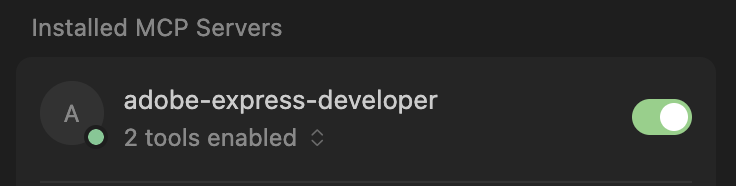
Many IDEs show a green indicator when the MCP server connects successfully, for example in Cursor:
#### Verify with Tool calls
The LLM will automatically invoke tools based on your prompts. Here is an example of Cursor making calls to the Adobe Express Developer MCP Server tools to retrieve the developer documentation and type definitions based on the query. The expanded tool calls reveal the results of either the documentation source that matched the query, or the typescript definitions for the specific API in the parameters.
<div style="display:flex;gap:100px;" > 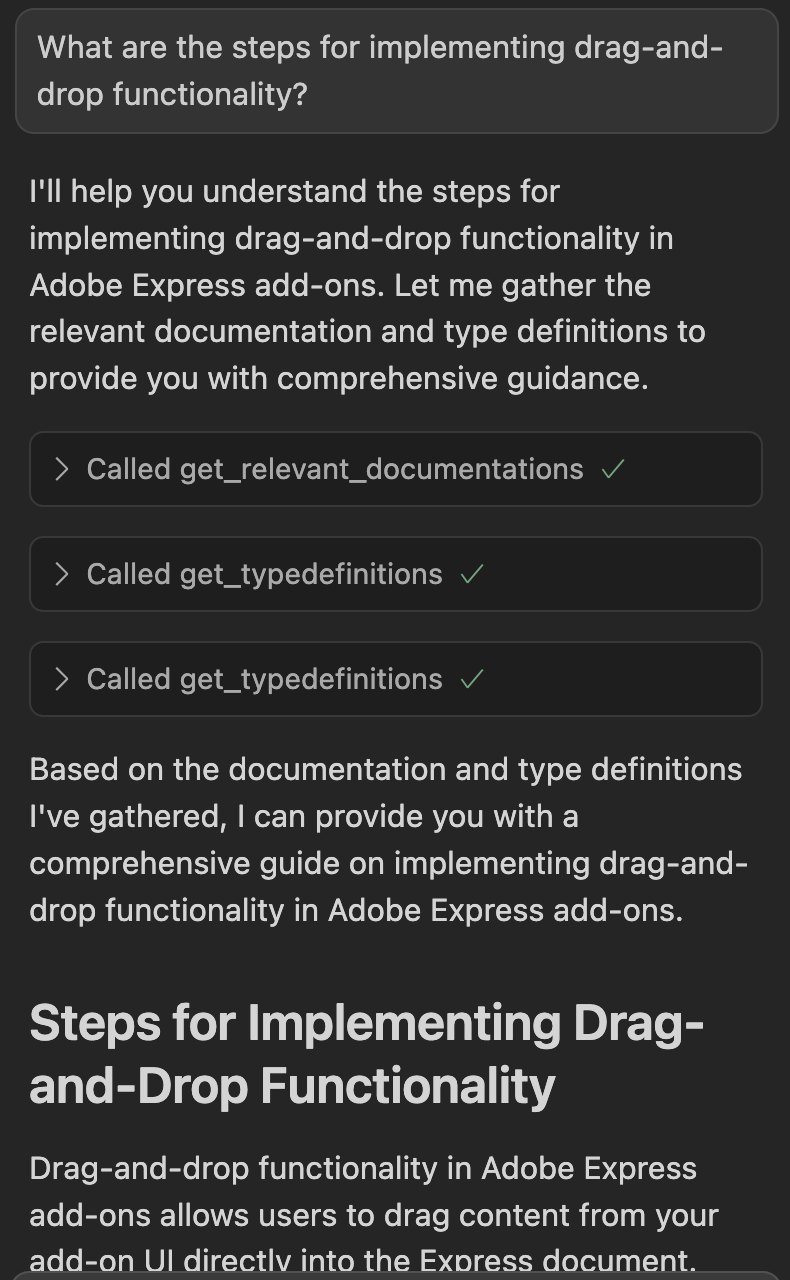 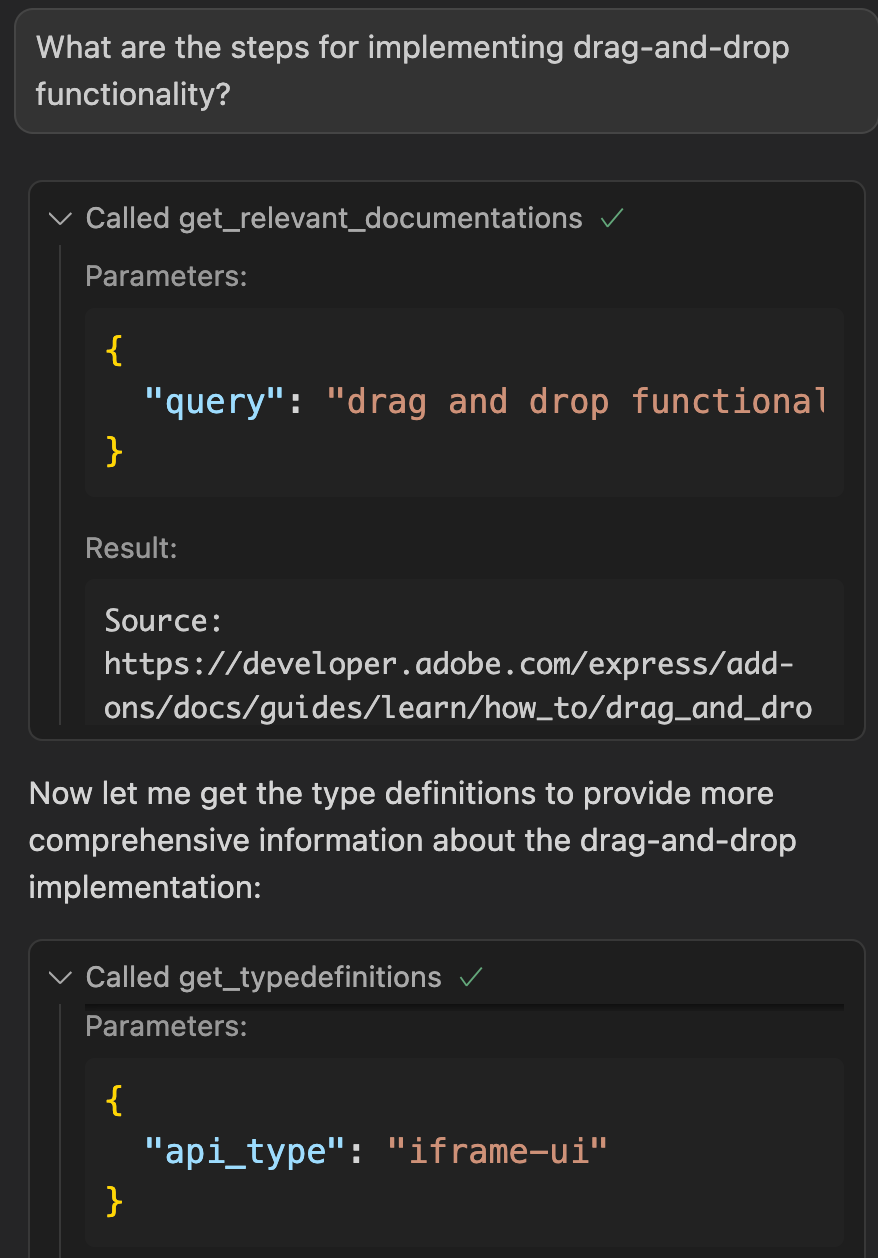 </div >
**Tips**
- Ask the LLM to "_list MCP tools_".
- If you have multiple MCP servers, say: "_Use the MCP server named Adobe Express Developer_".
## How to use it
### Usage Examples
The **Adobe Express Developer MCP Server** excels at both helping with answering questions and generating code for Adobe Express add-ons. Here are some examples of effective prompts:
#### Documentation & Learning
- "_How do I create and style text in Adobe Express_?"
- "_What are the steps for implementing drag-and-drop functionality_?"
- "_How does the Document API work for manipulating elements_?"
- "_Show me examples of using the color picker component_?"
#### Code Generation & Implementation
- "_Implement a color picker in my add-on_"
- "_Generate code to create a text element with custom styling_"
- "_Build a drag-and-drop interface for uploading images_"
- "_Create a button that adds a rectangle to the canvas_"
- "_Write TypeScript code to handle user text input and apply it to the document_"
- "_Implement an image import feature with file validation_"
- "_Show me a sample code snippet for using a modal dialog_"
#### Debugging & Troubleshooting
- "_Why isn't my add-on loading in Adobe Express?_"
- "_Why isn't my text element appearing on the canvas?_"
- "_Debug this error when trying to add an image to the document (error message: ...)_"
- "_How do I debug an issue in my `code.js` file?_"
## Best Practices for Effective Use
**🎯 Quick Tips**
**Ask for official documentation:** Works better when you specifically ask to "Retrieve the official documentation" to ensure the MCP server is used.
**Describe your tech stack clearly:** Include specifics like "React, Spectrum Web Components with Express theme, Modal Dialog for the popup" for more accurate responses.
**Mention your setup approach:** Works best when you call out setup instructions—indicate whether to build and run using the CLI or if you have a project that the LLM should analyze first. Starting with a project scaffolded by the Adobe Add-on CLI based on your preferred tech stack can greatly reduce setup and dependency issues.
### 1. Set Context for the Entire Conversation
- **Start your session** by describing your technical setup and visual requirements. This gives the LLM context for the entire conversation and ensures all subsequent responses are tailored to your specific tech stack.
**Example of a well-structured prompt:**
> "_I'm building an Adobe Express add-on using JavaScript/TypeScript and React with a UI based on Spectrum Web Components using the Express theme. My user interface needs a text field, a button, a modal dialog and a color picker. Please generate the code and show me how to set it up using the Adobe Add-on CLI._"
**Key elements to include:**
- **Programming languages**: JavaScript, TypeScript
- **Framework**: React
- **UI components**: Spectrum Web Components with Express theme using [swc-react](https://opensource.adobe.com/spectrum-web-components/using-swc-react/)
- **Specific components needed**: Modal dialog, color picker, buttons, etc.
- **Build tools**: Adobe Add-on CLI for setup and development
### 2. Craft Effective Prompts
- **Be Specific**: "_Add a stroke to a rectangle_" vs "_Style shapes_"
- **Include Context**: "_I'm building a text editor add-on_" helps narrow results
- **Use Technical Terms**: "_text styling_" vs "_make it look good_"
- **Ask for Examples**: "_Show me code examples for text manipulation_"
- **Request Code Generation**: "_Generate TypeScript code to..._" or "_Implement a feature that..._"
### 3. Manage Your Sessions
- **Keep Sessions Focused**: Start new conversations for different features or topics
- **Be Explicit**: Tell the agent "_For Adobe Express Add-ons questions, prefer the Adobe Express Developer MCP tools and cite sources._"
- **Provide Context**: Mention what you're building and your current progress
- **Iterate Gradually**: Build features step-by-step rather than asking for complete applications
- **Avoid Getting Stuck in Debugging Loops**:
- If the LLM keeps suggesting fixes that don't work, start fresh with a new conversation
- Save your working code frequently using version control branches
- When debugging fails repeatedly, try a different approach or even switch to a different LLM model
- It's often faster to restart with a clear problem description than to keep correcting a confused AI assistant
### 4. Using LLM Rules
Custom rules can help guide your LLM's responses, but they require careful design and testing to ensure they work as intended.
**Best Practices:**
- Test your rules thoroughly before relying on them
- Focus on positive guidance rather than restrictions
- Be specific about what you want, not just what you want to avoid
- Avoid overly restrictive rules:
- Rules that focus on "never do X" or "cannot do Y" can backfire
- LLMs may over-prioritize avoiding the restriction and neglect coding fundamentals
- Instead of "_Never use inline styles_," try "_Prefer CSS classes and external stylesheets for maintainability_"
#### 4.1 Example Rules for Cursor
Here are some example rules that have proven helpful for Adobe Express add-on development in Cursor. Feel free to adapt them for your own use:
```text
- Use adobe-express-developer MCP server for questions about Express Add-ons, Express API, CLI, and SDK before web search.
- Add-ons are bundled and served in the browser as an iFrame.
- Both the Add-on UI and "Express document sandbox" are isolated and must communicate through a proxy layer.
- The term "document" most often refers to terminology related to Express Add-ons since the regular browser DOM isn't available in the sandboxed environment.
```
### 5. Pro UI Tips
Consider using the following tips in your prompts/rules for LLM guidance when using [Spectrum Web Components (SWC)](https://opensource.adobe.com/spectrum-web-components/index.html) or the [swc-react](https://opensource.adobe.com/spectrum-web-components/using-swc-react/) wrappers library for React-based add-ons. These tips help your LLM generate UI code for add-ons.
#### Using **[Spectrum Web Components](https://opensource.adobe.com/spectrum-web-components/index.html)** (add-ons NOT using React)
**🤖 LLM Guidance:**
- **CRITICAL:** All `@spectrum-web-components/*` packages MUST use identical versions
- **REQUIRED theme imports:**
`import '@spectrum-web-components/theme/express/theme-light.js';`
`import '@spectrum-web-components/theme/express/scale-medium.js';`
`import '@spectrum-web-components/theme/sp-theme.js';`
- Wrap app with: `<sp-theme system="express" scale="medium" color="light">`
- **ALWAYS** check `package.json` for version consistency across **ALL** `@spectrum-web-components/*` packages
- **Use Related References:**
- [Spectrum Web Components Documentation](https://opensource.adobe.com/spectrum-web-components/index.html)
- [Using Spectrum Web Components in a basic JavaScript add-on](https://developer.adobe.com/express/add-ons/docs/guides/learn/how-to/tutorials/spectrum-workshop/part1)
- [Adobe Express Add-on UI Implementation Guide](https://developer.adobe.com/express/add-ons/docs/guides/build/design/implementation_guide/)
#### Using [swc-react: React Wrappers for SWC](https://opensource.adobe.com/spectrum-web-components/using-swc-react/) (only for add-ons using React)
**🤖 LLM Guidance:**
- **MANDATORY:** Use `@swc-react/*` components (NOT React Spectrum)
- **CRITICAL:** All `@swc-react/*` packages MUST use identical versions
- **REQUIRED theme setup:**
`import '@spectrum-web-components/theme/express/theme-light.js';`
`import '@spectrum-web-components/theme/express/scale-medium.js';`
`import { Theme } from '@swc-react/theme';`
- Wrap app with: ``
- **ALWAYS** check `package.json` for version consistency across **ALL** `@swc-react/*` packages
- **Use Related References:**
- [Using swc-react](https://opensource.adobe.com/spectrum-web-components/using-swc-react/)
- [Using Spectrum Web Components in a React-based add-on with swc-react](https://developer.adobe.com/express/add-ons/docs/guides/learn/how-to/tutorials/spectrum-workshop/part2)
- [Adobe Express Add-on UI Implementation Guide](https://developer.adobe.com/express/add-ons/docs/guides/build/design/implementation_guide/)
- [React Synthetic Events Issue](https://github.com/facebook/react/issues/19846)
## Troubleshooting
**Server Won't Start**
- ✅ Check Node.js version: `node --version` (needs 18+)
- ✅ Verify MCP config JSON syntax and file location
- ✅ Ensure firewall allows `npx` downloads
- ✅ Restart your IDE after configuration changes
- ✅ Check for MCP server status indicators
**No Documentation Results**
- ✅ Use specific technical terms ("text styling" vs "make it pretty")
- ✅ Try adding "Adobe Express Add-ons" for an additional context cue
- ✅ Try broader queries first, then narrow down
- ✅ Ask the agent to "use available tools" explicitly
- ✅ Include context about what you're building
**Poor Code Generation**
- ✅ Be specific about what you want to implement
- ✅ Mention the programming language and frameworks (TypeScript/JavaScript, React)
- ✅ Provide context about your add-on's purpose
- ✅ Ask for complete, working examples
**Missing Type Definitions**
- ✅ Specify the correct API surface (`iframe-ui`, `express-document-sdk`, `add-on-sdk-document-sandbox`)
- ✅ Ask for specific types rather than general requests
## Resources & Support
- **Documentation**: [Adobe Express Add-on Guides](https://developer.adobe.com/express/add-ons/docs/guides/)
- **Add-on Samples**: [Samples Repository](https://github.com/AdobeDocs/express-add-on-samples)
- **Updates**: [Changelog](https://developer.adobe.com/express/add-ons/docs/guides/getting-started/changelog/)
- **Community**: [Adobe Express Add-on Developers Discord](https://discord.com/invite/nc3QDyFeb4)
- **Forum**: [Adobe Express Developers Community](https://community.adobe.com/t5/adobe-express-developers/ct-p/ct-adobe-express-developers?page=1&sort=latest_replies&lang=all&tabid=all)
## FAQs
#### Q: What is an LLM and why do I need one?
**A:** LLM stands for "Large Language Model"—these are AI assistants like ChatGPT, Claude, or Copilot that can understand and generate human-like text and code. In the context of the MCP Server, the LLM is your AI coding assistant that reads your questions, searches Adobe Express documentation (via the MCP Server), and provides intelligent responses with accurate code examples. Think of it as having an expert Adobe Express developer as your pair programming partner who has instant access to all the documentation and can write code for you.
#### Q: Does the Adobe Express Developer MCP Server help with generating code?
**A:** Yes—it enhances your LLM's ability to generate accurate Adobe Express add-on code by providing relevant documentation and TypeScript definitions. Your IDE/LLM handles the actual code generation with improved context.
#### Q: Which IDEs work?
**A:** Any IDE supporting MCP: Cursor, Claude Desktop, VS Code and others.
#### Q: Who should use this?
**A:** Adobe Express add-on developers who want faster, more accurate development workflows.
#### Q: Is it free?
**A:** Yes.
#### Q: Do I need to install anything locally?
**A:** No! The MCP Server runs via `npx` which downloads and runs the latest version automatically. You only need Node.js 18+ and an MCP-compatible IDE.
#### Q: How do I know if the MCP Server is working?
**A:** Look for a green indicator in your IDE (like Cursor) showing the server is connected. When you ask questions, you'll see tool calls being made to retrieve documentation and TypeScript definitions.
#### Q: Can I use this with existing add-on projects?
**A:** Absolutely! The MCP Server works with any Adobe Express add-on project, whether you're starting from scratch or working on an existing codebase. It's especially helpful for understanding and extending existing code.
#### Q: What's the difference between this and regular web search?
**A:** The MCP Server provides curated, up-to-date Adobe Express add-on documentation and official TypeScript definitions directly to your LLM. This eliminates outdated information and reduces AI hallucinations compared to general web search results.
#### Q: Where else can I get additional help with MCP Server connection issues?
**A:** You can check out the [Model Context Protocol Debugging](https://modelcontextprotocol.io/legacy/tools/debugging) for more general MCP Server connection debugging information, or message us on our [Adobe Express Add-on Developers Discord](https://discord.com/invite/nc3QDyFeb4).