# Termux SSH Setup Guide
By connecting to Termux via SSH from your computer, you can type all commands using your computer keyboard.
## Prerequisites
- Both phone and computer must be on the **same Wi-Fi network**
## Step 1: Install openssh
Open the Termux app on your phone and type:
```bash
pkg install -y openssh
```
Wait for the installation to complete (1-2 minutes).
## Step 2: Set Password
```bash
passwd
```
Enter a password (e.g., `1234`):
```
New password: 1234 ← type
Retype new password: 1234 ← type the same password again
```
> It's normal that nothing shows on screen while typing the password. Just type it and press Enter.
## Step 3: Start SSH Server
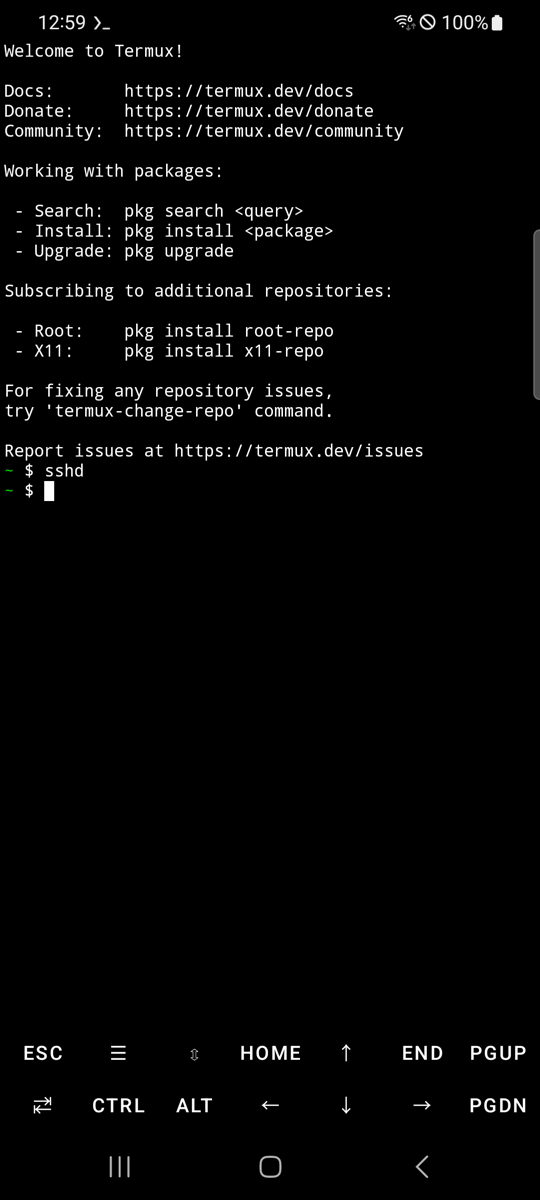
> **Important**: Run `sshd` directly in the Termux app on your phone, not via SSH.
```bash
sshd
```
If the prompt (`$`) returns with no error message, it's working.
 ## Step 4: Find the Phone's IP Address
```bash
ifconfig
```
Look for the `wlan0` section:
```
wlan0: flags=4163 mtu 1500
inet 192.168.45.139 netmask 255.255.255.0
```
The number after `inet` is your phone's IP address (in this example, `192.168.45.139`).
## Step 5: Connect via SSH from Computer
Open a terminal on your computer (Mac: Terminal, Windows: PowerShell or Command Prompt) and type. Replace the IP address with the one you found in Step 4:
```bash
ssh -p 8022 192.168.45.139
```
- `Are you sure you want to continue connecting?` → type `yes`
- `Password:` → enter the password you set in Step 2 (e.g., `1234`)
Once connected, you'll see the Termux `$` prompt. From now on, you can type all Termux commands using your computer keyboard.
## Notes
- Termux uses SSH port **8022** (not the standard Linux port 22)
- If you close the Termux app, the SSH server stops. To reconnect, open Termux on the phone and run `sshd`
## Step 4: Find the Phone's IP Address
```bash
ifconfig
```
Look for the `wlan0` section:
```
wlan0: flags=4163 mtu 1500
inet 192.168.45.139 netmask 255.255.255.0
```
The number after `inet` is your phone's IP address (in this example, `192.168.45.139`).
## Step 5: Connect via SSH from Computer
Open a terminal on your computer (Mac: Terminal, Windows: PowerShell or Command Prompt) and type. Replace the IP address with the one you found in Step 4:
```bash
ssh -p 8022 192.168.45.139
```
- `Are you sure you want to continue connecting?` → type `yes`
- `Password:` → enter the password you set in Step 2 (e.g., `1234`)
Once connected, you'll see the Termux `$` prompt. From now on, you can type all Termux commands using your computer keyboard.
## Notes
- Termux uses SSH port **8022** (not the standard Linux port 22)
- If you close the Termux app, the SSH server stops. To reconnect, open Termux on the phone and run `sshd`