# FusionAI

AI assistance for Embarcadero RAD Studio 10.x and 11.x, directly inside the IDE.




> FusionAI is the current evolution of the original `ChatGPTWizard` project.
## What It Is
FusionAI is a Delphi plug-in for RAD Studio that brings AI-assisted workflows into the IDE:
- Ask free-form questions in a chat window
- Run inline questions directly from the editor
- Use predefined right-click actions such as explain, optimize, add comments, add tests, and find bugs
- Work with class/type-based prompts from a dedicated Class View
- Compare answers across multiple AI providers
- Keep a searchable local history database
- Use local file logging for diagnostics when needed
The project is intended for RAD Studio versions that do not have the newer built-in AI workflow as the primary path.
## Supported IDE Versions
This repository currently targets:
- RAD Studio 10.x
- 10.1 Berlin
- 10.2 Tokyo
- 10.3 Rio
- 10.4 Sydney
- RAD Studio 11.x
- 11 Alexandria
This repository is **not** the main target for RAD Studio 12.2+.
For older IDEs, use the separate branch/repository:
- [ChatGPTWizard-XE2-to-XE8](https://github.com/AliDehbansiahkarbon/ChatGPTWizard-XE2-to-XE8)
## Supported AI Providers
FusionAI currently supports:
- OpenAI ChatGPT
- Google Gemini
- Anthropic Claude
- Ollama
### Notes
- ChatGPT, Gemini, and Claude require valid API credentials.
- Ollama can be used locally without a cloud API key.
- You can choose a default AI service in the settings.
- Available models can be refreshed and cached per provider.
## Main Features
- Unified FusionAI chat window
- Dockable assistant UI when the IDE version supports it
- Inline editor prompts with the `cpt: ... :cpt` format
- Right-click editor actions for selected code
- Class View with prompt actions and code conversion helpers
- Provider-aware answer tabs
- Provider-aware SQLite history
- History filtering by provider and model
- Proxy configuration
- File-based diagnostic logging
- Configurable timeouts and provider-specific parameters
## Installation
### Option 1: Delphinus
Install through [Delphinus](https://github.com/Memnarch/Delphinus).
### Option 2: Direct package install
1. Open [FusionAI.dproj](./FusionAI.dproj) in RAD Studio.
2. Build the package.
3. Install the generated package from the IDE.
## Quick Start
1. Open `FusionAI Settings`.
2. Go to `AI Services`.
3. Enable at least one provider.
4. Fill in the provider settings:
- Base URL
- Access key if required
- Default model
- Optional provider-specific parameters
5. Save and reopen the assistant if needed.
## How To Use
### Chat Window
Open `FusionAI` from the IDE menu and ask a normal question.
Use this for:
- code explanation
- refactoring ideas
- architecture questions
- debugging help
- ad hoc snippets
### Inline Questions
There are two main inline workflows:
1. Use direct inline prompt markers:
```delphi
cpt: Explain what this method does. :cpt
```
Then run the `Ask` action from the editor popup menu or use its shortcut.
2. Select code and use a predefined action from the popup menu:
- Ask
- Add Test
- Find Bugs
- Optimize
- Add Comments
- Complete Code
- Explain Code
- Refactor Code
- Convert to Assembly
The response is inserted back into the editor as a multiline comment after the selected code.
### Context Menu
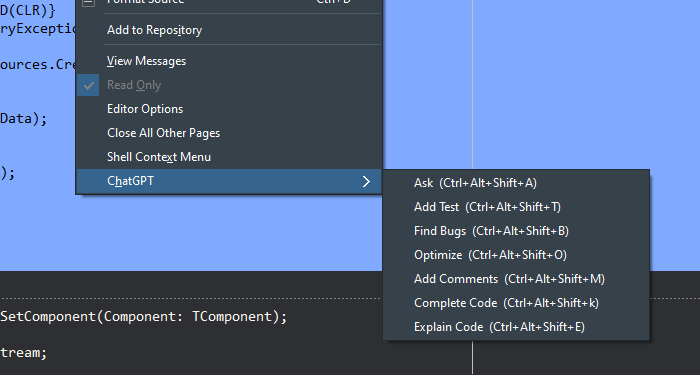
For selected text or a code block, FusionAI can insert the result after the selection as a multiline Delphi comment block.
Available actions include:
- Ask
- Add Test
- Find Bugs
- Optimize
- Add Comments
- Complete Code
- Explain Code
- Refactor Code
- Convert to Assembly

### Selected Code Without Inline Markers
If you select code and trigger the first `Ask` action without the `cpt: ... :cpt` format, FusionAI opens the chat window and prepares a draft question for you.
### Class View
The Class View tab lets you work with types parsed from the current Delphi unit.
Typical uses:
- explain a type
- optimize a type
- add tests for a type
- run custom prompts against the selected type
- convert a type to another language
The parser has been improved to better tolerate newer Delphi syntax, but Class View is still best treated as a practical helper rather than a full compiler-grade parser.

## Provider Configuration
Each provider has its own configuration tab under `AI Services`.
Depending on the provider, you can configure:
- enable/disable state
- base URL
- access key
- model
- timeout
- max tokens
- temperature
- top-p
- top-k
- API version fields when required by the provider
### ChatGPT
- Uses the OpenAI Chat Completions API
- Works with current GPT-4 and GPT-5 style models
### Gemini
- Uses the Google Generative Language API
### Claude
- Uses the Anthropic API
### Ollama
- Uses a local or remote Ollama endpoint
- Suitable for offline or private workflows
### Settings UI
Provider settings are managed from the `AI Services` page.

 ## Ollama Setup
1. Install Ollama from [ollama.com](https://ollama.com).
2. Make sure the server is running.
3. Pull at least one model, for example:
```bash
ollama run llama3.2
```
4. In FusionAI settings, enable `Ollama`.
5. Set the base URL, usually:
```text
http://localhost:11434
```
6. Choose or enter the model name.
Legacy setup screenshot:

## History
FusionAI can store requests and responses in a local SQLite database.
History includes provider-aware metadata such as:
- provider
- model
- status
- timestamps
- duration
You can filter the history by provider and model, and use text or fuzzy search to find older conversations.


### Search In History
History supports text and fuzzy filtering with extra search options.


## Logging
FusionAI supports optional file-based logging for troubleshooting.
When enabled, logs can include:
- request URL
- request JSON
- response JSON
- provider status transitions
- timeout and inline-flow diagnostics
API keys are not written to the log file.
## Notes And Limitations
- Some providers are paid services or have usage limits.
- Generated content is sent directly to the configured AI provider.
- You are responsible for reviewing generated code and text before using it.
- Class View parsing is best-effort and may not perfectly represent every source shape.
- Very large prompts or very large type bodies may still hit provider-side token limits.
## Troubleshooting
### SSL / HTTP issues
If HTTPS requests fail inside the IDE, make sure the required SSL libraries are available in the environment used by `bds.exe`.
### Empty or invalid provider results
Check:
- provider is enabled
- base URL is correct
- access key is valid
- model is available for that provider
- timeout is high enough for the selected model
### Class View issues
If Class View looks stale after switching units or reopening the assistant:
- switch away from `Class View` and back again
- reopen the assistant window
- verify the current unit is the one you expect
## Demo Videos
## Ollama Setup
1. Install Ollama from [ollama.com](https://ollama.com).
2. Make sure the server is running.
3. Pull at least one model, for example:
```bash
ollama run llama3.2
```
4. In FusionAI settings, enable `Ollama`.
5. Set the base URL, usually:
```text
http://localhost:11434
```
6. Choose or enter the model name.
Legacy setup screenshot:

## History
FusionAI can store requests and responses in a local SQLite database.
History includes provider-aware metadata such as:
- provider
- model
- status
- timestamps
- duration
You can filter the history by provider and model, and use text or fuzzy search to find older conversations.


### Search In History
History supports text and fuzzy filtering with extra search options.


## Logging
FusionAI supports optional file-based logging for troubleshooting.
When enabled, logs can include:
- request URL
- request JSON
- response JSON
- provider status transitions
- timeout and inline-flow diagnostics
API keys are not written to the log file.
## Notes And Limitations
- Some providers are paid services or have usage limits.
- Generated content is sent directly to the configured AI provider.
- You are responsible for reviewing generated code and text before using it.
- Class View parsing is best-effort and may not perfectly represent every source shape.
- Very large prompts or very large type bodies may still hit provider-side token limits.
## Troubleshooting
### SSL / HTTP issues
If HTTPS requests fail inside the IDE, make sure the required SSL libraries are available in the environment used by `bds.exe`.
### Empty or invalid provider results
Check:
- provider is enabled
- base URL is correct
- access key is valid
- model is available for that provider
- timeout is high enough for the selected model
### Class View issues
If Class View looks stale after switching units or reopening the assistant:
- switch away from `Class View` and back again
- reopen the assistant window
- verify the current unit is the one you expect
## Demo Videos
Short 1 (all features)

Short 2 (multi-provider demo)
Long demo

## Legacy Name
This repository still uses the historical GitHub repository name `ChatGPTWizard`, but the current plug-in and package name is **FusionAI**.
## Contributing
Issues, pull requests, and discussions are welcome.
Please include:
- RAD Studio version
- provider name
- active model
- exact steps to reproduce
- log output if file logging is enabled
## License
MIT. See [LICENSE](./LICENSE).
## Support
If you find the project useful, starring the repository helps a lot.

Made with :heart: on Delphi

