# Google Search Console MCP Server for SEOs
A Model Context Protocol (MCP) server that connects [Google Search Console](https://search.google.com/search-console/about) (GSC) to AI assistants, allowing you to analyze your SEO data through natural language conversations. Works with **Claude Desktop**, **Cursor**, **Codex CLI**, **Gemini CLI**, **Antigravity**, and any other MCP-compatible client.
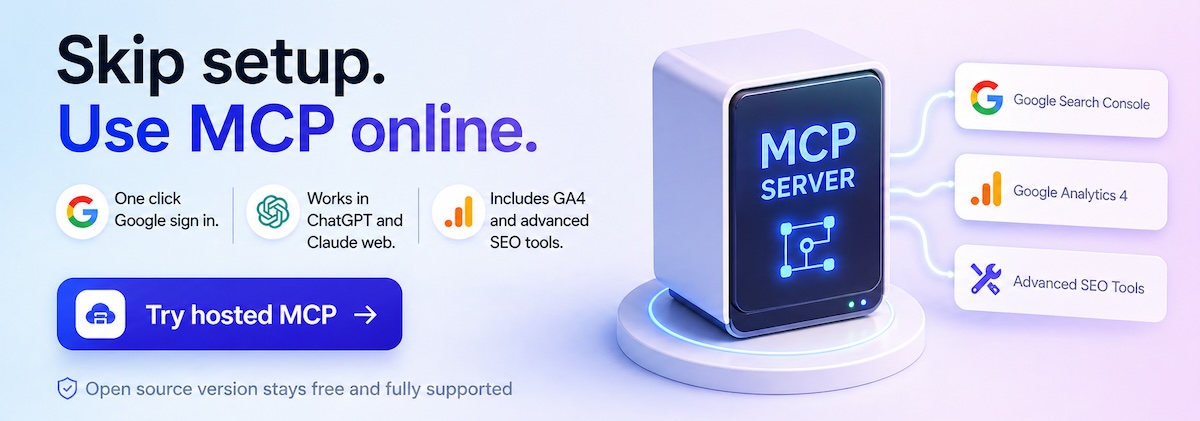
> **Prefer zero setup?** There's also a hosted version of this MCP server with one-click Google sign-in, no Python, no terminal, and added GA4 tools — works in Claude.ai, ChatGPT, Cursor, Claude Desktop, and any MCP client.
> → [**Advanced GSC MCP (hosted)**](https://www.advancedgsc.com/mcp?utm_source=github&utm_medium=readme&utm_campaign=mcp-gsc&utm_content=hero-callout) · starts at $12/mo during the founding cohort.
---
## What's New
### [0.3.2] — April 2026
- **OAuth browser flow fixed for uvx** — removed the `isatty` block that prevented the browser login window from opening when running as an MCP subprocess on macOS. OAuth now works out of the box with `uvx`, no manual terminal run needed.
- **`get_capabilities` tool added** — call this to get a full list of available tools and current auth status in one shot. Useful when your AI assistant isn't sure what tools are available.
- **Better auth error messages** — all tools now tell you exactly what to do when credentials are missing or expired.
---
## What Can This Do?
**Property Management**
- See all your GSC properties in one place
- Get verification details and ownership information
- Add or remove properties from your account
**Search Analytics & Reporting**
- Discover which queries bring visitors to your site
- Track impressions, clicks, and click-through rates
- Analyze performance trends and compare time periods
- Visualize data with charts created by your AI assistant
**URL Inspection & Indexing**
- Check if specific pages have indexing problems
- See when Google last crawled your pages
- Inspect multiple URLs at once to identify patterns
**Sitemap Management**
- View all sitemaps and their status
- Submit new sitemaps
- Check for errors or warnings
---
## Available Tools
| Tool | What It Does | What You Need to Provide |
|------|-------------|--------------------------|
| `get_capabilities` | Lists all tools and shows auth status — call this first if unsure | Nothing |
| `list_properties` | Shows all your GSC properties | Nothing |
| `get_site_details` | Details about a specific site | Site URL |
| `get_search_analytics` | Top queries and pages with clicks, impressions, CTR, position | Site URL, time period |
| `get_performance_overview` | Summary of site performance | Site URL, time period |
| `compare_search_periods` | Compare performance between two time periods | Site URL, two date ranges |
| `get_search_by_page_query` | Search terms driving traffic to a specific page | Site URL, page URL |
| `get_advanced_search_analytics` | Analytics with filters by country, device, query, page | Site URL |
| `inspect_url_enhanced` | Detailed crawl/index status for a URL | Site URL, page URL |
| `batch_url_inspection` | Inspect up to 10 URLs at once | Site URL, list of URLs |
| `check_indexing_issues` | Check multiple URLs for indexing problems | Site URL, list of URLs |
| `get_sitemaps` | Lists all sitemaps for a site | Site URL |
| `list_sitemaps_enhanced` | Detailed sitemap info including errors and warnings | Site URL |
| `manage_sitemaps` | Submit or delete sitemaps | Site URL, action |
| `reauthenticate` | Re-run the OAuth browser login (switch accounts) | Nothing |
*Ask your AI assistant to "call get_capabilities" for the full list of all 20 tools.*
---
---
## Getting Started
### Step 1 — Set Up Google API Credentials
You need credentials before configuring any client. Pick one method:
#### Option A — OAuth (Recommended — uses your own Google account)
1. Go to [Google Cloud Console](https://console.cloud.google.com/) and create or select a project
2. [Enable the Search Console API](https://console.cloud.google.com/apis/library/searchconsole.googleapis.com)
3. Go to [Credentials](https://console.cloud.google.com/apis/credentials) → Create Credentials → **OAuth client ID**
4. Configure the OAuth consent screen, select **Desktop app**, click Create
5. Download the JSON file — save it somewhere permanent (e.g. `~/Documents/client_secrets.json`)
On first use, a browser window will open asking you to sign in to your Google account. After that, the token is saved and no browser interaction is needed again.
#### Option B — Service Account (For automation or team use)
1. Go to [Google Cloud Console](https://console.cloud.google.com/) and create or select a project
2. [Enable the Search Console API](https://console.cloud.google.com/apis/library/searchconsole.googleapis.com)
3. Go to [Credentials](https://console.cloud.google.com/apis/credentials) → Create Credentials → **Service Account**
4. Go to the Keys tab → Add Key → Create new key → JSON → Download
5. Save the file somewhere permanent (e.g. `~/Documents/service_account.json`)
6. Add the service account email to your GSC property: Search Console → Settings → Users and permissions → Add user → Full access
#### 🎥 Watch the step-by-step setup tutorial for this section
*Updated 2026 — covers the full installation process using the new uvx method, from setting up your Google credentials to your first successful query.*
---
### Step 2 — Installation
#### Option A — uvx (Recommended)
No cloning, no Python installation, no virtual environments. `uvx` downloads and runs the server automatically and keeps it up to date.
**Install uv** — open Terminal and run all three commands in order:
```bash
# 1. Download and install
curl -LsSf https://astral.sh/uv/install.sh | sh
# 2. Activate in the current Terminal session
source $HOME/.local/bin/env
# 3. Make it permanent for all future sessions
echo 'source $HOME/.local/bin/env' >> ~/.zshrc
```
Verify:
```bash
uv --version
```
> **Why all three commands?** The installer puts `uv` in `~/.local/bin`, but your already-open Terminal session doesn't know about that folder yet. Step 2 activates it immediately. Step 3 ensures every future Terminal window has it automatically.
Now configure your AI client:
---
**Claude Desktop**
Config file: `~/Library/Application Support/Claude/claude_desktop_config.json`
OAuth:
```json
{
"mcpServers": {
"gscServer": {
"command": "/FULL/PATH/TO/uvx",
"args": ["mcp-search-console"],
"env": {
"GSC_OAUTH_CLIENT_SECRETS_FILE": "/full/path/to/client_secrets.json"
}
}
}
}
```
Service Account:
```json
{
"mcpServers": {
"gscServer": {
"command": "/FULL/PATH/TO/uvx",
"args": ["mcp-search-console"],
"env": {
"GSC_CREDENTIALS_PATH": "/full/path/to/service_account.json",
"GSC_SKIP_OAUTH": "true"
}
}
}
}
```
---
**Cursor**
Config file: `~/.cursor/mcp.json`
OAuth:
```json
{
"mcpServers": {
"gscServer": {
"command": "/FULL/PATH/TO/uvx",
"args": ["mcp-search-console"],
"env": {
"GSC_OAUTH_CLIENT_SECRETS_FILE": "/full/path/to/client_secrets.json"
}
}
}
}
```
---
**Codex CLI**
Config file: `~/.codex/config.toml`
OAuth:
```toml
[mcp_servers.gscServer]
command = "/FULL/PATH/TO/uvx"
args = ["mcp-search-console"]
enabled = true
env = { GSC_OAUTH_CLIENT_SECRETS_FILE = "/full/path/to/client_secrets.json" }
```
Service Account:
```toml
[mcp_servers.gscServer]
command = "/FULL/PATH/TO/uvx"
args = ["mcp-search-console"]
enabled = true
env = { GSC_CREDENTIALS_PATH = "/full/path/to/service_account.json", GSC_SKIP_OAUTH = "true" }
```
---
> **Finding your uvx path:** Run `which uvx` in Terminal after installing uv. On macOS it is typically `/Users/YOUR_NAME/.local/bin/uvx`. Replace `/FULL/PATH/TO/uvx` in the configs above with that path.
>
> **Why the full path?** GUI apps like Claude Desktop and Cursor launch without reading your shell config (`~/.zshrc`), so they don't know about `~/.local/bin`. Using the full path guarantees it works regardless of how the app is launched. If you see a `spawn uvx ENOENT` error, this is the fix.
After saving the config, **fully quit the app (`Cmd+Q`) and reopen it**.
For OAuth: on first use, a browser window will open automatically for login. After that, the token is cached and you won't be asked again.
---
#### Option B — Clone (Advanced)
**Prefer a video walkthrough for this method?** The tutorial below covers the clone install path step by step — virtual environment setup, dependencies, and config:
Use this if you want to modify the code or run a specific local version. This method uses the video tutorial above for the credential setup steps.
**Clone the repo:**
```bash
git clone https://github.com/AminForou/mcp-gsc.git
cd mcp-gsc
```
Or download the ZIP from the green Code button at the top of this page and unzip it.
**Set up the environment:**
```bash
uv venv .venv
uv pip install -r requirements.txt
```
**Configure your AI client** (Claude Desktop example):
OAuth:
```json
{
"mcpServers": {
"gscServer": {
"command": "/full/path/to/mcp-gsc/.venv/bin/python",
"args": ["/full/path/to/mcp-gsc/gsc_server.py"],
"env": {
"GSC_OAUTH_CLIENT_SECRETS_FILE": "/full/path/to/client_secrets.json"
}
}
}
}
```
Service Account:
```json
{
"mcpServers": {
"gscServer": {
"command": "/full/path/to/mcp-gsc/.venv/bin/python",
"args": ["/full/path/to/mcp-gsc/gsc_server.py"],
"env": {
"GSC_CREDENTIALS_PATH": "/full/path/to/service_account.json",
"GSC_SKIP_OAUTH": "true"
}
}
}
}
```
Mac path examples:
- Python: `/Users/yourname/Documents/mcp-gsc/.venv/bin/python`
- Script: `/Users/yourname/Documents/mcp-gsc/gsc_server.py`
---
### Step 3 — Test
Ask your AI assistant: **"List my GSC properties"**
If you see your properties — it's working. If not, ask: **"Call get_capabilities"** to see auth status and diagnose the issue.
---
## Environment Variables Reference
| Variable | Required | Default | Description |
|---|---|---|---|
| `GSC_OAUTH_CLIENT_SECRETS_FILE` | OAuth only | — | Absolute path to your OAuth client secrets JSON. Always required when using `uvx`. |
| `GSC_CREDENTIALS_PATH` | Service account only | — | Absolute path to your service account JSON key. Always required when using `uvx`. |
| `GSC_SKIP_OAUTH` | No | `false` | Set to `"true"` to force service account auth and skip OAuth entirely |
| `GSC_DATA_STATE` | No | `"all"` | `"all"` matches the GSC dashboard. `"final"` returns only confirmed data (2–3 day lag). |
| `GSC_ALLOW_DESTRUCTIVE` | No | `false` | Set to `"true"` to enable add/delete site and delete sitemap tools |
---
## Cursor Marketplace
One-click install available — search for `mcp-search-console` in the Cursor Marketplace.
After installing, configure your credentials (see Step 1 above) then use the bundled skills directly in Cursor Agent chat:
| Skill | How to invoke | What it does |
|---|---|---|
| `seo-weekly-report` | *"Run the SEO weekly report for example.com"* | Full 28-day performance summary with period-over-period comparison and top queries |
| `cannibalization-check` | *"Check for keyword cannibalization on example.com"* | Finds queries where multiple pages compete; recommends which to keep |
| `indexing-audit` | *"Audit indexing for my top pages"* | Batch-inspects top 20 pages and returns a prioritized fix list |
| `content-opportunities` | *"Find content opportunities for example.com"* | Surfaces position-11-20 queries with high impressions and low CTR |
---
## Sample Prompts
| Tool | Sample Prompt |
|------|--------------|
| `list_properties` | "List all my GSC properties and tell me which ones have the most pages indexed." |
| `get_search_analytics` | "Show me the top 20 search queries for mywebsite.com in the last 30 days, highlight any with CTR below 2%, and suggest title improvements." |
| `get_performance_overview` | "Create a visual performance overview of mywebsite.com for the last 28 days, identify any unusual drops or spikes, and explain possible causes." |
| `check_indexing_issues` | "Check these pages for indexing issues: mywebsite.com/product, mywebsite.com/services, mywebsite.com/about" |
| `inspect_url_enhanced` | "Do a comprehensive inspection of mywebsite.com/landing-page and give me actionable recommendations." |
| `compare_search_periods` | "Compare my site's performance between January and February. What queries improved the most?" |
| `get_advanced_search_analytics` | "Analyze queries with high impressions but positions below 10, filtered to mobile traffic in the US only." |
---
## Troubleshooting
### `spawn uvx ENOENT` or `command not found: uvx`
Your AI client can't find `uvx`. Use the full path instead of just `uvx`:
```bash
# Find your full path:
which uvx
# Typically: /Users/YOUR_NAME/.local/bin/uvx
```
Replace `"command": "uvx"` with `"command": "/Users/YOUR_NAME/.local/bin/uvx"` in your config.
### `uv --version` gives "command not found" right after installing
The installer updates `~/.local/bin` but your current Terminal session doesn't see it yet. Run:
```bash
source $HOME/.local/bin/env
```
Then add it permanently:
```bash
echo 'source $HOME/.local/bin/env' >> ~/.zshrc
```
### Authentication failed / credentials file not found
Make sure you are using the **absolute path** to your credentials file — not a relative path, not `~/`. Example:
```
/Users/yourname/Documents/client_secrets.json ✅
~/Documents/client_secrets.json ✅
client_secrets.json ❌
```
### MCP only works in Claude Desktop app, not the website
The MCP server runs locally on your machine. It only works in the **Claude Desktop app** (downloaded from [claude.ai/download](https://claude.ai/download)), not in the claude.ai browser interface.
### AI Client Configuration Issues
1. Make sure all file paths in your config are correct absolute paths
2. Fully quit (`Cmd+Q`) and reopen the app after any config change — just closing the window is not enough
3. Ask your AI assistant to "call get_capabilities" — it will report the exact auth status and error
---
## Safety: Destructive Operations
By default, `add_site`, `delete_site`, and `delete_sitemap` are disabled. To enable them:
```json
"GSC_ALLOW_DESTRUCTIVE": "true"
```
---
## Remote Deployment & Docker (Advanced)
The standard setup runs the server locally. This section is only for users who want to run it on a remote server or in a container.
### HTTP Transport
```bash
MCP_TRANSPORT=sse MCP_HOST=0.0.0.0 MCP_PORT=3001 python gsc_server.py
```
| Variable | Default | Description |
|---|---|---|
| `MCP_TRANSPORT` | `stdio` | Set to `sse` for network/remote use |
| `MCP_HOST` | `127.0.0.1` | Host to bind |
| `MCP_PORT` | `3001` | Port to bind |
### Docker
```bash
docker build -t mcp-gsc .
docker run \
-e MCP_TRANSPORT=sse \
-e MCP_HOST=0.0.0.0 \
-e MCP_PORT=3001 \
-e GSC_CREDENTIALS_PATH=/app/credentials.json \
-v /path/to/credentials.json:/app/credentials.json \
-p 3001:3001 \
mcp-gsc
```
---
## Related Tools
**[Advanced GSC Visualizer](https://www.advancedgsc.com/?utm_source=github&utm_medium=readme&utm_campaign=mcp-gsc&utm_content=related-tools)** — A Chrome extension (14,000+ users) with interactive charts, one-click export of up to 25,000 rows, keyword cannibalization detection, and an AI assistant — all directly inside Google Search Console. Built by the same author. [Install from the Chrome Web Store →](https://chromewebstore.google.com/detail/advanced-gsc-visualizer/cdiccpnglfpnclonhpchpaaoigfpieel)
---
## Contributing
Found a bug or have an idea for improvement? Open an issue or submit a pull request on GitHub.
---
## License
MIT License. See the [LICENSE](LICENSE) file for details.
---
## Changelog
### [0.3.2] — April 2026
- **OAuth browser flow fixed for uvx** — removed `isatty` block that prevented the OAuth browser window from opening when running as an MCP subprocess on macOS. OAuth + `uvx` now works out of the box.
- **`get_capabilities` tool** — returns all available tools grouped by category plus live auth status in one call.
- **Better auth error messages** — all tools now explicitly tell you to call `reauthenticate` when credentials are missing or expired.
- **Improved `list_properties` description** — better semantic tool discovery in clients that use lazy tool loading.
### [0.3.1] — April 2026
- Fixed `list_properties` masking real auth errors; fail-fast on missing credentials.
### [0.3.0] — April 2026
- Cursor Marketplace plugin with 4 bundled SEO skills
- Stable token storage in platform user config dir (survives `uvx` upgrades)
- Structured JSON output for all data tools
- 39 unit tests
### [0.2.2] — April 2026
- Safety mode for destructive tools (disabled by default)
- HTTP/SSE transport for remote deployments
- Dockerfile
### [0.2.1] — March 2026
- `reauthenticate` tool for switching Google accounts
- Fixed sitemap TypeError crash
- Fixed domain property 404 errors
### [0.2.0] — March 2026
- `dataState: "all"` by default (matches GSC dashboard)
- Flexible `row_limit` parameter (up to 500)
- Multi-dimension filtering for advanced analytics
### [0.1.0] — Initial release
- 19 tools covering property management, search analytics, URL inspection, and sitemap management
- OAuth and service account authentication