# Intégration Prix Carburant pour Home-Assistant
Récupération du prix des carburant selon les données de l'[API gouvernementale](https://data.economie.gouv.fr/explore/dataset/prix-des-carburants-en-france-flux-instantane-v2/table/).
Récupère les stations à x kilomètres de votre domicile (ou via une liste définie si utilisation de `configuration.yaml`).
Rafraîchissement des données toutes les heures, il est possible de lancer un rafraîchissement manuel via l'entité `button`.
Un service est mis à disposition pour trouver le meilleur prix d'un carburant donné autour de soi ou de n'importe quelle entité possédant une localisation (`device_tracker`, `person`, `sensor`...).
## Contribution
### Ajouter/modifier une station
Faire une PR en ajoutant/modifiant la station dans le fichier [stations_name.json](custom_components/prix_carburant/stations_name.json). Bien vérifier que le champs `brand` corresponde à une marque existante en respectant la casse. Il est possible de surcharger par rapport aux données fournis par l'API les informations suivantes:
- `name`: Nom de la station
- `brand`: Marque de la station
- `address`: Adresse de la station
- `postal_code`: Code postal de la station
- `city`: Ville de la station
Un workflow GitHub validera automatiquement la structure et le format du fichier JSON. Si la PR ne modifie que le fichier stations_name.json et passe la validation, elle sera automatiquement approuvée et fusionnée.
### Ajouter/corriger une image d'entité (entity picture)
Faire une PR en ajoutant/corrigeant l'image dans le fichier [tools.py](custom_components/prix_carburant/tools.py), dans la fonction `get_entity_picture`.
## Installation
### HACS
HACS > Integrations > Explorer et télécharger des dépôts > Prix Carburant > Télécharger
### Manuelle
Copier le dossier `prix_carburant` dans le dossier `config/custom_components` de votre Home-Assistant.
## Configuration
### via l'interface
Ajoutez une nouvelle intégration, recherchez `Prix Carburant` et remplissez les champs demandés.
### via configuration.yml
Récupérer l'ID des stations voulues sur . Pour cela chercher la station, cliquer sur le logo station sur la carte, passer le curseur sur `Voir plan` et noter le numéro qui apparait en bas de votre navigateur. Exemple avec Firefox :
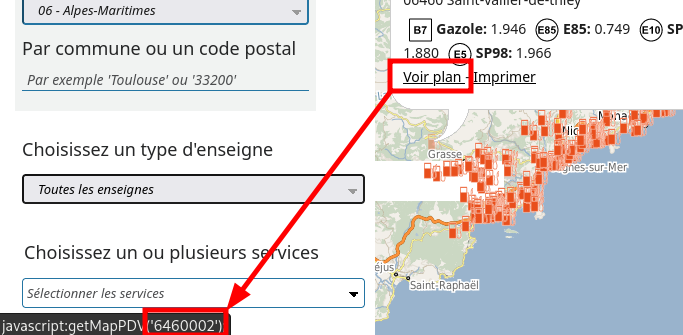
Puis dans le fichier configuration.yaml, mettre par exemple :
```yaml
sensor:
platform: prix_carburant
stations:
- 59000009
- 59000080
```
### Exemple de données extraites
`Station Carrefour Market La Poterie E10` - `sensor.station_carrefour_market_la_poterie_e10`:
```yaml
value: 1.808
name: Carrefour Market La Poterie
brand: Carrefour Market
address: Boulevard Paul Hutin Desgrées
postal_code: 35200
city: Rennes
latitude: 48.091297777798
longitude: -1.6418527606305
updated_date: 2023-10-24 09:51:21
days_since_last_update: 0
unit_of_measurement: €
device_class: monetary
icon: mdi:gas-station
friendly_name: Station Carrefour Market La Poterie E10
```
## Nom et logo des stations
Si le nom d'une station n'apparait pas, vous pouvez contribuer en ajoutant les informations dans [le fichier stations_name.json](./custom_components/prix_carburant/stations_name.json).
Pour le logo [sensor.py](custom_components/prix_carburant/sensor.py), après `match self.station_info[ATTR_BRAND]:`.
## Exemples de configuration d'affichage dans Home Assistant
### via carte multiple-entity-row
Exemple de configuration avec [multiple-entity-row](https://github.com/benct/lovelace-multiple-entity-row):

```yaml
type: entities
entities:
- entity: sensor.station_mastation_sp98
type: custom:multiple-entity-row
name: Ma Station
show_state: false
entities:
- entity: sensor.station_mastation_e10
name: E10
- entity: sensor.station_mastation_sp98
name: SP98
```
### via auto-entities et multiple-entity-row
```yaml
type: custom:auto-entities
card:
type: entities
filter:
template: |-
{% for state in states.sensor -%}
{%- if state.entity_id | regex_match("sensor.station\_.*\_e10", ignorecase=True) -%}
{{
{
'entity': state.entity_id,
'name': state.attributes.friendly_name.split()[1:-1] | join(" "),
'type': "custom:multiple-entity-row",
'show_state': false,
'entities': [
{
'entity': state.entity_id,
'name': "E10"
},
{
'entity': state.entity_id.replace('e10', 'sp98'),
'name': "SP98"
},
{
'entity': state.entity_id,
'attribute': 'days_since_last_update',
'name': "MaJ"
},
]
}
}},
{%- endif -%}
{%- endfor %}
```
### via carte flex-table-card

```yaml
type: custom:flex-table-card
clickable: true
sort_by: state
max_rows: 15
title: Gasoil
entities:
include: sensor.station*gazole
columns:
- name: nom station
data: name, address
multi_delimiter:
- name: dist.
data: distance
- name: prix
data: state
- name: Valid.
data: days_since_last_update
align: right
css:
tbody tr:nth-child(1): 'color: #00ff00'
tbody tr:nth-child(15): 'color: #f00020'
style: null
```
### via carte flex-table-card avec logo
Préparations:
- Pour rajouter les logos, utiliser File Editor, puis aller dans le dossier www, enfin créer un sous-dossier nommé « logos » par exemple. Dans ce dossier, vous devez charger les différents images representant les logos de vos stations service
- Puis éditer le fichier configuration.yaml, et rajouter et adapter pour chacune de vos stations (exemple ci-dessous avec 2 stations en gazole)
```yaml
homeassistant:
customize:
sensor.station_exemple1_gazole:
entity_picture: /local/logos/carrefour.png
sensor.station_exemple2_gazole:
entity_picture: /local/logos/auchan.png
```
Enfin utiliser l’exemple de card comme ci-dessous
- optionel: Modifier le nom des entités pour éviter les noms de stations trop longs

```yaml
type: custom:flex-table-card
sort_by: state+
clickable: true
entities:
include:
- sensor.station_carrefour_market_sp95
- sensor.station_geant_casino_e10_2
- sensor.station_intermarche_e10
- sensor.station_relais_rond_point_j_rose_e10
columns:
- data: entity_picture
align: center
icon: mdi:gas-station
modify: ''' '''
- data: name
name: ' Stations Le Creusot'
align: left
- icon: mdi:currency-eur
data: state
align: center
- icon: mdi:calendar-clock
data: days_since_last_update
align: center
prefix: J+
css:
tbody tr:nth-child(odd): 'background-color: rgba(255, 255, 255, 0.2)'
tbody tr:nth-child(even): 'background-color: rgba(255, 255, 255, 0.1)'
tbody tr:nth-child(1): 'color: #00C62D; font-weight: bold'
tbody tr:nth-last-child(1): "color: #dd2c00",
card_mod: null
style: |
:host {
font-size: 18px;
border-radius: 10px;
}
```
### via carte map + auto-entities, dynamique

```yaml
type: custom:auto-entities
card:
type: map
show_empty: false
filter:
template: >
[{% set ns = namespace(count=0) %} {% for x in expand(states.sensor)|
sort(attribute='state')| map(attribute='entity_id') %} {% if 'station' in x
and 'gazole'in x and ns.count < 20 %}'{{x}}',{% set ns.count = ns.count + 1
%}{% endif %}{%- endfor %}]
```
### Deux carburants, via vertical-stack + flex-table card avec graphique

```yaml
type: vertical-stack
cards:
- type: picture
image: /local/pictures/essence.jpg
- type: custom:flex-table-card
clickable: true
sort_by: state
max_rows: 5
entities:
include: sensor.station*gazole
columns:
- name: nom station
data: name, address
multi_delimiter:
'''
- data: name
name: ' Stations Le Creusot'
align: left
- icon: mdi:currency-eur
data: state
align: center
- icon: mdi:calendar-clock
data: days_since_last_update
align: center
prefix: J+
css:
tbody tr:nth-child(odd): 'background-color: rgba(255, 255, 255, 0.2)'
tbody tr:nth-child(even): 'background-color: rgba(255, 255, 255, 0.1)'
tbody tr:nth-child(1): 'color: #00C62D; font-weight: bold'
tbody tr:nth-last-child(1): "color: #dd2c00",
card_mod: null
style: |
:host {
font-size: 18px;
border-radius: 10px;
}
```
### via carte map + auto-entities, dynamique

```yaml
type: custom:auto-entities
card:
type: map
show_empty: false
filter:
template: >
[{% set ns = namespace(count=0) %} {% for x in expand(states.sensor)|
sort(attribute='state')| map(attribute='entity_id') %} {% if 'station' in x
and 'gazole'in x and ns.count < 20 %}'{{x}}',{% set ns.count = ns.count + 1
%}{% endif %}{%- endfor %}]
```
### Deux carburants, via vertical-stack + flex-table card avec graphique

```yaml
type: vertical-stack
cards:
- type: picture
image: /local/pictures/essence.jpg
- type: custom:flex-table-card
clickable: true
sort_by: state
max_rows: 5
entities:
include: sensor.station*gazole
columns:
- name: nom station
data: name, address
multi_delimiter:
- name: dist.
data: distance
- name: prix
data: state
- name: Valid.
data: updated_date
modify: Math.round((Date.now() - Date.parse(x)) / 36000 / 100 /24)
align: left
suffix: J
css:
tbody tr:nth-child(odd): 'background-color: rgba(255, 255, 255, 0.2)'
tbody tr:nth-child(even): 'background-color: rgba(255, 255, 255, 0.1)'
tbody tr:nth-child(1): 'color: #0033ff'
tbody tr:nth-child(5): 'color: #FF0000'
card_mod:
style: |
ha-card {
border-radius: 10px;
padding-bottom: 10px;
background-color: rgba(0, 0, 0, 0.1)
}
:host {
font-size: 13px;
border-radius: 10px;
}
- type: custom:flex-table-card
clickable: true
sort_by: state
max_rows: 5
entities:
include: sensor.station*E85
columns:
- name: nom station
data: name, address
multi_delimiter:
- name: dist.
data: distance
- name: prix
data: state
- name: Valid.
data: updated_date
modify: Math.round((Date.now() - Date.parse(x)) / 36000 / 100 /24)
align: left
suffix: J
css:
tbody tr:nth-child(odd): 'background-color: rgba(255, 255, 255, 0.2)'
tbody tr:nth-child(even): 'background-color: rgba(255, 255, 255, 0.1)'
tbody tr:nth-child(1): 'color: #0033ff'
tbody tr:nth-child(5): 'color: #FF0000'
card_mod:
style: |
ha-card {
border-radius: 10px;
background-color: rgba(0, 0, 0, 0.1)
}
:host {
font-size: 13px;
border-radius: 10px;
}
card_mod:
style: |
ha-card {
--ha-card-background: rgba(0, 0, 0, 0.1);
ha-card {
margin-top: 0em;
}
```
### Créer une carte et indiquer les stations autour d'un device movible
Note: c'est un exemple donc on peut changer comme on veut.
1. Créer le sensor avec des stations autour de 'toi'
Utiliser le service (action)
```
template:
- trigger:
- platform: time_pattern
minutes: /1
action:
- action: prix_carburant.find_nearest_stations
data:
distance: 10
entity_id: device_tracker.mydevicetracker (ou mobile)
fuel: Gazole
response_variable: stations_feed
sensor:
- name: test_stations
unique_id: test_stations
state: "{{ now().isoformat() }}"
attributes:
stations: "{{ stations_feed.stations }}"
```
Ça donne

2. l'automatisation pour créer des zones qui représentent les stations
Important: il faut installer ['spook'](https://github.com/frenck/spook) pour avoir les services/actions 'create zone' et 'delete zone'
Ici par exemple chaque minute une maj (trops je pense) mais on peut aussi utiliser un trigger quand le mobile bouge
```
alias: Station Zones
description: ""
trigger:
- platform: time_pattern
minutes: /1
condition: []
action:
- repeat:
for_each: >-
{{states.zone |selectattr('entity_id', 'search',
'station_')|map(attribute='entity_id') | list }}
sequence:
- action: zone.delete
data:
entity_id: "{{ repeat.item }}"
- repeat:
for_each: "{{ state_attr('sensor.test_stations', 'stations') | list }}"
sequence:
- action: zone.create
data:
radius: 100
icon: mdi:gas-station-in-use-outline
name: "{{ 'station_' + repeat.item.name }}"
latitude: "{{ repeat.item.latitude }}"
longitude: "{{ repeat.item.longitude }}"
mode: single
```
3. Créer la carte

```
type: custom:auto-entities
card:
type: map
auto_fit: true
filter:
include:
- entity_id: 'zone.station*'
exclude:
- state: unavailable
show_empty: true
```