## Crunchyroll
### Steps
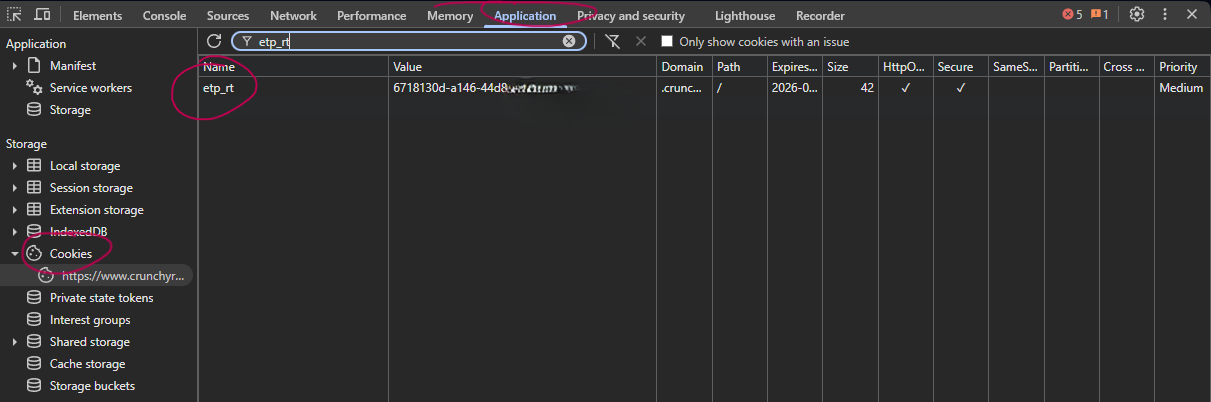
1. **Open** [Crunchyroll](https://www.crunchyroll.com/) and **log in** with your credentials.
2. **Open Developer Tools** by pressing F12 (or Cmd+Opt+I on macOS).
3. Navigate to the **Application** tab (or **Storage** in Firefox).
4. In the left sidebar, expand **Cookies** and click the Crunchyroll domain.
5. **Search for cookies:**
- Use the search/filter field to find `etp_rt`
- Find `device_id` cookie
6. **Copy the values** of both cookies.
### Screenshot Reference
---
## Mediaset Infinity
### Steps
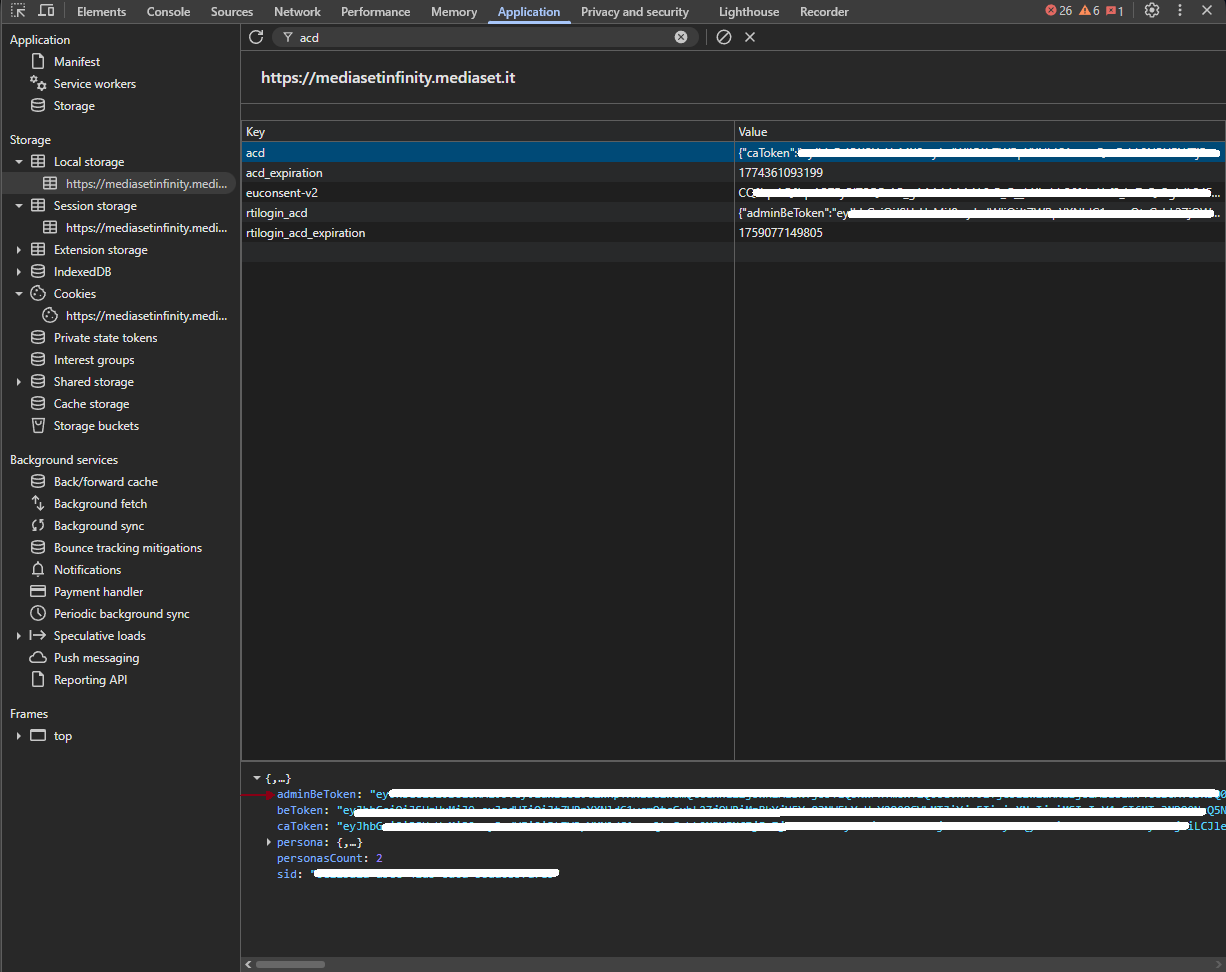
1. **Open** [Mediaset](https://mediasetinfinity.mediaset.it/) and **log in**.
2. **Open Developer Tools** (F12).
3. Navigate to the **Application** tab → **Cookies**.
4. Filter for **acd**
4. **Search for** `adminBeToken` cookie.
5. **Copy the value** of the `adminBeToken`.
### Screenshot Reference
---
## Discovery+ [EU]
### Steps
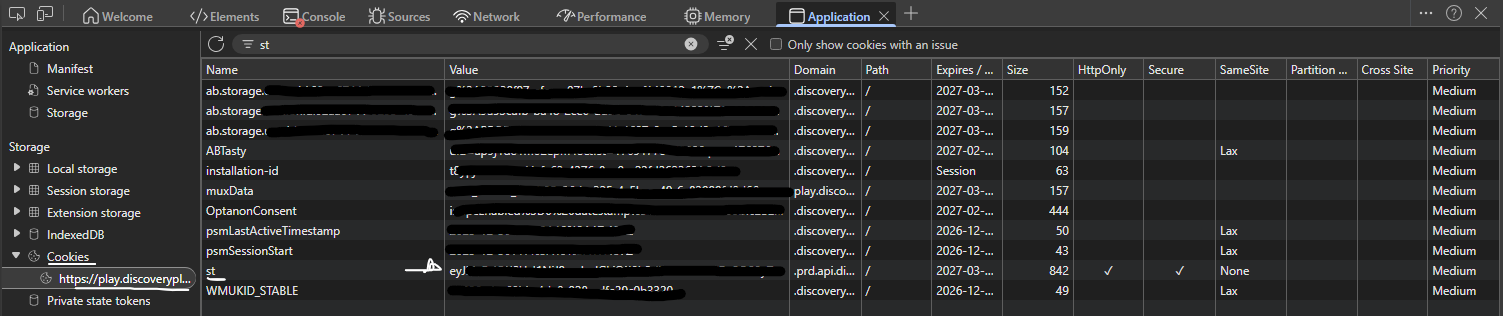
1. **Open** [Discovery+](https://play.discoveryplus.com/) and **log in**.
2. **Open Developer Tools** (F12).
3. Navigate to the **Application** tab → **Cookies**.
4. **Search for** `st` cookie.
5. **Copy the value** of the `st` token.
### Screenshot Reference
---
## Amazon Prime Video [EU]: Get Cookies via Extension
### Prerequisites
- Install the [CookieInspector] browser extension from DISCORD
### Steps
1. **Open** [Prime Video](https://www.primevideo.com/) and **log in**.
2. **Click** the CookieInspector extension icon in your browser toolbar.
3. **Click** "Get Cookies" button.
4. **Click** "Copy JSON" to copy the authentication data.
5. Add it to `Conf/login.json`:
```json
"primevideo":
```