# Navidrome MCP Server
An MCP (Model Context Protocol) server for Navidrome. Claude Desktop, Claude Code, Cursor, and other MCP clients can browse your library, build playlists, discover new music, and play audio through your machine's speakers.
## Table of Contents
- [Features](#features)
- [Available Tools](#available-tools)
- [Installation & Setup](#installation--setup)
- [Troubleshooting](#troubleshooting)
- [Development](#development)
- [License](#license)
- [Support](#support)
## Features
### 🎵 Music Library
Browse and search songs, albums, artists, genres, and tags. The filters for query, starred status, a single year, sort order, and tag values combine in one request, such as *"all my starred jazz albums from 1994"* or *"every song tagged Soundtrack with a 5-star rating"*. Tag analysis tools show what is in your library, so you don't have to guess at filter values.
### 🔊 Local Audio Playback
> Requires [`mpv`](https://mpv.io/) on the machine running the MCP server, as [mpv Installation](#mpv-installation) describes.
Audio plays through that machine's speakers with no browser or Navidrome web UI. Search and play in one step, such as *"play 5 random starred albums"*, *"queue everything I've starred from 1994"*, or *"add 10 random rock songs to whatever's already playing, shuffled"*. Album playback can shuffle the album order, the tracks, or both.
Reorder or shuffle the queue during playback without interrupting the current song. Saved Navidrome radio stations play through mpv and show the song the station is playing. Plays scrobble back to Navidrome, so play counts and recent activity stay in sync. mpv starts on first use and can keep playing across MCP client restarts, as [Player Lifetime](#player-lifetime) describes. Playback works on Linux, macOS, and Windows 11.
A Raspberry Pi or an always-on machine with speech to text (such as Whisper) and text to speech works as a hands-free music player.
### 🎛️ Jukebox Remote (Web UI)
> Requires `mpv`.
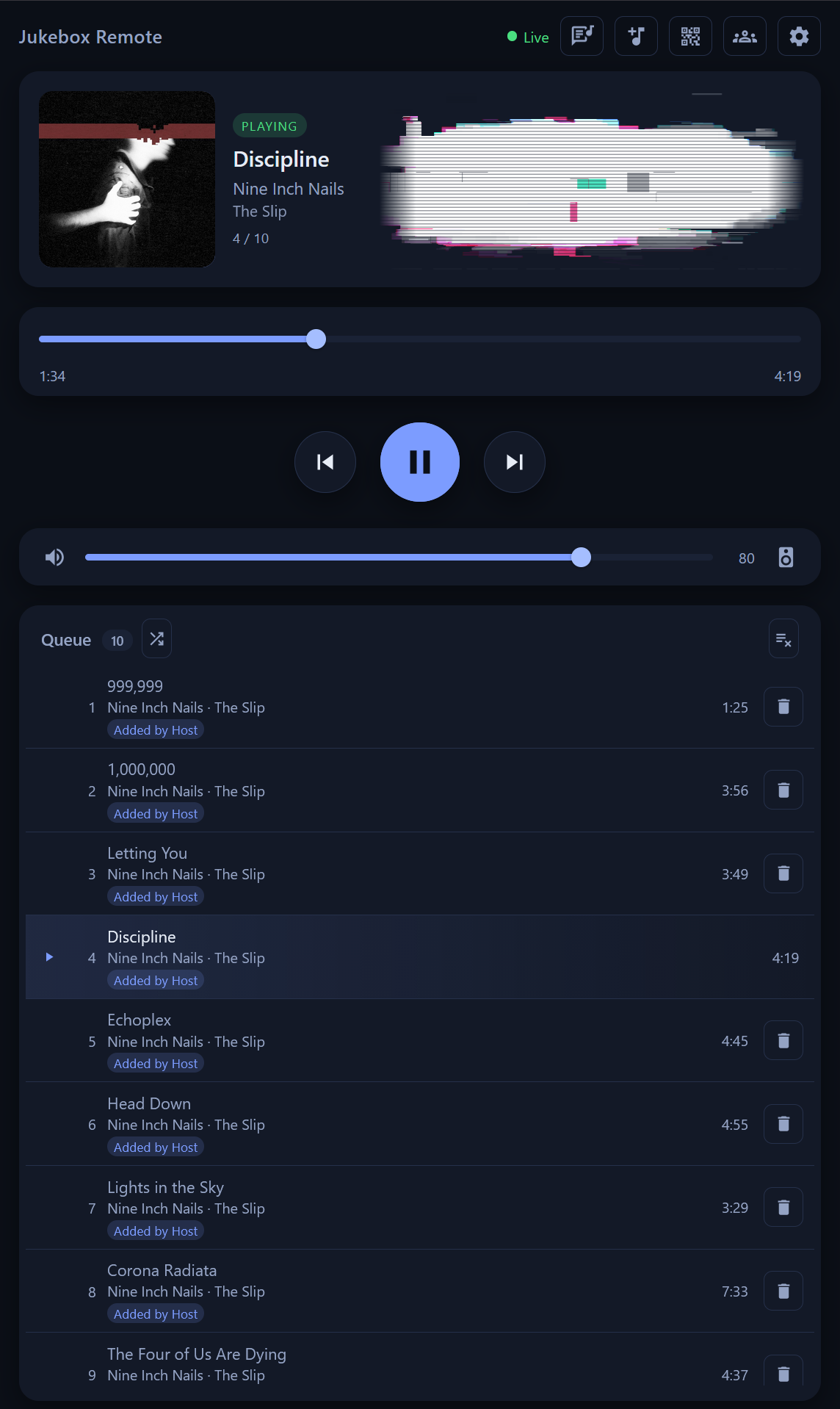
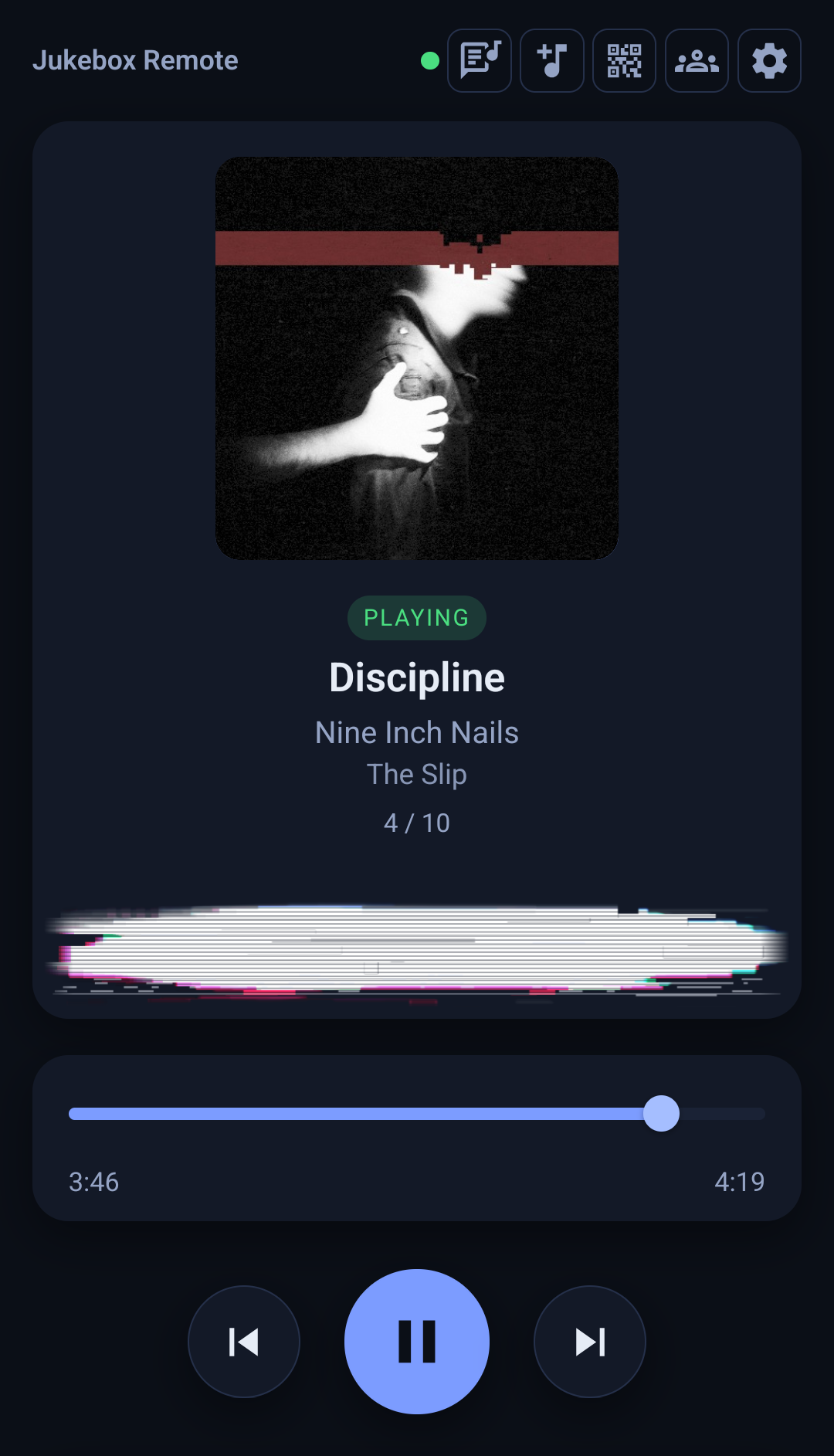
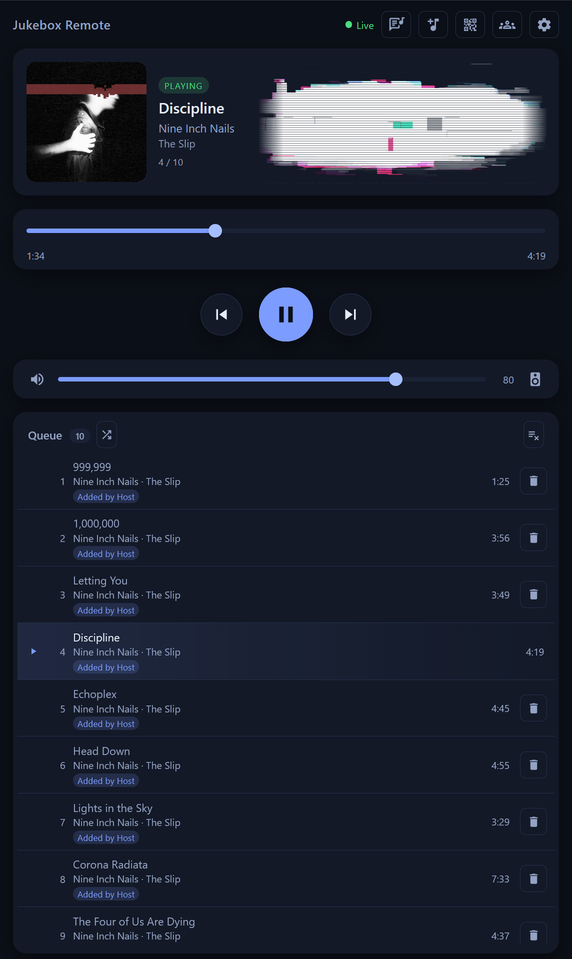
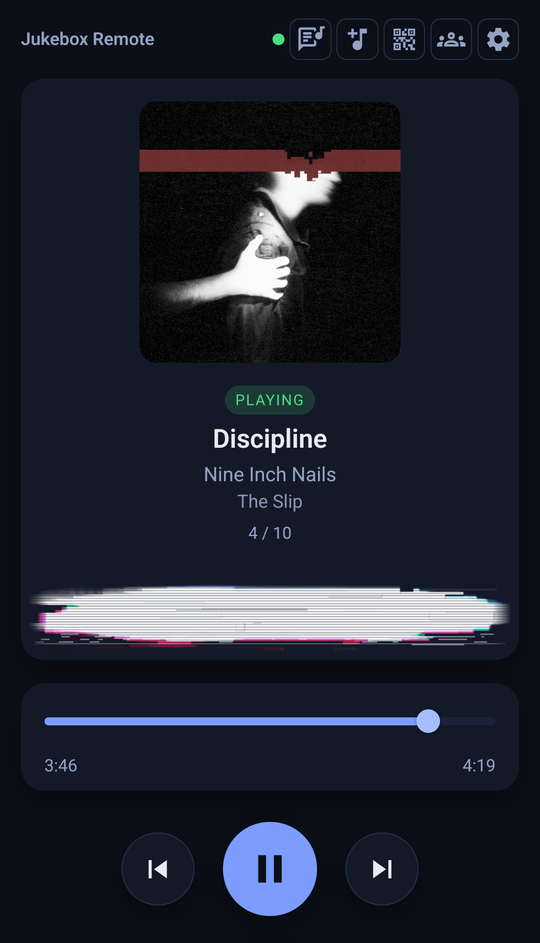
A web player at `http://localhost:8808/admin` controls local playback from any browser. It shows the current song with cover art, transport and seek controls, volume, and a live queue. Click a queue entry to jump to it, or press its remove button to take it out of the queue. The output button beside the volume slider picks the audio output. Enable **Expose on LAN** to use the player from a phone or tablet. [Jukebox Remote Setup](#jukebox-remote-setup) covers setup, lifetime, and security.
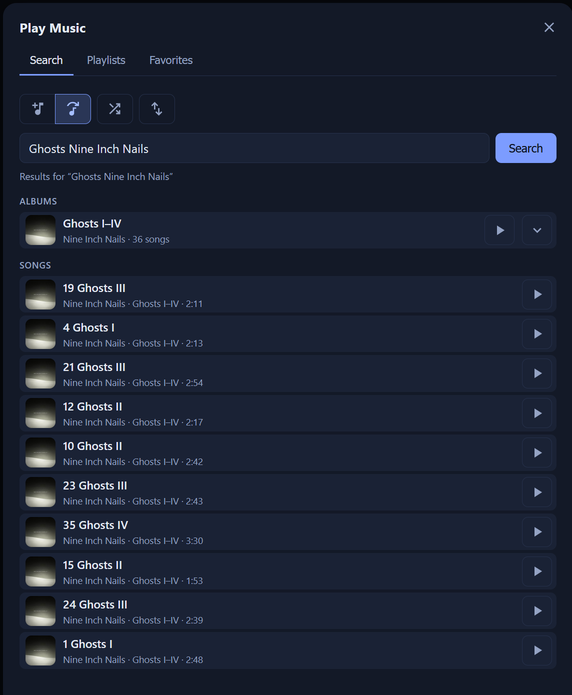
The **Play Music** window searches artists, albums, and songs. An artist expands to its albums, and an album to its songs. The window also starts any playlist, your starred songs, or your starred albums. Each pick adds to the queue or replaces it, with an option to shuffle songs or albums. So the page works as a remote without the assistant.
[](images/play-music-large.png)
### 🎉 Guest Jukebox
> Requires `mpv` and the **Admin password and jukebox** access mode.
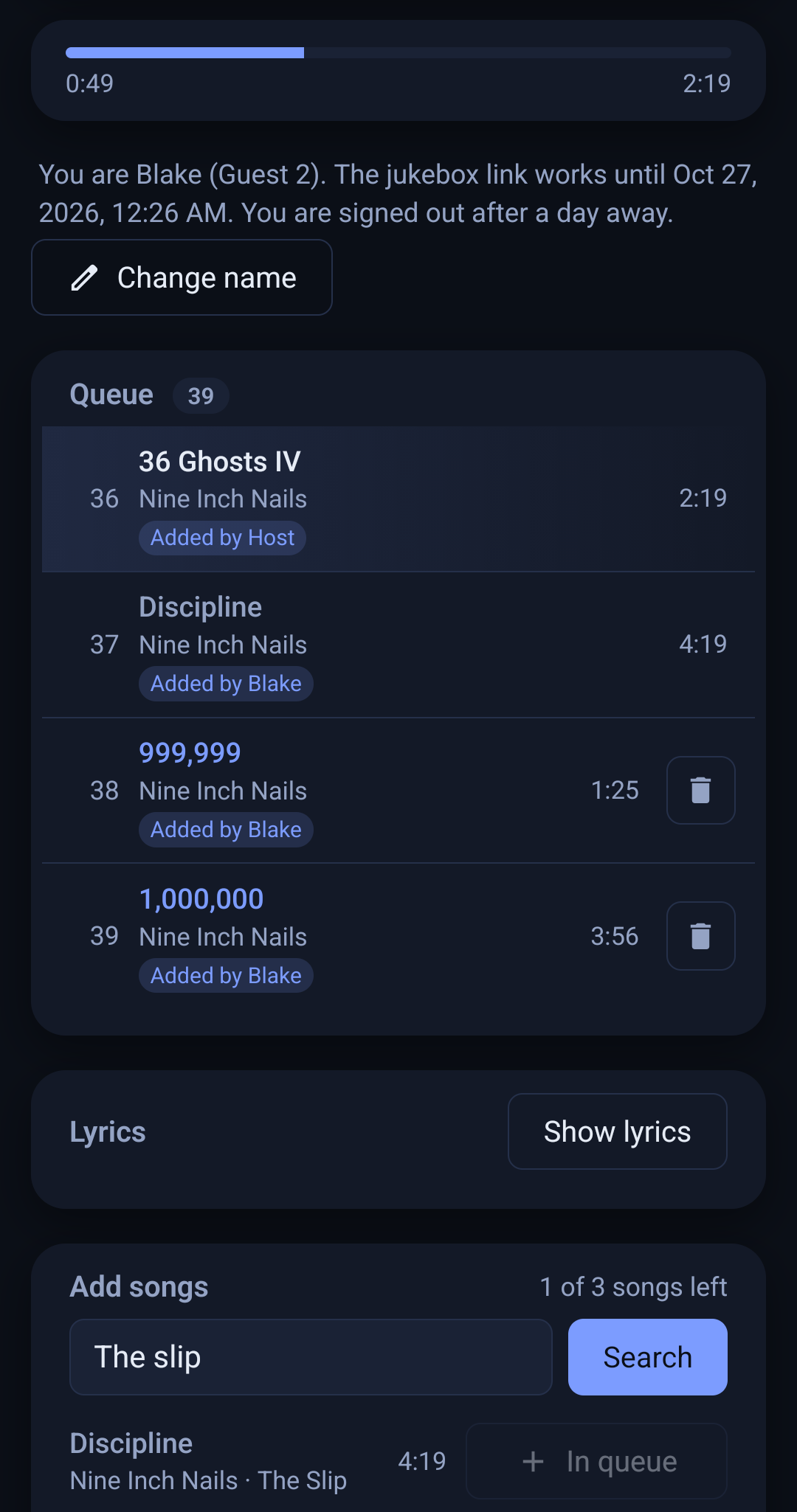
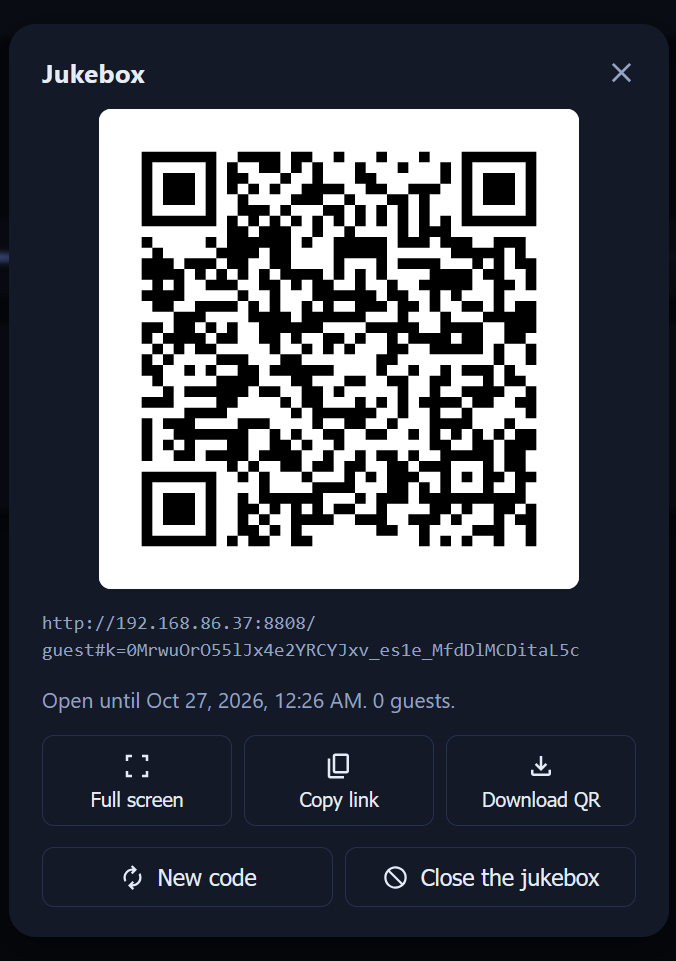
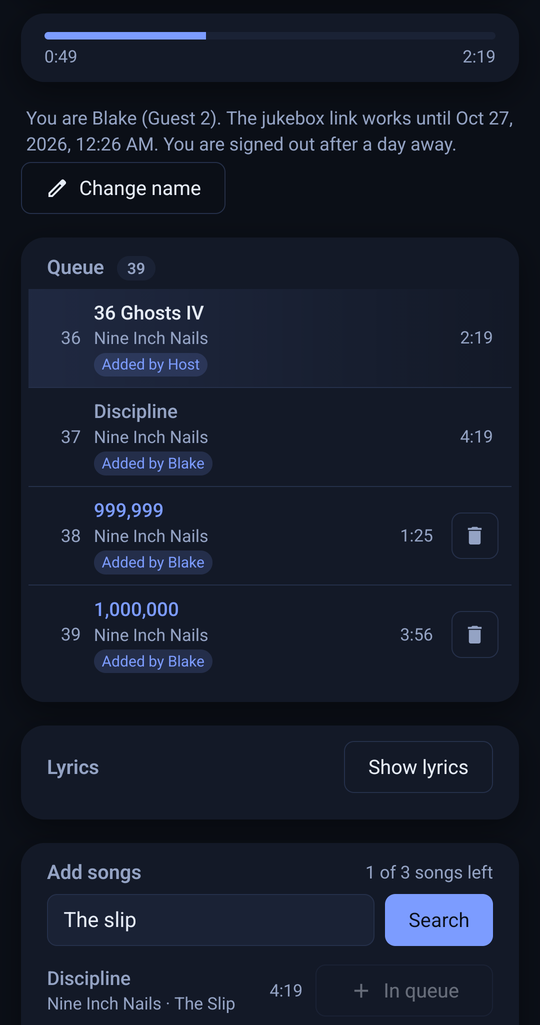
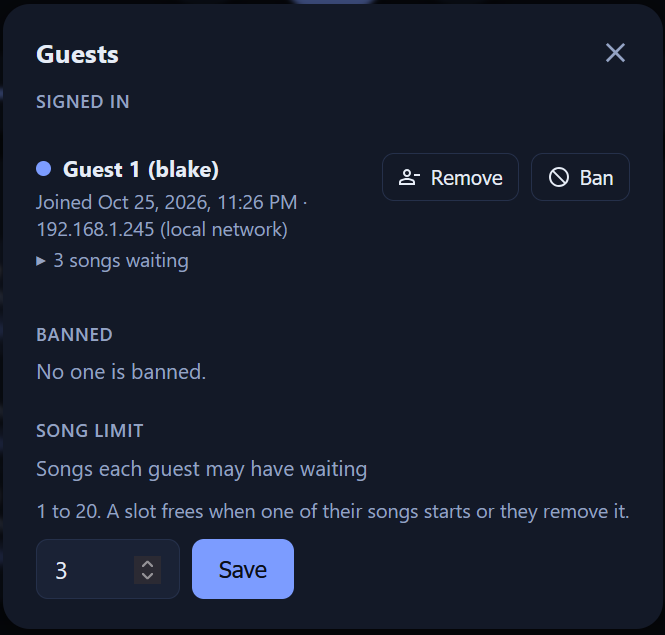
Guests scan a QR code and add songs to the end of the queue from their phones. Each guest can have 3 songs waiting at a time, and you can change that limit. The jukebox code works for the time you pick, up to 90 days. Then every guest is signed out. The **Guests** dialog lists the guests and can remove or ban one. [Guest Jukebox Setup](#guest-jukebox-setup) covers setup and HTTPS.
### 🌈 Visualizer
The visualizer beside the track info moves with the music. It has 19 styles. Click it to switch to the next style, and the style's name shows for a moment. Each device keeps its own style. The images below show four of them.




### 🎶 Playlists
Create, update, reorder, and delete playlists. Add songs, entire albums, artist discographies, or specific discs in one operation. Find which playlists contain a song. Build playlists from listening data, such as *"a 'Hidden Gems' playlist of 5-star songs with under 5 plays"* or *"one top track from each album of my top 10 artists, in chronological order"*.
### 🎼 Music Discovery (Last.fm)
> Requires a Last.fm API key, free at [last.fm/api](https://www.last.fm/api/account/create) and set in the settings page.
Find similar artists and tracks, read biographies and top tracks, and browse global charts. With your library in the mix, you can ask for missing albums or overlooked music, such as *"albums missing from my top 5 artists, ranked by popularity"* or *"tracks similar to my favorites that I own but never play"*. You can also build "Best Of" playlists from what you own.
### 🎤 Synchronized Lyrics
> LRCLIB is set in the settings page and needs no API key. Lyrics stored in your files work without it.
Lyrics come from the audio file's tags and from LRCLIB's community database. Timed lyrics take priority over plain text. Within each kind, the file's lyrics come before LRCLIB's.
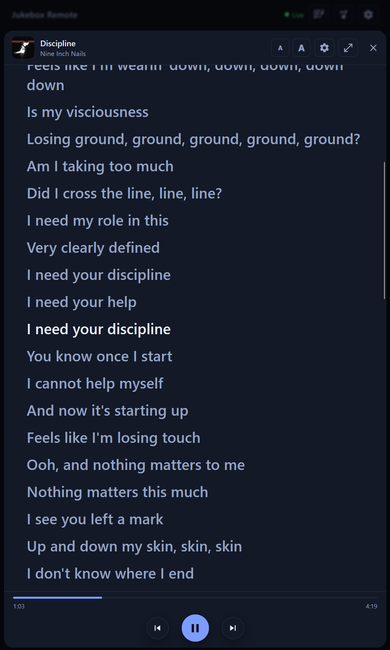
The web player's lyrics view highlights the current line and scrolls to follow it. Click a line to jump playback there. Scroll to read ahead. Then a button returns the view to the current line. The view fills the page or opens as a window over the player. Font size and sync offset are adjustable, and each device keeps its own choices. The screen stays awake while the view is open and music plays.
[](images/lyrics-large.png)
### 📻 Internet Radio
Manage Navidrome radio stations and discover new ones worldwide. `create_radio_station` checks each stream before adding it when `validateBeforeAdd` is set. `validate_radio_stream` checks any public http(s) URL on demand. The checks detect MP3, AAC, OGG, and FLAC streams. They also read SHOUTcast and Icecast metadata. Private, loopback, and link-local addresses are refused. Bulk maintenance works too, such as *"validate all my stations and remove the broken ones"* or *"test these 10 URLs and add the working ones"*.
Global discovery uses Radio Browser and needs a user agent, set in the settings page. It searches thousands of stations by genre, country, language, codec, bitrate, and popularity. Your votes and clicks count toward Radio Browser's community ranking.
### 📊 Listening Analytics
See play counts, recent activity, top-rated and most-played lists, and tag distribution across your library. Use them to find forgotten favorites and one-hit wonders, or to build mood playlists from your listening patterns.
### ⭐ Ratings & Favorites
Star and unstar songs, albums, and artists. Set 0-5 star ratings and list everything starred or top-rated. Read and write the saved queue that Navidrome's own web UI uses to sync across devices.
### 📚 Multi-Library Support
Filter all operations to a subset of your Navidrome libraries. Set a default in the settings page or switch the active libraries at runtime.
## Available Tools
A category with **requires** in its heading only appears once that setting is filled in.
### Core System
| Tool | Description |
|------|-------------|
| `test_connection` | Verify Navidrome connectivity and report the Navidrome version, scan state, library counts, and feature/tool availability |
### Library Management
| Tool | Description |
|------|-------------|
| `get_song` | Detailed song metadata by ID |
| `get_album` | Detailed album metadata by ID |
| `get_artist` | Detailed artist metadata by ID |
| `get_song_playlists` | List all playlists containing a given song |
| `get_user_details` | User profile, available libraries, and active-library status |
| `set_active_libraries` | Set which libraries are active for all search/list operations |
### Search
| Tool | Description |
|------|-------------|
| `search_all` | Search across artists, albums, and songs with filters and sorting |
| `search_songs` | Search songs with advanced filters and sorting |
| `search_albums` | Search albums with advanced filters and sorting |
| `search_artists` | Search artists by name with a starred filter and sorting |
### Playlists
| Tool | Description |
|------|-------------|
| `list_playlists` | View all accessible playlists |
| `get_playlist` | Get playlist metadata by ID |
| `create_playlist` | Create a new playlist |
| `update_playlist` | Update name, description, or visibility |
| `delete_playlist` | Delete a playlist |
| `get_playlist_tracks` | Get playlist contents (JSON or M3U) |
| `add_tracks_to_playlist` | Add songs, albums, artist discographies, or specific discs in one operation |
| `remove_tracks_from_playlist` | Remove tracks by position |
| `reorder_playlist_track` | Move a track to a new position |
### Ratings & Favorites
| Tool | Description |
|------|-------------|
| `star_item` | Star a song, album, or artist |
| `unstar_item` | Remove a star |
| `set_rating` | Set a 0-5 star rating |
| `list_starred_items` | View starred songs, albums, or artists |
| `list_top_rated` | View highest-rated items |
### Listening History & Saved Queue
| Tool | Description |
|------|-------------|
| `list_recently_played` | Recent listening activity with optional time-range filter |
| `list_most_played` | Most-played songs, albums, or artists |
| `get_saved_queue` | Read the Navidrome saved queue (web UI sync) |
| `save_queue` | Save a queue to Navidrome for web UI sync |
| `clear_saved_queue` | Clear the Navidrome saved queue |
### Metadata & Tags
| Tool | Description |
|------|-------------|
| `list_tag_values` | List tag values (genre, releasetype, media, etc.) with their counts |
| `get_tag_distribution` | Tag usage counts. Genre gives the top values by count, and other tags give an alphabetical sample |
| `get_filter_options` | Discover available filter values for search operations |
### Last.fm Discovery (requires a Last.fm API key)
| Tool | Description |
|------|-------------|
| `get_similar_artists` | Find artists similar to a given artist |
| `get_similar_tracks` | Find tracks similar to a given track |
| `get_artist_info` | Artist biography and tags |
| `get_top_tracks_by_artist` | Top tracks for an artist |
| `get_trending_music` | Trending artists, tracks, and tags from Last.fm charts |
| `get_artist_albums` | Full discography with release types, years, and genres (MusicBrainz), popularity (Last.fm), and an in-library flag per album. Answers "what albums by X am I missing?" |
| `get_album_info` | Album detail with tracklist and durations, year and type, genres, wiki summary, popularity, and library membership. Works for albums you don't own |
### Lyrics
| Tool | Description |
|------|-------------|
| `get_lyrics` | Lyrics for one song, by Navidrome song ID. Lookup by LRCLIB record ID requires the LRCLIB provider. Returns timed (LRC) lines when the source has them |
| `search_lyrics` | Search LRCLIB by title and artist. Returns candidate records plus the matching library song. Requires the LRCLIB provider |
### Radio Management
| Tool | Description |
|------|-------------|
| `list_radio_stations` | List all saved Navidrome radio stations |
| `get_radio_station` | Detailed info for a station by ID |
| `create_radio_station` | Create one or more stations (JSON array, optional `validateBeforeAdd`) |
| `delete_radio_station` | Delete a station |
| `validate_radio_stream` | Test an http(s) stream URL for accessibility and audio content |
### Global Radio Discovery (requires a Radio Browser user agent)
| Tool | Description |
|------|-------------|
| `discover_radio_stations` | Find stations globally via Radio Browser |
| `get_radio_filters` | Available filter values (tags, countries, languages, codecs) |
| `get_station_by_uuid` | Detailed Radio Browser station info |
| `click_station` | Register a play click for popularity metrics |
| `vote_station` | Vote for a station |
### Local Playback (requires [`mpv`](https://mpv.io/))
**Transcode format** in [First-run setup](#first-run-setup) sets the stream format.
| Tool | Description |
|------|-------------|
| `play_songs` | Play one or many songs. `mode: 'replace' \| 'append'`, optional `shuffle` |
| `play_albums` | Play one or many albums. `mode` plus the `shuffleAlbums` and `shuffleSongs` flags |
| `play_albums_search` | Search and play albums in one step. Accepts all `search_albums` filters plus `mode`, `shuffleAlbums`, and `shuffleSongs` |
| `play_songs_search` | Search and play songs in one step. Accepts all `search_songs` filters plus `mode` and `shuffle` |
| `play_playlist` | Load a playlist's tracks into the queue by `playlistId`. Supports `mode` and `shuffle` |
| `play_radio_station` | Play a saved Navidrome radio station. Replaces the queue, since radio cannot mix with songs or albums |
| `pause` | Pause playback (position preserved) |
| `resume` | Resume playback |
| `next` | Skip to the next track |
| `previous` | Skip to the previous track |
| `seek` | Move within the current track (absolute or relative) |
| `set_volume` | Set mpv's internal volume (0-100) |
| `list_audio_devices` | List the audio outputs mpv can play to. `verbose: true` shows every audio driver |
| `set_audio_device` | Play through the output with the given `id`, or `auto` for the system default. The choice is saved |
| `now_playing` | Current song ID, title, artist, album, position, duration and queue index. Radio reports the station and its ICY title |
| `playback_status` | Engine health probe (running, mpv version, idle, audio device) without spawning mpv |
| `get_play_queue` | One page of the live queue (`limit`, `offset`) with metadata and the current-track index |
| `clear_play_queue` | Clear the queue and stop playback |
| `shuffle_play_queue` | Randomize queue order without changing membership. The current track keeps playing and moves to the top |
| `move_in_play_queue` | Move a queue entry so that it lands at the given index. Never changes what is playing |
| `remove_from_play_queue` | Remove an entry. mpv advances to the next track if the current one is removed |
| `play_queue_index` | Jump to the queue entry at the given index. Does not reorder |
## Installation & Setup
### Prerequisites
- **Node.js 24.19+** ([download](https://nodejs.org/))
- **A running Navidrome server**
- **An MCP-compatible client** (Claude Desktop, Claude Code, Cursor, or another MCP client with local stdio support)
- **Optional: [mpv](https://mpv.io/)** for local audio playback
### Quick Setup
Install the [published package](https://www.npmjs.com/package/navidrome-mcp).
```bash
npm install -g navidrome-mcp
```
Update it later with `npm update -g navidrome-mcp`.
For a development build, clone and build the repository.
```bash
git clone https://github.com/Blakeem/Navidrome-MCP.git
cd Navidrome-MCP
pnpm install
pnpm build
```
### MCP Client Configuration
The MCP client config only tells the client how to start the server. Your Navidrome login and every option go in a local `settings.json` that you edit through the settings page (see [First-run setup](#first-run-setup)).
Claude Desktop reads `claude_desktop_config.json` from `%APPDATA%/Claude/` on Windows, `~/Library/Application Support/Claude/` on macOS, or `~/.config/Claude/` on Linux. Add the block below to it. Other MCP clients take the same JSON.
```json
{
"mcpServers": {
"navidrome": {
"command": "npx",
"args": ["navidrome-mcp"]
}
}
}
```
On native Windows, Claude Code and other clients that start the server without a shell need `"command": "cmd"` and `"args": ["/c", "npx", "navidrome-mcp"]`.
With a development build, the client runs the built server with `node`.
```json
"command": "node",
"args": ["/absolute/path/to/Navidrome-MCP/dist/index.js"]
```
### First-run setup
If nothing is configured yet, the settings page opens in your browser the first time you start the MCP server or the standalone player (`navidrome-web`). Where a browser can't open, such as over SSH, the URL is printed to the console instead.
On the stdio transport, the MCP server also starts in setup mode when the saved settings fail at startup. In setup mode it offers only the `open_settings` and `test_connection` tools, and both return the settings URL and what went wrong. If the settings were rejected, the settings page opens so you can fix them. If Navidrome was unreachable, the page stays closed, since the settings may be fine. Restart the MCP client once Navidrome is back up.
You can open the settings page any time with `navidrome-config`. Fill in your Navidrome URL, username, and password, then click **Test connection** and **Save**. Saving writes `settings.json` to your config directory. [`settings.example.json`](settings.example.json) shows the file's shape.
- **Windows:** `%APPDATA%\navidrome-mcp\`
- **macOS:** `~/Library/Application Support/navidrome-mcp/`
- **Linux:** `~/.config/navidrome-mcp/` (or `$XDG_CONFIG_HOME/navidrome-mcp/`)
These settings are optional.
- **Default libraries:** comma-separated library IDs to activate by default. Blank means all.
- **Last.fm API key:** enables Last.fm discovery.
- **Radio Browser user agent:** enables global station discovery.
- **Lyrics provider (LRCLIB) and user agent:** enables LRCLIB lyrics.
- **mpv path:** the mpv binary location if it's not on `PATH`. Blank auto-detects.
- **Audio output:** the speaker or headphones mpv plays through. **System default** uses the output the operating system selects.
- **Transcode format:** defaults to `raw`, which streams the original file for best quality and reliable seeking. Set a codec such as `mp3` or `opus` for slow or metered links. The bitrate applies only when a codec is set.
- **Web Player:** the Jukebox Remote settings, listed in [Configuration](#configuration).
- **Transport:** how MCP clients reach the server, described in [HTTP Transport](#http-transport).
Settings load only at startup. To apply a change, quit and reopen the MCP client, or re-run `navidrome-web`. When upgrading from the old env setup, the form pre-fills from your shell environment and a `.env` file. The form sees the `env` block in your MCP client's JSON only when the MCP server opens the settings page itself. Otherwise re-enter those values, or export them in the shell before running `navidrome-config`.
#### Headless Machines and Containers
The settings page binds loopback only, so a host with no browser, such as a VPS or a Docker container, uses environment variables instead. The server runs from `NAVIDROME_URL`, `NAVIDROME_USERNAME`, and `NAVIDROME_PASSWORD` when `settings.json` is absent, fails the settings schema, or has no Navidrome URL. A `settings.json` that cannot be read, is not valid JSON, or has a Navidrome URL that fails validation starts setup mode instead. An unusable `settings.json` that sets an access mode with the admin password also starts setup mode, so a broken file never opens a player that needs a password. With `MCP_TRANSPORT=http`, the server logs the reason and exits instead of starting setup mode. These variables set the optional settings.
- `LASTFM_API_KEY` enables Last.fm discovery.
- `RADIO_BROWSER_USER_AGENT` (such as `Navidrome-MCP`) enables radio discovery.
- `LYRICS_PROVIDER=lrclib` with `LRCLIB_USER_AGENT` enables LRCLIB lyrics.
- `NAVIDROME_DEFAULT_LIBRARIES` sets the default library IDs, comma separated.
- `MPV_PATH` sets the mpv binary location.
- `PLAYBACK_AUDIO_DEVICE` sets the audio output by its id from `list_audio_devices`.
- `JUKEBOX_GUEST_QUEUE_LIMIT` sets how many songs each jukebox guest can have waiting.
- `PLAYBACK_TRANSCODE_FORMAT` and `PLAYBACK_TRANSCODE_BITRATE` set the stream format and bitrate.
- `NAVIDROME_FILTER_CACHE_ENABLED=false` turns off the filter cache.
- `MUSICBRAINZ_USER_AGENT` sets the MusicBrainz user agent.
- `RADIO_BROWSER_BASE` and `LRCLIB_BASE` set the Radio Browser and LRCLIB server URLs.
- `TOKEN_EXPIRY` sets how long a Navidrome login token is kept, in seconds.
- `DEBUG=true` turns on verbose logs.
[HTTP Transport](#http-transport) lists the transport variables.
### mpv Installation
mpv is a cross-platform media player. The server registers the playback tools when it finds mpv at startup.
**macOS** (via [Homebrew](https://brew.sh/)):
```bash
brew install mpv
```
If an MCP client started from the Dock or Finder can't find Homebrew's mpv, set **mpv path** (`playback.mpvPath`) to `/opt/homebrew/bin/mpv` on Apple Silicon or `/usr/local/bin/mpv` on Intel.
**Linux:**
```bash
sudo apt install mpv # Debian / Ubuntu / Mint / PopOS
sudo dnf install mpv # Fedora / RHEL / CentOS Stream
sudo pacman -S mpv # Arch / Manjaro
sudo zypper install mpv # openSUSE
```
**Windows:**
```powershell
winget install shinchiro.mpv # winget is included on Windows 11
scoop install mpv
choco install mpv
```
> Use the full ID `shinchiro.mpv`. Plain `winget install mpv` prompts you to pick between it and an unofficial Store package. The shinchiro build is the one [mpv.io](https://mpv.io/installation/) links for Windows.
>
> **Windows `PATH` note.** The `shinchiro.mpv` package installs to `C:\Program Files\MPV Player\` and does **not** add itself to `PATH`. Use one of these fixes.
> - Add that folder to your `PATH` (System Properties → Environment Variables → Path → New), then open a new terminal.
> - Set **mpv path** in the settings page (`playback.mpvPath`) to the full `mpv.exe` path, such as `C:\Program Files\MPV Player\mpv.exe`.
>
> Other install methods (scoop, choco, manual zip) use different folders. If `mpv --version` fails in a fresh terminal, locate `mpv.exe` and apply one of the fixes above.
A pre-built binary from [mpv.io](https://mpv.io/installation/) also works. Verify with `mpv --version`. Then restart your MCP client so the server finds mpv.
### Jukebox Remote Setup
#### Player Lifetime
The server starts the player as a separate `navidrome-web` process. The port binds immediately, so the page is reachable before anything plays. Hosts without mpv don't start it. The gear icon in the player opens its settings, **Network info**, **Log out**, and **Shut down player**. The player page is at `/admin`.
Whether playback keeps going after you close your AI client depends on how the player started.
- **Default (off):** the MCP-launched player and mpv stop when the last MCP server using them closes or restarts.
- **Keep playing after the MCP server closes** (`webui.persistAfterMcpExit`, in the settings page or the gear modal): the player keeps running. Stop it with **Shut down player** in the gear modal.
- **Launched yourself** (`navidrome-web`, below): always runs independently. The MCP server attaches to it and never shuts it down.
mpv stops when the player stops.
#### Standalone Player
`navidrome-web` runs the player without an MCP client.
```bash
navidrome-web # after: npm install -g navidrome-mcp
# or, from a dev clone / manual build:
node dist/web/main.js
```
It reads `settings.json` and opens your browser. In a terminal it runs in the foreground. It stops when you close the terminal, press Ctrl+C, or click **Shut down player** in the gear modal. The desktop shortcut below runs it in the background. The first process to bind the port runs the player, and any later one attaches to it. Logs go to `navidrome-web.log` in your config directory.
#### Desktop Shortcut
Generate a double-clickable icon for your platform. It starts the player in the background with no terminal window and opens your browser. If a player is already running, it only opens the browser.
```bash
navidrome-web-shortcut # after: npm install -g navidrome-mcp
# or, from a dev clone (see Development):
pnpm make:launcher
```
The shortcut stores the absolute paths to your `node` and the built player, so neither needs to be on `PATH`. The generator writes these files.
- **Linux:** `navidrome-player.desktop` on your Desktop and in your app menu (`~/.local/share/applications`). On GNOME, right-click → *Allow Launching* the first time.
- **macOS:** `Navidrome Player.app` on your Desktop, which you can move to `/Applications`.
- **Windows:** `Navidrome Player.lnk` shortcuts on your Desktop and in the Start Menu.
If you move or rebuild the project, run the generator again so the paths stay current.
#### Configuration
Every setting below except `webui.theme` is in the **Web Player** section of the settings page. The gear modal applies `persistAfterMcpExit`, `theme`, and `visualizer` live, and the **Guests** dialog applies `jukebox.guestQueueLimit` live. The **Jukebox** dialog applies `jukebox.shareLink` live. Other changes apply after you stop the player with **Shut down player** and restart the MCP client or `navidrome-web`.
| Setting (`settings.json`) | Default | Effect |
|---|---|---|
| `webui.enabled` | `true` | Set `false` to turn off the web player. The settings page labels it **Run the web player**. |
| `webui.port` | `8808` | The port the player listens on. Pick another if 8808 is taken on your host. |
| `webui.host` | `127.0.0.1` | Bind address, one of `127.0.0.1`, `0.0.0.0`, or `::`. Any other value falls back to `127.0.0.1`. A value set here overrides `webui.expose`. |
| `webui.expose` | `false` | Bind on `0.0.0.0` so other devices on your LAN can reach the player. |
| `webui.allowedHosts` | `[]` | Extra host names the player accepts on a LAN bind, such as `music.home.lan`. A LAN bind always accepts an IP address, `localhost`, and this computer's name. Any other host name gets `403`, which blocks DNS rebinding. |
| `webui.publicUrl` | `null` | The address internet guests use, with no path, such as `https://jukebox.duckdns.org:8808`. The **Jukebox** dialog adds a join code for it, and the player accepts its host name. |
| `webui.autoOpenBrowser` | `false` | Open the player in your browser when the MCP server starts. Running `navidrome-web` directly always opens a browser. |
| `webui.persistAfterMcpExit` | `false` | Keep an MCP-launched player running after the last MCP server using it closes. |
| `webui.visualizer` | `true` | Set `false` to remove the visualizer and the audio analysis it adds to mpv. The analysis uses about 2.5% of one CPU core while music plays. |
| `webui.tls.certPath` | `null` | The PEM certificate file, such as `fullchain.pem` from Let's Encrypt. Set it with `webui.tls.keyPath` to serve HTTPS. HTTPS is recommended when guests connect from the internet. |
| `webui.tls.keyPath` | `null` | The PEM private key file for the certificate, such as `privkey.pem`. Set both paths or neither. The player loads a renewed pair within a minute. A missing or invalid file stops the player from starting. |
| `webui.auth.mode` | `none` | `none` serves the host and the LAN with no login. `password` asks every browser for the admin password. `jukebox` also lets guests in with a code. [Access Control](#access-control) describes the three modes. |
| `webui.auth.adminPasswordHash` | `null` | The admin password hash. Type the password in the settings page, which stores only the hash. Passwords are 12 to 128 characters. |
| `webui.auth.adminAccess` | `localhost` | Where an admin can log in, one of `localhost` (this computer), `lan`, or `anywhere`. |
| `jukebox.guestQueueLimit` | `3` | How many songs each jukebox guest can have waiting, from 1 to 20. |
| `jukebox.shareLink` | `lan` | Which link the jukebox code holds, `lan` or `internet`. The **Local network** and **Internet** buttons in the **Jukebox** dialog set it. |
| `webui.theme` | unset | Forces `light` or `dark` on every device viewing the player. When unset, each device follows its own setting. The gear modal sets it, and its **System** option clears it. |
#### Phone and Tablet Remote
1. Enable **Expose on LAN** in the settings page and Save.
2. Restart the player as [Configuration](#configuration) describes.
3. Open **Network info** in the player's gear modal to see its LAN URLs, such as `http://192.168.1.42:8808/admin`. A player run from a terminal also prints them. Open one in your phone's browser and bookmark it.
#### Access Control
**Access** in the settings page picks one of three modes.
- **Open** (`none`) is the default. It has no login, so anyone who reaches the port from the host, the LAN, or a VPN gets the features below.
- **Admin password** (`password`) asks for the admin password on every browser, this computer included.
- **Admin password and jukebox** (`jukebox`) also lets guests in with a code. They can only add songs, as [Guest Jukebox Setup](#guest-jukebox-setup) describes. A browser with no admin session that opens the root address gets the guest page, so the host logs in at `/admin`.
Player settings and **Shut down player** work only on the host in every mode. On another device the gear modal shows **Network info** and, after a login, **Log out**.
These are the features.
- **Control:** playback transport, volume, the audio output, queue jumps, shuffling, removing queue entries, clearing the queue, and starting any library source.
- **Read:** library search and browsing, recently played history, playlist names, starred counts, cover art, live now-playing and queue state, lyrics of queued songs, the names of the host's audio outputs, and the host's LAN addresses.
Who can reach the port depends on the bind address.
- With `webui.host=127.0.0.1` (the default) it's only reachable from the host machine.
- With **Expose on LAN** (`webui.expose=true`) it's reachable from anything on the LAN. The Open mode is fine on a trusted home network. The settings page is never exposed. Once exposed, `GET /healthz` returns `404` off the host to avoid leaking a version fingerprint.
An internet address gets `403` unless the admin login is allowed from anywhere, or the jukebox is open. Neither applies to the Open mode. The player treats an address as local when it is the host itself or on one of the host's own subnets. Private, link-local, and carrier-grade NAT addresses (`100.64.0.0/10`, which Tailscale uses) count as local too. Port forwarding in Docker, WSL, or a router can make an internet client look local. A reverse proxy or tunnel on the host, such as Tailscale Funnel or cloudflared, does the same. So use a mode with the admin password for any player the internet can reach.
These rules cover the admin login.
- **Password:** set it in the settings page as **Admin password**, or with `WEBUI_ADMIN_PASSWORD` on a headless host.
- **Where:** **Admin login allowed from** picks this computer only (the default), the local network, or anywhere. A browser outside that range sees no login page.
- **Sessions:** a login lasts 7 days without use, and 30 days at most. Changing the password signs out every admin session.
- **Wrong passwords:** each failure doubles the wait before the next attempt, from 1 second up to 1 hour. Each network also gets 10 attempts per 15 minutes. A login from this computer skips the doubling wait, so a guest can't lock you out.
Allow the admin login from anywhere only with HTTPS, since over HTTP the password crosses the internet in plain text.
### Guest Jukebox Setup
1. In the settings page, set **Access** to **Admin password and jukebox**, set an **Admin password**, and enable **Expose on LAN**. Save.
2. Restart the player as [Configuration](#configuration) describes.
3. Open `http://localhost:8808/admin` on the host and log in. Then click the **Jukebox** icon in the header.
4. Pick how long the code lasts under **Open for**, then click **Open the jukebox**. The QR code appears.
5. Share it with **Full screen**, **Download QR**, or **Copy link**. With a public URL set, **Local network** and **Internet** pick the link the code holds.
To host from a phone, also set **Admin login allowed from** to **The local network** in step 1. Then log in on the phone at the address **Network info** shows. This way the host can walk around the venue, show the QR code full screen, and control playback.
The **Jukebox** icon shows the open code again. **New code** stops the current code and can also sign the guests out. **Close the jukebox** signs every guest out and stops the code.
A guest scans the code, and the guest page opens and signs them in. A welcome message says how long access lasts and how many songs they can add, and it takes an optional nickname. A guest can change the nickname later with the Change name button. The guest page shows the current song, the queue, lyrics, and the visualizer. Guests search the library and add songs to the end of the queue. They can remove their own songs before those start. Guests can't skip, pause, or change the volume. When a guest's session ends, the guest page says why.
These limits apply to each guest.
- One song added every 5 seconds and 30 searches per minute.
- A song that is already waiting can't be added again.
- No songs can be added while a radio station plays.
The player asks before the host removes a song added from the guest page or clears a queue that holds one.
When the host replaces the queue, the unplayed songs added from the guest page move to the end of the new queue. This needs mpv 0.36 or later. Clearing the queue or playing a radio station removes them.
#### Host Songs
Songs the host adds from the player page show **Added by Host** in the queue. Songs the AI adds have no label.
The host can also open `http://localhost:8808/guest` while the jukebox is open and add songs the way a guest does, with no QR code. The guest limits apply. These songs show **Added by Host**, or the host's nickname once one is set. No guest can take the name Host or the host's nickname.
#### Managing Guests
The **Guests** icon in the header opens a list of the signed in guests and their waiting songs.
- **Remove** signs the guest out and keeps their songs.
- **Ban** signs the guest out, removes their waiting songs and blocks their browser until the jukebox closes. A private window or another device gets around the block, so pick one of these options to block more.
- **Also block their network address** blocks their IP address for 1 hour to 30 days.
- **Also make a new jukebox code** stops the old code. The other guests stay signed in.
- **Song limit** sets how many songs each guest can have waiting.
The player saves bans and sessions in `webui-auth-.json` in your config directory, so they last across restarts. The **Banned** list lifts a ban.
#### Internet Guests
1. Forward the player's port on your router to the host.
2. Set **Public URL** in the settings page to the address guests reach, such as `http://203.0.113.7:8808`. A DuckDNS name stays valid when your home IP address changes.
3. Restart the player and open the jukebox. Pick **Internet** to show the code for the public URL.
Internet guests reach the player only while the jukebox is open. Each internet address can join 10 times per hour, and each code admits at most 100 guests.
#### HTTPS
Use HTTPS once guests connect from the internet. Over HTTP, anyone on the network path can read the jukebox code and a guest's session, which grants guest access only. Use a trusted certificate, since a self-signed one makes every guest's browser show a warning.
The player uses HTTPS when **HTTPS certificate file** and **HTTPS key file** are set, and it loads a renewed certificate within a minute. These steps get a free Let's Encrypt certificate for a DuckDNS name with [acme.sh](https://github.com/acmesh-official/acme.sh). Since acme.sh proves the name through DNS, port 80 can stay closed.
1. Create a subdomain at [duckdns.org](https://www.duckdns.org), such as `jukebox.duckdns.org`, and point it at your home IP address.
2. Install acme.sh. On Windows, run it in WSL.
3. Issue the certificate with your DuckDNS token.
```bash
export DuckDNS_Token="your-token"
acme.sh --issue --server letsencrypt --dns dns_duckdns -d jukebox.duckdns.org
```
4. Copy the files to a folder the player can read. acme.sh copies them again on each renewal.
```bash
acme.sh --install-cert -d jukebox.duckdns.org \
--fullchain-file /path/to/certs/fullchain.pem \
--key-file /path/to/certs/privkey.pem
```
5. Set the two HTTPS files in the settings page, and set **Public URL** to `https://jukebox.duckdns.org:8808`. Restart the player.
The browser warns that the connection is not private on the 127.0.0.1 and LAN addresses, since the certificate names only the public host. This warning is expected for this player.
### HTTP Transport
By default the client launches the server as a child process and talks to it over **stdio**. A client on another machine can't reach it.
With the transport set to **`http`**, the server listens at `/mcp` with the MCP [Streamable HTTP transport](https://modelcontextprotocol.io/specification/2025-03-26/basic/transports#streamable-http). It runs as a standalone process, and network MCP clients connect to it with no bridge such as `supergateway` or `mcp-proxy`.
Add a `transport` block to your `settings.json`. `host` defaults to `127.0.0.1` (loopback only). Set `expose: true` to bind all interfaces (`0.0.0.0`) so a remote client can reach it. An explicit `host` overrides `expose`. Set `authToken` to require bearer auth. The settings page has a **Generate** button for it.
```json
"transport": {
"type": "http",
"port": 3000,
"expose": true,
"authToken": "a-long-random-secret"
}
```
Point an HTTP-capable MCP client at `http://:/mcp`.
```json
{
"mcpServers": {
"navidrome": {
"type": "http",
"url": "http://your-host:3000/mcp",
"headers": { "Authorization": "Bearer a-long-random-secret" }
}
}
}
```
When a token is set, every `/mcp` request must carry `Authorization: Bearer ` (compared in constant time). Anything else gets a `401`. If the transport binds a non-loopback address with no token, the server logs a warning at startup. It still starts, so that a deployment locked down by a firewall or NetworkPolicy runs. `GET /healthz` is an unauthenticated liveness endpoint for container health checks. It returns `200 {"status":"ok"}` and makes no Navidrome call.
**Host filtering.** On the default bind, loopback with no auth token, the server rejects requests whose `Host` header isn't a loopback name. This blocks DNS rebinding, so a malicious web page can't drive the server through your browser. Setting an `authToken` or binding a non-loopback address turns the automatic filter off, since a remote deployment is reached by names the server can't know in advance. A lured browser can't attach your token, so the bearer token already blocks rebinding. To pin the accepted names, set `transport.allowedHosts`, which applies whenever it is present. Each entry is the exact `Host` header value, with the port when it is not 80 or 443 (such as `mcp.example.com:3000`). Set `transport.allowedOrigins` only for browser clients. It gates the `Origin` header.
The transport also reads `MCP_TRANSPORT` (`stdio` or `http`), `MCP_HTTP_HOST`, `MCP_HTTP_PORT`, `MCP_HTTP_EXPOSE` (`true` to bind all interfaces), `MCP_HTTP_AUTH_TOKEN`, `MCP_HTTP_ALLOWED_HOSTS`, and `MCP_HTTP_ALLOWED_ORIGINS` from the environment. The last two take comma-separated lists. The web UI has a matching `WEBUI_*` family (`WEBUI_ENABLED`, `WEBUI_PORT`, `WEBUI_HOST`, `WEBUI_EXPOSE`, `WEBUI_ALLOWED_HOSTS`, `WEBUI_AUTO_OPEN_BROWSER`, `WEBUI_PERSIST_AFTER_MCP_EXIT`, `WEBUI_VISUALIZER`, `WEBUI_TLS_CERT`, `WEBUI_TLS_KEY`, `WEBUI_PUBLIC_URL`, `WEBUI_AUTH_MODE`, `WEBUI_ADMIN_ACCESS`, `WEBUI_ADMIN_PASSWORD`). `WEBUI_ALLOWED_HOSTS` takes a comma-separated list. `WEBUI_ADMIN_PASSWORD` takes the password itself, which the player hashes at startup. `WEBUI_AUTH_MODE` takes `none`, `password`, or `jukebox`. Any other value turns on `password`, so a typo never leaves the player open. These follow the rule in [Headless Machines and Containers](#headless-machines-and-containers). They also pre-fill the settings form on first run.
> **Single account, shared state.** One process serves every HTTP session with one Navidrome account. So a `set_active_libraries` call changes the library filter for every connected session.
> **Security.** The server holds an authenticated Navidrome session, so anyone who reaches an open port controls your library. When the port is reachable beyond loopback, set an auth token or limit access with a firewall, a Kubernetes NetworkPolicy, or a reverse proxy that adds TLS. Keep the default `stdio` transport unless you need remote access.
**Remote playback.** Since mpv runs beside the server, HTTP on a machine outside a container gives remote MCP access with working playback.
1. Run the server on the machine wired to your speakers.
2. Point remote clients at `http://that-machine:3000/mcp`.
3. Set an `authToken`.
A container gives an always-on endpoint for the library tools with no audio. [Running in Docker](https://github.com/Blakeem/Navidrome-MCP/blob/main/docs/DOCKER.md) covers the image, deployment shapes, mounted config, and audio caveats.
### ChatGPT Desktop
ChatGPT's MCP support, on the web and desktop, needs a hosted HTTPS endpoint. It does not work with local stdio servers. You can host this server over [HTTP Transport](#http-transport) behind a reverse proxy that adds TLS, with no bridge such as [`mcp-remote`](https://www.npmjs.com/package/mcp-remote). A client with stdio support is simpler for a self-hosted music server.
## Troubleshooting
**Connection problems**
- Verify Navidrome is running and reachable.
- Ensure the **Navidrome URL** in the settings page includes the protocol (`http://` or `https://`).
- Use the settings page's **Test connection** button before saving. A `curl` call or a browser also tests the credentials.
**macOS**
- See the [macOS Troubleshooting Guide](https://github.com/Blakeem/Navidrome-MCP/blob/main/docs/MACOS_TROUBLESHOOTING.md). The common issue is a client that can't find Node.js, which symlinks or full paths fix.
**Configuration**
- Use absolute paths in config files.
- Validate the JSON. A trailing comma breaks it.
**Desktop shortcut**
- If the shortcut opens nothing, read `navidrome-web.log` beside `settings.json` (see [First-run setup](#first-run-setup)). Fix the settings with `navidrome-config`, then launch the shortcut again.
### Known Limitations
- **No audio without mpv.** The library tools still work. Use the Navidrome web UI or a Subsonic client to listen (see [mpv Installation](#mpv-installation)).
- **Recently played shows one play per track.** Navidrome stores only each track's last play time.
- **The visualizer reads its levels from mpv's log.** A future mpv release may change the log format. If the visualizer stops moving after an mpv update, playback still works.
- **Saved queue ≠ live queue.** The saved-queue tools (`get_saved_queue`, `save_queue`, `clear_saved_queue`) operate on Navidrome's server-side queue (web UI sync). The live-queue tools (`get_play_queue`, `clear_play_queue`, `shuffle_play_queue`, `move_in_play_queue`, `remove_from_play_queue`, `play_queue_index`) operate on the live mpv queue.
## Development
Start from the development build in [Quick Setup](#quick-setup).
```bash
node dist/config-app/main.js # opens the settings page. Fill in and Save.
pnpm dev # hot reload
pnpm test # watch-mode tests
pnpm test:run # one-shot tests
pnpm check:all # lint + typecheck (src and tests) + dead-code
pnpm build # production bundle
```
The published package may lag behind the `dev` branch. `pnpm build` also copies the web UI's static files into `dist/`, which the MCP server and the player run from. [Jukebox Remote Setup](#jukebox-remote-setup) covers running the player and the desktop shortcut from a development build.
Test the tools with [MCP Inspector](https://github.com/modelcontextprotocol/inspector).
```bash
pnpm build
npx @modelcontextprotocol/inspector node dist/index.js # web UI
npx @modelcontextprotocol/inspector --cli node dist/index.js \
--method tools/call --tool-name search_all --tool-arg query="jazz" # CLI
```
### Custom Visualizers
Each visualizer style is one file in `src/webui/public/visualizers/`. To add a style, copy `_template.js` to a new file whose name uses lowercase letters, digits, and dashes. The template lists the rules a style follows. `pnpm test:run` checks every style against those rules. Then run `pnpm build` and reload the player page, and the new style joins the click cycle.
## License
- **Code:** [AGPL-3.0-or-later](LICENSE)
- **Documentation:** CC-BY-SA-4.0
- **Screenshots:** [CC BY-NC-SA 3.0 US](https://creativecommons.org/licenses/by-nc-sa/3.0/us/). They show the albums [The Slip](https://wiki.creativecommons.org/wiki/Nine_Inch_Nails_The_Slip) and [Ghosts I–IV](https://archive.org/details/nineinchnails_ghosts_I_IV) by Nine Inch Nails, which use the same license. The Slip art direction is by Rob Sheridan and Trent Reznor. The player shows the album art scaled down.
## Support
- [GitHub Issues](https://github.com/Blakeem/Navidrome-MCP/issues)
- [GitHub Discussions](https://github.com/Blakeem/Navidrome-MCP/discussions)
---
**Built with ❤️ for the Navidrome community**
Navidrome MCP is an independent third-party project. It is not affiliated with or endorsed by the Navidrome project.