✦ 𝐏𝐑𝐄𝐌𝐈𝐄𝐑𝐄 𝐂𝐎𝐌𝐏𝐀𝐍𝐈𝐎𝐍 ✦




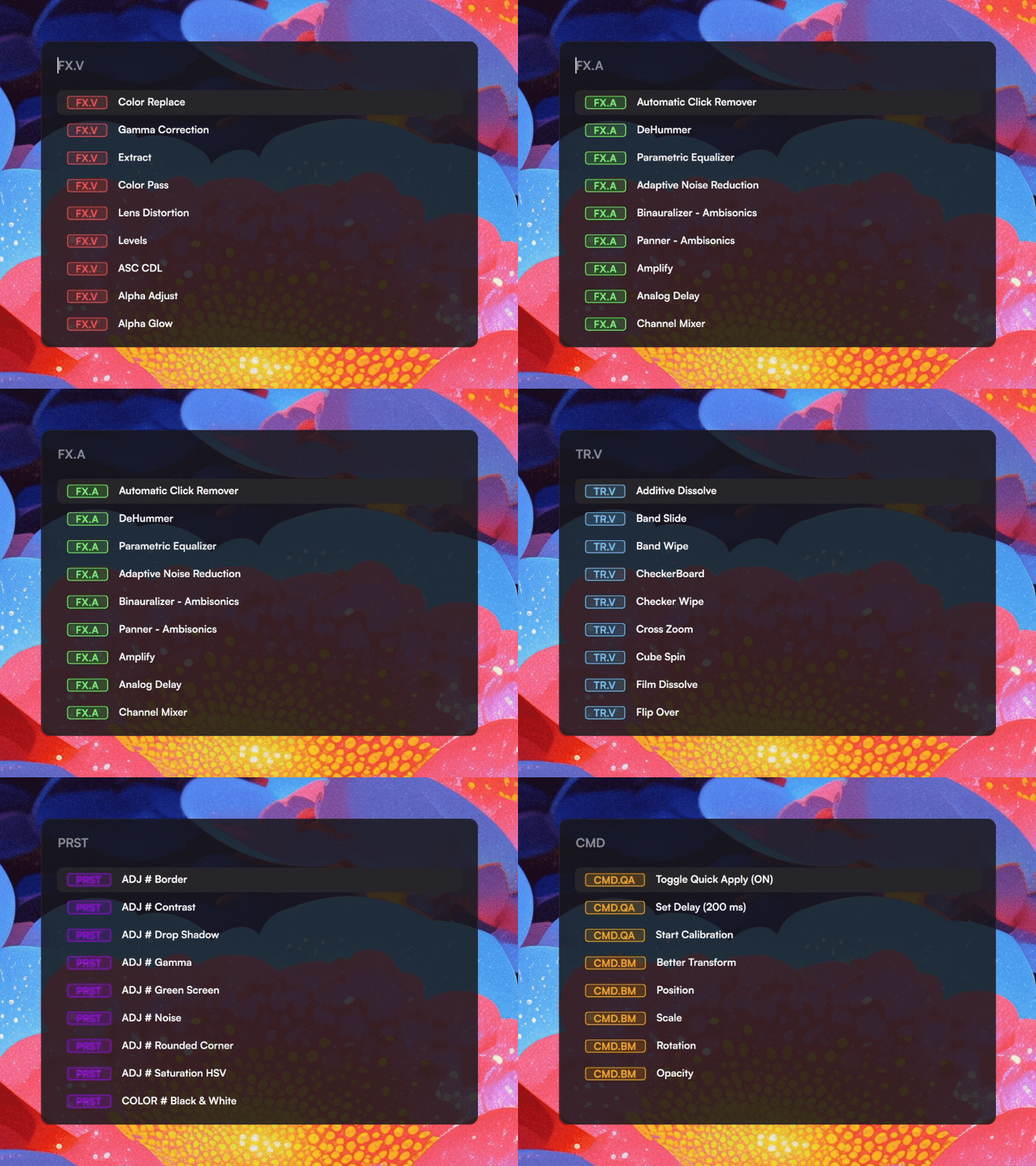
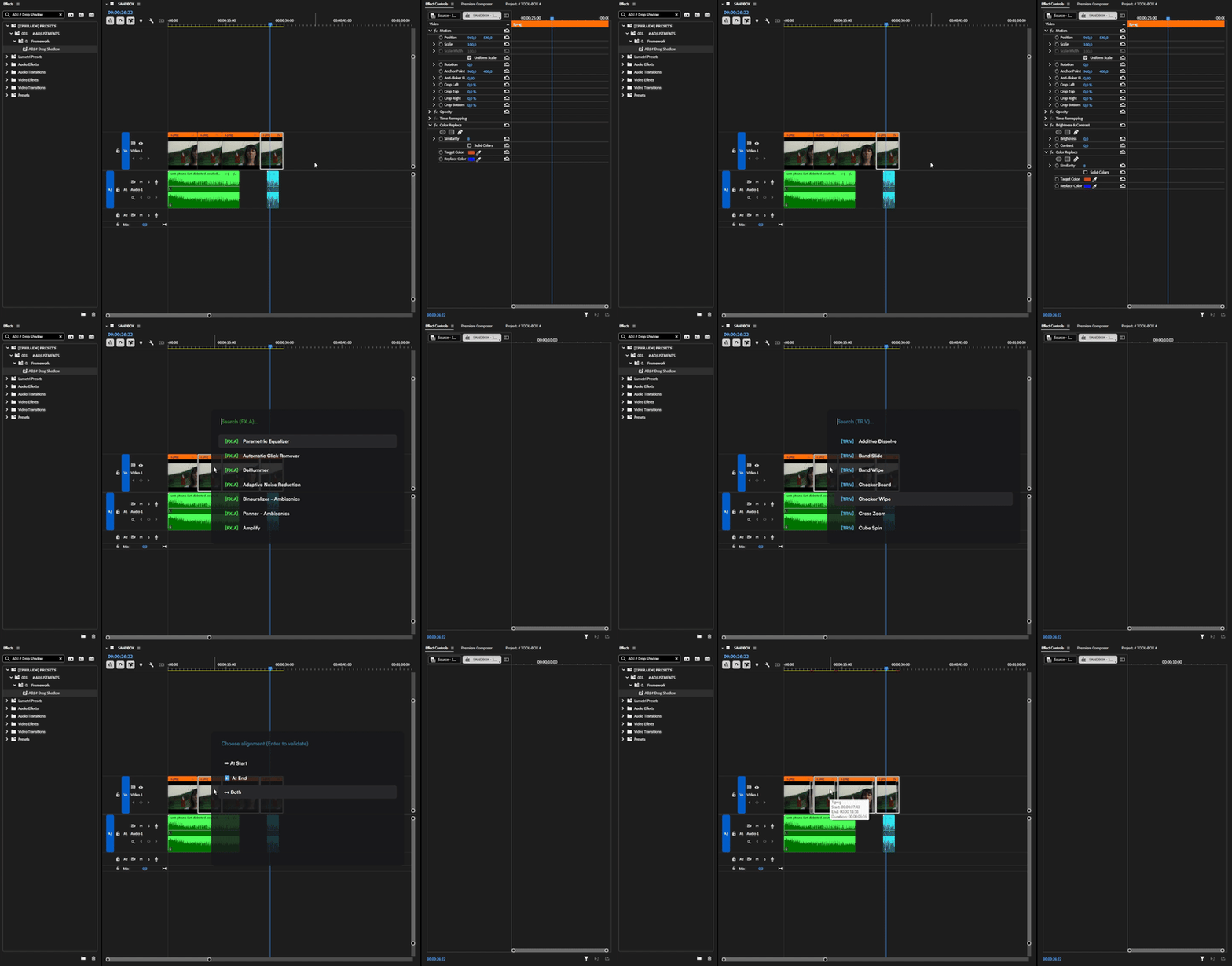
**Premiere Companion** is a productivity tool for Adobe Premiere Pro that lets you instantly apply **video effects**, **audio effects**, **transitions**, and **presets** - all from a fast, keyboard-driven search bar without ever leaving your timeline.
> Think of it as a free, open-source alternative to the Excalibur plugin, but with the added ability to apply Presets.
🧩 Why "Premiere Companion" over similar plugins ?
Unlike traditional alternatives (such as Excalibur), splitting the tool into a desktop app and a plugin brings significant advantages:
* **Blazing Fast & Reliable Hotkeys:** Shortcut detection happens globally at the OS level, bypassing Premiere's sluggish shortcut engine for a lightning-fast search bar.
* **Future-Proof (UXP API):** Built on Adobe's modern UXP architecture, perfectly adapted for the future while leaving behind the dying ExtendScript API.
* **True Preset Application (Custom Keyframes Preserved):** Other tools use code hacks that ruin complex custom animations (like Bezier curves). Companion simulates a physical drag-and-drop, applying presets natively without destroying your keyframes.
* **Free & Open-Source:** It is fully transparent, community-driven, and completely free to use.
## ✨ Features
- **🪄 Custom Macros** - Create powerful sequences of actions (apply an effect, then a preset, then adjust opacity) and trigger them with a single click or command.
- **🖱️ Better Motion HUD** - A revolutionary way to adjust clip properties (Position, Scale, Rotation, Opacity) using mouse movements with a real-time floating HUD.
- **🔄 Better Transform** - Use the combined Transform tool to switch between Position, Scale, and Rotation on the fly using mouse button modifiers (RMB/MMB).
- **⚡ Instant Search Bar** - Summon a floating search bar from anywhere with a fully customizable shortcut (default: `Ctrl+Space`) while Premiere Pro is in focus.
- **🛠️ Dynamic Commands** - Control the application directly from the search bar (e.g., `/QA` to toggle Quick Apply, `/BM` for Better Motion).
- **⌨️ Global Hotkeys** - Assign any effect, preset, or macro to a global keyboard shortcut that works even when Premiere is focused.
- **🗂️ Category Navigation** - Use the `←` / `→` arrow keys to cycle through element categories (Transitions, Video FX, Audio FX, Presets, Macros, All).
- **🔍 Live Filtering** - Results update as you type with a smart scoring algorithm that prioritizes recently used items.
- **🎯 Preset Support (Quick Apply)** - Apply your saved Premiere Pro presets automatically using recorded mouse positions and hardware-level input simulation.
- 🎨 **Dynamic Theming** - A fully customizable UI with 40+ adjustable parameters driven by a JSON configuration file.
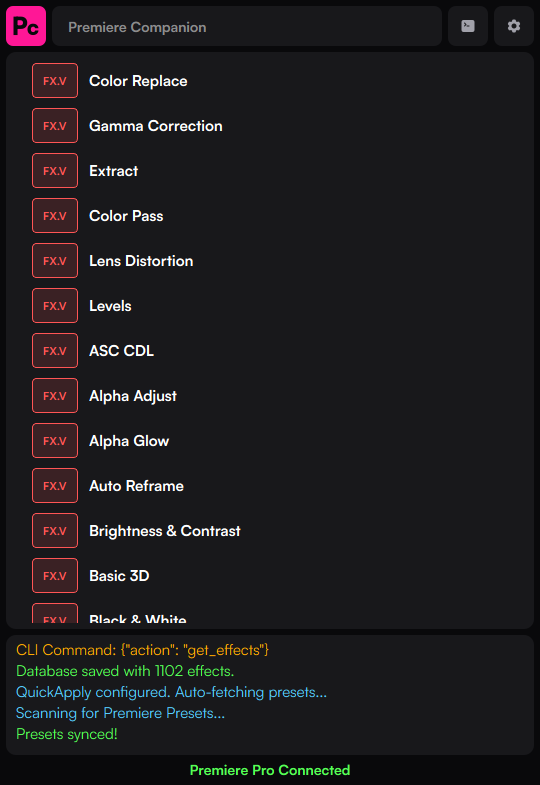
- **🔗 Hold-to-Sync** - Interactive logo with a progress gauge: hold for 2 seconds to force a full database synchronization.
---
## 📋 Prerequisites
Before using Premiere Companion and the plugin, make sure you have:
- **Adobe Premiere Pro 25.6.1** or a **Beta version** that supports **UXP plugins**.
## 🚀 Installation
* ✅ **Setup / Portable**
Download the `Setup.exe` or `Portable.zip` from the [**Releases page**](https://blessephraem.github.io/wiki/programs/premiere-companion/releases).
* ✅ **Winget**
```
winget install Ephraem.PremiereCompanion
```
* 🛠️ **From Source**
Clone the repository, then install the dependencies:
```bash
pip install PyQt6 pywin32 pyautogui websockets pynput
```
Run `src/InputBar.pyw` (as Administrator for global hotkeys).
Once configured, for a detailed breakdown of how to use the search bar (keyboard navigation, category filtering, transition alignment, recent items, and more) :
 ## 📖 Getting Started
### 📡 Connect to Premiere Pro
**Premiere Pro must be closed if you install/update the plugin.**
1. Go to **Settings -> Configure -> Install Plugin**.
2. Open Premiere Pro and load the **Premiere Companion** plugin (Look at the top bar, `Window > UXP Plugins > Premiere Companion (Listener)`).
2. In both the plugin panel and the Premiere Companion application, verify that the **WebSocket Port** matches exactly. You can check and adjust this in **Settings → Premiere Pro → Configure**.
When the connection is established:
- The **console** at the bottom of the app will display a green confirmation essage.
- The **plugin panel** will also indicate that it is connected.
#### 🧹 Recommended - Apply a Regex Clean (Transition Names)
> This step is **strongly recommended** if you want clean, readable names for your transitions.
The Premiere Pro API does not expose a clean way to retrieve formatted transition names - raw internal names often include plugin prefixes, codes, and technical identifiers (e.g., `AE.ADBE Cross Dissolve PrTr`).
To fix this, go to the **Regex** page and use one of these options:
- **🤖 Auto-Generate Rules** - Analyzes all your fetched transitions and automatically builds cleanup rules. Works well for most setups.
- **📄 Import my personal rules file** - Download and use my pre-made regex ruleset, crafted specifically for a clean Premiere Pro effect list. _(Link coming soon)_
Rules are applied in order and can be individually reordered, edited, or deleted.
🎉 You can now apply any effect or transition directly via the search bar using **`Ctrl+Space`** while Premiere Pro is focused. This shortcut is configurable in the **Keymaps** page.
**By default, transitions, video effects, and audio effects work immediately once connected. To make Presets applicable, further configuration is required. (See below.)**
### **[How to Apply Presets ?](https://blessephraem.github.io/wiki/programs/premiere-companion/quickapply)**
---
## 🗺️ Roadmap & Known Issues
I am constantly adding new features! Check out our [Roadmap](https://github.com/BlessEphraem/Premiere-Companion/blob/main/ROADMAP.md) to see:
- ❌ Known limitations (e.g., UXP API limits on audio transitions).
- 🏗️ What we're currently working on (WIP).
- 🗒️ Backlog of ideas, including the upcoming **Custom Command Compositions** feature.
## 🛠️ Tech Stack
- **Language:** Python 3
- **GUI:** PyQt6
- **Communication:** `asyncio`, `websockets`
- **OS Integration (Windows):** `ctypes`, `win32gui` (Global hotkey hooking & window management), `pyautogui` (Input simulation)
- **Data Persistence:** Local JSON files for configurations, keybinds, and themes.
## 📄 License
GPL-3.0 license - see [LICENSE](LICENSE) for details.