---
title: AI Tuning & Guardrails
summary: >-
Complete configuration reference for the NeuralSeek Configure tab — covers AI tuning controls (data connection, document ranking, answer generation) and the full set of guardrails for governing user input and generated output.
tags: [features, configuration, ai-tuning, guardrails, governance, reference]
source: all AI tuning and guardrails.docx
---
**NEURALSEEK**
**AI Tuning & Guardrails**
*Configuration reference for tuning answer quality and applying
governance to user input and generated output.*
**DOCUMENT** NeuralSeek Configure Tab Reference
**AUDIENCE** Administrators, Subject-Matter Experts, Solutions Engineers
**STRUCTURE** Part 1 covers AI tuning. Part 2 covers guardrails.
**Part 1 — AI Tuning**
These settings shape how NeuralSeek connects to your data, ranks
documents, and generates answers. Tuning these correctly is the
foundation of high-quality output before guardrails are layered on.
**Overview**
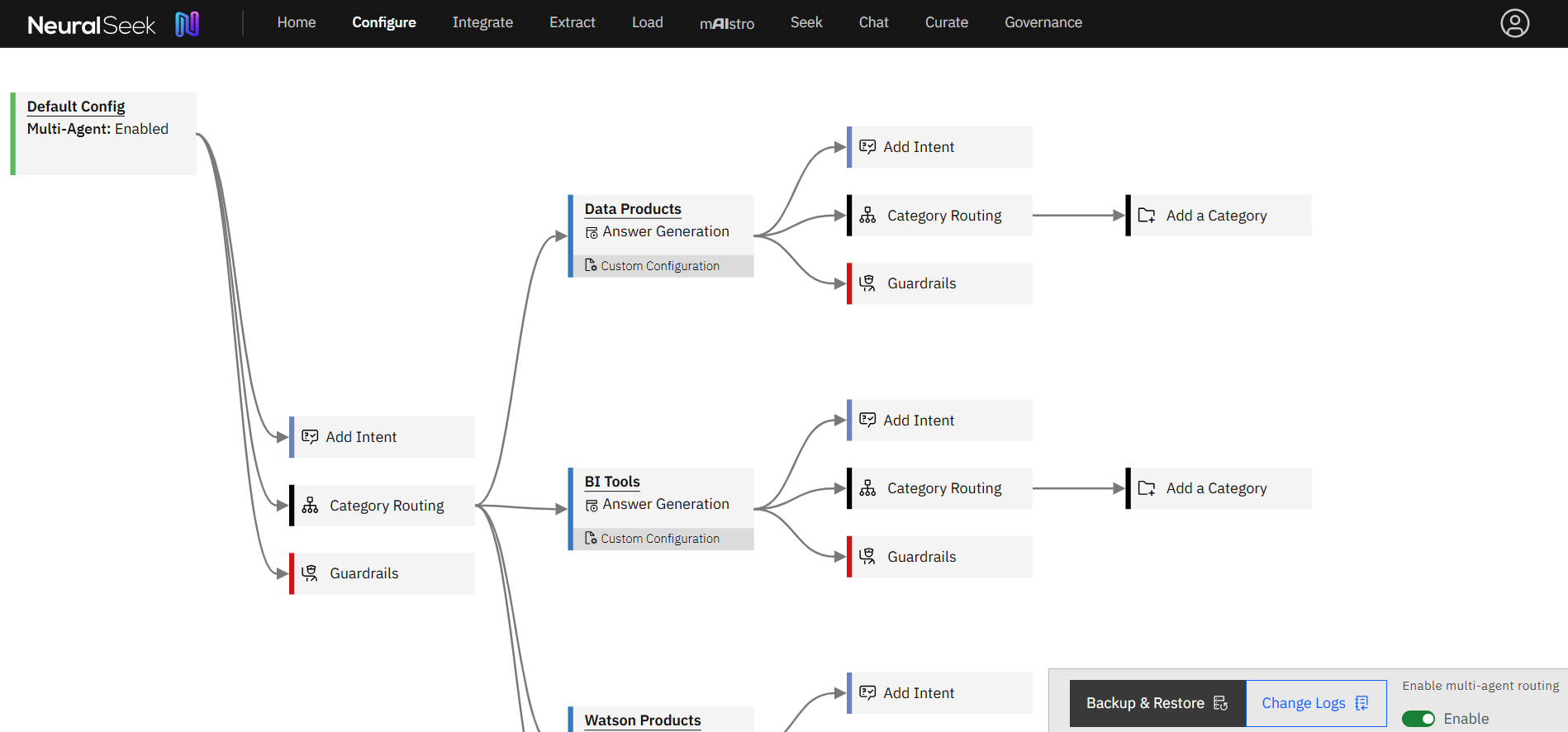 *Figure: configure*
What is it?
- The Configure tab allows users to modify settings for NeuralSeek
features.
Why is it important?
- This functionality allows for a highly customizable and adaptable user
experience, enabling organizations to optimize the performance of
NeuralSeek in accordance with their unique use cases. Whether it
involves adjusting default configurations for standard use or delving
into advanced configurations for more nuanced preferences, the
"Configure" tab empowers users to fine-tune NeuralSeek's capabilities.
This level of customization ensures that NeuralSeek becomes a
versatile and effective tool, capable of delivering optimal results
across diverse organizational contexts.
How does it work?
- For more information on each level in the Configure tab, refer to the
Configuration Details outlined below.
**Multi-Agent Routing**
Enable NeuralSeek's Multi-Agent Routing in the bottom right corner of
the Configure tab. This will allow users to connect different
configurations based on defined categories of user queries and handle
the interactions dynamically and more effectively.
*Figure: configure*
What is it?
- The Configure tab allows users to modify settings for NeuralSeek
features.
Why is it important?
- This functionality allows for a highly customizable and adaptable user
experience, enabling organizations to optimize the performance of
NeuralSeek in accordance with their unique use cases. Whether it
involves adjusting default configurations for standard use or delving
into advanced configurations for more nuanced preferences, the
"Configure" tab empowers users to fine-tune NeuralSeek's capabilities.
This level of customization ensures that NeuralSeek becomes a
versatile and effective tool, capable of delivering optimal results
across diverse organizational contexts.
How does it work?
- For more information on each level in the Configure tab, refer to the
Configuration Details outlined below.
**Multi-Agent Routing**
Enable NeuralSeek's Multi-Agent Routing in the bottom right corner of
the Configure tab. This will allow users to connect different
configurations based on defined categories of user queries and handle
the interactions dynamically and more effectively.
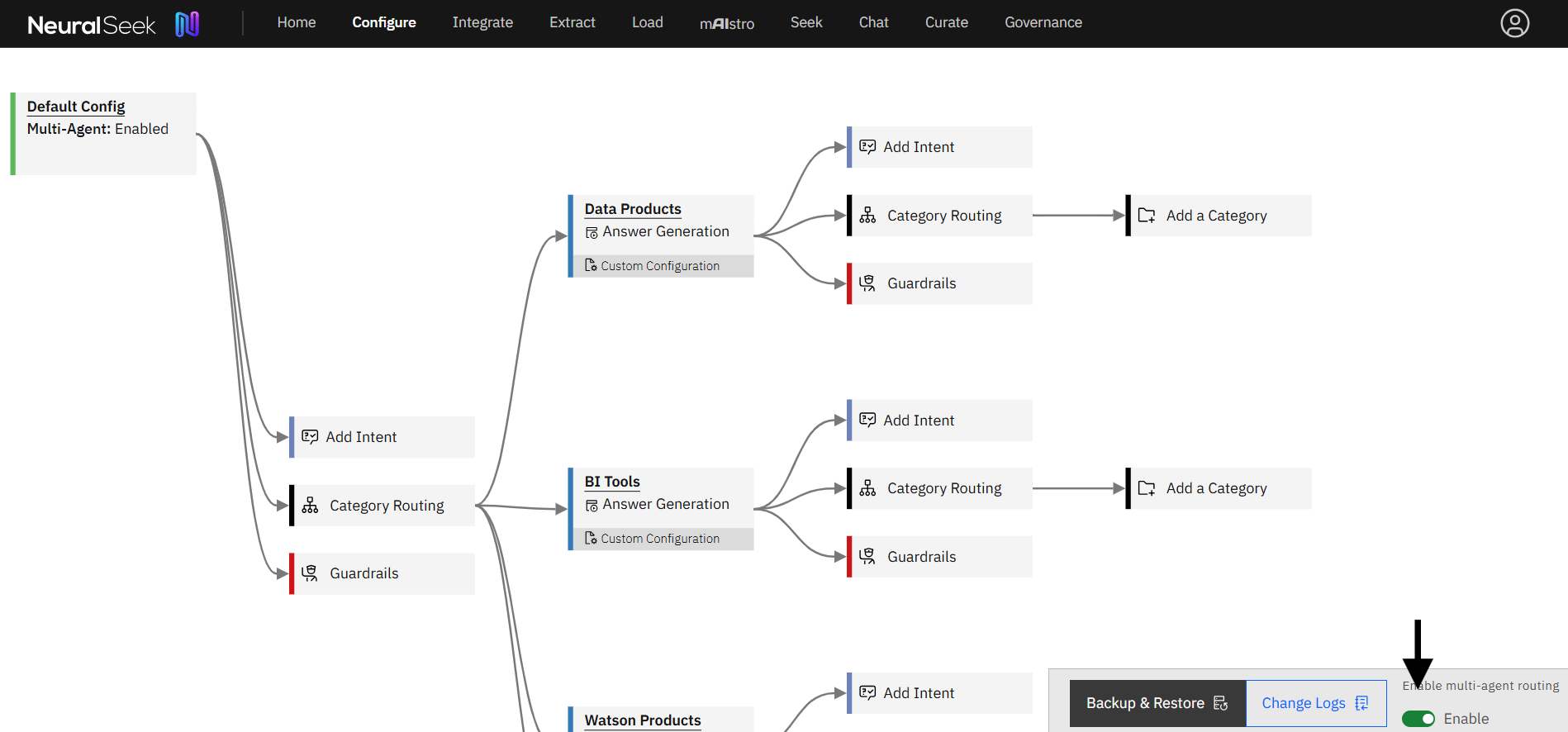 *Figure: multi-agent-routing*
With Multi-Agent Routing, configuration nodes flow through a tree with
defined categories. Categories are used to drive the path of the
multi-agent flow. At each category in the tree you can specify a custom
configuration that will be used by it and nested levels beneath it. Upon
adding a custom configuration, a new node will appear labeled Guardrails
that allow users modify essential guardrails for the newly defined
category.
> **NOTE**
>
> Newly defined categories will automatically utilize the Default
> Configuration settings and Guardrails. From a default configuration,
> you can save a proposal to be utilized, or edit a category to utilize
> a custom configuration with custom guardrails.
>
> **EXAMPLE — Answer Generation Example**
>
> A category can be driven with an Answer Generation action.
- Click on the Add A Category node.
- Select Answer Generation as the action to take upon match.
- Add a relevant Category Name and a brief Category Description.
- Click Save Category. A new branch will appear in the Multi-Agent
Routing tree.
*Figure: multi-agent-routing*
With Multi-Agent Routing, configuration nodes flow through a tree with
defined categories. Categories are used to drive the path of the
multi-agent flow. At each category in the tree you can specify a custom
configuration that will be used by it and nested levels beneath it. Upon
adding a custom configuration, a new node will appear labeled Guardrails
that allow users modify essential guardrails for the newly defined
category.
> **NOTE**
>
> Newly defined categories will automatically utilize the Default
> Configuration settings and Guardrails. From a default configuration,
> you can save a proposal to be utilized, or edit a category to utilize
> a custom configuration with custom guardrails.
>
> **EXAMPLE — Answer Generation Example**
>
> A category can be driven with an Answer Generation action.
- Click on the Add A Category node.
- Select Answer Generation as the action to take upon match.
- Add a relevant Category Name and a brief Category Description.
- Click Save Category. A new branch will appear in the Multi-Agent
Routing tree.
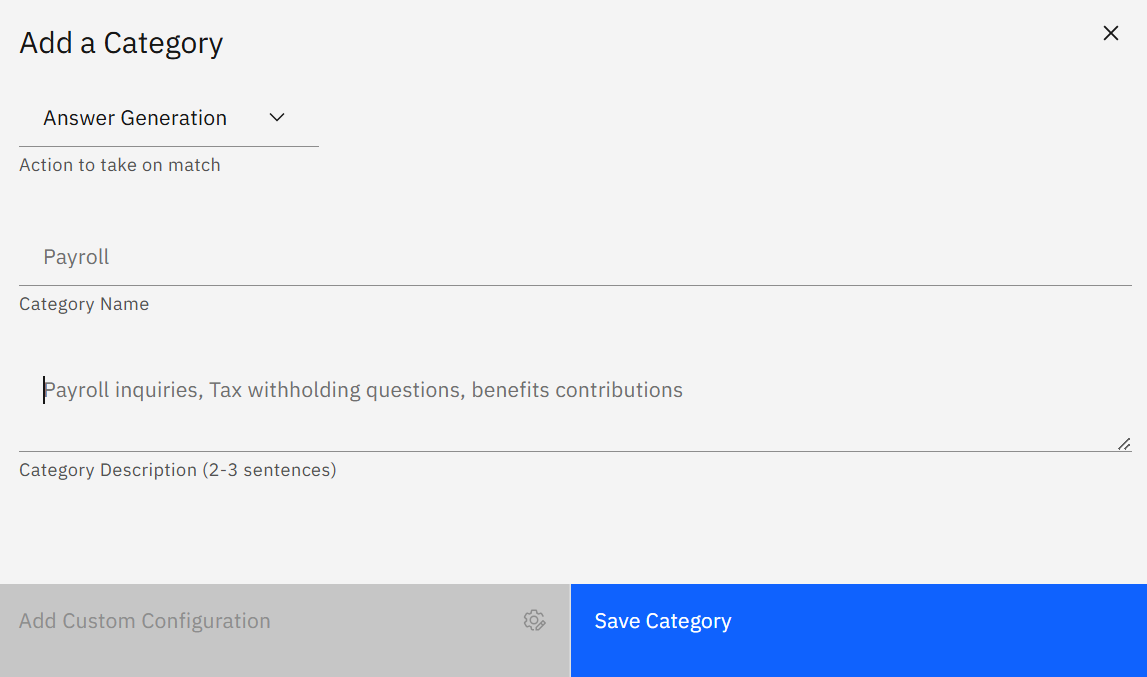 *Figure: MAR new category*
New categories will utilize the Default Configuration settings defined
in the first node of the Multi-Agent Routing tree, also labled the
Default Config node.
*Figure: MAR new category*
New categories will utilize the Default Configuration settings defined
in the first node of the Multi-Agent Routing tree, also labled the
Default Config node.
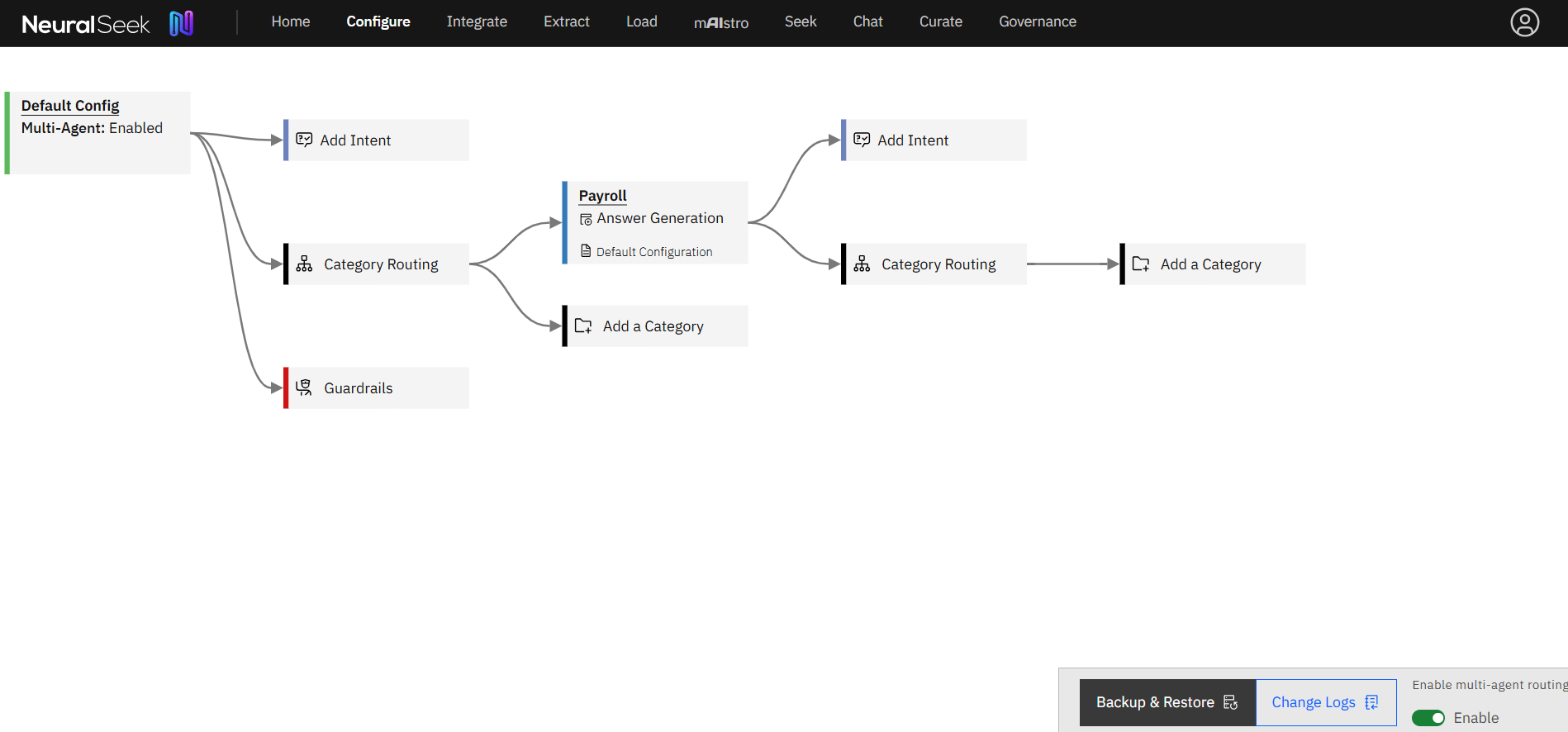 *Figure: default config*
To edit a Custom Configuration for the newly defined category:
- Click on the category node.
- Click Add Custom Configuration
- The familiar NeuralSeek Configuration panel will pop up. Save your
changes for your custom configuration and notice the category is now
defined with a Custom Configuration.
*Figure: default config*
To edit a Custom Configuration for the newly defined category:
- Click on the category node.
- Click Add Custom Configuration
- The familiar NeuralSeek Configuration panel will pop up. Save your
changes for your custom configuration and notice the category is now
defined with a Custom Configuration.
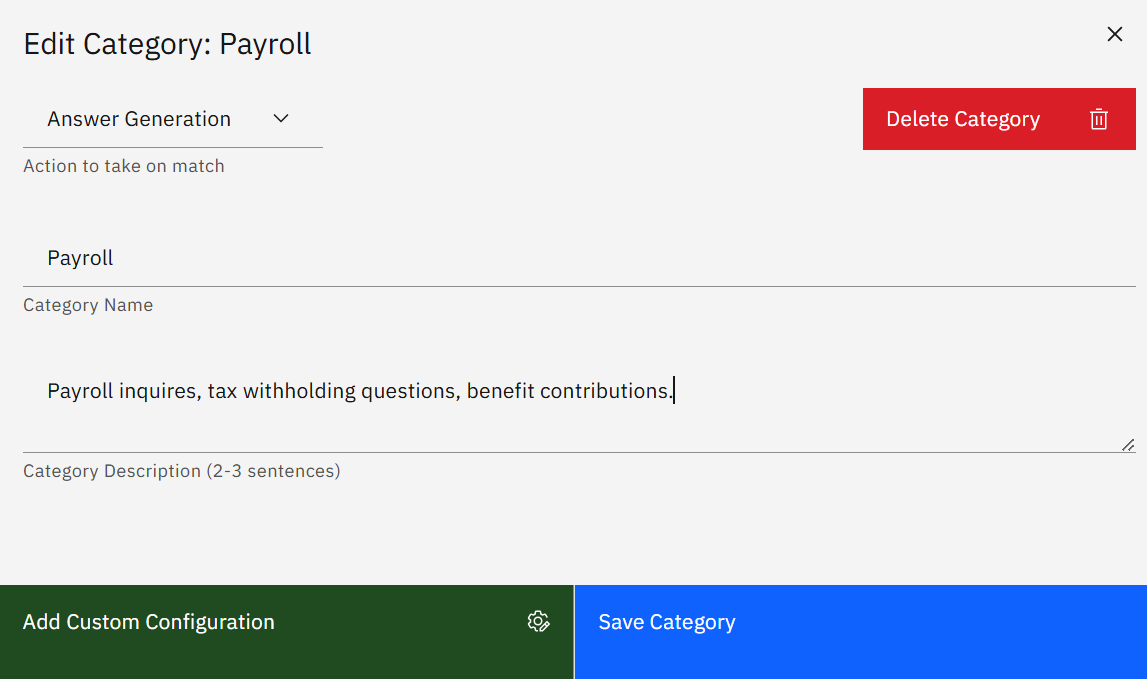 *Figure: MAR add custmom config*
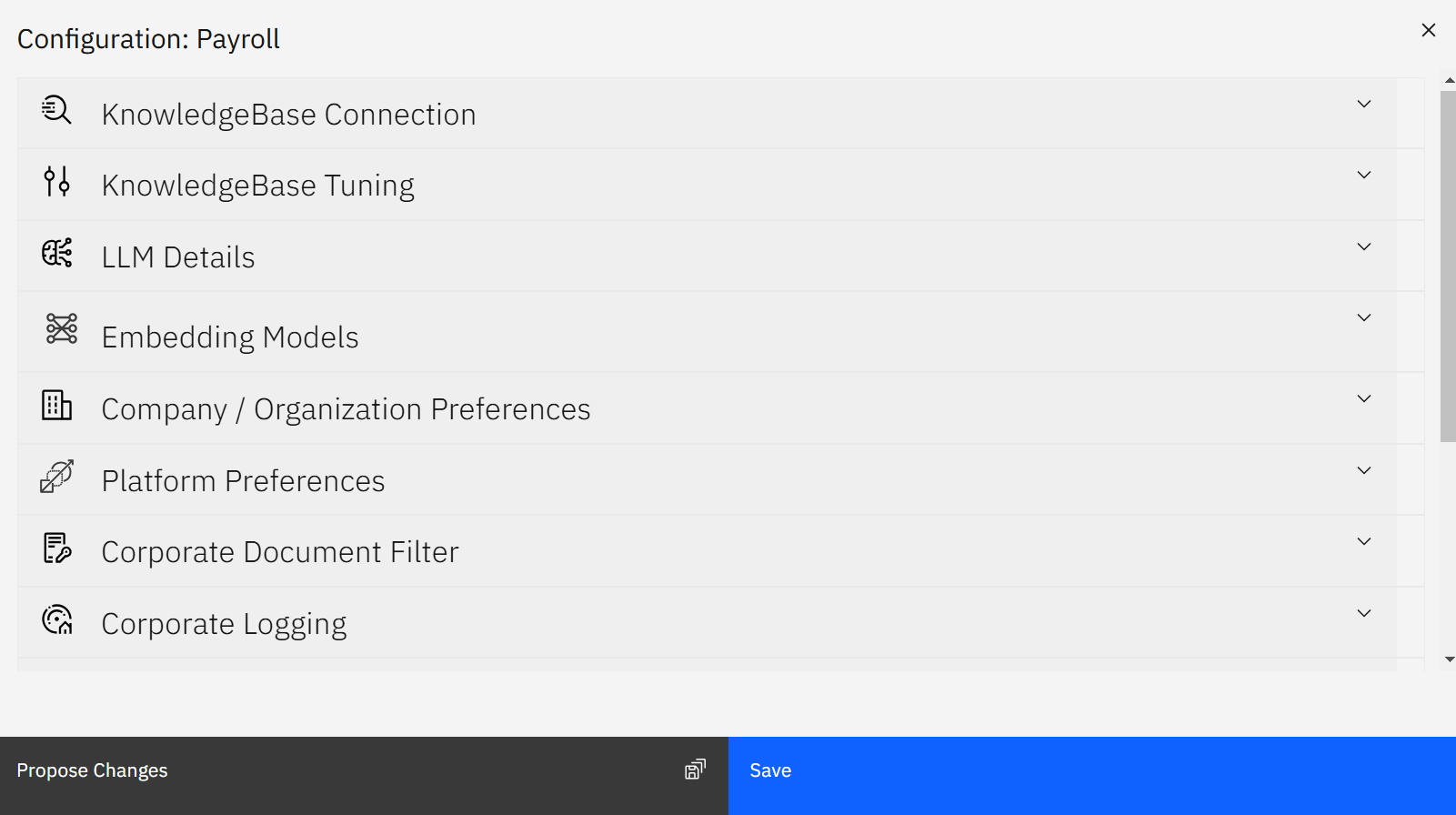 *Figure: MAR NS config panel*
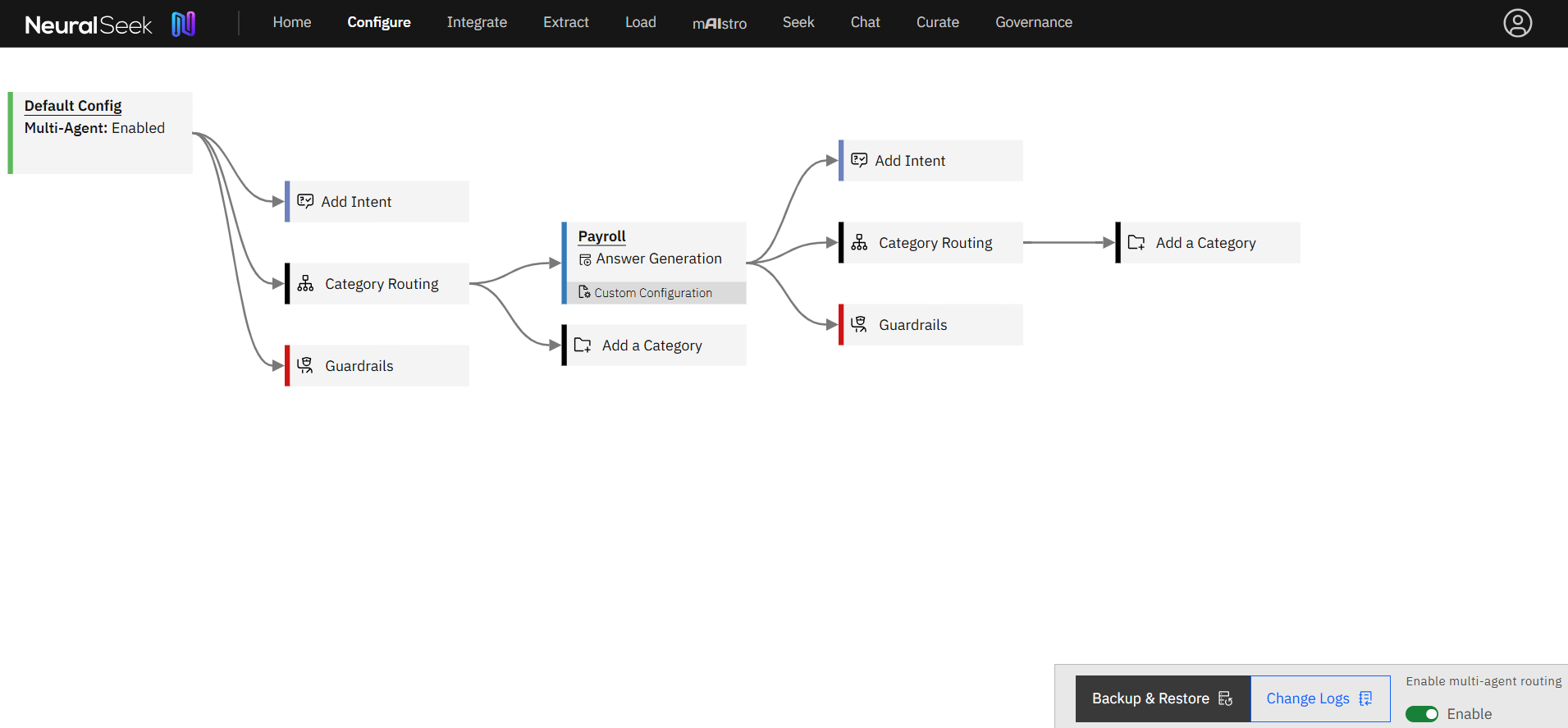 *Figure: custom config*
> **EXAMPLE — mAIstro-led Example**
>
> A category can be driven with a mAIstro-led action.
- Click on the Add A Category node.
- Select mAIstro-led as the action to take upon match.
- Add a relevant Category Name and a brief Category Description.
- Click Save Category. A new branch will appear in the Multi-Agent
Routing tree.
*Figure: custom config*
> **EXAMPLE — mAIstro-led Example**
>
> A category can be driven with a mAIstro-led action.
- Click on the Add A Category node.
- Select mAIstro-led as the action to take upon match.
- Add a relevant Category Name and a brief Category Description.
- Click Save Category. A new branch will appear in the Multi-Agent
Routing tree.
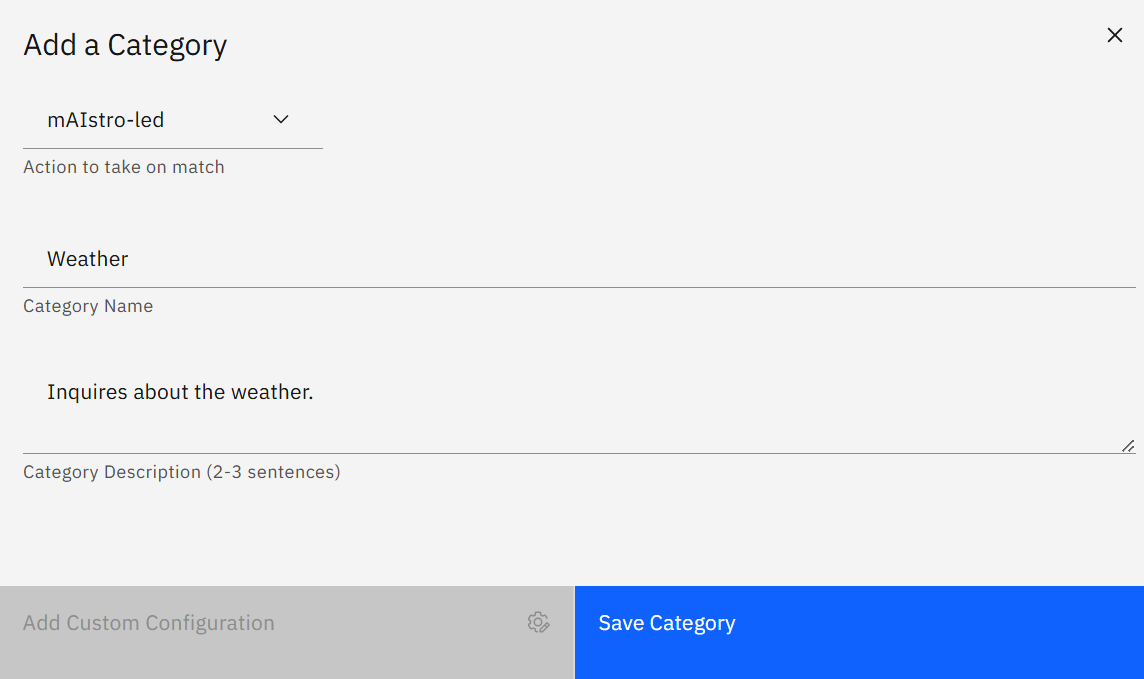 *Figure: MAR new maistro led*
New categories will utilize the Default Configuration settings defined
in the first node of the Multi-Agent Routing tree, also labled the
Default Config node. This configuration can be edited.
*Figure: MAR new maistro led*
New categories will utilize the Default Configuration settings defined
in the first node of the Multi-Agent Routing tree, also labled the
Default Config node. This configuration can be edited.
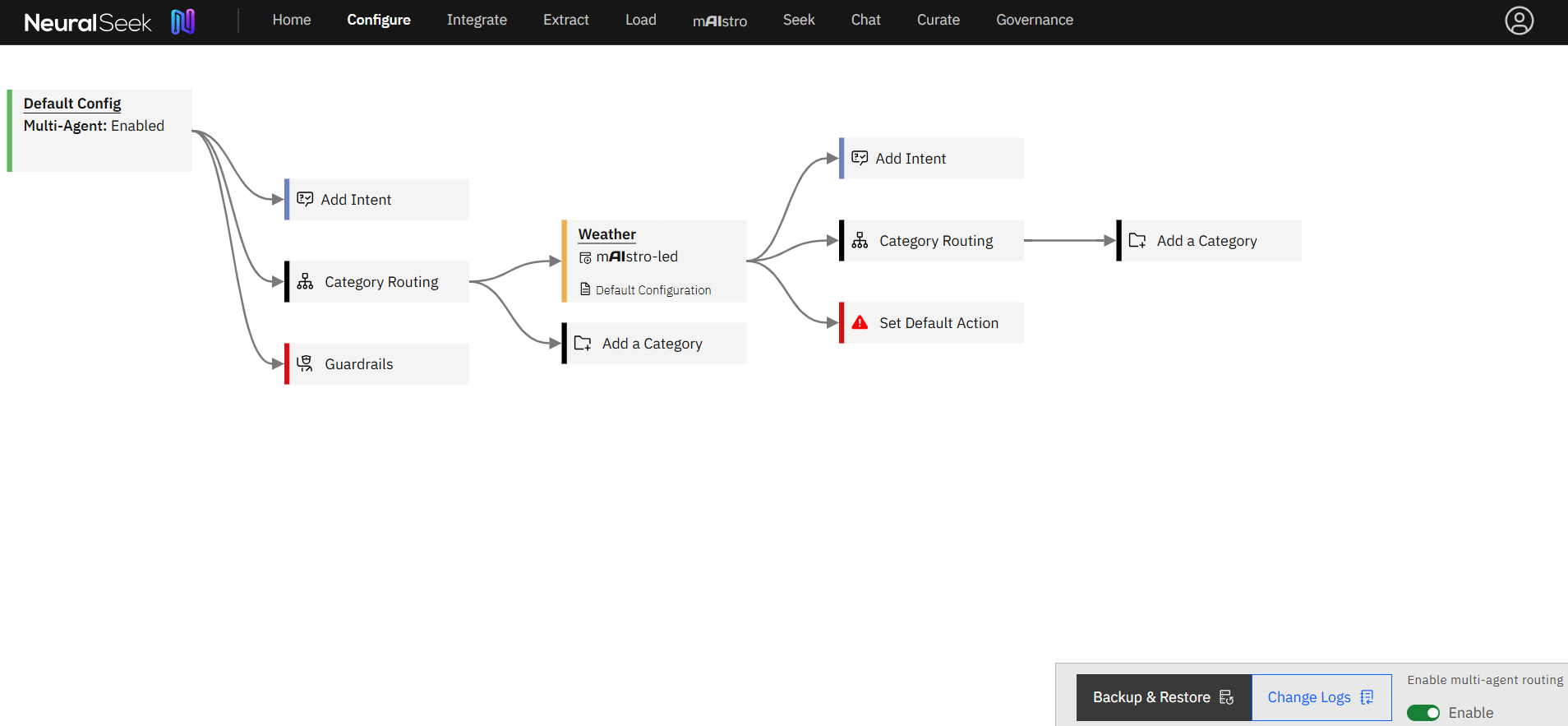 *Figure: maistro led config*
Select your mAIstro agent by clicking Set Default Action and selecting
from the drop-down menu.
*Figure: maistro led config*
Select your mAIstro agent by clicking Set Default Action and selecting
from the drop-down menu.
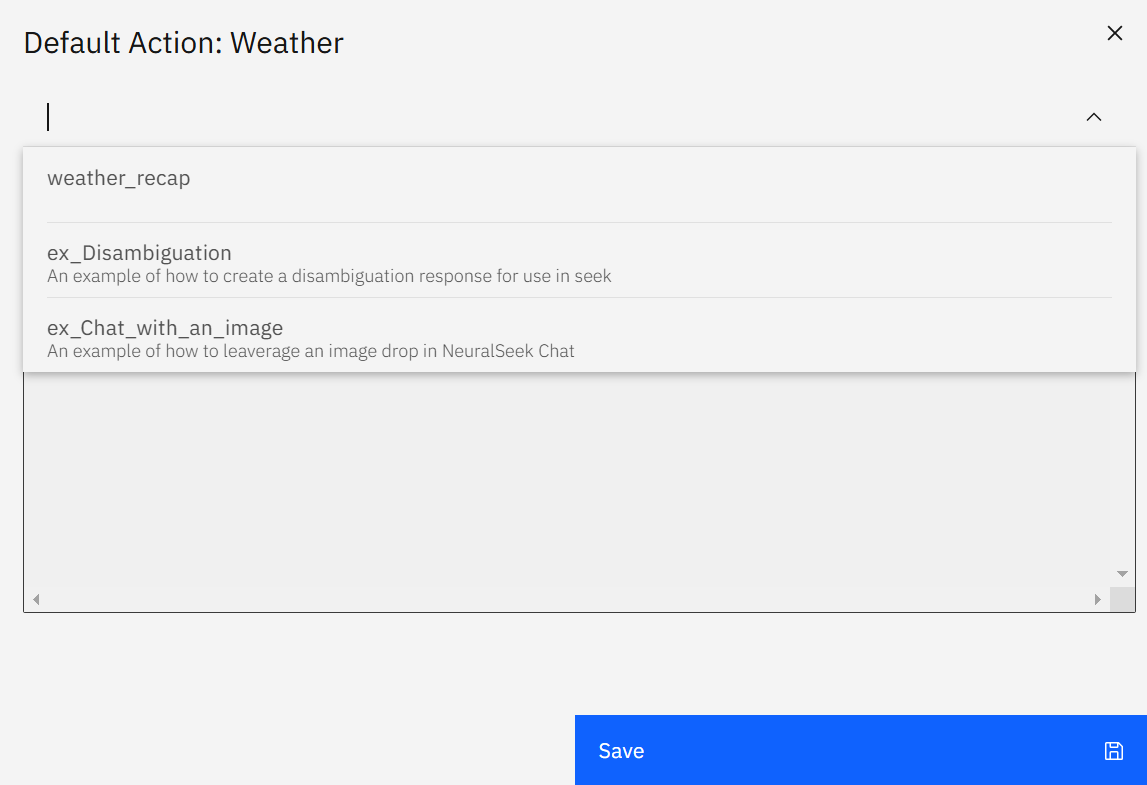 *Figure: MAR maistro agent*
> **TIP**
>
> For the mAIstro agent to appear in the drop-down menu, edit the
> mAIstro agent to begin with a Seek - In node. Save the agent with a
> unique name.
**Configuration Details**
This location of NeuralSeek is where users can edit the configurations
for NeuralSeek's features.
**KnowledgeBase Connection**
Users can change their KnowledgeBase type along with the associated URL,
API keys, project ID, and other relevant information. Use the dropdown
arrows to manually configure the fields of the schema in the connected
KnowledgeBase.
*Figure: MAR maistro agent*
> **TIP**
>
> For the mAIstro agent to appear in the drop-down menu, edit the
> mAIstro agent to begin with a Seek - In node. Save the agent with a
> unique name.
**Configuration Details**
This location of NeuralSeek is where users can edit the configurations
for NeuralSeek's features.
**KnowledgeBase Connection**
Users can change their KnowledgeBase type along with the associated URL,
API keys, project ID, and other relevant information. Use the dropdown
arrows to manually configure the fields of the schema in the connected
KnowledgeBase.
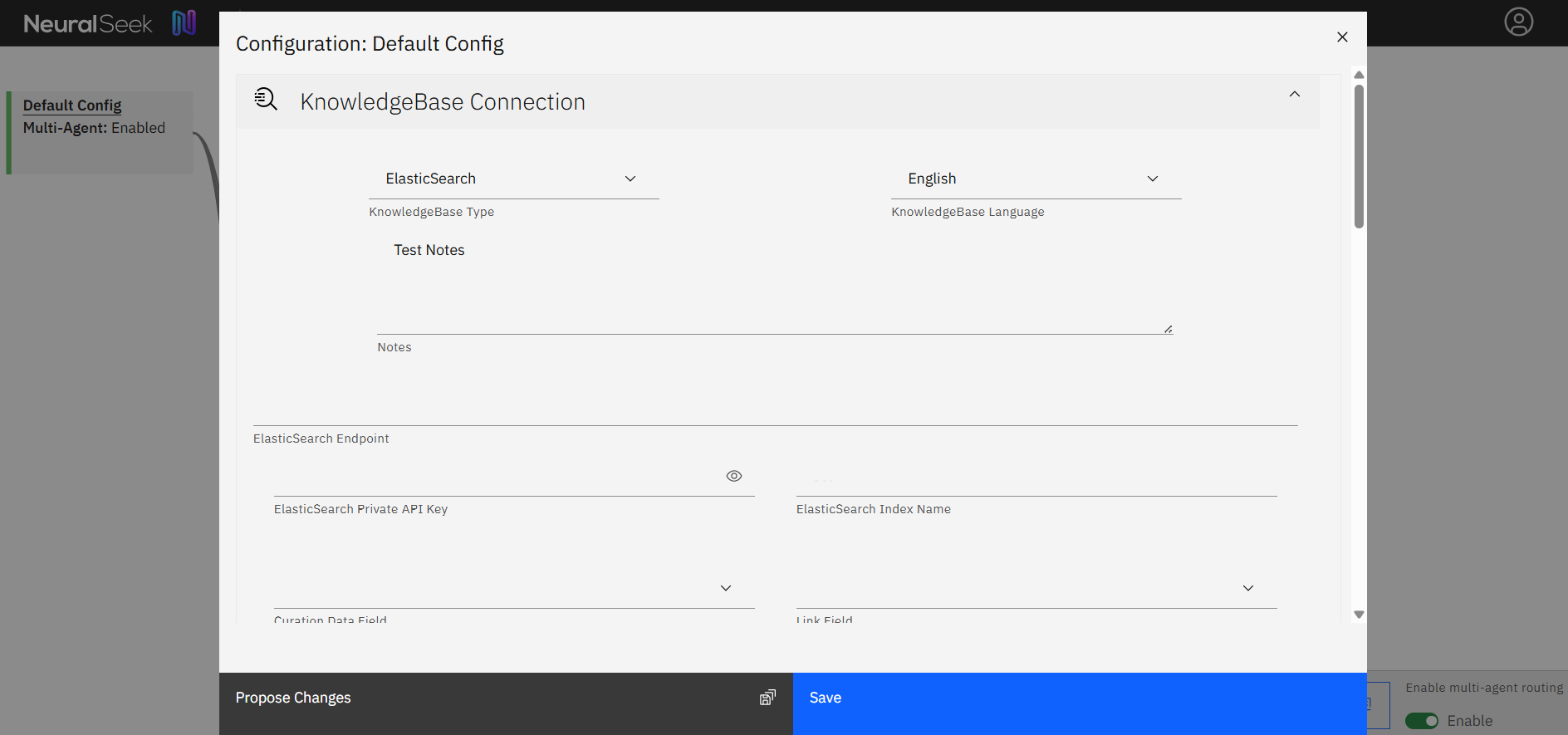 *Figure: knowledgebase connection*
> **REFERENCE — Values**
- **KnowledgeBase Type:** The KnowledgeBase provider.
- **KnowledgeBase Language:** The language of documents loaded into the
selected KnowledgeBase.
- **Notes:** Optionally, add any notes related to the selected
KnowledgeBase configuration.
- **Curation Data Field:** Select the parameter of your FAQ
content/document body.
- **Link Field:** Select the URL field from the document metadata -
shown below the title, or served in the Virtual Agent chat bubble as a
link.
- **Document Name Field:** The document metadata field for document
"Title".
- Additional Payload Field Allows users to add additional data into
their message.
- **Attribute sources inside LLM Context by Document Name:** Users have
the option to enable or disable attributing sources inside LLM context
by document name. For example, when disabled the output will be
formatted with only the document contents. When enabled, the output
will be formatted with an introductory sentence that attributes the
'document content' to the appropriate document 'name' (e.g. The
document 'name' states that: 'document content'). This helps some LLMs
follow the track of information.
- Return the document instead of passages (only enable this if all of
your documents are short) Users can enable return the document instead
of passages in order to get an output that is a full document. This
should only be enabled if all of the documents in the search are
short.
- **Filter Field:** Select document metadata field to use for filtering.
For example, you can filter on a 'document_type' field for only 'PDF'
types.
- Static Default Filter Value (when no runtime filter is passed) The
value a filter uses as its default setting. This value can differ when
a runtime filter is passed.
- Re‑Sort Values List: Users can enter a prioritized list of values that
will re‑rank documents and URLs above other results, regardless of KB
score. Click the light bulb icon to add a new row and enter the
priority value.
> **INFO — How to Use Re‑Sort Values**
>
> 1\. Go to KnowledgeBase → Connection Settings. 2. Click the light bulb
> icon to add a new Re‑Sort value (e.g., priority-topic or
> critical-url). 3. Tag relevant documents or URLs in your KnowledgeBase
> with this value. 4. Run a Seek query to verify that items with this
> value appear higher in the results.
- Enable Advanced Schema Enabling Advanced Schema allows users to get a
more narrow search based on the Value List inputs.
**KnowledgeBase Tuning**
Tuning your KnowledgeBase is an important part of creating a well
performing system.
*Figure: knowledgebase connection*
> **REFERENCE — Values**
- **KnowledgeBase Type:** The KnowledgeBase provider.
- **KnowledgeBase Language:** The language of documents loaded into the
selected KnowledgeBase.
- **Notes:** Optionally, add any notes related to the selected
KnowledgeBase configuration.
- **Curation Data Field:** Select the parameter of your FAQ
content/document body.
- **Link Field:** Select the URL field from the document metadata -
shown below the title, or served in the Virtual Agent chat bubble as a
link.
- **Document Name Field:** The document metadata field for document
"Title".
- Additional Payload Field Allows users to add additional data into
their message.
- **Attribute sources inside LLM Context by Document Name:** Users have
the option to enable or disable attributing sources inside LLM context
by document name. For example, when disabled the output will be
formatted with only the document contents. When enabled, the output
will be formatted with an introductory sentence that attributes the
'document content' to the appropriate document 'name' (e.g. The
document 'name' states that: 'document content'). This helps some LLMs
follow the track of information.
- Return the document instead of passages (only enable this if all of
your documents are short) Users can enable return the document instead
of passages in order to get an output that is a full document. This
should only be enabled if all of the documents in the search are
short.
- **Filter Field:** Select document metadata field to use for filtering.
For example, you can filter on a 'document_type' field for only 'PDF'
types.
- Static Default Filter Value (when no runtime filter is passed) The
value a filter uses as its default setting. This value can differ when
a runtime filter is passed.
- Re‑Sort Values List: Users can enter a prioritized list of values that
will re‑rank documents and URLs above other results, regardless of KB
score. Click the light bulb icon to add a new row and enter the
priority value.
> **INFO — How to Use Re‑Sort Values**
>
> 1\. Go to KnowledgeBase → Connection Settings. 2. Click the light bulb
> icon to add a new Re‑Sort value (e.g., priority-topic or
> critical-url). 3. Tag relevant documents or URLs in your KnowledgeBase
> with this value. 4. Run a Seek query to verify that items with this
> value appear higher in the results.
- Enable Advanced Schema Enabling Advanced Schema allows users to get a
more narrow search based on the Value List inputs.
**KnowledgeBase Tuning**
Tuning your KnowledgeBase is an important part of creating a well
performing system.
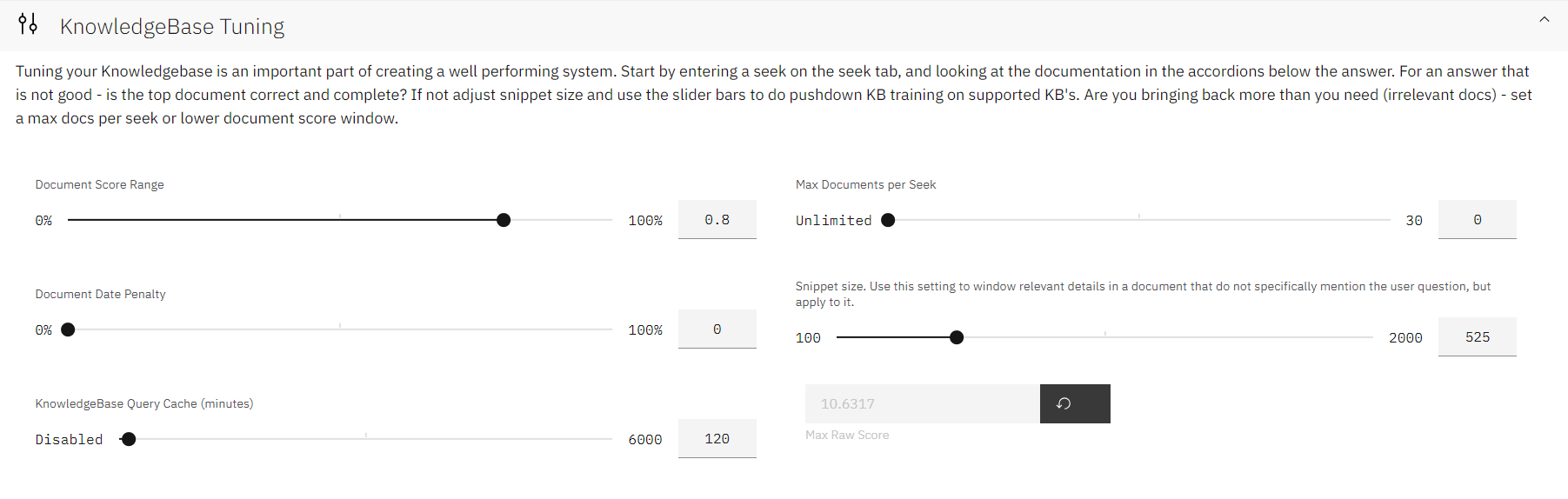 *Figure: knowledgebase tuning*
> **REFERENCE — Values**
- **Document Score Range:** The upper range score of documents to
return. E.g. when set to 0.8 or 80%, return the top scoring 80% of
documents, discarding the lowest 20% scored documents. The smaller the
number, the more strict the score threshold will be. Generally best
set to a high number, used with Max Docs setting.
- **Document Date Penalty:** Penalize document scores that include old
dates. A higher number means a higher penalty for older documents,
scaling with time/age.
- **KB Query Cache:** Limit repeated queries to the KnowledgeBase by
caching KB queries. Set this to the number of minutes you'd like to
preserve cached KB queries.
- **Max Documents per Seek:** The number of documents to send to the LLM
on each Seek action. Generally the best results are seen with this set
to 4-5 documents.
- **Snippet Size:** The character count to pass to the KB for document
passage size. The larger the number, the bigger the documentation
chunk. Generally best as a smaller number - around 500.
- **Max Raw Score:** The highest all-time document score NeuralSeek has
seen from the KB. NeuralSeek uses this number internally to calculate
a 100% score for documents.
**Hybrid & Vector Search Settings**
Offering the ability to choose from searching with Lucene, Vector, or a
Hybrid approach
*Figure: knowledgebase tuning*
> **REFERENCE — Values**
- **Document Score Range:** The upper range score of documents to
return. E.g. when set to 0.8 or 80%, return the top scoring 80% of
documents, discarding the lowest 20% scored documents. The smaller the
number, the more strict the score threshold will be. Generally best
set to a high number, used with Max Docs setting.
- **Document Date Penalty:** Penalize document scores that include old
dates. A higher number means a higher penalty for older documents,
scaling with time/age.
- **KB Query Cache:** Limit repeated queries to the KnowledgeBase by
caching KB queries. Set this to the number of minutes you'd like to
preserve cached KB queries.
- **Max Documents per Seek:** The number of documents to send to the LLM
on each Seek action. Generally the best results are seen with this set
to 4-5 documents.
- **Snippet Size:** The character count to pass to the KB for document
passage size. The larger the number, the bigger the documentation
chunk. Generally best as a smaller number - around 500.
- **Max Raw Score:** The highest all-time document score NeuralSeek has
seen from the KB. NeuralSeek uses this number internally to calculate
a 100% score for documents.
**Hybrid & Vector Search Settings**
Offering the ability to choose from searching with Lucene, Vector, or a
Hybrid approach
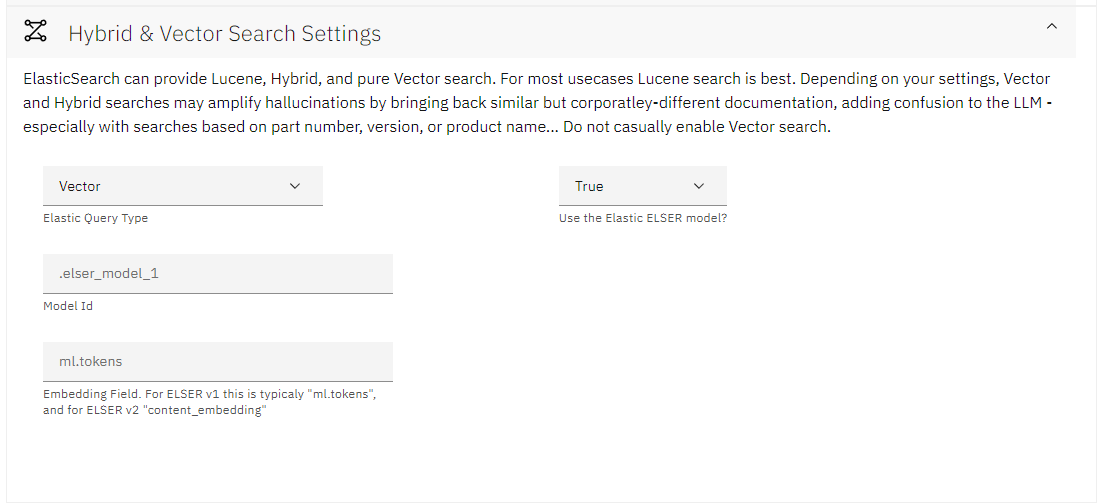 *Figure: vector settings*
> **REFERENCE — Values**
- **Query Type:** The type of query that NeuralSeek will use to gather
source documentation.
\- Lucene: "Exact match" queries.
- **Vector:** Vector similarity search, based on your deployed Vector
model.
- **Hybrid:** A combined search query that slightly boosts Lucene
results, allowing for graceful fallback to Vector results if no exact
matches are found.
- Use the Elastic ELSER model? The query format is different using ELSER
vs deployed KNN models. Select False if not using Elastic's ELSER
model.
- **ELSER - Model ID:** The name of the deployed and running model.
- **ELSER - Embedding Field:** The name of the metadata field where the
generated Vector embeddings are stored.
- **Elastic KNN Query:** The JSON of the KNN Vector query to run. There
are a couple values to set within the JSON:
\- field: The name of the metadata field where the Vector embeddings are
stored.
- model_id: The name of the deployed and running model.
- model_text: We offer a \<\< query \>\> expansion variable to insert
the query generated by NeuralSeek. Useful to edit if some Vector
models require a specific format, e.g. question: \<\\>
- See the Elastic documentation for more info around the other available
parameters.
**LLM Details**
This is where users can add a LLM of choice, and set or modify their LLM
model settings. By clicking "Add an LLM", users will be prompted to
select an LLM from their platform of choice and enter the relevant
information such as API keys, endpoint URLs, project ID's, etc. Use the
dropdown arrow to enable languages of choice: there are a total of 56
supported LLM languages. Users can also modify which NeuralSeek
functions to enable for the added LLM. Note that you must add at least
one LLM. If you add multiple, NeuralSeek will load-balance across them
for the selected functions that have multiple LLM's. Features that an
LLM are not capable of not be available for selection. If you do not
provide an LLM for a function, there is no fallback and that function of
NeuralSeek will be disabled.
*Figure: vector settings*
> **REFERENCE — Values**
- **Query Type:** The type of query that NeuralSeek will use to gather
source documentation.
\- Lucene: "Exact match" queries.
- **Vector:** Vector similarity search, based on your deployed Vector
model.
- **Hybrid:** A combined search query that slightly boosts Lucene
results, allowing for graceful fallback to Vector results if no exact
matches are found.
- Use the Elastic ELSER model? The query format is different using ELSER
vs deployed KNN models. Select False if not using Elastic's ELSER
model.
- **ELSER - Model ID:** The name of the deployed and running model.
- **ELSER - Embedding Field:** The name of the metadata field where the
generated Vector embeddings are stored.
- **Elastic KNN Query:** The JSON of the KNN Vector query to run. There
are a couple values to set within the JSON:
\- field: The name of the metadata field where the Vector embeddings are
stored.
- model_id: The name of the deployed and running model.
- model_text: We offer a \<\< query \>\> expansion variable to insert
the query generated by NeuralSeek. Useful to edit if some Vector
models require a specific format, e.g. question: \<\\>
- See the Elastic documentation for more info around the other available
parameters.
**LLM Details**
This is where users can add a LLM of choice, and set or modify their LLM
model settings. By clicking "Add an LLM", users will be prompted to
select an LLM from their platform of choice and enter the relevant
information such as API keys, endpoint URLs, project ID's, etc. Use the
dropdown arrow to enable languages of choice: there are a total of 56
supported LLM languages. Users can also modify which NeuralSeek
functions to enable for the added LLM. Note that you must add at least
one LLM. If you add multiple, NeuralSeek will load-balance across them
for the selected functions that have multiple LLM's. Features that an
LLM are not capable of not be available for selection. If you do not
provide an LLM for a function, there is no fallback and that function of
NeuralSeek will be disabled.
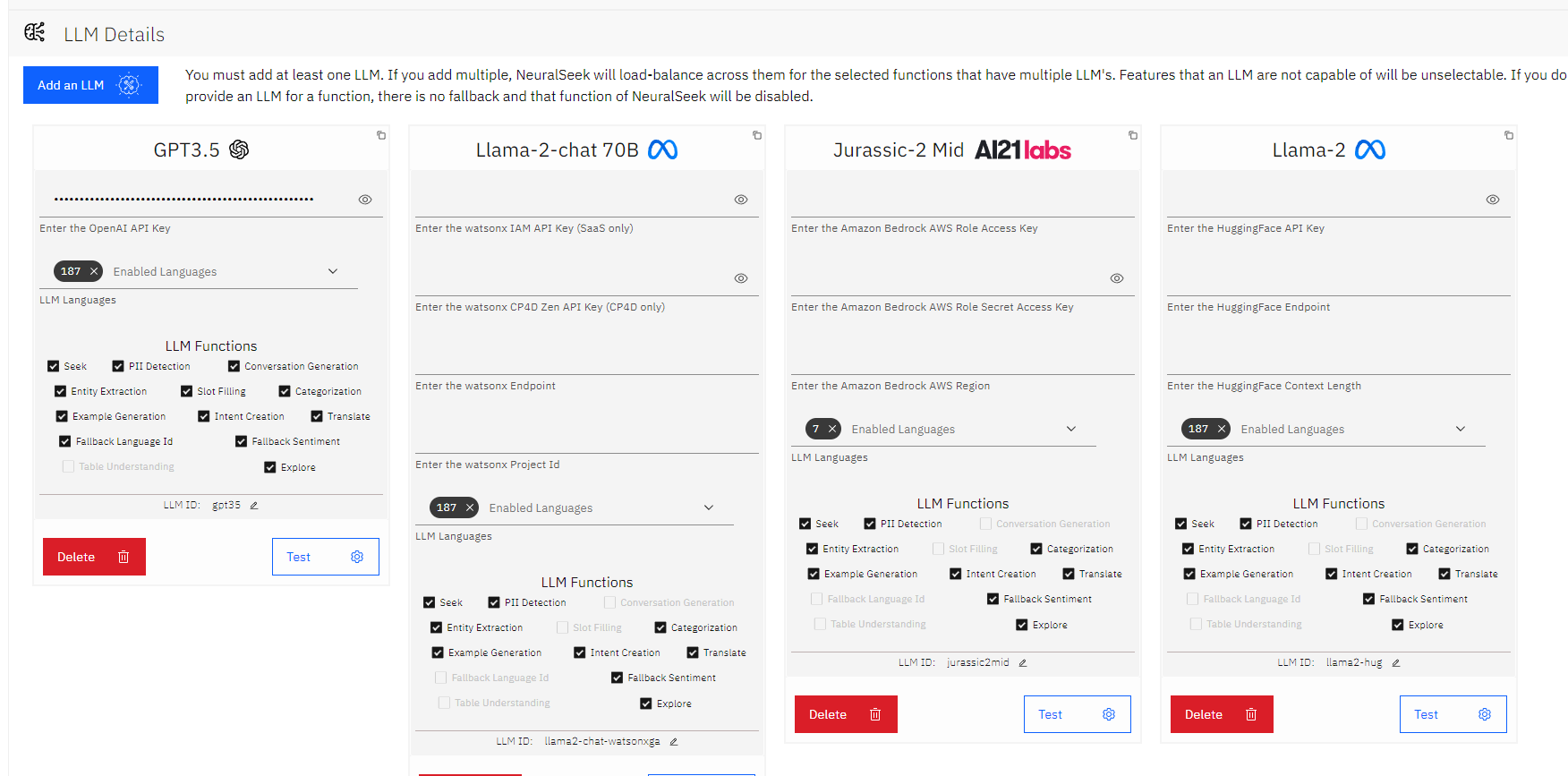 *Figure: llm details*
> **REFERENCE — Values**
- **API/Access Key:** The LLM / Service provider's API or Access key.
- **Secret/Zen Key:** The Service provider's secondary key (only for
some providers)
- **Endpoint:** The endpoint URL for the selected service.
- **Region:** The region where the LLM service is provisioned.
- **Project Id:** The project ID for the LLM workspace.
- **LLLM Languages:** Enable or disable specific languages to be used
with the selected LLM.
- **LLM Functions:** Enable or disable specific functions for each LLM,
essentially selecting which LLM to use for each task, or allowing
load-balancing for specific tasks. E.g. one option is to use a
specific LLM for seek, and a different LLM for maistro or translate,
allowing for flexible and specific use cases.
- **LLM ID:** The ID/internal name of the selected LLM. Use this ID on
API calls or from mAIstro.
- **Test:** Run a test completion against the LLM, verifying the
credentials. This does not 'save', you must still 'save' your settings
with the main UI button.
- **Delete:** Remove the selected LLM from the configuration.
> **NOTE**
>
> This section is only available if you are using BYOLLM (bring your own
> LLM) plan of NeuralSeek.
Not all LLM providers are equal - All options are listed here, even
though your provider may not need these specific parameters.
**Company/Organization Preferences**
This is where you can configure your company name, and description of
what the company primarily focuses on.
*Figure: llm details*
> **REFERENCE — Values**
- **API/Access Key:** The LLM / Service provider's API or Access key.
- **Secret/Zen Key:** The Service provider's secondary key (only for
some providers)
- **Endpoint:** The endpoint URL for the selected service.
- **Region:** The region where the LLM service is provisioned.
- **Project Id:** The project ID for the LLM workspace.
- **LLLM Languages:** Enable or disable specific languages to be used
with the selected LLM.
- **LLM Functions:** Enable or disable specific functions for each LLM,
essentially selecting which LLM to use for each task, or allowing
load-balancing for specific tasks. E.g. one option is to use a
specific LLM for seek, and a different LLM for maistro or translate,
allowing for flexible and specific use cases.
- **LLM ID:** The ID/internal name of the selected LLM. Use this ID on
API calls or from mAIstro.
- **Test:** Run a test completion against the LLM, verifying the
credentials. This does not 'save', you must still 'save' your settings
with the main UI button.
- **Delete:** Remove the selected LLM from the configuration.
> **NOTE**
>
> This section is only available if you are using BYOLLM (bring your own
> LLM) plan of NeuralSeek.
Not all LLM providers are equal - All options are listed here, even
though your provider may not need these specific parameters.
**Company/Organization Preferences**
This is where you can configure your company name, and description of
what the company primarily focuses on.
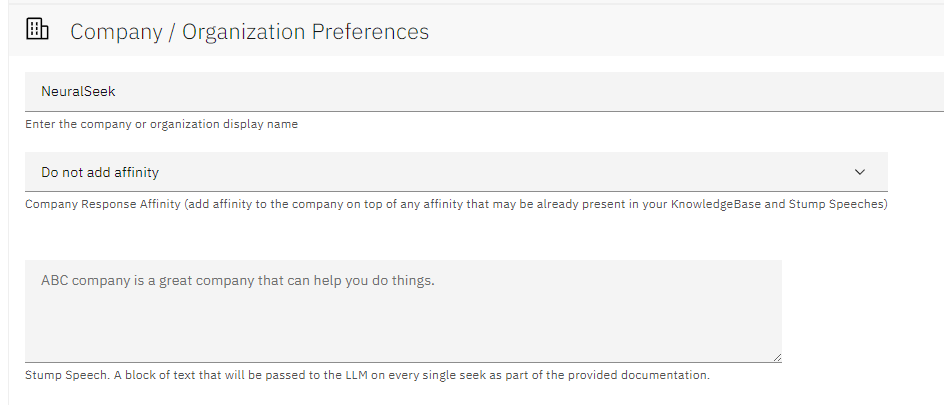 *Figure: company org preferences*
> **REFERENCE — Values**
- **Company or Organization Name:** This field is used to help align
user queries to the company KB. E.g., "How do I use your product?"
will target towards this value.
- **Company Response Affinity:** Enable to add affinity to your company
or brand in addition to existing text that may be already present in
your KnowledgeBase and Stump Speeches.
- **Stump Speech:** Effectively an "always pinned document" that is
included in the documentation for every seek call. This helps answer
questions as a fallback knowledge source when the user's search fails
to produce relevant documentation.
**Platform Preferences**
Your one-stop-shop for all platform-related preferences. Set timeouts,
configure embedded links, Virtual Agent output format, etc.
*Figure: company org preferences*
> **REFERENCE — Values**
- **Company or Organization Name:** This field is used to help align
user queries to the company KB. E.g., "How do I use your product?"
will target towards this value.
- **Company Response Affinity:** Enable to add affinity to your company
or brand in addition to existing text that may be already present in
your KnowledgeBase and Stump Speeches.
- **Stump Speech:** Effectively an "always pinned document" that is
included in the documentation for every seek call. This helps answer
questions as a fallback knowledge source when the user's search fails
to produce relevant documentation.
**Platform Preferences**
Your one-stop-shop for all platform-related preferences. Set timeouts,
configure embedded links, Virtual Agent output format, etc.
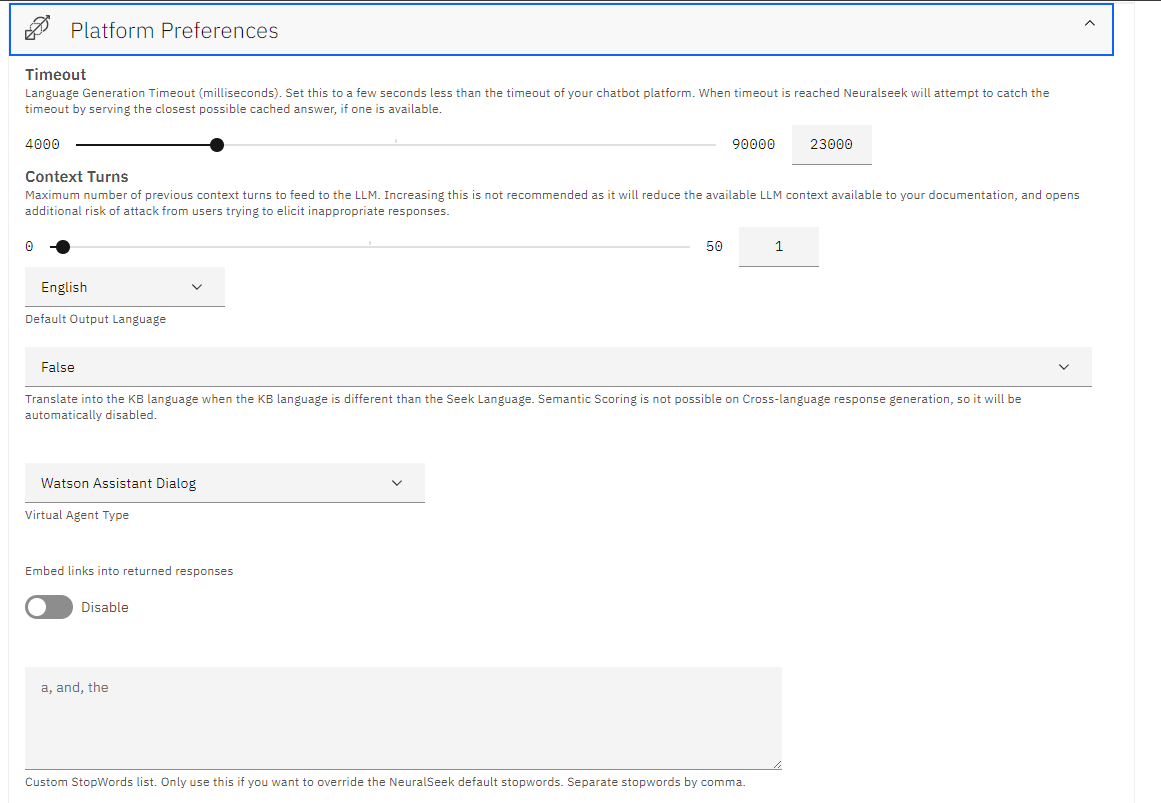 *Figure: platform preference*
> **REFERENCE — Values**
- **Timeout:** Set this to a few seconds less than the timeout of your
chatbot platform. When the timeout is reached, NeuralSeek will attempt
to respond with a cached answer if available.
- **Context Turns:** The number of turns in the conversation to pass to
the LLM. Increasing this is not recommended as it will reduce the LLM
context available for your documentation.
- **Context Detection:** Use the model only instance for carrying
language context or use the mAIstro flow for custom PoS tagging.
- **Force Carry Context:** If no subject or noun is found in the
question, assume the question is a follow up to the previous one.
- **Default Output Language:** The language to reply in. Setting the
language value on the API will override this parameter. Set to "Match
input" to try and identify the input language and respond in that
detected language.
- **Cross Language:** When enabled, translate queries into the language
selected on the KnowledgeBase.
- **Log Alternate Configs:** When using seek for a Proposal or Override
of the configuration, the answer should be logged in the Curate Tab.
- **Hide API Keys:** Hide the API keys of connected platforms from the
Configure Admins. By defult, API keys are only shown to users with
Admin and Configure permissions. Setting this option to true will
require you to re-enter all API keys when importing a configuration
file. Once set to true, this option cannot be disabled.
- **Virtual Agent Type:** Select the type of Virtual Agent for curation
of answers. This is the format NeuralSeek will use to build the
chatbot file.
- **Embed Links into returned responses:** Enable to embed clickable
links into the seek generated answers on the API side.
- **Custom Stopwords List:** [Stop
Words](https://en.wikipedia.org/wiki/Stop_word) - A list of "not
useful" or insignificant words to remove pre-processing. Add words
here to override NeuralSeek's list of stopwords.
- **HTML Cleansing:** Neuralseek will automatically cleanse scraped HTML
pages in supported KnowledgeBases.
**Corporate Document Filter**
Connect NeuralSeek to an external corporate rules engine to filter
allowed documentation by user. Each request will send the ID's of the
found documentation to an endpoint you set here. Any IDs not returned
from the corporate filter will be blocked.
*Figure: platform preference*
> **REFERENCE — Values**
- **Timeout:** Set this to a few seconds less than the timeout of your
chatbot platform. When the timeout is reached, NeuralSeek will attempt
to respond with a cached answer if available.
- **Context Turns:** The number of turns in the conversation to pass to
the LLM. Increasing this is not recommended as it will reduce the LLM
context available for your documentation.
- **Context Detection:** Use the model only instance for carrying
language context or use the mAIstro flow for custom PoS tagging.
- **Force Carry Context:** If no subject or noun is found in the
question, assume the question is a follow up to the previous one.
- **Default Output Language:** The language to reply in. Setting the
language value on the API will override this parameter. Set to "Match
input" to try and identify the input language and respond in that
detected language.
- **Cross Language:** When enabled, translate queries into the language
selected on the KnowledgeBase.
- **Log Alternate Configs:** When using seek for a Proposal or Override
of the configuration, the answer should be logged in the Curate Tab.
- **Hide API Keys:** Hide the API keys of connected platforms from the
Configure Admins. By defult, API keys are only shown to users with
Admin and Configure permissions. Setting this option to true will
require you to re-enter all API keys when importing a configuration
file. Once set to true, this option cannot be disabled.
- **Virtual Agent Type:** Select the type of Virtual Agent for curation
of answers. This is the format NeuralSeek will use to build the
chatbot file.
- **Embed Links into returned responses:** Enable to embed clickable
links into the seek generated answers on the API side.
- **Custom Stopwords List:** [Stop
Words](https://en.wikipedia.org/wiki/Stop_word) - A list of "not
useful" or insignificant words to remove pre-processing. Add words
here to override NeuralSeek's list of stopwords.
- **HTML Cleansing:** Neuralseek will automatically cleanse scraped HTML
pages in supported KnowledgeBases.
**Corporate Document Filter**
Connect NeuralSeek to an external corporate rules engine to filter
allowed documentation by user. Each request will send the ID's of the
found documentation to an endpoint you set here. Any IDs not returned
from the corporate filter will be blocked.
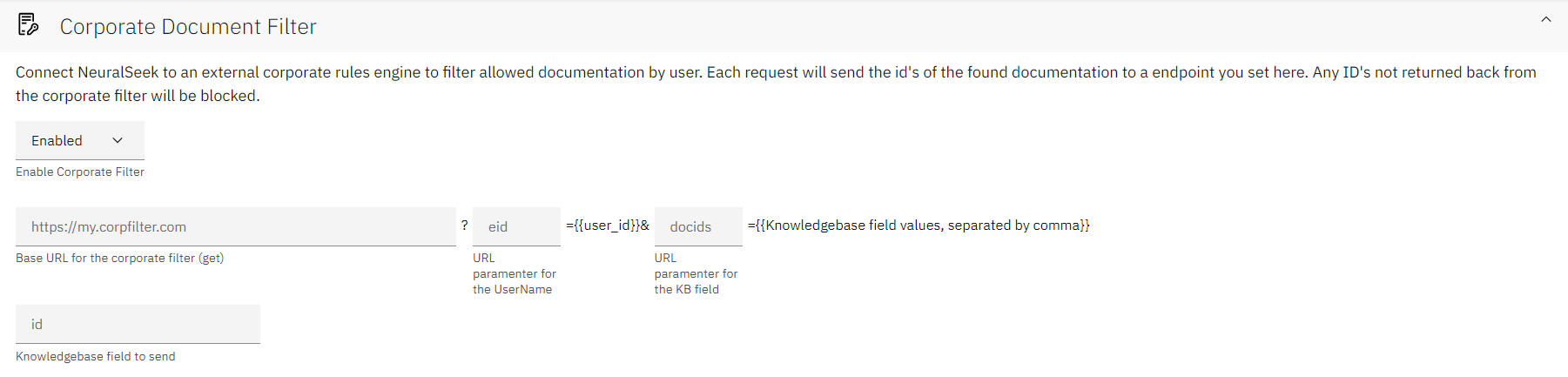 *Figure: corporate doc filter*
> **REFERENCE — Values**
- **Enable Corporate Filter:** If enabled, fill out all relevant
information including:
\- Base URL for the corporate filter (get): The URL of the corporate
document filter engine.
- **URL parameter for the UserName:** The parameter name for the user's
ID.
- **URL parameter for the KB field:** The parameter name for the
"document ID" for permission filtering.
- **KnowledgeBase field to send:** The KB metadata field to send as the
"document ID".
**Corporate Logging**
Connect NeuralSeek to a corporate audit logging endpoint. When connected
and enabled, all requests and responses to the Seek API endpoint, as
well as the Curate tab will be logged to your Elasticsearch instance.
Users are able to log the full LLM "Seek" prompt for Audit and
Compliance reasons.
*Figure: corporate doc filter*
> **REFERENCE — Values**
- **Enable Corporate Filter:** If enabled, fill out all relevant
information including:
\- Base URL for the corporate filter (get): The URL of the corporate
document filter engine.
- **URL parameter for the UserName:** The parameter name for the user's
ID.
- **URL parameter for the KB field:** The parameter name for the
"document ID" for permission filtering.
- **KnowledgeBase field to send:** The KB metadata field to send as the
"document ID".
**Corporate Logging**
Connect NeuralSeek to a corporate audit logging endpoint. When connected
and enabled, all requests and responses to the Seek API endpoint, as
well as the Curate tab will be logged to your Elasticsearch instance.
Users are able to log the full LLM "Seek" prompt for Audit and
Compliance reasons.
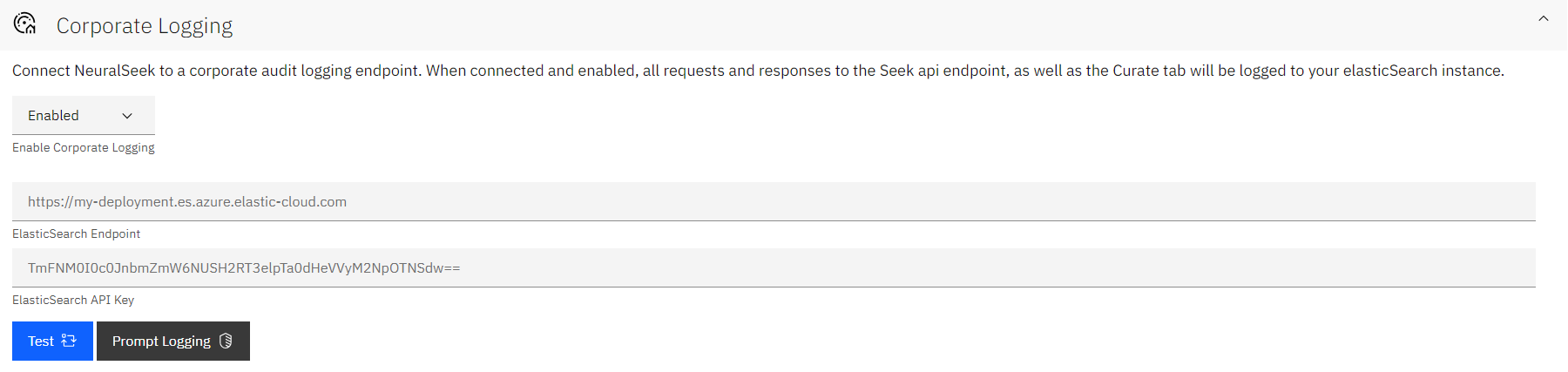 *Figure: corporate logging*
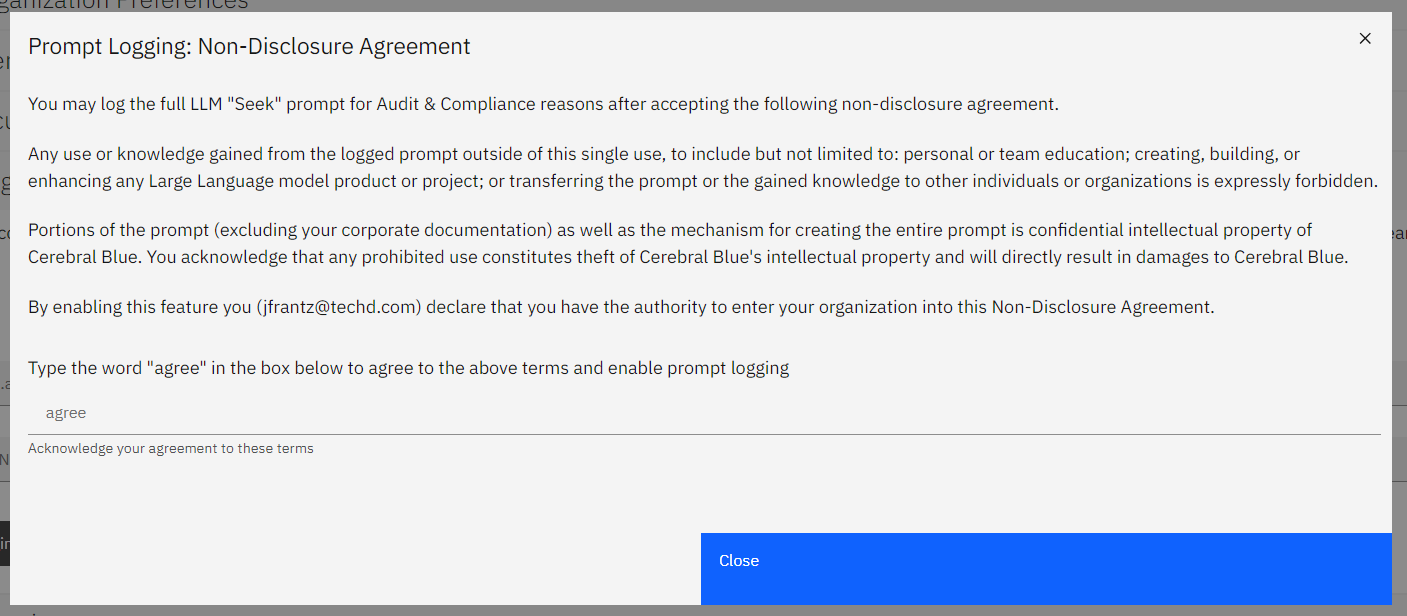 *Figure: prompt logging*
> **REFERENCE — Values**
- **Enable Corporate Logging:** Toggle the icon to Enable or Disable
this feature. If enabled, fill out all relevant information including:
Elasticsearch Endpoint and Elasticsearch API Key.
- **Prompt Logging:** Type "agree" into the provided box to agree to the
provided Non-Disclosure Agreement and enable prompt logging.
**Prompt Engineering**
This allows expert users to inject specific instructions into the base
LLM prompt. Most use cases will not need this and should not use this.
(e.g. do not enter "provide factual information" or "act as a helpful
customer support agent". NeuralSeek's extensive prompting already does
this.)
*Figure: prompt logging*
> **REFERENCE — Values**
- **Enable Corporate Logging:** Toggle the icon to Enable or Disable
this feature. If enabled, fill out all relevant information including:
Elasticsearch Endpoint and Elasticsearch API Key.
- **Prompt Logging:** Type "agree" into the provided box to agree to the
provided Non-Disclosure Agreement and enable prompt logging.
**Prompt Engineering**
This allows expert users to inject specific instructions into the base
LLM prompt. Most use cases will not need this and should not use this.
(e.g. do not enter "provide factual information" or "act as a helpful
customer support agent". NeuralSeek's extensive prompting already does
this.)
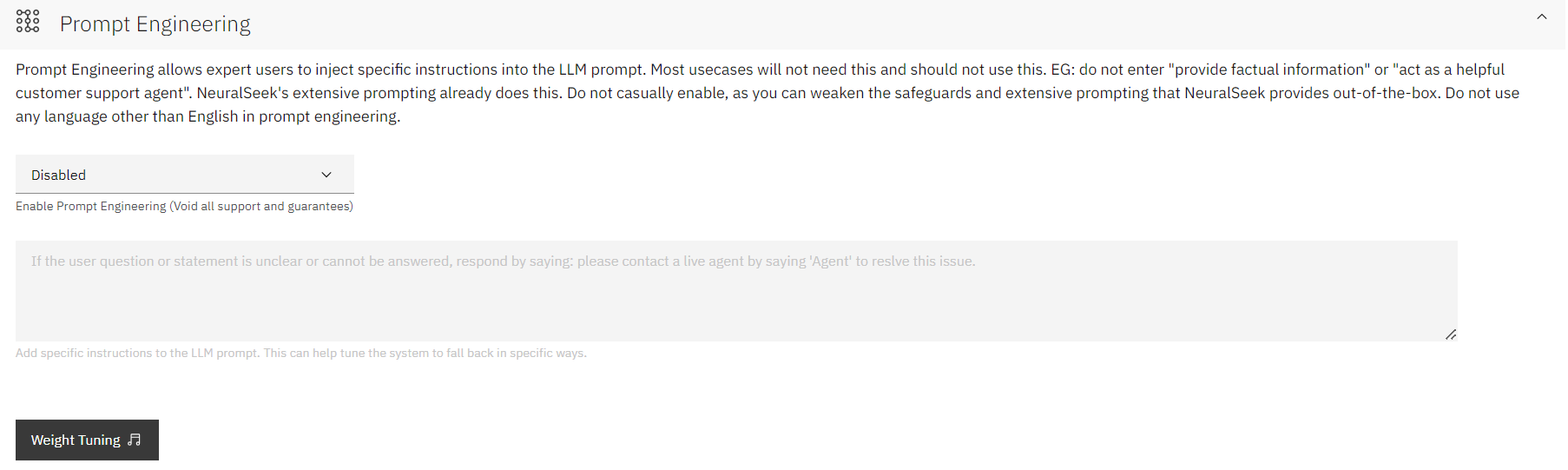 *Figure: prompt engineering*
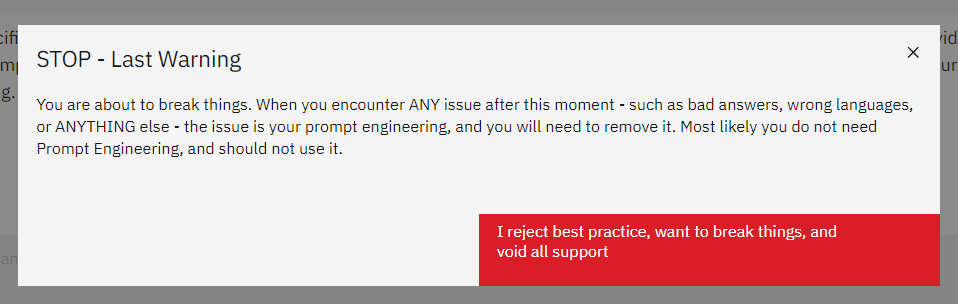 *Figure: weight tuning warning*
> **WARNING**
>
> Do not casually enable, as you can weaken the safeguards and extensive
> prompting that NeuralSeek provides out-of-the-box. Do not use any
> language other than English in prompt engineering.
>
> **REFERENCE — Values**
- **Prompt Instructions:** Text to add to the end of the LLM prompt.
This can rarely be helpful, but some examples might be "Answer with a
bulleted list if possible", or "Answer in cowboy dialect".
**Answer Engineering & Preferences**
Customizing answer engineering and setting preferences provides
adaptability to different contexts.
*Figure: weight tuning warning*
> **WARNING**
>
> Do not casually enable, as you can weaken the safeguards and extensive
> prompting that NeuralSeek provides out-of-the-box. Do not use any
> language other than English in prompt engineering.
>
> **REFERENCE — Values**
- **Prompt Instructions:** Text to add to the end of the LLM prompt.
This can rarely be helpful, but some examples might be "Answer with a
bulleted list if possible", or "Answer in cowboy dialect".
**Answer Engineering & Preferences**
Customizing answer engineering and setting preferences provides
adaptability to different contexts.
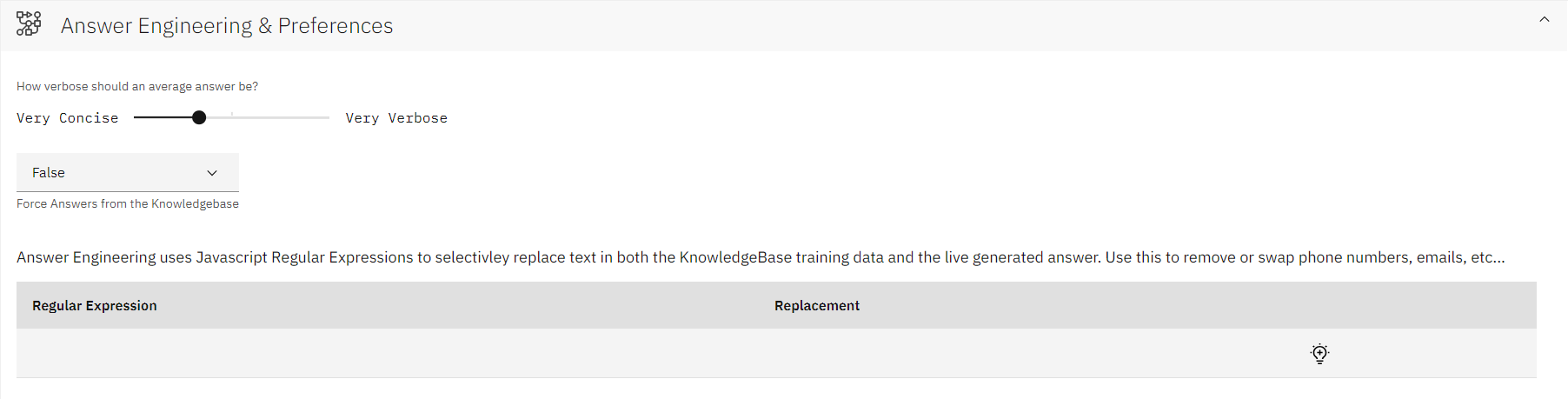 *Figure: answer engineering preferences*
> **REFERENCE — Values**
- Answer Verbosity Utilize the sliding scales to set whether the answer
generation would stick to being concise and short, or offer more
freedom to be flexible and wordy.
- **Force Answers from the KnowledgeBase:** Enable to add extra
prompting to help "force" the answers from returned documentation.
Generally best to keep this enabled.
- **Regular Expressions:** Click the light bulb icon to add a new row.
Input a regular expression and a corresponding replacement. For
example, use this feature to remove or swap phone numbers, emails,
etc.
**Intent Matching & Cache Configuration**
NeuralSeek automatically generates and groups user input into intents.
When a user input does not match an existing intent, the question is
added to the generic FAQ group.
*Figure: answer engineering preferences*
> **REFERENCE — Values**
- Answer Verbosity Utilize the sliding scales to set whether the answer
generation would stick to being concise and short, or offer more
freedom to be flexible and wordy.
- **Force Answers from the KnowledgeBase:** Enable to add extra
prompting to help "force" the answers from returned documentation.
Generally best to keep this enabled.
- **Regular Expressions:** Click the light bulb icon to add a new row.
Input a regular expression and a corresponding replacement. For
example, use this feature to remove or swap phone numbers, emails,
etc.
**Intent Matching & Cache Configuration**
NeuralSeek automatically generates and groups user input into intents.
When a user input does not match an existing intent, the question is
added to the generic FAQ group.
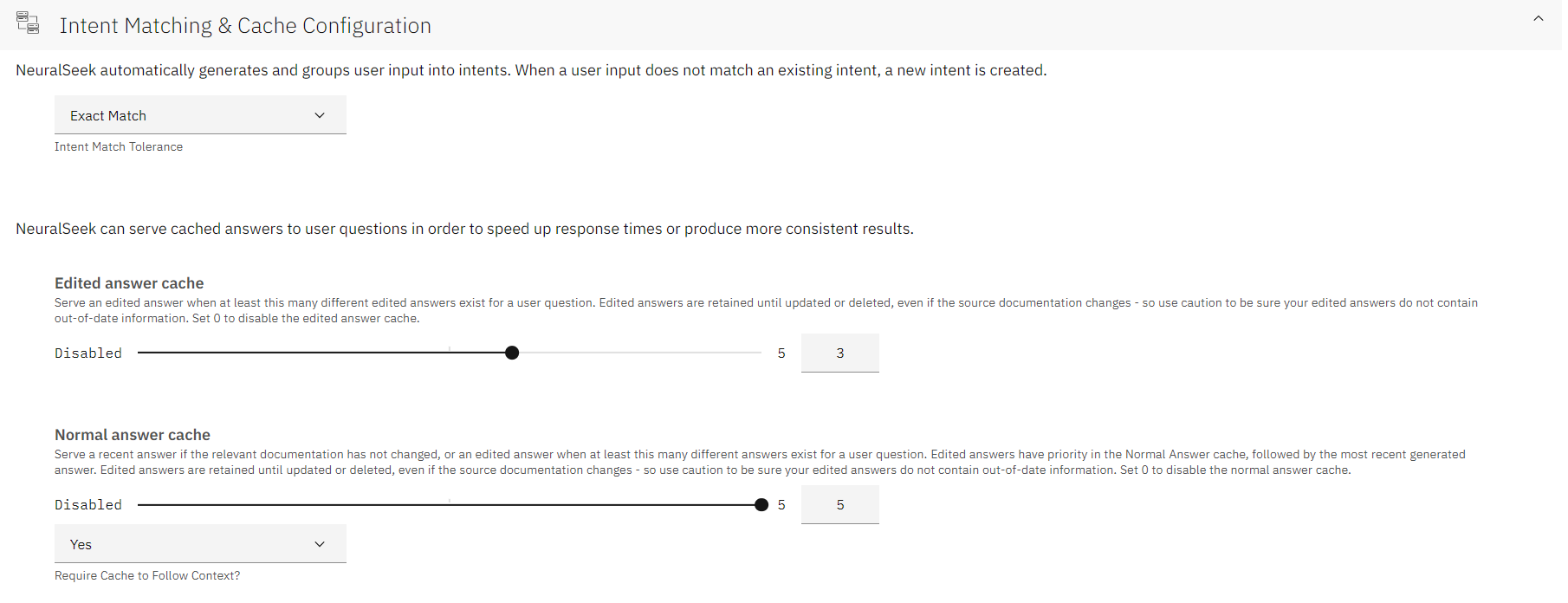 *Figure: intent matching cache config*
> **REFERENCE — The following types of intent matches are available:**
- **Exact Match:** The user input exactly matches an intent.
- **Vector Similarity:** Compare the vector similarity of the user input
to existing intents, matching with similar intents.
- Utilize the "Try it Out" feature to test intent similarity. Input an
example sentence and click the 'Test' button. The output will show
similar intent pulled from the Curate tab and a corresponding
similarity score.
- Utilize the "Intent Match Threshold" sliding scale to set the minimum
match percentage to match an existing Intent.
- **Fuzzy Match:** The user input closely matches an intent, but not
exactly.
- **Keyword Match:** The user input contains keywords that exactly match
keywords in an intent.
- **Fuzzy Keyword Match:** The user input contains keywords that closely
match an intent.
Users can also configure how the answer caching is to be done for edited
answers, and normal answers. This is useful for speeding up response
times and producing more consistent results.
> **REFERENCE — Values**
- **Edited Answer Cache:** Define the minimum amount of edited answers
before language generation stops, and cached answers are served. Set
the scale to '0' to disable the edited answer cache.
- **Normal Answer Cache:** Define the minimum amount of normal language
generated answers to store before language generation stops, and
cached answers are served. Set the scale to '0' to disable the edited
answer cache.
- **Warning:** Remember Edited answers have priority in the Normal
Answer Cache, followed by the most recent generated answer.
**Secrets**
Store secrets for use in mAIstro flows to protect sensitive data from
view. Secrets you set here will be available as variables in mAIstro. Be
sure to escape any double quotes in your Value with a backslash.
*Figure: intent matching cache config*
> **REFERENCE — The following types of intent matches are available:**
- **Exact Match:** The user input exactly matches an intent.
- **Vector Similarity:** Compare the vector similarity of the user input
to existing intents, matching with similar intents.
- Utilize the "Try it Out" feature to test intent similarity. Input an
example sentence and click the 'Test' button. The output will show
similar intent pulled from the Curate tab and a corresponding
similarity score.
- Utilize the "Intent Match Threshold" sliding scale to set the minimum
match percentage to match an existing Intent.
- **Fuzzy Match:** The user input closely matches an intent, but not
exactly.
- **Keyword Match:** The user input contains keywords that exactly match
keywords in an intent.
- **Fuzzy Keyword Match:** The user input contains keywords that closely
match an intent.
Users can also configure how the answer caching is to be done for edited
answers, and normal answers. This is useful for speeding up response
times and producing more consistent results.
> **REFERENCE — Values**
- **Edited Answer Cache:** Define the minimum amount of edited answers
before language generation stops, and cached answers are served. Set
the scale to '0' to disable the edited answer cache.
- **Normal Answer Cache:** Define the minimum amount of normal language
generated answers to store before language generation stops, and
cached answers are served. Set the scale to '0' to disable the edited
answer cache.
- **Warning:** Remember Edited answers have priority in the Normal
Answer Cache, followed by the most recent generated answer.
**Secrets**
Store secrets for use in mAIstro flows to protect sensitive data from
view. Secrets you set here will be available as variables in mAIstro. Be
sure to escape any double quotes in your Value with a backslash.
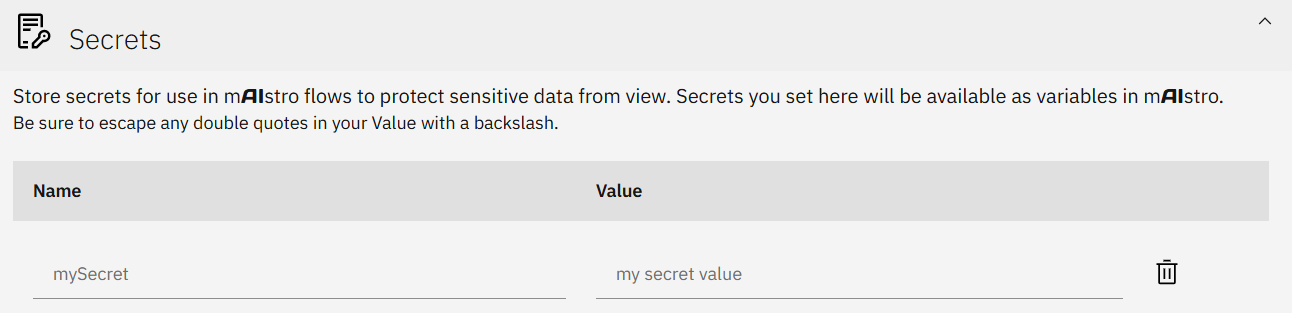 *Figure: secrets*
> **REFERENCE — Values**
- **Name:** Name of your secret value.
- **Value:** A variable that you want hidden from public view. Whenever
this value is called, it will only be displayed as what you have set
as its Name.
> **EXAMPLE — Example**
>
> Suppose you have a Slack API code that you want to use in your mAIstro
> templates. Using Secrets, you can input the API code, while listing
> its name as simply "slack"
*Figure: secrets*
> **REFERENCE — Values**
- **Name:** Name of your secret value.
- **Value:** A variable that you want hidden from public view. Whenever
this value is called, it will only be displayed as what you have set
as its Name.
> **EXAMPLE — Example**
>
> Suppose you have a Slack API code that you want to use in your mAIstro
> templates. Using Secrets, you can input the API code, while listing
> its name as simply "slack"
 *Figure: slack-code*
Once you save the updated configuration and head over to mAIstro, you'll
be able to locate the slack API code, under its "slack" secret name, by
clicking on the secrets tab in a blank text box
*Figure: slack-code*
Once you save the updated configuration and head over to mAIstro, you'll
be able to locate the slack API code, under its "slack" secret name, by
clicking on the secrets tab in a blank text box
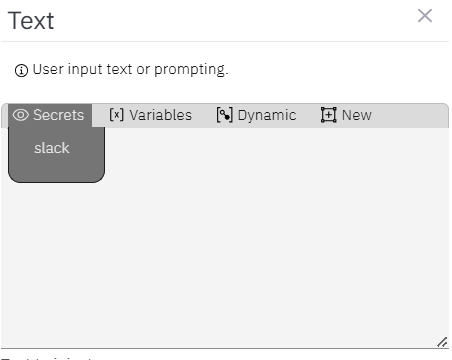 *Figure: slack-maistro*
**Table Understanding**
This pre-processes your documents to extract and parse tabular data into
a format suitable for conversational query. Since this preparation
process is both costly and time-consuming, this feature is opt-in and
will consume 1 seek query for every table preprocessed. Web Crawl
Collections are not eligible for table understanding, as the re-crawl
interval will cause excessive compute usage. Table preparation time
takes several minutes per page. Please contact cloud\\cerebralblue.com
with details of your opportunity and use case to be considered for
access.
*Figure: slack-maistro*
**Table Understanding**
This pre-processes your documents to extract and parse tabular data into
a format suitable for conversational query. Since this preparation
process is both costly and time-consuming, this feature is opt-in and
will consume 1 seek query for every table preprocessed. Web Crawl
Collections are not eligible for table understanding, as the re-crawl
interval will cause excessive compute usage. Table preparation time
takes several minutes per page. Please contact cloud\\cerebralblue.com
with details of your opportunity and use case to be considered for
access.
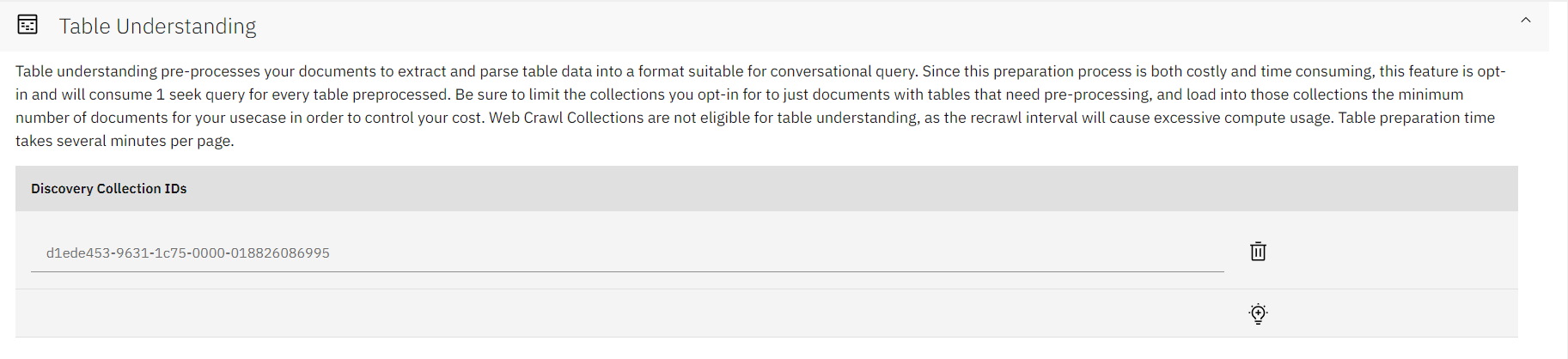 *Figure: table understanding*
> **REFERENCE — Values**
- **Discovery Collection IDs:** Click the light bulb icon to add a new
row. Input the desired collection ID from Watson Discovery for table
preparation.
> **NOTE**
>
> Table Understanding requires a compatible LLM with Table Understanding
> Enabled. Not all LLMs are capable of Table Understanding.
**Part 2 — Guardrails**
Guardrails govern what NeuralSeek allows in (user input), what it allows
out (generated answers), and how it scores its own confidence. Each
guardrail can be set globally or per category when Multi-Agent Routing
is enabled.
**Guardrails**
Settings related to governance, prompt protection, profanity filtering,
etc. have been separated into their own node when Multi-Agent Routing is
enabled.
Guardrails are available at every level of the tree with a custom
configuration, and allow users better control of their category-based
configurations.
**Semantic Scoring**
Toggle the icons to enable or disable the Semantic Score Model, using
Semantic Score as the basis for Warning & Minimum confidence (e.g. Do
NOT Enable for use cases requiring language translation), re-ranking the
search results based on the Semantic Match, and checking the document
titles and URL's as part of the Semantic Match. Note that semantic
scoring will not be accurate when getting answers in a different
language than your KnowledgeBase source docs.
*Figure: table understanding*
> **REFERENCE — Values**
- **Discovery Collection IDs:** Click the light bulb icon to add a new
row. Input the desired collection ID from Watson Discovery for table
preparation.
> **NOTE**
>
> Table Understanding requires a compatible LLM with Table Understanding
> Enabled. Not all LLMs are capable of Table Understanding.
**Part 2 — Guardrails**
Guardrails govern what NeuralSeek allows in (user input), what it allows
out (generated answers), and how it scores its own confidence. Each
guardrail can be set globally or per category when Multi-Agent Routing
is enabled.
**Guardrails**
Settings related to governance, prompt protection, profanity filtering,
etc. have been separated into their own node when Multi-Agent Routing is
enabled.
Guardrails are available at every level of the tree with a custom
configuration, and allow users better control of their category-based
configurations.
**Semantic Scoring**
Toggle the icons to enable or disable the Semantic Score Model, using
Semantic Score as the basis for Warning & Minimum confidence (e.g. Do
NOT Enable for use cases requiring language translation), re-ranking the
search results based on the Semantic Match, and checking the document
titles and URL's as part of the Semantic Match. Note that semantic
scoring will not be accurate when getting answers in a different
language than your KnowledgeBase source docs.
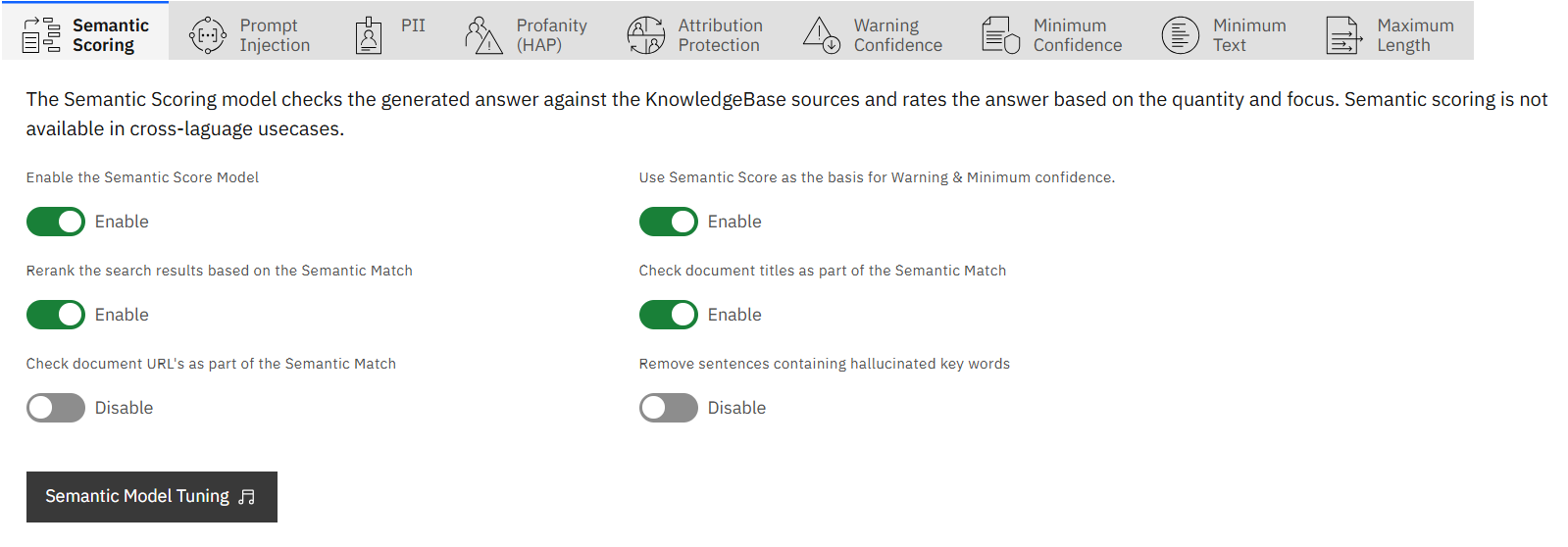 *Figure: semantic score*
> **REFERENCE — Values**
- **Enable the Semantic Score Model:** The Semantic Score model compares
the generated answer against the KnowledgeBase sources, and rates the
answer based on the quantity and focus of matches to the KnowledgeBase
and Stump Speech source documentation (e.g. is the answer primarily
formed from a single source or many?)
- **Use Semantic Score as the basis for Warning/Minimum:** Enabling this
uses the Semantic Score for warning/minimum confidence settings.
Disabling will use the KB confidence % instead. Not recommended for
non-English use-cases
- **Re-rank search results based on Semantic Match:** Re-order the
KnowledgeBase documentation snippets based on how well the passage
matches the answer given.
- **Check document titles as part of the Semantic Match:** Include the
document title while calculating the Semantic Match Score.
- **Check document URLs as part of the Semantic Match:** Include the
document URL while calculating the Semantic Match Score.
- **Remove sentences containing hallucinated key words:** Remove key
words not contained or related to the KnowledgeBase.
> **REFERENCE — Semantic Tuning Model**
>
> Use the sliding scales to further tune the Semantic Match.
*Figure: semantic score*
> **REFERENCE — Values**
- **Enable the Semantic Score Model:** The Semantic Score model compares
the generated answer against the KnowledgeBase sources, and rates the
answer based on the quantity and focus of matches to the KnowledgeBase
and Stump Speech source documentation (e.g. is the answer primarily
formed from a single source or many?)
- **Use Semantic Score as the basis for Warning/Minimum:** Enabling this
uses the Semantic Score for warning/minimum confidence settings.
Disabling will use the KB confidence % instead. Not recommended for
non-English use-cases
- **Re-rank search results based on Semantic Match:** Re-order the
KnowledgeBase documentation snippets based on how well the passage
matches the answer given.
- **Check document titles as part of the Semantic Match:** Include the
document title while calculating the Semantic Match Score.
- **Check document URLs as part of the Semantic Match:** Include the
document URL while calculating the Semantic Match Score.
- **Remove sentences containing hallucinated key words:** Remove key
words not contained or related to the KnowledgeBase.
> **REFERENCE — Semantic Tuning Model**
>
> Use the sliding scales to further tune the Semantic Match.
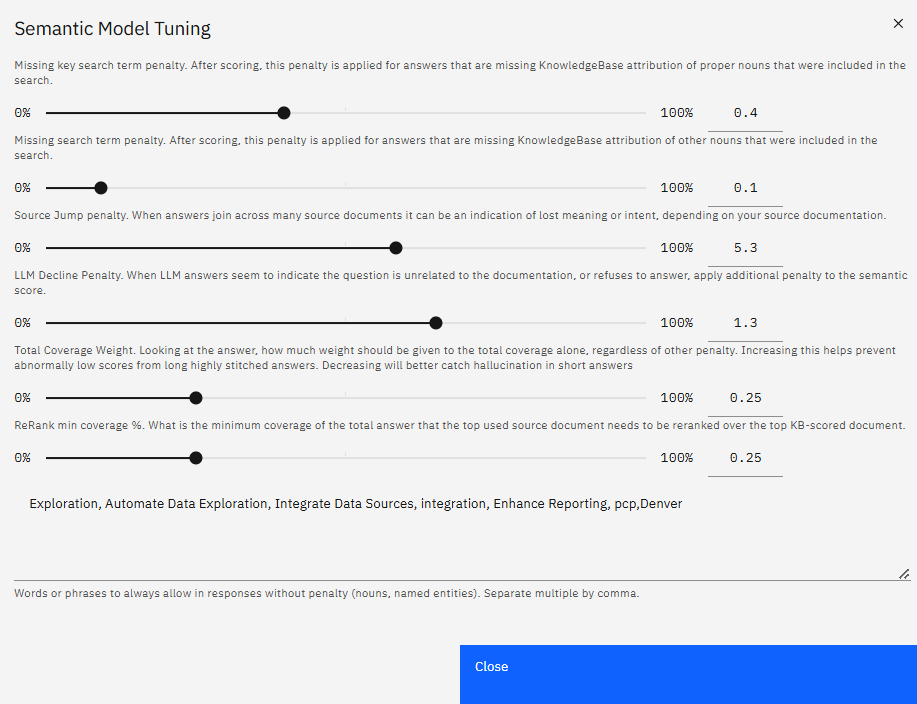 *Figure: semantic model tuning*
- **Missing key search term penalty:** After scoring, this penalty is
applied for answers that are missing KnowledgeBase attribution of
*proper* nouns that were included in the search.
- **Missing search term penalty:** After scoring, this penalty is
applied for answers that are missing KnowledgeBase attribution of
*other* nouns that were included in the search.
- **Source Jump penalty:** When answers join across many source
documents it can be an indication of lost meaning or intent, depending
on your source documentation.
- **Total Coverage weight:** Looking at the answer, how much weight
should be given to the total coverage alone, regardless of other
penalty. Increasing this helps prevent abnormally low scores from
long, highly-stitched answers. Decreasing will better catch
hallucination in short answers.
- **Re-Rank Min Coverage %:** What is the minimum coverage of the total
answer that the top *used* source document needs to be re-ranked over
the top *KB-scored* document.
- **Words or phrases to allow:** Always avoid penalty for selected words
or phrases in reponses.
**Prompt Injection**
Users are able to block malicious attempts from users trying to get the
LLM to respond in disruptive, embarrassing, or harmful ways.
*Figure: semantic model tuning*
- **Missing key search term penalty:** After scoring, this penalty is
applied for answers that are missing KnowledgeBase attribution of
*proper* nouns that were included in the search.
- **Missing search term penalty:** After scoring, this penalty is
applied for answers that are missing KnowledgeBase attribution of
*other* nouns that were included in the search.
- **Source Jump penalty:** When answers join across many source
documents it can be an indication of lost meaning or intent, depending
on your source documentation.
- **Total Coverage weight:** Looking at the answer, how much weight
should be given to the total coverage alone, regardless of other
penalty. Increasing this helps prevent abnormally low scores from
long, highly-stitched answers. Decreasing will better catch
hallucination in short answers.
- **Re-Rank Min Coverage %:** What is the minimum coverage of the total
answer that the top *used* source document needs to be re-ranked over
the top *KB-scored* document.
- **Words or phrases to allow:** Always avoid penalty for selected words
or phrases in reponses.
**Prompt Injection**
Users are able to block malicious attempts from users trying to get the
LLM to respond in disruptive, embarrassing, or harmful ways.
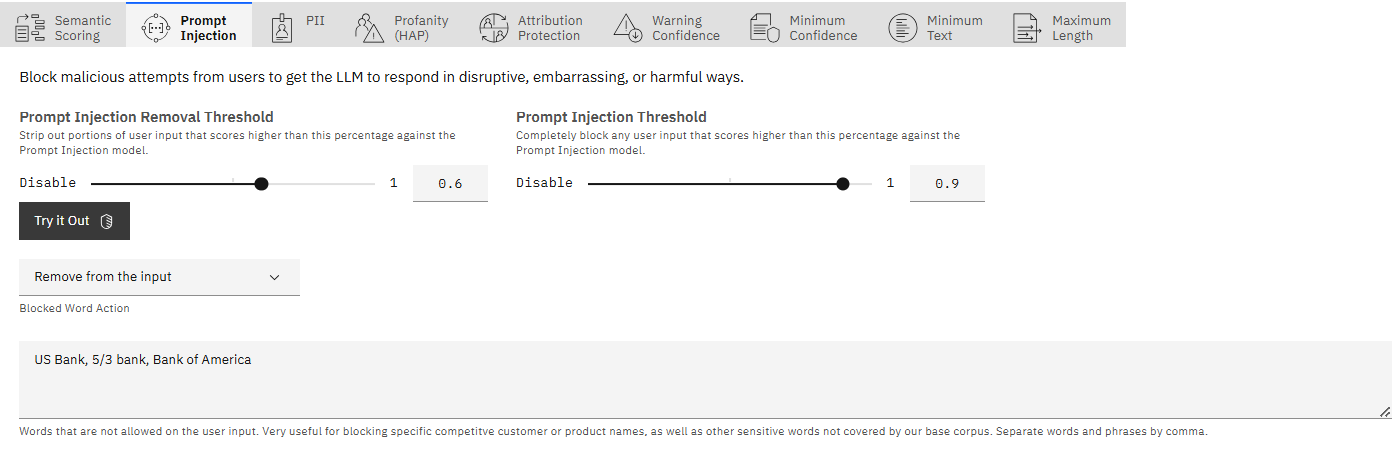 *Figure: prompt injection mitigation*
> **REFERENCE — Values**
- **Prompt Injection Removal Threshold:** A sliding scale to strip out
portions of user input that exceed this specified percentage against
the Prompt Injection model, allowing partial input filtering without
blocking the entire prompt.
- **Prompt Injection Threshold:** A sliding scale to block any inputs
that score higher than this percentage against the Prompt Injection
model.
- **Blocked Word Action:** Either remove the offending words from the
user input, or block the question altogether.
- **Blocked Word List:** Enter words or phrases (separated by commas)
that are not allowed on the user input. This is useful for blocking
specific competitive customer or product names, as well as other
sensitive words not covered by NeuralSeek's base corpus.
**Personally Identifiable Information (PII)**
Users can define how to handle any detected PII data that was included
in the question.
*Figure: prompt injection mitigation*
> **REFERENCE — Values**
- **Prompt Injection Removal Threshold:** A sliding scale to strip out
portions of user input that exceed this specified percentage against
the Prompt Injection model, allowing partial input filtering without
blocking the entire prompt.
- **Prompt Injection Threshold:** A sliding scale to block any inputs
that score higher than this percentage against the Prompt Injection
model.
- **Blocked Word Action:** Either remove the offending words from the
user input, or block the question altogether.
- **Blocked Word List:** Enter words or phrases (separated by commas)
that are not allowed on the user input. This is useful for blocking
specific competitive customer or product names, as well as other
sensitive words not covered by NeuralSeek's base corpus.
**Personally Identifiable Information (PII)**
Users can define how to handle any detected PII data that was included
in the question.
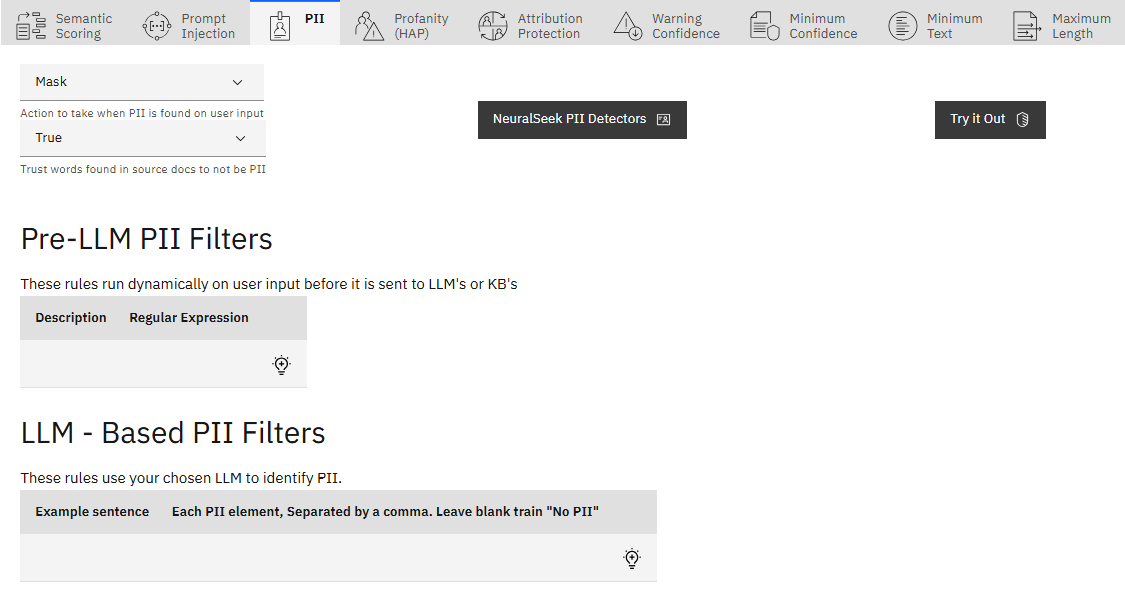 *Figure: pii*
> **REFERENCE — Values**
- **Action to take:** Specify actions when PII is detected:
\- Mask: Mask, and store, PII when it is detected in the user input.
Masking will hide the PII in all locations.
- **Flag:** Flag, and store, for PII when it is detected in the user
input. PII will be flagged in all locations.
- **No Action:** No action will be taken when PII is detected in the
user input. It will be stored in plain text.
- **Hide (retain for Analytics):** Hide (mask) the PII when it is
detected in the user input, but keep the PII in the database for
Analytics.
- **Delete (including from Analytics):** Delete the PII entirely when it
is detected in the user input, including from the stored Analytics.
- **Trust words found in source docs:** Indicate if certain trusted
terms in source documents should be acknowledged or ignored.
- **Pre-LLM PII Filters:** These run dynamically on user input before it
is sent to the LLM or KnowledgeBase. Click the light bulb icon to add
a description such as a phone number and a corresponding regular
expression.
- **LLM-Based PII Filters:** These use the chosen LLM to identify PII.
Click the light bulb icon to add an example sentence and corresponding
PII elements, separated by commas.
- **NeuralSeek PII Detectors:** Select the default NeuralSeek detectors
to capture PII.
*Figure: pii*
> **REFERENCE — Values**
- **Action to take:** Specify actions when PII is detected:
\- Mask: Mask, and store, PII when it is detected in the user input.
Masking will hide the PII in all locations.
- **Flag:** Flag, and store, for PII when it is detected in the user
input. PII will be flagged in all locations.
- **No Action:** No action will be taken when PII is detected in the
user input. It will be stored in plain text.
- **Hide (retain for Analytics):** Hide (mask) the PII when it is
detected in the user input, but keep the PII in the database for
Analytics.
- **Delete (including from Analytics):** Delete the PII entirely when it
is detected in the user input, including from the stored Analytics.
- **Trust words found in source docs:** Indicate if certain trusted
terms in source documents should be acknowledged or ignored.
- **Pre-LLM PII Filters:** These run dynamically on user input before it
is sent to the LLM or KnowledgeBase. Click the light bulb icon to add
a description such as a phone number and a corresponding regular
expression.
- **LLM-Based PII Filters:** These use the chosen LLM to identify PII.
Click the light bulb icon to add an example sentence and corresponding
PII elements, separated by commas.
- **NeuralSeek PII Detectors:** Select the default NeuralSeek detectors
to capture PII.
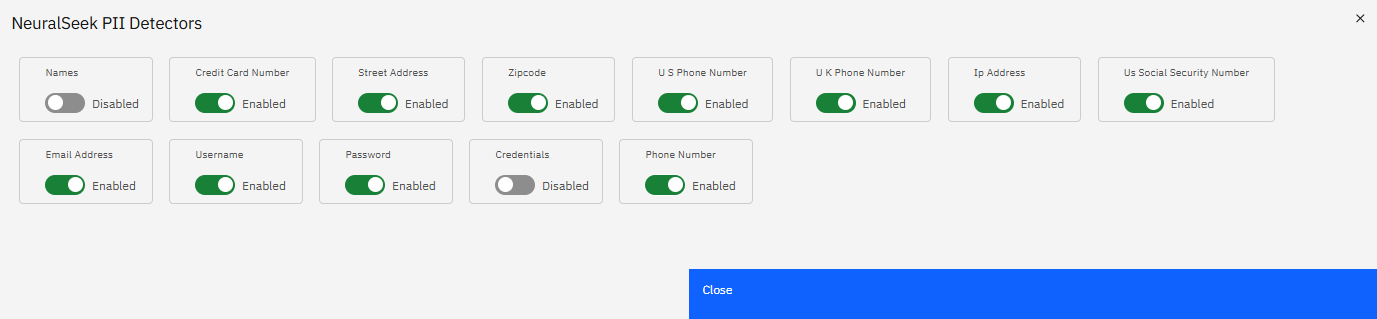 *Figure: neuralseek pii detectors*
> **NOTE**
>
> Utilize the "Try it Out" feature to test the set PII filters. Input an
> example sentence and click the 'Test' button. The output will show the
> test sentence, a true or false response if PII was detected, and what
> element of the sentence was detected as PII.
*Figure: neuralseek pii detectors*
> **NOTE**
>
> Utilize the "Try it Out" feature to test the set PII filters. Input an
> example sentence and click the 'Test' button. The output will show the
> test sentence, a true or false response if PII was detected, and what
> element of the sentence was detected as PII.
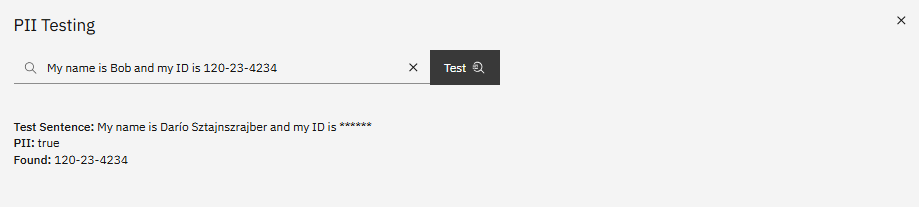 *Figure: pii testing*
**Profanity (HAP)**
Users are able to enable or disable the profanity filter, as well as add
a text to reply with for sensitive questions that are blocked.
*Figure: pii testing*
**Profanity (HAP)**
Users are able to enable or disable the profanity filter, as well as add
a text to reply with for sensitive questions that are blocked.
 *Figure: profanity filter*
> **REFERENCE — Values**
- **Enable profanity filter:** Choose which filter to use for profanity
filtering. You may use the LLM's moderation endpoint if available, the
NeuralSeek Filter, or disable it.
- **Blocked reply text:** The text to show when the input or question is
blocked. E.g. "That seems like a sensitive question."
**Attribute Protection**
Adjust misinformation tolerance for generating text about the company,
or associating people or things that lack specific references in the
KnowledgeBase material by using the sliding scale from "Rigid" to
"Standard". The more rigid your settings, the higher the chances of
occasionally blocking legitimate questions that use alternate wording or
are poorly documented in your KnowledgeBase.
*Figure: profanity filter*
> **REFERENCE — Values**
- **Enable profanity filter:** Choose which filter to use for profanity
filtering. You may use the LLM's moderation endpoint if available, the
NeuralSeek Filter, or disable it.
- **Blocked reply text:** The text to show when the input or question is
blocked. E.g. "That seems like a sensitive question."
**Attribute Protection**
Adjust misinformation tolerance for generating text about the company,
or associating people or things that lack specific references in the
KnowledgeBase material by using the sliding scale from "Rigid" to
"Standard". The more rigid your settings, the higher the chances of
occasionally blocking legitimate questions that use alternate wording or
are poorly documented in your KnowledgeBase.
 *Figure: attribution protection*
**Warning Confidence**
Use the sliding scale to increase the confidence threshold.
*Figure: attribution protection*
**Warning Confidence**
Use the sliding scale to increase the confidence threshold.
 *Figure: warning confidence*
> **REFERENCE — Values**
- **Confidence %:** Any answers lower than this number will have the
below text pre-pended to the answer given.
- **Warning text:** The text to pre-pend to the answer given.
**Minimum Confidence**
Use the sliding scale to increase the minimum confidence percentage and
the minimum confidence percentage to display a URL. Add a text to reply
with for questions not meeting the minimum confidence, and select
whether to add a URL fallback on minimum. (e.g. "There is nothing in our
knowledge base about that.").
*Figure: warning confidence*
> **REFERENCE — Values**
- **Confidence %:** Any answers lower than this number will have the
below text pre-pended to the answer given.
- **Warning text:** The text to pre-pend to the answer given.
**Minimum Confidence**
Use the sliding scale to increase the minimum confidence percentage and
the minimum confidence percentage to display a URL. Add a text to reply
with for questions not meeting the minimum confidence, and select
whether to add a URL fallback on minimum. (e.g. "There is nothing in our
knowledge base about that.").
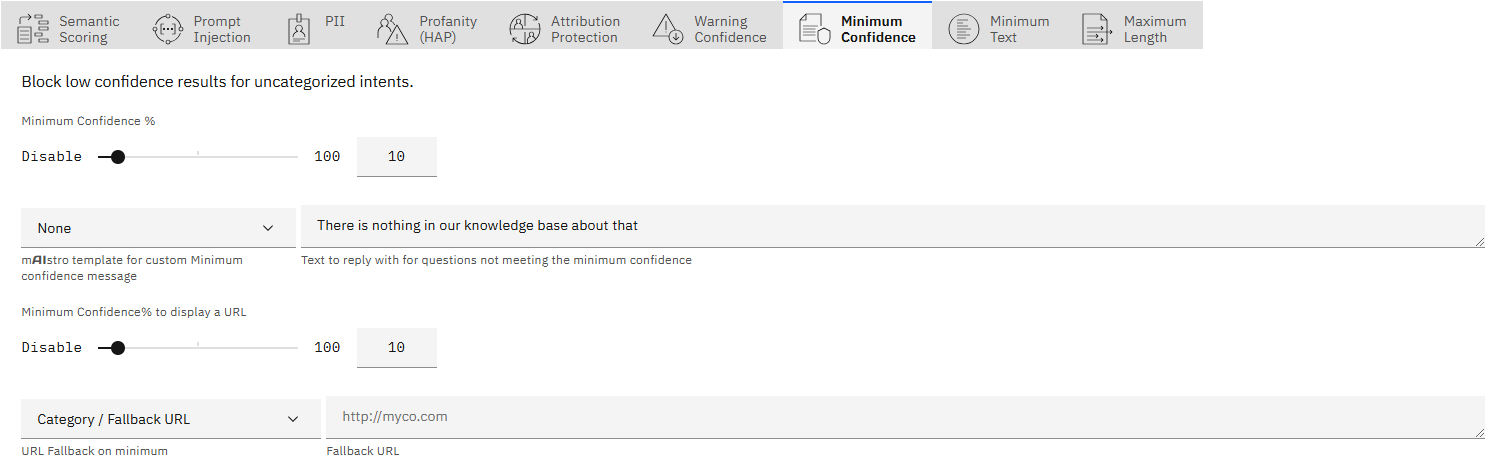 *Figure: min confidence*
> **REFERENCE — Values**
- **Minimum Confidence %:** Any answers lower than this number will have
the below text substituted in place of the answer.
- mAIstro template Optional - A mAIstro template to handle minimum
confidence in a customized way.
- **Reply text:** The response to give when answers are below the
minimum confidence % set.
- **Minimum Confidence % to display a URL:** Any answers lower than this
number will not return a linked URL.
- URL Fallback Optional - A URL to offer when the minimum confidence is
not met.
> **EXAMPLE — Minimum Confidence with mAIstro Fallback**
>
> Use the mAIstro template to set up a fallback plan for cases where the
> confidence threshold is not met. This ensures a seamless transition to
> a more suitable response or action, like notifying teams or escalating
> the issue.
- **Create a mAIstro template:** Build a fallback template for handling
low-confidence scenarios. In the 'Min Confidence - IN' node (which
should be positioned at the top), define the logic for how it should
respond.
*Figure: min confidence*
> **REFERENCE — Values**
- **Minimum Confidence %:** Any answers lower than this number will have
the below text substituted in place of the answer.
- mAIstro template Optional - A mAIstro template to handle minimum
confidence in a customized way.
- **Reply text:** The response to give when answers are below the
minimum confidence % set.
- **Minimum Confidence % to display a URL:** Any answers lower than this
number will not return a linked URL.
- URL Fallback Optional - A URL to offer when the minimum confidence is
not met.
> **EXAMPLE — Minimum Confidence with mAIstro Fallback**
>
> Use the mAIstro template to set up a fallback plan for cases where the
> confidence threshold is not met. This ensures a seamless transition to
> a more suitable response or action, like notifying teams or escalating
> the issue.
- **Create a mAIstro template:** Build a fallback template for handling
low-confidence scenarios. In the 'Min Confidence - IN' node (which
should be positioned at the top), define the logic for how it should
respond.
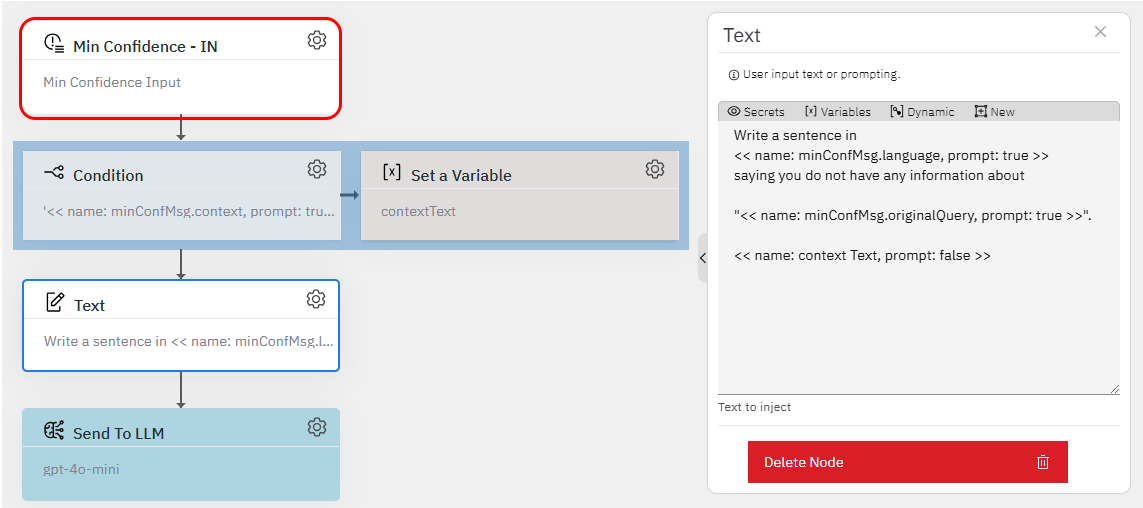 *Figure: min confidence template*
- **Select your template:** Once your template is ready, select it in
the 'mAIstro template for custom Minimum Confidence message' dropdown.
*Figure: min confidence template*
- **Select your template:** Once your template is ready, select it in
the 'mAIstro template for custom Minimum Confidence message' dropdown.
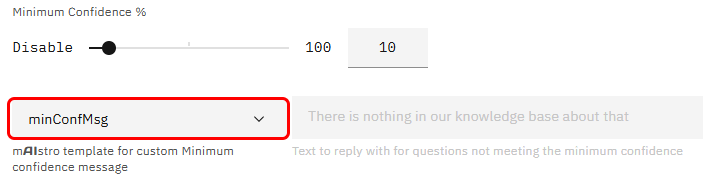 *Figure: select template*
- **Test with out-of-scope queries:** After setup, try asking a question
that's out of the knowledge base. Seek will default to your new
template. Play around with it and see how it handles fallback
scenarios!
*Figure: select template*
- **Test with out-of-scope queries:** After setup, try asking a question
that's out of the knowledge base. Seek will default to your new
template. Play around with it and see how it handles fallback
scenarios!
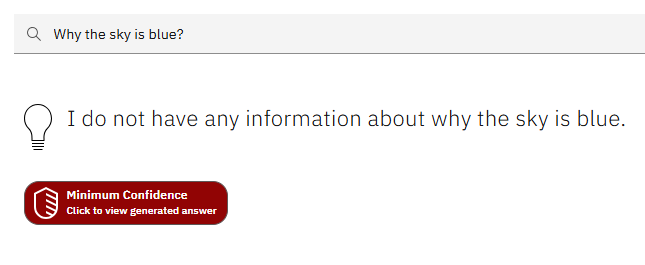 *Figure: seek fallback*
- **Notify via Slack:** If an out-of-scope question is asked, notify
your team on Slack so they can improve the documentation for future
use.
*Figure: seek fallback*
- **Notify via Slack:** If an out-of-scope question is asked, notify
your team on Slack so they can improve the documentation for future
use.
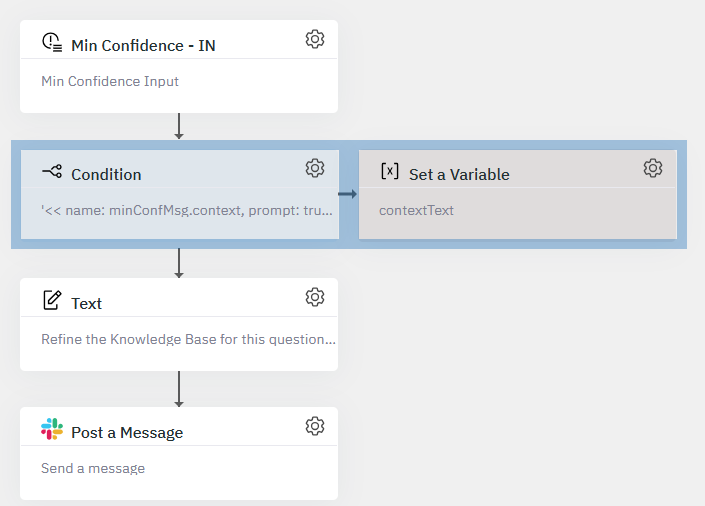 *Figure: slack template*
- **Create an Issue in GitHub:** Automatically create a GitHub issue
with details like minConfMsg.originalQuery and minConfMsg.language.
*Figure: slack template*
- **Create an Issue in GitHub:** Automatically create a GitHub issue
with details like minConfMsg.originalQuery and minConfMsg.language.
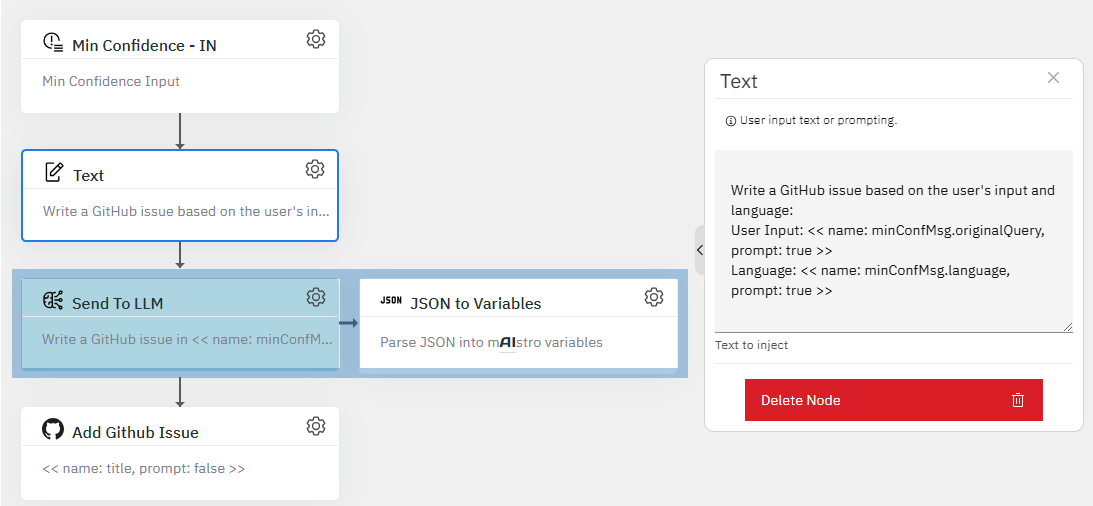 *Figure: github template*
**Minimum Text**
Use the sliding scale to set a desired minimum amount of words in a
question.
*Figure: github template*
**Minimum Text**
Use the sliding scale to set a desired minimum amount of words in a
question.
 *Figure: min text*
> **REFERENCE — Values**
- **Minimum Words:** The minimum number of words in a user
question/input.
- mAIstro template Optional - A mAIstro template to handle minimum text
in a customized way. In this case we need to use the 'Min Text - IN'
node and you can try template flows as in the 'Minimum Confidence'
section.
*Figure: min text*
> **REFERENCE — Values**
- **Minimum Words:** The minimum number of words in a user
question/input.
- mAIstro template Optional - A mAIstro template to handle minimum text
in a customized way. In this case we need to use the 'Min Text - IN'
node and you can try template flows as in the 'Minimum Confidence'
section.
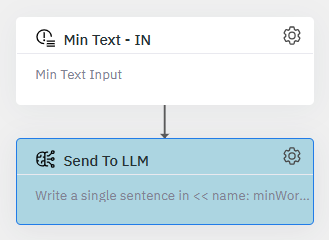 *Figure: min text template*
- **Reply Text:** Add a text to reply with for questions not meeting the
minimum input word length. (e.g. "Give me a bit more to go on\\..").
**Maximum Length**
Use the sliding scale to set a desired maximum amount of words in a
question.
*Figure: min text template*
- **Reply Text:** Add a text to reply with for questions not meeting the
minimum input word length. (e.g. "Give me a bit more to go on\\..").
**Maximum Length**
Use the sliding scale to set a desired maximum amount of words in a
question.
 *Figure: max length*
> **REFERENCE — Values**
- **Maximum Words:** The maximum number of words in a user
question/input. Set to 100 to remove the limit. Use a low limit to
help mitigate adversarial questions designed to generate inappropriate
answers.
- mAIstro template Optional - A mAIstro template to handle maximum text
in a customized way. In this case we need to use the 'Max Words - IN'
node and you can try template flows as in the 'Minimum Confidence'
section.
*Figure: max length*
> **REFERENCE — Values**
- **Maximum Words:** The maximum number of words in a user
question/input. Set to 100 to remove the limit. Use a low limit to
help mitigate adversarial questions designed to generate inappropriate
answers.
- mAIstro template Optional - A mAIstro template to handle maximum text
in a customized way. In this case we need to use the 'Max Words - IN'
node and you can try template flows as in the 'Minimum Confidence'
section.
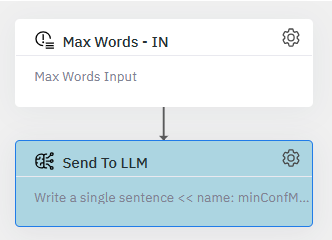 *Figure: max text template*
- **Reply Text:** Add a text to reply with for questions over the input
word limit. (e.g. "Can you please summarize your question for me?
Questions should be limited to 20 words.").
*Figure: max text template*
- **Reply Text:** Add a text to reply with for questions over the input
word limit. (e.g. "Can you please summarize your question for me?
Questions should be limited to 20 words.").