## RaDialog-v2
[](https://openreview.net/pdf?id=trUvr1gSNI) [](https://arxiv.org/abs/2311.18681) [](https://physionet.org/content/radialog-instruct-dataset/1.1.0/) [](https://huggingface.co/ChantalPellegrini/RaDialog-interactive-radiology-report-generation)
**✨ RaDialog has been accepted to MIDL 2025: The new paper includes additional experiments and details about RaDialog_v2 and can be found on [OpenReview](https://openreview.net/pdf?id=trUvr1gSNI) ✨**
RaDialog-v2 is the improved version of the original RaDialog model which can be found on [Github](https://github.com/ChantalMP/RaDialog/tree/master) and [Arxiv](https://arxiv.org/abs/2311.18681).
It follows the same concepts, including the same image encoder, chexbert classifier, prompt construction and language model. However, we introduce a simpler end-to-end image-text alignment, leading to improved conversational assistance and making the model easier use.
The main differences are the following:
- image projection: instead of the BLIP-inspired alignment module, we use a simple MLP projection to project the image
features to the language model input size, leading to more image tokens.
- the image encoder is fine-tuned during LLM training
- the model was trained on an updated version of the RaDialog-Instruct dataset with three additional instruct tasks: impression generation, view
classification and Rad-ReStruct QA
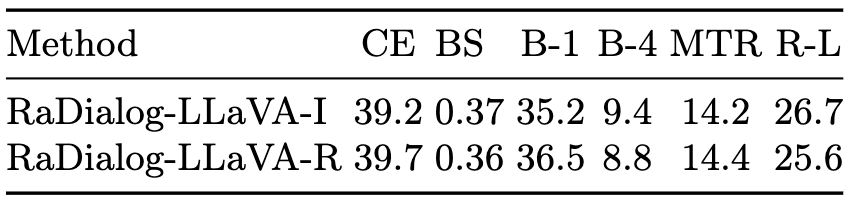
#### RaDialog-v2 main results:
 **✨ News ✨**
- 29 May 2024: RaDialog-v2 is now available on [Hugging Face](https://huggingface.co/ChantalPellegrini/RaDialog-interactive-radiology-report-generation)
---
**✨ News ✨**
- 29 May 2024: RaDialog-v2 is now available on [Hugging Face](https://huggingface.co/ChantalPellegrini/RaDialog-interactive-radiology-report-generation)
---
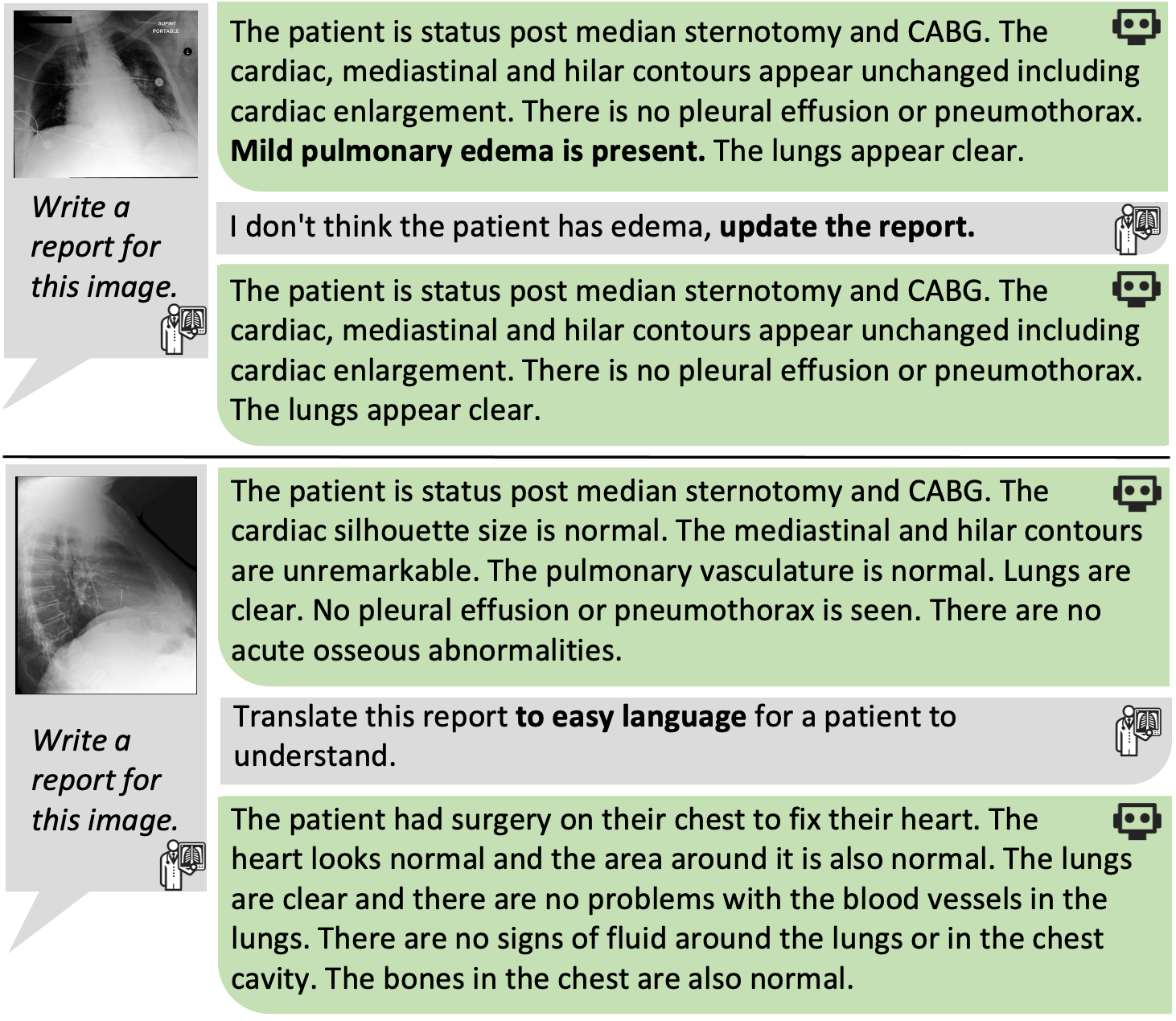 Conversational AI tools that can generate and discuss clinically correct radiology reports for a given medical image have the potential to transform
radiology. Such a human-in-the-loop radiology assistant could facilitate a collaborative diagnostic process, thus saving time and improving the
quality of reports. Towards this goal, we introduce RaDialog, the first thoroughly evaluated and publicly available large vision-language model for
radiology report generation and interactive dialog. RaDialog effectively integrates visual image features and structured pathology findings with a
large language model (LLM) while simultaneously adapting it to a specialized domain using parameter-efficient fine-tuning. To keep the conversational
abilities of the underlying LLM, we propose a comprehensive, semi-automatically labeled, image-grounded instruct dataset for chest X-ray radiology
tasks. By training with this dataset, our method achieves state-of-the-art clinical correctness in report generation and shows impressive abilities in
interactive tasks such as correcting reports and answering questions, serving as a foundational step toward clinical dialog systems.
## Getting Started with RaDialog-v2
To test RaDialog and use it for inference, follow the instructions in our huggingface
repository [here](https://huggingface.co/ChantalPellegrini/RaDialog-interactive-radiology-report-generation).
For more detailed instructions on how to train and evaluate RaDialog, please refer to the instructions below.
## Repository Installation
### Environment Setup:
#### 1) RaDialog Environment
- clone this repository and move to the radialog directory with `cd RaDialog_v2`
- Install the RaDialog environment with `conda create --name radialog python=3.10`
- Activate the environment with `conda activate radialog`
- `conda install pytorch==2.0.1 torchvision==0.15.2 torchaudio==2.0.2 pytorch-cuda=11.7 -c pytorch -c nvidia`
- `pip install -r requirements.txt`
- Install java and set JAVA_HOME and PATH in local_config.py (we used jre1.8.0)
- install flashattention following https://github.com/Dao-AILab/flash-attention
#### 2) CheXbert Environment (only needed for CheXbert score evaluation)
- Install the CheXbert environment with `conda create --name chexbert python=3.7`
- Activate the environment with `conda activate chexbert`
- Move to the chexbert directory with `cd chexbert`
- Install the requirements with `pip install -r requirements.txt`
- Set the absolute path to the chexbert env and folder in `RaDialog_v2/local_config.py`
- Download chexbert.pth from [here](https://github.com/ChantalMP/RaDialog/releases/tag/weights) and place it in in
RaDialog_v2/chexbert/src/checkpoint/
### Prepare Data
#### 1) Download the RaDialog-Instruct dataset
- Download the instruct dataset from [PhysioNet](https://physionet.org/content/radialog-instruct-dataset/1.1.0/)
- unzip it place it in RaDialog_v2/data/
- in train.sh set the path to the instruct dataset (e.g. --data_path home/RaDialog_v2/data/mimic_cxr_instruct_stratified.json)
#### 2) Download MIMIC-CXR
- Download the MIMIC-CXR-JPG dataset from [here](https://www.physionet.org/content/mimic-cxr-jpg/2.0.0/)
- The dataset should be saved in .../physionet.org/files/mimic-cxr-jpg
- Go to physionet.org/files/mimic-cxr-jpg/files/ and unzip mimic-cxr-2.0.0-split.csv.gz
- from [here](https://physionet.org/content/mimic-cxr/2.0.0/), dowload mimic-cxr-reports.zip
- unzip it and place the folder in the same directory as the MIMIC-CXR-JPG dataset (e.g. physionet.org/files/)
- in local_config.py set the path to the MIMIC-CXR dataset (e.g. .../physionet.org/files/)
- in model/lavis/defaults_report.yaml set the path to the MIMIC-CXR-JPG dataset (e.g. .../physionet.org/files/mimic-cxr-jpg/2.0.0 )
#### 3) Create sectioned report data
- go to the mimic-cxr folder in the code with `cd mimic-cxr`
- run `python create_section_files.py` to prepare the report data
- go back to the RaDialog_v2 directory with `cd ..`
### Evaluate RaDialog on MIMIC-CXR test set:
- RaDialog-INS:
run `python -m test --prompt img_matching_examples_ig2_noexamples_IMG_findings --split "test" --vision_tower biovil`
- RaDialog-INS (downstream tasks):
add `--do_corr`, `--do_cp_bin_qa`, `--do_cp_all_qa`, `--do_view_class` or `--do_impression` respectively to the command above
### Train RaDialog:
#### 1) CheXbert classifier Training
- run `python -m findings_classifier.chexpert_train --train --run_name "train_chexbert"`
- in chexpert_train.py set ckpt_path (line 152) to the path of the model you just trained
- then run `python -m findings_classifier.chexpert_train --run_name "save_preds"` to save the predictions of the trained model
#### 3) LLM Training
- move to LLaVA directory with `cd LLaVA`
- in train.sh set PYTHONPATH to the path of the RaDialog_v2 directory
- run ./train.sh to start training the model
- we used checkpoint-21000
### Demo
#### Demo Environment
- Install the RaDialog demo environment with `conda create --name radialog_demo python=3.10`
- Activate the environment with `conda activate radialog_demo`
- `conda install pytorch==2.0.1 torchvision==0.15.2 torchaudio==2.0.2 pytorch-cuda=11.7 -c pytorch -c nvidia`
- pip install -r requirements_demo.txt
#### Run Demo:
- run `python demo.py` to start the demo
- connect to the demo with a browser at `http://127.0.0.1:7861` and start chatting with RaDialog
-
## Reference
When using our model (original and this version) or dataset, please cite:
```
@inproceedings{pellegrini2025radialog,
title={RaDialog: Large Vision-Language Models for X-Ray Reporting and Dialog-Driven Assistance},
author={Pellegrini, Chantal and {\"O}zsoy, Ege and Busam, Benjamin and Wiestler, Benedikt and Navab, Nassir and Keicher, Matthias},
booktitle={Medical Imaging with Deep Learning},
year={2025}
}
```
Conversational AI tools that can generate and discuss clinically correct radiology reports for a given medical image have the potential to transform
radiology. Such a human-in-the-loop radiology assistant could facilitate a collaborative diagnostic process, thus saving time and improving the
quality of reports. Towards this goal, we introduce RaDialog, the first thoroughly evaluated and publicly available large vision-language model for
radiology report generation and interactive dialog. RaDialog effectively integrates visual image features and structured pathology findings with a
large language model (LLM) while simultaneously adapting it to a specialized domain using parameter-efficient fine-tuning. To keep the conversational
abilities of the underlying LLM, we propose a comprehensive, semi-automatically labeled, image-grounded instruct dataset for chest X-ray radiology
tasks. By training with this dataset, our method achieves state-of-the-art clinical correctness in report generation and shows impressive abilities in
interactive tasks such as correcting reports and answering questions, serving as a foundational step toward clinical dialog systems.
## Getting Started with RaDialog-v2
To test RaDialog and use it for inference, follow the instructions in our huggingface
repository [here](https://huggingface.co/ChantalPellegrini/RaDialog-interactive-radiology-report-generation).
For more detailed instructions on how to train and evaluate RaDialog, please refer to the instructions below.
## Repository Installation
### Environment Setup:
#### 1) RaDialog Environment
- clone this repository and move to the radialog directory with `cd RaDialog_v2`
- Install the RaDialog environment with `conda create --name radialog python=3.10`
- Activate the environment with `conda activate radialog`
- `conda install pytorch==2.0.1 torchvision==0.15.2 torchaudio==2.0.2 pytorch-cuda=11.7 -c pytorch -c nvidia`
- `pip install -r requirements.txt`
- Install java and set JAVA_HOME and PATH in local_config.py (we used jre1.8.0)
- install flashattention following https://github.com/Dao-AILab/flash-attention
#### 2) CheXbert Environment (only needed for CheXbert score evaluation)
- Install the CheXbert environment with `conda create --name chexbert python=3.7`
- Activate the environment with `conda activate chexbert`
- Move to the chexbert directory with `cd chexbert`
- Install the requirements with `pip install -r requirements.txt`
- Set the absolute path to the chexbert env and folder in `RaDialog_v2/local_config.py`
- Download chexbert.pth from [here](https://github.com/ChantalMP/RaDialog/releases/tag/weights) and place it in in
RaDialog_v2/chexbert/src/checkpoint/
### Prepare Data
#### 1) Download the RaDialog-Instruct dataset
- Download the instruct dataset from [PhysioNet](https://physionet.org/content/radialog-instruct-dataset/1.1.0/)
- unzip it place it in RaDialog_v2/data/
- in train.sh set the path to the instruct dataset (e.g. --data_path home/RaDialog_v2/data/mimic_cxr_instruct_stratified.json)
#### 2) Download MIMIC-CXR
- Download the MIMIC-CXR-JPG dataset from [here](https://www.physionet.org/content/mimic-cxr-jpg/2.0.0/)
- The dataset should be saved in .../physionet.org/files/mimic-cxr-jpg
- Go to physionet.org/files/mimic-cxr-jpg/files/ and unzip mimic-cxr-2.0.0-split.csv.gz
- from [here](https://physionet.org/content/mimic-cxr/2.0.0/), dowload mimic-cxr-reports.zip
- unzip it and place the folder in the same directory as the MIMIC-CXR-JPG dataset (e.g. physionet.org/files/)
- in local_config.py set the path to the MIMIC-CXR dataset (e.g. .../physionet.org/files/)
- in model/lavis/defaults_report.yaml set the path to the MIMIC-CXR-JPG dataset (e.g. .../physionet.org/files/mimic-cxr-jpg/2.0.0 )
#### 3) Create sectioned report data
- go to the mimic-cxr folder in the code with `cd mimic-cxr`
- run `python create_section_files.py` to prepare the report data
- go back to the RaDialog_v2 directory with `cd ..`
### Evaluate RaDialog on MIMIC-CXR test set:
- RaDialog-INS:
run `python -m test --prompt img_matching_examples_ig2_noexamples_IMG_findings --split "test" --vision_tower biovil`
- RaDialog-INS (downstream tasks):
add `--do_corr`, `--do_cp_bin_qa`, `--do_cp_all_qa`, `--do_view_class` or `--do_impression` respectively to the command above
### Train RaDialog:
#### 1) CheXbert classifier Training
- run `python -m findings_classifier.chexpert_train --train --run_name "train_chexbert"`
- in chexpert_train.py set ckpt_path (line 152) to the path of the model you just trained
- then run `python -m findings_classifier.chexpert_train --run_name "save_preds"` to save the predictions of the trained model
#### 3) LLM Training
- move to LLaVA directory with `cd LLaVA`
- in train.sh set PYTHONPATH to the path of the RaDialog_v2 directory
- run ./train.sh to start training the model
- we used checkpoint-21000
### Demo
#### Demo Environment
- Install the RaDialog demo environment with `conda create --name radialog_demo python=3.10`
- Activate the environment with `conda activate radialog_demo`
- `conda install pytorch==2.0.1 torchvision==0.15.2 torchaudio==2.0.2 pytorch-cuda=11.7 -c pytorch -c nvidia`
- pip install -r requirements_demo.txt
#### Run Demo:
- run `python demo.py` to start the demo
- connect to the demo with a browser at `http://127.0.0.1:7861` and start chatting with RaDialog
-
## Reference
When using our model (original and this version) or dataset, please cite:
```
@inproceedings{pellegrini2025radialog,
title={RaDialog: Large Vision-Language Models for X-Ray Reporting and Dialog-Driven Assistance},
author={Pellegrini, Chantal and {\"O}zsoy, Ege and Busam, Benjamin and Wiestler, Benedikt and Navab, Nassir and Keicher, Matthias},
booktitle={Medical Imaging with Deep Learning},
year={2025}
}
```