# ClipCascade Go
# ClipCascade Go
[](README_en.md)
[](README.md)
A cross-platform clipboard synchronization tool designed for multi-device collaboration.
The goal is not to "rebuild another chat tool," but to make cross-device copy-pasting as seamless as a local experience.
## Project Introduction
In daily development and office scenarios, Mac, Windows, Linux, and Android are often used interchangeably.
Transferring text, screenshots, and files between different devices often encounters these issues:
- Need to manually open intermediate tools, interrupting the workflow.
- Large differences in clipboard behavior across platforms, leading to inconsistent experiences.
- File transfer is either too heavy or too slow, and difficult to manage uniformly.
ClipCascade is positioned as a clipboard-centric, self-deployable, extensible, and cross-platform synchronization system.
## Core Capabilities
- **Text Sync**: Real-time synchronization to online devices after copying.
- **Image Sync**: Cross-platform transfer of image clipboard content.
- **File Sync**: Supports a tiered strategy of direct transfer for small files and placeholder notifications for large files.
- **Transfer Channels**: Supports STOMP (server-relayed) + P2P (peer-to-peer) dual channels.
- **Security**: Supports E2EE (End-to-End Encryption) toggle.
- **Auto-Discovery**: Automatic discovery of service addresses via mDNS in local networks.
- **Multi-User Management**: Administrators can add users directly from the Web page.
- **Android Native Persistence**: Foreground services + accessibility triggers + permission guidance.
- **Clipboard History**: Mobile version supports viewing and re-filling historical records.
## Supported Platforms
| Module | Platform |
| --- | --- |
| Server | Linux / macOS / Windows |
| Desktop (Tray Version) | Linux / macOS / Windows |
| Desktop UI (Fyne) | Linux / macOS / Windows |
| Android Native Persistence | Android |
| Web Clipboard | Linux / macOS / Windows (Single Binary) |
## Current Technical Implementation
This section only describes the technical solutions already implemented in the current repository to facilitate troubleshooting platform differences and behavioral expectations.
### Server-side
- Based on Go + Fiber.
- WebSocket relay uses STOMP-like protocol.
- Database storage uses GORM + SQLite.
- Local network auto-discovery uses mDNS / Zeroconf.
- Supports user management directly via administrator Web page.
### Desktop Transfer Layer
- Main Channel: STOMP over WebSocket.
- Auxiliary Channel: P2P WebRTC DataChannel.
- Auto-reconnect: The desktop client initiates the first round of reconnection immediately upon detecting disconnection, then enters exponential backoff.
- Current implementation still uses server relay as a fallback; P2P will carry data in parallel when available.
### Desktop Clipboard Implementation
- Text, images, and files are eventually merged into unified business types:
- `text`
- `image`
- `file_eager`
- `file_stub`
- No separate "in-memory image" protocol type; screenshots, bitmaps, and in-app image clipboard objects are all categorized as `image`.
- To avoid loop triggering when images are re-encoded by the system across platforms, image deduplication is now based on "hash of the decoded pixel content" instead of raw byte hash.
### Platform Clipboard Differences
#### macOS
- Uses CGO native calls for `NSPasteboard`.
- Detects changes via `changeCount` polling, then reads by priority:
1. File paths
2. Image objects
3. Text
- This means macOS can now directly recognize many "in-memory screenshots," such as WeChat screenshots, without needing to paste them elsewhere first.
#### Windows
- Uses system clipboard sequence number to detect changes.
- File paths read natively via `CF_HDROP`.
- Text read natively via `CF_UNICODETEXT`.
- Images read natively via `CF_DIB / CF_DIBV5` and converted to PNG before entering the unified `image` sync chain.
- This is designed to cover scenarios where "screenshots go directly to the clipboard but cannot be read by common libraries."
#### Linux
- Text/image listening mainly relies on `golang.design/x/clipboard` event channels.
- File paths read via `xclip` from `text/uri-list`.
- Linux currently adheres more closely to "standard clipboard format driven" implementations, with higher dependency on the desktop environment.
### Design Trade-offs
- Text and standard images are "sync on copy" by default.
- Files are not forced to be fully transferred directly; instead, a distinction is made between small file direct transfer and large/multi-file placeholder notifications.
- For screenshot-like content, the current strategy is still to sync as images directly, rather than requiring users to "paste and then copy."
- If a platform's screenshot tool places content in a non-standard private format, further platform adaptation may be needed (this is a clipboard reading layer issue, not a new protocol-level type).
## Quick Start
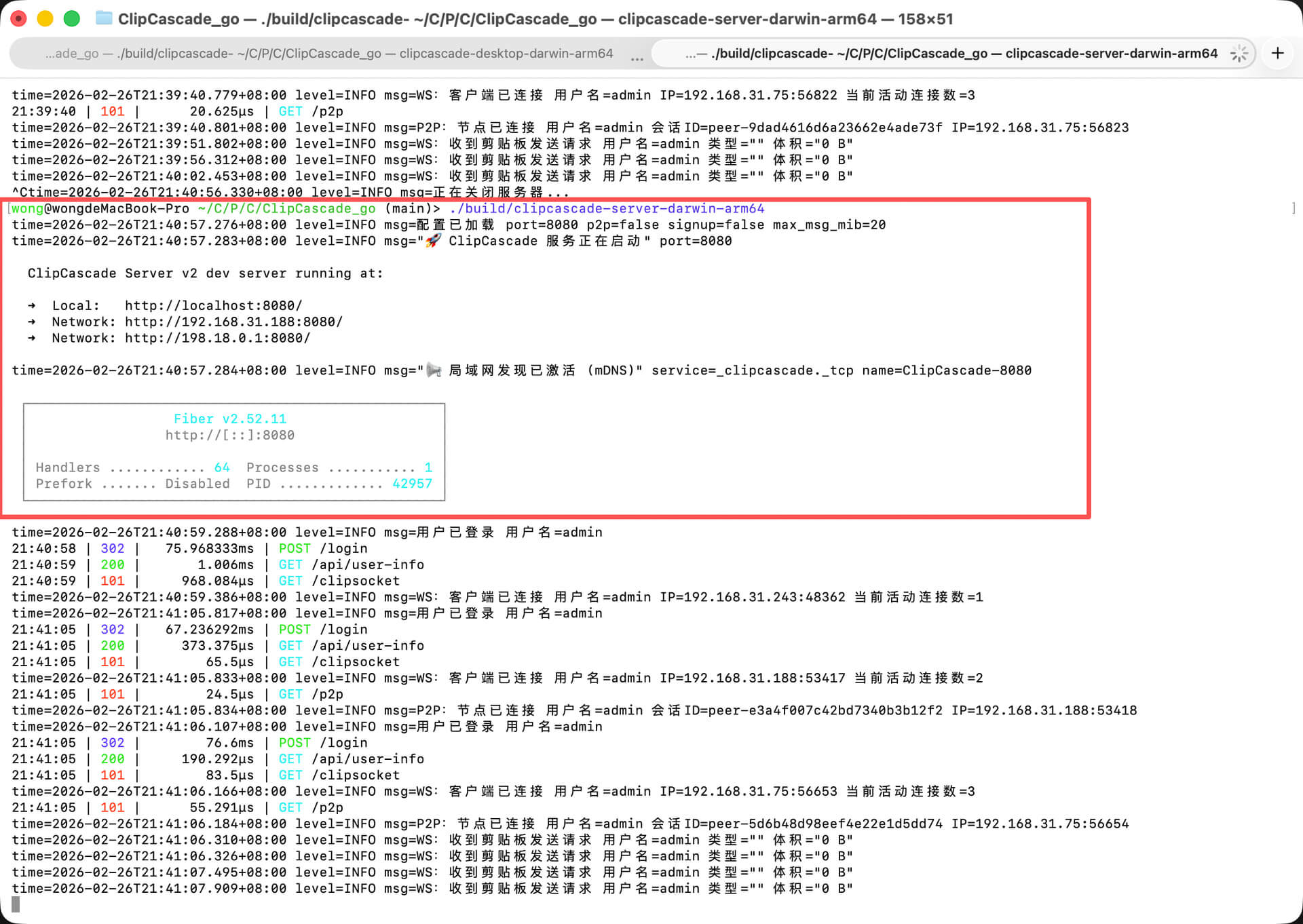
> Example: Server startup on macOS
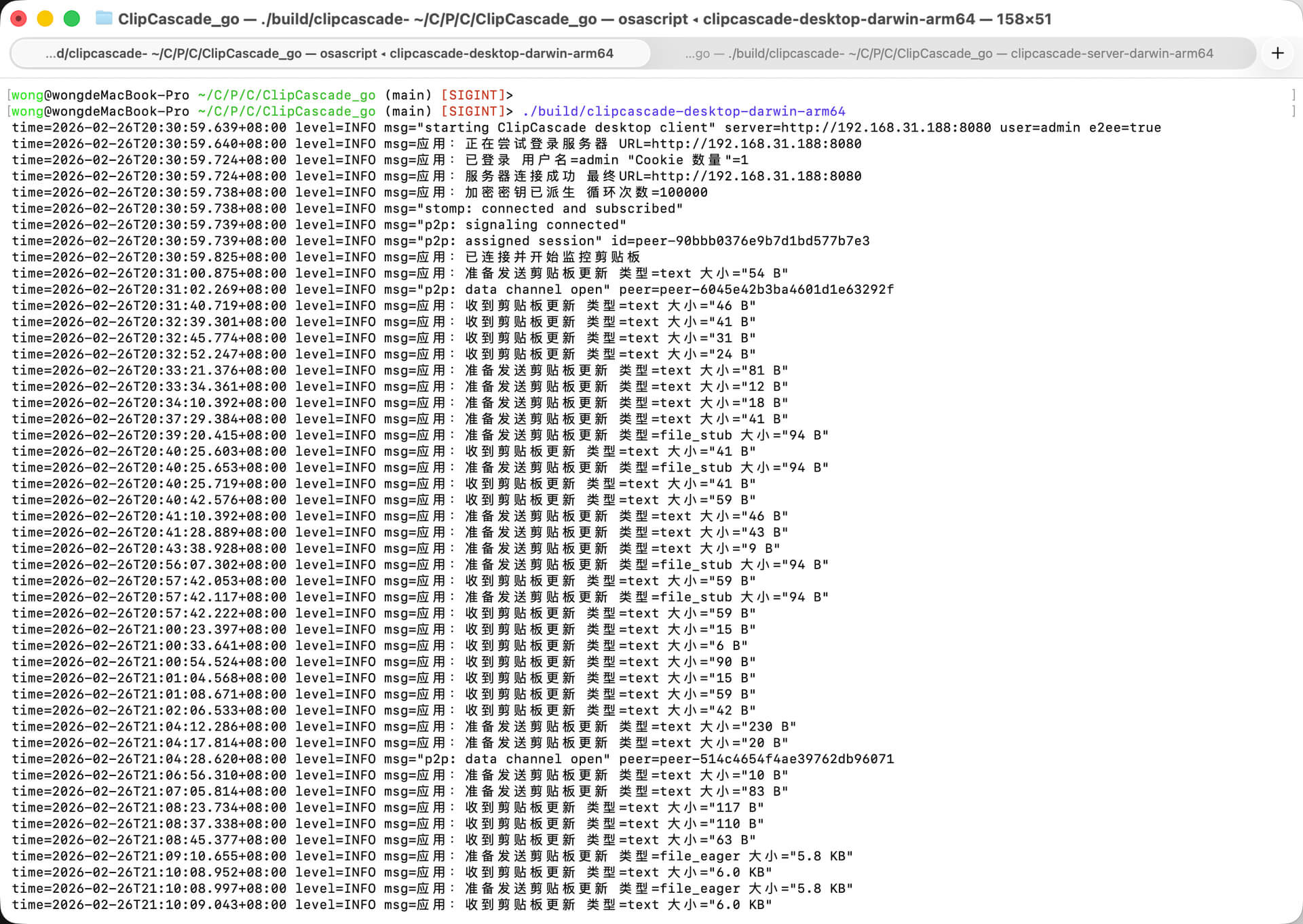
> Example: Desktop client startup on macOS
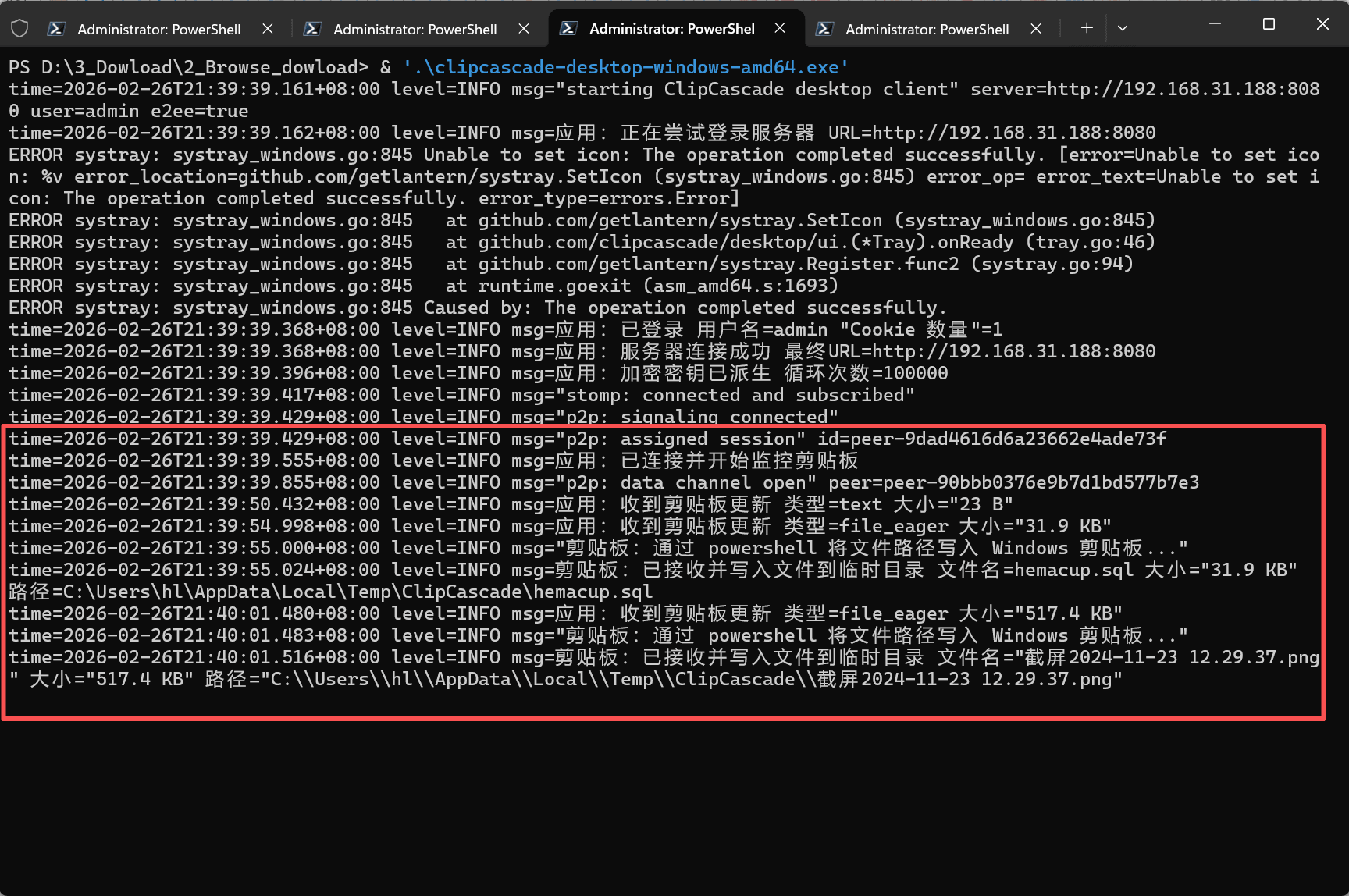
> Windows Desktop Client
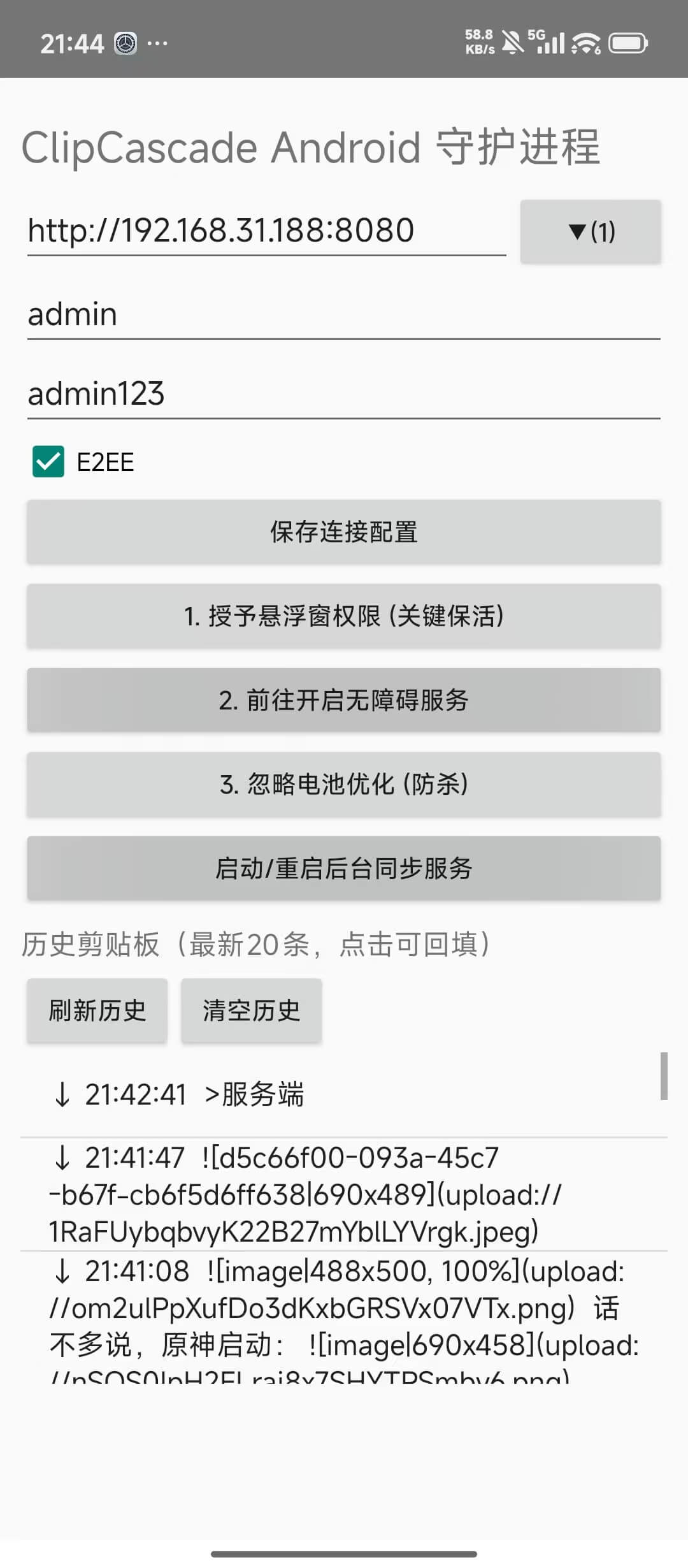
| Android Client Startup | Desktop UI |
| :---: | :---: |
|  |
| 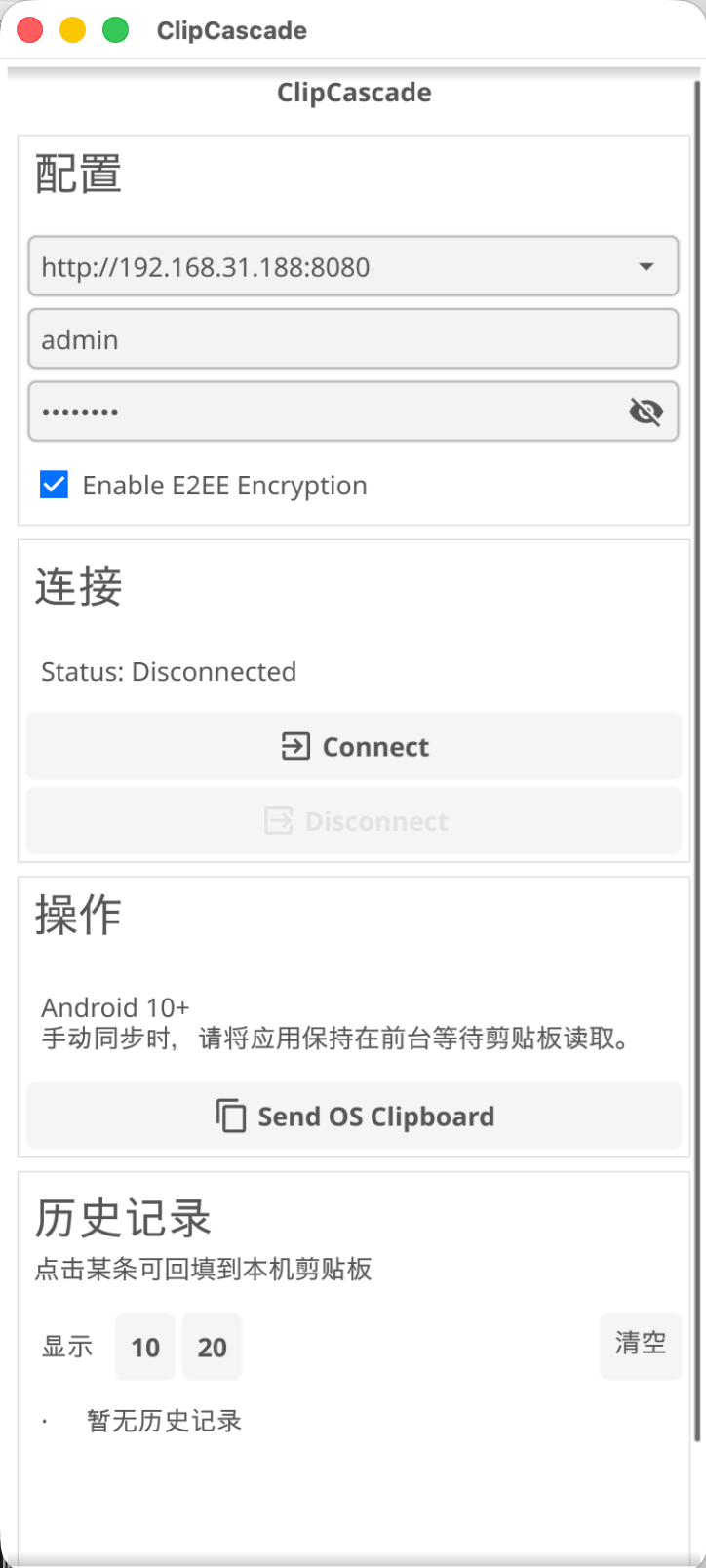 |
Looking for a version with a UI?
Yes, brother, we've got you covered. The PC version also includes a UI component with built-in network auto-discovery.
To manually specify account and password:
```bash
./build/clipcascade-desktop-ui-darwin-arm64 --server http://127.0.0.1:8080 --username admin --password admin123 --save
```
## Problems it Solves
### 1) Connectivity Issues
Sync directly to another computer without switching software.
Bridge clipboard gaps across different platforms.
No need for strange input methods or login sync.
Privacy-conscious: no internet connection required, local data stays local.
### 2) Android
Many apps struggle to stay in the background on Android 10+ due to battery optimization.
Most regular packaged apps lack this ability and require specialized code (which I have already implemented here).
## Web Clipboard (server-web-clip)
Independent of the ClipCascade account system, fits quick text and file transfers within a local network.
```bash
./build/clipcascade-web-darwin-arm64
```
Prints data path and access address upon startup:
```
database : /path/to/binary/data.db
uploads : /path/to/binary/uploads/
➜ http://localhost:8090/
```
**Command Line Arguments:**
```bash
./build/clipcascade-web-darwin-arm64 -p 9000
# or
./build/clipcascade-web-darwin-arm64 --port 9000
```
**Environment Variables (Cli arguments take precedence):**
| env | default | description |
| --- | --- | --- |
| `WEBCLIP_PORT` | `8090` | Port, auto-increments if occupied |
| `WEBCLIP_DB_PATH` | binary dir/data.db | Database path |
| `WEBCLIP_UPLOAD_DIR` | binary dir/uploads | Upload directory |
Build:
```bash
./build-scripts/build.sh web-clip-cross
```
Artifacts: `build/clipcascade-web-{os}-{arch}`
## Executing Build
### 1) One-click Build
```bash
./build-scripts/build.sh all
```
`all` attempts to build:
- server (all platforms)
- desktop (all platforms)
- desktop-ui (current platform)
- desktop-ui-cross (requires Docker)
Notes:
- Linux desktop cross-compilation requires Docker daemon (will be skipped and warned if not started).
- iOS packaging requires Apple developer certificate (warning issued if missing).
### 2) Start Server
```bash
./build/clipcascade-server-darwin-arm64
```
Default credentials: `admin / admin123`
### 3) Start Desktop Client
First-time configuration save:
```bash
./build/clipcascade-desktop-darwin-arm64 --server http://127.0.0.1:8080 --username admin --password admin123 --save
```
Debug logging:
```bash
./build/clipcascade-desktop-darwin-arm64 --debug
```
One-shot send filter (runtime-only, not persisted to config):
```bash
./build/clipcascade-desktop-darwin-arm64 --send-filter=text,file
```
`--send-filter` values: `all` (default), `none`, `text`, `image`, `file`, with comma combinations like `text,file`.
Log size semantics (client vs server):
- With E2EE enabled (default), client-side `size` logs represent estimated plaintext payload size.
- In E2EE mode, server-side `volume` usually reflects encrypted frame body (wire body) size.
- So the same message can show different numbers on client and server; this is expected.
- With E2EE disabled, the two sides are more likely to show close size values.
## User Management
- Default `signup` is disabled.
- `/signup` returns `Signup is disabled` when closed.
- Login page no longer displays "Create an account" when `signup` is off.
Add users (no manual API calls needed):
1. Log in as administrator and open `/advance`.
2. Click `+ Add User`.
3. Enter username and password to create.
## Sync Strategy (Current Design)
### Text/Images
- Synchronized in real-time on copy.
### Files
- Single file and size `<= 20 MiB`: `file_eager` direct transfer.
- Multiple files or very large files: `file_stub` placeholder (metadata notification).
`file_eager` behavior on receiving end:
- Saved to temporary directory:
- macOS/Linux: `${TMPDIR}/ClipCascade` or `/tmp/ClipCascade`
- Windows: `%LOCALAPPDATA%\Temp\ClipCascade`
- Simultaneously writes file path to system clipboard, allowing direct paste.
Temp file cleanup:
- Automatically cleans up old temporary files older than `24 hours` when receiving files.
## Build and Environment
### Environment Preparation (Must read)
Base Environment:
- Go `1.22+` (Go `1.25` used in CI)
- Git
- `PATH` includes `$(go env GOPATH)/bin`
Supplementary requirements based on build target:
- Desktop/Linux cross-compilation: Requires Docker (ensure daemon is started).
- macOS Desktop build: Requires Xcode Command Line Tools (`xcode-select --install`).
- Android Native Persistence (`mobile-android-native`):
- JDK `17`
- Android SDK (`platform-tools`, `platforms;android-34`, `build-tools;34.0.0`)
- Android NDK (Install via `brew install --cask android-ndk`)
- `gomobile` (`go install golang.org/x/mobile/cmd/gomobile@latest && gomobile init`)
Suggested Environment Variables (Add to `~/.zshrc`):
```bash
export ANDROID_HOME="/opt/homebrew/share/android-commandlinetools"
export ANDROID_SDK_ROOT="$ANDROID_HOME"
export ANDROID_NDK_HOME="/opt/homebrew/Caskroom/android-ndk//AndroidNDK*.app/Contents/NDK"
```
Notes:
- Project includes a built-in `client-android-native-shell/android/gradlew`, no global Gradle installation required.
- If Gradle cache is corrupted, delete `.gradle-user-home/` in the root directory and retry.
### Common Build Commands
```bash
./build-scripts/build.sh server
./build-scripts/build.sh server-cross
./build-scripts/build.sh desktop
./build-scripts/build.sh cross
./build-scripts/build.sh desktop-ui
./build-scripts/build.sh mobile-android-native
```
`mobile-android-native` output:
- `build/ClipCascade-Android-Installable.apk` (directly installable)
### Windows Console Mode
- Default: Windows desktop client keeps the console window (for logging).
- No-console tray mode:
```bash
CLIPCASCADE_WINDOWS_GUI=1 ./build-scripts/build.sh cross
```
## Critical Environment Variables (Server)
```bash
CC_PORT=8080
CC_SIGNUP_ENABLED=false
CC_P2P_ENABLED=false
CC_P2P_STUN_URL=stun:stun.l.google.com:19302
CC_MAX_MESSAGE_SIZE_IN_MiB=20
CC_ALLOWED_ORIGINS=*
CC_DATABASE_PATH=./database/clipcascade.db
```
## FAQ
### 1) Docker-related build failure
Error: `Cannot connect to the Docker daemon ...`
Solution:
```bash
open -a Docker
# or
open -a OrbStack
```
Confirm `docker info` works, then retry.
### 2) Login page shows "Signup is disabled" when clicking Create
This is the default configuration (signup closed).
- Enable public signup: `CC_SIGNUP_ENABLED=true`
- Recommended: Keep closed and have administrators add users via `/advance`.
### 3) File received notification but paste not working
Ensure both ends are using the latest desktop binaries and check logs for:
- `App: Preparing to send clipboard update Type=file_eager`
- `Clipboard: Received and wrote file to temporary directory`
## 社区
[LINUX DO](https://linux.do/)
## License
This project is licensed under the [Apache License 2.0](LICENSE).
|
Looking for a version with a UI?
Yes, brother, we've got you covered. The PC version also includes a UI component with built-in network auto-discovery.
To manually specify account and password:
```bash
./build/clipcascade-desktop-ui-darwin-arm64 --server http://127.0.0.1:8080 --username admin --password admin123 --save
```
## Problems it Solves
### 1) Connectivity Issues
Sync directly to another computer without switching software.
Bridge clipboard gaps across different platforms.
No need for strange input methods or login sync.
Privacy-conscious: no internet connection required, local data stays local.
### 2) Android
Many apps struggle to stay in the background on Android 10+ due to battery optimization.
Most regular packaged apps lack this ability and require specialized code (which I have already implemented here).
## Web Clipboard (server-web-clip)
Independent of the ClipCascade account system, fits quick text and file transfers within a local network.
```bash
./build/clipcascade-web-darwin-arm64
```
Prints data path and access address upon startup:
```
database : /path/to/binary/data.db
uploads : /path/to/binary/uploads/
➜ http://localhost:8090/
```
**Command Line Arguments:**
```bash
./build/clipcascade-web-darwin-arm64 -p 9000
# or
./build/clipcascade-web-darwin-arm64 --port 9000
```
**Environment Variables (Cli arguments take precedence):**
| env | default | description |
| --- | --- | --- |
| `WEBCLIP_PORT` | `8090` | Port, auto-increments if occupied |
| `WEBCLIP_DB_PATH` | binary dir/data.db | Database path |
| `WEBCLIP_UPLOAD_DIR` | binary dir/uploads | Upload directory |
Build:
```bash
./build-scripts/build.sh web-clip-cross
```
Artifacts: `build/clipcascade-web-{os}-{arch}`
## Executing Build
### 1) One-click Build
```bash
./build-scripts/build.sh all
```
`all` attempts to build:
- server (all platforms)
- desktop (all platforms)
- desktop-ui (current platform)
- desktop-ui-cross (requires Docker)
Notes:
- Linux desktop cross-compilation requires Docker daemon (will be skipped and warned if not started).
- iOS packaging requires Apple developer certificate (warning issued if missing).
### 2) Start Server
```bash
./build/clipcascade-server-darwin-arm64
```
Default credentials: `admin / admin123`
### 3) Start Desktop Client
First-time configuration save:
```bash
./build/clipcascade-desktop-darwin-arm64 --server http://127.0.0.1:8080 --username admin --password admin123 --save
```
Debug logging:
```bash
./build/clipcascade-desktop-darwin-arm64 --debug
```
One-shot send filter (runtime-only, not persisted to config):
```bash
./build/clipcascade-desktop-darwin-arm64 --send-filter=text,file
```
`--send-filter` values: `all` (default), `none`, `text`, `image`, `file`, with comma combinations like `text,file`.
Log size semantics (client vs server):
- With E2EE enabled (default), client-side `size` logs represent estimated plaintext payload size.
- In E2EE mode, server-side `volume` usually reflects encrypted frame body (wire body) size.
- So the same message can show different numbers on client and server; this is expected.
- With E2EE disabled, the two sides are more likely to show close size values.
## User Management
- Default `signup` is disabled.
- `/signup` returns `Signup is disabled` when closed.
- Login page no longer displays "Create an account" when `signup` is off.
Add users (no manual API calls needed):
1. Log in as administrator and open `/advance`.
2. Click `+ Add User`.
3. Enter username and password to create.
## Sync Strategy (Current Design)
### Text/Images
- Synchronized in real-time on copy.
### Files
- Single file and size `<= 20 MiB`: `file_eager` direct transfer.
- Multiple files or very large files: `file_stub` placeholder (metadata notification).
`file_eager` behavior on receiving end:
- Saved to temporary directory:
- macOS/Linux: `${TMPDIR}/ClipCascade` or `/tmp/ClipCascade`
- Windows: `%LOCALAPPDATA%\Temp\ClipCascade`
- Simultaneously writes file path to system clipboard, allowing direct paste.
Temp file cleanup:
- Automatically cleans up old temporary files older than `24 hours` when receiving files.
## Build and Environment
### Environment Preparation (Must read)
Base Environment:
- Go `1.22+` (Go `1.25` used in CI)
- Git
- `PATH` includes `$(go env GOPATH)/bin`
Supplementary requirements based on build target:
- Desktop/Linux cross-compilation: Requires Docker (ensure daemon is started).
- macOS Desktop build: Requires Xcode Command Line Tools (`xcode-select --install`).
- Android Native Persistence (`mobile-android-native`):
- JDK `17`
- Android SDK (`platform-tools`, `platforms;android-34`, `build-tools;34.0.0`)
- Android NDK (Install via `brew install --cask android-ndk`)
- `gomobile` (`go install golang.org/x/mobile/cmd/gomobile@latest && gomobile init`)
Suggested Environment Variables (Add to `~/.zshrc`):
```bash
export ANDROID_HOME="/opt/homebrew/share/android-commandlinetools"
export ANDROID_SDK_ROOT="$ANDROID_HOME"
export ANDROID_NDK_HOME="/opt/homebrew/Caskroom/android-ndk//AndroidNDK*.app/Contents/NDK"
```
Notes:
- Project includes a built-in `client-android-native-shell/android/gradlew`, no global Gradle installation required.
- If Gradle cache is corrupted, delete `.gradle-user-home/` in the root directory and retry.
### Common Build Commands
```bash
./build-scripts/build.sh server
./build-scripts/build.sh server-cross
./build-scripts/build.sh desktop
./build-scripts/build.sh cross
./build-scripts/build.sh desktop-ui
./build-scripts/build.sh mobile-android-native
```
`mobile-android-native` output:
- `build/ClipCascade-Android-Installable.apk` (directly installable)
### Windows Console Mode
- Default: Windows desktop client keeps the console window (for logging).
- No-console tray mode:
```bash
CLIPCASCADE_WINDOWS_GUI=1 ./build-scripts/build.sh cross
```
## Critical Environment Variables (Server)
```bash
CC_PORT=8080
CC_SIGNUP_ENABLED=false
CC_P2P_ENABLED=false
CC_P2P_STUN_URL=stun:stun.l.google.com:19302
CC_MAX_MESSAGE_SIZE_IN_MiB=20
CC_ALLOWED_ORIGINS=*
CC_DATABASE_PATH=./database/clipcascade.db
```
## FAQ
### 1) Docker-related build failure
Error: `Cannot connect to the Docker daemon ...`
Solution:
```bash
open -a Docker
# or
open -a OrbStack
```
Confirm `docker info` works, then retry.
### 2) Login page shows "Signup is disabled" when clicking Create
This is the default configuration (signup closed).
- Enable public signup: `CC_SIGNUP_ENABLED=true`
- Recommended: Keep closed and have administrators add users via `/advance`.
### 3) File received notification but paste not working
Ensure both ends are using the latest desktop binaries and check logs for:
- `App: Preparing to send clipboard update Type=file_eager`
- `Clipboard: Received and wrote file to temporary directory`
## 社区
[LINUX DO](https://linux.do/)
## License
This project is licensed under the [Apache License 2.0](LICENSE).