
## 👋 Introduction
[(Back to top)](#-table-of-contents)
CleverTap Huawei Push SDK provides an out of the box service to use the Huwaei Push Kit.
## ®️ Register
[(Back to top)](#-table-of-contents)
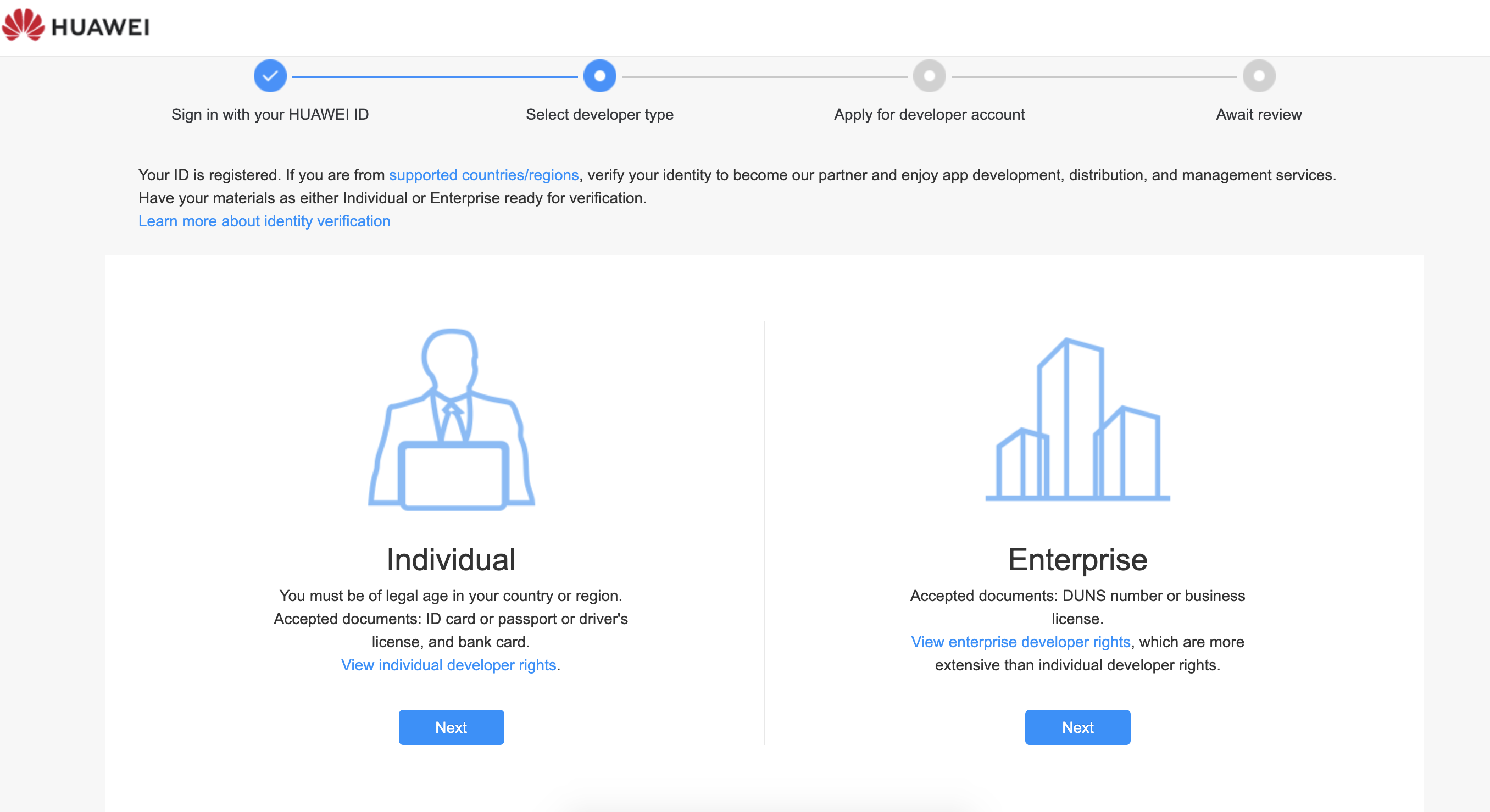
The first step to access the Huawei cloud push is registered as a Huawei developer on the [Huawei Website.](https://id5.cloud.huawei.com/CAS/portal/loginAuth.html)
## 🔨 Enable Push Kit
[(Back to top)](#-table-of-contents)
Once you login to the console, enable the Push Kit.
## 🚀 Integration
[(Back to top)](#-table-of-contents)
Download the `agconnect-services.json` file from the Huawei Console. Move the downloaded `agconnect-services.json` file to the app directory of your Android Studio project.
* Add the following dependency to your Project-level `build.gradle` file
```groovy
buildscript {
repositories {
// FOR HUAWEI ADD THIS
maven {url 'http://developer.huawei.com/repo/'}
}
dependencies {
// FOR HUAWEI ADD THIS
classpath "com.huawei.agconnect:agcp:1.9.1.301"
}
}
allprojects {
repositories {
// FOR HUAWEI ADD THIS
maven {url 'https://developer.huawei.com/repo/'}
}
}
```
* Add the following to your app’s `build.gradle` file
```groovy
implementation "com.clevertap.android:clevertap-hms-sdk:1.5.1"
implementation "com.huawei.hms:push:6.11.0.300"
//At the bottom of the file add this
apply plugin: 'com.huawei.agconnect'
```
* Add the following to your `AndroidManifest.xml` file of the application
```xml
```
* Note: If you are using CleverTapAPI.instanceWithConfig for initialisation, make sure it is done in Application class before any activity is created.
* If you are using Custom `HmsMessageService` class then inside the onNewToken method, pass the token to CleverTap using the following code
```kotlin
override fun onNewToken(token: String?, bundle: Bundle?) {
super.onNewToken(token, bundle)
if (token != null) {
cleverTapAPIInstance.pushRegistrationToken(token, HmsConstants.HPS, true)
}
}