# Clips Kitty: the free, open-source Opus Clip alternative for chatting, gaming and sports, on your own PC
[](https://github.com/ColinGPT9/clips-studio/releases)
[](https://github.com/ColinGPT9/clips-studio/releases)
[](LICENSE)
[](https://github.com/ColinGPT9/clips-studio/stargazers)
[](https://github.com/ColinGPT9/clips-studio)
[](CONTRIBUTING.md)
[](docs/DOCKER.md)
### Star and share Clips Kitty ⭐ Goal: 250
[](https://github.com/ColinGPT9/clips-studio/stargazers) **of 250**
**Please star the repo and share it.** It costs you nothing, and there is no
marketing budget behind this, so word of mouth is the only way the next small
YouTuber or streamer finds out a free option exists.
**I made it for YouTubers, Twitch streamers, and content creators** who cannot
afford the other options or an editor. It is a free Opus Clip, Vizard and Klap
alternative that runs **Google Gemma** on your own PC: no server cost, no
per-clip fee, no AI usage fee.
> **Clips Kitty was called Clips Studio until version 1.1.3**, renamed to meet
> Microsoft Store naming requirements. Same app, same repository, same data.
**Turn long streams and videos into ready-to-post Shorts, Reels, and TikToks,
entirely on your own machine.** Clips Kitty is a free, open-source AI clip generator
and video editor for creators: paste a YouTube, Twitch, or Kick link and it finds the
best moments, crops them to 9:16 with the speaker kept centred, burns in word-synced
captions, and writes titles, descriptions, and hashtags.
No cloud AI by default. No subscription. No per-clip fees. Your footage never leaves
your computer, unless you ask it to publish a clip to your own YouTube channel.
Local first, cloud when you need it: if your PC is too old to run the AI, a cloud
provider runs it instead, billed to your own account.
**OpenRouter is the recommended cloud path**: sign in with your OpenRouter account
(OAuth, no key to copy) for many models (Claude, GPT, Gemini, Muse Spark and more).
In my testing, a 2-hour video cost about 11 cents on OpenRouter, with Gemma
(Gemma 4 26B-A4B) picking the clips and Whisper (large-v3-turbo) transcribing; what you
pay depends on the models you pick and the length of the video.
OpenAI, Claude, Gemini, xAI, Meta, DeepSeek and Qwen also work directly, on your own API
key.
See [docs/AI-BACKENDS.md](docs/AI-BACKENDS.md).
**Why it exists:** most creators growing a channel are doing all of it themselves:
filming, streaming, editing, posting. Clipping is how people find you and it is usually
the first thing that gets dropped: an editor is a cost most channels cannot justify yet,
clipping tools charge per video or per month, and cutting them by hand takes a day you
needed elsewhere. This runs on hardware you already own, so it costs nothing to use and
there is no cap on how many clips you make.
38 clips from one video in 19 minutes, on one PC, with nothing uploaded.
---
## Contents
- [What it does](#what-it-does)
- [How it compares to Opus Clip, Klap, Vizard and CapCut](#how-it-compares-to-opus-clip-klap-vizard-and-capcut)
- [How it works](#how-it-works)
- [Features](#features)
- [What it's built for](#what-its-built-for)
- [Requirements](#requirements)
- [Install and run](#install-and-run)
- [Pick your AI model](#pick-your-ai-model)
- [Tested hardware and performance](#tested-hardware-and-performance)
- [Supported platforms](#supported-platforms)
- [Supported languages](#supported-languages)
- [Publish to YouTube](#publish-to-youtube)
- [Publish to every platform at once](#publish-to-every-platform-at-once)
- [GPU acceleration](#gpu-acceleration)
- [Command line use](#command-line-use)
- [Write a plugin](#write-a-plugin)
- [Build on it](#build-on-it)
- [Architecture](#architecture)
- [Contributing](#contributing)
- [Roadmap](#roadmap-detail)
- [License](#license)
---
## What it does
You give Clips Kitty a long video. It gives you back a folder of finished vertical
clips you can post, plus a studio to review and fix them before you do.
It is built for the content most clipping tools handle worst: **live streams, IRL and
talking-head footage, podcasts, and gym/fitness content**: long, loosely structured
videos where the good moments are buried and a transcript alone won't find them.
## How it compares to Opus Clip, Klap, Vizard and CapCut
Clips Kitty is an open-source alternative to cloud clipping tools. The difference that
matters is where the work happens: your video is never uploaded, so there is nothing to
meter and nothing to charge for.
| Tool | Price, billed monthly | Free tier | Finds the clips for you | Watermark | Uploads your video | Open source |
| ---- | --------------------- | --------- | ----------------------- | --------- | ------------------ | ----------- |
| **Clips Kitty** | Free, no paid tier | The whole app | Yes | Never | No, runs on your PC | Yes, AGPL-3.0 |
| Opus Clip | $15 Starter, $29 Pro | 1080p, watermarked, expires in 3 days | Yes | On the free tier | Yes | No |
| Klap | $29 Pro, $14 Basic billed yearly | One video | Yes | Not stated | Yes | No |
| Vizard | $29 Creator, $14.50 billed yearly | 60 credits a month, 720p | Yes | On the free tier | Yes | No |
| quso.ai | $29 to $49 | 75 credits a month, 720p | Yes | Not stated | Yes | No |
| Ssemble | $15 to $60, $6 to $24 billed yearly | None listed | Yes | Not stated | Yes | No |
| Descript | $16, $24, $50 | 60 minutes a month, 720p | Partly, it is a transcript editor | On Free and Hobbyist | Yes | No |
| CapCut | Free to use, paid tiers at capcut.com | The whole editor | **No, you cut by hand** | Varies by feature | No on the desktop app | No |
**CapCut is the one worth understanding**, because it is the free answer everyone gives.
It is a good editor and it costs nothing, but you find every moment and crop every clip
yourself. Clips Kitty is also free, and that first pass is the part it does for you.
**Opus Clip, Klap or Vizard are the better choice** if you don't have a Windows PC with a
graphics card, you clip occasionally, or you need to work from a phone. Clips Kitty is
built for clipping at volume on hardware you already own.
**[Full comparison of all seven, with what each one is best at](https://colingpt9.github.io/clips-studio/alternatives.html)**
Prices checked on each company's own pricing page, 17 September 2026. CapCut
publishes no pricing page we could read, so no price is quoted for it. Plans change; this
table won't update itself.
## How it works
```mermaid
flowchart TD
W["Watched channel YouTube's RSS feed spots a new video"] --> I
I["Video input YouTube · Twitch VOD · Kick VOD · local file"] --> T
T["Transcription faster-whisper, word-level timestamps local, or OpenRouter, signed in with OAuth"] --> A
A["AI video analysis audio · visual · reaction signals in 1-second bins"] --> S
S["Clip detection and scoring an LLM scores the transcript with those signals local (Ollama) by default, or OpenRouter, signed in with OAuth"] --> E
E["Video editing 9:16 crop on whoever is speaking (YOLOv8 + TalkNet), on the ball for a match, webcam + game for Gaming / Reaction"] --> C
C["Captions word-synced, burned in, fully editable"] --> M
M["Multilingual translate, subtitle or dub into 19 languages"] --> X
X["Export organized folders, clean filenames, metadata"] --> P
P["Publishing YouTube, TikTok, Instagram: now, on a schedule, or hands-off for a watched channel"]
```
**Every stage runs on your computer unless you choose otherwise:** OpenRouter, signed
in with your account, for the AI or the transcription, and publishing, which uploads only the
clips you send. Otherwise the only thing that touches the network in a normal run is
downloading the source video.
### The stages in detail
**Transcription: faster-whisper.** Word-level timestamps, running on CUDA where
available and falling back to CPU. Word timing is what makes captions land on the
right syllable and clips start on a real sentence boundary.
**AI clip scoring.** The transcript is one signal among five. Audio gives loudness
spikes, burst density (what laughter and applause look like), and silence→explosion
payoff shapes. Visual gives scene cuts, motion, and face-area changes. A reaction
signal fuses those. Each is normalized *within that video*, so a quiet podcast and a
screaming stream both produce meaningful peaks. Where real audience data exists
(Twitch chat replay measured by unique chatters, YouTube's most-replayed heatmap), it
adds a small capped bonus.
The local LLM sees the transcript **plus a timeline of those events**, so it can weigh
"the words are mild but the room exploded" correctly. Because small models score
everything in a narrow band, the finalists then get compared head-to-head in one
rerank call: relative judgment is much easier for a 7B model than absolute scoring.
**Creator Profiles.** The app builds a knowledge base per creator across their videos:
recurring topics, series, collaborators, running jokes, and ongoing storylines. That
context helps it write accurate titles and spot callbacks. It is deliberately
conservative: a catchphrase has to actually repeat before it counts, knowledge that
stops being mentioned goes dormant, and every score contribution from it is additive,
capped, and can be switched off.
**Video editor.** Non-destructive: trims, internal cuts, mutes, muted words, volume,
fades, speed, hook text, music, and watermark are stored as operations and applied at
render time. There's an AI edit chat too (*"make it 5 seconds longer"*, *"the caption
says gost, it should say ghost"*), where the model proposes and validated code applies.
**Long-form processing.** An opt-in 16:9 path using the same analysis: horizontal
clips, X/Twitter-length cuts, a best-of highlight reel, or the full stream with dead
air removed.
**Multilingual pipeline and AI dubbing.** Captions are translated and shown for review
*before* anything is written or burned, so a bad line gets fixed while it's still
fixable. A glossary protects channel names, sponsors, and in-jokes from being
translated. Dubbing uses local TTS with auditionable voices.
**Local GPU acceleration.** CUDA for detection and transcription, hardware video
encoding via NVENC/AMF/QSV (auto-detected, with CPU fallback), and the LLM on GPU
through Ollama.
## Features
- **Multimodal clip detection**: moments scored 0–100 by fusing what's said, audio
excitement, visual activity, on-screen reactions, and hook/payoff strength. Every
clip clearing the quality bar is kept, with no arbitrary cap.
- **Speaker-aware face tracking**: YOLOv8 pose detection keeps the subject centred,
and in group footage the camera follows **whoever is actually speaking**, decided by
TalkNet active-speaker detection from the face and the audio together rather than
from movement. When the speaker changes the framing **cuts** to them instead of
panning across, the way an editor would. Crop-only framing: never stretched, never
distorted.
- **Podcast mode**: for multi-camera footage, each shot gets its own steady crop on whoever
TalkNet hears talking, changing on the very frame the camera cuts, with no panning. In a
long shot it cuts to a new speaker who talks for a second or more; a quick laugh doesn't.
- **Vertical Live**: for a livestream that was already vertical when it was streamed (a
YouTube vertical live, Twitch Dual Format, Streamlabs Dual Output, a downloaded
Instagram or TikTok live). Keeps the stream's own 9:16 layout, skips face tracking, and
still picks the moments the usual way. See [docs/VERTICAL-LIVE.md](docs/VERTICAL-LIVE.md).
- **Sports: Soccer and Basketball**: every big moment of a match or game as its own clip,
with its build-up and reaction.
- **Soccer**: goals, saves, cards and big chances. Goals are read off the score box and
dated by the crowd, and the 9:16 crop follows the ball. Pick All goals, Best saves,
Cards and more, and have the moments joined into a match recap and team or player reels.
- **Basketball**: dunks, threes, blocks, steals and game winners. The score bug confirms
every basket and its points, and the quarter and the clock make a game winner count for
far more than a first-quarter basket. The crowd, bench and courtside reactions are found
too. Each clip's 9:16 crop is planned around its play: the ball and whoever has it, the
receiver of a pass, and the shot followed to the basket with the rim and backboard in
the picture. It pans with the play and never zooms. The ball is found by the [E-BARD](https://github.com/GabrieleGiudic/E-BARD#readme)
detection model (credited under [License](#license)).
See [docs/SPORTS.md](docs/SPORTS.md).
- **Editable burned-in captions**: word-synced, and styled how you like (colour, size,
position, words per line, casing, or off). Fix a transcription mistake line by line
before export. With two people talking, the second speaker's captions can take
another colour, and one it gets wrong can be switched by hand.
- **AI edit chat**: describe what's wrong in plain language and it re-edits.
- **Ask Clips Kitty**: the text box at the bottom of the dashboard. Say what you want in
a sentence, such as *"clip this stream, make sure you include when I died to the boss,
with big yellow captions"*, and it queues the video, tells the clip picker what to look
for and sets the options you named. **It needs a Gemma 4 model**: see
[The text box at the bottom needs Gemma 4](#the-text-box-at-the-bottom-needs-gemma-4).
- **AI titles, descriptions, and hashtags**, all editable before export.
- **Creator Profiles**: the app learns each creator over time to pick and title clips
better. Everything stays on your computer, and you can inspect, correct, or wipe it.
- **Multilingual publishing**: 19 languages, with review before anything is burned.
- **AI dubbing**: local text-to-speech with voice auditioning per language.
- **Long-form export**: 16:9 clips, highlight reels, or a de-duplicated stream edit.
A highlight reel's description carries **chapter timestamps**, so viewers can skip
between moments on YouTube.
- **Watermark and branding profiles**: per-creator defaults applied automatically.
- **Model manager**: swap the AI brain from inside the app; download, remove, and
switch models with progress bars and no terminal.
- **Publish to YouTube from the editor**: title, description, tags, thumbnail,
playlist, audience and visibility, then Upload now or schedule it. Optional, off
by default, and it uses your own Google API key.
- **In-app feedback**: bug reports with auto-collected diagnostics, no account needed.
- **Accessible UI**: keyboard focus, reduced-motion support, adjustable font and size.
## What it's built for
Everything runs on any video you give it. These are the cases where it's doing more
or less thinking than the feature list suggests, so nothing comes as a surprise:
| Content | How it does |
|---|---|
| **IRL, just chatting, podcasts, vlogs, interviews** | What it's tuned for and what gets tested on real streams before release |
| **Gaming and reactions** | With **Gaming / Reaction** switched on: the webcam in one half, the game or the reacted-to video in the other, checked on the video's own frames before processing ([docs/GAMING.md](docs/GAMING.md)). The streamer is whoever is talking, never the biggest face. Without the switch, framing can follow a character inside the game. People on camera only, no VTubers |
| **Sports matches** | With **Sports** switched on: made for broadcasts with a score box and commentary, where goals and baskets are certain. Club or phone footage usually has neither: its clips follow the ball, and its goals come from the match events you paste, such as a club app's goal tags ([docs/SPORTS.md](docs/SPORTS.md)) |
| **What a reaction is reacting to** | Clips are still chosen from what's *said*, so a moment in the watched video that nobody comments on is invisible to it |
Clip selection is transcript-and-signal driven. When the funny thing is *visual only*
and nobody comments on it, expect to find it yourself in the editor.
## Requirements
| | Minimum | Recommended |
| ----------- | -------------------------------------------- | ------------------------------- |
| **GPU** | NVIDIA RTX 2060 (6 GB) | RTX 3060 12 GB or better |
| **CPU** | Intel Core i3-9100 / AMD Ryzen 3 3200G (2019)| 6 cores or more |
| **RAM** | 16 GB | 16 GB or more |
| **Disk** | ~20 GB, plus room for the videos you clip | |
| **OS** | Windows 10 or 11 | |
**Below the minimum it may still run, but it is not supported and it will be
slow.** Clipping a stream is hours of video decoding, transcription and
encoding; hardware from before roughly 2019 will take long enough that the app
feels broken even when it is working correctly.
Two of those are worth expanding on:
- **16 GB of RAM is not a suggestion.** 8 GB will analyse a whole video and then
render nothing, which looks like a crash rather than a memory limit.
- **A GPU is optional, not required.** Without one everything runs on the CPU,
slower, but complete. The RTX 2060 line is where the GPU path starts working;
see [GPU acceleration](#gpu-acceleration).
**Windows only** for the app. The Python engine should run on Linux/macOS, but
no Mac build exists and the maintainer has no Mac to test one on. See
[#62](../../issues/62) if you have one and want to help.
Running from source needs the things the installer would otherwise bundle for you:
- **Python 3.10+** and **Node.js 18+**
- **[FFmpeg](https://ffmpeg.org/download.html)** on your PATH
- **[Ollama](https://ollama.com)** with a model pulled: `ollama pull gemma:7b`
## Install and run
**The easiest way is the [Microsoft Store](https://apps.microsoft.com/detail/9NB6XT7DSQZZ).**
One click, it updates itself, and Windows raises no security prompt. Microsoft
certified and signed the package, so the SmartScreen warning described below
does not appear at all. The Store installs new versions when it gets to them; to have
one at once, open Clips Kitty's page in the Microsoft Store and press **Update**.
**Or grab the installer.** The latest **Web Setup** from
[Releases](../../releases) and run it. It carries the app, the Python engine, every
library, FFmpeg, the AI runtime and all the detection and transcription weights: no
Python, no PATH, no terminal, and no second program to install.
**Or use winget.** `winget install ColinGPT9.ClipsKitty` installs the same Web Setup
from a terminal.
The one thing it doesn't carry is the language model itself, because those ship under
licences the person downloading has to accept rather than something that can be
accepted on your behalf. The setup wizard starts that download by itself, picks the
size that suits your graphics card, and shows a progress bar. So: one download, one
double-click, one progress bar. After that it runs offline.
> Windows will warn that the app is unsigned the first time you run it. Click
> *More info → Run anyway*. A signing certificate is on the list.
### From source
```bash
git clone https://github.com/ColinGPT9/clips-studio
cd clips-studio
pip install -r requirements.txt
cd ui
npm install
npm run dev # opens the Clips Kitty desktop app
```
The app starts its own Python engine automatically. Paste a link in **Clip Editor**,
press *Generate clips*, and watch the progress live.
Building the installer yourself is one command. See
[CONTRIBUTING.md](CONTRIBUTING.md#building-the-windows-installer).
### With Docker: nothing else to install
For contributors. You need [Docker Desktop](https://docs.docker.com/get-started/get-docker/)
and nothing else: no Python, no Node, no FFmpeg, no PyTorch.
```bash
git clone https://github.com/ColinGPT9/clips-studio
cd clips-studio
docker compose up
```
Three services come up together:
| | |
|---|---|
| **** | the interface, in your browser |
| **** | the engine and its API |
| Ollama | the local AI, on :11434 |
Then pull a model (`docker compose exec ollama ollama pull gemma3:4b`) and
you have a working checkout.
Run the checks the same way:
```bash
docker compose run --rm engine pytest
docker compose run --rm ui npm run typecheck
```
> **Skip the ten-minute first build:** `docker compose pull` fetches a prebuilt
> engine image instead of compiling PyTorch and OpenCV locally.
The desktop shell itself still runs on your host, since Electron needs a display,
everything else is containerised. Details, and what this can't tell you, in
[docs/DOCKER.md](docs/DOCKER.md).
## Pick your AI model
Open the **Models** page to see what's installed and what your GPU can handle:
One axis only: how much VRAM you have. These are the same rows the app shows, from
`RECOMMENDATIONS` in [`llm/manager.py`](llm/manager.py). The wizard and the Models
page read that one table so they cannot disagree with each other, or with this.
| Your hardware | Recommended model | |
|---|---|---|
| CPU / iGPU, no graphics card | `gemma3:4b` | tested |
| Under 6 GB VRAM, or an older PC | `gemma4:e2b` | |
| 6 GB VRAM | `gemma4:e4b` | |
| 8 GB VRAM | **`gemma:7b`** | tested · shipped default |
| 10–12 GB VRAM | `gemma3:12b` | tested |
| 16–24 GB VRAM | `gemma3:27b` | |
And the models worth picking for a reason other than VRAM:
| Why | Model |
|---|---|
| Translation / multilingual | `qwen3:8b` or `qwen3:14b` |
| Permissive licence | `mistral-nemo:12b` (Apache-2.0) · `phi4:14b` (MIT) |
**Only the three marked "tested" have been run against real streams**, and `gemma:7b`
is the one with the most hours on it; it is what `config/settings.yaml` ships with.
Everything else is listed because it is a sensible size and free to use commercially,
not because clip quality has been measured with it. They all work, since the app talks
to every model identically through Ollama, but nobody has checked whether they pick
better moments. Closing that gap is [#38](../../issues/38).
Anything Ollama serves works, and switching is one click. Translation can use a
*different* model than clipping. Set `llm.translation_model`.
### The text box at the bottom needs Gemma 4
**Ask Clips Kitty**, the text box at the bottom of the dashboard, only works with a model
that can use the app's tools. Gemma 4 can. `gemma:7b` and the Gemma 3 models cannot, and
setup installs one of those on a PC with no graphics card or with 8 GB or more of VRAM.
There the box will not work until you add a Gemma 4 model: version 2.0 says *"No installed
model can use tools"*, and later versions offer the download in the box itself.
Whichever model picks your clips, install a Gemma 4 model beside it on the **Models**
page: `gemma4:e4b` on a graphics card with 6 GB or more, `gemma4:e2b` on less. You don't
have to switch to it. The box finds it by itself, and your clips are still picked by the
model you chose. If you run the AI through OpenRouter instead, the box uses that model
and needs nothing installed.
## Tested hardware and performance
Clips Kitty is developed and tested daily on this machine, so it's a useful reference
point if you're comparing your own results:
| | |
|---|---|
| **GPU** | NVIDIA GeForce RTX 3060, 12 GB VRAM |
| **CPU** | AMD Ryzen 5 5600X (6 cores / 12 threads) |
| **RAM** | 16 GB |
| **OS** | Windows 10 |
| **Clipping model** | `gemma:7b` via Ollama |
| **Transcription** | faster-whisper `large-v3-turbo` on CUDA |
Everything in this repo (the default settings, `parallel_renders: 3`, the 5-minute
analysis chunk size) is tuned for roughly this class of machine. On a bigger GPU,
raise `llm.num_ctx` and `analysis.chunk_seconds` together and move up a model size;
on a smaller one, drop to `gemma3:4b`.
If you benchmark Clips Kitty on different hardware, please post it in
[Discussions](../../discussions). Real numbers from real machines help everyone size
their setup.
## Supported platforms
| Source | Support |
|---|---|
| YouTube videos | Full. H.264 is selected deliberately (AV1 roughly doubles processing time) |
| Twitch VODs | Full, including chat replay as an audience signal |
| Kick VODs | Full (Kick discards chat after a stream ends, so there's no chat signal) |
| Local video files | Full. Clip your own footage before you publish it |
| Live streams | Not supported by design. VODs only |
## Supported languages
Clips can be translated, subtitled, and dubbed into **19 languages**, and the
**interface itself is translated into all 19 too**, so the app is usable in the same
languages it publishes in:
English · Spanish · Portuguese (Brazilian) · French · German · Hindi · Indonesian ·
Japanese · Russian · Arabic · Chinese (Simplified) · Vietnamese · Filipino · Turkish ·
Urdu · Bengali · Thai · Korean · Italian
Adding a language is one row in `multilingual/languages.py` plus a locale file in
`ui/src/renderer/src/locales/`. The translator and subtitle writer are
language-agnostic.
### Help wanted: the maintainer only speaks English
18 of those 19 interface translations have never been read by somebody who speaks
the language. Half of them aren't finished. Every language has its own issue,
written in English and in that language, and **reporting a bad word is a complete
contribution**: no pull request needed. [How it works](docs/TRANSLATING.md).
**Needs finishing** (about 68 strings still in English):
[বাংলা (Bengali)](../../issues/43) ·
[Italiano](../../issues/44) ·
[한국어 (Korean)](../../issues/45) ·
[ไทย (Thai)](../../issues/46) ·
[Tagalog (Filipino)](../../issues/47) ·
[Türkçe (Turkish)](../../issues/48) ·
[اردو (Urdu)](../../issues/49) ·
[Tiếng Việt (Vietnamese)](../../issues/50) ·
[中文 (Chinese)](../../issues/51)
**Needs checking** (complete, but nobody has verified it reads naturally):
[العربية (Arabic)](../../issues/52) ·
[Deutsch (German)](../../issues/53) ·
[Español (Spanish)](../../issues/54) ·
[Français (French)](../../issues/55) ·
[हिन्दी (Hindi)](../../issues/56) ·
[Bahasa Indonesia (Indonesian)](../../issues/57) ·
[日本語 (Japanese)](../../issues/58) ·
[Português (Portuguese)](../../issues/59) ·
[Русский (Russian)](../../issues/60)
Want a language that isn't here? [#61](../../issues/61).
## Publish to YouTube
Off by default. Turn it on in **Settings → Publish to YouTube** and a **YouTube**
tab appears in the editor: fill in the title, description, tags, thumbnail,
playlist, audience and visibility, then press **Upload now**. Clips Kitty renders
the clip if you have unsaved edits and uploads it straight to your channel. There
is no export step and no separate publishing page. You never leave the editor.
If you leave it switched off, nothing changes anywhere in the app.
### Scheduling
Choosing **Schedule on YouTube** uploads the video *immediately*, marks it
private, and hands YouTube a publish time. YouTube publishes it on the day.
**You can close Clips Kitty and switch your computer off.** There is no timer in
this app, no background service, and nothing to leave running. Once YouTube has
accepted the video, Clips Kitty's job is done.
### You need your own Google API key
Clips Kitty does not ship a shared one, and this is not just caution. Google's
upload quota is **per Cloud project**: one shared key would mean every user in the
world drawing from the same 100 uploads a day. Your own project gives you your own
allowance, and your credentials never leave your machine. There is no Clips Kitty
server in the path.
Setup is free and takes about ten minutes; the wizard in Settings walks through it:
1. Create a project in the [Google Cloud Console](https://console.cloud.google.com/projectcreate).
2. Enable **YouTube Data API v3** under APIs & Services → Library.
3. Fill in the OAuth consent screen, then press **Publish app**. This one matters:
left on *Testing*, Google expires your sign-in every 7 days and you would have
to reconnect weekly. "In production" does not mean verified and costs nothing.
4. Credentials → Create credentials → OAuth client ID → type **Desktop app**.
5. Paste the client ID and secret into Settings, then connect your channel.
You will see a "Google hasn't verified this app" warning when you connect. That is
your own app warning you about yourself. **Advanced → Go to (unsafe)** gets past
it.
### Posting publicly
One thing to know before you rely on this, because no software can work around it:
> **Until your Google Cloud project passes YouTube's free API audit, YouTube locks
> every video uploaded through it to private.** The lock is permanent. You cannot
> make the video public afterwards in Studio, and there is no appeal. The only fix
> is uploading it again from an audited project.
Clips Kitty checks after every upload and tells you plainly if it happened, rather
than reporting success for a video nobody can watch. If you intend to publish
publicly, submit the
[YouTube API Services audit form](https://support.google.com/youtube/contact/yt_api_form)
first. Uploading as **unlisted** or **private** is unaffected.
### What it can and cannot set
Everything the public API exposes: title, description (timestamps in it become
chapters), tags, category, language, visibility, scheduled publish time, made-for-kids,
altered/synthetic-content disclosure, licence, embedding, public stats, custom
thumbnail, and adding to a playlist.
Some YouTube Studio features are not in the public API at all, so there is
deliberately no control for them rather than one that quietly does nothing:
monetization and ad breaks, paid-promotion disclosure, end screens and cards,
comment settings, age restriction, Premieres, and Shorts remix permissions. The
panel links you to Studio for those.
Shorts need nothing special: no separate mode and no `#Shorts` tag. YouTube
classifies a video as a Short from its shape and length on its own.
## Publish to every platform at once
Also off by default. Turn it on in **Settings → Publish through WoopSocial**
and a **Publish** tab appears in the editor: pick your platforms — or press
**Everywhere** — write the title and description once, and one upload goes to
YouTube, TikTok, Instagram, Facebook, X, Threads, LinkedIn, Pinterest and
Bluesky together. **Publish all** in the Clip Editor does a whole batch,
spaced out so a dozen clips do not land at the same second.
This one is **not local**. The clip and its details are sent to a publishing
service, which delivers them and holds the connections to your social
accounts, so Clips Kitty never asks for a social password. Everything else in
the app still runs on your PC.
Two services are supported: **[WoopSocial](https://woopsocial.com/?via=clipskitty)**,
whose free plan connects two accounts and allows roughly 5 YouTube posts a
day, with the paid plans lifting both, and
**[Upload-Post](https://www.upload-post.com/)**, which reaches more
destinations and adds thumbnails, first comments and a posting queue. Turn on
either, or both.
Affiliate link - Clips Kitty may earn a commission if you sign up through
it, at no extra cost to you.
**Bring your own key.** You create the account, connect your own socials and
use your own allowance. Clips Kitty charges nothing, holds no shared key and
pays for nothing — the same arrangement as the YouTube integration, and for
the same reason.
Full walkthrough, per-platform support and limits:
**[docs/UPLOAD-POST.md](docs/UPLOAD-POST.md)**.
## GPU acceleration
**Video encoding** is hardware-accelerated automatically on all three vendors: NVIDIA
(NVENC), AMD (AMF), and Intel (QSV). The engine test-encodes a frame with each at
startup and uses the first that actually works, falling back to CPU. Force a choice
with `video.encoder` in `config/settings.yaml`.
**Detection and transcription** are fastest with CUDA. Out of the box `pip install
torch` gives you the **CPU-only** build. For NVIDIA:
```bash
pip uninstall torch torchvision -y
pip install torch torchvision --index-url https://download.pytorch.org/whl/cu130
```
**Which cards use the GPU:** GTX 16-series, RTX 20-series, and everything newer
including the RTX 50-series.
**Transcription on the GPU** also needs NVIDIA's cuBLAS 12: Whisper's engine
(CTranslate2) is a CUDA 12 build, and the CUDA 13 PyTorch above only has cuBLAS 13.
`pip install -r requirements.txt` installs it (`nvidia-cublas-cu12`), and the
installed app carries it, so no CUDA toolkit is needed. Without it, transcription
runs on the CPU and the log says why.
**GTX 10-series and older are below the minimum.** They are not a supported
configuration. The app does not refuse to start on them: detection falls back
to the CPU and everything still works, but it will be slow, and a machine that
old is usually paired with a CPU that makes the whole job slow rather than just
the detection stage.
Use the `cu130` index above, not an older one. Older CUDA builds have no code
for recent cards, and the app then falls back to the CPU on hardware that
should be fast.
AMD GPU owners: tracking and transcription run on CPU on Windows, still fully
functional, just slower. Your GPU is still used for video encoding via AMF and for the
LLM through Ollama, which supports AMD itself.
**Video decoding** goes through FFmpeg with hardware acceleration rather than OpenCV,
for both the tracking pass and rendering. Reading sample frames this way costs about a
tenth of the CPU that decoding them in Python did, which matters because the tracking
pass runs over every clip.
**CPU sharing.** Detection and rendering both want every core, and left alone they
fight each other and the interface. The engine divides the cores between render workers
at startup and deliberately holds two back, so the app stays responsive while a batch
runs. Tune with `video.parallel_renders`.
## Command line use
Everything works without the desktop app:
```bash
python main.py process "https://www.youtube.com/watch?v=VIDEO_ID" # one video
python main.py models # list/switch models
python main.py status # processing state
python main.py serve # just the API engine
```
Settings live in [config/settings.yaml](config/settings.yaml). The top of the file is
a short quick-setup block, everything advanced is below it. Every LLM prompt is a plain
text file in [config/prompts/](config/prompts/), so you can tune how clips are scored
without touching Python.
## Write a plugin
Know a game, a sport or a kind of show better than a general-purpose detector does?
Write a small Python plugin that finds, understands or rates the moments in a video,
and Clips Kitty does the rest. The SDK is MIT, so your plugin can use any licence, and
nothing has to be forked.
```text
Clips Kitty SDK
Input a link or a video file
↓
Video Clips Kitty downloads it and writes down what is said
↓
Your plugin every step is optional
├── find picks the moments built
├── understand says what happens in each one built
├── rate scores each moment built
└── edit suggests edits for the creator built
↓
Clips Kitty does every step no plugin does, then cuts, frames and captions the clips
↓
Creator / Social Platform posts when the creator clicks Publish, or on a schedule or automatic posting the creator switched on
```
- One plugin can find moments for a video; it replaces Clips Kitty's own finding.
- Up to 3 plugins can understand and up to 3 can rate, after any finder.
- A plugin's role comes from `inputs` and `outputs` in its manifest ([Steps](docs/developers/steps.md)).
- Up to 3 plugins can suggest edits for the clips that will be made.
- Edit plugins suggest edits that wait for the creator in the editor ([Steps](docs/developers/steps.md#suggest-edits-the-edit-step)).
- Posting isn't a plugin step: Clips Kitty posts clips itself, and through WoopSocial it can post to many sites at once on the creator's own account ([Publish to every platform at once](#publish-to-every-platform-at-once)). `kind: publisher` is refused: plugins don't post.
Three commands install the SDK, make a plugin from the `game-events` template (for
Quarkbloom Arena, a made-up game) and run it on a test video the SDK makes. They need
Python 3.11, FFmpeg and Git.
PowerShell (Windows):
```powershell
py -m pip install "clipskitty-sdk[yaml,test] @ git+https://github.com/ColinGPT9/clips-studio#subdirectory=sdk/python"
py -m clipskitty_sdk new quarkbloom-bursts --template game-events --publisher your-github-name
py -m clipskitty_sdk run quarkbloom-bursts --sample
```
bash (macOS, Linux):
```bash
python -m pip install "clipskitty-sdk[yaml,test] @ git+https://github.com/ColinGPT9/clips-studio#subdirectory=sdk/python"
python -m clipskitty_sdk new quarkbloom-bursts --template game-events --publisher your-github-name
python -m clipskitty_sdk run quarkbloom-bursts --sample
```
Clips Kitty 2.1.0 is the first release that runs plugins, and it comes with SDK 1.3.0.
**[Your first game pipeline](docs/developers/first-game-pipeline.md)** goes on from
there, step by step, to a plugin installed in Clips Kitty and listed in its Marketplace.
The [Signals cookbook](docs/developers/signals-cookbook.md) has recipes for reading a
game's video, the [SDK reference](docs/developers/sdk.md) has every command and call,
and the [developer docs](docs/developers/README.md) have everything else. The website's
[Clips Kitty SDK](https://colingpt9.github.io/clips-studio/developers.html) page is the
short version.
## Build on it
The desktop app is a window onto a **local HTTP API**, which is running whenever
Clips Kitty is open. A Discord bot, a batch runner, a web front end or an OBS
integration can drive the same pipeline, and nothing has to be added to the app
first.
```bash
python main.py serve --port 8765 # the engine on its own, no window
curl -X POST http://127.0.0.1:8765/jobs \
-H "Content-Type: application/json" \
-d '{"url": "https://www.youtube.com/watch?v=VIDEO_ID"}'
# {"job_id": 149}
```
Clips come back as JSON, with the score breakdown that produced them and an MP4
you can stream:
```bash
curl -s http://127.0.0.1:8765/videos/VIDEO_ID/clips \
| python -c "import json,sys; [print(c['score'], c['title']) for c in json.load(sys.stdin)]"
```
**[docs/API.md](docs/API.md)** documents the endpoints worth building on, with
working examples and the traps that cost people an afternoon. The service also
serves its own interactive docs at `http://127.0.0.1:8765/docs`.
It has **no authentication** and it binds localhost for that reason. See the
security note in the API docs before you point anything at it.
### Or bring your own model
That is building *around* the app. You can also build *inside* it, and the place to
start is a plugin ([Write a plugin](#write-a-plugin)). If the footage you care about is
not what this was tuned for, whether that is sports, gaming, reactions, lectures or
something nobody has tried, a plugin can find, understand or rate its moments without a
fork. It runs on Clips Kitty's own Python, with the standard library (minus a few
modules the app leaves out) and the SDK: Clips Kitty can't install other Python packages
for a plugin yet.
To change the app itself instead: the pipeline runs **YOLOv8 (ultralytics), OpenCV and
TalkNet-ASD** locally, and what decides which moments become clips is a set of
per-second signals, not a hardcoded idea of what is interesting. A detector that emits
a confidence over the timeline can be added as one more signal, and its peaks become
candidate clips. If your detection needs Python packages Clips Kitty can't install for a
plugin yet, fork it and plug your own detection in.
**[docs/EXTENDING.md](docs/EXTENDING.md#bring-your-own-model)** has the contract, the
file to copy, and the performance trap worth knowing before you start.
**Nothing has to poll.** Submit a job with a `webhook_url` and the engine POSTs
once when it finishes, signed with your own secret if you pass one, so a dock or
an n8n flow can sit quiet for the forty minutes a stream takes instead of asking
every few seconds. Details in [docs/API.md](docs/API.md#webhooks-being-told-instead-of-asking).
### Ask an AI agent to do it
Clips Kitty ships an **MCP server**, so Claude, Cursor or any MCP client can drive
the same pipeline in plain language: queue a stream, follow the job, read the clips
it chose, export one.
```bash
claude mcp add clips-kitty -- python main.py mcp
```
In an installed build the engine's binary is `api.exe` (in the app's
`resources\backend` folder), so the command there is `api.exe mcp`.
It talks to the running engine over `127.0.0.1:8765`, so Clips Kitty has to be
open, and it needs no API key of any kind: the model doing the clipping is the one
on your own machine (or, if you chose one in Settings → AI, a cloud model on your own
key, which the MCP client never sees). An agent skill for clients that support them is in
[skills/clips-kitty/](skills/clips-kitty/).
### Built with Clips Kitty
Projects that run on this API are listed in **[Awesome Clips Kitty](https://github.com/ColinGPT9/awesome-clips-kitty)**,
the list of pipelines, plugins, integrations, apps and tools built with Clips Kitty. The
first is the [Clips Kitty OBS Plugin](https://github.com/ColinGPT9/clips-kitty-obs-plugin),
an OBS Studio dock that hands your stream to Clips Kitty after it ends. Built one?
Add it with a pull request ([how](https://github.com/ColinGPT9/awesome-clips-kitty/blob/main/CONTRIBUTING.md)), and give your
repository the `clips-kitty` topic.
## Architecture
See **[ARCHITECTURE.md](ARCHITECTURE.md)** for the full design: the pipeline, the
scoring engine, tracking, creator intelligence, the API surface, and the design rules
that keep it modular.
## Contributing
Contributions are welcome. See **[CONTRIBUTING.md](CONTRIBUTING.md)** for dev setup
and pull request expectations, and **[SECURITY.md](SECURITY.md)** to report a
vulnerability. Issues labelled [`good-first-issue`](../../labels/good-first-issue) are
small and well-scoped if you want somewhere to start.
The website lives in [site/](site/) and is published to GitHub Pages and a Hugging
Face Space. See [docs/MIRRORS.md](docs/MIRRORS.md). **GitHub is where work
happens**, and the website mirror is force-pushed one way, so a commit made on it
will be overwritten.
Packaging and release documentation:
- **[docs/RELEASING.md](docs/RELEASING.md)**: building and publishing the Windows
installer, which is the primary channel
- **[docs/MSSTORE.md](docs/MSSTORE.md)**: the Microsoft Store package, from
creating a developer account through to certification
- **[packaging/winget/](packaging/winget/)**: the winget manifests, which point at
the installer above
- **[whop-app/](whop-app/)**: the Whop app, which puts Clips Kitty in front of
members of clipping communities. Marketing pages only: it does not process
video, store anything, or talk to the desktop app
- **[docs/DOCKER.md](docs/DOCKER.md)**: running the engine without installing
Python, FFmpeg and PyTorch yourself
- **[PRIVACY](https://colingpt9.github.io/clips-studio/privacy.html)**: what the
app stores and what can leave your machine (short answer: nothing, unless you
submit a bug report)
## Changelog, known issues, roadmap
- **[CHANGELOG.md](CHANGELOG.md)**: what changed in each release, in plain terms.
- **[KNOWN-ISSUES.md](KNOWN-ISSUES.md)**: what is broken or missing right now, and
the workarounds. Everything on it has actually been observed.
- **[ROADMAP.md](ROADMAP.md)**: what is shipped, what is next, and the long-term
direction.
**Follow for updates:**
[](https://x.com/ClipsKitty2)
[](https://www.instagram.com/clipskitty2/)
[](https://www.youtube.com/@ClipsKitty2)
[](https://www.tiktok.com/@clipskitty2)
## Roadmap detail
The short version is in [ROADMAP.md](ROADMAP.md). The reasoning behind the harder
calls is below, because "why not yet" is usually more useful than "not yet".
1. **Android companion app, Vertical Live only**, so it stays lightweight: a
vertical live is already framed for a phone screen, so the app keeps the stream's
own layout and only has to find the moments, with no face tracking or reframing.
Twitch, Kick and local video files only, to comply with Play Store policy.
2. **More sports**: Soccer and Basketball are in. Cricket is next (the Sport menu
already lists it as coming soon), as its own module the way the others are (see
[docs/SPORTS.md](docs/SPORTS.md#adding-a-sport)).
3. **Text updates when things finish**: a text message when a video's clips are
ready, when they're posted, and when something fails, so a hands-off channel can
run without anyone watching the app.
4. **Voice cloning for dubbing** *(last on this list on purpose)*: dubbing today uses
a preset local voice. Speaking translations in the creator's **own** voice needs a
cloning model, and every credible local one pulls in its own PyTorch build: on a
machine set up for clipping that downgrades torch to a CPU-only build and silently
strips GPU acceleration from tracking and transcription. Breaking clipping to add
dubbing is a bad trade.
Realistically this waits for consumer hardware to catch up, or ships as a separate
optional install with its own Python environment so the clipping one is never
touched. Model licences need checking too: several of the best-sounding ones are
non-commercial, and this app's users monetize their videos.
## License
**GNU AGPL-3.0-or-later**. See [LICENSE](LICENSE), and [NOTICE](NOTICE) for what that means
in practice and what the installer bundles.
Basketball's ball, hoop and player detection is the
[E-BARD](https://github.com/GabrieleGiudic/E-BARD) detection model (YOLOv8n), used unmodified
under CC BY 4.0. Thank you for
publishing it openly. Every other bundled component and its licence is in [NOTICE](NOTICE).
Three parts are licensed separately, so that building on Clips Kitty stays easy:
| Part | Licence |
|---|---|
| Clips Kitty (the app, its engine, this repository) | AGPL-3.0-or-later |
| The plugin SDK, [`sdk/python/`](sdk/python/) | MIT ([sdk/python/LICENSE](sdk/python/LICENSE)) |
| The example plugins, [`examples/pipelines/scene-cut-highlights/`](examples/pipelines/scene-cut-highlights/) and [`examples/pipelines/keyword-rater/`](examples/pipelines/keyword-rater/) | MIT |
| The copy of the Awesome Clips Kitty list that ships with the app, `plugins/catalog_index.json` (the list is [its own repository](https://github.com/ColinGPT9/awesome-clips-kitty)) | CC0-1.0 |
Plugins, pipelines and apps made by other people keep whatever licence their authors
chose; the Marketplace shows it on every listing. Using the SDK does not put a
plugin under the AGPL.
**If you use the app, this changes nothing for you.** Install it, clip your streams,
post the clips, earn from them. The AGPL binds people who *distribute* the software or
run a *modified* copy as a network service, not people who use it. Your footage and
your clips are yours.
**If you modify and share it,** your changes go out under the same licence. That is the
point: improvements to a tool built for creators stay available to those creators.
Still built to be modified: swap models, tune prompts, add platforms.
## Star history
Thank you to everyone who stars, shares, reports bugs and translates Clips Kitty.
Optional CPU narration for video production: [local Kokoro setup](docs/LOCAL_NARRATION.md). This host utility needs no subscription or provider key.

 **Turn long streams and videos into ready-to-post Shorts, Reels, and TikToks,
entirely on your own machine.** Clips Kitty is a free, open-source AI clip generator
and video editor for creators: paste a YouTube, Twitch, or Kick link and it finds the
best moments, crops them to 9:16 with the speaker kept centred, burns in word-synced
captions, and writes titles, descriptions, and hashtags.
No cloud AI by default. No subscription. No per-clip fees. Your footage never leaves
your computer, unless you ask it to publish a clip to your own YouTube channel.
Local first, cloud when you need it: if your PC is too old to run the AI, a cloud
provider runs it instead, billed to your own account.
**OpenRouter is the recommended cloud path**: sign in with your OpenRouter account
(OAuth, no key to copy) for many models (Claude, GPT, Gemini, Muse Spark and more).
In my testing, a 2-hour video cost about 11 cents on OpenRouter, with Gemma
(Gemma 4 26B-A4B) picking the clips and Whisper (large-v3-turbo) transcribing; what you
pay depends on the models you pick and the length of the video.
OpenAI, Claude, Gemini, xAI, Meta, DeepSeek and Qwen also work directly, on your own API
key.
See [docs/AI-BACKENDS.md](docs/AI-BACKENDS.md).
**Why it exists:** most creators growing a channel are doing all of it themselves:
filming, streaming, editing, posting. Clipping is how people find you and it is usually
the first thing that gets dropped: an editor is a cost most channels cannot justify yet,
clipping tools charge per video or per month, and cutting them by hand takes a day you
needed elsewhere. This runs on hardware you already own, so it costs nothing to use and
there is no cap on how many clips you make.
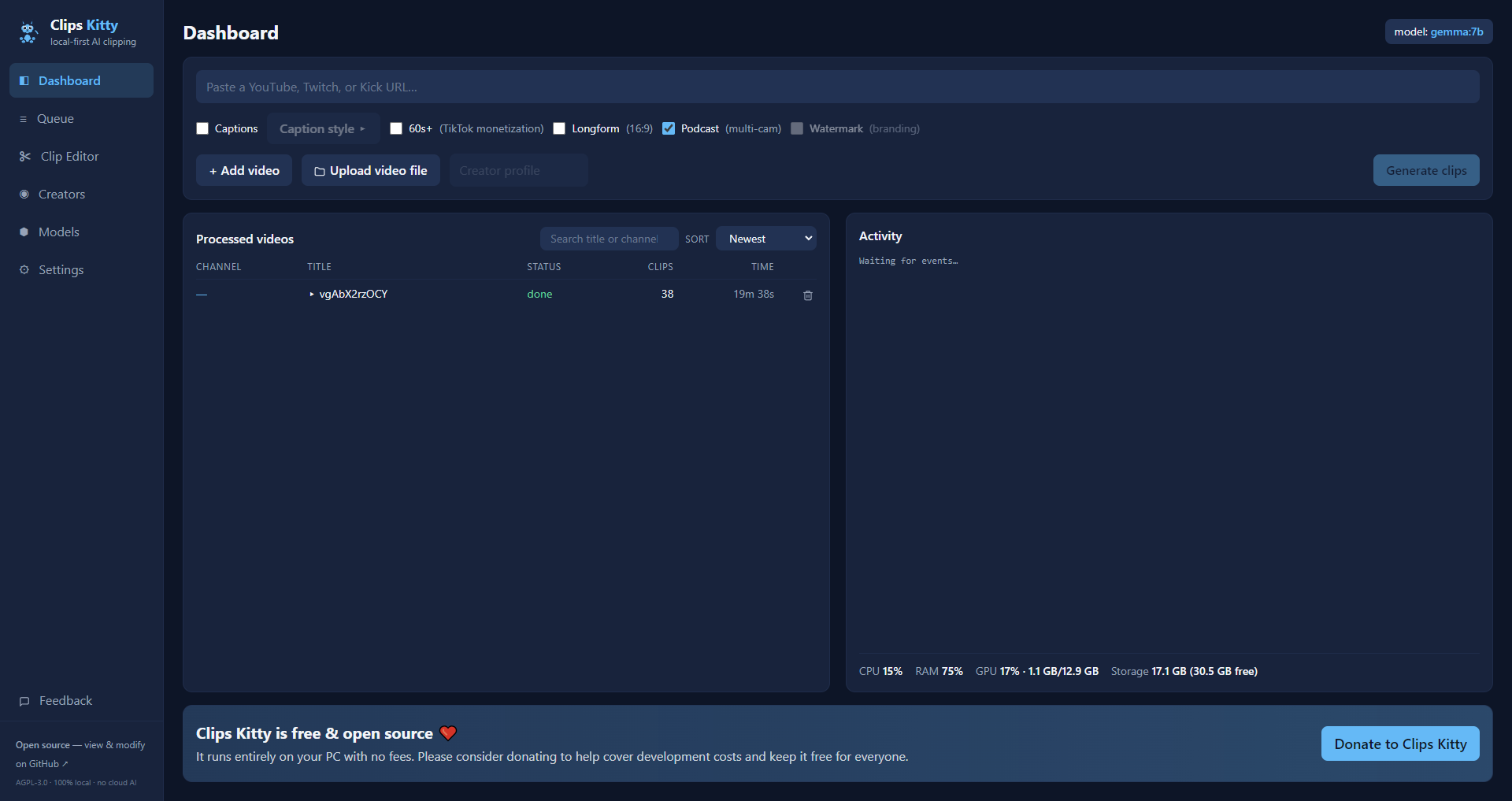 38 clips from one video in 19 minutes, on one PC, with nothing uploaded.
---
## Contents
- [What it does](#what-it-does)
- [How it compares to Opus Clip, Klap, Vizard and CapCut](#how-it-compares-to-opus-clip-klap-vizard-and-capcut)
- [How it works](#how-it-works)
- [Features](#features)
- [What it's built for](#what-its-built-for)
- [Requirements](#requirements)
- [Install and run](#install-and-run)
- [Pick your AI model](#pick-your-ai-model)
- [Tested hardware and performance](#tested-hardware-and-performance)
- [Supported platforms](#supported-platforms)
- [Supported languages](#supported-languages)
- [Publish to YouTube](#publish-to-youtube)
- [Publish to every platform at once](#publish-to-every-platform-at-once)
- [GPU acceleration](#gpu-acceleration)
- [Command line use](#command-line-use)
- [Write a plugin](#write-a-plugin)
- [Build on it](#build-on-it)
- [Architecture](#architecture)
- [Contributing](#contributing)
- [Roadmap](#roadmap-detail)
- [License](#license)
---
## What it does
You give Clips Kitty a long video. It gives you back a folder of finished vertical
clips you can post, plus a studio to review and fix them before you do.
It is built for the content most clipping tools handle worst: **live streams, IRL and
talking-head footage, podcasts, and gym/fitness content**: long, loosely structured
videos where the good moments are buried and a transcript alone won't find them.
## How it compares to Opus Clip, Klap, Vizard and CapCut
Clips Kitty is an open-source alternative to cloud clipping tools. The difference that
matters is where the work happens: your video is never uploaded, so there is nothing to
meter and nothing to charge for.
| Tool | Price, billed monthly | Free tier | Finds the clips for you | Watermark | Uploads your video | Open source |
| ---- | --------------------- | --------- | ----------------------- | --------- | ------------------ | ----------- |
| **Clips Kitty** | Free, no paid tier | The whole app | Yes | Never | No, runs on your PC | Yes, AGPL-3.0 |
| Opus Clip | $15 Starter, $29 Pro | 1080p, watermarked, expires in 3 days | Yes | On the free tier | Yes | No |
| Klap | $29 Pro, $14 Basic billed yearly | One video | Yes | Not stated | Yes | No |
| Vizard | $29 Creator, $14.50 billed yearly | 60 credits a month, 720p | Yes | On the free tier | Yes | No |
| quso.ai | $29 to $49 | 75 credits a month, 720p | Yes | Not stated | Yes | No |
| Ssemble | $15 to $60, $6 to $24 billed yearly | None listed | Yes | Not stated | Yes | No |
| Descript | $16, $24, $50 | 60 minutes a month, 720p | Partly, it is a transcript editor | On Free and Hobbyist | Yes | No |
| CapCut | Free to use, paid tiers at capcut.com | The whole editor | **No, you cut by hand** | Varies by feature | No on the desktop app | No |
**CapCut is the one worth understanding**, because it is the free answer everyone gives.
It is a good editor and it costs nothing, but you find every moment and crop every clip
yourself. Clips Kitty is also free, and that first pass is the part it does for you.
**Opus Clip, Klap or Vizard are the better choice** if you don't have a Windows PC with a
graphics card, you clip occasionally, or you need to work from a phone. Clips Kitty is
built for clipping at volume on hardware you already own.
**[Full comparison of all seven, with what each one is best at](https://colingpt9.github.io/clips-studio/alternatives.html)**
Prices checked on each company's own pricing page, 17 September 2026. CapCut
publishes no pricing page we could read, so no price is quoted for it. Plans change; this
table won't update itself.
## How it works
```mermaid
flowchart TD
W["Watched channel