---
title: "Grok Imagine Image Quality in ComfyUI: AI Image Generation"
description: "Generate enhanced images with Grok Imagine Image Quality in ComfyUI: improved detail, better text rendering, and stronger creative control"
sidebarTitle: "Grok Image Quality"
---
import ReqHint from "/snippets/tutorials/partner-nodes/req-hint.mdx";
import UpdateReminder from "/snippets/tutorials/update-reminder.mdx";
**Retired**: xAI retired `grok-imagine-image-quality`. The option stays in the node's model list, and runs now go to `grok-imagine-image-2.0` at low quality. Use [Grok Imagine Image 2.0](/tutorials/partner-nodes/grok/grok-image-2-0) for new work: the quality control is available there directly.
Grok Imagine Image Quality is xAI's higher-fidelity image model, available in ComfyUI through the Grok partner nodes. It adds improved detail, better text rendering, and stronger creative control compared to the standard Grok image model.
## What Grok Imagine Image Quality is good at
- **Improved detail**: higher-fidelity output than the standard Grok image model
- **Better text rendering**: handles prompts that include text you want rendered in the image
- **Stronger creative control**: more control over the generated result compared to the standard model
- **Resolution options**: outputs at 1K or 2K
## Example outputs
Enhanced image generation with the `grok-imagine-image-quality` model:
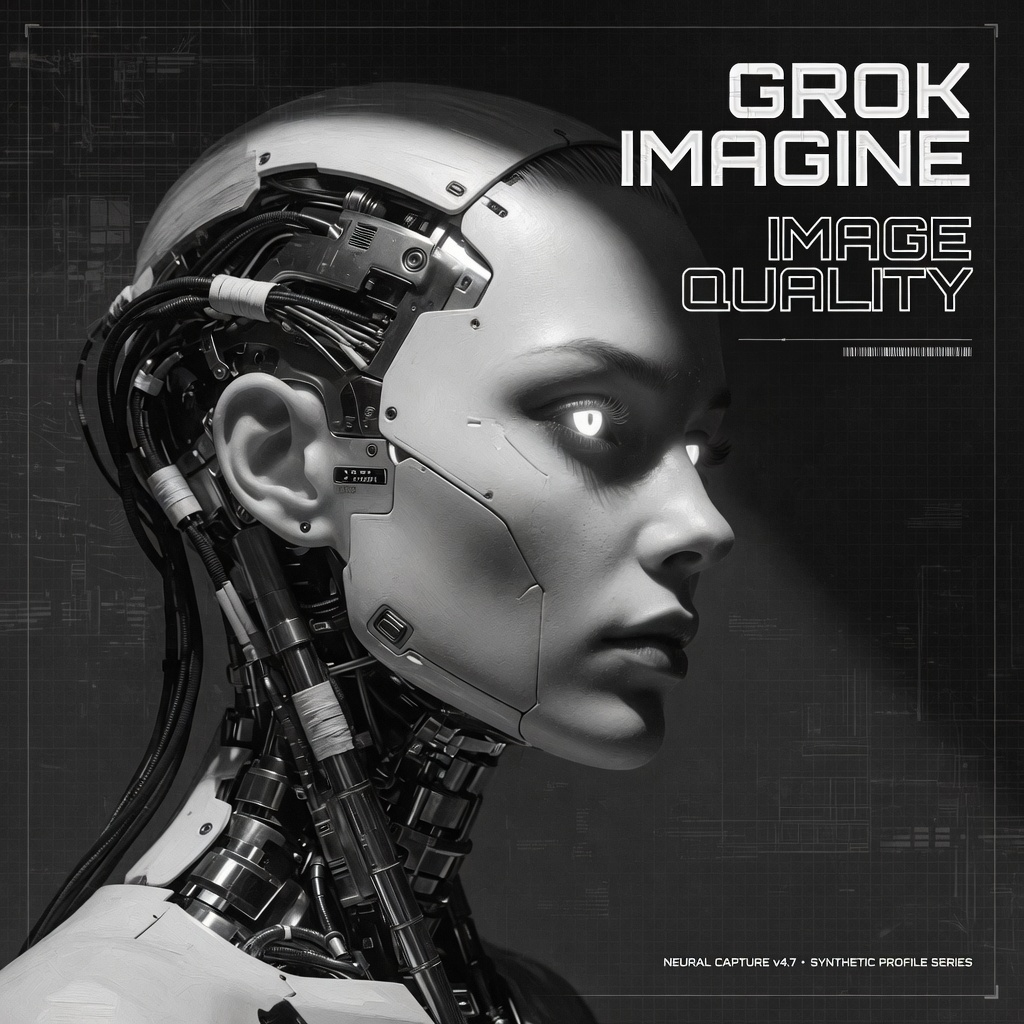
## Grok Imagine Image Quality: Generation
Generate enhanced images with the `grok-imagine-image-quality` model, which adds improved detail, better text rendering, and stronger creative control compared to the standard model.
 Open in Comfy Cloud
Download JSON or search "Grok Imagine Image Quality" in Template Library

### Workflow overview
This workflow uses two nodes:
- **GrokImageNode**: the core node, configured with the `grok-imagine-image-quality` model
- **SaveImage**: saves the generated image
### Steps to run
1. **Enter your prompt**: describe the scene and any text you want rendered in the **GrokImageNode**
2. **Choose aspect ratio**: pick from the available ratios
3. **Set resolution**: `1K` or `2K`
4. **Click Queue**: press `Ctrl+Enter` to generate