**Windows-MCP** is a lightweight, open-source project that enables seamless integration between AI agents and the Windows operating system. Acting as an MCP server bridges the gap between LLMs and the Windows operating system, allowing agents to perform tasks such as **file navigation, application control, UI interaction, QA testing,** and more.
mcp-name: io.github.CursorTouch/Windows-MCP
## Updates
- Windows-MCP reached `2M+ Users` in [Claude Desktop Extensiosn](https://claude.ai/directory).
- Try out [🪟Windows-Use](https://pypi.org/project/windows-use/), an agent built using Windows-MCP.
- Windows-MCP is now available on [PyPI](https://pypi.org/project/windows-mcp/) (thus supports `uvx windows-mcp`)
- Windows-MCP is added to [MCP Registry](https://github.com/modelcontextprotocol/registry)
### Supported Operating Systems
- Windows 7
- Windows 8, 8.1
- Windows 10
- Windows 11
## 🎥 Demos
## ✨ Key Features
- **Seamless Windows Integration**
Interacts natively with Windows UI elements, opens apps, controls windows, simulates user input, and more.
- **Use Any LLM (Vision Optional)**
Unlike many automation tools, Windows-MCP doesn't rely on any traditional computer vision techniques or specific fine-tuned models; it works with any LLMs, reducing complexity and setup time.
- **Rich Toolset for UI Automation**
Includes tools for basic keyboard, mouse operation and capturing window/UI state.
- **Lightweight & Open-Source**
Minimal dependencies and easy setup with full source code available under MIT license.
- **Customizable & Extendable**
Easily adapt or extend tools to suit your unique automation or AI integration needs.
- **Real-Time Interaction**
Typical latency between actions (e.g., from one mouse click to the next) ranges from **0.2 to 0.5 secs**, and may slightly vary based on the number of active applications and system load, also the inferencing speed of the llm.
- **DOM Mode for Browser Automation**
Special `use_dom=True` mode for State-Tool that focuses exclusively on web page content, filtering out browser UI elements for cleaner, more efficient web automation. Supports Chrome, Edge, and Firefox (Firefox uses an IAccessible2 fallback since it doesn't expose `RootWebArea` via UIA).
## 🛠️Installation
**Note:** When you install this MCP server for the first time it may take a minute or two because of installing the dependencies in `pyproject.toml`. In the first run the server may timeout ignore it and restart it.
### Prerequisites
- Python 3.13+
- UV (Package Manager) from Astra, install with `pip install uv` or `curl -LsSf https://astral.sh/uv/install.sh | sh`
- `English` as the default language in Windows preferred else disable the `App-Tool` in the MCP Server for Windows with other languages.
### Run at Login
Run the server directly when needed:
```shell
uvx windows-mcp serve
uvx windows-mcp serve --transport sse --host localhost --port 8000
uvx windows-mcp serve --transport streamable-http --host localhost --port 8000
```
Install it as a background task that starts now and at every login:
```shell
windows-mcp install
# Or choose the HTTP transport and bind address explicitly
windows-mcp install --transport sse --host 127.0.0.1 --port 8000
```
This creates a per-user Scheduled Task named `windows-mcp-server` and a wrapper script at
`~/.windows-mcp/start-server.cmd`. Use `windows-mcp uninstall` to remove it. Logs are written
to `~/.windows-mcp/server.log` and `~/.windows-mcp/server.error.log`.
Install in Claude Desktop
1. Install [Claude Desktop](https://claude.ai/download).
```shell
npm install -g @anthropic-ai/mcpb
```
2. Configure the MCP server.
**Option A: Install from PyPI (Recommended)**
Use `uvx` to run the latest version directly from PyPI.
Add this to your `claude_desktop_config.json`:
```json
{
"mcpServers": {
"windows-mcp": {
"command": "uvx",
"args": [
"windows-mcp",
"serve"
]
}
}
}
```
**Option B: Install from Source**
1. Clone the repository:
```shell
git clone https://github.com/CursorTouch/Windows-MCP.git
cd Windows-MCP
```
2. Add this to your `claude_desktop_config.json`:
```json
{
"mcpServers": {
"windows-mcp": {
"command": "uv",
"args": [
"--directory",
"",
"run",
"windows-mcp",
"serve"
]
}
}
}
```
3. Fully restart Claude Desktop and verify the server appears in the MCP tools list.
**Claude Desktop MSIX (Windows Store)**
The MSIX-packaged Claude Desktop (Microsoft Store version) virtualizes `%APPDATA%`. This causes two main issues:
1. The config file is located at: `%LOCALAPPDATA%\Packages\Claude_pzs8sxrjxfjjc\LocalCache\Roaming\Claude\claude_desktop_config.json` (not `%APPDATA%\Claude\`).
2. Automatic installation from the "Claude Directory" will fail because the `${__dirname}` variable resolves to the incorrect (non-virtualized) path.
**To configure Windows-MCP on the Windows Store version of Claude:**
You must manually edit the configuration file. Note that Electron apps in the MSIX sandbox do not inherit the system `PATH`, so you must use the **full absolute path** to `uvx.exe` (or `uv.exe`).
**Option A: Using pre-installed executable**
1. In a terminal, run `uv tool install windows-mcp`.
2. Use the generated executable in your config:
```json
{
"mcpServers": {
"windows-mcp": {
"command": "C:\\Users\\\\.local\\bin\\windows-mcp.exe",
"args": ["serve"]
}
}
}
```
**Option B: Using uvx**
```json
{
"mcpServers": {
"windows-mcp": {
"command": "C:\\Users\\\\.local\\bin\\uvx.exe",
"args": ["windows-mcp", "serve"]
}
}
}
```
**Option C: Install from Source**
```json
{
"mcpServers": {
"windows-mcp": {
"command": "C:\\Users\\\\.local\\bin\\uv.exe",
"args": [
"--directory",
"C:\\path\\to\\Windows-MCP",
"run",
"windows-mcp",
"serve"
]
}
}
}
```
Replace `` with your Windows username. To find the correct paths, run `where uvx`, `where windows-mcp`, or `where uv`. Fully quit Claude Desktop (Tray → Quit) and reopen after saving the config.
For additional Claude Desktop integration troubleshooting, see the [MCP documentation](https://modelcontextprotocol.io/quickstart/server#claude-for-desktop-integration-issues).
Install in Perplexity Desktop
1. Install [Perplexity Desktop](https://apps.microsoft.com/detail/xp8jnqfbqh6pvf).
2. Open Perplexity Desktop and go to `Settings -> Connectors -> Add Connector -> Advanced`.
3. Enter the name as `Windows-MCP`, then paste one of the following configs.
**Option A: Install from PyPI (Recommended)**
```json
{
"command": "uvx",
"args": [
"windows-mcp",
"serve"
]
}
```
**Option B: Install from Source**
```json
{
"command": "uv",
"args": [
"--directory",
"",
"run",
"windows-mcp",
"serve"
]
}
```
4. Click `Save`, then restart Perplexity Desktop if needed.
For additional Claude Desktop integration troubleshooting, see the [Perplexity MCP Support](https://www.perplexity.ai/help-center/en/articles/11502712-local-and-remote-mcps-for-perplexity). The documentation includes helpful tips for checking logs and resolving common issues.
Install in Gemini CLI
1. Install Gemini CLI.
```shell
npm install -g @google/gemini-cli
```
2. Open `%USERPROFILE%/.gemini/settings.json`.
3. Add the `windows-mcp` config and save it.
```json
{
"theme": "Default",
...
"mcpServers": {
"windows-mcp": {
"command": "uvx",
"args": [
"windows-mcp",
"serve"
]
}
}
}
```
*Note: To run from source, replace the command with `uv` and args with `["--directory", "", "run", "windows-mcp", "serve"]`.*
4. Restart Gemini CLI.
Install in Qwen Code
1. Install Qwen Code.
```shell
npm install -g @qwen-code/qwen-code@latest
```
2. Open `%USERPROFILE%/.qwen/settings.json`.
3. Add the `windows-mcp` config and save it.
```json
{
"mcpServers": {
"windows-mcp": {
"command": "uvx",
"args": [
"windows-mcp",
"serve"
]
}
}
}
```
*Note: To run from source, replace the command with `uv` and args with `["--directory", "", "run", "windows-mcp", "serve"]`.*
4. Restart Qwen Code.
Install in Codex CLI
1. Install Codex CLI.
```shell
npm install -g @openai/codex
```
2. Open `%USERPROFILE%/.codex/config.toml`.
3. Add the `windows-mcp` config and save it.
```toml
[mcp_servers.windows-mcp]
command="uvx"
args=[
"windows-mcp",
"serve"
]
```
*Note: To run from source, replace the command with `uv` and args with `["--directory", "", "run", "windows-mcp", "serve"]`.*
4. Restart Codex CLI.
Install in Autohand Code
Add the published stdio server from a Windows terminal:
```shell
autohand mcp add windows-mcp uvx windows-mcp serve
```
Add `--scope project` after `add` to keep the server configuration in the current project. See [Autohand Code](https://github.com/autohandai/code-cli/) for current installation and CLI details.
Install in Claude Code
1. Install [Claude Code](https://docs.anthropic.com/en/docs/claude-code/overview):
```shell
npm install -g @anthropic-ai/claude-code
```
2. Configure the server:
**Option A: Install from PyPI (Recommended)**
Use `uvx` to run the latest version directly from PyPI.
```shell
claude mcp add --transport stdio windows-mcp -- uvx windows-mcp serve
```
**Option B: Install from Source**
1. Clone the repository:
```shell
git clone https://github.com/CursorTouch/Windows-MCP.git
cd Windows-MCP
```
2. Run the following command in your terminal:
```shell
claude mcp add --transport stdio windows-mcp -- uv --directory "" run windows-mcp serve
```
*Note: To make the server available across all projects, add `--scope user` to the command.*
3. Rerun Claude Code in terminal. Enjoy 🥳
**Note:** On Windows, if you encounter "Connection closed" errors, use the full path to `uvx.exe`:
```shell
claude mcp add --transport stdio windows-mcp -- C:\Users\\.local\bin\uvx.exe windows-mcp serve
```
To verify the server is registered, run `claude mcp list`. Inside Claude Code, use `/mcp` to check server status.
**WSL (Windows Subsystem for Linux)**
If you run Claude Code from WSL, the MCP server must still execute on the Windows side (it needs Windows APIs for UI automation). Use `powershell.exe` as the command to bridge WSL and Windows:
1. Install `uv` on **Windows** (from a PowerShell terminal):
```powershell
irm https://astral.sh/uv/install.ps1 | iex
```
2. From your **WSL terminal**, register the server:
```shell
claude mcp add windows-mcp --transport stdio -s user -- powershell.exe -Command "C:\Users\\.local\bin\uvx.exe windows-mcp serve"
```
Replace `` with your Windows username. The `-s user` flag makes the server available across all projects.
3. Restart Claude Code and verify with `/mcp`.
---
## 🖥️ Running Windows-MCP
Windows-MCP runs directly on your Windows machine and exposes its tools to the connected MCP client.
```shell
# Runs with stdio transport (default)
uvx windows-mcp serve
# Or with SSE/Streamable HTTP for network access
uvx windows-mcp serve --transport sse --host localhost --port 8000
uvx windows-mcp serve --transport streamable-http --host localhost --port 8000
```
Optional environment variables can be set to customize behavior — see [Environment Variables](#-environment-variables) below.
### Security for Remote Access
For network access, enable authentication and TLS:
```shell
windows-mcp serve --transport sse --host 0.0.0.0 \
--auth-key "your_secret_token" \
--ip-allowlist "203.0.113.0/24" \
--ssl-certfile cert.pem --ssl-keyfile key.pem
```
See [🔐 Security & Access Control](#-security--access-control) for all options.
### Transport Options
| Transport | Command | Use Case |
|---|---|---|
| `stdio` (default) | `serve --transport stdio` | Direct connection from MCP clients like Claude Desktop, Cursor, etc. |
| `sse` | `serve --transport sse --host HOST --port PORT` | Network-accessible via Server-Sent Events |
| `streamable-http` | `serve --transport streamable-http --host HOST --port PORT` | Network-accessible via HTTP streaming (recommended for production) |
---
## 🔐 Security & Access Control
### Authentication
```shell
windows-mcp serve --transport sse --host 0.0.0.0 --auth-key "your_token"
```
Requires `Authorization: Bearer your_token` header on all requests.
### IP Allowlist
```shell
windows-mcp serve --auth-key "token" --ip-allowlist "203.0.113.0/24,198.51.100.5"
```
Restricts connections to specified CIDR ranges. Blocks private/loopback IPs by default.
### CORS Origins
By default, **no CORS headers are emitted**. Browsers block cross-origin requests via their own Same-Origin Policy, which means arbitrary websites cannot reach the MCP control plane even if the server is on `localhost`. Host-header validation (DNS rebinding protection) is also applied automatically based on the bind address.
If you need a browser-based MCP client to reach the server, opt in with an explicit origin allowlist:
```shell
windows-mcp serve --cors-origins "https://my-client.example.com,https://other.example.com"
```
Only the listed origins receive `Access-Control-Allow-Origin` headers; all other cross-origin requests are rejected by the browser. The equivalent environment variable is `WINDOWS_MCP_CORS_ORIGINS`.
### Tool Selection
All tools are enabled by default. Use `--tools` to whitelist specific tools, or `--exclude-tools` to block specific ones.
```shell
windows-mcp serve --tools "Screenshot,Click,Snapshot" # Enable only these tools
windows-mcp serve --exclude-tools "PowerShell,Registry" # Disable specific tools
```
### TLS/HTTPS
```shell
openssl req -x509 -newkey rsa:4096 -keyout key.pem -out cert.pem -days 365 -nodes
windows-mcp serve --ssl-certfile cert.pem --ssl-keyfile key.pem
```
### OAuth 2.0 + PKCE
For MCP clients that use OAuth (e.g. Claude Desktop) instead of a static API key:
```shell
windows-mcp serve --transport streamable-http --host 0.0.0.0 \
--ssl-certfile ~/.windows-mcp/cert.pem \
--ssl-keyfile ~/.windows-mcp/key.pem \
--oauth-client-id my-client \
--oauth-client-secret my-secret
```
**Claude Desktop config:**
```json
{
"mcpServers": {
"windows-mcp": {
"type": "http",
"url": "https://:8000/mcp/",
"oauth": {
"clientId": "my-client",
"clientSecret": "my-secret"
}
}
}
}
```
The OAuth server exposes:
- `GET /.well-known/oauth-authorization-server` — server metadata (RFC 8414)
- `GET /oauth/authorize` — Authorization Code + PKCE (`S256` required)
- `POST /oauth/token` — token exchange (client secret required)
- `POST /oauth/register` — disabled; clients must be pre-provisioned
Dynamic client registration is disabled. Redirect URIs must be loopback `http(s)` only.
Auth key and OAuth can coexist — both are accepted as valid Bearer tokens.
### Config File (`~/.windows-mcp/config.toml`)
Instead of passing flags every time, store your configuration in `~/.windows-mcp/config.toml`. CLI flags always override config file values.
**Search order:**
1. `--config /path/to/config.toml`
2. `~/.windows-mcp/config.toml`
**stdio** — local only, no security needed:
```toml
[server]
transport = "stdio"
```
**SSE** — network access with auth and IP restriction:
```toml
[server]
transport = "sse"
host = "0.0.0.0"
port = 8000
auth_key = "your-secret-key"
[security]
ip_allowlist = ["192.168.1.0/24"]
```
**Streamable HTTP** — with auth, TLS, and tool exclusions:
```toml
[server]
transport = "streamable-http"
host = "0.0.0.0"
port = 8000
auth_key = "your-secret-key"
ssl_certfile = "cert.pem" # resolved relative to ~/.windows-mcp/
ssl_keyfile = "key.pem"
[security]
ip_allowlist = ["192.168.1.0/24"]
cors_origins = ["https://my-client.example.com"] # optional — browser CORS opt-in
oauth_client_id = "my-client" # optional — enables OAuth 2.0 + PKCE
oauth_client_secret = "my-secret"
[tools]
exclude = ["PowerShell", "Registry"] # disable specific tools
```
Place cert and key files in the same directory:
```
~/.windows-mcp/
├── config.toml
├── cert.pem
└── key.pem
```
Generate a self-signed cert directly into that directory:
```shell
mkdir -p ~/.windows-mcp
openssl req -x509 -newkey rsa:4096 \
-keyout ~/.windows-mcp/key.pem \
-out ~/.windows-mcp/cert.pem \
-days 365 -nodes
```
### `auth` Helper
Generate an auth key and save a working config to `~/.windows-mcp/config.toml`:
```shell
windows-mcp auth
```
Generate auth plus a self-signed TLS certificate:
```shell
windows-mcp auth --transport streamable-http --host 0.0.0.0 --port 8000 --with-tls
```
This command writes the auth key into the config file, can generate `cert.pem` and `key.pem`, and prints an example MCP client configuration for the selected transport.
### SSRF Protection
`Scrape` tool blocks: private IPs, loopback, link-local, credentials-in-URLs, non-HTTP schemes.
---
## ⚙️ Environment Variables
All variables are optional unless noted. Set them via the `env` key in `claude_desktop_config.json` (or your MCP client's equivalent config).
### Screenshot & Snapshot
| Variable | Default | Description |
|---|---|---|
| `WINDOWS_MCP_SCREENSHOT_SCALE` | `1.0` | Scale factor applied to screenshots before encoding. Accepts a float in the range `0.1`–`1.0`. Useful on high-resolution displays (1440p, 4K) where the default produces images that exceed Claude Desktop's 1 MB tool-result limit. Set to `0.5` to halve both dimensions (quarter the file size). |
| `WINDOWS_MCP_SCREENSHOT_BACKEND` | `auto` | Screenshot capture backend. Accepted values: `auto` (tries dxcam → mss → pillow in order), `dxcam`, `mss`, `pillow`. Use `mss` or `pillow` if `dxcam` is unavailable or causes issues on your GPU. |
| `WINDOWS_MCP_PROFILE_SNAPSHOT` | _(disabled)_ | Set to `1`, `true`, `yes`, or `on` to emit per-stage timing logs for Screenshot/Snapshot calls. Useful for diagnosing slow captures. |
| `WINDOWS_MCP_DISABLE_FLASH` | _(disabled)_ | Set to `1`, `true`, `yes`, or `on` to suppress the orange-red glowing border that briefly highlights the captured area after every screenshot. The flash is rendered on a transparent always-on-top window *after* capture so it never appears in the captured image. |
### Security
| Variable | Default | Description |
|---|---|---|
| `WINDOWS_MCP_AUTH_KEY` | _(none)_ | Bearer token required on all HTTP requests. Alternative to `--auth-key` CLI flag. |
| `WINDOWS_MCP_IP_ALLOWLIST` | _(none)_ | Comma-separated list of allowed client IPs or CIDR ranges (e.g., `203.0.113.0/24,198.51.100.5`). Alternative to `--ip-allowlist` CLI flag. |
| `WINDOWS_MCP_CORS_ORIGINS` | _(none)_ | Comma-separated list of origins permitted to make cross-origin browser requests (e.g., `https://my-client.example.com`). No CORS headers are emitted when unset. Alternative to `--cors-origins` CLI flag. |
| `WINDOWS_MCP_TOOLS` | _(all enabled)_ | Comma-separated explicit list of tools to enable (e.g., `Screenshot,Click,Snapshot`). Alternative to `--tools` CLI flag. |
| `WINDOWS_MCP_EXCLUDE_TOOLS` | _(none)_ | Comma-separated list of tools to disable (e.g., `PowerShell,Registry`). Alternative to `--exclude-tools` CLI flag. |
| `WINDOWS_MCP_SSL_CERTFILE` | _(none)_ | Path to TLS certificate file (.pem) for HTTPS. Must be provided with `WINDOWS_MCP_SSL_KEYFILE`. |
| `WINDOWS_MCP_SSL_KEYFILE` | _(none)_ | Path to TLS private key file (.pem) for HTTPS. Must be provided with `WINDOWS_MCP_SSL_CERTFILE`. |
| `WINDOWS_MCP_OAUTH_CLIENT_ID` | _(none)_ | OAuth client ID for HTTP transports. Must be provided with `WINDOWS_MCP_OAUTH_CLIENT_SECRET`. |
| `WINDOWS_MCP_OAUTH_CLIENT_SECRET` | _(none)_ | OAuth client secret for HTTP transports. Must be provided with `WINDOWS_MCP_OAUTH_CLIENT_ID`. |
| `WINDOWS_MCP_STATELESS_HTTP` | `false` | Set to `1`, `true`, `yes`, or `on` to run `streamable-http` without `Mcp-Session-Id` connection state. Useful for reconnects after restarts and for horizontally scaled deployments. |
[](https://mseep.ai/app/cursortouch-windows-mcp)
### Telemetry
| Variable | Default | Description |
|---|---|---|
| `ANONYMIZED_TELEMETRY` | `true` | Set to `false` to disable anonymous usage telemetry. No personal data, tool arguments, or outputs are ever collected regardless of this setting. |
| `POSTHOG_API_KEY` | Project default | Override the PostHog project write key used for anonymous telemetry. Set to an empty string to skip PostHog client initialization. |
| `POSTHOG_HOST` | `https://us.i.posthog.com` | Override the PostHog host for anonymous telemetry, such as for a self-hosted PostHog deployment. |
### Debug
| Variable | Default | Description |
|---|---|---|
| `WINDOWS_MCP_DEBUG` | `false` | Set to `1`, `true`, `yes`, or `on` to enable debug mode, which sets the log level to DEBUG for verbose output. Also available as the `--debug` CLI flag. |
### WatchDog
| Variable | Default | Description |
|---|---|---|
| `WINDOWS_MCP_WATCHDOG` | `true` | Set to `off`, `0`, `false`, `no`, or `disabled` (case-insensitive) to disable the UIA focus watchdog that keeps the accessibility tree current. On unstable UIA environments the watchdog can degrade after long uptime (e.g. across a sleep/resume or session change); disabling it trades away automatic focus tracking for stability — the accessibility tree still refreshes on-demand for tool calls. |
**Example `claude_desktop_config.json`:**
Local (no security):
```json
{
"mcpServers": {
"windows-mcp": {
"command": "uvx",
"args": ["windows-mcp", "serve"],
"env": { "WINDOWS_MCP_SCREENSHOT_SCALE": "0.5" }
}
}
}
```
Remote (with auth + IP allowlist + TLS):
```json
{
"mcpServers": {
"windows-mcp": {
"command": "uvx",
"args": ["windows-mcp", "serve", "--transport", "sse", "--host", "0.0.0.0"],
"env": {
"WINDOWS_MCP_AUTH_KEY": "your_token",
"WINDOWS_MCP_IP_ALLOWLIST": "203.0.113.0/24",
"WINDOWS_MCP_SSL_CERTFILE": "/path/to/cert.pem",
"WINDOWS_MCP_SSL_KEYFILE": "/path/to/key.pem"
}
}
}
}
```
---
## 🔨MCP Tools
MCP Client can access the following tools to interact with Windows:
- `Click`: Click on the screen at the given coordinates.
- `Type`: Type text on an element (optionally clears existing text).
- `Scroll`: Scroll vertically or horizontally on the window or specific regions.
- `Move`: Move mouse pointer or drag (set drag=True) to coordinates. For deterministic
drag, set `from_loc=[x, y]` with `drag=True` to press at an explicit start point and
release at `loc` in one tool call. Optional `duration` adds bounded intermediate
movement.
- `Shortcut`: Press keyboard shortcuts (`Ctrl+c`, `Alt+Tab`, etc).
- `Wait`: Pause for a defined duration.
- `WaitFor`: Wait until text, an active window, an element, or a focused element appears by polling UI state inside one tool call.
- `DisplayInventory`: Read display layout, work areas, effective DPI, and scale metadata.
- `Screenshot`: Fast screenshot-first desktop capture with cursor position, active/open windows, and an image. Skips UI tree extraction for speed and should be the default first call when you mainly need visual context. Supports `display=[0]` or `display=[0,1]` using zero-based active Windows display indices. After capture, a brief orange-red glowing border is drawn inside the captured area as a visual confirmation (set `WINDOWS_MCP_DISABLE_FLASH=1` to disable).
- `Snapshot`: Full desktop state capture for workflows that need interactive element ids, scrollable regions, or `use_dom=True` browser extraction. Supports `use_vision=True` for including screenshots and `display=[0]` or `display=[0,1]` using zero-based active Windows display indices.
- `App`: Launch an application by Start Menu name or strictly by executable path with separated argv and optional cwd; resize, move, and switch between windows.
- `PowerShell`: To execute PowerShell commands.
- `FileSystem`: Read, write, copy, move, delete, list, search, and inspect files and directories.
- `Scrape`: To scrape the entire webpage for information.
- `MultiSelect`: Select multiple items (files, folders, checkboxes) with optional Ctrl key. Uses bulk label-to-coordinate resolution when labels are provided.
- `MultiEdit`: Enter text into multiple input fields at specified coordinates. Uses bulk label-to-coordinate resolution when labels are provided.
- `Clipboard`: Read or set Windows clipboard content.
- `Process`: List running processes or terminate them by PID or name.
- `Notification`: Send a Windows toast notification with a title and message.
- `Registry`: Read, write, delete, or list Windows Registry values and keys.
## 🤝 Connect with Us
Stay updated and join our community:
- 📢 Follow us on [X](https://x.com/CursorTouch) for the latest news and updates
- 💬 Join our [Discord Community](https://discord.com/invite/Aue9Yj2VzS)
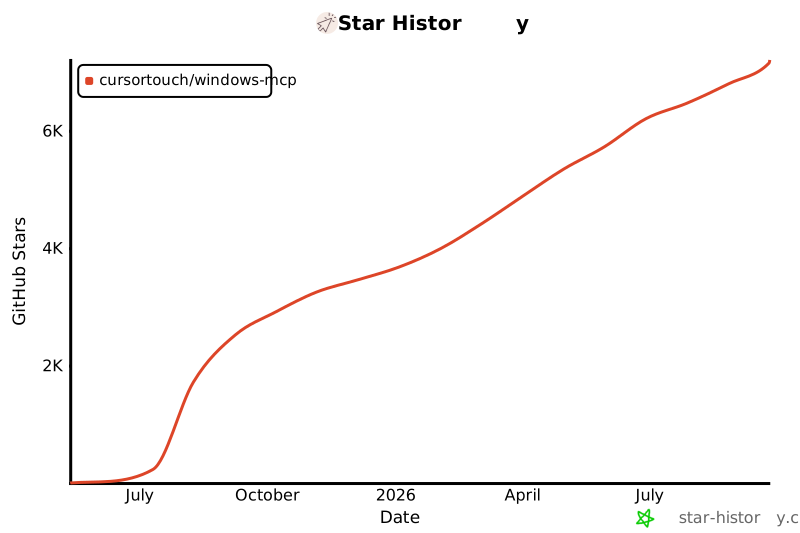
## Star History
[](https://www.star-history.com/#CursorTouch/Windows-MCP&Date)
## 👥 Contributors
Thanks to all the amazing people who have contributed to Windows-MCP! 🎉
 We appreciate every contribution, whether it's code, documentation, bug reports, or feature suggestions. Want to contribute? Check out our [Contributing Guidelines](CONTRIBUTING)!
## 🔒 Security
**Important**: Windows-MCP operates with full system access and can perform irreversible operations. Please review our comprehensive security guidelines before deployment.
For detailed security information, including:
- Tool-specific risk assessments
- Deployment recommendations
- Vulnerability reporting procedures
- Compliance and auditing guidelines
Please read our [Security Policy](SECURITY.md).
## 📊 Telemetry
Windows-MCP collects usage data to help improve the MCP server. No personal information, no tool arguments, no outputs are tracked.
To disable telemetry, set `ANONYMIZED_TELEMETRY` to `false` in your MCP client configuration:
```json
{
"mcpServers": {
"windows-mcp": {
"command": "uvx",
"args": [
"windows-mcp",
"serve"
],
"env": {
"ANONYMIZED_TELEMETRY": "false"
}
}
}
}
```
See the [Environment Variables](#-environment-variables) section for the full list of configurable options.
For detailed information on what data is collected and how it is handled, please refer to the [Telemetry and Data Privacy](SECURITY.md#telemetry-and-data-privacy) section in our Security Policy.
## 📝 Limitations
- Selecting specific sections of the text in a paragraph, as the MCP is relying on a11y tree. (⌛ Working on it.)
- `Type-Tool` is meant for typing text, not programming in IDE because of it types program as a whole in a file. (⌛ Working on it.)
- This MCP server can't be used to play video games 🎮.
## 🪪 License
This project is licensed under the MIT License - see the [LICENSE](LICENSE) file for details.
## 🙏 Acknowledgements
Windows-MCP makes use of several excellent open-source projects that power its Windows automation features:
- [UIAutomation](https://github.com/yinkaisheng/Python-UIAutomation-for-Windows)
Huge thanks to the maintainers and contributors of these libraries for their outstanding work and open-source spirit.
## 🤝Contributing
Contributions are welcome! Please see [CONTRIBUTING](CONTRIBUTING) for setup instructions and development guidelines.
Made with ❤️ by [CursorTouch](https://github.com/CursorTouch)
## Citation
```bibtex
@software{
author = {CursorTouch},
title = {Windows-MCP: Lightweight open-source project for integrating LLM agents with Windows},
year = {2024},
publisher = {GitHub},
url={https://github.com/CursorTouch/Windows-MCP}
}
```
We appreciate every contribution, whether it's code, documentation, bug reports, or feature suggestions. Want to contribute? Check out our [Contributing Guidelines](CONTRIBUTING)!
## 🔒 Security
**Important**: Windows-MCP operates with full system access and can perform irreversible operations. Please review our comprehensive security guidelines before deployment.
For detailed security information, including:
- Tool-specific risk assessments
- Deployment recommendations
- Vulnerability reporting procedures
- Compliance and auditing guidelines
Please read our [Security Policy](SECURITY.md).
## 📊 Telemetry
Windows-MCP collects usage data to help improve the MCP server. No personal information, no tool arguments, no outputs are tracked.
To disable telemetry, set `ANONYMIZED_TELEMETRY` to `false` in your MCP client configuration:
```json
{
"mcpServers": {
"windows-mcp": {
"command": "uvx",
"args": [
"windows-mcp",
"serve"
],
"env": {
"ANONYMIZED_TELEMETRY": "false"
}
}
}
}
```
See the [Environment Variables](#-environment-variables) section for the full list of configurable options.
For detailed information on what data is collected and how it is handled, please refer to the [Telemetry and Data Privacy](SECURITY.md#telemetry-and-data-privacy) section in our Security Policy.
## 📝 Limitations
- Selecting specific sections of the text in a paragraph, as the MCP is relying on a11y tree. (⌛ Working on it.)
- `Type-Tool` is meant for typing text, not programming in IDE because of it types program as a whole in a file. (⌛ Working on it.)
- This MCP server can't be used to play video games 🎮.
## 🪪 License
This project is licensed under the MIT License - see the [LICENSE](LICENSE) file for details.
## 🙏 Acknowledgements
Windows-MCP makes use of several excellent open-source projects that power its Windows automation features:
- [UIAutomation](https://github.com/yinkaisheng/Python-UIAutomation-for-Windows)
Huge thanks to the maintainers and contributors of these libraries for their outstanding work and open-source spirit.
## 🤝Contributing
Contributions are welcome! Please see [CONTRIBUTING](CONTRIBUTING) for setup instructions and development guidelines.
Made with ❤️ by [CursorTouch](https://github.com/CursorTouch)
## Citation
```bibtex
@software{
author = {CursorTouch},
title = {Windows-MCP: Lightweight open-source project for integrating LLM agents with Windows},
year = {2024},
publisher = {GitHub},
url={https://github.com/CursorTouch/Windows-MCP}
}
```






