


Author: @Ugokashiya
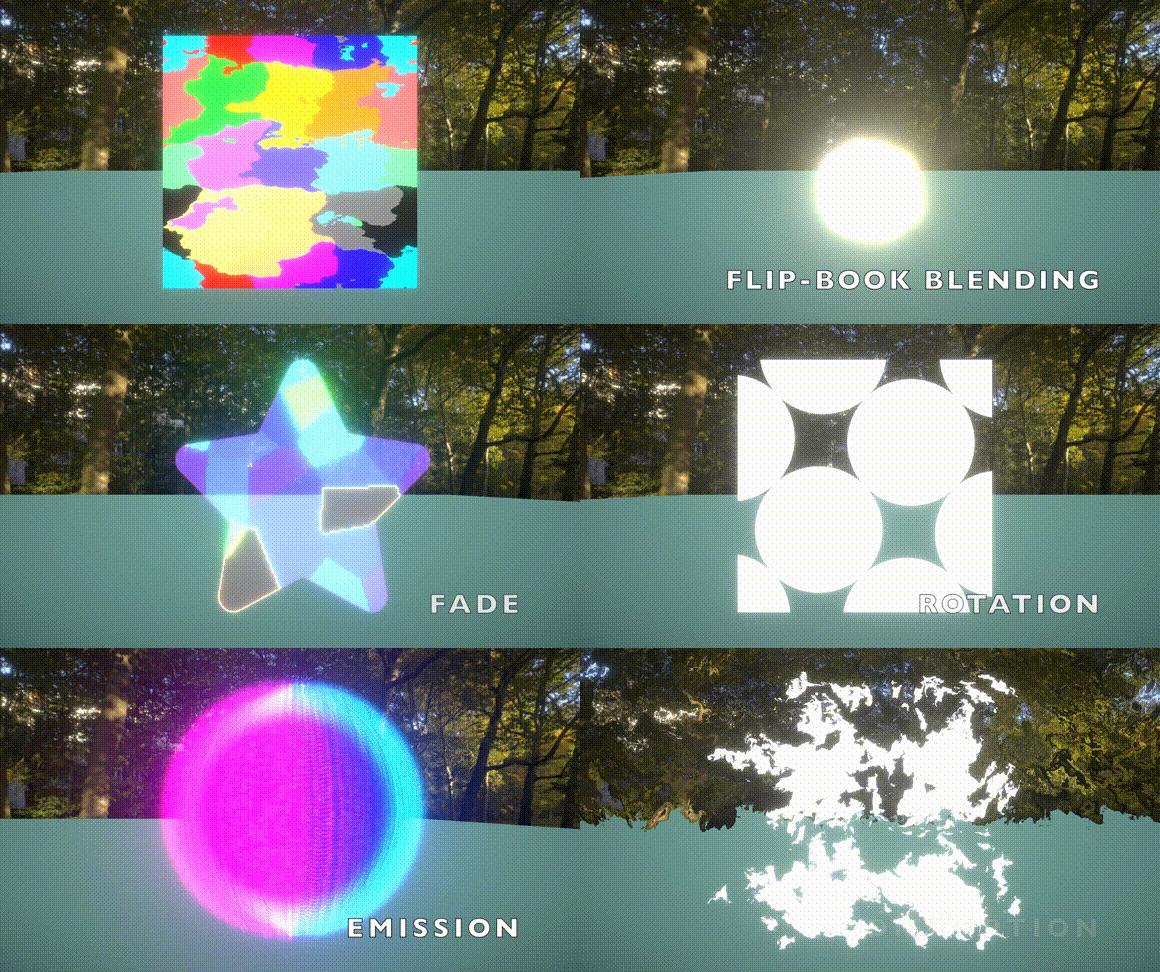
Features


Add Screen Space Distortion

Screen Space Distortion

Depth Texture

Material

Particle
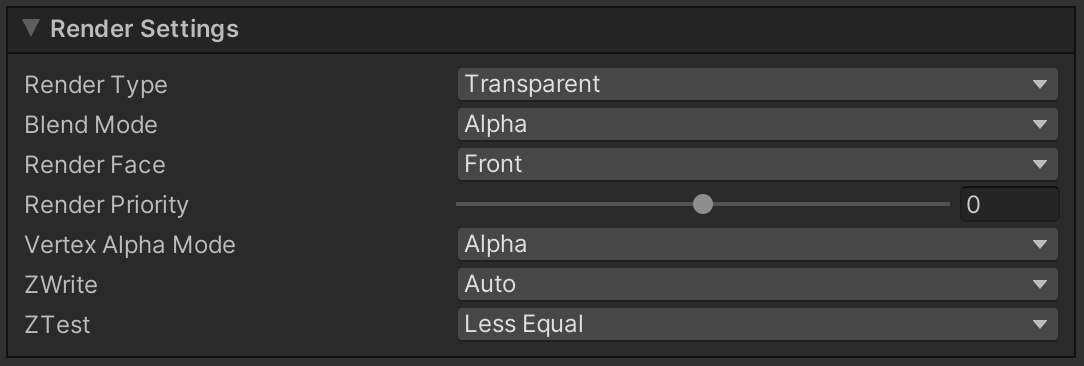
Render Settings
| Property Name | Description | ||
| Render Type |
You can specify the type of rendering from the following options.
If you select Cutout, the CutOff property will be displayed. When Transparent is selected, the Blend Mode property will be displayed. | ||
| CutOff |
This property is visible only when the Render Type is set to Cutout. Controls the threshold to clip semi-transparent areas. The higher this value is, the more alpha will be cropped. | ||
| Blend Mode |
This property is visible only when the Render Type is set to Transparent. You can specify the color blend method from the following options.
| ||
| Render Face |
You can specify the rendering face from the following options.
| ||
| Render Priority |
If the Render Type is the same, the one with the lower Render Priority will be drawn first. | ||
| Vertex Alpha Mode |
You can specify how to use the alpha value of the vertex color from the following options.
| ||
| ZWrite |
You can set ZWrite value.
| ||
| ZTest |
You can set ZTest value.
| ||
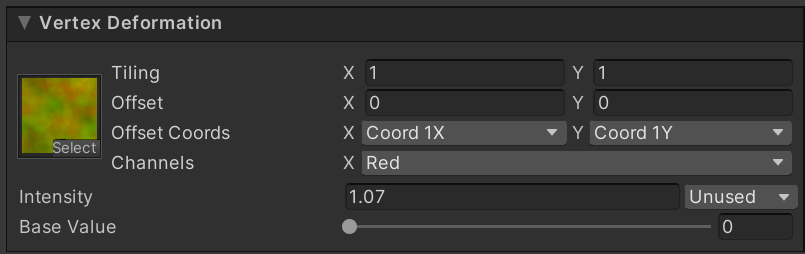
Vertex Deformation
| Property Name | Description | ||
| Texture |
Sets the Vertex Deformation Map. The specifications are as follows.
| ||
| Intensity |
Sets the Vertex Deformation intensity. | ||
| Base Value |
It is an offset applied to the values of the texture. | ||
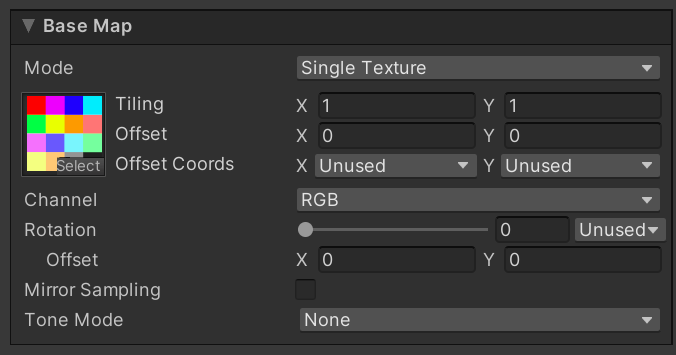
Base Map
| Property Name | Description | ||
| Mode |
You can specify the type of the Base Map from the following options.
The required texture type will change depending on the mode you selected. | ||
| Texture |
Set the Base Map. If you specify Flip Book as the Mode, you need to set Texture2DArray. And if you specify Flip Book Blending, you need to set Texture3D. | ||
| Channel |
Select which color channel from the Base Map to use for rendering. When a single channel is selected (Red/Green/Blue), the selected channel value is applied to RGB components while preserving the original alpha channel. Available options:
| ||
| Rotation |
Set the amount of rotation of the Base Map. | ||
| Offset |
Shifts the center coordinate of rotation. | ||
| Mirror Sampling |
If true, mirrors the texture to create a repeating pattern. | ||
| Flip-Book Progress |
This property is visible only when the Mode is set to Flip Book or Flip Book Blending. The progress of the Flip-Book or Flip-Book Blending. | ||
| Random Row Selection |
This property is visible only when the Mode is set to Flip Book or Flip Book Blending. Equivalent to Unity's Texture Sheet Animation Row Mode > Random functionality. When enabled, each particle randomly selects and maintains one row throughout its lifetime for animation playback. Uses Unity Particle System's Custom Coord for random value input. First set Row Count to match the number of rows in your texture sheet, then configure any Custom Coord channel in "Random Between Two Constants" mode (range: 0 to Row Count) and assign it. | ||
| Row Count |
This property is visible only when Random Row Selection is enabled. Set the number of rows in your texture sheet (e.g., for a 4×4 texture sheet, set Row Count to 4). | ||
| Random Coord |
This property is visible only when Random Row Selection is enabled. Select the Custom Coord channel for random value input. This should correspond to the Custom Data channel configured in Unity Particle System with "Random Between Two Constants" mode. | ||
| Tone Mode |
Controls tone mapping for color adjustment based on luminance values. Select from the following options:
Boundary values determine the thresholds between regions, mapping them to the configured colors. Colors between each boundary are linearly interpolated, applying smooth tone mapping. Note that this linear interpolation is performed in the shader, so you need to consider your project's color space when setting parameters. | ||
| Tone Channel |
This property is visible when Tone Mode is not None. Selects which color channel to use for luminance calculation in tone mapping. Choose from Red, Green, Blue, or Alpha (default). | ||
| Highlights Color |
This property is visible when Tone Mode is Tritone or Pentone. Sets the color applied to highlight regions. | ||
| Brights Color |
This property is visible only when Tone Mode is Pentone. Sets the color applied to brights regions (between highlights and midtones). | ||
| Midtones Color |
This property is visible when Tone Mode is Tritone or Pentone. Sets the color applied to midtone regions. | ||
| Darktones Color |
This property is visible only when Tone Mode is Pentone. Sets the color applied to darktones regions (between midtones and shadows). | ||
| Shadows Color |
This property is visible when Tone Mode is Tritone or Pentone. Sets the color applied to shadow regions. | ||
| Highlights |
This property is visible when Tone Mode is Tritone or Pentone. Sets the luminance boundary value for highlights. | ||
| Brights |
This property is visible only when Tone Mode is Pentone. Controls the position of the brights boundary between midtones and highlights. | ||
| Midtones |
This property is visible when Tone Mode is Tritone or Pentone. Controls the balance between tonal regions by determining the midpoint position between shadows and highlights. | ||
| Darktones |
This property is visible only when Tone Mode is Pentone. Controls the position of the darktones boundary between shadows and midtones. | ||
| Shadows |
This property is visible when Tone Mode is Tritone or Pentone. Sets the luminance boundary value for shadows. | ||
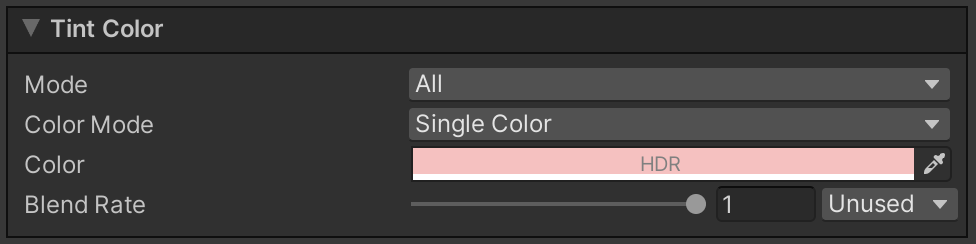
Tint Color
| Property Name | Description | ||
| Mode |
You can specify the area to apply the Tint Color from the following options.
| ||
| Progress |
This property is visible only when the Mode is set to Rim. The larger this value is, the more only the areas near the edges will be colored. | ||
| Sharpness |
This property is visible only when the Mode is set to Rim. The larger this value is, the sharper the edge of the rim will be. | ||
| Inverse |
This property is visible only when the Mode is set to Rim. If checked, reverse the range of the rim. | ||
| Color Mode |
You can specify how you set the Tint Color.
The required texture type will change depending on the mode you selected. | ||
| Color |
This property is visible only when the Color Mode is set to Single Color. The color to be multiplied. | ||
| Texture |
This property is visible only when the Color Mode is set to Single Texture, Flip Book, or Flip Book Blending. The texture whose color will be multiplied. If you specify Flip Book as the Color Mode, you need to set Texture2DArray. And if you specify Flip Book Blending, you need to set Texture3D. | ||
| Rotation |
This property is visible only when the Color Mode is set to Single Texture, Flip Book, or Flip Book Blending. Set the amount of rotation of the Tint Map. | ||
| Offset |
Shifts the center coordinate of rotation. | ||
| Flip-Book Progress |
This property is visible only when the Color Mode is set to Flip Book or Flip Book Blending. The progress of the Flip-Book or Flip-Book Blending. | ||
| Blend Rate |
The color multiplication factor. If this value is zero, the color will not be applied; if it is one, the color will be multiplied as is. | ||
| Random Row Selection |
This property is visible only when the Color Mode is set to Flip Book or Flip Book Blending. Equivalent to Unity's Texture Sheet Animation Row Mode > Random functionality. When enabled, each particle randomly selects and maintains one row throughout its lifetime for animation playback. Uses Unity Particle System's Custom Coord for random value input. First set Row Count to match the number of rows in your texture sheet, then configure any Custom Coord channel in "Random Between Two Constants" mode (range: 0 to Row Count) and assign it. | ||
| Row Count |
This property is visible only when Random Row Selection is enabled. Set the number of rows in your texture sheet (e.g., for a 4×4 texture sheet, set Row Count to 4). | ||
| Random Coord |
This property is visible only when Random Row Selection is enabled. Select the Custom Coord channel for random value input. This should correspond to the Custom Data channel configured in Unity Particle System with "Random Between Two Constants" mode. | ||
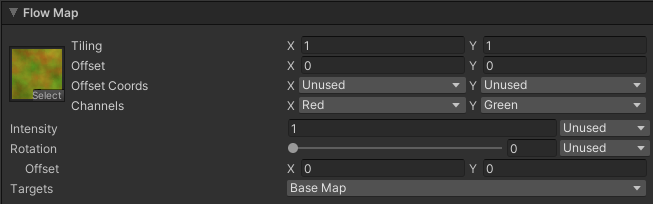
Flow Map
| Property Name | Description | ||
| Texture |
Sets the Flow Map. The specifications are as follows.
| ||
| Rotation |
Set the amount of rotation of the Flow Map. | ||
| Offset |
Shifts the center coordinate of rotation. | ||
| Intensity |
Sets the Flow Map intensity. | ||
| Targets |
Set the targets to which the flow map will be applied (multiple selections are possible). * Base Map * Tint Map * Alpha Transition Map * Emission Map | ||

Parallax Map
| Property | Description | ||
| Mode |
Specifies the mode of the parallax map from the following options:
The texture type changes depending on the selected mode. | ||
| Texture |
Sets the parallax map.
If Flip Book is selected in Mode, a Texture2DArray needs to be set.
| ||
| Strength |
Sets the strength of the parallax map when applied. | ||
| Flip-Book Progress |
This property is visible only when the Mode is set to Flip Book or Flip Book Blending. The progress of the Flip-Book or Flip-Book Blending. | ||
| Random Row Selection |
This property is visible only when the Mode is set to Flip Book or Flip Book Blending. Equivalent to Unity's Texture Sheet Animation Row Mode > Random functionality. When enabled, each particle randomly selects and maintains one row throughout its lifetime for animation playback. Uses Unity Particle System's Custom Coord for random value input. First set Row Count to match the number of rows in your texture sheet, then configure any Custom Coord channel in "Random Between Two Constants" mode (range: 0 to Row Count) and assign it. | ||
| Row Count |
This property is visible only when Random Row Selection is enabled. Set the number of rows in your texture sheet (e.g., for a 4×4 texture sheet, set Row Count to 4). | ||
| Random Coord |
This property is visible only when Random Row Selection is enabled. Select the Custom Coord channel for random value input. This should correspond to the Custom Data channel configured in Unity Particle System with "Random Between Two Constants" mode. | ||
| Strength |
Sets the strength of the parallax map when applied. | ||
| Targets |
Sets the targets to apply the parallax map (multiple selection possible). Base Map Tint Map Emission Map | ||

Color Correction
| Property Name | Description | ||
| Mode |
You can specify how to correct the colors.
| ||
| Texture |
This property is visible only when the Mode is set to Gradient. Sets the Gradient Map. The specifications are as follows.
| ||
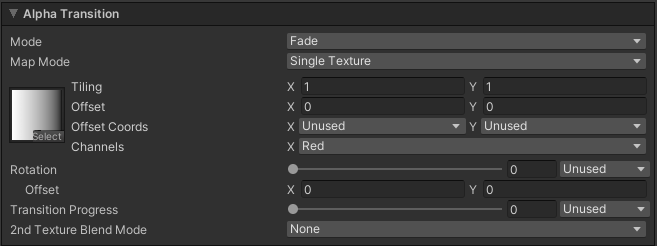
Alpha Transition
| Property Name | Description | ||
| Mode |
You can specify Alpha Transition Mode from the following options.
| Map Mode |
You can specify the type of the Alpha Transition Map from the following options.
The required texture type will change depending on the mode you selected. |
| Texture |
Sets the Alpha Transition Map. The specifications are as follows.
If you specify Flip Book as the Mode, you need to set Texture2DArray. And if you specify Flip Book Blending, you need to set Texture3D. Note that you need to uncheck sRGB Color in the texture import setting because the pixels will be used as values, not colors. | ||
| Rotation |
Set the amount of rotation of the Alpha Transition Map. | ||
| Offset |
Shifts the center coordinate of rotation. | ||
| Flip-Book Progress |
This property is visible only when the Map Mode is set to Flip Book or Flip Book Blending. Sets the progress of Flip-Book or Flip-Book Blending. | ||
| Random Row Selection |
This property is visible only when the Map Mode is set to Flip Book or Flip Book Blending. Equivalent to Unity's Texture Sheet Animation Row Mode > Random functionality. When enabled, each particle randomly selects and maintains one row throughout its lifetime for animation playback. Uses Unity Particle System's Custom Coord for random value input. First set Row Count to match the number of rows in your texture sheet, then configure any Custom Coord channel in "Random Between Two Constants" mode (range: 0 to Row Count) and assign it. | ||
| Row Count |
This property is visible only when Random Row Selection is enabled. Set the number of rows in your texture sheet (e.g., for a 4×4 texture sheet, set Row Count to 4). | ||
| Random Coord |
This property is visible only when Random Row Selection is enabled. Select the Custom Coord channel for random value input. This should correspond to the Custom Data channel configured in Unity Particle System with "Random Between Two Constants" mode. | ||
| Transition Progress |
Sets the progress of Transition. | ||
| 2nd Texture Blend Mode |
You can specify how to composite the second texture from the following options.
| ||
| 2nd Texture Map Mode |
This property is visible only when 2nd Texture Blend Mode is set to Average or Multiply. You can specify the Map Mode of the second Alpha Transition Map independently from the first texture. The following options are available.
The required texture type will change depending on the mode you selected. | ||
| 2nd Texture Rotation |
This property is visible only when 2nd Texture Blend Mode is set to Average or Multiply. Set the amount of rotation of the second Alpha Transition Map. | ||
| Offset |
Shifts the center coordinate of rotation. | ||
| Edge Sharpness |
This property is visible only when the Mode is set to Dissolve. Sets the sharpness of the edge. | ||
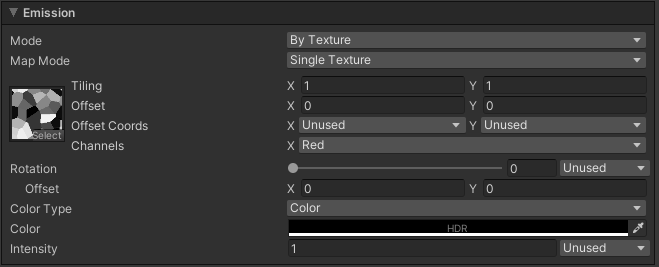
Emission
| Property Name | Description | ||
| Mode |
You can specify the area to be glowed.
| Map Mode |
This property is visible only when the Mode is set to By Texture. You can specify the Mode of the Emission Map from the following options.
The required texture type will change depending on the mode you selected. |
| Texture |
This property is visible only when the Mode is set to By Texture. Sets the Emission Map. The specifications are as follows.
If you specify Flip Book as the Mode, you need to set Texture2DArray. And if you specify Flip Book Blending, you need to set Texture3D. Note that you need to uncheck sRGB Color in the texture import setting because the pixels will be used as values, not colors. | ||
| Rotation |
This property is visible only when the Mode is set to By Texture. Set the amount of rotation of the Emission Map. | ||
| Offset |
Shifts the center coordinate of rotation. | ||
| Flip-Book Progress |
This property is visible only when the Mode is set to By Texture and the Map Mode is set to Flip Book or Flip Book Blending. Sets the progress of Flip-Book or Flip-Book Blending. | ||
| Random Row Selection |
This property is visible only when the Mode is set to By Texture and the Map Mode is set to Flip Book or Flip Book Blending. Equivalent to Unity's Texture Sheet Animation Row Mode > Random functionality. When enabled, each particle randomly selects and maintains one row throughout its lifetime for animation playback. Uses Unity Particle System's Custom Coord for random value input. First set Row Count to match the number of rows in your texture sheet, then configure any Custom Coord channel in "Random Between Two Constants" mode (range: 0 to Row Count) and assign it. | ||
| Row Count |
This property is visible only when Random Row Selection is enabled. Set the number of rows in your texture sheet (e.g., for a 4×4 texture sheet, set Row Count to 4). | ||
| Random Coord |
This property is visible only when Random Row Selection is enabled. Select the Custom Coord channel for random value input. This should correspond to the Custom Data channel configured in Unity Particle System with "Random Between Two Constants" mode. | ||
| Color Type |
You can specify the type of the emission color from the following options.
| ||
| Color |
This property is visible only when the Color Type is set to Color. Sets the emission color as HDR color. | ||
| Keep Edge Transparency |
This property is visible only when the Mode is set to Edge. If checked, the edges will not be transparent. | ||
| Gradient Map |
This property is visible only when the Color Type is set to Gradient Map. Sets the Gradient Map. The specifications are as follows.
| ||
| Intensity |
Sets the intensity of the emission. | ||

Transparency
| Property Name | Description | ||
| Rim |
If checked, the rim will be transparent. | ||
| Progress |
Sets the progress of transparency. | ||
| Sharpness |
The larger this value is, the sharper the edge will be. | ||
| Inverse |
Inverse the transparency area. | ||
| Luminance |
If checked, areas with low brightness will be transparent. | ||
| Progress |
Sets the progress of transparency. | ||
| Sharpness |
The larger this value is, the sharper the edge will be. | ||
| Inverse |
Inverse the transparency area. | ||
| Sort Particles |
If checked, soft particles will be enabled. To use this feature, the Depth Texture in URP settings must be enabled. | ||
| Intensity |
The larger this value, the larger the transparent area. | ||
| Depth Fade |
Makes the areas near and far from the camera transparent. To use this feature, the Depth Texture in URP settings must be enabled. | ||
| Distance |
Set the transparency range. The area closer than Near and farther than Far from the camera will be transparent. | ||
| Width |
The distance from the beginning of transparency to the end of complete transparency. | ||
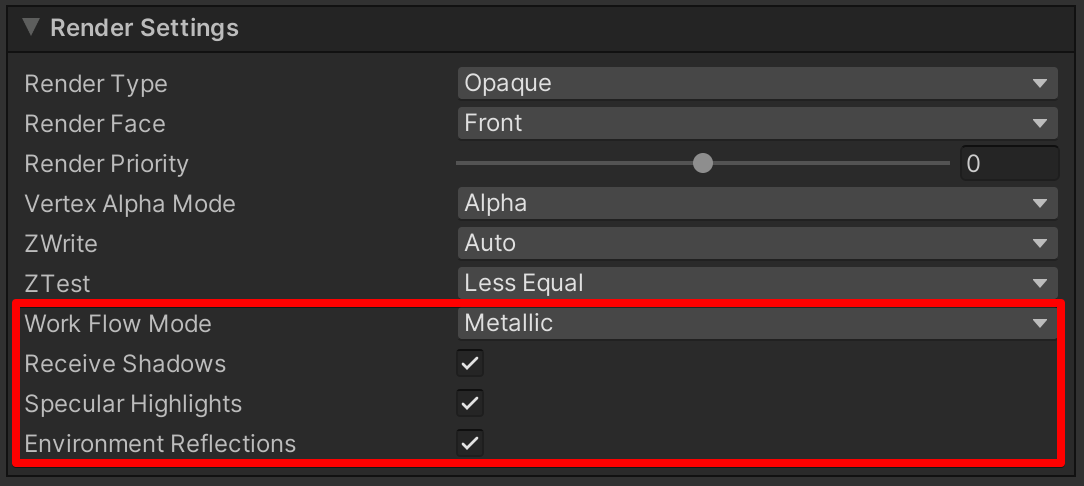
Render Settings
| Property Name | Description | ||
| Work Flow Mode |
You can specify the mode of PBR workflow from the following options.
| ||
| Receive Shadows |
If checking the box, it will be received shadows from directional lights. | ||
| Specular Highlights |
If checking the box, it will be enabled specular highlighting. | ||
| Environment Reflections |
If checking the box, it will be affected ambient light from the Reflection Probe and Skybox. | ||

Surface Maps
| Property Name | Description | ||
| Normal Map |
Set up the normal map.The specifications of the normal map are as follows.
https://docs.unity3d.com/2021.3/Documentation/Manual/StandardShaderMaterialParameterNormalMap.html | ||
| Metallic Map |
It is displayed when the Work Flow Mode is set to Metallic.
Set up the metallic map.The specifications of the metallic map are as follows.
https://docs.unity3d.com/2018.4/Documentation/Manual/StandardShaderMaterialParameterMetallic.html | ||
| Specular Map |
It is displayed when the Work Flow Mode is set to Specular.
Set up the specular map. The specifications of the specular map are as follows.
https://docs.unity3d.com/2018.4/Documentation/Manual/StandardShaderMaterialParameterSpecular.html | ||
| Smoothness Map |
Set up the smoothness map. The specifications of the smoothness map are as follows.
| ||

Render Settings
| Property Name | Description | ||
| Render Face |
You can specify the rendering face from the following options.
| ||
| ZTest |
You can set ZTest value.
| ||
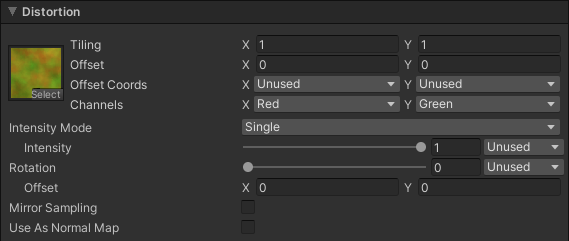
Distortion
| Property Name | Description | ||
| Texture |
Sets the Distortion Map. The specifications are as follows.
| ||
| Intensity Mode |
Specifies how distortion intensity is controlled.
| ||
| Intensity |
This property is visible only when Intensity Mode is set to Single. Sets the distortion intensity. | ||
| Intensity X / Intensity Y |
These properties are visible only when Intensity Mode is set to XY. Sets the distortion intensity for each axis independently. | ||
| Rotation |
Set the amount of rotation of the Distortion Map. | ||
| Offset |
Shifts the center coordinate of rotation. | ||
| Mirror Sampling |
If true, mirrors the texture to create a repeating pattern. | ||
| Use As Normal Map |
If true, the Texture Type is treated as a Normal Map and will be unpacked for sampling. | ||
Flow Map
| Property Name | Description | ||
| Texture |
Sets the Flow Map. The specifications are as follows.
| ||
| Rotation |
Set the amount of rotation of the Flow Map. | ||
| Offset |
Shifts the center coordinate of rotation. | ||
| Intensity |
Sets the Flow Map intensity. | ||
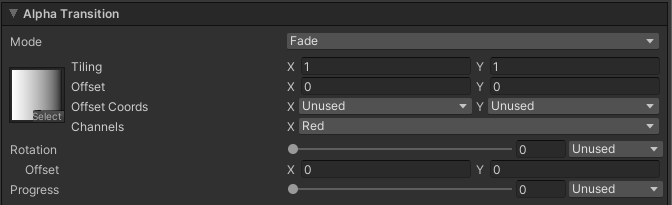
Alpha Transition
| Property Name | Description | ||
| Mode |
You can specify Alpha Transition Mode from the following options.
| ||
| Texture |
Sets the Alpha Transition Map. The specifications are as follows.
Note that you need to uncheck sRGB Color in the texture import setting because the pixels will be used as values, not colors. | ||
| Rotation |
Set the amount of rotation of the Alpha Transition Map. | ||
| Offset |
Shifts the center coordinate of rotation. | ||
| Progress |
Sets the progress of Transition. | ||
| Edge Sharpness |
This property is visible only when the Mode is set to Dissolve. Sets the sharpness of the edge. | ||
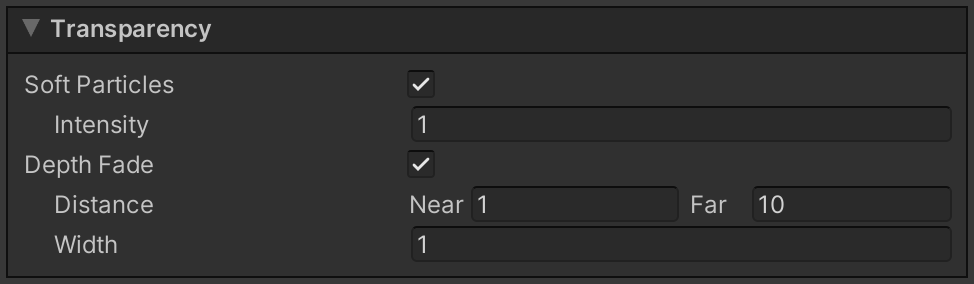
Transparency
| Property Name | Description | ||
| Rim |
If checked, the rim will be transparent. | ||
| Progress |
Sets the progress of transparency. | ||
| Sharpness |
The larger this value is, the sharper the edge will be. | ||
| Inverse |
Inverse the transparency area. | ||
| Luminance |
If checked, areas with low brightness will be transparent. | ||
| Progress |
Sets the progress of transparency. | ||
| Sharpness |
The larger this value is, the sharper the edge will be. | ||
| Inverse |
Inverse the transparency area. | ||
| Sort Particles |
If checked, soft particles will be enabled. To use this feature, the Depth Texture in URP settings must be enabled. | ||
| Intensity |
The larger this value, the larger the transparent area. | ||
| Depth Fade |
Makes the areas near and far from the camera transparent. To use this feature, the Depth Texture in URP settings must be enabled. | ||
| Distance |
Set the transparency range. The area closer than Near and farther than Far from the camera will be transparent. | ||
| Width |
The distance from the beginning of transparency to the end of complete transparency. | ||
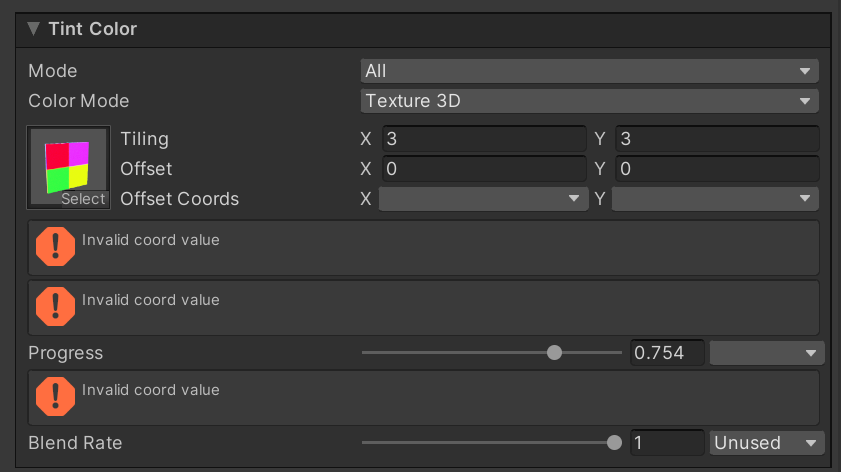
Custom Vertex Error

Additional Shader Channels
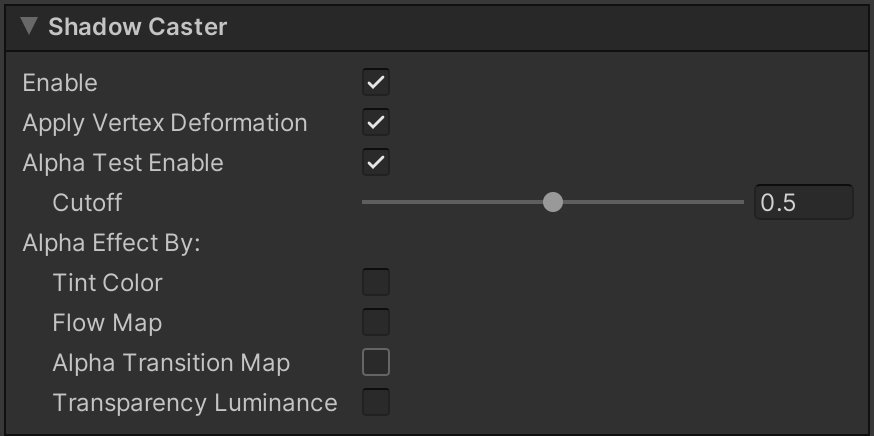
Shadow Caster
| Property Name | Discription | ||
| Enable |
Check this to enable ShadowCasterPass | ||
| Apply Vertex Deformation |
If checked, Vertex Deformation will be applied to shadow casting calculations | ||
| Alpha Test Enable |
If checked, Alpha Test will be enabled for calculating shadow casting, and shadows will not be cast in areas that do not pass. | ||
| Cutoff |
Areas where the Alpha value is less than the Cutoff value will not cast a shadow (this will be a different value from the Cutoff of the drawing process) | ||
| Alpha Affected By |
Items that affect Alpha value during shadow casting calculation | ||
| Tint Color |
If checked, Tint Color will affect Alpha value | ||
| Flow Map |
If checked, Flow Map will affect Alpha value | ||
| Alpha Transition Map |
If checked, Alpha Transition Map will affect Alpha value | ||
| Transparency Luminance |
If checked, Transparency Luminance will affect Alpha value | ||
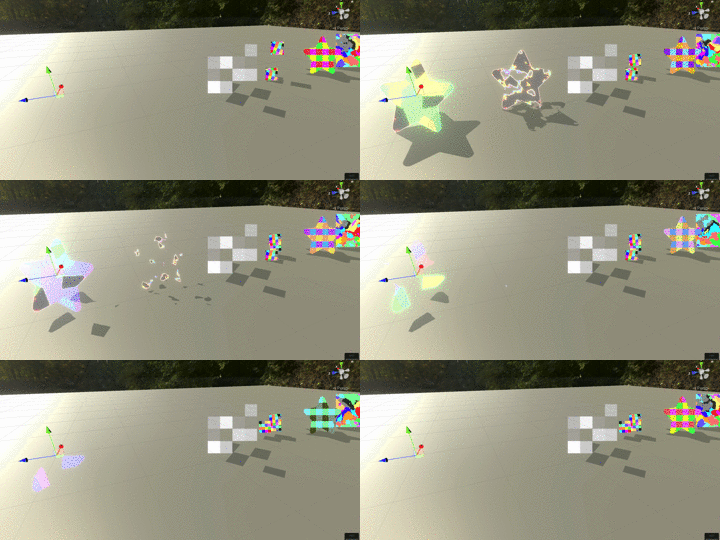
Shadow Caster Demo
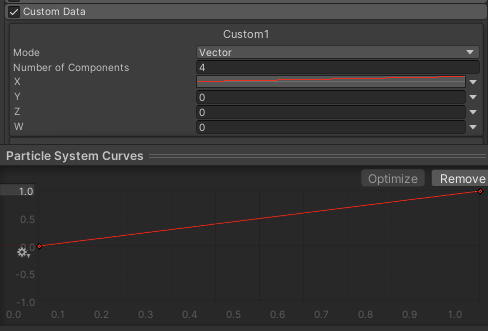
Custom Data

Custom Vertex Streams

Coord

Rotation

Enable Mesh GPU Instancing

Custom Vertex Streams

Fix Now
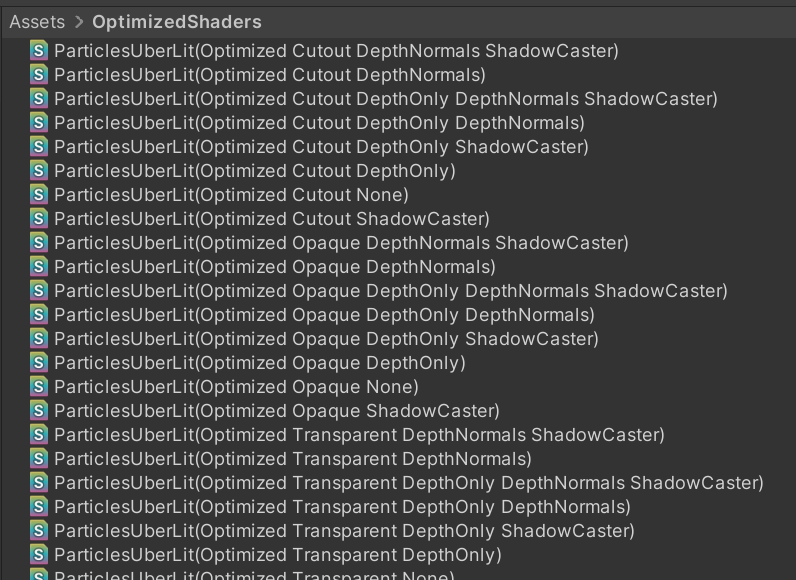
Optimized Shader