# Remotion Multi-Track Editor
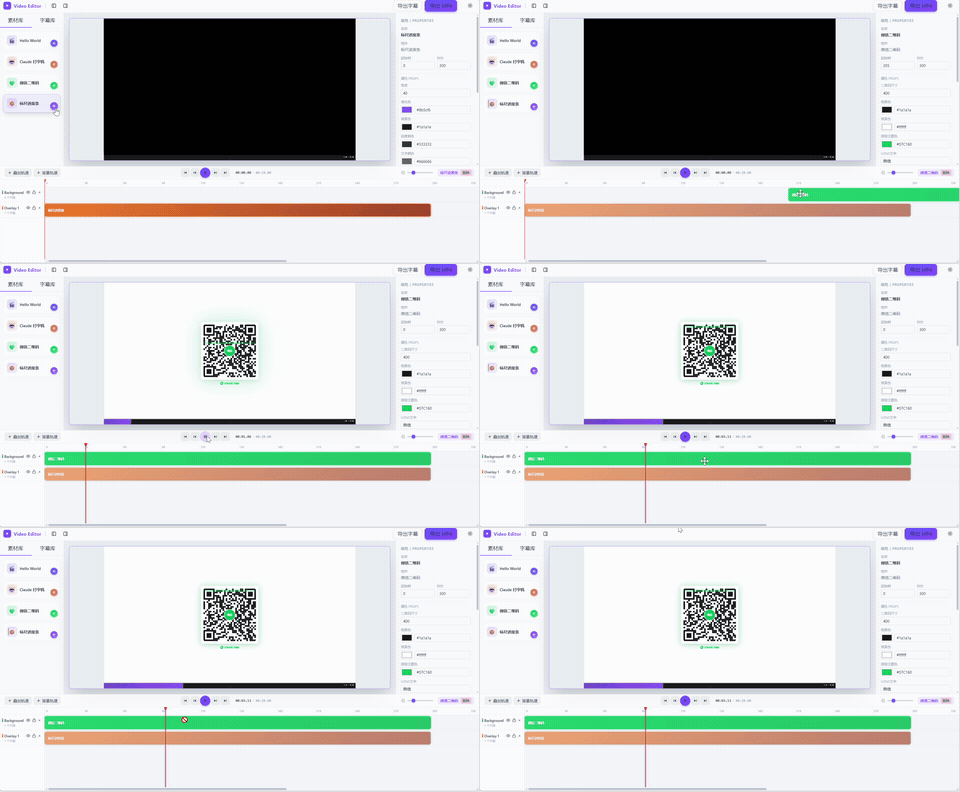
基于 **Remotion + React 19 + Vite + Zustand** 的多轨视频编辑器,仿剪映风格的深色 UI。编辑器作为普通 React 应用运行,预览由 `@remotion/player` 实时渲染,导出通过 Vite 中间件调用 `@remotion/renderer` 完成,并支持把字幕以 SRT 软字幕轨道的形式封装进 MP4(剪映可识别)。

 ## 特性
- **多轨时间线**:背景轨 + 叠加轨,支持增加 / 删除 / 锁定 / 静音轨道
- **拖拽编辑**:拖动片段调整起始位置与时长,鼠标移出轨道区域自动结束拖拽,无需点击释放
- **多轨对齐吸附**:在 6px 范围内检测对齐点并显示金色垂直参考线
- **组件库**:素材库与字幕库独立分页,点击右下角加号即可添加到轨道
- **实时预览**:`@remotion/player` 渲染当前时间线,所见即所得
- **属性面板**:根据组件 `propSchema` 自动生成文本 / 颜色 / 数字 / 多行文本输入
- **MP4 导出**:异步多任务导出,进度轮询,结果直接下载
- **字幕导出**:
- 一键导出 `.srt` 字幕文件(剪映兼容)
- 导出 MP4 时自动用 ffmpeg 将字幕以 `mov_text` 软字幕轨道嵌入视频
## 技术栈
| 分类 | 选型 |
| --- | --- |
| 视频框架 | Remotion 4.0.484 |
| UI 框架 | React 19.2.3 |
| 构建工具 | Vite 8 |
| 状态管理 | Zustand 5 |
| 样式 | Tailwind CSS 4 |
| 类型 / 校验 | TypeScript 5.9.3 + Zod 4 |
| 字幕封装 | ffmpeg(`mov_text`) |
## 快速开始
```console
pnpm i
pnpm run dev
```
打开 http://localhost:5173 即可使用编辑器。
> 导出 MP4 依赖本机 ffmpeg。请修改 [vite.config.ts](./vite.config.ts) 中的 `FFMPEG_PATH` 为你的 `ffmpeg.exe` 实际路径。
## 可用脚本
| 命令 | 说明 |
| --- | --- |
| `pnpm run dev` | 启动 Vite 开发服务器(编辑器 + 导出 API,端口 5173) |
| `pnpm run build` | `remotion bundle` 打包 Remotion 入口 |
| `pnpm run studio` | 启动 Remotion Studio(独立调试 Composition) |
| `pnpm run lint` | ESLint + `tsc` 类型检查 |
| `pnpm run upgrade` | 升级 Remotion 全家桶 |
## 目录结构
```
my-video/
├─ public/
│ ├─ favicon.svg # 站点图标
│ └─ exports/ # 导出 MP4 输出目录
├─ src/
│ ├─ main.tsx # 编辑器入口(挂载 EditorApp)
│ ├─ Root.tsx # Remotion Composition 注册
│ ├─ index.ts # Remotion 入口(供 bundle)
│ ├─ index.css # 全局样式
│ ├─ components/ # Remotion 可复用组件
│ │ ├─ HelloWorld/ # Logo + Title + Subtitle 组合示例
│ │ ├─ ClaudeType.tsx # Claude 风格 AI 聊天打字动画
│ │ ├─ SubtitleClip.tsx # 单条字幕
│ │ ├─ SubtitleTrack.tsx # 编程式批量字幕轨道
│ │ ├─ Wechat2DRender.tsx # 微信风格二维码
│ │ └─ RulerProgressRender.tsx # 标尺进度条
│ └─ editor/ # 编辑器核心
│ ├─ editor.tsx # 主布局(顶栏 + 库 + 预览 + 属性 + 时间线)
│ ├─ component-library.tsx # 组件库面板(素材库 / 字幕库)
│ ├─ preview.tsx # @remotion/player 预览
│ ├─ timeline.tsx # 多轨时间线 + 拖拽 + 吸附
│ ├─ properties.tsx # 属性面板
│ ├─ registry.tsx # 组件注册表
│ ├─ renderer.tsx # tracks/clips → React 树(预览 + 导出共用)
│ ├─ store.ts # Zustand 编辑器状态
│ ├─ export-store.ts # 导出任务状态
│ ├─ types.ts # Clip / Track / EditorState 类型
│ └─ nanoid.ts # id 生成
├─ vite.config.ts # Vite + 导出 API 中间件
├─ remotion.config.ts # Remotion 配置
└─ eslint.config.mjs # ESLint flat config
```
## 已注册组件
| key | 名称 | 说明 |
| --- | --- | --- |
| `helloworld` | Hello World | Logo + 标题 + 字幕组合示例 |
| `subtitle` | 字幕 | 单条字幕,可调文本 / 颜色 / 字号 / 位置 |
| `subtitleTrack` | 字幕轨道 | 编程式批量字幕,每行 `起始秒-结束秒: 文本` |
| `claudeType` | Claude 打字机 | Claude 风格 AI 聊天打字动画 |
| `wechat2d` | 微信二维码 | 微信风格二维码 + 扫描线 + 呼吸光效 |
| `rulerProgress` | 标尺进度条 | 底部时间标尺进度条 + 播放头 |
新增组件只需在 [src/components/](./src/components/) 编写 Remotion 组件,再到 [src/editor/registry.tsx](./src/editor/registry.tsx) 的 `registry` 数组里登记 `key / component / defaultProps / propSchema` 即可。
## 工作原理
### 预览
编辑器不使用 Remotion Studio,而是通过 Vite 直接运行普通 React 应用。`CompositionRenderer`([renderer.tsx](./src/editor/renderer.tsx))读取 store 中的 `tracks / clips`,把每个轨道渲染为一层 `AbsoluteFill`,每个片段用 `` 包裹对应组件,最后交给 `@remotion/player` 播放。
### 导出
Vite 开发服务器在 [vite.config.ts](./vite.config.ts) 中注册了两个中间件:
- `POST /api/export/start` — 接收 `inputProps`(tracks/clips),启动异步渲染,返回 `jobId`
- `GET /api/export/status?jobId=xxx` — 轮询进度,完成后返回下载 URL
渲染流程:
1. `@remotion/bundler` 打包 `src/index.ts`(首次约 10–30s,后续复用缓存)
2. `selectComposition` 选中 `EditorExport` 并按 `totalDuration` 覆盖时长
3. `renderMedia` 输出 H264 MP4 到 `public/exports/.mp4`
4. 若时间线上有字幕,生成 SRT 并用 `ffmpeg -c:s mov_text` 封装进 MP4
### 字幕导出
- **SRT 文件**:编辑器顶栏「导出 SRT」按钮,扫描所有 `subtitle` / `subtitleTrack` 片段,按起始帧排序后输出 `.srt`
- **MP4 内嵌字幕**:导出 MP4 时自动执行,剪映可直接识别为软字幕轨道
## 工程约束
- 字幕组件必须支持 SRT 格式导出,以确保剪映兼容性
- 拖拽片段时,鼠标移出轨道区域需自动结束拖拽,无需点击释放
- Remotion 组件中使用 `interpolate` 函数时,`inputRange` 必须严格单调递增
- 直接使用 koa-connect 包装 Express 中间件会导致 ctx 泄漏,需进行原生 Koa 重写
## 许可
UNLICENSED(私有权)。
## 特性
- **多轨时间线**:背景轨 + 叠加轨,支持增加 / 删除 / 锁定 / 静音轨道
- **拖拽编辑**:拖动片段调整起始位置与时长,鼠标移出轨道区域自动结束拖拽,无需点击释放
- **多轨对齐吸附**:在 6px 范围内检测对齐点并显示金色垂直参考线
- **组件库**:素材库与字幕库独立分页,点击右下角加号即可添加到轨道
- **实时预览**:`@remotion/player` 渲染当前时间线,所见即所得
- **属性面板**:根据组件 `propSchema` 自动生成文本 / 颜色 / 数字 / 多行文本输入
- **MP4 导出**:异步多任务导出,进度轮询,结果直接下载
- **字幕导出**:
- 一键导出 `.srt` 字幕文件(剪映兼容)
- 导出 MP4 时自动用 ffmpeg 将字幕以 `mov_text` 软字幕轨道嵌入视频
## 技术栈
| 分类 | 选型 |
| --- | --- |
| 视频框架 | Remotion 4.0.484 |
| UI 框架 | React 19.2.3 |
| 构建工具 | Vite 8 |
| 状态管理 | Zustand 5 |
| 样式 | Tailwind CSS 4 |
| 类型 / 校验 | TypeScript 5.9.3 + Zod 4 |
| 字幕封装 | ffmpeg(`mov_text`) |
## 快速开始
```console
pnpm i
pnpm run dev
```
打开 http://localhost:5173 即可使用编辑器。
> 导出 MP4 依赖本机 ffmpeg。请修改 [vite.config.ts](./vite.config.ts) 中的 `FFMPEG_PATH` 为你的 `ffmpeg.exe` 实际路径。
## 可用脚本
| 命令 | 说明 |
| --- | --- |
| `pnpm run dev` | 启动 Vite 开发服务器(编辑器 + 导出 API,端口 5173) |
| `pnpm run build` | `remotion bundle` 打包 Remotion 入口 |
| `pnpm run studio` | 启动 Remotion Studio(独立调试 Composition) |
| `pnpm run lint` | ESLint + `tsc` 类型检查 |
| `pnpm run upgrade` | 升级 Remotion 全家桶 |
## 目录结构
```
my-video/
├─ public/
│ ├─ favicon.svg # 站点图标
│ └─ exports/ # 导出 MP4 输出目录
├─ src/
│ ├─ main.tsx # 编辑器入口(挂载 EditorApp)
│ ├─ Root.tsx # Remotion Composition 注册
│ ├─ index.ts # Remotion 入口(供 bundle)
│ ├─ index.css # 全局样式
│ ├─ components/ # Remotion 可复用组件
│ │ ├─ HelloWorld/ # Logo + Title + Subtitle 组合示例
│ │ ├─ ClaudeType.tsx # Claude 风格 AI 聊天打字动画
│ │ ├─ SubtitleClip.tsx # 单条字幕
│ │ ├─ SubtitleTrack.tsx # 编程式批量字幕轨道
│ │ ├─ Wechat2DRender.tsx # 微信风格二维码
│ │ └─ RulerProgressRender.tsx # 标尺进度条
│ └─ editor/ # 编辑器核心
│ ├─ editor.tsx # 主布局(顶栏 + 库 + 预览 + 属性 + 时间线)
│ ├─ component-library.tsx # 组件库面板(素材库 / 字幕库)
│ ├─ preview.tsx # @remotion/player 预览
│ ├─ timeline.tsx # 多轨时间线 + 拖拽 + 吸附
│ ├─ properties.tsx # 属性面板
│ ├─ registry.tsx # 组件注册表
│ ├─ renderer.tsx # tracks/clips → React 树(预览 + 导出共用)
│ ├─ store.ts # Zustand 编辑器状态
│ ├─ export-store.ts # 导出任务状态
│ ├─ types.ts # Clip / Track / EditorState 类型
│ └─ nanoid.ts # id 生成
├─ vite.config.ts # Vite + 导出 API 中间件
├─ remotion.config.ts # Remotion 配置
└─ eslint.config.mjs # ESLint flat config
```
## 已注册组件
| key | 名称 | 说明 |
| --- | --- | --- |
| `helloworld` | Hello World | Logo + 标题 + 字幕组合示例 |
| `subtitle` | 字幕 | 单条字幕,可调文本 / 颜色 / 字号 / 位置 |
| `subtitleTrack` | 字幕轨道 | 编程式批量字幕,每行 `起始秒-结束秒: 文本` |
| `claudeType` | Claude 打字机 | Claude 风格 AI 聊天打字动画 |
| `wechat2d` | 微信二维码 | 微信风格二维码 + 扫描线 + 呼吸光效 |
| `rulerProgress` | 标尺进度条 | 底部时间标尺进度条 + 播放头 |
新增组件只需在 [src/components/](./src/components/) 编写 Remotion 组件,再到 [src/editor/registry.tsx](./src/editor/registry.tsx) 的 `registry` 数组里登记 `key / component / defaultProps / propSchema` 即可。
## 工作原理
### 预览
编辑器不使用 Remotion Studio,而是通过 Vite 直接运行普通 React 应用。`CompositionRenderer`([renderer.tsx](./src/editor/renderer.tsx))读取 store 中的 `tracks / clips`,把每个轨道渲染为一层 `AbsoluteFill`,每个片段用 `` 包裹对应组件,最后交给 `@remotion/player` 播放。
### 导出
Vite 开发服务器在 [vite.config.ts](./vite.config.ts) 中注册了两个中间件:
- `POST /api/export/start` — 接收 `inputProps`(tracks/clips),启动异步渲染,返回 `jobId`
- `GET /api/export/status?jobId=xxx` — 轮询进度,完成后返回下载 URL
渲染流程:
1. `@remotion/bundler` 打包 `src/index.ts`(首次约 10–30s,后续复用缓存)
2. `selectComposition` 选中 `EditorExport` 并按 `totalDuration` 覆盖时长
3. `renderMedia` 输出 H264 MP4 到 `public/exports/.mp4`
4. 若时间线上有字幕,生成 SRT 并用 `ffmpeg -c:s mov_text` 封装进 MP4
### 字幕导出
- **SRT 文件**:编辑器顶栏「导出 SRT」按钮,扫描所有 `subtitle` / `subtitleTrack` 片段,按起始帧排序后输出 `.srt`
- **MP4 内嵌字幕**:导出 MP4 时自动执行,剪映可直接识别为软字幕轨道
## 工程约束
- 字幕组件必须支持 SRT 格式导出,以确保剪映兼容性
- 拖拽片段时,鼠标移出轨道区域需自动结束拖拽,无需点击释放
- Remotion 组件中使用 `interpolate` 函数时,`inputRange` 必须严格单调递增
- 直接使用 koa-connect 包装 Express 中间件会导致 ctx 泄漏,需进行原生 Koa 重写
## 许可
UNLICENSED(私有权)。