# Scene Loading Screens
A module for creating custom scene loading screens with images, video, audio, and text.
## Getting Started
### 1. Open the Configuration
* Right-click on a pre-existing scene
* Click on "Create Loading Screen" (or "Edit Loading Screen" if your scene already has one)
---
### 2. Add Media (Optional)
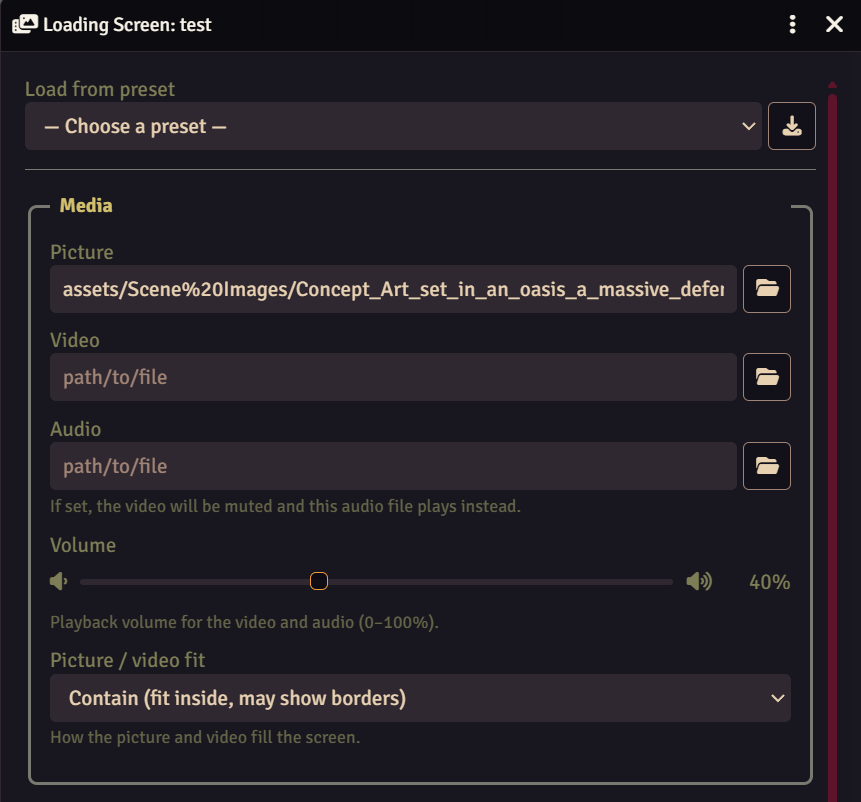
You can add:
* **Image** (background)
* **Video** (autoplays)
* **Audio** (optional, loops if enabled)
* **Volume** adjusts the volume level of selected media on a scale of 0–100
Use the folder button to browse files.
---
### 3. Configure Text
* Use the rich text editor to add your message
* Supports:
* **Bold**
* *Italic*
* Underline
* Use the grid to place text anywhere on screen
* Horizontal: Left / Centre / Right
* Vertical: Top / Middle / Bottom
* Set **font size** and **colour** first (does not work after highlighting)
* Select part of the text and click **Apply** to style only that section
https://github.com/user-attachments/assets/9cde9252-eae9-4b5e-8e79-94f6d7dc1098
---
### 4. Timing Options
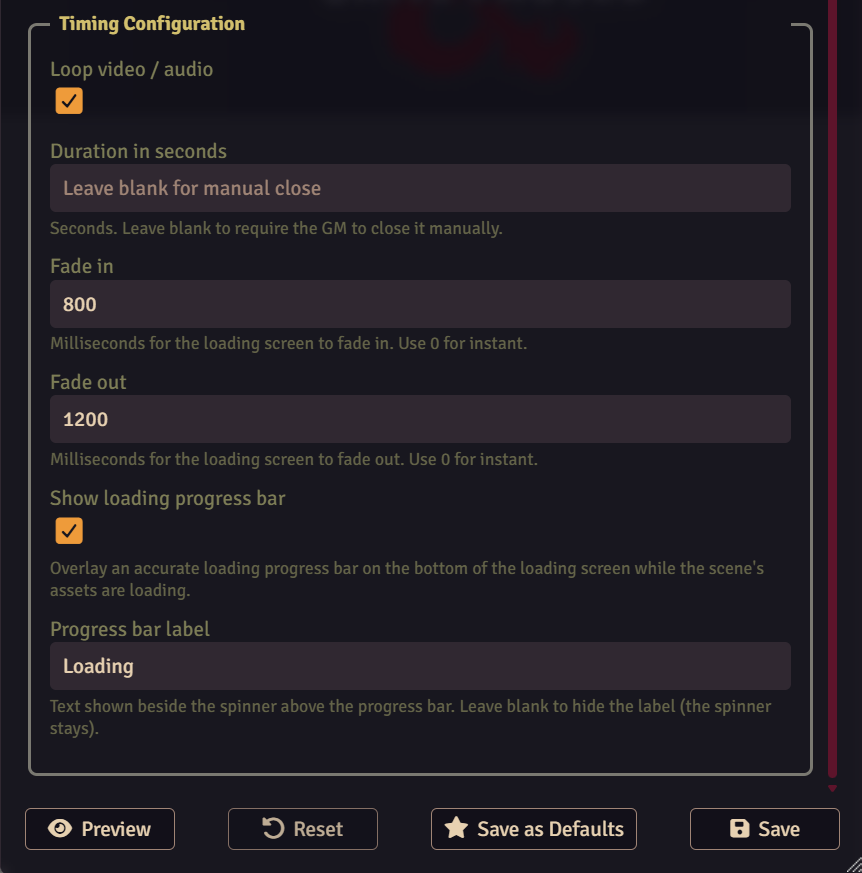
* **Loop**: Repeat video/audio
* **Duration**: Auto-close after X seconds
* **Fade In / Out**: Smooth transitions (ms)
* **Loading progress bar**: enable or disable the loading progress bar and choose the message shown next to it.
---
### 5. Preview
Click **Preview** to test your loading screen instantly (excluding the loading progress bar).
---
### 6. Save
* Save to apply to the current scene
---
## Presets
Presets are managed from Foundry’s settings menu:
* Open **Game Settings**
* Go to **Scene Loading Screens**
* Click **Configure Presets**
* Click **Create New Preset**
* Enter a preset name
* Configure the loading screen how you like
* Click **Save**
Once created, presets can be loaded when configuring a scene loading screen.
---
## GM Controls
* GMs can manually close the loading screen via the "X" button
* Players will automatically exit based on duration or GM action