# ℹ️ Introduction > Feel free to ask for help on [the Discord server](https://discord.gg/F9RFqHN) if anything is unclear Hi! I see you've decided to contribute. That's great and there are a few ways to do so: If you know how to make cool icons but don't know how to work with [git](https://git-scm.com/), [GitHub](https://github.com), and other tech stuff, just read [Design Guidelines](#-design-guidelines) carefully, make some icons and submit them on our Discord in the [icon review channel](https://discord.com/channels/743783969216135198/743784395856412782). If you don't know how to make icons but you are tech-savvy, you can help improve our CI/CD, add missing ComponentInfos, and do other things. Read [Contributing](#-contributing) for more info. If you can handle tech and design stuff, then please read this guide completely. If you don't know any of that but want to try to make icons, we can help with some advice on our Discord. There are many tools, instructions, and guides for them that it’s impossible to describe everything, so the only thing you can do is search for information on the Internet and try it out. In short, the suggested skills are: - Basic knowledge of [git](https://git-scm.com/) and/or [GitHub](https://github.com). - Some experience with vector editors. - A little bit of a design sense. We'll be happy to see you participate! # 📝 Design Guidelines ## General Tips - Keep it simple: fewer details and small elements, because the end result will only be a small element on the users screens. - Your icon doesn't have to be a 1:1 copy of the original; improve and simplify where possible but at the same time try to maintain a recognizable appearance. - Avoid outlining, otherwise the icon will stand out from the general style. - Make the icon free-form if you can — it helps keep Delta a little more diverse. - You can search for app logos online (they're often found on official websites; avoid icons with non-free licenses) and adapt them. If the original icon is too complex, you can use another recognizable element (an item, a faction icon, etc.) — this applies to any complex icon, not just games. - Be sure to double-check that icons are centered and aligned, sized and exported correctly. ## Icon Template ### Rules - Canvas size must be 192x192px. The template from [Resources](#resources) is correctly configured, just download it and you should be good to go. - The icon size does not exceed template dimensions. Check out [the visual explanation](./resources/templates/template_tutorial.svg). - If the original logo is simple and doesn't fill most of the template as a shape (circle, square, etc.), keep the logo size between 73–80px. - The rounded corners of squares and rectangles have a corner radius of 10px. - The template must be properly centered on the canvas. ### Tips - If you're having trouble deciding whether to use geometric or optical centering, you can discuss it on Discord. Mostly it depends on the icon, but optical centering is usually your choice. - If you have any doubts about the design of your icon, you can also discuss it on Discord. ### Resources > You can also check out the [Figma icon template](https://www.figma.com/design/02aiFRSLkikcw8mpBAnoDA/Delta-Icon-Template?m=auto&t=qyLH05AMDzZwAI2s-1), if you're using Figma. ## Colors ### Rules - Use $\textcolor{#56595B}{\textsf{⬤}}$ #56595B Davy's grey as default black. - Use $\textcolor{#FF837D}{\textsf{⬤}}$ #FF837D Coral pink as default red and $\textcolor{#BA6561}{\textsf{⬤}}$ #BA6561 Fuzzy Wuzzy as default dark red. Shades of red are specifically for shading purposes and complex arrangements (if we're honest it's mostly complex anime / game icons overusing pink). - Transparencies can be used as an overlay for additional shading. Please keep the use of them to a minimum. Try to get by with basic colors and greys as much as possible. If you do use transparency, it should be an overlay, never a background (the overall shape of the icon should not contain any semi-transparent areas). - Gradients are more acceptable than transparencies, but the usage should still be kept to a sensible minimum (as noted above). ### Palette
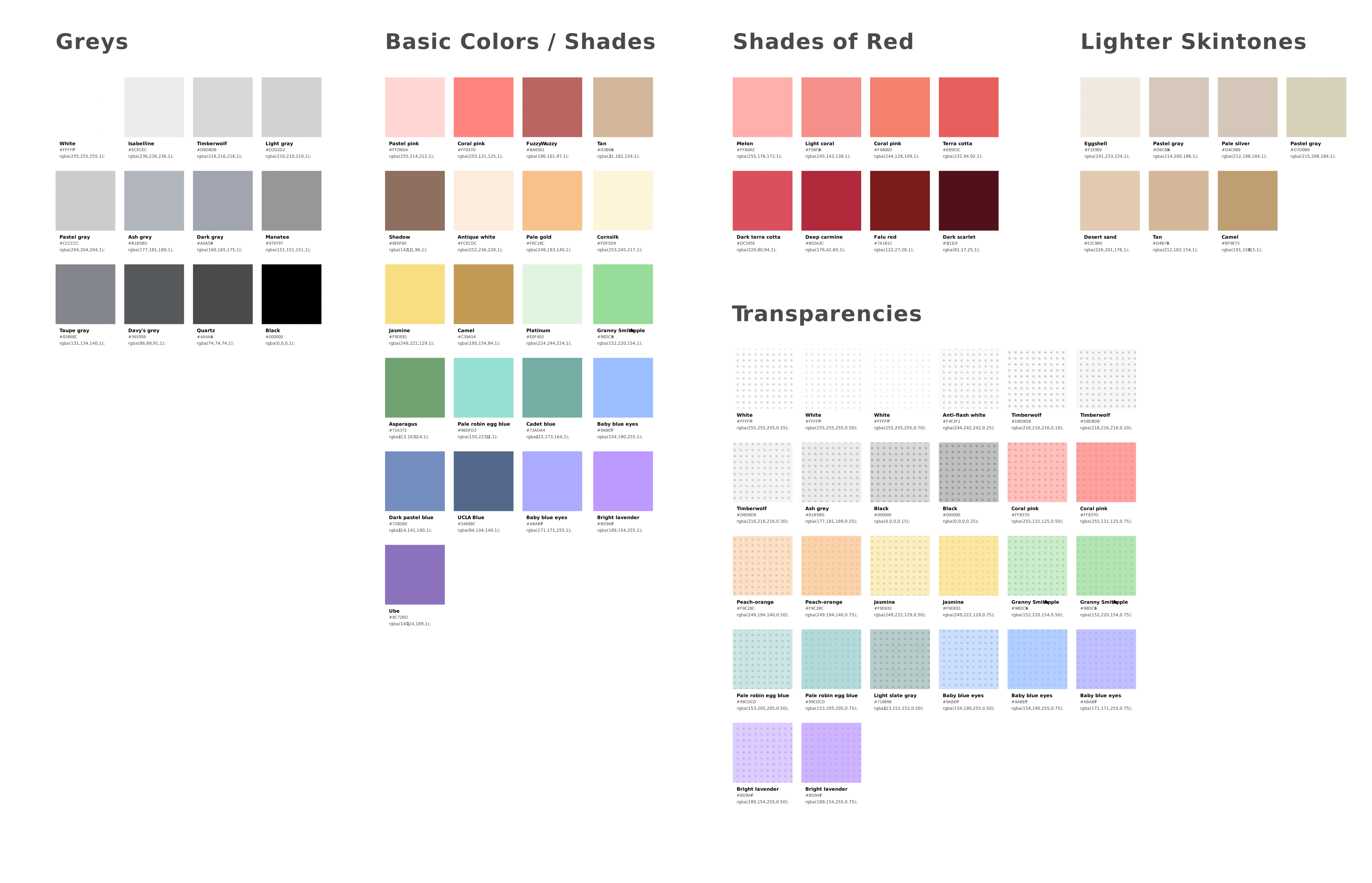
Greys Basic Reds Skintones

$\textcolor{#FFFFFF}{\textsf{⬤}}$ #FFFFFF White

$\textcolor{#ECECEC}{\textsf{⬤}}$ #ECECEC Isabelline

$\textcolor{#D8D8D8}{\textsf{⬤}}$ #D8D8D8 Timberwolf

$\textcolor{#D2D2D2}{\textsf{⬤}}$ #D2D2D2 Light gray

$\textcolor{#CCCCCC}{\textsf{⬤}}$ #CCCCCC Pastel gray

$\textcolor{#B1B5BD}{\textsf{⬤}}$ #B1B5BD Ash grey

$\textcolor{#A0A5AF}{\textsf{⬤}}$ #A0A5AF Dark gray

$\textcolor{#979797}{\textsf{⬤}}$ #979797 Manatee

$\textcolor{#83868C}{\textsf{⬤}}$ #83868C Taupe gray

$\textcolor{#56595B}{\textsf{⬤}}$ #56595B Davy's grey

$\textcolor{#4A4A4A}{\textsf{⬤}}$ #4A4A4A Quartz

$\textcolor{#000000}{\textsf{⬤}}$ #000000 Black

$\textcolor{#FFD6D4}{\textsf{⬤}}$ #FFD6D4 Pastel pink

$\textcolor{#FF837D}{\textsf{⬤}}$ #FF837D Coral pink

$\textcolor{#BA6561}{\textsf{⬤}}$ #BA6561 Fuzzy Wuzzy

$\textcolor{#D3B69A}{\textsf{⬤}}$ #D3B69A Tan

$\textcolor{#8E6F60}{\textsf{⬤}}$ #8E6F60 Shadow

$\textcolor{#FCECDC}{\textsf{⬤}}$ #FCECDC Antique white

$\textcolor{#F8C18C}{\textsf{⬤}}$ #F8C18C Pale gold

$\textcolor{#FDF5D9}{\textsf{⬤}}$ #FDF5D9 Cornsilk

$\textcolor{#F9DE81}{\textsf{⬤}}$ #F9DE81 Jasmine

$\textcolor{#C39A54}{\textsf{⬤}}$ #C39A54 Camel

$\textcolor{#E0F4E0}{\textsf{⬤}}$ #E0F4E0 Platinum

$\textcolor{#98DC9A}{\textsf{⬤}}$ #98DC9A Granny Smith Apple

$\textcolor{#71A372}{\textsf{⬤}}$ #71A372 Asparagus

$\textcolor{#96DFD3}{\textsf{⬤}}$ #96DFD3 Pale robin egg blue

$\textcolor{#73ADA4}{\textsf{⬤}}$ #73ADA4 Cadet blue

$\textcolor{#9ABEFF}{\textsf{⬤}}$ #9ABEFF Baby blue eyes

$\textcolor{#728DBE}{\textsf{⬤}}$ #728DBE Dark pastel blue

$\textcolor{#54688C}{\textsf{⬤}}$ #54688C UCLA Blue

$\textcolor{#ABABFF}{\textsf{⬤}}$ #ABABFF Baby blue eyes

$\textcolor{#BD9AFF}{\textsf{⬤}}$ #BD9AFF Bright lavender

$\textcolor{#8C72BD}{\textsf{⬤}}$ #8C72BD Ube

$\textcolor{#FFB0AC}{\textsf{⬤}}$ #FFB0AC Melon

$\textcolor{#F58F8A}{\textsf{⬤}}$ #F58F8A Light coral

$\textcolor{#F4806D}{\textsf{⬤}}$ #F4806D Coral pink

$\textcolor{#E85E5C}{\textsf{⬤}}$ #E85E5C Terra cotta

$\textcolor{#DC505E}{\textsf{⬤}}$ #DC505E Dark terra cotta

$\textcolor{#B02A3C}{\textsf{⬤}}$ #B02A3C Deep carmine

$\textcolor{#7A1B1C}{\textsf{⬤}}$ #7A1B1C Falu red

$\textcolor{#511119}{\textsf{⬤}}$ #511119 Dark scarlet

$\textcolor{#F1E9E0}{\textsf{⬤}}$ #F1E9E0 Eggshell

$\textcolor{#D6C8BA}{\textsf{⬤}}$ #D6C8BA Pastel gray

$\textcolor{#D4C6B8}{\textsf{⬤}}$ #D4C6B8 Pale silver

$\textcolor{#D7D0B8}{\textsf{⬤}}$ #D7D0B8 Pastel gray

$\textcolor{#E2C9B0}{\textsf{⬤}}$ #E2C9B0 Desert sand

$\textcolor{#D4B79A}{\textsf{⬤}}$ #D4B79A Tan

$\textcolor{#BF9E73}{\textsf{⬤}}$ #BF9E73 Camel

### Resources #### Vector Palettes -
Simplified Palette
-
Full Palette
#### Vector Editors - [Adobe Swatch Exchange Palette](./resources/palettes/palette.ase) (Illustrator) - [GPL Palette](./resources/palettes/palette.gpl) (Inkscape, Karbon) ## Font ### Tips - If the original icon consists of just one or two letters, you may trace that letter instead of using these fonts. - Fonts can be a little tricky to align/center in different vector editors, which you can mitigate by either converting them to paths or in the case of Figma: the text box trim. - You can use a custom font if it matches the font from the original icon very closely, for the rest use fonts from [Resources](#resources-2). ### Resources - [Now](https://www.1001fonts.com/now-font.html?text=Delta%20Icons) — main Sans-serif font; Now Alt from the same family can be used for an alternate lowercase 'a' letter. - [Aleo](https://www.1001fonts.com/aleo-font.html?text=Delta%20Icons) — when Serifs are needed. # 📥 Contributing ## Overview ### Key Terms - **Icon images** — your exported PNG/SVG icons. - **ComponentInfo** — an app identifier (e.g. `com.example/com.example.MainActivity`) that launchers use to match an installed app to its icon in the icon pack. You can use these tools to get ComponentInfos from your installed apps: - [Icon Pusher](https://iconpusher.com/) by [V01D](https://v01d.uk) - [Icon Request](https://github.com/Kaiserdragon2/IconRequest/releases) by [Kaiserdragon2](https://github.com/Kaiserdragon2) - **Drawable name** — an internal name of an icon (e.g. `app_name`). It's used to include an icon image to the icon pack, and in combo with ComponentInfo(s) it links the icon with the target app. The drawable name must be in alphanumeric lowercase with underscores only and icon image names must match the drawable name exactly (e.g. `new_icon.png` and `new_icon.svg`). - **Standalone icon** — an icon that isn't linked to any app. They can be non-app icons like `adobe`, or folder icons and be used for web shortcuts, app folders, etc. Users can select them via their launcher if it supports that feature. - **Alternative icon** — an alternative version of an app icon. Mainly used when the app rebrands: the old icon becomes an alternative (e.g. `app_name_alt_1`), and a new icon takes its place. However, you can create alternative icons for any app without linking them to any ComponentInfo, and they will be standalone. Users can select them via their launcher if it supports that feature. - **Categories** — categories within [`app/src/main/assets/drawable.xml`](./app/src/main/assets/drawable.xml) to organize icons. Description of categories: - `New` — new icons for the current release. If [manually](#manual) adding icons, you must also add the entry to this category. - `Alts` — alternative icons. - `Calendar` — calendar icons. - `Folders` — folder icons. - `Google` — Google apps (Chrome, YouTube, etc.). - `System` — system icons (Camera, Contacts, Settings, etc.). - `#` — icons whose name starts with a number (e.g. `_2048`). If [manually](#manual) adding icons, drawable names that begin with a number must have a leading underscore and be placed in this category. - `A–Z` — everything else, sorted by the first letter of the drawable name. ### Rules - Keep [LF](https://en.wikipedia.org/wiki/Newline) line endings in edited files. Git has a setting for this. ### Notes for Contributors Want to help close user requests? Check [`contribs/requests.yml`](./contribs/requests.yml) — it contains all pending icon requests and is updated periodically. If you wish, you can add yourself to [`app/src/main/res/xml/contributors.xml`](./app/src/main/res/xml/contributors.xml) to shine in the app's contributors section! ## Adding / Managing Icons Your new app icon will have two important identifiers: - `icon_name` (and derivatives of it) will be used as a drawable name - `com.example/com.example.MainActivity` (and derivatives of it) will be used as a ComponentInfo
Example You have an app called "Delta Icon Delivery". A sensible name for your drawable would be delta_icon_delivery. The component info would be dictated by the app itself and be akin to something like com.delta.delivery/com.delta.delivery.Actvities.MainActivity.
So, you made an icon then exported it as `new_icon.png` and `new_icon.svg`. Now you needto select which way to manage icons. Here are two ways: - [**Automatic**](#automatic) — an automatic and declarative way of managing icons via the file [`contribs/icons.yml`](./contribs/icons.yml) in the repo, processed by scripts and GitHub Actions. This is the recommended approach. - [**Manual**](#manual) — this is how icons were managed before [**Automatic**](#automatic) was implemented. Directly editing XMLs and placing icon images into the appropriate directories. More control, but also more prone to errors. Try to avoid it unless [**Automatic**](#automatic) can't handle what you need. ### Automatic This is an automatic and declarative method of managing icons via [`contribs/icons.yml`](./contribs/icons.yml), driven by scripts and GitHub Actions. Place your icon images (the `new_icon.png` and `new_icon.svg` files both) in the [`contribs/icons`](./contribs/icons) directory and add an entry in the following format to [`contribs/icons.yml`](./contribs/icons.yml): ```yaml new_icon: com.example/com.example.MainActivity ``` And that's all. This is the easiest and most common method for adding a new icon and linking it to an app. [`contribs/icons.yml`](./contribs/icons.yml) will be processed by scripts and cleared automatically every release. That entry can be extended with more options, for example: ```yaml new_icon: action: rewrite category: google compinfo: - com.example/com.example.MainActivity - com.example/com.example.SplashActivity ``` Check [Options](#options) below to get an explanation of each option and [Examples](#examples) for more examples. #### Options - `action` — describes what to do with the icon. It can take one of the following values: - `add` — add a new icon. This is the default action if the option is not explicitly set. - `rewrite` — overwrite icon images of an existing icon with new ones from [`contribs/icons`](./contribs/icons). - `rebrand` — move an existing icon to `alt_x` (`x` will be automatically calculated), add a new icon and use it as the main one. If you pass any ComponentInfo, existing ComponentInfos will be attached to `alt_x` (for backward compatibility with older versions of the app), otherwise `alt_x` will be a standalone alternative icon. - `remove` — remove an existing icon. - `rename > name` — rename an existing icon (where `name` is a new name of the existing icon). - `move > category` — move an existing icon to a different category (where `category` is the category name). - `category` — overrides the automatic category assignment, e.g. if you want to assign a Google app icon to the Google category. If not set, the category is assigned based on the following logic: - if the drawable name starts with `_[0-9]` (e.g. `_2048`), the category will be `#` - if the drawable name ends with `_alt_[0-9]+` (e.g. `telegram_alt_23`), the category will be `Alts` - else the category will be `A–Z` based on the first letter of the drawable name - `compinfo` — a list of ComponentInfos to link to the current icon. It can be a string or a list (see more in [Examples](#examples)). #### Examples ```yaml # a new icon with a single ComponentInfo # without adding icon images it will only link a ComponentInfo with new_icon new_icon: com.example/com.example.MainActivity # or with multiple ComponentInfos new_icon: - com.example/com.example.MainActivity - com.example/com.example.SplashActivity # new alternative icons # will be automatically assigned to Alts category new_icon_alt_1: com.example/com.example.MainActivity new_icon_alt_2: com.example/com.example.SplashActivity # or new standalone alternative icons new_icon_alt_1: {} new_icon_alt_2: {} # if you're not sure if there's no alts with these names, you can use this: # _alt_x will be automatically resolved to the next available alt number, e.g.: # new_icon_alt_x1 > new_icon_alt_4 (if _alt_1, _alt_2, _alt_3 exist) # use different numbers after x to add multiple alts in one file new_icon_alt_x1: com.example/com.example.MainActivity new_icon_alt_x2: com.example/com.example.SplashActivity new_icon_alt_x3: {} new_icon_alt_x4: {} # a new standalone icon new_icon: {} # add a new Google app icon to Google category google_app: category: google # rewrite the icons of an existing icons without touching XMLs # existing_icons.png and existing_icon.svg must be in contribs/icons existing_icon: action: rewrite # rebrand an existing icon and make the previous icon a standalone alternative icon \ # as existing_icon_alt_x (x will be automatically calculated) existing_icon: action: rebrand # rebrand an existing icon with attaching previous ComponentInfos \ # to a existing_icon_alt_x (x will be automatically calculated) existing_icon: action: rebrand compinfos: - com.example/com.example.MainActivity # rename an existing icon # will be automatically moved to the appropriate category existing_icon: action: rename > new_icon # move an existing icon to a different category, e.g. google existing_icon: action: move > google # remove an existing icon from XMLs and image directories existing_icon: action: remove ``` ### Manual This is how icons were managed before [**Automatic**](#automatic) was implemented. Avoid it unless [**Automatic**](#automatic) can't handle what you need. There are two `drawable.xml` and two `appfilter.xml` files to edit (stored in [`app/src/main/assets`](./app/src/main/assets) and [`app/src/main/res/xml`](./app/src/main/res/xml)). It's better to edit the XMLs in [`app/src/main/assets`](./app/src/main/assets), then copy them to [`app/src/main/res/xml`](./app/src/main/res/xml) to keep all files identical. You can do it however you want (e.g. editing all files at the same time), just keep them identical. #### Adding a new icon 1. Add `new_icon.svg` to [`resources/vectors`](./resources/vectors) directory. 2. Add `new_icon.png` to [`app/src/main/res/drawable-nodpi`](./app/src/main/res/drawable-nodpi) directory. 3. Append the line `` to both the `New` and the appropriate letter category in [`app/src/main/assets/drawable.xml`](./app/src/main/assets/drawable.xml). Here's how it should look: ```xml ``` 4. Append the line `` to [`app/src/main/assets/appfilter.xml`](./app/src/main/assets/appfilter.xml). Here's how it should look: ```xml ``` 5. Copy edited XMLs from [`app/src/main/assets`](./app/src/main/assets) to [`app/src/main/res/xml`](./app/src/main/res/xml). 6. Repeat the process for more icons. #### Alternative Icons If an existing icon has been rebranded, don't overwrite it with a new one — do the following: > `old_icon` will be used as an existing drawable name.
> `old_icon_alt_1` will be used as an alternative icon name for the existing drawable name. 1. Determine if alternative icons exist for the target app by checking `Alts` category in [`app/src/main/res/xml/drawable.xml`](./app/src/main/res/xml/drawable.xml). If no alternative icons exist, start numbering from `1` (e.g. `old_icon_alt_1`), otherwise continue numbering based on the latest alternative icon number (e.g. `old_icon_alt_2`). 2. Rename `old_icon.svg` to `old_icon_alt_1.svg` in [`resources/vectors`](./resources/vectors) directory (if SVG is not found there, just skip this step). 3. Rename `old_icon.png` to `old_icon_alt_1.png` in [`app/src/main/res/drawable-nodpi`](./app/src/main/res/drawable-nodpi) directory. 4. Add `old_icon_alt_1` to `Alts` category and `old_icon` to `New` category in [`app/src/main/assets/drawable.xml`](./app/src/main/assets/drawable.xml). 5. If the ComponentInfo also changed after rebranding, replace `old_icon` with `old_icon_alt_1` in [`app/src/main/assets/appfilter.xml`](./app/src/main/assets/appfilter.xml) (the alternative icon will be linked with the old ComponentInfos for backward compatibility). 6. Copy edited XMLs from [`app/src/main/assets`](./app/src/main/assets) to [`app/src/main/res/xml`](./app/src/main/res/xml). #### Other Manipulations The rest of the things are more or less obvious like moving drawable names between categories, renaming, etc. Just ask for help in Discord if something isn't clear. # 🏗️ Build ## GitHub Actions > Everything described here must be done in your fork. ### Run Workflow 1. Go to [Actions → Build FOSS](../../actions/workflows/build_foss.yml) 2. Click on **Run workflow**, optionally mark preferred checkboxes, then click on **Run workflow** 3. Wait for the build, it takes approximately 5-10 minutes. The zipped APK will be attached to the workflow run. Go to [Actions](../../actions), click on the latest workflow run and download it from **Artifacts** down below ### Creating Secrets > This is optional since the workflow contains hardcoded values, but you can do this to use your own keystore. The following values of variables and options match the hardcoded workflow values. 1. Generate a personal keystore with `keytool -genkeypair -alias android -keypass android -keystore android.keystore -storepass android -keyalg RSA -dname "CN=Android,O=Android,C=US" -validity 9999` 2. Encode the keystore with `cat android.keystore | base64 | tr -d '\n' > android.keystore.base64` or do it with any online tool. 3. Go to `Settings → Secrets and Variables → Actions` and create the following repository secrets (key-value pairs): - `KEYSTORE_BASE64` (contents of `android.keystore.base64`) ``` MIIKRgIBAzCCCfAGCSqGSIb3DQEHAaCCCeEEggndMIIJ2TCCBbAGCSqGSIb3DQEHAaCCBaEEggWdMIIFmTCCBZUGCyqGSIb3DQEMCgECoIIFQDCCBTwwZgYJKoZIhvcNAQUNMFkwOAYJKoZIhvcNAQUMMCsEFALf2o/enYgJaO2D4otoTSpxWhWtAgInEAIBIDAMBggqhkiG9w0CCQUAMB0GCWCGSAFlAwQBKgQQMpyd3LX1rnoCfCGv+LAQ1wSCBNDoQdq5T9uFBEf2nKKgH1WR1/F7s9AIk9Gs+VVu03Y8ntd7QNDf55HytKZbRFE5cN7Vod5LPm4uiUP5zPVkGgqmX6nfZPRppR1k17X2pYG/lm7n2WUItt35HeIxr6Tbnqr7eLRuCwCZ7kfpJYhmOVZ/MIsylejqjbTqX1ajkVUFeb4J0KVZlq4OXhqMCmHHxaZe41yV/WjfPtbXyP7MCjp47XY4LpTlJ+ad1COwlktMv1oud5UUQfVnQwkcOQZQGoZuuL41cEAeHjR6GpEVnyhR33t9kOPdAPLFVyp22+8TLFt3RlRvJy4Sn+430kxGxhrfW8KTfz0CiGljTeElTq55OscEi+eOLJo/gwVgZ7zas+7lV/4MAhcQLsArhCn5v1l1QVWeXE+9udME+0OZfc3A/TDeP1k40/1KVkFpmKLyH1DZlCLy5SeuANFtKpP+Uj3tioVI7CBHzuTkf2A4itoaVHOFELmK7O5ypfz8jL+qmwQjvJiPJoVdCNZPUr9zF6uym65BvtRwBWhBKiBNYYCoeXJkX46SGSgZ4nSIlBGq3DwGbTqG6JfJkzbIys5a5nCIQWwCalveIRDeYQlEorNWXGY37cF1TOeCWcS6NeTSpAP+Php27kUpAwkYYTVJcqWnOyXcDysxiD1AWWt8Jtpg00OBnHVD1ANgoa8Zfe12pBEXIaLh/3PoBTkcHii0WRhV88z0ewGKTWKTYKFTJAY/pkP4MfPePYuJPvt3FZJ2NnslocTi8JgWZcveBsPNFSjTpR1aapg+ukgYRwAYO69gH2tw4SBkozrRTwh86xmedLA8ah1Jii7itdUg+odmF+JUjm2X50BJiLCpUKJxnJ4zkkcB7DP7XlRNHz/KBg5WLbNyBPxB6LYQbtMUDQ6Du0Idl5vQ/HLgbs1wHUMFQA/uc9Czz43Ansh1g+ZGI7pw+RVUGKe3YglXjrbGe8RWlr3RxjxBnWExeMkg9Z3SDVRYkFOQ8aI5HB/37JFAG5tk/z7UxiM1GlnEA3ZCZ/OJJMaYYfFidIsNb8FVjWddOPfDmrJlguSilkqJx2VsGAxslSpcicCHRij/Rjm5E6wWkj7GjgJb9kf4kXbOi+THK09/40LqZci89qvUJ1a0a0Ts+IVOhaIXXAk/1Jd2zzFTU/yRSPjm5UvLkajhfmr7sR/XCjZN53kq8aR6F5YIyH1f+Su3ahzl4CGG7Dceypd5KX0NfpO2i/9IoYSDTm/eWCNfQ18k7kpqdI/tyhD1YTum2dzW8o578qReph37SG5CsqX9AVeuKBLihAbY+fZ4tKaWigiigCgnGBKjKcBNRTjnDlfL/lkmR0uB6Ye618dnRVUIOsfG9rsM0pLlNc2rUIBwEkFXj7Zdsao9y3T+SCIBNyM0mWEleQLHcEs8E8g7C88gtvFvxXGANT3z1tr0C05Og9OJSV7Sz4Di7JoI+c1kmBS7Gn8KqxYNv+lCdS0f+mKIypOHwgRcPeY7rk0vpkfBHIaMR8Vnvd0aiOCgbmiJWXTcmfl+cgKUvcfzMUbR8aYJPnP0wEUR64EBuEJHUnkwpFUprXDYvIPcI39EALVlnVqY5ZSXzeqX2vVyiuK4IcR6R7vH0ZlD26r0/c/Pj3Ci6mQS6RNGuzrcsf78/bvdzTFCMB0GCSqGSIb3DQEJFDEQHg4AYQBuAGQAcgBvAGkAZDAhBgkqhkiG9w0BCRUxFAQSVGltZSAxNjgzNTMxNDQ1NzI0MIIEIQYJKoZIhvcNAQcGoIIEEjCCBA4CAQAwggQHBgkqhkiG9w0BBwEwZgYJKoZIhvcNAQUNMFkwOAYJKoZIhvcNAQUMMCsEFAMBu3VzOPYst5nuc5pukUGrNpb1AgInEAIBIDAMBggqhkiG9w0CCQUAMB0GCWCGSAFlAwQBKgQQjKOpjsq0gFHwTwH9VV53BoCCA5DBfuD14myPSgcezH6Z4V2Fph94upgzY4ijij5zOZdgzj4D7yYbNh9iSSvb3nEB5m/FbnuHBYuGEzeGOiHugMqPwr+2M4dfqcC+17myjtv+2DCseUHZIMAA++HBWsl1yFF8OF7Ofxj8f17gBiJ+Cexd1oniNj8HyT5aWeJ/+pIsMSirX/fQ2sKyA7YTrmFVAqsJ29rTv923XDXi1CcW0tGsxFHT+FsbvwzxS5S2t8hKgmbQz2tO6i/NP6kencEc93YdsVRVlO+pu8bT+LXSvINT1wdrsedWlUBIjjmEfuz6cckDIpphsaEQcMegTJ0eb5IldyrCD7iVTWYBE6ZhUM9v7UbAAEx3MsdMOfsdNqpfFeJswIYOxQjBJ0GFv7zVfVT6LA2SXqwTaecFiAl5pC3QOFOsSSe/rndBqeT62zGn9daL4Zr1qgmhtvFcgOYKAVGgxiaa2XDN6Z8OsIgYqONWOhwX8IwjbWgpiVzJjr9HqNSrUl+3Fk8nOyzRlf1gBdQmIblDqZ9C6PPHSJQiVZCS8hd68np9oiz96ltxSnroEZ7YkoBQSfDMw3nFoDJ6W46/H65HjUmALxikw1wsOkDvT5Z6VGvaAHFc7Ng/38UBx1yNhF+W+IGFnXIhtwaxfKmdtdFjHzS54Q5qPk/HCKVBTlZOZtfEJvQNiE1pthDMPwdYZ8a6PR7gTEiRT9LChHuGh1TZIhk0rkGiUJScj5ix69iGHTi4yKmeHgqonDXeCCdyjf6S9Ox8wQ7x9Kvu53pz8u/hadbR/+Iuc9v1YFES44QmApizYYEUufVCYqlsCD+pBSm41WSpvLYZvBJpO8lQgMPNh+IKU5mbTaMOdF+NMRMdu1tdjBbcjn/HpqCIztNxZqUbcRe4ndNMs7qmDdIDqmkPBxmLnmuJERHNdu2BiCsj+UlVDgVx0H7yNFFAD7RPheekIHMILhb63ngr1uKXYD/zpJj3fNqbOlveN47JydA1pEMPRKmehudmgm5k9oNxgKKDof3J9RMsynUSNUlvG/UWA/9+aeL8vImOMSeYAnQ3idwc8t4y9zzHWmVzdtw9vALo8O5H1IddwSlii4U9kq/3NniWR7JaPEva910vOYDlkcSIoZyLuEx3e+QgYVlI/9u0/0cE0PzwY8BAJK0ze38Rz5pRfErenYRQ/xXZ8uKM4gJZ5C8bYj3RN8yFFs5UL6gbeacaWVrjVPuW+zswTTAxMA0GCWCGSAFlAwQCAQUABCCoXbCueJPh7HqJ7mXzLBbkWP2C3n/PcJd94KJX2rufDQQUn9KR4oRYNugnRaGiJGcSzwEvq7oCAicQ ``` - `KEYSTORE_PASSWORD` (the value of `-storepass` option) ``` android ``` - `KEYSTORE_KEY_ALIAS` (the value of `-alias` option) ``` android ``` - `KEYSTORE_KEY_PASSWORD` (the value of `-keypass` option) ``` android ```