# Student Leadership
At the end of each school year, the very first thing you likely need to do is update the leadership page.
# Tutorial
To understand how to update this section, let's run through a scenario. Suppose that in a parallel universe, there are only four positions: President, Vice President, Technical Director, and Business Director. The four people chosen for these roles are Snouglas Gee, Snaila Akin, Snamila Castro-Dworzynska, and Karen Snailvedra. We want everyone to be displayed in this order on the Leadership page. Let's also say that for the time being we could only find a profile image for Snouglas, which we'll call `snouglas.jpg`. Alright, let's get started!
Locate `leadershipProfiles.ts` under `pages/`. It should look something like this:
```ts
import { LeaderProfilePropsList } from "../components/LeaderProfile";
import kamila from "../assets/leadershipImages/kamila.jpg";
import douglas from "../assets/leadershipImages/douglas.jpg";
// abridged from full 2024-2025 list
const leadership: LeaderProfilePropsList = [
{
name: "Douglas Gee",
position: "Vice President",
schoolgrade: "MHS '26",
image: douglas,
},
{
name: "Kamila Castro-Dworzynska",
position: "Technical Director",
schoolgrade: "MHS '25",
image: kamila,
fontsize: "lg:text-xl text-md",
},
{
name: "Gali Avni",
position: "Documentation Director",
schoolgrade: "MHS '25",
image: "https://placehold.co/600x600",
},
{
name: "Antonios Theocharopoulus",
position: "Programming Co-Manager",
schoolgrade: "AIT '25",
image: "https://placehold.co/600x600",
fontsize: "lg:text-xl text-md",
},
];
export default leadership;
```
Immediately, remove everything within the `leadership` array so we can start from scratch.
```ts
const leadership: LeaderProfilePropsList = [];
```
To add in Snouglas, let's add the following to the list:
```ts
const leadership: LeaderProfilePropsList = [
{
name: "Snouglas Gee",
position: "President",
schoolgrade: "MHS '26",
},
];
```
At this point, your typechecker is probably warning you that:
```
Property 'image' is missing in type '{ name: string; position: string; schoolgrade: string; }' but required in type 'LeaderProfileProps'
```
Don't worry, as the error suggests, we're missing an `image` key. Before we do anything about that though, let's actually put our `snouglas.jpg` image into the right folder.
Locate `src/assets/leadershipImages/` and delete all the images inside (of course, keep the pictures of Mrs. Cook, Mr. Tollin, and any carryover leadership). Then, simply add in `snouglas.jpg`!
> [!WARNING]
> At the very least, ensure that the images you use are square. I recommend asking for the yearbook photos and then manually cropping them into a square. After cropping, the yearbook photos should be around `640x640`, but it doesn't really matter so long as they're square.
Alright, let's go back into `leadershipProfiles.ts`. Add the following lines:
```ts
import snouglas from "../assets/leadershipImages/snouglas.jpg";
const leadership: LeaderProfilePropsList = [
{
name: "Snouglas Gee",
position: "President",
schoolgrade: "MHS '26",
image: snouglas,
},
];
```
Now, you should see that Snouglas Gee is proudly displayed on the leadership page!
> [!TIP]
> The actual name you import `snouglas.jpg` as doesn't really matter, but it just helps to name the variable the same thing to make it easier to keep track of things.
> [!NOTE]
> Truthfully, the formatting might look a little off at this point in time. That's because I designed the Leadership page to have 4 elements per row. Once all 4 positions are populated (all 10+ roles when you're actually updating it), it should look normal. See [More on Formatting](https://frc1257.github.io/robotics-training/#/website/2-Annual_Updates/1-Student_Leadership?id=more-on-formatting) if the formatting is still weird.
Now, let's add Snaila:
```ts
import snouglas from "../assets/leadershipImages/snouglas.jpg";
const leadership: LeaderProfilePropsList = [
{
name: "Snouglas Gee",
position: "President",
schoolgrade: "MHS '26",
image: snouglas,
},
{
name: "Snaila Akin",
position: "Vice President",
schoolgrade: "MHS '27",
image: "https://placehold.co/600x600",
},
];
```
Notice how this time, I simply used a placeholder image since we don't have a picture for the hypothetical Snaila yet.
Next, we'll add Snamila.
```ts
import snouglas from "../assets/leadershipImages/snouglas.jpg";
const leadership: LeaderProfilePropsList = [
{
name: "Snouglas Gee",
position: "President",
schoolgrade: "MHS '26",
image: snouglas,
},
{
name: "Snaila Akin",
position: "Vice President",
schoolgrade: "MHS '27",
image: "https://placehold.co/600x600",
},
{
name: "Snamila Castro-Dworzynska",
position: "Technical Director",
schoolgrade: "MHS '25",
image: "https://placehold.co/600x600",
fontsize: "lg:text-xl text-md",
},
];
```
Notice something different? We added in the optional `fontsize` key! This is necessary since Snamila has a longer name which skews the original formatting slightly. The Tailwind utility classes `lg:text-xl text-md` work pretty well for most long names, but you might need to tweak the font sizing if the formatting is still off.
Finally, let's add Karen:
```ts
import snouglas from "../assets/leadershipImages/snouglas.jpg";
const leadership: LeaderProfilePropsList = [
{
name: "Snouglas Gee",
position: "President",
schoolgrade: "MHS '26",
image: snouglas,
},
{
name: "Snaila Akin",
position: "Vice President",
schoolgrade: "MHS '27",
image: "https://placehold.co/600x600",
},
{
name: "Snamila Castro-Dworzynska",
position: "Technical Director",
schoolgrade: "MHS '25",
image: "https://placehold.co/600x600",
fontsize: "lg:text-xl text-md",
},
{
name: "Karen Snailvedra",
position: "Business Director",
schoolgrade: "MHS '25",
image: "https://placehold.co/600x600",
},
];
```
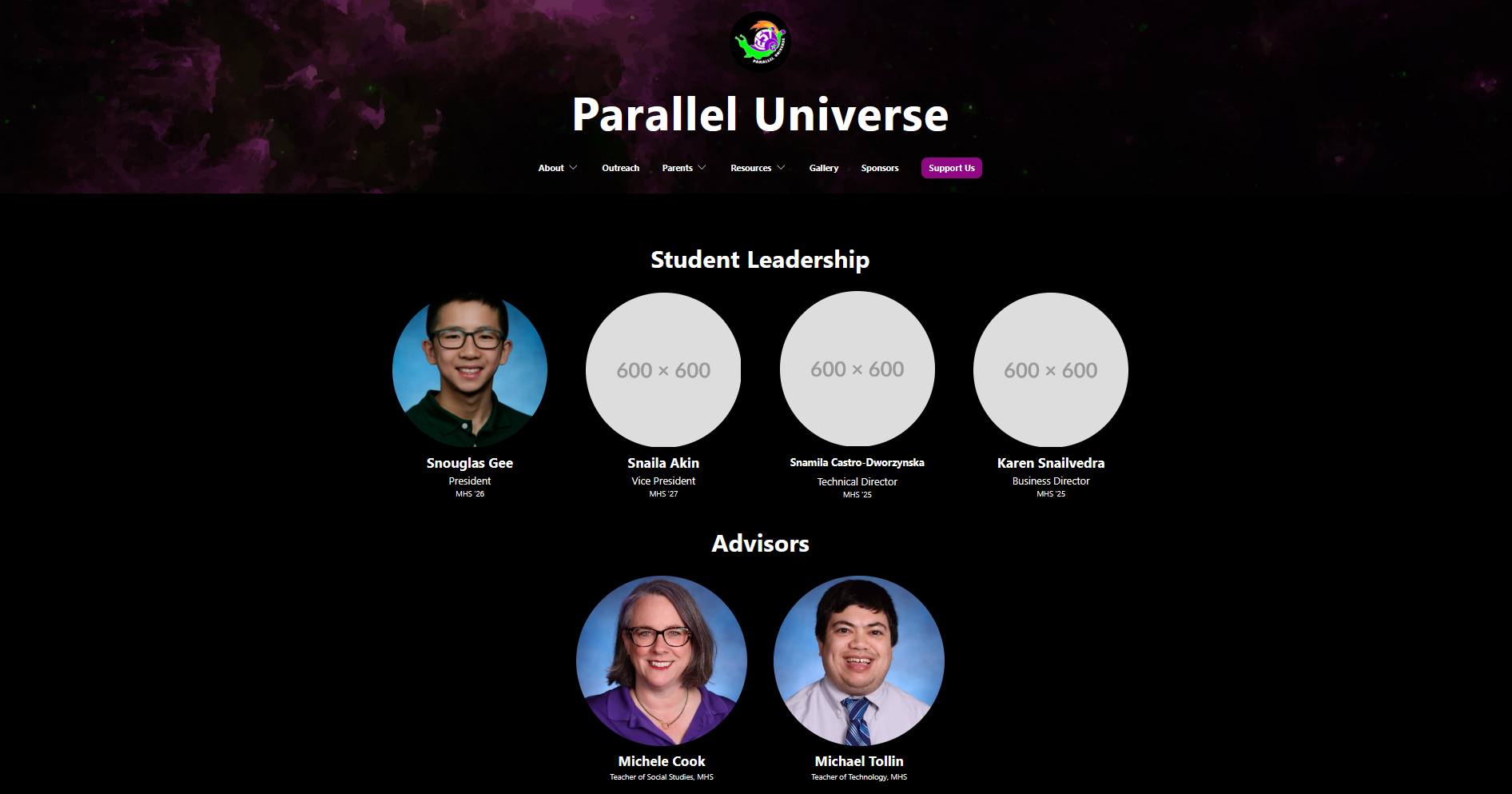
Great job, you're almost done! This is what it should look like so far (zoomed out):
In real life, you'd of course actually continue by adding everyone else in leadership.
## Team Photo
Once we take our team photo, you'll need to add that in too.
Let's say the new photo is named `photo2526.jpg` for the 2025-2026 season. Put that photo into `public/pics/`.
Locate `Leadership.tsx` in `pages/` and find the following lines:
```tsx
// UPDATE BELOW
import teamphoto from "../../public/pics/photo2425.jpg";
const Leadership: React.FC = () => {
return (
{/* code omitted */}
{/* UPDATE BELOW */}
2024-2025 Team Photo

);
};
```
For the 2025-2026 season, this is what it should look like after changing everything commented as `UPDATE BELOW`.
```tsx
// UPDATE BELOW
import teamphoto from "../../public/pics/photo2526.jpg";
const Leadership: React.FC = () => {
return (
{/* code omitted */}
{/* UPDATE BELOW */}
2025-2026 Team Photo
);
};
```
## More on Formatting
If for some reason the formatting of Student Leadership is still odd, you might need to take a look at `leadership.css` in `pages/`.
```css
.grid-layout {
display: grid;
align-items: center;
grid-template-columns: repeat(auto-fit, minmax(250px, 1fr));
grid-gap: 5rem;
}
```
`grid-layout`, which is the only class in here, determines the grid size. Trying changing the first value of `minmax(250px, 1fr)` until you get something that works.
# Detailed Breakdown
This section is a work in progress.
This file exports `leadership`, which is an array of objects of the interface `LeadershipProfileProps`:
```ts
// from LeaderProfile.tsx
interface LeaderProfileProps {
name: string;
position?: string;
schoolgrade?: string;
image: string;
fontsize?: string;
}
export type LeaderProfilePropsList = LeaderProfileProps[];
```
`leadership` can take as many `LeaderProfileProps` objects as needed, which accommodates for the varying number of leadership positions each year.