 Assembly Workbench
## Introduction
(v1.0)
The
Assembly Workbench
## Introduction
(v1.0)
The 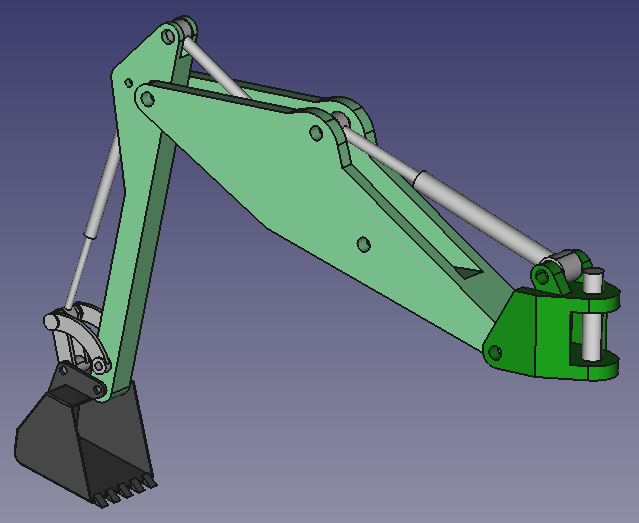 ## Tools
### Assembly
-
## Tools
### Assembly
-  Insert:
-
Insert:
-  [Insert a new part](Assembly_InsertNewPart.md): inserts a new Part.
-
[Insert a new part](Assembly_InsertNewPart.md): inserts a new Part.
-  [Solve Assembly](Assembly_SolveAssembly.md): solves the currently active assembly.
-
[Solve Assembly](Assembly_SolveAssembly.md): solves the currently active assembly.
-  [Create Exploded View](Assembly_CreateView.md): creates an exploded views container in the active assembly that contains one or more exploded views.
-
[Create Exploded View](Assembly_CreateView.md): creates an exploded views container in the active assembly that contains one or more exploded views.
-  [Create Simulation](Assembly_CreateSimulation.md): creates a simulation of the current assembly. (v1.1)
-
[Create Simulation](Assembly_CreateSimulation.md): creates a simulation of the current assembly. (v1.1)
-  [Create Bill of Materials](Assembly_CreateBom.md): creates a bill of materials (BOM) from a selected assembly or from the document.
-
[Create Bill of Materials](Assembly_CreateBom.md): creates a bill of materials (BOM) from a selected assembly or from the document.
-  [Export ASMT File](Assembly_ExportASMT.md): exports the currently active assembly as an ASMT file.
### Joints
-
[Export ASMT File](Assembly_ExportASMT.md): exports the currently active assembly as an ASMT file.
### Joints
-  [Create a Fixed Joint](Assembly_CreateJointFixed.md): creates a joint locking two assembly parts together, preventing any movement or rotation but can be also used to define other types of joints.
-
[Create a Fixed Joint](Assembly_CreateJointFixed.md): creates a joint locking two assembly parts together, preventing any movement or rotation but can be also used to define other types of joints.
-  [Create Ball Joint](Assembly_CreateJointBall.md): creates a spherical joint between two selected parts at a single point, allowing free rotation around the point while keeping both parts connected at this point.
-
[Create Ball Joint](Assembly_CreateJointBall.md): creates a spherical joint between two selected parts at a single point, allowing free rotation around the point while keeping both parts connected at this point.
-  [Create Distance Joint](Assembly_CreateJointDistance.md): creates a distance joint between two selected parts, fixing the distance between both parts.
-
[Create Distance Joint](Assembly_CreateJointDistance.md): creates a distance joint between two selected parts, fixing the distance between both parts.
-  [Create Parallel Joint](Assembly_CreateJointParallel.md): creates a parallel joint between two selected parts, setting the Z axes of selected coordinate systems parallel.
-
[Create Parallel Joint](Assembly_CreateJointParallel.md): creates a parallel joint between two selected parts, setting the Z axes of selected coordinate systems parallel.
-  [Create Perpendicular Joint](Assembly_CreateJointPerpendicular.md): creates a perpendicular joint between two selected parts, setting the Z axes of selected coordinate systems perpendicular.
-
[Create Perpendicular Joint](Assembly_CreateJointPerpendicular.md): creates a perpendicular joint between two selected parts, setting the Z axes of selected coordinate systems perpendicular.
-  [Create Angle Joint](Assembly_CreateJointAngle.md): creates an angle joint between two selected parts, fixing the angle between the Z axes of selected coordinate systems.
-
[Create Angle Joint](Assembly_CreateJointAngle.md): creates an angle joint between two selected parts, fixing the angle between the Z axes of selected coordinate systems.
-  [Create Rack and Pinion Joint](Assembly_CreateJointRackPinion.md): creates a rack and pinion joint that couples the translation of a part of a slider joint and the rotation of a part of a revolute joint.
-
[Create Rack and Pinion Joint](Assembly_CreateJointRackPinion.md): creates a rack and pinion joint that couples the translation of a part of a slider joint and the rotation of a part of a revolute joint.
-  [Create Screw Joint](Assembly_CreateJointScrew.md): creates a screw (helical) joint that couples the translation of a part of a slider joint and the rotation of a part of a revolute joint.
-
[Create Screw Joint](Assembly_CreateJointScrew.md): creates a screw (helical) joint that couples the translation of a part of a slider joint and the rotation of a part of a revolute joint.
- 
 [Create Belt Joint](Assembly_CreateJointBelt.md): creates a belt joint that couples the rotation of two parts of two different revolute joints.
## Preferences
-
[Create Belt Joint](Assembly_CreateJointBelt.md): creates a belt joint that couples the rotation of two parts of two different revolute joints.
## Preferences
-  [Preferences](Assembly_Preferences.md): preferences for the Assembly workbench.
## Example crank and slider
[Preferences](Assembly_Preferences.md): preferences for the Assembly workbench.
## Example crank and slider
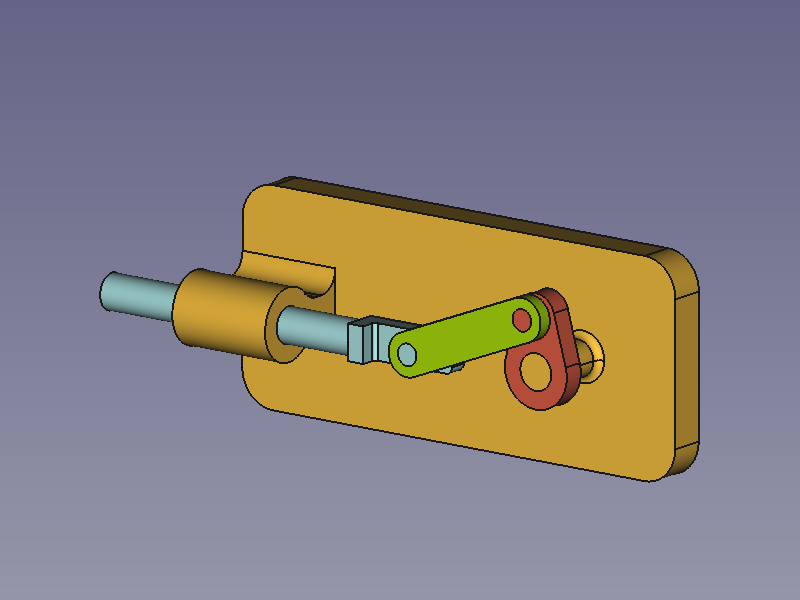 This example is temporary and may be removed once proper descriptions/tutorials are available.
### Crank and slider assembly
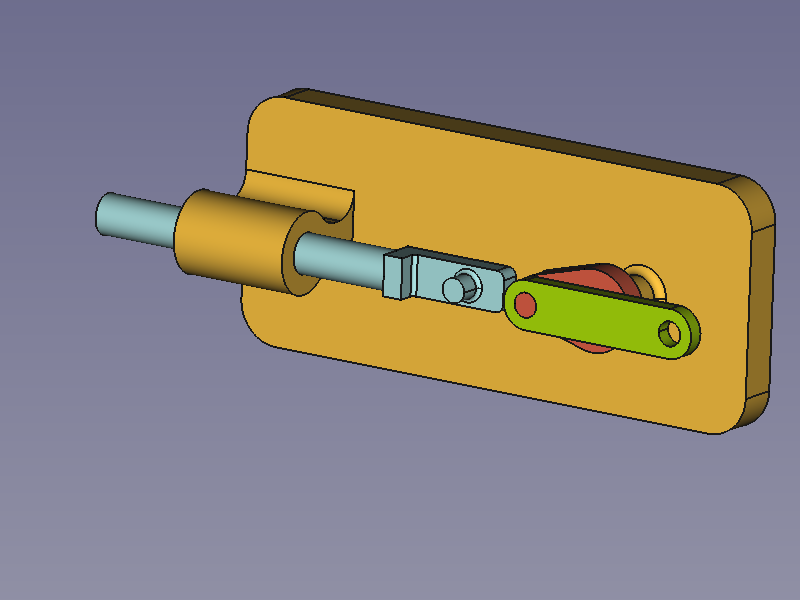
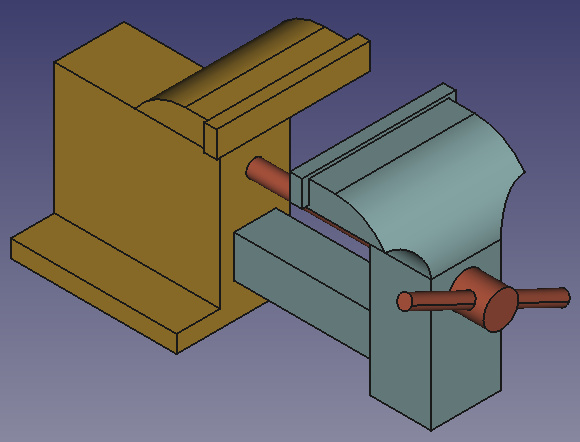
The assembly to be created consists of four parts: a Base, a Slider Rod, a Crank, and a Connecting Rod. They are connected with four joints.
*Assembled parts: Base (amber), Slider Rod (light blue), Crank (red), Connecting Rod (green)*
### Prepare parts
In this example all parts and the assembly are created in one document.
The cylindrical geometries of the objects are either parallel or perpendicular, the rest of the shapes is not relevant for this example unless there are clashes. With this in mind you can model your own objects or create them with the Python code below. The code will create a new document with the four objects (simpler than in the images). Just copy-paste the following lines in the [Python console](Python_console.md):
```python
import FreeCAD as App
import FreeCADGui as Gui
import Part
doc = App.newDocument()
box1 = Part.makeBox(140, 40, 7, App.Vector(0, -20, 0))
cyl1 = Part.makeCylinder(4, 8, App.Vector(120, 0, 7))
box2 = Part.makeBox(20, 12, 10, App.Vector(5, -6, 7))
cyl2 = Part.makeCylinder(6, 20, App.Vector(25, 0, 17), App.Vector(-1, 0, 0))
cyl3 = Part.makeCylinder(4, 20, App.Vector(25, 0, 17), App.Vector(-1, 0, 0))
shape = box1.fuse([cyl1, box2, cyl2]).removeSplitter().cut(cyl3)
base = doc.addObject("Part::Feature", "Base")
base.Shape = shape
box1 = Part.makeBox(4, 12, 12, App.Vector(-12, -6, 0))
box2 = Part.makeBox(14, 12, 4, App.Vector(-8, -6, 0))
cyl1 = Part.makeCylinder(4, 8, App.Vector(0, 0, 4))
cyl2 = Part.makeCylinder(4, 88, App.Vector(-12, 0, 6),App.Vector(-1, 0, 0))
shape = box1.fuse([box2, cyl1, cyl2]).removeSplitter()
slider_rod = doc.addObject("Part::Feature", "SliderRod")
slider_rod.Shape = shape
slider_rod.Placement.Base = App.Vector(100, -40, 0)
cyl1 = Part.makeCylinder(7.5, 4)
box1 = Part.makeBox(15, 30, 4, App.Vector(-7.5, 0, 0))
cyl2 = Part.makeCylinder(7.5, 4, App.Vector(0, 30, 0))
cyl3 = Part.makeCylinder(4, 6, App.Vector(0, 30, 4))
cyl4 = Part.makeCylinder(4, 4)
shape = cyl1.fuse([box1, cyl2]).removeSplitter().fuse(cyl3).cut(cyl4)
crank = doc.addObject("Part::Feature", "Crank")
crank.Shape = shape
crank.Placement.Base = App.Vector(125, -70, 0)
cyl1 = Part.makeCylinder(6, 4)
box1 = Part.makeBox(50, 12, 4, App.Vector(0, -6, 0))
cyl2 = Part.makeCylinder(6, 4, App.Vector(50, 0, 0))
cyl3 = Part.makeCylinder(4, 4)
cyl4 = Part.makeCylinder(4, 4, App.Vector(50, 0, 0))
shape = cyl1.fuse([box1, cyl2]).removeSplitter().cut(cyl3.fuse(cyl4))
connecting_rod = doc.addObject("Part::Feature", "ConnectingRod")
connecting_rod.Shape = shape
connecting_rod.Placement.Base = App.Vector(25, -70, 0)
mat = base.ViewObject.ShapeAppearance[0]
mat.DiffuseColor = (0.80, 0.60, 0.15, 0.0)
base.ViewObject.ShapeAppearance = (mat,)
mat = slider_rod.ViewObject.ShapeAppearance[0]
mat.DiffuseColor = (0.55, 0.70, 0.70, 0.0)
slider_rod.ViewObject.ShapeAppearance = (mat,)
mat = crank.ViewObject.ShapeAppearance[0]
mat.DiffuseColor = (0.70, 0.30, 0.20, 0.0)
crank.ViewObject.ShapeAppearance = (mat,)
mat = connecting_rod.ViewObject.ShapeAppearance[0]
mat.DiffuseColor = (0.55, 0.70, 0.0, 0.0)
connecting_rod.ViewObject.ShapeAppearance = (mat,)
doc.recompute()
view = Gui.ActiveDocument.ActiveView
view.viewIsometric()
view.fitAll()
```
### Add an assembly
With the  [Create Assembly](Assembly_CreateAssembly.md) tool add an assembly to the document.
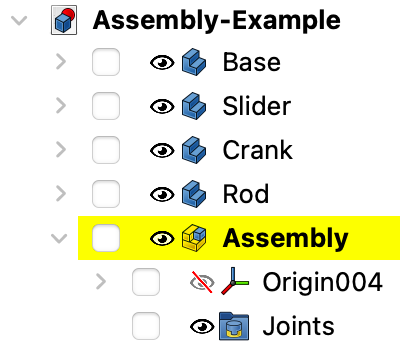 *Tree view of Parts and Assembly*
### Move the parts into the assembly
In the [Tree view](Tree_view.md) drag and drop the parts on the Assembly object. They can now be handled by the Assembly\'s solver.
*Tree view of Parts and Assembly*
### Move the parts into the assembly
In the [Tree view](Tree_view.md) drag and drop the parts on the Assembly object. They can now be handled by the Assembly\'s solver.
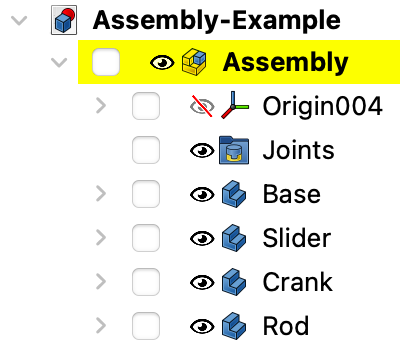 *The Parts are in the Assembly container now*
### Ground a part
To keep the assembly at the desired position, the base part should be locked, or grounded as it is called here. Select the Base in the [Tree view](Tree_view.md) or in the [3D view](3D_view.md) and use the
*The Parts are in the Assembly container now*
### Ground a part
To keep the assembly at the desired position, the base part should be locked, or grounded as it is called here. Select the Base in the [Tree view](Tree_view.md) or in the [3D view](3D_view.md) and use the  [Toggle grounded](Assembly_ToggleGrounded.md) tool. This fixes the position of the Base in relation to the local coordinate system (LCS) of the Assembly container. A GroundedJoint object is added to the Joints container.
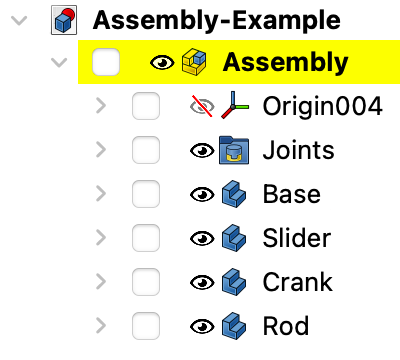

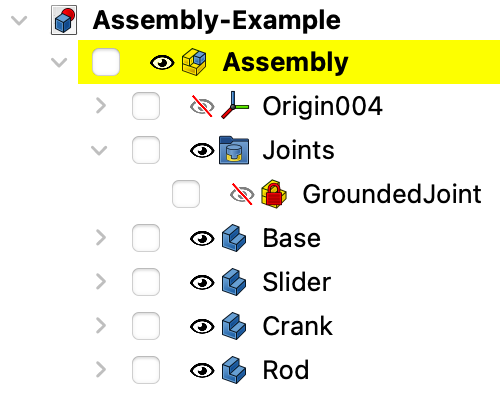 *Expand the Joints container to find the GroundedJoint object*
### Alternative: Insert Link
Instead of the two steps mentioned above it is also possible to use the
*Expand the Joints container to find the GroundedJoint object*
### Alternative: Insert Link
Instead of the two steps mentioned above it is also possible to use the  [Insert Link](Assembly_InsertLink.md) tool to place objects inside an assembly. The first object automatically becomes the grounded part. So you need to start with the Base object. The tool creates links and the original objects remain outside the assembly. To avoid confusion it is advisable to make them invisible.
### Apply joints
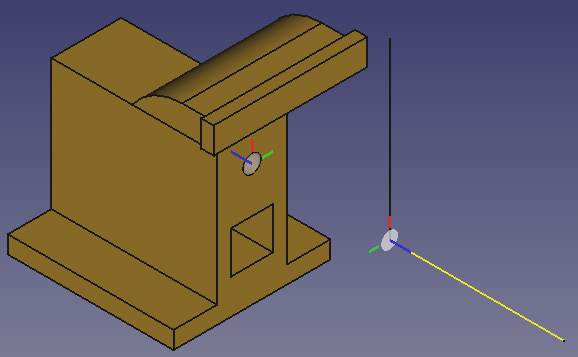
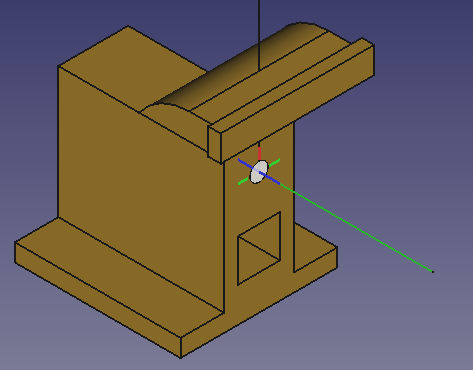
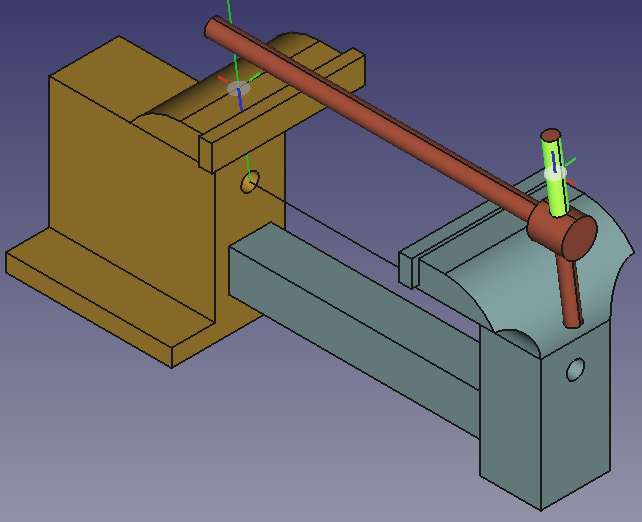
A joint connects exactly two elements of different parts. They can optionally be selected before the desired joint tool is invoked (any number of selected elements other than two results in an empty selection). The elements define the position and orientation of a LCS represented by a filled circle on the local XY plane and three lines along the local X (red), Y (green), and Z (blue) axes.
- A Revolute joint between Base and Crank
[Insert Link](Assembly_InsertLink.md) tool to place objects inside an assembly. The first object automatically becomes the grounded part. So you need to start with the Base object. The tool creates links and the original objects remain outside the assembly. To avoid confusion it is advisable to make them invisible.
### Apply joints
A joint connects exactly two elements of different parts. They can optionally be selected before the desired joint tool is invoked (any number of selected elements other than two results in an empty selection). The elements define the position and orientation of a LCS represented by a filled circle on the local XY plane and three lines along the local X (red), Y (green), and Z (blue) axes.
- A Revolute joint between Base and Crank
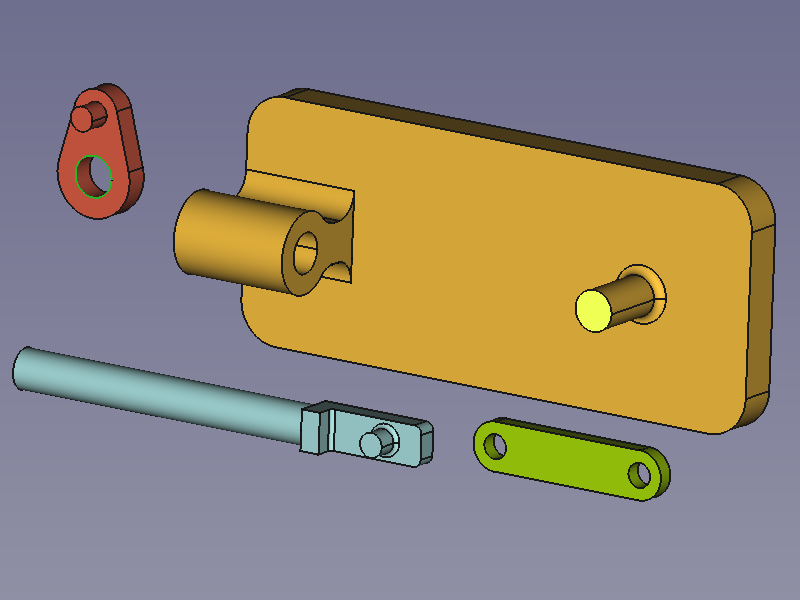
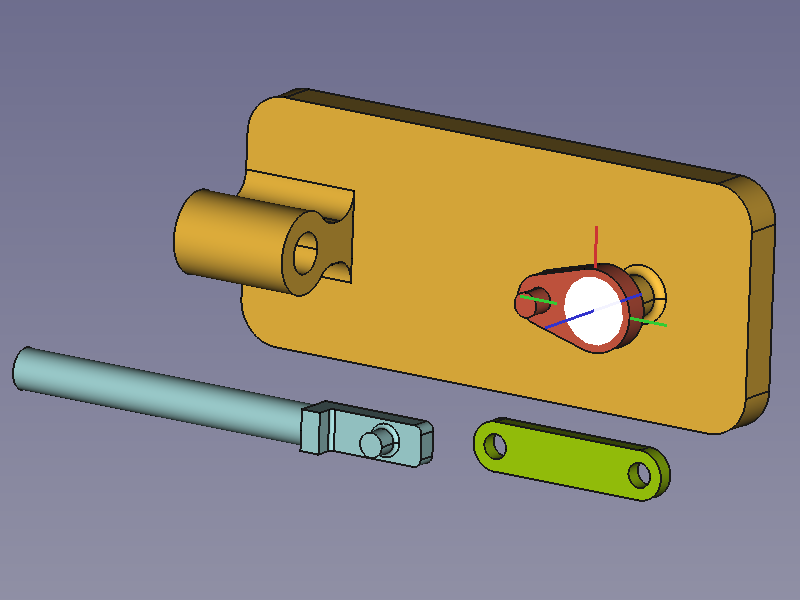 *Selected elements +
  [Create Revolute Joint](Assembly_CreateJointRevolute.md) → rearranged Crank*
Move the **Crank** using the left mouse button. Only a rotation around the pivot should be possible.
- A Slider joint between Base and Slider Rod
[Create Revolute Joint](Assembly_CreateJointRevolute.md) → rearranged Crank*
Move the **Crank** using the left mouse button. Only a rotation around the pivot should be possible.
- A Slider joint between Base and Slider Rod
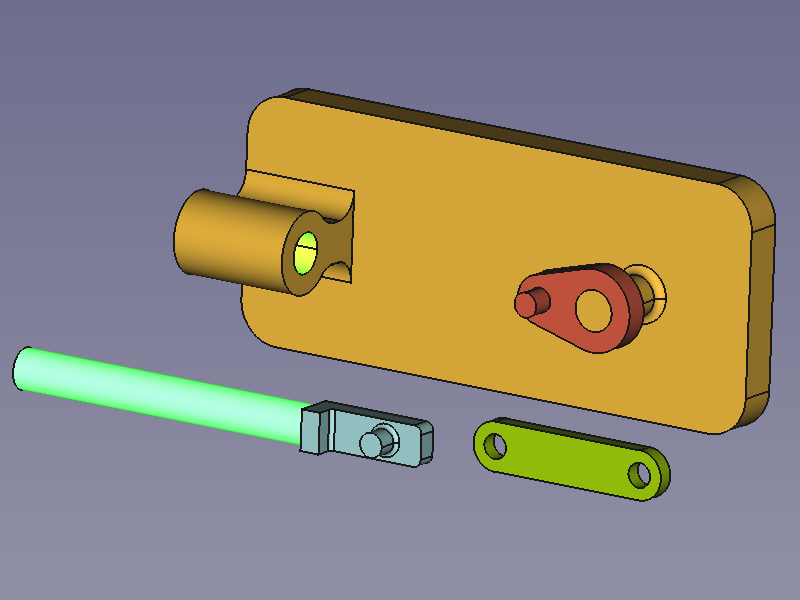
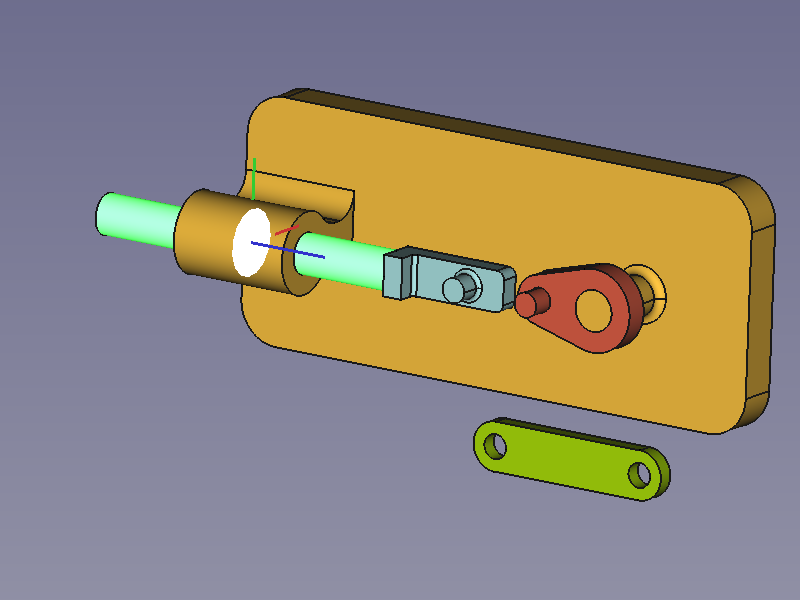 *Selected elements +
  [Create Slider Joint](Assembly_CreateJointSlider.md) → rearranged Slider Rod*
Move the **SliderRod** using the left mouse button. Only a displacement along its centerline should be possible.
- A Revolute joint between Crank and Connecting Rod
[Create Slider Joint](Assembly_CreateJointSlider.md) → rearranged Slider Rod*
Move the **SliderRod** using the left mouse button. Only a displacement along its centerline should be possible.
- A Revolute joint between Crank and Connecting Rod
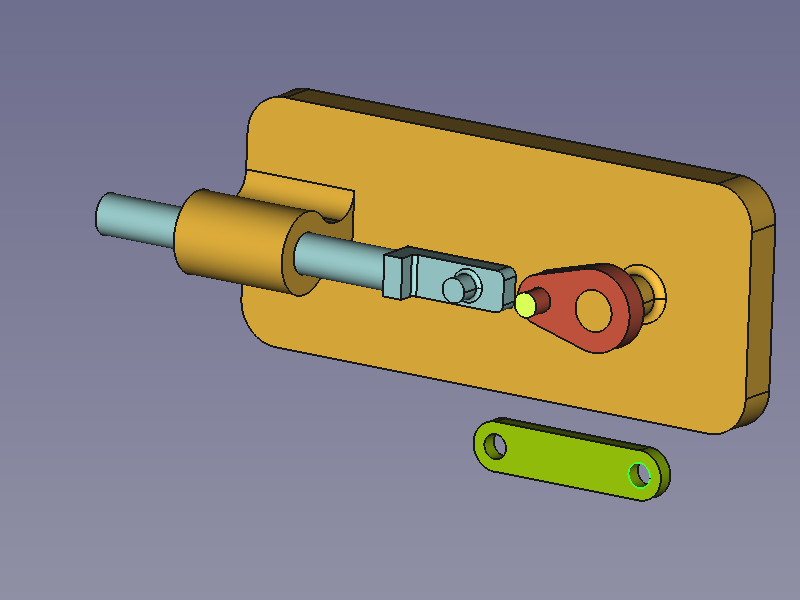
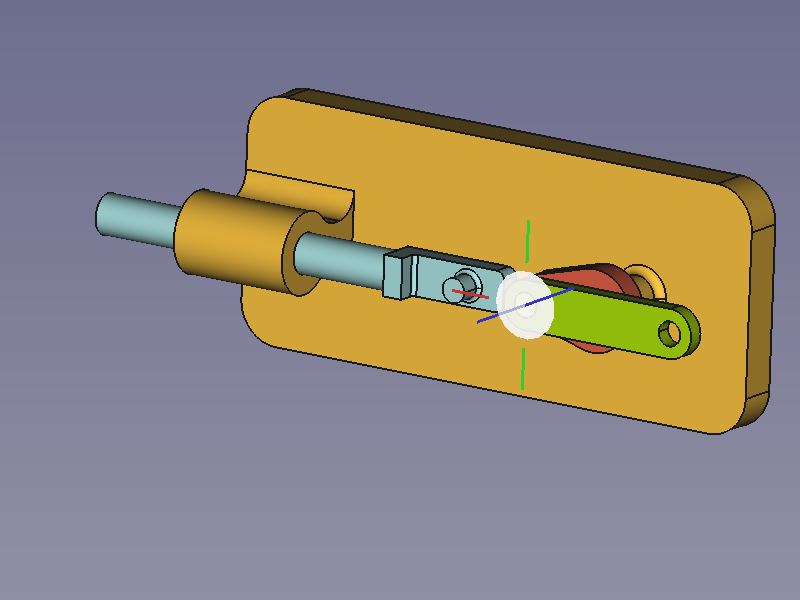 *Selected elements + [Create Revolute Joint](Assembly_CreateJointRevolute.md) → rearranged Connecting Rod*
Move the **ConnectingRod** using the left mouse button. Only a rotation around the pivot should be possible.
*Selected elements + [Create Revolute Joint](Assembly_CreateJointRevolute.md) → rearranged Connecting Rod*
Move the **ConnectingRod** using the left mouse button. Only a rotation around the pivot should be possible.
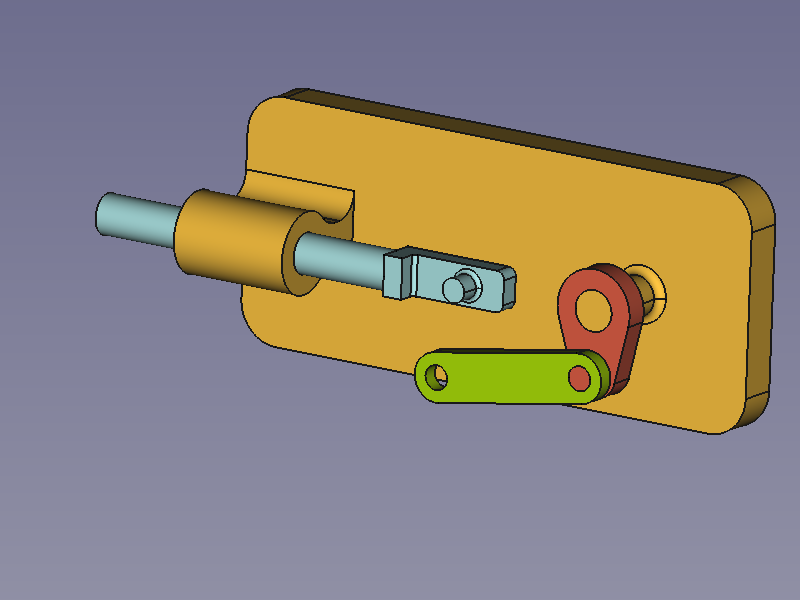 *If there are several joints in a line we have to help the solver find a sensible solution.
If required, click and drag the parts into an easier to compute position.* - A Cylindrical joint between Connecting Rod and Slider Rod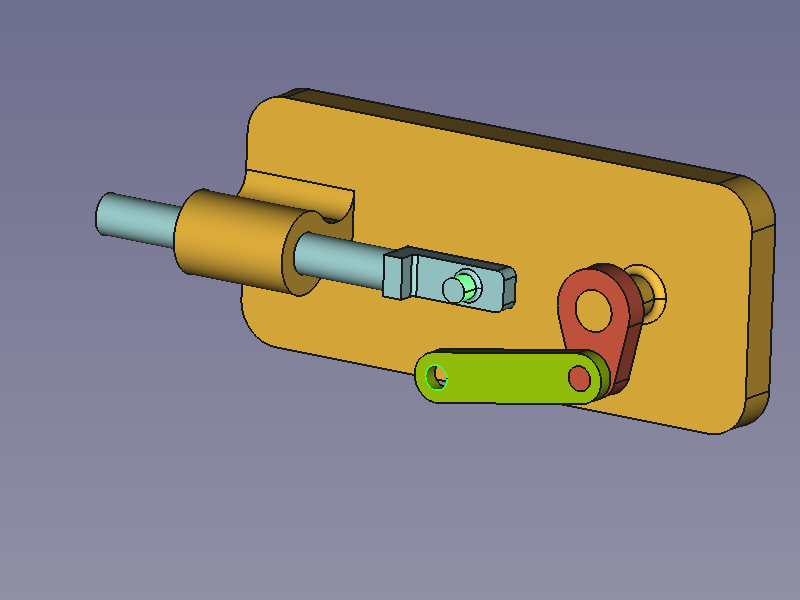
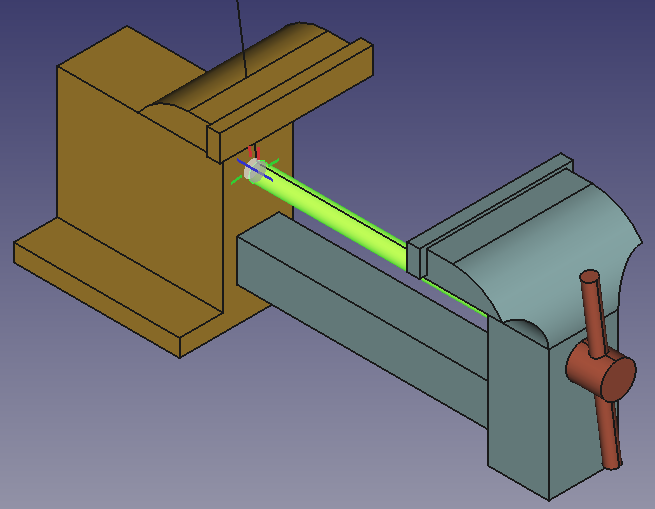
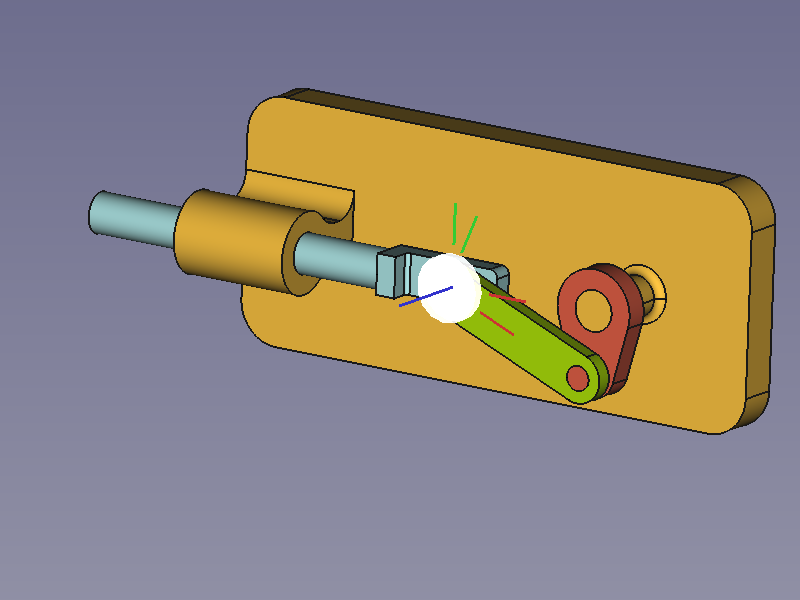 *Selected elements +
  [Create Cylindrical Joint](Assembly_CreateJointCylindrical.md) → finished Assembly*
In the finished assembly use the mouse pointer to drag the parts according to the used joints.
#### Note
The pin of the Slider Rod is redundantly orientated. Its centerline is parallel to the pin of the Base through the kinematic chain from Base via Crank and Connecting Rod, i.e. its local Z axis cannot rotate around any X or Y axis. The Slider joint also prevents the rotation of its Z axis around two local axes and so results in two redundantly constrained degrees of freedom. A Cylindrical joint instead of the Slider joint would only lock one rotation resulting in only a single redundantly constrained degree of freedom.
### Drive the crank
To control the layout of the assembly by the angle between the Base and the Crank we have to change the Revolute joint between them to a Fixed joint. To do so double-click the Revolute object in the Tree view. In the dialog change Revolute to Fixed and change the Rotation value as desired (the movement should follow the mouse wheel action).
Note that a joint type change will change the joint\'s Label, but not its Name. In this case the Label is changed to \"Fixed\".
To animate the assembly we can change the Rotation (Offset1.Angle) of the Fixed joint with Python code. Just copy-paste the following lines in the Python console:
```python
import math
import FreeCAD as App
import FreeCADGui as Gui
actuator = App.ActiveDocument.getObjectsByLabel("Fixed")[0]
for angle in range(0, 361, 10):
# A full rotation of the Crank in steps of 10°
actuator.Offset1.Rotation.Angle = math.radians(angle)
App.ActiveDocument.recompute()
Gui.updateGui()
```
The end of the range must be greater than 360 to also include this angle as a valid result.
[Create Cylindrical Joint](Assembly_CreateJointCylindrical.md) → finished Assembly*
In the finished assembly use the mouse pointer to drag the parts according to the used joints.
#### Note
The pin of the Slider Rod is redundantly orientated. Its centerline is parallel to the pin of the Base through the kinematic chain from Base via Crank and Connecting Rod, i.e. its local Z axis cannot rotate around any X or Y axis. The Slider joint also prevents the rotation of its Z axis around two local axes and so results in two redundantly constrained degrees of freedom. A Cylindrical joint instead of the Slider joint would only lock one rotation resulting in only a single redundantly constrained degree of freedom.
### Drive the crank
To control the layout of the assembly by the angle between the Base and the Crank we have to change the Revolute joint between them to a Fixed joint. To do so double-click the Revolute object in the Tree view. In the dialog change Revolute to Fixed and change the Rotation value as desired (the movement should follow the mouse wheel action).
Note that a joint type change will change the joint\'s Label, but not its Name. In this case the Label is changed to \"Fixed\".
To animate the assembly we can change the Rotation (Offset1.Angle) of the Fixed joint with Python code. Just copy-paste the following lines in the Python console:
```python
import math
import FreeCAD as App
import FreeCADGui as Gui
actuator = App.ActiveDocument.getObjectsByLabel("Fixed")[0]
for angle in range(0, 361, 10):
# A full rotation of the Crank in steps of 10°
actuator.Offset1.Rotation.Angle = math.radians(angle)
App.ActiveDocument.recompute()
Gui.updateGui()
```
The end of the range must be greater than 360 to also include this angle as a valid result.
*Assembled parts: Base (amber), Slider Rod (light blue), Crank (red), Connecting Rod (green)*
### Prepare parts
In this example all parts and the assembly are created in one document.
The cylindrical geometries of the objects are either parallel or perpendicular, the rest of the shapes is not relevant for this example unless there are clashes. With this in mind you can model your own objects or create them with the Python code below. The code will create a new document with the four objects (simpler than in the images). Just copy-paste the following lines in the [Python console](Python_console.md):
```python
import FreeCAD as App
import FreeCADGui as Gui
import Part
doc = App.newDocument()
box1 = Part.makeBox(140, 40, 7, App.Vector(0, -20, 0))
cyl1 = Part.makeCylinder(4, 8, App.Vector(120, 0, 7))
box2 = Part.makeBox(20, 12, 10, App.Vector(5, -6, 7))
cyl2 = Part.makeCylinder(6, 20, App.Vector(25, 0, 17), App.Vector(-1, 0, 0))
cyl3 = Part.makeCylinder(4, 20, App.Vector(25, 0, 17), App.Vector(-1, 0, 0))
shape = box1.fuse([cyl1, box2, cyl2]).removeSplitter().cut(cyl3)
base = doc.addObject("Part::Feature", "Base")
base.Shape = shape
box1 = Part.makeBox(4, 12, 12, App.Vector(-12, -6, 0))
box2 = Part.makeBox(14, 12, 4, App.Vector(-8, -6, 0))
cyl1 = Part.makeCylinder(4, 8, App.Vector(0, 0, 4))
cyl2 = Part.makeCylinder(4, 88, App.Vector(-12, 0, 6),App.Vector(-1, 0, 0))
shape = box1.fuse([box2, cyl1, cyl2]).removeSplitter()
slider_rod = doc.addObject("Part::Feature", "SliderRod")
slider_rod.Shape = shape
slider_rod.Placement.Base = App.Vector(100, -40, 0)
cyl1 = Part.makeCylinder(7.5, 4)
box1 = Part.makeBox(15, 30, 4, App.Vector(-7.5, 0, 0))
cyl2 = Part.makeCylinder(7.5, 4, App.Vector(0, 30, 0))
cyl3 = Part.makeCylinder(4, 6, App.Vector(0, 30, 4))
cyl4 = Part.makeCylinder(4, 4)
shape = cyl1.fuse([box1, cyl2]).removeSplitter().fuse(cyl3).cut(cyl4)
crank = doc.addObject("Part::Feature", "Crank")
crank.Shape = shape
crank.Placement.Base = App.Vector(125, -70, 0)
cyl1 = Part.makeCylinder(6, 4)
box1 = Part.makeBox(50, 12, 4, App.Vector(0, -6, 0))
cyl2 = Part.makeCylinder(6, 4, App.Vector(50, 0, 0))
cyl3 = Part.makeCylinder(4, 4)
cyl4 = Part.makeCylinder(4, 4, App.Vector(50, 0, 0))
shape = cyl1.fuse([box1, cyl2]).removeSplitter().cut(cyl3.fuse(cyl4))
connecting_rod = doc.addObject("Part::Feature", "ConnectingRod")
connecting_rod.Shape = shape
connecting_rod.Placement.Base = App.Vector(25, -70, 0)
mat = base.ViewObject.ShapeAppearance[0]
mat.DiffuseColor = (0.80, 0.60, 0.15, 0.0)
base.ViewObject.ShapeAppearance = (mat,)
mat = slider_rod.ViewObject.ShapeAppearance[0]
mat.DiffuseColor = (0.55, 0.70, 0.70, 0.0)
slider_rod.ViewObject.ShapeAppearance = (mat,)
mat = crank.ViewObject.ShapeAppearance[0]
mat.DiffuseColor = (0.70, 0.30, 0.20, 0.0)
crank.ViewObject.ShapeAppearance = (mat,)
mat = connecting_rod.ViewObject.ShapeAppearance[0]
mat.DiffuseColor = (0.55, 0.70, 0.0, 0.0)
connecting_rod.ViewObject.ShapeAppearance = (mat,)
doc.recompute()
view = Gui.ActiveDocument.ActiveView
view.viewIsometric()
view.fitAll()
```
### Add an assembly
With the [Create Assembly](Assembly_CreateAssembly.md) tool add an assembly to the document.
*Tree view of Parts and Assembly*
### Move the parts into the assembly
In the [Tree view](Tree_view.md) drag and drop the parts on the Assembly object. They can now be handled by the Assembly\'s solver.
*The Parts are in the Assembly container now*
### Ground a part
To keep the assembly at the desired position, the base part should be locked, or grounded as it is called here. Select the Base in the [Tree view](Tree_view.md) or in the [3D view](3D_view.md) and use the [Toggle grounded](Assembly_ToggleGrounded.md) tool. This fixes the position of the Base in relation to the local coordinate system (LCS) of the Assembly container. A GroundedJoint object is added to the Joints container.
*Expand the Joints container to find the GroundedJoint object*
### Alternative: Insert Link
Instead of the two steps mentioned above it is also possible to use the [Insert Link](Assembly_InsertLink.md) tool to place objects inside an assembly. The first object automatically becomes the grounded part. So you need to start with the Base object. The tool creates links and the original objects remain outside the assembly. To avoid confusion it is advisable to make them invisible.
### Apply joints
A joint connects exactly two elements of different parts. They can optionally be selected before the desired joint tool is invoked (any number of selected elements other than two results in an empty selection). The elements define the position and orientation of a LCS represented by a filled circle on the local XY plane and three lines along the local X (red), Y (green), and Z (blue) axes.
- A Revolute joint between Base and Crank
*Selected elements + [Create Revolute Joint](Assembly_CreateJointRevolute.md) → rearranged Crank*
Move the **Crank** using the left mouse button. Only a rotation around the pivot should be possible.
- A Slider joint between Base and Slider Rod
*Selected elements + [Create Slider Joint](Assembly_CreateJointSlider.md) → rearranged Slider Rod*
Move the **SliderRod** using the left mouse button. Only a displacement along its centerline should be possible.
- A Revolute joint between Crank and Connecting Rod
*Selected elements + [Create Revolute Joint](Assembly_CreateJointRevolute.md) → rearranged Connecting Rod*
Move the **ConnectingRod** using the left mouse button. Only a rotation around the pivot should be possible.
*If there are several joints in a line we have to help the solver find a sensible solution.If required, click and drag the parts into an easier to compute position.* - A Cylindrical joint between Connecting Rod and Slider Rod
*Selected elements + [Create Cylindrical Joint](Assembly_CreateJointCylindrical.md) → finished Assembly*
In the finished assembly use the mouse pointer to drag the parts according to the used joints.
#### Note
The pin of the Slider Rod is redundantly orientated. Its centerline is parallel to the pin of the Base through the kinematic chain from Base via Crank and Connecting Rod, i.e. its local Z axis cannot rotate around any X or Y axis. The Slider joint also prevents the rotation of its Z axis around two local axes and so results in two redundantly constrained degrees of freedom. A Cylindrical joint instead of the Slider joint would only lock one rotation resulting in only a single redundantly constrained degree of freedom.
### Drive the crank
To control the layout of the assembly by the angle between the Base and the Crank we have to change the Revolute joint between them to a Fixed joint. To do so double-click the Revolute object in the Tree view. In the dialog change Revolute to Fixed and change the Rotation value as desired (the movement should follow the mouse wheel action).
Note that a joint type change will change the joint\'s Label, but not its Name. In this case the Label is changed to \"Fixed\".
To animate the assembly we can change the Rotation (Offset1.Angle) of the Fixed joint with Python code. Just copy-paste the following lines in the Python console:
```python
import math
import FreeCAD as App
import FreeCADGui as Gui
actuator = App.ActiveDocument.getObjectsByLabel("Fixed")[0]
for angle in range(0, 361, 10):
# A full rotation of the Crank in steps of 10°
actuator.Offset1.Rotation.Angle = math.radians(angle)
App.ActiveDocument.recompute()
Gui.updateGui()
```
The end of the range must be greater than 360 to also include this angle as a valid result.
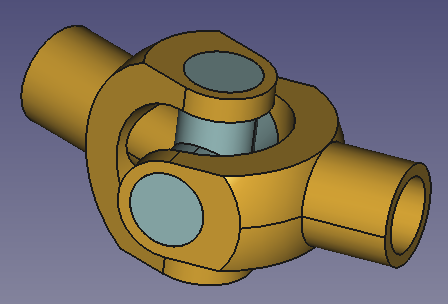 This example is temporary and may be removed once proper descriptions/tutorials are available.
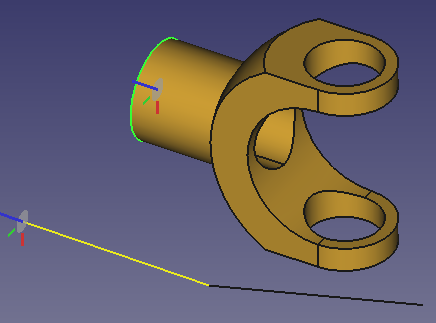
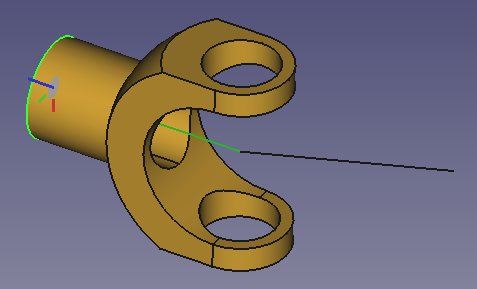 *Selected elements +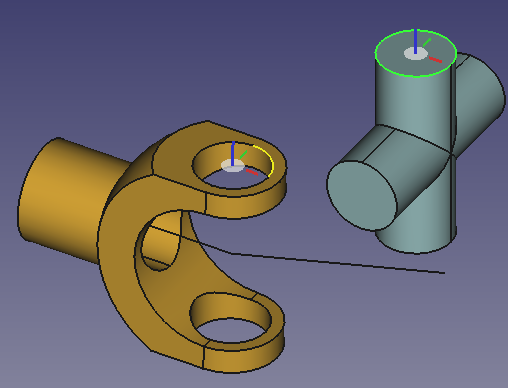
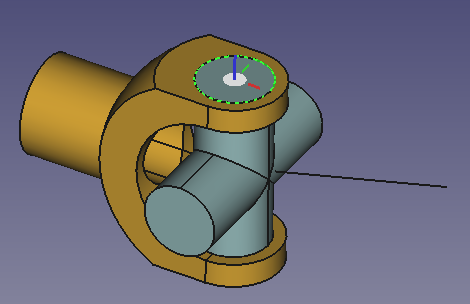 *Selected elements +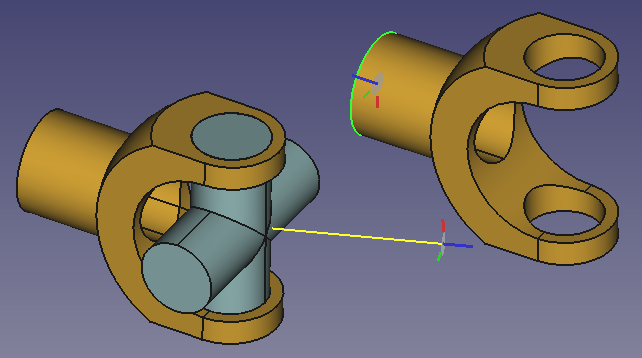
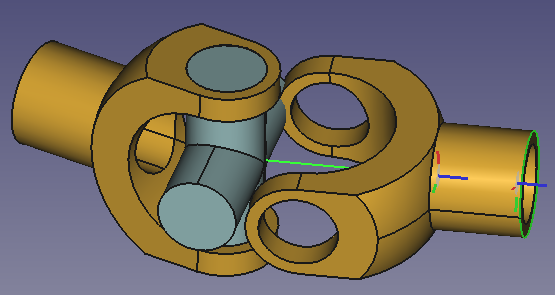 *Selected elements +
  ** button in the task panel.
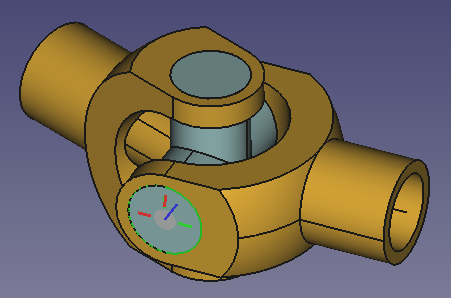
- A Cylindrical joint between Cross001 and Fork002
** button in the task panel.
- A Cylindrical joint between Cross001 and Fork002
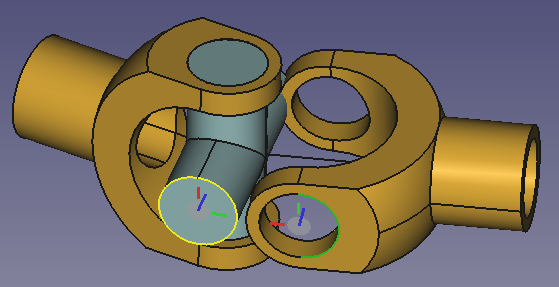
 *Selected elements +
  This example is temporary and may be removed once proper descriptions/tutorials are available.
 *Selected elements +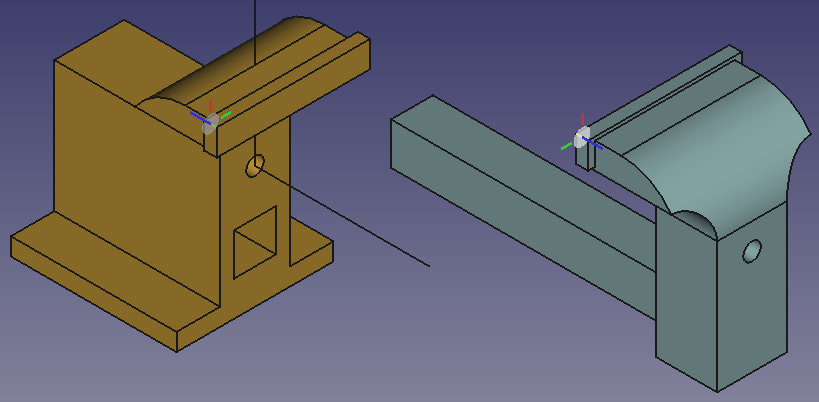
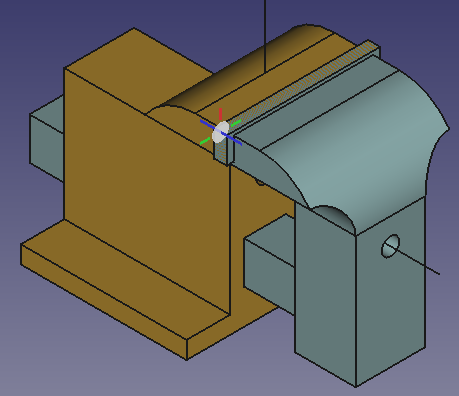 *Selected elements +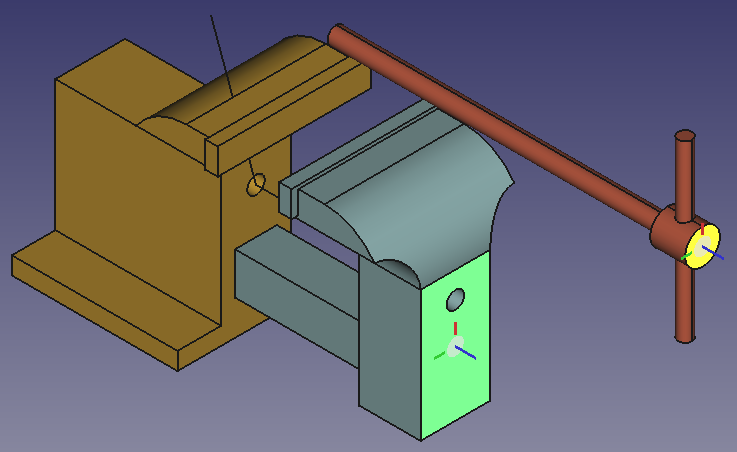
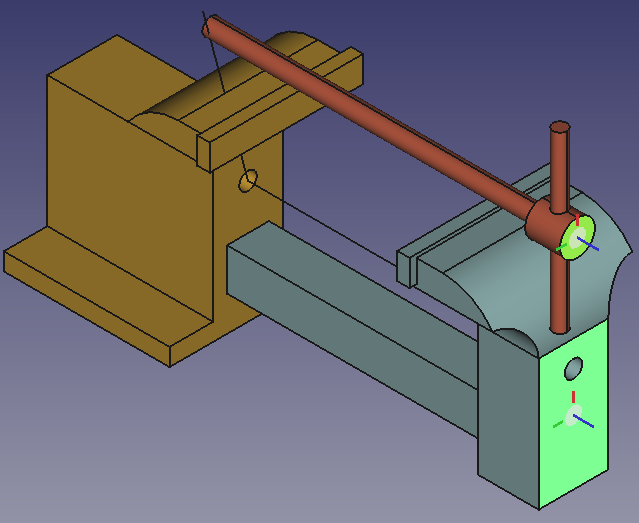 *Selected elements +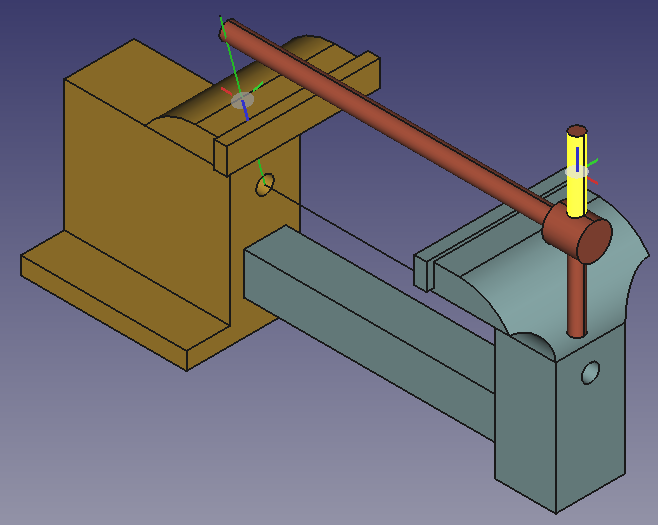
 *Selected elements +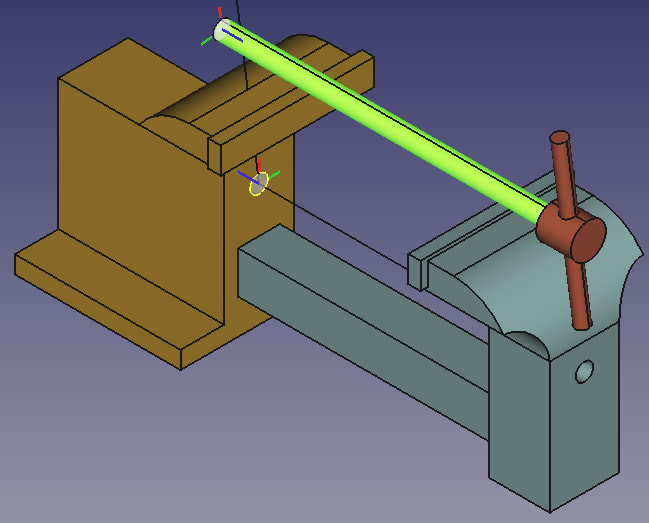
 *Selected elements +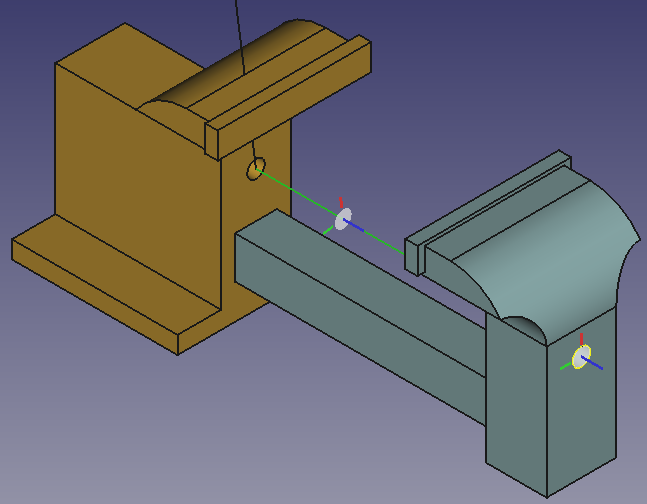
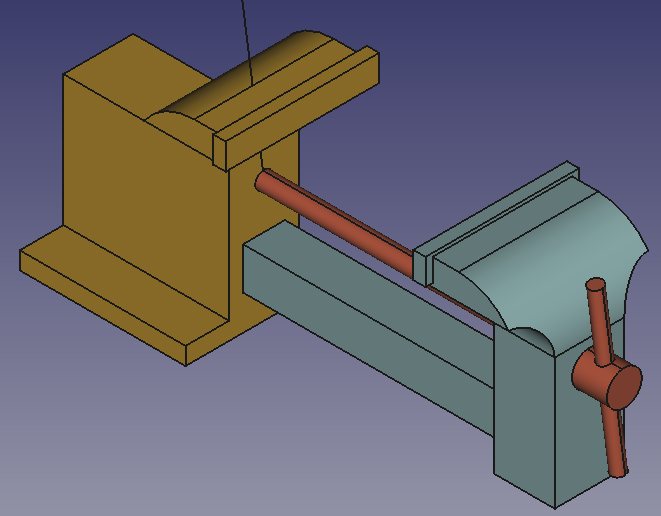 *Selected elements (LeverScrew invisible) +
  This example is temporary and may be removed once proper descriptions/tutorials are available.
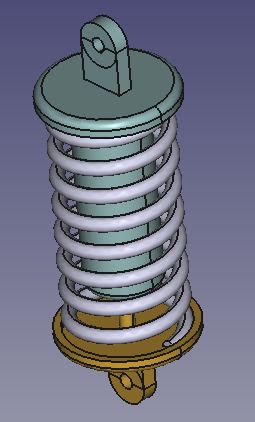
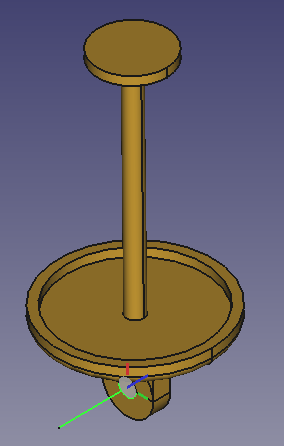
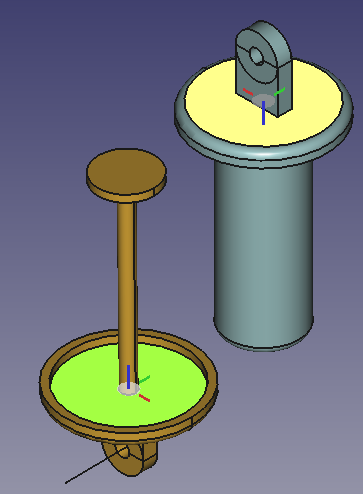
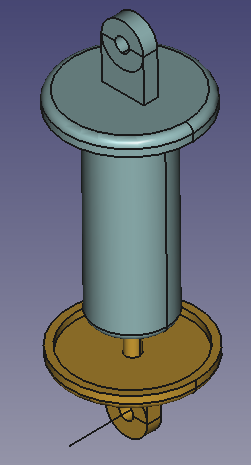
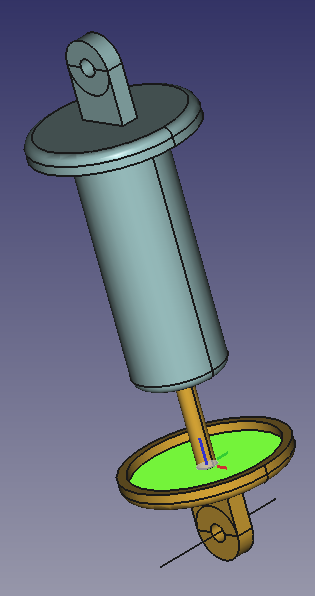
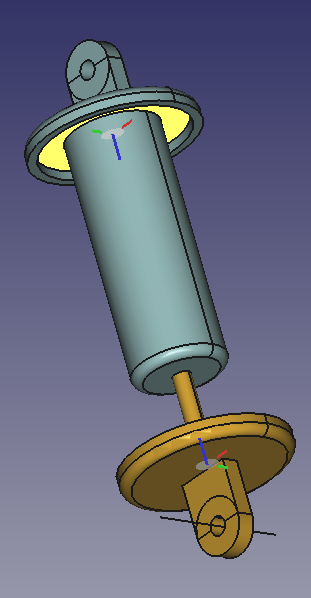
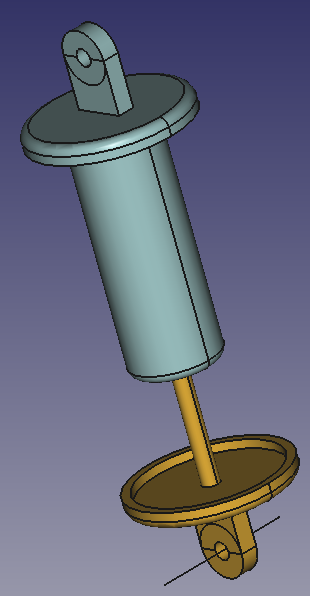
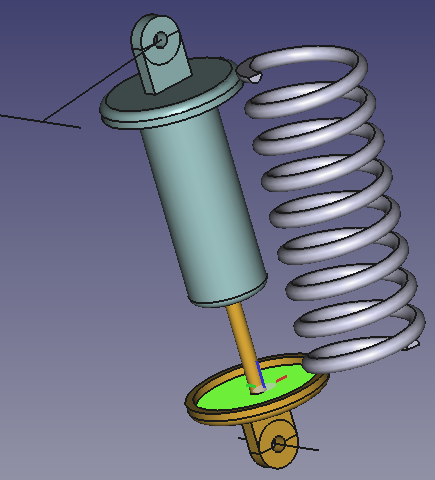
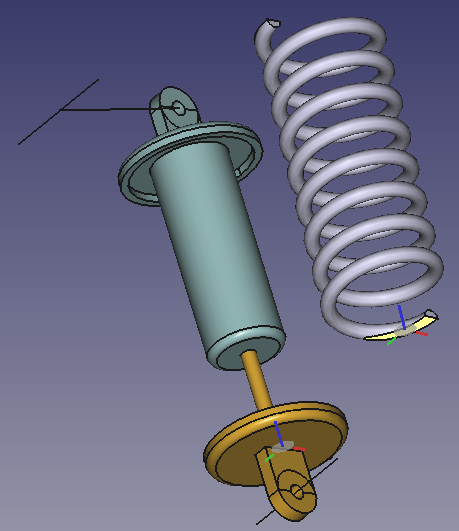
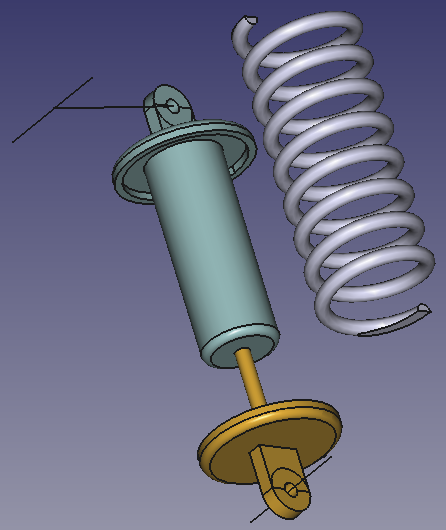
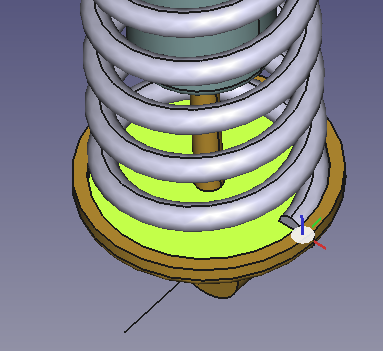
 In this example a [shock absorber](https://en.wikipedia.org/wiki/Shock_absorber) is created.
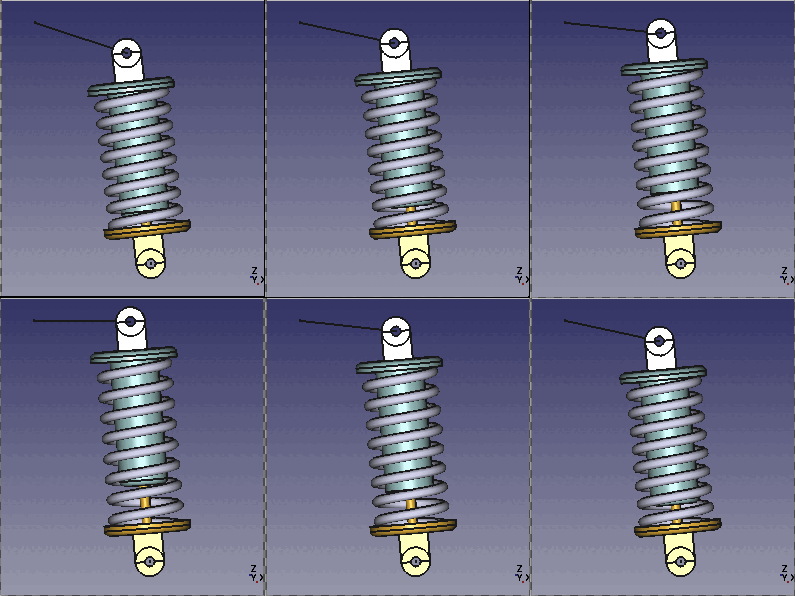
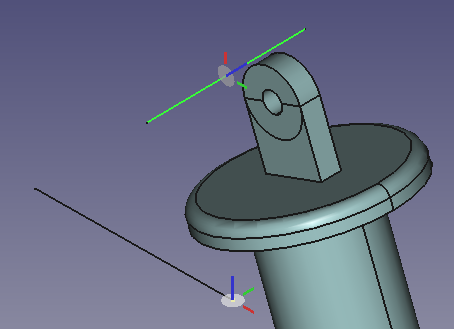
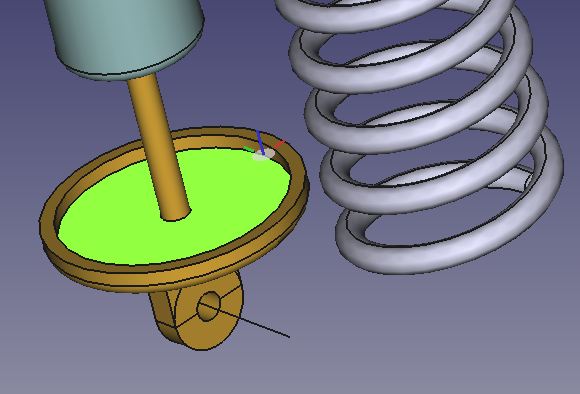
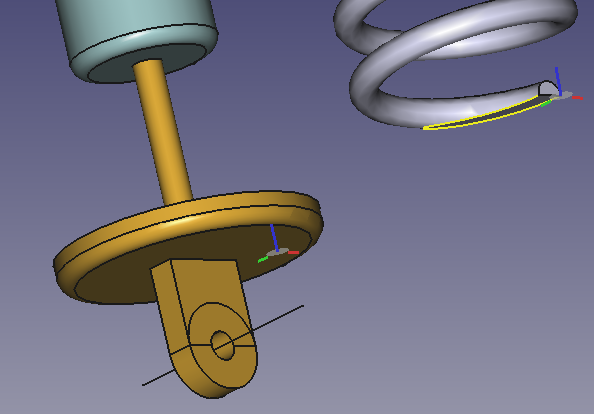
The assembly consists of three solid parts: a piston, a cylinder and a spring. Three additional non solid elements, two axles and a rod are also needed. All parts are connected with several joints.
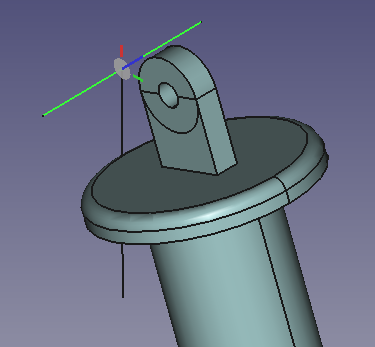
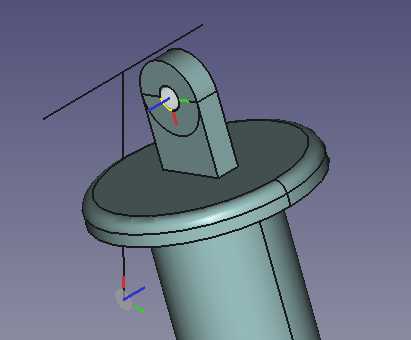
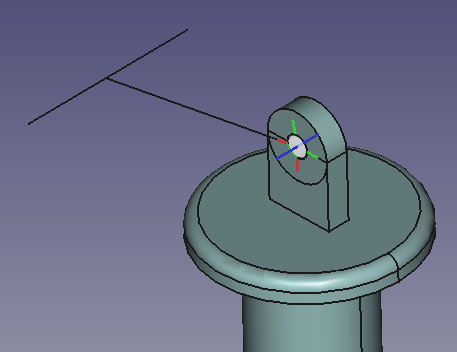
The hinge of the piston rotates around Axle2, while the hinge of the cylinder moves on an arc of circle centered on Axle1. The non solid Rod is used for this movement. The length of the Rod is the radius of the arc.
### Prepare parts
The Python code below will create a new document with 6 objects. Create a new [macro](Macros.md) and copy-paste the code below in the Python editor (not in the Python console). Then [run the macro](Std_DlgMacroExecuteDirect.md).
The code below cannot be run from the Python console because the spring must be a [Part::FeaturePython](App_FeaturePython.md) object defined by of a class with the callback functions {{Incode|execute()}} and {{Incode|onChanged()}}. Only then can its height be changed via a property.
```python
import math
import FreeCAD as App
import FreeCADGui as Gui
import Part
doc = App.newDocument()
class Spring():
def __init__(self, spring):
spring.addProperty("App::PropertyLength", "Height", "Spring", "Height of the helix").Height = 200.0
spring.Proxy = self
spring.ViewObject.Proxy = 0
def execute(self, spring):
helix = Part.makeHelix(spring.Height/8.5, spring.Height, 35)
startPnt = helix.Edges[0].Curve.value(0)
section = Part.Wire([Part.Circle(startPnt, App.Vector(0, 1, 0), 5).toShape()])
hel1 = helix.makePipeShell([section], True, True)
box1 = Part.makeBox(80, 80, 10, App.Vector(-40, -40, -10))
box2 = Part.makeBox(80, 80, 10, App.Vector(-40, -40, spring.Height))
shape = hel1.cut(box1).cut(box2)
spring.Shape = shape
def onChanged(self, spring, prop):
if prop == "Height":
self.execute(spring)
spring = doc.addObject("Part::FeaturePython", "Spring")
Spring(spring)
spring.Placement.Base = App.Vector(0, 100, 0)
axle1 = doc.addObject("Part::Line", "Axle1")
axle1.X2 = 0
axle1.Y2 = 80
axle1.Z2 = 0
axle2 = doc.addObject("Part::Line", "Axle2")
axle2.X2 = 0
axle2.Y2 = 80
axle2.Z2 = 0
axle2.Placement.Base = App.Vector(120, 0, -250)
rod = doc.addObject("Part::Line", "Rod")
rod.X2 = 100
rod.Y2 = 0
rod.Z2 = 0
rod.Placement.Base = App.Vector(0, -50, 0)
cyl1 = Part.makeCylinder(40, 10,App.Vector(0, 0, -5))
tor1 = Part.makeTorus(40, 5)
cyl2 = Part.makeCylinder(45, 5)
box1 = Part.makeBox(30, 10, 30,App.Vector(-15, -5, -35))
cyl3 = Part.makeCylinder(15, 10, App.Vector(0, -5, -35), App.Vector(0, 1, 0))
cyl4 = Part.makeCylinder(40, 5)
cyl5 = Part.makeCylinder(5, 10,App.Vector(0, -5, -35), App.Vector(0, 1, 0))
cyl6 = Part.makeCylinder(5, 130)
cyl7 = Part.makeCylinder(20, 5,App.Vector(0, 0, 130))
shape = cyl1.fuse([tor1,cyl2, box1, cyl3]).cut(cyl4.fuse([cyl5])).fuse([cyl6, cyl7])
piston = doc.addObject("Part::Feature", "Piston")
piston.Shape = shape.removeSplitter()
piston.Placement.Base = App.Vector(200, 100, -200)
cyl1 = Part.makeCylinder(40, 10,App.Vector(0, 0, -5))
tor1 = Part.makeTorus(40, 5)
cyl2 = Part.makeCylinder(45, 5)
box1 = Part.makeBox(30, 10, 30,App.Vector(-15, -5, -35))
cyl3 = Part.makeCylinder(15, 10,App.Vector(0, -5, -35), App.Vector(0, 1, 0))
cyl4 = Part.makeCylinder(40, 5)
cyl5 = Part.makeCylinder(5, 10,App.Vector(0, -5, -35), App.Vector(0, 1, 0))
cyl6 = Part.makeCylinder(25, 130)
tor2 = Part.makeTorus(20, 5,App.Vector(0, 0, 130))
cyl7 = Part.makeCylinder(20, 135)
cyl8 = Part.makeCylinder(20, 130)
cyl9 = Part.makeCylinder(5, 135)
shape = cyl1.fuse([tor1, cyl2, box1, cyl3]).cut(cyl4.fuse([cyl5])).fuse([cyl6, tor2, cyl7]).cut(cyl8.fuse([cyl9]))
cylinder = doc.addObject("Part::Feature", "Cylinder")
cylinder.Shape = shape.removeSplitter()
cylinder.Placement.Rotation.Axis = App.Vector(0, 1, 0)
cylinder.Placement.Rotation.Angle = math.pi
cylinder.Placement.Base = App.Vector(100, 100, 0)
mat = piston.ViewObject.ShapeAppearance[0]
mat.DiffuseColor = (0.80, 0.60, 0.15, 0.0)
piston.ViewObject.ShapeAppearance = (mat,)
mat = cylinder.ViewObject.ShapeAppearance[0]
mat.DiffuseColor = (0.55, 0.70, 0.70, 0.0)
cylinder.ViewObject.ShapeAppearance = (mat,)
doc.recompute()
view = Gui.ActiveDocument.ActiveView
view.viewIsometric()
view.fitAll()
```
### Add an assembly
With the
In this example a [shock absorber](https://en.wikipedia.org/wiki/Shock_absorber) is created.
The assembly consists of three solid parts: a piston, a cylinder and a spring. Three additional non solid elements, two axles and a rod are also needed. All parts are connected with several joints.
The hinge of the piston rotates around Axle2, while the hinge of the cylinder moves on an arc of circle centered on Axle1. The non solid Rod is used for this movement. The length of the Rod is the radius of the arc.
### Prepare parts
The Python code below will create a new document with 6 objects. Create a new [macro](Macros.md) and copy-paste the code below in the Python editor (not in the Python console). Then [run the macro](Std_DlgMacroExecuteDirect.md).
The code below cannot be run from the Python console because the spring must be a [Part::FeaturePython](App_FeaturePython.md) object defined by of a class with the callback functions {{Incode|execute()}} and {{Incode|onChanged()}}. Only then can its height be changed via a property.
```python
import math
import FreeCAD as App
import FreeCADGui as Gui
import Part
doc = App.newDocument()
class Spring():
def __init__(self, spring):
spring.addProperty("App::PropertyLength", "Height", "Spring", "Height of the helix").Height = 200.0
spring.Proxy = self
spring.ViewObject.Proxy = 0
def execute(self, spring):
helix = Part.makeHelix(spring.Height/8.5, spring.Height, 35)
startPnt = helix.Edges[0].Curve.value(0)
section = Part.Wire([Part.Circle(startPnt, App.Vector(0, 1, 0), 5).toShape()])
hel1 = helix.makePipeShell([section], True, True)
box1 = Part.makeBox(80, 80, 10, App.Vector(-40, -40, -10))
box2 = Part.makeBox(80, 80, 10, App.Vector(-40, -40, spring.Height))
shape = hel1.cut(box1).cut(box2)
spring.Shape = shape
def onChanged(self, spring, prop):
if prop == "Height":
self.execute(spring)
spring = doc.addObject("Part::FeaturePython", "Spring")
Spring(spring)
spring.Placement.Base = App.Vector(0, 100, 0)
axle1 = doc.addObject("Part::Line", "Axle1")
axle1.X2 = 0
axle1.Y2 = 80
axle1.Z2 = 0
axle2 = doc.addObject("Part::Line", "Axle2")
axle2.X2 = 0
axle2.Y2 = 80
axle2.Z2 = 0
axle2.Placement.Base = App.Vector(120, 0, -250)
rod = doc.addObject("Part::Line", "Rod")
rod.X2 = 100
rod.Y2 = 0
rod.Z2 = 0
rod.Placement.Base = App.Vector(0, -50, 0)
cyl1 = Part.makeCylinder(40, 10,App.Vector(0, 0, -5))
tor1 = Part.makeTorus(40, 5)
cyl2 = Part.makeCylinder(45, 5)
box1 = Part.makeBox(30, 10, 30,App.Vector(-15, -5, -35))
cyl3 = Part.makeCylinder(15, 10, App.Vector(0, -5, -35), App.Vector(0, 1, 0))
cyl4 = Part.makeCylinder(40, 5)
cyl5 = Part.makeCylinder(5, 10,App.Vector(0, -5, -35), App.Vector(0, 1, 0))
cyl6 = Part.makeCylinder(5, 130)
cyl7 = Part.makeCylinder(20, 5,App.Vector(0, 0, 130))
shape = cyl1.fuse([tor1,cyl2, box1, cyl3]).cut(cyl4.fuse([cyl5])).fuse([cyl6, cyl7])
piston = doc.addObject("Part::Feature", "Piston")
piston.Shape = shape.removeSplitter()
piston.Placement.Base = App.Vector(200, 100, -200)
cyl1 = Part.makeCylinder(40, 10,App.Vector(0, 0, -5))
tor1 = Part.makeTorus(40, 5)
cyl2 = Part.makeCylinder(45, 5)
box1 = Part.makeBox(30, 10, 30,App.Vector(-15, -5, -35))
cyl3 = Part.makeCylinder(15, 10,App.Vector(0, -5, -35), App.Vector(0, 1, 0))
cyl4 = Part.makeCylinder(40, 5)
cyl5 = Part.makeCylinder(5, 10,App.Vector(0, -5, -35), App.Vector(0, 1, 0))
cyl6 = Part.makeCylinder(25, 130)
tor2 = Part.makeTorus(20, 5,App.Vector(0, 0, 130))
cyl7 = Part.makeCylinder(20, 135)
cyl8 = Part.makeCylinder(20, 130)
cyl9 = Part.makeCylinder(5, 135)
shape = cyl1.fuse([tor1, cyl2, box1, cyl3]).cut(cyl4.fuse([cyl5])).fuse([cyl6, tor2, cyl7]).cut(cyl8.fuse([cyl9]))
cylinder = doc.addObject("Part::Feature", "Cylinder")
cylinder.Shape = shape.removeSplitter()
cylinder.Placement.Rotation.Axis = App.Vector(0, 1, 0)
cylinder.Placement.Rotation.Angle = math.pi
cylinder.Placement.Base = App.Vector(100, 100, 0)
mat = piston.ViewObject.ShapeAppearance[0]
mat.DiffuseColor = (0.80, 0.60, 0.15, 0.0)
piston.ViewObject.ShapeAppearance = (mat,)
mat = cylinder.ViewObject.ShapeAppearance[0]
mat.DiffuseColor = (0.55, 0.70, 0.70, 0.0)
cylinder.ViewObject.ShapeAppearance = (mat,)
doc.recompute()
view = Gui.ActiveDocument.ActiveView
view.viewIsometric()
view.fitAll()
```
### Add an assembly
With the 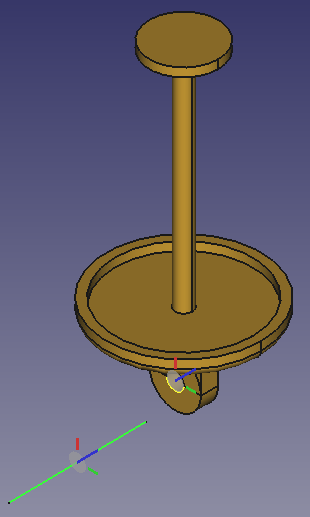
 *
*
 *
*

 *
*
 *
*
 *
*
 *
*
 *
* in the Height property field.
3. Enter in the expression editor: {{Incode|<
in the Height property field.
3. Enter in the expression editor: {{Incode|<