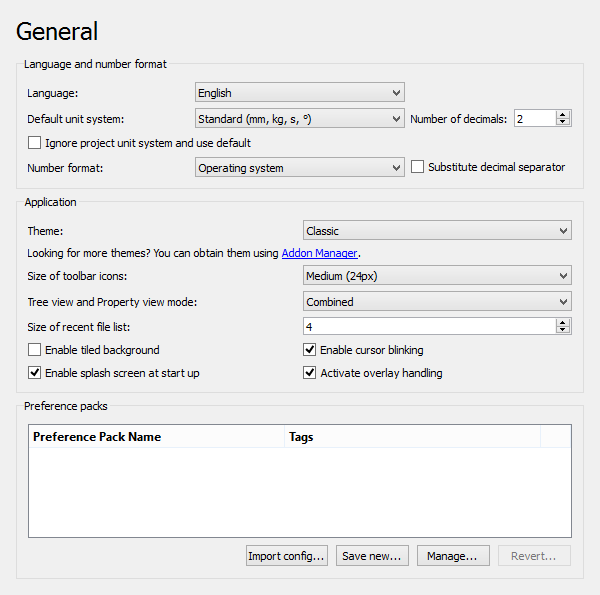
 On this page you can specify the following:
+++
| Name | Description |
+============================================================+======================================================================================================================================================================================================================================================================================================================================================================================================================================+
| | Language of the application\'s user interface. |
| **Language** | |
| | |
+++
| | Unit system for all parts of the application. (v1.0) : Used as the default for the [document unit system](Std_ProjectInfo.md) of new documents. The active document\'s unit system overrides the default unit system unless the next option is checked. |
| **Default unit system** | |
| | |
+++
| | If checked, project unit systems are ignored and do not override the default unit system. |
| **Ignore project unit system and use default** | |
| | |
| (v1.0) | |
+++
| | The number of decimals that should be shown for numbers and dimensions. |
| **Number of decimals** | |
| | |
+++
| | The minimum fractional inch that should be shown for numbers and dimensions. Only available for unit systems with fractional inches. |
| **Minimum fractional inch** | |
| | |
+++
| | Specifies the number format. The options are: |
| **Number format** | |
| | - **Operating system**: The decimal separator defined by the operating system is used. |
| | - **Selected language**: The decimal separator of the selected FreeCAD interface language is used. |
| | - **C/POSIX**: A point is used as the decimal separator. |
+++
| | If checked, the numerical keypad decimal separator will be substituted with the separator defined by the **Number format** setting. (v0.21) : Notice that if this preference is enabled, using the numerical keypad decimal separator will always print a dot/period in the [Python console](Python_console.md) and the [Macro editor](Std_DlgMacroExecute#Edit.md). |
| **Substitute decimal separator** | |
| | |
+++
| | Specifies a [theme](Interface_Customization#Themes.md) to customize the appearance of the user interface. |
| **Theme** | |
| | |
+++
| | Specifies the size of the toolbar icons. The options are: |
| **Size of toolbar icons** | |
| | - **Small (16px)** |
| | - **Medium (24px)** |
| | - **Large (32px)** |
| | - **Extra large (48px)** |
+++
| | Defines how the Tree view is shown in the user interface (restart required). The options are: |
| **Tree view and Property view mode** | |
| | - **Combined**: Combines the [Tree view](Tree_view.md) and the [Property view](Property_editor.md) into one [panel](Combo_view.md). |
| | - **Independent**: Splits the Tree view and the Property view into separate panels. |
+++
| | Specifies how many files should be listed in the recent files list. |
| **Size of recent file list** | |
| | Optionally, imported files can be excluded from this list, and exported files can be included. See [Fine-tuning](Fine-tuning.md). |
+++
| | If checked, the background of FreeCAD\'s main window will by default consist of tiles of this image:
 |
| **Enable tiled background** | |
| | This option only has an effect if no **Style sheet** is selected. |
| | |
| | The image can be changed by adding the folders **Gui/Images** in the folder: |
| | |
| | |
| | **[https://www.howtogeek.com/318177/what-is-the-appdata-folder-in-windows/ %APPDATA%]/FreeCAD** |
| | |
| | (on Windows), |
| | |
| | |
| | **$HOME/.FreeCAD** |
| | |
| | (on Linux) or |
| | |
| | |
| | **$HOME/Library/Preferences/FreeCAD** |
| | |
| | (on macOS). |
| | |
| | Place a file named **background.png** in the **Images** folder, and uncheck/check this option to see the changed file. |
+++
| | If checked, a splash screen is shown when starting FreeCAD. |
| **Enable splash screen at start up** | |
| | The splash screen image can be changed by placing a file named **splash_image.png** in the **Images** folder already mentioned under **Enable tiled background**. |
+++
| | If checked the text cursor in the [Python console](Python_console.md) and the [Macro editor](Std_DlgMacroExecute#Edit.md) will blink. |
| **Enable cursor blinking** | |
| | |
+++
| | If checked, docked windows can be handled as transparent overlays. |
| **Activate overlay handling** | |
| | |
| (v1.0) | |
+++
| | Lists the available [preference packs](Preference_Packs.md) and also allows you to import, save, manage and revert them. |
| **Preference packs** | |
| | |
+++
### Document
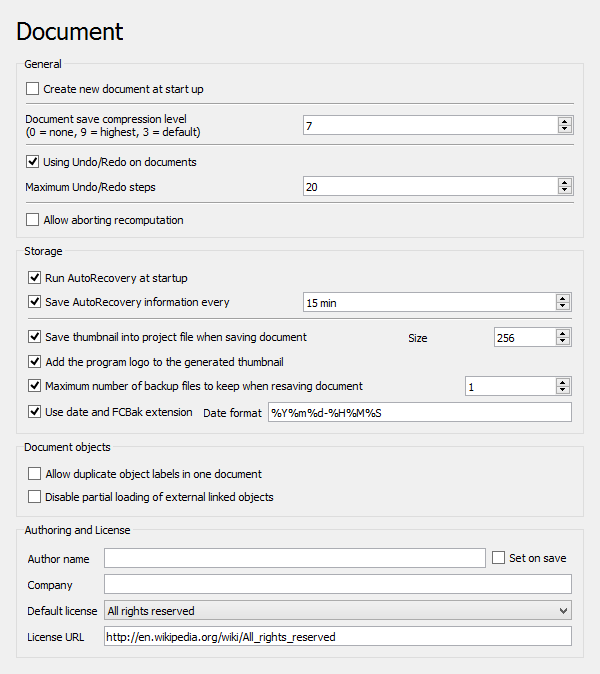 On this page you can specify the following:
+++
| Name | Description |
+===============================================================================+============================================================================================================================================================================================================================================================================================================================================================================================================================================================================================================================+
| | If checked, FreeCAD will create a new document when started. |
| **Create new document at start up** | |
| | |
+++
| | Specifies the compression level for **FCStd** files. **FCStd** files are ZIP-compressed files. Therefore you can rename their suffix **.FCStd** to **.zip** and open them with a ZIP archive program. |
| **Document save compression level** | |
| | |
+++
| | If checked, all changes in documents are stored so that they can be undone/redone. |
| **Using Undo/Redo on documents** | |
| | |
+++
| | Specifies how many Undo/Redo steps should be recorded. |
| **Maximum Undo/Redo steps** | |
| | |
+++
| | If checked, recomputations can be aborted by pressing **Esc**. This may slightly increase the recomputation time. |
| **Allow aborting recomputation** | |
| | |
+++
| | If there is a recovery file available FreeCAD will automatically run a file recovery when it is started. This way files can be restored if a crash occurred. |
| **Run AutoRecovery at startup** | |
| | |
+++
| | Specifies how often a recovery file is written. |
| **Save AutoRecovery information every** | |
| | |
+++
| | If checked, a thumbnail will be stored when the document is saved. The thumbnail will for example be shown in the list of recent files on the Start page. It is possible to select a **Size** between 128×128 and 512×512 pixels for the thumbnail. Common sizes are powers of two: 128, 256, 512. |
| **Save thumbnail into project file when saving document** | |
| | |
+++
| | If checked, the FreeCAD program logo  will be added to the thumbnail. |
| **Add the program logo to the generated thumbnail** | |
| | |
+++
| | If checked, backup files will be kept when saving the document. You can specify the number of backup files to keep. Backup files are previously saved versions of the document. |
| **Maximum number of backup files to keep when resaving document** | |
| | |
+++
| | If checked, backup files will get the extension **.FCbak** and their file names get a date suffix according to the specified **Date format**. For a description of the date format see [Date & time formats cheatsheet](https://devhints.io/datetime). With the default settings a backup file will for example get this name **TD-Cube.20200315-215654.FCBak** (original filename is **TD-Cube.FCStd**). |
| **Use date and FCBak extension** | |
| | |
+++
| | If checked, objects can have the same label. |
| **Allow duplicate object labels in one document** | |
| | |
+++
| | If partial loading of external linked objects is enabled, only the referenced objects and their dependencies will be loaded when the linked document is auto opened together with the main document. Such a partially loaded document cannot be edited. Double click the document icon in the tree view to reload it in full. A more detailed explanation of this feature can be found on the [Assembly3 documentation page](https://github.com/realthunder/FreeCAD_assembly3/wiki/Core-Changes#partial-document-loading). |
| **Disable partial loading of external linked objects** | |
| | |
+++
| | All created documents will get the specified author name. Keep the author field blank if you do not want to include this information. If the option **Set on save** is checked, the field **Last modified by** will be set to the specified author when saving the file. This field can be viewed using the **File → Project information** menu option. |
| **Author name** | |
| | |
+++
| | All created documents will get the specified company name. |
| **Company** | |
| | |
+++
| | Specifies the license for new documents. For predefined licenses the **License URL** will automatically be set accordingly. Select **Other** for a custom license. |
| **Default license** | |
| | |
+++
| | Specifies an URL describing the license selected in **Default license**. |
| **License URL** | |
| | |
+++
### Selection
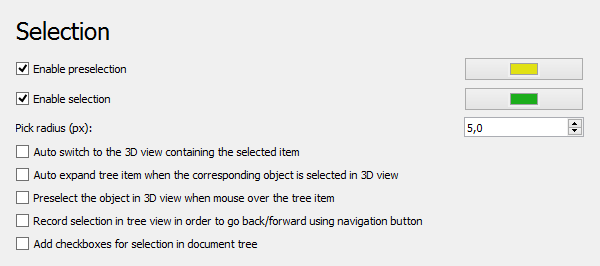 On this page you can specify the following:
+++
| Name | Description |
+===================================================================================================+=====================================================================================================================================================================================================================================================================+
| | If checked, [3D view](3D_view.md) preselection is turned on and the specified color will be used for it. Preselection means that for example edges of objects will be highlighted while hovering over them with the mouse to indicate they can be selected. |
| **Enable preselection** | |
| | |
+++
| | If checked, 3D view selection is turned on and the specified color is used for it. If not checked, objects can only be selected in the [Tree view](Tree_view.md). |
| **Enable selection** | |
| | Note that objects created while this option is not checked will have their **Selectable** property set to `False`. With that value they are not selectable in the 3D view, even if this option is checked again. |
+++
| | Sets the area for picking elements in the [3D view](3D_view.md). Larger value makes it easier to pick things, but can make some small features impossible to select. |
| **Pick radius (px)** | |
| | |
+++
| | Enables the [Tree view SyncView mode](Std_TreeSyncView.md). |
| **Auto switch to the 3D view containing the selected item** | |
| | |
+++
| | Enables the [Tree view SyncSelection mode](Std_TreeSyncSelection.md). |
| **Auto expand tree item when the corresponding object is selected in 3D view** | |
| | |
+++
| | Enables the [Tree view PreSelection mode](Std_TreePreSelection.md). |
| **Preselect the object in 3D view when mouse over the tree item** | |
| | |
+++
| | Enables the [Tree view RecordSelection mode](Std_TreeRecordSelection.md). |
| **Record selection in tree view in order to go back/forward using navigation button** | |
| | |
+++
| | Each [Tree view](Tree_view.md) item will get a checkbox. This is for example useful for selecting multiple items on a touchscreen. |
| **Add checkboxes for selection in document tree** | |
| | |
+++
### Cache
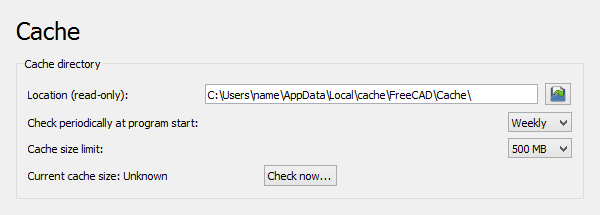 These preferences are related to the cache directory where FreeCAD stores temporary files.
On this page you can specify the following:
+++
| Name | Description |
+=====================================================+=============================================================================================================================================+
| | Shows the path of the cache directory. Use the **** button to browse the directory. |
| **Location (read-only)** | |
| | |
+++
| | Controls the frequency with which the directory size is checked. The options are: |
| **Check periodically at program start** | |
| | - **Always** |
| | - **Daily** |
| | - **Weekly** |
| | - **Monthly** |
| | - **Yearly** |
| | - **Never** |
+++
| | Specifies the maximum size of the directory. You will be notified if a check is performed and the size exceeds this value. The options are: |
| **Cache size limit** | |
| | - **100 MB** |
| | - **300 MB** |
| | - **500 MB** |
| | - **1 GB** |
| | - **2 GB** |
| | - **3 GB** |
+++
| | Shows the current size of the directory, if available. Press the **Check now...** button to update the value. |
| **Current cache size** | |
| | |
+++
### Notification Area
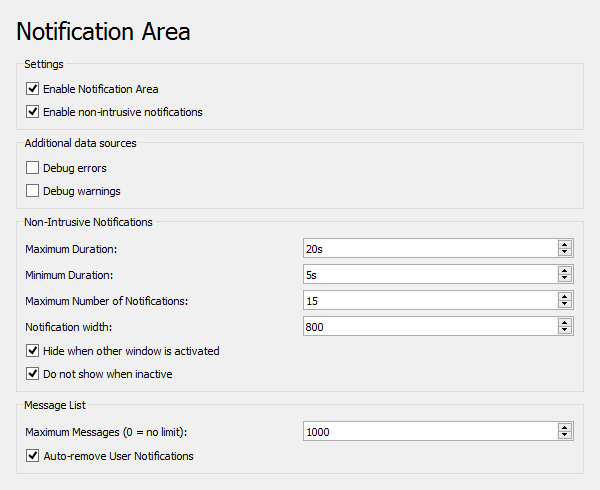 These preferences control the Notification Area and its notifications.
On this page ((v0.21) ) you can specify the following:
+++
| Name | Description |
+=====================================================+============================================================================================================+
| | If checked, the Notification Area will appear in the status bar. |
| **Enable Notification Area** | |
| | |
+++
| | If checked, non-intrusive notifications will appear next to the Notification Area in the status bar. |
| **Enable non-intrusive notifications** | |
| | |
+++
| | If checked, errors intended for developers will appear in the Notification Area. |
| **Debug errors** | |
| | |
+++
| | If checked, warnings intended for developers will appear in the Notification Area. |
| **Debug warnings** | |
| | |
+++
| | Maximum duration during which notifications are shown (unless mouse buttons are clicked). |
| **Maximum Duration** | |
| | |
+++
| | Minimum duration (idem). |
| **Minimum Duration** | |
| | |
+++
| | Maximum number of notifications shown simultaneously. |
| **Maximum Number of Notifications** | |
| | |
+++
| | Width of the Notification Area in pixels. |
| **Notification width** | |
| | |
+++
| | If checked, open notifications will disappear when another window is activated. |
| **Hide when other window is activated** | |
| | |
+++
| | If checked, notifications will not appear if the FreeCAD window is not the active window. |
| **Do not show when inactive** | |
| | |
+++
| | The maximum number of messages kept in the list. Set to 0 for no limit. |
| **Maximum Messages (0 = no limit)** | |
| | |
+++
| | If checked, notifications will be removed from the message list when the **Maximum Duration** has elapsed. |
| **Auto-remove User Notifications** | |
| | |
+++
### Report view
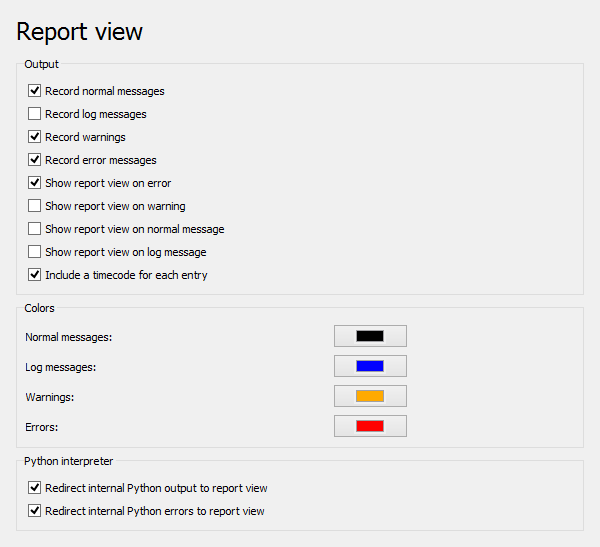 These preferences control the behavior of the [Report view](Report_view.md). This panel can be opened using the **View → Panels → Report view** menu option.
The Report view uses the same font settings as the [Macro editor](#Editor.md).
On this page you can specify the following:
+++
| Name | Description |
+================================================================+========================================================================================================================================================================================+
| | If checked, normal messages will be recorded. They will be displayed in the [Report view](Report_view.md) with the color set in **Normal messages**. |
| **Record normal messages** | |
| | |
+++
| | If checked, log messages will be recorded. They will be displayed in the [Report view](Report_view.md) with the color set in **Log messages**. |
| **Record log messages** | |
| | |
+++
| | If checked, warnings will be recorded. They will be displayed in the [Report view](Report_view.md) with the color set in **Warnings**. |
| **Record warnings** | |
| | |
+++
| | If checked, error messages will be recorded. They will be displayed in the [Report view](Report_view.md) with the color set in **Errors**. |
| **Record error messages** | |
| | |
+++
| | If checked, the [Report view](Report_view.md) will be shown automatically when an error is recorded. |
| **Show report view on error** | |
| | |
+++
| | If checked, the [Report view](Report_view.md) will be shown automatically when a warning is recorded. |
| **Show report view on warning** | |
| | |
+++
| | If checked, the [Report view](Report_view.md) will be shown automatically when a normal message is recorded. |
| **Show report view on normal message** | |
| | |
+++
| | If checked, the [Report view](Report_view.md) will be shown automatically when a log message is recorded. |
| **Show report view on log message** | |
| | |
+++
| | If checked, each message and warning will receive a timecode. |
| **Include a timecode for each entry** | |
| | |
+++
| | Specifies the font color for normal messages. |
| **Normal messages** | |
| | |
+++
| | Specifies the font color for log messages. |
| **Log messages** | |
| | |
+++
| | Specifies the font color for warning messages. |
| **Warnings** | |
| | |
+++
| | Specifies the font color for error messages. |
| **Errors** | |
| | |
+++
| | If checked, internal Python output will be redirected from the [Python console](Python_console.md) to the [Report view](Report_view.md). |
| **Redirect internal Python output to report view** | |
| | |
+++
| | If checked, internal Python error messages will be redirected from the [Python console](Python_console.md) to the [Report view](Report_view.md). |
| **Redirect internal Python errors to report view** | |
| | |
+++
### Help
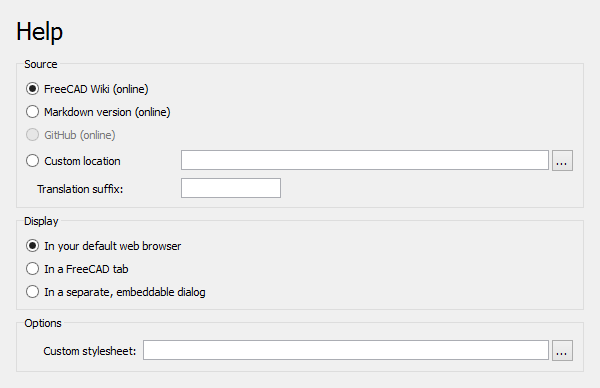 On this page you can specify the following:
+++
| Name | Description |
+===================================+=================================================================================================================================================================================================================================+
| | Specifies the source of the Help files. The options are: |
| **Source** | |
| | - |
| | **FreeCAD Wiki (online)** |
| | |
| | : |
| | |
| | - |
| | **Markdown version (online)** |
| | |
| | : |
| | |
| | - |
| | **GitHub (online)** |
| | |
| | : Cannot be selected. |
| | |
| | - |
| | **Custom location** |
| | |
| | : Enter the path where the downloaded FreeCAD documentation can be found. To download the documentation select the *offline-documentation* addon from the Workbenches list in the [Addon Manager](Std_AddonMgr.md). |
| | |
| | |
| | **Translation suffix** |
| | |
| | : For the Wiki option and the Markdown option a [language suffix](https://en.wikipedia.org/wiki/List_of_ISO_639-1_codes) can be specified. Use for example {{Value|fr}} for the French translation. |
+++
| | Specifies where the documentation should be displayed. The options are: |
| **Display** | |
| | - |
| | **In your default web browser** |
| | |
| | : The documentation is displayed in the default web browser. |
| | |
| | - |
| | **In a FreeCAD tab** |
| | |
| | : The documentation is displayed on a new tab in the [Main view area](Main_view_area.md). (v1.0) : Can no longer be used. |
| | |
| | - |
| | **In a separate, embeddable, dialog** |
| | |
| | : The documentation is displayed in a separate dialog. This dialog can be docked on top of the [Combo view](Combo_view.md) for example. (v1.0) : Can no longer be used. |
+++
| | Specifies an optional custom stylesheet. Not used for the Wiki. |
| **Custom stylesheet** | |
| | |
+++
## Display
This preferences group has six standard pages: 3D View, Light Sources, UI, Navigation, Colors and Advanced. A seventh page, Mesh view, is added if the [Mesh Workbench](Mesh_Workbench.md) has been loaded.
### 3D View
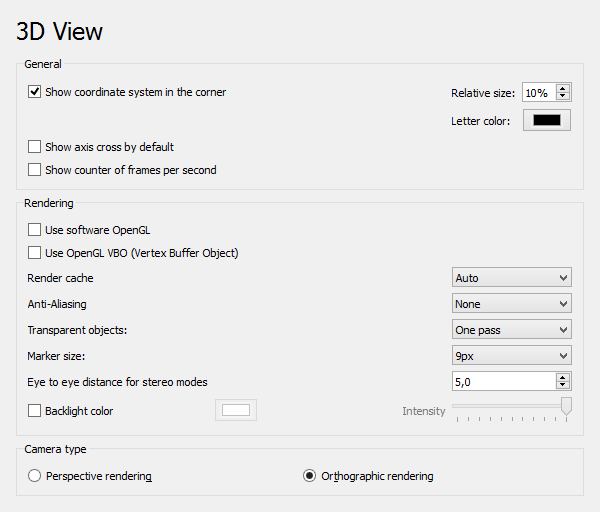 On this page you can specify the following:
+++
| Name | Description |
+=======================================================+=================================================================================================================================================================================================================================================================================================================================================================================================================================================================================================================================================================================================+
| | If checked, the main coordinate system will be shown in the lower right corner of the [3D view](3D_view.md). The **Relative size** defines the size of the representation as a percentage of the view size (the minimum of its height and width). The **Letter color** defines the color of the axis letters. |
| **Show coordinate system in the corner** | |
| | |
+++
| | If checked, the axis cross will be shown by default in the [3D view](3D_view.md). |
| **Show axis cross by default** | |
| | |
+++
| | If checked, the time needed for the last operation and the resulting [frame rate](https://en.wikipedia.org/wiki/Frame_rate) will be shown in the lower left corner of the [3D view](3D_view.md). |
| **Show counter of frames per second** | |
| | |
+++
| | If checked, [OpenGL](https://en.wikipedia.org/wiki/OpenGL) will use the CPU instead of the GPU. This option is useful for troubleshooting graphics card and driver problems. Changing this option requires a restart of the application. |
| **Use software OpenGL** | |
| | |
+++
| | If checked, [Vertex Buffer Objects](https://en.wikipedia.org/wiki/Vertex_Buffer_Object) (VBO) will be used. A VBO is an [OpenGL](https://en.wikipedia.org/wiki/OpenGL) feature that provides methods for uploading vertex data (position, normal vector, color, etc.) to the graphics card. VBOs offer substantial performance gains because the data resides in the graphics memory rather than the system memory and so it can be rendered directly by the GPU. For more background info see [Understanding OpenGL Objects](https://www.haroldserrano.com/blog/understanding-opengl-objects). |
| **Use OpenGL VBO (Vertex Buffer Object)** | |
| | |
+++
| | \"Render Cache\" or \"Render Acceleration\" is explained in more detail in [FreeCAD assembly3 render-caching](https://github.com/realthunder/FreeCAD_assembly3/wiki/Link#render-caching). The options are: |
| **Render Cache** | |
| | - **Auto**: Let Coin3D decide where to cache (default). |
| | - **Distributed**: Manually turn on cache for all view provider root nodes. |
| | - **Centralized**: Manually turn off cache in all nodes of all view providers, and only cache at the scene graph root node. This offers the fastest rendering speed, but slower response to any scene changes. |
+++
| | Specifies if and what type of [multisample anti-aliasing](https://en.wikipedia.org/wiki/Multisample_anti-aliasing) is used |
| **Anti-Aliasing** | |
| | |
+++
| | Specifies the render type of transparent objects. The options are: |
| **Transparent objects** | |
| | - **One pass**: Rendering is done in one pass (default). This can lead to triangular artifacts. If these occur the type **Backface pass** can be used to avoid them. |
| | - **Backface pass**: Rendering is done in two passes. Back-facing polygons are rendered in the first pass and front-facing polygons in the second pass. |
+++
| | Specifies the size of [vertices](Glossary#Vertex.md) (points) in the [Sketcher Workbench](Sketcher_Workbench.md). The clickable area of points can be additionally enlarged by increasing the **Pick radius**. |
| **Marker size** | |
| | |
+++
| | Specifies the eye-to-eye distance used for stereo projections. The specified value is a factor that will be multiplied with the [bounding box](Property_editor#View.md) size of the 3D object that is currently displayed. |
| **Eye to eye distance for stereo modes** | |
| | |
+++
| | If checked, backlight is enabled with the defined color. Backlight is used for rendering the back sides of faces. Usually, you don\'t see them in solids, unless you slice one with a clipping plane, or if the faces aren\'t oriented correctly. It is only used for objects whose Lighting property (on the View tab) is set to **One side**. If disabled, the back side of the faces of those objects will be black. The related **Intensity** setting specifies the intensity of the backlight. |
| **Backlight color** | |
| | |
+++
| | Specifies the camera projection type. The options are: |
| **Camera type** | |
| | - **Perspective rendering**: Objects will appear in a [perspective projection](Std_PerspectiveCamera.md). |
| | - **Orthographic rendering**: Objects will be appear in an [orthographic projection](Std_OrthographicCamera.md). |
+++
### Light Sources
(v1.0)
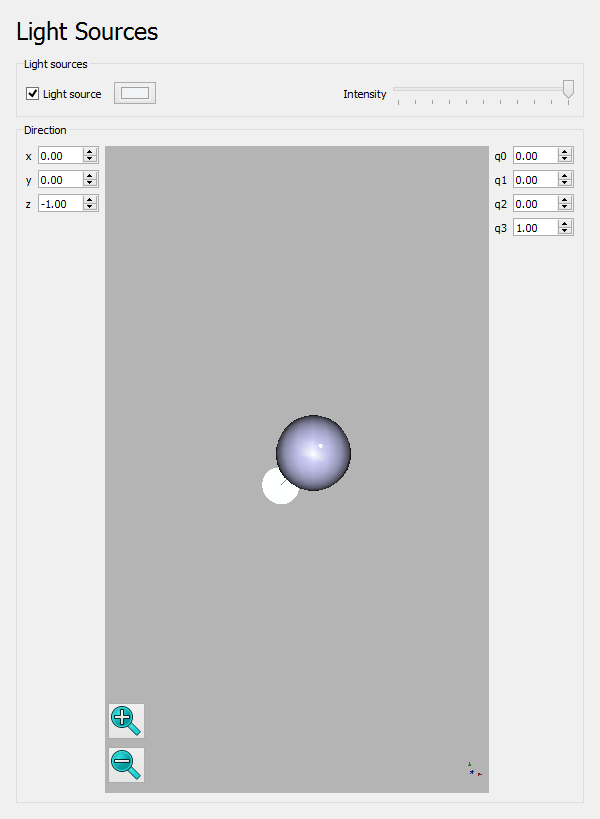 On this page you can specify the following:
+++
| Name | Description |
+==============================+=================================================================================================================================================================================================================================================================================================================================================================================================================================================================================================================================================================================================================================================================================================================+
| | If checked, the objects in the [3D view](3D_view.md) are lit by a directional light source and the specified color will be used for it. Without this all objects appear as solid black. |
| **Light source** | |
| | |
+++
| | Move the slider to change the intensity of the light. |
| **Intensity** | |
| | |
+++
| | The preview shows the XY plane and a sphere, indicating the light source, connected by a line to a cone, indicating the direction. All elements in the preview, the sphere, the small cone directly attached to it, the line and the large cone, can be dragged to change the direction of the light. For more precision the direction vector can be set by specifying the **x**, **y** and **z** values or the **q0** - **q3** [quaternion](https://en.wikipedia.org/wiki/Quaternion) values. You can zoom the preview in and out with the buttons in the lower left corner. |
| **Direction** | |
| | |
+++
### UI
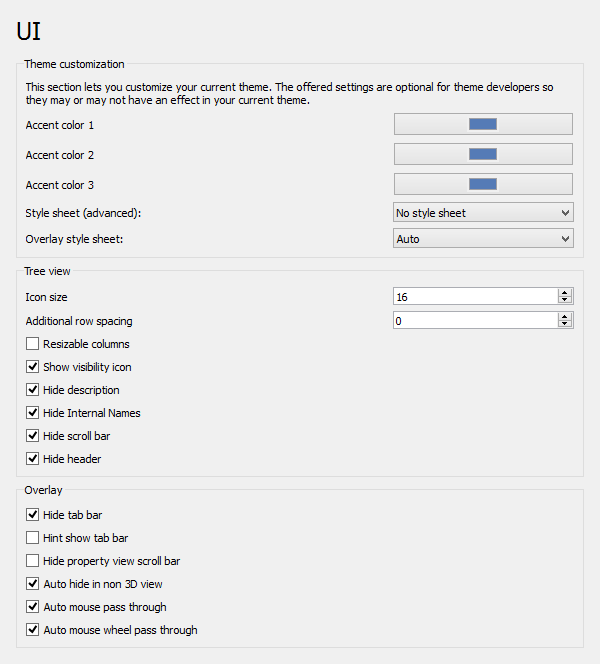
(v1.0)
 ### Navigation
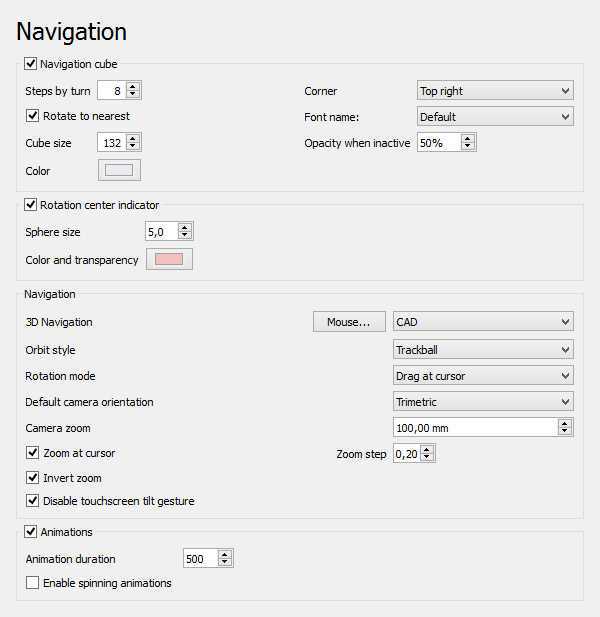 On this page you can specify the following:
+++
| Name | Description |
+==================================================+========================================================================================================================================================================================================================================================================================================================================================================================================+
| | If checked, the [Navigation cube](Navigation_Cube.md) is shown in the [3D view](3D_view.md). |
| **Navigation cube** | |
| | |
| | **Steps by turn** |
| | |
| | defines the number of steps required for a full rotation when using the Navigation cube rotation arrows. |
| | |
| | If **Rotate to nearest** is checked, the 3D view is rotated to the nearest most logical position, based on the current orientation of the cube, when a cube face is clicked. Else clicking a face will always result in the same rotation. |
| | |
| | |
| | **Cube size** |
| | |
| | defines the size of the cube. |
| | |
| | |
| | **Color** |
| | |
| | sets the base color for all elements. (v0.21) |
| | |
| | |
| | **Corner** |
| | |
| | defines where the Navigation cube is displayed in the [3D view](3D_view.md). The options are: |
| | |
| | - **Top left** |
| | - **Top right** |
| | - **Bottom left** |
| | - **Bottom right** |
| | |
| | |
| | **Font name** |
| | |
| | specifies the font used for the cube\'s texts. (v0.21) |
| | |
| | |
| | **Opacity when inactive** |
| | |
| | Opacity of the Navigation cube when not hovered by the mouse. (v1.0) |
+++
| | If checked, the rotation center of the view is shown when dragging. The **Sphere size** and the **Color and transparency** of the indicator can be specified. |
| **Rotation center indicator** | |
| | |
| (v1.0) | |
+++
| | Specifies a [mouse navigation style](Mouse_navigation.md). To see the details of each style, select it and then press the **Mouse...** button. |
| **3D Navigation** | |
| | |
+++
| | Specifies the rotation orbit style used when in rotation mode. The options are: |
| **Orbit style** | |
| | - **Turntable**: Moving the mouse will divide the rotation in steps, rotations around the different axes are performed sequentially. |
| | - **Trackball**: Rotations around the different axes are performed simultaneously. |
| | - **Free Turntable**: Like **Trackball**, but if possible the rotation axis is kept collinear with the global 3D view axis. (v0.21) |
+++
| | Defines the rotation center. The options are: |
| **Rotation mode** | |
| | - **Window center** |
| | - **Drag at cursor** |
| | - **Object center** |
+++
| | Specifies the camera orientation for new documents. This setting is also used by the [Std ViewHome](Std_ViewHome.md) command. |
| **Default camera orientation** | |
| | |
+++
| | Affects the initial camera zoom level for new documents. The value you set is the diameter of a sphere that fits in the [3D view](3D_view.md). The default is 100 mm. It also sets the initial size of origin features (base planes in new [PartDesign Bodies](PartDesign_Body.md) and [Std Parts](Std_Part.md)). |
| **Camera zoom** | |
| | |
+++
| | If checked, zoom operations will be performed at the position of the mouse pointer. Otherwise zoom operations will be performed at the center of the current view. The **Zoom step** defines how much will be zoomed. A zoom step of **1** means a factor of 7.5 for every zoom step. |
| **Zoom at cursor** | |
| | |
+++
| | If checked, the direction of zoom operations will be inverted. |
| **Invert zoom** | |
| | |
+++
| | If checked, and **3D Navigation** is set to **Gesture**, the tilting gesture will be disabled for pinch-zooming (two-finger zooming). |
| **Disable touchscreen tilt gesture** | |
| | |
+++
| | If checked, view rotations and zooms, except those invoked by mouse actions, are animated. The **Animation duration** can be specified. |
| **Animations** | |
| | |
| | **Enable spinning animations** |
| | |
| | if checked, and if **3D Navigation** is set to **CAD**, rotations invoked by the mouse can be animated as well. If the mouse is moved while the scroll wheel and the right mouse button are pressed, the view is rotated. If one keeps the mouse moving while releasing the right mouse button, the rotation will continue. To end this animation left-click with the mouse. |
+++
### Colors
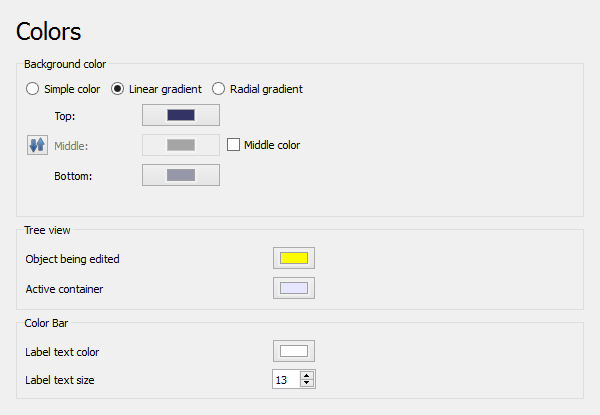 On this page you can specify the following:
+++
| Name | Description |
+=====================================+===================================================================================================================================================================================================================================================================================================================================================================+
| | If selected, the background of the [3D view](3D_view.md) will have the specified color. |
| **Simple color** | |
| | |
+++
| | If selected, the background of the [3D view](3D_view.md) will have a vertical color gradient defined by the specified **Top** and **Bottom** colors. if enabled, a **Middle** color can also be specified. Press the **
 ** button ((v0.21) ) to switch the top and bottom colors. |
| **Linear gradient** | |
| | |
+++
| | If selected, the background of the [3D view](3D_view.md) will have a radial color gradient defined by the specified **Central** and **End** colors. if enabled, a **Midway** color can also be specified. Press the **** button to switch the central and end colors. |
| **Radial gradient** | |
| | |
| (v0.21) | |
+++
| | Specifies the background color for objects in the tree view that are currently edited. |
| **Object being edited** | |
| | |
+++
| | Specifies the background color for active containers in the tree view. For example an [active PartDesign Body](PartDesign_Body#Active_Status.md) will get this color. |
| **Active container** | |
| | |
+++
| | The color used for the labels of the color bar. The color bar is used in the [Mesh Workbench](Mesh_Workbench.md) and [FEM Workbench](FEM_Workbench.md). |
| **Label text color** | |
| | |
+++
| | The size of those labels. |
| **Label text size** | |
| | |
+++
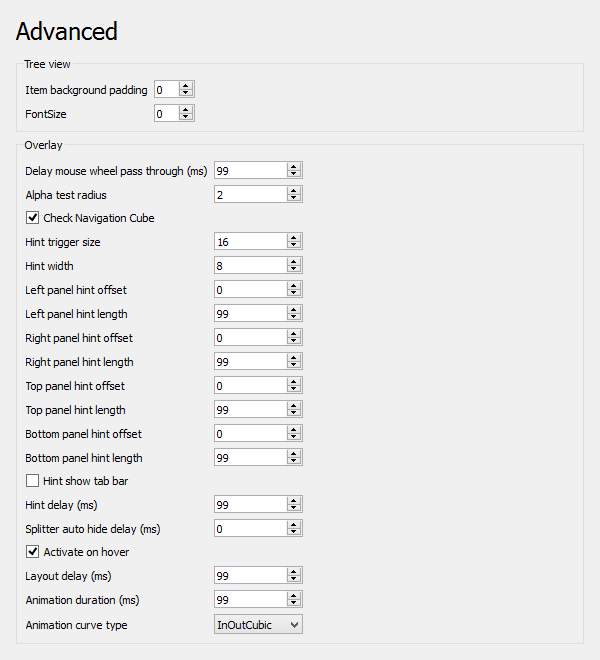
### Advanced
(v1.0)
 ### Mesh view
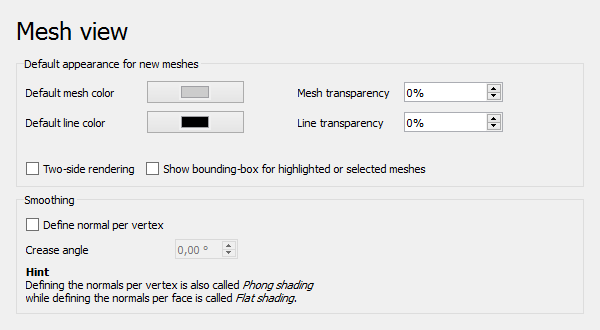 This page is only available if the [Mesh Workbench](Mesh_Workbench.md) has been loaded.
On this page you can specify the following:
+++
| Name | Description |
+======================================================================+======================================================================================================================================================================================================================================================================================================================================================================================================================================+
| | Specifies the default face color. |
| **Default mesh color** | |
| | |
+++
| | Specifies the default line color. |
| **Default line color** | |
| | |
+++
| | Specifies the default mesh transparency. |
| **Mesh transparency** | |
| | |
+++
| | Specifies the default line transparency. |
| **Line transparency** | |
| | |
+++
| | If checked, the default value for the **Lighting** property is {{value|Two side}} instead of {{value|One side}}. {{value|Two side}} means the color of the interior side of faces is the same as the color of the exterior side. {{value|One side}} means their color is either the [backlight color](#3D_View.md), if enabled, or black. |
| **Two-side rendering** | |
| | |
+++
| | If checked, the default value for the **Selection Style** property is {{value|BoundBox}} instead of {{value|Shape}}. {{value|BoundBox}} means a highlighted bounding box is displayed if meshes are highlighted or selected. {{value|Shape}} means the shape itself is then highlighted. |
| **Show bounding-box for highlighted or selected meshes** | |
| | |
+++
| | If checked, [Phong shading](https://en.wikipedia.org/wiki/Phong_shading) is used, otherwise flat shading. Shading defines the appearance of surfaces. With flat shading the surface normals are not defined per vertex. This leads to an unrealistic appearance for curved surfaces. While Phong shading leads to a more realistic, smoother appearance. |
| **Define normal per vertex** | |
| | |
+++
| | The crease angle is a threshold angle between two faces. It can only be set if the option **Define normal per vertex** is used. |
| **Crease angle** | |
| | : If face angle ≥ crease angle, facet shading is used. |
| | : If face angle \< crease angle, smooth shading is used. |
+++
## Workbenches
This preferences group has a single page: Available Workbenches.
### Available Workbenches
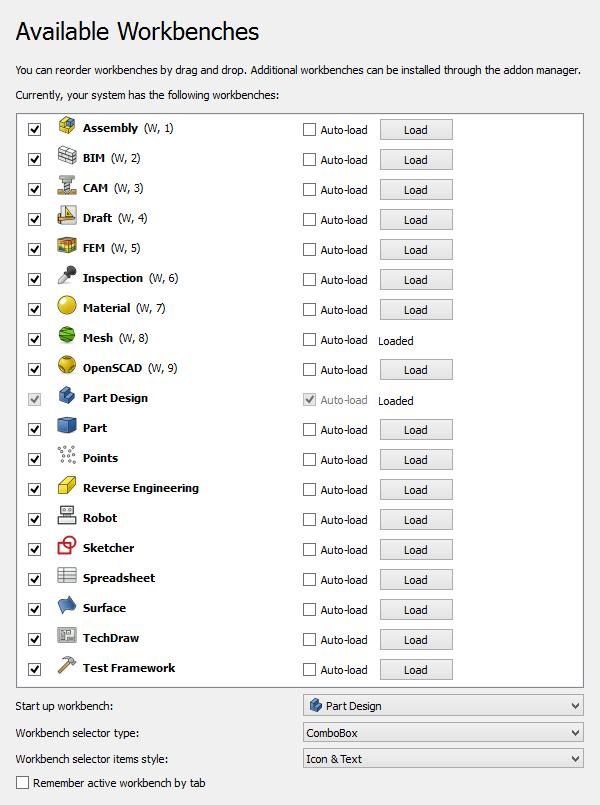 These preferences control workbench loading.
On this page you can specify the following:
+++
| Name | Description |
+==================================================+========================================================================================================================================================================================================================================================================================================================================================================+
| | The list displays all installed workbenches. The list can be reordered by drag and drop ((v0.21) ) and sorted by right-clicking the list and selecting **Sort alphabetically** ((v1.0) ). The order of the list also determines the order of the [Workbench selector](Std_Workbench.md). |
| **Workbench list** | |
| | - |
| | (v0.21) |
| | |
| | : **First checkbox in each row**: If checked, the workbench will be available in the Workbench selector in the next FreeCAD session. The start up workbench cannot be unchecked. Unchecked workbenches are moved to the bottom of the list. |
| | |
| | - |
| | **Auto-load** |
| | |
| | : If checked, the workbench will auto-load when FreeCAD starts. Loading more workbenches will make the start up slower, but switching between workbenches that have already been loaded is faster. |
| | |
| | - |
| | **Load** |
| | |
| | : Press this button to load the workbench in the current FreeCAD session. |
+++
| | The workbench that is activated when FreeCAD starts. |
| **Start up workbench** | |
| | |
+++
| | The options are: |
| **Workbench selector type** | |
| | - **ComboBox**: Workbenches can be selected from a dropdown list. |
| (v1.0) | - **TabBar**: Workbenches can be selected from a tab bar. This takes fewer clicks than the previous option, but takes up more screen space. |
+++
| | The options are: |
| **Workbench selector items style** | |
| | - **Icon & Text** |
| (v1.0) | - **Icon** |
| | - **Text** |
+++
| | If checked, FreeCAD will remember and restore the workbench that was active for each tab in the [Main view area](Main_view_area.md). |
| **Remember active workbench by tab** | |
| | |
+++
## Python
This preferences group ((v0.21) ) has three pages: Macro, General and Editor.
### Macro
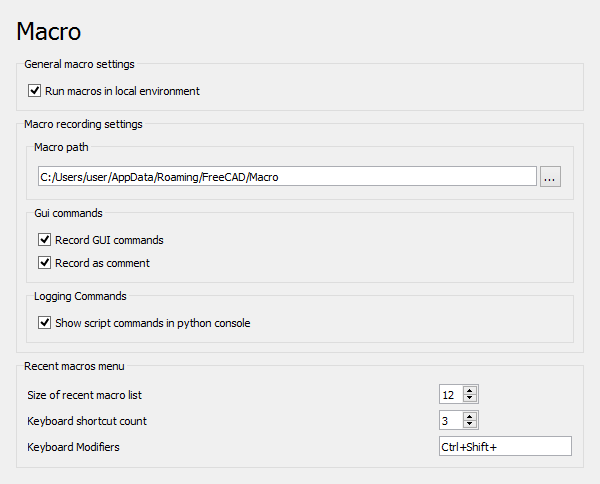 On this page you can specify the following:
+++
| Name | Description |
+========================================================+=====================================================================================================================================================================================================================================================================+
| | If checked, variables defined by macros are created as local variables, otherwise as global Python variables. |
| **Run macros in local environment** | |
| | |
+++
| | Specifies the path for macro files. |
| **Macro path** | |
| | |
+++
| | If checked, [recorded macros](Std_DlgMacroRecord.md) will also contain user interface commands. |
| **Record GUI commands** | |
| | |
+++
| | If checked, [recorded macros](Std_DlgMacroRecord.md) will also contain user interface commands, but as comments. This is useful if you don\'t want to execute these commands when running the macro, but do want to see what has been done while recording. |
| **Record as comment** | |
| | |
+++
| | If checked, the commands executed by macro scripts are shown in the Python console. This console can be opened using the **View → Panels → Python console** menu option. |
| **Show script commands in python console** | |
| | |
+++
| | Controls the number of recent macros to display in the menu. |
| **Size of recent macro list** | |
| | |
+++
| | Controls the number of recent macros that get dynamically assigned shortcuts. |
| **Shortcut count** | |
| | |
+++
| | Controls which keyboard modifiers are used for the shortcuts, example **Ctrl+Shift+** creates shortcuts in the form of **Ctrl+Shift+1**, **Ctrl+Shift+2**, etc. |
| **Keyboard Modifiers** | |
| | |
+++
### General
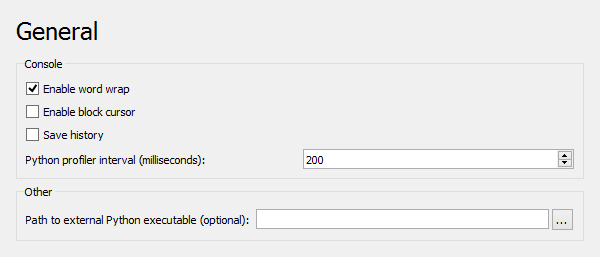 These preferences control the behavior of the [Python console](Python_console.md). This console can be opened using the **View → Panels → Python console** menu option.
Note that the color and font settings for the console are defined on the [Editor](#Editor.md) page.
On this page you can specify the following:
+++
| Name | Description |
+===============================================================+==============================================================================================================================+
| | If checked, words will be wrapped if they exceed the available horizontal space in the console. |
| **Enable word wrap** | |
| | |
+++
| | If checked, the cursor will have a block shape. |
| **Enable block cursor** | |
| | |
+++
| | If checked, Python history is saved across sessions. |
| **Save history** | |
| | |
+++
| | The interval at which the profiler runs when there is Python code running (to keep the GUI responding). Set to 0 to disable. |
| **Python profiler interval (milliseconds)** | |
| | |
| (v1.0) | |
+++
| | Used for package installation with pip and debugging with debugpy. Autodetected if needed and not specified. |
| **Path to external Python executable (optional)** | |
| | |
+++
### Editor
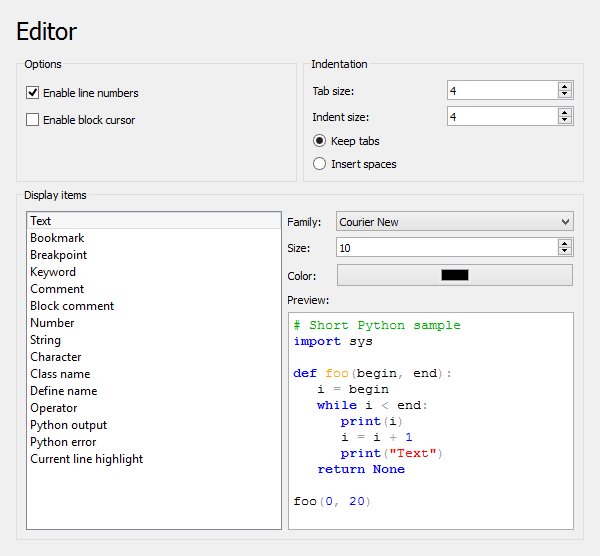 These preferences control the behavior of the [Macro editor](Std_DlgMacroExecute#Edit.md). This editor can be opened using the **Macro → Macros... → Edit** or {{menuCommand|Create}} menu option.
The color and font settings are also used by the [Python console](Python_console.md). The font settings are also used by the [Report view](Report_view.md).
On this page you can specify the following:
+++
| Name | Description |
+=====================================+================================================================================================================================================================================================================================================================================================+
| | If checked, the code lines will be numbered. |
| **Enable line numbers** | |
| | |
+++
| | If checked, the cursor will have a block shape. |
| **Enable block cursor** | |
| | |
+++
| | Specifies the tabulator raster (how many spaces). If it is for example set to **6**, pressing **Tab** will jump to character 7 or 13 or 19 etc., depending on the current cursor position. This setting is only used if **Keep tabs** is selected. |
| **Tab size** | |
| | |
+++
| | Specifies how many spaces will be inserted when pressing **Tab**. This setting is only used if **Insert spaces** is selected. |
| **Indent size** | |
| | |
+++
| | If selected, pressing **Tab** will insert a tabulator with the raster defined by **Tab size**. |
| **Keep tabs** | |
| | |
+++
| | If selected, pressing **Tab** will insert the amount of spaces defined by **Indent size**. |
| **Insert spaces** | |
| | |
+++
| | Specifies the code type the color and font settings will be applied to. The result can be checked in the **Preview** field. |
| **Display Items** | |
| | |
+++
| | Specifies the font family that should be used for the selected code type. |
| **Family** | |
| | |
+++
| | Specifies the font size that should be used for the selected code type. |
| **Size** | |
| | |
+++
| | Specifies the color that should be used for the selected code type. |
| **Color** | |
| | |
+++
## Addon Manager
This preferences group has a single page: Addon manager options.
### Addon manager options
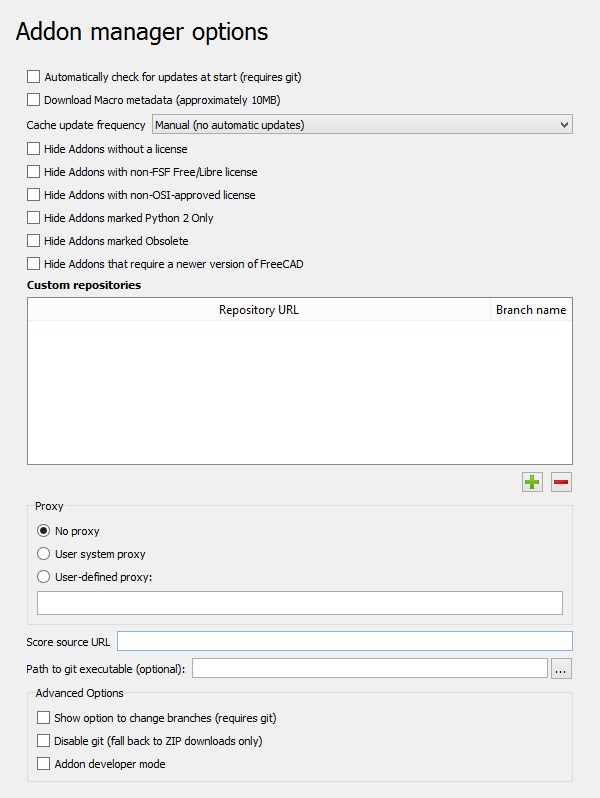 These preferences control the behavior of the [Addon manager](Std_AddonMgr.md).
On this page you can specify the following:
+++
| Name | Description |
+=========================================================================+=============================================================================================================================================================================================================================================================================================================================================================================+
| | If checked, the Addon manager will check for updates when it is launched. Git must be installed for this to work. |
| **Automatically check for updates at start (requires git)** | |
| | |
+++
| | If checked, macro metadata is downloaded for display in the Addon manager\'s main addon listing. This data is cached locally. |
| **Download Macro metadata (approximately 10MB)** | |
| | |
+++
| | Controls the frequency with which the locally cached addon availability and metadata information is updated. The options are: |
| **Cache update frequency** | |
| | - **Manual (no automatic updates)** |
| | - **Daily** |
| | - **Weekly** |
+++
| | If checked, addons without a license are not included in the listing. |
| **Hide Addons without license** | |
| | |
| (v1.0) | |
+++
| | If checked, addons with a Free/Libre license not published by the [Free Software Foundation](https://www.fsf.org/licensing) are not included in the listing. |
| **Hide Addons with non-FSF Free/Libre license** | |
| | |
| (v1.0) | |
+++
| | If checked, addons with a license not approved by the [Open Source Initiative](https://opensource.org/licenses) are not included in the listing. |
| **Hide Addons with non-OSI-approved license** | |
| | |
| (v1.0) | |
+++
| | If checked, addons marked as \"Python 2 Only\" are not included in the listing. These addons are unlikely to work in the current FreeCAD version. |
| **Hide Addons marked Python 2 Only** | |
| | |
+++
| | If checked, addons marked as \"Obsolete\" are not included in the listing. |
| **Hide Addons marked Obsolete** | |
| | |
+++
| | If checked, addons that require a newer FreeCAD version are not included in the listing. |
| **Hide Addons that require a newer version of FreeCAD** | |
| | |
+++
| | Custom repositories can be specified here. |
| **Custom repositories** | |
| | To add a repository press the **
 ** button. Both the **Repository URL** and the **Branch**, typically {{Value|master}} or {{Value|main}}, must be specifies in the dialog that opens. (v0.21) |
| | |
| | To remove a repository select it in the list and press the **
 ** button. (v0.21) |
+++
| | The Addon manager includes experimental support for proxies requiring authentication, set up as user-defined proxies. |
| **Proxy** | |
| | |
+++
| | The URL for the Addon Score data. See [Std AddonMgr](Std_AddonMgr#Sorting_by_score.md) for formatting and hosting details. |
| **Score source URL** | |
| | |
| (v1.0) | |
+++
| | The Addon manager attempts to determine the git executable. To override this selection, the path to the executable can be set here. |
| **Path to git executable (optional)** | |
| | |
| (v0.21) | |
+++
| | If checked, the Addon manager provides an interface on the addon\'s details screen that allows switching which git branch is currently checked out. This is intended for advanced users only, as it is possible that a non-primary-branch version of an addon may result in instability and compatibility issues. Git must be installed for this to work. Use with caution. |
| **Show option to change branches (requires git)** | |
| | |
+++
| | If checked, git downloads are disabled. |
| **Disable git (fall back to ZIP downloads only)** | |
| | |
| (v0.21) | |
+++
| | If checked, Addon manager options intended for developers of addons are activated. |
| **Addon developer mode** | |
| | |
| (v0.21) | |
+++
## Import-Export
The Import-Export preferences affect how files are imported and exported. They are described on the [Import Export Preferences](Import_Export_Preferences.md) page.
## Measure
(v1.0)
This preferences group has a single page: Appearance.
### Appearance
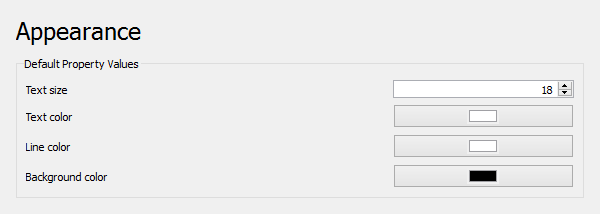 On this page you can specify the following:
+++
| Name | Description |
+==================================+=========================================================================================+
| | Specifies the size of the text in pixels. |
| **Text size** | |
| | |
+++
| | Specifies the color of the text. |
| **Text color** | |
| | |
+++
| | Specifies the color of the line connecting the text label with the measured element(s). |
| **Line color** | |
| | |
+++
| | Specifies the background color of the text label. |
| **Background color** | |
| | |
+++
## Workbench related preferences
Preferences for the built-in workbenches are linked below. These links are also listed in [:Category:Preferences](:Category_Preferences.md). Some workbenches have no preferences.
- [Assembly Preferences](Assembly_Preferences.md)
- [BIM Preferences](BIM_Preferences.md)
- [CAM Preferences](CAM_Preferences.md)
- [Draft Preferences](Draft_Preferences.md)
- [FEM Preferences](FEM_Preferences.md)
- Inspection Preferences (none)
- [Material Preferences](Material_Preferences.md)
- [Mesh Design Preferences](Mesh_Workbench#Preferences.md)
- [OpenSCAD Preferences](OpenSCAD_Preferences.md)
- Part Preferences: the Part workbench also uses the [PartDesign Preferences](PartDesign_Preferences.md)
- [PartDesign Preferences](PartDesign_Preferences.md)
- Points Preferences (none)
- Reverse Engineering Preferences (none)
- Robot Preferences (none)
- [Sketcher Preferences](Sketcher_Preferences.md)
- [Spreadsheet Preferences](Spreadsheet_Preferences.md)
- Surface Preferences (none)
- [TechDraw Preferences](TechDraw_Preferences.md)
- Test Framework Preferences (none)
## Scripting
See [Std DlgParameter](Std_DlgParameter#Scripting.md).
## Related
- [Parameter editor](Std_DlgParameter.md)
- [Fine-tuning](Fine-tuning.md)
---
⏵ [documentation index](../README.md) > [Preferences](Category_Preferences.md) > Preferences Editor