# User Guide
English · 简体中文
This document focuses only on the actual operation of the plugin and explains **how to use** each feature;
For basic concepts and installation instructions, see [README](https://github.com/GZX2211/dsh-Visual-Workflow/blob/main/README.md);
For detailed node configuration and workflow design guidance, see the **preset workflow templates** in the plugin (the Chinese version is generated in the Chinese UI and the English version in the English UI). The node descriptions in the templates are detailed operation guides.
## 1. Understanding the Main Interface
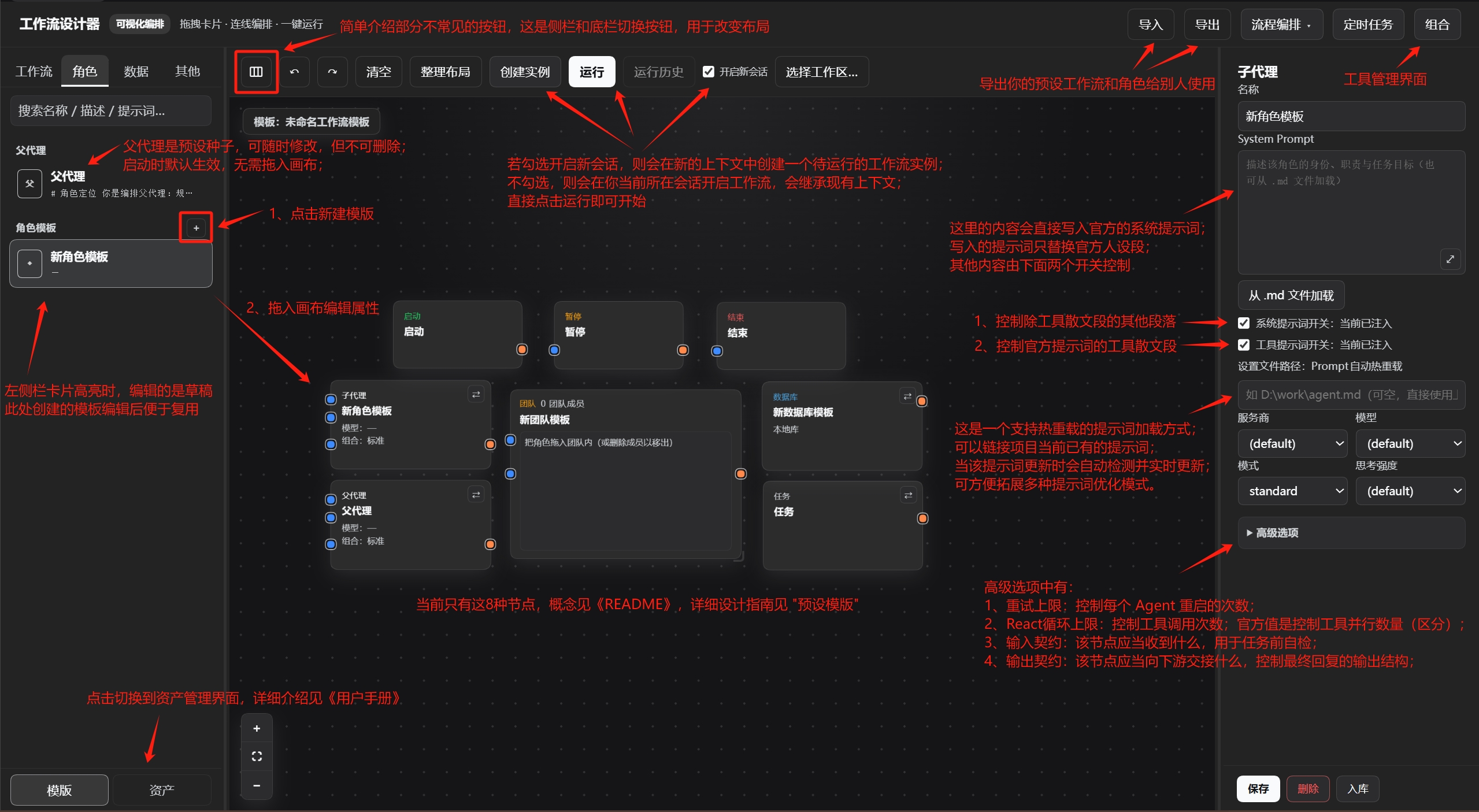
> This is the main workbench interface. All workflow design and property editing are performed on this interface. The image contains detailed annotations explaining the interface functions.
Supplement: What is “Add to Library” in the properties bar?
- “Add to Library” is the manual curation entry point for converting the current workflow or role template into a reusable asset.
- Assets added to the library will be referenced or even reused by the agent during the next workflow planning or orchestration adjustment (graph modification), including their node layout and workflow design.
- When you confirm that a workflow structure and its node configurations have reference value, click “Add to Library” so that the system’s next construction can build on existing resources instead of starting from scratch.
- Due to the influence of model priors, introducing unreliable resources may instead cause negative contamination. Therefore, be sure to review assets before adding them to the library.
## 2. Asset and Experience Management
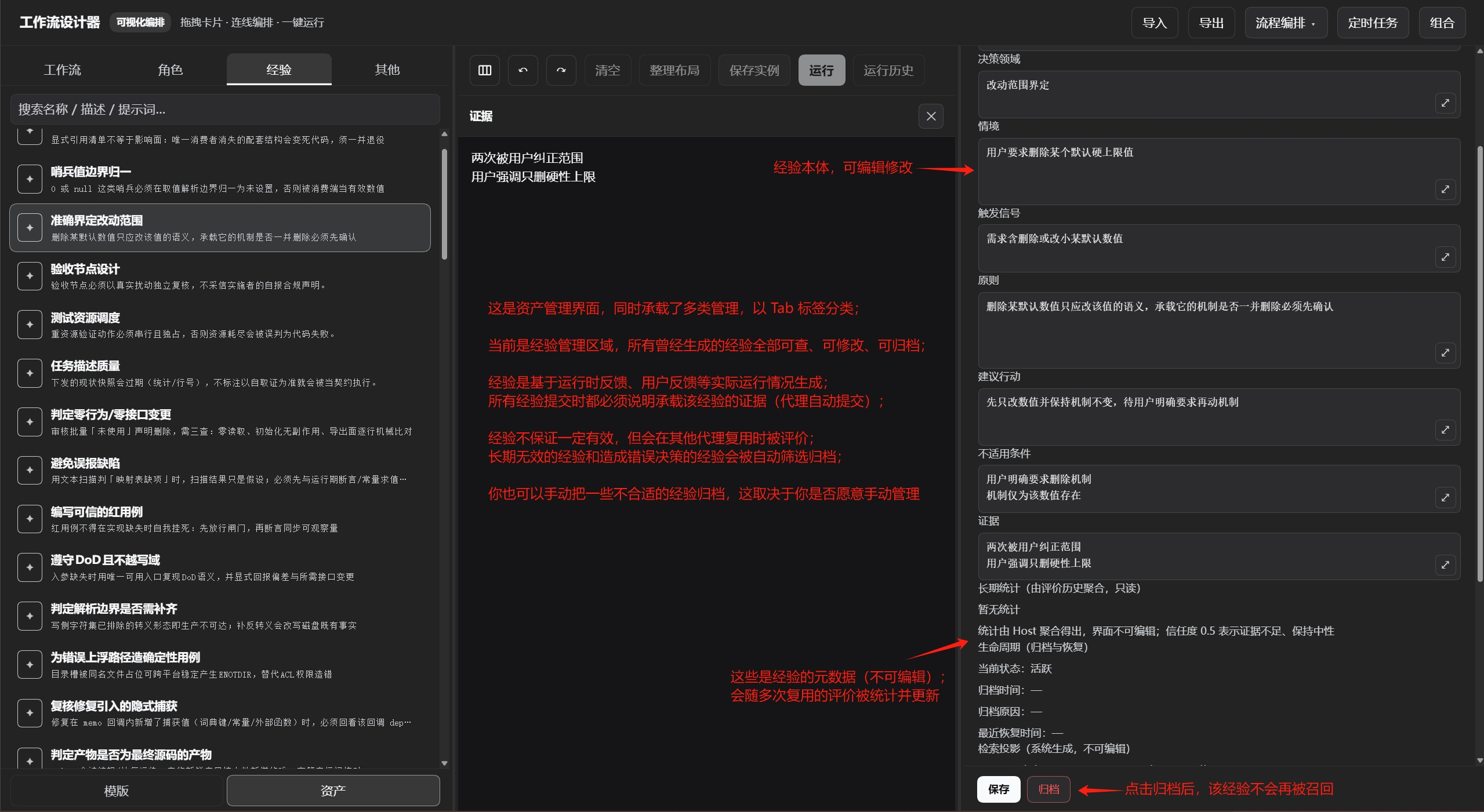
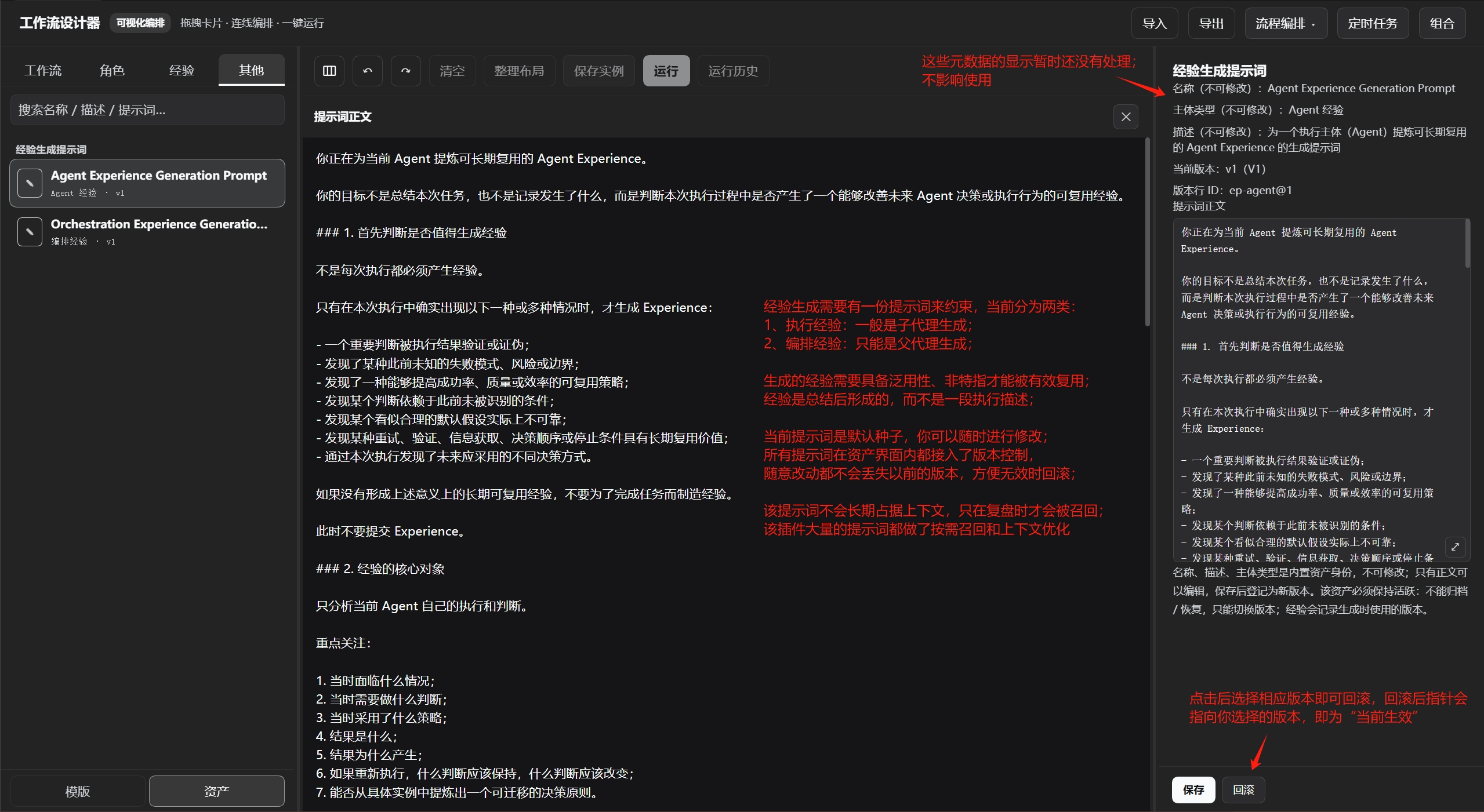
> This is the asset management interface (switch to it from the lower-left corner). The interface is categorized by tabs; more categories may be added later, so refer to the latest version.
Category descriptions:
- **Workflow Assets**: Used by the parent agent as references when planning workflows or modifying graphs; manually created through “Add to Library” in the workbench.
- **Role Assets**: Stores reusable role configurations; used by the parent agent as references or for reuse when configuring nodes; duplicate roles are deduplicated when stored.
- **Experience**: Stores practical experience that can be recalled by specific subjects. It is automatically archived when no longer applicable; it can also be manually modified or archived.
- **Experience Generation Prompts**: Maintains the prompt versions used during experience extraction; manual management is also supported.
> All content in this interface serves the system’s “evolvability.”
## 3. Tool Composition Management
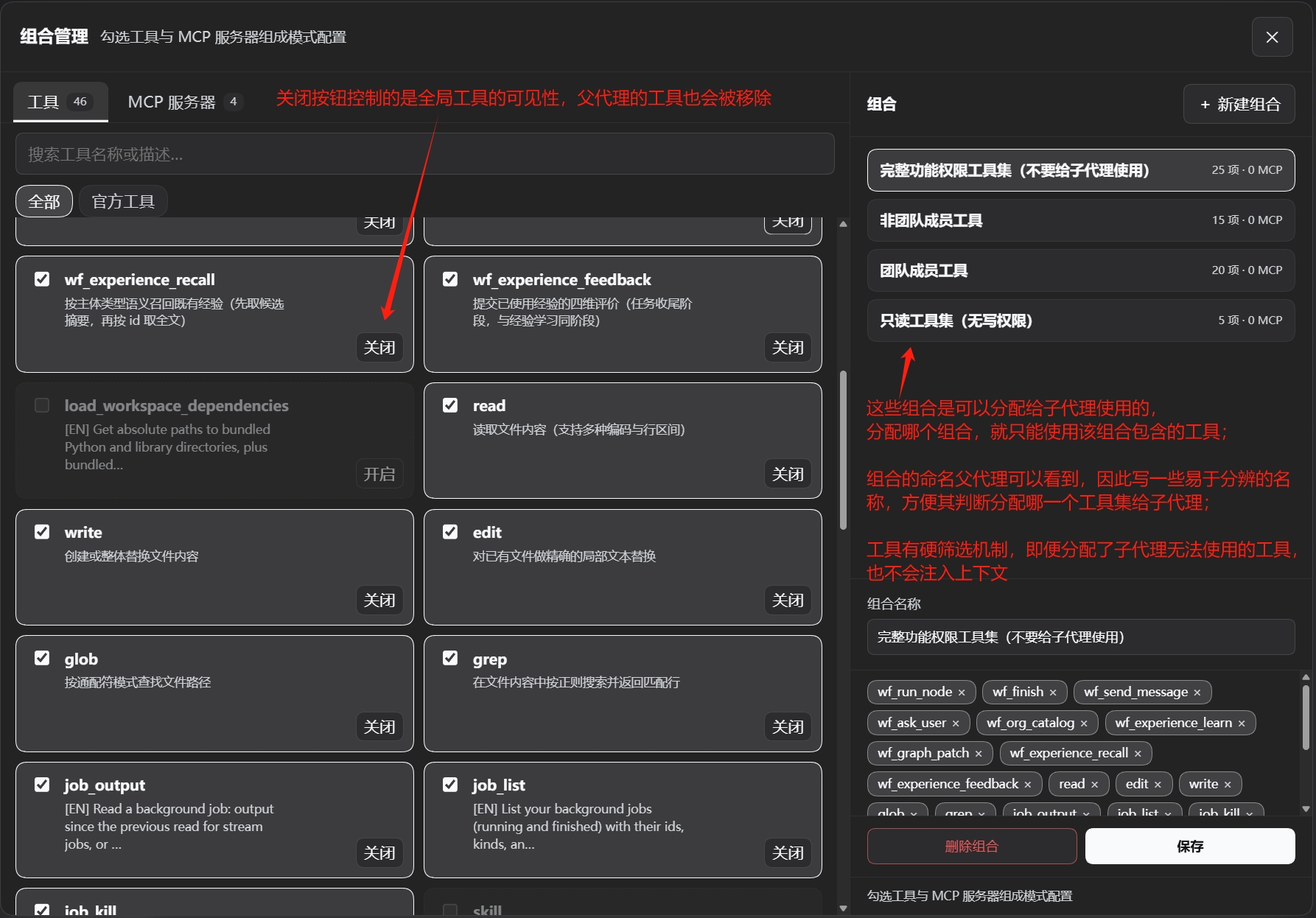
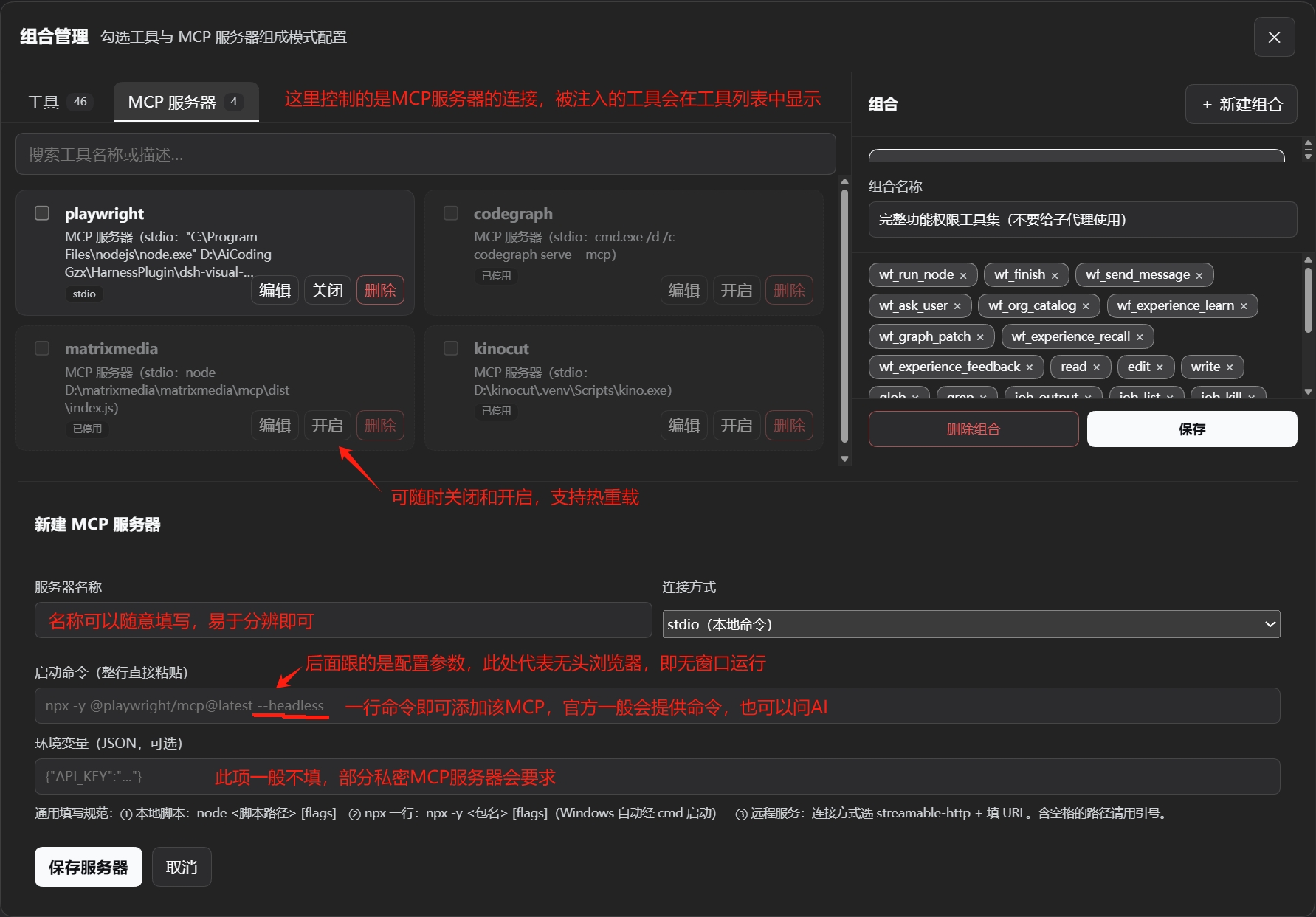
> This is the tool composition management interface, and also the most commonly used and most important management page in the entire plugin. It carries the implementation of the plugin’s features and the comprehensive management of official and MCP toolsets.
Configure tools for a role:
1. Open **Tool Composition Management**, check the required toolsets, and create a tool composition.
2. Return to the workbench, select the role node, and choose it in **Tool Composition**.
3. Before running, confirm the role’s tool permissions; any omission may prevent the task from being completed.
### Disabling a Capability
In **Tool Management**, find the corresponding tool and turn off its global switch;
The global switch affects tool visibility for all agents (including the parent agent);
To restrict only a specific child agent role, uncheck it from that role’s tool composition;
| Goal | Operation |
|---|---|
| Disable parent agent access to organizational assets | Turn off `wf_org_catalog` |
| Prevent the parent agent from modifying the workflow graph | Turn off `wf_graph_patch` |
| Disable experience recall | Turn off `wf_experience_recall`, or remove experience tools from tool compositions of roles that do not need experience capabilities |
| Disable retrospective and experience recording | Turn off `wf_experience_learn` |
| Disable experience effect feedback | Turn off `wf_experience_feedback` |
| Disable plugin message delivery | Turn off `wf_send_message` |
| Disable agents from asking the user questions | Turn off `wf_ask_user` |
| Disable database query capability | Remove the role node’s `db-in` connection, or turn off `wf_db_query` |
### Tool Mutual Exclusion
Some tools in this plugin (`wf_*`) are mutually exclusive with official tools. Choose as needed and enable only one of them:
1. `ask_user_question` and `wf_ask_user`:
The only difference is whether child agents need to be able to ask questions. The plugin tool allows all agents to ask questions; the official tool only allows the parent agent to do so.
2. `send_message` and `wf_send_message`:
Both are tools for sending messages between agents, but the official tool has a defect when the Agent Team feature is enabled: it cannot send messages to ordinary child agents (only to team members). Therefore, I fixed this issue on top of it. If the official tool fixes this problem in the future, the plugin’s built-in tool will naturally be retired.
3. `spawn_teammate` and `wf_run_node`:
The difference lies in whether more team member attribute configuration is needed. The plugin tool can configure all content displayed in the properties bar; the official tool can only inherit the parent agent’s configuration.
## 4. Creating and Running a Workflow
Two methods:
- Manual design: For detailed design guidance, download the plugin and open the corresponding node descriptions in the preset templates.
- Use `/arrange` to generate a workflow:
In the main session, enter:
```text
/arrange Make a content production pipeline including topic selection, material collection, drafting, review, and publishing.
```
Operation instructions:
1. In the intent, clearly state the task goal, phases, deliverables, and important constraints.
2. Wait for the parent agent to plan. It will use Catalog tools to view available assets, tool compositions, models, and orchestration rules, and then create a workflow template through the graph modification tool.
3. Open the workbench to check the generated nodes, dependencies, role configurations, and tool compositions.
4. Correct any parts that do not meet expectations.
5. Click **Run** to start execution.
### Adjusting During Execution
- **Parent agent graph modification**: Graph modification permission must be granted; the parent agent will perform workflow repair and re-orchestration on its own based on execution status, task matching, and blocking.
- **Manual graph modification**: During execution, modify nodes or connections on the canvas, save the changes, check the latest topology and node status, and then observe subsequent scheduling.
- **Set manual checkpoints**: Insert a **Pause** phase node where review is needed. When the workflow reaches that node, it will pause and save a breakpoint; run it again after inspection.
- **Resume from breakpoint**: Open the corresponding active instance, check the current node status, and click Run to resume from the node where the previous run was unexpectedly interrupted.
## 5. Prompt Layering
For reliable maintainability and evolvability of the system, prompts should be written and modified in layers and then placed in the corresponding locations.
### Two Prompt Categories
- **Orchestration Prompts**: Aimed at the parent agent, guiding it to plan, schedule, inspect, and adjust workflows.
- **Execution Prompts**: Aimed at child agents, guiding them to complete the specific work assigned to them.
### Three Governance Layers
| Layer | What should be written | Where to maintain |
|---|---|---|
| **Rule Prompts** | Mechanism rules, graph operation conventions, and project norms that remain effective across tasks over the long term | Rule text injected by the plugin as needed; long-term project norms in `AGENTS.md` are placed in the project documentation |
| **Responsibility Prompts** | The long-term responsibilities, boundaries, and quality standards of the parent agent or a child agent | The `System Prompt` of the parent agent node or role node; reusable roles are placed in the role prompts in asset management |
| **Task Prompts** | The task goal, input, execution requirements, deliverables, and acceptance criteria for this task | The description of the task node; or specific tasks sent by the parent agent to a node via `wf_send_message` |
### Use These Three Steps When Writing
1. **Does it remain unchanged for every task?** Yes: put it in the rule layer.
2. **Is it only effective long-term for a certain role?** Yes: put it in the responsibility layer.
3. **Is it only effective for the current task or node?** Yes: put it in the task layer.
Maintenance principle: The frequency of change is usually **rule < responsibility < task**. Do not write one-off task requirements into rule prompts or responsibility prompts, and do not copy all general norms into every task. This will be very helpful for the future use of the entire Agent; in addition, this is not a hard requirement of the plugin, but experience accumulated as a user and developer.
> You can also ask the Agent to maintain according to this standard, but you must review any content changed by the Agent. This is the boundary for ensuring the controllability of workflow operation.
## 6. Common Operation Issues
- **`/arrange` does not generate the expected workflow**: Write the goal, phases, deliverables, and key constraints more specifically; check whether `wf_org_catalog` and `wf_graph_patch` are enabled; check and correct the generated graph in the workbench.
- **A node cannot call tools**: Check the tool composition selected for the node, the global tool switches, and whether a `db-in` connection is required.
- **The parent agent cannot modify the graph**: Check whether `wf_graph_patch` is enabled; confirm whether the modification target is the template or the current instance, and use the corresponding `scope`.
- **An agent cannot send messages to other members**: Confirm that `wf_send_message` is enabled, that the sender’s tool composition includes it, and check whether other members’ node IDs are injected into the agent’s context.
- **Recall does not change after modifying an asset**: Check whether the modified prompt version is the active prompt version (marked by the active pointer); then confirm whether the tool response body returns the content of that asset.
If you encounter a problem that cannot be solved, record the situation and reproduce it once if possible, then raise it in an issue; if you are good at locating problems and modifying code, you can also submit a PR; I will handle it promptly.