VPN Bypass
A macOS menu bar app for fine-grained control over what goes through your VPN. Route specific domains
and services around the VPN, force only some things through it, or — in Custom mode —
send each domain, service, or subnet out a route of your choice: direct, a specific VPN, an HTTP/SOCKS5
proxy, or a Tailscale peer.




## Why?
Corporate VPNs often route all traffic through the tunnel, which can cause issues:
- **Performance**: Streaming and messaging apps become slow or buffer constantly
- **Broken features**: Chromecast, AirPlay, and location-based features fail
- **Unnecessary load**: Non-business traffic clogs the VPN tunnel
- **Privacy**: Personal services don't need to go through corporate infrastructure
VPN Bypass intelligently routes selected services directly to the internet while keeping business traffic secure through VPN.
## Features
- 🎯 **Menu bar app** — quick access to status, mode, and controls
- 🧭 **Three routing modes** — **Bypass** (listed traffic skips the VPN), **VPN Only** (everything uses the VPN except what you list), and **Custom** (per-rule routing)
- 🌐 **Custom domains & built-in services** — add any domain, or toggle bundled service packs (Telegram, YouTube, WhatsApp, Spotify, Tailscale, and more)
- 🧩 **Custom rules & routes** — map each domain, suffix, IP/CIDR, service, or process to a specific route; first match wins
- 🔀 **Multiple egresses** — send traffic out the local gateway, a specific VPN interface (multi-VPN), an **HTTP/SOCKS5 proxy**, or a **Tailscale peer** used as an exit
- ⌨️ **`vpnb` CLI** — script the app over a user-only socket (status, routes, rules, mode)
- 🔄 **Auto-apply** — routes are (re)applied automatically as the VPN connects, disconnects, or the network changes
- 🔁 **Auto DNS refresh** — periodically re-resolves domains and updates routes as IPs rotate
- 📋 **Hosts file management** — optional DNS bypass via `/etc/hosts`
- 🔍 **VPN detection** — GlobalProtect, Cisco, Fortinet, Zscaler, Cloudflare WARP, Tailscale exit nodes, and more
- 🔔 **Notifications**, ✅ **route verification**, 🪵 **activity logs**, 💾 **import/export**, 🚀 **launch at login**
- 🔐 **Hardened privileged helper** — a small root helper performs the routing; it's cdhash-pinned to this app and uses **no Network Extension entitlements**
📸 Screenshots
## Routing modes
VPN Bypass has three modes; switch anytime from the menu bar or Settings.
- **Bypass** *(default)* — everything uses the VPN as usual, and only the domains/services you list are routed *around* it to your regular connection. Best when your VPN carries all traffic but a few apps misbehave through it.
- **VPN Only** — the inverse: your regular connection is the default, and only the domains/services you list are forced *through* the VPN. Best for a mostly-direct machine with a few things tunneled.
- **Custom** — a per-rule engine: you define **routes** (egresses) and **rules** that map traffic to them. Rules are evaluated top-to-bottom, first match wins, with a pinned "everything else → default" rule. This is what unlocks multi-VPN, proxy, and Tailscale-peer routing.
**Bypass and VPN Only work exactly as they did in earlier versions** — if that's all you need, nothing changes. Custom mode is entirely opt-in.
### Routes and rules (Custom mode)
A **route** is a place traffic can exit:
| Route type | Traffic exits via |
|------------|-------------------|
| **Direct** | your local gateway (around the VPN) |
| **VPN** | a specific VPN interface — pick *which* tunnel when several are up (multi-VPN) |
| **HTTP / SOCKS5 proxy** | a local `127.0.0.1` listener that forwards to your proxy |
| **Tailscale peer** | out through a chosen Tailscale device used as an exit |
A **rule** maps traffic to a route by `domain`, `suffix`, `ip`, `cidr`, `service`, or `process`. The first matching rule wins; anything unmatched takes the **default** route. Direct and detected VPN routes appear automatically; proxy and Tailscale-peer routes are ones you add.
## Installation
### Homebrew (Recommended)
```bash
# Add the tap (first time only)
brew tap geiserx/vpn-bypass
# Install VPN Bypass
brew install --cask vpn-bypass
```
Or install directly from the repository:
```bash
brew install --cask --no-quarantine https://raw.githubusercontent.com/GeiserX/VPN-Bypass/main/Casks/vpn-bypass.rb
```
### Manual Download
Download the latest `.dmg` from [Releases](https://github.com/GeiserX/VPN-Bypass/releases), open it, and drag **VPN Bypass** to your Applications folder.
### Build from Source
```bash
# Clone the repository
git clone https://github.com/GeiserX/VPN-Bypass.git
cd VPN-Bypass
# Build and create release DMG
make release
# Or just build and run
make run
```
### Xcode
Open `Package.swift` in Xcode and run the project.
> **CI note:** The `test` job (`swift test`) requires **full Xcode** on the self-hosted macOS runner — XCTest ships only with Xcode, not with the Command Line Tools. The workflow selects Xcode via `DEVELOPER_DIR` automatically and fails with a clear message if it is missing.
## Usage
### Menu Bar
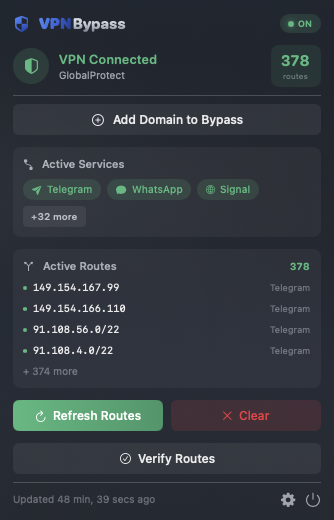
Click the shield icon in the menu bar to:
- See VPN connection status and type
- View active bypass routes
- Quick-add domains to bypass
- Refresh or clear routes
- Verify routes are working
### Settings
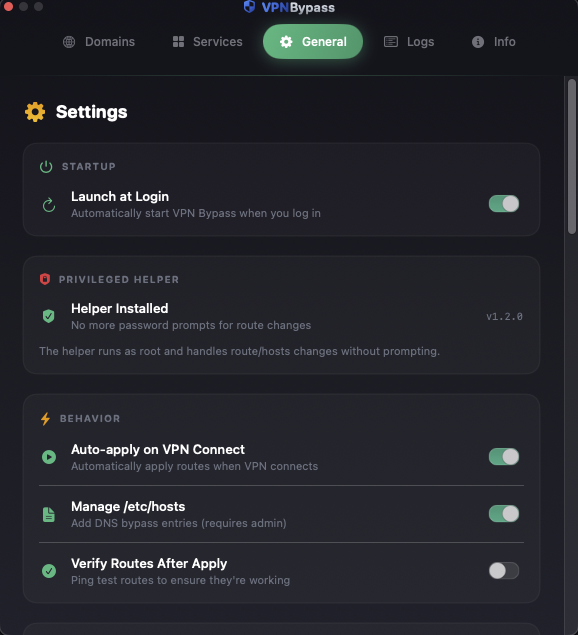
Click the gear icon to access settings. The visible tabs depend on the active mode:
**Domains** — add custom domains, enable/disable them individually, see resolved IPs.
**Services** — toggle built-in service packs (Telegram, YouTube, Spotify, …); each bundles known domains and IP ranges.
**Rules** *(Custom mode)* — the ordered rule list (first match wins) mapping domains/suffixes/IPs/CIDRs/services/processes to routes.
**Routes** *(Custom mode)* — your egresses: auto-detected Direct + VPN links, plus any proxy or Tailscale-peer routes you add.
**General** — launch at login, auto-apply on connect, `/etc/hosts` management, route verification, notification preferences, import/export, and network status (VPN type, interface, gateway, Wi-Fi SSID).
**Logs** — recent activity for debugging.
**Info** — version and helper status.
## Command-line control (`vpnb`)
A bundled `vpnb` CLI drives the same routing the GUI does, over a user-only UNIX socket — handy for scripting or headless tweaks. It needs no extra privilege (the app already holds it).
`vpnb` ships inside the app bundle (`VPN Bypass.app/Contents/MacOS/vpnb`). Installing the cask with `brew install --cask vpn-bypass` symlinks it onto your `PATH`; with a manual DMG install, call it by that path or symlink it yourself.
```bash
vpnb status # current mode, routes, schema/version
vpnb mode mode=custom # switch modes: bypass | vpnOnly | custom
vpnb route.add name=work type=socks5 host=127.0.0.1 port=1080
vpnb rule.add match=suffix pattern=example.com routeId=
vpnb route.list ; vpnb rule.list
```
Secrets are never passed on the command line (argv is world-visible via `ps`). Pass the bare token `pass:-` and pipe the password on stdin:
```bash
read -rs PASS && printf '%s' "$PASS" | vpnb route.set id= pass:-
```
Set `VPNB_SOCKET` to override the socket path (default: `~/Library/Application Support/VPNBypass/control.sock`).
## Supported VPN Types
| VPN Client | Detection |
|------------|-----------|
| GlobalProtect | ✅ Full |
| Cisco AnyConnect | ✅ Full |
| OpenVPN | ✅ Full |
| WireGuard | ✅ Full |
| Fortinet FortiClient | ✅ Full |
| Zscaler | ✅ Full |
| Cloudflare WARP | ✅ Full |
| Pulse Secure | ✅ Full |
| Check Point | ✅ Full |
| Tailscale (exit node) | ✅ Full |
| Tailscale (mesh only) | ❌ Not VPN |
## How It Works
1. **VPN Detection**: Monitors network interfaces and running processes to detect VPN type
2. **Gateway Detection**: Identifies your local gateway (Wi-Fi/Ethernet router)
3. **Route Management**: A small privileged helper adds/removes host routes to steer traffic per your mode — around the VPN (Bypass), through it (VPN Only), or to the route a rule selects (Custom). The helper is cdhash-pinned to this app and uses no Network Extension entitlements.
4. **Route Verification**: Optionally pings routes to verify they're working
5. **DNS Bypass**: Optionally adds entries to `/etc/hosts` to bypass VPN DNS
### VPN Detection Logic
The app intelligently detects corporate VPNs while avoiding false positives:
| Interface Type | IP Range | Detection |
|---------------|----------|-----------|
| **Corporate VPN** (GlobalProtect, Cisco, etc.) | `10.x.x.x`, `172.16-31.x.x` | ✅ Detected as VPN |
| **Cloudflare WARP** | `100.96-111.x.x` | ✅ Detected as VPN |
| **Tailscale** (mesh networking) | `100.64-127.x.x` | ❌ Not detected* |
| **Tailscale** (exit node active) | `100.64-127.x.x` | ✅ Detected as VPN |
**\*Tailscale in normal mode** only routes traffic to other Tailscale devices. It's not a "full VPN" because your regular internet traffic still goes through your normal connection. The app only considers Tailscale as a VPN when you're using an **exit node** (routing all traffic through another Tailscale device).
The detection also requires:
- The interface must have the `UP` flag (actually connected, not just configured)
- The interface must have an IPv4 address in a VPN range
## Requirements
- macOS 13.0 (Ventura) or later
- Admin privileges (for route management and hosts file)
## Permissions
The app requires:
- **Network access**: To detect VPN connections and resolve domains
- **Admin privileges**: To add routes and modify `/etc/hosts` (prompted when needed)
- **Notifications**: Optional, for VPN status alerts (prompted on first launch)
## Troubleshooting
### App won't open / "damaged" error (macOS Gatekeeper)
The app is ad-hoc signed and not notarized with Apple, so macOS Gatekeeper may block it on first launch. You'll see errors like *"VPN Bypass is damaged and can't be opened"* or *"Apple cannot check it for malicious software"*.
**Fix:** Remove the quarantine attribute:
```bash
xattr -cr /Applications/VPN\ Bypass.app
```
**Prevention:** Install with the `--no-quarantine` flag:
```bash
brew install --cask --no-quarantine vpn-bypass
```
### Routes not being applied
1. Check if VPN is actually connected (look for utun interface)
2. Verify local gateway is detected in Settings → General
3. Check Logs tab for errors
4. Use "Verify Routes" button to test connectivity
### Hosts file not updating
The app will prompt for admin password when modifying `/etc/hosts`. If you deny, disable this feature in Settings → General.
### DNS still going through VPN
Some VPNs force DNS through the tunnel. The hosts file entries help bypass this, but you may also need to:
- Disable "Route all DNS through VPN" in your VPN client
- Use a local DNS resolver
### Route verification failing
If routes are applied but verification fails:
- The destination host may be blocking ping (ICMP)
- Try accessing the service directly - it may still work
- Check if the service is actually accessible from your network
## Contributing
Contributions are welcome! Here's how you can help:
1. **Report bugs** - Open an [issue](https://github.com/GeiserX/VPN-Bypass/issues) with details
2. **Suggest features** - Use the feature request template
3. **Submit PRs** - Fork, create a branch, and submit a pull request
Please read the issue templates before submitting.
## Supporters
> This project is made possible by generous supporters:
> **Lee**
## License
This project is licensed under the [GPL-3.0 License](LICENSE).