# BackgroundVideoiOS
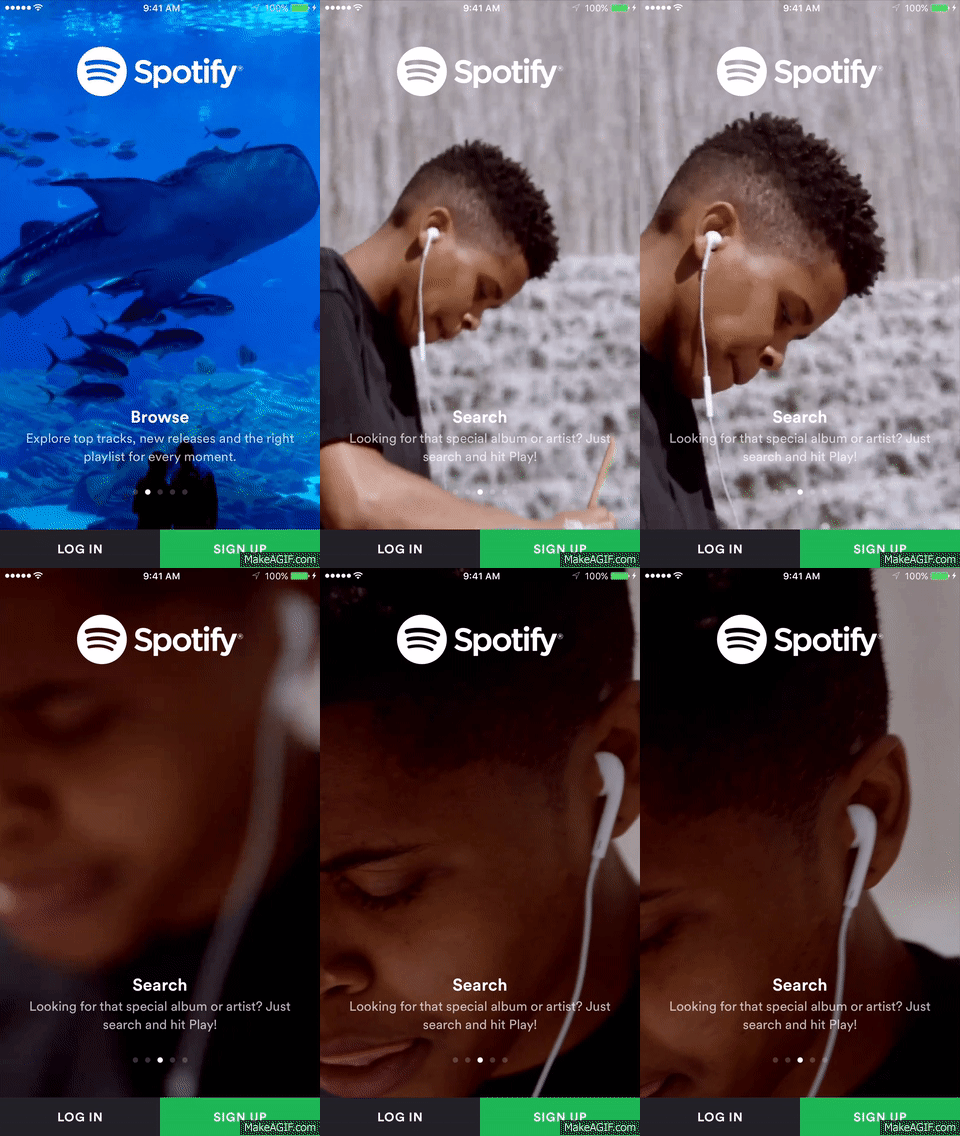
#### *This is an Object/Class which lets you add a background video to iOS app views. This is seen at login views of some famous apps like Spotify, tumbler and Vimeo*
##### This is how they look..
##### It does the following:
* *Creates an AVPlayer object for you and plays a video from your app bundle*
* *Handles video looping*
* *Handles app going to background and coming back to foreground*
* *Handles seguing away and back again to the view that plays the video*
* *Mutes the video and does not allow it to interrupt other audio services. For example, it does not stop music playing from your music app or a VoIP call*
##### Instructions for Swift:
1. Have an awesome video that you want to show as your background
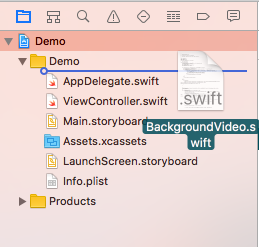
2. Drag and drop **`BackgroundVideo.swift`** file to your Project navigator
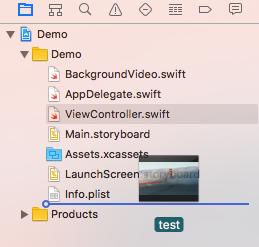
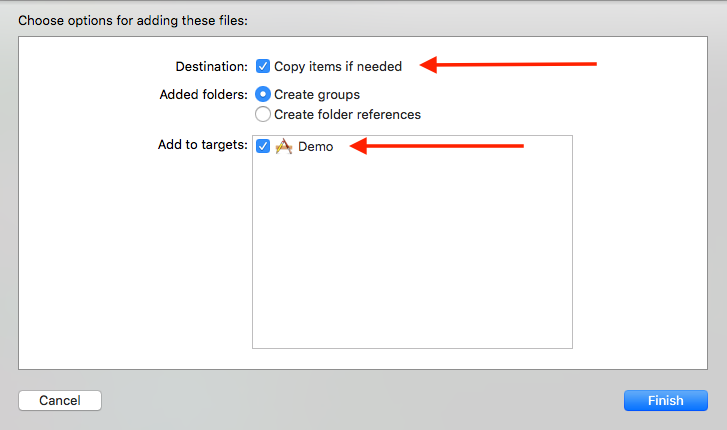
 3. Drag and drop the video to your project and make sure to check **`Copy items if needed`** as well as **`Add to targets`** (This is because the object will look at your app's main bunddle)
 4. Go to the view controller where you want to display the video and declare an instance.
```swift
var backgroundPlayer : BackgroundVideo? // Declare an instance of BackgroundVideo called backgroundPlayer
```
5. In your **`viewDidLoad()`** method, initialize your instance with the view controller you're using and the name of the `video file with it's extension` as parameters (make sure you seperate your name and extension by a period). In the following code I'm passing the same view controller where I declared my instance, namely **`self`**. Then, just call the function **`setUpBackground()`** on your instance.
```swift
override func viewDidLoad() {
super.viewDidLoad()
// Initializing your instance
backgroundPlayer = BackgroundVideo(onViewController: self, withVideoURL: "test.mp4") // Passing self and video name with extension
backgroundPlayer?.setUpBackground()
}
```
##### Instructions for Objective-C:
1. Do steps 1-3 from the Swift steps above, but instead of dragging **`BackgroundVideo.swift`**, drag and drop **`BackgroundVideoObjC.h`** and **`BackgroundVideoObjC.m`**.
2. Go to the view controller where you want to display the video and declare an instance.
```objective-c
@property (strong, nonatomic) BackgroundVideoObjC *backgroundVideo;
```
3. Same as 5 from Swift steps, except use this code:
```objective-c
- (void)viewDidLoad {
self.backgroundVideo = [[BackgroundVideoObjC alloc] initOnViewController:self withVideoURL:@"test.mp4"];
[self.backgroundVideo setUpBackground];
}
```
##### That's it, you're ready to go :)!
4. Go to the view controller where you want to display the video and declare an instance.
```swift
var backgroundPlayer : BackgroundVideo? // Declare an instance of BackgroundVideo called backgroundPlayer
```
5. In your **`viewDidLoad()`** method, initialize your instance with the view controller you're using and the name of the `video file with it's extension` as parameters (make sure you seperate your name and extension by a period). In the following code I'm passing the same view controller where I declared my instance, namely **`self`**. Then, just call the function **`setUpBackground()`** on your instance.
```swift
override func viewDidLoad() {
super.viewDidLoad()
// Initializing your instance
backgroundPlayer = BackgroundVideo(onViewController: self, withVideoURL: "test.mp4") // Passing self and video name with extension
backgroundPlayer?.setUpBackground()
}
```
##### Instructions for Objective-C:
1. Do steps 1-3 from the Swift steps above, but instead of dragging **`BackgroundVideo.swift`**, drag and drop **`BackgroundVideoObjC.h`** and **`BackgroundVideoObjC.m`**.
2. Go to the view controller where you want to display the video and declare an instance.
```objective-c
@property (strong, nonatomic) BackgroundVideoObjC *backgroundVideo;
```
3. Same as 5 from Swift steps, except use this code:
```objective-c
- (void)viewDidLoad {
self.backgroundVideo = [[BackgroundVideoObjC alloc] initOnViewController:self withVideoURL:@"test.mp4"];
[self.backgroundVideo setUpBackground];
}
```
##### That's it, you're ready to go :)!