







#  Gemini-API
A reverse-engineered asynchronous Python wrapper for the [Google Gemini](https://gemini.google.com) web app (formerly Bard).
## Features
- **Persistent Cookies** - Automatically refreshes cookies in background. Optimized for always-on services.
- **Image Generation** - Natively supports generating and editing images with natural language.
- **Video & Audio Generation** - Supports generating videos and audio/music content natively.
- **Deep Research** - Full deep research workflow with plan creation, status polling, and result retrieval.
- **System Prompt** - Supports customizing the model's system prompt with [Gemini Gems](https://gemini.google.com/gems/view).
- **Extension Support** - Supports generating content with [Gemini extensions](https://gemini.google.com/extensions), such as YouTube and Gmail.
- **Classified Outputs** - Categorizes text, thoughts, images, videos, and audio in the response.
- **Streaming Mode** - Supports stream generation, yielding partial outputs as they are generated.
- **CLI Tool** - Standalone command-line interface for quick interactions.
- **Official Flavor** - Provides a simple and elegant interface inspired by [Google Generative AI](https://ai.google.dev/tutorials/python_quickstart)'s official API.
- **Asynchronous** - Utilizes `asyncio` to run generation tasks and return outputs efficiently.
## Table of Contents
- [Features](#features)
- [Table of Contents](#table-of-contents)
- [Installation](#installation)
- [Authentication](#authentication)
- [Usage](#usage)
- [Initialization](#initialization)
- [Generate Content](#generate-content)
- [Generate Content with Files](#generate-content-with-files)
- [Conversations Across Multiple Turns](#conversations-across-multiple-turns)
- [Continue Previous Conversations](#continue-previous-conversations)
- [Read Conversation History](#read-conversation-history)
- [Delete Previous Conversations from Gemini History](#delete-previous-conversations-from-gemini-history)
- [Temporary Mode](#temporary-mode)
- [Streaming Mode](#streaming-mode)
- [Select Language Model](#select-language-model)
- [List Available Models](#list-available-models)
- [Apply System Prompt with Gemini Gems](#apply-system-prompt-with-gemini-gems)
- [Manage Custom Gems](#manage-custom-gems)
- [Create a Custom Gem](#create-a-custom-gem)
- [Update an Existing Gem](#update-an-existing-gem)
- [Delete a Custom Gem](#delete-a-custom-gem)
- [Retrieve Model's Thought Process](#retrieve-models-thought-process)
- [Retrieve Images in Response](#retrieve-images-in-response)
- [Generate and Edit Images](#generate-and-edit-images)
- [Retrieve Videos and Audio](#retrieve-videos-and-audio)
- [Generate Content with Gemini Extensions](#generate-content-with-gemini-extensions)
- [Check and Switch to Other Reply Candidates](#check-and-switch-to-other-reply-candidates)
- [Deep Research](#deep-research)
- [Logging Configuration](#logging-configuration)
- [CLI Tool](#cli-tool)
- [Cookie Setup](#cookie-setup)
- [CLI Commands](#cli-commands)
- [Deep Research Workflow](#deep-research-workflow)
- [References](#references)
- [Stargazers](#stargazers)
## Installation
> [!NOTE]
>
> This package requires Python 3.11 or higher.
Install or update the package with pip.
```sh
pip install -U gemini_webapi
```
Optionally, the package offers a way to automatically import cookies from your local browser via optional dependency `browser-cookie3`. To enable this feature, install `gemini_webapi[browser]` instead. Currently, only Firefox is supported. The latest information about supported browsers can be found in the [browser-cookie3](https://github.com/borisbabic/browser_cookie3) repository.
```sh
pip install -U gemini_webapi[browser]
```
## Authentication
> [!TIP]
>
> If `browser-cookie3` is installed, you can skip this step and go directly to the [usage](#usage) section. Just make sure you are logged in to in your browser.
- Go to and log in with your Google account
- Press F12 to open the web inspector, go to the `Network` tab, and refresh the page
- Click any request and copy the cookie values of `__Secure-1PSID` and `__Secure-1PSIDTS`
> [!NOTE]
>
> If your application is deployed in a containerized environment (e.g. Docker), you may want to persist the cookies with a volume to avoid re-authentication every time the container rebuilds. You can set `GEMINI_COOKIE_PATH` environment variable to specify the path where auto-refreshed cookies are stored. Make sure the path is writable by the application.
>
> Here's part of a sample `docker-compose.yml` file:
```yaml
services:
main:
environment:
GEMINI_COOKIE_PATH: /tmp/gemini_webapi
volumes:
- ./gemini_cookies:/tmp/gemini_webapi
```
> [!NOTE]
>
> The API's auto-cookie-refreshing feature doesn't require `browser-cookie3` and is enabled by default. It allows you to keep the API service running without worrying about cookie expiration.
>
> This feature may require you to log in to your Google account again in the browser. This is expected behavior and won't affect the API's functionality.
>
> To avoid this, it's recommended to get cookies from a separate browser session and close it as soon as possible for best utilization (e.g. a fresh login in the browser's private mode). More details can be found [in issue #6](https://github.com/HanaokaYuzu/Gemini-API/issues/6).
> [!TIP]
>
> If cookies expire frequently, use Firefox to extract cookies. Recent versions of Chromium-based browsers use "Device Bound Session Credentials", which improves security but causes cookies to remain valid for only a few hours and prevents them from being renewed.
## Usage
### Initialization
Import the required packages and initialize a client with your cookies from the previous step. After successful initialization, the API will automatically refresh `__Secure-1PSIDTS` in the background as long as the process is alive.
```python
import asyncio
from gemini_webapi import GeminiClient
# Replace "COOKIE VALUE HERE" with your actual cookie values.
# Leave Secure_1PSIDTS empty if it's not available for your account.
Secure_1PSID = "COOKIE VALUE HERE"
Secure_1PSIDTS = "COOKIE VALUE HERE"
async def main():
# If browser-cookie3 is installed, simply use `client = GeminiClient()`
client = GeminiClient(Secure_1PSID, Secure_1PSIDTS, proxy=None)
await client.init(timeout=30, auto_close=False, close_delay=300, auto_refresh=True)
asyncio.run(main())
```
> [!TIP]
>
> `auto_close` and `close_delay` are optional arguments for automatically closing the client after a certain period of inactivity. This feature is disabled by default. In an always-on service like a chatbot, it's recommended to set `auto_close` to `True` with a reasonable `close_delay` value for better resource management.
### Generate Content
Ask a single-turn question by calling `GeminiClient.generate_content`, which returns a `gemini_webapi.ModelOutput` object containing the generated text, images, thoughts, and conversation metadata.
```python
async def main():
response = await client.generate_content("Hello World!")
print(response.text)
asyncio.run(main())
```
> [!TIP]
>
> Simply use `print(response)` to get the same output if you just want to see the response text.
### Generate Content with Files
Gemini supports file input, including images and documents. Optionally, you can pass files as a list of paths in `str` or `pathlib.Path` to `GeminiClient.generate_content` together with a text prompt.
```python
async def main():
response = await client.generate_content(
"Introduce the contents of these two files. Is there any connection between them?",
files=["assets/sample.pdf", Path("assets/banner.png")],
)
print(response.text)
asyncio.run(main())
```
### Conversations Across Multiple Turns
If you want to keep the conversation continuous, use `GeminiClient.start_chat` to create a `gemini_webapi.ChatSession` object and send messages through it. The conversation history will be handled automatically and updated after each turn.
```python
async def main():
chat = client.start_chat()
response1 = await chat.send_message(
"Introduce the contents of these two files. Is there any connection between them?",
files=["assets/sample.pdf", Path("assets/banner.png")],
)
print(response1.text)
response2 = await chat.send_message(
"Use image generation tool to modify the banner with another font and design."
)
print(response2.text, response2.images, sep="\n\n----------------------------------\n\n")
asyncio.run(main())
```
> [!TIP]
>
> Same as `GeminiClient.generate_content`, `ChatSession.send_message` also accepts `image` as an optional argument.
### Continue Previous Conversations
To manually retrieve previous conversations, you can pass a previous `ChatSession`'s metadata to `GeminiClient.start_chat` when creating a new `ChatSession`. Alternatively, you can persist previous metadata to a file or database if you need to access it after the current Python process has exited.
```python
async def main():
# Start a new chat session
chat = client.start_chat()
response = await chat.send_message("Fine weather today")
# Save chat's metadata
previous_session = chat.metadata
# Load the previous conversation
previous_chat = client.start_chat(metadata=previous_session)
response = await previous_chat.send_message("What was my previous message?")
print(response)
asyncio.run(main())
```
### Read Conversation History
You can read the conversation history of a specific chat by calling `GeminiClient.read_chat` with the chat ID. It returns a `ChatHistory` object containing a list of `ChatTurn` objects ordered from newest to oldest.
```python
async def main():
chat = client.start_chat()
await chat.send_message("What is the capital of France?")
# Read the chat history
history = await client.read_chat(chat.cid)
if history:
for turn in history.turns:
print(f"[{turn.role.upper()}] {turn.text}")
print("\n----------------------------------\n")
asyncio.run(main())
```
To list all recent chats, use `GeminiClient.list_chats`:
```python
async def main():
chats = client.list_chats()
if chats:
for chat_info in chats:
print(f"{chat_info.cid}: {chat_info.title}")
asyncio.run(main())
```
### Delete Previous Conversations from Gemini History
You can delete a specific chat from Gemini history on the server by calling `GeminiClient.delete_chat` with the chat ID.
```python
async def main():
# Start a new chat session
chat = client.start_chat()
await chat.send_message("This is a temporary conversation.")
# Delete the chat
await client.delete_chat(chat.cid)
print(f"Chat deleted: {chat.cid}")
asyncio.run(main())
```
### Temporary Mode
You can start a temporary chat by passing `temporary=True` to `GeminiClient.generate_content` or `ChatSession.send_message`. Temporary chats won't be saved in Gemini history.
```python
async def main():
response = await client.generate_content("Hello World!", temporary=True)
print(response.text, "\n\n----------------------------------\n\n")
chat = client.start_chat()
await chat.send_message("Fine weather today", temporary=False)
response2 = await chat.send_message("What's my last message?", temporary=True)
print(response2.text)
asyncio.run(main())
```
### Streaming Mode
For longer responses, you can use streaming mode to receive partial outputs as they are generated. This provides a more responsive user experience, especially for real-time applications like chatbots.
The `generate_content_stream` method yields `ModelOutput` objects where the `text_delta` attribute contains only the **new characters** received since the last yield, making it easy to display incremental updates.
```python
async def main():
async for chunk in client.generate_content_stream(
"What's the difference between 'await' and 'async for'?"
):
print(chunk.text_delta, end="", flush=True)
print()
asyncio.run(main())
```
> [!TIP]
>
> Streaming mode accepts the same arguments as `generate_content`. You can also use streaming mode in multi-turn conversations with `ChatSession.send_message_stream`.
### Select Language Model
You can specify which language model to use by passing the `model` argument to `GeminiClient.generate_content` or `GeminiClient.start_chat`. Omit it, or pass `None`, to let Google use your account's default model.
Models are discovered **dynamically** at init time from your account, along with the request headers and tier capacity each one needs. Pass a name, alias, display name or id string - or an `AvailableModel` straight from `list_models()`. Names follow whatever Google publishes to your account (currently `gemini-pro`, `gemini-flash` and `gemini-flash-lite`), so run the snippet below to see your own list rather than hardcoding one.
```python
async def main():
for model in client.list_models() or []:
print(model.model_name, "|", model.display_name, "| available:", model.is_available)
response1 = await client.generate_content(
"What's your language model version? Reply with the version number only.",
model="gemini-flash", # a name, alias, display name or id
)
print(f"Model version (gemini-flash): {response1.text}")
chat = client.start_chat(model=client.resolve_model("pro"))
response2 = await chat.send_message(
"What's your language model version? Reply with the version number only."
)
print(f"Model version ({chat.model}): {response2.text}")
asyncio.run(main())
```
> [!WARNING]
>
> The `Model` enum is **deprecated and pending removal**. Its ids and headers are hardcoded, and its `PLUS_`/`ADVANCED_` variants ask you to know your own account tier - a value the client now reads from the account itself, which is why nine members collapse into six actual models.
>
> `Model.from_name` and `Model.from_dict` have been **removed**; use `client.resolve_model(name)` and `AvailableModel.from_dict` instead. Passing a member to `generate_content` still works for now: it is mapped onto your account's equivalent model, or to the default model if your account has no counterpart, and logs a warning. Names the enum alone knew - `gemini-pro-advanced` and friends - no longer resolve at all; ask for `gemini-pro` and the tier is filled in for you.
You can also pass custom model header strings directly to access models that are not listed above.
```python
# "model_name" and "model_header" keys must be present
custom_model = {
"model_name": "xxx",
"model_header": {
"x-goog-ext-525001261-jspb": '[1,null,null,null,"fbb127bbb056c959",null,null,0,[4,5,6,8],null,null,1,null,null,1,1,"EA3C5672-E422-4A5F-BE26-B5B57D3B9AC3"]',
"x-goog-ext-73010989-jspb": "[0]",
"x-goog-ext-73010990-jspb": "[0,0,0]",
},
}
response = await client.generate_content("What's your model version?", model=custom_model)
```
> [!NOTE]
>
> A dictionary is read into an `AvailableModel`: the model id is taken from the header you supply and the header is then rebuilt, so `capacity` and `model_number` come from the dictionary (or its defaults) rather than from other slots of the string. Prefer a model name; reach for this only for a model discovery does not list yet.
### List Available Models
The client dynamically discovers which models are available for your account at initialization. Use `GeminiClient.list_models` to see all available models and their details.
```python
async def main():
await client.init() # Make sure the client is initialized first
models = client.list_models()
if models:
for model in models:
print(f"{model.display_name}: {model.model_name}")
asyncio.run(main())
```
### Apply System Prompt with Gemini Gems
System prompts can be applied to conversations via [Gemini Gems](https://gemini.google.com/gems/view). To use a gem, you can pass the `gem` argument to `GeminiClient.generate_content` or `GeminiClient.start_chat`. `gem` can be either a gem ID string or a `gemini_webapi.Gem` object. Only one gem can be applied to a single conversation.
> [!TIP]
>
> There are some system predefined gems that are not shown to users by default (and therefore may not work properly). Use `client.fetch_gems(include_hidden=True)` to include them in the fetch result.
```python
async def main():
# Fetch all gems for the current account, including both predefined and user-created ones
await client.fetch_gems(include_hidden=False)
# Once fetched, gems will be cached in `GeminiClient.gems`
gems = client.gems
# Get the gem you want to use
system_gems = gems.filter(predefined=True)
coding_partner = system_gems.get(id="coding-partner")
response1 = await client.generate_content(
"What's your system prompt?",
gem=coding_partner,
)
print(response1.text)
# Another example with a user-created custom gem
# Gem ids are consistent strings. Store them somewhere to avoid fetching gems every time
your_gem = gems.get(name="Your Gem Name")
your_gem_id = your_gem.id
chat = client.start_chat(gem=your_gem_id)
response2 = await chat.send_message("What's your system prompt?")
print(response2)
```
### Manage Custom Gems
You can create, update, and delete your custom gems programmatically with the API. Note that predefined system gems cannot be modified or deleted.
#### Create a Custom Gem
Create a new custom gem with a name, system prompt (instructions), and optional description:
```python
async def main():
# Create a new custom gem
new_gem = await client.create_gem(
name="Python Tutor",
prompt="You are a helpful Python programming tutor.",
description="A specialized gem for Python programming",
)
print(f"Custom gem created: {new_gem}")
# Use the newly created gem in a conversation
response = await client.generate_content(
"Explain how list comprehensions work in Python", gem=new_gem
)
print(response.text)
asyncio.run(main())
```
#### Update an Existing Gem
> [!NOTE]
>
> When updating a gem, you must provide all parameters (name, prompt, description) even if you only want to change one of them.
```python
async def main():
# Get a custom gem (assuming you have one named "Python Tutor")
await client.fetch_gems()
python_tutor = client.gems.get(name="Python Tutor")
# Update the gem with new instructions
updated_gem = await client.update_gem(
gem=python_tutor, # Can also pass gem ID string
name="Advanced Python Tutor",
prompt="You are an expert Python programming tutor.",
description="An advanced Python programming assistant",
)
print(f"Custom gem updated: {updated_gem}")
asyncio.run(main())
```
#### Delete a Custom Gem
```python
async def main():
# Get the gem to delete
await client.fetch_gems()
gem_to_delete = client.gems.get(name="Advanced Python Tutor")
# Delete the gem
await client.delete_gem(gem_to_delete) # Can also pass gem ID string
print(f"Custom gem deleted: {gem_to_delete.name}")
asyncio.run(main())
```
### Retrieve Model's Thought Process
When using models with thinking capabilities, the model's thought process will be populated in `ModelOutput.thoughts`.
```python
async def main():
response = await client.generate_content("What's 1+1?", model="gemini-pro")
print(response.thoughts)
print(response.text)
asyncio.run(main())
```
### Retrieve Images in Response
Images in the API's output are stored as a list of `gemini_webapi.Image` objects. You can access the image title, URL, and description by calling `Image.title`, `Image.url` and `Image.alt` respectively.
```python
async def main():
response = await client.generate_content("Send me some pictures of cats")
for image in response.images:
print(image, "\n\n----------------------------------\n\n")
asyncio.run(main())
```
### Generate and Edit Images
You can ask Gemini to generate and edit images with Nano Banana, Google's latest image model, using natural language.
> [!IMPORTANT]
>
> Google has some limitations on Gemini's image generation feature, so availability may vary by region/account. Here's a summary copied from [official documentation](https://support.google.com/gemini/answer/14286560) (as of Sep 10, 2025):
>
> > This feature's availability in any specific Gemini app is also limited to the supported languages and countries of that app.
> >
> > For now, this feature isn't available to users under 18.
> >
> > To use this feature, you must be signed in to Gemini Apps.
You can save images returned from Gemini locally by calling `Image.save()`. Optionally, you can specify the file path and file name by passing `path` and `filename` arguments to the function. This works for both `WebImage` and `GeneratedImage`.
```python
async def main():
response = await client.generate_content("Generate some pictures of cats")
for i, image in enumerate(response.images):
await image.save(path="temp/", filename=f"cat_{i}.png", verbose=True)
print(image, "\n\n----------------------------------\n\n")
asyncio.run(main())
```
> [!NOTE]
>
> By default, when asked to send images (like in the previous example), Gemini will send images fetched from the web instead of generating images with an AI model, unless you specifically ask it to "generate" images in your prompt. In this package, web images and generated images are treated differently as `WebImage` and `GeneratedImage`, and are automatically categorized in the output.
### Retrieve Videos and Audio
Gemini can generate videos and audio/music content. These are returned as `GeneratedVideo` and `GeneratedMedia` objects in `ModelOutput.videos` and `ModelOutput.media` respectively. You can save them to disk just like images.
> [!NOTE]
>
> You may need an active subscription to access Gemini's video and audio generation features.
```python
async def main():
response = await client.generate_content("Generate a short video of a cat playing")
# Save generated videos
for video in response.videos:
result = await video.save(path="temp/", verbose=True)
print(f"Video saved: {result}")
# Save generated media (audio/music)
for media in response.media:
result = await media.save(path="temp/", verbose=True)
print(f"Media saved: {result}")
asyncio.run(main())
```
> [!NOTE]
>
> `GeneratedMedia.save()` accepts a `download_type` parameter: `"audio"`, `"video"`, or `"both"` (default). Generated video/audio may take time to render — the save method will poll automatically until the content is ready.
### Generate Content with Gemini Extensions
> [!IMPORTANT]
>
> To access Gemini extensions in the API, you must activate them on the [Gemini website](https://gemini.google.com/extensions) first. As with image generation, Google also has limitations on the availability of Gemini extensions. Here's a summary copied from [official documentation](https://support.google.com/gemini/answer/13695044) (as of March 19, 2025):
>
> > To connect apps to Gemini, you must have Gemini Apps Activity on.
> >
> > To use this feature, you must be signed in to Gemini Apps.
> >
> > Important: If you're under 18, Google Workspace and Maps apps currently only work with English prompts in Gemini.
After activating extensions for your account, you can access them in your prompts either in natural language or by starting your prompt with "@" followed by the extension keyword.
```python
async def main():
response1 = await client.generate_content("@Gmail What's the latest message in my mailbox?")
print(response1, "\n\n----------------------------------\n\n")
response2 = await client.generate_content(
"@Youtube What's the latest activity of Taylor Swift?"
)
print(response2, "\n\n----------------------------------\n\n")
asyncio.run(main())
```
> [!NOTE]
>
> For region availability, your Google account's **preferred language** only needs to be set to one of the three supported languages listed above. You can change your language settings [in your Google account settings](https://myaccount.google.com/language).
### Check and Switch to Other Reply Candidates
A response from Gemini sometimes contains multiple reply candidates with different generated content. You can check all candidates and choose one to continue the conversation. By default, the first candidate is chosen.
```python
async def main():
# Start a conversation and list all reply candidates
chat = client.start_chat()
response = await chat.send_message("Recommend a science fiction book for me.")
for candidate in response.candidates:
print(candidate, "\n\n----------------------------------\n\n")
if len(response.candidates) > 1:
# Control the ongoing conversation flow by choosing candidate manually
new_candidate = chat.choose_candidate(index=1) # Choose the second candidate here
followup_response = await chat.send_message(
"Tell me more about it."
) # Will generate content based on the chosen candidate
print(new_candidate, followup_response, sep="\n\n----------------------------------\n\n")
else:
print("Only one candidate available.")
asyncio.run(main())
```
### Deep Research
Gemini's deep research feature is an autonomous research agent that browses the web, analyzes sources, and produces a comprehensive report. You can access it programmatically through the API.
Under the hood this is an ordinary chat conversation: Gemini answers the first turn with a **plan**, and a second turn **confirms** it and starts the research. The task then runs server-side, detached from the session, so polling for the report does not require holding the conversation open.
The finished report is delivered as an **inline document**, not as reply text — the reply itself is only a short notice such as _"I've completed your research"_. `result.text` returns the report, and `result.document` exposes it with its id and title:
```python
result = await client.deep_research("...")
doc = result.document
print(doc.title) # 'SQLite vs DuckDB for Analytics'
print(doc.content) # markdown report: headings, tables, links, [cite: N] markers
print(doc.sources) # the web sources those [cite: N] markers resolve to
Path("report.md").write_text(doc.markdown, encoding="utf-8") # body + numbered source list
```
The same document is available on any deep research turn as `output.deep_research_document`, so a report can be recovered later from the chat alone:
```python
output = await client.fetch_latest_chat_response("c_abc123")
if (doc := output.deep_research_document) and doc.ready:
print(doc.content)
```
> [!NOTE]
>
> You may need an active subscription to access Gemini's deep research feature.
**Quick one-call method:**
```python
async def main():
result = await client.deep_research(
"Compare the top 3 cloud providers and their AI offerings",
poll_interval=10.0,
timeout=600.0,
)
print(f"Done: {result.done}")
print(result.text)
asyncio.run(main())
```
Both turns run in a single chat session. Pass `model` to choose one, or `chat` to supply your own session and keep a reference to the conversation after the call returns.
> [!TIP]
>
> Reports commonly take 5-10 minutes, and longer for broad topics. Raise `timeout` past the 600 second default if `result.done` comes back `False`.
**Step-by-step workflow** for more control, including reviewing the plan before committing to it:
```python
async def main():
# Plan and confirmation are two turns of one conversation, so share a chat session
chat = client.start_chat()
# Step 1: Create a research plan
plan = await client.create_deep_research_plan(
"What are the latest advancements in quantum computing?",
chat=chat,
)
print(f"Title: {plan.title}")
print(f"ETA: {plan.eta_text}")
for step in plan.steps:
print(f" - {step}")
# Step 2 (optional): Ask for changes on the same session to get a revised plan back
# plan = await client.create_deep_research_plan("Focus on error correction", chat=chat)
# Step 3: Confirm the plan to start the research
await client.start_deep_research(plan, chat=chat)
# Step 4: Poll for completion
result = await client.wait_for_deep_research(
plan,
poll_interval=10.0,
timeout=600.0,
)
print(result.text)
asyncio.run(main())
```
### Logging Configuration
This package uses [loguru](https://loguru.readthedocs.io/en/stable/) for logging and exposes a function `set_log_level` to control the log level. You can set the log level to one of the following values: `DEBUG`, `INFO`, `WARNING`, `ERROR`, and `CRITICAL`. The default value is `INFO`.
```python
from gemini_webapi import set_log_level
set_log_level("DEBUG")
```
> [!NOTE]
>
> Calling `set_log_level` for the first time will **globally** remove all existing loguru handlers. You may want to configure logging directly with loguru to avoid this issue and have more advanced control over logging behaviors.
## CLI Tool
A standalone CLI (`cli.py`) is included for interacting with Gemini from the terminal. It supports single-turn questions, multi-turn chat, deep research, image download, and account diagnostics.
### Cookie Setup
Export your cookies from [gemini.google.com](https://gemini.google.com) and save them as a JSON file. The CLI supports multiple formats:
```json
{ "__Secure-1PSID": "value...", "__Secure-1PSIDTS": "value..." }
```
You can also use a browser cookie extension export (array-of-objects format is supported).
> [!NOTE]
>
> The CLI automatically persists updated cookies back to the JSON file after each run. Use `--no-persist` to disable this behavior.
### CLI Commands
**Global options** (placed before the subcommand):
```sh
--cookies-json PATH Path to cookies JSON file (required)
--proxy URL Proxy URL (or uses HTTPS_PROXY env)
--model NAME Model name, alias or id (default: your account's default model)
--verbose Enable debug logging
--no-persist Don't update cookies file after run
--request-timeout SEC HTTP timeout in seconds (default: 300)
```
**Available commands:**
```sh
# Ask a single question (streams by default)
python cli.py --cookies-json cookies.json ask "What is quantum computing?"
# Ask with image input
python cli.py --cookies-json cookies.json ask --image photo.jpg "Describe this"
# Non-streaming mode
python cli.py --cookies-json cookies.json ask --no-stream "Hello"
# Continue a conversation (chat ID from previous output)
python cli.py --cookies-json cookies.json reply c_abc123 "Tell me more"
# List your chat history
python cli.py --cookies-json cookies.json list
# Read a specific chat conversation
python cli.py --cookies-json cookies.json read c_abc123
# List the models your account can use
python cli.py --cookies-json cookies.json models
# Download a generated image
python cli.py --cookies-json cookies.json download "https://..." -o output.png
# Account diagnostics (status, quotas, usage limits, available models)
python cli.py --cookies-json cookies.json inspect
```
### Deep Research Workflow
The CLI supports Gemini's Deep Research feature — an autonomous research agent that browses the web, analyzes sources, and produces a comprehensive report.
```sh
# 1. Submit a research task. Prints both a chat ID and a research (task) ID
python cli.py --cookies-json cookies.json research send --prompt "AI chip competition 2025"
# 2. Check progress. Pass --research-id for the actual task state - without it the chat
# cannot be told apart from the plan and confirmation replies, which arrive immediately
python cli.py --cookies-json cookies.json research check c_abc123 --research-id 0f3d...
# 3. Fetch the full result
python cli.py --cookies-json cookies.json research get c_abc123
# 4. Save result to a file
python cli.py --cookies-json cookies.json research get c_abc123 --output report.md
```
## References
[Google AI Studio](https://ai.google.dev/tutorials/ai-studio_quickstart)
[acheong08/Bard](https://github.com/acheong08/Bard)
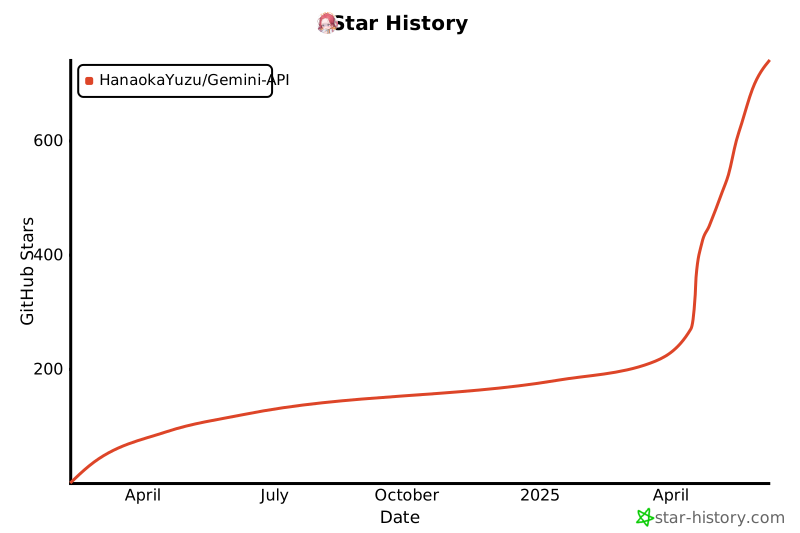
## Stargazers
Gemini-API
A reverse-engineered asynchronous Python wrapper for the [Google Gemini](https://gemini.google.com) web app (formerly Bard).
## Features
- **Persistent Cookies** - Automatically refreshes cookies in background. Optimized for always-on services.
- **Image Generation** - Natively supports generating and editing images with natural language.
- **Video & Audio Generation** - Supports generating videos and audio/music content natively.
- **Deep Research** - Full deep research workflow with plan creation, status polling, and result retrieval.
- **System Prompt** - Supports customizing the model's system prompt with [Gemini Gems](https://gemini.google.com/gems/view).
- **Extension Support** - Supports generating content with [Gemini extensions](https://gemini.google.com/extensions), such as YouTube and Gmail.
- **Classified Outputs** - Categorizes text, thoughts, images, videos, and audio in the response.
- **Streaming Mode** - Supports stream generation, yielding partial outputs as they are generated.
- **CLI Tool** - Standalone command-line interface for quick interactions.
- **Official Flavor** - Provides a simple and elegant interface inspired by [Google Generative AI](https://ai.google.dev/tutorials/python_quickstart)'s official API.
- **Asynchronous** - Utilizes `asyncio` to run generation tasks and return outputs efficiently.
## Table of Contents
- [Features](#features)
- [Table of Contents](#table-of-contents)
- [Installation](#installation)
- [Authentication](#authentication)
- [Usage](#usage)
- [Initialization](#initialization)
- [Generate Content](#generate-content)
- [Generate Content with Files](#generate-content-with-files)
- [Conversations Across Multiple Turns](#conversations-across-multiple-turns)
- [Continue Previous Conversations](#continue-previous-conversations)
- [Read Conversation History](#read-conversation-history)
- [Delete Previous Conversations from Gemini History](#delete-previous-conversations-from-gemini-history)
- [Temporary Mode](#temporary-mode)
- [Streaming Mode](#streaming-mode)
- [Select Language Model](#select-language-model)
- [List Available Models](#list-available-models)
- [Apply System Prompt with Gemini Gems](#apply-system-prompt-with-gemini-gems)
- [Manage Custom Gems](#manage-custom-gems)
- [Create a Custom Gem](#create-a-custom-gem)
- [Update an Existing Gem](#update-an-existing-gem)
- [Delete a Custom Gem](#delete-a-custom-gem)
- [Retrieve Model's Thought Process](#retrieve-models-thought-process)
- [Retrieve Images in Response](#retrieve-images-in-response)
- [Generate and Edit Images](#generate-and-edit-images)
- [Retrieve Videos and Audio](#retrieve-videos-and-audio)
- [Generate Content with Gemini Extensions](#generate-content-with-gemini-extensions)
- [Check and Switch to Other Reply Candidates](#check-and-switch-to-other-reply-candidates)
- [Deep Research](#deep-research)
- [Logging Configuration](#logging-configuration)
- [CLI Tool](#cli-tool)
- [Cookie Setup](#cookie-setup)
- [CLI Commands](#cli-commands)
- [Deep Research Workflow](#deep-research-workflow)
- [References](#references)
- [Stargazers](#stargazers)
## Installation
> [!NOTE]
>
> This package requires Python 3.11 or higher.
Install or update the package with pip.
```sh
pip install -U gemini_webapi
```
Optionally, the package offers a way to automatically import cookies from your local browser via optional dependency `browser-cookie3`. To enable this feature, install `gemini_webapi[browser]` instead. Currently, only Firefox is supported. The latest information about supported browsers can be found in the [browser-cookie3](https://github.com/borisbabic/browser_cookie3) repository.
```sh
pip install -U gemini_webapi[browser]
```
## Authentication
> [!TIP]
>
> If `browser-cookie3` is installed, you can skip this step and go directly to the [usage](#usage) section. Just make sure you are logged in to in your browser.
- Go to and log in with your Google account
- Press F12 to open the web inspector, go to the `Network` tab, and refresh the page
- Click any request and copy the cookie values of `__Secure-1PSID` and `__Secure-1PSIDTS`
> [!NOTE]
>
> If your application is deployed in a containerized environment (e.g. Docker), you may want to persist the cookies with a volume to avoid re-authentication every time the container rebuilds. You can set `GEMINI_COOKIE_PATH` environment variable to specify the path where auto-refreshed cookies are stored. Make sure the path is writable by the application.
>
> Here's part of a sample `docker-compose.yml` file:
```yaml
services:
main:
environment:
GEMINI_COOKIE_PATH: /tmp/gemini_webapi
volumes:
- ./gemini_cookies:/tmp/gemini_webapi
```
> [!NOTE]
>
> The API's auto-cookie-refreshing feature doesn't require `browser-cookie3` and is enabled by default. It allows you to keep the API service running without worrying about cookie expiration.
>
> This feature may require you to log in to your Google account again in the browser. This is expected behavior and won't affect the API's functionality.
>
> To avoid this, it's recommended to get cookies from a separate browser session and close it as soon as possible for best utilization (e.g. a fresh login in the browser's private mode). More details can be found [in issue #6](https://github.com/HanaokaYuzu/Gemini-API/issues/6).
> [!TIP]
>
> If cookies expire frequently, use Firefox to extract cookies. Recent versions of Chromium-based browsers use "Device Bound Session Credentials", which improves security but causes cookies to remain valid for only a few hours and prevents them from being renewed.
## Usage
### Initialization
Import the required packages and initialize a client with your cookies from the previous step. After successful initialization, the API will automatically refresh `__Secure-1PSIDTS` in the background as long as the process is alive.
```python
import asyncio
from gemini_webapi import GeminiClient
# Replace "COOKIE VALUE HERE" with your actual cookie values.
# Leave Secure_1PSIDTS empty if it's not available for your account.
Secure_1PSID = "COOKIE VALUE HERE"
Secure_1PSIDTS = "COOKIE VALUE HERE"
async def main():
# If browser-cookie3 is installed, simply use `client = GeminiClient()`
client = GeminiClient(Secure_1PSID, Secure_1PSIDTS, proxy=None)
await client.init(timeout=30, auto_close=False, close_delay=300, auto_refresh=True)
asyncio.run(main())
```
> [!TIP]
>
> `auto_close` and `close_delay` are optional arguments for automatically closing the client after a certain period of inactivity. This feature is disabled by default. In an always-on service like a chatbot, it's recommended to set `auto_close` to `True` with a reasonable `close_delay` value for better resource management.
### Generate Content
Ask a single-turn question by calling `GeminiClient.generate_content`, which returns a `gemini_webapi.ModelOutput` object containing the generated text, images, thoughts, and conversation metadata.
```python
async def main():
response = await client.generate_content("Hello World!")
print(response.text)
asyncio.run(main())
```
> [!TIP]
>
> Simply use `print(response)` to get the same output if you just want to see the response text.
### Generate Content with Files
Gemini supports file input, including images and documents. Optionally, you can pass files as a list of paths in `str` or `pathlib.Path` to `GeminiClient.generate_content` together with a text prompt.
```python
async def main():
response = await client.generate_content(
"Introduce the contents of these two files. Is there any connection between them?",
files=["assets/sample.pdf", Path("assets/banner.png")],
)
print(response.text)
asyncio.run(main())
```
### Conversations Across Multiple Turns
If you want to keep the conversation continuous, use `GeminiClient.start_chat` to create a `gemini_webapi.ChatSession` object and send messages through it. The conversation history will be handled automatically and updated after each turn.
```python
async def main():
chat = client.start_chat()
response1 = await chat.send_message(
"Introduce the contents of these two files. Is there any connection between them?",
files=["assets/sample.pdf", Path("assets/banner.png")],
)
print(response1.text)
response2 = await chat.send_message(
"Use image generation tool to modify the banner with another font and design."
)
print(response2.text, response2.images, sep="\n\n----------------------------------\n\n")
asyncio.run(main())
```
> [!TIP]
>
> Same as `GeminiClient.generate_content`, `ChatSession.send_message` also accepts `image` as an optional argument.
### Continue Previous Conversations
To manually retrieve previous conversations, you can pass a previous `ChatSession`'s metadata to `GeminiClient.start_chat` when creating a new `ChatSession`. Alternatively, you can persist previous metadata to a file or database if you need to access it after the current Python process has exited.
```python
async def main():
# Start a new chat session
chat = client.start_chat()
response = await chat.send_message("Fine weather today")
# Save chat's metadata
previous_session = chat.metadata
# Load the previous conversation
previous_chat = client.start_chat(metadata=previous_session)
response = await previous_chat.send_message("What was my previous message?")
print(response)
asyncio.run(main())
```
### Read Conversation History
You can read the conversation history of a specific chat by calling `GeminiClient.read_chat` with the chat ID. It returns a `ChatHistory` object containing a list of `ChatTurn` objects ordered from newest to oldest.
```python
async def main():
chat = client.start_chat()
await chat.send_message("What is the capital of France?")
# Read the chat history
history = await client.read_chat(chat.cid)
if history:
for turn in history.turns:
print(f"[{turn.role.upper()}] {turn.text}")
print("\n----------------------------------\n")
asyncio.run(main())
```
To list all recent chats, use `GeminiClient.list_chats`:
```python
async def main():
chats = client.list_chats()
if chats:
for chat_info in chats:
print(f"{chat_info.cid}: {chat_info.title}")
asyncio.run(main())
```
### Delete Previous Conversations from Gemini History
You can delete a specific chat from Gemini history on the server by calling `GeminiClient.delete_chat` with the chat ID.
```python
async def main():
# Start a new chat session
chat = client.start_chat()
await chat.send_message("This is a temporary conversation.")
# Delete the chat
await client.delete_chat(chat.cid)
print(f"Chat deleted: {chat.cid}")
asyncio.run(main())
```
### Temporary Mode
You can start a temporary chat by passing `temporary=True` to `GeminiClient.generate_content` or `ChatSession.send_message`. Temporary chats won't be saved in Gemini history.
```python
async def main():
response = await client.generate_content("Hello World!", temporary=True)
print(response.text, "\n\n----------------------------------\n\n")
chat = client.start_chat()
await chat.send_message("Fine weather today", temporary=False)
response2 = await chat.send_message("What's my last message?", temporary=True)
print(response2.text)
asyncio.run(main())
```
### Streaming Mode
For longer responses, you can use streaming mode to receive partial outputs as they are generated. This provides a more responsive user experience, especially for real-time applications like chatbots.
The `generate_content_stream` method yields `ModelOutput` objects where the `text_delta` attribute contains only the **new characters** received since the last yield, making it easy to display incremental updates.
```python
async def main():
async for chunk in client.generate_content_stream(
"What's the difference between 'await' and 'async for'?"
):
print(chunk.text_delta, end="", flush=True)
print()
asyncio.run(main())
```
> [!TIP]
>
> Streaming mode accepts the same arguments as `generate_content`. You can also use streaming mode in multi-turn conversations with `ChatSession.send_message_stream`.
### Select Language Model
You can specify which language model to use by passing the `model` argument to `GeminiClient.generate_content` or `GeminiClient.start_chat`. Omit it, or pass `None`, to let Google use your account's default model.
Models are discovered **dynamically** at init time from your account, along with the request headers and tier capacity each one needs. Pass a name, alias, display name or id string - or an `AvailableModel` straight from `list_models()`. Names follow whatever Google publishes to your account (currently `gemini-pro`, `gemini-flash` and `gemini-flash-lite`), so run the snippet below to see your own list rather than hardcoding one.
```python
async def main():
for model in client.list_models() or []:
print(model.model_name, "|", model.display_name, "| available:", model.is_available)
response1 = await client.generate_content(
"What's your language model version? Reply with the version number only.",
model="gemini-flash", # a name, alias, display name or id
)
print(f"Model version (gemini-flash): {response1.text}")
chat = client.start_chat(model=client.resolve_model("pro"))
response2 = await chat.send_message(
"What's your language model version? Reply with the version number only."
)
print(f"Model version ({chat.model}): {response2.text}")
asyncio.run(main())
```
> [!WARNING]
>
> The `Model` enum is **deprecated and pending removal**. Its ids and headers are hardcoded, and its `PLUS_`/`ADVANCED_` variants ask you to know your own account tier - a value the client now reads from the account itself, which is why nine members collapse into six actual models.
>
> `Model.from_name` and `Model.from_dict` have been **removed**; use `client.resolve_model(name)` and `AvailableModel.from_dict` instead. Passing a member to `generate_content` still works for now: it is mapped onto your account's equivalent model, or to the default model if your account has no counterpart, and logs a warning. Names the enum alone knew - `gemini-pro-advanced` and friends - no longer resolve at all; ask for `gemini-pro` and the tier is filled in for you.
You can also pass custom model header strings directly to access models that are not listed above.
```python
# "model_name" and "model_header" keys must be present
custom_model = {
"model_name": "xxx",
"model_header": {
"x-goog-ext-525001261-jspb": '[1,null,null,null,"fbb127bbb056c959",null,null,0,[4,5,6,8],null,null,1,null,null,1,1,"EA3C5672-E422-4A5F-BE26-B5B57D3B9AC3"]',
"x-goog-ext-73010989-jspb": "[0]",
"x-goog-ext-73010990-jspb": "[0,0,0]",
},
}
response = await client.generate_content("What's your model version?", model=custom_model)
```
> [!NOTE]
>
> A dictionary is read into an `AvailableModel`: the model id is taken from the header you supply and the header is then rebuilt, so `capacity` and `model_number` come from the dictionary (or its defaults) rather than from other slots of the string. Prefer a model name; reach for this only for a model discovery does not list yet.
### List Available Models
The client dynamically discovers which models are available for your account at initialization. Use `GeminiClient.list_models` to see all available models and their details.
```python
async def main():
await client.init() # Make sure the client is initialized first
models = client.list_models()
if models:
for model in models:
print(f"{model.display_name}: {model.model_name}")
asyncio.run(main())
```
### Apply System Prompt with Gemini Gems
System prompts can be applied to conversations via [Gemini Gems](https://gemini.google.com/gems/view). To use a gem, you can pass the `gem` argument to `GeminiClient.generate_content` or `GeminiClient.start_chat`. `gem` can be either a gem ID string or a `gemini_webapi.Gem` object. Only one gem can be applied to a single conversation.
> [!TIP]
>
> There are some system predefined gems that are not shown to users by default (and therefore may not work properly). Use `client.fetch_gems(include_hidden=True)` to include them in the fetch result.
```python
async def main():
# Fetch all gems for the current account, including both predefined and user-created ones
await client.fetch_gems(include_hidden=False)
# Once fetched, gems will be cached in `GeminiClient.gems`
gems = client.gems
# Get the gem you want to use
system_gems = gems.filter(predefined=True)
coding_partner = system_gems.get(id="coding-partner")
response1 = await client.generate_content(
"What's your system prompt?",
gem=coding_partner,
)
print(response1.text)
# Another example with a user-created custom gem
# Gem ids are consistent strings. Store them somewhere to avoid fetching gems every time
your_gem = gems.get(name="Your Gem Name")
your_gem_id = your_gem.id
chat = client.start_chat(gem=your_gem_id)
response2 = await chat.send_message("What's your system prompt?")
print(response2)
```
### Manage Custom Gems
You can create, update, and delete your custom gems programmatically with the API. Note that predefined system gems cannot be modified or deleted.
#### Create a Custom Gem
Create a new custom gem with a name, system prompt (instructions), and optional description:
```python
async def main():
# Create a new custom gem
new_gem = await client.create_gem(
name="Python Tutor",
prompt="You are a helpful Python programming tutor.",
description="A specialized gem for Python programming",
)
print(f"Custom gem created: {new_gem}")
# Use the newly created gem in a conversation
response = await client.generate_content(
"Explain how list comprehensions work in Python", gem=new_gem
)
print(response.text)
asyncio.run(main())
```
#### Update an Existing Gem
> [!NOTE]
>
> When updating a gem, you must provide all parameters (name, prompt, description) even if you only want to change one of them.
```python
async def main():
# Get a custom gem (assuming you have one named "Python Tutor")
await client.fetch_gems()
python_tutor = client.gems.get(name="Python Tutor")
# Update the gem with new instructions
updated_gem = await client.update_gem(
gem=python_tutor, # Can also pass gem ID string
name="Advanced Python Tutor",
prompt="You are an expert Python programming tutor.",
description="An advanced Python programming assistant",
)
print(f"Custom gem updated: {updated_gem}")
asyncio.run(main())
```
#### Delete a Custom Gem
```python
async def main():
# Get the gem to delete
await client.fetch_gems()
gem_to_delete = client.gems.get(name="Advanced Python Tutor")
# Delete the gem
await client.delete_gem(gem_to_delete) # Can also pass gem ID string
print(f"Custom gem deleted: {gem_to_delete.name}")
asyncio.run(main())
```
### Retrieve Model's Thought Process
When using models with thinking capabilities, the model's thought process will be populated in `ModelOutput.thoughts`.
```python
async def main():
response = await client.generate_content("What's 1+1?", model="gemini-pro")
print(response.thoughts)
print(response.text)
asyncio.run(main())
```
### Retrieve Images in Response
Images in the API's output are stored as a list of `gemini_webapi.Image` objects. You can access the image title, URL, and description by calling `Image.title`, `Image.url` and `Image.alt` respectively.
```python
async def main():
response = await client.generate_content("Send me some pictures of cats")
for image in response.images:
print(image, "\n\n----------------------------------\n\n")
asyncio.run(main())
```
### Generate and Edit Images
You can ask Gemini to generate and edit images with Nano Banana, Google's latest image model, using natural language.
> [!IMPORTANT]
>
> Google has some limitations on Gemini's image generation feature, so availability may vary by region/account. Here's a summary copied from [official documentation](https://support.google.com/gemini/answer/14286560) (as of Sep 10, 2025):
>
> > This feature's availability in any specific Gemini app is also limited to the supported languages and countries of that app.
> >
> > For now, this feature isn't available to users under 18.
> >
> > To use this feature, you must be signed in to Gemini Apps.
You can save images returned from Gemini locally by calling `Image.save()`. Optionally, you can specify the file path and file name by passing `path` and `filename` arguments to the function. This works for both `WebImage` and `GeneratedImage`.
```python
async def main():
response = await client.generate_content("Generate some pictures of cats")
for i, image in enumerate(response.images):
await image.save(path="temp/", filename=f"cat_{i}.png", verbose=True)
print(image, "\n\n----------------------------------\n\n")
asyncio.run(main())
```
> [!NOTE]
>
> By default, when asked to send images (like in the previous example), Gemini will send images fetched from the web instead of generating images with an AI model, unless you specifically ask it to "generate" images in your prompt. In this package, web images and generated images are treated differently as `WebImage` and `GeneratedImage`, and are automatically categorized in the output.
### Retrieve Videos and Audio
Gemini can generate videos and audio/music content. These are returned as `GeneratedVideo` and `GeneratedMedia` objects in `ModelOutput.videos` and `ModelOutput.media` respectively. You can save them to disk just like images.
> [!NOTE]
>
> You may need an active subscription to access Gemini's video and audio generation features.
```python
async def main():
response = await client.generate_content("Generate a short video of a cat playing")
# Save generated videos
for video in response.videos:
result = await video.save(path="temp/", verbose=True)
print(f"Video saved: {result}")
# Save generated media (audio/music)
for media in response.media:
result = await media.save(path="temp/", verbose=True)
print(f"Media saved: {result}")
asyncio.run(main())
```
> [!NOTE]
>
> `GeneratedMedia.save()` accepts a `download_type` parameter: `"audio"`, `"video"`, or `"both"` (default). Generated video/audio may take time to render — the save method will poll automatically until the content is ready.
### Generate Content with Gemini Extensions
> [!IMPORTANT]
>
> To access Gemini extensions in the API, you must activate them on the [Gemini website](https://gemini.google.com/extensions) first. As with image generation, Google also has limitations on the availability of Gemini extensions. Here's a summary copied from [official documentation](https://support.google.com/gemini/answer/13695044) (as of March 19, 2025):
>
> > To connect apps to Gemini, you must have Gemini Apps Activity on.
> >
> > To use this feature, you must be signed in to Gemini Apps.
> >
> > Important: If you're under 18, Google Workspace and Maps apps currently only work with English prompts in Gemini.
After activating extensions for your account, you can access them in your prompts either in natural language or by starting your prompt with "@" followed by the extension keyword.
```python
async def main():
response1 = await client.generate_content("@Gmail What's the latest message in my mailbox?")
print(response1, "\n\n----------------------------------\n\n")
response2 = await client.generate_content(
"@Youtube What's the latest activity of Taylor Swift?"
)
print(response2, "\n\n----------------------------------\n\n")
asyncio.run(main())
```
> [!NOTE]
>
> For region availability, your Google account's **preferred language** only needs to be set to one of the three supported languages listed above. You can change your language settings [in your Google account settings](https://myaccount.google.com/language).
### Check and Switch to Other Reply Candidates
A response from Gemini sometimes contains multiple reply candidates with different generated content. You can check all candidates and choose one to continue the conversation. By default, the first candidate is chosen.
```python
async def main():
# Start a conversation and list all reply candidates
chat = client.start_chat()
response = await chat.send_message("Recommend a science fiction book for me.")
for candidate in response.candidates:
print(candidate, "\n\n----------------------------------\n\n")
if len(response.candidates) > 1:
# Control the ongoing conversation flow by choosing candidate manually
new_candidate = chat.choose_candidate(index=1) # Choose the second candidate here
followup_response = await chat.send_message(
"Tell me more about it."
) # Will generate content based on the chosen candidate
print(new_candidate, followup_response, sep="\n\n----------------------------------\n\n")
else:
print("Only one candidate available.")
asyncio.run(main())
```
### Deep Research
Gemini's deep research feature is an autonomous research agent that browses the web, analyzes sources, and produces a comprehensive report. You can access it programmatically through the API.
Under the hood this is an ordinary chat conversation: Gemini answers the first turn with a **plan**, and a second turn **confirms** it and starts the research. The task then runs server-side, detached from the session, so polling for the report does not require holding the conversation open.
The finished report is delivered as an **inline document**, not as reply text — the reply itself is only a short notice such as _"I've completed your research"_. `result.text` returns the report, and `result.document` exposes it with its id and title:
```python
result = await client.deep_research("...")
doc = result.document
print(doc.title) # 'SQLite vs DuckDB for Analytics'
print(doc.content) # markdown report: headings, tables, links, [cite: N] markers
print(doc.sources) # the web sources those [cite: N] markers resolve to
Path("report.md").write_text(doc.markdown, encoding="utf-8") # body + numbered source list
```
The same document is available on any deep research turn as `output.deep_research_document`, so a report can be recovered later from the chat alone:
```python
output = await client.fetch_latest_chat_response("c_abc123")
if (doc := output.deep_research_document) and doc.ready:
print(doc.content)
```
> [!NOTE]
>
> You may need an active subscription to access Gemini's deep research feature.
**Quick one-call method:**
```python
async def main():
result = await client.deep_research(
"Compare the top 3 cloud providers and their AI offerings",
poll_interval=10.0,
timeout=600.0,
)
print(f"Done: {result.done}")
print(result.text)
asyncio.run(main())
```
Both turns run in a single chat session. Pass `model` to choose one, or `chat` to supply your own session and keep a reference to the conversation after the call returns.
> [!TIP]
>
> Reports commonly take 5-10 minutes, and longer for broad topics. Raise `timeout` past the 600 second default if `result.done` comes back `False`.
**Step-by-step workflow** for more control, including reviewing the plan before committing to it:
```python
async def main():
# Plan and confirmation are two turns of one conversation, so share a chat session
chat = client.start_chat()
# Step 1: Create a research plan
plan = await client.create_deep_research_plan(
"What are the latest advancements in quantum computing?",
chat=chat,
)
print(f"Title: {plan.title}")
print(f"ETA: {plan.eta_text}")
for step in plan.steps:
print(f" - {step}")
# Step 2 (optional): Ask for changes on the same session to get a revised plan back
# plan = await client.create_deep_research_plan("Focus on error correction", chat=chat)
# Step 3: Confirm the plan to start the research
await client.start_deep_research(plan, chat=chat)
# Step 4: Poll for completion
result = await client.wait_for_deep_research(
plan,
poll_interval=10.0,
timeout=600.0,
)
print(result.text)
asyncio.run(main())
```
### Logging Configuration
This package uses [loguru](https://loguru.readthedocs.io/en/stable/) for logging and exposes a function `set_log_level` to control the log level. You can set the log level to one of the following values: `DEBUG`, `INFO`, `WARNING`, `ERROR`, and `CRITICAL`. The default value is `INFO`.
```python
from gemini_webapi import set_log_level
set_log_level("DEBUG")
```
> [!NOTE]
>
> Calling `set_log_level` for the first time will **globally** remove all existing loguru handlers. You may want to configure logging directly with loguru to avoid this issue and have more advanced control over logging behaviors.
## CLI Tool
A standalone CLI (`cli.py`) is included for interacting with Gemini from the terminal. It supports single-turn questions, multi-turn chat, deep research, image download, and account diagnostics.
### Cookie Setup
Export your cookies from [gemini.google.com](https://gemini.google.com) and save them as a JSON file. The CLI supports multiple formats:
```json
{ "__Secure-1PSID": "value...", "__Secure-1PSIDTS": "value..." }
```
You can also use a browser cookie extension export (array-of-objects format is supported).
> [!NOTE]
>
> The CLI automatically persists updated cookies back to the JSON file after each run. Use `--no-persist` to disable this behavior.
### CLI Commands
**Global options** (placed before the subcommand):
```sh
--cookies-json PATH Path to cookies JSON file (required)
--proxy URL Proxy URL (or uses HTTPS_PROXY env)
--model NAME Model name, alias or id (default: your account's default model)
--verbose Enable debug logging
--no-persist Don't update cookies file after run
--request-timeout SEC HTTP timeout in seconds (default: 300)
```
**Available commands:**
```sh
# Ask a single question (streams by default)
python cli.py --cookies-json cookies.json ask "What is quantum computing?"
# Ask with image input
python cli.py --cookies-json cookies.json ask --image photo.jpg "Describe this"
# Non-streaming mode
python cli.py --cookies-json cookies.json ask --no-stream "Hello"
# Continue a conversation (chat ID from previous output)
python cli.py --cookies-json cookies.json reply c_abc123 "Tell me more"
# List your chat history
python cli.py --cookies-json cookies.json list
# Read a specific chat conversation
python cli.py --cookies-json cookies.json read c_abc123
# List the models your account can use
python cli.py --cookies-json cookies.json models
# Download a generated image
python cli.py --cookies-json cookies.json download "https://..." -o output.png
# Account diagnostics (status, quotas, usage limits, available models)
python cli.py --cookies-json cookies.json inspect
```
### Deep Research Workflow
The CLI supports Gemini's Deep Research feature — an autonomous research agent that browses the web, analyzes sources, and produces a comprehensive report.
```sh
# 1. Submit a research task. Prints both a chat ID and a research (task) ID
python cli.py --cookies-json cookies.json research send --prompt "AI chip competition 2025"
# 2. Check progress. Pass --research-id for the actual task state - without it the chat
# cannot be told apart from the plan and confirmation replies, which arrive immediately
python cli.py --cookies-json cookies.json research check c_abc123 --research-id 0f3d...
# 3. Fetch the full result
python cli.py --cookies-json cookies.json research get c_abc123
# 4. Save result to a file
python cli.py --cookies-json cookies.json research get c_abc123 --output report.md
```
## References
[Google AI Studio](https://ai.google.dev/tutorials/ai-studio_quickstart)
[acheong08/Bard](https://github.com/acheong08/Bard)
## Stargazers