# PC GamePak — the manual
Everything the [README](../README.md) does not have room for: the launcher, the
wizard, cartridge format, performance, hardware, and how the pieces fit.
A cartridge is a small drive in a pocketable enclosure with a game on it. Push it
into a USB-C port; the launcher opens showing what's on it. Press **Play** to
start the game, or **Eject** to power the drive down and pull it out.
Each cartridge is just a drive with a `cartridge.conf` text file at its root.
There are no scripts to write and nothing to allowlist, because **nothing on a
cartridge is ever executed automatically** — pressing Play is the gate.
```bash
git clone https://github.com/HarryBMa/pc-gamepak.git
cd pc-gamepak
cd tauri-ui && npm install && npm run build && cd ..
sudo linux/install.sh # Linux, system install
# or: linux/install-user.sh # Linux, no root
# Windows: right-click windows/install.ps1 → Run with PowerShell
```
Then plug a drive in, or run `pc-gamepak --create` to make one.
## Contents
**Using it**
[The idea](#the-idea) ·
[The launcher](#the-launcher) ·
[Making a cartridge](#making-a-cartridge) ·
[Getting the most out of a cartridge](#performance) ·
[Tags instead of drives](#tags)
**Building one**
[Hardware](#hardware) ·
[Cartridge format](#cartridge-format) ·
[Setup and install](#setup) ·
[Uninstall](#uninstall)
**Under it**
[How it works](#how-it-works) ·
[Security](#security) ·
[Working on it](#working-on-it) ·
[Packages](#packages)
**Everything else**
[Thanks](#thanks) ·
[Licence](#licence) ·
[Disclaimer](#disclaimer)
Click any heading below to open it.
---
The idea — what a cartridge is, and why
It's the console-cartridge feeling, using hardware that already exists — and it
genuinely offloads a game off your internal disk, which is the practical half of
the appeal.
A shelf of cartridges is a library you can hold. Each one carries a game, its
cover art and nothing else, so what is on it is obvious from across the room and
from the drive's own name in Explorer.
That is the whole loop: plug it in, the launcher is there, press Play, press
Eject, take it out.
The build documented here uses an **M.2 2230 NVMe** stick in a USB enclosure, but
nothing in the software requires that: any removable drive your OS automounts
will do — a SATA SSD in a dock, an SD card, a USB stick, an external HDD. The
form factor is a comfort choice, not a technical one.
The launcher — one window, cover art, Play and Eject
The window is 420 × 560 — the 3:4 of a cover — and the artwork fills it. The
window is the slot and the cover is the cartridge seated in it: press Eject and
the whole face rides out, leaving the empty slot behind.
The accent colour is sampled from the cover art at load, so the Play button
belongs to whatever game is in the dock. At rest almost nothing else is on
screen — the buttons in the corner appear when the pointer is in the window,
and everything the launcher knows beyond the title is behind the ⓘ.
### More than one game on a cartridge
A 256 GB drive holds a series, not a game. Put several on one cartridge and the
launcher grows a rail: **picking a game is what Play acts on**, and the artwork
behind it cross-fades to whichever one is selected — no menu, no submenu,
nothing to learn.
Each row carries the game's own art and size, and the first nine answer to the
number keys — pressing one selects that game and starts it, so the window shows
what it just launched. A cartridge with one game on it has no rail at all.
| Key | Action |
|-----|--------|
| `Enter` | Play the selected game |
| `1`–`9` | Select the *n*th game of a collection and play it |
| `E` | Eject |
| `I` | Details |
| `Esc` | Close details, or dismiss |
### Where a cartridge opens
The launcher is one answer, not the only one. It ships with the project and is on
by default, because a cartridge that does nothing when you plug it in is broken
and because it is the only front-end that needs no second install. Everything else
is a **plugin**, and **Settings → Where a cartridge opens** is the list:
| | |
|---|---|
| **PC GamePak launcher** | The cartridge's own window. Built in, on by default. |
| **Steam Deck row** | Cartridge games as a row on the Steam home screen, through [Decky](https://github.com/HarryBMa/pc-gamepak-plugins/tree/main/decky). |
| **Playnite library** | A cartridge slot as the first tile in Playnite's library: empty with no cartridge in, the cartridge's art with one. Play starts a single game directly and opens this launcher to choose from a collection; the tile's menu ejects. Through the [Playnite extension](https://github.com/HarryBMa/pc-gamepak-plugins/tree/main/playnite). |
| **GOG Galaxy library** | Cartridge games owned in GOG Galaxy once seen, installed while the cartridge is in; Play goes through this launcher. Through the [Galaxy integration](https://github.com/HarryBMa/pc-gamepak-plugins/tree/main/gog-galaxy). |
| **Heroic Games Launcher** | Cartridge games as sideloaded games while the cartridge is in. |
| **Pegasus Frontend** | A PC GamePak collection of whatever is plugged in. |
| **ES-DE** | A PC GamePak system of whatever is plugged in. |
| **LaunchBox** | A cartridge slot as a game in a PC GamePak platform, in LaunchBox and Big Box: the cartridge's art and hours, Play through this launcher, each game of a collection as an additional app, and Eject on its menu. Through the [LaunchBox plugin](https://github.com/HarryBMa/pc-gamepak-plugins/tree/main/launchbox). |
Heroic, Pegasus and ES-DE read files rather than load plugins, so one program,
[pc-gamepak-sync](https://github.com/HarryBMa/pc-gamepak-plugins/tree/main/sync),
writes all three; each is installed when it is. Every plugin lives in
[pc-gamepak-plugins](https://github.com/HarryBMa/pc-gamepak-plugins).
A plugin has to be installed before its switch does anything, and the dialog says
so rather than offering a dead control. More than one may be on: a desktop that
also runs Playnite may reasonably want both its window and a library entry. A Deck
almost certainly wants only the row — switch the launcher off there and no window
appears over the top of it.
All of them off is allowed, and the dialog says what it means: nothing happens on
insert, and the tray icon or desktop entry is how you open a cartridge.
The whole contract between the launcher and a plugin is one boolean in
`settings.json`:
```json
{ "frontends": { "launcher": false, "decky": true } }
```
No socket, no daemon, nothing to keep in step. A plugin reads that file, finds
whether it is the designated front-end, and behaves accordingly — which is what
lets one be written in Python inside Steam's process tree and another in C# inside
Playnite's.
### Play and Eject without the window
A front-end with its own Play button does not have to open the launcher's window
to get what the window does. Two arguments do it with no window at all:
```
pc-gamepak --drive D:\ --play 0
pc-gamepak --drive D:\ --safe-eject [--force]
```
`--play ` plays game *n* — 0 on a single-game cartridge, a collection's games
in the order `cartridge.conf` lists them. It brings the saves and shader caches
off the cartridge, counts the launch, starts the game, and **stays running while
the game does**: a program running from the drive is how it knows — or, for a
Steam game, a program running from its install folder in any Steam library,
because Steam may start a second copy of the game instead of the cartridge's.
When that has
been gone for fifteen seconds (a game that restarts itself leaves a gap) it closes
the session and takes the saves and caches back to the cartridge. Whatever started
it can time that process. Two exceptions: a save that changed on both sides opens
the window instead, because only the window can ask which to keep; and a cartridge
that points at a game installed elsewhere has nothing on the drive to watch, so
the game is started and the session closed at once, as **Start the game** does.
`--play` is a click by another name — it is what the Playnite slot's Play runs —
so it is not bound by the rule below about starting programs on the cartridge.
Nothing runs it on insert.
`--safe-eject` is the window's Eject. It prints one word on the first line —
`ejected`, `busy` or `error` — and lines for a person after it, and exits 0, 2 or
1 to match. `busy` means a program is running from the drive and nothing was
done; `--force` closes it first, which is **Force quit and eject**.
### What the launcher does when you plug one in
If the launcher is one of the front-ends that is on, **Settings → When a cartridge
is plugged in** decides what it does about it:
| | |
|---|---|
| **Open the launcher** | The cartridge's window appears and takes the front. The default, and what this has always done. |
| **Start the game** | No window; the game starts. See the limit below. |
| **Just tell me** | A desktop notification. On Windows it comes from the PC GamePak tray icon, so the watcher has to be running; if it is not, the launcher opens instead. |
| **Nothing** | No reaction at all. The tray icon and the desktop entry still open it. |
On Windows, whichever you choose, **Explorer does not open the cartridge as a
folder.** AutoPlay asks before it acts on a new drive, and the watcher answers
no for one with a `cartridge.conf` or `memorycard.conf` at its root — every
other drive still does whatever AutoPlay is set to. Nothing is changed in
Windows' settings for this; it lasts as long as the watcher is running.
**Start the game only ever starts a game your PC already has** — a cartridge
whose `executable=` is a `steam://`, `heroic://`, `gog://`, `epic://`,
`playnite://`, `lutris://` or `itch://` URI. A game *stored on the cartridge*
still gets a window and still waits for a click, and so does a collection,
because there is no way to know which of its games you meant.
That is not an oversight. The oldest promise this project makes is that nothing
on a cartridge runs without a click — it is why `autorun.inf`'s `open=` key is
ignored, that key being the original removable-media malware vector. A URI is
handled by a launcher already installed on your machine, opening a game you
already own, through an association the operating system made. An executable on
the drive is a stranger's binary, and a setting left switched on is not consent
to run it.
Switching the launcher off in the list above is not the same as *Nothing* here.
*Nothing* is the launcher being the front-end and choosing to stay out of the
way; off is another front-end having the job. Either way no window appears, and
only the first keeps the tray as the way in.
The decision is made by the launcher rather than by whatever opened it, because
three different things do — the resident watcher, the udev helper on a system
install, and the tray menu — and a setting obeyed by one of them and not the
others would be worse than no setting. The tray menu is the exception, and
deliberately: picking a cartridge there is asking for the window in so many
words, so it opens whatever this is set to.
### Hours, and saves that travel
A cartridge counts its own launches. `.gamepak/stats.json` on the drive holds
how many times each game has been started, how long for, and when it was last
played and on which machine — so the count follows the cartridge rather than
staying on the PC that happened to play it. The launcher shows it under the ⓘ.
The launch is written before the game starts, so it survives a crash; a
cartridge that cannot be written to simply does not get one, and nothing about
Play changes.
While a game is running the open session re-stamps itself on the drive once a
minute, and the next time that cartridge turns up anything left behind is added
to the total. So a crash, a power cut or a drive pulled out of the port costs
**up to a minute** of the session rather than all of it — and it works across
machines: a cartridge yanked out of one PC mid-game has those hours settled by
whichever machine sees it next. Borrowed from Kazeta, which does the same thing
with the same sixty seconds.
**What counts as playing.** The launcher watches for the game itself: a
program running from the game's folder — on the cartridge, or for a Steam game
wherever Steam installed it. (Under Proton the program is Wine, so a process
whose working folder is the game's counts too.) Time only counts while it is
running, and closing the launcher does not stop the count: the window hides,
and the launcher leaves when the game does. A game it cannot see at all — a
cartridge pointing at a game installed somewhere it cannot name — is counted
while the launcher is open, as before.
It also stops counting when nobody is there. After ten minutes with no
keyboard, mouse **or controller** input (Settings → *Pause when nobody is
playing for*), the time since the last input is taken back out and nothing more
is counted until someone touches something. Controllers are read directly —
XInput on Windows, `/dev/input/js*` on Linux — because the desktop's own idle
clock does not see them, and a game played on a pad would otherwise look idle
from the first minute. On Linux the keyboard and mouse come from logind's idle
hint; a desktop that never sets it means nothing pauses.
**Every figure is in `cartridge.conf`,** under each game, after every session:
```ini
[game]
title=Hollow Knight
executable=steam://rungameid/367520
playtime=154800
launches=31
first_played=2026-03-02T19:04:11Z
last_played=2026-09-26T18:00:00Z
last_host=DESKTOP-7Q2
session=2026-09-26T18:00:00Z|5400|DESKTOP-7Q2
hltb_id=10270
hltb_main=97200
hltb_extra=154800
hltb_complete=226800
```
Times are seconds and dates are UTC. `session` is start, seconds and machine,
newest first, the last thirty. The `hltb_` keys are HowLongToBeat's main story,
main plus extras, and completionist figures.
A single-game cartridge carries the same keys at the top. `stats.json` stays
the working copy — the open session and the minute-by-minute heartbeat live
there — and the conf is rewritten from it when a session ends; only those keys
are touched, and everything else in the file stays as it was. A skin reads the
same numbers through CSS variables; see [SKINNING.md](SKINNING.md#play-stats).
**How long to beat** comes from [HowLongToBeat](https://howlongtobeat.com),
looked up once per game while the cartridge is written, and only with Settings →
*Look up how long games take to beat* switched on — it is off by default, like
SteamGridDB. HowLongToBeat has no official API: the wizard asks the way the
site's own search page does, as the `howlongtobeatpy` project worked out, and
when the site changes that, the lookup finds nothing until this is updated. A
failed lookup is a warning in the write log and a cartridge without an estimate,
never a failed write. The launcher shows the figures under the ⓘ, and — with a
skin that asks for it — a bar of how far through the main story you are.
The save is the harder half, and the one that makes a second machine feel like
starting over. Steam Cloud covers the games that are in it and nothing covers a
GOG game, an emulator, or a folder copied onto a drive by hand. A cartridge can
say where its saves live:
```ini
executable=steam://rungameid/413150
title=Stardew Valley
save=Stardew Valley|{appdata}/StardewValley/Saves
```
`{appdata}` is the point: the three platforms disagree about where saves go, so
a cartridge names a *role* and the host resolves it. The full list of tokens is
in `cartridge.conf.example`.
`{steamuserdata}` is the one token that needs a store: Steam's
`userdata/` folder, where every Steam Cloud game keeps its saves, as
`{steamuserdata}//remote`. When more than one Steam account has used
the PC it means the one used most recently.
`{registry}` is for the games that save into the Windows registry — Unity's
`PlayerPrefs` does, so plenty of small games do, Bluey: The Videogame among
them:
```ini
save.windows=Bluey|{registry}/HKCU/Software/Outright Games Ltd/Bluey The Videogame
```
The key is exported to a `.reg` file, which is what the cartridge carries and
compares, and imported back when the cartridge's copy is the newer one — the
key replaced, not merged, with the PC's previous export kept as the backup. Only
a key under `HKCU\Software` with at least the company and game below it is
accepted, and a `.reg` file that names any key outside the one declared is
refused before anything is imported: it came off a drive. Link mode does not
apply to a registry save; it is always copied.
#### Finding where a game saves
Nobody should have to type those lines. With Settings → *Look up where games
keep their saves* switched on, the wizard fills them in, trying in order:
1. **[Ludusavi's manifest](https://github.com/mtkennerly/ludusavi-manifest)**,
PCGamingWiki's save locations for tens of thousands of games, downloaded
once and refreshed monthly. A game is matched by its Steam app id (including
the ids of its other editions), then by name — accents and punctuation
ignored, so "God of War - Ragnarok" finds "God of War Ragnarök" — then by the
folder it installs into, which is what a game found in a folder is called.
2. **A look round this PC**, for a game the manifest does not list: a folder
with the game's name in Documents, Documents\My Games, Saved Games, or
AppData's Roaming, Local and LocalLow, directly or one level down under the
studio's name. This only finds a game that has already saved here.
What neither finds, and why:
- **A game that saves inside its own install folder** (older games, some
Unreal ones). If it is carried on the cartridge its saves already are too;
if it is installed on the PC there is no path another machine would share.
- **A registry save under a different key than Ludusavi lists** — an older
build of the game, say. Bluey's was `DefaultCompany/Project biscuits` before
it was renamed. Write the line by hand.
- **A game whose launcher keeps the saves** — Battle.net, the Xbox app,
Ubisoft Connect. Their clouds carry them.
- **A shortened name** — "TMNT", "DC" for Director's Cut. Pick the folder by hand.
Every lookup can be overridden: the Memory card page's *Choose folder* writes
the folder you point at.
#### Linking instead of copying
`savemode=link` replaces the PC's save folder with a link onto the cartridge,
so the game writes straight to the drive and there is one copy. On Windows that
is a symbolic link when Developer Mode is on or the launcher runs elevated, and
otherwise a **directory junction**, which any user may create and which behaves
the same way for a game. The link is made on the PC, pointing at the drive, so
the cartridge's own filesystem does not matter. A clean eject turns the link back into
a real folder; a drive pulled out without ejecting leaves the game a dangling
link until the cartridge returns.
#### A carried game needs no save line at all
Declaring a path means somebody had to find out where the game keeps its saves
and be right. For a game the cartridge **carries** — one stored on the drive and
started by the launcher itself — that work is unnecessary:
```ini
executable=Games/Tunic/start.sh
title=Tunic
portable_home=yes
```
The game is started with its home directory pointed at `.gamepak/home/` on the
cartridge, so **every** save it writes lands there, whether or not anyone knew
where it would put them. Nothing is copied, nothing is declared, and there is no
conflict to resolve because there is only ever one copy.
On Linux that is `HOME` and the `XDG_*_HOME` directories; on macOS `HOME`, which
`~/Library` follows; on Windows `USERPROFILE`, `APPDATA` and `LOCALAPPDATA`. The
cache is deliberately left on the host — it is rebuildable and it is the largest
thing a game writes. The compiled shaders inside it are the exception, and are
carried separately: see below.
It is off unless a cartridge asks, because changing where a game thinks home is
can stop it working, and only the person making the cartridge knows whether
theirs minds. It does not apply to a game the cartridge merely points at: a
`steam://` cartridge is started by Steam, in Steam's environment, which nothing
here can set — `save=` lines are still the answer there.
This is [Kazeta's](https://github.com/kazetaos/kazeta) mechanism, and reading it
closely is what produced it. Kazeta's overlayfs looks like the clever part and
is not; the overlay exists so a *read-only* cart can be written to. The save
capture is one line — `export HOME=…` — pointing the game at the writable layer.
A PC GamePak cartridge is already writable, so it gets the same result with no
mount, no root and no dependency.
**It is off until you turn it on** — Settings → *Sync cartridge saves*.
Everything else the launcher does on insert reads the cartridge; this writes to
a directory in your home that a file on the drive named, which is a thing to
opt into.
When it is on, insert and eject each reconcile the two copies:
| | |
|---|---|
| Only the host's copy changed | it goes to the cartridge |
| Only the cartridge's changed | it comes to the host |
| This machine has no copy at all | the cartridge's arrives |
| **Both changed** | **nothing is written**, and the launcher says so |
"Changed" is measured against what *this machine* last saw of each side, kept
per host on the drive — so it means the same thing on a PC that synced an hour
ago and a Deck that synced in March. Anything about to be replaced is moved
aside first and kept, three deep, as `.gamepak-backup-Making a cartridge — the wizard: pick a game, pick a drive, Write
Run the installer menu and choose **Create a cartridge**, or start it directly:
```bash
pc-gamepak --create
```
The wizard lists everything installed. **Playnite** is read first when present —
one list covering Steam, GOG, Epic, Xbox, Ubisoft, itch and emulators — and
Steam's own manifests are read too, which is the only source on Linux. Cover art
comes from whichever cache the game came from, so **nothing is fetched**; the
wizard **works offline**, with the optional SteamGridDB integration switched
off — see [Artwork from SteamGridDB](#artwork-from-steamgriddb) to turn it on.
Playnite is detected automatically on Windows (the standard `%APPDATA%\Playnite`
location and portable installs in `Program Files`) and on Linux through every
Proton `compatdata` prefix that contains a Playnite install. If detection fails,
a **Playnite data folder** field appears at the bottom of the game list so you
can point the wizard at the right directory.
> **Note:** Playnite stores its library in a binary database. The wizard reads a
> JSON export instead — install a library-exporter extension in Playnite and run
> it once before using the wizard. Any extension that writes a `library.json` or
> `games.json` file will work.
Pick a game, pick the drive, press Write. It is **one screen**: Games, Drive,
Options and Artwork, each stating what is currently chosen with a **Change**
beside it — so nothing has to be finished before the next thing can be looked
at, and there is no step to go back to.
**Options** are switches for this cartridge only: copy the games onto the drive,
verify the copy, eject when done, and erase the drive first (with the
filesystem beside it). They start from the defaults in Settings and are
forgotten after the write. Erasing always starts off, and Write asks once more,
naming the drive, before anything is touched.
**Change** opens the library as a dialog, and it is a real list with tick boxes:
selection is always multiple, so ticking a second game is all it takes. The rail
on the right titles itself **Cartridge** or **Multicartridge** to match. There is
no mode to enter.
Drive is the same dialog asking the same kind of question. Every removable drive
is listed with the room on it, and one that already holds a cartridge says so
before you overwrite it.
The rail is a **live preview of the launcher** this cartridge will open — the
cover behind, the logo or the title over it, Play in the colour sampled from the
art. It is the only place that answers the question a thumbnail cannot: whether
the title is still readable on the picture you just chose.
### Collections
Tick a second game and the cartridge is a collection — nothing else to press.
The rail counts them, and the bar under it puts one band per game so you can see
which one is taking the room:
A collection is the one thing in a library with no artwork of its own, so a
**Name and order** group appears on the same screen for the two things the wizard
cannot work out — what to call it, and what it should look like:
- **The name** is suggested from what the games share — *God of War* and *God of
War Ragnarök* give *God of War Collection* — and can be typed over. The drive
itself takes a squeezed version of it, because exFAT allows 11 characters.
- **The artwork** is whatever picture you point at, or the first game's cover if
you would rather borrow one. Without either, the launcher shows a placeholder.
- **The order** is drag-to-reorder, and it is the order the games appear in on
the launcher's rail.
A single game never sees that step: it takes its name and its art from itself.
Copying works the same for a collection as for a single game: tick the box and
every game goes across, each entry pointing at its own copy.
### Changing a cartridge you already made
Everything a cartridge says about itself is two small files and a picture, so
renaming one, fixing a typo or swapping its art should not mean writing the
whole thing again — which, with the games copied onto it, is hours.
Select a drive that already holds a cartridge and **Edit the cartridge already
on this drive** appears:
You can rename the cartridge, change its artwork, rename the individual games,
reorder them — the order is the order of the launcher's rail — and take one off
the list. Adding a game means writing the cartridge again, since that is when files
move.
**Nothing here copies or deletes a game.** Taking a game off the list leaves its
files exactly where they are; the launcher simply stops offering it. A cartridge
that ends up with one game on the list becomes an ordinary single-game cartridge
again, and one that gains a second becomes a collection.
### Checking the copy
`std::fs::copy` reports success for every byte the kernel accepted, which is not
the same as every byte arriving on the drive. When a copy over USB goes wrong it
goes wrong quietly, and you find out later, in a level you have not played yet.
**Check the copy afterwards** sums every file with CRC-32 as it is written —
free next to a USB write — then reads the cartridge back and compares. It names
what is wrong rather than just failing: a missing file, a half-written one with
both byte counts, or one that arrived with different contents.
It is **on by default**, and costs one extra pass over the drive — so it roughly
adds the time the copy itself took. It earns that: the first cartridge this
project ever checked on real hardware came back with two corrupt 2 GB archives.
The file list is left on the cartridge at `.gamepak/manifest.json`, so the same
check can be run later on a machine that no longer has the original.
This is an integrity check, not a signature: CRC-32 is the right tool for *did
this survive the cable*, the job it does in zip and gzip, and the wrong tool for
*did somebody change this on purpose*.
### Moving a Steam game instead of copying it
**A Steam game that is still installed on your PC plays from your PC, not from
the cartridge.** Steam records each game as installed in exactly one library and
ignores a second copy of the same game anywhere else. The first cartridge tested
this way — FTL, copied and verified — started `F:\Games\Steam\…\FTLGame.exe`
every time Play was pressed.
So when you pick a Steam game and copying is on, the wizard offers **Move instead
of copy**. With it ticked, the build goes on exactly as before, and then, as its
last step:
1. only if **every file on the cartridge was read back and matched**, it deletes
the game's `appmanifest` from the PC's library, so Steam stops claiming it
there;
2. moves the game's entry in Steam's library list to the cartridge (the file is
backed up first, as for every edit this makes);
3. deletes the game's folder from the PC.
A copy that did not verify deletes nothing, and the build says so. A game that is
running is not deleted. Nothing is deleted for a folder you picked by hand — only
Steam games, which Steam can reinstall. Workshop content and the shader cache
stay where they are.
It is never a saved default and starts unticked on every write, because it is
the one option that removes something from your PC rather than the cartridge. It
needs **Verify after copying** switched on, and is greyed out without it.
From a script, `"moveGame": true` in a `build-cart` request does the same, and
`build-cart plan` lists what it would delete before anything is written.
### Which cartridge is this?
Verifying answers "did these bytes survive". It cannot answer the other
question — **did you and I build the same cartridge?** — because each of us
checks against our own manifest.
So `build-cart` and `verify-cart` both print a **digest**: one SHA-256 over
every copied file's path, length and checksum, sorted, so the order things were
copied in does not change it.
```
$ verify-cart /run/media/you/TOMB_RAIDER
107 files, 107.43 GB, from /run/media/you/TOMB_RAIDER
digest: 66d057355b062fb181e34f45b85a74e0b45bc367c7b06dd1fc846945342fc2c2
```
Put that value into a `build-cart` request as `expectDigest` and every later
build of that request is checked against it:
```json
{ "expectDigest": "66d057355b06…", "title": "Tunic", "…": "…" }
```
A cartridge can be perfectly intact and still not be the cartridge somebody
else built — different game version, a patch applied, a file missed — and until
now nothing would have said so. The artwork, `cartridge.conf` and `.gamepak/`
are deliberately outside it: two people who chose different cover art but copied
the same game should agree, because the game is what a recipe pins.
The idea is [Kazeta's cartridge creator's](https://github.com/kazetaos/kazeta-creator),
where a recipe declares the hash its finished cart must have.
### What it can put on the cartridge
**The launcher files** — `cartridge.conf` and the cover art. Always written.
**The drive's name and icon** — an `autorun.inf` with `label=`, so Explorer shows
*HOLLOW KNIGHT* rather than *Removable Disk (D:)*. The `icon=` key is written
when a usable `.ico` can be produced; Explorer will not take a JPEG, so a
Steam-sourced cover usually leaves the default icon in place. On by default, and
a tick box under **The cartridge itself** when you would rather the drive stayed
plain.
**The game itself**, by whichever route suits where it came from:
- *Steam games* go to `steamapps/` and the drive is registered in Steam's
`libraryfolders.vdf`, so Steam plays **from the cartridge** rather than your
internal copy. Steam rewrites that file from memory when it exits, so it has to
be closed first — the wizard offers to do that for you, and does it before
anything on the drive is touched.
- *Rewriting a cartridge Steam already knows about* takes the old entry out of
that list first, so a repurposed drive does not leave Steam pointing at a
library that no longer holds the game.
- *Everything else* — GOG, itch, emulator builds, anything Playnite records an
install folder for — is copied to `Games//` and Play is pointed at a
file inside it. No launcher in the middle. The wizard ranks the executables it
finds (Playnite's own play action first, then a binary named after the game;
uninstallers and redistributables sink) and offers the best guess, which you
can change.
**Games in no library at all** — an itch download, a folder nothing scanned —
are entered by hand: point at the folder and the wizard ranks the programs
inside it, saying which it thinks are uninstallers or runtimes rather than
hiding them, and tidies a title out of the folder name for you to correct. There
is no art to inherit for these, so the cover is honestly empty until you give it
one. Any supported URI or a path on the cartridge works too.
**Emulated games** are a ROM rather than a folder: **Choose ROM…** under *Add a
game by hand*. The wizard sets the platform from the file type when it can tell
(`.sfc` is SNES, `.gba` is GBA; an `.iso` or a `.zip` could be anything, so it
waits for you to pick), and copies the ROM into the folder EmulationStation
uses for that system:
```text
cartridge.conf platform=SNES, executable=snes/Chrono Trigger.sfc
snes/Chrono Trigger.sfc
snes/gamelist.xml titles and art for EmulationStation and its forks
metadata.pegasus.txt a collection for Pegasus
```
Play in the launcher opens the ROM with whatever your desktop plays that file
type with, so set RetroArch or your emulator of choice as the default app for
it once. The two extra files are for front-ends that scan folders, on a PC or on
an Android phone with the cartridge on USB-C: add the drive as a game folder in
Pegasus or ES-DE and it lists the game with its art. Pegasus still needs a
`launch:` line naming your emulator before it can start anything; the file says
where. Both files are rewritten with the cartridge and removed if it stops being
an emulated one, and a `gamelist.xml` you made yourself is never touched.
<img width="760" alt="The wizard with Chrono Trigger chosen as a ROM: ROM, Super Nintendo, 4.2 MB, the drive CINDER, the platform set to Super Nintendo, and a preview of the launcher it will open" src="wizard-emulated.png" />
<a id="artwork-from-steamgriddb"></a>
### Artwork from SteamGridDB
Some games have no cached art at all — anything added to Playnite by hand,
emulator entries, older GOG titles — and the launcher then shows a placeholder.
The wizard can look artwork up on [SteamGridDB](https://www.steamgriddb.com/)
to fill those gaps.
<img width="760" alt="The wizard's settings, grouped: a count of where the 86 games came from with a Rescan link, then the online lookups — SteamGridDB with its key, Ludusavi for save folders, HowLongToBeat — and what happens when a cartridge is plugged in" src="wizard-settings.png" />
**It is off by default**, and it is the only part of this project that talks to
the network. Turn it on behind the gear in the wizard's title bar, where it also
asks for a personal API key — their API refuses unauthenticated requests, so the
lookup does nothing without one. The key is stored on this machine only, next to
the artwork cache, and the backend refuses every request while the setting is
off, so hiding the button is not the only thing keeping it quiet.
With it off you can still give a cartridge any picture you like: **Choose
artwork…** opens the desktop's own file dialog and copies whatever you point at.
### Formatting erases the drive
<img width="760" alt="Every option with formatting enabled: options grouped by what they touch, with the destructive one alone under its own heading" src="wizard-format.png" />
Formatting is the **Erase the drive first** switch under Options. It is off
every time the wizard opens, Write asks to confirm it by the drive's name, and
it is gated three ways: the target must be on
the removable-drive allowlist the wizard re-derives itself, it must not be the
system drive, and it must have been asked for explicitly. All three are checked
in the backend, which re-derives them rather than trusting the window's idea of
where to write, and the plan on screen names the drive and what is on it before
anything runs.
### Which filesystem
**NTFS is the default, and it took hardware to work out why.** exFAT was the
obvious answer and held that place for a long time — Windows, Linux and macOS all
read it with nothing to install, which is the entire point of a thing you carry
between machines. It is also the one filesystem here that cannot hold what a
cartridge needs to carry.
| | NTFS | exFAT | btrfs |
|---|---|---|---|
| Windows | read/write | read/write | driver needed |
| Linux | read/write (`ntfs3`) | read/write | read/write |
| macOS | **read only** | read/write | no |
| Symlinks | yes | **no** | yes |
| Executable bit | yes | **no** | yes |
| `chmod` survives a replug | yes | **no** | yes |
| Steam can install Proton onto it | yes | **no** | yes |
| Volume name | 32 characters | **11** | 255 |
The three "no"s in the exFAT column are one problem with three faces:
- **Proton.** Steam installs a compatibility tool into the library the game
lives in, so launching a Windows game from an exFAT cartridge makes Steam try
to unpack Proton *onto the cartridge*. Proton contains 1,892 symlinks, and the
first one ends it — `AppError_11`, "Disk write error", which tells you nothing
about why. On NTFS, Steam installs Proton onto the cartridge like any other
drive and no per-game setting is needed.
- **Carried Linux games.** Nothing on an exFAT volume is executable, which is
why the launcher starts a carried game through `bash` and why
`cartridge.conf.example` shows a `start.sh` rather than a binary.
- **Saves.** `portable_home` gives a carried game its whole home directory on
the drive; a game that creates a symlink inside its own config directory will
fail to on exFAT.
**The cost of the new default, stated plainly: macOS reads NTFS and does not
write it.** A cartridge handed to a Mac can be played from and copied off, and
cannot take a save or a playtime count back. If that matters more to you than
Proton does, pick exFAT — it is one dropdown away and always will be.
**btrfs is there for enthusiasts**, and it is a real choice with real costs:
- It brings TRIM (`discard=async`) and transparent zstd compression
(`compress=zstd`).
- Windows cannot read it at all without [WinBtrfs](https://github.com/maharmstone/btrfs),
a third-party kernel driver — so a btrfs cartridge only opens on machines you
have prepared.
- Neither benefit is as large here as it sounds. TRIM only reaches the drive if
the USB bridge speaks UASP and passes UNMAP through, which many enclosures do
not; and game data is already compressed, so zstd typically buys single-digit
percentages in exchange for CPU on every read. A cartridge is also written
once and read for years, which is the workload flash wear cares least about.
Pick btrfs if your cartridges live on Linux machines you control and you want
the filesystem's other properties. Otherwise NTFS, unless a Mac has to write to
the drive.
The drive name follows the filesystem: exFAT allows 11 characters, NTFS 32, and
btrfs has room for the whole title. On Linux the relevant mount options are set by the
desktop environment or `/etc/fstab`.
</details>
<a id="performance"></a>
<details>
<summary><b>Getting the most out of a cartridge</b> — what actually causes stutter, in order</summary>
<br />
A game running from a cartridge is running over USB, and USB is the slowest
part of the machine. Most of what people blame on that is not actually the
drive, so this is in order: check the boring things first, then the storage.
### It is usually not the storage
**Shader compilation.** Modern DX12 and Vulkan games compile pipeline state
objects the first time each one is needed, and that stutter looks exactly like a
slow disk. The compiled cache lives on your internal drive, not the cartridge,
and it is keyed to GPU *and* driver version — so moving a cartridge to a second
PC, or updating your driver, throws it away and the first hour stutters again.
- NVIDIA Control Panel → Manage 3D settings → **Shader Cache Size → 10 GB** or
Unlimited. The default is small enough that a big game evicts its own cache.
- Put the compiled shaders on the cartridge with `shader_cache=drive`, so a
second machine starts with the cache the first one built rather than compiling
it again — see [Carrying the compiled shaders](#the-launcher).
- On Steam, leave **Shader Pre-Caching** on. On Linux it is doing most of the
work for you.
**VRAM.** A texture pool set above your VRAM budget spills over PCIe and hitches
in a way that reads as storage. Drop textures one notch and see whether the
stutter goes before touching anything else.
Neither of these gets better with a faster cartridge.
### The connection, which the launcher will tell you about
Press `I` on the launcher and it reports three things about the drive in front
of it:
<img width="420" alt="The details sheet for a collection with the paths unfolded: link and free space, the saves on the cartridge, and the program each game launches" src="launcher-health.png" />
- **Link** — 10 Gbps is what a Gen 2 enclosure should negotiate. 5 Gbps means a
front-panel port, a hub, or a cable that is not rated for it; 480 Mbps means
USB 2.0, and games will stream badly.
- **Transport** — **UASP** queues commands; **BOT** sends one at a time. On the
small random reads a game streams that is worth roughly two to three times as
much, and which one you get depends on the enclosure's firmware and the port.
- **Space** — see below.
### Leave the drive some room
Almost every M.2 2230 drive is DRAM-less. On an internal slot that is fine: it
borrows host RAM over PCIe — the **Host Memory Buffer** — to hold its flash
translation table. **A USB bridge does not provide HMB**, so the translation
table is paged from the flash itself, and it gets worse the fuller the drive is.
Keep roughly **15% free** and the difference is measurable on random reads. The
wizard says so when a cartridge crosses 85%, and the launcher repeats it.
Free space only helps if the drive knows about it, which is what TRIM is for,
and nothing sends TRIM to removable media on a schedule. The wizard offers
**Release freed space back to the drive** when it is not formatting. Some
enclosures do not pass the command through at all — it will say so plainly if
yours is one of them, which is a good reason to keep the headroom anyway.
### Windows settings worth changing
The wizard's **Tune Windows for this cartridge** does the first two, per
cartridge, showing the exact commands first and offering to undo them:
- **Defender exclusion.** Real-time scanning walks a freshly copied 60 GB game
the first time anything reads it, competing for the link you are trying to
stream over.
- **Search indexing off** for the volume, for the same reason in the background.
The Defender exclusion is the one with a memory. `Add-MpPreference` records a
*path*, and the only path a cartridge has is a drive letter Windows hands out
from whatever is free — so the cartridge that was `D:` last week is `H:` today,
and `D:` is now something else nobody chose to stop scanning. Tuning a cartridge
therefore also takes back any exclusion left on a bare drive root that no longer
holds a cartridge. Those removals are in the plan with everything else, so an
exclusion you added yourself can be seen before you agree to the prompt; only
bare roots are ever offered, never a path any deeper.
A cartridge that is unplugged when you tune another one will have its exclusion
taken back too — there is no way to tell an unplugged cartridge from a letter
that has moved on. Tuning it again when it is next plugged in puts it back.
The third is worth doing by hand, once per cartridge:
- **Device Manager → Disk drives → your cartridge → Policies → Better
performance.** Windows sets removable drives to *Quick removal*, which turns
write caching off entirely. *Better performance* is the right setting for a
drive that is always ejected properly — which is what this launcher's Eject
button is for. It is left as a manual step because the supported way to set it
is that dialog; the registry keys behind it are per-device and undocumented,
and this tool does not guess at those.
### If a cartridge will not eject
**Eject looks first.** Before it touches the volume it asks the system who is
using it, and names them: *"TombRaider.exe (4812) is running from the
cartridge"*, *"Steam (1190) has a file open on the cartridge"*. That is a better
starting point than "the device is busy", which is all the operating system will
usually tell you.
When something is in the way you get two choices. **Force quit and eject** asks
each one to quit, waits five seconds, and only kills what has not gone — the
wait is the point, because a game asked to quit writes its save to the cartridge
first, and killing it outright loses exactly the thing ejecting was meant to
preserve. **Keep it mounted** leaves the drive alone. If something survives even
being killed, the cartridge stays mounted and says so: ejecting on top of a
process that will not die is the thing the check exists to prevent.
On Linux this sees the current user's processes — open files, memory-mapped
files, working directories, and programs running from the drive. It cannot see
another user's, and says how many it could not check rather than implying the
drive is idle. On Windows it sees programs running from the volume; Windows
refuses a busy dismount by itself anyway, so there the guard is the part that
can tell you *what* to close.
After all that, on Windows:
Eject asks the PnP manager to stop the device, the same way Safely Remove
Hardware does. When that is refused it elevates and takes the volume by force,
locking and unmounting the filesystem — because Windows calls an NVMe stick in a
USB enclosure a *fixed* disk and will not give a fixed volume write access to
anyone else. That is what the UAC prompt is for, on a drive you are only trying
to unplug.
If it still reports the cartridge in use with administrator already granted,
then files really are open on it, and the obvious candidates are not always the
ones holding it. A cartridge that has just been plugged in ejects every time; a
cartridge that has had a game played from it can stay busy afterwards and, on
some machines, does not let go until it is replugged. A Defender exclusion does
not change this — that was tried.
So when one refuses: unplug it, plug it back in, and eject before opening
anything on it.
### If a cartridge gets no drive letter
A volume with no letter has no path, so nothing can see it — not the launcher,
not the wizard, not Explorer. It is not a fault in the drive and rescanning will
not find it, because there is nothing to look at.
Windows normally hands out a letter on its own. When it stops, it is usually
because automount has been turned off, which some disk and imaging tools do
without saying so, and which is remembered across reboots:
```powershell
# In an admin PowerShell. 1 means automount is off.
(Get-ItemProperty HKLM:\SYSTEM\CurrentControlSet\Services\mountmgr).NoAutoMount
mountvol /E # turn it back on
```
The tell is that drives you have lettered by hand keep coming back and new ones
never get one at all: the manual assignments are remembered per volume in
`HKLM\SYSTEM\MountedDevices`, and everything else falls through. Those entries
key on the partition, not the port, so moving a cartridge to a different socket
changes nothing.
`mountvol /E` does not letter a drive that is already plugged in — unplug and
replug it, or use the wizard. Cartridges Windows can read but has not lettered
show up in **Change media** as a dashed entry; clicking one asks Windows for the
first free letter, which needs administrator, so there is a UAC prompt. Skip
`mountvol /R`: it clears every remembered assignment, including the ones you
made deliberately.
### Do not put a pagefile or swap on a cartridge
It comes up, and it is a bad idea three ways over. Windows will not page to a
disk it considers removable, and cannot page to exFAT at all. More importantly,
a failed read of a game asset is a retry, while a failed read of *swap* is a
bugcheck on Windows or a hard freeze on Linux — and a USB link that resets under
thermal load is a normal Tuesday. And it is backwards for stutter: swapping puts
*more* traffic on the slowest link in the machine.
If a game is short of RAM, add RAM. On Linux, `zram` gives you compressed swap
inside memory with no device involved.
### Install once, cleanly
exFAT's allocator is simple, so a game copied onto a freshly formatted cartridge
stays contiguous, and churning installs on and off it does not. Format, copy,
play. Sustained writes also heat the enclosure — that affects how long the copy
takes, not how the game runs.
</details>
<a id="triggers"></a>
<details>
<summary><b>Triggers and GamePak actions</b> — one <code>gp_</code> ID, one registered action</summary>
<br />
```text
trigger -> gp_id -> launcher/watcher -> registered action -> execute
```
A trigger can be anything — NFC, a QR code, a barcode, a button, an HTTP
request, another application. It supplies **only** a stable ID such as
`gp_01jabc`. Paths, commands and settings live in the host registry, never in
the trigger, and only registered actions ever run. An unknown or malformed ID
exits non-zero with a message on stderr and does nothing.
**Submitting an ID.** The whole trigger interface is one command:
```text
pc-gamepak --trigger gp_01jabc
```
Exit status 0 means the action was started (or, for a cartridge, the launcher
window opened); 1 means the ID was invalid, unregistered or its action failed.
Any program can build a trigger on this: a script behind a localhost HTTP
endpoint, a QR scanner, a Decky or Playnite plugin. IDs are
`gp_` followed by 1–64 lowercase letters, digits, `_` or `-`.
**Registry.** `~/.local/state/pc-gamepak/gamepaks.json` on Linux,
`%LOCALAPPDATA%\PC-GamePak\gamepaks.json` on Windows. The wizard's **GamePak
actions** tab writes it: it lists every GamePak with the cards and barcodes that
start it, and **New GamePak** takes a tap, what to start and a name.
<img width="760" alt="The wizard's GamePak actions tab: Stardew Valley started by its own ID, an NFC card and a barcode, and Movie night with no card yet, each with Add card" src="wizard-gamepaks.png" />
It can also be edited by hand:
```json
{
"gamepaks": [
{ "id": "gp_stardew", "path": "/home/you/Games/Stardew" },
{ "id": "gp_cyberpunk", "title": "Cyberpunk 2077",
"action": { "type": "moonlight", "target": "gaming-pc", "app": "Cyberpunk 2077" } },
{ "id": "gp_matrix", "title": "The Matrix",
"action": { "type": "local", "path": "/media/The Matrix.mkv" } },
{ "id": "gp_halo", "action": { "type": "steam", "appId": 976730 } },
{ "id": "gp_tool", "action": { "type": "exec", "program": "/usr/bin/foo", "args": ["--bar"] } },
{ "id": "gp_svc", "action": { "type": "service", "target": "sunshine" } },
{ "id": "gp_page", "action": { "type": "open", "target": "https://example.com" } }
]
}
```
An entry has exactly one of `action` or `path`; `path` is shorthand for a
`cartridge` action — a GamePak folder with `cartridge.conf` or `autorun.inf`,
opened in the launcher at READY. Every entry may also carry `host`
(`wakeOnLan` and `readyAddress`, both or neither): the host is woken and awaited
before the action runs. The actions are `cartridge`, `steam`, `moonlight`
(needs the Moonlight client), `local`, `exec`, `service` (systemd user unit or
Windows service) and `open`.
</details>
<a id="tags"></a>
<details>
<summary><b>NFC cards</b> — an optional example trigger</summary>
<br />
NFC is one trigger adapter, not part of the GamePak model. A card carries only
the ID as an NDEF URI record, and the adapter extracts it and submits it exactly
as `--trigger` does:
```text
gamepak://gp_stardew-valley
```
The ID resolves through the registry described above. Nothing else on the
card is read.
The watcher reads NFC Forum Type 2 and Type 4 cards through PC/SC. Use a
PN532-based reader that exposes a PC/SC interface; direct UART-only modules are
not supported. Linux requires PC/SC Lite and a running `pcscd`; Windows uses
the Smart Card service. On Linux, NFC monitoring is available through the
rootless watcher or Flatpak install; the udev-only system install does not keep
a watcher running.
To make a card, open the wizard's **NFC cards** tab, choose a mounted GamePak,
keep or edit its suggested stable ID, select a reader, and write to a blank,
writable Type 2 / NTAG card. The wizard registers the ID and cartridge path on
this PC before writing the NDEF URI. Optional Wake-on-LAN and readiness fields
configure a remote host; provide both or neither.
Tapping a card or leaving it in the reader triggers the same GamePak as
`--trigger`. A cartridge action waits at READY until **Play** is pressed; the
other actions run immediately.
</details>
<a id="start-on-tap"></a>
<details>
<summary><b>Start on tap</b> — the game starts on the gaming PC, the stream starts on Play</summary>
<br />
Tap a card at the couch and the game starts on the gaming PC straight away,
without a stream. The launcher on the couch opens at READY with the game's box
art. **Play** streams it, already running. **Eject** closes it on the gaming PC.
```text
COUCH (NFC reader, Moonlight) GAMING PC (Apollo or Sunshine)
tap ── GameStream "launch", no stream ───▶ the app starts and keeps running
Play ── moonlight stream <host> <app> ───▶ Moonlight resumes the running app
Eject ── moonlight quit <host> ──────────▶ the app is closed
```
**The gaming PC needs nothing new.** Apollo or Sunshine with the game in its
app list is all. Everything else happens on the couch PC, with the pairing
Moonlight already has. Moonlight's command line cannot start an app without
streaming it, so the couch PC sends GameStream's own launch request once,
signed with Moonlight's client certificate and checking the host against the
certificate Moonlight pinned. The host starts the app and, when no stream
follows within a few seconds, simply leaves it running. Play's `moonlight
stream` then finds it running and resumes it.
**On the couch PC:**
1. Pair Moonlight with the gaming PC, as usual.
2. In the wizard's **GamePak actions** tab press **New GamePak** and tap the
card it should answer to.
3. Choose **Game on another PC**. The hosts Moonlight is paired with are
offered; pick one, press **Find games on this host**, pick the game, and
**Save GamePak**.
<img width="760" alt="Making a GamePak, animated: New GamePak waits for a card, NFC card e9105207 is tapped, Game on another PC is chosen, GAMING-PC typed as the host, Find games on this host lists its games, Hades is picked and saved, and the list shows Hades, a game on GAMING-PC started by that card" src="gamepak-demo.gif" />
A gaming PC that is asleep is woken with the MAC address Moonlight stored when
it paired, and the couch waits up to 90 seconds for it. The game is started at
Moonlight's own resolution and frame rate, so Apollo's virtual display is made
at the size the stream will be.
The entry it registers is just the host and the app:
```json
{ "id": "gp_0123456789abcdef", "title": "Cyberpunk 2077",
"action": { "type": "remote", "moonlight": "GAMING-PC", "app": "Cyberpunk 2077" } }
```
**Not yet:** lifting the card off the reader does not eject; press Eject. If
the gaming PC is already running a different app, the tap says so rather than
replacing it. Moonlight is found at `C:\Program Files\Moonlight Game
Streaming` or on PATH; set `PC_GAMEPAK_MOONLIGHT` for anywhere else. Its
settings are read from the registry on Windows and from
`~/.config/Moonlight Game Streaming Project/Moonlight.conf` (or the Flatpak's
copy) on Linux; `PC_GAMEPAK_MOONLIGHT_CONF` names another file.
</details>
<a id="hardware"></a>
<details>
<summary><b>Hardware</b> — 2230 NVMe, enclosures, and how fast that really is</summary>
<br />
Built around **M.2 2230 NVMe drives** — the short ones from Steam Decks and
Surface tablets — in compact aluminium USB enclosures.
| | |
|---|---|
| **Drives** | 128 GB M.2 2230 NVMe |
| **Enclosures** | ITGZ aluminium compact M.2 2230 case, USB 3.2 Gen 2 (10 Gbps), passive auto-cooling |
| **Filesystem** | exFAT by default, so a cartridge works in whatever machine it is plugged into. btrfs is offered for people who want TRIM and compression and do not mind [WinBtrfs](https://github.com/maharmstone/btrfs) on Windows. |
2230 is the right form factor for this: the drive plus enclosure is roughly the
size of a USB stick, so a shelf of ten cartridges takes almost no room. 128 GB
holds most single games, and the whole point of a cartridge is that it carries
one thing.
The enclosure is doing two jobs. It makes the cartridge pocketable, and it keeps
the wear away from the NVMe stick itself. A bare M.2 NVMe edge connector is
typically only rated for roughly **50–100 insertion cycles**; used as a raw
plug-in cartridge, the drive would become the sacrificial part. In a USB
enclosure, the NVMe drive is installed once and left alone, while the repeated
insertions happen on the cheaper, easier-to-replace USB side instead.
<img width="340" alt="A cartridge with its backplate removed: an M.2 2230 NVMe drive screwed into an aluminium enclosure, the USB-C plug moulded into the shell, and the plate and its single screw beside it" src="hardware-cartridge.jpg" />
That is the whole assembly, opened up: the 2230 drive screwed down inside the
shell, the USB-C plug part of the enclosure rather than part of the drive, and a
backplate held on by one screw. Building a cartridge is this once — after that
the plate goes back on and the only thing that ever meets a port again is the
enclosure's own connector.
That trade-off does **not** mean giving up useful speed. 10 Gbps over USB 3.2
Gen 2 is around 1 GB/s in practice — already ahead of what a 2.5" SATA SSD can
deliver, and far beyond Switch-cartridge or SD-card territory. The aluminium
body doubles as the heatsink, which matters when a game is streaming assets off
it for hours.
| Medium | Practical read speed | What runs comfortably | Notes |
|---|---:|---|---|
| **USB 3.2 Gen 2 enclosure + 2230 NVMe** | **~800–1000 MB/s** | Indies, emulators, AA games, older AAA games, and many modern installs | The USB link is not the bottleneck here; drive quality and thermals usually matter more |
| **2.5" SATA SSD** | ~500–550 MB/s | Most PC games, including many large installs | Still slower than a 10 Gbps USB NVMe enclosure |
| **Nintendo Switch game card** | ~50–100 MB/s | Games built and optimised around console-style asset budgets | Much slower, but the software is designed for it |
| **UHS-I SD / microSD** | ~30–90 MB/s | Retro libraries, indies, lightweight PC games, emulators | Fine for small assets; weak for large modern PC installs |
So the practical answer is: the **adapter is the durability win**, and USB 3.2
is still fast enough that the cartridge remains a real play-from-media device
rather than just cold storage.
For this build, cheap refurbished bulk 2230 drives are a value play, not a
promise of flagship performance. They should be perfectly usable for indies,
retro, emulation, smaller AA releases and plenty of older AAA games, but the
newest asset-streaming-heavy PC blockbusters may still be happier on a strong
internal NVMe if a bargain cartridge drive cannot keep up.
Nothing here is specific to NVMe or to 2230. Any removable storage your OS will
automount works: 2.5" SATA SSDs in a dock, SD cards, USB sticks, external HDDs.
The form factor is a comfort choice, not a technical one.
</details>
<a id="cartridge-format"></a>
<details>
<summary><b>Cartridge format</b> — the one file a cartridge needs, by hand</summary>
<br />
A cartridge is a text file and some art, so you can make one by hand. Copy
`cartridge.conf.example` to the root of the drive as `cartridge.conf`:
```ini
executable=steam://rungameid/1091500
title=Cyberpunk 2077
cover=cover.jpg
```
Portrait art at 3:4 fills the launcher window exactly. A finished cartridge:
```
CARTRIDGE/
├── cartridge.conf
├── cover.jpg
├── autorun.inf drive name and icon in Explorer
├── .gamepak/
│ ├── stats.json launches and hours, written by the launcher
│ └── saves/ the saves, if the cartridge declares any
│ ├── index.json what each machine last saw
│ └── stardew/
├── Games/ a copied non-Steam game
│ └── Tunic/
│ └── TUNIC.exe
└── steamapps/ a copied Steam game
├── appmanifest_367520.acf
└── common/Hollow Knight/
```
Everything under `.gamepak/` is written by the launcher, not by you — apart
from `skin.css`, which is a cartridge's own. Deleting the directory loses the
history and the carried saves and breaks nothing else.
`executable=` takes any URI the OS can handle — `steam://`, `heroic://`, `gog://`,
`epic://`, `playnite://`, `lutris://`, `http://`, `https://` — or a path to a file
on the cartridge. See `cartridge.conf.example` for every key.
A classic `autorun.inf` is also read, for `label` and `icon` only. Its `open=`
and `shellexecute=` keys are deliberately ignored: Windows has ignored them on
non-optical media since Windows 7, and they are the oldest autorun malware vector
there is.
</details>
<a id="setup"></a>
<details>
<summary><b>Setup and install</b> — prerequisites, and the two shapes of Linux install</summary>
<br />
### Prerequisites
Rust (stable) and Node 18+, plus a C toolchain.
```bash
# Linux
sudo apt install libgtk-3-dev libwebkit2gtk-4.1-dev librsvg2-dev libssl-dev
# Windows: Visual Studio Build Tools, "Desktop development with C++"
```
### Build and install
```bash
git clone https://github.com/HarryBMa/pc-gamepak.git
cd pc-gamepak
cd tauri-ui && npm install && npm run build && cd ..
```
**Linux** — two shapes, and you pick by which script you run:
```bash
sudo linux/install.sh # 1) the system install (recommended)
linux/install-user.sh # 2) install without root
```
**1 — the system install.** A udev rule, two systemd template units, the helpers
and the launcher. udev is already running as part of the OS, so **nothing is
resident**: no process of ours exists until a cartridge is plugged in. Needs your
password once.
**2 — the rootless install.** Everything under `~/.local/bin`, plus a systemd
*user* service. No password, no udev rule, nothing written outside your home. In
exchange a small watcher stays running — about **2 MB, blocked in `poll()` on the
mount table**, no CPU while it waits.
Pick 1 unless you have a reason: zero is a better number than two megabytes. Pick
2 if you would rather not give a game launcher root, if you are on a machine
where you do not have it, or if you are installing from a sandboxed package,
which cannot write a udev rule at all.
They are not two codebases — the same launcher, the same detection rules, a
different trigger. The rootless one is arguably the more accurate of the two: it
wakes when the cartridge is *mounted and readable*, where udev fires when the
kernel first sees the partition and the helper then waits up to a minute for the
desktop to catch up.
```bash
# What the rootless install did, if you want to look:
systemctl --user status pc-gamepak-watcher.service
tail ~/.local/state/pc-gamepak/watcher.log
```
**Windows**
```powershell
cd watcher; cargo build --release; cd ..
# Right-click windows/install.ps1 → Run with PowerShell
```
Installs the watcher and launcher to `%LOCALAPPDATA%\PC-GamePak` and
registers a logon task.
**Platforms:** Windows and Linux. macOS is not supported — there is no watcher,
no installer and no icon set for it, so rather than ship something half-working
the macOS branches were removed.
</details>
<a id="uninstall"></a>
<details>
<summary><b>Uninstall</b> — putting the machine back</summary>
<br />
Run the installer menu and choose Uninstall. It removes the udev rule and systemd
units on Linux, or the logon task and install folder on Windows.
</details>
<a id="how-it-works"></a>
<details>
<summary><b>How it works</b> — insertion to launcher, and what it costs while idle</summary>
<br />
```
drive plugged in
│
├─ Linux udev ──▶ systemd unit
└─ Windows watcher sees the volume
│
▼
is there a cartridge.conf at the root?
│ ╰──no──▶ nothing happens
│ yes
▼
launcher opens with the cover art
│
├─ Play ──▶ starts what cartridge.conf names, then minimises
└─ Eject ──▶ flushes, unmounts, powers the drive down
```
**Nothing on a cartridge is executed automatically.** The launcher shows you what
it found and waits — pressing Play is the gate. That is the whole security model,
and it is why there is no trust list or allowlist to maintain.
### Idle cost
The point of a thing that waits all day for a drive is that it costs nothing
while it waits.
| | Idle |
|---|---|
| **Linux** | **Nothing resident** with the system install: udev is already part of the OS, and the rule adds no process. The rootless install trades that for one process of about 2 MB, blocked in `poll()` on the mount table. |
| **Windows** | **One process, ~2 MB, 0% CPU.** `pc-gamepak-watcher.exe` blocks on the Windows message queue — no polling, no timer. |
The launcher is a webview, so it is not small *while it is on screen* — expect
around 100 MB for the few seconds it is up, then it exits and gives all of it
back. There is no tray icon and no background service for the UI.
The watcher ignores a second arrival on the same drive letter within 4 seconds,
so a cartridge that is ejected and immediately re-inserted may require a brief
pause before the launcher reopens.
</details>
<a id="security"></a>
<details>
<summary><b>Security</b> — nothing runs without a click</summary>
<br />
Nothing on a cartridge runs without a click. That is the model. Earlier versions
of this idea auto-executed a `launch.sh` on insert, which needed a SHA-256
allowlist to be safe at all; removing the auto-execution removed the need for the
allowlist along with it.
- **Play runs what `cartridge.conf` says.** If `executable=` names a binary on the
drive, Play runs that binary. On your own cartridges that is the feature. On a
drive someone hands you, read the conf first — or keep to `steam://`-style URIs,
where the argument goes to a program you already trust.
- **The launcher window cannot read your disk.** The webview has no filesystem
access and no command that takes a path. The cover is read in Rust, from a path
confined to the cartridge, and passed in as a `data:` URI.
- **Nothing is fetched**, with the optional SteamGridDB integration switched off.
Fonts are bundled, the cover is inlined, and the content-security policy is
`default-src 'self'`. The launcher never has a reason to reach the network at
all; only the wizard does, and only once you have turned the lookup on and
given it a key.
- **Titles are text, never markup.** They come off an untrusted volume and are
inserted with `textContent`.
- **Eject cannot pull a drive out from under a running game.** It takes an
exclusive lock before unmounting, which a volume with an open handle on it
will not give — so a game still running makes the eject fail and say what to
close, rather than being talked out of it by a dialog.
- **Quit on the tray menu stops the watcher**, and nothing restarts it until the
next logon. Plugging a cartridge in after that does nothing at all, which is
the intended reading of Quit.
### Cartridges in Steam's library list
A cartridge you copied a Steam game onto is registered in `libraryfolders.vdf`,
labelled `PC GamePak`. Those entries are never removed automatically: a
cartridge is *meant* to spend most of its life unplugged, so a missing folder is
the normal state rather than stale cruft. When you reformat or repurpose one, the
wizard offers **Remove this drive from Steam's library list**.
Either way Steam has to be closed, because it keeps that list in memory and
writes it back out on exit — an edit made underneath a running Steam is simply
overwritten. **Close Steam if it is in the way** (ticked by default, and only
shown when the drive is or is about to be a Steam library) asks Steam to shut
itself down and waits for it. That is a request, not a kill: Steam flushes
`libraryfolders.vdf` and its download state on the way out, and killing it
mid-write to its own config is how the file we came to fix gets corrupted. If it
has not gone within 25 seconds the build stops and says so — and because this
runs before the format, nothing has been changed yet.
</details>
<a id="working-on-it"></a>
<details>
<summary><b>Working on it</b> — the crate split, the tests, the layout</summary>
<br />
The logic lives in `core/` (crate `gamepak-core`), deliberately free of any UI
dependency, so the tests run anywhere:
```bash
cargo test --manifest-path core/Cargo.toml
```
That split is the point: the Tauri binary cannot be compiled without webkit2gtk
and a display, so tests living inside it could not run in CI or on a
contributor's machine.
CI runs that suite plus clippy and rustfmt, compiles the watcher on Linux and
Windows, `cargo check`s the launcher on both, parses the frontend JavaScript, and
verifies every element the scripts reach for exists in the HTML — the UI ships
unbundled, so a missing id is a runtime crash rather than a build error.
```
cartridge.conf.example the one file a cartridge needs
core/ cartridge logic, no UI — this is where the tests are
linux/ udev rule, systemd units, the user service, helpers,
and install.sh / install-user.sh
windows/ install.ps1, uninstall.ps1, eject.ps1
watcher/ volume watcher: WM_DEVICECHANGE on Windows, the
mount table on Linux (rootless install only)
tauri-ui/ one binary, two windows (Tauri 2 + Rust, no framework)
app/ the HTML, CSS and JS, shipped unbundled
src-tauri/ commands and window construction
packaging/ AUR and Scoop manifests
tools/ icon generation, DOM-id check
docs/ screenshots, PUBLISHING.md, STATUS.md
```
[`docs/STATUS.md`](STATUS.md) is the working inventory: what each module is
for, what is built, and what is missing.
When a cartridge does not open the launcher, the logs are the first place to
look: `%LOCALAPPDATA%\PC-GamePak\watcher.log` on Windows,
`~/.local/state/pc-gamepak/helper.log` on Linux.
</details>
<a id="packages"></a>
<details>
<summary><b>Packages</b> — where this will be published, and why not everywhere</summary>
<br />
Nothing is published yet. When it is, the shortlist is the AUR (which is where
the Steam Deck and Arch audience is), WinGet and Scoop on Windows — the channels
that can actually install the udev rule or the logon task this depends on.
[`docs/PUBLISHING.md`](PUBLISHING.md) has the reasoning, including why
Flatpak, Snap and Homebrew are not on that list yet and what would change it.
</details>
<a id="thanks"></a>
<details>
<summary><b>Thanks</b> — the project this forked from, and others on the same idea</summary>
<br />
This project began as a fork of
**[LewdM3at/PC-cartridge-system](https://github.com/LewdM3at/PC-cartridge-system)**,
which had the original idea and the first working implementation: the udev rule,
the systemd template unit and the Windows monitor that make insert-detection work
at all. The shape of the Linux side is still recognisably theirs.
That project is built around 2.5" SATA SSDs and has 3D-printable cartridge shells
on [MakerWorld](https://makerworld.com/en/models/3057977-2-5-ssd-dock-cartridge-system) — worth a look if you
want the full physical-cartridge build rather than a pocket enclosure.
This fork diverges in a few ways: 2230 NVMe rather than 2.5" SATA, a Tauri
launcher and a create-cartridge wizard instead of per-game shell scripts, and a
click-to-play model in place of the auto-execute-plus-allowlist one.
### Others working on the same idea
**[Kazeta](https://github.com/kazetaos/kazeta)** (MIT) is the most complete
answer to this idea that anyone has built, and it answers a different question:
it is not a program you install, it is **the whole operating system**. An
Arch-based image boots greetd straight into a gamescope session with no desktop
behind it, looks for a `*.kzi` file within two levels of `/media` or
`/run/media`, and if there is not one, shows a BIOS screen. There is nothing to
escape from because there is nothing else there.
Its cartridge is a few `Key=value` lines — `Name`, `Id`, `Exec`, `Icon`,
`Runtime`, `GamescopeOptions` — which is the same idea as `cartridge.conf` and
about the same size. Two things around it are not the same idea at all:
- **A cart can be one file.** `.kzp` is an erofs image that gets mounted, so a
whole game is a single immutable blob with a hash. (In the in-development
2026.0 release, not the current stable one.) `.kzr` is the same trick for a
runtime: Proton arrives as an image mounted *under* the game rather than
unpacked onto the drive — which, read next to what this project learned about
Proton's 1892 symlinks and exFAT, is the tidier fix by a distance.
- **Saves need no save paths.** The cart is an overlayfs lowerdir, a host
directory is the upperdir, and the result is mounted as the game's `$HOME`.
Everything the game writes is captured without anyone knowing where the game
puts it. Saves live on the host and move to external "memory cards" as
`<cart-id>.tar` on purpose, which is the opposite of the choice here.
Playtime is a log of ISO-8601 start/end pairs inside the save, re-stamped
every sixty seconds so a crash costs a minute.
**[kazeta-creator](https://github.com/kazetaos/kazeta-creator)** (MIT) is the
wizard's counterpart and the best idea in either repository: a Python CLI over a
`contentdb.yaml` of **recipes**, not games. Each entry names where to get the
files, how to unpack them, what to run, which runtime, and the xxh3 hash the
finished cart must have. So the community shares the recipe, everyone builds a
byte-identical cart, and the file that makes that possible is also a
compatibility list. It refuses to build a game nobody has written a recipe for,
which is a feature.
Where PC GamePak differs, and it is one difference with many consequences: this
runs on the operating system you already have. Kazeta owns the session, so it
can overlay a game's whole home directory and hand it a read-only cart; a
launcher on somebody's Windows desktop cannot do either, which is why saves here
are declared per game and why a cartridge here can be a *key* that points at an
installed copy rather than carrying the game at all. A cartridge here can also
hold a collection, and there is a wizard that makes one. If you want a console —
one that boots, has no desktop, and never shows you a window — Kazeta is the
project, and it is further along at being that than this is at anything.
Both are MIT, which the three below are not: code could move between these two
projects if it ever should.
**[Zaparoo](https://zaparoo.org/)**
([zaparoo-core](https://github.com/ZaparooProject/zaparoo-core), GPL-3.0) turns
cards, toys, QR codes, discs, USB sticks and SD cards into shortcuts that launch
games, on nine platforms including SteamOS and MiSTer. It is the reason this
project no longer has NFC support: Zaparoo does that job better than a side
feature here ever would. Its token names a game already installed; a cartridge
carries one. Different halves of the same wish.
**[TheStockPot/NFC-Cartridge-Player](https://github.com/TheStockPot/NFC-Cartridge-Player)**
is worth seeing on its own terms: an ESP32 and an RC522 in a 3D-printed shell,
reporting tag IDs to Home Assistant, which then dims the lights and starts the
film. A smart-home project rather than a PC one. GPL-3.0 against our MIT, and no
code is shared with it.
**[Uplinkpro/CartLaunchCompanion](https://github.com/Uplinkpro/CartLaunchCompanion)**
takes the opposite half of this problem, and takes it further than this project
does. It is a fullscreen, controller-first launcher — Avalonia and .NET, with
trailers and shelves — that lives **on the cartridge itself**, so a drive works
on a machine that has never been prepared. You lay the drive out yourself and its
configurator writes a `game.json` per game.
Where PC GamePak differs: the launcher is installed on the PC and the cartridge
carries only data, so a cartridge stays a text file and some art; and there is a
wizard that *makes* one — formatting, copying the game across, registering it as
a Steam library — which CartLaunchCompanion leaves to you. If you want a console
UI on a drive you assemble by hand, look there. Note its licence is PolyForm
Noncommercial, not MIT, so code cannot move between the two projects.
</details>
<a id="licence"></a>
<details>
<summary><b>Licence</b> — MIT</summary>
<br />
MIT, inherited from the upstream project. See [`LICENSE`](LICENSE) — the original
copyright notice is retained as the licence requires.
</details>
<a id="disclaimer"></a>
<details>
<summary><b>Disclaimer</b> — a hobby project</summary>
<br />
A hobby project, not affiliated with Valve, Steam, Playnite or ITGZ.
Auto-detection depends on your OS automounting removable drives. Some setups need
that configured before any of this works.
Use at your own risk.
</details>
 That is the whole loop: plug it in, the launcher is there, press Play, press
Eject, take it out.
The build documented here uses an **M.2 2230 NVMe** stick in a USB enclosure, but
nothing in the software requires that: any removable drive your OS automounts
will do — a SATA SSD in a dock, an SD card, a USB stick, an external HDD. The
form factor is a comfort choice, not a technical one.
That is the whole loop: plug it in, the launcher is there, press Play, press
Eject, take it out.
The build documented here uses an **M.2 2230 NVMe** stick in a USB enclosure, but
nothing in the software requires that: any removable drive your OS automounts
will do — a SATA SSD in a dock, an SD card, a USB stick, an external HDD. The
form factor is a comfort choice, not a technical one.
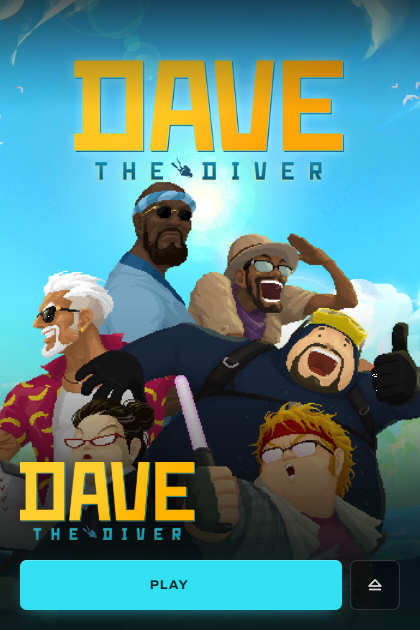
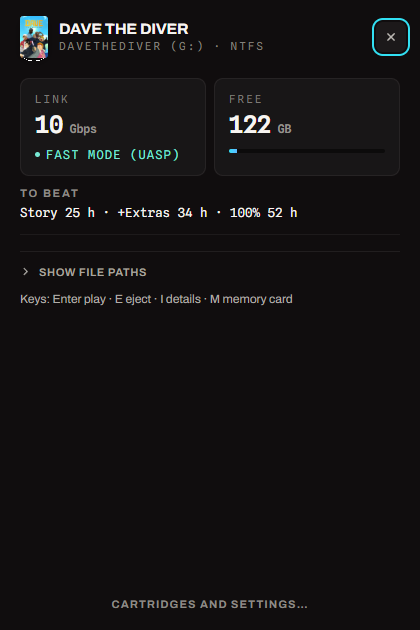 The accent colour is sampled from the cover art at load, so the Play button
belongs to whatever game is in the dock. At rest almost nothing else is on
screen — the buttons in the corner appear when the pointer is in the window,
and everything the launcher knows beyond the title is behind the ⓘ.
### More than one game on a cartridge
A 256 GB drive holds a series, not a game. Put several on one cartridge and the
launcher grows a rail: **picking a game is what Play acts on**, and the artwork
behind it cross-fades to whichever one is selected — no menu, no submenu,
nothing to learn.
The accent colour is sampled from the cover art at load, so the Play button
belongs to whatever game is in the dock. At rest almost nothing else is on
screen — the buttons in the corner appear when the pointer is in the window,
and everything the launcher knows beyond the title is behind the ⓘ.
### More than one game on a cartridge
A 256 GB drive holds a series, not a game. Put several on one cartridge and the
launcher grows a rail: **picking a game is what Play acts on**, and the artwork
behind it cross-fades to whichever one is selected — no menu, no submenu,
nothing to learn.
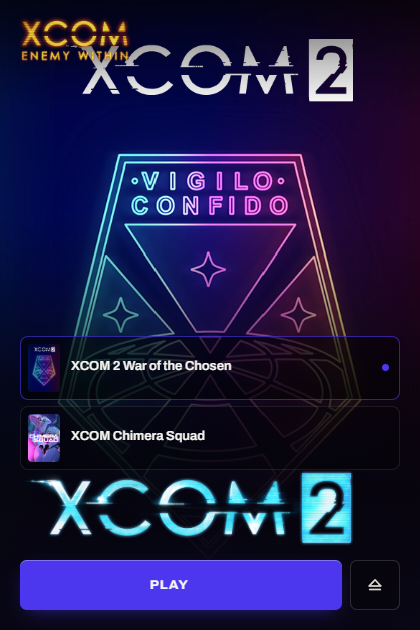 Each row carries the game's own art and size, and the first nine answer to the
number keys — pressing one selects that game and starts it, so the window shows
what it just launched. A cartridge with one game on it has no rail at all.
| Key | Action |
|-----|--------|
| `Enter` | Play the selected game |
| `1`–`9` | Select the *n*th game of a collection and play it |
| `E` | Eject |
| `I` | Details |
| `Esc` | Close details, or dismiss |
### Where a cartridge opens
The launcher is one answer, not the only one. It ships with the project and is on
by default, because a cartridge that does nothing when you plug it in is broken
and because it is the only front-end that needs no second install. Everything else
is a **plugin**, and **Settings → Where a cartridge opens** is the list:
| | |
|---|---|
| **PC GamePak launcher** | The cartridge's own window. Built in, on by default. |
| **Steam Deck row** | Cartridge games as a row on the Steam home screen, through [Decky](https://github.com/HarryBMa/pc-gamepak-plugins/tree/main/decky). |
| **Playnite library** | A cartridge slot as the first tile in Playnite's library: empty with no cartridge in, the cartridge's art with one. Play starts a single game directly and opens this launcher to choose from a collection; the tile's menu ejects. Through the [Playnite extension](https://github.com/HarryBMa/pc-gamepak-plugins/tree/main/playnite). |
| **GOG Galaxy library** | Cartridge games owned in GOG Galaxy once seen, installed while the cartridge is in; Play goes through this launcher. Through the [Galaxy integration](https://github.com/HarryBMa/pc-gamepak-plugins/tree/main/gog-galaxy). |
| **Heroic Games Launcher** | Cartridge games as sideloaded games while the cartridge is in. |
| **Pegasus Frontend** | A PC GamePak collection of whatever is plugged in. |
| **ES-DE** | A PC GamePak system of whatever is plugged in. |
| **LaunchBox** | A cartridge slot as a game in a PC GamePak platform, in LaunchBox and Big Box: the cartridge's art and hours, Play through this launcher, each game of a collection as an additional app, and Eject on its menu. Through the [LaunchBox plugin](https://github.com/HarryBMa/pc-gamepak-plugins/tree/main/launchbox). |
Heroic, Pegasus and ES-DE read files rather than load plugins, so one program,
[pc-gamepak-sync](https://github.com/HarryBMa/pc-gamepak-plugins/tree/main/sync),
writes all three; each is installed when it is. Every plugin lives in
[pc-gamepak-plugins](https://github.com/HarryBMa/pc-gamepak-plugins).
A plugin has to be installed before its switch does anything, and the dialog says
so rather than offering a dead control. More than one may be on: a desktop that
also runs Playnite may reasonably want both its window and a library entry. A Deck
almost certainly wants only the row — switch the launcher off there and no window
appears over the top of it.
All of them off is allowed, and the dialog says what it means: nothing happens on
insert, and the tray icon or desktop entry is how you open a cartridge.
The whole contract between the launcher and a plugin is one boolean in
`settings.json`:
```json
{ "frontends": { "launcher": false, "decky": true } }
```
No socket, no daemon, nothing to keep in step. A plugin reads that file, finds
whether it is the designated front-end, and behaves accordingly — which is what
lets one be written in Python inside Steam's process tree and another in C# inside
Playnite's.
### Play and Eject without the window
A front-end with its own Play button does not have to open the launcher's window
to get what the window does. Two arguments do it with no window at all:
```
pc-gamepak --drive D:\ --play 0
pc-gamepak --drive D:\ --safe-eject [--force]
```
`--play
Each row carries the game's own art and size, and the first nine answer to the
number keys — pressing one selects that game and starts it, so the window shows
what it just launched. A cartridge with one game on it has no rail at all.
| Key | Action |
|-----|--------|
| `Enter` | Play the selected game |
| `1`–`9` | Select the *n*th game of a collection and play it |
| `E` | Eject |
| `I` | Details |
| `Esc` | Close details, or dismiss |
### Where a cartridge opens
The launcher is one answer, not the only one. It ships with the project and is on
by default, because a cartridge that does nothing when you plug it in is broken
and because it is the only front-end that needs no second install. Everything else
is a **plugin**, and **Settings → Where a cartridge opens** is the list:
| | |
|---|---|
| **PC GamePak launcher** | The cartridge's own window. Built in, on by default. |
| **Steam Deck row** | Cartridge games as a row on the Steam home screen, through [Decky](https://github.com/HarryBMa/pc-gamepak-plugins/tree/main/decky). |
| **Playnite library** | A cartridge slot as the first tile in Playnite's library: empty with no cartridge in, the cartridge's art with one. Play starts a single game directly and opens this launcher to choose from a collection; the tile's menu ejects. Through the [Playnite extension](https://github.com/HarryBMa/pc-gamepak-plugins/tree/main/playnite). |
| **GOG Galaxy library** | Cartridge games owned in GOG Galaxy once seen, installed while the cartridge is in; Play goes through this launcher. Through the [Galaxy integration](https://github.com/HarryBMa/pc-gamepak-plugins/tree/main/gog-galaxy). |
| **Heroic Games Launcher** | Cartridge games as sideloaded games while the cartridge is in. |
| **Pegasus Frontend** | A PC GamePak collection of whatever is plugged in. |
| **ES-DE** | A PC GamePak system of whatever is plugged in. |
| **LaunchBox** | A cartridge slot as a game in a PC GamePak platform, in LaunchBox and Big Box: the cartridge's art and hours, Play through this launcher, each game of a collection as an additional app, and Eject on its menu. Through the [LaunchBox plugin](https://github.com/HarryBMa/pc-gamepak-plugins/tree/main/launchbox). |
Heroic, Pegasus and ES-DE read files rather than load plugins, so one program,
[pc-gamepak-sync](https://github.com/HarryBMa/pc-gamepak-plugins/tree/main/sync),
writes all three; each is installed when it is. Every plugin lives in
[pc-gamepak-plugins](https://github.com/HarryBMa/pc-gamepak-plugins).
A plugin has to be installed before its switch does anything, and the dialog says
so rather than offering a dead control. More than one may be on: a desktop that
also runs Playnite may reasonably want both its window and a library entry. A Deck
almost certainly wants only the row — switch the launcher off there and no window
appears over the top of it.
All of them off is allowed, and the dialog says what it means: nothing happens on
insert, and the tray icon or desktop entry is how you open a cartridge.
The whole contract between the launcher and a plugin is one boolean in
`settings.json`:
```json
{ "frontends": { "launcher": false, "decky": true } }
```
No socket, no daemon, nothing to keep in step. A plugin reads that file, finds
whether it is the designated front-end, and behaves accordingly — which is what
lets one be written in Python inside Steam's process tree and another in C# inside
Playnite's.
### Play and Eject without the window
A front-end with its own Play button does not have to open the launcher's window
to get what the window does. Two arguments do it with no window at all:
```
pc-gamepak --drive D:\ --play 0
pc-gamepak --drive D:\ --safe-eject [--force]
```
`--play 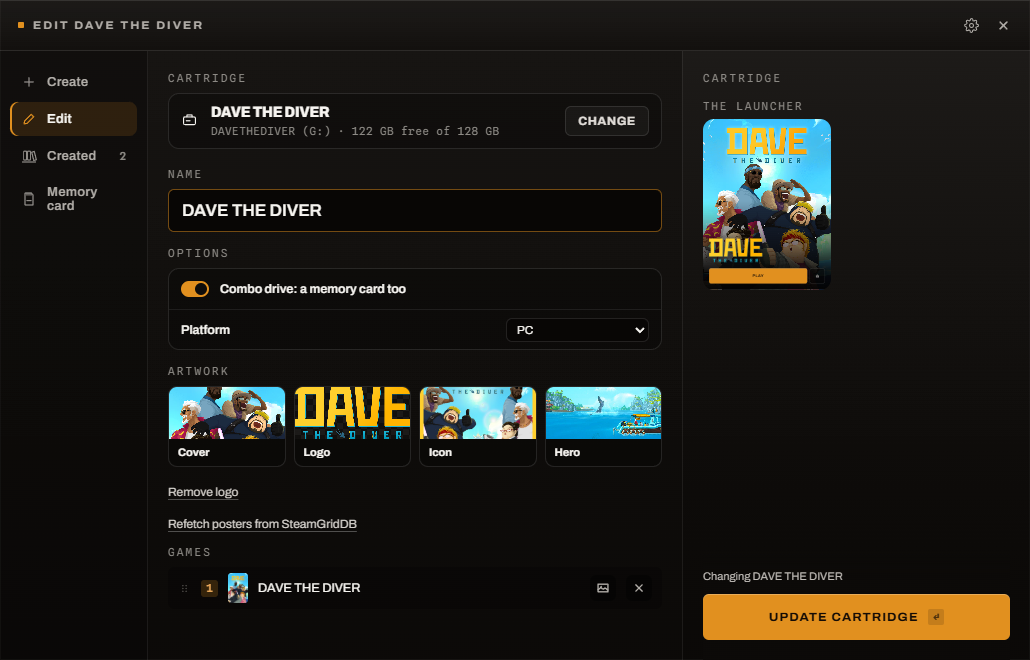 The wizard lists everything installed. **Playnite** is read first when present —
one list covering Steam, GOG, Epic, Xbox, Ubisoft, itch and emulators — and
Steam's own manifests are read too, which is the only source on Linux. Cover art
comes from whichever cache the game came from, so **nothing is fetched**; the
wizard **works offline**, with the optional SteamGridDB integration switched
off — see [Artwork from SteamGridDB](#artwork-from-steamgriddb) to turn it on.
Playnite is detected automatically on Windows (the standard `%APPDATA%\Playnite`
location and portable installs in `Program Files`) and on Linux through every
Proton `compatdata` prefix that contains a Playnite install. If detection fails,
a **Playnite data folder** field appears at the bottom of the game list so you
can point the wizard at the right directory.
> **Note:** Playnite stores its library in a binary database. The wizard reads a
> JSON export instead — install a library-exporter extension in Playnite and run
> it once before using the wizard. Any extension that writes a `library.json` or
> `games.json` file will work.
Pick a game, pick the drive, press Write. It is **one screen**: Games, Drive,
Options and Artwork, each stating what is currently chosen with a **Change**
beside it — so nothing has to be finished before the next thing can be looked
at, and there is no step to go back to.
**Options** are switches for this cartridge only: copy the games onto the drive,
verify the copy, eject when done, and erase the drive first (with the
filesystem beside it). They start from the defaults in Settings and are
forgotten after the write. Erasing always starts off, and Write asks once more,
naming the drive, before anything is touched.
**Change** opens the library as a dialog, and it is a real list with tick boxes:
selection is always multiple, so ticking a second game is all it takes. The rail
on the right titles itself **Cartridge** or **Multicartridge** to match. There is
no mode to enter.
The wizard lists everything installed. **Playnite** is read first when present —
one list covering Steam, GOG, Epic, Xbox, Ubisoft, itch and emulators — and
Steam's own manifests are read too, which is the only source on Linux. Cover art
comes from whichever cache the game came from, so **nothing is fetched**; the
wizard **works offline**, with the optional SteamGridDB integration switched
off — see [Artwork from SteamGridDB](#artwork-from-steamgriddb) to turn it on.
Playnite is detected automatically on Windows (the standard `%APPDATA%\Playnite`
location and portable installs in `Program Files`) and on Linux through every
Proton `compatdata` prefix that contains a Playnite install. If detection fails,
a **Playnite data folder** field appears at the bottom of the game list so you
can point the wizard at the right directory.
> **Note:** Playnite stores its library in a binary database. The wizard reads a
> JSON export instead — install a library-exporter extension in Playnite and run
> it once before using the wizard. Any extension that writes a `library.json` or
> `games.json` file will work.
Pick a game, pick the drive, press Write. It is **one screen**: Games, Drive,
Options and Artwork, each stating what is currently chosen with a **Change**
beside it — so nothing has to be finished before the next thing can be looked
at, and there is no step to go back to.
**Options** are switches for this cartridge only: copy the games onto the drive,
verify the copy, eject when done, and erase the drive first (with the
filesystem beside it). They start from the defaults in Settings and are
forgotten after the write. Erasing always starts off, and Write asks once more,
naming the drive, before anything is touched.
**Change** opens the library as a dialog, and it is a real list with tick boxes:
selection is always multiple, so ticking a second game is all it takes. The rail
on the right titles itself **Cartridge** or **Multicartridge** to match. There is
no mode to enter.
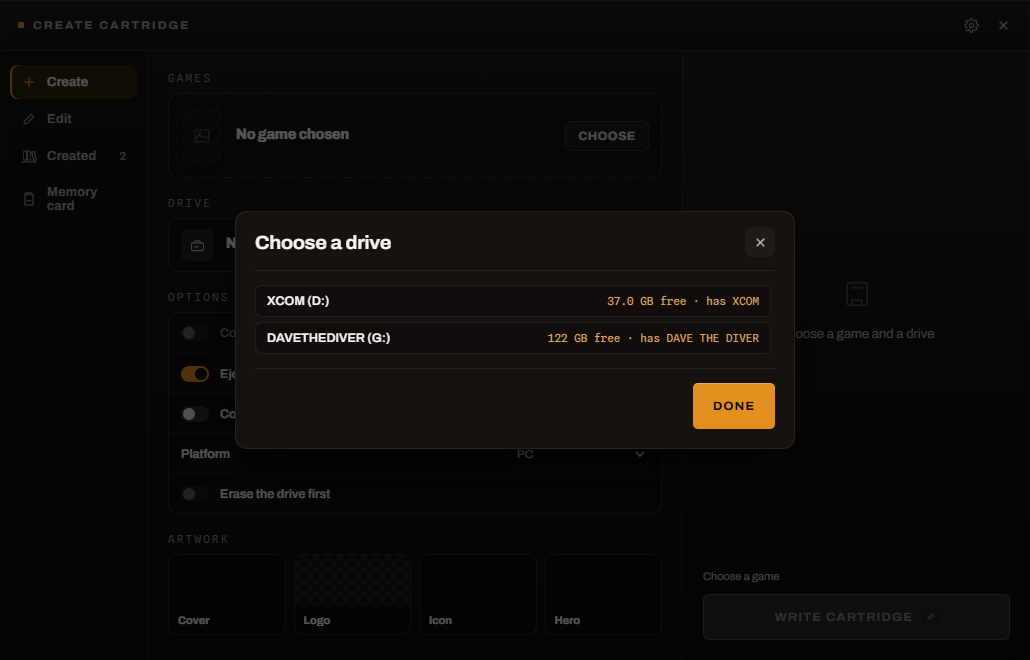 Drive is the same dialog asking the same kind of question. Every removable drive
is listed with the room on it, and one that already holds a cartridge says so
before you overwrite it.
The rail is a **live preview of the launcher** this cartridge will open — the
cover behind, the logo or the title over it, Play in the colour sampled from the
art. It is the only place that answers the question a thumbnail cannot: whether
the title is still readable on the picture you just chose.
### Collections
Tick a second game and the cartridge is a collection — nothing else to press.
The rail counts them, and the bar under it puts one band per game so you can see
which one is taking the room:
Drive is the same dialog asking the same kind of question. Every removable drive
is listed with the room on it, and one that already holds a cartridge says so
before you overwrite it.
The rail is a **live preview of the launcher** this cartridge will open — the
cover behind, the logo or the title over it, Play in the colour sampled from the
art. It is the only place that answers the question a thumbnail cannot: whether
the title is still readable on the picture you just chose.
### Collections
Tick a second game and the cartridge is a collection — nothing else to press.
The rail counts them, and the bar under it puts one band per game so you can see
which one is taking the room:
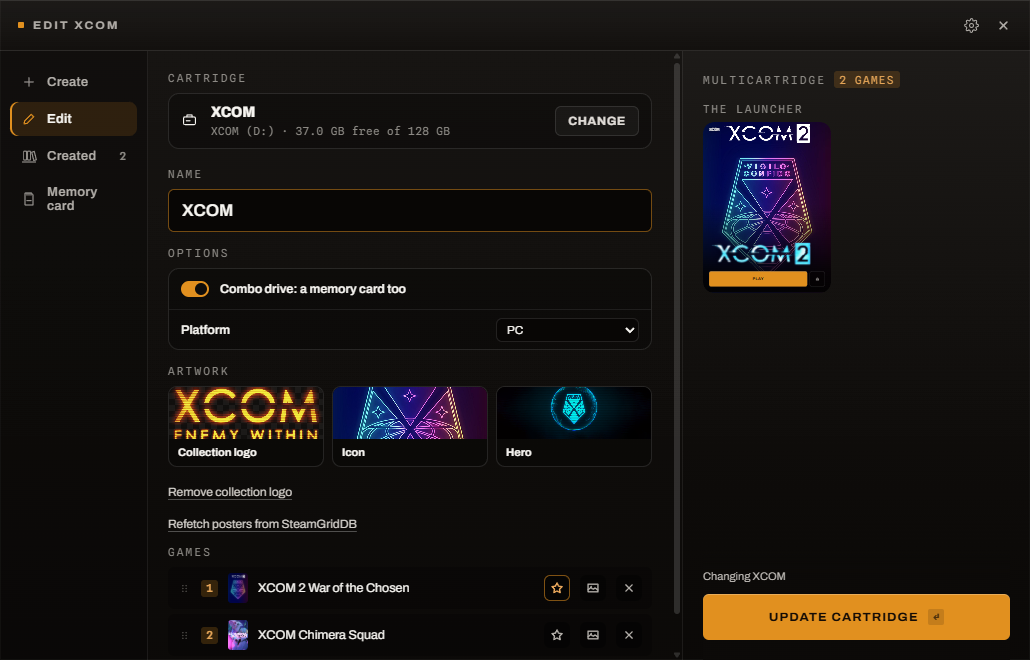 A collection is the one thing in a library with no artwork of its own, so a
**Name and order** group appears on the same screen for the two things the wizard
cannot work out — what to call it, and what it should look like:
- **The name** is suggested from what the games share — *God of War* and *God of
War Ragnarök* give *God of War Collection* — and can be typed over. The drive
itself takes a squeezed version of it, because exFAT allows 11 characters.
- **The artwork** is whatever picture you point at, or the first game's cover if
you would rather borrow one. Without either, the launcher shows a placeholder.
- **The order** is drag-to-reorder, and it is the order the games appear in on
the launcher's rail.
A single game never sees that step: it takes its name and its art from itself.
Copying works the same for a collection as for a single game: tick the box and
every game goes across, each entry pointing at its own copy.
### Changing a cartridge you already made
Everything a cartridge says about itself is two small files and a picture, so
renaming one, fixing a typo or swapping its art should not mean writing the
whole thing again — which, with the games copied onto it, is hours.
Select a drive that already holds a cartridge and **Edit the cartridge already
on this drive** appears:
A collection is the one thing in a library with no artwork of its own, so a
**Name and order** group appears on the same screen for the two things the wizard
cannot work out — what to call it, and what it should look like:
- **The name** is suggested from what the games share — *God of War* and *God of
War Ragnarök* give *God of War Collection* — and can be typed over. The drive
itself takes a squeezed version of it, because exFAT allows 11 characters.
- **The artwork** is whatever picture you point at, or the first game's cover if
you would rather borrow one. Without either, the launcher shows a placeholder.
- **The order** is drag-to-reorder, and it is the order the games appear in on
the launcher's rail.
A single game never sees that step: it takes its name and its art from itself.
Copying works the same for a collection as for a single game: tick the box and
every game goes across, each entry pointing at its own copy.
### Changing a cartridge you already made
Everything a cartridge says about itself is two small files and a picture, so
renaming one, fixing a typo or swapping its art should not mean writing the
whole thing again — which, with the games copied onto it, is hours.
Select a drive that already holds a cartridge and **Edit the cartridge already
on this drive** appears:
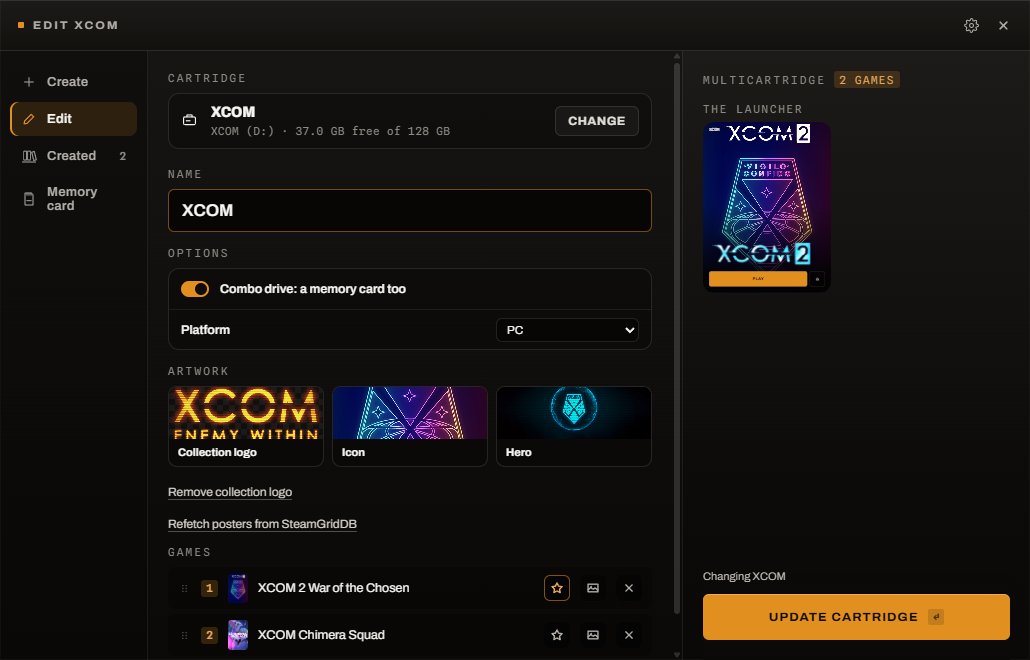 You can rename the cartridge, change its artwork, rename the individual games,
reorder them — the order is the order of the launcher's rail — and take one off
the list. Adding a game means writing the cartridge again, since that is when files
move.
**Nothing here copies or deletes a game.** Taking a game off the list leaves its
files exactly where they are; the launcher simply stops offering it. A cartridge
that ends up with one game on the list becomes an ordinary single-game cartridge
again, and one that gains a second becomes a collection.
### Checking the copy
`std::fs::copy` reports success for every byte the kernel accepted, which is not
the same as every byte arriving on the drive. When a copy over USB goes wrong it
goes wrong quietly, and you find out later, in a level you have not played yet.
**Check the copy afterwards** sums every file with CRC-32 as it is written —
free next to a USB write — then reads the cartridge back and compares. It names
what is wrong rather than just failing: a missing file, a half-written one with
both byte counts, or one that arrived with different contents.
It is **on by default**, and costs one extra pass over the drive — so it roughly
adds the time the copy itself took. It earns that: the first cartridge this
project ever checked on real hardware came back with two corrupt 2 GB archives.
The file list is left on the cartridge at `.gamepak/manifest.json`, so the same
check can be run later on a machine that no longer has the original.
This is an integrity check, not a signature: CRC-32 is the right tool for *did
this survive the cable*, the job it does in zip and gzip, and the wrong tool for
*did somebody change this on purpose*.
### Moving a Steam game instead of copying it
**A Steam game that is still installed on your PC plays from your PC, not from
the cartridge.** Steam records each game as installed in exactly one library and
ignores a second copy of the same game anywhere else. The first cartridge tested
this way — FTL, copied and verified — started `F:\Games\Steam\…\FTLGame.exe`
every time Play was pressed.
So when you pick a Steam game and copying is on, the wizard offers **Move instead
of copy**. With it ticked, the build goes on exactly as before, and then, as its
last step:
1. only if **every file on the cartridge was read back and matched**, it deletes
the game's `appmanifest` from the PC's library, so Steam stops claiming it
there;
2. moves the game's entry in Steam's library list to the cartridge (the file is
backed up first, as for every edit this makes);
3. deletes the game's folder from the PC.
A copy that did not verify deletes nothing, and the build says so. A game that is
running is not deleted. Nothing is deleted for a folder you picked by hand — only
Steam games, which Steam can reinstall. Workshop content and the shader cache
stay where they are.
It is never a saved default and starts unticked on every write, because it is
the one option that removes something from your PC rather than the cartridge. It
needs **Verify after copying** switched on, and is greyed out without it.
From a script, `"moveGame": true` in a `build-cart` request does the same, and
`build-cart plan` lists what it would delete before anything is written.
### Which cartridge is this?
Verifying answers "did these bytes survive". It cannot answer the other
question — **did you and I build the same cartridge?** — because each of us
checks against our own manifest.
So `build-cart` and `verify-cart` both print a **digest**: one SHA-256 over
every copied file's path, length and checksum, sorted, so the order things were
copied in does not change it.
```
$ verify-cart /run/media/you/TOMB_RAIDER
107 files, 107.43 GB, from /run/media/you/TOMB_RAIDER
digest: 66d057355b062fb181e34f45b85a74e0b45bc367c7b06dd1fc846945342fc2c2
```
Put that value into a `build-cart` request as `expectDigest` and every later
build of that request is checked against it:
```json
{ "expectDigest": "66d057355b06…", "title": "Tunic", "…": "…" }
```
A cartridge can be perfectly intact and still not be the cartridge somebody
else built — different game version, a patch applied, a file missed — and until
now nothing would have said so. The artwork, `cartridge.conf` and `.gamepak/`
are deliberately outside it: two people who chose different cover art but copied
the same game should agree, because the game is what a recipe pins.
The idea is [Kazeta's cartridge creator's](https://github.com/kazetaos/kazeta-creator),
where a recipe declares the hash its finished cart must have.
### What it can put on the cartridge
**The launcher files** — `cartridge.conf` and the cover art. Always written.
**The drive's name and icon** — an `autorun.inf` with `label=`, so Explorer shows
*HOLLOW KNIGHT* rather than *Removable Disk (D:)*. The `icon=` key is written
when a usable `.ico` can be produced; Explorer will not take a JPEG, so a
Steam-sourced cover usually leaves the default icon in place. On by default, and
a tick box under **The cartridge itself** when you would rather the drive stayed
plain.
**The game itself**, by whichever route suits where it came from:
You can rename the cartridge, change its artwork, rename the individual games,
reorder them — the order is the order of the launcher's rail — and take one off
the list. Adding a game means writing the cartridge again, since that is when files
move.
**Nothing here copies or deletes a game.** Taking a game off the list leaves its
files exactly where they are; the launcher simply stops offering it. A cartridge
that ends up with one game on the list becomes an ordinary single-game cartridge
again, and one that gains a second becomes a collection.
### Checking the copy
`std::fs::copy` reports success for every byte the kernel accepted, which is not
the same as every byte arriving on the drive. When a copy over USB goes wrong it
goes wrong quietly, and you find out later, in a level you have not played yet.
**Check the copy afterwards** sums every file with CRC-32 as it is written —
free next to a USB write — then reads the cartridge back and compares. It names
what is wrong rather than just failing: a missing file, a half-written one with
both byte counts, or one that arrived with different contents.
It is **on by default**, and costs one extra pass over the drive — so it roughly
adds the time the copy itself took. It earns that: the first cartridge this
project ever checked on real hardware came back with two corrupt 2 GB archives.
The file list is left on the cartridge at `.gamepak/manifest.json`, so the same
check can be run later on a machine that no longer has the original.
This is an integrity check, not a signature: CRC-32 is the right tool for *did
this survive the cable*, the job it does in zip and gzip, and the wrong tool for
*did somebody change this on purpose*.
### Moving a Steam game instead of copying it
**A Steam game that is still installed on your PC plays from your PC, not from
the cartridge.** Steam records each game as installed in exactly one library and
ignores a second copy of the same game anywhere else. The first cartridge tested
this way — FTL, copied and verified — started `F:\Games\Steam\…\FTLGame.exe`
every time Play was pressed.
So when you pick a Steam game and copying is on, the wizard offers **Move instead
of copy**. With it ticked, the build goes on exactly as before, and then, as its
last step:
1. only if **every file on the cartridge was read back and matched**, it deletes
the game's `appmanifest` from the PC's library, so Steam stops claiming it
there;
2. moves the game's entry in Steam's library list to the cartridge (the file is
backed up first, as for every edit this makes);
3. deletes the game's folder from the PC.
A copy that did not verify deletes nothing, and the build says so. A game that is
running is not deleted. Nothing is deleted for a folder you picked by hand — only
Steam games, which Steam can reinstall. Workshop content and the shader cache
stay where they are.
It is never a saved default and starts unticked on every write, because it is
the one option that removes something from your PC rather than the cartridge. It
needs **Verify after copying** switched on, and is greyed out without it.
From a script, `"moveGame": true` in a `build-cart` request does the same, and
`build-cart plan` lists what it would delete before anything is written.
### Which cartridge is this?
Verifying answers "did these bytes survive". It cannot answer the other
question — **did you and I build the same cartridge?** — because each of us
checks against our own manifest.
So `build-cart` and `verify-cart` both print a **digest**: one SHA-256 over
every copied file's path, length and checksum, sorted, so the order things were
copied in does not change it.
```
$ verify-cart /run/media/you/TOMB_RAIDER
107 files, 107.43 GB, from /run/media/you/TOMB_RAIDER
digest: 66d057355b062fb181e34f45b85a74e0b45bc367c7b06dd1fc846945342fc2c2
```
Put that value into a `build-cart` request as `expectDigest` and every later
build of that request is checked against it:
```json
{ "expectDigest": "66d057355b06…", "title": "Tunic", "…": "…" }
```
A cartridge can be perfectly intact and still not be the cartridge somebody
else built — different game version, a patch applied, a file missed — and until
now nothing would have said so. The artwork, `cartridge.conf` and `.gamepak/`
are deliberately outside it: two people who chose different cover art but copied
the same game should agree, because the game is what a recipe pins.
The idea is [Kazeta's cartridge creator's](https://github.com/kazetaos/kazeta-creator),
where a recipe declares the hash its finished cart must have.
### What it can put on the cartridge
**The launcher files** — `cartridge.conf` and the cover art. Always written.
**The drive's name and icon** — an `autorun.inf` with `label=`, so Explorer shows
*HOLLOW KNIGHT* rather than *Removable Disk (D:)*. The `icon=` key is written
when a usable `.ico` can be produced; Explorer will not take a JPEG, so a
Steam-sourced cover usually leaves the default icon in place. On by default, and
a tick box under **The cartridge itself** when you would rather the drive stayed
plain.
**The game itself**, by whichever route suits where it came from:
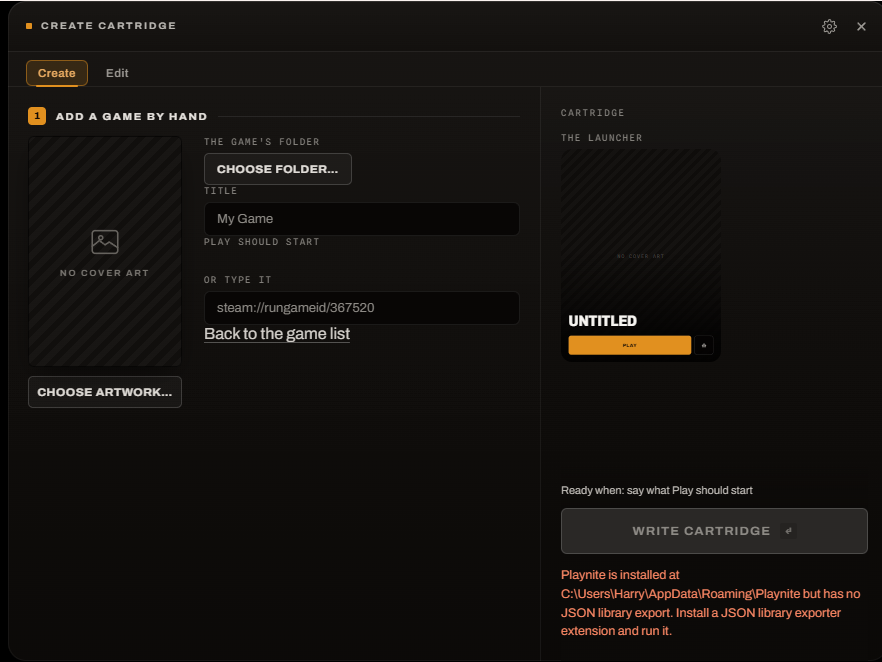 - *Steam games* go to `steamapps/` and the drive is registered in Steam's
`libraryfolders.vdf`, so Steam plays **from the cartridge** rather than your
internal copy. Steam rewrites that file from memory when it exits, so it has to
be closed first — the wizard offers to do that for you, and does it before
anything on the drive is touched.
- *Rewriting a cartridge Steam already knows about* takes the old entry out of
that list first, so a repurposed drive does not leave Steam pointing at a
library that no longer holds the game.
- *Everything else* — GOG, itch, emulator builds, anything Playnite records an
install folder for — is copied to `Games/
- *Steam games* go to `steamapps/` and the drive is registered in Steam's
`libraryfolders.vdf`, so Steam plays **from the cartridge** rather than your
internal copy. Steam rewrites that file from memory when it exits, so it has to
be closed first — the wizard offers to do that for you, and does it before
anything on the drive is touched.
- *Rewriting a cartridge Steam already knows about* takes the old entry out of
that list first, so a repurposed drive does not leave Steam pointing at a
library that no longer holds the game.
- *Everything else* — GOG, itch, emulator builds, anything Playnite records an
install folder for — is copied to `Games/