# File types and views
DopusWorX is file-type aware. When you open a file it works out what kind of
document it is and picks the right view, so you never land in a mode that makes
no sense for the content. A code file opens straight into an editable source
view; a Markdown file opens in Reading mode by default (configurable, and DopusWorX can remember the view you last used per file -- see [Which view a file opens in](03-editing.md#which-view-a-file-opens-in)) with Live and Source a click away; a
CSV opens as a grid; an HTML file renders as a page. This page documents exactly
which extensions map to which view and how each view behaves.
## How a file's kind is decided
Two layers cooperate.
The native plugin (the part that lives inside Directory Opus) decides a coarse
**kind** from the file extension when it loads the file. The logic is simple and
extension-first:
- the Markdown extensions become kind `markdown`
- `.html`, `.htm` become kind `html`; `.xhtml` is also mapped to the `html` kind if it is handled (it is not in the default handled set -- add it as a custom type in the File types panel to activate it)
- anything else in the handled set becomes kind `code`
- a file with no extension falls back to `markdown`
The kind is sent to the web layer on the load message. The web layer then
applies one refinement of its own: if the path ends in `.csv` or `.tsv` it
rewrites the kind to `csv` so the file opens as the grid rather than as code.
Each kind resolves to a **format module** in the web layer's format registry.
The registry currently holds five modules: `markdown`, `code`, `html`, `csv` and
`binary` (the hex inspector). The module decides which view modes the toolbar offers, what their labels
are, how the read-only view renders, and which editor (if any) the editable
modes mount. An unknown kind falls back to the Markdown module.
## Handled extensions at a glance
These are the extensions DopusWorX claims out of the box, grouped by the view
they open into.
| View / kind | Extensions |
| --- | --- |
| Markdown | `.md` `.markdown` `.mdown` `.mkd` `.mkdn` `.mdwn` |
| HTML | `.html` `.htm` (the MIME and Source highlighter also recognise `.xhtml`) |
| CSV / TSV grid | `.csv` `.tsv` |
| Binary (hex inspector) | `.bin` `.dat` `.exe` `.dll` `.so` `.dylib` `.o` `.obj` `.sys` `.class` `.pyc` `.wasm` `.img` `.iso` `.db` `.ttf` `.otf` |
| Source code | everything in the language table below, plus `.json` `.xml` `.txt` `.log` |
JSON, XML, plain text and logs are not a separate kind: they resolve to the
`code` module and open in Source view, the same as any other code file. CSV and
TSV are in the plugin's handled set as well, but the web layer reroutes them to
the dedicated grid.
## Markdown
Extensions: `.md`, `.markdown`, `.mdown`, `.mkd`, `.mkdn`, `.mdwn`.
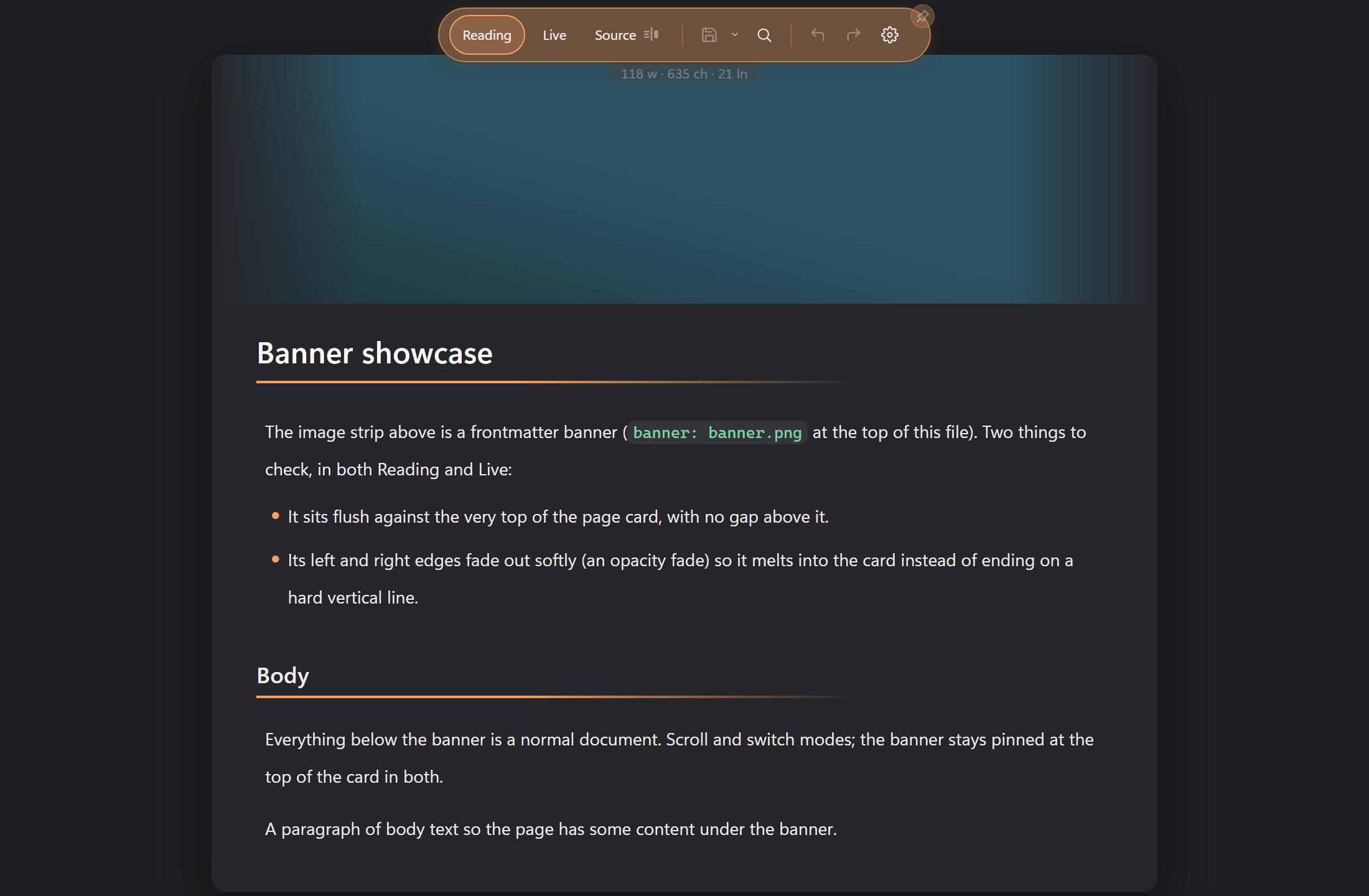
Markdown is the richest format. The toolbar offers three modes, defaulting to
Reading (configurable, and DopusWorX can remember the view you last used per file
-- see [Which view a file opens in](03-editing.md#which-view-a-file-opens-in)):
- **Reading** renders the document fully as read-only HTML. Task-list
checkboxes are clickable here, and ticking one writes the `[ ]` / `[x]` back
to its exact source line.
- **Live** renders the document too, but it is a live editor: the line your
cursor sits on reveals its raw formatting marks so you can edit in place, the
rest of the document stays rendered. This is the "Live Preview" style.
- **Source** is the raw Markdown text in a plain editor. Click the Source button
a second time for a **split**: raw text on the left, a live preview on the
right, with a draggable divider and a link / unlink toggle so the two panes
can scroll together or independently.
Rendering runs Markdown through markdown-it with task lists, footnotes,
definition lists, abbreviations, marks, subscript / superscript, inline and
display maths (`$...$` / `$$...$$`), and Obsidian-style wikilinks and embeds.
Output is sanitised with a strict allowlist before it reaches the page.
A YAML frontmatter block at the top of a file (a `---` fence, `key: value` lines,
closing `---`) is recognised and kept out of the rendered document. Reading hides
it entirely; Live hides it until you move your cursor into it, when the raw YAML
returns for editing -- move away and it hides again; Source shows it as written.
One key is special: `banner:` takes an image path or URL and renders it as a
banner strip above the first heading in Reading and Live. See
[Frontmatter and the banner image](03-editing.md#frontmatter-and-the-banner-image)
for banner height, local path resolution, and the image search tool.
Fenced code blocks inside a Markdown document are syntax-highlighted in **every**
Markdown mode (Reading, Live and Source's preview) using the same highlighter
that drives the standalone code view, so a fenced ` ```python ` block looks the
same wherever it appears.
## Source code
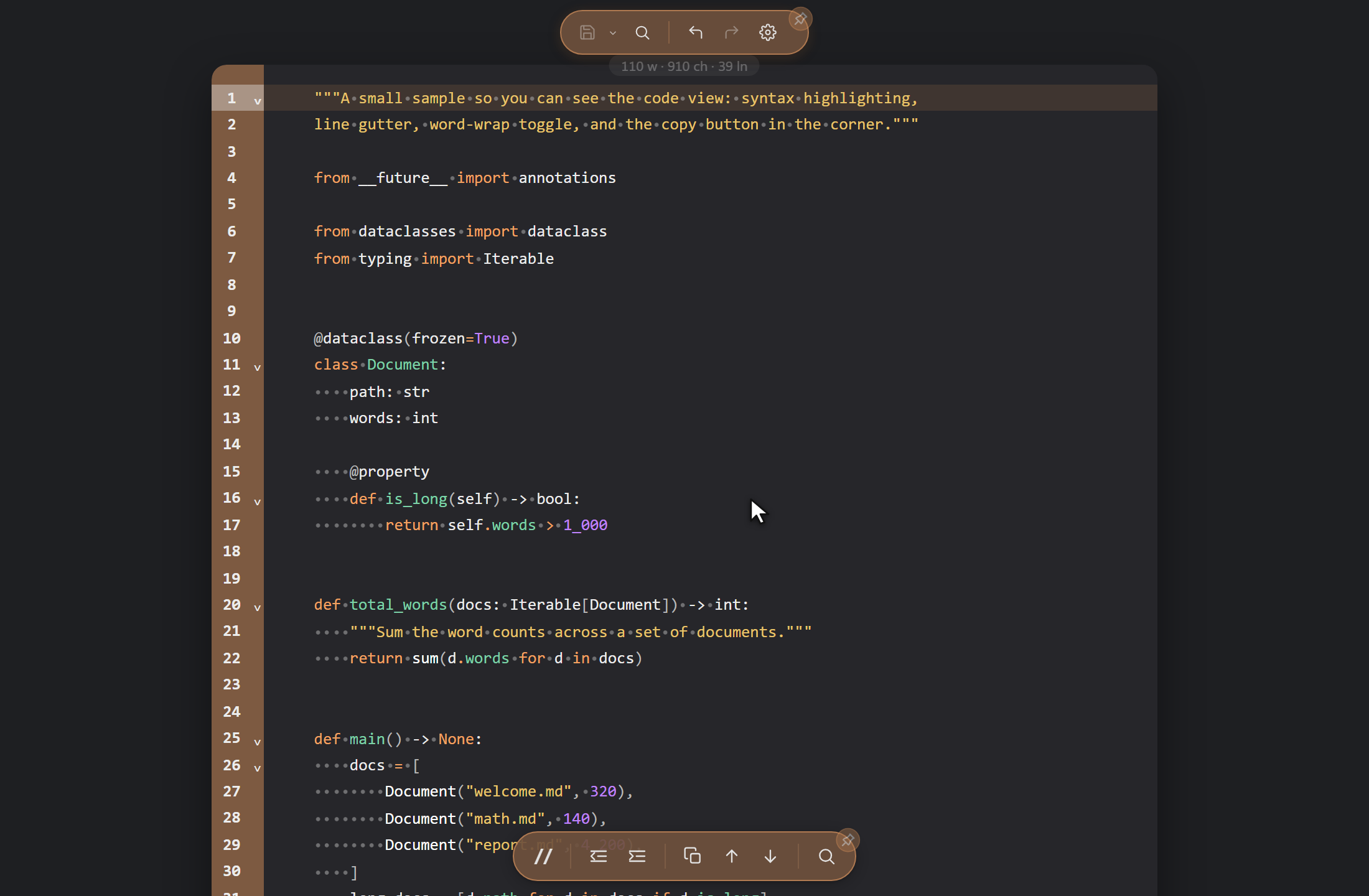
Code files open in **Source view only**. There is no Reading or Live mode for
code because there is nothing to render: source is its own presentation. The
toolbar shows no mode tabs for a code file, just the single Source surface.
Source view is a CodeMirror editor with syntax highlighting, a line-number
gutter (its style is configurable), word wrap, and clickable colour swatches
next to colour literals. Its colours can follow the Syntax palette chosen in
Settings, independent of the page palette. The file is editable and saves
through the same dirty / recovery / Save pipeline as Markdown.
### Supported languages and extensions
DopusWorX highlights around 150 languages. The highlighting is driven by CodeMirror's
Lezer grammars, with a handful of older languages (shell, diff, INI and the like) using
CodeMirror's legacy stream modes instead; the same Lezer highlighter also colours fenced
code blocks inside Markdown, so a language looks identical whether it is a standalone file
or a fenced block. The languages listed without a footnote
are built in and highlight instantly; MATLAB/Octave and Mathematica grammars load
on demand the first time you open such a file. The rest of the on-demand languages
load the first time you open a file in that language, so the base viewer stays
small. You can also choose the grammar for any type yourself with the **Highlight
Grammar** column in the File types panel, so an extension that isn't listed (or
one that means something unusual to you) can be highlighted as whichever language
you pick. Anything with no grammar opens as plain text rather than failing.
| Language | Extensions |
| --- | --- |
| JavaScript | `.js` `.mjs` `.cjs` |
| JSX | `.jsx` |
| TypeScript | `.ts` |
| TSX | `.tsx` |
| Python | `.py` |
| Rust | `.rs` |
| Go | `.go` |
| C | `.c` |
| C / C++ (incl. headers) | `.h` `.hpp` `.hh` `.cc` `.cpp` `.cxx` |
| Swift | `.swift` |
| Java | `.java` |
| C# | `.cs` |
| Kotlin | `.kt` `.kts` |
| Scala | `.scala` |
| Dart | `.dart` |
| PHP | `.php` |
| R | `.r` |
| MATLAB / Octave | `.m` ¹ |
| Mathematica | `.nb` `.wl` `.wls` `.m` ¹ |
| Shell | `.sh` `.bash` `.zsh` |
| PowerShell | `.ps1` `.psm1` |
| Batch / CMD | `.bat` `.cmd` |
| VBScript | `.vbs` |
| AutoHotkey | `.ahk` |
| NirCmd | `.ncl` |
| Lua | `.lua` |
| Ruby | `.rb` |
| Perl | `.pl` `.pm` |
| SQL | `.sql` |
| JSON | `.json` |
| XML | `.xml` |
| YAML | `.yaml` `.yml` |
| TOML | `.toml` |
| INI / conf | `.ini` `.conf` |
| CSS | `.css` |
| SCSS | `.scss` |
| LESS | `.less` |
| HTML (Source) | `.html` `.htm` `.xhtml` |
| LaTeX | `.tex` `.latex` `.sty` `.cls` |
| Dockerfile | `.dockerfile` |
| Diff / patch | `.diff` `.patch` |
`.m` is shared: it can be MATLAB/Octave, Objective-C or a Mathematica package.
DopusWorX picks the right one from the file's content, so a MATLAB script and a
Mathematica package both highlight correctly. In the File types panel `.m` lives
on the MATLAB / Octave row, and you can pin it to a specific grammar there if you
only ever use one.
¹ MATLAB/Octave (`.m`) and Mathematica (`.nb`, `.wl`, `.wls`) are not in
DopusWorX's default claimed set. A user must open Settings > File types and enable
them (or press **Apply file associations**) before the plugin handles those files.
`.html`, `.htm` and `.xhtml` appear here too because they have a Source editor;
the difference is that the HTML kind also gives them a rendered View (see below).
A bare `.html` routed as code (rather than as the HTML kind) still gets HTML
highlighting in the editor.
### Diff and patch colouring
`.diff` and `.patch` files colour their added and removed lines so a patch reads
like one. The same diff highlighting applies to fenced ` ```diff ` blocks inside
Markdown.
### Minified and binary files
A file containing an extremely long single line (100,000 characters or more --
typically minified output or single-line JSON) is not run through the live editor,
which would stall on it. It falls back to a static, read-only view, shown as raw
text with a note that highlighting and editing are off. The note offers two ways out:
- **Format** (for file types DopusWorX can pretty-print - JSON today) adds the
line breaks back, turning the one-line blob into a normal readable, highlighted,
editable file. It is an ordinary edit: the file is marked dirty and nothing is
written to disk until you save. The same action is on the right-click menu as
**Format document** for any JSON file, minified or not.
- **Show anyway** loads the raw text into the editor regardless, if you just need
to make a quick change without reformatting.
A file that is binary rather than text opens in the binary inspector: a hex view
of its bytes with a panel that reads the values under the cursor. DopusWorX
decides a file is binary from its content, not its extension. See
[09-binary-inspector.md](09-binary-inspector.md) for the hex view, the data
inspector and the opt-in byte editor.
## CSV and TSV
Extensions: `.csv`, `.tsv`.
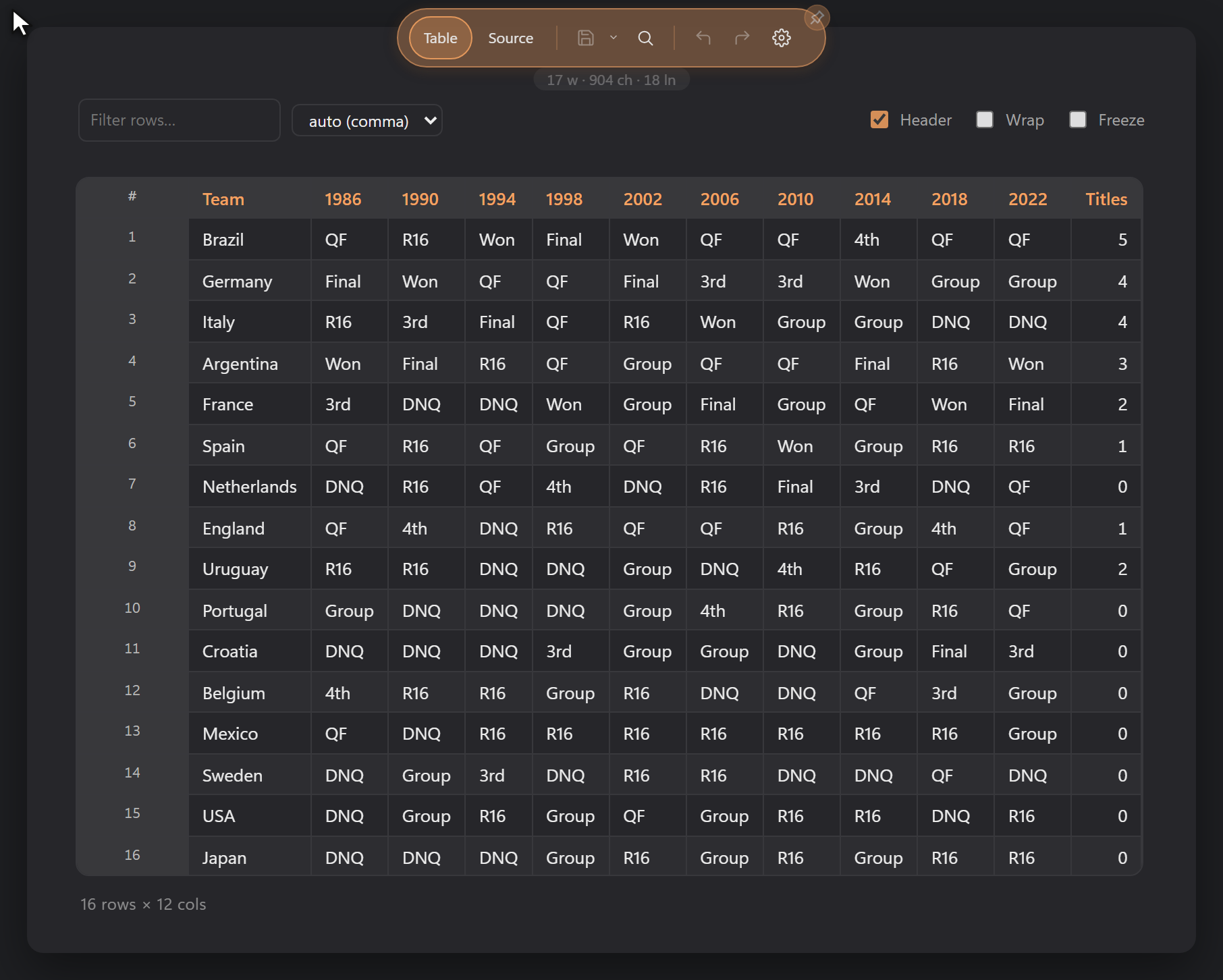
These open as an editable grid (the "Table" view), with a raw editable Source
view alongside. In the grid you can sort by clicking a header, edit a cell by
double-clicking it, add or delete rows and columns with full undo / redo, select
cells, and copy out the selection, a cell, or the whole table as a Markdown
table. Edits flow back through the same dirty / recovery / Save path as every
other format, so saving writes the file. See [05-csv.md](05-csv.md) for the full grid
reference.
## HTML
Extensions: `.html`, `.htm` (`.xhtml` is recognised by the highlighter and MIME
layer).
HTML files have two modes:
- **View** renders the page in an isolated, sandboxed iframe, so it behaves like
its own website with its own CSS, layout, scripts, images and fonts, free of
the Markdown palette. A saved, unedited file loads the real document through a
local virtual host, so relative stylesheets, scripts, images and fonts resolve
from the file's folder. Unsaved edits render the live buffer with an injected
base URL so relative resources still resolve. The sandbox runs scripts in an
opaque origin with no access to DopusWorX, your profile, cookies or storage,
and blocks top navigation, popups and form submission.
- **Source** is the raw markup in a highlighted, editable editor.
Click Source a second time for a **split**: Source on the left, the rendered
page on the right. The split preview renders inline rather than through the
sandboxed iframe, reusing the same divider, drag and scroll-link machinery as
the Markdown split. The inline renderer sanitises the markup: scripts, iframes,
forms, inputs, event handlers and external link / base / meta tags are stripped.
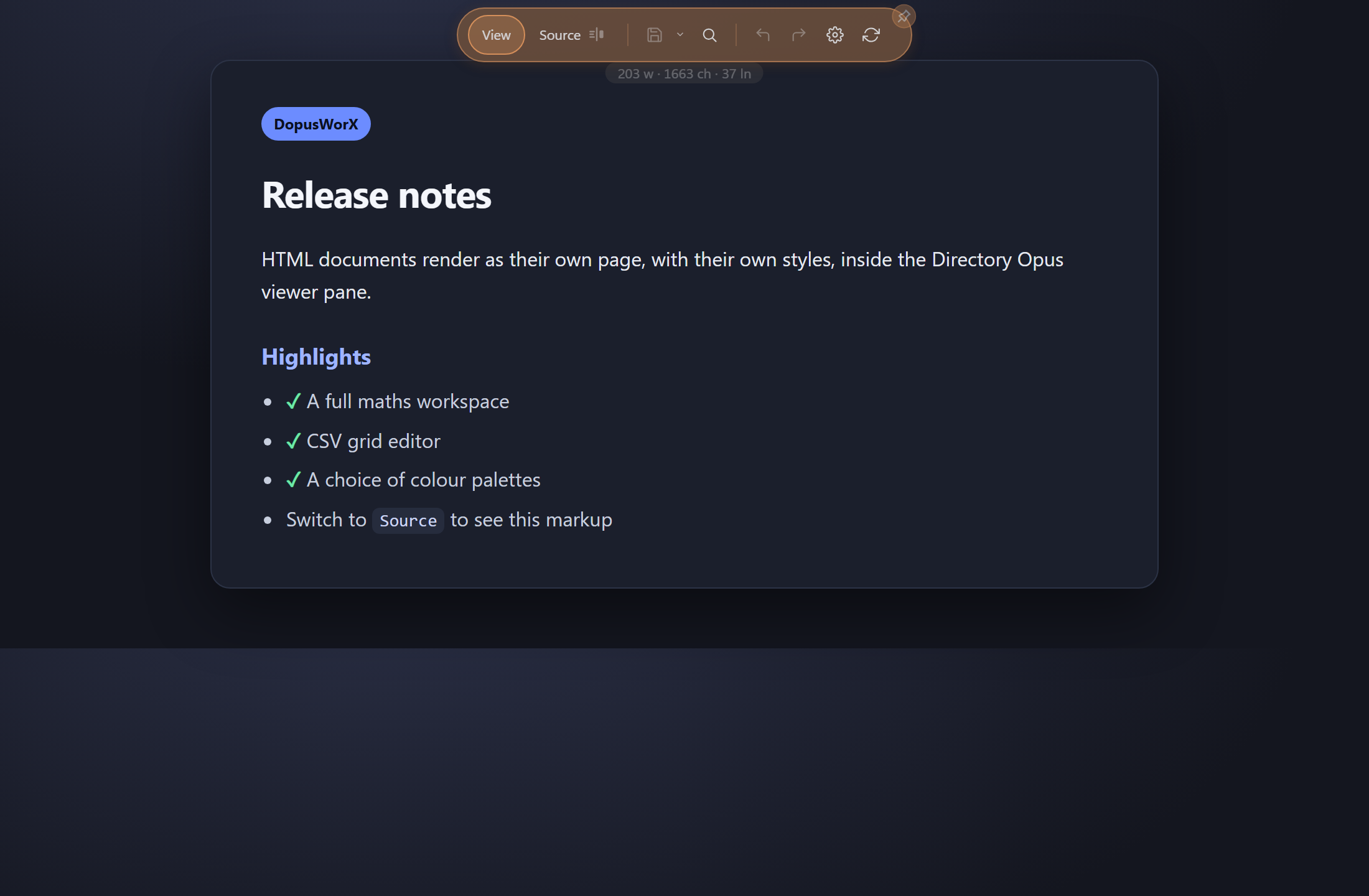 |
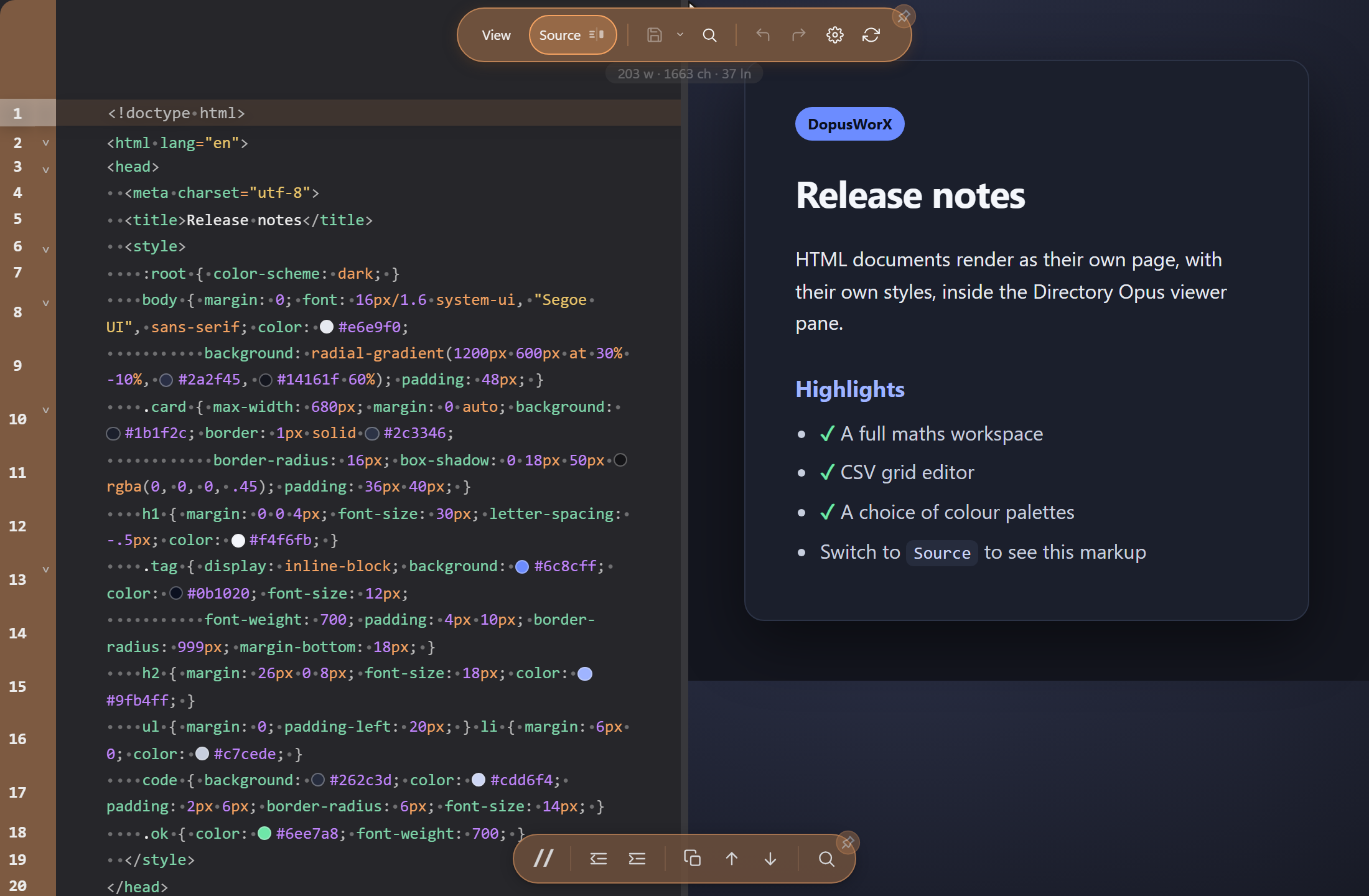 |
| Rendered view |
View / Source split |
## JSON, plain text, logs and other kinds
JSON (`.json`) and XML (`.xml`) open in Source view with their respective
grammars highlighted. Plain text (`.txt`) and logs (`.log`) open in Source view
as plain text. None of these have a separate rendered mode; the editable source
is the view.
A code file saved under a `.txt` wrapper, like `script.js.txt`, is highlighted by
its inner extension, so code shared as text still reads as code; a plain
`notes.txt` stays unhighlighted.
YAML, TOML, INI / conf, and every other entry in the language table follow the
same rule: Source view, highlighted where a grammar exists, editable, no
rendered mode.
## The File types settings panel
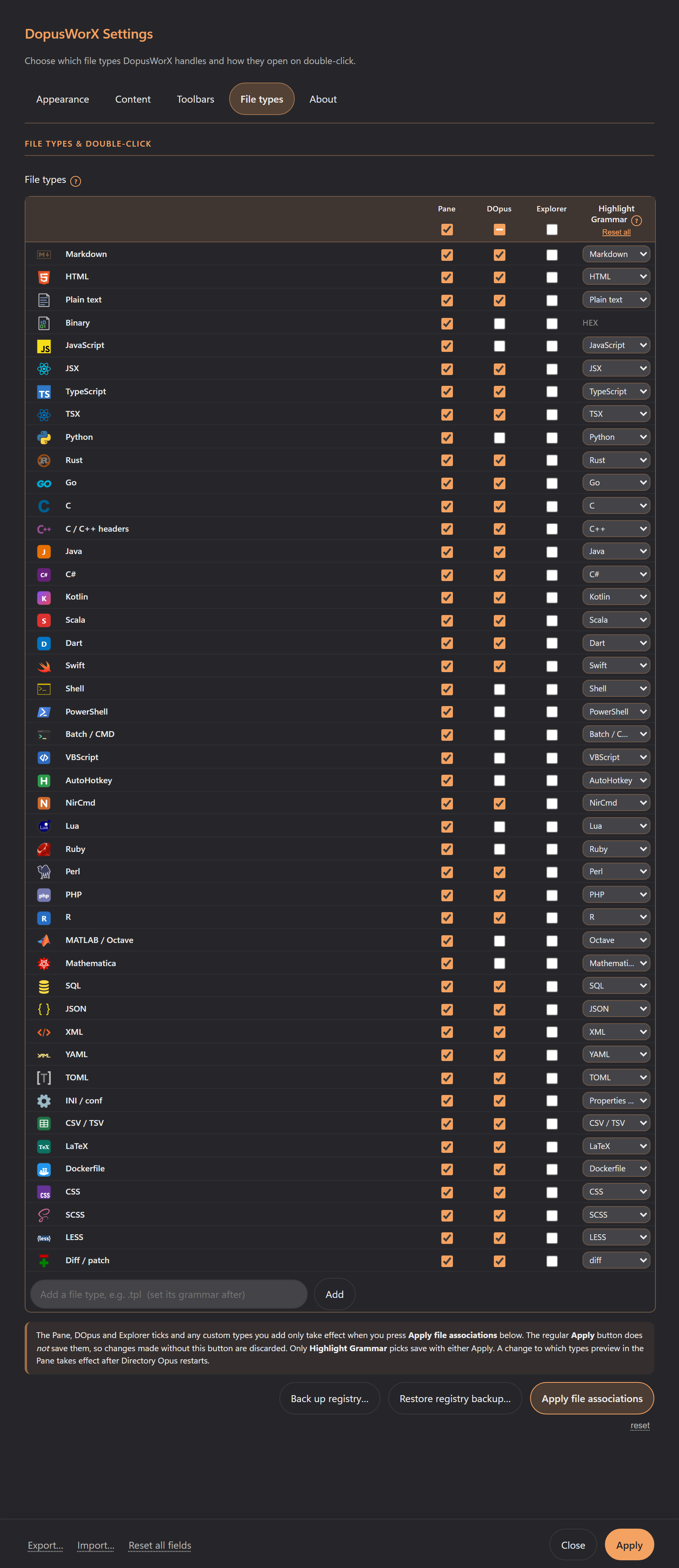
Settings has a **File types** tab that controls which types
DopusWorX handles and how they open. The panel lists one row per supported type
group (Markdown, HTML, plain text, Binary, and every code language), each with three
checkboxes:
- **Pane** - the type previews in the DopusWorX viewer pane while you browse.
Double-click is left alone, so a script still runs on double-click. A newly
added type takes effect after an Opus restart.
- **DOpus** - Pane, plus double-clicking the file inside Directory Opus opens it
in the DopusWorX windowed viewer (no registry change).
- **Explorer** - DOpus, plus a Windows association so double-clicking the file in
Windows Explorer opens DopusWorX even when Directory Opus is closed. This writes
Windows Explorer associations and changes the system registry.
The three columns nest: Pane < DOpus < Explorer. Ticking a higher tier ticks the
ones below it, and unticking a lower tier clears the ones above it. Header
checkboxes apply the same rule to a whole column at once.
Each row also has a **Highlight Grammar** column: a dropdown that sets which
grammar that type opens with. It defaults to the type's own language and can be
set to any of the supported languages, so you can open `.tpl` as C++ or pick a
different grammar for any type. The Binary row is an exception -- it shows an
inert **hex** marker rather than a picker, because binary files have no syntax
grammar and open directly in the hex inspector. A grammar change is saved with
the normal Apply (it does not need Apply file associations), and a single "reset
all" link puts every row back to its default.
The **Binary** group (`.bin`, `.dat`, `.exe`, `.dll`, `.wasm`, `.iso`, fonts, and
related blob types) defaults to **Pane** only. The preview column is on so
selecting one of these files shows it in the hex inspector; the DOpus and Explorer
double-click columns stay off so a `.exe` still runs on double-click in the normal
way.
### Custom mappings
Below the built-in groups you can add your own extensions ("Add a file type,
e.g. `.tpl`"). A custom type folds into the handled set exactly like a ticked
built-in. It defaults to its matching grammar when the extension is a known
language, or to plain text otherwise, and you can change it any time with the
Highlight Grammar column. Like the column ticks, a newly added type only sticks
once you press **Apply file associations**. Footer Apply does not save it, so if
you close Settings having pressed only Apply (or nothing), the new row is gone
the next time you open it. You can add several at once separated by
commas, spaces or semicolons, and remove any custom row with its × button.
### Applying changes
The two save buttons commit different things:
- The main **Apply** at the bottom of Settings commits your **Highlight Grammar**
picks, and those take effect straight away. It does **not** commit the Pane,
DOpus or Explorer ticks, or any custom type you have added. Those stay visible
while the dialog is open, but Apply does not save them, so they are gone the
next time you open Settings. In other words they do not revert when you press
Apply, they revert when you close Settings having pressed only Apply (or
nothing).
- **Apply file associations** commits the Pane, DOpus and Explorer ticks and your
custom types, writes the actual double-click handlers, and keeps your choices.
This is the step that makes a column change or a new type stick across exits.
In short: change a grammar and press Apply; change a column or add a type and
press Apply file associations.
Both registry-touching actions are reversible. The first time DopusWorX touches
a type it captures your original setup, so unticking later restores it. A
separate **Back up registry...** button exports the affected keys to a folder you
choose without making any changes. Because applying associations restarts the
Opus integration, Directory Opus closes to apply and then asks whether to
restart.
The handled-extension list lives in `settings.json` under `fileAssociations`. Four
`;`-separated keys hold the extension lists - `handledExts`, `dblClickOpusExts`,
`dblClickWinExts` and `customExts` - and a fifth key, `langOverrides`, carries the
Highlight Grammar mappings. When the four extension-list keys are empty the
settings panel seeds every type with the Pane column ticked. The DOpus column (in-Opus double-click) is also
ticked by default for every type that cannot execute on double-click -- so scripts
(`.bat`, `.cmd`, `.ps1`, `.py`, `.rb`, `.pl`, `.js`, `.vbs`, `.ahk`),
MATLAB/Mathematica files (`.m`, `.nb`, `.wl`, `.wls`), and binary types all
default to Pane preview only, while document types (Markdown, HTML, CSV, JSON,
source code) get both Pane and DOpus ticked. Until you press Apply file
associations, the native C++ viewer falls back to a smaller compiled-in default
set: most of the Handled extensions table, but none of the Binary types and not
the rarer source extensions (`.hh`, `.pm`, and the MATLAB/Mathematica group).
Pressing the button writes your real choices into these keys, and the viewer
follows them from then on.
### How the plugin claims types (the GUID claim)
DopusWorX registers with Directory Opus under a fixed plugin GUID
(`{74A3AE1F-C55E-4DAF-9107-F93E3A322CD8}`).
Opus copies a plugin's handled-extension list into a fixed-size buffer (measured
at 260 characters) that is far too small to hold every type DopusWorX supports,
and silently truncates the overflow. DopusWorX works around that by claiming
types through two channels at once:
- The **advertised extension list** it hands Opus is reordered so the
highest-value types (Markdown, HTML, CSV / TSV, JSON, text) always lead and
survive the truncation. This is an explicit claim, evaluated in Opus's first
pass *ahead* of the built-in text viewer, which is what lets DopusWorX override
the built-ins for those types.
- It also turns on **content identification** (`DVPFIF_CanHandleBytes`), so Opus
additionally offers it every file and the plugin answers yes / no per file by
matching the name's extension against its full in-code set (your `handledExts`
setting, or the compiled default). This second channel claims every handled
type the 260-character buffer dropped, plus any custom types you add, so
nothing is lost to truncation.
DopusWorX is deliberately **not** a catch-all viewer. A catch-all plugin is
"called last" by the SDK, so Opus would only reach it after the built-in text
viewer had already claimed text-class types (`.json` / `.txt` / `.csv` / ...),
which is exactly what used to demote DopusWorX below `text.dll`. The explicit
claim above runs in the first pass instead. Types DopusWorX does not handle
return no from both identify paths and fall through to the Windows / Opus default
(the desired "unselected -> default"). The extension list is re-read on each Opus
plugin enumeration, so a File types change takes effect on the next Opus restart.
## Encoding and line endings
When a file is read, the encoding is resolved in this order: an explicit user
setting, then a BOM sniff, then strict UTF-8, then a configurable fallback
codepage.
- **BOM detection** recognises UTF-8, UTF-16 LE and UTF-16 BE byte-order marks
and decodes accordingly.
- **Strict UTF-8** is tried for BOM-less files: it succeeds on pure ASCII or
valid UTF-8 and refuses anything else, so bad input does not silently decode
to replacement-character mojibake.
- **BOM-less UTF-16** is sniffed before the codepage fallback: such text is
dense with NUL bytes on a consistent parity, which distinguishes LE from BE.
- **Fallback codepage** handles legacy 8-bit files when strict UTF-8 refuses
them. It defaults to the system codepage and is configurable.
You can also pin the encoding explicitly. The `encoding` setting accepts `auto`
(the default), `utf-8`, `utf-16` / `utf-16le` / `utf-16be`, `system`, the
Windows codepages `cp1250` through `cp1258`, `iso-8859-1` / `iso-8859-2` /
`iso-8859-15`, and the CJK / Cyrillic codepages `shift-jis`, `gbk`, `big5`,
`euc-kr`, `koi8-r` and `koi8-u`. The `fallbackEncoding` setting takes the same
names (except `auto`) and is only consulted when `encoding` is `auto` and the
strict UTF-8 decode failed.
CJK, Arabic, Hebrew and other scripts render correctly throughout. The detected
encoding is remembered so a save round-trips it, including whether a UTF-8 file
had a BOM, and **line endings (LF / CRLF) are preserved on save**.
The top toolbar shows the open file's detected encoding and dominant line ending
(for example, "UTF-8 · LF") for every file type; hovering it shows the full
detail as a tooltip. The readout updates on each file load.