# Maths
Write equations straight into your notes, in LaTeX, AsciiMath, or a mix of both, and DopusWorX draws them for you.
Maths renders by default. There is nothing to switch on: open or edit a note and its equations are drawn straight away. The switch behind this is a master toggle that ships on, and it stays out of the way: the engine only loads the first time a note actually contains an equation, so a note with no maths in it costs nothing and behaves exactly as plain writing always has.
## The master switch
Settings · Content · Maths · **Render maths**.
Render maths is on out of the box. You only come here if you want to turn maths off altogether, in which case an equation just shows its raw text: `$x^2$` stays as those five characters. Turn it back on and equations are drawn again the next time a note is read or edited.
That single switch is all most people ever touch, and most never need to. The rest of this page covers the settings and tools that sit behind it.
## Writing an equation
Wrap maths in dollar signs:
- `$ ... $` puts a small equation **inline**, in the middle of a sentence: the pressure is `$p = F/A$` here.
- `$$ ... $$` puts a larger **display** equation on its own line. It can run over several lines.
There is a third option for a whole block of AsciiMath: fence it like a code block, using `am` (or `asciimath`) as the label. Three backticks, then `am`, your maths, then three backticks:
````
```am
sum_(i=1)^n i = (n(n+1))/2
```
````
A fenced `am` block is always read as AsciiMath, no matter which syntax mode you are in.
### Keeping prices and plain text safe
So ordinary writing does not turn into maths by accident:
- **Prices are safe.** `$5` and `it cost me $10` stay as text. A `$` only starts an equation when it pairs with a closing `$` around something that reads like maths.
- **Want a literal dollar sign right next to a number?** Write `\$`. So `\$5` shows the price, untouched.
## LaTeX or AsciiMath
There are two common ways to type maths:
- **LaTeX** is the standard in academia and publishing. Powerful and precise, but wordy, full of backslash commands like `\frac{a}{b}`.
- **AsciiMath** is a lighter shorthand you can type without backslashes, like `a/b`. Handy for quick notes.
DopusWorX understands both. You choose how it reads your equations under Settings · Content · Maths · **Maths syntax**:
| Mode | What it does |
|---|---|
| **Auto-render** (default) | Works out, one equation at a time, which style you used, so you can mix both in a single note without thinking about it. |
| **LaTeX** | Reads every `$...$` and `$$...$$` as LaTeX. |
| **AsciiMath** | Reads every `$...$` and `$$...$$` as AsciiMath. |
Most people can leave it on **Auto-render**. The two fixed modes are there if you only ever write one style, or you want to be certain which is used for a particular note.
### How Auto-render decides
In Auto-render mode DopusWorX looks at each equation on its own. If it contains a backslash command (`\frac`, `\alpha`, a multi-letter `\name`), or a braced group after a non-subscript operator (such as `x^{2}`) -- note that a braced subscript on its own like `x_{10}` is deliberately excluded and still reads as AsciiMath -- it is treated as LaTeX. Otherwise it is read as AsciiMath. This mirrors the same rule the Obsidian AsciiMath plugin uses, so notes written for that plugin behave the same way here.
Two finer points:
- If you have defined your own macros (see [Custom macros](#custom-macros)), an equation that uses one of them is always read as LaTeX, even a single-letter command like `$\R$` that the rule above would otherwise read as AsciiMath.
- Inside AsciiMath you can drop a piece of raw LaTeX with `tex"..."`. An equation containing `tex"..."` stays AsciiMath.
### The two styles, side by side
The same maths, typed each way:
| For | LaTeX | AsciiMath |
|---|---|---|
| fraction | `\frac{a}{b}` | `a/b` |
| power | `x^{2}` | `x^2` |
| square root | `\sqrt{x}` | `sqrt x` |
| sum | `\sum_{i=1}^{n}` | `sum_(i=1)^n` |
| times | `\times` | `xx` |
| arrow | `\to` | `->` |
| a greek letter | `\alpha` | `alpha` |
| not equal | `\ne` | `!=` |
A note on AsciiMath vocabulary: DopusWorX teaches its AsciiMath reader a set of LaTeX-familiar names too, so if you reach for `nabla`, `partial`, `leq`, `subset` and the like out of habit, they resolve to the right symbol instead of coming out as letter-soup. You do not have to remember the terse forms (`grad`, `del`, `<=`, `sub`) if you do not want to.
## Fractions, including slanted ones
Fractions are the one spot where the two styles behave differently, so here they all are in one place:
| Type this | You get |
|---|---|
| `$\frac{1}{2}$` | a stacked fraction with a bar |
| `$1/2$` | a stacked fraction with a bar (in AsciiMath a single `/` means "fraction") |
| `$1//2$` | a plain "1/2" on one line (in AsciiMath a double `//` means an ordinary slash) |
| `$\sfrac{1}{2}$` or `$\nicefrac{1}{2}$` | a slanted fraction: a small raised top number over a small lowered bottom one |
`\sfrac` and `\nicefrac` are extras DopusWorX adds for you (neither engine has them built in). They behave identically and both give the `ᵃ/_b` slanted look.
Where they work:
- In **LaTeX** mode and **Auto-render** mode, in both engines, in reading and in editing.
- They do **not** work in the fixed **AsciiMath** mode. In that mode your equation is handed to the AsciiMath reader, which has never heard of `\sfrac`. For a plain slash there, type `1//2`; for a slanted fraction, switch to LaTeX or Auto-render.
## The symbol panel
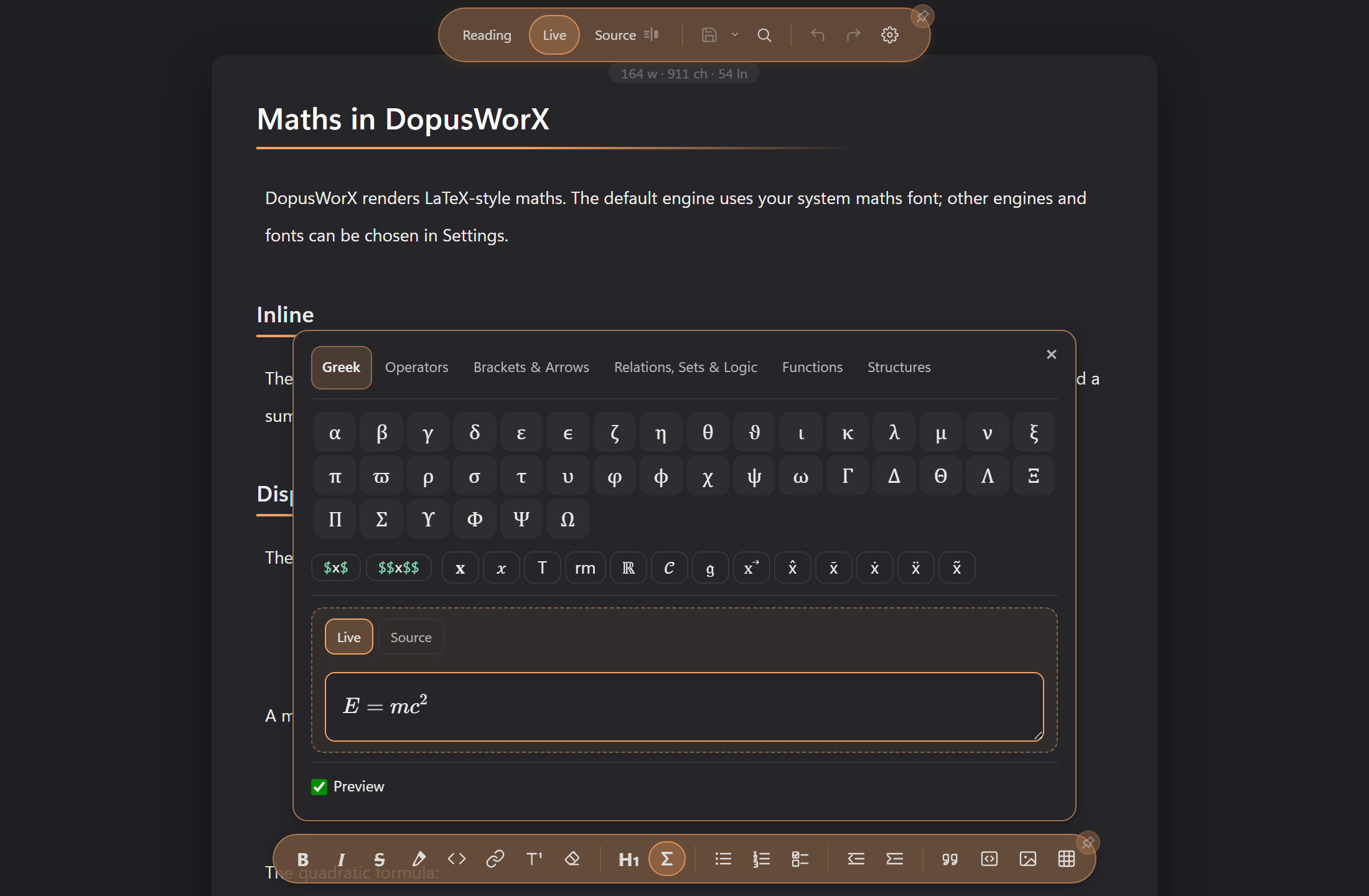
Click the **Σ** button on the editing toolbar, or press **Ctrl+Shift+M**, to open a small floating panel, so you do not have to memorise anything. The button only appears once maths is switched on, and the panel floats inside the viewer pane rather than opening a separate window.
Everything you click goes into the editor you are working in (Live or Source).
### Browse by category
The panel groups symbols into tabs. Click a tab, then click a symbol to drop it in:
| Tab | What is in it |
|---|---|
| **Greek** | lower- and upper-case Greek letters, plus variants (varepsilon, vartheta, varphi, varpi) |
| **Operators** | `+ - × ÷ ± ∓`, dot and star products, `∑ ∏ ∫ ∮ ∂ ∇ √ ∞`, dots, and so on |
| **Brackets & Arrows** | single brackets, auto-sized bracket pairs (parentheses, square, curly, angle, absolute value, norm, floor, ceiling), and the full arrow set |
| **Relations, Sets & Logic** | `= ≠ ≈ ≡ ≤ ≥`, ordering, set membership and operations, quantifiers, the blackboard letters `ℝ ℂ ℕ ℤ ℚ`, and so on |
| **Functions** | named functions: `sin cos tan`, `log ln exp`, `lim max min`, `det gcd`, and friends |
| **Structures** | templates: fraction, super/subscript, roots, accents, sum/integral/product with limits, matrix, cases, aligned block |
### It matches your style
The same button knows both spellings. The **α** button types `\alpha` when your Maths syntax setting is LaTeX or Auto-render, and `alpha` when it is AsciiMath. Templates work the same way: the fraction button drops `\frac{}{}` in LaTeX and Auto-render, or `()/()` in AsciiMath, with the cursor parked in the first slot. In Auto-render the LaTeX form is inserted, which the renderer handles correctly.
Where a symbol has no clean AsciiMath spelling, the panel falls back to AsciiMath's raw-LaTeX escape (`tex"\cmd"`), which still renders correctly.
### The `$x$` and `$$x$$` buttons
Two buttons start or wrap an equation:
- **`$x$`** for inline. With text selected, it wraps the selection in single dollars. With nothing selected, it drops an empty inline equation with the cursor ready inside.
- **`$$x$$`** for display. Same idea, but a block on its own line(s). If your cursor is already sitting in an inline equation, this button promotes it to display in place. To convert a display equation back to inline, use the right-click Math submenu (see [Context menus](06-context-menus.md)).
### Styles and accents row
A quick row of wrap buttons sits below the brackets: bold, italic, upright text, roman, blackboard, calligraphic, fraktur, and the vector / hat / bar / dot / double-dot / tilde accents. With text selected they wrap it (`\mathbf{your text}`); with nothing selected they drop an empty box for you to fill.
### The live preview field
The bottom of the panel is a preview surface with two modes, switched by the **Live** / **Source** buttons:
- **Live** is a WYSIWYG editor (built on MathLive, the Word-style equation editor). It shows the equation your cursor is in as it will actually look, with placeholder boxes you click to fill. Type or click symbols and the underlying note updates as you go. It edits in LaTeX under the hood, so it understands your custom macros and the built-in `\sfrac` / `\nicefrac` too.
- **Source** shows the equation's raw text in a plain box. Edit it there and the note updates live. Click an empty `{}`, `()` or `[]` box to fill a template slot.
A fenced `am` block is edited in **Source**: the Live editor is LaTeX-only, so for an `am` block it shows a note asking you to switch to Source, and you click **Source** to do so.
The **Preview** checkbox at the very bottom shows or hides this surface. With it off, the symbol and template buttons above still work, inserting straight at your cursor in the note; you just lose the preview.
### Memory and dismissing
The panel remembers, per note, whether it was open and which category tab you had selected, so reopening a note picks up where you left off. Click the **×**, or click away into plain prose, to close it.
## Converting between styles
Right-click on an equation and choose **Math → Convert to LaTeX** or **Math → Convert to AsciiMath** to rewrite it from one style to the other, in place, keeping the surrounding `$...$` or `$$...$$` (or the `am` fence). It is intended for readable, re-editable output rather than a guaranteed round-trip. For full details see [Context menus](06-context-menus.md).
## Editing equations in the note
Equations are drawn both when you are reading a note and while you are editing it.
In the editor, click into a rendered equation and its plain text comes back so you can change it. Click away and it is drawn again. If you have used Obsidian's live preview, this is the same behaviour.
In Source view, when Render maths is on, the equation source is coloured to help you read it: delimiters (`$`, `$$`) take the palette accent colour, LaTeX commands (`\frac`, `\sum` and so on) take the syntax keyword colour, and the equation body gets a faint accent-tinted background. Toggling Render maths off removes all of that colouring instantly.
## Maths fonts
The **Maths font** setting offers eight typefaces: Latin Modern (the classic TeX
look), STIX Two, Libertinus, Pagella, Fira, KP, Neo Euler and Nagwa.
These apply to the **Temml** engine only. KaTeX is locked to its own bundled fonts, so picking any maths font automatically switches you to Temml. Choose **default** to go back to whichever engine's own fonts.
Each font is a small override loaded the first time you select it, so a reader who never picks one pays nothing for them.
## Engines
DopusWorX can draw maths with either of two engines, and KaTeX is the default. There is no engine picker in the settings dialog. The choice lives in a hidden power-user key, `mathRenderer` in `settings.json`, that you only reach by hand-editing that file. The supported in-app way to move off KaTeX is to pick a non-default Maths font, which switches you to Temml automatically (see [Maths fonts](#maths-fonts)).
| Engine | Notes |
|---|---|
| **KaTeX** (default) | HTML and CSS with its own bundled fonts. Renders big operators (sums, integrals) reliably regardless of the system's MathML quality, which is why it is the default. |
| **Temml** | Converts LaTeX to MathML and lets the browser lay it out. Lighter, ships no fonts of its own, and is the engine the maths-font options use. |
The `mathRenderer` key accepts `katex` or `temml`. To leave equations as literal source rather than rendering them, turn Render maths off instead.
Whichever engine draws, AsciiMath is quietly converted to LaTeX first, so the two input styles always end up looking the same. The style you pick is about how you *type*, not how the result *looks*.
## Custom macros
If you keep reaching for the same shorthand, define it once. DopusWorX accepts LaTeX `\newcommand`, `\renewcommand`, `\providecommand` and `\def` definitions in two places:
- **mathMacros** in Settings: paste your definitions straight in, one per line.
- **Macros file**: Browse to a `.tex`, `.txt` or `.sty` file and its definitions are loaded into the box above, where you can edit them. If you change the file later, Browse to it again to refresh.
For example:
```
\newcommand{\R}{\mathbb{R}}
\newcommand{\norm}[1]{\left\lVert #1 \right\rVert}
\def\eps{\varepsilon}
```
Macros are a LaTeX-only feature; they have no effect on equations read as AsciiMath. A few things worth knowing:
- They are fed to the engine through its own macro mechanism, which means you can safely redefine even built-in commands without the engine complaining.
- An equation that uses one of your macros is recognised as LaTeX by Auto-render, so `$\R$` reaches the engine even though it looks AsciiMath-ish.
- The Live preview editor learns your macros too, so a custom command renders there exactly as it does in the note, and re-reads them each time the panel opens (so a settings change is picked up).
## Dollar-sign disambiguation, in one place
| You type | You get |
|---|---|
| `$x^2$` | the equation `x²` |
| `$5` | the text `$5` (a lone `$` next to a number is a price, not maths) |
| `it cost $10 today` | unchanged text |
| `\$5` | a literal `$5`, even though it is next to a number |
## When an equation does not show up
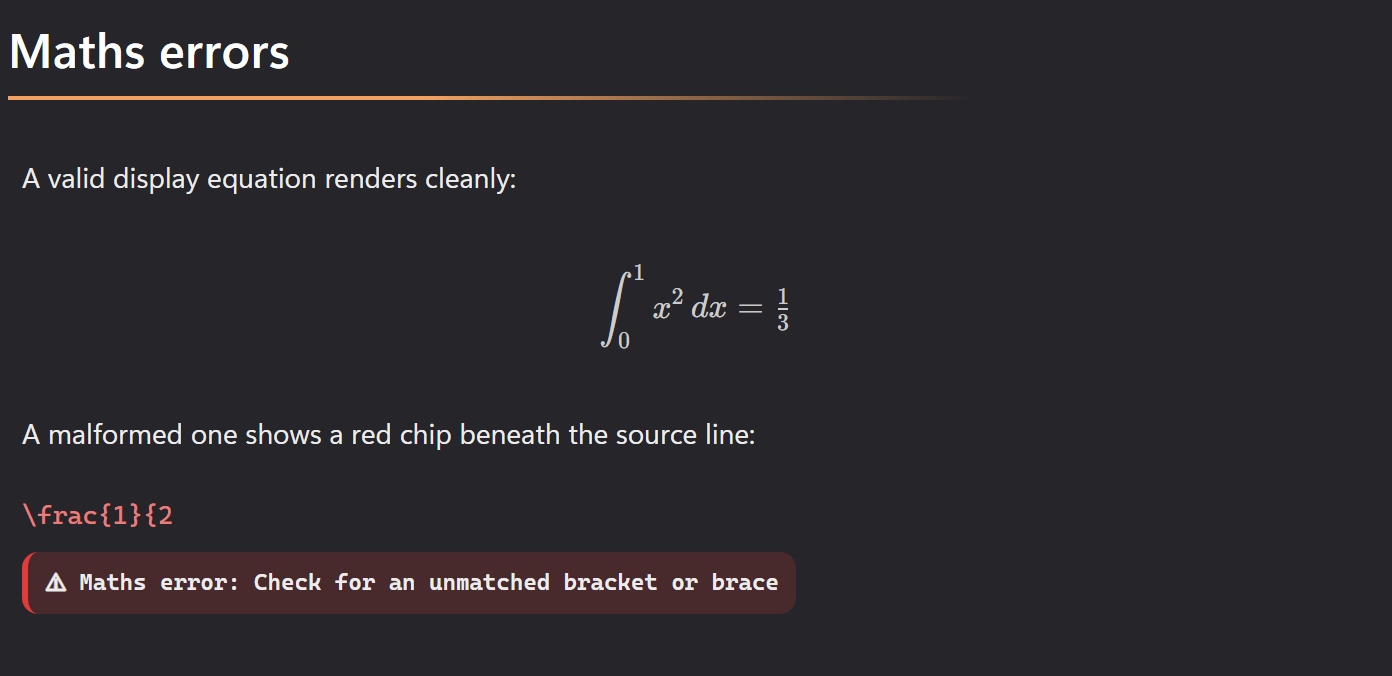
DopusWorX never silently drops an equation. You always get either the maths or a visible reason.
- **It still looks like `$...$` text.** You have turned Render maths off, you are missing the closing `$`, or the maths engine could not load. In each case DopusWorX keeps your source rather than leave a gap.
- **The source comes out red, with a small note underneath.** DopusWorX could not make sense of that equation, so it leaves the text you typed in place, shown in red, and puts a short plain-language note underneath saying what went wrong (an unknown command, an unmatched brace, two superscripts in a row, and so on) instead of raw engine jargon. The note stays readable on any theme. Hover it to see the engine's own message in full.
- **It drew, but looks wrong.** Usually you are in the wrong style, or you hit an in-between case. The classic one is `$1/2$` stacking when you wanted a slash: type `$1//2$`, or use `\frac` / `\sfrac` to pick the exact shape.
## A little about what happens behind the scenes
You never have to think about any of this, but in case you are curious:
- **Notes without equations stay quick.** The maths engine is only loaded the first time you open a note that actually contains an equation, so equation-free files pay nothing. The symbol panel, the WYSIWYG editor, the maths fonts and the converters each load only when first used, too.
- **A brief flash of raw text is normal.** When a note first opens you might glimpse `$x^2$` for an instant before it becomes proper maths. That is just the engine waking up, not a fault.
- **The two styles end up the same on purpose.** Anything written in AsciiMath is converted to LaTeX before drawing, using the same AsciiMath converter the Obsidian AsciiMath plugin uses, so notes written for that plugin come out the same here. It is also why `\sfrac` cannot work in fixed AsciiMath mode: there your equation goes through the AsciiMath converter, which has never heard of it.