# ProxyBridge for Windows
Universal proxy client for Windows applications - Route any application through SOCKS5/HTTP proxies without configuration.
## Table of Contents
- [Installation](#installation)
- [Usage](#usage)
- [GUI Application](#gui-application)
- [Proxy Settings](#proxy-settings)
- [Process Rules](#process-rules)
- [Exporting and Importing Rules](#exporting-and-importing-rules)
- [Activity Monitoring](#activity-monitoring)
- [Command Line Interface (CLI)](#command-line-interface-cli)
- [Basic Usage](#basic-usage)
- [Command Line Options](#command-line-options)
- [Rule Format](#rule-format)
- [Use Cases](#use-cases)
- [Current Limitations](#current-limitations)
- [Things to Note](#things-to-note)
- [How It Works](#how-it-works)
- [Build from Source](#build-from-source)
- [License](#license)
## Installation
1. Download the latest `ProxyBridge-Installer-vX.X.X.exe` from the [Releases](https://github.com/InterceptSuite/ProxyBridge/releases) page
2. Run the installer with Administrator privileges
3. The installer will:
- Install ProxyBridge to `C:\Program Files\ProxyBridge`
- Add the CLI to your system PATH for easy command-line access
- Create Start Menu shortcuts for the GUI application
- Include all required dependencies (WinDivert driver)
## Usage
### GUI Application
Launch `ProxyBridge.exe` (GUI) with Administrator privileges for an intuitive graphical interface to:
#### Proxy Settings
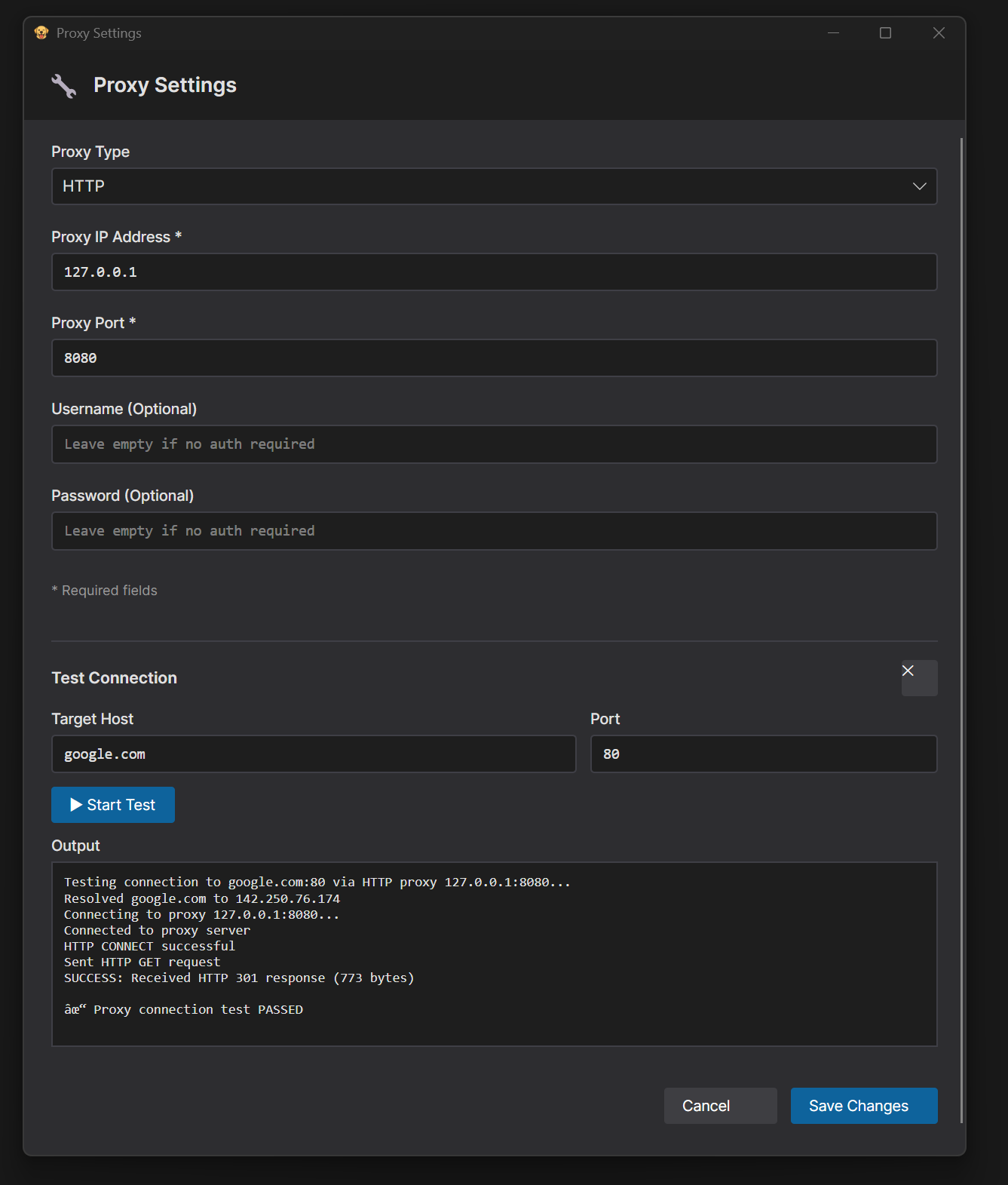
1. Click **Proxy** tab in the main window
2. Click **Proxy Settings** from the menu
3. Select **Proxy Type** (SOCKS5 or HTTP)
4. Enter **Proxy Host** - Supports both IP addresses and domain names:
- IP Address: `127.0.0.1`, `192.168.1.100`
- Domain Name: `proxy.example.com`, `localhost`
5. Enter **Proxy Port** (e.g., 1080 for SOCKS5, 8080 for HTTP)
6. (Optional) Enter **Proxy Username** and **Proxy Password** for authenticated proxies
7. Click **Save Changes**
**Test Proxy Connection:**
1. Click **Test Proxy Connection** button
2. Enter **Destination IP/Host** (default: google.com)
3. Enter **Destination Port** (default: 80)
4. Click **Start Test** to verify proxy connectivity
5. View test results in the output area
#### Process Rules
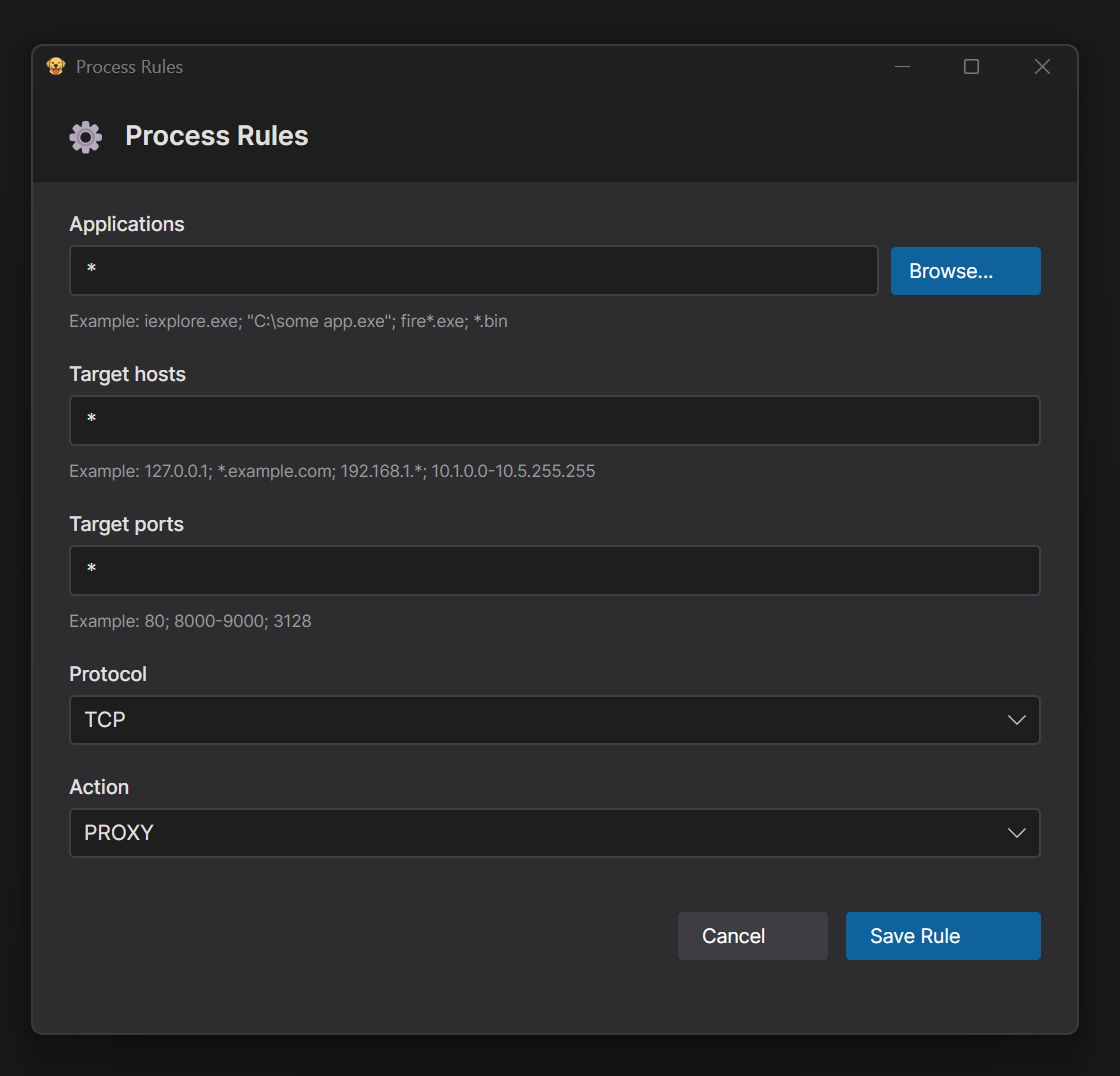
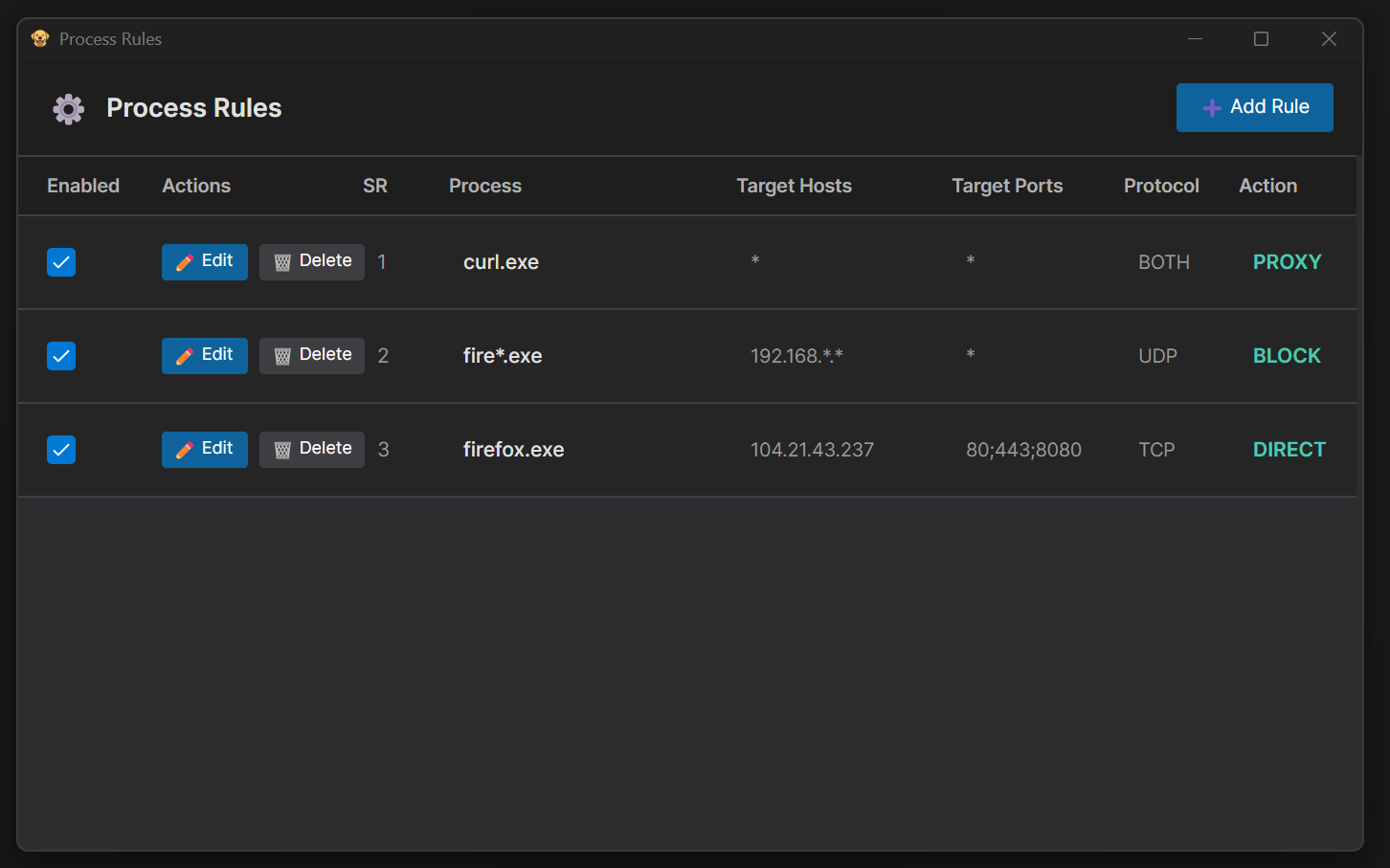
1. Click **Proxy** tab in the main window
2. Click **Proxy Rules** from the menu
3. Configure rule parameters:
**Applications:**
- Use `*` as wildcard for all processes
- Enter single process: `chrome.exe`
- Enter multiple processes (semicolon-separated): `firefox.exe; chrome.exe`
- Use **Browse** button to select process executable from directory
**Target Hosts (Optional):**
- Specific IP: `127.0.0.1`
- Wildcard IP range: `127.0.*.*` or `192.168.*.*`
- Multiple IPs: `127.0.0.1; 192.168.1.1`
- IP range: `10.10.1.1-10.10.255.255`
- Leave empty or use `*` for all hosts
**Target Ports (Optional):**
- Specific ports: `80; 8080`
- Port range: `80-8000`
- Leave empty or use `*` for all ports
**Protocol:**
- Select **TCP**, **UDP**, or **Both (TCP + UDP)**
**Action:**
- **PROXY** - Route through configured proxy
- **DIRECT** - Allow direct internet access
- **BLOCK** - Block all internet access
4. Click **Save Rule** to apply the configuration
#### Exporting and Importing Rules
ProxyBridge allows you to export selected rules to a JSON file and import rules from previously exported files, making it easy to share configurations between systems or back up your rule sets.
**Export Rules:**
1. In the **Proxy Rules** window, select one or more rules using the checkboxes in the **Select** column
2. Click the **Select All** button to select all rules (optional)
3. Click the **Export** button (only enabled when at least one rule is selected)
4. Choose a location and save the JSON file
**Import Rules:**
1. Click the **Import** button
2. Select a previously exported JSON file
3. Rules will be imported and added to your existing rules
**JSON Format Example:**
```json
[
{
"processNames": "chrome.exe",
"targetHosts": "*",
"targetPorts": "*",
"protocol": "TCP",
"action": "PROXY",
"enabled": true
},
{
"processNames": "firefox.exe",
"targetHosts": "192.168.*.*",
"targetPorts": "80;443",
"protocol": "BOTH",
"action": "DIRECT",
"enabled": true
}
]
```
**Note:** The JSON format is compatible across platforms, allowing you to export rules from macOS and import them on Windows, and vice versa.
#### Activity Monitoring
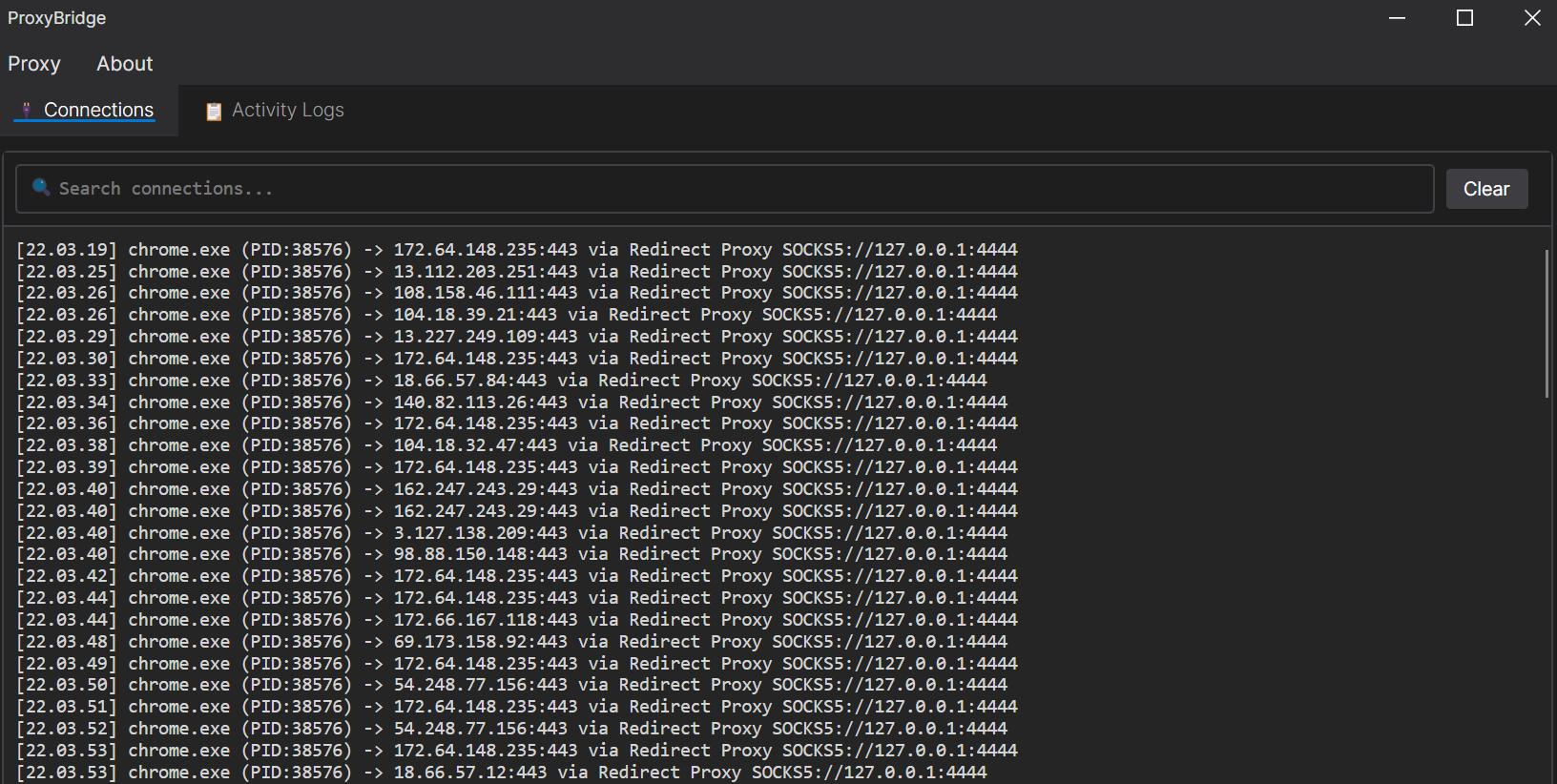
- View real-time connection activity in the **Connections** tab
- Monitor all system connections including both TCP and UDP protocols
- See connections from all processes, whether they match rules or not
- Track which processes are active and their routing status (PROXY, DIRECT, or BLOCK)
- Search and filter connections using the search box
**Note:** Adding a rule with action **PROXY** while no proxy is configured will result in traffic being routed through a direct connection instead. Make sure to configure proxy settings before using PROXY rules.
### Command Line Interface (CLI)
The CLI provides powerful automation and scripting capabilities with rule-based traffic control:
#### Basic Usage
```powershell
# Help menu
ProxyBridge_CLI -h
# Use custom HTTP proxy
ProxyBridge_CLI --proxy http://192.168.1.100:8080
# Route Chrome through socks5 proxy
ProxyBridge_CLI --proxy socks5://127.0.0.1:1080 --rule "chrome.exe:*:*:TCP:PROXY"
# Route multiple processes in single rule (semicolon-separated)
ProxyBridge_CLI --proxy http://127.0.0.1:8080 --rule "chrome.exe;steam*.exe:*:*:TCP:PROXY"
# Multiple rules with verbose connection logging
ProxyBridge_CLI --proxy http://127.0.0.1:8080 --rule "chrome.exe;steam*.exe:*:*:TCP:PROXY" --rule "firefox.exe:*:*:TCP:PROXY" --verbose 2
# Block specific application from internet access
ProxyBridge_CLI --rule "malware.exe:*:*:BOTH:BLOCK"
# Route specific apps through proxy, block everything else
ProxyBridge_CLI --rule "chrome.exe:*:*:TCP:PROXY" --rule "firefox.exe:*:*:TCP:PROXY" --rule "*:*:*:BOTH:BLOCK"
# Route all through proxy except proxy app itself
ProxyBridge_CLI --rule "*:*:*:TCP:PROXY" --rule "BurpSuiteCommunity.exe:*:*:TCP:DIRECT"
# Target specific IPs and ports
ProxyBridge_CLI --rule "chrome.exe:192.168.*.*;10.10.*.*:80;443;8080:TCP:PROXY"
# Import rules from JSON file
ProxyBridge_CLI --proxy socks5://127.0.0.1:1080 --rule-file C:\rules.json
# Combine file-based rules with command-line rules
ProxyBridge_CLI --rule-file C:\rules.json --rule "steam.exe:*:*:TCP:PROXY"
```
#### Command Line Options
```
ProxyBridge_CLI.exe -h
____ ____ _ _
| _ \ _ __ _____ ___ _ | __ ) _ __(_) __| | __ _ ___
| |_) | '__/ _ \ \/ / | | | | _ \| '__| |/ _` |/ _` |/ _ \
| __/| | | (_) > <| |_| | | |_) | | | | (_| | (_| | __/
|_| |_| \___/_/\_\\__, | |____/|_| |_|\__,_|\__, |\___|
|___/ |___/ V3.1.0
Universal proxy client for Windows applications
Author: Sourav Kalal/InterceptSuite
GitHub: https://github.com/InterceptSuite/ProxyBridge
Description:
ProxyBridge - Universal proxy client for Windows applications
Usage:
ProxyBridge_CLI [command] [options]
Options:
--proxy Proxy server URL with optional authentication
Format: type://ip:port or type://ip:port:username:password
Examples: socks5://127.0.0.1:1080
http://proxy.com:8080:myuser:mypass [default: socks5://127.0.0.1:4444]
--rule Traffic routing rule (multiple values supported, can repeat)
Format: process:hosts:ports:protocol:action
process - Process name(s): chrome.exe, chr*.exe, *.exe, or *
hosts - IP/host(s): *, google.com, 192.168.*.*, or multiple comma-separated
ports - Port(s): *, 443, 80,443, 80-100, or multiple comma-separated
protocol - TCP, UDP, or BOTH
action - PROXY, DIRECT, or BLOCK
Examples:
chrome.exe:*:*:TCP:PROXY
*:*:53:UDP:PROXY
firefox.exe:*:80,443:TCP:DIRECT
--rule-file Path to JSON file containing proxy rules
JSON format (same as GUI export):
[{
"processNames": "chrome.exe",
"targetHosts": "*",
"targetPorts": "*",
"protocol": "TCP",
"action": "PROXY",
"enabled": true
}]
Example: --rule-file C:\\rules.json []
--dns-via-proxy Route DNS queries through proxy (default: true) [default: True]
--verbose Logging verbosity level
0 - No logs (default)
1 - Show log messages only
2 - Show connection events only
3 - Show both logs and connections [default: 0]
--version Show version information
-?, -h, --help Show help and usage information
Commands:
--update Check for updates and download latest version from GitHub
```
#### Rule Format
**Format:** `process:hosts:ports:protocol:action`
- **process** - Process name(s): `chrome.exe`, `chrome.exe;firefox.exe`, `steam*.exe`, or `*`
- **hosts** - Target IP/hostname(s): `*`, `192.168.1.1`, `192.168.*.*`, `10.10.1.1-10.10.255.255`, or `192.168.1.1;10.10.10.10`
- **ports** - Target port(s): `*`, `443`, `80;443;8080`, `80-8000`, or `80;443;8000-9000`
- **protocol** - `TCP`, `UDP`, or `BOTH`
- **action** - `PROXY`, `DIRECT`, or `BLOCK`
**Examples:**
```powershell
# Single process to proxy
--rule "chrome.exe:*:*:TCP:PROXY"
# Multiple processes in one rule
--rule "chrome.exe;firefox.exe;steam*.exe:*:*:TCP:PROXY"
# Target specific IPs and ports
--rule "chrome.exe:192.168.*;10.10.*.*:80;443;8080:TCP:PROXY"
# Allow direct connection (bypass proxy)
--rule "BurpSuiteCommunity.exe:*:*:TCP:DIRECT"
--rule-file "C:\proxybridge-rule.json"
```
**Notes:**
- After installation, the CLI is available from any terminal (no `.\` prefix needed)
- Process names are case-insensitive
- Use `*` as the process name to set a default action for all traffic
- Press `Ctrl+C` to stop ProxyBridge
## Use Cases
- Redirect proxy-unaware applications (games, desktop apps) through InterceptSuite/Burp Suite for security testing
- Route specific applications through Tor,SOCKS5 or HTTP proxies
- Intercept and analyze traffic from applications that don't support proxy configuration
- Test application behavior under different network conditions
- Analyze protocols and communication patterns
## Current Limitations
- IPv4 only (IPv6 not supported)
## Things to Note
- **DNS Traffic Handling**: DNS traffic on TCP and UDP port 53 is handled separately from proxy rules. Even if you configure rules for port 53, they will be ignored. Instead, DNS routing is controlled by the **DNS via Proxy** option in the Proxy menu (enabled by default). When enabled, all DNS queries are routed through the proxy; when disabled, DNS queries use direct connection.
- **Automatic Direct Routing**: Certain IP addresses and ports automatically use direct connection regardless of proxy rules, though you can still create rules with **DIRECT** (default) or **BLOCK** actions for them:
- **Localhost addresses** (127.0.0.0/8) - Loopback traffic
- **Broadcast addresses** (255.255.255.255 and x.x.x.255) - Network broadcast
- **Multicast addresses** (224.0.0.0 - 239.255.255.255) - Group communication
- **APIPA addresses** (169.254.0.0/16) - Automatic Private IP Addressing (link-local)
- **DHCP ports** (UDP 67, 68) - Dynamic Host Configuration Protocol
These addresses and ports are used by system components, network discovery, and essential Windows services. While proxy rules are automatically overridden to DIRECT for these targets, you can still define rules with DIRECT or BLOCK actions to explicitly control or block this traffic. Note that Windows loopback traffic (127.x.x.x) uses a method that bypasses the network interface card (NIC), which currently doesn't support proxy routing due to technical limitations with WinDivert at the network layer.
- **UDP Proxy Requirements**: UDP traffic only works when a SOCKS5 proxy is configured. If an HTTP proxy server is configured, ProxyBridge will ignore UDP proxy rules and route UDP traffic as direct connection instead. This limitation does not affect UDP rules with BLOCK or DIRECT actions.
**Important UDP Considerations**:
- Configuring a SOCKS5 proxy does not guarantee UDP will work. Most SOCKS5 proxies do not support UDP traffic, including SSH SOCKS5 proxies.
- The SOCKS5 proxy must support UDP ASSOCIATE command. If ProxyBridge fails to establish a UDP association with the SOCKS5 proxy, packets will fail to connect.
- Many UDP applications use HTTP/3 and DTLS protocols. Even if your SOCKS5 proxy supports UDP ASSOCIATE, ensure it can handle DTLS and HTTP/3 UDP traffic, as they require separate handling beyond raw UDP packets.
- **Testing UDP/HTTP3/DTLS Support**: If you need to test UDP, HTTP/3, and DTLS support with a SOCKS5 proxy, try [Nexus Proxy](https://github.com/InterceptSuite/nexus-proxy) - a proxy application created specifically to test ProxyBridge with advanced UDP protocols.
## How It Works
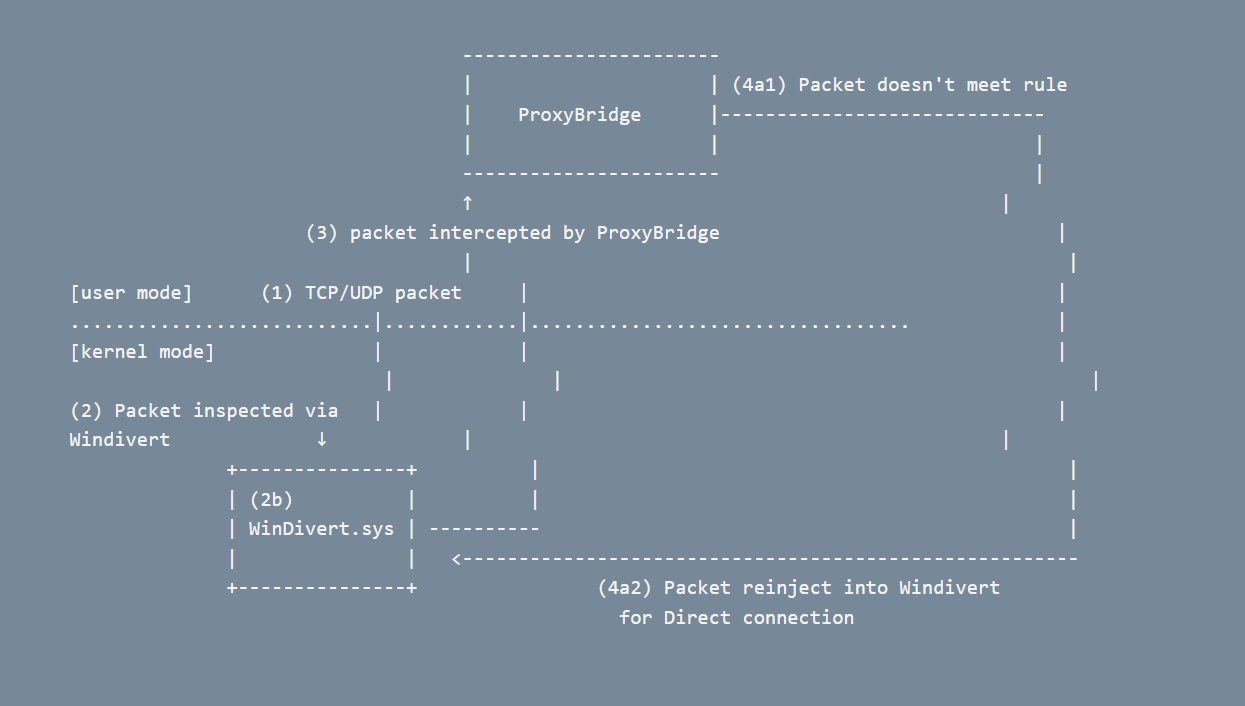
ProxyBridge use Windivert to inspect all TCP/UDP packets and use rules from user to perform action on them
Case 1: Packet does not match any rules
Case 2: Packet match with proxy rule
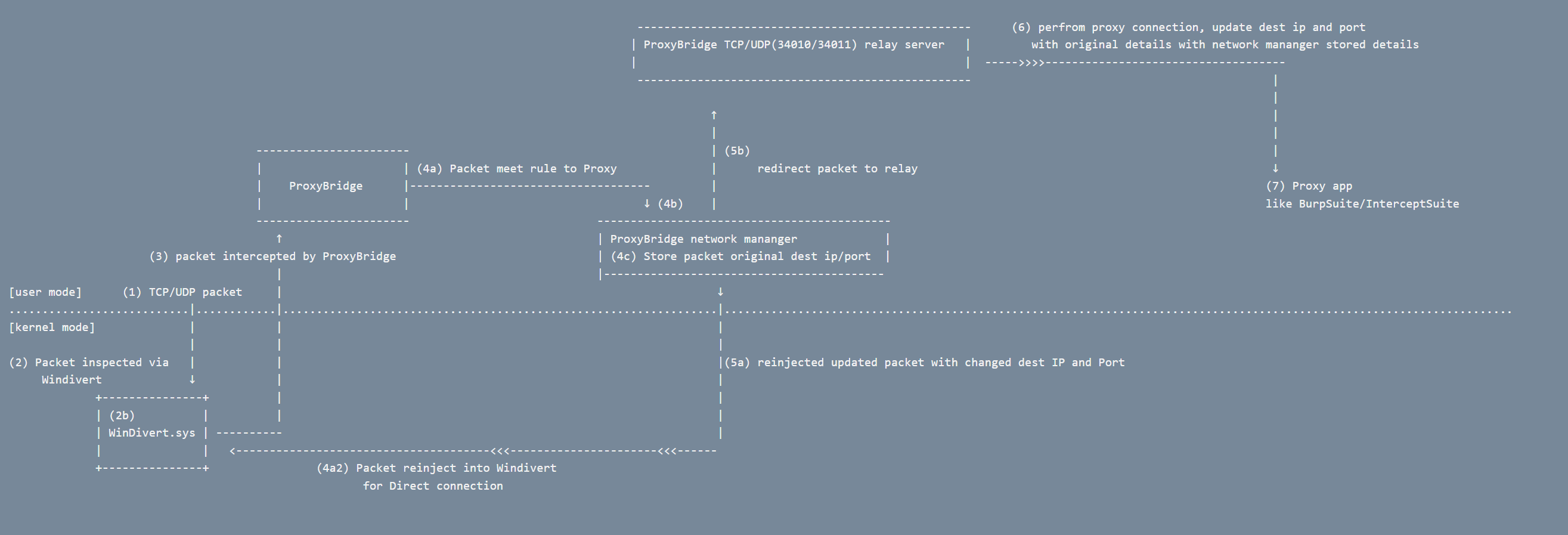
**Traffic Flow:**
1. **Applications Generate Traffic** - User-mode applications (Chrome, Discord, Games, Services) create TCP/UDP packets
2. **Kernel Interception** - WinDivert.sys driver intercepts ALL outbound packets at kernel level
3. **User-Mode Delivery** - WinDivert.dll receives intercepted packets and delivers them to ProxyBridge
4. **Rule Evaluation** - ProxyBridge inspects each packet and applies configured rules:
- **BLOCK** → Packet is dropped (no network access)
- **DIRECT** → Packet is re-injected unchanged (direct connection)
- **NO MATCH** → Packet is re-injected unchanged (direct connection)
- **PROXY** → Packet destination is modified to TCP/UDP relay servers (34010/34011)
5. **Proxy Processing** - For PROXY-matched packets:
- Relay servers store original destination IP and port
- Convert raw TCP/UDP to SOCKS5/HTTP proxy protocol
- Perform proxy authentication and forward to proxy server
6. **Proxy Forwarding** - Proxy server (Burp Suite/InterceptSuite) forwards traffic to original destination
7. **Response Handling** - Return traffic flows back through relay servers, which restore original source IP/port before re-injection
**Key Points:**
- All packet manipulation happens transparently - applications remain completely unaware
- WinDivert operates at kernel level for reliable interception before packets reach the network
- ProxyBridge rule engine provides granular control over which traffic gets proxied
- TCP/UDP relay servers handle protocol conversion between raw sockets and proxy protocols
## Build from Source
### Requirements
- Windows 7 or later (64-bit)
- Administrator privileges (required for WinDivert driver)
- WinDivert 2.2.2-A or later
- GCC (MinGW-w64) or MSVC compiler
If you prefer to build ProxyBridge from source:
1. Download WinDivert 2.2.2-A from the [official website](https://reqrypt.org/windivert.html)
2. Extract WinDivert to a known location (e.g., `C:\WinDivert-2.2.2-A`)
3. Clone or download ProxyBridge source code
4. Compile using one of the methods below:
### Using PowerShell Script
```powershell
.\compile.ps1
```
### Using GCC Directly
```powershell
gcc -O2 -Wall -D_WIN32_WINNT=0x0601 -I"C:\WinDivert-2.2.2-A\include" ProxyBridge.c -L"C:\WinDivert-2.2.2-A\x64" -lWinDivert -lws2_32 -liphlpapi -o ProxyBridge.exe
```
5. Run `ProxyBridge.exe` with Administrator privileges
## License
MIT License - See LICENSE file for details