# wM-Bus Gateway




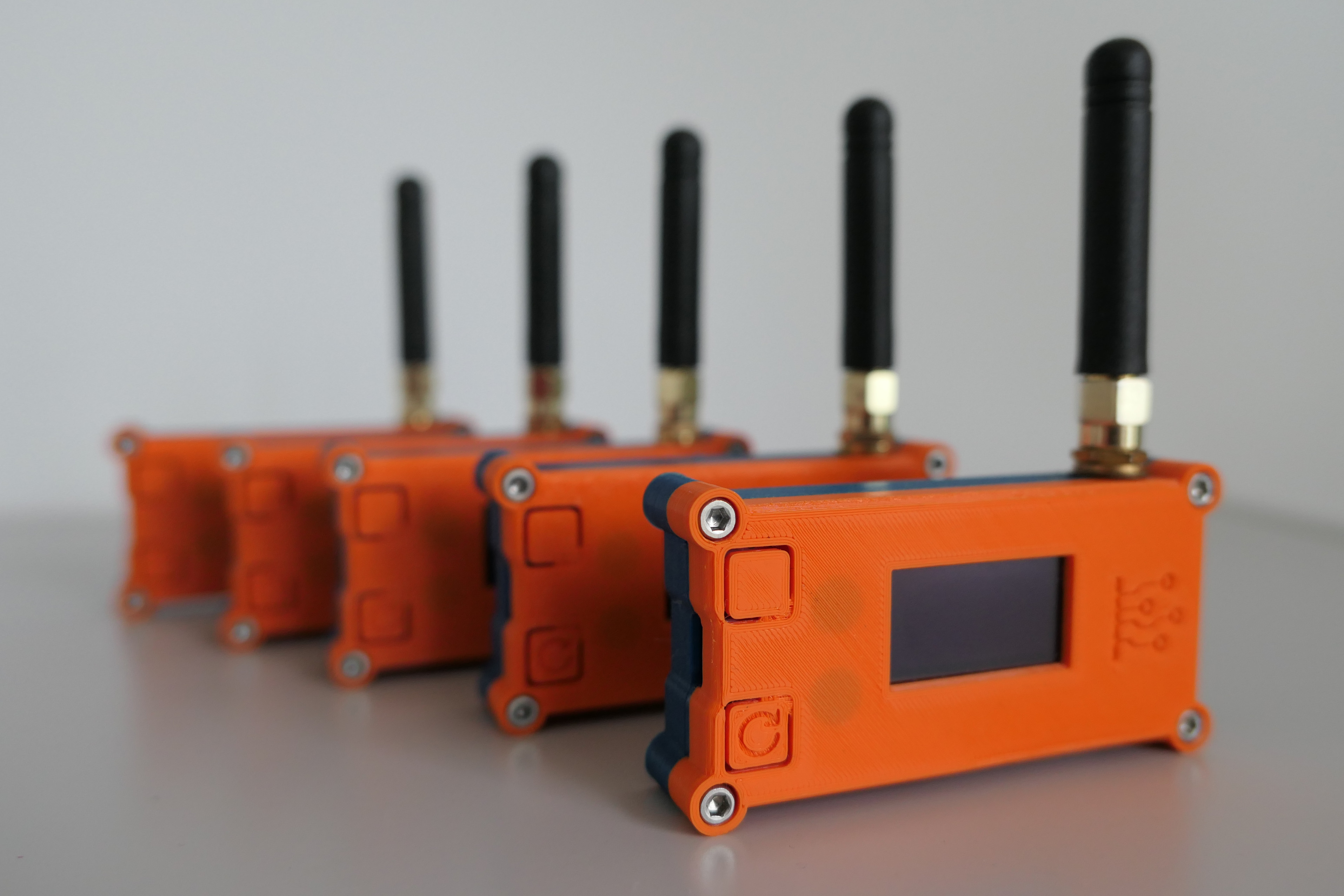
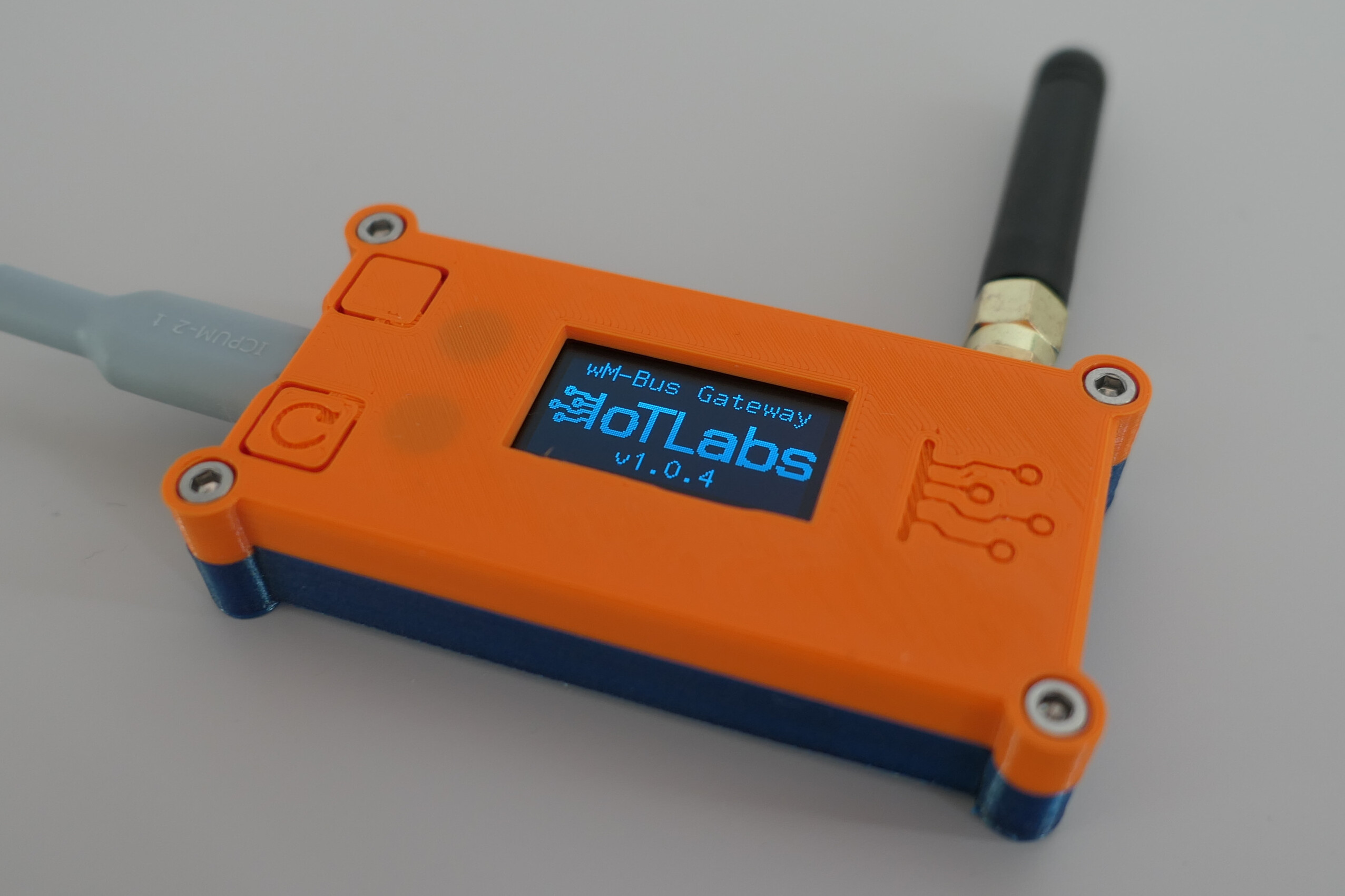
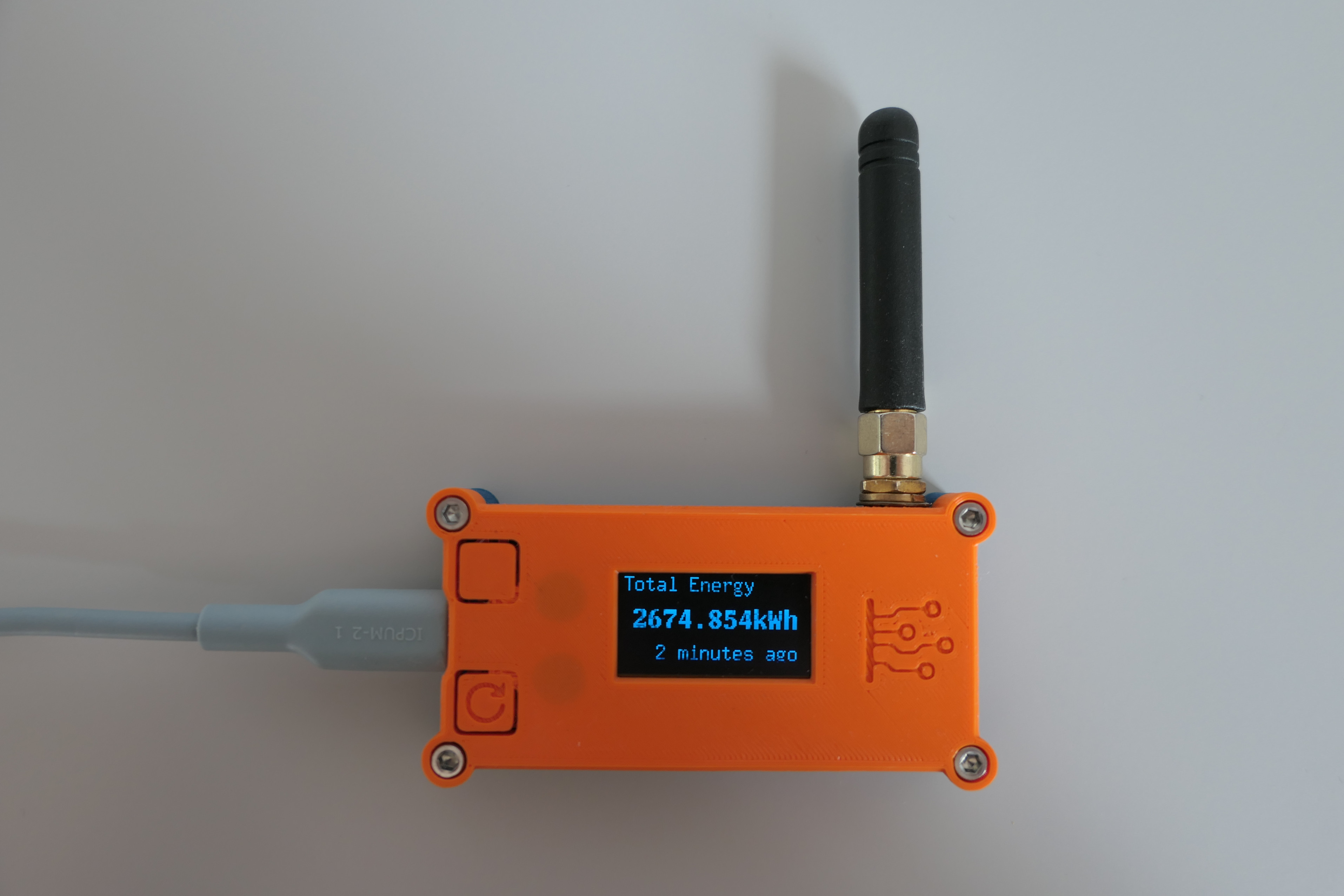
This repository contains the source code for the **wM-Bus Gateway**, a device that integrates Wireless M-Bus media meters with other systems.
---
## ℹ️ General Info
> ⚠️ **Warning:**
> **Do not power on the device without the antenna connected** – this may damage the radio module.
- 🟦 The device has two buttons:
- **Top button** – used to switch pages on the display.
- **Bottom button** – used to reset the device.
- 📶 Reception of the wM-Bus datagram is signaled by a fast blinking of the built-in LED.
---
## 🏠 Recommended Integration Workflow for Home Assistant
### 🛠️ Prerequisites
- [ESPHome Dashboard](https://esphome.io/guides/getting_started_hassio.html) (can be used as a Home Assistant Add-on or [Python package](https://esphome.io/guides/getting_started_command_line))
---
### 🚦 Steps
1. **Power up** the device with a USB cable. You may use your computer or a USB power adapter.
2. **Connect the device to your Wi-Fi network** using one of the following methods:
- **🌐 via device's Wi-Fi access point:**
1. Connect to device's access point (SSID: `IoTLabs wM-Bus Gateway`, no password)
2. Open [`http://192.168.4.1`](http://192.168.4.1) in your web browser
3. Enter your Wi-Fi credentials and click **Save**.
- **🔵 via Improv BLE:**
1. Open [Web Tools](https://iotlabs.pl/en/tools) with a device and browser supporting Bluetooth Low Energy (BLE), e.g. a mobile phone with Google Chrome or Edge.
2. Click **Connect** in the `Improv via BLE` section.
3. Select your device from the list.
4. Follow the instructions to connect the device to your Wi-Fi network.
- **🟠 via Improv Serial:**
1. Connect the device to your computer using a USB cable.
2. Open [Web Tools](https://iotlabs.pl/en/tools) with your computer and a browser supporting Web Serial API (e.g. Google Chrome or Edge).
3. Click **Connect** in the `Improv via Serial` section.
4. Select your device from the list.
5. Follow the instructions to connect the device to your Wi-Fi network.
3. When your device switches to the selected network (the currently connected network name is shown on a dedicated display page), go to the **ESPHome Dashboard** where you should see a newly discovered device and click the **Take Control** button.
4. In the following popup window, type the desired device name and click **Take Control**.
5. In the next two popup windows, click **Skip** and **Close**.
> 💡 **Tip:**
> You may also install new firmware at this point, but ESPHome will build factory firmware which is already installed on the device.
6. Click the **Logs** button for the already added device in the ESPHome Dashboard and choose the appropriate connection method (wireless if not connected via USB, or wired if you are).
> 🖱️ **Tip:**
> For testing, you may click the top button on the device to switch display pages and see logs about these events.
Wait some time to receive a wM-Bus datagram and see it in the logs. You will get logs like this:
```
[16:29:10][W][main:057]: Meter ID: 12345678...
[16:29:10][W][main:060]: Frame: https://wmbusmeters.org/analyze/be44ed1...
```
7. Click or copy and paste the link from the logs to your browser to analyze the received datagram. At [wmbusmeters.org](https://wmbusmeters.org/analyze/) you will be able to check your decryption key (if your meter is encrypted) and see all data fields available to decode from the datagram.
8. When you identify your meter ID, decryption key, and fields you are interested in, you can edit the device configuration in the ESPHome Dashboard.
- In the section `wmbus_meter` set:
- `meter_id` to your meter ID
- `type` to the driver name in wmbusmeters
- optionally `decryption_key`
- `id` as a label for referencing in other YAML sections
- In the `sensor` section, create a sensor for each field you want to decode. Each sensor needs:
- `parent_id` to link to the specific meter
- `field` to specify which decoded field to use
- Other parameters are specific to ESPHome; see the [ESPHome documentation](https://esphome.io/components/sensor/index.html) for details.
9. When you finish editing the configuration, click the **Install** button in the ESPHome Dashboard and choose your preferred installation method (wireless or USB).
10. After installation, go to your Home Assistant instance and add the device with ESPHome integration.
Typically, it will be automatically discovered, but you can also add it manually on the Integrations page by entering the device IP address.
---
## ❓ FAQ
Where I can find example ESPHome yaml configuration?
You can find the example in the `blueprint.yaml` file in the root directory of this repository. This file is also automatically imported into your ESPHome Dashboard when you add the device for the first time.
How to change unit of measurement?
You can change the visible unit of measurement in the `sensor` section of the ESPHome configuration.
For example, to change from `kWh` to `MWh`:
```yaml
unit_of_measurement: "MWh"
filters:
- multiply: 0.001
```
This will adjust the value and display the correct unit.
How to change built-in LED settings?
By default, the built-in LED blinks (10 blinks for one second) when a wM-Bus datagram is received.
You can change this behavior by overriding the `on_frame` automation in the `wmbus_radio` section of the ESPHome configuration. For example, to disable it completely you may use following cofiguration:
```yaml
wmbus_radio:
on_frame: !remove
```
If you want to change the LED blinking pattern, you can use the following example:
```yaml
wmbus_radio:
on_frame:
then:
- repeat:
count: 2
then:
- light.turn_on: wmbus_gateway_status_led
- delay: 500ms
- light.turn_off: wmbus_gateway_status_led
- delay: 500ms
```
It will blink the LED twice with a 500ms interval.
You may also blink LED for specific meter datagrams. For example, to blink the LED only for a specific meter ID:
```yaml
wmbus_radio:
on_frame: !remove
wmbus_meter:
- id: my_meter
...
on_telegram:
then:
- turn_on: wmbus_gateway_status_led
- delay: 100ms
- turn_off: wmbus_gateway_status_led
- id: another_meter
...
on_telegram:
then:
- repeat:
count: 5
then:
- turn_on: wmbus_gateway_status_led
- delay: 100ms
- turn_off: wmbus_gateway_status_led
- delay: 300ms
```
In this example, the LED will blink once for `my_meter` and five times for `another_meter`.
For more complex LED patterns, you may use the [`script` component](https://esphome.io/components/script.html) in ESPHome. It allows you to define parameters (number of blinks, delay, etc.) and create reusable fragments of code for different events as demonstrated in ESPHome documentation.
---
### 🏭 Factory Reset
You may use `wmbus-gateway-esp32.factory.bin` available in the **Releases** to flash the device with factory firmware.
A simple web flasher based on [ESP Web Tools](https://esphome.github.io/esp-web-tools/) is available at:
👉 [https://iotlabs.pl/en/tools](https://iotlabs.pl/en/tools)
---
## 🌐 More Information
More info about the device can be found at:
👉 [https://iotlabs.pl/en/wm-bus-gateway/](https://iotlabs.pl/en/wm-bus-gateway/)