
dsh-chat-tree
Every branch of a conversation, drawn as a tree down the right edge of
DeepSeek Harness.
Click a dot to jump to that turn. Click + to continue from it.
English · 中文
---
## Install
**Desktop app** (DeepSeek Harness 0.2): open **Settings → Plugins → Install** and enter
`dsh-chat-tree`. Its settings live under **Settings → Conversation tree**.
**Web / CLI** (dsh 0.1.5):
```sh
dsh plugin --profile web add github:JRJRJPRO/dsh-chat-tree
```
Refresh your browser and it's live — no dsh restart, no other plugins needed.
To remove it: `dsh plugin --profile web remove dsh-chat-tree`. It also shows up under
**Installed** in the plugin market, where the toggle turns it on and off in about a second.
## The tree draws itself
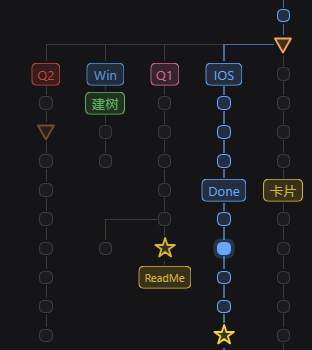 Refresh the page and it's already there, next to your chat.
Every dot is one turn. **Click one to jump to it** — the turn you're looking at
is filled in solid as you scroll.
Branches sit side by side, so you can see at a glance where a conversation split
and which path you're on. Named nodes carry their label right on the tree.
Refresh the page and it's already there, next to your chat.
Every dot is one turn. **Click one to jump to it** — the turn you're looking at
is filled in solid as you scroll.
Branches sit side by side, so you can see at a glance where a conversation split
and which path you're on. Named nodes carry their label right on the tree.
## The sidebar folds too
In the session list on the left, a tree takes up one row: branches tuck under
the root, and a chevron at the front of the row unfolds them. While folded, the
row shows how many conversations the tree holds; a blue dot on the chevron means
a branch inside is still running, a green one means it finished while you
weren't looking. Prefer the flat list? Turn off **Fold sidebar by conversation**
in settings.
## Every node has a card
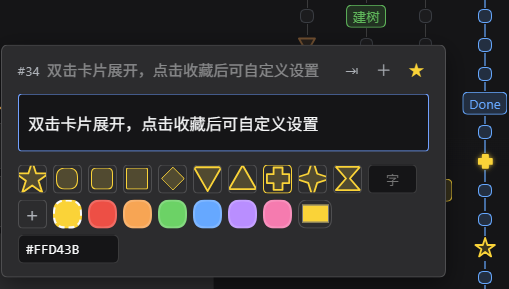 Hover a dot for a preview. **Double-click the card to expand it** — rename the
node, pick a shape, pick a color, or upload an image.
On touch devices, a tap does what hovering does.
Hover a dot for a preview. **Double-click the card to expand it** — rename the
node, pick a shape, pick a color, or upload an image.
On touch devices, a tap does what hovering does.
| | |
|---|---|
| **+** | Continue from this turn as a new branch. On the empty root node, starts a fresh conversation in the same tree |
| **☆** | Favorite. The dot becomes a gold star, and you can give it its own icon and color |
| **⇥ / ⇤** | Split a branch off into its own tree, or put it back |
| **⊕ / ⊖** | Merge another conversation from this folder into the tree, or pull it back out |
A greyed-out button means you can't do it right now — hover it and it will say why.
## The colors mean something
| | |
|---|---|
| Blue outline | This node is part of your current conversation |
| Solid blue | The turn you're looking at |
| Orange triangle | This turn was compacted |
| Green | Another branch finished while you weren't looking. Open it and the node goes back to normal |
| Faded branch | Turns you rewound — no longer pretending to be part of the conversation |
## Make it yours
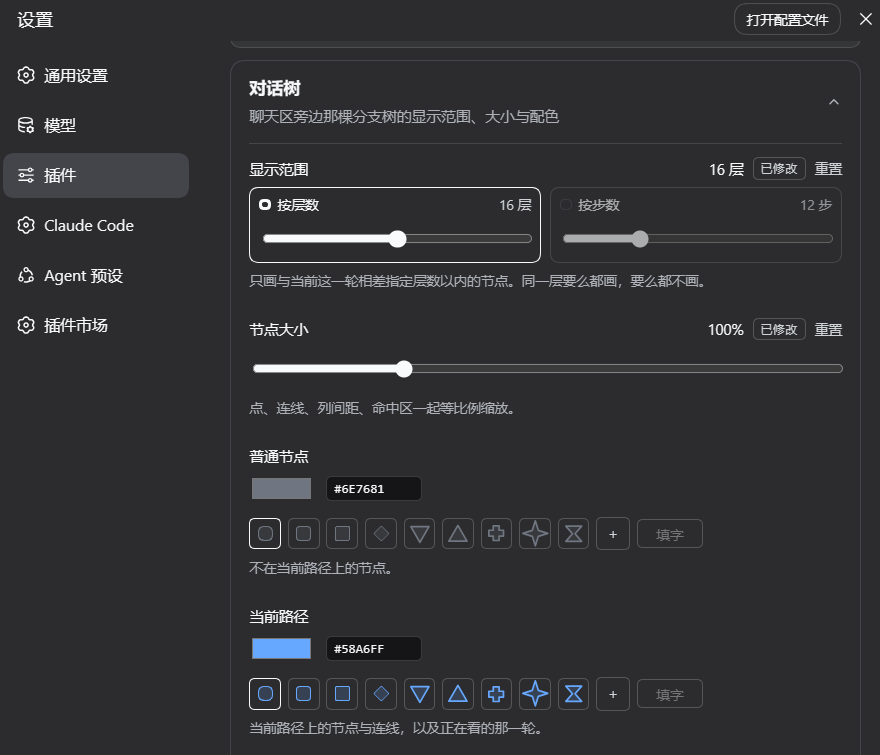 **Settings → Plugins → Conversation tree**.
**Visible range** keeps big trees readable by drawing only what's near your
current turn — by depth or by distance, whichever you prefer. Either one has an
"off" setting. Nodes at the edge shrink and fade rather than vanishing, and come
back the moment you hover them.
**Node size** scales dots, lines and spacing together, 50%–250%.
**Fold sidebar by conversation** switches the session list back to the host's
flat layout, one row per branch, when turned off.
**Colors** are one row per kind of node, color on the left and shape on the
right. Pick with the color wheel, or type a hex value like `#FFD43B` straight
in. What you set is exactly what gets drawn — the same in light and dark.
**Reset** hands a row back to the default.
**Settings → Plugins → Conversation tree**.
**Visible range** keeps big trees readable by drawing only what's near your
current turn — by depth or by distance, whichever you prefer. Either one has an
"off" setting. Nodes at the edge shrink and fade rather than vanishing, and come
back the moment you hover them.
**Node size** scales dots, lines and spacing together, 50%–250%.
**Fold sidebar by conversation** switches the session list back to the host's
flat layout, one row per branch, when turned off.
**Colors** are one row per kind of node, color on the left and shape on the
right. Pick with the color wheel, or type a hex value like `#FFD43B` straight
in. What you set is exactly what gets drawn — the same in light and dark.
**Reset** hands a row back to the default.
## Favorite icons
Once a node is starred, its card offers two more rows:
- **12 shapes** — circle, rounded square, square, diamond, triangle, inverted
triangle, arrow, pentagon, hexagon, cross, four-point star, hourglass
- **A character** — any letter or emoji, drawn inside a rounded outline
- **An image** — png / jpg / webp / svg, any size, scaled for you
Names, favorites, icons and colors are all stored on the dsh side, so they
follow you to another browser or your phone.
- **A color** — 6 presets, a reset swatch, a color picker, or a typed hex value
---
Using Claude Code through dsh-claude? Read the note in [AGENTS.md](AGENTS.md) first.
Want to hack on it? [AGENTS.md](AGENTS.md)
MIT