# MJMaterialSwitch

## Overview
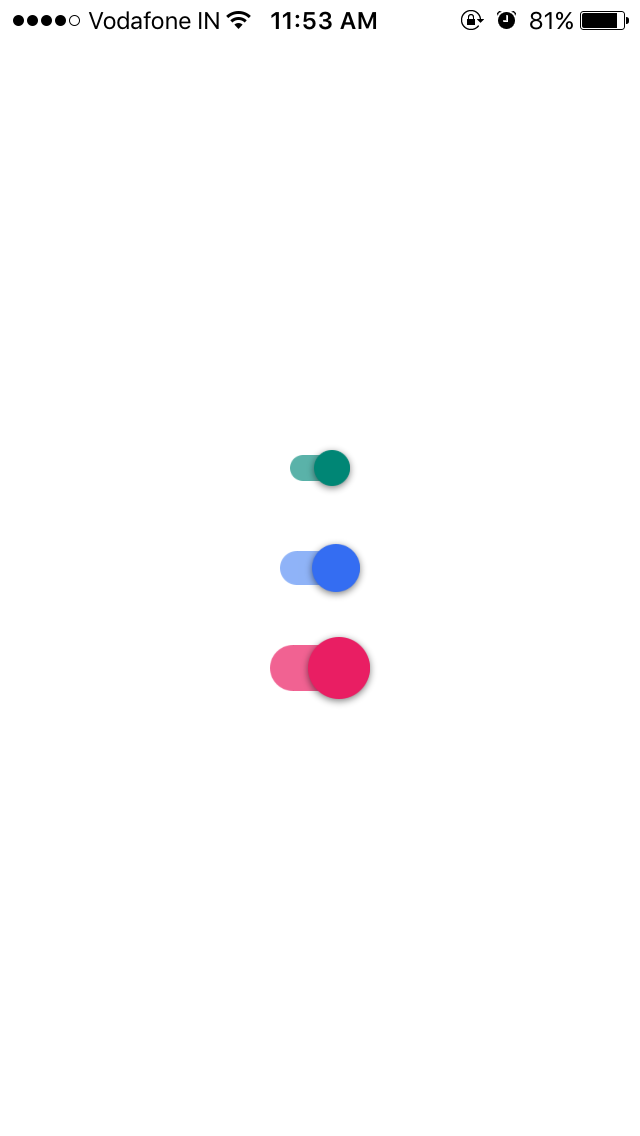 `MJMaterialSwitch` is google's material design like switch UI with animation features.
This library has cool and sophisticated animations, ripple effect and bounce effect. Also, customizable properties can be tweaked behaviors and enhance your application UI cool.
With this library, you can easily implement material design switch to your app.
`MJMaterialSwitch` is google's material design like switch UI with animation features.
This library has cool and sophisticated animations, ripple effect and bounce effect. Also, customizable properties can be tweaked behaviors and enhance your application UI cool.
With this library, you can easily implement material design switch to your app.
## Usage
The simplest setup by code:
```Swift
let xPos: CGFloat = (UIScreen.main.bounds.width / 2 ) - 22.5
let yPos: CGFloat = (UIScreen.main.bounds.height / 2 ) + 50.0
self.switch2 = MJMaterialSwitch(frame: CGRect(x: xPos , y: yPos, width: 64, height: 60))
self.switch2.addTarget(self, action: #selector(switchStateChanged(_:)), for: UIControl.Event.valueChanged)
self.switch2.tarckEdgeInset = UIEdgeInsets(top: 18, left: 0, bottom: 18, right: 0)
self.switch2.tag = 2
switch2.trackOnTintColor = UIColor.red.withAlphaComponent(0.6)
switch2.thumbOnTintColor = UIColor.red
// Call update UI method in last.
switch2.updateUI()
self.view.addSubview(self.switch2)
```
This is the simplest and easiest initialization.
## Usage by xib and Storyboard
- Create `UIView` and set the `MJMaterialSwitch` class.
- Create `IBOutlet` to add `valueChanged` target for the click actions
### Customize Behaviors
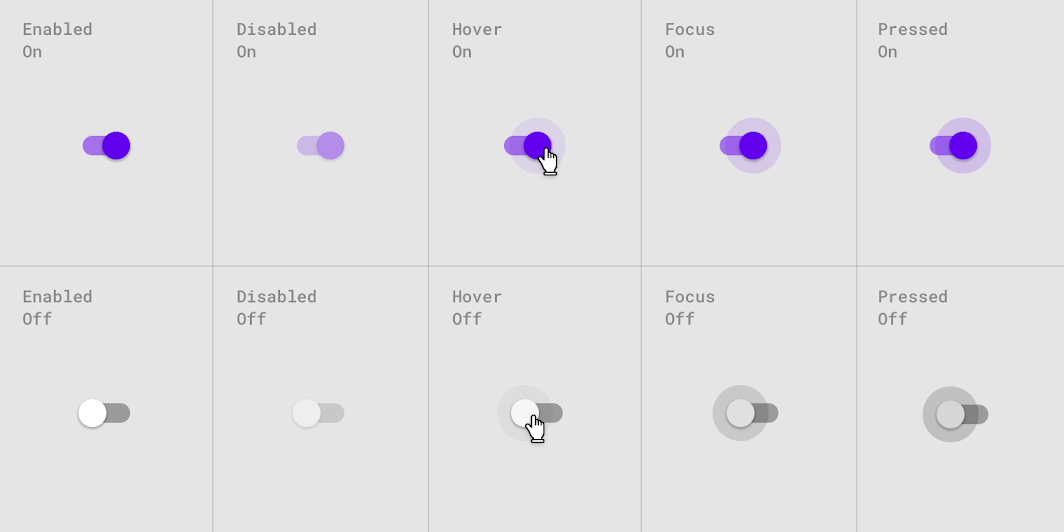
MJMaterialSwitch has many prateters to customize behaviors as you like.
#### Style and size
```
var thumbOnTintColor: UIColor!
var thumbOffTintColor: UIColor!
var trackOnTintColor: UIColor!
var trackOffTintColor: UIColor!
var thumbDisabledTintColor: UIColor!
var trackDisabledTintColor: UIColor!
var isBounceEnabled: Bool = false
var isRippleEnabled: Bool = true
var rippleFillColor: UIColor = .gray
```
## Author
Jaleel Nazir
Buy me coffe:
[](https://paypal.me/mjaleelnazir)
## License
MJMaterialSwitch is available under the MIT license.