System Data Unpacked
A Mac app, in a window or in the menu bar, that shows what is really inside macOS "System Data" and lets you delete it, item by item.
macos-sysdata.yigitech.dev




---
Open System Settings > General > Storage on a developer Mac and "System
Data" is often the largest line, with no way to see inside it. Finder puts
everything it cannot attribute to an app, photos or documents in that bucket:
simulator runtimes, Xcode symbol caches, package-manager stores, virtual
machine disks, the unified log, per-app data folders.
This app opens the bucket. It is not a cache cleaner: `~/Library/Caches` is
one small line among fifty, and the app never deletes anything you did not
click.
Every release is listed in [CHANGELOG.md](CHANGELOG.md), including the two
that shipped a broken updater and what to do if you are on one of them. There
is a short tour at [macos-sysdata.yigitech.dev](https://macos-sysdata.yigitech.dev/),
and contributions are described in [CONTRIBUTING.md](CONTRIBUTING.md).
Up to 1.0.4 the app was called SysDataMenu. The bundle identifier, the
Homebrew cask and the command-line binary kept their names, so Full Disk
Access, your settings and any scripts carry over without reinstalling.
## Install
```bash
brew install --cask Jarvis322/tap/sysdata
```
Or [download the disk image](https://github.com/Jarvis322/macos-sysdata/releases/latest/download/SystemDataUnpacked.dmg),
open it and drag the app onto Applications. Every
[release](https://github.com/Jarvis322/macos-sysdata/releases/latest) carries
the same image as `SysDataMenu-.dmg`. A `.zip` of the same app is
attached to every release for anyone scripting the download.
If the app is already in Applications from the disk image, `brew install`
stops with "It seems there is already an App". Hand the existing copy to
Homebrew instead:
```bash
brew install --cask --adopt Jarvis322/tap/sysdata
```
Releases from 0.3.2 on are signed with a Developer ID and notarized by
Apple, so the app opens without a Gatekeeper prompt. From 0.3.7 the binary
is universal; 0.3.2 to 0.3.6 were Apple Silicon only and will not launch on
an Intel Mac.
Build from source (Xcode 16 or later):
```bash
git clone https://github.com/Jarvis322/macos-sysdata.git
cd macos-sysdata
scripts/build-app.sh
open "build/System Data Unpacked.app"
```
The app has a **Launch at login** switch in its footer.
## Updates
The app can check GitHub once a day for a newer release and offer to install
it. It is **off by default**, and it is the only network request the app
makes: with the switch off, nothing leaves the Mac.
Installing replaces the app in place. Before anything is moved, the download
must have come from `github.com` over HTTPS, pass the same Gatekeeper
assessment a fresh download gets, and be signed by the same team as the copy
asking for the update. Anything else is discarded with a message, and the
installed app is left alone.
## Uninstall
```bash
brew uninstall --zap --cask sysdata
```
`--zap` is the part that matters: without it the app goes and its files stay.
If it was installed by dragging the disk image, drag the app to the Trash and
remove the four things it leaves behind:
```bash
rm -rf ~/Library/Application\ Support/SysDataMenu \
~/Library/Caches/local.sysdata.menu \
~/Library/HTTPStorages/local.sysdata.menu \
~/Library/Preferences/local.sysdata.menu.plist
```
The first of those is the scan history, which records the path of everything
the app measured and everything you deleted. It never leaves the machine, but
it is the file worth being deliberate about. **Remember what changed** in the
settings menu deletes it at any time without uninstalling anything.
Two grants outlive the app, because macOS keeps them rather than the app:
- **Full Disk Access**, in System Settings > Privacy & Security. Remove the
entry with the **−** button.
- **Notifications**, if you turned the low-space warning on.
If **Launch at login** was on, switch it off before uninstalling, or remove
the entry from System Settings > General > Login Items afterwards.
Nothing else is left. The app installs no privileged helper, no launch daemon
and no kernel extension: every root action runs as a one-off `osascript`
prompt, which is why it asks each time and shows you the command first.
## What it does
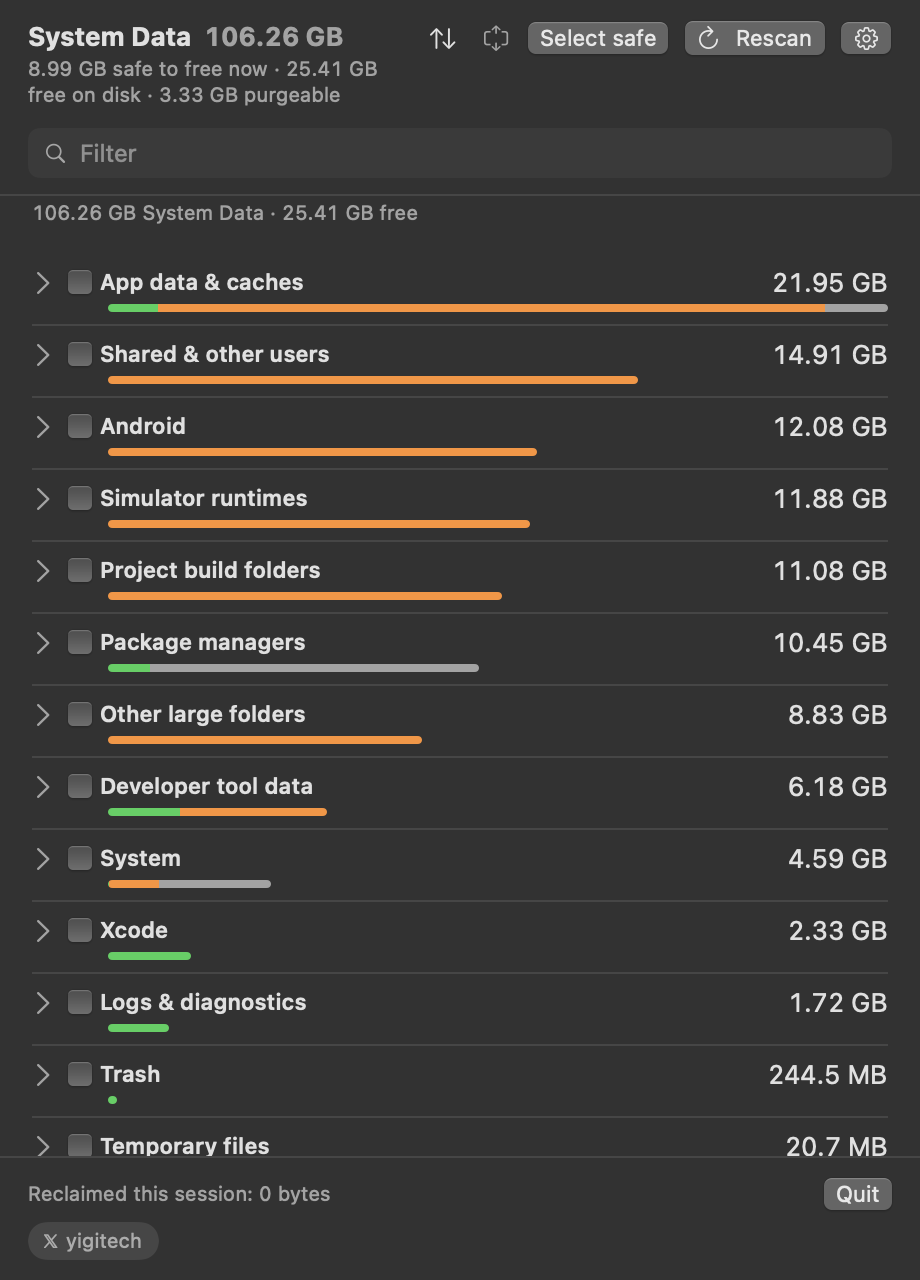
- **Menu bar total.** The icon shows the size of everything the scan found,
the number Storage settings calls System Data. The window header says how
much of it is safe to free right now. It scans on launch and once a day.
Results appear as each place is measured, with a count in the header, so a
slow first scan on a full disk cannot be mistaken for a stuck one.
- **Every item has a real size**, measured on disk, plus a badge:
**Safe** regenerates automatically, **Review** costs you something (a
simulator, a login, a re-download), **Manual** cannot be removed by the app
and the info button shows the command or settings path.
- **Trash first.** Review items go to the Trash, so a wrong click can be
undone for 30 days. Safe items are deleted outright because they come back
on their own.
- **Quiet rows.** Reveal, hide and the breakdown chevron appear on hover, the
way Finder and Mail do it; delete stays visible, because it is the reason
the window is open. Right-click reaches all of them without a pointer.
- **Idle time.** Rows past a fortnight say how long they have sat untouched,
and the sort control orders by it. Size cannot tell a build folder for
today's work apart from one for a project abandoned two years ago; those
are the same number of bytes and opposite decisions. Simulator runtimes
take their date from `simctl`, which knows when one was last booted.
- **What changed.** Each scan and deletion is written to a local file, so the
list can show growth beside each size, and a history view can answer three
things a single scan cannot: what came back, what grew most, and what you
deleted. A cache cleared on Monday that is 12 GB again by Friday is the
most useful thing this app can tell you. Switch it off and the file is
deleted; nothing leaves the machine either way.
- **Breakdown.** Click a row to see its five largest entries before deciding.
- **Filter.** A scan finds around 180 items across nineteen groups, so the
field under the header narrows the list by name, description or group. The
selection survives it, because ticking **Select safe** and then filtering
to untick two of them is how the two controls are meant to be used
together. Folding a category keeps it too. Neither one quietly edits the
batch: the footer says how many selected rows are not on screen, next to
the button that would take them.
- **Batch delete.** Tick rows and use **Delete N selected**. **Select safe**
ticks everything regenerable that is on screen, and unticks it on a second
press. Root actions are folded into one script where they can be, and the
confirmation says so — including when they cannot, because a delete of
something you do not own is run on its own and asks again.
- **Read the command first.** The confirmation shows every operation
verbatim before anything runs — `As administrator: rm -rf
/Library/Logs/DiagnosticReports/*`, not a count of items. The source is
published so you can see what this does to your machine; this is the same
promise at the moment it matters. **Copy** puts the whole plan on the
pasteboard, since a list that scrolls inside 120pt often has to be read
somewhere else.
- **Low space warning.** Optional, off until you switch it on. The daily scan
knows the disk is nearly full a day before you do. Fires on the way down and
stays quiet until free space has been back above the line. While you are
under the line, the window offers to free the safe items in one press.
- **Weekly summary.** Optional. Once a week, if System Data has grown by more
than 2 GB, a notification says by how much and what grew most.
- **Projects on external drives.** Off until switched on in the settings
menu. The Projects view then also looks in the `Developer`, `Projects`,
`Projeler`, `Code` and `dev` folders at the top of plugged-in drives.
Time Machine disks, network shares, read-only volumes and the Mac's own
disks are never walked, and nothing else on the drive is.
- **Unusual growth.** Optional. After the daily scan, a notification when a
category is at least 50% and 2 GB above its median over its last 14 scans.
It waits for another 2 GB before the same category speaks again. Opening
the notification goes to **History**, which starts with the items that made
that category grow: each one's usual size against its size now, or marked
new when no earlier scan knew it.
- **Trends.** Each row carries a small line showing where its size has been
heading over recent scans.
- **A map of the disk.** Categories start folded and are listed largest
first, so the folded list reads as a map. Each header carries a bar: the
category's size next to the largest one, split into what is Safe, what
needs Review and what is Manual. A category that has grown well past its
recent size is marked in amber. One line above the list sums it up:
System Data, free space, and the change over the past week.
- **Automatic clean, opt-in.** Once a week, delete the items marked Safe and
say what was freed. The only thing the app ever does on its own, and drawn
as narrowly as possible: nothing marked Review, nothing that needs a
password, and never on a scan you are watching.
- **Safe items to the Trash**, if you want an undo window for the items that
are normally deleted outright. They free nothing until the Trash is emptied.
- **A window or the menu bar.** On the first launch after 1.2.0 the app asks
which you want, once. The same panel opens as a real window —
from Applications, from the Dock, or from Settings > Open in a window — and
the menu bar icon can be switched off entirely. With the icon on, it shows
System Data's size, free space, or just the icon.
- **Hide.** The eye button removes an item from future scans (Ollama models
you want to keep, say). A footer link brings hidden items back.
- **Purgeable space** is shown in the header, with a tooltip saying what it
is and what it is not. It is macOS's estimate of what it could give back,
not space you can plan around: writing 6.44 GB on the test machine cost
6.44 GB of real free space and took nothing from the 3.55 GB pool, which
then refilled itself. The measurement is in
[docs/purgeable-measurement.md](docs/purgeable-measurement.md), along with
why forcing macOS to evict is not a feature here.
- **Faster shutdown.** A booted iOS simulator ignores the quit request and
makes macOS wait 33 seconds before killing it (`launchd`: "Service did not
exit 33 seconds after SIGTERM"). Because the app is running at power off,
it shuts every simulator down the moment the shutdown starts and only
quits once that is done. Switch in the footer, on by default. Measured on
a MacBook Air with three simulators booted: userspace teardown went from
33,074 ms to 5,842 ms, the remaining 5 s being macOS's own service timeout.
Check your own numbers after a restart with
`grep "Userspace teardown took" /var/log/com.apple.xpc.launchd/launchd.log.2`.
- **Nine languages**, following the system: English, Turkish, Simplified
Chinese, Japanese, German, French, Spanish, Korean and Russian. Every
interface string is translated in all of them; the last five are
machine-assisted, and native-speaker corrections are welcome (see
[CONTRIBUTING.md](CONTRIBUTING.md)).
- **Who made it.** Folders nothing else explains are traced to their owner
from their path: "Belongs to Google Chrome", or — the useful one — "Left by
com.example.app, which is no longer installed on this Mac". The 13 GB
`~/Library/Metadata` is named for what it is, Spotlight's index.
- **Idle projects.** Build folders are dated by the project's own files, not
by the last `npm install`, and one link selects every project nobody has
changed in 60 days.
- **Projects.** One row per project with everything it costs, wherever it
lies: its `node_modules` and `.next`, its folder in DerivedData, the
Docker images only its Compose containers use. It shows how much that
grew this week, warns when it was built this week (an archive then lasts
only until the next build), marks DerivedData whose project is gone, and
archives the lot in one click, never touching source files or Docker
volumes. "Copy card" puts the totals on an image for a post, naming no
project.
- **Unused simulator runtimes.** A runtime no installed SDK builds against and
no simulator sits on is marked unused — every Xcode update leaves one.
- **Docker, piece by piece.** Build cache, unused images, stopped containers
and unused volumes each get a row, a size and the prune command that frees
exactly that. Volumes carry a warning: databases keep their data there.
- **When the disk does not give the space back**, because local snapshots
still hold it, the notice now has a button that deletes them — through the
same confirmation as every other row.
- **Widget.** System Data, free space and what is safe to free, on the desktop
or in Notification Center, as of the last scan.
- **Shortcuts.** *Free Safe Items* and *Get System Data Size*, for a weekly
automation or anything else Shortcuts can run.
- **`SysDataMenu --json`** prints the whole inventory for scripts.
## What it finds
| Category | Items | Badge |
| --- | --- | --- |
| Time Machine snapshots | local APFS snapshots (`tmutil`) | Safe |
| Simulator devices | per-device caches, unavailable devices, erase a device; the system dyld cache is reported (macOS blocks deleting it, even as root) | Safe / Review / Manual |
| Simulator runtimes | each installed runtime disk image | Review |
| Xcode | DerivedData, DeviceSupport, preview devices, caches, Archives, inactive Xcode.app copies | Safe / Review |
| Package managers | brew, npm, pnpm, yarn, pip, uv, CocoaPods, Gradle, Cargo, SwiftPM, Go, Cypress, Playwright; the whole Homebrew prefix. A pnpm store left behind by an uninstalled pnpm is found by its default path, since `pnpm store path` is exactly what is missing then | Safe / Review / Manual |
| Developer tool data | nvm/rustup/pyenv/rbenv/SDKMAN toolchains, conda, Maven, CocoaPods specs, Gradle distributions, Go modules, Bun, Deno, VS Code and Cursor extensions, Docker CLI, OrbStack, Lima, Colima; any other hidden home folder over 100 MB | Safe / Review |
| AI models and tools | Ollama and Hugging Face models, one row per model (an Ollama model is removed with `ollama rm`, never by deleting its blobs); LM Studio and PyTorch downloads; the AI coding tools (Claude Code, Codex, Grok, Copilot, Kilo, Gemini); Claude's local VM bundles and Chrome's on-device model | Review / Manual |
| Logs & diagnostics | unified log store (`log erase`), crash reports, ASL, `~/Library/Logs` | Safe |
| Temporary files | `/private/var/folders` user cache and temp, files older than 3 days | Safe |
| Docker | `docker system prune` reclaimable space, and per Compose project the images only its containers use and its attached volumes | Review / Manual |
| Virtual machines | Parallels, UTM, VMware Fusion, VirtualBox, Tart | Review |
| Trash | `~/.Trash` | Safe |
| iOS device backups | each MobileSync backup with device name and date | Review |
| Shared & other users | `/Users/Shared` app data (BlueStacks and friends), other accounts | Review / Manual |
| Android | AVD emulators, SDK system images, platforms, build tools, NDK, emulator, Android Studio caches | Review / Safe |
| App data & caches | Slack, Discord, Teams, Zoom, Spotify, Safari, Adobe, Steam, Epic, Photos, Quick Look and Final Cut render caches; Claude VM bundles; Chrome on-device model; any Application Support / Containers / Group Containers folder over 200 MB, caches over 100 MB | Safe / Review |
| Project build folders | `node_modules`, `.build`, `Pods`, `DerivedData`, and the web frameworks' output (`.next`, `.nuxt`, `.svelte-kit`, `.astro`, `.angular`, `.turbo`, `.parcel-cache`, `.expo`) under Desktop, Documents, Developer, Projects | Review |
| System | macOS installers, device firmware, Mail downloads, `/Library/Caches`, `/Library/Application Support`, Command Line Tools, cryptexes, Spotlight index, swap, iCloud local copies | Safe / Review / Manual |
| Other large folders | catch-all: every folder over 500 MB under `~`, `/Library`, `/private/var`, `/opt`, `/usr/local` and `/Users/Shared` that no category above explains, shown with its full path | Review |
The catch-all pass runs last and takes the longest (it walks the home folder
once, skipping everything another probe already explains). The header shows
which phase the scan is in.
Folders Finder attributes to Photos, Music, Movies, Messages, Mail, iCloud
Drive and Applications are left out, because they are not System Data.
**Desktop, Documents and Downloads are left out too**, for a second reason:
Storage settings counts them as Documents, and what is in them is your own
work, which no delete regenerates. The things under them that *are*
reclaimable — build folders, virtual machines, render files — still each get
their own row, named for what they are.
## What it writes down
Two files it writes, and two macOS makes for it. All four on the machine:
| Path | What is in it |
| --- | --- |
| `~/Library/Preferences/local.sysdata.menu.plist` | the switches, the sort order, hidden item ids |
| `~/Library/Application Support/SysDataMenu/history.json` | each scan's item sizes, and each deletion with its paths |
| `~/Library/Caches/local.sysdata.menu` | macOS's own cache folder for the app |
| `~/Library/HTTPStorages/local.sysdata.menu` | what URLSession keeps for the update check |
The history file exists so the list can show what changed; it holds no more
than the window already shows, it is capped at six months, and turning
**Remember what changed** off deletes it. Nothing is sent anywhere. The one
network request the app can make is the daily update check, which is off
unless you switch it on — and the last two rows above are what making it
costs.
[Uninstalling](#uninstall) removes all four.
## Permissions, once
Two things can prompt, and both can be settled one time:
- **Folder access.** One grant, **Full Disk Access**, in System Settings >
Privacy & Security. Until it exists the app leaves every protected place
alone — app containers, Desktop, Documents, Downloads, Music, Pictures,
Movies — rather than asking about them one at a time, so a first launch is
a single banner instead of a queue of dialogs naming each app whose
container it touched. The scan still runs and still finds plenty; the
banner says it is incomplete. Without the grant, Mail, Safari and Time
Machine data stay hidden too. macOS quits the app when the grant is
toggled, so reopen it afterwards. The grant
is remembered by code-signing identity, which is why `scripts/build-app.sh`
signs with your Developer ID or Apple Development certificate when one is
in the keychain. An ad-hoc signature changes on every build and macOS would
forget the grant each time. Override with `CODESIGN_IDENTITY="..."`.
- **Administrator password.** Needed for root actions. Batching folds them
into one script, so one password covers all of them — except a delete of
something you do not own, which is run on its own and asks again; the
confirmation says which case you are in rather than promising a single
prompt. Avoiding the prompt entirely would require a privileged helper
daemon, which is deliberately out of scope for a small tool.
### What Full Disk Access is for
Full Disk Access is a broad grant, and macOS says so. The app asks for it
for one reason: most of System Data lives in places macOS protects — app
containers, the caches inside them, Mail and Safari data — and without the
grant they cannot even be measured. This is what it does with the access,
and what it does not:
- **It measures.** For almost everything it reads sizes and modification
dates by walking directories. It does not open the files.
- **The only file contents it opens** are its own history file, a few small
property lists that name things (the `Info.plist` of a simulator runtime,
of an iOS device backup, of the app that owns a folder), and the default
alias file of `nvm`.
- **It never reads your mail, messages, documents, photos or browsing
history.** Mail, Messages, Pictures, Music, Movies, Desktop, Documents and
Downloads are kept out of the System Data list. Where a probe does look
inside Desktop, Documents or Movies, it reports build folders, virtual
machines and Final Cut render files, by name and size.
- **Nothing leaves the Mac.** The one network request is the optional daily
update check described under [Updates](#updates).
The source is public, so each of these statements can be checked: the
probes are in [`Sources/SysDataMenu/Probes`](Sources/SysDataMenu/Probes). The
grant can be withdrawn at any time with the **−** button in System Settings >
Privacy & Security; the app then goes back to the reduced scan described
above. Apple has said it will add further controls around Full Disk Access.
If that changes how the grant is made, this section and the app will follow.
## Scripting
```bash
"/Applications/System Data Unpacked.app/Contents/MacOS/SysDataMenu" --json > inventory.json
jq '.items[] | select(.safety == "safe") | [.name, .sizeBytes]' inventory.json
```
`--clean` does the weekly clean from a terminal. On its own it prints every
Safe item with the command that would run for it and deletes nothing; add
`--apply` to delete them. It covers exactly what the automatic clean and the
Shortcuts action cover — Safe items that need no administrator password — and
never anything under Review or Manual. It exits 0 when it finished, 1 when
the scan did not complete or a delete failed, and 2 for a bad option.
```bash
"/Applications/System Data Unpacked.app/Contents/MacOS/SysDataMenu" --clean
"/Applications/System Data Unpacked.app/Contents/MacOS/SysDataMenu" --clean --apply
```
The output has `freeBytes`, `purgeableBytes`, `totalBytes` and one record per
item with `id`, `category`, `name`, `detail`, `sizeBytes`, `safety`,
`manual`, `path`, `lastModified` and `idleDays`. The last two are absent when
the item is not a folder this app measured — a `docker system prune` estimate
or an APFS snapshot has no age.
```bash
# everything safe that nothing has touched in six months
jq '.items[] | select(.safety == "safe" and .idleDays > 180) | [.name, .sizeBytes]' inventory.json
```
`sysdata` is a bash script covering the Safe categories only, for machines
where you would rather not run an app:
```bash
./sysdata # scan
./sysdata clean # dry run
./sysdata clean --yes # apply
```
## How it works
`Sources/SysDataMenu/Probes` holds one `StorageProbe` per category. Each
probe measures its locations with a single filesystem enumeration
(allocated blocks, no symlink traversal, the same numbers Finder uses) and
returns `StorageItem`s with a name, a size, a safety level and a
`ReclaimAction`: remove paths, empty directories, prune by age, run a tool's
own clean command, or run a script as root through the system authorization
dialog. Probes never mutate anything; `Reclaimer` is the only place that
deletes.
The catch-all probe receives every path the other probes claimed and reports
whatever large folder is left, so the inventory stays complete on machines
with software the app has never heard of. Adding a category means adding one
probe and registering it in `ProbeRegistry`.
Interface strings live in `Resources/Localizable.xcstrings`;
`scripts/compile-strings.sh` turns the catalog into the `.lproj` tables
SwiftPM ships (en, tr, zh-Hans, ja, de, fr, es, ko, ru), and a test checks
that every key in the catalog is used by the interface. `ci.sh` fails if a hand-edited `.lproj` drifts from what
the catalog would generate, so the catalog stays the single source of truth.
## Checks
```bash
scripts/ci.sh # build, tests, lint, bundle, strings
SYSDATA_SCAN_TESTS=1 scripts/ci.sh # and the tests that walk the whole disk
```
Run before pushing; the release script runs it too. 92 tests. The
disk-walking set is gated because it measures this machine rather than a
fixture: it scans the real disk, and it downloads the published release and
puts it to Gatekeeper, which is the only way the updater's redirect handling
can be exercised at all.
## Releasing
Write the version's section in [CHANGELOG.md](CHANGELOG.md) first — the
release script refuses without one, and uses it as the release notes. A list
of commit subjects says what was touched, not what changed for anyone using
the app.
One command bumps `VERSION`, runs the tests, builds a signed and notarized
app, commits, tags, pushes, publishes the GitHub release with the changelog
section as its notes, and updates the Homebrew cask:
```bash
scripts/release.sh # patch
scripts/release.sh minor
```
It expects `gh` to be logged in and a notarytool keychain profile (once:
`xcrun notarytool store-credentials sysdata --key AuthKey.p8 --key-id ID --issuer ISSUER`).
## Sponsor
The app is free, and the source is open to read. If it cleared some room on
your Mac and you want to say thanks, you can
[sponsor the work on GitHub](https://github.com/sponsors/Jarvis322).
It helps cover the Apple Developer Program membership and notarization every
release goes through, and the time that goes into new probes, the four
languages, and reviewing the community pull requests that keep landing. None
of it is required: every feature is in the free app, nothing is gated behind a
sponsorship, and the app stays exactly as capable whether you sponsor or not.
There is a **Sponsor** button at the top of this repository too, next to the
Star button.
## Requirements
macOS 14 or later. Xcode 16 or later to build. Xcode command line tools for
the simulator and Xcode categories; other tools are optional and skipped when
absent.
## License
Proprietary; see [LICENSE](LICENSE). The source is here to be read, not
reused: you can build and run it yourself, but copying, redistributing or
forking it for distribution needs written permission. Versions up to v0.3.7
were MIT and stay MIT.
Made by [@yigitech](https://x.com/yigitech).