# SyncClipboard
[中文](../README.md) | English
Contents
- [SyncClipboard](#syncclipboard)
- [Features](#features)
- [Breaking Changes](#breaking-changes)
- [v3.1.1](#v311)
- [Server](#server)
- [Standalone Server](#standalone-server)
- [Server Configuration](#server-configuration)
- [Docker](#docker)
- [Arch Linux](#arch-linux)
- [Desktop Client Built-in Server](#desktop-client-built-in-server)
- [WebDAV Server](#webdav-server)
- [S3 Server](#s3-server)
- [Client](#client)
- [Windows](#windows)
- [Installer](#installer)
- [Portable Version](#portable-version)
- [Troubleshooting](#troubleshooting)
- [macOS](#macos)
- [Manual Installation](#manual-installation)
- [Troubleshooting](#troubleshooting-1)
- [Linux](#linux)
- [Manual Installation](#manual-installation-1)
- [Arch Linux](#arch-linux-1)
- [Troubleshooting](#troubleshooting-2)
- [Desktop Client Command Line Arguments](#desktop-client-command-line-arguments)
- [--shutdown-previous](#--shutdown-previous)
- [--command-{command-name}](#--command-command-name)
- [IOS](#ios)
- [Use Shortcuts](#use-shortcuts)
- [Android](#android)
- [Use SyncClipboard Mobile](#use-syncclipboard-mobile)
- [HarmonyOS Next](#harmonyos-next)
- [Use ClipLink](#use-cliplink)
- [Notes for Clients](#notes-for-clients)
- [API](#api)
- [Get Clipboard](#get-clipboard)
- [Upload Clipboard](#upload-clipboard)
- [SyncClipboard.json](#syncclipboardjson)
- [S3 Sync Protocol Specification](#s3-sync-protocol-specification)
- [Open Source Dependencies](#open-source-dependencies)
- [Donate](#donate)
## Features
- Cross-platform (Windows/macOS/Linux) real-time clipboard syncing, clipboard history management, and history syncing.
- Supports desktop client built-in server, Docker-deployed server, or storage services compatible with WebDAV/S3 APIs.
- Mobile clipboard syncing based on third-party tools.
- Optimize image type clipboard:
- Paste image to a textbox directly after copying a image file from file system, and vice versa.
- Download the original file and copy it after copying a image in web browser. This is helpful for copying an animated image in browser. Web sites always prevent downloads from non-browser, so this feature isn't always usable.
- Copy the transcoded temporary image file (jpg or gif) after copying a modern image file type (heic, webp, etc.).
> [!WARNING]
> The clipboard history feature is in its early stages. Please be prepared for the possibility of losing all information. Do not rely solely on this tool to save important information.
>
## Breaking Changes
### [v3.1.1](https://github.com/Jeric-X/SyncClipboard/issues/286)
Clients and servers v3.1.1 and above are incompatible with previous versions. All clients, servers, and third-party clients in the sync network need to be upgraded together.
## Server
### Standalone Server
[SyncClipboard.Server](https://github.com/Jeric-X/SyncClipboard/releases/) is cross-platform, depends on [ASP.NET Core 8.0](https://dotnet.microsoft.com/en-us/download/dotnet/8.0). Run with:
```
dotnet /path/to/SyncClipboard.Server.dll --contentRoot ./
```
Content root folder is `SyncClipboard.Server.dll`'s parent folder. Writing permission is needed. Choosing a different content root folder is possible. Copy a new `appsettings.json` to the folder and run with:
```
dotnet /path/to/SyncClipboard.Server.dll --contentRoot /path/to/contentRoot
```
#### Server Configuration
`appsettings.json` is the config file.
```jsonc
{
"Logging": {
"LogLevel": {
"Default": "Information",
"Microsoft.AspNetCore": "Warning"
}
},
"AllowedHosts": "*",
"Kestrel": {
"Endpoints": {
"http": {
"Url": "http://*:5033"
},
//"https": {
// "Url": "https://*:5033"
//}
},
//"Certificates": {
// "Default": {
// "Path": "/path/to/pem",
// "KeyPath": "/path/to/pem_key"
// }
//}
},
"AppSettings": {
"UserName": "your_username",
"Password": "your_password",
"MaxSavedHistoryCount": 1000, // Maximum history count; 0 means no count limit. The retention time limit still applies.
"HistoryRetentionMinutes": 0 // Retention in minutes; 0 means no time limit. The history count limit still applies.
}
}
```
For more information, please refer to the [official Microsoft documentation](https://learn.microsoft.com/en-us/aspnet/core/fundamentals/servers/kestrel/endpoints?view=aspnetcore-8.0#configure-https-in-appsettingsjson).
Username and password can be set by environment variables. When the environment variables `SYNCCLIPBOARD_USERNAME` and `SYNCCLIPBOARD_PASSWORD` are both set, they will be used as the username and password.
`ASPNETCORE_hostBuilder__reloadConfigOnChange` is used to configure whether to automatically detect changes in `appsettings.json` and reload the configuration. The default value is false. Changing it to any value other than false will enable this feature.
> [!WARNING]
> HTTP transmits data in plaintext. When deploying the server on a public network, please enable HTTPS or configure HTTPS using a reverse proxy tool. If obtaining a certificate from a certificate authority is not possible, it is recommended to use the open-source tool [mkcert](https://github.com/FiloSottile/mkcert) or other methods to generate a self-signed certificate.
#### Docker
```shell
# docker
docker run -d \
--name=syncclipboard-server \
-p 5033:5033 \
-e SYNCCLIPBOARD_USERNAME=your_username \
-e SYNCCLIPBOARD_PASSWORD=your_password \
-v /data/syncclipboard-server:/app/data \
--restart unless-stopped \
jericx/syncclipboard-server:latest
# docker compose
curl -sL https://github.com/Jeric-X/SyncClipboard/raw/master/src/SyncClipboard.Server/docker-compose.yml >> docker-compose.yml
docker compose up -d
```
After the container starts for the first time, a default `appsettings.json` will be automatically created in the container directory `/app/data` (which corresponds to the host directory `/data/syncclipboard-server`).
When modifying `appsettings.json`, pay attention to the file path mapping between the container and the host.
#### Arch Linux
You can install it directly from [AUR](https://aur.archlinux.org/packages/syncclipboard-server) (maintained by [@devome](https://github.com/devome)):
```shell
paru -Sy syncclipboard-server
```
The configuration file path is `/etc/syncclipboard/appsettings.json`. After modifying the configuration, you can start the service using `systemctl` command:
```shell
sudo systemctl enable --now syncclipboard.service
```
### Desktop Client Built-in Server
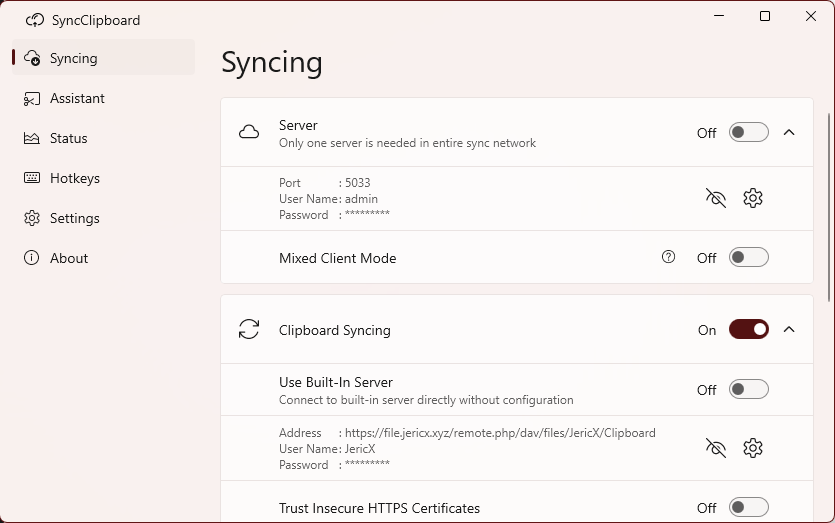
Desktop client (Windows/Linux/macOS) has a built-in server, can be configured with GUI.
### WebDAV Server
Tested server:
- [x] [Nextcloud](https://nextcloud.com/)
- [x] [AList](https://alist.nn.ci/)
- [x] [InfiniCLOUD](https://infini-cloud.net/en/)
- [x] [aliyundrive-webdav](https://github.com/messense/aliyundrive-webdav)
### S3 Server
The desktop client supports AWS S3 via the official AWS SDK, and also supports OSS providers that expose an S3-compatible API.
When adding an account, choose `S3` and configure:
- `Server Address`: Optional. Leave empty for AWS; set your endpoint for S3-compatible providers.
- `Region`: Signing region, for example `us-east-1`.
- `Bucket Name`: Bucket used to store `SyncClipboard.json` and `file/` objects.
- `Object Prefix`: Optional. Recommended to isolate data with a dedicated prefix (for example `syncclipboard`).
- `Force Path-Style Addressing`: Recommended for many S3-compatible providers.
- `Access Key ID` / `Secret Access Key`: Access credentials.
## Client
Clipboard is auto-synced between desktop clients running on Windows/Linux/macOS.
Screenshots
### Windows
#### Installer
Download the exe installer starting with `SyncClipboard_win_` from the [Release](https://github.com/Jeric-X/SyncClipboard/releases/latest) page. Double-click to run the installer and it will be ready to use.
#### Portable Version
Download the zip file starting with `SyncClipboard_win_` from the [Release](https://github.com/Jeric-X/SyncClipboard/releases/latest) page. Extract it and run `SyncClipboard.exe`.
#### Troubleshooting
- The minimum supported OS version is Windows 10 2004.
- If the interface icons are displayed incorrectly on Windows 10, download and install the Microsoft [Segoe Fluent Icons](https://aka.ms/SegoeFluentIcons) font.
### macOS
#### Manual Installation
Download the installation package starting with `SyncClipboard_macos_` from the [Release](https://github.com/Jeric-X/SyncClipboard/releases/latest) page. Double-click it and drag the SyncClipboard icon to the Applications folder.
#### Troubleshooting
- System prompts `“SyncClipboard” cannot be opened because the developer cannot be verified`: Go to `Settings` -> `Privacy & Security` on macOS, and click `Open Anyway`.
- System prompts `"SyncClipboard" is damaged, can't be opened`: Run the following command in the terminal: `sudo xattr -d com.apple.quarantine /Applications/SyncClipboard.app`
- Some features require simulating keyboard input to perform copy or paste operations, which depend on Accessibility permissions. SyncClipboard will prompt for authorization when needed.
### Linux
#### Manual Installation
Download the installation package starting with `SyncClipboard_linux_` from the [Release](https://github.com/Jeric-X/SyncClipboard/releases/latest) page.
#### Arch Linux
Arch Linux users can directly install from [AUR](https://aur.archlinux.org/packages/syncclipboard-desktop) (maintained by [@devome](https://github.com/devome)):
```shell
paru -Sy syncclipboard-desktop
```
After installation, you can launch it from the menu. If launching via the command `syncclipboard-desktop` results in an error, set the environment variable `LANG` to `en_US.UTF-8` or just start it using `LANG=en_US.UTF-8 syncclipboard-desktop`.
#### Troubleshooting
- Clipboard sync is delayed, fails, or uploads garbled text: It is recommended to install `xclip` (for X11) or `wl-clipboard` (for Wayland) on your system. SyncClipboard will use these tools to help access the clipboard and improve stability. Use the commands `xclip -version` or `wl-paste -version` to check if they are installed.
- When upgrading using `deb` or `rpm` installation packages, if the upgrade fails, please uninstall the old version before installing the new one.
- When using the `AppImage` package, please ensure that the AppImage file has executable permissions.
- Hotkeys may not work on Wayland.
- The language cannot be auto-detected and defaults to English. You can change the language in SyncClipboard's settings after launching.
> [!NOTE]
> To completely remove SyncClipboard, manually delete the configuration and temporary file directories:
> `%AppData%\SyncClipboard\` (Windows), `~/Library/Application Support/SyncClipboard/` (macOS), `~/.config/SyncClipboard/` (Linux)
### Desktop Client Command Line Arguments
#### --shutdown-previous
Closes any running instance of SyncClipboard and starts a new one.
#### --command-{command-name}
Executes the specified command, where `{command-name}` is the name of the command. After setting a shortcut key, you can view the corresponding command name in the configuration file. Even if the shortcut key configuration is cleared, the command line argument remains valid.
If a SyncClipboard instance is already running, it will not start a new instance but will instruct the running SyncClipboard to execute the command. If no instance is running, the command will be executed immediately after startup.
Multiple `--command-{command-name}` arguments are supported, multiple commands are executed simultaneously.
> [!NOTE]
> When using command line arguments on macOS, please use the full path to the executable: `/Applications/SyncClipboard.app/Contents/MacOS/SyncClipboard.Desktop.MacOS`
### IOS
#### Use [Shortcuts](https://apps.apple.com/us/app/shortcuts/id1462947752)
> [!WARNING]
> When importing the shortcut, you may be unable to edit the server information ([#306](https://github.com/Jeric-X/SyncClipboard/issues/306)). You can import it without changing the server information first, then edit the server information in the shortcut afterward.
>
- Sync manually, import this [Shortcut](https://www.icloud.com/shortcuts/321944d62831416f9d2ba7917917686a)
- Sync Automatically, import this [Shortcut](https://www.icloud.com/shortcuts/05e7ac5aca5f4f588b776117cf740587). This shortcut keeps running in the background forever, you need to stop it manually. You can also change whether to send notifications and querying interval time manullay.
### Android
#### Use [SyncClipboard Mobile](https://github.com/Jeric-X/syncclipboard-mobile)
- Quick manual trigger from notification center, home screen shortcut, and share menu
- Limited background sync capability
- Clipboard history and history sync
- Auto-upload SMS verification codes
### HarmonyOS Next
#### Use [ClipLink](https://github.com/xiebaiyuan/ClipLink)
A HarmonyOS Next client. Download the `.hap` file from [Releases](https://github.com/xiebaiyuan/ClipLink/releases) and install via [auto-installer](https://github.com/likuai2010/auto-installer) or `hdc install` (sideloading required due to HarmonyOS restrictions).
### Notes for Clients
There are three necessery config(maybe different words, same uses).
- username
- password
- url, format is `http://ip(or domain name):port`. When using a WebDav server, url needs to be pointed to a specific existing folder as the working folder, like `https://domain.com/dav/folder1/working%20folder`. File name is the best not to contain any special characters or spaces, or you'll have to URL encode it. And do not use this folder to do anything else. If not using a desktop client(Windows/Linux/macOS), create a folder named `file` in the working folder to sync files. Desktop clients create this folder automatically. Make sure no slash(/) at the end of url.
## API
In a standalone server environment, set the environment variable ASPNETCORE_ENVIRONMENT to Development before running the server, or open the server in the desktop client and enable diagnostic mode in settings.
Then visit `http://ip:port/swagger/index.html` to access the API description page.
APIs that do not start with `/api/` are WebDAV-compatible APIs. When implementing clients, calling these APIs can support clipboard synchronization based on both WebDAV servers and official SyncClipboard servers. The key APIs are described below.
### Get Clipboard
```shell
GET /SyncClipboard.json
GET /file/dataName # optional
```
### Upload Clipboard
```shell
PUT /file/dataName # optional
PUT /SyncClipboard.json
```
### SyncClipboard.json
```jsonc
{
"type": "Text", // or Image/File/Group, required
"hash": "string", // optional, empty string is treated as null
"text": "string", // required
"hasData": true, // or false, required
"dataName": "string", // if hasData is true, required
"size": 0 // optional
}
```
- All API fields are case-sensitive
- `text` stores the clipboard preview string, or the complete content of Text type clipboard
- `hasData` indicates whether an additional file is used to store the complete clipboard information
- For Image/File/Group types, `hasData` is always true
- For Text type, depending on the original string length, you can optionally use an additional UTF8-encoded `.txt` file to store the complete string. If so, the `text` field only stores the beginning part of the complete string
- `hash` value is a unique identifier of the clipboard content. For the calculation method, please refer to [docs/Hash.md](Hash.md)
- The sender should provide `hash` information whenever possible
- When the `hash` value exists, the receiver should verify the consistency between the `hash` information and the clipboard content, and execute the error handling process when inconsistent
- When `hash` is empty, or in an environment where `hash` cannot be calculated, you can use the combination of `type`/`text` to simply determine the equality of clipboard content
- `size` indicates the total byte size of the copied file, or the length of the complete string for Text type clipboard
### S3 Sync Protocol Specification
For protocol and data format specifications when using S3-compatible object storage as sync backend, please refer to [S3 Adapter Design](S3-Adapter-Design.md).
## Open Source Dependencies
[NativeNotification](https://github.com/Jeric-X/NativeNotification)
[Magick.NET](https://github.com/dlemstra/Magick.NET)
[.NET Community Toolkit](https://github.com/CommunityToolkit/dotnet)
[H.NotifyIcon](https://github.com/HavenDV/H.NotifyIcon)
[WinUIEx](https://github.com/dotMorten/WinUIEx)
[moq](https://github.com/moq/moq)
[Avalonia](https://avaloniaui.net/)
[FluentAvalonia](https://github.com/amwx/FluentAvalonia)
[AsyncImageLoader.Avalonia](https://github.com/AvaloniaUtils/AsyncImageLoader.Avalonia)
[Vanara](https://github.com/dahall/Vanara)
[Tmds.DBus](https://github.com/tmds/Tmds.DBus)
[SharpHook](https://github.com/TolikPylypchuk/SharpHook)
[Quartz.NET](https://github.com/quartznet/quartznet)
## Donate
If SyncClipboard helps you, donations are welcome to support ongoing maintenance. View donation details [here](donate.md).