# OpenHabitTracker
https://openhabittracker.net
## App:
https://pwa.openhabittracker.net
Take notes, plan tasks, track habits
- Free and Ad-free
- Open Source
- Privacy Focused: All user data is stored locally on your device
- Available on Windows, Linux, Android, iOS, macOS, and as a web app
- Localized to English, German, Spanish, Slovenian, French, Portuguese, Italian, Japanese, Chinese, Korean, Dutch, Danish, Norwegian, Swedish, Finnish, Polish, Czech, Slovak, Croatian, Serbian
Key Features:
- Markdown support for notes
- Use categories and priorities to organize your notes, tasks, and habits
- Advanced Search, Filter, and Sort
- Data Export/Import: JSON, YAML, TSV, Markdown
- Import your notes from Google Keep
- Available in 26 themes with Dark and Light modes
## Stores:
Windows:
[ ](https://apps.microsoft.com/detail/9mwzmlxzzllr)
Linux - Flathub:
[
](https://apps.microsoft.com/detail/9mwzmlxzzllr)
Linux - Flathub:
[ ](https://flathub.org/apps/net.openhabittracker.OpenHabitTracker)
Linux - Snap Store:
[
](https://flathub.org/apps/net.openhabittracker.OpenHabitTracker)
Linux - Snap Store:
[ ](https://snapcraft.io/openhabittracker)
Android:
[
](https://snapcraft.io/openhabittracker)
Android:
[ ](https://play.google.com/store/apps/details?id=net.openhabittracker)
iOS:
[
](https://play.google.com/store/apps/details?id=net.openhabittracker)
iOS:
[ ](https://apps.apple.com/us/app/openhabittracker/id6654885470?platform=iphone)
macOS:
[
](https://apps.apple.com/us/app/openhabittracker/id6654885470?platform=iphone)
macOS:
[ ](https://apps.apple.com/us/app/openhabittracker/id6654885470?platform=mac)
Android - APKPure:
[
](https://apps.apple.com/us/app/openhabittracker/id6654885470?platform=mac)
Android - APKPure:
[ ](https://apkpure.com/openhabittracker/net.openhabittracker)
Android - GitHub, auto-updating with [
](https://apkpure.com/openhabittracker/net.openhabittracker)
Android - GitHub, auto-updating with [ Obtainium](https://github.com/ImranR98/Obtainium):
[
Obtainium](https://github.com/ImranR98/Obtainium):
[ ](https://github.com/Jinjinov/OpenHabitTracker/releases)
Windows - winget (installs the Microsoft Store version):
`winget install OpenHabitTracker`
## Docker image contains a Blazor Server app for one user
https://hub.docker.com/r/jinjinov/openhabittracker
https://github.com/Jinjinov/OpenHabitTracker/pkgs/container/openhabittracker
Set your username and password with environment variables:
.env
```
APPSETTINGS_USERNAME=admin
APPSETTINGS_EMAIL=admin@admin.com
APPSETTINGS_PASSWORD=admin
APPSETTINGS_JWT_SECRET=your-extremely-strong-secret-key
```
Replace `your-extremely-strong-secret-key` in Windows terminal:
```
[System.Convert]::ToBase64String([System.Security.Cryptography.RandomNumberGenerator]::GetBytes(32))
```
Replace `your-extremely-strong-secret-key` in Linux / macOS terminal:
```
openssl rand -base64 32
```
docker-compose.yml
```
services:
openhabittracker:
image: jinjinov/openhabittracker:latest
ports:
- "5050:8080"
environment:
- AppSettings__UserName=${APPSETTINGS_USERNAME}
- AppSettings__Email=${APPSETTINGS_EMAIL}
- AppSettings__Password=${APPSETTINGS_PASSWORD}
- AppSettings__JwtSecret=${APPSETTINGS_JWT_SECRET}
- TZ=Europe/Berlin # replace with your timezone
volumes:
- ./.OpenHabitTracker:/app/.OpenHabitTracker
```
Timezone strings: [List of tz database time zones](https://en.wikipedia.org/wiki/List_of_tz_database_time_zones) (TZ identifier column).
The default port is `5050`. You can change it to `80` to avoid typing the port in the address, or to any other free port if `5050` is already in use - update the port in `docker-compose.yml` accordingly.
After you login at http://localhost:5050/login you can use the same browser tab to access:
- logs: http://localhost:5050/watchdog
- OpenAPI json: http://localhost:5050/openapi/v1.json
- OpenAPI UI: http://localhost:5050/scalar/v1
## Sync desktop or mobile app with Docker
### Run the Docker container
Choose the platform where you want to host the OpenHabitTracker server:
#### Docker Desktop
1. Open Docker Desktop and make sure it shows **Engine running**
2. Open a terminal in the folder containing your `.env` and `docker-compose.yml`
3. Run: `docker-compose up -d`
4. Open `http://localhost:5050/login` in a browser to confirm the server is running
5. Find this machine's IP address:
- Windows: `ipconfig`
- Mac / Linux: `ifconfig`
#### Linux server
1. SSH into your server
2. Install Docker: `sudo apt update && sudo apt install -y docker.io docker-compose`
3. Open a terminal in the folder containing your `.env` and `docker-compose.yml`
4. Run: `docker-compose up -d`
5. Find the server IP: `ifconfig`
#### Synology NAS
1. Open **Package Center** and install **Container Manager**
2. Open **Container Manager** → **Project** → **Create**
3. Set the project name to `openhabittracker`
4. Paste the `docker-compose.yml` content, replacing `${APPSETTINGS_...}` placeholders with your actual values
5. Click **Next** → **Done** — the container starts automatically
6. Find your NAS IP: **Control Panel** → **Network** → **Network Interface**
### Enable sync in OpenHabitTracker
1. Open OpenHabitTracker on your device
2. Open the menu and click **Data**
3. Scroll down to **Online sync**
4. Enter the **Address**: `http://` + the IP from your scenario above + `:5050` or whichever port you chose (omit the port entirely if you chose `80`)
5. Enter your **Username** and **Password** from `.env`
6. Check **Remember me** to stay logged in across app restarts
7. Click **Log in**
## Made with:
* [Blazor](https://dotnet.microsoft.com/en-us/apps/aspnet/web-apps/blazor)
* [Bootstrap](https://getbootstrap.com)
* [Bootswatch](https://bootswatch.com)
* [CsvHelper](https://joshclose.github.io/CsvHelper)
* [DnetIndexedDb](https://github.com/amuste/DnetIndexedDb)
* [Markdig](https://github.com/xoofx/markdig)
* [WebView2](https://developer.microsoft.com/en-us/microsoft-edge/webview2)
* [YamlDotNet](https://aaubry.net/pages/yamldotnet.html)
## Runs with:
* [Blazor WASM](https://learn.microsoft.com/en-us/aspnet/core/blazor)
* [Blazor Server](https://learn.microsoft.com/en-us/aspnet/core/blazor)
* [MAUI](https://learn.microsoft.com/en-us/dotnet/maui)
* [Photino.Blazor](https://github.com/tryphotino/photino.Blazor)
* [WinForms](https://learn.microsoft.com/en-us/dotnet/desktop/winforms)
* [Wpf](https://learn.microsoft.com/en-us/dotnet/desktop/wpf)
## Desktop videos:
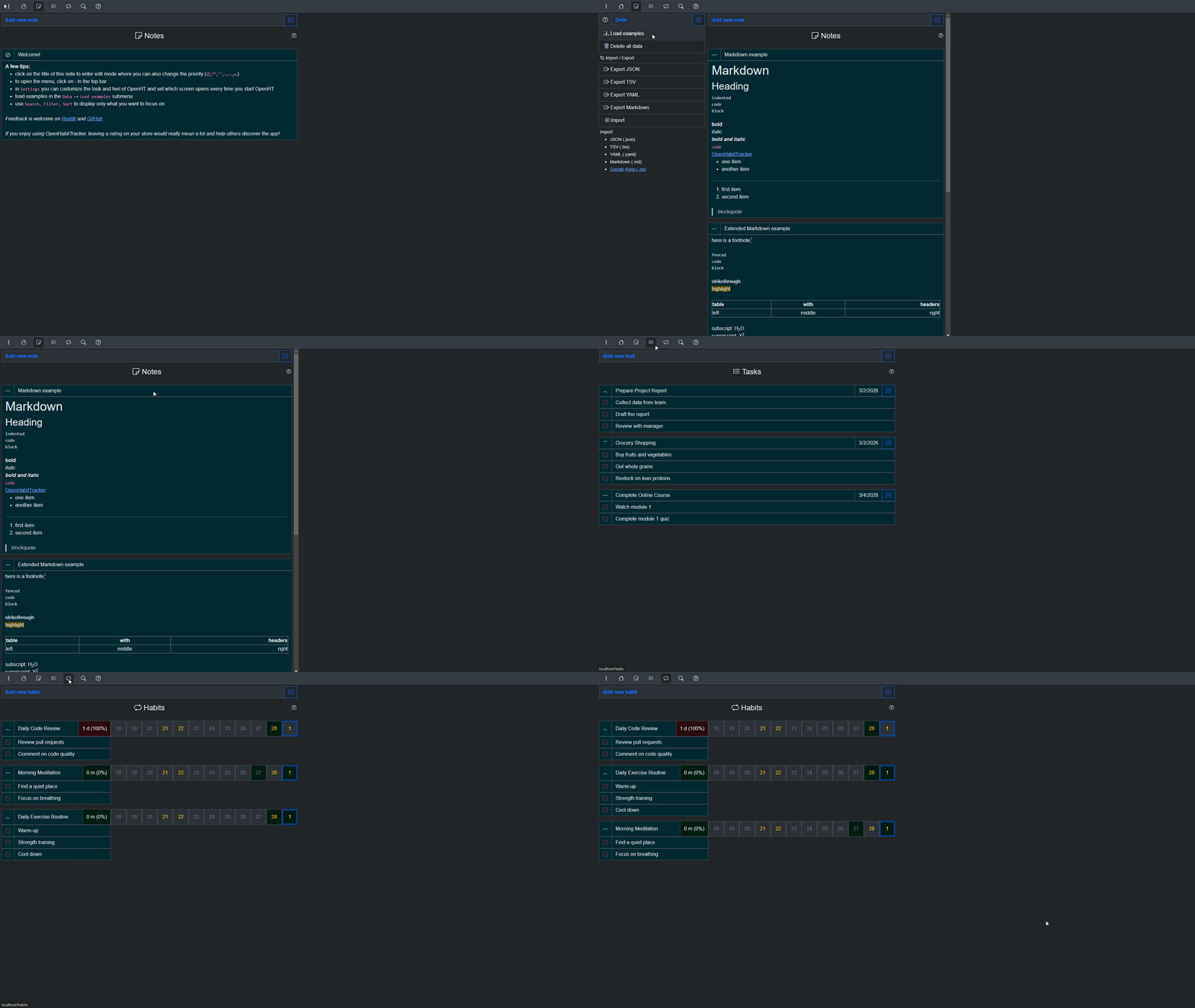
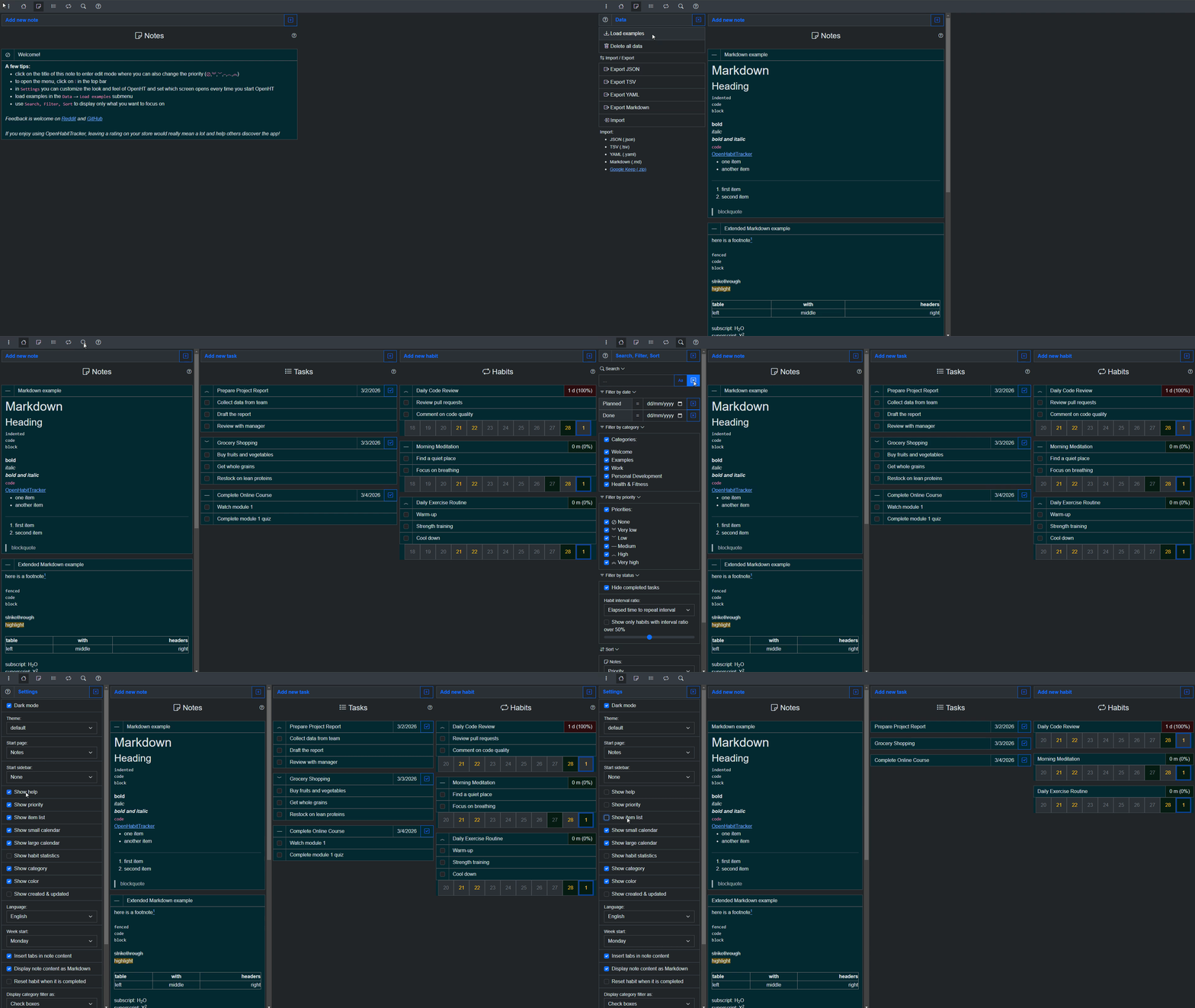
## Desktop screenshots:
[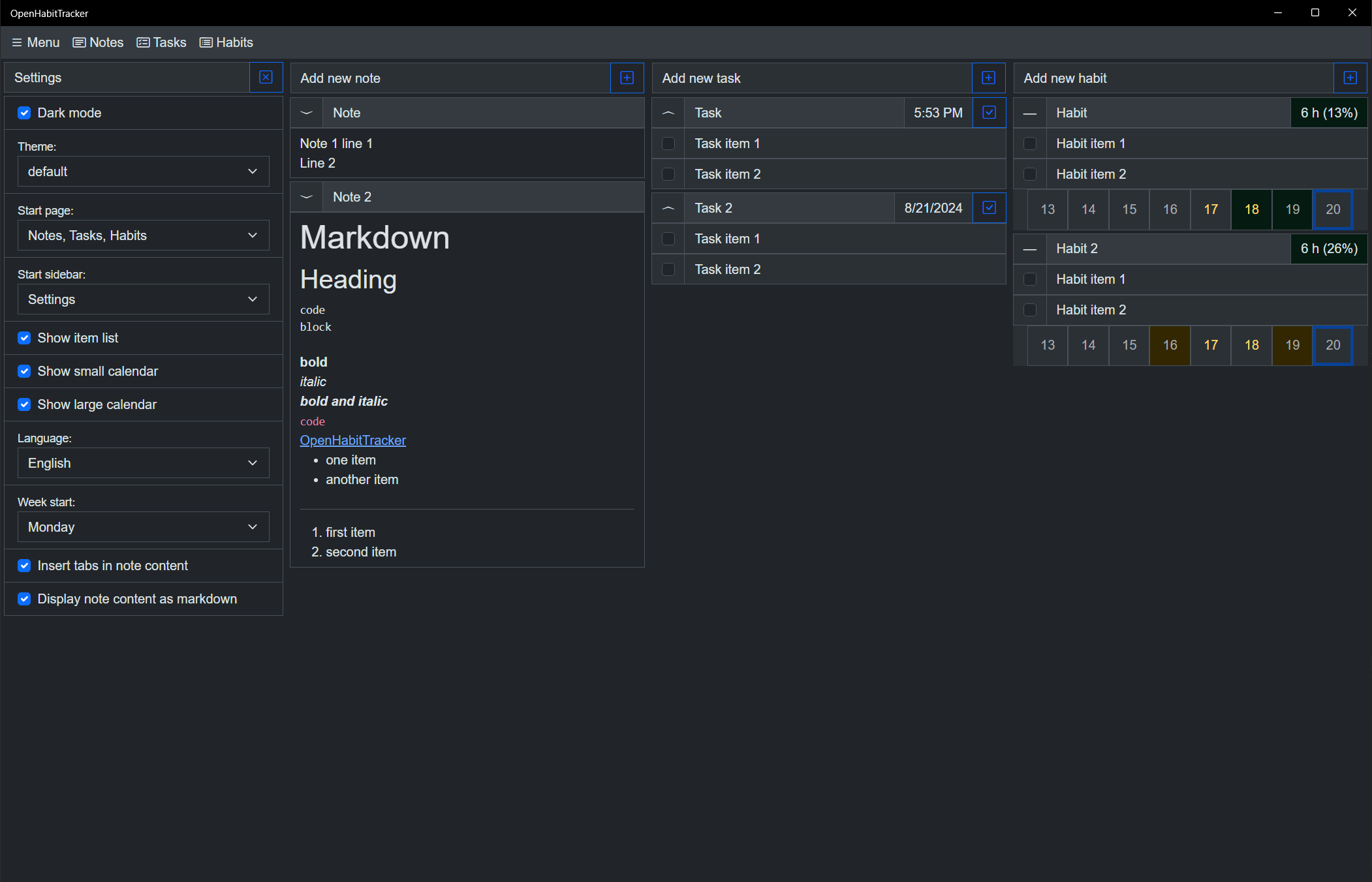](OpenHabitTracker.Web/images/desktop_1_settings.png)
[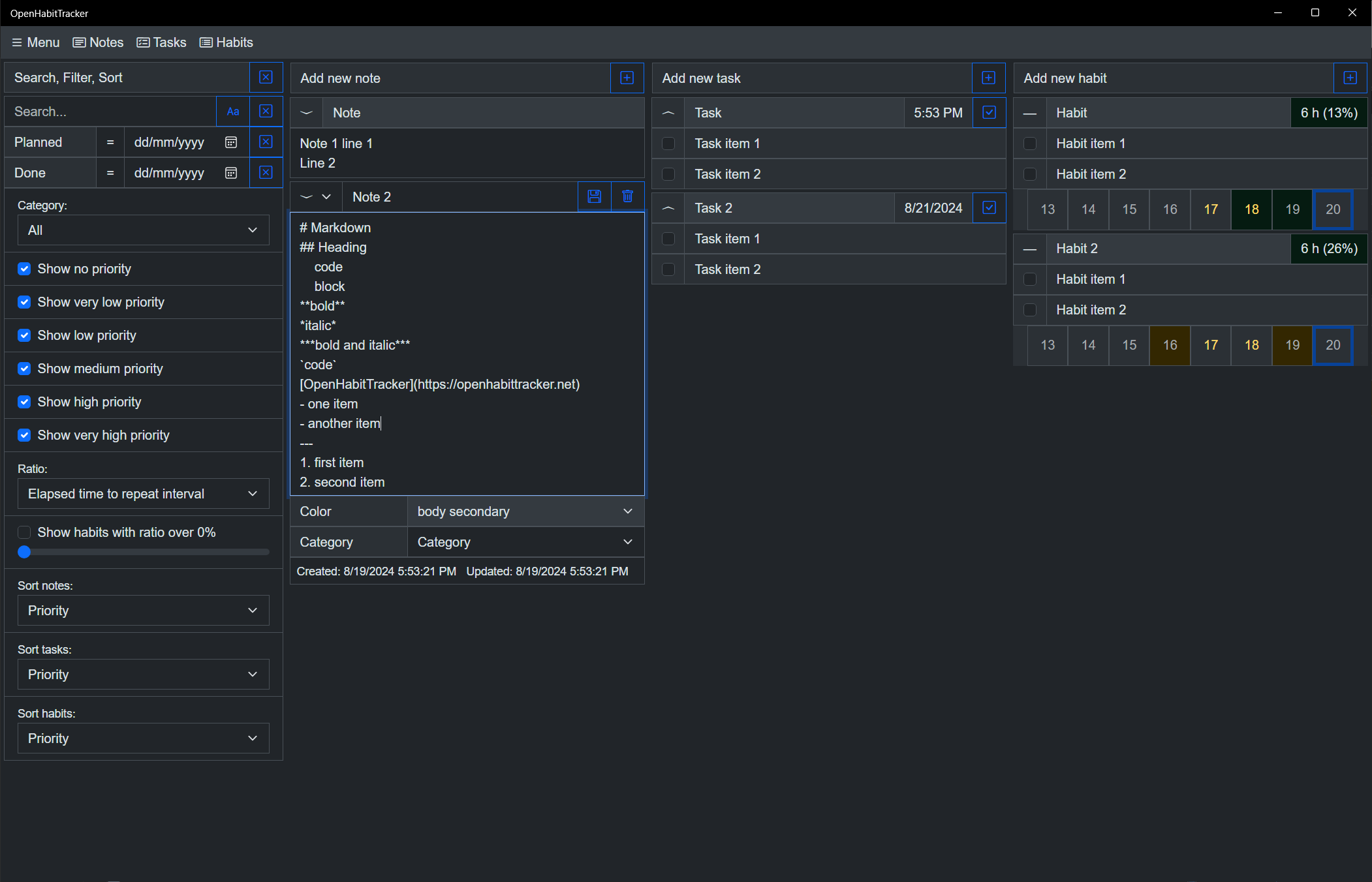](OpenHabitTracker.Web/images/desktop_2_note.png)
[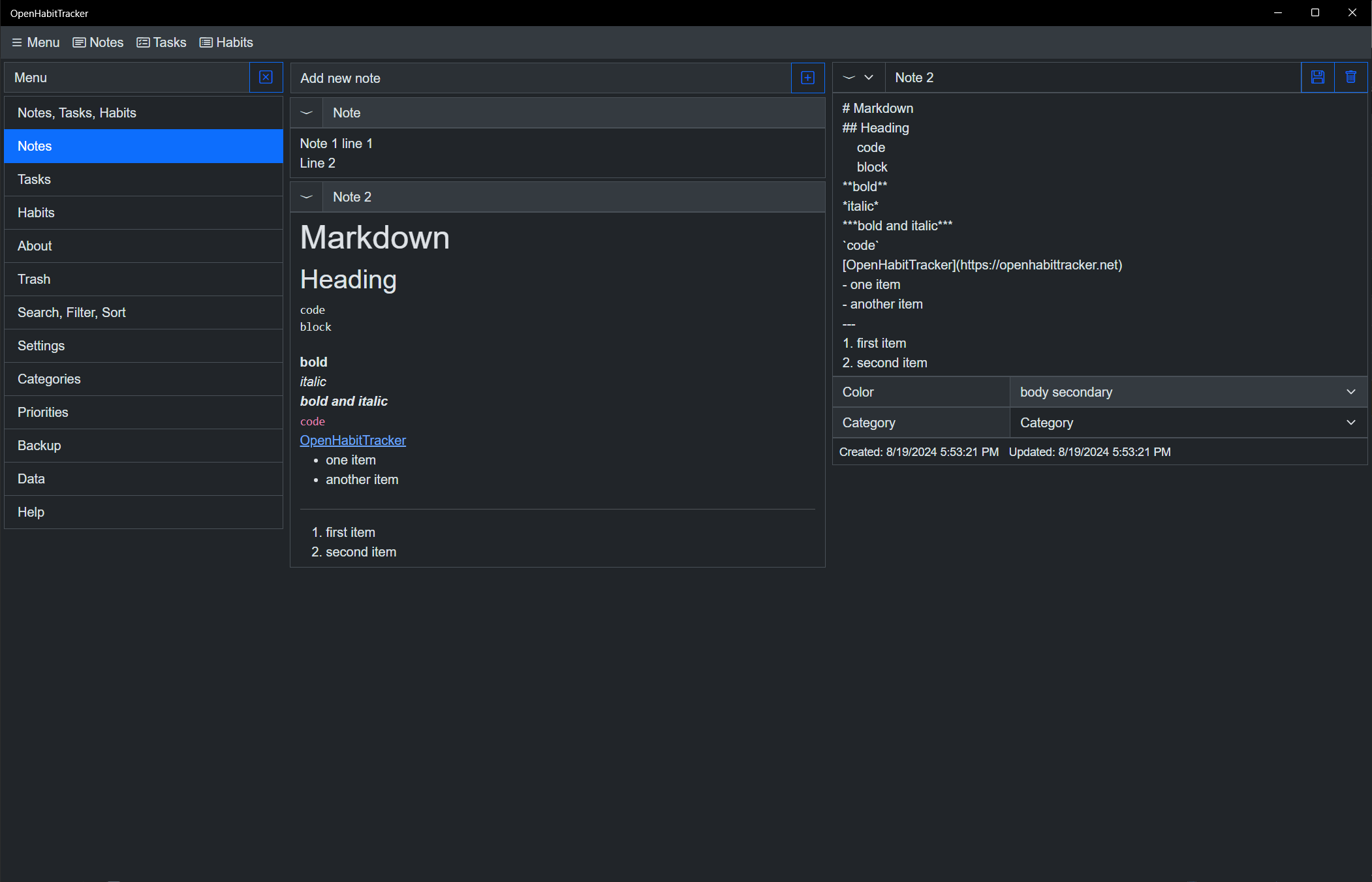](OpenHabitTracker.Web/images/desktop_3_notes.png)
[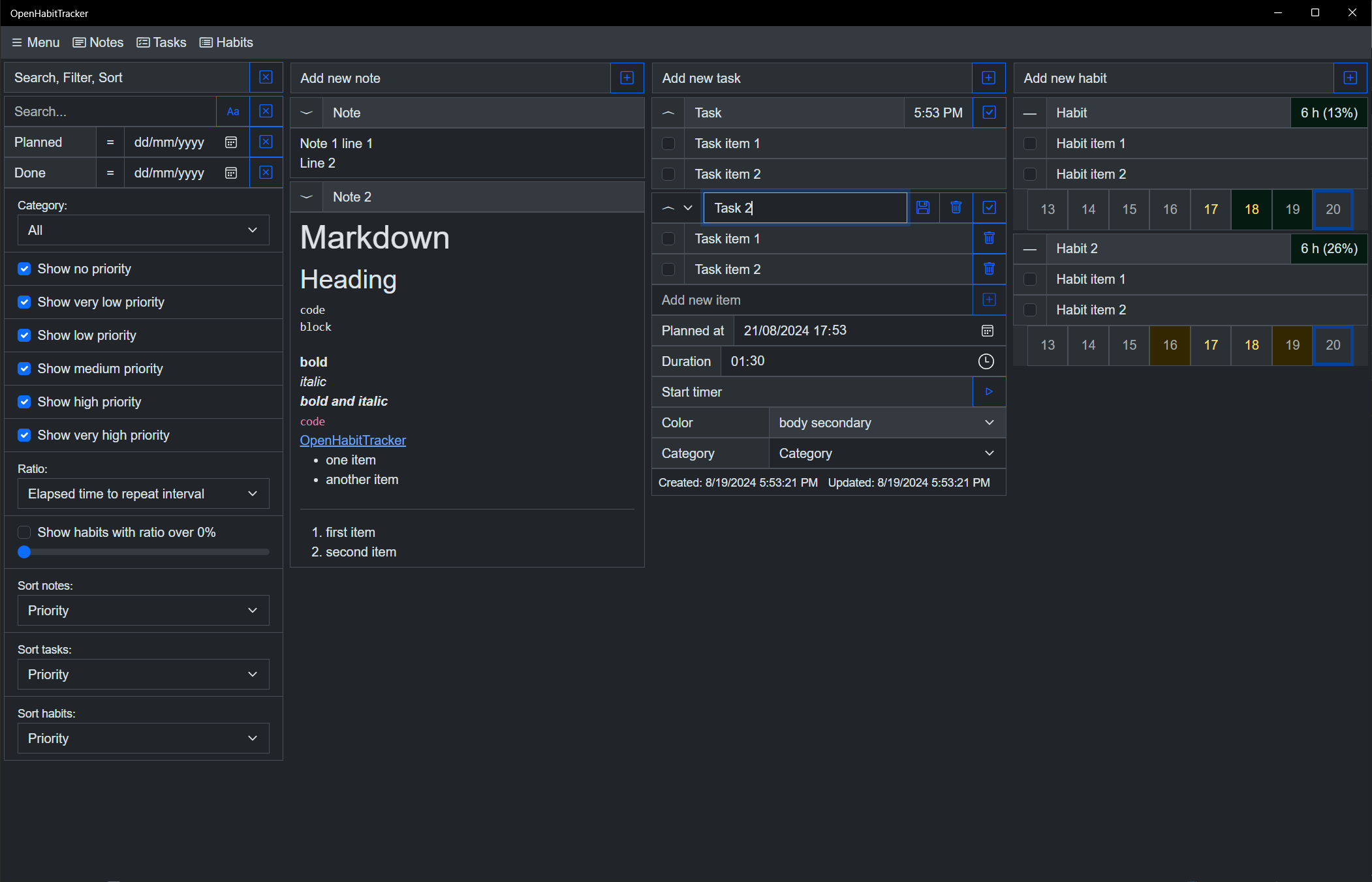](OpenHabitTracker.Web/images/desktop_4_task.png)
[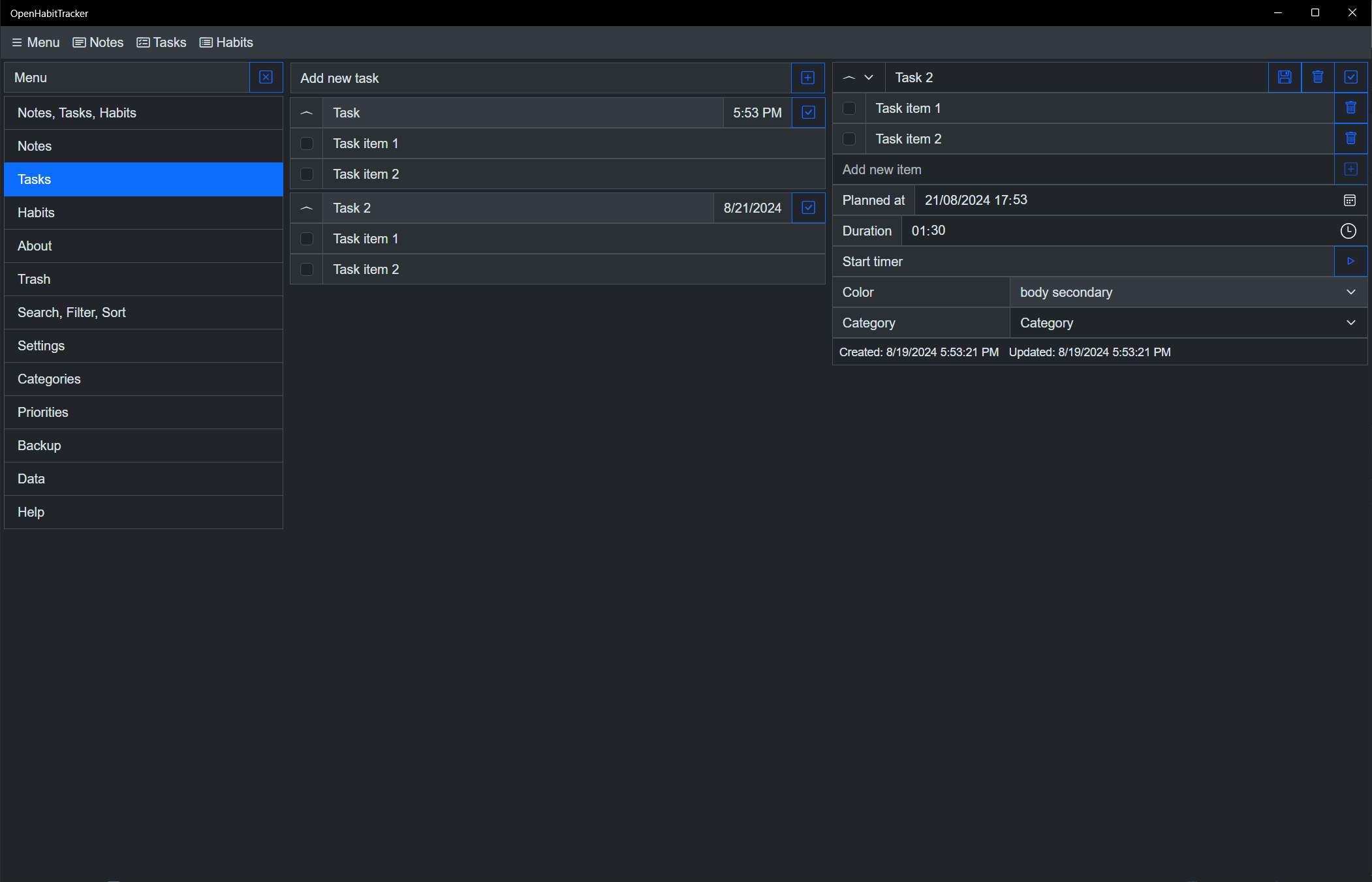](OpenHabitTracker.Web/images/desktop_5_tasks.png)
[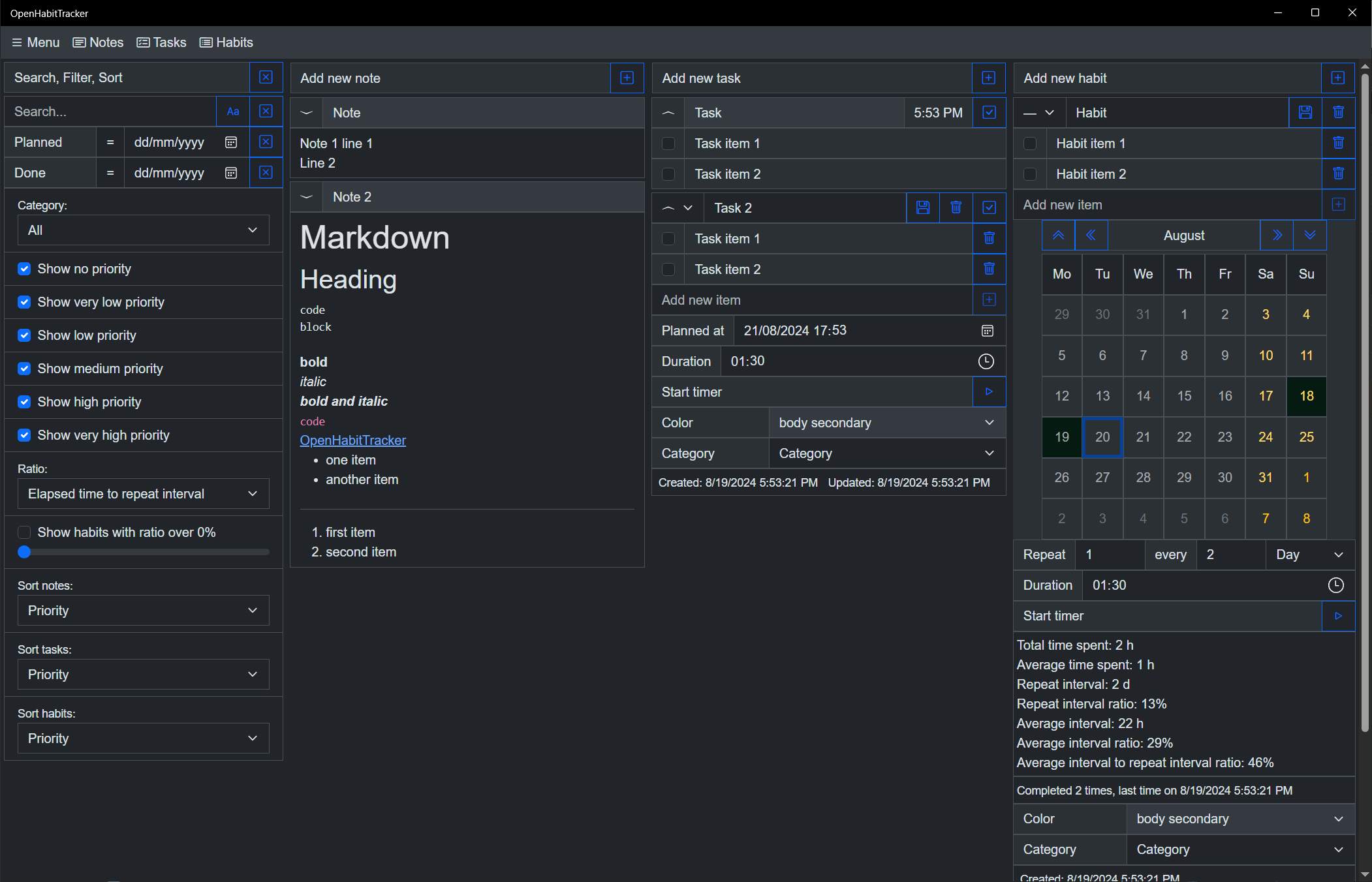](OpenHabitTracker.Web/images/desktop_6_habit.png)
[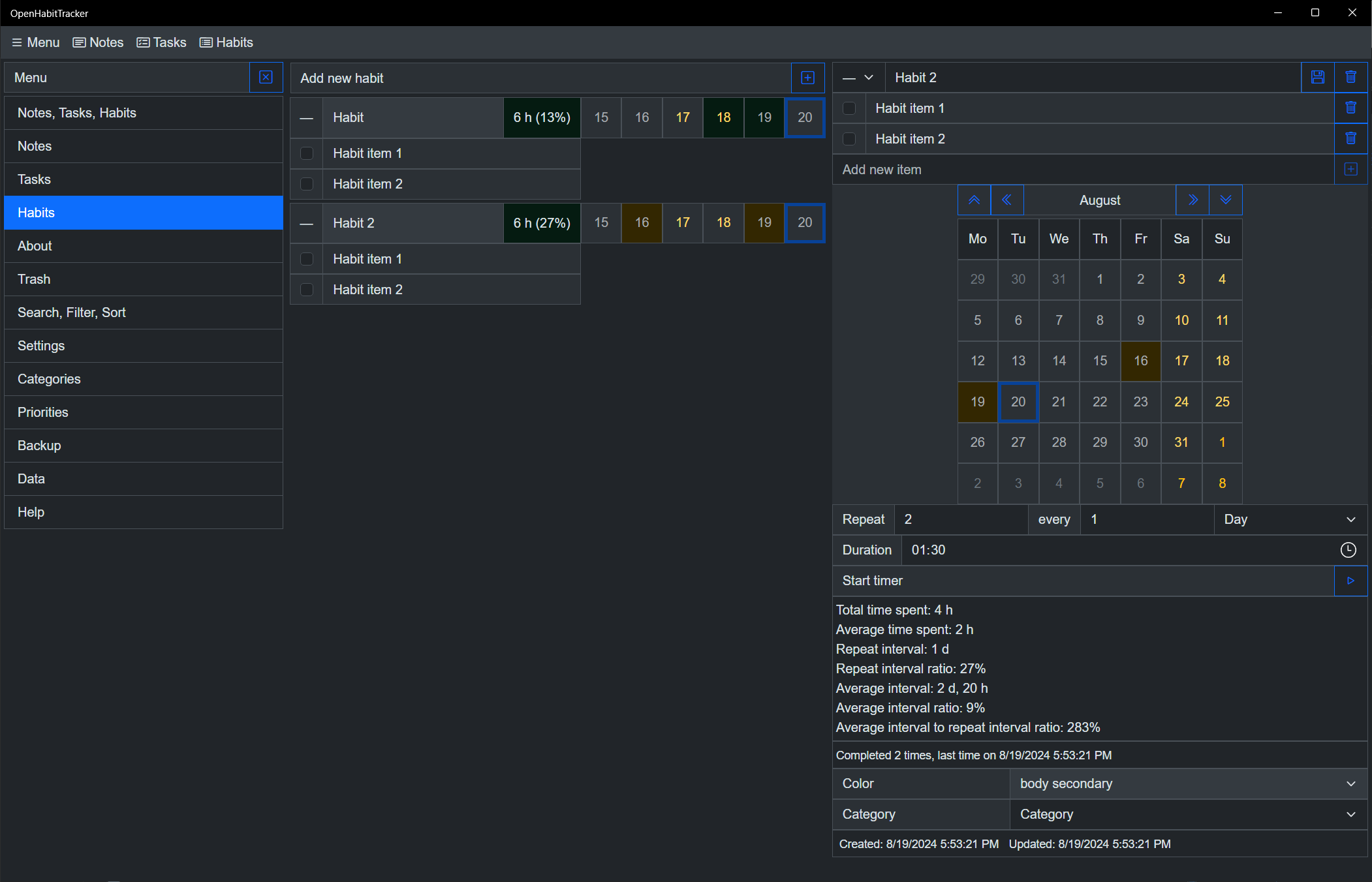](OpenHabitTracker.Web/images/desktop_7_habits.png)
[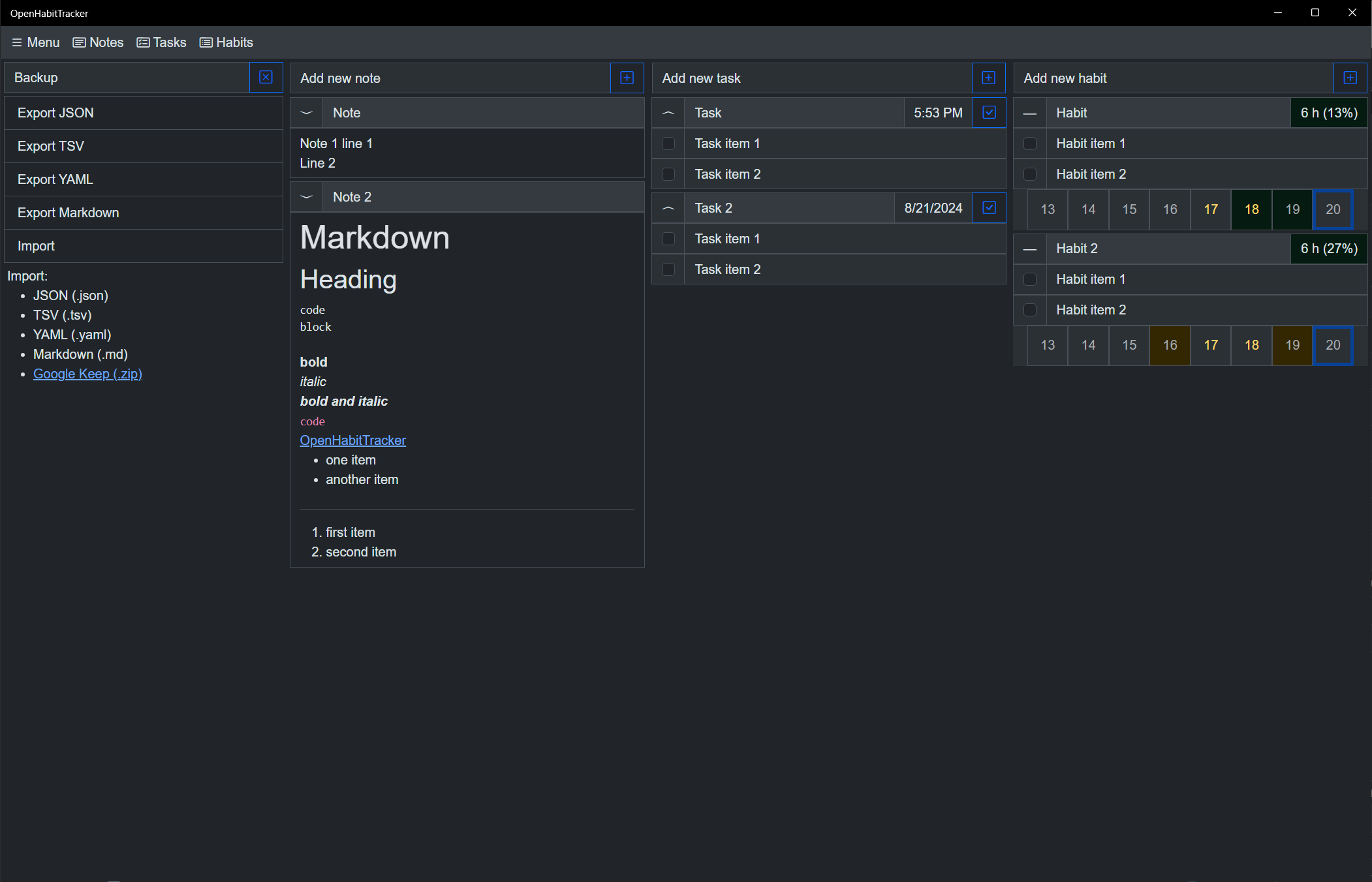](OpenHabitTracker.Web/images/desktop_8_backup.png)
## Phone screenshots:
[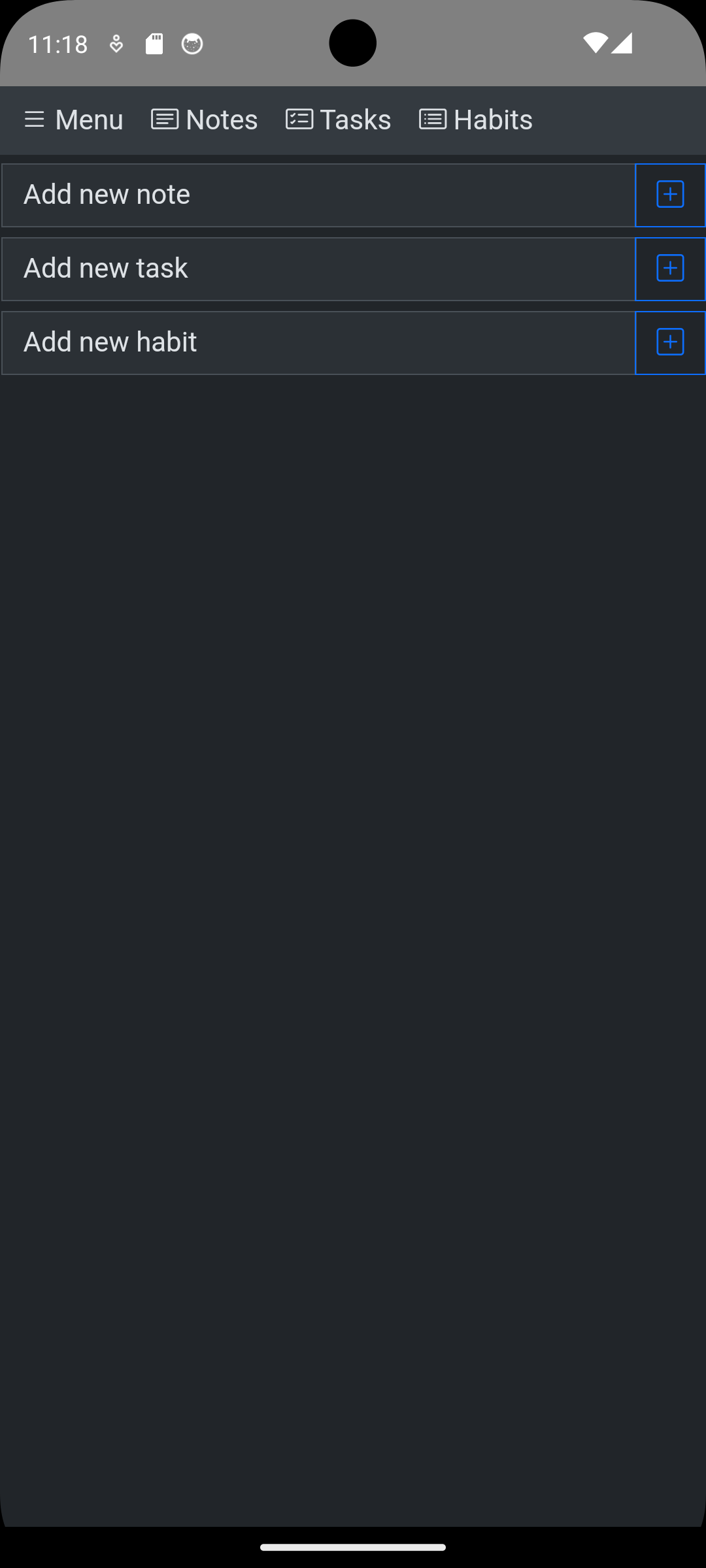](OpenHabitTracker.Web/images/phone_1_empty.png)
[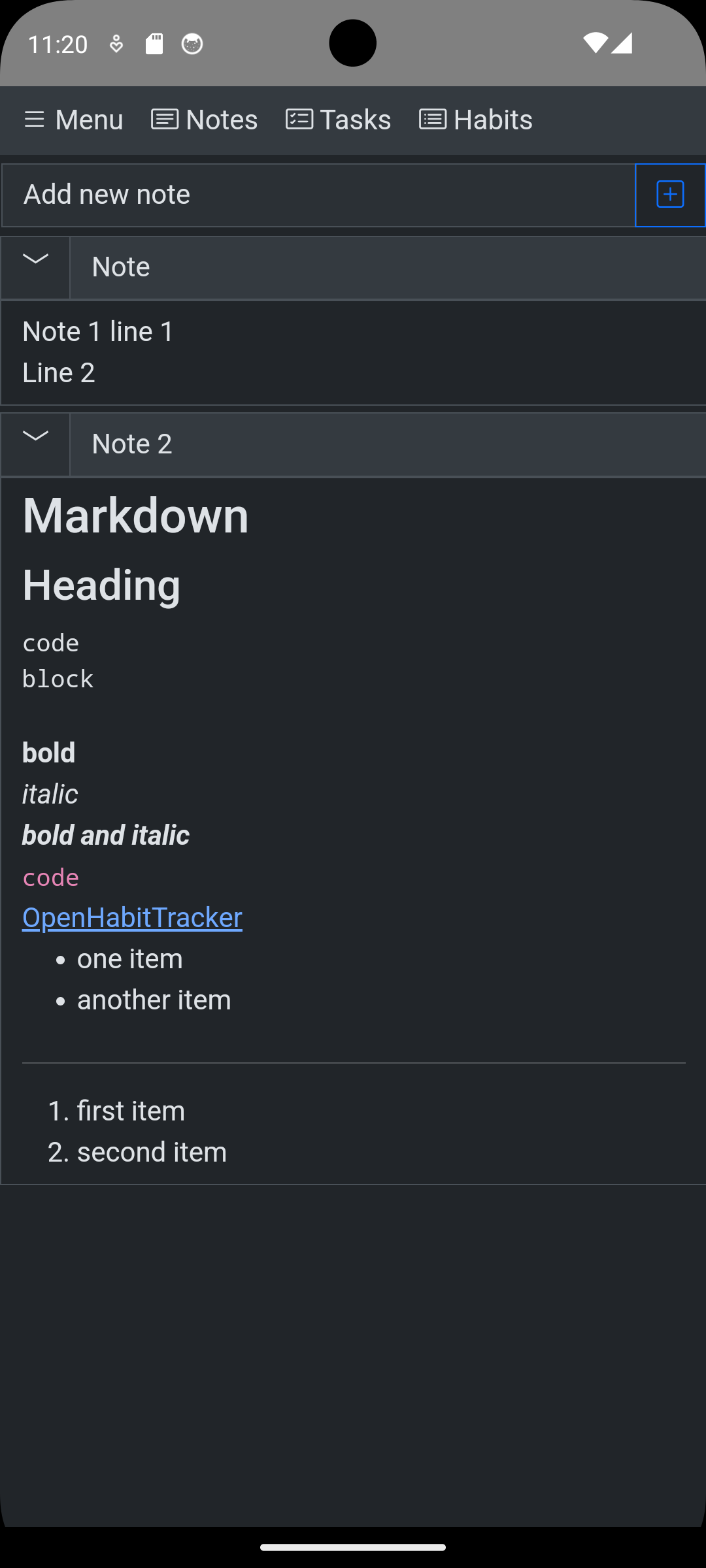](OpenHabitTracker.Web/images/phone_2_notes.png)
[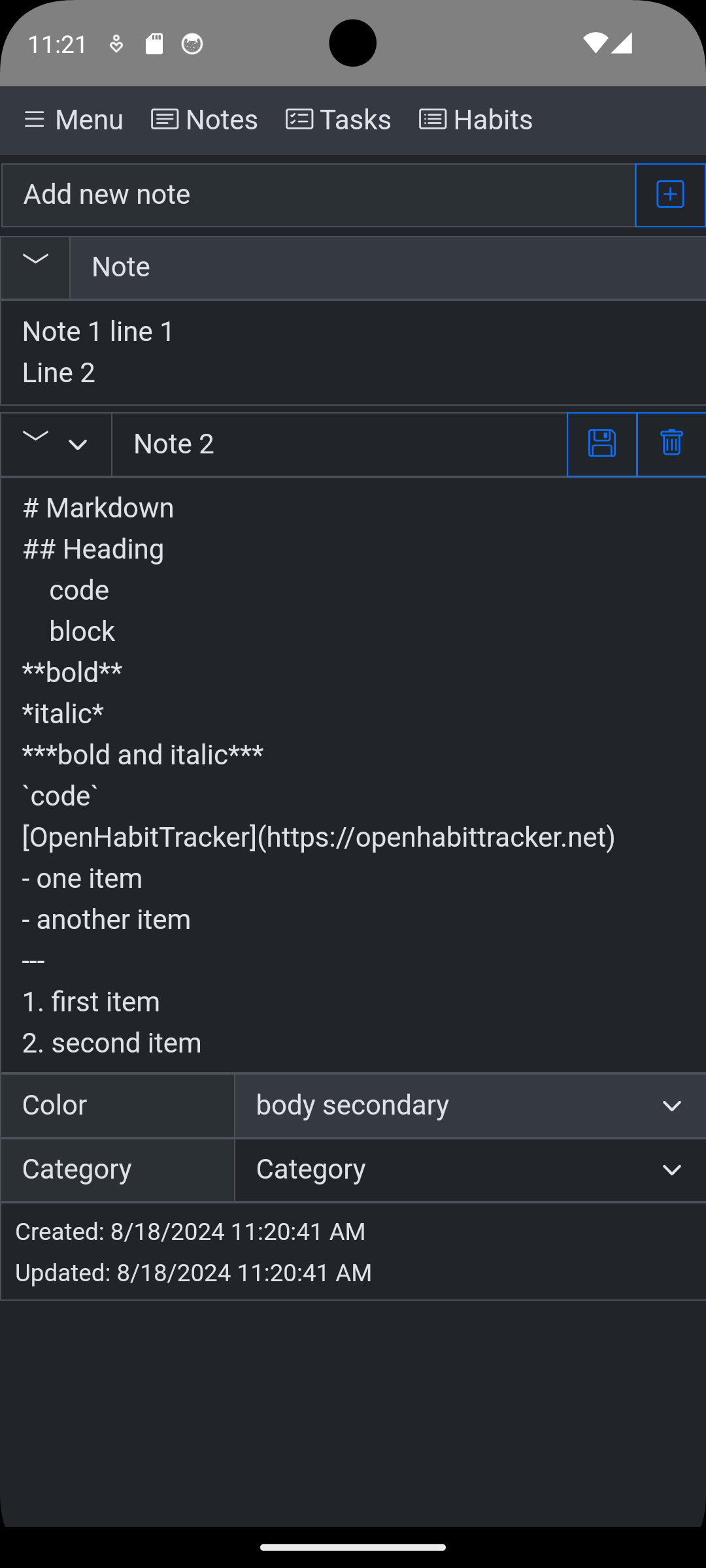](OpenHabitTracker.Web/images/phone_3_markdown.png)
[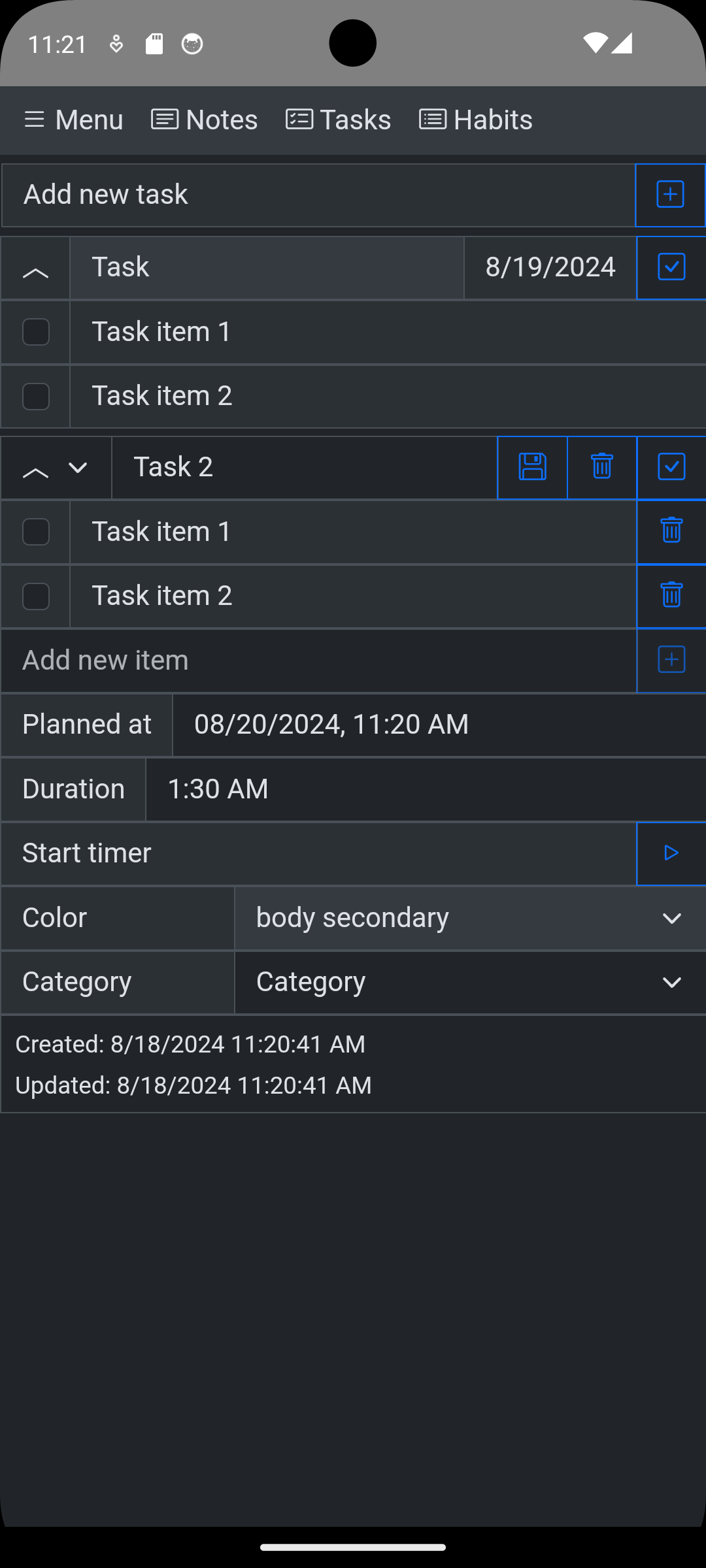](OpenHabitTracker.Web/images/phone_4_task.png)
[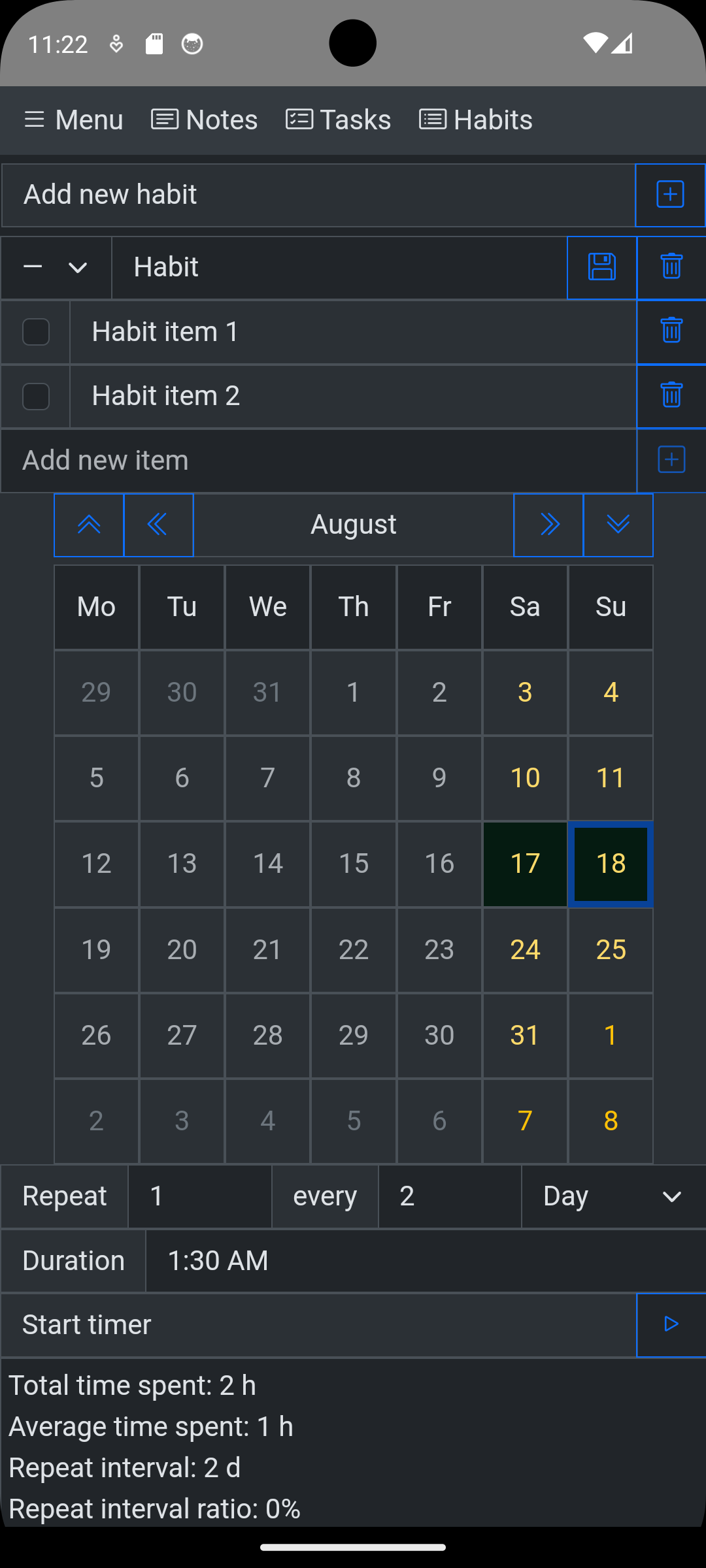](OpenHabitTracker.Web/images/phone_5_habit.png)
[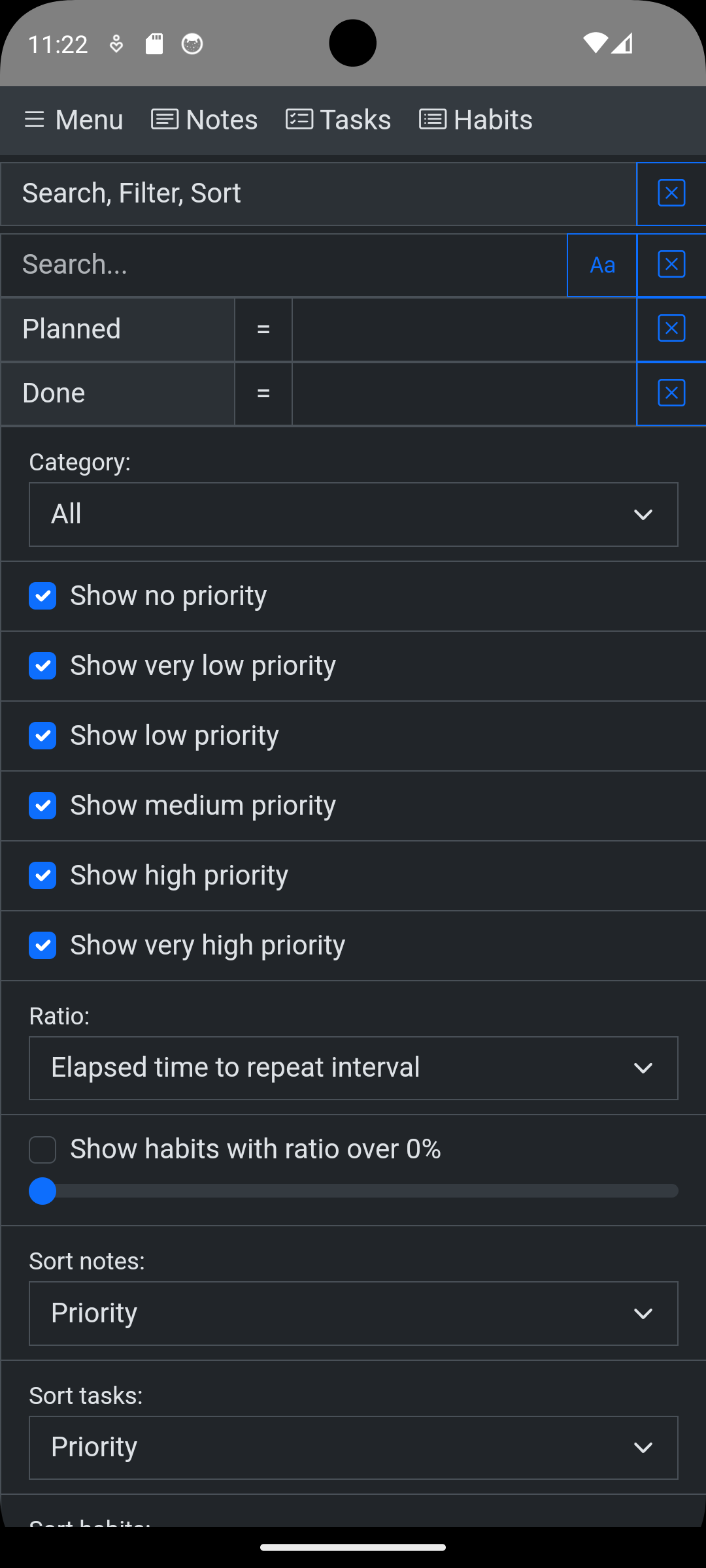](OpenHabitTracker.Web/images/phone_6_search.png)
[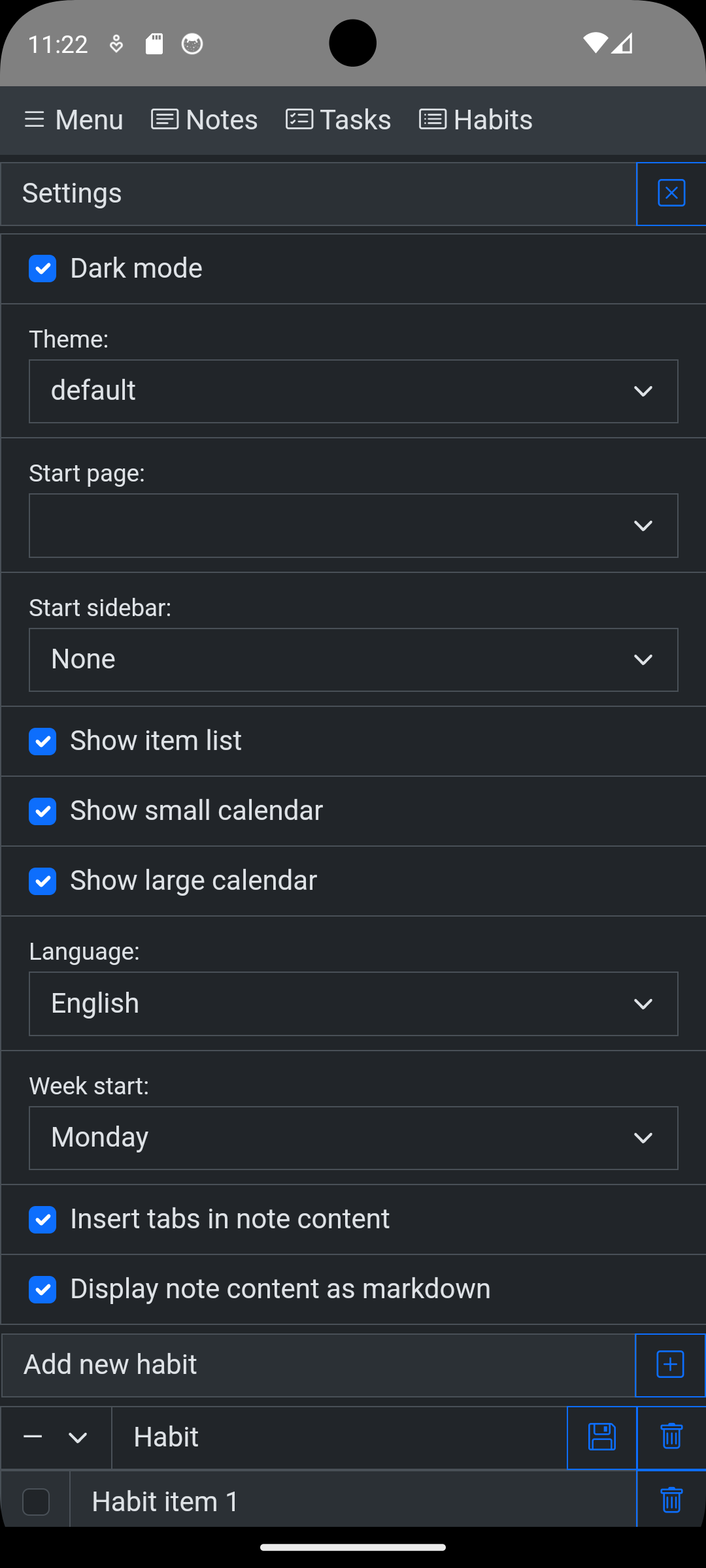](OpenHabitTracker.Web/images/phone_7_settings.png)
[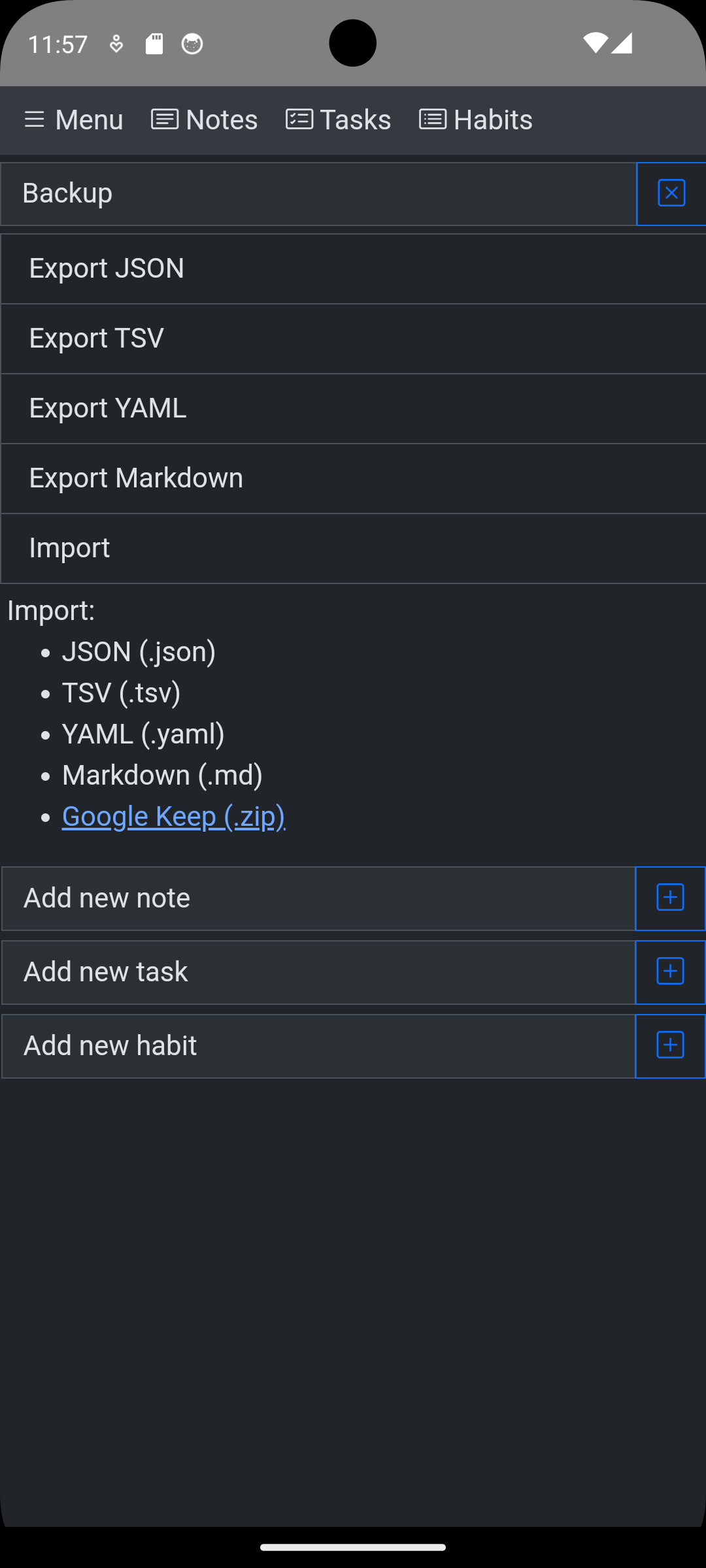](OpenHabitTracker.Web/images/phone_8_backup.png)
](https://github.com/Jinjinov/OpenHabitTracker/releases)
Windows - winget (installs the Microsoft Store version):
`winget install OpenHabitTracker`
## Docker image contains a Blazor Server app for one user
https://hub.docker.com/r/jinjinov/openhabittracker
https://github.com/Jinjinov/OpenHabitTracker/pkgs/container/openhabittracker
Set your username and password with environment variables:
.env
```
APPSETTINGS_USERNAME=admin
APPSETTINGS_EMAIL=admin@admin.com
APPSETTINGS_PASSWORD=admin
APPSETTINGS_JWT_SECRET=your-extremely-strong-secret-key
```
Replace `your-extremely-strong-secret-key` in Windows terminal:
```
[System.Convert]::ToBase64String([System.Security.Cryptography.RandomNumberGenerator]::GetBytes(32))
```
Replace `your-extremely-strong-secret-key` in Linux / macOS terminal:
```
openssl rand -base64 32
```
docker-compose.yml
```
services:
openhabittracker:
image: jinjinov/openhabittracker:latest
ports:
- "5050:8080"
environment:
- AppSettings__UserName=${APPSETTINGS_USERNAME}
- AppSettings__Email=${APPSETTINGS_EMAIL}
- AppSettings__Password=${APPSETTINGS_PASSWORD}
- AppSettings__JwtSecret=${APPSETTINGS_JWT_SECRET}
- TZ=Europe/Berlin # replace with your timezone
volumes:
- ./.OpenHabitTracker:/app/.OpenHabitTracker
```
Timezone strings: [List of tz database time zones](https://en.wikipedia.org/wiki/List_of_tz_database_time_zones) (TZ identifier column).
The default port is `5050`. You can change it to `80` to avoid typing the port in the address, or to any other free port if `5050` is already in use - update the port in `docker-compose.yml` accordingly.
After you login at http://localhost:5050/login you can use the same browser tab to access:
- logs: http://localhost:5050/watchdog
- OpenAPI json: http://localhost:5050/openapi/v1.json
- OpenAPI UI: http://localhost:5050/scalar/v1
## Sync desktop or mobile app with Docker
### Run the Docker container
Choose the platform where you want to host the OpenHabitTracker server:
#### Docker Desktop
1. Open Docker Desktop and make sure it shows **Engine running**
2. Open a terminal in the folder containing your `.env` and `docker-compose.yml`
3. Run: `docker-compose up -d`
4. Open `http://localhost:5050/login` in a browser to confirm the server is running
5. Find this machine's IP address:
- Windows: `ipconfig`
- Mac / Linux: `ifconfig`
#### Linux server
1. SSH into your server
2. Install Docker: `sudo apt update && sudo apt install -y docker.io docker-compose`
3. Open a terminal in the folder containing your `.env` and `docker-compose.yml`
4. Run: `docker-compose up -d`
5. Find the server IP: `ifconfig`
#### Synology NAS
1. Open **Package Center** and install **Container Manager**
2. Open **Container Manager** → **Project** → **Create**
3. Set the project name to `openhabittracker`
4. Paste the `docker-compose.yml` content, replacing `${APPSETTINGS_...}` placeholders with your actual values
5. Click **Next** → **Done** — the container starts automatically
6. Find your NAS IP: **Control Panel** → **Network** → **Network Interface**
### Enable sync in OpenHabitTracker
1. Open OpenHabitTracker on your device
2. Open the menu and click **Data**
3. Scroll down to **Online sync**
4. Enter the **Address**: `http://` + the IP from your scenario above + `:5050` or whichever port you chose (omit the port entirely if you chose `80`)
5. Enter your **Username** and **Password** from `.env`
6. Check **Remember me** to stay logged in across app restarts
7. Click **Log in**
## Made with:
* [Blazor](https://dotnet.microsoft.com/en-us/apps/aspnet/web-apps/blazor)
* [Bootstrap](https://getbootstrap.com)
* [Bootswatch](https://bootswatch.com)
* [CsvHelper](https://joshclose.github.io/CsvHelper)
* [DnetIndexedDb](https://github.com/amuste/DnetIndexedDb)
* [Markdig](https://github.com/xoofx/markdig)
* [WebView2](https://developer.microsoft.com/en-us/microsoft-edge/webview2)
* [YamlDotNet](https://aaubry.net/pages/yamldotnet.html)
## Runs with:
* [Blazor WASM](https://learn.microsoft.com/en-us/aspnet/core/blazor)
* [Blazor Server](https://learn.microsoft.com/en-us/aspnet/core/blazor)
* [MAUI](https://learn.microsoft.com/en-us/dotnet/maui)
* [Photino.Blazor](https://github.com/tryphotino/photino.Blazor)
* [WinForms](https://learn.microsoft.com/en-us/dotnet/desktop/winforms)
* [Wpf](https://learn.microsoft.com/en-us/dotnet/desktop/wpf)
## Desktop videos:


## Desktop screenshots:
[](OpenHabitTracker.Web/images/desktop_1_settings.png)
[](OpenHabitTracker.Web/images/desktop_2_note.png)
[](OpenHabitTracker.Web/images/desktop_3_notes.png)
[](OpenHabitTracker.Web/images/desktop_4_task.png)
[](OpenHabitTracker.Web/images/desktop_5_tasks.png)
[](OpenHabitTracker.Web/images/desktop_6_habit.png)
[](OpenHabitTracker.Web/images/desktop_7_habits.png)
[](OpenHabitTracker.Web/images/desktop_8_backup.png)
## Phone screenshots:
[](OpenHabitTracker.Web/images/phone_1_empty.png)
[](OpenHabitTracker.Web/images/phone_2_notes.png)
[](OpenHabitTracker.Web/images/phone_3_markdown.png)
[](OpenHabitTracker.Web/images/phone_4_task.png)
[](OpenHabitTracker.Web/images/phone_5_habit.png)
[](OpenHabitTracker.Web/images/phone_6_search.png)
[](OpenHabitTracker.Web/images/phone_7_settings.png)
[](OpenHabitTracker.Web/images/phone_8_backup.png)