# 📂 nav 📂
❯ The interactive and stylish replacement for ls & cd!
---
[![GitHub][latest-release-badge]][latest-release]
[![GitHub][license-badge]](LICENSE.md)
[![Build][build-badge]][github-actions]
[![Checks][checks-badge]][github-actions]
[![Package][package-badge]][github-actions]
[![Kotlin Multiplatform][kotlin-multiplatform-badge]][kotlin-multiplatform]
[![Linux X64 Platform][linux-x64-platform-badge]][kotlin-native]
[![Linux ARM64 Platform][linux-arm64-platform-badge]][kotlin-native]
[![MinGW X64 Platform][mingw-x64-platform-badge]][kotlin-native]
[![JVM Platform][jvm-platform-badge]][kotlin-jvm]
[latest-release-badge]: https://img.shields.io/github/v/release/Jojo4GH/nav?label=Latest
[latest-release]: https://github.com/Jojo4GH/nav/releases/latest
[license-badge]: https://img.shields.io/github/license/Jojo4GH/nav?label=License
[build-badge]: https://img.shields.io/github/actions/workflow/status/Jojo4GH/nav/workflow.yml?branch=master&label=Build
[checks-badge]: https://img.shields.io/github/check-runs/Jojo4GH/nav/master?label=Checks
[package-badge]: https://img.shields.io/github/actions/workflow/status/Jojo4GH/nav/package.yml?branch=master&label=Package
[github-actions]: https://github.com/Jojo4GH/nav/actions
[kotlin-multiplatform-badge]: https://img.shields.io/badge/Kotlin_Multiplatform-grey?logo=kotlin
[linux-x64-platform-badge]: https://img.shields.io/badge/Native-Linux_X64-e082f3
[linux-arm64-platform-badge]: https://img.shields.io/badge/Native-Linux_ARM64-e082f3
[mingw-x64-platform-badge]: https://img.shields.io/badge/Native-MinGW_X64-e082f3
[jvm-platform-badge]: https://img.shields.io/badge/Platform-JVM-4dbb5f
[kotlin-multiplatform]: https://kotlinlang.org/docs/multiplatform.html
[kotlin-native]: https://kotlinlang.org/docs/native-overview.html
[kotlin-jvm]: https://kotlinlang.org/docs/jvm-get-started.html
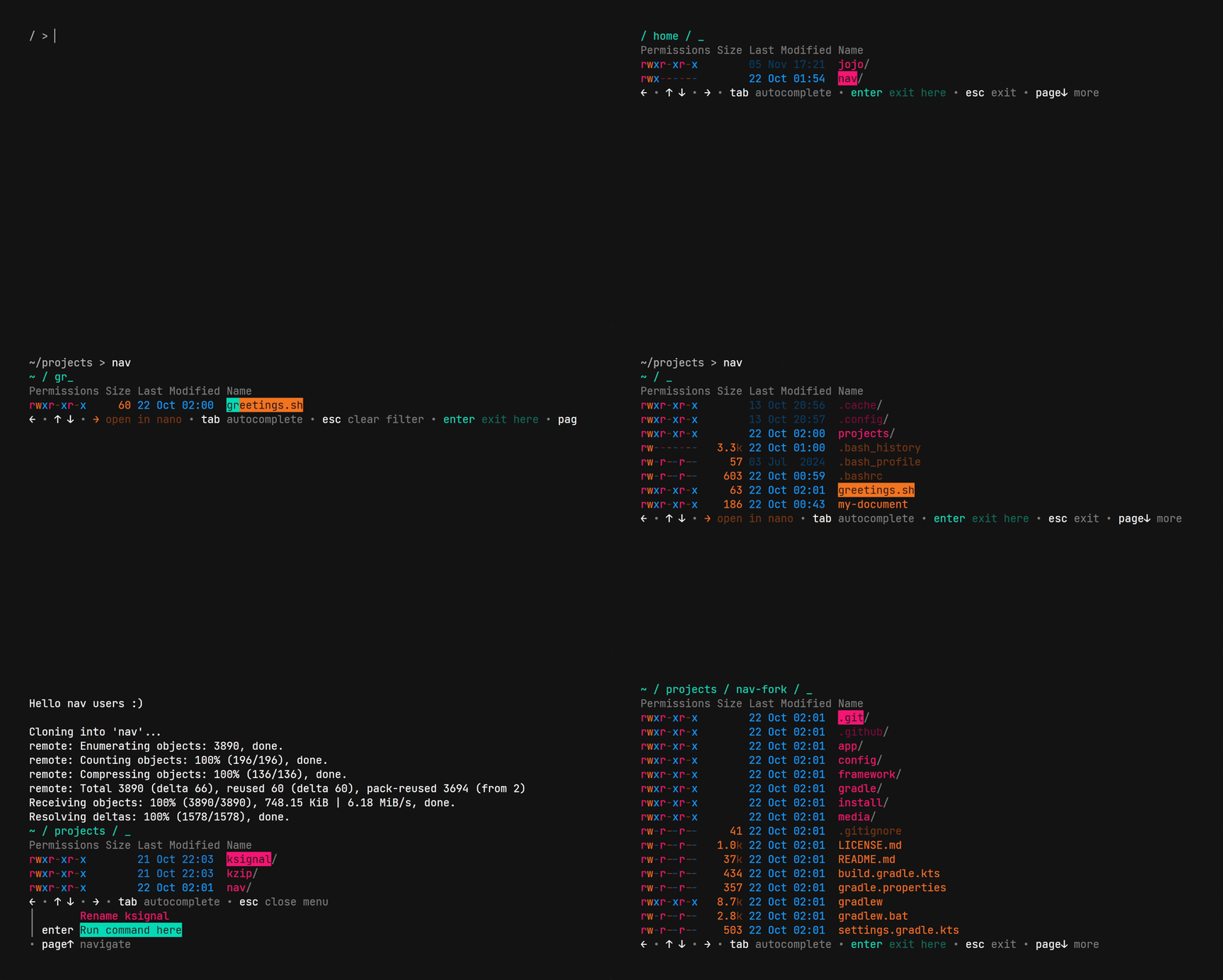
Ever tried to find that one config file hidden deep in your directory tree?
Or maybe you just want to quickly jump to a directory and inspect some files on the way?
✨ **nav** is here to help! ✨
Written in Kotlin/Native, nav provides a modern and intuitive terminal UI to navigate your filesystem.
- ➡️ Use arrow keys to navigate everywhere
- ⌨️ Type to filter entries, press Tab to autocomplete
- ✏️ Instantly edit files with your favorite editor on the fly
- ✅ Press Enter to move your shell to the current directory
- 🔧 [Configure](#-configuration) everything to your liking
- ⭐ Define [custom macros](#-macros-experimental) for even more powerful workflows
- 📈 Create files and directories or run commands everywhere
### Contents
- [Installation](#-installation)
- [Configuration](#-configuration)
- [General](#general)
- [Controls](#controls)
- [Appearance](#appearance)
- [Macros (experimental)](#-macros-experimental)
- [Examples](#examples)
- [Definition](#definition)
- [Conditions](#conditions)
- [Actions](#actions)
- [Properties, Variables & Placeholders](#properties-variables--placeholders)
- [Entry Macros](#entry-macros)
- [Known Issues](#known-issues)
## 🚀 Installation
### 1. Install **nav**
Select your operating system
Linux
Install with any of the following package managers:
| Distribution | Repository | Instructions |
|----------------------|------------------------------------------------------------|-------------------------------------------|
| Arch Linux | [AUR] | `pacman -S nav-cli`
`yay -S nav-cli` |
| NixOS | [Nixpkgs] | `nix-shell -p nav` |
| Debian, Ubuntu, etc. | [nav_amd64.deb][Deb_amd64]
[nav_arm64.deb][Deb_arm64] | `dpkg -i ...` |
[AUR]: https://aur.archlinux.org/packages/nav-cli
[Nixpkgs]: https://search.nixos.org/packages?show=nav
[Deb_amd64]: https://github.com/Jojo4GH/nav/releases/latest/download/nav_amd64.deb
[Deb_arm64]: https://github.com/Jojo4GH/nav/releases/latest/download/nav_arm64.deb
Or install (or update) nav with the [installer script](install/install.sh):
```sh
curl -sS https://raw.githubusercontent.com/Jojo4GH/nav/master/install/install.sh | sh
```
Or manually download the [latest release](https://github.com/Jojo4GH/nav/releases/latest).
Windows
On Windows, you can use [scoop](https://scoop.sh) to install nav:
```powershell
scoop bucket add JojoIV "https://github.com/Jojo4GH/scoop-JojoIV"
scoop install nav
```
Or without adding the bucket:
```powershell
scoop install "https://raw.githubusercontent.com/Jojo4GH/scoop-JojoIV/master/bucket/nav.json"
```
### 2. Set up your shell
Configure your shell to initialize nav. This is required for the *cd* part of nav's functionality.
Bash
Add the following to the end of `~/.bashrc`:
```sh
eval "$(nav --init bash)"
```
Zsh
Add the following to the end of `~/.zshrc`:
```sh
eval "$(nav --init zsh)"
```
Powershell
Add one of the following to the end of your PowerShell configuration (find it by running `$PROFILE`):
```powershell
Invoke-Expression (& nav --init powershell | Out-String)
```
```powershell
Invoke-Expression (& nav --init pwsh | Out-String)
```
NixOS
Bash:
```nix
programs.bash.shellInit = "eval \"$(nav --init bash)\"";
```
Zsh:
```nix
programs.zsh.shellInit = "eval \"$(nav --init zsh)\"";
```
Or with `home-manager`:
```nix
home-manager.users.user.programs = {
bash = {
enable = true;
bashrcExtra = "eval \"$(nav --init bash)\"";
};
zsh = {
inherit (config.programs.zsh) enable;
initExtra = "eval \"$(nav --init zsh)\"";
};
};
```
Shell completion
Basic support for shell completion is currently available for Bash and Zsh through the `--completion` option.
It can also be used in combination with `--init`:
```sh
eval "$(nav --init bash --completion bash)"
```
```sh
eval "$(nav --init zsh --completion zsh)"
```
### 3. Basic Usage
The default keybinds are:
| Key | Description | [Configuration](#controls) |
|---------------------------------------|--------------------------------------|---------------------------------------------------------------------|
| ↑/↓ | Move cursor up/down | `keys.cursor.up`, `keys.cursor.down` |
| Home/End | Move cursor to first/last | `keys.cursor.home`, `keys.cursor.end` |
| ← | Go up one directory | `keys.nav.up` |
| → | Go into directory / Open file | `keys.nav.into`, `keys.nav.open` |
| Enter | Exit and cd to directory / Submit | `keys.submit` |
| Esc | Exit (don't cd) / Cancel | `keys.cancel` |
| ctrl+C | Exit | - |
| PageUp/PageDown | Open menu / Move menu cursor up/down | `keys.menu.up`, `keys.menu.down` |
| Tab | Autocomplete | `keys.filter.autocomplete`, `autocomplete` (see [below](#controls)) |
| Esc | Clear filter or input | `keys.filter.clear` |
| `...` | Type filter or input | - |
| `...` | Any macro key | See [macros](#-macros-experimental) |
| ctrl + `...` | Any quick macro mode key | See [macros](#-macros-experimental) |
All available keybinds are (by default) also shown at the bottom in nav.
## 🔧 Configuration
To create or edit the config file you can use the `--edit-config` command line option.
Config files can be written in either [YAML](https://yaml.org) (recommended) or [TOML](https://toml.io) format (but not both).
The default locations for the file are `~/.config/nav.yaml`, `~/.config/nav.yml` or `~/.config/nav.toml`.
If you intend to define [macros](#macros), please use the YAML format.
You can change this by setting the `NAV_CONFIG` environment variable:
Linux
```sh
export NAV_CONFIG=~/some/other/path/nav.yaml
```
Powershell
```powershell
$ENV:NAV_CONFIG = "$HOME\some\other\path\nav.yaml"
```
You can also use the `--config` command line option to explicitly specify a config file.
The default configuration looks as follows:
### General
YAML
```yaml
# If not specified, uses the first that exists of the following:
# $EDITOR, $VISUAL, nano, nvim, vim, vi, code, notepad
# You can also use the --editor command line option to override this
editor: null
suppressInitCheck: false
clearOnExit: true
autoCheckForUpdates: true
limitToTerminalHeight: true
maxVisibleEntries: 40 # Set to 0 for unlimited entries
maxVisiblePathElements: 6
showHiddenEntries: true
hideHints: false
# Used to distinguish escape sequences on Linux terminals
inputTimeoutMillis: 4 # Set to 0 for no timeout
# Which columns to show for each entry and how to order them
shownColumns:
- Permissions # Permissions of the entry in unix style
# - HardLinkCount # Number of hard links to the entry (not shown by default)
# - UserName # Name of the user owning the entry (not shown by default)
# - GroupName # Name of the group owning the entry (not shown by default)
- EntrySize # Size of the file
- LastModified # Time of last modification
```
TOML
```toml
# If not specified, uses the first that exists of the following:
# $EDITOR, $VISUAL, nano, nvim, vim, vi, code, notepad
# You can also use the --editor command line option to override this
editor = "" # Default: null
suppressInitCheck = false
clearOnExit = true
autoCheckForUpdates = true
limitToTerminalHeight = true
maxVisibleEntries = 20 # Set to 0 for unlimited entries
maxVisiblePathElements = 6
showHiddenEntries = true
hideHints = false
# Used to distinguish escape sequences on Linux terminals
inputTimeoutMillis = 4 # Set to 0 for no timeout
# Which columns to show for each entry and how to order them
shownColumns = [
"Permissions", # Permissions of the entry in unix style
# "HardLinkCount", # Number of hard links to the entry (not shown by default)
# "UserName", # Name of the user owning the entry (not shown by default)
# "GroupName", # Name of the group owning the entry (not shown by default)
"EntrySize", # Size of the file
"LastModified", # Time of last modification
]
```
### Controls
For valid key names see [web keyboard event values](https://developer.mozilla.org/en-US/docs/Web/API/UI_Events/Keyboard_event_key_values).
YAML
```yaml
keys:
submit: Enter
cancel: Escape
cursor:
up: ArrowUp
down: ArrowDown
home: Home
end: End
nav:
up: ArrowLeft
into: ArrowRight
open: ArrowRight
menu:
up: PageUp
down: PageDown
filter:
autocomplete: Tab
clear: Escape
autocomplete:
# Controls the behavior of the auto complete feature
# - CommonPrefixCycle: Auto completes the largest common prefix and cycles through all entries
# - CommonPrefixStop: Auto completes the largest common prefix and stops
style: CommonPrefixCycle
# Controls auto navigation on completion
# - None: Do not auto navigate
# - OnSingleAfterCompletion: Auto completes the entry and on second action navigates
# - OnSingle: Auto completes the entry and navigates immediately (not recommended)
autoNavigation: OnSingleAfterCompletion
```
TOML
```toml
[keys]
submit = "Enter"
cancel = "Escape"
cursor.up = "ArrowUp"
cursor.down = "ArrowDown"
cursor.home = "Home"
cursor.end = "End"
nav.up = "ArrowLeft"
nav.into = "ArrowRight"
nav.open = "ArrowRight"
menu.up = "PageUp"
menu.down = "PageDown"
filter.autocomplete = "Tab"
filter.clear = "Escape"
[autocomplete]
# Controls the behavior of the auto complete feature
# - "CommonPrefixCycle": Auto completes the largest common prefix and cycles through all entries
# - "CommonPrefixStop": Auto completes the largest common prefix and stops
style = "CommonPrefixCycle"
# Controls auto navigation on completion
# - "None": Do not auto navigate
# - "OnSingleAfterCompletion": Auto completes the entry and on second action navigates
# - "OnSingle": Auto completes the entry and navigates immediately (not recommended)
autoNavigation = "OnSingleAfterCompletion"
```
### Appearance
YAML
```yaml
colors:
# Possible values for themes are:
# - Retro (default theme)
# - Monochrome (default simpleTheme)
# - SimpleColor
# - Random
# - Sunset
# - Xmas
# - Hub
# - Ice
# - Darcula
# - AtomOneDark
theme: Retro
simpleTheme: Monochrome # Used for terminals with less color capabilities (see: accessibility.simpleColors)
# The following colors can also be explicitly set (default: theme/simpleTheme colors):
path: null
filter: null
filterMarker: null
keyHints: null
keyHintLabels: null
genericElements: null
permissionRead: null
permissionWrite: null
permissionExecute: null
permissionHeader: null
hardlinkCount: null
hardlinkCountHeader: null
user: null
userHeader: null
group: null
groupHeader: null
entrySize: null
entrySizeHeader: null
modificationTime: null
modificationTimeHeader: null
directory: null
file: null
link: null
nameHeader: null
nameDecorations: null
modificationTime: # Configure how the modification time is rendered
minimumBrightness: 0.4
halfBrightnessAtHours: 12.0
accessibility:
decorations: null # Whether to use the simple color theme (default: auto)
simpleColors: null # Whether to show decorations (default: auto)
```
TOML
```toml
[colors]
# Possible values for themes are:
# - "Retro" (default theme)
# - "Monochrome" (default simpleTheme)
# - "SimpleColor"
# - "Random"
# - "Sunset"
# - "Xmas"
# - "Hub"
# - "Ice"
# - "Darcula"
# - "AtomOneDark"
theme = "Retro"
simpleTheme = "Monochrome" # Used for terminals with less color capabilities (see: accessibility.simpleColors)
# The following colors can also be explicitly set (default: theme/simpleTheme colors):
path = "#FFFFFF"
filter = "#FFFFFF"
filterMarker = "#FFFFFF"
keyHints = "#FFFFFF"
keyHintLabels = "#FFFFFF"
genericElements = "#FFFFFF"
permissionRead = "#FFFFFF"
permissionWrite = "#FFFFFF"
permissionExecute = "#FFFFFF"
permissionHeader = "#FFFFFF"
hardlinkCount = "#FFFFFF"
hardlinkCountHeader = "#FFFFFF"
user = "#FFFFFF"
userHeader = "#FFFFFF"
group = "#FFFFFF"
groupHeader = "#FFFFFF"
entrySize = "#FFFFFF"
entrySizeHeader = "#FFFFFF"
modificationTime = "#FFFFFF"
modificationTimeHeader = "#FFFFFF"
directory = "#FFFFFF"
file = "#FFFFFF"
link = "#FFFFFF"
nameHeader = "#FFFFFF"
nameDecoration = "#FFFFFF"
[modificationTime] # Configure how the modification time is rendered
minimumBrightness = 0.4
halfBrightnessAtHours = 12.0
[accessibility]
simpleColors = false # Whether to use the simple color theme (default: auto)
decorations = false # Whether to show decorations (default: auto)
```
## ⭐ Macros (experimental)
> [!WARNING]
> Macros are currently an experimental feature.
> They may change in future releases with no guarantees of compatibility.
> Please report any [issues](https://github.com/Jojo4GH/nav/issues/new).
> For the more limited but stable variant, see [Entry Macros](#entry-macros).
With macros, you can define small scripts that can interact with nav in various ways (see [Examples](#examples)).
They can also overwrite existing functionality to customize nav to your workflow.
Macros are available in the menu (default PageDown) or with their `nonQuickModeKey`.
They can also quickly be triggered by tapping ctrl together with or followed by their `quickModeKey`.
### Examples
YAML
```yaml
macros:
# Open the current directory in code (Trigger: ctrl+ArrowUp)
- description: open in code
key: ctrl+ArrowUp
hideKey: true
run:
- command: code "{{directory}}"
# Open the current entry in code (Trigger: ctrl+ArrowRight)
- description: open {{entryName}} in code
quickModeKey: ArrowRight
condition:
notEmpty: "{{entryName}}" # Only if an entry is selected
run:
- command: code "{{entryName}}"
# Overwrite the default behavior of ArrowRight to open PDF files in the browser instead of the editor
- description: open pdf in browser
key: ArrowRight
condition:
all:
- equal: [ "{{entryType}}", "file" ] # Must be a file
- match: ".*\\.pdf" # Check if it ends with .pdf
in: "{{entryName}}"
ignoreCase: true
run:
- command: chromium "{{entryPath}}"
# Rename the current entry (Trigger: F6)
- description: rename {{entryName}}
key: F6
condition:
notEmpty: "{{entryName}}"
run:
- prompt: "New name:"
format: "[^\\/:*?\"<>|]+" # Valid filename characters on most systems
default: "{{entryName}}"
resultTo: newName
- command: mv "{{entryName}}" "{{newName}}"
# Delete the current entry (non-empty directories only after confirmation) (Trigger: Delete)
- description: delete {{entryName}}
key: Delete
condition:
notEmpty: "{{entryName}}"
run:
- if: # Perform special checks for directories
equal: [ "{{entryType}}", "directory" ]
then:
- command: ls -A "{{entryPath}}" # Get directory contents
outputTo: "directoryContents"
- if:
notBlank: "{{directoryContents}}"
then:
- prompt: "Are you sure you want to delete non-empty directory '{{entryName}}'?"
choices: [ "Yes", "No" ] # Confirm if directory is not empty
default: "Yes"
resultTo: "confirmation"
- if:
notEqual: [ "{{confirmation}}", "Yes" ] # Check if confirmed
then:
- return: true # Return from macro if not confirmed
- command: rm -rf "{{entryPath}}" # Delete
# Navigate to the home directory if not already there (Trigger: ctrl+Home)
- description: home
quickModeKey: Home
condition:
notEqual: [ "{{directory}}", "{{env:HOME}}" ] # or "{{env:USERPROFILE}}" on Windows
run:
- set:
directory: "{{env:HOME}}" # or "{{env:USERPROFILE}}" on Windows
# Create a hardlink of the current file (Trigger: Select from menu)
- description: Create hardlink of {{entryName}}
menuOrder: 10
condition:
equal: [ "{{entryType}}", "file" ] # Only for files
run:
- prompt: "Link path:"
format: ".+" # Not empty
default: "/data/temp/" # Pre-fill with /data/temp/
resultTo: linkPath
- command: mkdir -p "$(dirname '{{linkPath}}')" # Create parent directories
- command: ln "{{entryPath}}" "{{linkPath}}" # Create the hardlink
```
### Definition
Currently, only the YAML configuration can be used to define macros:
YAML
```yaml
# Defines a list of macros
# Macros are shown in the following places, if their conditions are met:
# - In key hints, if a 'key' is set and not 'hideKey'
# - In quick macro mode, if a 'quickModeKey' is set and not 'hideQuickModeKey'
# - In the menu, if a 'menuOrder' is set
macros:
- # Unique id of the macro used for referencing it (optional, default: null)
id: null
# Description of the macro shown in nav (supports placeholders, required if not hidden, default: "")
description: ""
# Key used to trigger the macro in normal mode (optional, default: null)
# For valid key names see https://developer.mozilla.org/en-US/docs/Web/API/UI_Events/Keyboard_event_key_values
key: null
# Whether to hide the hint for the normal mode key (optional, default: false)
hideKey: false
# Key used to trigger the macro in quick macro mode (optional, default: null)
# For valid key names see https://developer.mozilla.org/en-US/docs/Web/API/UI_Events/Keyboard_event_key_values
quickModeKey: null
# Whether to hide the hint for the quick mode key (optional, default: false)
hideQuickModeKey: false
# The order in which the macro appears in the menu (optional, default: null)
# If null, the macro does not appear in the menu.
# Lower numbers appear first.
menuOrder: null
# The condition that must be met for the macro to be available (optional, default: null, see "Conditions" below)
# If no condition is specified, the macro is always available.
condition:
# ...
# The actions to run when the macro is triggered (optional, default: [])
# See "Actions" below
run:
- # action 1
- # action 2
- # ...
```
### Conditions
YAML
```yaml
# Possible conditions are:
# True if any child condition is true (similar to logical OR)
- any:
- # child condition 1
- # child condition 2
- # ...
# True if all child conditions are true (similar to logical AND)
- all:
- # child condition 1
- # child condition 2
- # ...
# True if the child condition is false (similar to logical NOT)
- not:
# child condition
# True if all values are equal (the values support placeholders)
- equal: [ "value 1", "value 2", ... ]
ignoreCase: false # Whether to ignore case when comparing (optional, default: false)
# True if any values are not equal (the values support placeholders)
- notEqual: [ "value 1", "value 2", ... ]
ignoreCase: false # Whether to ignore case when comparing (optional, default: false)
# True if the entire value matches the given regular expression
- match: "..." # A regex pattern (required)
in: "..." # (supports placeholders, required)
ignoreCase: false # Whether to ignore case when matching (optional, default: false)
# True if the value is empty
- empty: "..." # (supports placeholders, required)
# True if the value is not empty
- notEmpty: "..." # (supports placeholders, required)
# True if the value contains only whitespace
- blank: "..." # (supports placeholders, required)
# True if the value does not contain only whitespace
- notBlank: "..." # (supports placeholders, required)
```
### Actions
YAML
```yaml
# Possible actions are:
# If the condition is true, run the 'then' actions, otherwise run the 'else' actions.
- if: # A condition (required, see "Conditions")
# ...
then: # Array of actions (optional, default: [])
- # then action 1
- # then action 2
- # ...
else: # Array of actions (optional, default: [])
- # else action 1
- # else action 2
- # ...
# Prints the given message.
- print: "..." # (supports placeholders, required)
style: null # (optional, default: null, valid values: ["info", "success", "warning", "error"])
debug: false # Whether to only print in debug mode (optional, default: false)
# Sets the given properties/variables to the given values.
# The properties must be mutable.
# No property/variable that is set can appear in placeholders on the value side in the same set action
# (use multiple set actions instead).
- set:
# name1: "value 1" # (value supports placeholders)
# name2: "value 2" # ^^
# ...
# Runs the sub macro with the given id.
- macro: "..." # (required)
ignoreCondition: false # Whether to ignore the macro's condition (optional, default: false)
# A map of parameters to pass to the sub macro (the values supports placeholders, optional, default: null)
# If this is null, then all currently set variables are passed to the sub macro.
# All set parameters are available in the sub macro as variables.
# Modifying those variables in the sub macro does not affect the parent macro.
parameters: null
# A map of values to capture from the sub macro (the values supports placeholders, optional, default: null)
# The keys are the names of properties/variables to assign in the parent macro
# The values are evaluated in the sub macro's context.
capture: null
# Whether to continue executing the current macro if the sub macro explicitly returns (optional, default: true)
continueOnReturn: true
# Runs the given command.
# Commands are run in the directory where nav currently is (see {{directory}} placeholder).
- command: "..." # (supports placeholders, required)
exitCodeTo: "exitCode" # The variable/property to store the exit code in (optional, default: "exitCode")
# The variable/property to store the standard output in (optional, default: null)
# If this is null, the output gets printed to the terminal.
outputTo: null
trimTrailingNewline: true # Whether to trim a single trailing newline from the output (optional, default: true)
# The variable/property to store the standard error in (optional, default: null)
# If this is null, the error output gets printed to the terminal.
errorTo: null
# Opens the given file in the editor (see 'editor' configuration or '--editor' command line option).
- open: "..." # (supports placeholders, required)
exitCodeTo: "exitCode" # The variable/property to store the editor's exit code in (optional, default: "exitCode")
# Prompts the user for input.
# Not both 'format' and 'choices' can be specified at the same time.
# If choices are specified, the user must select one of the choices.
# Otherwise, the user must enter a value matching the format (if specified).
- prompt: "..." # The message to show (supports placeholders, required)
format: null # A regex pattern the entire input must match (optional, default: null)
choices: [] # A list of choices (values support placeholders, optional, default: [])
default: null # The default value (supports placeholders, optional, default: null)
resultTo: "result" # The variable/property to store the result in (optional, default: "result")
# Matches the entire value against the given regex pattern.
# If it matches, the capturing groups are stored in the given properties/variables.
# The first capturing group is stored in the first property/variable, the second in the second, etc.
- match: "..." # A regex pattern (required)
in: "..." # (supports placeholders, required)
ignoreCase: false # Whether to ignore case when matching (optional, default: false)
groupsTo: [] # A list of properties/variables to store the capturing groups in (optional, default: [])
# Explicitly returns from the current macro (but not from nav) if the value is true.
# Any action in this macro after this action is not executed.
# Actions in possible parent macros may still be executed.
- return: true # (required)
# Immediately exits nav if the value is true.
# If no directory is specified, nav exits at the working directory it was started from.
- exit: true # (required)
at: null # The directory to exit at (supports placeholders, optional, default: null)
```
### Properties, Variables & Placeholders
Many strings in macros support placeholders that get replaced with their respective values when the macro is run.
Placeholders are specified by surrounding the name with **double** curly braces, e.g. `{{myVariable}}`.
They can appear multiple times in a string and anywhere inside the string.
Placeholders are replaced once (no recursive replacement).
Currently, there is no escaping mechanism for placeholders.
There are several built-in properties, some of which can be modified to affect nav's behavior:
| Name | Mutable | Description |
|------------------------|:-------:|-----------------------------------------------------------------------------------------------------------------------|
| `workingDirectory` | ❌ | The working directory of nav's process |
| `startingDirectory` | ❌ | The directory where nav was started (i.e. the directory specified in the command line) |
| `shell` | ❌ | The shell that nav currently uses (see `--shell`) |
| `debugMode` | ❌ | Whether nav is currently running in debug mode |
| `directory` | ✅ | The current directory inside nav |
| `entryPath` | ❌ | The path of the currently highlighted entry or empty if no entry is highlighted. |
| `entryName` | ❌ | The name of the currently highlighted entry or empty if no entry is highlighted. |
| `entryType` | ❌ | The type of the currently highlighted entry.
Possible values are `directory`, `file`, `link`, `unknown` and empty. |
| `entryCursorPosition` | ✅ | The index of the currently highlighted entry relative to all filtered entries |
| `menuCursorPosition` | ✅ | The index of the currently highlighted menu item |
| `filter` | ✅ | The current filter string or empty if no filter is set |
| `filteredEntriesCount` | ❌ | The number of entries currently matching the filter |
| `command` | ✅ | The currently typed command or empty if no command is typed |
Any environment variable can be accessed and modified as well by using the prefix `env:`, e.g. `{{env:HOME}}`.
Additionally, macros can define their own mutable variables that can be used in placeholders.
## Entry Macros
> [!NOTE]
> Entry macros will be superseded by [Macros](#-macros-experimental) in the future.
You can define custom macros that work with entries (e.g. directories, files) in the configuration file as follows:
YAML
```yaml
entryMacros:
- # The description displayed (required) (see placeholders)
description: ...
# The conditions for the macro to be available (defaults to false)
onFile: false
onDirectory: false
onSymbolicLink: false
# The command to run (required) (see placeholders)
command: ...
# What to do after the command was executed. Possible values are:
# - DoNothing: Do nothing
# - ExitAtCurrentDirectory: Exit at the current directory
# - ExitAtInitialDirectory: Exit at the initial directory
afterCommand: ... # Defaults to DoNothing
afterSuccessfulCommand: ... # Defaults to value of afterCommand
afterFailedCommand: ... # Defaults to value of afterCommand
# The key to trigger the macro or null for no quick macro (defaults to null)
quickMacroKey: ...
```
TOML
```toml
[[entryMacros]]
# The description displayed (required) (see placeholders)
description = "..."
# The conditions for the macro to be available (defaults to false)
onFile = false
onDirectory = false
onSymbolicLink = false
# The command to run (required) (see placeholders)
command = "..."
# What to do after the command was executed. Possible values are:
# - "DoNothing": Do nothing
# - "ExitAtCurrentDirectory": Exit at the current directory
# - "ExitAtInitialDirectory": Exit at the initial directory
afterCommand = "..." # Defaults to "DoNothing"
afterSuccessfulCommand = "..." # Defaults to value of afterCommand
afterFailedCommand = "..." # Defaults to value of afterCommand
# The key to trigger the macro or null for no quick macro (defaults to null)
quickMacroKey = "..."
```
There are several placeholders available for `description` and `command`:
- `{initialDir}`: The initial directory where nav was started
- `{dir}`: The current directory inside nav
- `{entryPath}`: The path of the currently highlighted entry
- `{entryName}`: The name of the currently highlighted entry
- `{filter}`: The current filter string or empty if no filter is set
Macros are available in the menu (default PageDown).
They can also quickly be triggered by tapping ctrl together with or followed by the `quickMacroKey`.
Examples:
YAML
```yaml
entryMacros:
- # An alternative editor macro
description: open {entryName} in code
command: code '{entryPath}'
afterSuccessfulCommand: ExitAtCurrentDirectory
onFile: true
onDirectory: true
quickMacroKey: ArrowRight
- # Same as above, but waits for the editor to close before returning again to nav
description: open {entryName} in code and wait
command: code --wait '{entryPath}'
onFile: true
onDirectory: true
quickMacroKey: shift+ArrowRight
- # A macro for deleting directories recursively
description: delete {entryName} recursively
command: rm -rf '{entryPath}'
onDirectory: true
quickMacroKey: Delete
- # A macro for printing the full path of the entry
description: print full path
command: echo '{entryPath}'
onFile: true
onDirectory: true
onSymbolicLink: true
```
TOML
```toml
# An alternative editor macro
[[entryMacros]]
description = "open {entryName} in code"
command = "code '{entryPath}'"
afterSuccessfulCommand = "ExitAtCurrentDirectory"
onFile = true
onDirectory = true
quickMacroKey = "ArrowRight"
# Same as above, but waits for the editor to close before returning again to nav
[[entryMacros]]
description = "open {entryName} in code and wait"
command = "code --wait '{entryPath}'"
onFile = true
onDirectory = true
quickMacroKey = "shift+ArrowRight"
# A macro for deleting directories recursively
[[entryMacros]]
description = "delete {entryName} recursively"
command = "rm -rf '{entryPath}'"
onDirectory = true
quickMacroKey = "Delete"
# A macro for printing the full path of the entry
[[entryMacros]]
description = "print full path"
command = "echo '{entryPath}'"
onFile = true
onDirectory = true
onSymbolicLink = true
```
## Known Issues
- On Windows some symbolic link destinations can not be resolved correctly.
- On Windows special characters in paths may lead invalid file information being returned or errors ([#22](https://github.com/Jojo4GH/nav/issues/22), [#24](https://github.com/Jojo4GH/nav/pull/24)).
This can be fixed by enabling `Settings` -> `Language & region` -> `Administrative language settings` -> `Change system locale...` -> `Use Unicode UTF-8 for worldwide language support`
## ❤️ Powered by
- UI: [Mordant](https://github.com/ajalt/mordant)
- CLI: [Clikt](https://github.com/ajalt/clikt)
- Commands: [Kommand](https://github.com/kgit2/kommand)
- Config file: [kotlinx.serialization](https://github.com/Kotlin/kotlinx.serialization), [ktoml](https://github.com/orchestr7/ktoml), [kaml](https://github.com/charleskorn/kaml)
- Kotlin/Native