a10vThunder Universal Orchestrator Extension



Support
·
Installation
·
License
·
Related Integrations
## Overview
A Keyfactor Universal Orchestrator extension for managing SSL/TLS certificates on A10 Networks vThunder load balancers through direct API integration and SCP-based management interface certificate deployment.
The A10 vThunder Orchestrator provides automated certificate lifecycle management for A10 Networks vThunder appliances. It implements two distinct certificate store types:
1. **ThunderSsl**: Direct API-based management of SSL certificates for load balancing and application delivery
2. **ThunderMgmt**: SCP-based management of certificates for the A10 management interface (GUI/API access)
### Architecture
The A10 vThunder Orchestrator implements two distinct certificate store types with different architectural approaches:
```mermaid
graph TB
subgraph "Keyfactor Environment"
KF[Keyfactor Command]
UO[Universal Orchestrator
with A10 Extension]
end
subgraph "ThunderSsl Store Type - Direct API Management"
A10_SSL[A10 vThunder Appliance
API Endpoint]
SSL_STORE[(SSL Certificate Store
Certificates & Keys)]
SSL_TEMPLATES[SSL Templates
server-ssl / client-ssl]
VIRTUAL_SERVICES[Virtual Services
Load Balancer Config]
end
subgraph "ThunderMgmt Store Type - SCP-Based Management"
SCP[SCP Server
Intermediate Storage]
A10_MGMT[A10 vThunder Appliance
Management Interface]
MGMT_STORE[(Management Certs
.crt / .key files)]
end
KF -->|Certificate Lifecycle Jobs| UO
UO -->|"1. AXAPI REST Calls
(HTTPS - v4/v6)
Auth, Upload, Template Updates"| A10_SSL
A10_SSL -->|Manages| SSL_STORE
A10_SSL -->|Updates Bindings| SSL_TEMPLATES
SSL_TEMPLATES -->|Bound To| VIRTUAL_SERVICES
UO -->|"2a. SCP Upload
(SSH/SCP)
cert.crt + cert.key"| SCP
SCP -->|"2b. A10 Retrieves
(SCP/SSH)"| A10_MGMT
UO -->|"2c. AXAPI Install Command
(HTTPS)"| A10_MGMT
A10_MGMT -->|Installs| MGMT_STORE
style UO fill:#4CAF50,stroke:#2E7D32,color:#fff
style A10_SSL fill:#2196F3,stroke:#1565C0,color:#fff
style A10_MGMT fill:#2196F3,stroke:#1565C0,color:#fff
style SCP fill:#FF9800,stroke:#E65100,color:#fff
style SSL_STORE fill:#9C27B0,stroke:#6A1B9A,color:#fff
style MGMT_STORE fill:#9C27B0,stroke:#6A1B9A,color:#fff
```
#### ThunderSsl Store Type (Direct API Management)
The ThunderSsl store type provides direct, API-based certificate management:
- **Single-hop architecture**: Orchestrator connects directly to A10 AXAPI (REST API) via HTTPS
- **Automatic template management**: Detects and updates SSL template bindings (server-ssl/client-ssl)
- **Zero-downtime replacements**: Creates timestamped certificates and atomically rebinds templates
- **Multi-tenant support**: Full partition support for isolated certificate operations
- **API version flexibility**: Automatically detects and supports both AXAPI v4 and v6
#### ThunderMgmt Store Type (SCP-Based Management)
The ThunderMgmt store type uses an intermediate SCP server for management interface certificates:
- **Three-party architecture**: Orchestrator → SCP Server → A10 Device
- **Network flexibility**: Supports different network paths between orchestrator and A10 device
- **File-based deployment**: Uploads .crt and .key files to SCP server for A10 retrieval
- **Management interface specific**: Used exclusively for A10 GUI/API access certificates
- **Coordinated installation**: AXAPI commands trigger certificate installation after file transfer
Both store types support PAM integration for secure credential management and require appropriate A10 device permissions.
#### ThunderSsl Store Type
Uses A10's native REST API (AXAPI) for direct certificate management:
- Certificates are uploaded directly to the A10 appliance
- Supports both certificate-only and certificate-with-private-key operations
- Automatically detects and handles template bindings and virtual service configurations
- Implements intelligent certificate replacement to avoid service disruption
#### A10 vThunder Requirements
- A10 vThunder appliance with AXAPI support
- API versions 4.x or 6.x supported (automatically detected)
- Valid user account with certificate management privileges
- For ThunderMgmt: SSH/SCP access enabled
#### Required A10 Permissions
The orchestrator requires an A10 user account with permissions to:
- Access AXAPI (REST API)
- Manage SSL certificates and private keys
- Read/write SSL templates (server-ssl and client-ssl)
- Query and modify virtual services
- Write configuration to memory
- Set active partitions
- For ThunderMgmt: SSH/SCP file operations
### Key Features
- **Direct SSL Certificate Management**: Native A10 API integration for SSL certificate deployment and management
- **Template-Aware Operations**: Intelligent handling of certificates bound to SSL templates and virtual services
- **Multi-API Version Support**: Automatic detection and support for A10 API v4 and v6
- **Partition Support**: Full support for A10 partitions for multi-tenant deployments
- **Certificate Inventory**: Comprehensive discovery and inventory of existing certificates
- **Management Interface Certificates**: SCP-based deployment for A10 management interface certificates
- **PAM Integration**: Support for Privileged Access Management systems
- **Advanced Certificate Replacement**: Zero-downtime certificate replacement with automatic template rebinding
The a10vThunder Universal Orchestrator extension implements 2 Certificate Store Types. Depending on your use case, you may elect to use one, or both of these Certificate Store Types. Descriptions of each are provided below.
- [A10 Thunder Ssl Certificates](#ThunderSsl)
- [A10 Thunder Management Certificates](#ThunderMgmt)
## Compatibility
This integration is compatible with Keyfactor Universal Orchestrator version 10.4 and later.
## Support
The a10vThunder Universal Orchestrator extension is supported by Keyfactor. If you require support for any issues or have feature request, please open a support ticket by either contacting your Keyfactor representative or via the Keyfactor Support Portal at https://support.keyfactor.com.
> If you want to contribute bug fixes or additional enhancements, use the **[Pull requests](../../pulls)** tab.
## Requirements & Prerequisites
Before installing the a10vThunder Universal Orchestrator extension, we recommend that you install [kfutil](https://github.com/Keyfactor/kfutil). Kfutil is a command-line tool that simplifies the process of creating store types, installing extensions, and instantiating certificate stores in Keyfactor Command.
## Certificate Store Types
To use the a10vThunder Universal Orchestrator extension, you **must** create the Certificate Store Types required for your use-case. This only needs to happen _once_ per Keyfactor Command instance.
The a10vThunder Universal Orchestrator extension implements 2 Certificate Store Types. Depending on your use case, you may elect to use one, or both of these Certificate Store Types.
### ThunderSsl
Click to expand details
#### 🔒 SSL Certificates
**Purpose:**
Used for securing traffic that passes through the device (i.e., traffic handled by SLB/ADC features).
**Usage Context:**
- SSL Offloading
- SSL Intercept (Decryption/Encryption)
- Reverse proxy configurations
**Configured In:**
- **GUI:** `ADC → Ssl Management
**Example:**
If the A10 is acting as an SSL offloader for a backend web server, the **SSL Certificate** is used to terminate client HTTPS sessions.
#### A10 Thunder Ssl Certificates Requirements
#### Creating a User for API Access on A10 vThunder
This guide explains how to create a user on A10 vThunder for API (AXAPI) access with appropriate privileges.
##### Step-by-Step Instructions
1. **Enter configuration mode:**
```bash
configure terminal
```
2. **Create the user and set a password:**
```bash
admin apiuser password yourStrongPassword
```
Replace `apiuser` with the desired username, and `yourStrongPassword` with a secure password.
3. **Assign necessary privileges:**
```bash
privilege read
privilege write
privilege partition-enable-disable
privilege partition-read
privilege partition-write
```
These privileges grant the user:
- Global read and write access
- Per-partition read and write access
- Permission to enable or disable partitions
4. **(Optional) Enable external health monitor privilege (if needed):**
```bash
privilege hm
```
5. **Exit user configuration:**
```bash
exit
```
##### ThunderSsl Aliases
In the ThunderSsl store type, the **alias** directly corresponds to the certificate and private key names stored on the A10 appliance:
- **Certificate Name**: The alias becomes the SSL certificate identifier in A10's certificate store
- **Private Key Name**: The same alias is used for the associated private key
- **Template References**: SSL templates reference certificates by this exact alias name
- **API Operations**: All A10 API calls use this alias to identify the certificate/key pair
###### Example ThunderSsl Usage
```
Alias: "webserver-prod-2025"
→ A10 Certificate: "webserver-prod-2025"
→ A10 Private Key: "webserver-prod-2025"
→ Template Reference: server-ssl template uses cert "webserver-prod-2025"
```
###### Alias Renaming for Template-Bound Certificates
When replacing a certificate that's bound to SSL templates, the orchestrator uses an intelligent renaming strategy:
1. **Timestamp Generation**: Creates a Unix timestamp (10 digits)
2. **Alias Pattern Matching**:
- If alias contains existing timestamp: `webserver-prod_1640995200` → `webserver-prod_1672531200`
- If no timestamp found: `webserver-prod` → `webserver-prod_1672531200`
3. **Length Validation**: Ensures final alias stays within A10's 240-character limit
4. **Template Updates**: All SSL templates are updated to reference the new timestamped alias
5. **Cleanup**: Original certificate is removed after successful template updates
###### Replacement Workflow Example
```
Original: "api-gateway-cert"
Step 1: Generate new alias → "api-gateway-cert_1672531200"
Step 2: Upload certificate with new alias
Step 3: Update server-ssl templates: cert "api-gateway-cert" → "api-gateway-cert_1672531200"
Step 4: Update client-ssl templates: cert "api-gateway-cert" → "api-gateway-cert_1672531200"
Step 5: Remove old certificate "api-gateway-cert"
Step 6: Rebind templates to virtual services
```
###### Alias Best Practices
- Use descriptive names that indicate purpose: `web-frontend-ssl`, `api-backend-tls`
- Avoid special characters that might conflict with A10 naming rules
- Consider including environment indicators: `prod-web-cert`, `stage-api-cert`
- Remember that renaming will append timestamps for template-bound certificates
###### Character Limitations
- **Maximum Length**: 240 characters (enforced by orchestrator)
- **Recommended Characters**: Letters, numbers, hyphens, underscores
- **Avoid**: Special characters that might cause issues in API calls or file operations
##### Troubleshooting Alias Issues
###### ThunderSsl Common Issues
- **Template Update Failures**: Verify templates exist and are accessible
- **Long Alias Names**: Orchestrator will truncate to fit timestamp if needed
- **Special Characters**: May cause API call failures
##### Notes
- This user will now be able to authenticate and perform actions via A10's AXAPI (v2/v3) interface.
- Role-Based Access (RBA) and partition assignment can further fine-tune access control.
##### Example Login via AXAPI
Example using `curl` for AXAPI v3 login:
```bash
curl -X POST https:///axapi/v3/auth \
-d '{"credentials":{"username":"apiuser","password":"yourStrongPassword"}}' \
-H "Content-Type: application/json"
```
#### Supported Operations
| Operation | Is Supported |
|--------------|------------------------------------------------------------------------------------------------------------------------|
| Add | ✅ Checked |
| Remove | ✅ Checked |
| Discovery | 🔲 Unchecked |
| Reenrollment | 🔲 Unchecked |
| Create | 🔲 Unchecked |
#### Store Type Creation
##### Using kfutil:
`kfutil` is a custom CLI for the Keyfactor Command API and can be used to create certificate store types.
For more information on [kfutil](https://github.com/Keyfactor/kfutil) check out the [docs](https://github.com/Keyfactor/kfutil?tab=readme-ov-file#quickstart)
Click to expand ThunderSsl kfutil details
##### Using online definition from GitHub:
This will reach out to GitHub and pull the latest store-type definition
```shell
# A10 Thunder Ssl Certificates
kfutil store-types create ThunderSsl
```
##### Offline creation using integration-manifest file:
If required, it is possible to create store types from the [integration-manifest.json](./integration-manifest.json) included in this repo.
You would first download the [integration-manifest.json](./integration-manifest.json) and then run the following command
in your offline environment.
```shell
kfutil store-types create --from-file integration-manifest.json
```
Click to expand manual ThunderSsl details
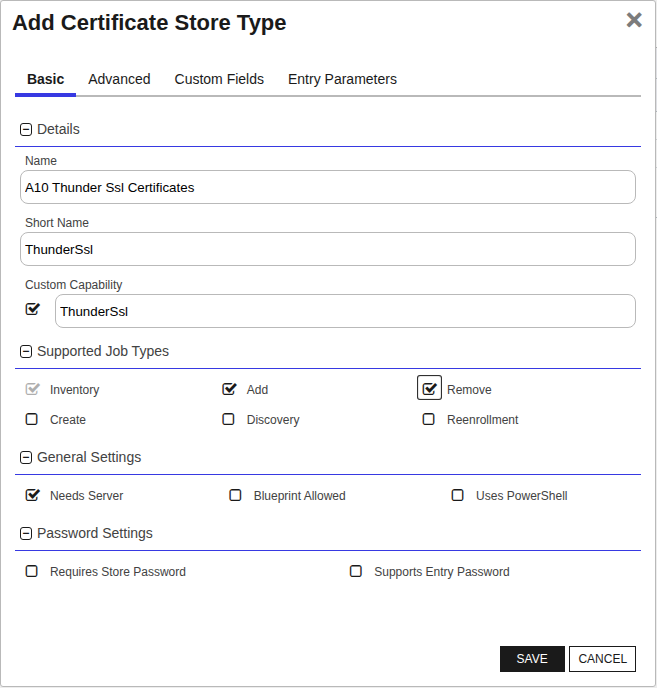
Create a store type called `ThunderSsl` with the attributes in the tables below:
##### Basic Tab
| Attribute | Value | Description |
| --------- | ----- | ----- |
| Name | A10 Thunder Ssl Certificates | Display name for the store type (may be customized) |
| Short Name | ThunderSsl | Short display name for the store type |
| Capability | ThunderSsl | Store type name orchestrator will register with. Check the box to allow entry of value |
| Supports Add | ✅ Checked | Check the box. Indicates that the Store Type supports Management Add |
| Supports Remove | ✅ Checked | Check the box. Indicates that the Store Type supports Management Remove |
| Supports Discovery | 🔲 Unchecked | Indicates that the Store Type supports Discovery |
| Supports Reenrollment | 🔲 Unchecked | Indicates that the Store Type supports Reenrollment |
| Supports Create | 🔲 Unchecked | Indicates that the Store Type supports store creation |
| Needs Server | ✅ Checked | Determines if a target server name is required when creating store |
| Blueprint Allowed | 🔲 Unchecked | Determines if store type may be included in an Orchestrator blueprint |
| Uses PowerShell | 🔲 Unchecked | Determines if underlying implementation is PowerShell |
| Requires Store Password | 🔲 Unchecked | Enables users to optionally specify a store password when defining a Certificate Store. |
| Supports Entry Password | 🔲 Unchecked | Determines if an individual entry within a store can have a password. |
The Basic tab should look like this:
##### Advanced Tab
| Attribute | Value | Description |
| --------- | ----- | ----- |
| Supports Custom Alias | Required | Determines if an individual entry within a store can have a custom Alias. |
| Private Key Handling | Optional | This determines if Keyfactor can send the private key associated with a certificate to the store. Required because IIS certificates without private keys would be invalid. |
| PFX Password Style | Default | 'Default' - PFX password is randomly generated, 'Custom' - PFX password may be specified when the enrollment job is created (Requires the Allow Custom Password application setting to be enabled.) |
The Advanced tab should look like this:
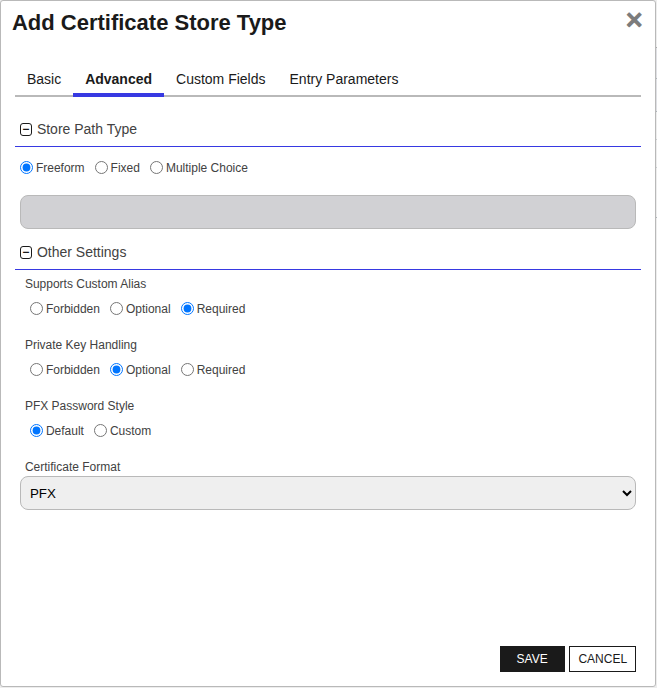
> For Keyfactor **Command versions 24.4 and later**, a Certificate Format dropdown is available with PFX and PEM options. Ensure that **PFX** is selected, as this determines the format of new and renewed certificates sent to the Orchestrator during a Management job. Currently, all Keyfactor-supported Orchestrator extensions support only PFX.
##### Custom Fields Tab
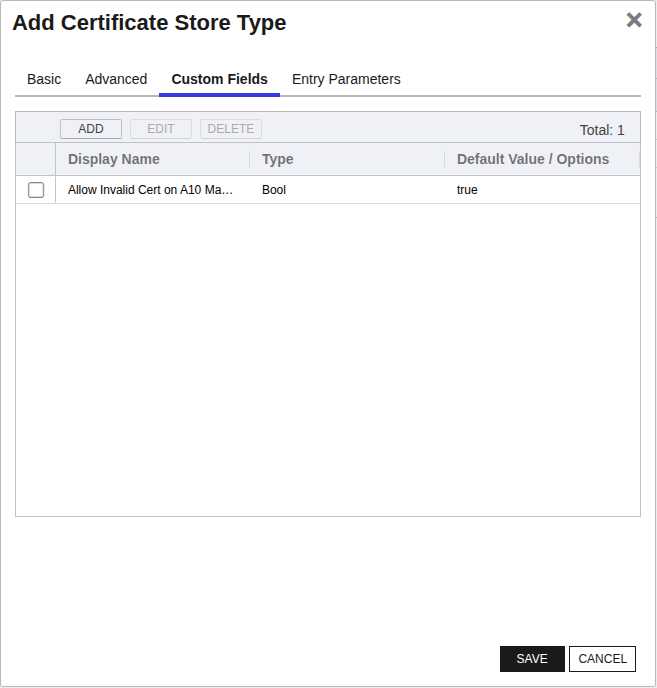
Custom fields operate at the certificate store level and are used to control how the orchestrator connects to the remote target server containing the certificate store to be managed. The following custom fields should be added to the store type:
| Name | Display Name | Description | Type | Default Value/Options | Required |
| ---- | ------------ | ---- | --------------------- | -------- | ----------- |
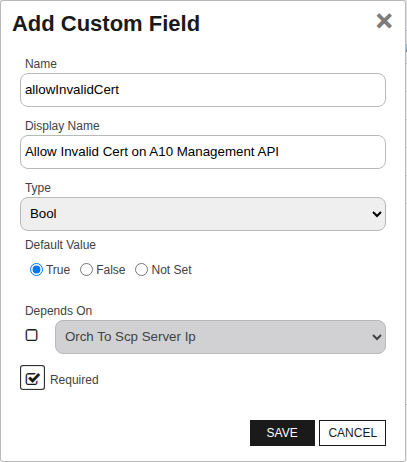
| allowInvalidCert | Allow Invalid Cert on A10 Management API | Boolean value specifying whether to allow connections to the A10 vThunder management API when it presents an invalid or self-signed SSL/TLS certificate. Set to true to bypass certificate validation for AXAPI connections. | Bool | true | ✅ Checked |
The Custom Fields tab should look like this:
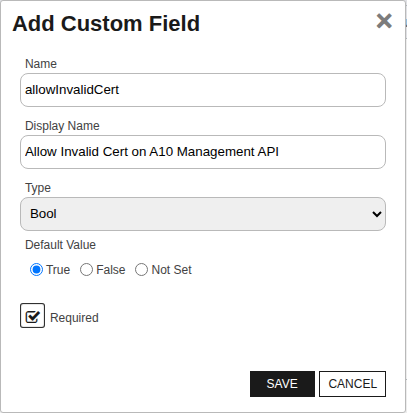
###### Allow Invalid Cert on A10 Management API
Boolean value specifying whether to allow connections to the A10 vThunder management API when it presents an invalid or self-signed SSL/TLS certificate. Set to true to bypass certificate validation for AXAPI connections.
Click to expand details
#### 🔐 Management Certificates
**Purpose:**
Used to secure HTTPS access to the A10 management interface (GUI/API).
**Usage Context:**
- AXAPI (API access over HTTPS)
- Web GUI login
- Any administrative HTTPS session
**Configured In:**
- **GUI:** `System → Settings → Certificate`
**Example:**
When a user logs into the GUI via `https://`, the certificate presented is the **Management Certificate**.
#### A10 Thunder Management Certificates Requirements
#### A10 Certificate Management Orchestrator Extension
This orchestrator extension automates the process of uploading, inventorying, and deploying SSL certificates from a Linux SCP server to an A10 vThunder device. Due to A10 API limitations, certificates must be pulled from the SCP server directly by the A10 device itself.
---
##### 📌 How It Works
1. **The orchestrator** connects to a Linux server via SCP to inventory available certificates.
2. It stores relevant metadata and pushes new certificates and keys to the SCP server.
3. It then instructs the **A10 device** to retrieve the certificate and private key from the Linux server using API calls.
4. The A10 device loads the certificate and key directly from the SCP server for use on its **management interface**.
---
##### 📡 API Call Example (From A10 Device)
```http
POST /axapi/v3/web-service/secure/certificate
```
**Payload:**
```json
{
"certificate": {
"load": 1,
"file-url": "scp://ec2-user:dda@172.31.93.107:/home/ec2-user/26125.crt"
}
}
```
> A similar call is made for loading the private key onto the A10 device using a separate AXAPI endpoint.
- The A10 device **must have access** to the SCP server via the specified IP (`A10ToScpServerIp`).
- Ensure the certificate and key file paths are correct and accessible to the SCP user.
---
##### 🔐 Linux Server Requirements
###### User Access
- The SCP user (`ScpUserName`, e.g., `ec2-user`) must:
- Have SSH/SCP access.
- Authenticate with a password.
- Have **read and write** permissions in the SCP location.
> New certificates and **private keys** are generated by Keyfactor and uploaded to this location by the orchestrator. Therefore, write access is essential.
###### SCP Directory Permissions
- Ensure the directory (e.g., `/home/ec2-user/`) is:
- Writable by the orchestrator (to upload new certs/keys).
- Readable by both the orchestrator and the A10 device (via SCP).
---
##### 🔄 Alternate Design Consideration
It may be possible to use the A10 device itself as the SCP target location if it supports read/write SCP operations **outside the CLI context**. However, A10 devices typically restrict file access through CLI or API mechanisms only, and not through standard SCP server operations. This limitation is why a separate Linux SCP server is currently required.
---
##### 🔓 Network and Port Requirements
| Source | Destination | Port | Protocol | Purpose |
|--------------------|---------------------|------|----------|-------------------------------|
| Orchestrator | Linux SCP Server | 22 | TCP | Inventory and upload via SCP |
| A10 Device | Linux SCP Server | 22 | TCP | Cert and key retrieval via SCP|
| Orchestrator/Admin | A10 Device (API) | 443 | HTTPS | API calls to load certificate |
---
##### ThunderMgmt Aliases
In the ThunderMgmt store type, the **alias** determines the filename for certificates stored on the SCP server:
- **Certificate File**: `{alias}.crt` on the SCP server
- **Private Key File**: `{alias}.key` on the SCP server
- **A10 API Reference**: The A10 management interface loads certificates using SCP URLs pointing to these files
###### Example ThunderMgmt Usage
```
Alias: "mgmt-interface-cert"
→ SCP Server Files:
- /home/scpuser/mgmt-interface-cert.crt
- /home/scpuser/mgmt-interface-cert.key
→ A10 API Call:
- Certificate URL: scp://scpuser:pass@192.168.1.100:/home/scpuser/mgmt-interface-cert.crt
- Key URL: scp://scpuser:pass@192.168.1.100:/home/scpuser/mgmt-interface-cert.key
```
###### For Alias Names
- Use names that clearly identify the management purpose: `mgmt-interface-2025`
- Ensure filenames are valid for both SCP server filesystem and A10 API calls
- Consider including renewal dates: `mgmt-cert-jan2025`
###### ThunderMgmt File Management
The orchestrator handles file operations as follows:
1. **Add Operation**:
- Uploads `{alias}.crt` and `{alias}.key` to SCP server
- Calls A10 API to load certificate from SCP URLs
- A10 device pulls files directly from SCP server
2. **Remove Operation**:
- Deletes `{alias}.crt` and `{alias}.key` from SCP server
- Does not modify A10 management interface configuration
3. **Replace Operation** (with Overwrite=true):
- Overwrites existing `{alias}.crt` and `{alias}.key` files
- Calls A10 API to reload certificate from same SCP URLs
###### Character Limitations
- **Maximum Length**: 240 characters (enforced by orchestrator)
- **Recommended Characters**: Letters, numbers, hyphens, underscores
- **Avoid**: Special characters that might cause issues in API calls or file operations
###### ThunderMgmt Common Issues
- **File Path Issues**: Ensure SCP user has access to the target directory
- **Invalid Filenames**: Some characters may not be valid for filesystem operations
- **URL Encoding**: Special characters in aliases may require URL encoding in SCP URLs
##### ✅ Summary
This extension coordinates certificate and private key delivery by using SCP as a bridge between orchestrator logic and A10's strict API requirements. It ensures secure and automated deployment for the management interface certificates with minimal manual intervention.
#### Supported Operations
| Operation | Is Supported |
|--------------|------------------------------------------------------------------------------------------------------------------------|
| Add | ✅ Checked |
| Remove | ✅ Checked |
| Discovery | 🔲 Unchecked |
| Reenrollment | 🔲 Unchecked |
| Create | 🔲 Unchecked |
#### Store Type Creation
##### Using kfutil:
`kfutil` is a custom CLI for the Keyfactor Command API and can be used to create certificate store types.
For more information on [kfutil](https://github.com/Keyfactor/kfutil) check out the [docs](https://github.com/Keyfactor/kfutil?tab=readme-ov-file#quickstart)
Click to expand ThunderMgmt kfutil details
##### Using online definition from GitHub:
This will reach out to GitHub and pull the latest store-type definition
```shell
# A10 Thunder Management Certificates
kfutil store-types create ThunderMgmt
```
##### Offline creation using integration-manifest file:
If required, it is possible to create store types from the [integration-manifest.json](./integration-manifest.json) included in this repo.
You would first download the [integration-manifest.json](./integration-manifest.json) and then run the following command
in your offline environment.
```shell
kfutil store-types create --from-file integration-manifest.json
```
Click to expand manual ThunderMgmt details
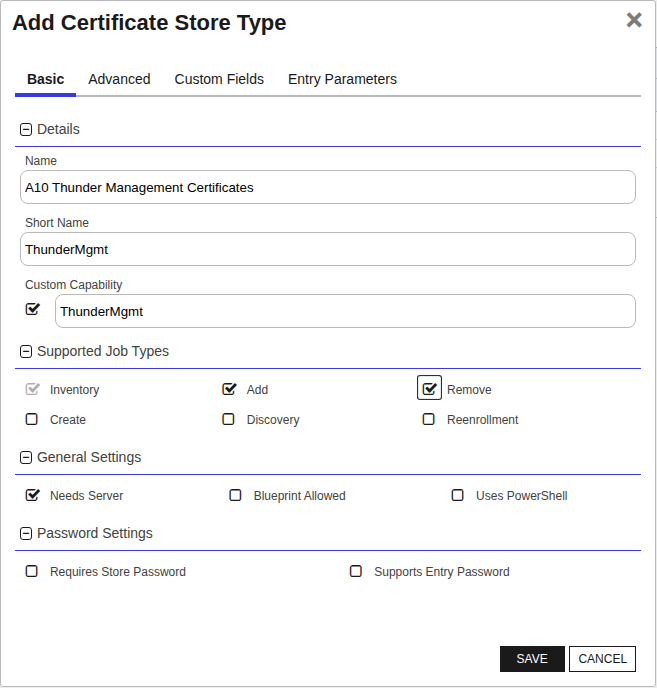
Create a store type called `ThunderMgmt` with the attributes in the tables below:
##### Basic Tab
| Attribute | Value | Description |
| --------- | ----- | ----- |
| Name | A10 Thunder Management Certificates | Display name for the store type (may be customized) |
| Short Name | ThunderMgmt | Short display name for the store type |
| Capability | ThunderMgmt | Store type name orchestrator will register with. Check the box to allow entry of value |
| Supports Add | ✅ Checked | Check the box. Indicates that the Store Type supports Management Add |
| Supports Remove | ✅ Checked | Check the box. Indicates that the Store Type supports Management Remove |
| Supports Discovery | 🔲 Unchecked | Indicates that the Store Type supports Discovery |
| Supports Reenrollment | 🔲 Unchecked | Indicates that the Store Type supports Reenrollment |
| Supports Create | 🔲 Unchecked | Indicates that the Store Type supports store creation |
| Needs Server | ✅ Checked | Determines if a target server name is required when creating store |
| Blueprint Allowed | 🔲 Unchecked | Determines if store type may be included in an Orchestrator blueprint |
| Uses PowerShell | 🔲 Unchecked | Determines if underlying implementation is PowerShell |
| Requires Store Password | 🔲 Unchecked | Enables users to optionally specify a store password when defining a Certificate Store. |
| Supports Entry Password | 🔲 Unchecked | Determines if an individual entry within a store can have a password. |
The Basic tab should look like this:
##### Advanced Tab
| Attribute | Value | Description |
| --------- | ----- | ----- |
| Supports Custom Alias | Required | Determines if an individual entry within a store can have a custom Alias. |
| Private Key Handling | Required | This determines if Keyfactor can send the private key associated with a certificate to the store. Required because IIS certificates without private keys would be invalid. |
| PFX Password Style | Default | 'Default' - PFX password is randomly generated, 'Custom' - PFX password may be specified when the enrollment job is created (Requires the Allow Custom Password application setting to be enabled.) |
The Advanced tab should look like this:
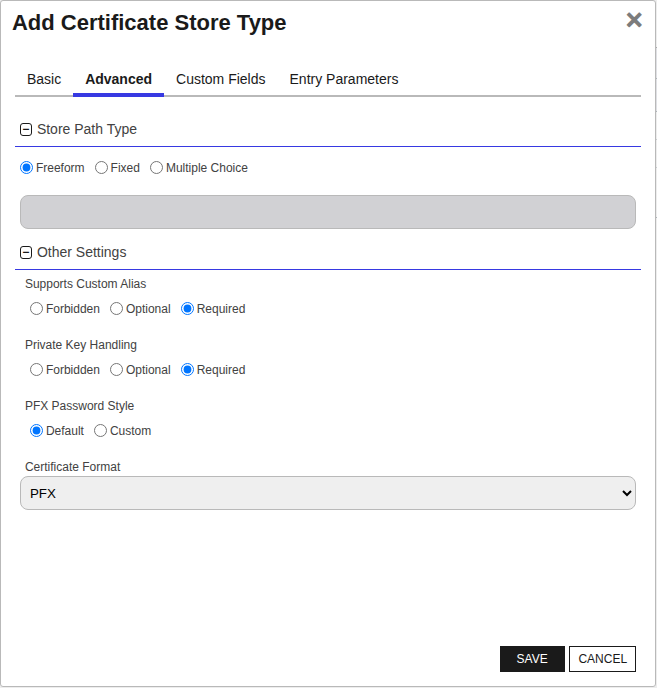
> For Keyfactor **Command versions 24.4 and later**, a Certificate Format dropdown is available with PFX and PEM options. Ensure that **PFX** is selected, as this determines the format of new and renewed certificates sent to the Orchestrator during a Management job. Currently, all Keyfactor-supported Orchestrator extensions support only PFX.
##### Custom Fields Tab
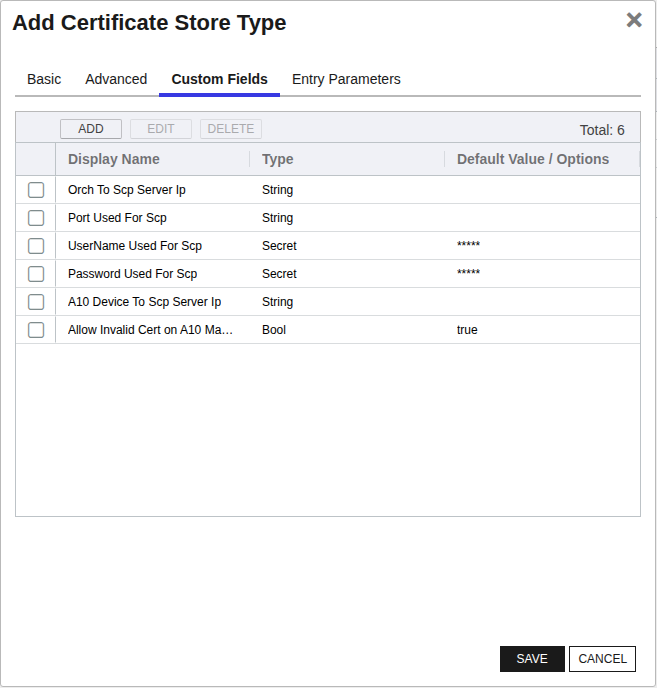
Custom fields operate at the certificate store level and are used to control how the orchestrator connects to the remote target server containing the certificate store to be managed. The following custom fields should be added to the store type:
| Name | Display Name | Description | Type | Default Value/Options | Required |
| ---- | ------------ | ---- | --------------------- | -------- | ----------- |
| OrchToScpServerIp | Orch To Scp Server Ip | IP address or hostname of the SCP server that the Universal Orchestrator will connect to for uploading certificate files. This SCP server acts as an intermediary storage location before the A10 device retrieves the certificates. | String | | ✅ Checked |
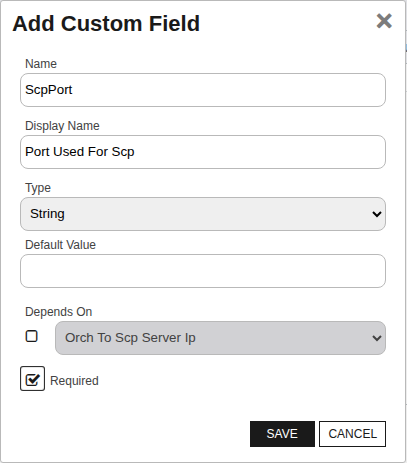
| ScpPort | Port Used For Scp | TCP port number used for SSH/SCP connections to the SCP server. Typically port 22 for standard SSH/SCP operations. | String | | ✅ Checked |
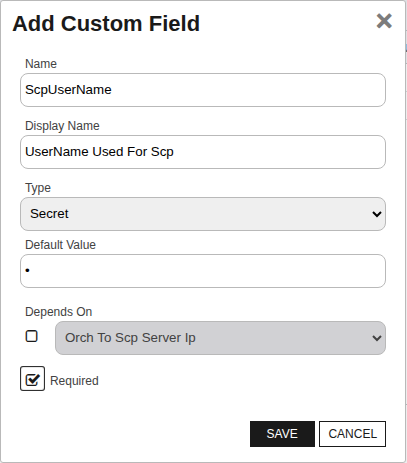
| ScpUserName | UserName Used For Scp | Username credential for authenticating to the SCP server. This account must have write permissions to the target directory path specified in the certificate store configuration. Supports PAM integration for secure credential retrieval. | Secret | | ✅ Checked |
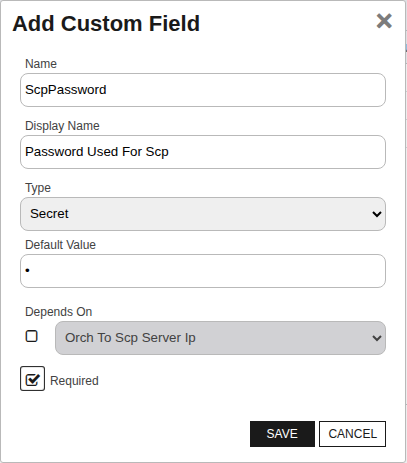
| ScpPassword | Password Used For Scp | Password credential for authenticating to the SCP server. Used in conjunction with ScpUserName for SSH/SCP authentication. Supports PAM integration for secure credential retrieval. | Secret | | ✅ Checked |
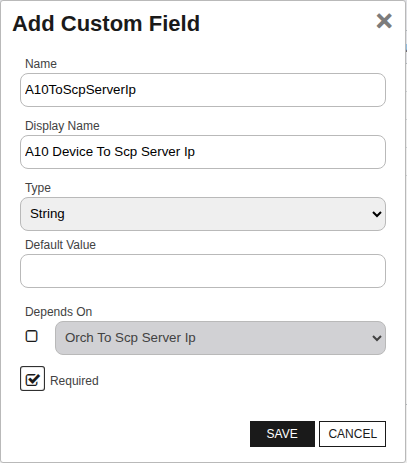
| A10ToScpServerIp | A10 Device To Scp Server Ip | IP address or hostname that the A10 vThunder device uses to connect to the SCP server for retrieving certificate files. This may differ from OrchToScpServerIp due to network topology, routing, or firewall configurations where the A10 device and orchestrator access the SCP server through different network paths. | String | | ✅ Checked |
| allowInvalidCert | Allow Invalid Cert on A10 Management API | Boolean value specifying whether to allow connections to the A10 vThunder management API when it presents an invalid or self-signed SSL/TLS certificate. Set to true to bypass certificate validation for AXAPI connections used during the certificate installation process. | Bool | true | ✅ Checked |
The Custom Fields tab should look like this:
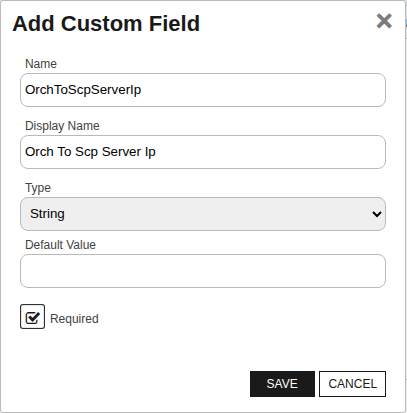
###### Orch To Scp Server Ip
IP address or hostname of the SCP server that the Universal Orchestrator will connect to for uploading certificate files. This SCP server acts as an intermediary storage location before the A10 device retrieves the certificates.
###### Port Used For Scp
TCP port number used for SSH/SCP connections to the SCP server. Typically port 22 for standard SSH/SCP operations.
###### UserName Used For Scp
Username credential for authenticating to the SCP server. This account must have write permissions to the target directory path specified in the certificate store configuration. Supports PAM integration for secure credential retrieval.
###### Password Used For Scp
Password credential for authenticating to the SCP server. Used in conjunction with ScpUserName for SSH/SCP authentication. Supports PAM integration for secure credential retrieval.
###### A10 Device To Scp Server Ip
IP address or hostname that the A10 vThunder device uses to connect to the SCP server for retrieving certificate files. This may differ from OrchToScpServerIp due to network topology, routing, or firewall configurations where the A10 device and orchestrator access the SCP server through different network paths.
###### Allow Invalid Cert on A10 Management API
Boolean value specifying whether to allow connections to the A10 vThunder management API when it presents an invalid or self-signed SSL/TLS certificate. Set to true to bypass certificate validation for AXAPI connections used during the certificate installation process.
A10 Thunder Ssl Certificates (ThunderSsl)
### ⚙️ Configuration Fields
| Name | Display Name | Description | Type | Required |
|-------------------|-------------------------------|--------------------------------------------------------------|--------|----------|
| allowInvalidCert | Allow Invalid Cert on A10 API | If true, allows self-signed/untrusted certs for A10 API access | Bool | ✅ (default: true) |
### Store Creation
#### Manually with the Command UI
Click to expand details
1. **Navigate to the _Certificate Stores_ page in Keyfactor Command.**
Log into Keyfactor Command, toggle the _Locations_ dropdown, and click _Certificate Stores_.
2. **Add a Certificate Store.**
Click the Add button to add a new Certificate Store. Use the table below to populate the **Attributes** in the **Add** form.
| Attribute | Description |
| --------- |---------------------------------------------------------|
| Category | Select "A10 Thunder Ssl Certificates" or the customized certificate store name from the previous step. |
| Container | Optional container to associate certificate store with. |
| Client Machine | Hostname or IP address of the A10 vThunder appliance to be managed. The orchestrator will establish an AXAPI (REST API) connection using the credentials specified in the Server Username and Server Password fields to manage SSL certificates directly on the device. |
| Store Path | A10 partition name where certificates will be managed. Use 'shared' for the default shared partition, or specify a custom partition name (e.g., 'tenant-prod') for multi-tenant deployments. The partition must already exist on the A10 device. Leave empty to default to the shared partition. |
| Orchestrator | Select an approved orchestrator capable of managing `ThunderSsl` certificates. Specifically, one with the `ThunderSsl` capability. |
| allowInvalidCert | Boolean value specifying whether to allow connections to the A10 vThunder management API when it presents an invalid or self-signed SSL/TLS certificate. Set to true to bypass certificate validation for AXAPI connections. |
Click to expand details
1. **Generate a CSV template for the ThunderSsl certificate store**
```shell
kfutil stores import generate-template --store-type-name ThunderSsl --outpath ThunderSsl.csv
```
2. **Populate the generated CSV file**
Open the CSV file, and reference the table below to populate parameters for each **Attribute**.
| Attribute | Description |
| --------- | ----------- |
| Category | Select "A10 Thunder Ssl Certificates" or the customized certificate store name from the previous step. |
| Container | Optional container to associate certificate store with. |
| Client Machine | Hostname or IP address of the A10 vThunder appliance to be managed. The orchestrator will establish an AXAPI (REST API) connection using the credentials specified in the Server Username and Server Password fields to manage SSL certificates directly on the device. |
| Store Path | A10 partition name where certificates will be managed. Use 'shared' for the default shared partition, or specify a custom partition name (e.g., 'tenant-prod') for multi-tenant deployments. The partition must already exist on the A10 device. Leave empty to default to the shared partition. |
| Orchestrator | Select an approved orchestrator capable of managing `ThunderSsl` certificates. Specifically, one with the `ThunderSsl` capability. |
| Properties.allowInvalidCert | Boolean value specifying whether to allow connections to the A10 vThunder management API when it presents an invalid or self-signed SSL/TLS certificate. Set to true to bypass certificate validation for AXAPI connections. |
3. **Import the CSV file to create the certificate stores**
```shell
kfutil stores import csv --store-type-name ThunderSsl --file ThunderSsl.csv
```
Attributes eligible for retrieval by a PAM Provider on the Universal Orchestrator
If a PAM provider was installed _on the Universal Orchestrator_ in the [Installation](#Installation) section, the following parameters can be configured for retrieval _on the Universal Orchestrator_.
| Attribute | Description |
| --------- | ----------- |
| ServerUsername | Username to use when connecting to server |
| ServerPassword | Password to use when connecting to server |
Please refer to the **Universal Orchestrator (remote)** usage section ([PAM providers on the Keyfactor Integration Catalog](https://keyfactor.github.io/integrations-catalog/content/pam)) for your selected PAM provider for instructions on how to load attributes orchestrator-side.
> Any secret can be rendered by a PAM provider _installed on the Keyfactor Command server_. The above parameters are specific to attributes that can be fetched by an installed PAM provider running on the Universal Orchestrator server itself.
A10 Thunder Management Certificates (ThunderMgmt)
### Store Creation
#### Manually with the Command UI
Click to expand details
1. **Navigate to the _Certificate Stores_ page in Keyfactor Command.**
Log into Keyfactor Command, toggle the _Locations_ dropdown, and click _Certificate Stores_.
2. **Add a Certificate Store.**
Click the Add button to add a new Certificate Store. Use the table below to populate the **Attributes** in the **Add** form.
| Attribute | Description |
| --------- |---------------------------------------------------------|
| Category | Select "A10 Thunder Management Certificates" or the customized certificate store name from the previous step. |
| Container | Optional container to associate certificate store with. |
| Client Machine | Hostname or IP address of the A10 vThunder appliance to be managed. The orchestrator will establish an AXAPI (REST API) connection using the credentials specified in the Server Username and Server Password fields to trigger certificate installation on the management interface after uploading files via SCP. |
| Store Path | Absolute directory path on the SCP server where certificate files (.crt and .key) will be uploaded. The A10 device will retrieve certificate files from this location. Example: '/home/certuser'. The specified path must exist and the SCP user must have write permissions to this directory. |
| Orchestrator | Select an approved orchestrator capable of managing `ThunderMgmt` certificates. Specifically, one with the `ThunderMgmt` capability. |
| OrchToScpServerIp | IP address or hostname of the SCP server that the Universal Orchestrator will connect to for uploading certificate files. This SCP server acts as an intermediary storage location before the A10 device retrieves the certificates. |
| ScpPort | TCP port number used for SSH/SCP connections to the SCP server. Typically port 22 for standard SSH/SCP operations. |
| ScpUserName | Username credential for authenticating to the SCP server. This account must have write permissions to the target directory path specified in the certificate store configuration. Supports PAM integration for secure credential retrieval. |
| ScpPassword | Password credential for authenticating to the SCP server. Used in conjunction with ScpUserName for SSH/SCP authentication. Supports PAM integration for secure credential retrieval. |
| A10ToScpServerIp | IP address or hostname that the A10 vThunder device uses to connect to the SCP server for retrieving certificate files. This may differ from OrchToScpServerIp due to network topology, routing, or firewall configurations where the A10 device and orchestrator access the SCP server through different network paths. |
| allowInvalidCert | Boolean value specifying whether to allow connections to the A10 vThunder management API when it presents an invalid or self-signed SSL/TLS certificate. Set to true to bypass certificate validation for AXAPI connections used during the certificate installation process. |
Click to expand details
1. **Generate a CSV template for the ThunderMgmt certificate store**
```shell
kfutil stores import generate-template --store-type-name ThunderMgmt --outpath ThunderMgmt.csv
```
2. **Populate the generated CSV file**
Open the CSV file, and reference the table below to populate parameters for each **Attribute**.
| Attribute | Description |
| --------- | ----------- |
| Category | Select "A10 Thunder Management Certificates" or the customized certificate store name from the previous step. |
| Container | Optional container to associate certificate store with. |
| Client Machine | Hostname or IP address of the A10 vThunder appliance to be managed. The orchestrator will establish an AXAPI (REST API) connection using the credentials specified in the Server Username and Server Password fields to trigger certificate installation on the management interface after uploading files via SCP. |
| Store Path | Absolute directory path on the SCP server where certificate files (.crt and .key) will be uploaded. The A10 device will retrieve certificate files from this location. Example: '/home/certuser'. The specified path must exist and the SCP user must have write permissions to this directory. |
| Orchestrator | Select an approved orchestrator capable of managing `ThunderMgmt` certificates. Specifically, one with the `ThunderMgmt` capability. |
| Properties.OrchToScpServerIp | IP address or hostname of the SCP server that the Universal Orchestrator will connect to for uploading certificate files. This SCP server acts as an intermediary storage location before the A10 device retrieves the certificates. |
| Properties.ScpPort | TCP port number used for SSH/SCP connections to the SCP server. Typically port 22 for standard SSH/SCP operations. |
| Properties.ScpUserName | Username credential for authenticating to the SCP server. This account must have write permissions to the target directory path specified in the certificate store configuration. Supports PAM integration for secure credential retrieval. |
| Properties.ScpPassword | Password credential for authenticating to the SCP server. Used in conjunction with ScpUserName for SSH/SCP authentication. Supports PAM integration for secure credential retrieval. |
| Properties.A10ToScpServerIp | IP address or hostname that the A10 vThunder device uses to connect to the SCP server for retrieving certificate files. This may differ from OrchToScpServerIp due to network topology, routing, or firewall configurations where the A10 device and orchestrator access the SCP server through different network paths. |
| Properties.allowInvalidCert | Boolean value specifying whether to allow connections to the A10 vThunder management API when it presents an invalid or self-signed SSL/TLS certificate. Set to true to bypass certificate validation for AXAPI connections used during the certificate installation process. |
3. **Import the CSV file to create the certificate stores**
```shell
kfutil stores import csv --store-type-name ThunderMgmt --file ThunderMgmt.csv
```
Attributes eligible for retrieval by a PAM Provider on the Universal Orchestrator
If a PAM provider was installed _on the Universal Orchestrator_ in the [Installation](#Installation) section, the following parameters can be configured for retrieval _on the Universal Orchestrator_.
| Attribute | Description |
| --------- | ----------- |
| ServerUsername | Username to use when connecting to server |
| ServerPassword | Password to use when connecting to server |
| ScpUserName | Username credential for authenticating to the SCP server. This account must have write permissions to the target directory path specified in the certificate store configuration. Supports PAM integration for secure credential retrieval. |
| ScpPassword | Password credential for authenticating to the SCP server. Used in conjunction with ScpUserName for SSH/SCP authentication. Supports PAM integration for secure credential retrieval. |
Please refer to the **Universal Orchestrator (remote)** usage section ([PAM providers on the Keyfactor Integration Catalog](https://keyfactor.github.io/integrations-catalog/content/pam)) for your selected PAM provider for instructions on how to load attributes orchestrator-side.
> Any secret can be rendered by a PAM provider _installed on the Keyfactor Command server_. The above parameters are specific to attributes that can be fetched by an installed PAM provider running on the Universal Orchestrator server itself.