AXIS IP Camera Universal Orchestrator Extension

Integration Status: production Release Issues GitHub Downloads (all assets, all releases)

Support · Installation · License · Related Integrations

## Overview The AXIS IP Camera Orchestrator extension remotely manages certificates on AXIS IP Network Cameras. This orchestrator extension inventories certificates on the camera's certificate store, and it also supports adding new identity certificates and adding/removing CA certificates. New identity certificates are created in the AXIS camera certificate store via On Device Key Generation (ODKG), also known as Reenrollment. This means that certificates cannot be directly added to the AXIS camera, but instead the keypair is generated on the AXIS device and a certificate is issued for that keypair via a CSR submitted to Command for enrollment. This workflow is completely automated in the AXIS IP Camera Orchestrator extension. CA certificates can be added to the camera from uploaded CA certificates in Command. ### Use Cases #### Supported 1. Inventory of identity & CA certificates 2. Enrollment of identity certificates with ability to bind the certificate for a specific usage* 3. Ability to remove CA certificates from the camera 4. Ability to add CA certificates to the camera #### Not Supported 1. Ability to remove identity certificates from the camera 2. Ability to add identity certificates to the camera \* Currently supported certificate usages include: **HTTPS**, **IEEE802.X**, **MQTT**, **Other** ## Compatibility This integration is compatible with Keyfactor Universal Orchestrator version 25.4 and later. ## Support The AXIS IP Camera Universal Orchestrator extension is supported by Keyfactor. If you require support for any issues or have feature request, please open a support ticket by either contacting your Keyfactor representative or via the Keyfactor Support Portal at https://support.keyfactor.com. > If you want to contribute bug fixes or additional enhancements, use the **[Pull requests](../../pulls)** tab. ## Requirements & Prerequisites Before installing the AXIS IP Camera Universal Orchestrator extension, we recommend that you install [kfutil](https://github.com/Keyfactor/kfutil). Kfutil is a command-line tool that simplifies the process of creating store types, installing extensions, and instantiating certificate stores in Keyfactor Command. 1. Out of the box, an AXIS IP Network Camera will typically have configured an **Administrator** account. It is recommended to create a new account specifically for executing API calls. This account will need \'Administrator\' privileges since the orchestrator extension is capable of making configuration changes, such as installing and removing certificates. ### Camera Compatibility Supported on AXIS cameras running AXIS OS 11.6 or later. Available LTS tracks vary by camera model. - **Tested model:** AXIS M2035-LE Bullet Camera - **Tested AXIS OS version:** 12.2.62 Has not been tested with any other model or firmware version. ### Authentication The Axis IP Camera Orchestrator Extension uses .NET HttpClientHandler credential negotiation when connecting to Axis devices over HTTPS. This allows the orchestrator to automatically negotiate the authentication mechanism required by the camera. The orchestrator has been validated against Axis cameras configured with: - Basic - Digest - Basic & Digest - Recommended As a result, customer-side changes to camera authentication policies are generally not required. ## AxisIPCamera Certificate Store Type To use the AXIS IP Camera Universal Orchestrator extension, you **must** create the AxisIPCamera Certificate Store Type. This only needs to happen _once_ per Keyfactor Command instance. The AXIS IP Camera certificate store type represents a certificate store on an AXIS network camera that maintains two separate collections of certificates: * Identity certificates (certs with private keys) * CA certificates It is expected that there be one (1) certificate store managed per AXIS network camera. #### Axis IP Camera Requirements 1. User Account with \'Administrator\' privileges and password to access the camera 2. Camera serial number 3. Camera IP address (and likely port number) #### Supported Operations | Operation | Is Supported | |--------------|--------------| | Add | ✅ Checked | | Remove | ✅ Checked | | Discovery | 🔲 Unchecked | | Reenrollment | ✅ Checked | | Create | 🔲 Unchecked | #### Store Type Creation ##### Using kfutil: `kfutil` is a custom CLI for the Keyfactor Command API and can be used to create certificate store types. For more information on [kfutil](https://github.com/Keyfactor/kfutil) check out the [docs](https://github.com/Keyfactor/kfutil?tab=readme-ov-file#quickstart)
Click to expand AxisIPCamera kfutil details ##### Using online definition from GitHub: This will reach out to GitHub and pull the latest store-type definition ```shell # Axis IP Camera kfutil store-types create AxisIPCamera ``` ##### Offline creation using integration-manifest file: If required, it is possible to create store types from the [integration-manifest.json](./integration-manifest.json) included in this repo. You would first download the [integration-manifest.json](./integration-manifest.json) and then run the following command in your offline environment. ```shell kfutil store-types create --from-file integration-manifest.json ```
#### Manual Creation Below are instructions on how to create the AxisIPCamera store type manually in the Keyfactor Command Portal
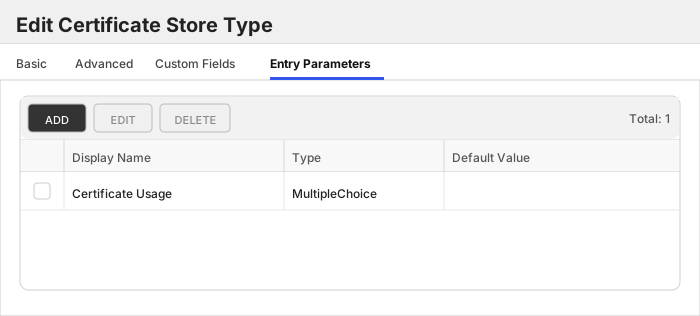
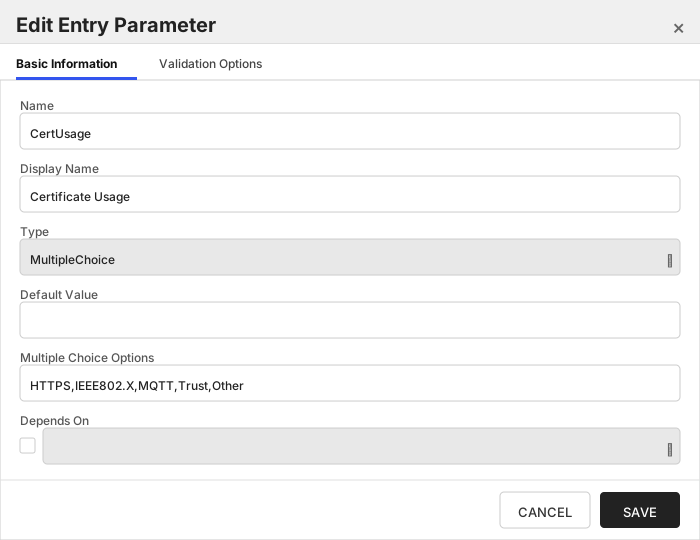
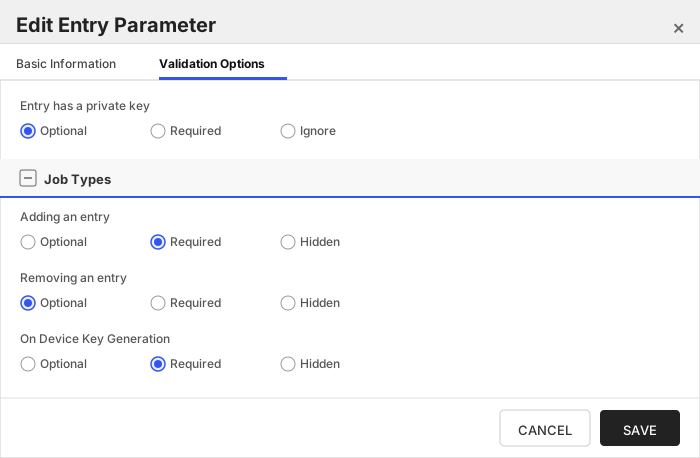
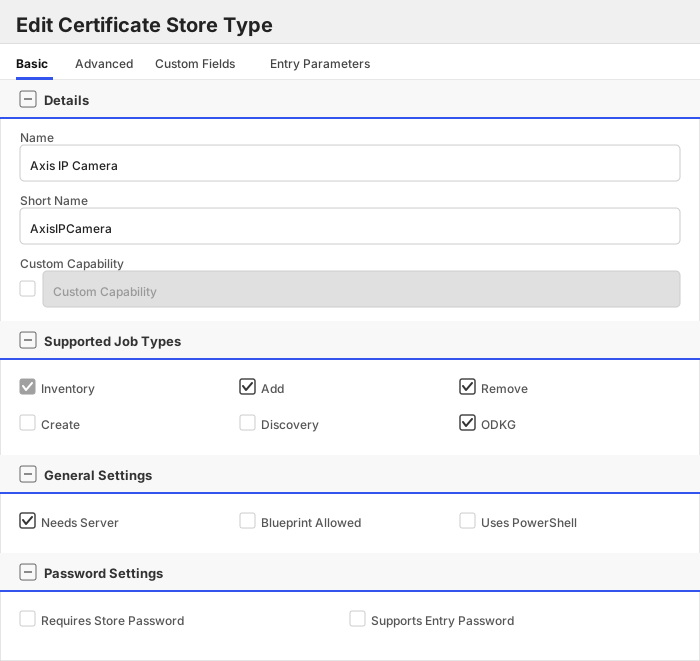
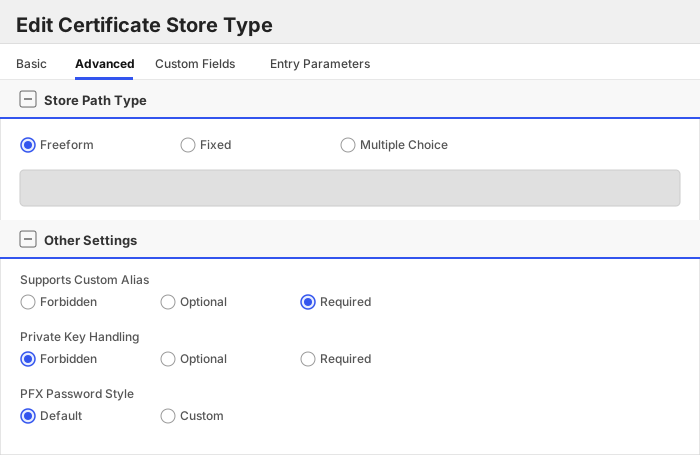
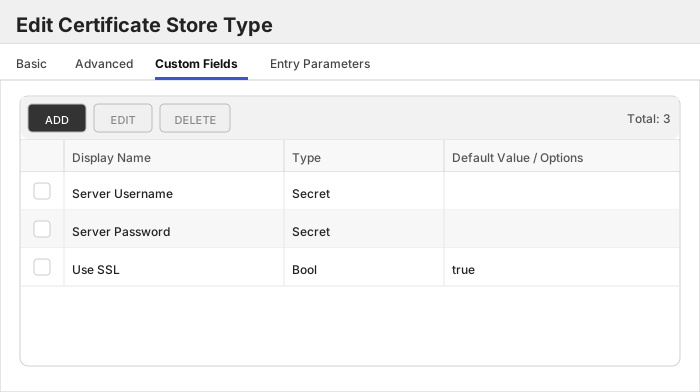
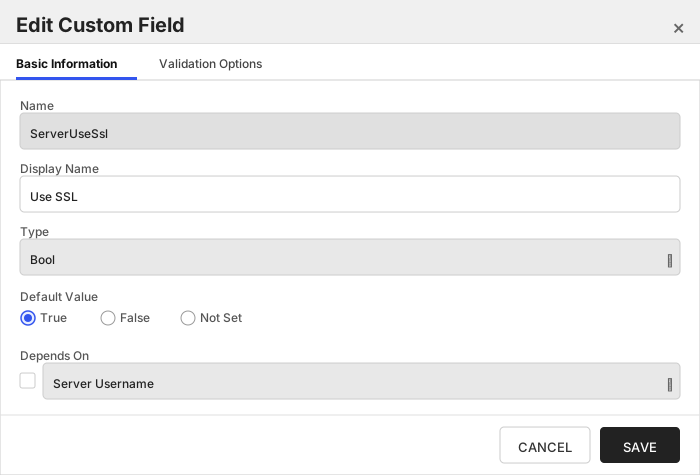
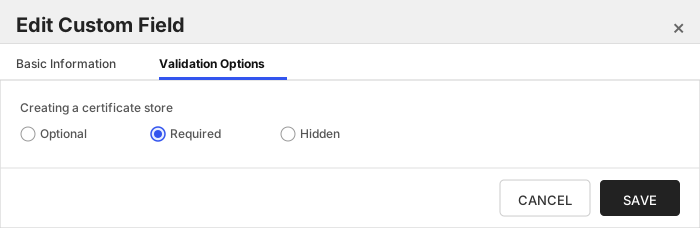
Click to expand manual AxisIPCamera details Create a store type called `AxisIPCamera` with the attributes in the tables below: ##### Basic Tab | Attribute | Value | Description | | --------- | ----- | ----- | | Name | Axis IP Camera | Display name for the store type (may be customized) | | Short Name | AxisIPCamera | Short display name for the store type | | Capability | AxisIPCamera | Store type name orchestrator will register with. Check the box to allow entry of value | | Supports Add | ✅ Checked | Indicates that the Store Type supports Management Add | | Supports Remove | ✅ Checked | Indicates that the Store Type supports Management Remove | | Supports Discovery | 🔲 Unchecked | Indicates that the Store Type supports Discovery | | Supports Reenrollment | ✅ Checked | Indicates that the Store Type supports Reenrollment | | Supports Create | 🔲 Unchecked | Indicates that the Store Type supports store creation | | Needs Server | ✅ Checked | Determines if a target server name is required when creating store | | Blueprint Allowed | 🔲 Unchecked | Determines if store type may be included in an Orchestrator blueprint | | Uses PowerShell | 🔲 Unchecked | Determines if underlying implementation is PowerShell | | Requires Store Password | 🔲 Unchecked | Enables users to optionally specify a store password when defining a Certificate Store. | | Supports Entry Password | 🔲 Unchecked | Determines if an individual entry within a store can have a password. | The Basic tab should look like this: ![AxisIPCamera Basic Tab](docsource/images/AxisIPCamera-basic-store-type-dialog.svg) ##### Advanced Tab | Attribute | Value | Description | | --------- | ----- | ----- | | Supports Custom Alias | Required | Determines if an individual entry within a store can have a custom Alias. | | Private Key Handling | Forbidden | This determines if Keyfactor can send the private key associated with a certificate to the store. | | PFX Password Style | Default | 'Default' - PFX password is randomly generated, 'Custom' - PFX password may be specified when the enrollment job is created (Requires the Allow Custom Password application setting to be enabled.) | The Advanced tab should look like this: ![AxisIPCamera Advanced Tab](docsource/images/AxisIPCamera-advanced-store-type-dialog.svg) > For Keyfactor **Command versions 24.4 and later**, a Certificate Format dropdown is available with PFX and PEM options. Ensure that **PFX** is selected, as this determines the format of new and renewed certificates sent to the Orchestrator during a Management job. Currently, all Keyfactor-supported Orchestrator extensions support only PFX. ##### Custom Fields Tab Custom fields operate at the certificate store level and are used to control how the orchestrator connects to the remote target server containing the certificate store to be managed. The following custom fields should be added to the store type: | Name | Display Name | Description | Type | Default Value/Options | Required | | ---- | ------------ | ---- | --------------------- | -------- | ----------- | | ServerUsername | Server Username | Enter the username of the configured "service" user on the camera | Secret | | ✅ Checked | | ServerPassword | Server Password | Enter the password of the configured "service" user on the camera | Secret | | ✅ Checked | | ServerUseSsl | Use SSL | Select True or False depending on if SSL (HTTPS) should be used to communicate with the camera. This should always be "True" | Bool | true | ✅ Checked | The Custom Fields tab should look like this: ![AxisIPCamera Custom Fields Tab](docsource/images/AxisIPCamera-custom-fields-store-type-dialog.svg) ###### Server Username Enter the username of the configured "service" user on the camera > [!IMPORTANT] > This field is created by the `Needs Server` on the Basic tab, do not create this field manually. ###### Server Password Enter the password of the configured "service" user on the camera > [!IMPORTANT] > This field is created by the `Needs Server` on the Basic tab, do not create this field manually. ###### Use SSL Select True or False depending on if SSL (HTTPS) should be used to communicate with the camera. This should always be "True" ![AxisIPCamera Custom Field - ServerUseSsl](docsource/images/AxisIPCamera-custom-field-ServerUseSsl-dialog.svg) ![AxisIPCamera Custom Field - ServerUseSsl](docsource/images/AxisIPCamera-custom-field-ServerUseSsl-validation-options-dialog.svg) ##### Entry Parameters Tab | Name | Display Name | Description | Type | Default Value | Entry has a private key | Adding an entry | Removing an entry | Reenrolling an entry | | ---- | ------------ | ---- | ------------- | ----------------------- | ---------------- | ----------------- | ------------------- | ----------- | | CertUsage | Certificate Usage | The Certificate Usage to assign to the cert after enrollment. Can be left 'Other' to be assigned later. | MultipleChoice | | 🔲 Unchecked | ✅ Checked | 🔲 Unchecked | ✅ Checked | The Entry Parameters tab should look like this: ![AxisIPCamera Entry Parameters Tab](docsource/images/AxisIPCamera-entry-parameters-store-type-dialog.svg) ##### Certificate Usage The Certificate Usage to assign to the cert after enrollment. Can be left 'Other' to be assigned later. ![AxisIPCamera Entry Parameter - CertUsage](docsource/images/AxisIPCamera-entry-parameters-store-type-dialog-CertUsage.svg) ![AxisIPCamera Entry Parameter - CertUsage](docsource/images/AxisIPCamera-entry-parameters-store-type-dialog-CertUsage-validation-options.svg)
## Installation 1. **Download the latest AXIS IP Camera Universal Orchestrator extension from GitHub.** Navigate to the [AXIS IP Camera Universal Orchestrator extension GitHub version page](https://github.com/Keyfactor/axis-ipcamera-orchestrator/releases/latest). Refer to the compatibility matrix below to determine which asset should be downloaded. Then, click the corresponding asset to download the zip archive. | Universal Orchestrator Version | Latest .NET version installed on the Universal Orchestrator server | `rollForward` condition in `Orchestrator.runtimeconfig.json` | `axis-ipcamera-orchestrator` .NET version to download | | --------- | ----------- | ----------- | ----------- | | Between `11.0.0` and `11.5.1` (inclusive) | `net8.0` | `LatestMajor` | `net8.0` | | `11.6` _and_ newer | `net8.0` | | `net8.0` | | `25.5` _and_ newer | `net10.0` | | `net10.0` | Unzip the archive containing extension assemblies to a known location. > **Note** If you don't see an asset with a corresponding .NET version, you should always assume that it was compiled for `net10.0`. 2. **Locate the Universal Orchestrator extensions directory.** * **Default on Windows** - `C:\Program Files\Keyfactor\Keyfactor Orchestrator\extensions` * **Default on Linux** - `/opt/keyfactor/orchestrator/extensions` 3. **Create a new directory for the AXIS IP Camera Universal Orchestrator extension inside the extensions directory.** Create a new directory called `axis-ipcamera-orchestrator`. > The directory name does not need to match any names used elsewhere; it just has to be unique within the extensions directory. 4. **Copy the contents of the downloaded and unzipped assemblies from __step 2__ to the `axis-ipcamera-orchestrator` directory.** 5. **Restart the Universal Orchestrator service.** Refer to [Starting/Restarting the Universal Orchestrator service](https://software.keyfactor.com/Core-OnPrem/Current/Content/InstallingAgents/NetCoreOrchestrator/StarttheService.htm). 6. **(optional) PAM Integration** The AXIS IP Camera Universal Orchestrator extension is compatible with all supported Keyfactor PAM extensions to resolve PAM-eligible secrets. PAM extensions running on Universal Orchestrators enable secure retrieval of secrets from a connected PAM provider. To configure a PAM provider, [reference the Keyfactor Integration Catalog](https://keyfactor.github.io/integrations-catalog/content/pam) to select an extension and follow the associated instructions to install it on the Universal Orchestrator (remote). > The above installation steps can be supplemented by the [official Command documentation](https://software.keyfactor.com/Core-OnPrem/Current/Content/InstallingAgents/NetCoreOrchestrator/CustomExtensions.htm?Highlight=extensions). ## Defining Certificate Stores ### Store Creation #### Manually with the Command UI
Click to expand details 1. **Navigate to the _Certificate Stores_ page in Keyfactor Command.** Log into Keyfactor Command, toggle the _Locations_ dropdown, and click _Certificate Stores_. 2. **Add a Certificate Store.** Click the Add button to add a new Certificate Store. Use the table below to populate the **Attributes** in the **Add** form. | Attribute | Description | | --------- | ----------- | | Category | Select "Axis IP Camera" or the customized certificate store name from the previous step. | | Container | Optional container to associate certificate store with. | | Client Machine | The IP address of the Camera. Sample is "192.167.231.174:44444". Include the port if necessary. | | Store Path | Enter the Serial Number of the camera e.g. `0b7c3d2f9e8a` | | Orchestrator | Select an approved orchestrator capable of managing `AxisIPCamera` certificates. Specifically, one with the `AxisIPCamera` capability. | | ServerUsername | Enter the username of the configured "service" user on the camera | | ServerPassword | Enter the password of the configured "service" user on the camera | | ServerUseSsl | Select True or False depending on if SSL (HTTPS) should be used to communicate with the camera. This should always be "True" |
#### Using kfutil CLI
Click to expand details 1. **Generate a CSV template for the AxisIPCamera certificate store** ```shell kfutil stores import generate-template --store-type-name AxisIPCamera --outpath AxisIPCamera.csv ``` 2. **Populate the generated CSV file** Open the CSV file, and reference the table below to populate parameters for each **Attribute**. | Attribute | Description | | --------- | ----------- | | Category | Select "Axis IP Camera" or the customized certificate store name from the previous step. | | Container | Optional container to associate certificate store with. | | Client Machine | The IP address of the Camera. Sample is "192.167.231.174:44444". Include the port if necessary. | | Store Path | Enter the Serial Number of the camera e.g. `0b7c3d2f9e8a` | | Orchestrator | Select an approved orchestrator capable of managing `AxisIPCamera` certificates. Specifically, one with the `AxisIPCamera` capability. | | Properties.ServerUsername | Enter the username of the configured "service" user on the camera | | Properties.ServerPassword | Enter the password of the configured "service" user on the camera | | Properties.ServerUseSsl | Select True or False depending on if SSL (HTTPS) should be used to communicate with the camera. This should always be "True" | 3. **Import the CSV file to create the certificate stores** ```shell kfutil stores import csv --store-type-name AxisIPCamera --file AxisIPCamera.csv ```
#### PAM Provider Eligible Fields
Attributes eligible for retrieval by a PAM Provider on the Universal Orchestrator If a PAM provider was installed _on the Universal Orchestrator_ in the [Installation](#Installation) section, the following parameters can be configured for retrieval _on the Universal Orchestrator_. | Attribute | Description | | --------- | ----------- | | ServerUsername | Enter the username of the configured "service" user on the camera | | ServerPassword | Enter the password of the configured "service" user on the camera | Please refer to the **Universal Orchestrator (remote)** usage section ([PAM providers on the Keyfactor Integration Catalog](https://keyfactor.github.io/integrations-catalog/content/pam)) for your selected PAM provider for instructions on how to load attributes orchestrator-side. > Any secret can be rendered by a PAM provider _installed on the Keyfactor Command server_. The above parameters are specific to attributes that can be fetched by an installed PAM provider running on the Universal Orchestrator server itself.
> The content in this section can be supplemented by the [official Command documentation](https://software.keyfactor.com/Core-OnPrem/Current/Content/ReferenceGuide/Certificate%20Stores.htm?Highlight=certificate%20store). ### Certificate Usage Every certificate inventoried will have an Entry Parameter called \`Certificate Usage\`. There are five (5) possible options: * **HTTPS** * **IEEE802.X** * **MQTT** * **Trust** * **Other** 1. HTTPS - This certificate usage describes the certificate bound to the camera's HTTP web server for HTTPS communication (i.e. server certificate or SSL/TLS certificate). 2. IEEE802.X - This certificate usage describes the client certificate to authenticate the camera to a server using EAP-TLS. This client certificate is presented to the 802.1x radius server for authentication. 3. MQTT - This certificate usage describes the client certificate used to authenticate the camera to the MQTT broker. In this scenario, the camera connects to the MQTT broker over SSL and performs a TLS handshake. The camera presents this client certificate to the MQTT broker. 4. Trust - This certificate usage describes a public certificate issued by a CA used to establish trust. 5. Other - This certificate usage identifies all other certificates on the camera that do not fall under the pre-defined usages above. ## Device Onboarding The AXIS IP Camera Orchestrator Extension *always* connects to an AXIS IP Network Camera via HTTPS, regardless of how the **Use SSL** option on the certificate store is configured. This ensures that the orchestrator always validates the camera's certificate against the configured trust before proceeding. All network cameras come pre-loaded with one (1) or more device ID certificates, and one of these certificates is configured on the camera to be provided in the TLS handshake to the client during an HTTPS request. The orchestrator will not trust the device ID certificate, and will therefore deny the session to the camera. To trust the device ID certificate, you must create a custom trust and add the root and intermediate CA certificates from the AXIS PKI chain to it. ### Steps to Create the Custom Trust 1. Once the DLLs from GitHub are installed, create two (2) files in the sub-directory called "Files" with the below names (*Note: The "Files" folder should already exist): * **Axis.Root** * **Axis.Intermediate** * **Default Path on Windows** - `C:\Program Files\Keyfactor\Keyfactor Orchestrator\extensions\[Axis IP Camera orchestrator extension folder]\Files` * **Default Path on Linux** - `/opt/keyfactor/orchestrator/extensions/[Axis IP Camera orchestrator extension folder]/Files` 2. Copy and paste the PEM contents of the AXIS PKI root for the device ID cert configured for the HTTP server into the **Axis.Root** file 3. Copy and paste the PEM contents of the AXIS PKI intermediate for the device ID configured for the HTTP server into the **Axis.Intermediate** file \* AXIS Device ID CA certificates can be found here: https://www.axis.com/support/public-key-infrastructure-repository > [!IMPORTANT] > You will want to replace the device ID certificate bound to the HTTP server with a CA-signed certificate. To do this, > you will need to schedule an ODKG job and select **HTTPS** as the Certificate Usage. > [!IMPORTANT] > After associating a CA-signed certificate with the HTTP server via the ODKG job, you need to make sure the orchestrator server trusts the HTTPS certificate. > Therefore, you will need to install the full CA chain - including root and intermediate certificates - into the orchestrator server's local > certificate store. ### Camera-Specific Trust Validation After the device ID is verified against the custom trust, the **Store Path** value of the certificate store will be compared against the SERIALNUMBER Subject DN attribute of the device ID certificate. These values must match or the session will be denied. > [!NOTE] > This SERIALNUMBER validation only applies while the camera's factory device ID certificate remains bound to the HTTP server. Once a new certificate is enrolled via an ODKG job using the customer's PKI, the camera presents that certificate instead, and the orchestrator falls back to standard TLS certificate chain validation — requiring the customer's root and intermediate CA certificates to be installed in the orchestrator server's local certificate store. ## Enrollment Behavior The following enrollment behaviors are specific to ODKG (On Device Key Generation) — also known as Reenrollment — on AXIS cameras, and should be considered when designing certificate automation workflows. ### Alias Versioning AXIS cameras require each Alias to be unique, and each Alias is tightly coupled with the private key used to generate its certificate. Because of this, certificates cannot be reenrolled in place by replacing the certificate and private key associated with an existing Alias. To support certificate renewals and automation workflows, the orchestrator generates a unique Alias by appending the following suffix: `_yyMMddHHmm` where `yyMMddHHmm` represents the current UTC date and time. From an automation perspective, the same Alias can continue to be reused, as uniqueness is enforced by the integration. > [!NOTE] > As of v1.1.0, ODKG jobs automatically manage versioned Aliases. When reenrolling a certificate using the same Alias, the integration creates a new certificate using a versioned Alias and removes the previously enrolled certificate associated with the same base Alias. > > Because AXIS cameras do not support in-place certificate replacement, a new versioned Alias is still created during reenrollment. The integration identifies and removes the previous certificate by matching the base Alias name and ignoring the timestamp suffix. > > If a new Alias is supplied during reenrollment, the original certificate (if one exists) associated with the selected `Certificate Usage` is **not** automatically removed from the camera. Because AXIS cameras have limited certificate and key storage capacity, users should periodically review and remove unused certificates through the AXIS Network Camera GUI. #### Configuration Example The following example demonstrates how Alias versioning behaves in an ODKG job configuration: - **Store Path:** camera serial number, e.g. `0b7c3d2f9e8a` - **Overwrite:** `true` or `false` *(has no bearing on Alias or certificate behavior)* - **Alias:** `https-cert` *(the Alias that will appear on the camera)* - **Certificate Usage:** any of `HTTPS`, `IEEE802.X`, `MQTT`, `Other` *(`Trust` is not supported for ODKG jobs — see [Certificate Usage Considerations (Trust)](#certificate-usage-considerations-trust) below)* In this configuration: - The ODKG job generates a new identity certificate and assigns it a versioned Alias by appending a `_yyMMddHHmm` timestamp suffix, e.g. `https-cert_2508251200` - A later ODKG job using the same `https-cert` Alias and the same Certificate Usage creates another versioned Alias (e.g. `https-cert_2509031400`) and removes the certificate tied to the previous versioned Alias, matching on the base Alias name and ignoring the timestamp suffix - If a different Alias is supplied on a later job, the original certificate associated with the selected Certificate Usage is **not** automatically removed and must be cleaned up manually via the AXIS Network Camera GUI Operational behavior: - The **Overwrite** setting has no effect on Alias or certificate behavior — AXIS cameras do not support in-place certificate replacement, so a new versioned Alias is always created regardless of how Overwrite is set - The base Alias name (excluding the timestamp suffix) is what the integration uses to identify and remove a previously enrolled certificate ### Certificate Usage Considerations (Trust) > [!NOTE] > If an ODKG job is configured with `Trust` selected as the `Certificate Usage`, the job will return a warning indicating that the operation is not supported. > > Trust CA certificates must be installed using a **Management - Add** job. These certificates establish trust for TLS connections initiated by the camera. ### Subject Alternative Names (SANs) As of Keyfactor Command v25.4, Subject Alternative Names (SANs) can be specified for ODKG jobs. Support for passing SANs to the orchestrator also requires, at minimum, Keyfactor Universal Orchestrator v25.1. The AXIS IP Camera API only supports DNS and IP SAN types. Any other SAN types included in the ODKG job will be ignored and will not be added to the enrolled certificate. > [!NOTE] > If SANs are not provided and the selected `Certificate Usage` is `HTTPS`, IP and DNS SANs are automatically added when enrolling a certificate associated with a new Alias: > > - **IP** = The Client Machine configured for the certificate store (excluding any port number) > - **DNS** = The Common Name (CN) specified in the certificate Subject DN ## Troubleshooting ### 401 Unauthorized Responses The Axis IP Camera Orchestrator Extension supports authentication negotiation and has been validated against Axis cameras configured for: - Basic - Digest - Basic & Digest - Recommended If a 401 Unauthorized response is encountered: 1. Verify the configured credentials. 2. Verify connectivity to the device. 3. Review orchestrator logs for authentication-related messages. ## Operational Notes ### AXIS OS 12 Firmware Recommendation > [!IMPORTANT] > Devices running the AXIS OS 12 release track should always be updated to the latest firmware version available from Axis. Previous firmware versions are no longer supported once a newer release becomes available. Axis identified a memory leak in older firmware releases that may cause device keystore storage to become exhausted over time. If keystore storage issues are observed, verify that the device is running the latest supported firmware version. ## Release Notes **1.1.0** - Improved exception handling to be more robust for HTTP client initialization. - Implemented .NET native credential negotiation to support both Basic and Digest authentication policies. - Fixed incorrect mapping of the ECDSA algorithm to ECP; updated to ECDSA. - Implemented Alias versioning to enable reuse of existing Alias names in automation processes. - Updated doctool release actions to v5. - Updated .NET target frameworks to net8.0 and net10.0. **1.0.2** - Removed logging of plaintext cert store Server Password. - Updated Keystore type to be dynamic instead of a fixed Enum, to allow compatibility across different cameras and firmware versions. **1.0.1** - Added screenshots to docs. **1.0.0** - Initial Public Version. ## License Apache License 2.0, see [LICENSE](LICENSE). ## Related Integrations See all [Keyfactor Universal Orchestrator extensions](https://github.com/orgs/Keyfactor/repositories?q=orchestrator).