GCP Apigee Universal Orchestrator Extension



Support
·
Installation
·
License
·
Related Integrations
## Overview
Apigee is a Google Cloud Platform (GCP) software product for developing and managing APIs. The remote GCP Apigee
Orchestrator allows for the remote management of Apigee certificate stores. Inventory and Management functions are
supported. The Orchestrator performs operations utilizing the Apigee REST API.
## Compatibility
This integration is compatible with Keyfactor Universal Orchestrator version 10.4 and later.
## Support
The GCP Apigee Universal Orchestrator extension If you have a support issue, please open a support ticket by either contacting your Keyfactor representative or via the Keyfactor Support Portal at https://support.keyfactor.com.
> To report a problem or suggest a new feature, use the **[Issues](../../issues)** tab. If you want to contribute actual bug fixes or proposed enhancements, use the **[Pull requests](../../pulls)** tab.
## Requirements & Prerequisites
Before installing the GCP Apigee Universal Orchestrator extension, we recommend that you install [kfutil](https://github.com/Keyfactor/kfutil). Kfutil is a command-line tool that simplifies the process of creating store types, installing extensions, and instantiating certificate stores in Keyfactor Command.
### Google Cloud Configuration
#### Create GCP service account
* User must create a service account through the Google Cloud Console that will be used to generate an OAuth 2.0 token when making Apigee API requests
* Within the Google Cloud Console (`console.cloud.google.com`), select the project for which you will generate the OAuth 2.0 token
* Click on the menu at the top-left and navigate to `APIs & Services`
* Select `Credentials` from the sub-menu
* Create a new Service Account by clicking the `Create Credentials` at the top of the screen and complete the following relevant to your environment:
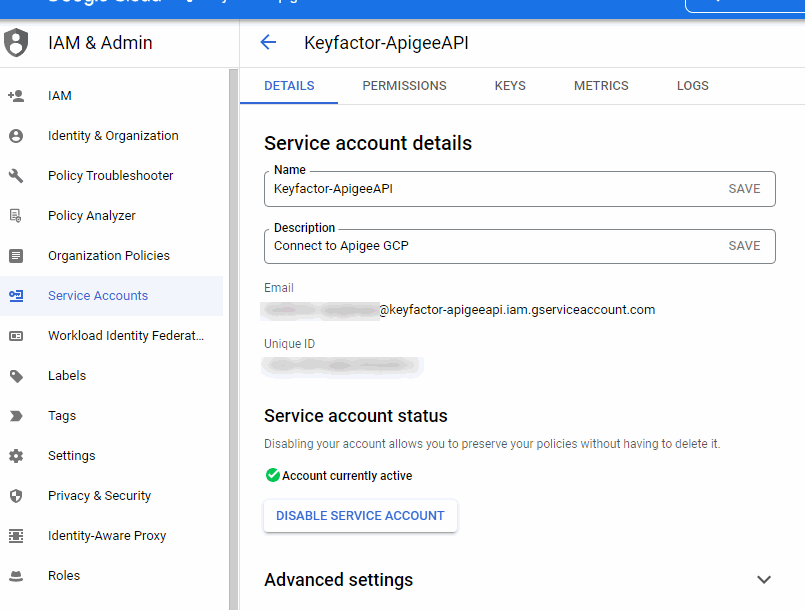
##### Service Account Details:
* Service account name = `Keyfactor-ApigeeAPI`
* This can be something to uniquely identify what this service account will be used for
* Service account ID
* Service account description
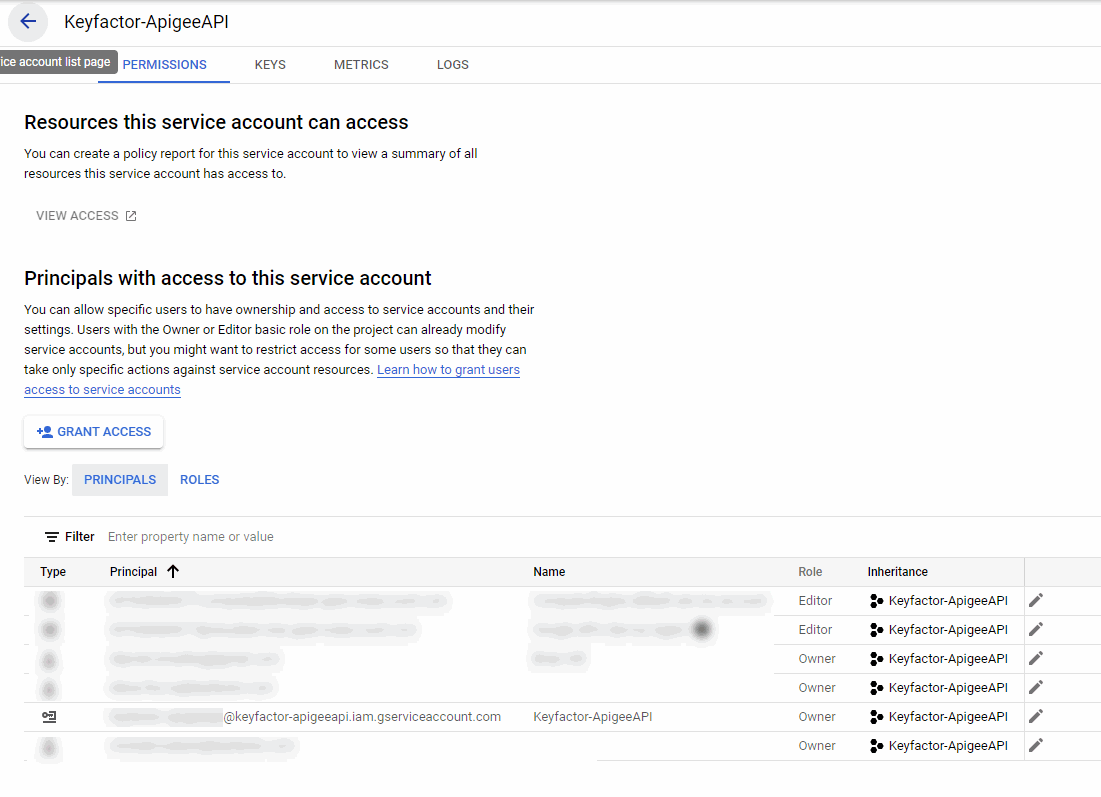
* Grant this service account access to project
*Select role: Quick Access > Basic > Owner
*Click the "Done" button
#### Create service account key
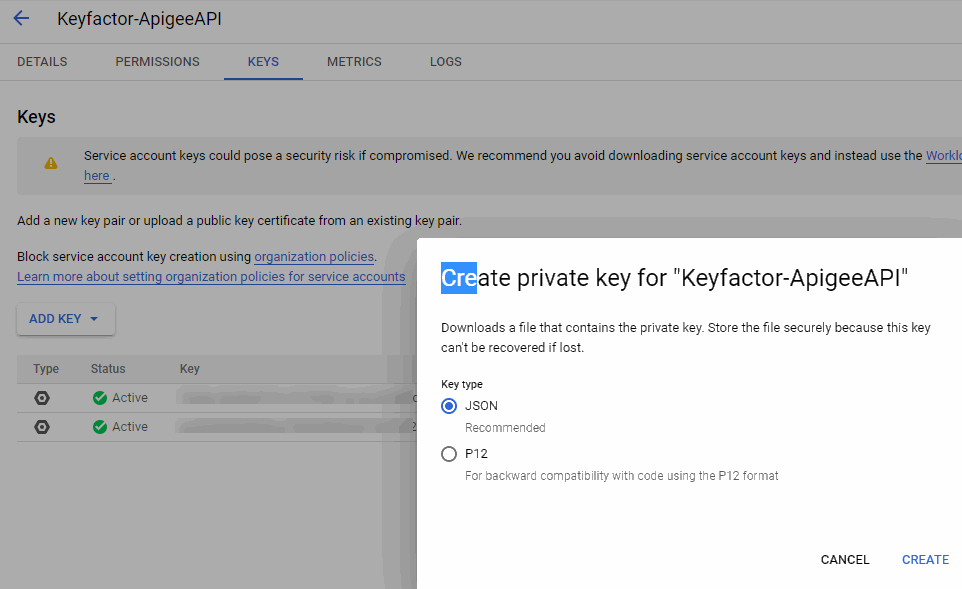
* From the "APIs & Services" page, select the service account you just created in the previous step
* Go to the "Keys" tab located across the top of the page
* Click the "Add Key" button in the middle of the page and select the "Create new key" option
* Make sure the key type selected is a JSON (This is the key you will provide when configuring the cert store as outlined in the following instructions)
## GcpApigee Certificate Store Type
To use the GCP Apigee Universal Orchestrator extension, you **must** create the GcpApigee Certificate Store Type. This only needs to happen _once_ per Keyfactor Command instance.
#### Supported Operations
| Operation | Is Supported |
|--------------|------------------------------------------------------------------------------------------------------------------------|
| Add | ✅ Checked |
| Remove | ✅ Checked |
| Discovery | 🔲 Unchecked |
| Reenrollment | 🔲 Unchecked |
| Create | ✅ Checked |
#### Store Type Creation
##### Using kfutil:
`kfutil` is a custom CLI for the Keyfactor Command API and can be used to created certificate store types.
For more information on [kfutil](https://github.com/Keyfactor/kfutil) check out the [docs](https://github.com/Keyfactor/kfutil?tab=readme-ov-file#quickstart)
Click to expand GcpApigee kfutil details
##### Using online definition from GitHub:
This will reach out to GitHub and pull the latest store-type definition
```shell
# Google Cloud Provider Apigee
kfutil store-types create GcpApigee
```
##### Offline creation using integration-manifest file:
If required, it is possible to create store types from the [integration-manifest.json](./integration-manifest.json) included in this repo.
You would first download the [integration-manifest.json](./integration-manifest.json) and then run the following command
in your offline environment.
```shell
kfutil store-types create --from-file integration-manifest.json
```
Click to expand manual GcpApigee details
Create a store type called `GcpApigee` with the attributes in the tables below:
##### Basic Tab
| Attribute | Value | Description |
| --------- | ----- | ----- |
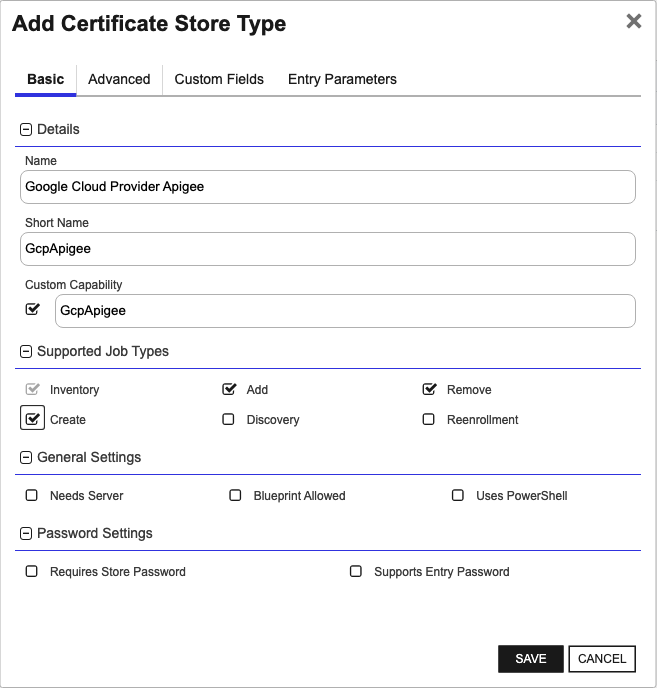
| Name | Google Cloud Provider Apigee | Display name for the store type (may be customized) |
| Short Name | GcpApigee | Short display name for the store type |
| Capability | GcpApigee | Store type name orchestrator will register with. Check the box to allow entry of value |
| Supports Add | ✅ Checked | Check the box. Indicates that the Store Type supports Management Add |
| Supports Remove | ✅ Checked | Check the box. Indicates that the Store Type supports Management Remove |
| Supports Discovery | 🔲 Unchecked | Indicates that the Store Type supports Discovery |
| Supports Reenrollment | 🔲 Unchecked | Indicates that the Store Type supports Reenrollment |
| Supports Create | ✅ Checked | Check the box. Indicates that the Store Type supports store creation |
| Needs Server | 🔲 Unchecked | Determines if a target server name is required when creating store |
| Blueprint Allowed | 🔲 Unchecked | Determines if store type may be included in an Orchestrator blueprint |
| Uses PowerShell | 🔲 Unchecked | Determines if underlying implementation is PowerShell |
| Requires Store Password | 🔲 Unchecked | Enables users to optionally specify a store password when defining a Certificate Store. |
| Supports Entry Password | 🔲 Unchecked | Determines if an individual entry within a store can have a password. |
The Basic tab should look like this:
##### Advanced Tab
| Attribute | Value | Description |
| --------- | ----- | ----- |
| Supports Custom Alias | Required | Determines if an individual entry within a store can have a custom Alias. |
| Private Key Handling | Optional | This determines if Keyfactor can send the private key associated with a certificate to the store. Required because IIS certificates without private keys would be invalid. |
| PFX Password Style | Default | 'Default' - PFX password is randomly generated, 'Custom' - PFX password may be specified when the enrollment job is created (Requires the Allow Custom Password application setting to be enabled.) |
The Advanced tab should look like this:
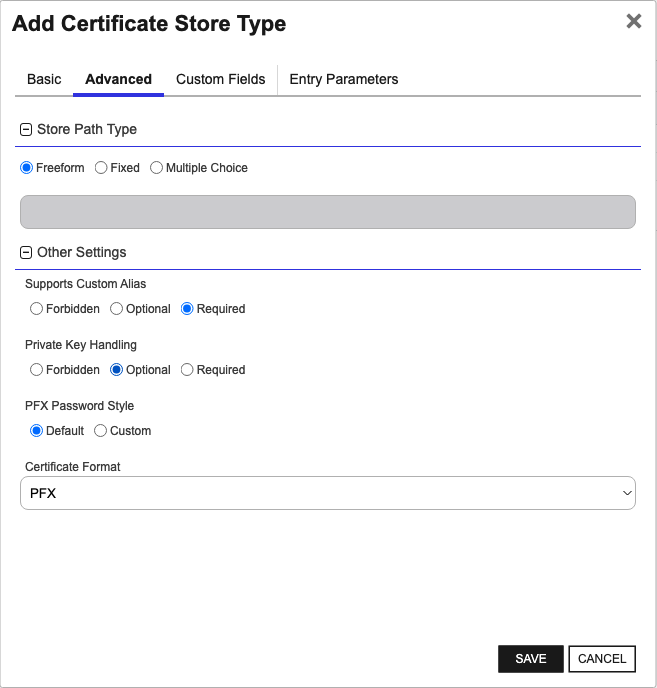
> For Keyfactor **Command versions 24.4 and later**, a Certificate Format dropdown is available with PFX and PEM options. Ensure that **PFX** is selected, as this determines the format of new and renewed certificates sent to the Orchestrator during a Management job. Currently, all Keyfactor-supported Orchestrator extensions support only PFX.
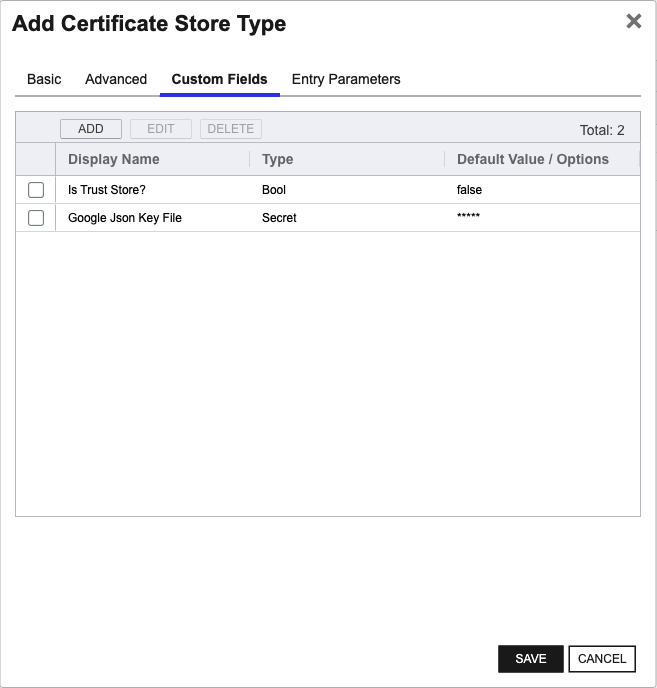
##### Custom Fields Tab
Custom fields operate at the certificate store level and are used to control how the orchestrator connects to the remote target server containing the certificate store to be managed. The following custom fields should be added to the store type:
| Name | Display Name | Description | Type | Default Value/Options | Required |
| ---- | ------------ | ---- | --------------------- | -------- | ----------- |
| isTrustStore | Is Trust Store? | Should be checked if the Apigee keystore being managed is a truststore. | Bool | false | ✅ Checked |
| jsonKey | Google Json Key File | The JSON key tied to the Apigee service account. You can copy and paste the entire Json key in the textbox when creating a certificate store in the Keyfactor Command UI. | Secret | | ✅ Checked |
The Custom Fields tab should look like this:
## Installation
1. **Download the latest GCP Apigee Universal Orchestrator extension from GitHub.**
Navigate to the [GCP Apigee Universal Orchestrator extension GitHub version page](https://github.com/Keyfactor/gcp-apigee-orchestrator/releases/latest). Refer to the compatibility matrix below to determine whether the `net6.0` or `net8.0` asset should be downloaded. Then, click the corresponding asset to download the zip archive.
| Universal Orchestrator Version | Latest .NET version installed on the Universal Orchestrator server | `rollForward` condition in `Orchestrator.runtimeconfig.json` | `gcp-apigee-orchestrator` .NET version to download |
| --------- | ----------- | ----------- | ----------- |
| Older than `11.0.0` | | | `net6.0` |
| Between `11.0.0` and `11.5.1` (inclusive) | `net6.0` | | `net6.0` |
| Between `11.0.0` and `11.5.1` (inclusive) | `net8.0` | `Disable` | `net6.0` |
| Between `11.0.0` and `11.5.1` (inclusive) | `net8.0` | `LatestMajor` | `net8.0` |
| `11.6` _and_ newer | `net8.0` | | `net8.0` |
Unzip the archive containing extension assemblies to a known location.
> **Note** If you don't see an asset with a corresponding .NET version, you should always assume that it was compiled for `net6.0`.
2. **Locate the Universal Orchestrator extensions directory.**
* **Default on Windows** - `C:\Program Files\Keyfactor\Keyfactor Orchestrator\extensions`
* **Default on Linux** - `/opt/keyfactor/orchestrator/extensions`
3. **Create a new directory for the GCP Apigee Universal Orchestrator extension inside the extensions directory.**
Create a new directory called `gcp-apigee-orchestrator`.
> The directory name does not need to match any names used elsewhere; it just has to be unique within the extensions directory.
4. **Copy the contents of the downloaded and unzipped assemblies from __step 2__ to the `gcp-apigee-orchestrator` directory.**
5. **Restart the Universal Orchestrator service.**
Refer to [Starting/Restarting the Universal Orchestrator service](https://software.keyfactor.com/Core-OnPrem/Current/Content/InstallingAgents/NetCoreOrchestrator/StarttheService.htm).
6. **(optional) PAM Integration**
The GCP Apigee Universal Orchestrator extension is compatible with all supported Keyfactor PAM extensions to resolve PAM-eligible secrets. PAM extensions running on Universal Orchestrators enable secure retrieval of secrets from a connected PAM provider.
To configure a PAM provider, [reference the Keyfactor Integration Catalog](https://keyfactor.github.io/integrations-catalog/content/pam) to select an extension and follow the associated instructions to install it on the Universal Orchestrator (remote).
> The above installation steps can be supplemented by the [official Command documentation](https://software.keyfactor.com/Core-OnPrem/Current/Content/InstallingAgents/NetCoreOrchestrator/CustomExtensions.htm?Highlight=extensions).
## Defining Certificate Stores
### Store Creation
#### Manually with the Command UI
Click to expand details
1. **Navigate to the _Certificate Stores_ page in Keyfactor Command.**
Log into Keyfactor Command, toggle the _Locations_ dropdown, and click _Certificate Stores_.
2. **Add a Certificate Store.**
Click the Add button to add a new Certificate Store. Use the table below to populate the **Attributes** in the **Add** form.
| Attribute | Description |
| --------- | ----------- |
| Category | Select "Google Cloud Provider Apigee" or the customized certificate store name from the previous step. |
| Container | Optional container to associate certificate store with. |
| Client Machine | The Base URL for the GCP Apigee REST Api. Should be *apigee.googleapis.com* |
| Store Path | The Apigee keystore being managed. Must be provided in the following format: organizations/{org}/environments/{env}/keystores/{keystore}, where {org}, {env}, and {keystore} will be replaced with your environment-specific values. |
| Orchestrator | Select an approved orchestrator capable of managing `GcpApigee` certificates. Specifically, one with the `GcpApigee` capability. |
| isTrustStore | Should be checked if the Apigee keystore being managed is a truststore. |
| jsonKey | The JSON key tied to the Apigee service account. You can copy and paste the entire Json key in the textbox when creating a certificate store in the Keyfactor Command UI. |
Click to expand details
1. **Generate a CSV template for the GcpApigee certificate store**
```shell
kfutil stores import generate-template --store-type-name GcpApigee --outpath GcpApigee.csv
```
2. **Populate the generated CSV file**
Open the CSV file, and reference the table below to populate parameters for each **Attribute**.
| Attribute | Description |
| --------- | ----------- |
| Category | Select "Google Cloud Provider Apigee" or the customized certificate store name from the previous step. |
| Container | Optional container to associate certificate store with. |
| Client Machine | The Base URL for the GCP Apigee REST Api. Should be *apigee.googleapis.com* |
| Store Path | The Apigee keystore being managed. Must be provided in the following format: organizations/{org}/environments/{env}/keystores/{keystore}, where {org}, {env}, and {keystore} will be replaced with your environment-specific values. |
| Orchestrator | Select an approved orchestrator capable of managing `GcpApigee` certificates. Specifically, one with the `GcpApigee` capability. |
| Properties.isTrustStore | Should be checked if the Apigee keystore being managed is a truststore. |
| Properties.jsonKey | The JSON key tied to the Apigee service account. You can copy and paste the entire Json key in the textbox when creating a certificate store in the Keyfactor Command UI. |
3. **Import the CSV file to create the certificate stores**
```shell
kfutil stores import csv --store-type-name GcpApigee --file GcpApigee.csv
```
Attributes eligible for retrieval by a PAM Provider on the Universal Orchestrator
If a PAM provider was installed _on the Universal Orchestrator_ in the [Installation](#Installation) section, the following parameters can be configured for retrieval _on the Universal Orchestrator_.
| Attribute | Description |
| --------- | ----------- |
| jsonKey | The JSON key tied to the Apigee service account. You can copy and paste the entire Json key in the textbox when creating a certificate store in the Keyfactor Command UI. |
Please refer to the **Universal Orchestrator (remote)** usage section ([PAM providers on the Keyfactor Integration Catalog](https://keyfactor.github.io/integrations-catalog/content/pam)) for your selected PAM provider for instructions on how to load attributes orchestrator-side.
> Any secret can be rendered by a PAM provider _installed on the Keyfactor Command server_. The above parameters are specific to attributes that can be fetched by an installed PAM provider running on the Universal Orchestrator server itself.