Kemp Load Balancer Universal Orchestrator Extension

Support
·
Installation
·
License
·
Related Integrations
## Overview
The Kemp Load Balancer Universal Orchestrator extension enables remote management of cryptographic certificates on Kemp Load Balancers. Kemp Load Balancers use certificates to secure HTTP and HTTPS traffic efficiently, ensuring that sensitive data is encrypted during transit. This extension integrates with Keyfactor Command to automate the process of inventorying, adding, and removing certificates within Kemp Load Balancer environments. By leveraging this orchestrator, administrators can easily manage SSL/TLS certificates, ensuring the security and reliability of their load balancing infrastructure.
## Compatibility
This integration is compatible with Keyfactor Universal Orchestrator version 10.4 and later.
## Support
The Kemp Load Balancer Universal Orchestrator extension is supported by Keyfactor. If you require support for any issues or have feature request, please open a support ticket by either contacting your Keyfactor representative or via the Keyfactor Support Portal at https://support.keyfactor.com.
> If you want to contribute bug fixes or additional enhancements, use the **[Pull requests](../../pulls)** tab.
## Requirements & Prerequisites
Before installing the Kemp Load Balancer Universal Orchestrator extension, we recommend that you install [kfutil](https://github.com/Keyfactor/kfutil). Kfutil is a command-line tool that simplifies the process of creating store types, installing extensions, and instantiating certificate stores in Keyfactor Command.
## Kemp Certificate Store Type
To use the Kemp Load Balancer Universal Orchestrator extension, you **must** create the Kemp Certificate Store Type. This only needs to happen _once_ per Keyfactor Command instance.
TODO Overview is a required section
#### Supported Operations
| Operation | Is Supported |
|--------------|--------------|
| Add | ✅ Checked |
| Remove | ✅ Checked |
| Discovery | 🔲 Unchecked |
| Reenrollment | 🔲 Unchecked |
| Create | 🔲 Unchecked |
#### Store Type Creation
##### Using kfutil:
`kfutil` is a custom CLI for the Keyfactor Command API and can be used to create certificate store types.
For more information on [kfutil](https://github.com/Keyfactor/kfutil) check out the [docs](https://github.com/Keyfactor/kfutil?tab=readme-ov-file#quickstart)
Click to expand Kemp kfutil details
##### Using online definition from GitHub:
This will reach out to GitHub and pull the latest store-type definition
```shell
# Kemp
kfutil store-types create Kemp
```
##### Offline creation using integration-manifest file:
If required, it is possible to create store types from the [integration-manifest.json](./integration-manifest.json) included in this repo.
You would first download the [integration-manifest.json](./integration-manifest.json) and then run the following command
in your offline environment.
```shell
kfutil store-types create --from-file integration-manifest.json
```
#### Manual Creation
Below are instructions on how to create the Kemp store type manually in
the Keyfactor Command Portal
Click to expand manual Kemp details
Create a store type called `Kemp` with the attributes in the tables below:
##### Basic Tab
| Attribute | Value | Description |
| --------- | ----- | ----- |
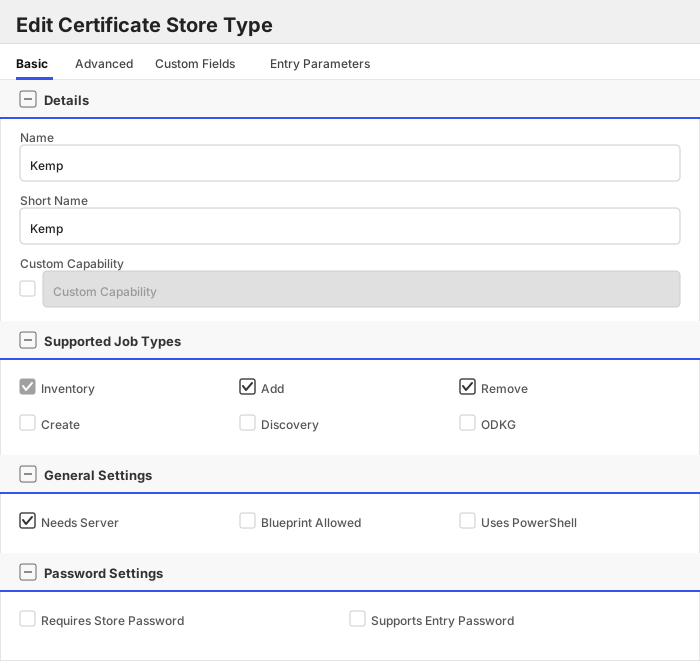
| Name | Kemp | Display name for the store type (may be customized) |
| Short Name | Kemp | Short display name for the store type |
| Capability | Kemp | Store type name orchestrator will register with. Check the box to allow entry of value |
| Supports Add | ✅ Checked | Indicates that the Store Type supports Management Add |
| Supports Remove | ✅ Checked | Indicates that the Store Type supports Management Remove |
| Supports Discovery | 🔲 Unchecked | Indicates that the Store Type supports Discovery |
| Supports Reenrollment | 🔲 Unchecked | Indicates that the Store Type supports Reenrollment |
| Supports Create | 🔲 Unchecked | Indicates that the Store Type supports store creation |
| Needs Server | ✅ Checked | Determines if a target server name is required when creating store |
| Blueprint Allowed | 🔲 Unchecked | Determines if store type may be included in an Orchestrator blueprint |
| Uses PowerShell | 🔲 Unchecked | Determines if underlying implementation is PowerShell |
| Requires Store Password | 🔲 Unchecked | Enables users to optionally specify a store password when defining a Certificate Store. |
| Supports Entry Password | 🔲 Unchecked | Determines if an individual entry within a store can have a password. |
The Basic tab should look like this:
##### Advanced Tab
| Attribute | Value | Description |
| --------- | ----- | ----- |
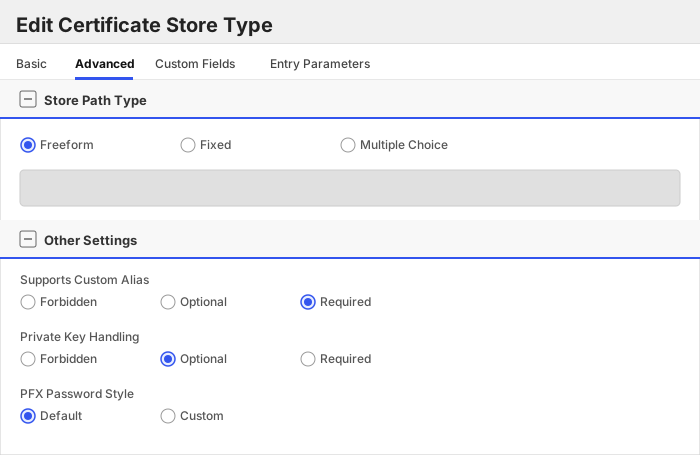
| Supports Custom Alias | Required | Determines if an individual entry within a store can have a custom Alias. |
| Private Key Handling | Optional | This determines if Keyfactor can send the private key associated with a certificate to the store. |
| PFX Password Style | Default | 'Default' - PFX password is randomly generated, 'Custom' - PFX password may be specified when the enrollment job is created (Requires the Allow Custom Password application setting to be enabled.) |
The Advanced tab should look like this:
> For Keyfactor **Command versions 24.4 and later**, a Certificate Format dropdown is available with PFX and PEM options. Ensure that **PFX** is selected, as this determines the format of new and renewed certificates sent to the Orchestrator during a Management job. Currently, all Keyfactor-supported Orchestrator extensions support only PFX.
##### Custom Fields Tab
Custom fields operate at the certificate store level and are used to control how the orchestrator connects to the remote target server containing the certificate store to be managed. The following custom fields should be added to the store type:
| Name | Display Name | Description | Type | Default Value/Options | Required |
| ---- | ------------ | ---- | --------------------- | -------- | ----------- |
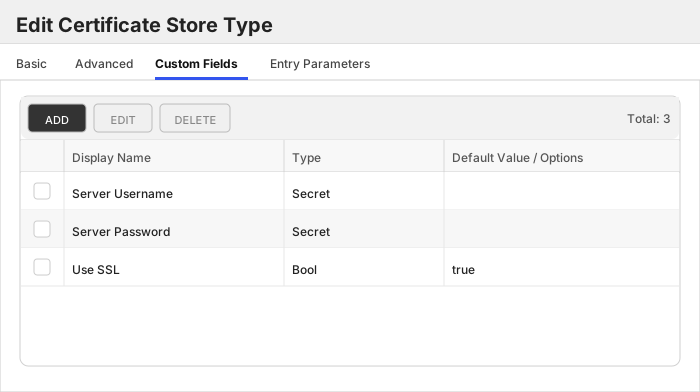
| ServerUsername | Server Username | Not used. | Secret | | 🔲 Unchecked |
| ServerPassword | Server Password | Kemp Api Password. (or valid PAM key if the username is stored in a KF Command configured PAM integration). | Secret | | 🔲 Unchecked |
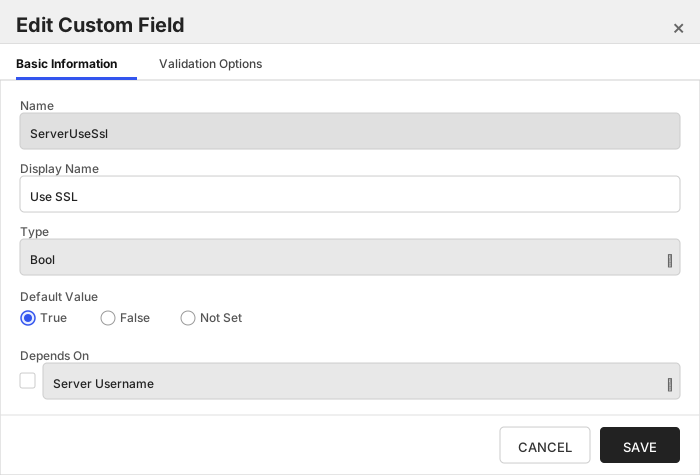
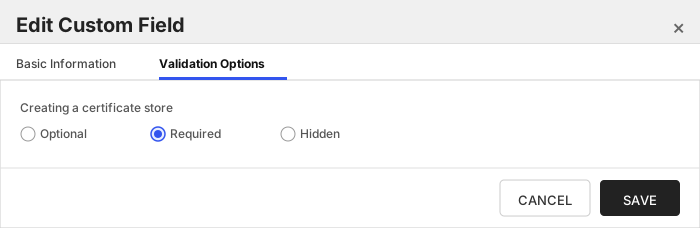
| ServerUseSsl | Use SSL | Should be true, http is not supported. | Bool | true | ✅ Checked |
The Custom Fields tab should look like this:
###### Server Username
Not used.
> [!IMPORTANT]
> This field is created by the `Needs Server` on the Basic tab, do not create this field manually.
###### Server Password
Kemp Api Password. (or valid PAM key if the username is stored in a KF Command configured PAM integration).
> [!IMPORTANT]
> This field is created by the `Needs Server` on the Basic tab, do not create this field manually.
###### Use SSL
Should be true, http is not supported.
## Installation
1. **Download the latest Kemp Load Balancer Universal Orchestrator extension from GitHub.**
Navigate to the [Kemp Load Balancer Universal Orchestrator extension GitHub version page](https://github.com/Keyfactor/kemp-orchestrator/releases/latest). Refer to the compatibility matrix below to determine which asset should be downloaded. Then, click the corresponding asset to download the zip archive.
| Universal Orchestrator Version | Latest .NET version installed on the Universal Orchestrator server | `rollForward` condition in `Orchestrator.runtimeconfig.json` | `kemp-orchestrator` .NET version to download |
| --------- | ----------- | ----------- | ----------- |
| Older than `11.0.0` | | | `net6.0` |
| Between `11.0.0` and `11.5.1` (inclusive) | `net6.0` | | `net6.0` |
| Between `11.0.0` and `11.5.1` (inclusive) | `net8.0` | `Disable` | `net6.0` |
| Between `11.0.0` and `11.5.1` (inclusive) | `net8.0` | `LatestMajor` | `net8.0` |
| Between `11.6.0` and `24.x` | `net8.0` | | `net8.0` |
Unzip the archive containing extension assemblies to a known location.
> **Note** If you don't see an asset with a corresponding .NET version, you should always assume that it was compiled for `net8.0`.
2. **Locate the Universal Orchestrator extensions directory.**
* **Default on Windows** - `C:\Program Files\Keyfactor\Keyfactor Orchestrator\extensions`
* **Default on Linux** - `/opt/keyfactor/orchestrator/extensions`
3. **Create a new directory for the Kemp Load Balancer Universal Orchestrator extension inside the extensions directory.**
Create a new directory called `kemp-orchestrator`.
> The directory name does not need to match any names used elsewhere; it just has to be unique within the extensions directory.
4. **Copy the contents of the downloaded and unzipped assemblies from __step 2__ to the `kemp-orchestrator` directory.**
5. **Restart the Universal Orchestrator service.**
Refer to [Starting/Restarting the Universal Orchestrator service](https://software.keyfactor.com/Core-OnPrem/Current/Content/InstallingAgents/NetCoreOrchestrator/StarttheService.htm).
6. **(optional) PAM Integration**
The Kemp Load Balancer Universal Orchestrator extension is compatible with all supported Keyfactor PAM extensions to resolve PAM-eligible secrets. PAM extensions running on Universal Orchestrators enable secure retrieval of secrets from a connected PAM provider.
To configure a PAM provider, [reference the Keyfactor Integration Catalog](https://keyfactor.github.io/integrations-catalog/content/pam) to select an extension and follow the associated instructions to install it on the Universal Orchestrator (remote).
> The above installation steps can be supplemented by the [official Command documentation](https://software.keyfactor.com/Core-OnPrem/Current/Content/InstallingAgents/NetCoreOrchestrator/CustomExtensions.htm?Highlight=extensions).
## Defining Certificate Stores
### Store Creation
#### Manually with the Command UI
Click to expand details
1. **Navigate to the _Certificate Stores_ page in Keyfactor Command.**
Log into Keyfactor Command, toggle the _Locations_ dropdown, and click _Certificate Stores_.
2. **Add a Certificate Store.**
Click the Add button to add a new Certificate Store. Use the table below to populate the **Attributes** in the **Add** form.
| Attribute | Description |
| --------- | ----------- |
| Category | Select "Kemp" or the customized certificate store name from the previous step. |
| Container | Optional container to associate certificate store with. |
| Client Machine | Kemp Load Balancer Client Machine and port example TestKemp:8443. |
| Store Path | Not used just put a / |
| Orchestrator | Select an approved orchestrator capable of managing `Kemp` certificates. Specifically, one with the `Kemp` capability. |
| ServerUsername | Not used. |
| ServerPassword | Kemp Api Password. (or valid PAM key if the username is stored in a KF Command configured PAM integration). |
| ServerUseSsl | Should be true, http is not supported. |
#### Using kfutil CLI
Click to expand details
1. **Generate a CSV template for the Kemp certificate store**
```shell
kfutil stores import generate-template --store-type-name Kemp --outpath Kemp.csv
```
2. **Populate the generated CSV file**
Open the CSV file, and reference the table below to populate parameters for each **Attribute**.
| Attribute | Description |
| --------- | ----------- |
| Category | Select "Kemp" or the customized certificate store name from the previous step. |
| Container | Optional container to associate certificate store with. |
| Client Machine | Kemp Load Balancer Client Machine and port example TestKemp:8443. |
| Store Path | Not used just put a / |
| Orchestrator | Select an approved orchestrator capable of managing `Kemp` certificates. Specifically, one with the `Kemp` capability. |
| Properties.ServerUsername | Not used. |
| Properties.ServerPassword | Kemp Api Password. (or valid PAM key if the username is stored in a KF Command configured PAM integration). |
| Properties.ServerUseSsl | Should be true, http is not supported. |
3. **Import the CSV file to create the certificate stores**
```shell
kfutil stores import csv --store-type-name Kemp --file Kemp.csv
```
#### PAM Provider Eligible Fields
Attributes eligible for retrieval by a PAM Provider on the Universal Orchestrator
If a PAM provider was installed _on the Universal Orchestrator_ in the [Installation](#Installation) section, the following parameters can be configured for retrieval _on the Universal Orchestrator_.
| Attribute | Description |
| --------- | ----------- |
| ServerUsername | Not used. |
| ServerPassword | Kemp Api Password. (or valid PAM key if the username is stored in a KF Command configured PAM integration). |
Please refer to the **Universal Orchestrator (remote)** usage section ([PAM providers on the Keyfactor Integration Catalog](https://keyfactor.github.io/integrations-catalog/content/pam)) for your selected PAM provider for instructions on how to load attributes orchestrator-side.
> Any secret can be rendered by a PAM provider _installed on the Keyfactor Command server_. The above parameters are specific to attributes that can be fetched by an installed PAM provider running on the Universal Orchestrator server itself.
> The content in this section can be supplemented by the [official Command documentation](https://software.keyfactor.com/Core-OnPrem/Current/Content/ReferenceGuide/Certificate%20Stores.htm?Highlight=certificate%20store).
### 🧩 Step-by-Step: Enabling API Access for a User
#### 1. Log in to the Kemp Web UI
- In your browser, go to:
```
https://:8443
```
- Log in as an administrator account that can manage users.
---
#### 2. Edit the User Permissions
1. In the left-hand menu, navigate to:
```
System Configuration → System Administration → User Management
```
2. Locate the user account that will be used by the Keyfactor Orchestrator (for example: `bhill`).
3. Click **Modify** next to that user to open the **Permissions for User** screen.
4. Under **Rules**, enable the following options:
- ✅ **Certificate Creation**
- ✅ **Intermediate Certificates**
5. Click **Set Permissions** to apply the changes.
These permissions allow the orchestrator to create and manage intermediate and server certificates.
---
#### 3. Generate and Record the API Key
1. Scroll down to the **API Keys** section.
2. Click **Generate New APIKey** to create a new key for API authentication.
3. Copy and securely store this key — it will be used in your Keyfactor orchestrator configuration as the **ServerPassword** or **API Key**.
4. You can later use **Delete** to revoke it if needed.
---
#### 4. Verify API Access
Use a command line or PowerShell session to verify connectivity:
##### Using curl:
```bash
curl -k -H "Authorization: " https://:8443/access/list
```
##### Using PowerShell:
```powershell
Invoke-RestMethod -Uri "https://:8443/access/list" -Headers @{ Authorization = "" } -SkipCertificateCheck
```
If you receive a JSON response, API access is successfully configured.
#### ✅ Summary of Required Settings
| Setting | Location | Value |
|----------|-----------|--------|
| Certificate Creation | User Permissions | Enabled |
| Intermediate Certificates | User Permissions | Enabled |
| API Key | User Management (Modify user) | Generated |
| Allow Web Administrative Access | Remote Access | Enabled |
| Enable API Interface | Remote Access | Enabled |
| Port | Remote Access | 8443 |
| Authentication Method | Remote Access | Password Only (default) |
---
### Kemp LoadMaster Orchestrator – Behavior Summary
This document summarizes the observed behaviors of the **Kemp LoadMaster Orchestrator** integration during SSL and Intermediate Certificate management operations.
It details how the orchestrator interacts with the LoadMaster API, handles overwrite logic, manages bindings, and synchronizes data with Keyfactor Command.
---
#### 🧩 Overall Integration Behavior
- The orchestrator communicates with the **Kemp LoadMaster REST API** using the configured **ServerUsername**, **API Key**, and **SSL (HTTPS)** over port 8443.
- Operations are driven by the **Overwrite flag** and **Alias Name** supplied in the job parameters.
- Certificates are managed in two categories:
- **SSL Certificates** – used by virtual services (may be bound/unbound).
- **Intermediate Certificates** – uploaded supporting CA chain files.
- The orchestrator validates overwrite rules, binding constraints, and synchronization with Keyfactor Command for each operation.
---
#### 🧪 Test Case Behavior Summary
| # | Case Name | Behavior Summary | Outcome |
|---|------------|------------------|----------|
| **1** | **New Add New Alias SSL Certificates** | When a new alias (`TC1`) is provided and the certificate does not exist, the orchestrator successfully uploads a new SSL certificate to the LoadMaster and registers it in Keyfactor. | ✅ New certificate created successfully. |
| **2** | **Replace Alias SSL Certificates** | The orchestrator detects an existing alias (`TC1`) and, with **Overwrite=True**, replaces the existing SSL certificate. The old certificate file is overwritten. | ✅ Replacement successful. |
| **3** | **Replace Alias SSL Certificates (No Overwrite)** | Attempting to replace an existing alias without the overwrite flag causes the orchestrator to abort the operation and return an error indicating the flag is required. | ✅ Expected error: “Overwrite flag should be used.” |
| **4** | **Replace Alias Bound SSL Certificates** | When a certificate bound to a virtual service is replaced with **Overwrite=True**, the orchestrator updates the certificate file while maintaining the existing service binding. | ✅ Bound certificate replaced in place. |
| **5** | **Remove Bound SSL Certificate** | The orchestrator prevents removal of any certificate that is currently bound to a virtual service, returning an error message. | ✅ Error handled correctly (“cannot remove bound certificates”). |
| **6** | **Remove Unbound SSL Certificate** | The orchestrator removes an SSL certificate only if it is unbound, confirming removal through the LoadMaster API. | ✅ Certificate removed successfully. |
| **7** | **New Add New Alias Intermediate Certificates** | A new intermediate certificate (`TC8b`) is uploaded since no alias conflict exists. It appears under the Intermediate Certificates list. | ✅ Intermediate certificate created. |
| **8** | **Replace Alias Intermediate Certificates** | Kemp does not support overwriting intermediate certificates. The orchestrator logs and returns the expected API error (`Filename already exists`). | ✅ Expected failure recorded. |
| **9** | **Remove Intermediate Certificates** | The orchestrator deletes the intermediate certificate (`TC8b`) from the LoadMaster and synchronizes removal from Keyfactor Command. | ✅ Certificate removed successfully. |
| **10** | **Inventory Intermediate Certificates** | Performs an inventory scan of all intermediate certificates on the LoadMaster, importing them into Keyfactor Command. | ✅ Inventory successful. |
| **11** | **Inventory SSL Certificates** | Enumerates all SSL certificates (bound and unbound) on the LoadMaster and updates Keyfactor’s inventory accordingly. | ✅ Inventory successful. |
---
#### ⚙️ Functional Insights
- **Overwrite Logic:** SSL certificates respect the `Overwrite` flag. Intermediate certificates cannot be overwritten.
- **Binding Awareness:** The orchestrator checks for bound services before delete or replace operations.
- **Error Handling:** Clear API error messages are surfaced in Keyfactor job logs.
- **Synchronization:** Add/Remove/Inventory maintain consistent state between Keyfactor and LoadMaster.
- **Security:** All operations occur over HTTPS using API Key authentication.
---
#### ✅ Operation Coverage Summary
| Operation | Certificate Type | Supported | Notes |
|------------|------------------|------------|--------|
| Add | SSL | ✅ | Creates new alias or replaces with overwrite flag |
| Replace | SSL | ✅ | Requires `Overwrite=True` |
| Replace | Intermediate | ❌ | Unsupported – API rejects |
| Remove | SSL | ✅ | Allowed only if unbound |
| Remove | Intermediate | ✅ | Fully supported |
| Inventory | SSL | ✅ | Returns all SSL certificates |
| Inventory | Intermediate | ✅ | Returns all intermediate certificates |
---
### TEST CASES
Case Number|Case Name|Case Description|Overwrite Flag|Alias Name|Expected Results|Passed|Screenshots
------------|---------|----------------|--------------|----------|----------------|--------------|------------
1|New Add New Alias SSL Certificates|Will Create a new SSL Certificate|False|TC1|New SSL Certificate with Alias TC1 Created On Kemp LoadMaster|True|
2|Replace Alias SSL Certificates|Will Replace SSL Certificate|True|TC1|SSL Certificate with Alias TC1 Replaced On Kemp LoadMaster|True|
3|Replace Alias SSL Certificates no Overwrite|Will Replace SSL Certificate|False|TC1|Error should occur stating Overwrite flag should be used|True|
4|Replace Alias Bound SSL Certificates|Will Replace Bound SSL Certificate|True|TC1|Bound Certificate should be replaced|True|
5|Remove Bound SSL Certificate|Should fail as you cannot remove Bound Certificates|N/A|TC1|Error Occurs stating you cannot remove bound certificates.|True|
6|Remove UnBound SSL Certificate|Try to remove SSL Certificate that is UnBound|N/A|TC8a|Unbound Certificate Is Removed from LoadMaster.|True|
7|New Add New Alias Intermediate Certificates|Will Create a new Intermediate Certificate|False|TC8b|New Intermediate Certificate with Alias TC8b Created On Kemp LoadMaster|True|
8|Replace Alias Intermediate Certificates|You cannot replace intermediate certificates|True|TC8b|Command Failed: Filename already exists|True|
9|Remove Intermediate Certificates|Intermediate Certificate Will Be Removed|N/A|TC8b|Intermediate Certificate Is Removed From Keyfactor and the LoadMaster|True|
10|Inventory Intermediate Certificates|Intermediate Certificate Will Be Inventoried|N/A|N/A|Intermediate Certificate Is Inventoried to Keyfactor|True|
11|Inventory SSL Certificates|SSL Certificate Will Be Inventoried|N/A|N/A|SSL Certificate Is Inventoried to Keyfactor|True|
## License
Apache License 2.0, see [LICENSE](LICENSE).
## Related Integrations
See all [Keyfactor Universal Orchestrator extensions](https://github.com/orgs/Keyfactor/repositories?q=orchestrator).