Remote File Universal Orchestrator Extension




Support
·
Installation
·
License
·
Related Integrations
## Overview
The Remote File Orchestrator Extension is a multipurpose integration that can remotely manage a variety of file-based
certificate stores and can easily be extended to manage others.
The Keyfactor Universal Orchestrator (UO) and RemoteFile Extension can be installed on either Windows or Linux operating
systems as well as manage certificates residing on servers of both operating systems. A UO service managing certificates
on remote servers is considered to be acting as an Orchestrator, while a UO service managing local certificates on the
same server running the service is considered an Agent. When acting as an Orchestrator, connectivity from the
orchestrator server hosting the `RemoteFile` extension to the orchestrated server hosting the certificate store(s) being
managed is achieved via either an `SSH` (for Linux and possibly Windows orchestrated servers) or WinRM (for Windows
orchestrated servers) connection. When acting as an agent, `SSH/WinRM` may still be used, OR the certificate store can be
configured to bypass these and instead directly access the orchestrator server's file system.
RemoteFile Management and Inventory capabilities support the handling of certificates with RSA, ECC, and ML-DSA ditital signature algorithms. However,
ODKG (On Device Key Generation) introduced in release 3.0 for store types RFJKS, RFPEM, RFPkcs12, and RFDER, currently only supports
RSA and ECC. Also, please be aware that the CSR and key pairs generated by the RemoteFile Orchestrator extension when utilizing
the ODKG capability are technically created on the orchestrator server itself and not the target device if the orchestrator is
managing a store or stores on separate servers than where the Universal Orchestrator is installed.
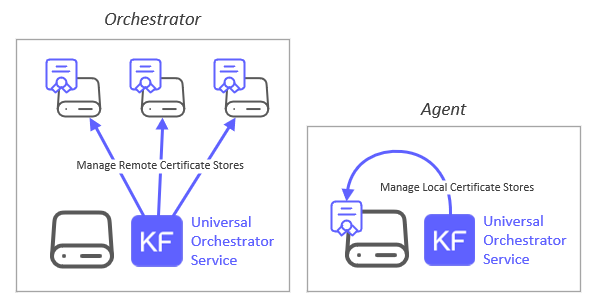
The supported configurations of Universal Orchestrator hosts and managed orchestrated servers are detailed below:
| | UO Installed on Windows | UO Installed on Linux |
|---------------------------------------------------------------------------|---------------------------------------|-------------------------------------|
| Orchestrated Server hosting certificate store(s) on remote Windows server | WinRM connection | SSH connection |
| Orchestrated Server hosting certificate store(s) on remote Linux server | SSH connection | SSH connection |
| Certificate store(s) on same server as orchestrator service (Agent) | WinRM connection or local file system | SSH connection or local file system |
Note: when creating, adding certificates to, or removing certificates from any store managed by `RemoteFile`, the
destination store file will be recreated. When this occurs, current AES encryption algorithms will be used for affected
certificates and certificate store files.
The Remote File Universal Orchestrator extension implements 6 Certificate Store Types. Depending on your use case, you may elect to use one, or all of these Certificate Store Types. Descriptions of each are provided below.
- [RFJKS](#RFJKS)
- [RFPEM](#RFPEM)
- [RFPkcs12](#RFPkcs12)
- [RFDER](#RFDER)
- [RFKDB](#RFKDB)
- [RFORA](#RFORA)
## Compatibility
This integration is compatible with Keyfactor Universal Orchestrator version 10.4 and later.
## Support
The Remote File Universal Orchestrator extension is supported by Keyfactor. If you require support for any issues or have feature request, please open a support ticket by either contacting your Keyfactor representative or via the Keyfactor Support Portal at https://support.keyfactor.com.
> If you want to contribute bug fixes or additional enhancements, use the **[Pull requests](../../pulls)** tab.
## Requirements & Prerequisites
Before installing the Remote File Universal Orchestrator extension, we recommend that you install [kfutil](https://github.com/Keyfactor/kfutil). Kfutil is a command-line tool that simplifies the process of creating store types, installing extensions, and instantiating certificate stores in Keyfactor Command.
Certificate stores hosted on Linux servers:
1. The Remote File Orchestrator Extension makes use of a few common Linux commands when managing stores on Linux
servers as well as some specialized CLI commands for certain store types. If the credentials you will be connecting with
need elevated access to run these commands or to access the
certificate store files these commands operate against, you must set up the user id as a sudoer with no password
necessary and set the config.json `UseSudo` value to `Y`. When `RemoteFile` is using orchestration, managing local or
external certificate stores using `SSH` or `WinRM`, the security context is determined by the user id entered into the
Keyfactor Command certificate store or discovery job screens. When RemoteFile is running as an agent, managing local
stores only, the security context is the user id running the Keyfactor Command Universal Orchestrator service
account. The full list of these commands and when they are used is illustrated below:
| Shell Command | Discovery | Inventory | Management-Add | Management-Delete | Management-Create |
|----------------|-----------|-----------|----------------|-------------------|-------------------|
| `echo` | X | X | X | X | X |
| `find` | X | | | | |
| `cp` | | X(a) | X(a) | X(a) | |
| `ls` | | | X | X | X |
| `chown` | | X(b) | X(b) | X(b) | |
| `tee` | | X(c) | X(a) | X(a) | |
| `rm` | | X(d) | X(d) | X(d) | |
| `install` | | | | | X |
| `stat` | | | | | X |
| `orapki` | | X(e) | X(e) | X(e) | |
| `gskcapicmd` | | X(f) | X(f) | X(f) | |
(a) - Only used if [config.json](#post-installation) setting SeparateUploadFilePath is used (non empty value)
(b) - Only used if [config.json](#post-installation) setting SeparateUploadFilePath is used (non empty value) AND the [config.json](#post-installation) or certificate store setting SudoImpersonatedUser is not used (empty value)
(c) - Only used if store type is RFKDB or RFORA AND [config.json](#post-installation) setting SeparateUploadFilePath is used (non empty value)
(d) - Only used if using store type is either RFKDB or RFORA OR any store type and the [config.json](#post-installation) setting SeparateUploadFilePath is used (non empty value)
(e) - RFORA store type only
(f) - RFKDB store type only
2. When orchestrating management of local or external certificate stores, the Remote File Orchestrator Extension makes
use of SCP or SFTP to transfer files to and from the orchestrated server. SCP is attempted first, and if that
fails, SFTP is attempted. `SCP/SFTP` cannot make use of `sudo`, so
all folders containing certificate stores will need to allow SCP/SFTP file transfer for the user assigned to the
certificate store/discovery job. If this is not possible, set the values in the `config.json` appropriately to use an
alternative upload/download folder that does allow `SCP/SFTP` file transfer. If the certificate store/discovery job is
configured for local (agent) access, the account running the Keyfactor Universal Orchestrator service must have
access to read/write to the certificate store location, OR the `config.json` file must be set up to use the alternative
upload/download file.
3. Please see [SSH Authentication Options](#ssh-authentication-options) for detailed information regarding connecting to managed
Linux servers using SSH.
Certificate stores hosted on Windows servers:
1. When orchestrating management of external (and potentially local) certificate stores, the `RemoteFile` Orchestrator
Extension makes use of `WinRM` to connect to external certificate store servers. The security context used is the user id
entered in the Keyfactor Command certificate store or discovery job screen. Make sure that `WinRM` is set up on the
orchestrated server and that the `WinRM` port (by convention, `5985` for `HTTP` and `5986` for `HTTPS`) is part of the certificate
store path when setting up your certificate stores/discovery jobs. If running as an agent, managing local certificate stores,
local commands are run under the security context of the user account running the Keyfactor Universal Orchestrator Service.
Please reference [Certificate Stores and Discovery Jobs](#certificate-stores-and-discovery-jobs) for more information on
creating certificate stores for the `RemoteFile` Orchestrator Extension.
Please consult with your system administrator for more information on configuring `SSH/SCP/SFTP` or `WinRM` in your environment.
Please reference [Post Installation](#post-installation) for more information on setting up the `config.json` file
and [Defining Certificate Stores](#defining-certificate-stores)
and [Discovering Certificate Stores with the Discovery Job](#discovering-certificate-stores-with-the-discovery-job) for
more information on defining and configuring certificate stores.
## Certificate Store Types
To use the Remote File Universal Orchestrator extension, you **must** create the Certificate Store Types required for your use-case. This only needs to happen _once_ per Keyfactor Command instance.
The Remote File Universal Orchestrator extension implements 6 Certificate Store Types. Depending on your use case, you may elect to use one, or all of these Certificate Store Types.
### RFJKS
Click to expand details
The `RFJKS` store type can be used to manage java keystores of types `JKS` or `PKCS12`. If creating a new java keystore
and adding a certificate all via Keyfactor Command, the created java keystore will be of type `PKCS12`, as java keystores
of type `JKS` have been deprecated as of `JDK 9`.
#### Supported use cases
1. One-to-many trust entries - A trust entry is defined as a single certificate without a private key in a certificate store. Each trust entry is identified with a custom alias.
2. One-to-many key entries - One-to-many certificates with private keys and optionally the full certificate chain. Each certificate is identified with a custom alias.
3. A mix of trust and key entries.
#### Supported Operations
| Operation | Is Supported |
|--------------|--------------|
| Add | ✅ Checked |
| Remove | ✅ Checked |
| Discovery | ✅ Checked |
| Reenrollment | ✅ Checked |
| Create | ✅ Checked |
#### Store Type Creation
##### Using kfutil:
`kfutil` is a custom CLI for the Keyfactor Command API and can be used to create certificate store types.
For more information on [kfutil](https://github.com/Keyfactor/kfutil) check out the [docs](https://github.com/Keyfactor/kfutil?tab=readme-ov-file#quickstart)
Click to expand RFJKS kfutil details
##### Using online definition from GitHub:
This will reach out to GitHub and pull the latest store-type definition
```shell
# RFJKS
kfutil store-types create RFJKS
```
##### Offline creation using integration-manifest file:
If required, it is possible to create store types from the [integration-manifest.json](./integration-manifest.json) included in this repo.
You would first download the [integration-manifest.json](./integration-manifest.json) and then run the following command
in your offline environment.
```shell
kfutil store-types create --from-file integration-manifest.json
```
Click to expand manual RFJKS details
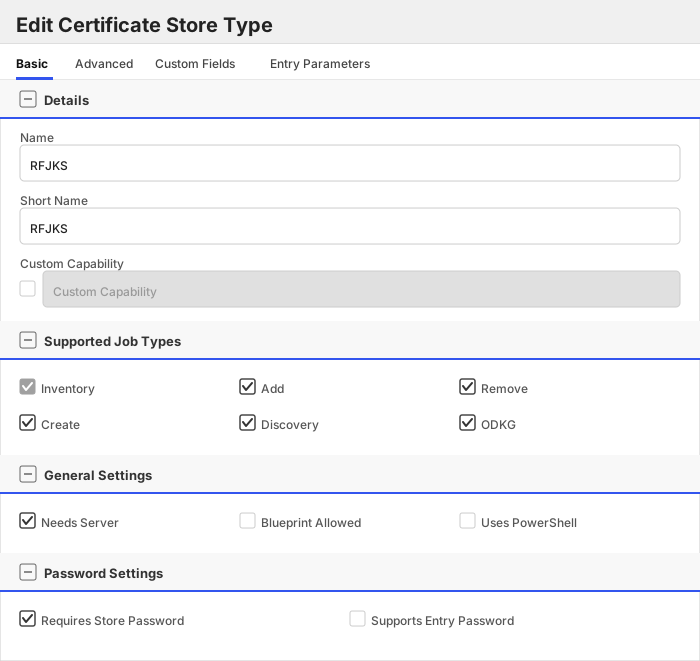
Create a store type called `RFJKS` with the attributes in the tables below:
##### Basic Tab
| Attribute | Value | Description |
| --------- | ----- | ----- |
| Name | RFJKS | Display name for the store type (may be customized) |
| Short Name | RFJKS | Short display name for the store type |
| Capability | RFJKS | Store type name orchestrator will register with. Check the box to allow entry of value |
| Supports Add | ✅ Checked | Indicates that the Store Type supports Management Add |
| Supports Remove | ✅ Checked | Indicates that the Store Type supports Management Remove |
| Supports Discovery | ✅ Checked | Indicates that the Store Type supports Discovery |
| Supports Reenrollment | ✅ Checked | Indicates that the Store Type supports Reenrollment |
| Supports Create | ✅ Checked | Indicates that the Store Type supports store creation |
| Needs Server | ✅ Checked | Determines if a target server name is required when creating store |
| Blueprint Allowed | 🔲 Unchecked | Determines if store type may be included in an Orchestrator blueprint |
| Uses PowerShell | 🔲 Unchecked | Determines if underlying implementation is PowerShell |
| Requires Store Password | ✅ Checked | Enables users to optionally specify a store password when defining a Certificate Store. |
| Supports Entry Password | 🔲 Unchecked | Determines if an individual entry within a store can have a password. |
The Basic tab should look like this:
##### Advanced Tab
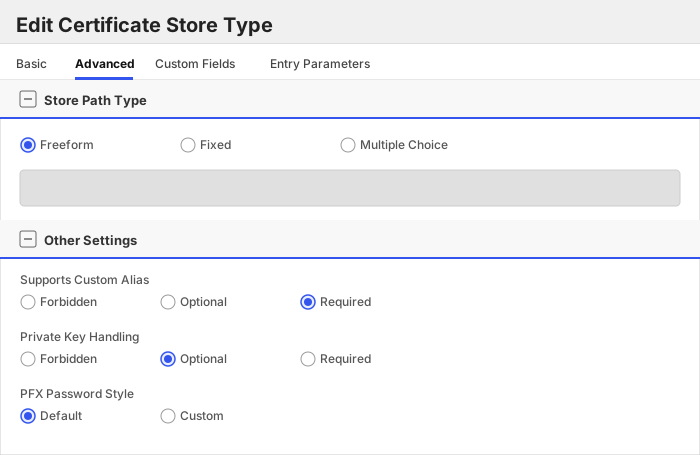
| Attribute | Value | Description |
| --------- | ----- | ----- |
| Supports Custom Alias | Required | Determines if an individual entry within a store can have a custom Alias. |
| Private Key Handling | Optional | This determines if Keyfactor can send the private key associated with a certificate to the store. |
| PFX Password Style | Default | 'Default' - PFX password is randomly generated, 'Custom' - PFX password may be specified when the enrollment job is created (Requires the Allow Custom Password application setting to be enabled.) |
The Advanced tab should look like this:
> For Keyfactor **Command versions 24.4 and later**, a Certificate Format dropdown is available with PFX and PEM options. Ensure that **PFX** is selected, as this determines the format of new and renewed certificates sent to the Orchestrator during a Management job. Currently, all Keyfactor-supported Orchestrator extensions support only PFX.
##### Custom Fields Tab
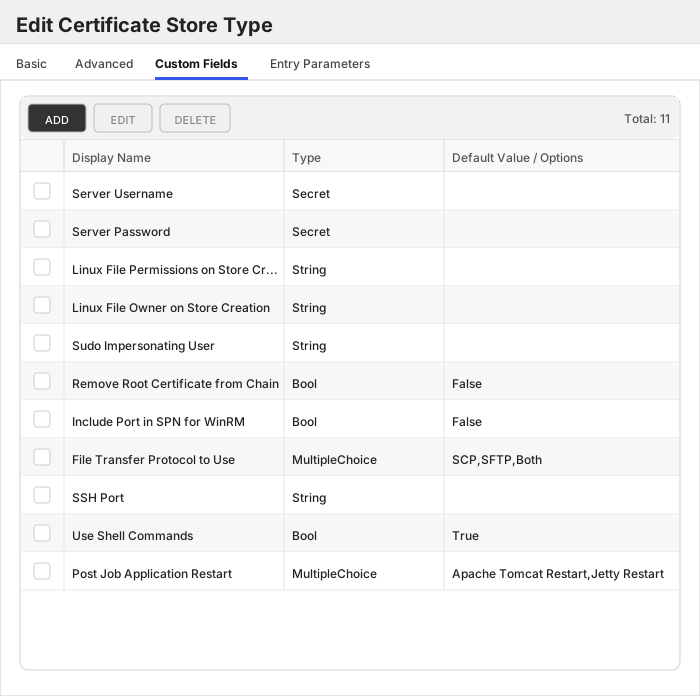
Custom fields operate at the certificate store level and are used to control how the orchestrator connects to the remote target server containing the certificate store to be managed. The following custom fields should be added to the store type:
| Name | Display Name | Description | Type | Default Value/Options | Required |
| ---- | ------------ | ---- | --------------------- | -------- | ----------- |
| ServerUsername | Server Username | A username (or valid PAM key if the username is stored in a KF Command configured PAM integration). If acting as an *agent* using local file access, just check *No Value* | Secret | | 🔲 Unchecked |
| ServerPassword | Server Password | A password (or valid PAM key if the password is stored in a KF Command configured PAM integration). The password can also be an SSH private key if connecting via SSH to a server using SSH private key authentication. If acting as an *agent* using local file access, just check *No Value* | Secret | | 🔲 Unchecked |
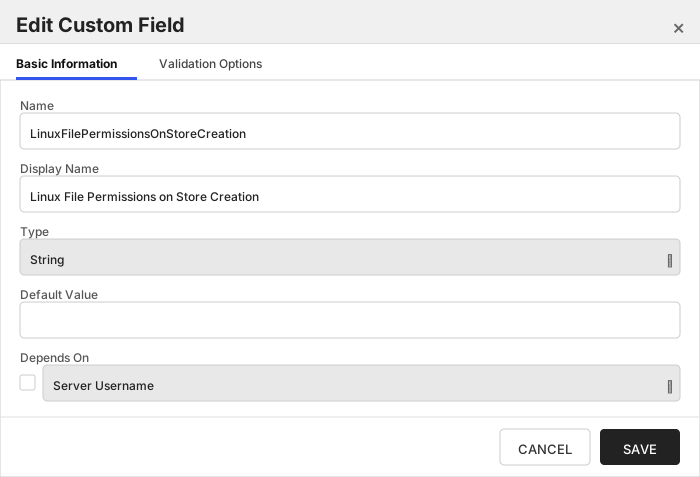
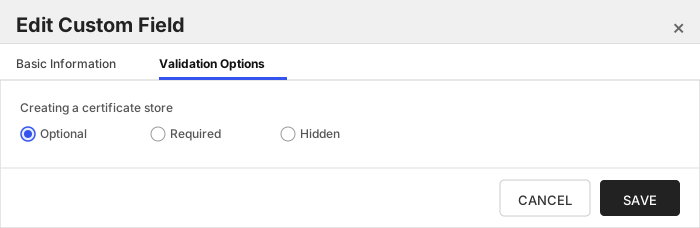
| LinuxFilePermissionsOnStoreCreation | Linux File Permissions on Store Creation | The LinuxFilePermissionsOnStoreCreation field should contain a three-digit value between 000 and 777 representing the Linux file permissions to be set for the certificate store upon creation. Example: '600' or '755'. Overrides DefaultLinuxPermissionOnStoreCreation [config.json](#post-installation) setting. | String | | 🔲 Unchecked |
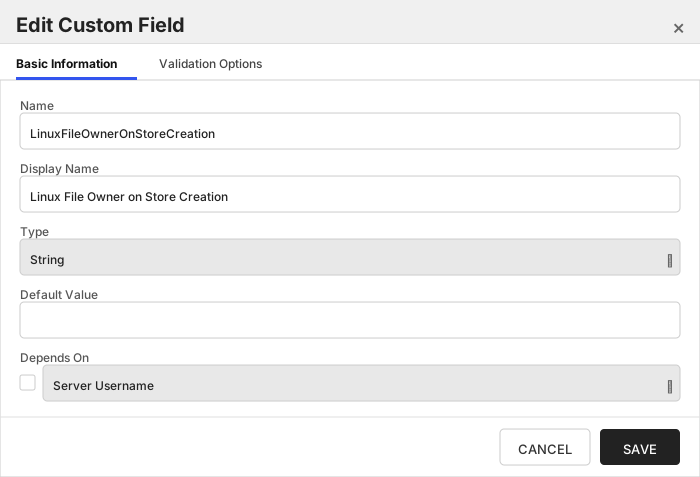
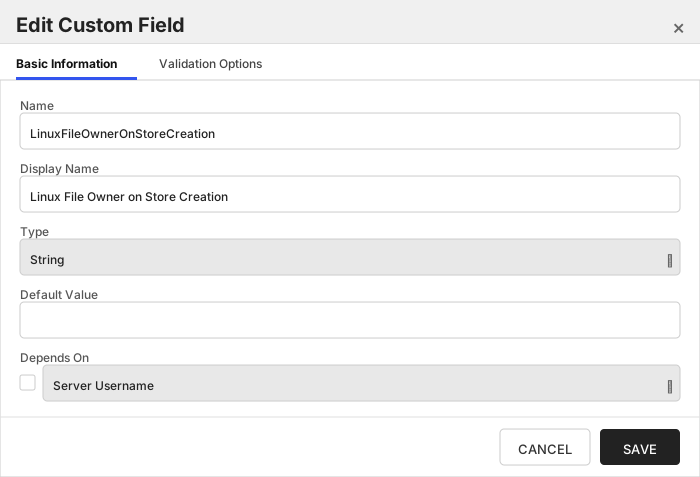
| LinuxFileOwnerOnStoreCreation | Linux File Owner on Store Creation | The LinuxFileOwnerOnStoreCreation field should contain a valid user ID recognized by the destination Linux server, optionally followed by a colon and a group ID if the group owner differs. Example: 'userID' or 'userID:groupID'. Overrides DefaultOwnerOnStoreCreation [config.json](#post-installation) setting. | String | | 🔲 Unchecked |
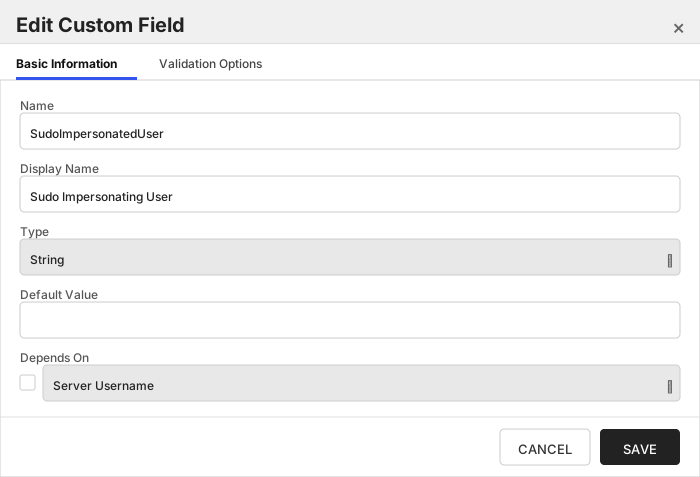
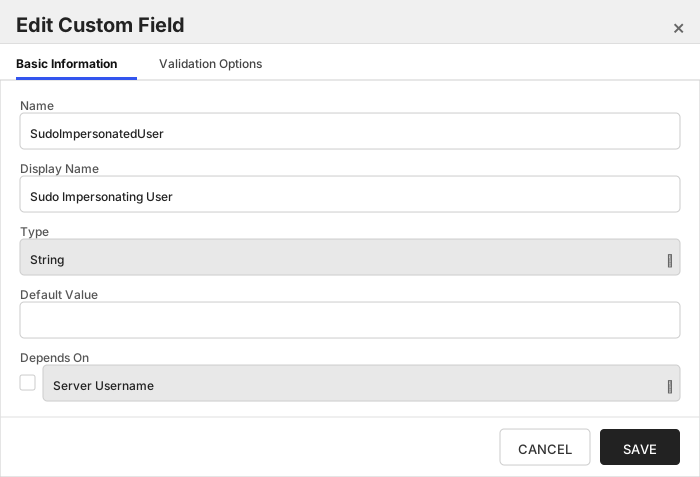
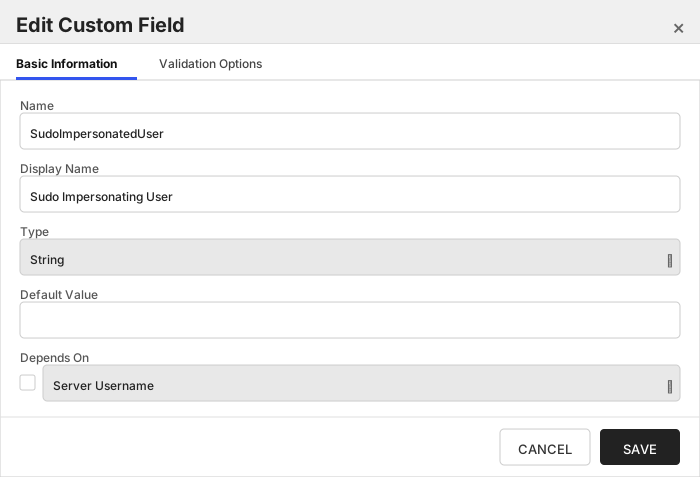
| SudoImpersonatedUser | Sudo Impersonating User | The SudoImpersonatedUser field should contain a valid user ID to impersonate using sudo on the destination Linux server. Example: 'impersonatedUserID'. Overrides DefaultSudoImpersonatedUser [config.json](#post-installation) setting. | String | | 🔲 Unchecked |
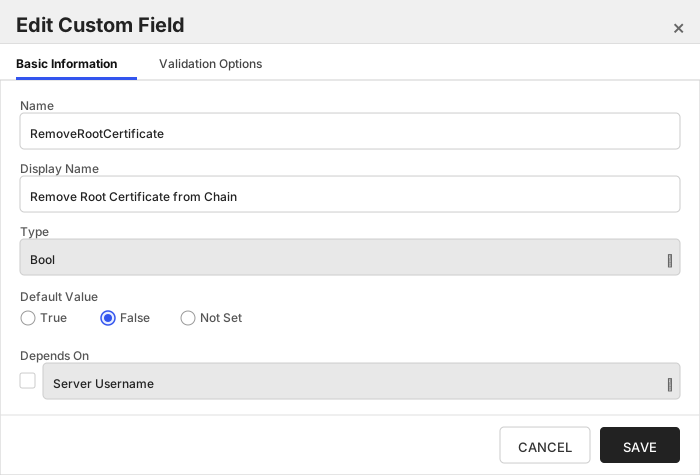
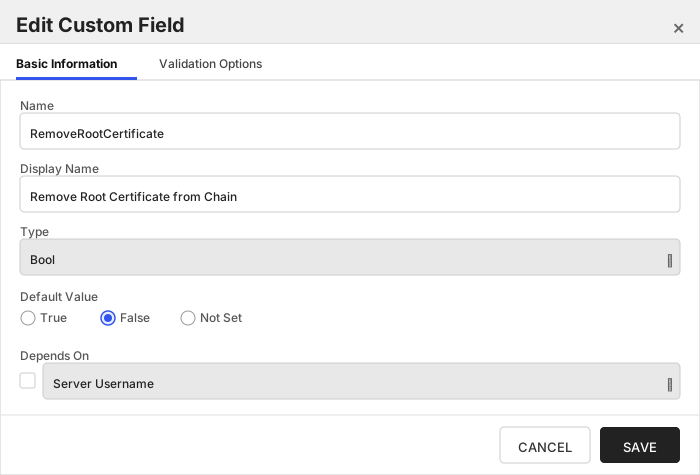
| RemoveRootCertificate | Remove Root Certificate from Chain | Remove root certificate from chain when adding/renewing a certificate in a store. | Bool | False | 🔲 Unchecked |
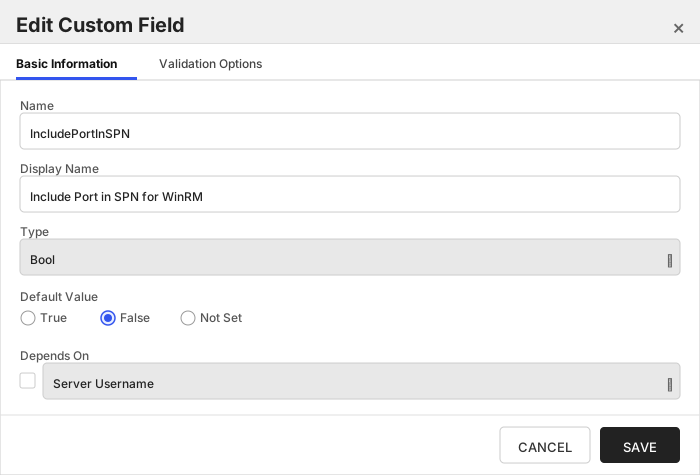
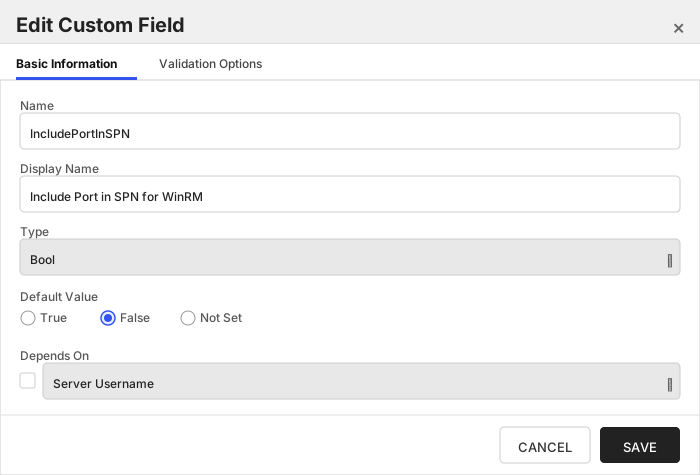
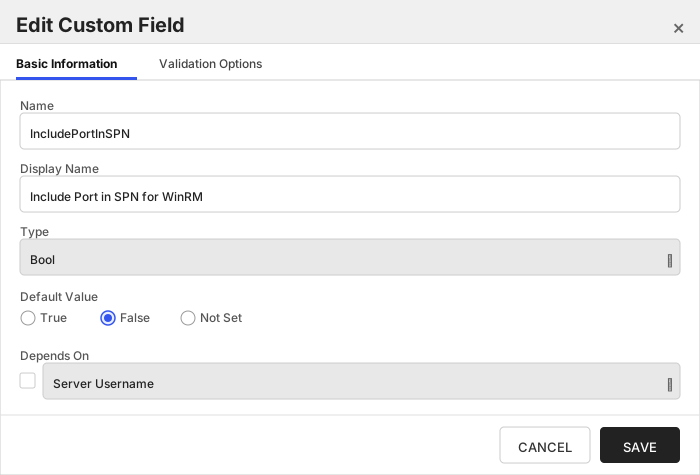
| IncludePortInSPN | Include Port in SPN for WinRM | Internally set the -IncludePortInSPN option when creating the remote PowerShell connection. Needed for some Kerberos configurations. | Bool | False | 🔲 Unchecked |
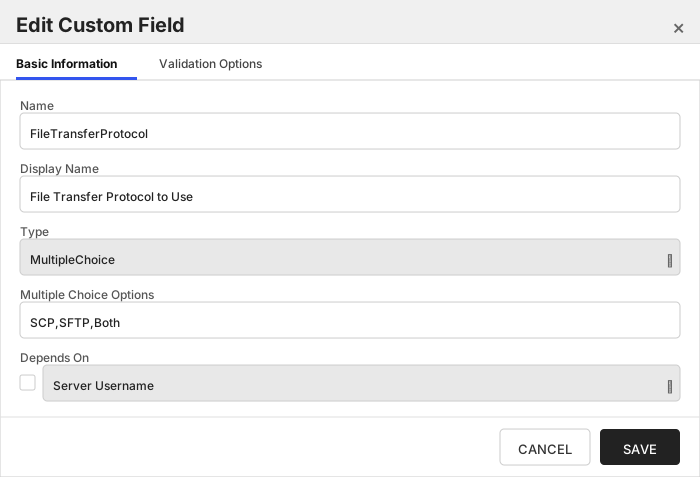
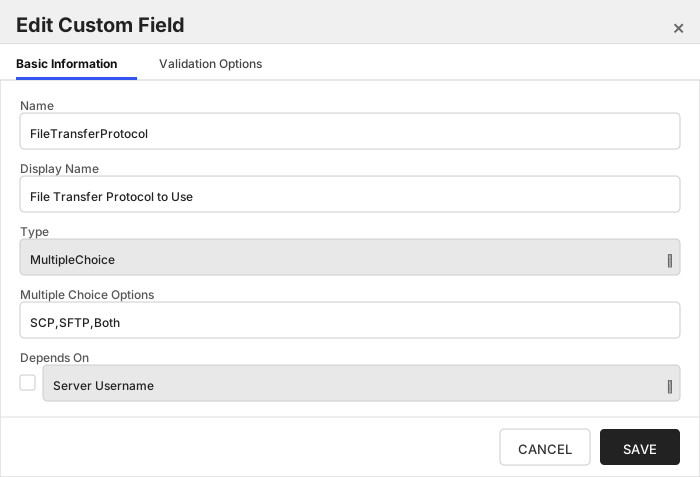
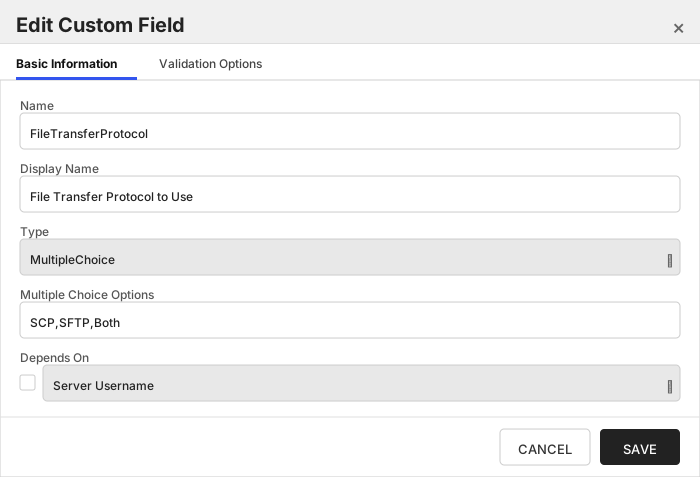
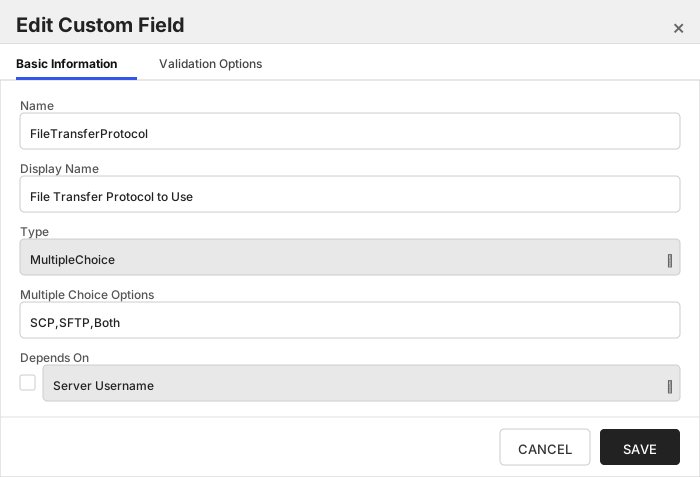
| FileTransferProtocol | File Transfer Protocol to Use | Which protocol should be used when uploading/downloading files - SCP, SFTP, or Both (try one, and then if necessary, the other). Overrides FileTransferProtocol [config.json](#post-installation) setting. | MultipleChoice | SCP,SFTP,Both | 🔲 Unchecked |
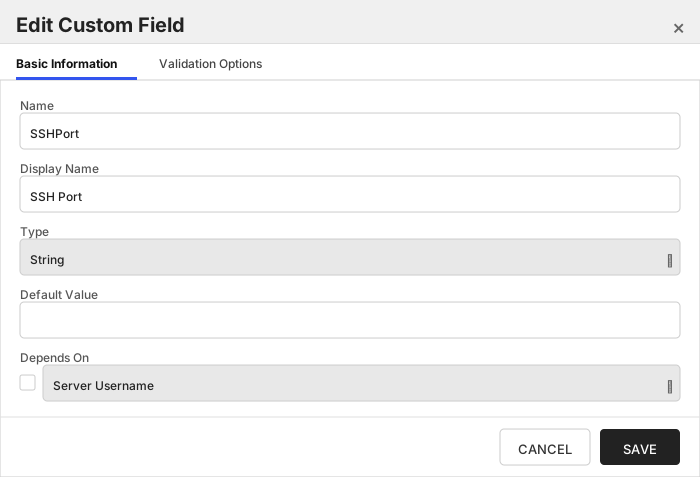
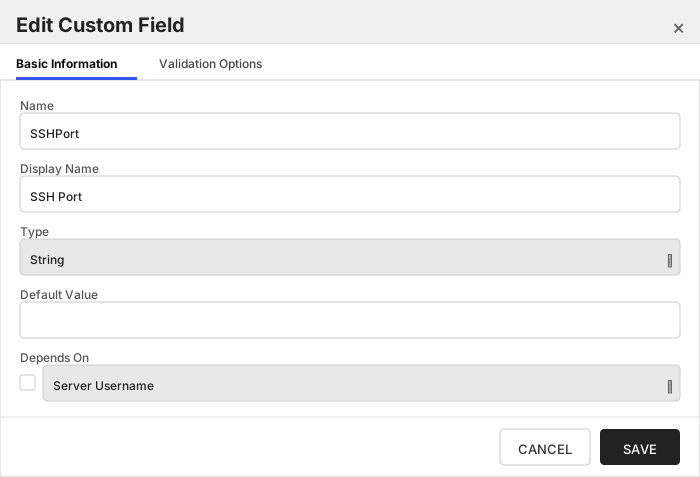
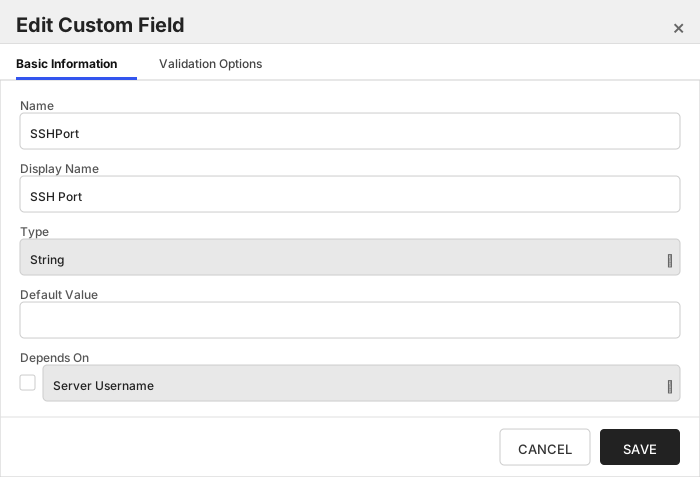
| SSHPort | SSH Port | Integer value representing the port that should be used when connecting to Linux servers over SSH. Overrides SSHPort [config.json](#post-installation) setting. | String | | 🔲 Unchecked |
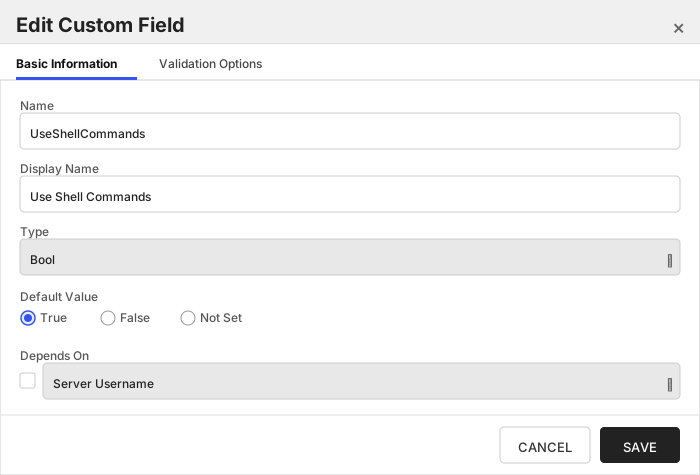
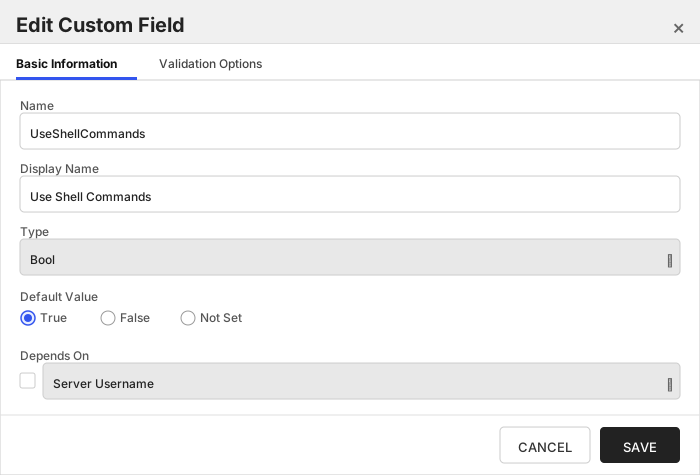
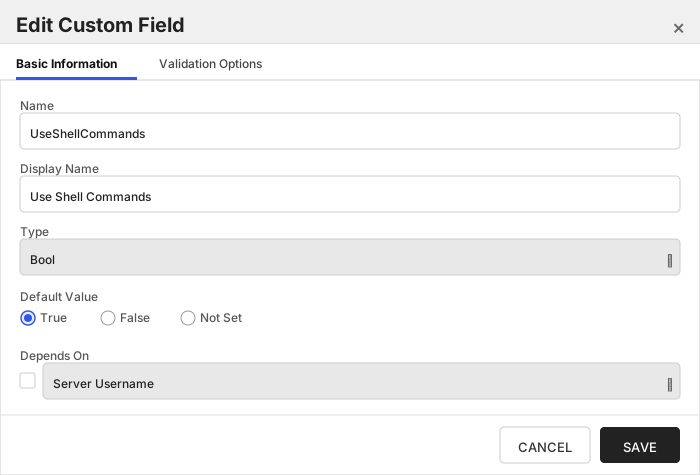
| UseShellCommands | Use Shell Commands | Recommended to be set to the default value of 'Y'. For a detailed explanation of this setting, please refer to [Use Shell Commands Setting](#use-shell-commands-setting) | Bool | True | 🔲 Unchecked |
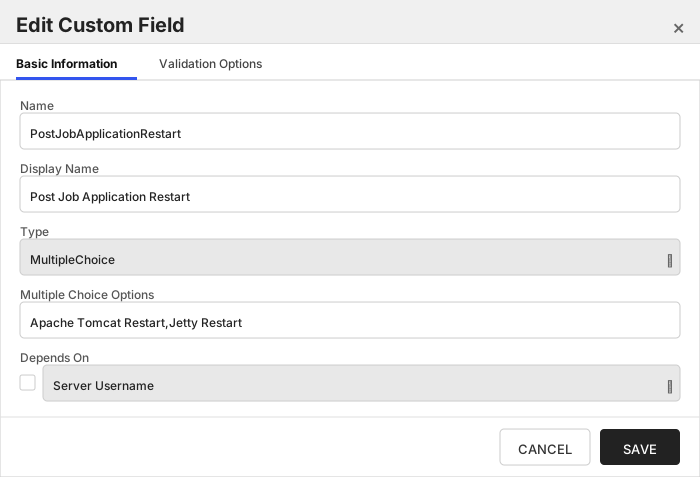
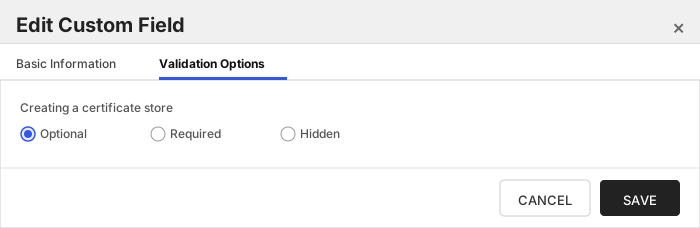
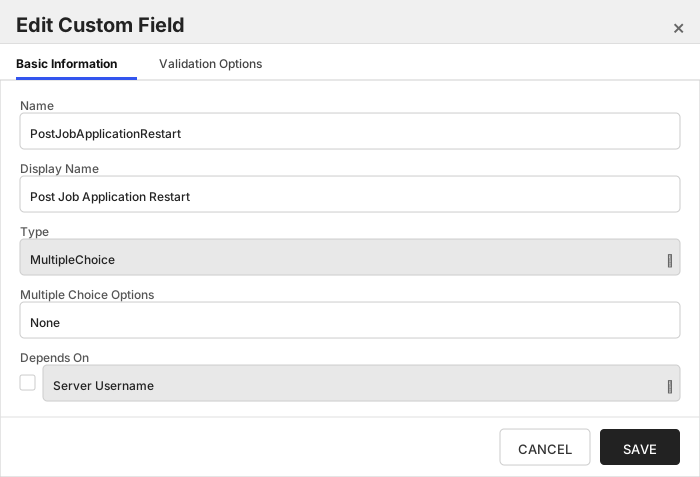
| PostJobApplicationRestart | Post Job Application Restart | Select the command to be run after a Management Add or ODKG job executes. Leave unselected if no command is desired. | MultipleChoice | Apache Tomcat Restart,Jetty Restart | 🔲 Unchecked |
The Custom Fields tab should look like this:
###### Server Username
A username (or valid PAM key if the username is stored in a KF Command configured PAM integration). If acting as an *agent* using local file access, just check *No Value*
> [!IMPORTANT]
> This field is created by the `Needs Server` on the Basic tab, do not create this field manually.
###### Server Password
A password (or valid PAM key if the password is stored in a KF Command configured PAM integration). The password can also be an SSH private key if connecting via SSH to a server using SSH private key authentication. If acting as an *agent* using local file access, just check *No Value*
> [!IMPORTANT]
> This field is created by the `Needs Server` on the Basic tab, do not create this field manually.
###### Linux File Permissions on Store Creation
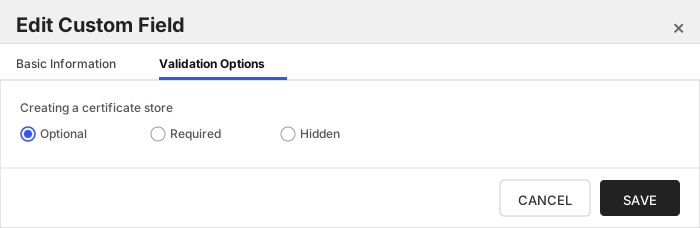
The LinuxFilePermissionsOnStoreCreation field should contain a three-digit value between 000 and 777 representing the Linux file permissions to be set for the certificate store upon creation. Example: '600' or '755'. Overrides DefaultLinuxPermissionOnStoreCreation [config.json](#post-installation) setting.
###### Linux File Owner on Store Creation
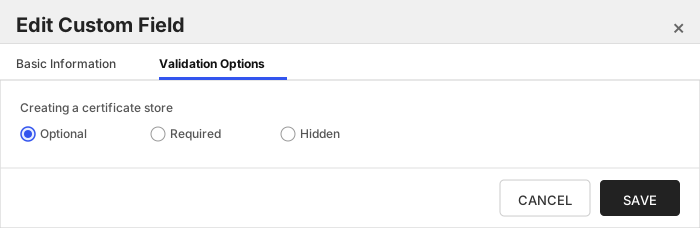
The LinuxFileOwnerOnStoreCreation field should contain a valid user ID recognized by the destination Linux server, optionally followed by a colon and a group ID if the group owner differs. Example: 'userID' or 'userID:groupID'. Overrides DefaultOwnerOnStoreCreation [config.json](#post-installation) setting.
###### Sudo Impersonating User
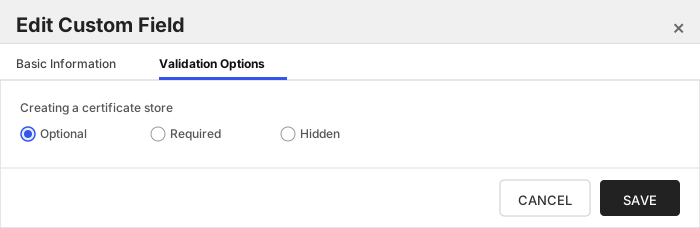
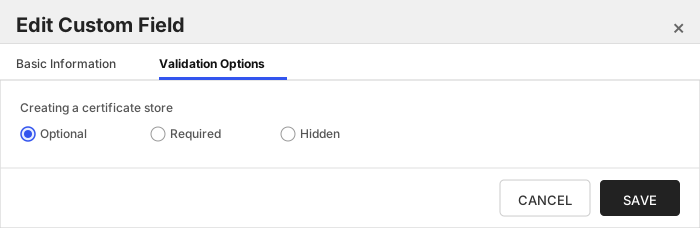
The SudoImpersonatedUser field should contain a valid user ID to impersonate using sudo on the destination Linux server. Example: 'impersonatedUserID'. Overrides DefaultSudoImpersonatedUser [config.json](#post-installation) setting.
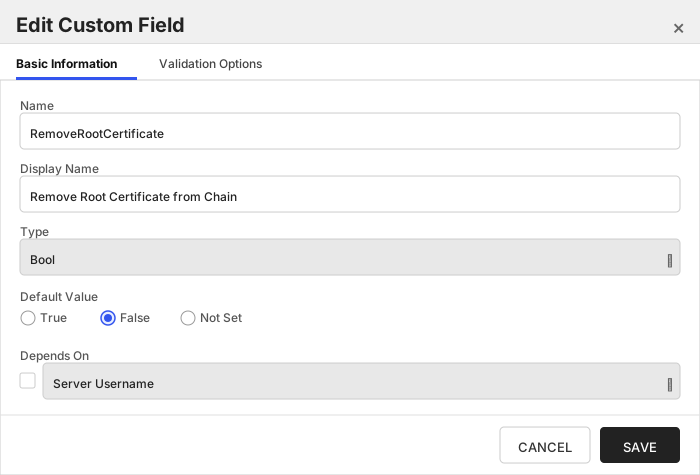
###### Remove Root Certificate from Chain
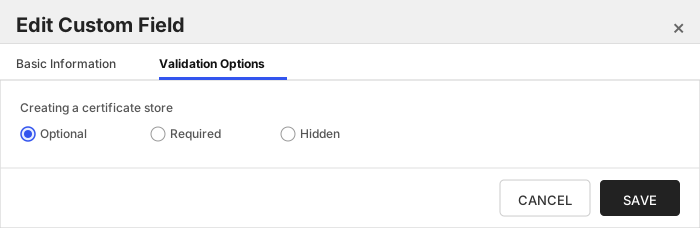
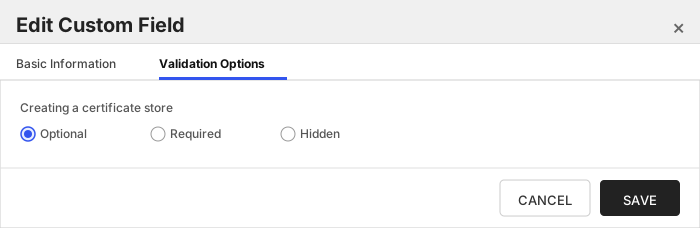
Remove root certificate from chain when adding/renewing a certificate in a store.
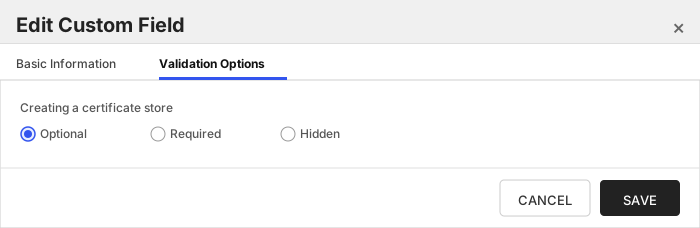
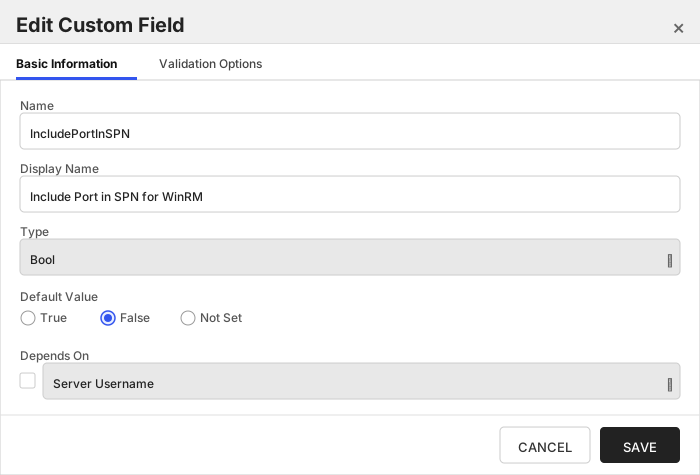
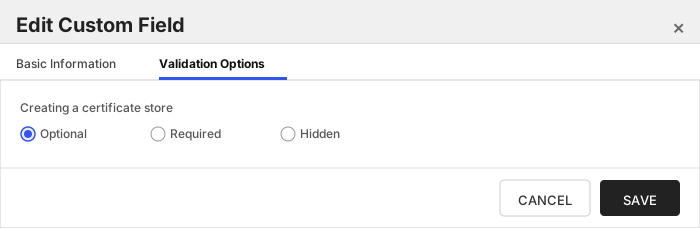
###### Include Port in SPN for WinRM
Internally set the -IncludePortInSPN option when creating the remote PowerShell connection. Needed for some Kerberos configurations.
###### File Transfer Protocol to Use
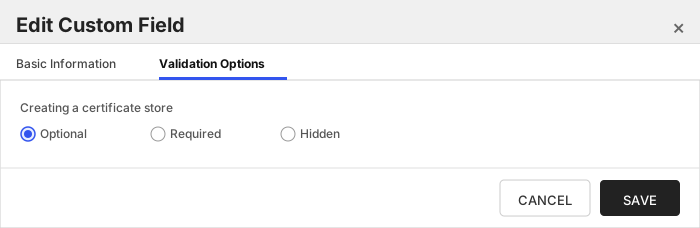
Which protocol should be used when uploading/downloading files - SCP, SFTP, or Both (try one, and then if necessary, the other). Overrides FileTransferProtocol [config.json](#post-installation) setting.
###### SSH Port
Integer value representing the port that should be used when connecting to Linux servers over SSH. Overrides SSHPort [config.json](#post-installation) setting.
###### Use Shell Commands
Recommended to be set to the default value of 'Y'. For a detailed explanation of this setting, please refer to [Use Shell Commands Setting](#use-shell-commands-setting)
###### Post Job Application Restart
Select the command to be run after a Management Add or ODKG job executes. Leave unselected if no command is desired.
Click to expand details
The `RFPEM` store type can be used to manage `PEM` encoded files.
#### Supported use cases
1. Trust stores - A file with one-to-many certificates (no private keys, no certificate chains).
2. Single certificate stores with private key in the file.
3. Single certificate stores with certificate chain and private key in the file.
4. Single certificate stores with private key in an external file.
5. Single certificate stores with certificate chain in the file and private key in an external file
#### Additional Considerations and Limitations
- `PEM` stores may only have one private key (internal or external) associated with the store, as only one certificate/chain/private key combination can be stored in a PEM store supported by `RFPEM`.
- Private keys will be stored in encrypted or unencrypted `PKCS#8` format (`BEGIN [ENCRYPTED] PRIVATE KEY`) based on the Store Password set on the Keyfactor Command Certificate Store unless managing a `PEM` store that currently contains a private key in `PKCS#1` format (`BEGIN RSA PRIVATE KEY` or `BEGIN EC PRIVATE KEY`).
- Store password *MUST* be set to `No Password` if managing a store with a `PKCS#1` private key, as encrypted `PKCS#1` keys are not supported with this integration.
#### Supported Operations
| Operation | Is Supported |
|--------------|--------------|
| Add | ✅ Checked |
| Remove | ✅ Checked |
| Discovery | ✅ Checked |
| Reenrollment | ✅ Checked |
| Create | ✅ Checked |
#### Store Type Creation
##### Using kfutil:
`kfutil` is a custom CLI for the Keyfactor Command API and can be used to create certificate store types.
For more information on [kfutil](https://github.com/Keyfactor/kfutil) check out the [docs](https://github.com/Keyfactor/kfutil?tab=readme-ov-file#quickstart)
Click to expand RFPEM kfutil details
##### Using online definition from GitHub:
This will reach out to GitHub and pull the latest store-type definition
```shell
# RFPEM
kfutil store-types create RFPEM
```
##### Offline creation using integration-manifest file:
If required, it is possible to create store types from the [integration-manifest.json](./integration-manifest.json) included in this repo.
You would first download the [integration-manifest.json](./integration-manifest.json) and then run the following command
in your offline environment.
```shell
kfutil store-types create --from-file integration-manifest.json
```
Click to expand manual RFPEM details
Create a store type called `RFPEM` with the attributes in the tables below:
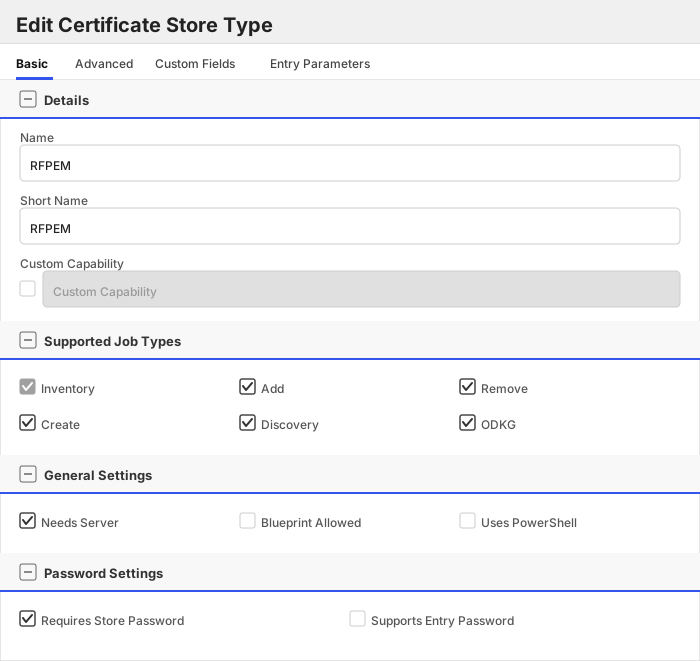
##### Basic Tab
| Attribute | Value | Description |
| --------- | ----- | ----- |
| Name | RFPEM | Display name for the store type (may be customized) |
| Short Name | RFPEM | Short display name for the store type |
| Capability | RFPEM | Store type name orchestrator will register with. Check the box to allow entry of value |
| Supports Add | ✅ Checked | Indicates that the Store Type supports Management Add |
| Supports Remove | ✅ Checked | Indicates that the Store Type supports Management Remove |
| Supports Discovery | ✅ Checked | Indicates that the Store Type supports Discovery |
| Supports Reenrollment | ✅ Checked | Indicates that the Store Type supports Reenrollment |
| Supports Create | ✅ Checked | Indicates that the Store Type supports store creation |
| Needs Server | ✅ Checked | Determines if a target server name is required when creating store |
| Blueprint Allowed | 🔲 Unchecked | Determines if store type may be included in an Orchestrator blueprint |
| Uses PowerShell | 🔲 Unchecked | Determines if underlying implementation is PowerShell |
| Requires Store Password | ✅ Checked | Enables users to optionally specify a store password when defining a Certificate Store. |
| Supports Entry Password | 🔲 Unchecked | Determines if an individual entry within a store can have a password. |
The Basic tab should look like this:
##### Advanced Tab
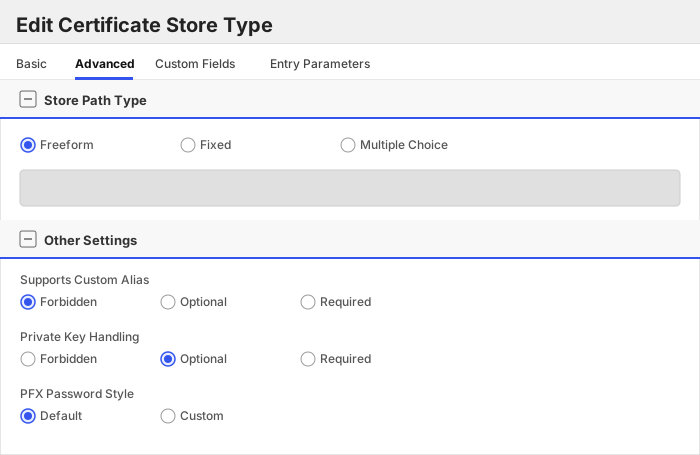
| Attribute | Value | Description |
| --------- | ----- | ----- |
| Supports Custom Alias | Forbidden | Determines if an individual entry within a store can have a custom Alias. |
| Private Key Handling | Optional | This determines if Keyfactor can send the private key associated with a certificate to the store. |
| PFX Password Style | Default | 'Default' - PFX password is randomly generated, 'Custom' - PFX password may be specified when the enrollment job is created (Requires the Allow Custom Password application setting to be enabled.) |
The Advanced tab should look like this:
> For Keyfactor **Command versions 24.4 and later**, a Certificate Format dropdown is available with PFX and PEM options. Ensure that **PFX** is selected, as this determines the format of new and renewed certificates sent to the Orchestrator during a Management job. Currently, all Keyfactor-supported Orchestrator extensions support only PFX.
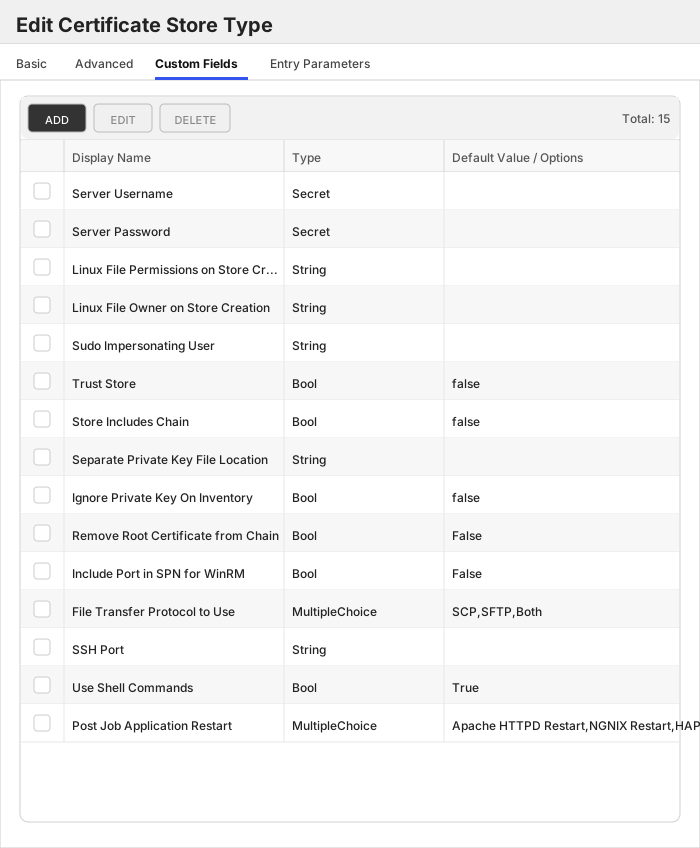
##### Custom Fields Tab
Custom fields operate at the certificate store level and are used to control how the orchestrator connects to the remote target server containing the certificate store to be managed. The following custom fields should be added to the store type:
| Name | Display Name | Description | Type | Default Value/Options | Required |
| ---- | ------------ | ---- | --------------------- | -------- | ----------- |
| ServerUsername | Server Username | A username (or valid PAM key if the username is stored in a KF Command configured PAM integration). If acting as an *agent* using local file access, just check *No Value* | Secret | | 🔲 Unchecked |
| ServerPassword | Server Password | A password (or valid PAM key if the password is stored in a KF Command configured PAM integration). The password can also be an SSH private key if connecting via SSH to a server using SSH private key authentication. If acting as an *agent* using local file access, just check *No Value* | Secret | | 🔲 Unchecked |
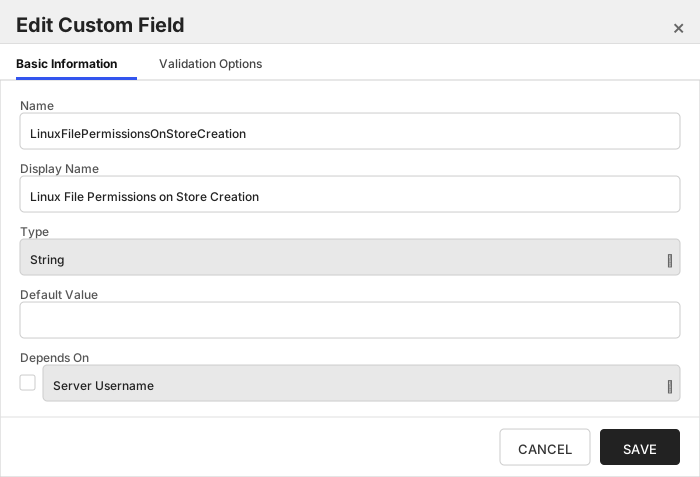
| LinuxFilePermissionsOnStoreCreation | Linux File Permissions on Store Creation | The LinuxFilePermissionsOnStoreCreation field should contain a three-digit value between 000 and 777 representing the Linux file permissions to be set for the certificate store upon creation. Example: '600' or '755'. Overrides DefaultLinuxPermissionOnStoreCreation [config.json](#post-installation) setting. | String | | 🔲 Unchecked |
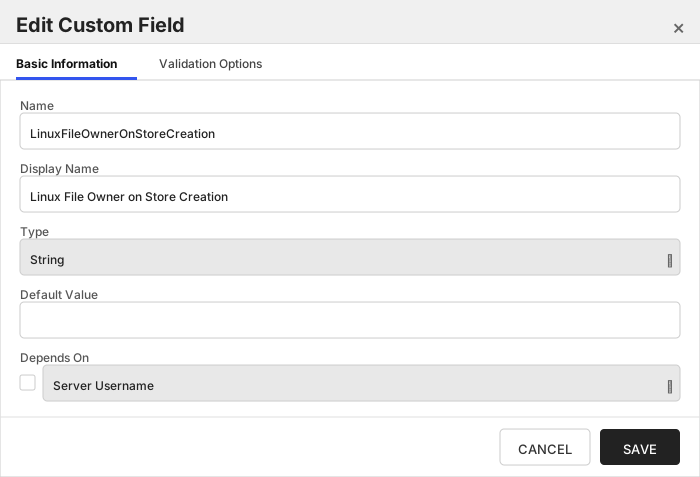
| LinuxFileOwnerOnStoreCreation | Linux File Owner on Store Creation | The LinuxFileOwnerOnStoreCreation field should contain a valid user ID recognized by the destination Linux server, optionally followed by a colon and a group ID if the group owner differs. Example: 'userID' or 'userID:groupID'. Overrides DefaultOwnerOnStoreCreation [config.json](#post-installation) setting. | String | | 🔲 Unchecked |
| SudoImpersonatedUser | Sudo Impersonating User | The SudoImpersonatedUser field should contain a valid user ID to impersonate using sudo on the destination Linux server. Example: 'impersonatedUserID'. Overrides [config.json](#post-installation) DefaultSudoImpersonatedUser setting.. | String | | 🔲 Unchecked |
| IsTrustStore | Trust Store | The IsTrustStore field should contain a boolean value ('true' or 'false') indicating whether the store will be identified as a trust store, which can hold multiple certificates without private keys. Example: 'true' for a trust store or 'false' for a store with a single certificate and private key. | Bool | false | 🔲 Unchecked |
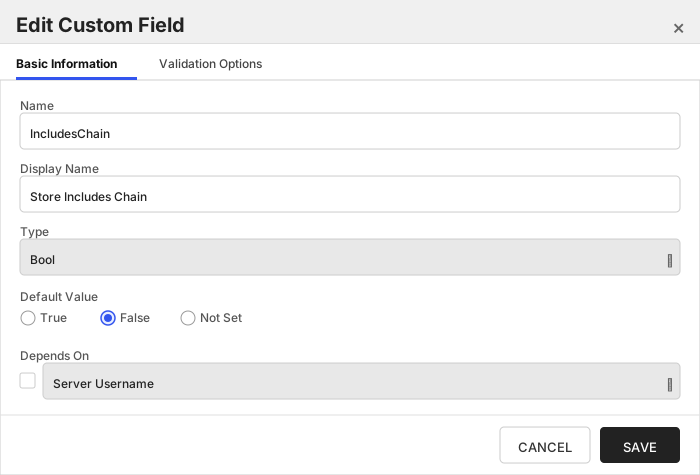
| IncludesChain | Store Includes Chain | The IncludesChain field should contain a boolean value ('true' or 'false') indicating whether the certificate store includes the full certificate chain along with the end entity certificate. Example: 'true' to include the full chain or 'false' to exclude it. | Bool | false | 🔲 Unchecked |
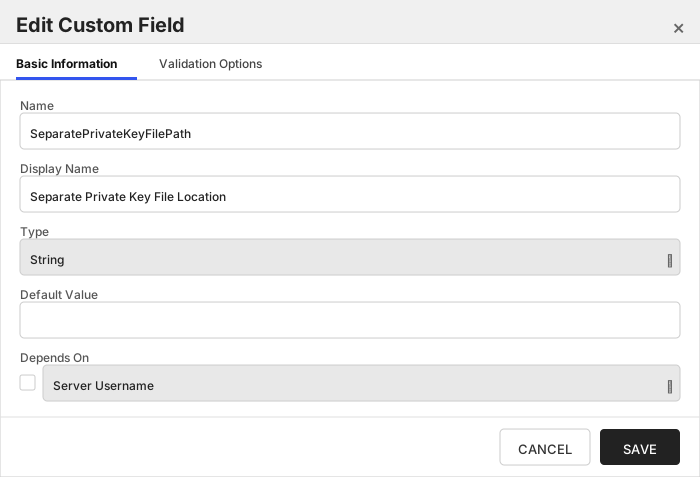
| SeparatePrivateKeyFilePath | Separate Private Key File Location | The SeparatePrivateKeyFilePath field should contain the full path and file name where the separate private key file will be stored if it is to be kept outside the main certificate file. Example: '/path/to/privatekey.pem'. | String | | 🔲 Unchecked |
| IgnorePrivateKeyOnInventory | Ignore Private Key On Inventory | The IgnorePrivateKeyOnInventory field should contain a boolean value ('true' or 'false') indicating whether to disregard the private key during inventory. Setting this to 'true' will allow inventory for the store without needing to supply the location of the private key or the password if the key is encrypted. However, doing this makes the store in effect inventory-only and no management jobs will be able to be run for this store. Example: 'true' to ignore the private key or 'false' to include it. | Bool | false | 🔲 Unchecked |
| RemoveRootCertificate | Remove Root Certificate from Chain | Remove root certificate from chain when adding/renewing a certificate in a store. | Bool | False | 🔲 Unchecked |
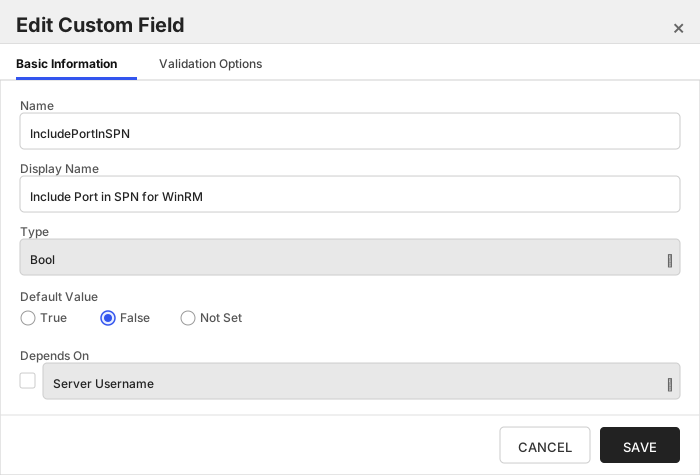
| IncludePortInSPN | Include Port in SPN for WinRM | Internally set the -IncludePortInSPN option when creating the remote PowerShell connection. Needed for some Kerberos configurations. | Bool | False | 🔲 Unchecked |
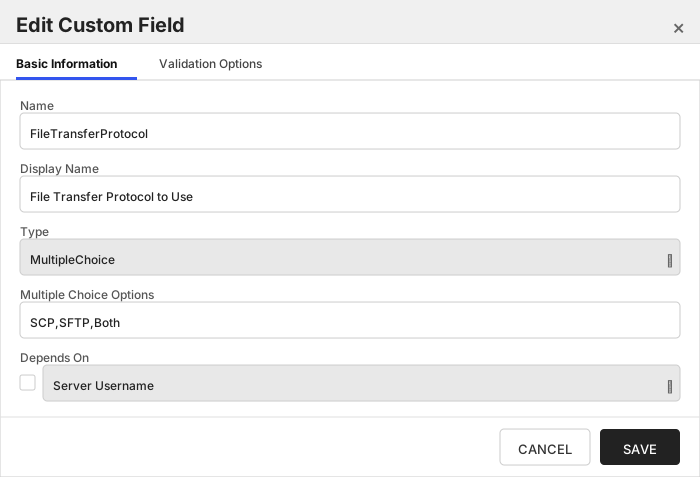
| FileTransferProtocol | File Transfer Protocol to Use | Which protocol should be used when uploading/downloading files - SCP, SFTP, or Both (try one, and then if necessary, the other). Overrides FileTransferProtocol [config.json](#post-installation) setting. | MultipleChoice | SCP,SFTP,Both | 🔲 Unchecked |
| SSHPort | SSH Port | Integer value representing the port that should be used when connecting to Linux servers over SSH. Overrides SSHPort [config.json](#post-installation) setting. | String | | 🔲 Unchecked |
| UseShellCommands | Use Shell Commands | Recommended to be set to the default value of 'Y'. For a detailed explanation of this setting, please refer to [Use Shell Commands Setting](#use-shell-commands-setting) | Bool | True | 🔲 Unchecked |
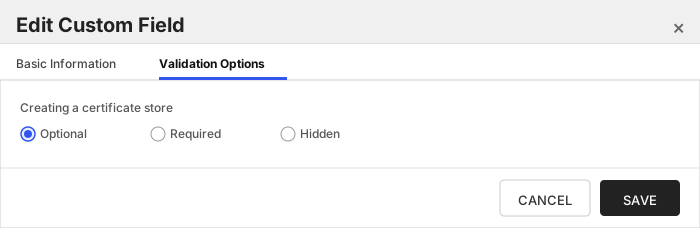
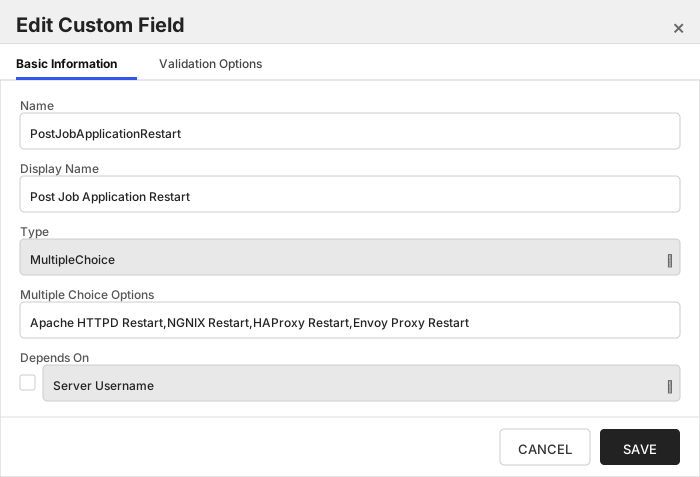
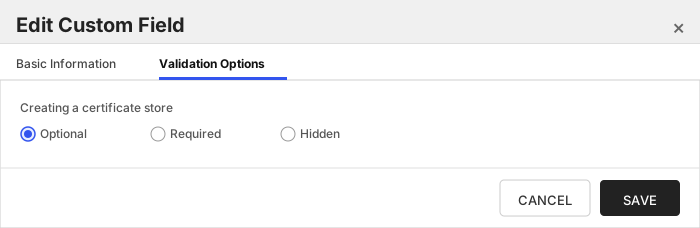
| PostJobApplicationRestart | Post Job Application Restart | Select the command to be run after a Management Add or ODKG job executes. Leave unselected if no command is desired. | MultipleChoice | Apache HTTPD Restart,NGNIX Restart,HAProxy Restart,Envoy Proxy Restart | 🔲 Unchecked |
The Custom Fields tab should look like this:
###### Server Username
A username (or valid PAM key if the username is stored in a KF Command configured PAM integration). If acting as an *agent* using local file access, just check *No Value*
> [!IMPORTANT]
> This field is created by the `Needs Server` on the Basic tab, do not create this field manually.
###### Server Password
A password (or valid PAM key if the password is stored in a KF Command configured PAM integration). The password can also be an SSH private key if connecting via SSH to a server using SSH private key authentication. If acting as an *agent* using local file access, just check *No Value*
> [!IMPORTANT]
> This field is created by the `Needs Server` on the Basic tab, do not create this field manually.
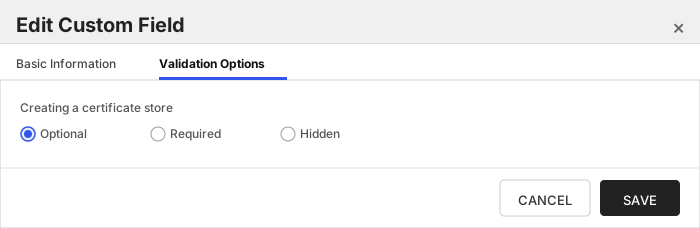
###### Linux File Permissions on Store Creation
The LinuxFilePermissionsOnStoreCreation field should contain a three-digit value between 000 and 777 representing the Linux file permissions to be set for the certificate store upon creation. Example: '600' or '755'. Overrides DefaultLinuxPermissionOnStoreCreation [config.json](#post-installation) setting.
###### Linux File Owner on Store Creation
The LinuxFileOwnerOnStoreCreation field should contain a valid user ID recognized by the destination Linux server, optionally followed by a colon and a group ID if the group owner differs. Example: 'userID' or 'userID:groupID'. Overrides DefaultOwnerOnStoreCreation [config.json](#post-installation) setting.
###### Sudo Impersonating User
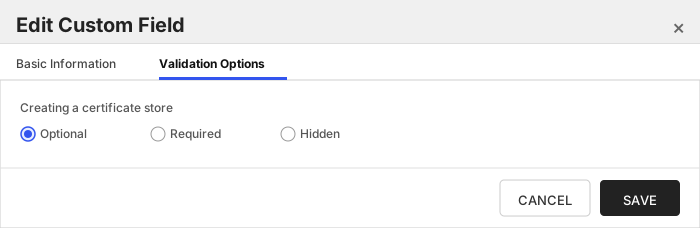
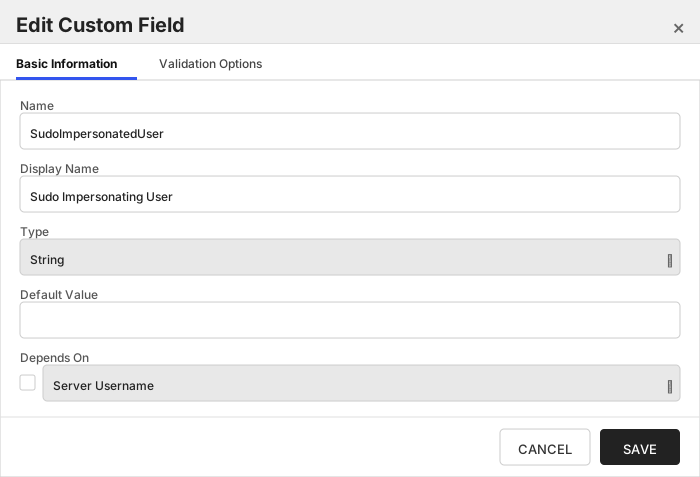
The SudoImpersonatedUser field should contain a valid user ID to impersonate using sudo on the destination Linux server. Example: 'impersonatedUserID'. Overrides [config.json](#post-installation) DefaultSudoImpersonatedUser setting..
###### Trust Store
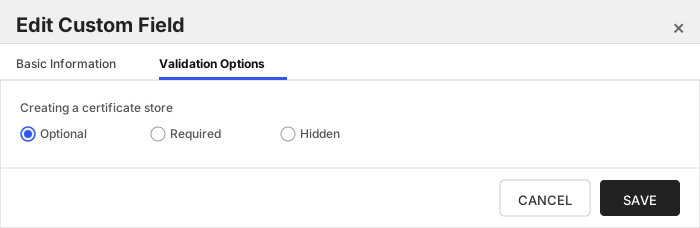
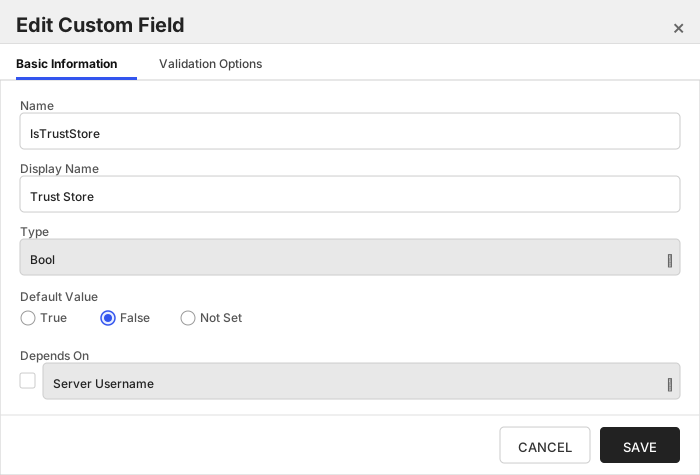
The IsTrustStore field should contain a boolean value ('true' or 'false') indicating whether the store will be identified as a trust store, which can hold multiple certificates without private keys. Example: 'true' for a trust store or 'false' for a store with a single certificate and private key.
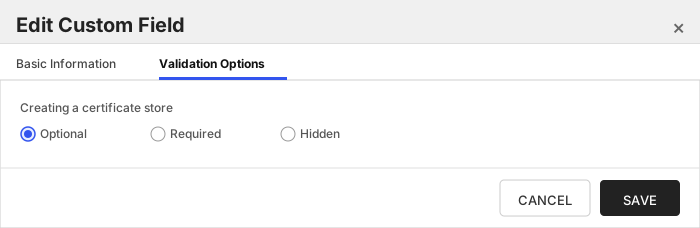
###### Store Includes Chain
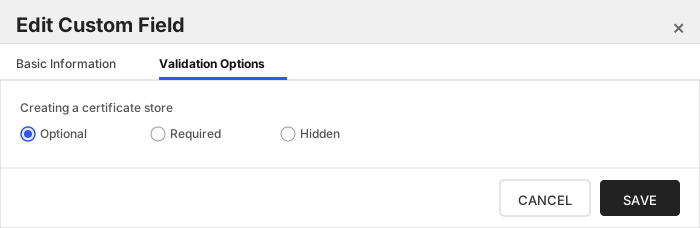
The IncludesChain field should contain a boolean value ('true' or 'false') indicating whether the certificate store includes the full certificate chain along with the end entity certificate. Example: 'true' to include the full chain or 'false' to exclude it.
###### Separate Private Key File Location
The SeparatePrivateKeyFilePath field should contain the full path and file name where the separate private key file will be stored if it is to be kept outside the main certificate file. Example: '/path/to/privatekey.pem'.
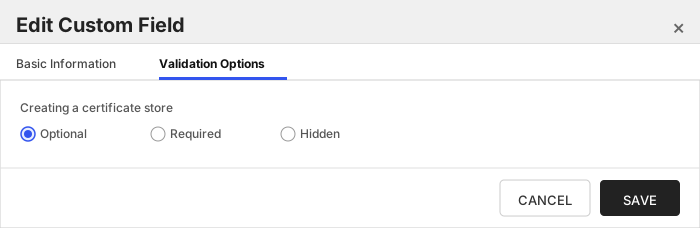
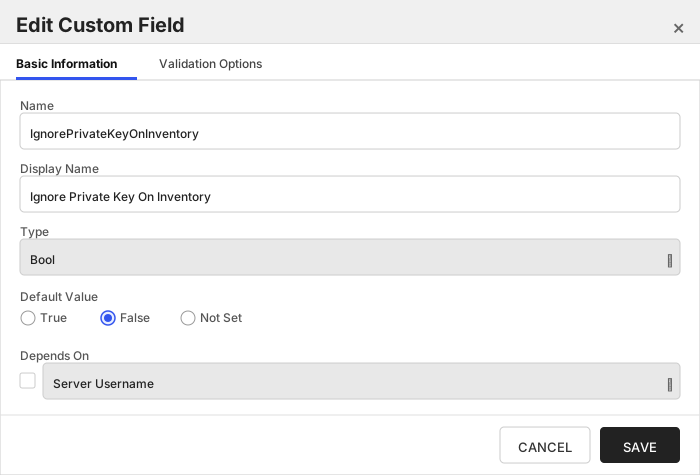
###### Ignore Private Key On Inventory
The IgnorePrivateKeyOnInventory field should contain a boolean value ('true' or 'false') indicating whether to disregard the private key during inventory. Setting this to 'true' will allow inventory for the store without needing to supply the location of the private key or the password if the key is encrypted. However, doing this makes the store in effect inventory-only and no management jobs will be able to be run for this store. Example: 'true' to ignore the private key or 'false' to include it.
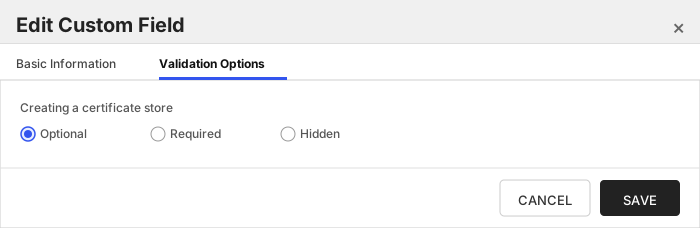
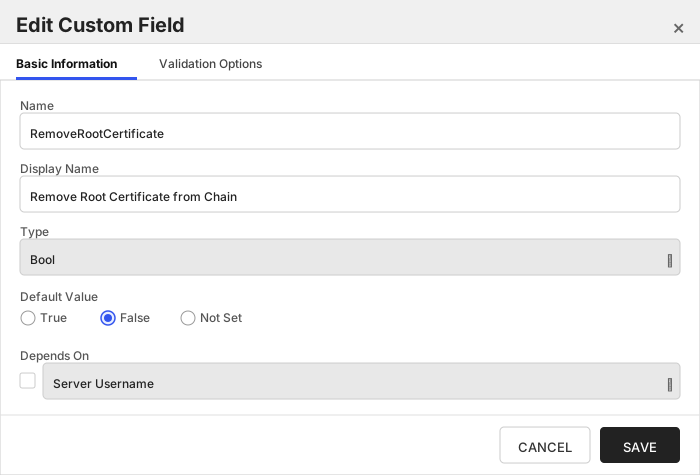
###### Remove Root Certificate from Chain
Remove root certificate from chain when adding/renewing a certificate in a store.
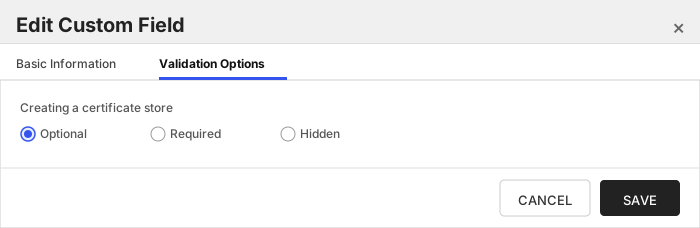
###### Include Port in SPN for WinRM
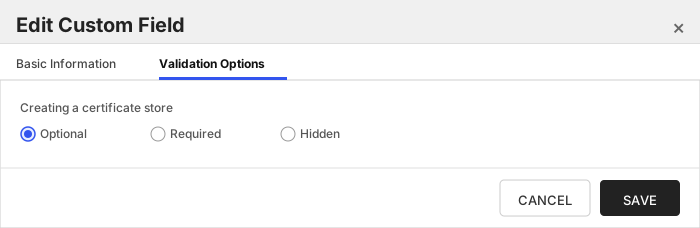
Internally set the -IncludePortInSPN option when creating the remote PowerShell connection. Needed for some Kerberos configurations.
###### File Transfer Protocol to Use
Which protocol should be used when uploading/downloading files - SCP, SFTP, or Both (try one, and then if necessary, the other). Overrides FileTransferProtocol [config.json](#post-installation) setting.
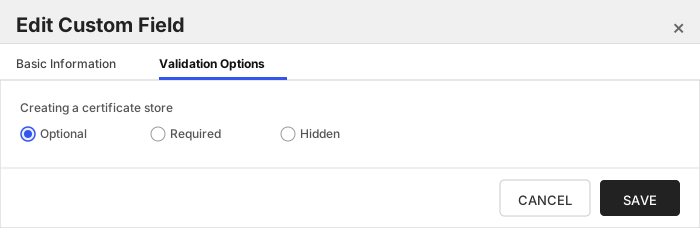
###### SSH Port
Integer value representing the port that should be used when connecting to Linux servers over SSH. Overrides SSHPort [config.json](#post-installation) setting.
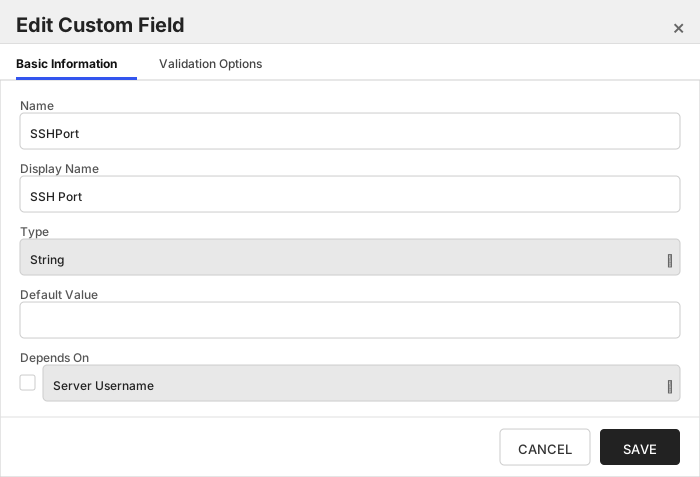
###### Use Shell Commands
Recommended to be set to the default value of 'Y'. For a detailed explanation of this setting, please refer to [Use Shell Commands Setting](#use-shell-commands-setting)
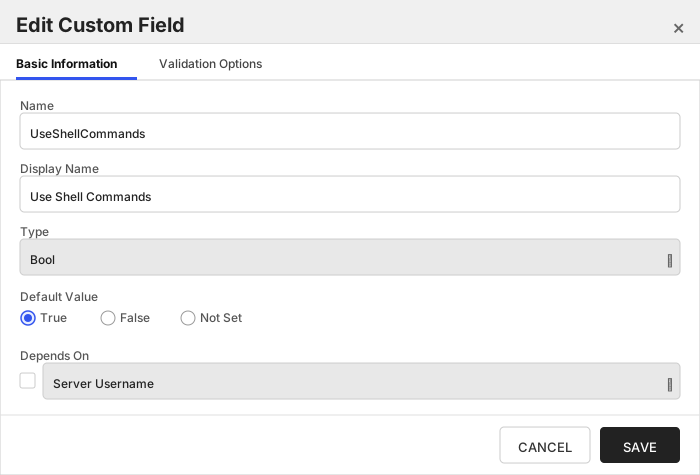
###### Post Job Application Restart
Select the command to be run after a Management Add or ODKG job executes. Leave unselected if no command is desired.
Click to expand details
The `RFPkcs12` store type can be used to manage any `PKCS#12` compliant file format INCLUDING java keystores of type `PKCS12`.
#### Supported use cases
1. One-to-many trust entries - A trust entry is defined as a single certificate without a private key in a certificate store. Each trust entry MUST BE identified with a custom friendly name/alias.
2. One-to-many key entries - One-to-many certificates with private keys and optionally the full certificate chain. Each certificate MUST BE identified with a custom friendly name/alias.
3. A mix of trust and key entries. Each entry MUST BE identified with a custom friendly name/alias.
4. Single certificate stores with a blank/missing friendly name/alias. Any management add job will replace the current certificate entry and will keep the friendly name/alias blank. The Keyfactor Command certificate store will show the current certificate thumbprint as the entry's alias.
#### Unsupported use cases
1. Multiple key and/or trust entries with a mix of existing and non-existing friendly names/aliases.
2. Multiple key and/or trust entries with blank friendly names/aliases
#### Supported Operations
| Operation | Is Supported |
|--------------|--------------|
| Add | ✅ Checked |
| Remove | ✅ Checked |
| Discovery | ✅ Checked |
| Reenrollment | ✅ Checked |
| Create | ✅ Checked |
#### Store Type Creation
##### Using kfutil:
`kfutil` is a custom CLI for the Keyfactor Command API and can be used to create certificate store types.
For more information on [kfutil](https://github.com/Keyfactor/kfutil) check out the [docs](https://github.com/Keyfactor/kfutil?tab=readme-ov-file#quickstart)
Click to expand RFPkcs12 kfutil details
##### Using online definition from GitHub:
This will reach out to GitHub and pull the latest store-type definition
```shell
# RFPkcs12
kfutil store-types create RFPkcs12
```
##### Offline creation using integration-manifest file:
If required, it is possible to create store types from the [integration-manifest.json](./integration-manifest.json) included in this repo.
You would first download the [integration-manifest.json](./integration-manifest.json) and then run the following command
in your offline environment.
```shell
kfutil store-types create --from-file integration-manifest.json
```
Click to expand manual RFPkcs12 details
Create a store type called `RFPkcs12` with the attributes in the tables below:
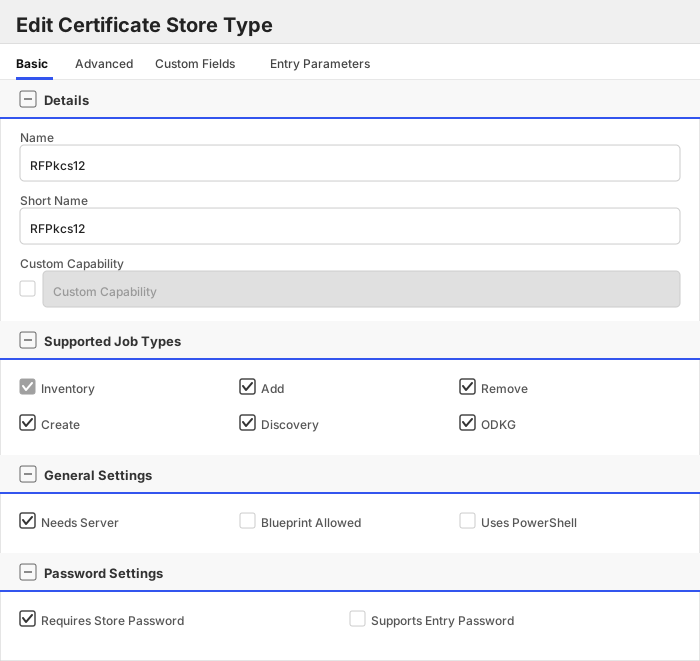
##### Basic Tab
| Attribute | Value | Description |
| --------- | ----- | ----- |
| Name | RFPkcs12 | Display name for the store type (may be customized) |
| Short Name | RFPkcs12 | Short display name for the store type |
| Capability | RFPkcs12 | Store type name orchestrator will register with. Check the box to allow entry of value |
| Supports Add | ✅ Checked | Indicates that the Store Type supports Management Add |
| Supports Remove | ✅ Checked | Indicates that the Store Type supports Management Remove |
| Supports Discovery | ✅ Checked | Indicates that the Store Type supports Discovery |
| Supports Reenrollment | ✅ Checked | Indicates that the Store Type supports Reenrollment |
| Supports Create | ✅ Checked | Indicates that the Store Type supports store creation |
| Needs Server | ✅ Checked | Determines if a target server name is required when creating store |
| Blueprint Allowed | 🔲 Unchecked | Determines if store type may be included in an Orchestrator blueprint |
| Uses PowerShell | 🔲 Unchecked | Determines if underlying implementation is PowerShell |
| Requires Store Password | ✅ Checked | Enables users to optionally specify a store password when defining a Certificate Store. |
| Supports Entry Password | 🔲 Unchecked | Determines if an individual entry within a store can have a password. |
The Basic tab should look like this:
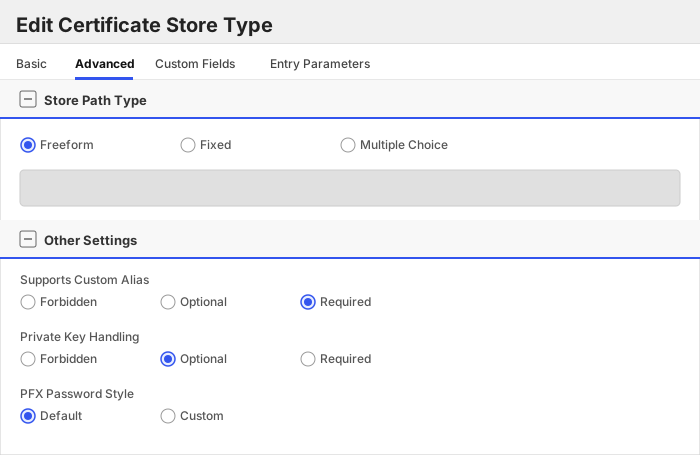
##### Advanced Tab
| Attribute | Value | Description |
| --------- | ----- | ----- |
| Supports Custom Alias | Required | Determines if an individual entry within a store can have a custom Alias. |
| Private Key Handling | Optional | This determines if Keyfactor can send the private key associated with a certificate to the store. |
| PFX Password Style | Default | 'Default' - PFX password is randomly generated, 'Custom' - PFX password may be specified when the enrollment job is created (Requires the Allow Custom Password application setting to be enabled.) |
The Advanced tab should look like this:
> For Keyfactor **Command versions 24.4 and later**, a Certificate Format dropdown is available with PFX and PEM options. Ensure that **PFX** is selected, as this determines the format of new and renewed certificates sent to the Orchestrator during a Management job. Currently, all Keyfactor-supported Orchestrator extensions support only PFX.
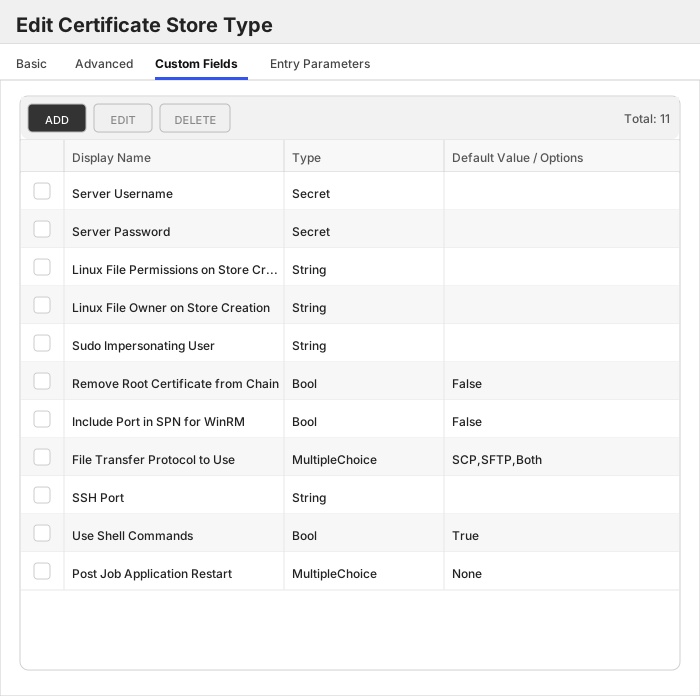
##### Custom Fields Tab
Custom fields operate at the certificate store level and are used to control how the orchestrator connects to the remote target server containing the certificate store to be managed. The following custom fields should be added to the store type:
| Name | Display Name | Description | Type | Default Value/Options | Required |
| ---- | ------------ | ---- | --------------------- | -------- | ----------- |
| ServerUsername | Server Username | A username (or valid PAM key if the username is stored in a KF Command configured PAM integration). If acting as an *agent* using local file access, just check *No Value* | Secret | | 🔲 Unchecked |
| ServerPassword | Server Password | A password (or valid PAM key if the password is stored in a KF Command configured PAM integration). The password can also be an SSH private key if connecting via SSH to a server using SSH private key authentication. If acting as an *agent* using local file access, just check *No Value* | Secret | | 🔲 Unchecked |
| LinuxFilePermissionsOnStoreCreation | Linux File Permissions on Store Creation | The LinuxFilePermissionsOnStoreCreation field should contain a three-digit value between 000 and 777 representing the Linux file permissions to be set for the certificate store upon creation. Example: '600' or '755'. Overrides DefaultLinuxPermissionOnStoreCreation [config.json](#post-installation) setting. | String | | 🔲 Unchecked |
| LinuxFileOwnerOnStoreCreation | Linux File Owner on Store Creation | The LinuxFileOwnerOnStoreCreation field should contain a valid user ID recognized by the destination Linux server, optionally followed by a colon and a group ID if the group owner differs. Example: 'userID' or 'userID:groupID'. Overrides DefaultOwnerOnStoreCreation [config.json](#post-installation) setting. | String | | 🔲 Unchecked |
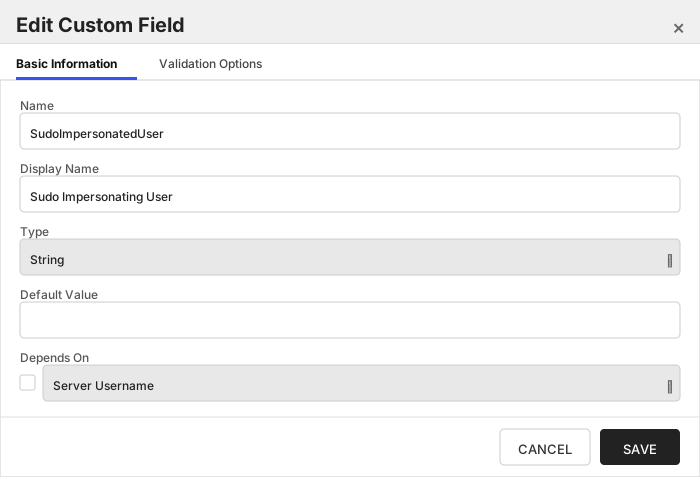
| SudoImpersonatedUser | Sudo Impersonating User | The SudoImpersonatedUser field should contain a valid user ID to impersonate using sudo on the destination Linux server. Example: 'impersonatedUserID'. Overrides DefaultSudoImpersonatedUser [config.json](#post-installation) setting. | String | | 🔲 Unchecked |
| RemoveRootCertificate | Remove Root Certificate from Chain | Remove root certificate from chain when adding/renewing a certificate in a store. | Bool | False | 🔲 Unchecked |
| IncludePortInSPN | Include Port in SPN for WinRM | Internally set the -IncludePortInSPN option when creating the remote PowerShell connection. Needed for some Kerberos configurations. | Bool | False | 🔲 Unchecked |
| FileTransferProtocol | File Transfer Protocol to Use | Which protocol should be used when uploading/downloading files - SCP, SFTP, or Both (try one, and then if necessary, the other). Overrides FileTransferProtocol [config.json](#post-installation) setting. | MultipleChoice | SCP,SFTP,Both | 🔲 Unchecked |
| SSHPort | SSH Port | Integer value representing the port that should be used when connecting to Linux servers over SSH. Overrides SSHPort [config.json](#post-installation) setting. | String | | 🔲 Unchecked |
| UseShellCommands | Use Shell Commands | Recommended to be set to the default value of 'Y'. For a detailed explanation of this setting, please refer to [Use Shell Commands Setting](#use-shell-commands-setting) | Bool | True | 🔲 Unchecked |
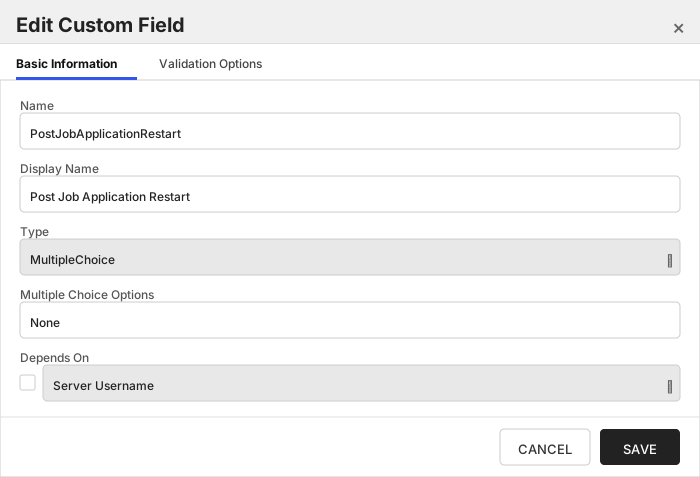
| PostJobApplicationRestart | Post Job Application Restart | Select the command to be run after a Management Add or ODKG job executes. Leave unselected if no command is desired. No options are initially delivered for RFPkcs12. | MultipleChoice | None | 🔲 Unchecked |
The Custom Fields tab should look like this:
###### Server Username
A username (or valid PAM key if the username is stored in a KF Command configured PAM integration). If acting as an *agent* using local file access, just check *No Value*
> [!IMPORTANT]
> This field is created by the `Needs Server` on the Basic tab, do not create this field manually.
###### Server Password
A password (or valid PAM key if the password is stored in a KF Command configured PAM integration). The password can also be an SSH private key if connecting via SSH to a server using SSH private key authentication. If acting as an *agent* using local file access, just check *No Value*
> [!IMPORTANT]
> This field is created by the `Needs Server` on the Basic tab, do not create this field manually.
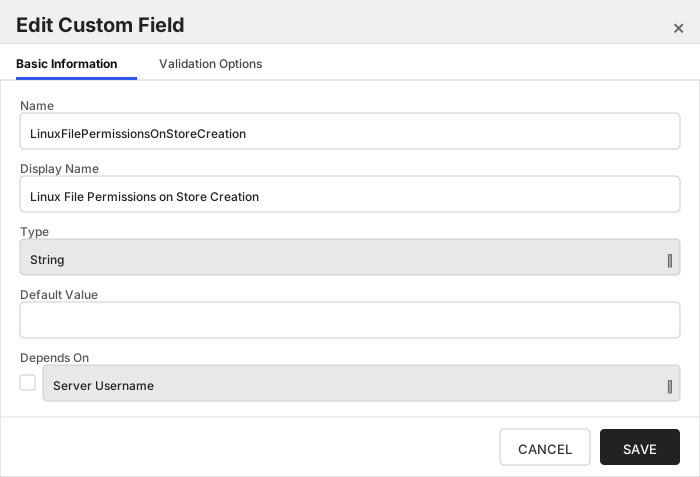
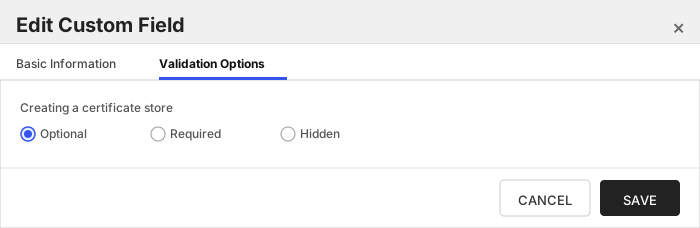
###### Linux File Permissions on Store Creation
The LinuxFilePermissionsOnStoreCreation field should contain a three-digit value between 000 and 777 representing the Linux file permissions to be set for the certificate store upon creation. Example: '600' or '755'. Overrides DefaultLinuxPermissionOnStoreCreation [config.json](#post-installation) setting.
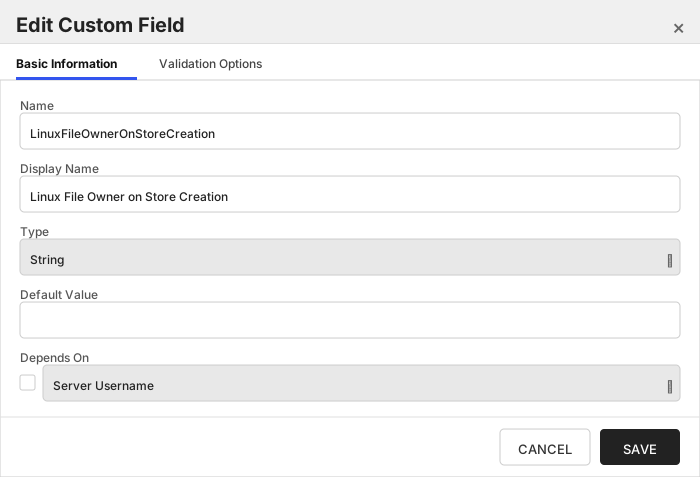
###### Linux File Owner on Store Creation
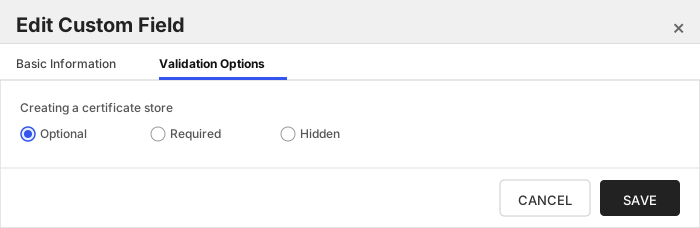
The LinuxFileOwnerOnStoreCreation field should contain a valid user ID recognized by the destination Linux server, optionally followed by a colon and a group ID if the group owner differs. Example: 'userID' or 'userID:groupID'. Overrides DefaultOwnerOnStoreCreation [config.json](#post-installation) setting.
###### Sudo Impersonating User
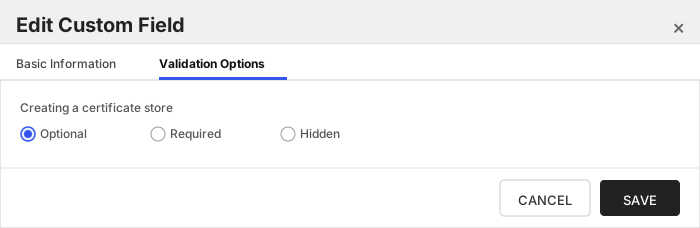
The SudoImpersonatedUser field should contain a valid user ID to impersonate using sudo on the destination Linux server. Example: 'impersonatedUserID'. Overrides DefaultSudoImpersonatedUser [config.json](#post-installation) setting.
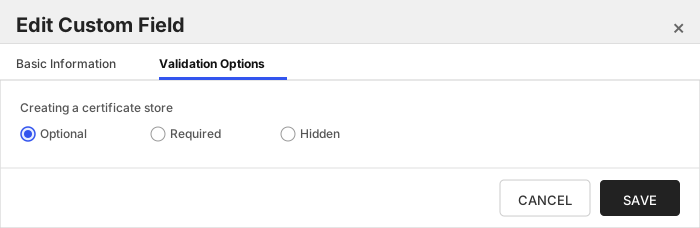
###### Remove Root Certificate from Chain
Remove root certificate from chain when adding/renewing a certificate in a store.
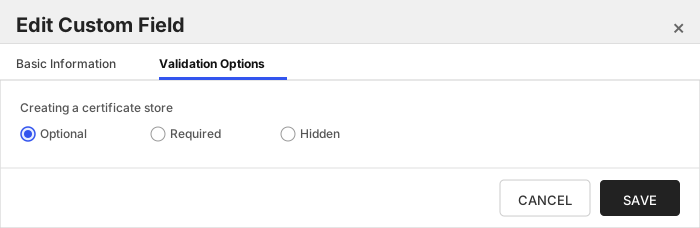
###### Include Port in SPN for WinRM
Internally set the -IncludePortInSPN option when creating the remote PowerShell connection. Needed for some Kerberos configurations.
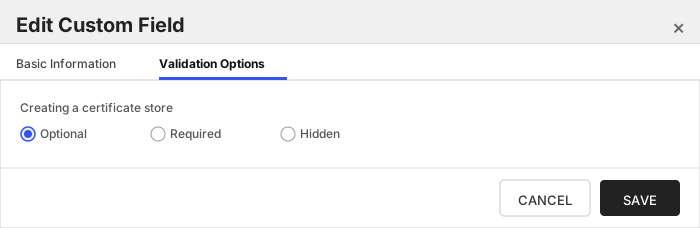
###### File Transfer Protocol to Use
Which protocol should be used when uploading/downloading files - SCP, SFTP, or Both (try one, and then if necessary, the other). Overrides FileTransferProtocol [config.json](#post-installation) setting.
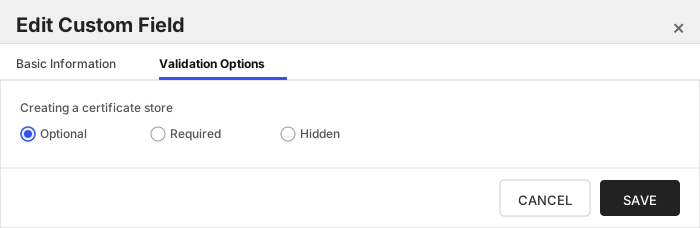
###### SSH Port
Integer value representing the port that should be used when connecting to Linux servers over SSH. Overrides SSHPort [config.json](#post-installation) setting.
###### Use Shell Commands
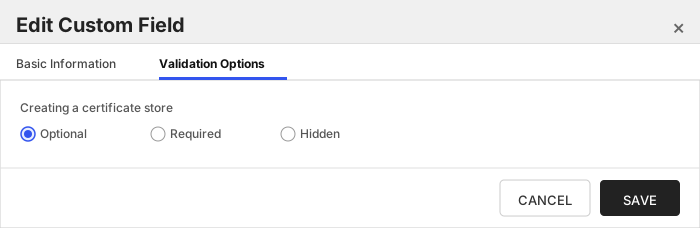
Recommended to be set to the default value of 'Y'. For a detailed explanation of this setting, please refer to [Use Shell Commands Setting](#use-shell-commands-setting)
###### Post Job Application Restart
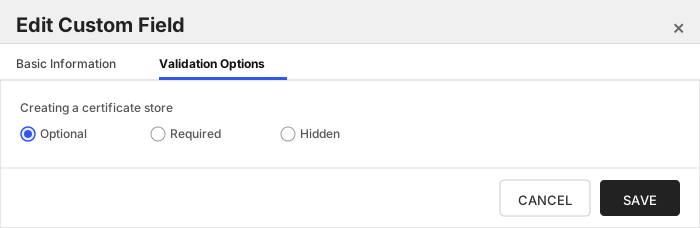
Select the command to be run after a Management Add or ODKG job executes. Leave unselected if no command is desired. No options are initially delivered for RFPkcs12.
Click to expand details
The `RFDER` store type can be used to manage DER encoded files.
#### Supported use cases
1. Single certificate stores with private key in an external file.
2. Single certificate stores with no private key.
#### Supported Operations
| Operation | Is Supported |
|--------------|--------------|
| Add | ✅ Checked |
| Remove | ✅ Checked |
| Discovery | ✅ Checked |
| Reenrollment | ✅ Checked |
| Create | ✅ Checked |
#### Store Type Creation
##### Using kfutil:
`kfutil` is a custom CLI for the Keyfactor Command API and can be used to create certificate store types.
For more information on [kfutil](https://github.com/Keyfactor/kfutil) check out the [docs](https://github.com/Keyfactor/kfutil?tab=readme-ov-file#quickstart)
Click to expand RFDER kfutil details
##### Using online definition from GitHub:
This will reach out to GitHub and pull the latest store-type definition
```shell
# RFDER
kfutil store-types create RFDER
```
##### Offline creation using integration-manifest file:
If required, it is possible to create store types from the [integration-manifest.json](./integration-manifest.json) included in this repo.
You would first download the [integration-manifest.json](./integration-manifest.json) and then run the following command
in your offline environment.
```shell
kfutil store-types create --from-file integration-manifest.json
```
Click to expand manual RFDER details
Create a store type called `RFDER` with the attributes in the tables below:
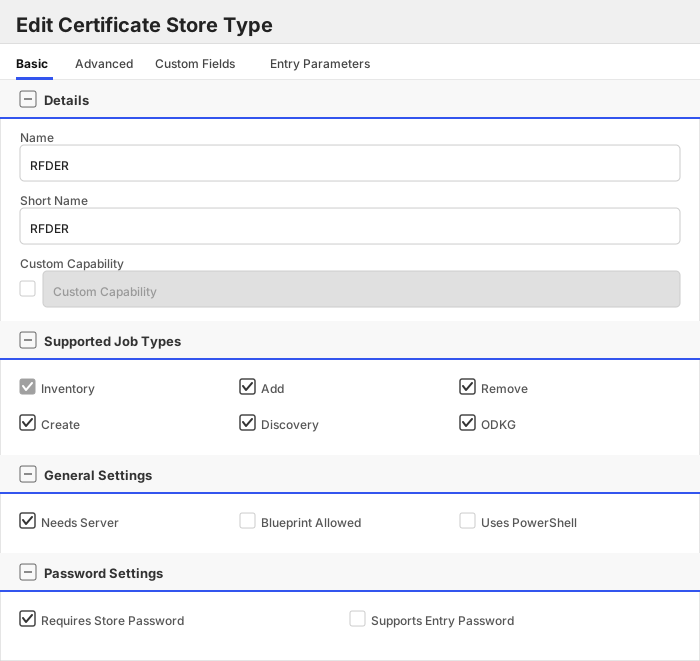
##### Basic Tab
| Attribute | Value | Description |
| --------- | ----- | ----- |
| Name | RFDER | Display name for the store type (may be customized) |
| Short Name | RFDER | Short display name for the store type |
| Capability | RFDER | Store type name orchestrator will register with. Check the box to allow entry of value |
| Supports Add | ✅ Checked | Indicates that the Store Type supports Management Add |
| Supports Remove | ✅ Checked | Indicates that the Store Type supports Management Remove |
| Supports Discovery | ✅ Checked | Indicates that the Store Type supports Discovery |
| Supports Reenrollment | ✅ Checked | Indicates that the Store Type supports Reenrollment |
| Supports Create | ✅ Checked | Indicates that the Store Type supports store creation |
| Needs Server | ✅ Checked | Determines if a target server name is required when creating store |
| Blueprint Allowed | 🔲 Unchecked | Determines if store type may be included in an Orchestrator blueprint |
| Uses PowerShell | 🔲 Unchecked | Determines if underlying implementation is PowerShell |
| Requires Store Password | ✅ Checked | Enables users to optionally specify a store password when defining a Certificate Store. |
| Supports Entry Password | 🔲 Unchecked | Determines if an individual entry within a store can have a password. |
The Basic tab should look like this:
##### Advanced Tab
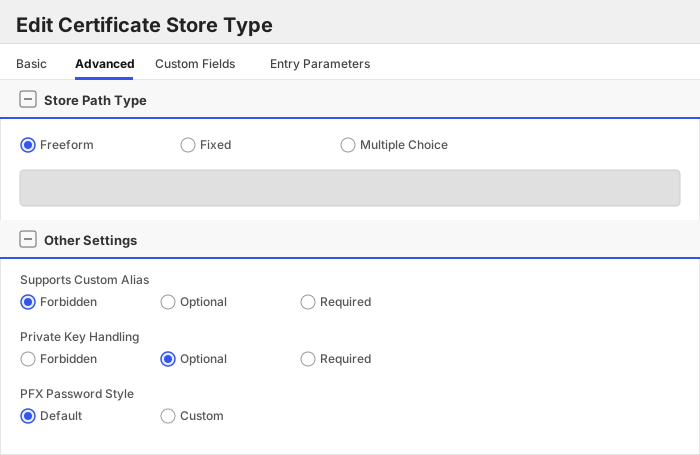
| Attribute | Value | Description |
| --------- | ----- | ----- |
| Supports Custom Alias | Forbidden | Determines if an individual entry within a store can have a custom Alias. |
| Private Key Handling | Optional | This determines if Keyfactor can send the private key associated with a certificate to the store. |
| PFX Password Style | Default | 'Default' - PFX password is randomly generated, 'Custom' - PFX password may be specified when the enrollment job is created (Requires the Allow Custom Password application setting to be enabled.) |
The Advanced tab should look like this:
> For Keyfactor **Command versions 24.4 and later**, a Certificate Format dropdown is available with PFX and PEM options. Ensure that **PFX** is selected, as this determines the format of new and renewed certificates sent to the Orchestrator during a Management job. Currently, all Keyfactor-supported Orchestrator extensions support only PFX.
##### Custom Fields Tab
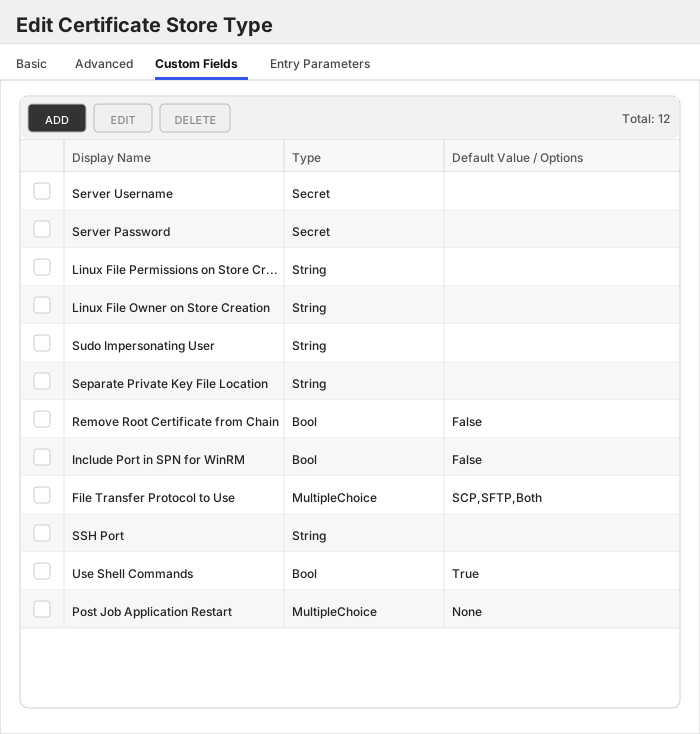
Custom fields operate at the certificate store level and are used to control how the orchestrator connects to the remote target server containing the certificate store to be managed. The following custom fields should be added to the store type:
| Name | Display Name | Description | Type | Default Value/Options | Required |
| ---- | ------------ | ---- | --------------------- | -------- | ----------- |
| ServerUsername | Server Username | A username (or valid PAM key if the username is stored in a KF Command configured PAM integration). If acting as an *agent* using local file access, just check *No Value* | Secret | | 🔲 Unchecked |
| ServerPassword | Server Password | A password (or valid PAM key if the password is stored in a KF Command configured PAM integration). The password can also be an SSH private key if connecting via SSH to a server using SSH private key authentication. If acting as an *agent* using local file access, just check *No Value* | Secret | | 🔲 Unchecked |
| LinuxFilePermissionsOnStoreCreation | Linux File Permissions on Store Creation | The LinuxFilePermissionsOnStoreCreation field should contain a three-digit value between 000 and 777 representing the Linux file permissions to be set for the certificate store upon creation. Example: '600' or '755'. Overrides DefaultLinuxPermissionOnStoreCreation [config.json](#post-installation) setting. | String | | 🔲 Unchecked |
| LinuxFileOwnerOnStoreCreation | Linux File Owner on Store Creation | The LinuxFileOwnerOnStoreCreation field should contain a valid user ID recognized by the destination Linux server, optionally followed by a colon and a group ID if the group owner differs. Example: 'userID' or 'userID:groupID'. Overrides DefaultOwnerOnStoreCreation [config.json](#post-installation) setting. | String | | 🔲 Unchecked |
| SudoImpersonatedUser | Sudo Impersonating User | The SudoImpersonatedUser field should contain a valid user ID to impersonate using sudo on the destination Linux server. Example: 'impersonatedUserID'. Overrides [config.json](#post-installation) DefaultSudoImpersonatedUser setting. | String | | 🔲 Unchecked |
| SeparatePrivateKeyFilePath | Separate Private Key File Location | The SeparatePrivateKeyFilePath field should contain the full path and file name where the separate private key file will be stored if it is to be kept outside the main certificate file. Example: '/path/to/privatekey.der'. | String | | 🔲 Unchecked |
| RemoveRootCertificate | Remove Root Certificate from Chain | Remove root certificate from chain when adding/renewing a certificate in a store. | Bool | False | 🔲 Unchecked |
| IncludePortInSPN | Include Port in SPN for WinRM | Internally set the -IncludePortInSPN option when creating the remote PowerShell connection. Needed for some Kerberos configurations. | Bool | False | 🔲 Unchecked |
| FileTransferProtocol | File Transfer Protocol to Use | Which protocol should be used when uploading/downloading files - SCP, SFTP, or Both (try one, and then if necessary, the other). Overrides FileTransferProtocol [config.json](#post-installation) setting. | MultipleChoice | SCP,SFTP,Both | 🔲 Unchecked |
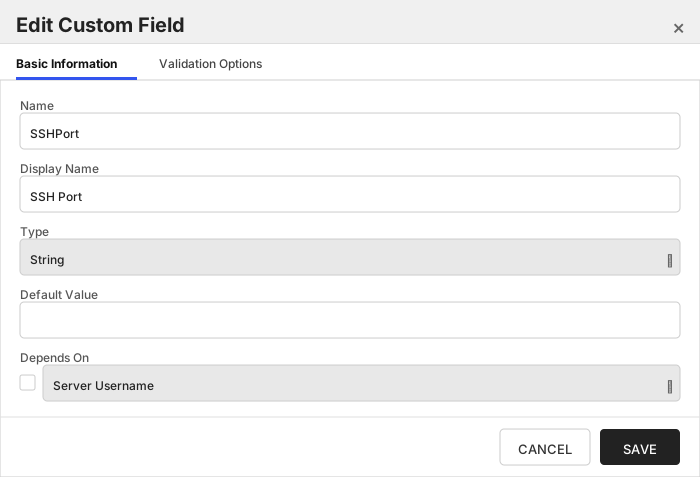
| SSHPort | SSH Port | Integer value representing the port that should be used when connecting to Linux servers over SSH. Overrides SSHPort [config.json](#post-installation) setting. | String | | 🔲 Unchecked |
| UseShellCommands | Use Shell Commands | Recommended to be set to the default value of 'Y'. For a detailed explanation of this setting, please refer to [Use Shell Commands Setting](#use-shell-commands-setting) | Bool | True | 🔲 Unchecked |
| PostJobApplicationRestart | Post Job Application Restart | Select the command to be run after a Management Add or ODKG job executes. Leave unselected if no command is desired. No options are initially delivered for RFDER. | MultipleChoice | None | 🔲 Unchecked |
The Custom Fields tab should look like this:
###### Server Username
A username (or valid PAM key if the username is stored in a KF Command configured PAM integration). If acting as an *agent* using local file access, just check *No Value*
> [!IMPORTANT]
> This field is created by the `Needs Server` on the Basic tab, do not create this field manually.
###### Server Password
A password (or valid PAM key if the password is stored in a KF Command configured PAM integration). The password can also be an SSH private key if connecting via SSH to a server using SSH private key authentication. If acting as an *agent* using local file access, just check *No Value*
> [!IMPORTANT]
> This field is created by the `Needs Server` on the Basic tab, do not create this field manually.
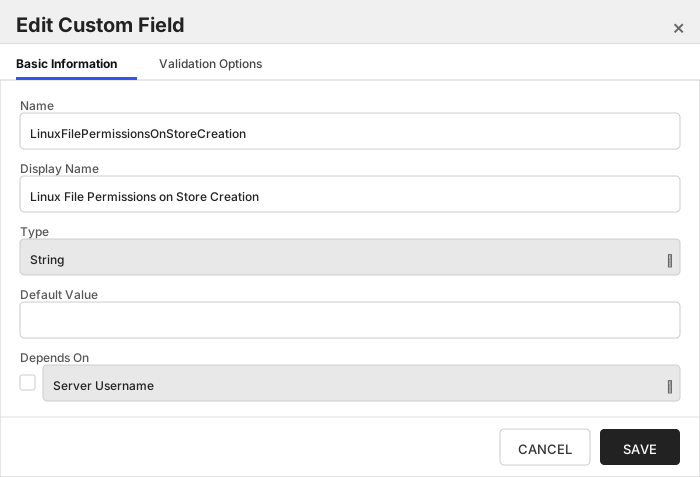
###### Linux File Permissions on Store Creation
The LinuxFilePermissionsOnStoreCreation field should contain a three-digit value between 000 and 777 representing the Linux file permissions to be set for the certificate store upon creation. Example: '600' or '755'. Overrides DefaultLinuxPermissionOnStoreCreation [config.json](#post-installation) setting.
###### Linux File Owner on Store Creation
The LinuxFileOwnerOnStoreCreation field should contain a valid user ID recognized by the destination Linux server, optionally followed by a colon and a group ID if the group owner differs. Example: 'userID' or 'userID:groupID'. Overrides DefaultOwnerOnStoreCreation [config.json](#post-installation) setting.
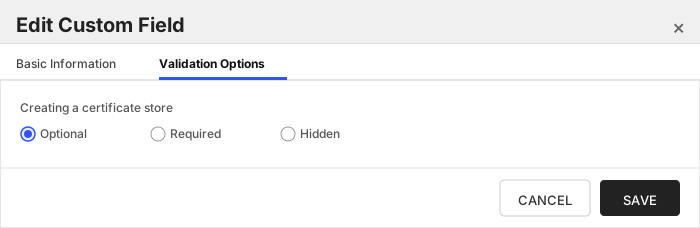
###### Sudo Impersonating User
The SudoImpersonatedUser field should contain a valid user ID to impersonate using sudo on the destination Linux server. Example: 'impersonatedUserID'. Overrides [config.json](#post-installation) DefaultSudoImpersonatedUser setting.
###### Separate Private Key File Location
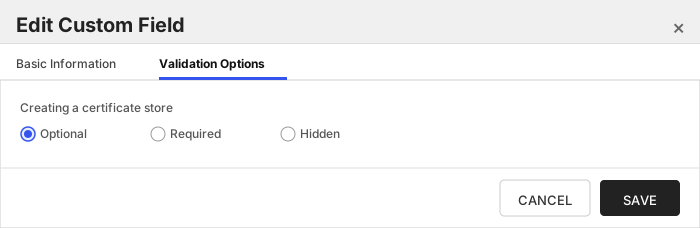
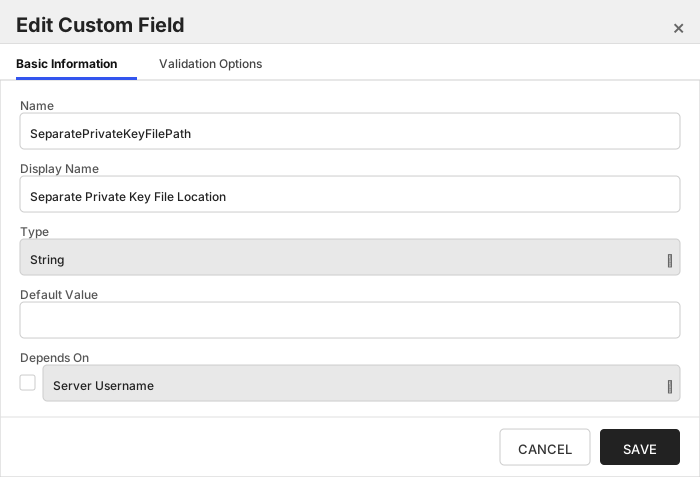
The SeparatePrivateKeyFilePath field should contain the full path and file name where the separate private key file will be stored if it is to be kept outside the main certificate file. Example: '/path/to/privatekey.der'.
###### Remove Root Certificate from Chain
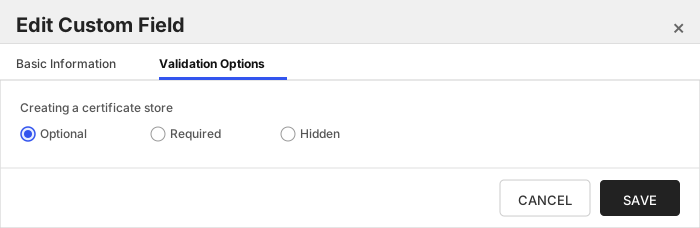
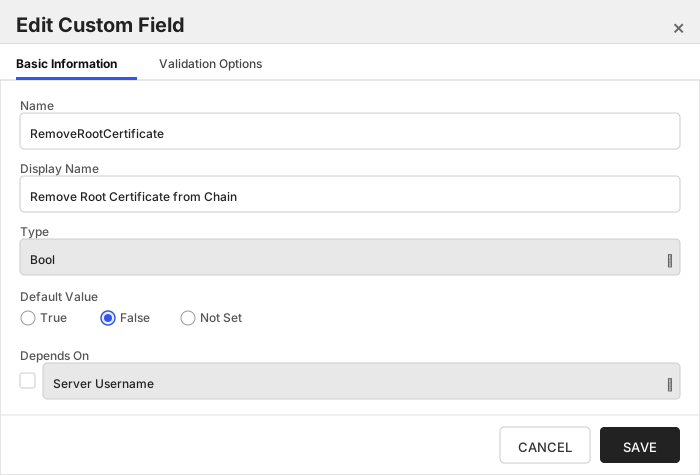
Remove root certificate from chain when adding/renewing a certificate in a store.
###### Include Port in SPN for WinRM
Internally set the -IncludePortInSPN option when creating the remote PowerShell connection. Needed for some Kerberos configurations.
###### File Transfer Protocol to Use
Which protocol should be used when uploading/downloading files - SCP, SFTP, or Both (try one, and then if necessary, the other). Overrides FileTransferProtocol [config.json](#post-installation) setting.
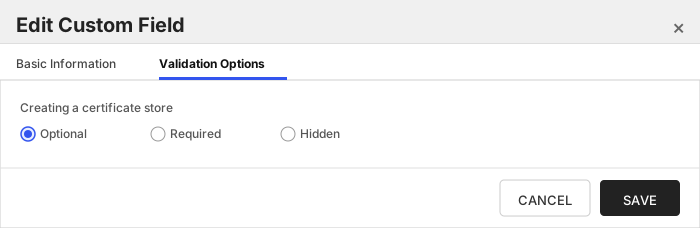
###### SSH Port
Integer value representing the port that should be used when connecting to Linux servers over SSH. Overrides SSHPort [config.json](#post-installation) setting.
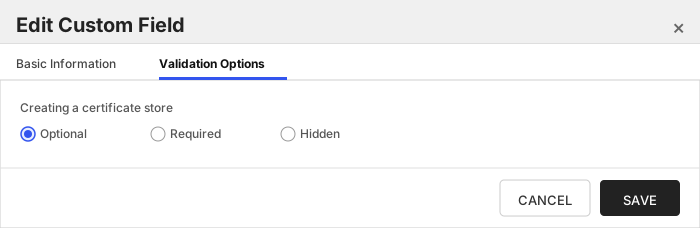
###### Use Shell Commands
Recommended to be set to the default value of 'Y'. For a detailed explanation of this setting, please refer to [Use Shell Commands Setting](#use-shell-commands-setting)
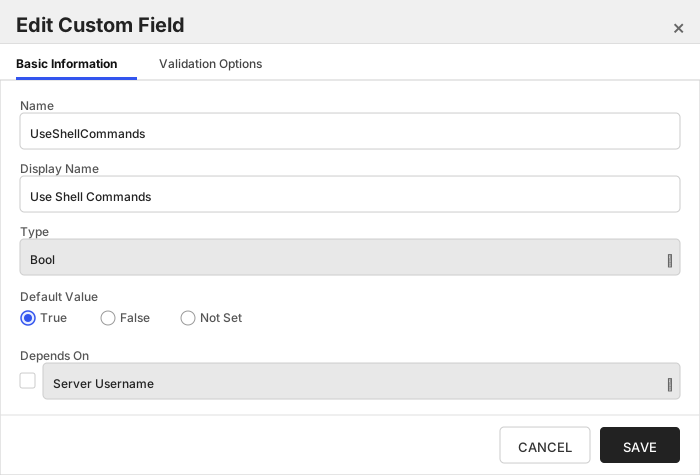
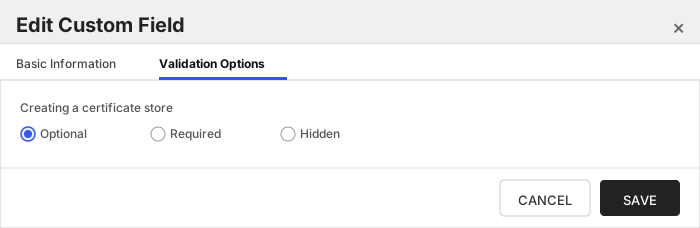
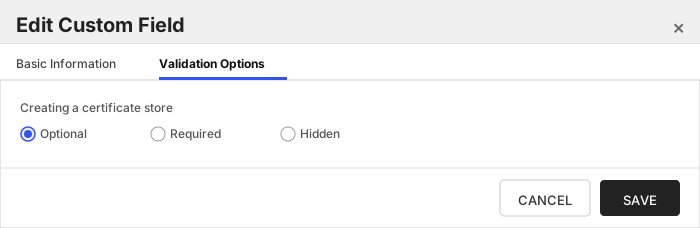
###### Post Job Application Restart
Select the command to be run after a Management Add or ODKG job executes. Leave unselected if no command is desired. No options are initially delivered for RFDER.
Click to expand details
The `RFKDB` store type can be used to manage IBM Key Database Files (`KDB`) files. The IBM utility, `GSKCAPICMD`, is used
to read and write certificates from and to the target store and is therefore required to be installed on the server where
each `KDB` certificate store being managed resides, and its location MUST be in the system `$Path`.
#### Supported use cases
1. One-to-many trust entries - A trust entry is defined as a single certificate without a private key in a certificate store. Each trust entry is identified with a custom alias.
2. One-to-many key entries - One-to-many certificates with private keys and optionally the full certificate chain. Each certificate is identified with a custom alias.
3. A mix of trust and key entries.
#### Supported Operations
| Operation | Is Supported |
|--------------|--------------|
| Add | ✅ Checked |
| Remove | ✅ Checked |
| Discovery | ✅ Checked |
| Reenrollment | 🔲 Unchecked |
| Create | ✅ Checked |
#### Store Type Creation
##### Using kfutil:
`kfutil` is a custom CLI for the Keyfactor Command API and can be used to create certificate store types.
For more information on [kfutil](https://github.com/Keyfactor/kfutil) check out the [docs](https://github.com/Keyfactor/kfutil?tab=readme-ov-file#quickstart)
Click to expand RFKDB kfutil details
##### Using online definition from GitHub:
This will reach out to GitHub and pull the latest store-type definition
```shell
# RFKDB
kfutil store-types create RFKDB
```
##### Offline creation using integration-manifest file:
If required, it is possible to create store types from the [integration-manifest.json](./integration-manifest.json) included in this repo.
You would first download the [integration-manifest.json](./integration-manifest.json) and then run the following command
in your offline environment.
```shell
kfutil store-types create --from-file integration-manifest.json
```
Click to expand manual RFKDB details
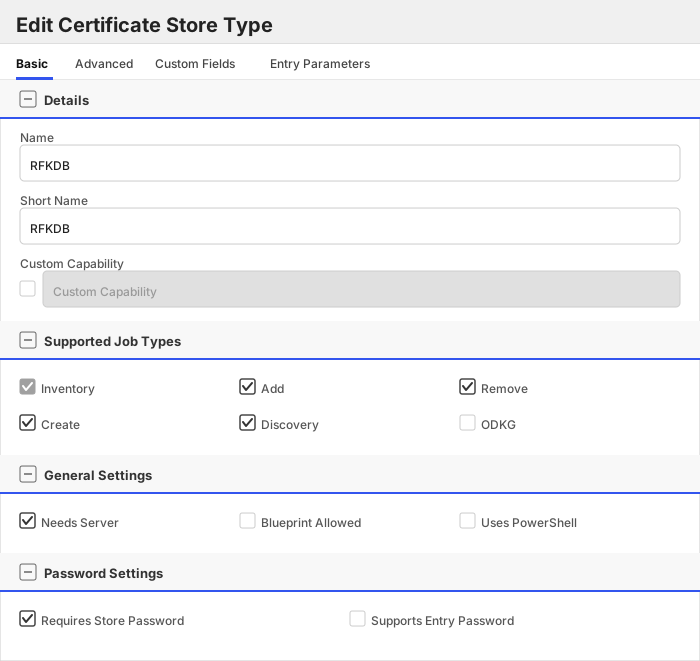
Create a store type called `RFKDB` with the attributes in the tables below:
##### Basic Tab
| Attribute | Value | Description |
| --------- | ----- | ----- |
| Name | RFKDB | Display name for the store type (may be customized) |
| Short Name | RFKDB | Short display name for the store type |
| Capability | RFKDB | Store type name orchestrator will register with. Check the box to allow entry of value |
| Supports Add | ✅ Checked | Indicates that the Store Type supports Management Add |
| Supports Remove | ✅ Checked | Indicates that the Store Type supports Management Remove |
| Supports Discovery | ✅ Checked | Indicates that the Store Type supports Discovery |
| Supports Reenrollment | 🔲 Unchecked | Indicates that the Store Type supports Reenrollment |
| Supports Create | ✅ Checked | Indicates that the Store Type supports store creation |
| Needs Server | ✅ Checked | Determines if a target server name is required when creating store |
| Blueprint Allowed | 🔲 Unchecked | Determines if store type may be included in an Orchestrator blueprint |
| Uses PowerShell | 🔲 Unchecked | Determines if underlying implementation is PowerShell |
| Requires Store Password | ✅ Checked | Enables users to optionally specify a store password when defining a Certificate Store. |
| Supports Entry Password | 🔲 Unchecked | Determines if an individual entry within a store can have a password. |
The Basic tab should look like this:
##### Advanced Tab
| Attribute | Value | Description |
| --------- | ----- | ----- |
| Supports Custom Alias | Required | Determines if an individual entry within a store can have a custom Alias. |
| Private Key Handling | Optional | This determines if Keyfactor can send the private key associated with a certificate to the store. |
| PFX Password Style | Default | 'Default' - PFX password is randomly generated, 'Custom' - PFX password may be specified when the enrollment job is created (Requires the Allow Custom Password application setting to be enabled.) |
The Advanced tab should look like this:
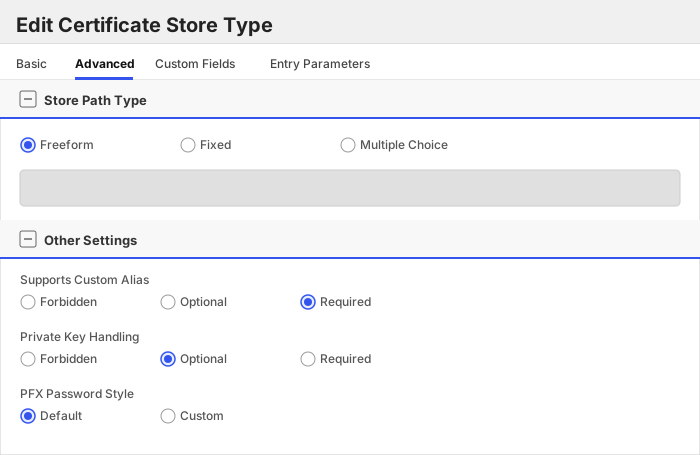
> For Keyfactor **Command versions 24.4 and later**, a Certificate Format dropdown is available with PFX and PEM options. Ensure that **PFX** is selected, as this determines the format of new and renewed certificates sent to the Orchestrator during a Management job. Currently, all Keyfactor-supported Orchestrator extensions support only PFX.
##### Custom Fields Tab
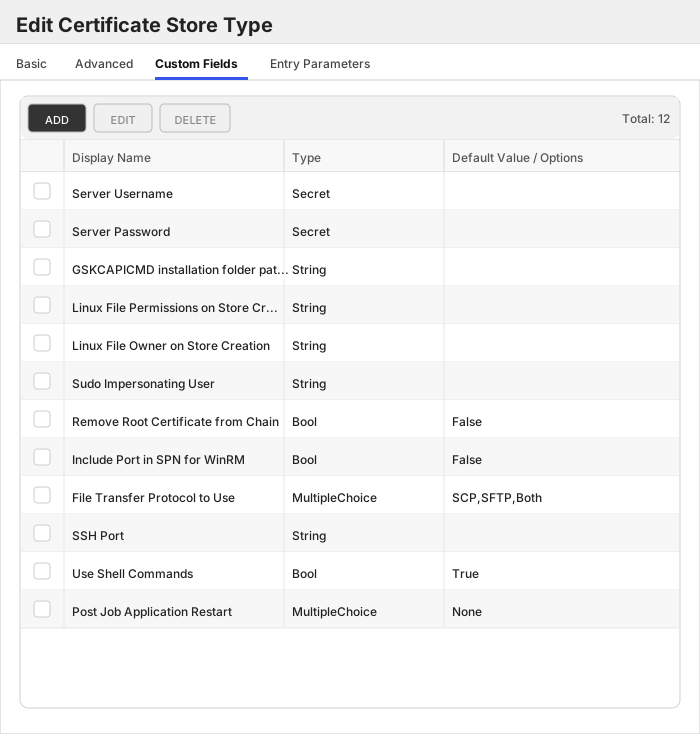
Custom fields operate at the certificate store level and are used to control how the orchestrator connects to the remote target server containing the certificate store to be managed. The following custom fields should be added to the store type:
| Name | Display Name | Description | Type | Default Value/Options | Required |
| ---- | ------------ | ---- | --------------------- | -------- | ----------- |
| ServerUsername | Server Username | A username (or valid PAM key if the username is stored in a KF Command configured PAM integration). If acting as an *agent* using local file access, just check *No Value* | Secret | | 🔲 Unchecked |
| ServerPassword | Server Password | A password (or valid PAM key if the password is stored in a KF Command configured PAM integration). The password can also be an SSH private key if connecting via SSH to a server using SSH private key authentication. If acting as an *agent* using local file access, just check *No Value* | Secret | | 🔲 Unchecked |
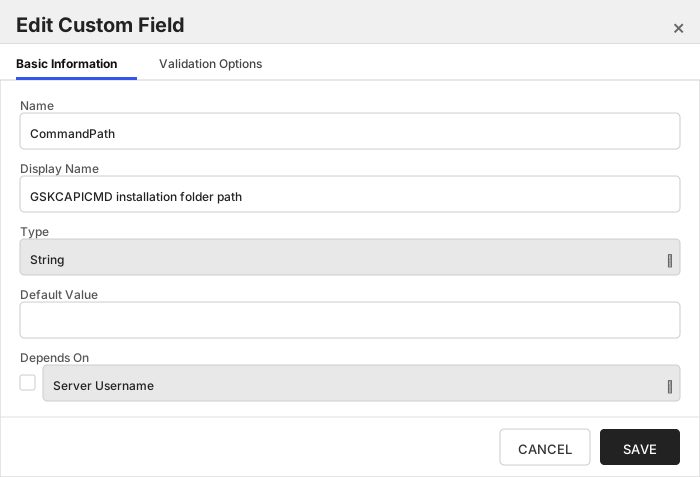
| CommandPath | GSKCAPICMD installation folder path | The full folder path (not including the file name itself) where the GSKCAPCMD CLI located is installed. | String | | 🔲 Unchecked |
| LinuxFilePermissionsOnStoreCreation | Linux File Permissions on Store Creation | The LinuxFilePermissionsOnStoreCreation field should contain a three-digit value between 000 and 777 representing the Linux file permissions to be set for the certificate store upon creation. Example: '600' or '755'. Overrides DefaultLinuxPermissionOnStoreCreation [config.json](#post-installation) setting. | String | | 🔲 Unchecked |
| LinuxFileOwnerOnStoreCreation | Linux File Owner on Store Creation | The LinuxFileOwnerOnStoreCreation field should contain a valid user ID recognized by the destination Linux server, optionally followed by a colon and a group ID if the group owner differs. Example: 'userID' or 'userID:groupID'. Overrides DefaultOwnerOnStoreCreation [config.json](#post-installation) setting. | String | | 🔲 Unchecked |
| SudoImpersonatedUser | Sudo Impersonating User | The SudoImpersonatedUser field should contain a valid user ID to impersonate using sudo on the destination Linux server. Example: 'impersonatedUserID'. Overrides [config.json](#post-installation) DefaultSudoImpersonatedUser setting. | String | | 🔲 Unchecked |
| RemoveRootCertificate | Remove Root Certificate from Chain | Remove root certificate from chain when adding/renewing a certificate in a store. | Bool | False | 🔲 Unchecked |
| IncludePortInSPN | Include Port in SPN for WinRM | Internally set the -IncludePortInSPN option when creating the remote PowerShell connection. Needed for some Kerberos configurations. | Bool | False | 🔲 Unchecked |
| FileTransferProtocol | File Transfer Protocol to Use | Which protocol should be used when uploading/downloading files - SCP, SFTP, or Both (try one, and then if necessary, the other). Overrides FileTransferProtocol [config.json](#post-installation) setting. | MultipleChoice | SCP,SFTP,Both | 🔲 Unchecked |
| SSHPort | SSH Port | Integer value representing the port that should be used when connecting to Linux servers over SSH. Overrides SSHPort [config.json](#post-installation) setting. | String | | 🔲 Unchecked |
| UseShellCommands | Use Shell Commands | Recommended to be set to the default value of 'Y'. For a detailed explanation of this setting, please refer to [Use Shell Commands Setting](#use-shell-commands-setting) | Bool | True | 🔲 Unchecked |
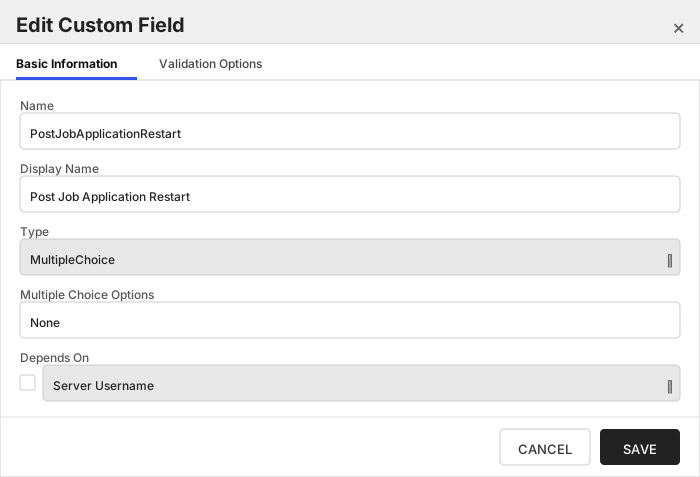
| PostJobApplicationRestart | Post Job Application Restart | Select the command to be run after a Management Add or ODKG job executes. Leave unselected if no command is desired. No options are initially delivered for RFKDB. | MultipleChoice | None | 🔲 Unchecked |
The Custom Fields tab should look like this:
###### Server Username
A username (or valid PAM key if the username is stored in a KF Command configured PAM integration). If acting as an *agent* using local file access, just check *No Value*
> [!IMPORTANT]
> This field is created by the `Needs Server` on the Basic tab, do not create this field manually.
###### Server Password
A password (or valid PAM key if the password is stored in a KF Command configured PAM integration). The password can also be an SSH private key if connecting via SSH to a server using SSH private key authentication. If acting as an *agent* using local file access, just check *No Value*
> [!IMPORTANT]
> This field is created by the `Needs Server` on the Basic tab, do not create this field manually.
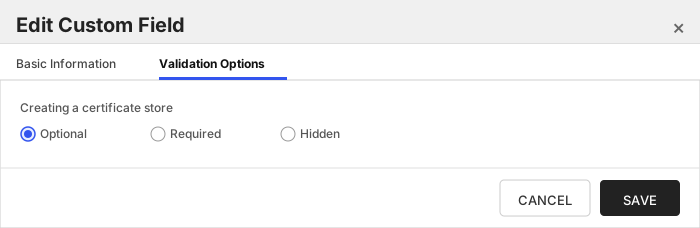
###### GSKCAPICMD installation folder path
The full folder path (not including the file name itself) where the GSKCAPCMD CLI located is installed.
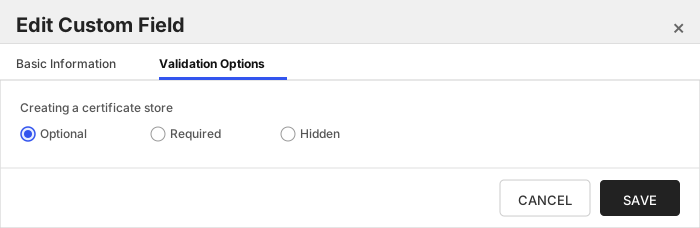
###### Linux File Permissions on Store Creation
The LinuxFilePermissionsOnStoreCreation field should contain a three-digit value between 000 and 777 representing the Linux file permissions to be set for the certificate store upon creation. Example: '600' or '755'. Overrides DefaultLinuxPermissionOnStoreCreation [config.json](#post-installation) setting.
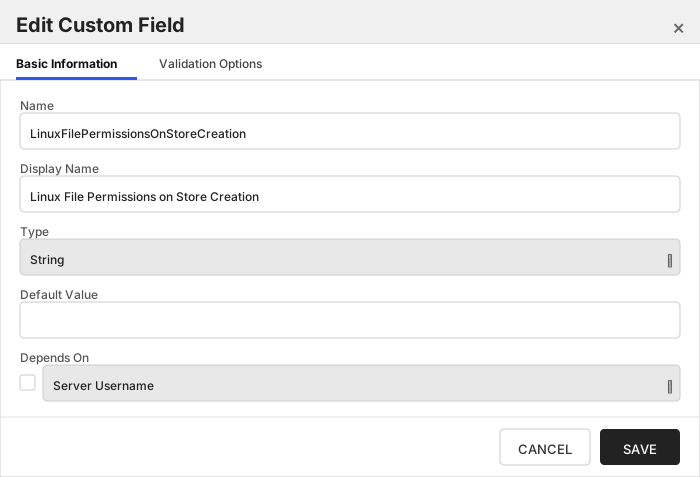
###### Linux File Owner on Store Creation
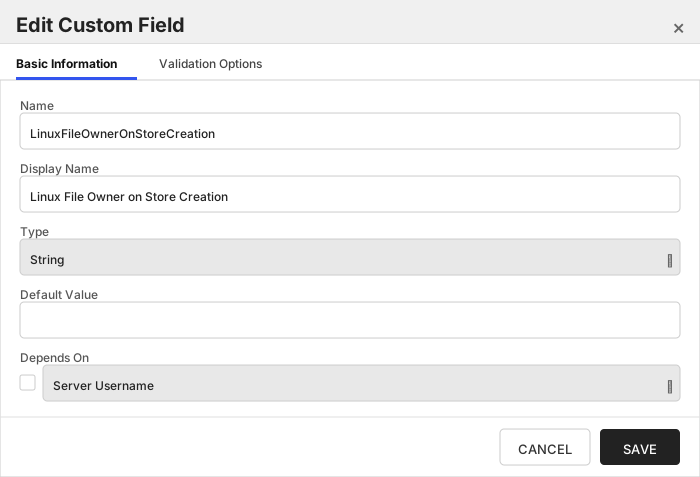
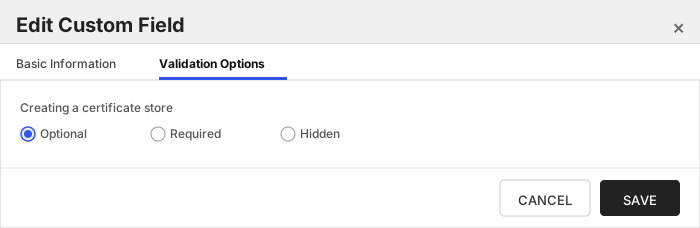
The LinuxFileOwnerOnStoreCreation field should contain a valid user ID recognized by the destination Linux server, optionally followed by a colon and a group ID if the group owner differs. Example: 'userID' or 'userID:groupID'. Overrides DefaultOwnerOnStoreCreation [config.json](#post-installation) setting.
###### Sudo Impersonating User
The SudoImpersonatedUser field should contain a valid user ID to impersonate using sudo on the destination Linux server. Example: 'impersonatedUserID'. Overrides [config.json](#post-installation) DefaultSudoImpersonatedUser setting.
###### Remove Root Certificate from Chain
Remove root certificate from chain when adding/renewing a certificate in a store.
###### Include Port in SPN for WinRM
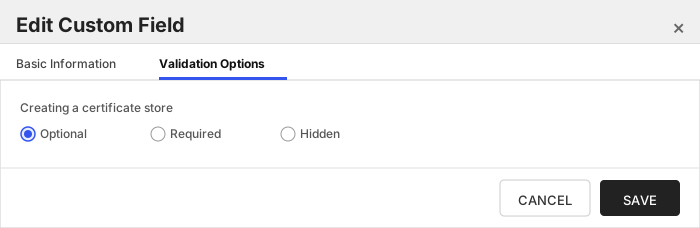
Internally set the -IncludePortInSPN option when creating the remote PowerShell connection. Needed for some Kerberos configurations.
###### File Transfer Protocol to Use
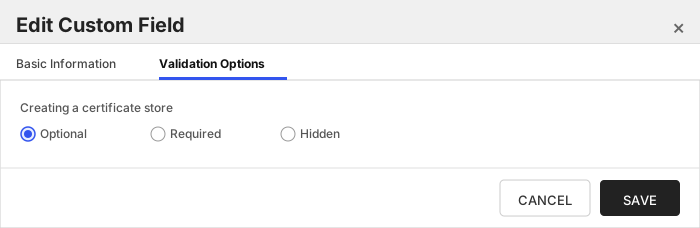
Which protocol should be used when uploading/downloading files - SCP, SFTP, or Both (try one, and then if necessary, the other). Overrides FileTransferProtocol [config.json](#post-installation) setting.
###### SSH Port
Integer value representing the port that should be used when connecting to Linux servers over SSH. Overrides SSHPort [config.json](#post-installation) setting.
###### Use Shell Commands
Recommended to be set to the default value of 'Y'. For a detailed explanation of this setting, please refer to [Use Shell Commands Setting](#use-shell-commands-setting)
###### Post Job Application Restart
Select the command to be run after a Management Add or ODKG job executes. Leave unselected if no command is desired. No options are initially delivered for RFKDB.
Click to expand details
The `RFORA` store type can be used to manage `PKCS12` Oracle wallets. Although implemented as a separate store type, Oracle wallets are accessed and managed identically to RFPkcs12 store types. The file is expected to compatible with the Pkcs#12 standard.
#### Supported use cases
1. One-to-many trust entries - A trust entry is defined as a single certificate without a private key in a certificate store. Each trust entry is identified with a custom alias.
2. One-to-many key entries - One-to-many certificates with private keys and optionally the full certificate chain. Each certificate is identified with a custom alias.
3. A mix of trust and key entries.
#### Supported Operations
| Operation | Is Supported |
|--------------|--------------|
| Add | ✅ Checked |
| Remove | ✅ Checked |
| Discovery | ✅ Checked |
| Reenrollment | 🔲 Unchecked |
| Create | ✅ Checked |
#### Store Type Creation
##### Using kfutil:
`kfutil` is a custom CLI for the Keyfactor Command API and can be used to create certificate store types.
For more information on [kfutil](https://github.com/Keyfactor/kfutil) check out the [docs](https://github.com/Keyfactor/kfutil?tab=readme-ov-file#quickstart)
Click to expand RFORA kfutil details
##### Using online definition from GitHub:
This will reach out to GitHub and pull the latest store-type definition
```shell
# RFORA
kfutil store-types create RFORA
```
##### Offline creation using integration-manifest file:
If required, it is possible to create store types from the [integration-manifest.json](./integration-manifest.json) included in this repo.
You would first download the [integration-manifest.json](./integration-manifest.json) and then run the following command
in your offline environment.
```shell
kfutil store-types create --from-file integration-manifest.json
```
Click to expand manual RFORA details
Create a store type called `RFORA` with the attributes in the tables below:
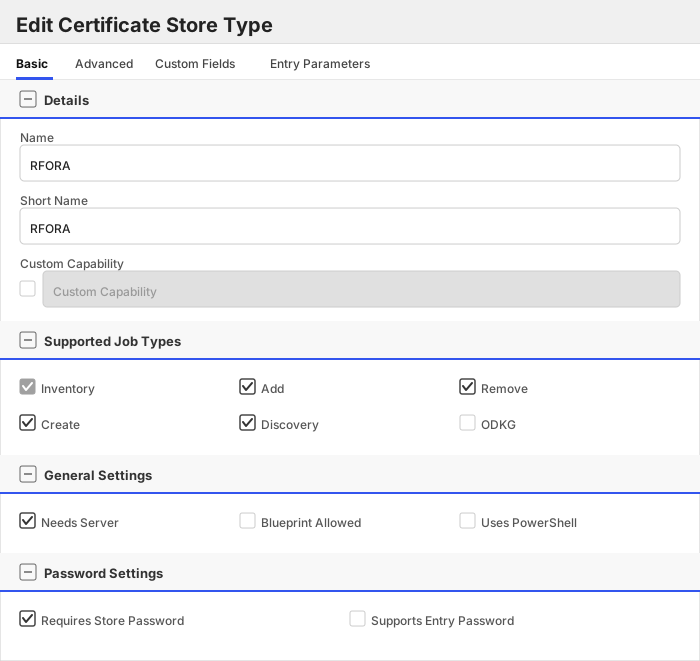
##### Basic Tab
| Attribute | Value | Description |
| --------- | ----- | ----- |
| Name | RFORA | Display name for the store type (may be customized) |
| Short Name | RFORA | Short display name for the store type |
| Capability | RFORA | Store type name orchestrator will register with. Check the box to allow entry of value |
| Supports Add | ✅ Checked | Indicates that the Store Type supports Management Add |
| Supports Remove | ✅ Checked | Indicates that the Store Type supports Management Remove |
| Supports Discovery | ✅ Checked | Indicates that the Store Type supports Discovery |
| Supports Reenrollment | 🔲 Unchecked | Indicates that the Store Type supports Reenrollment |
| Supports Create | ✅ Checked | Indicates that the Store Type supports store creation |
| Needs Server | ✅ Checked | Determines if a target server name is required when creating store |
| Blueprint Allowed | 🔲 Unchecked | Determines if store type may be included in an Orchestrator blueprint |
| Uses PowerShell | 🔲 Unchecked | Determines if underlying implementation is PowerShell |
| Requires Store Password | ✅ Checked | Enables users to optionally specify a store password when defining a Certificate Store. |
| Supports Entry Password | 🔲 Unchecked | Determines if an individual entry within a store can have a password. |
The Basic tab should look like this:
##### Advanced Tab
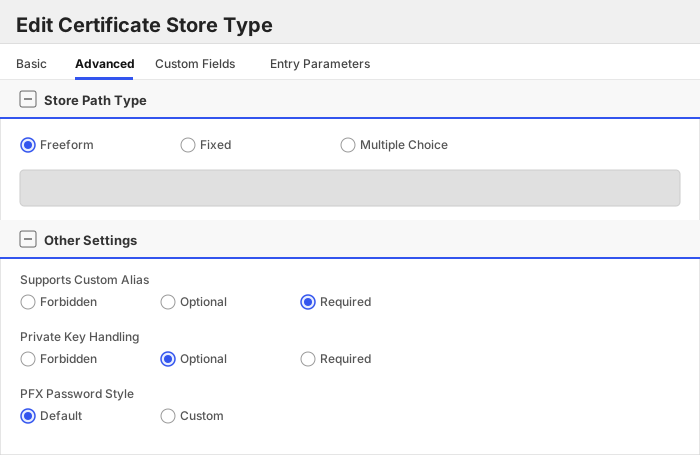
| Attribute | Value | Description |
| --------- | ----- | ----- |
| Supports Custom Alias | Required | Determines if an individual entry within a store can have a custom Alias. |
| Private Key Handling | Optional | This determines if Keyfactor can send the private key associated with a certificate to the store. |
| PFX Password Style | Default | 'Default' - PFX password is randomly generated, 'Custom' - PFX password may be specified when the enrollment job is created (Requires the Allow Custom Password application setting to be enabled.) |
The Advanced tab should look like this:
> For Keyfactor **Command versions 24.4 and later**, a Certificate Format dropdown is available with PFX and PEM options. Ensure that **PFX** is selected, as this determines the format of new and renewed certificates sent to the Orchestrator during a Management job. Currently, all Keyfactor-supported Orchestrator extensions support only PFX.
##### Custom Fields Tab
Custom fields operate at the certificate store level and are used to control how the orchestrator connects to the remote target server containing the certificate store to be managed. The following custom fields should be added to the store type:
| Name | Display Name | Description | Type | Default Value/Options | Required |
| ---- | ------------ | ---- | --------------------- | -------- | ----------- |
| ServerUsername | Server Username | A username (or valid PAM key if the username is stored in a KF Command configured PAM integration). If acting as an *agent* using local file access, just check *No Value* | Secret | | 🔲 Unchecked |
| ServerPassword | Server Password | A password (or valid PAM key if the password is stored in a KF Command configured PAM integration). The password can also be an SSH private key if connecting via SSH to a server using SSH private key authentication. If acting as an *agent* using local file access, just check *No Value* | Secret | | 🔲 Unchecked |
| LinuxFilePermissionsOnStoreCreation | Linux File Permissions on Store Creation | The LinuxFilePermissionsOnStoreCreation field should contain a three-digit value between 000 and 777 representing the Linux file permissions to be set for the certificate store upon creation. Example: '600' or '755'. Overrides DefaultLinuxPermissionOnStoreCreation [config.json](#post-installation) setting. | String | | 🔲 Unchecked |
| LinuxFileOwnerOnStoreCreation | Linux File Owner on Store Creation | The LinuxFileOwnerOnStoreCreation field should contain a valid user ID recognized by the destination Linux server, optionally followed by a colon and a group ID if the group owner differs. Example: 'userID' or 'userID:groupID'. Overrides DefaultOwnerOnStoreCreation [config.json](#post-installation) setting. | String | | 🔲 Unchecked |
| SudoImpersonatedUser | Sudo Impersonating User | The SudoImpersonatedUser field should contain a valid user ID to impersonate using sudo on the destination Linux server. Example: 'impersonatedUserID'. Overrides [config.json](#post-installation) DefaultSudoImpersonatedUser setting. | String | | 🔲 Unchecked |
| RemoveRootCertificate | Remove Root Certificate from Chain | Remove root certificate from chain when adding/renewing a certificate in a store. | Bool | False | 🔲 Unchecked |
| IncludePortInSPN | Include Port in SPN for WinRM | Internally set the -IncludePortInSPN option when creating the remote PowerShell connection. Needed for some Kerberos configurations. | Bool | False | 🔲 Unchecked |
| FileTransferProtocol | File Transfer Protocol to Use | Which protocol should be used when uploading/downloading files - SCP, SFTP, or Both (try one, and then if necessary, the other). Overrides FileTransferProtocol [config.json](#post-installation) setting. | MultipleChoice | SCP,SFTP,Both | 🔲 Unchecked |
| SSHPort | SSH Port | Integer value representing the port that should be used when connecting to Linux servers over SSH. Overrides SSHPort [config.json](#post-installation) setting. | String | | 🔲 Unchecked |
| UseShellCommands | Use Shell Commands | Recommended to be set to the default value of 'Y'. For a detailed explanation of this setting, please refer to [Use Shell Commands Setting](#use-shell-commands-setting) | Bool | True | 🔲 Unchecked |
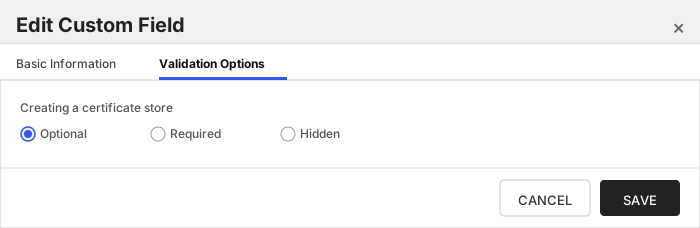
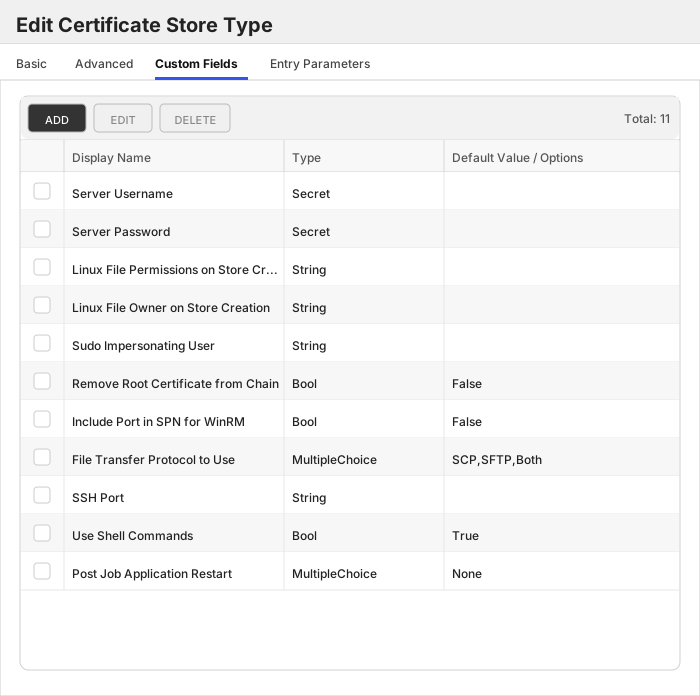
| PostJobApplicationRestart | Post Job Application Restart | Select the command to be run after a Management Add or ODKG job executes. Leave unselected if no command is desired. No options are initially delivered for RFORA. | MultipleChoice | None | 🔲 Unchecked |
The Custom Fields tab should look like this:
###### Server Username
A username (or valid PAM key if the username is stored in a KF Command configured PAM integration). If acting as an *agent* using local file access, just check *No Value*
> [!IMPORTANT]
> This field is created by the `Needs Server` on the Basic tab, do not create this field manually.
###### Server Password
A password (or valid PAM key if the password is stored in a KF Command configured PAM integration). The password can also be an SSH private key if connecting via SSH to a server using SSH private key authentication. If acting as an *agent* using local file access, just check *No Value*
> [!IMPORTANT]
> This field is created by the `Needs Server` on the Basic tab, do not create this field manually.
###### Linux File Permissions on Store Creation
The LinuxFilePermissionsOnStoreCreation field should contain a three-digit value between 000 and 777 representing the Linux file permissions to be set for the certificate store upon creation. Example: '600' or '755'. Overrides DefaultLinuxPermissionOnStoreCreation [config.json](#post-installation) setting.
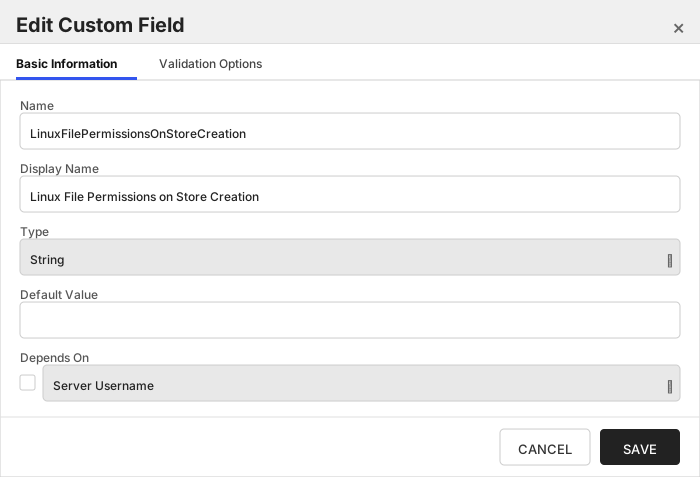
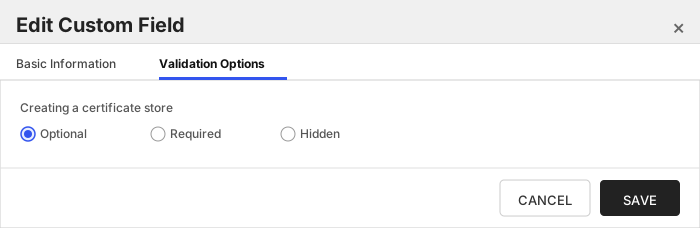
###### Linux File Owner on Store Creation
The LinuxFileOwnerOnStoreCreation field should contain a valid user ID recognized by the destination Linux server, optionally followed by a colon and a group ID if the group owner differs. Example: 'userID' or 'userID:groupID'. Overrides DefaultOwnerOnStoreCreation [config.json](#post-installation) setting.
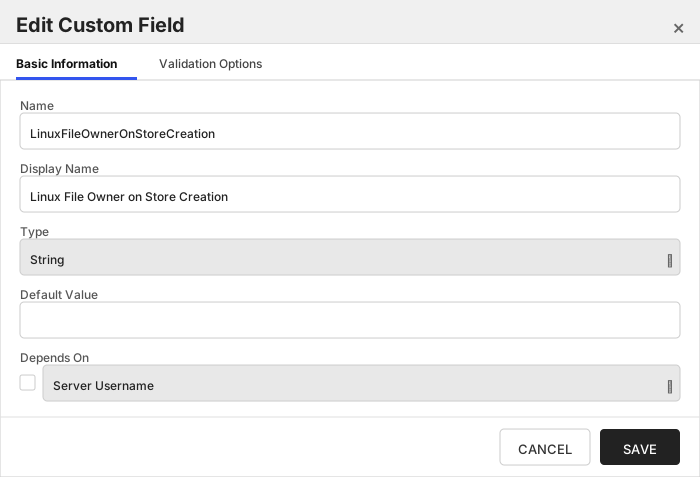
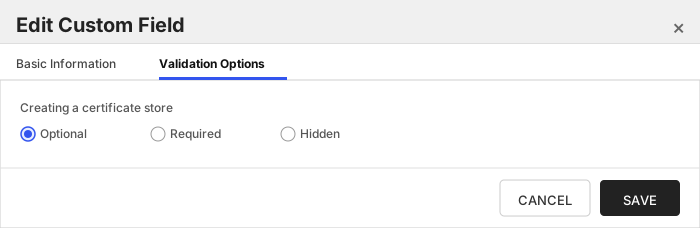
###### Sudo Impersonating User
The SudoImpersonatedUser field should contain a valid user ID to impersonate using sudo on the destination Linux server. Example: 'impersonatedUserID'. Overrides [config.json](#post-installation) DefaultSudoImpersonatedUser setting.
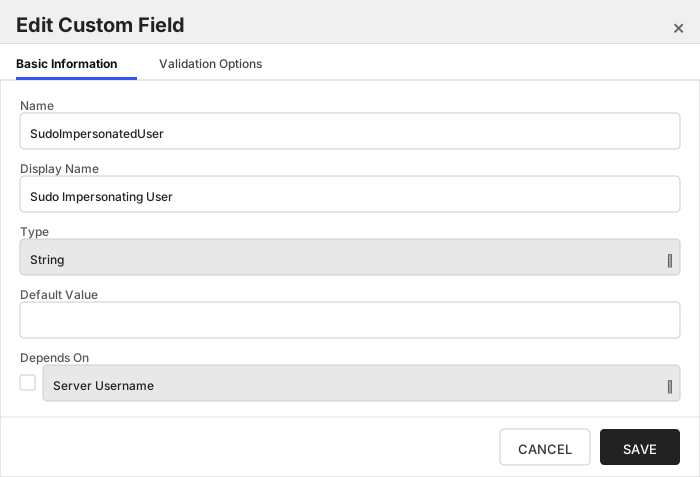
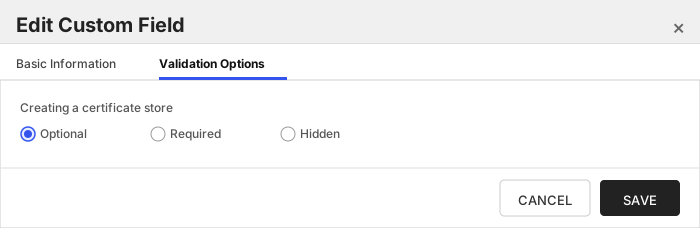
###### Remove Root Certificate from Chain
Remove root certificate from chain when adding/renewing a certificate in a store.
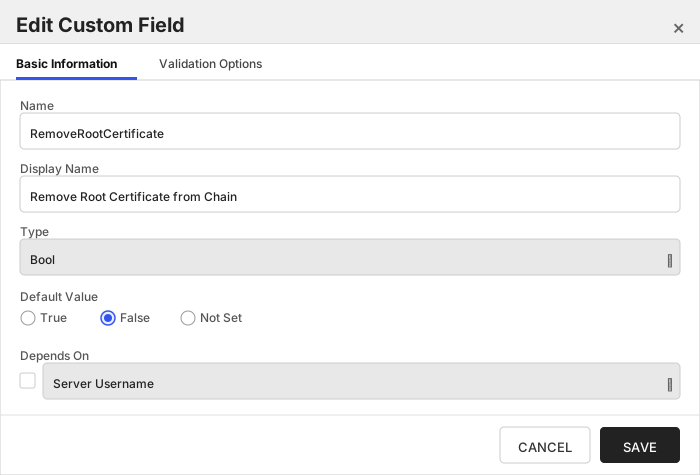
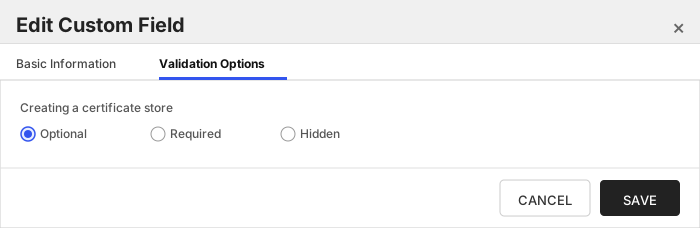
###### Include Port in SPN for WinRM
Internally set the -IncludePortInSPN option when creating the remote PowerShell connection. Needed for some Kerberos configurations.
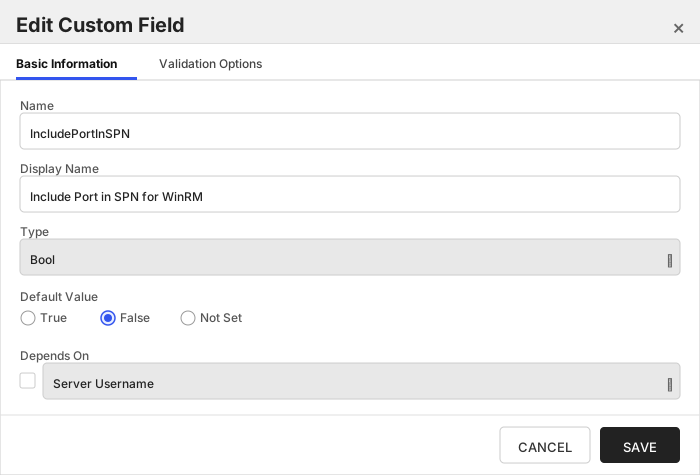
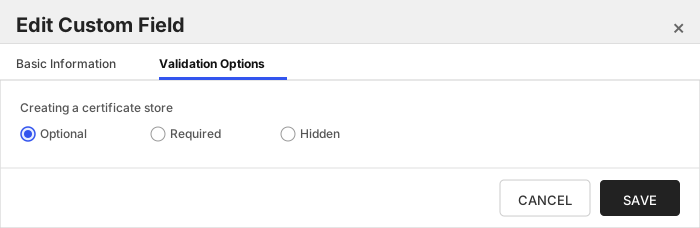
###### File Transfer Protocol to Use
Which protocol should be used when uploading/downloading files - SCP, SFTP, or Both (try one, and then if necessary, the other). Overrides FileTransferProtocol [config.json](#post-installation) setting.
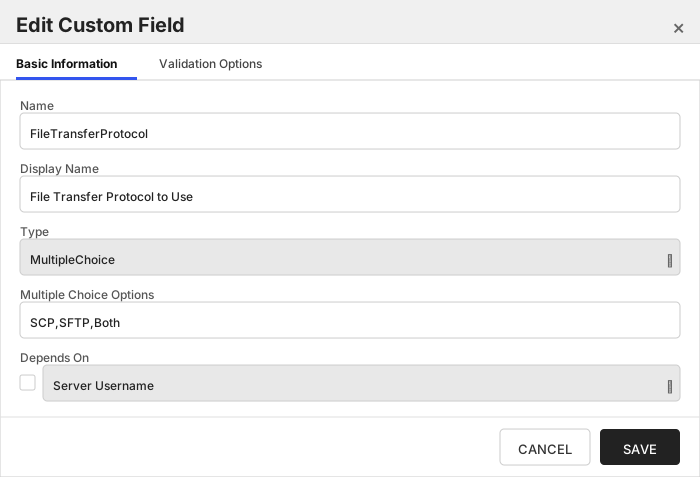
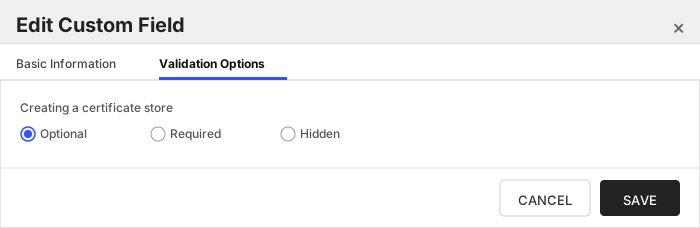
###### SSH Port
Integer value representing the port that should be used when connecting to Linux servers over SSH. Overrides SSHPort [config.json](#post-installation) setting.
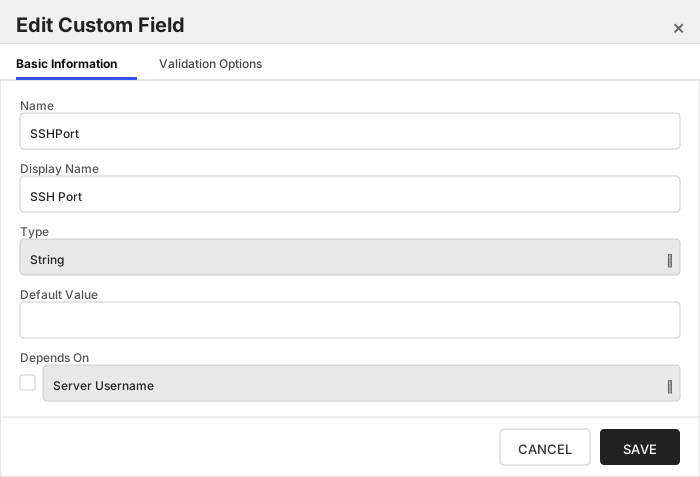
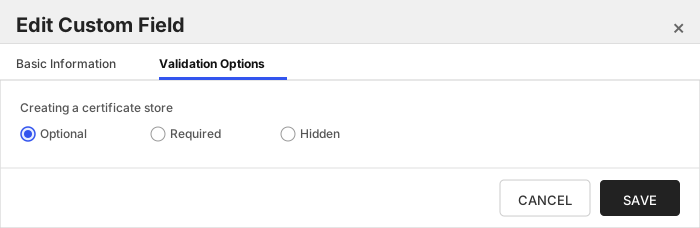
###### Use Shell Commands
Recommended to be set to the default value of 'Y'. For a detailed explanation of this setting, please refer to [Use Shell Commands Setting](#use-shell-commands-setting)
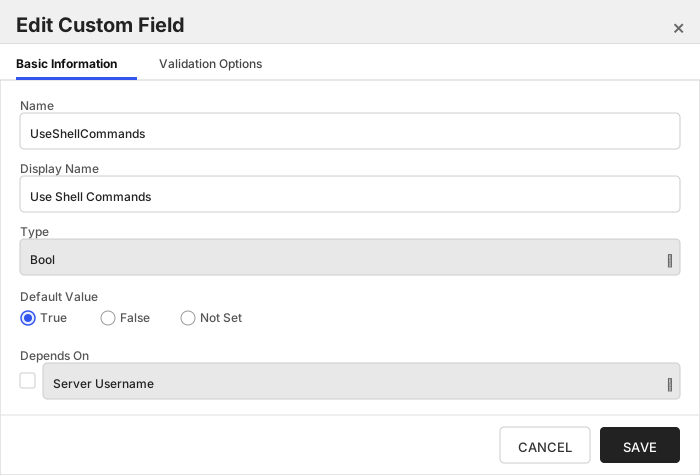
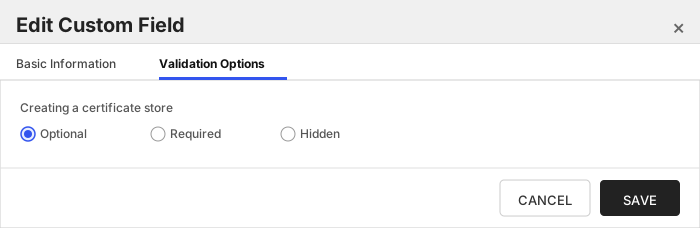
###### Post Job Application Restart
Select the command to be run after a Management Add or ODKG job executes. Leave unselected if no command is desired. No options are initially delivered for RFORA.
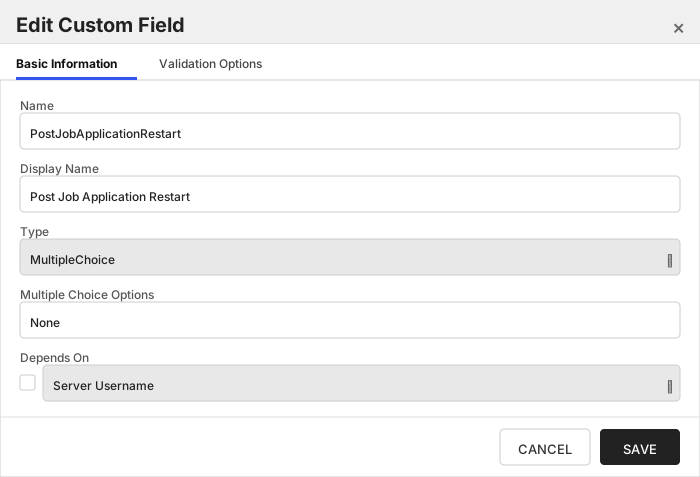
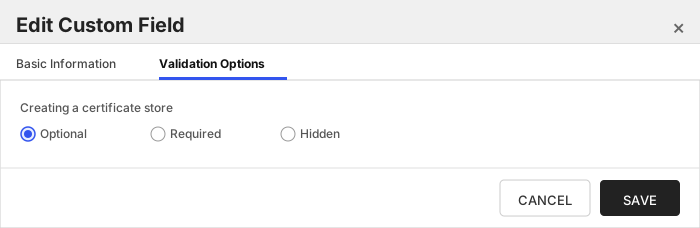
RFJKS (RFJKS)
### Store Creation
#### Manually with the Command UI
Click to expand details
1. **Navigate to the _Certificate Stores_ page in Keyfactor Command.**
Log into Keyfactor Command, toggle the _Locations_ dropdown, and click _Certificate Stores_.
2. **Add a Certificate Store.**
Click the Add button to add a new Certificate Store. Use the table below to populate the **Attributes** in the **Add** form.
| Attribute | Description |
| --------- | ----------- |
| Category | Select "RFJKS" or the customized certificate store name from the previous step. |
| Container | Optional container to associate certificate store with. |
| Client Machine | The IP address or DNS of the server hosting the certificate store. For more information, see [Client Machine ](#client-machine-instructions) |
| Store Path | The full path and file name, including file extension if one exists where the certificate store file is located. For Linux orchestrated servers, StorePath will begin with a forward slash (i.e. /folder/path/storename.ext). For Windows orchestrated servers, it should begin with a drive letter (i.e. c:\folder\path\storename.ext). |
| Store Password | Password used to secure the Certificate Store |
| Orchestrator | Select an approved orchestrator capable of managing `RFJKS` certificates. Specifically, one with the `RFJKS` capability. |
| ServerUsername | A username (or valid PAM key if the username is stored in a KF Command configured PAM integration). If acting as an *agent* using local file access, just check *No Value* |
| ServerPassword | A password (or valid PAM key if the password is stored in a KF Command configured PAM integration). The password can also be an SSH private key if connecting via SSH to a server using SSH private key authentication. If acting as an *agent* using local file access, just check *No Value* |
| LinuxFilePermissionsOnStoreCreation | The LinuxFilePermissionsOnStoreCreation field should contain a three-digit value between 000 and 777 representing the Linux file permissions to be set for the certificate store upon creation. Example: '600' or '755'. Overrides DefaultLinuxPermissionOnStoreCreation [config.json](#post-installation) setting. |
| LinuxFileOwnerOnStoreCreation | The LinuxFileOwnerOnStoreCreation field should contain a valid user ID recognized by the destination Linux server, optionally followed by a colon and a group ID if the group owner differs. Example: 'userID' or 'userID:groupID'. Overrides DefaultOwnerOnStoreCreation [config.json](#post-installation) setting. |
| SudoImpersonatedUser | The SudoImpersonatedUser field should contain a valid user ID to impersonate using sudo on the destination Linux server. Example: 'impersonatedUserID'. Overrides DefaultSudoImpersonatedUser [config.json](#post-installation) setting. |
| RemoveRootCertificate | Remove root certificate from chain when adding/renewing a certificate in a store. |
| IncludePortInSPN | Internally set the -IncludePortInSPN option when creating the remote PowerShell connection. Needed for some Kerberos configurations. |
| FileTransferProtocol | Which protocol should be used when uploading/downloading files - SCP, SFTP, or Both (try one, and then if necessary, the other). Overrides FileTransferProtocol [config.json](#post-installation) setting. |
| SSHPort | Integer value representing the port that should be used when connecting to Linux servers over SSH. Overrides SSHPort [config.json](#post-installation) setting. |
| UseShellCommands | Recommended to be set to the default value of 'Y'. For a detailed explanation of this setting, please refer to [Use Shell Commands Setting](#use-shell-commands-setting) |
| PostJobApplicationRestart | Select the command to be run after a Management Add or ODKG job executes. Leave unselected if no command is desired. |
Click to expand details
1. **Generate a CSV template for the RFJKS certificate store**
```shell
kfutil stores import generate-template --store-type-name RFJKS --outpath RFJKS.csv
```
2. **Populate the generated CSV file**
Open the CSV file, and reference the table below to populate parameters for each **Attribute**.
| Attribute | Description |
| --------- | ----------- |
| Category | Select "RFJKS" or the customized certificate store name from the previous step. |
| Container | Optional container to associate certificate store with. |
| Client Machine | The IP address or DNS of the server hosting the certificate store. For more information, see [Client Machine ](#client-machine-instructions) |
| Store Path | The full path and file name, including file extension if one exists where the certificate store file is located. For Linux orchestrated servers, StorePath will begin with a forward slash (i.e. /folder/path/storename.ext). For Windows orchestrated servers, it should begin with a drive letter (i.e. c:\folder\path\storename.ext). |
| Store Password | Password used to secure the Certificate Store |
| Orchestrator | Select an approved orchestrator capable of managing `RFJKS` certificates. Specifically, one with the `RFJKS` capability. |
| Properties.ServerUsername | A username (or valid PAM key if the username is stored in a KF Command configured PAM integration). If acting as an *agent* using local file access, just check *No Value* |
| Properties.ServerPassword | A password (or valid PAM key if the password is stored in a KF Command configured PAM integration). The password can also be an SSH private key if connecting via SSH to a server using SSH private key authentication. If acting as an *agent* using local file access, just check *No Value* |
| Properties.LinuxFilePermissionsOnStoreCreation | The LinuxFilePermissionsOnStoreCreation field should contain a three-digit value between 000 and 777 representing the Linux file permissions to be set for the certificate store upon creation. Example: '600' or '755'. Overrides DefaultLinuxPermissionOnStoreCreation [config.json](#post-installation) setting. |
| Properties.LinuxFileOwnerOnStoreCreation | The LinuxFileOwnerOnStoreCreation field should contain a valid user ID recognized by the destination Linux server, optionally followed by a colon and a group ID if the group owner differs. Example: 'userID' or 'userID:groupID'. Overrides DefaultOwnerOnStoreCreation [config.json](#post-installation) setting. |
| Properties.SudoImpersonatedUser | The SudoImpersonatedUser field should contain a valid user ID to impersonate using sudo on the destination Linux server. Example: 'impersonatedUserID'. Overrides DefaultSudoImpersonatedUser [config.json](#post-installation) setting. |
| Properties.RemoveRootCertificate | Remove root certificate from chain when adding/renewing a certificate in a store. |
| Properties.IncludePortInSPN | Internally set the -IncludePortInSPN option when creating the remote PowerShell connection. Needed for some Kerberos configurations. |
| Properties.FileTransferProtocol | Which protocol should be used when uploading/downloading files - SCP, SFTP, or Both (try one, and then if necessary, the other). Overrides FileTransferProtocol [config.json](#post-installation) setting. |
| Properties.SSHPort | Integer value representing the port that should be used when connecting to Linux servers over SSH. Overrides SSHPort [config.json](#post-installation) setting. |
| Properties.UseShellCommands | Recommended to be set to the default value of 'Y'. For a detailed explanation of this setting, please refer to [Use Shell Commands Setting](#use-shell-commands-setting) |
| Properties.PostJobApplicationRestart | Select the command to be run after a Management Add or ODKG job executes. Leave unselected if no command is desired. |
3. **Import the CSV file to create the certificate stores**
```shell
kfutil stores import csv --store-type-name RFJKS --file RFJKS.csv
```
Attributes eligible for retrieval by a PAM Provider on the Universal Orchestrator
If a PAM provider was installed _on the Universal Orchestrator_ in the [Installation](#Installation) section, the following parameters can be configured for retrieval _on the Universal Orchestrator_.
| Attribute | Description |
| --------- | ----------- |
| ServerUsername | A username (or valid PAM key if the username is stored in a KF Command configured PAM integration). If acting as an *agent* using local file access, just check *No Value* |
| ServerPassword | A password (or valid PAM key if the password is stored in a KF Command configured PAM integration). The password can also be an SSH private key if connecting via SSH to a server using SSH private key authentication. If acting as an *agent* using local file access, just check *No Value* |
| StorePassword | Password to use when reading/writing to store |
Please refer to the **Universal Orchestrator (remote)** usage section ([PAM providers on the Keyfactor Integration Catalog](https://keyfactor.github.io/integrations-catalog/content/pam)) for your selected PAM provider for instructions on how to load attributes orchestrator-side.
> Any secret can be rendered by a PAM provider _installed on the Keyfactor Command server_. The above parameters are specific to attributes that can be fetched by an installed PAM provider running on the Universal Orchestrator server itself.
RFPEM (RFPEM)
### Store Creation
#### Manually with the Command UI
Click to expand details
1. **Navigate to the _Certificate Stores_ page in Keyfactor Command.**
Log into Keyfactor Command, toggle the _Locations_ dropdown, and click _Certificate Stores_.
2. **Add a Certificate Store.**
Click the Add button to add a new Certificate Store. Use the table below to populate the **Attributes** in the **Add** form.
| Attribute | Description |
| --------- | ----------- |
| Category | Select "RFPEM" or the customized certificate store name from the previous step. |
| Container | Optional container to associate certificate store with. |
| Client Machine | The Client Machine field should contain the DNS name or IP address of the remote orchestrated server for Linux orchestrated servers, formatted as a URL (protocol://dns-or-ip:port) for Windows orchestrated servers, or '1.1.1.1|LocalMachine' for local agents. Example: 'https://myserver.mydomain.com:5986' or '1.1.1.1|LocalMachine' for local access. |
| Store Path | The Store Path field should contain the full path and file name, including file extension if applicable, beginning with a forward slash (/) for Linux orchestrated servers or a drive letter (i.e., c:\folder\path\storename.ext) for Windows orchestrated servers. Example: '/folder/path/storename.pem' or 'c:\folder\path\storename.pem'. |
| Store Password | Password used to secure the Certificate Store. For stores with PKCS#8 private keys, set the password for encrypted private keys (BEGIN ENCRYPTED PRIVATE KEY) or 'No Value' for unencrypted private keys (BEGIN PRIVATE KEY). If managing a store with a PKCS#1 private key (BEGIN RSA PRIVATE KEY), this value MUST be set to 'No Value' |
| Orchestrator | Select an approved orchestrator capable of managing `RFPEM` certificates. Specifically, one with the `RFPEM` capability. |
| ServerUsername | A username (or valid PAM key if the username is stored in a KF Command configured PAM integration). If acting as an *agent* using local file access, just check *No Value* |
| ServerPassword | A password (or valid PAM key if the password is stored in a KF Command configured PAM integration). The password can also be an SSH private key if connecting via SSH to a server using SSH private key authentication. If acting as an *agent* using local file access, just check *No Value* |
| LinuxFilePermissionsOnStoreCreation | The LinuxFilePermissionsOnStoreCreation field should contain a three-digit value between 000 and 777 representing the Linux file permissions to be set for the certificate store upon creation. Example: '600' or '755'. Overrides DefaultLinuxPermissionOnStoreCreation [config.json](#post-installation) setting. |
| LinuxFileOwnerOnStoreCreation | The LinuxFileOwnerOnStoreCreation field should contain a valid user ID recognized by the destination Linux server, optionally followed by a colon and a group ID if the group owner differs. Example: 'userID' or 'userID:groupID'. Overrides DefaultOwnerOnStoreCreation [config.json](#post-installation) setting. |
| SudoImpersonatedUser | The SudoImpersonatedUser field should contain a valid user ID to impersonate using sudo on the destination Linux server. Example: 'impersonatedUserID'. Overrides [config.json](#post-installation) DefaultSudoImpersonatedUser setting.. |
| IsTrustStore | The IsTrustStore field should contain a boolean value ('true' or 'false') indicating whether the store will be identified as a trust store, which can hold multiple certificates without private keys. Example: 'true' for a trust store or 'false' for a store with a single certificate and private key. |
| IncludesChain | The IncludesChain field should contain a boolean value ('true' or 'false') indicating whether the certificate store includes the full certificate chain along with the end entity certificate. Example: 'true' to include the full chain or 'false' to exclude it. |
| SeparatePrivateKeyFilePath | The SeparatePrivateKeyFilePath field should contain the full path and file name where the separate private key file will be stored if it is to be kept outside the main certificate file. Example: '/path/to/privatekey.pem'. |
| IgnorePrivateKeyOnInventory | The IgnorePrivateKeyOnInventory field should contain a boolean value ('true' or 'false') indicating whether to disregard the private key during inventory. Setting this to 'true' will allow inventory for the store without needing to supply the location of the private key or the password if the key is encrypted. However, doing this makes the store in effect inventory-only and no management jobs will be able to be run for this store. Example: 'true' to ignore the private key or 'false' to include it. |
| RemoveRootCertificate | Remove root certificate from chain when adding/renewing a certificate in a store. |
| IncludePortInSPN | Internally set the -IncludePortInSPN option when creating the remote PowerShell connection. Needed for some Kerberos configurations. |
| FileTransferProtocol | Which protocol should be used when uploading/downloading files - SCP, SFTP, or Both (try one, and then if necessary, the other). Overrides FileTransferProtocol [config.json](#post-installation) setting. |
| SSHPort | Integer value representing the port that should be used when connecting to Linux servers over SSH. Overrides SSHPort [config.json](#post-installation) setting. |
| UseShellCommands | Recommended to be set to the default value of 'Y'. For a detailed explanation of this setting, please refer to [Use Shell Commands Setting](#use-shell-commands-setting) |
| PostJobApplicationRestart | Select the command to be run after a Management Add or ODKG job executes. Leave unselected if no command is desired. |
Click to expand details
1. **Generate a CSV template for the RFPEM certificate store**
```shell
kfutil stores import generate-template --store-type-name RFPEM --outpath RFPEM.csv
```
2. **Populate the generated CSV file**
Open the CSV file, and reference the table below to populate parameters for each **Attribute**.
| Attribute | Description |
| --------- | ----------- |
| Category | Select "RFPEM" or the customized certificate store name from the previous step. |
| Container | Optional container to associate certificate store with. |
| Client Machine | The Client Machine field should contain the DNS name or IP address of the remote orchestrated server for Linux orchestrated servers, formatted as a URL (protocol://dns-or-ip:port) for Windows orchestrated servers, or '1.1.1.1|LocalMachine' for local agents. Example: 'https://myserver.mydomain.com:5986' or '1.1.1.1|LocalMachine' for local access. |
| Store Path | The Store Path field should contain the full path and file name, including file extension if applicable, beginning with a forward slash (/) for Linux orchestrated servers or a drive letter (i.e., c:\folder\path\storename.ext) for Windows orchestrated servers. Example: '/folder/path/storename.pem' or 'c:\folder\path\storename.pem'. |
| Store Password | Password used to secure the Certificate Store. For stores with PKCS#8 private keys, set the password for encrypted private keys (BEGIN ENCRYPTED PRIVATE KEY) or 'No Value' for unencrypted private keys (BEGIN PRIVATE KEY). If managing a store with a PKCS#1 private key (BEGIN RSA PRIVATE KEY), this value MUST be set to 'No Value' |
| Orchestrator | Select an approved orchestrator capable of managing `RFPEM` certificates. Specifically, one with the `RFPEM` capability. |
| Properties.ServerUsername | A username (or valid PAM key if the username is stored in a KF Command configured PAM integration). If acting as an *agent* using local file access, just check *No Value* |
| Properties.ServerPassword | A password (or valid PAM key if the password is stored in a KF Command configured PAM integration). The password can also be an SSH private key if connecting via SSH to a server using SSH private key authentication. If acting as an *agent* using local file access, just check *No Value* |
| Properties.LinuxFilePermissionsOnStoreCreation | The LinuxFilePermissionsOnStoreCreation field should contain a three-digit value between 000 and 777 representing the Linux file permissions to be set for the certificate store upon creation. Example: '600' or '755'. Overrides DefaultLinuxPermissionOnStoreCreation [config.json](#post-installation) setting. |
| Properties.LinuxFileOwnerOnStoreCreation | The LinuxFileOwnerOnStoreCreation field should contain a valid user ID recognized by the destination Linux server, optionally followed by a colon and a group ID if the group owner differs. Example: 'userID' or 'userID:groupID'. Overrides DefaultOwnerOnStoreCreation [config.json](#post-installation) setting. |
| Properties.SudoImpersonatedUser | The SudoImpersonatedUser field should contain a valid user ID to impersonate using sudo on the destination Linux server. Example: 'impersonatedUserID'. Overrides [config.json](#post-installation) DefaultSudoImpersonatedUser setting.. |
| Properties.IsTrustStore | The IsTrustStore field should contain a boolean value ('true' or 'false') indicating whether the store will be identified as a trust store, which can hold multiple certificates without private keys. Example: 'true' for a trust store or 'false' for a store with a single certificate and private key. |
| Properties.IncludesChain | The IncludesChain field should contain a boolean value ('true' or 'false') indicating whether the certificate store includes the full certificate chain along with the end entity certificate. Example: 'true' to include the full chain or 'false' to exclude it. |
| Properties.SeparatePrivateKeyFilePath | The SeparatePrivateKeyFilePath field should contain the full path and file name where the separate private key file will be stored if it is to be kept outside the main certificate file. Example: '/path/to/privatekey.pem'. |
| Properties.IgnorePrivateKeyOnInventory | The IgnorePrivateKeyOnInventory field should contain a boolean value ('true' or 'false') indicating whether to disregard the private key during inventory. Setting this to 'true' will allow inventory for the store without needing to supply the location of the private key or the password if the key is encrypted. However, doing this makes the store in effect inventory-only and no management jobs will be able to be run for this store. Example: 'true' to ignore the private key or 'false' to include it. |
| Properties.RemoveRootCertificate | Remove root certificate from chain when adding/renewing a certificate in a store. |
| Properties.IncludePortInSPN | Internally set the -IncludePortInSPN option when creating the remote PowerShell connection. Needed for some Kerberos configurations. |
| Properties.FileTransferProtocol | Which protocol should be used when uploading/downloading files - SCP, SFTP, or Both (try one, and then if necessary, the other). Overrides FileTransferProtocol [config.json](#post-installation) setting. |
| Properties.SSHPort | Integer value representing the port that should be used when connecting to Linux servers over SSH. Overrides SSHPort [config.json](#post-installation) setting. |
| Properties.UseShellCommands | Recommended to be set to the default value of 'Y'. For a detailed explanation of this setting, please refer to [Use Shell Commands Setting](#use-shell-commands-setting) |
| Properties.PostJobApplicationRestart | Select the command to be run after a Management Add or ODKG job executes. Leave unselected if no command is desired. |
3. **Import the CSV file to create the certificate stores**
```shell
kfutil stores import csv --store-type-name RFPEM --file RFPEM.csv
```
Attributes eligible for retrieval by a PAM Provider on the Universal Orchestrator
If a PAM provider was installed _on the Universal Orchestrator_ in the [Installation](#Installation) section, the following parameters can be configured for retrieval _on the Universal Orchestrator_.
| Attribute | Description |
| --------- | ----------- |
| ServerUsername | A username (or valid PAM key if the username is stored in a KF Command configured PAM integration). If acting as an *agent* using local file access, just check *No Value* |
| ServerPassword | A password (or valid PAM key if the password is stored in a KF Command configured PAM integration). The password can also be an SSH private key if connecting via SSH to a server using SSH private key authentication. If acting as an *agent* using local file access, just check *No Value* |
| StorePassword | Password to use when reading/writing to store |
Please refer to the **Universal Orchestrator (remote)** usage section ([PAM providers on the Keyfactor Integration Catalog](https://keyfactor.github.io/integrations-catalog/content/pam)) for your selected PAM provider for instructions on how to load attributes orchestrator-side.
> Any secret can be rendered by a PAM provider _installed on the Keyfactor Command server_. The above parameters are specific to attributes that can be fetched by an installed PAM provider running on the Universal Orchestrator server itself.
RFPkcs12 (RFPkcs12)
### Store Creation
#### Manually with the Command UI
Click to expand details
1. **Navigate to the _Certificate Stores_ page in Keyfactor Command.**
Log into Keyfactor Command, toggle the _Locations_ dropdown, and click _Certificate Stores_.
2. **Add a Certificate Store.**
Click the Add button to add a new Certificate Store. Use the table below to populate the **Attributes** in the **Add** form.
| Attribute | Description |
| --------- | ----------- |
| Category | Select "RFPkcs12" or the customized certificate store name from the previous step. |
| Container | Optional container to associate certificate store with. |
| Client Machine | The Client Machine field should contain the DNS name or IP address of the remote orchestrated server for Linux orchestrated servers, formatted as a URL (protocol://dns-or-ip:port) for Windows orchestrated servers, or '1.1.1.1|LocalMachine' for local agents. Example: 'https://myserver.mydomain.com:5986' or '1.1.1.1|LocalMachine' for local access. |
| Store Path | The Store Path field should contain the full path and file name, including file extension if applicable, beginning with a forward slash (/) for Linux orchestrated servers or a drive letter (i.e., c:\folder\path\storename.p12) for Windows orchestrated servers. Example: '/folder/path/storename.p12' or 'c:\folder\path\storename.p12'. |
| Store Password | Password used to secure the Certificate Store |
| Orchestrator | Select an approved orchestrator capable of managing `RFPkcs12` certificates. Specifically, one with the `RFPkcs12` capability. |
| ServerUsername | A username (or valid PAM key if the username is stored in a KF Command configured PAM integration). If acting as an *agent* using local file access, just check *No Value* |
| ServerPassword | A password (or valid PAM key if the password is stored in a KF Command configured PAM integration). The password can also be an SSH private key if connecting via SSH to a server using SSH private key authentication. If acting as an *agent* using local file access, just check *No Value* |
| LinuxFilePermissionsOnStoreCreation | The LinuxFilePermissionsOnStoreCreation field should contain a three-digit value between 000 and 777 representing the Linux file permissions to be set for the certificate store upon creation. Example: '600' or '755'. Overrides DefaultLinuxPermissionOnStoreCreation [config.json](#post-installation) setting. |
| LinuxFileOwnerOnStoreCreation | The LinuxFileOwnerOnStoreCreation field should contain a valid user ID recognized by the destination Linux server, optionally followed by a colon and a group ID if the group owner differs. Example: 'userID' or 'userID:groupID'. Overrides DefaultOwnerOnStoreCreation [config.json](#post-installation) setting. |
| SudoImpersonatedUser | The SudoImpersonatedUser field should contain a valid user ID to impersonate using sudo on the destination Linux server. Example: 'impersonatedUserID'. Overrides DefaultSudoImpersonatedUser [config.json](#post-installation) setting. |
| RemoveRootCertificate | Remove root certificate from chain when adding/renewing a certificate in a store. |
| IncludePortInSPN | Internally set the -IncludePortInSPN option when creating the remote PowerShell connection. Needed for some Kerberos configurations. |
| FileTransferProtocol | Which protocol should be used when uploading/downloading files - SCP, SFTP, or Both (try one, and then if necessary, the other). Overrides FileTransferProtocol [config.json](#post-installation) setting. |
| SSHPort | Integer value representing the port that should be used when connecting to Linux servers over SSH. Overrides SSHPort [config.json](#post-installation) setting. |
| UseShellCommands | Recommended to be set to the default value of 'Y'. For a detailed explanation of this setting, please refer to [Use Shell Commands Setting](#use-shell-commands-setting) |
| PostJobApplicationRestart | Select the command to be run after a Management Add or ODKG job executes. Leave unselected if no command is desired. No options are initially delivered for RFPkcs12. |
Click to expand details
1. **Generate a CSV template for the RFPkcs12 certificate store**
```shell
kfutil stores import generate-template --store-type-name RFPkcs12 --outpath RFPkcs12.csv
```
2. **Populate the generated CSV file**
Open the CSV file, and reference the table below to populate parameters for each **Attribute**.
| Attribute | Description |
| --------- | ----------- |
| Category | Select "RFPkcs12" or the customized certificate store name from the previous step. |
| Container | Optional container to associate certificate store with. |
| Client Machine | The Client Machine field should contain the DNS name or IP address of the remote orchestrated server for Linux orchestrated servers, formatted as a URL (protocol://dns-or-ip:port) for Windows orchestrated servers, or '1.1.1.1|LocalMachine' for local agents. Example: 'https://myserver.mydomain.com:5986' or '1.1.1.1|LocalMachine' for local access. |
| Store Path | The Store Path field should contain the full path and file name, including file extension if applicable, beginning with a forward slash (/) for Linux orchestrated servers or a drive letter (i.e., c:\folder\path\storename.p12) for Windows orchestrated servers. Example: '/folder/path/storename.p12' or 'c:\folder\path\storename.p12'. |
| Store Password | Password used to secure the Certificate Store |
| Orchestrator | Select an approved orchestrator capable of managing `RFPkcs12` certificates. Specifically, one with the `RFPkcs12` capability. |
| Properties.ServerUsername | A username (or valid PAM key if the username is stored in a KF Command configured PAM integration). If acting as an *agent* using local file access, just check *No Value* |
| Properties.ServerPassword | A password (or valid PAM key if the password is stored in a KF Command configured PAM integration). The password can also be an SSH private key if connecting via SSH to a server using SSH private key authentication. If acting as an *agent* using local file access, just check *No Value* |
| Properties.LinuxFilePermissionsOnStoreCreation | The LinuxFilePermissionsOnStoreCreation field should contain a three-digit value between 000 and 777 representing the Linux file permissions to be set for the certificate store upon creation. Example: '600' or '755'. Overrides DefaultLinuxPermissionOnStoreCreation [config.json](#post-installation) setting. |
| Properties.LinuxFileOwnerOnStoreCreation | The LinuxFileOwnerOnStoreCreation field should contain a valid user ID recognized by the destination Linux server, optionally followed by a colon and a group ID if the group owner differs. Example: 'userID' or 'userID:groupID'. Overrides DefaultOwnerOnStoreCreation [config.json](#post-installation) setting. |
| Properties.SudoImpersonatedUser | The SudoImpersonatedUser field should contain a valid user ID to impersonate using sudo on the destination Linux server. Example: 'impersonatedUserID'. Overrides DefaultSudoImpersonatedUser [config.json](#post-installation) setting. |
| Properties.RemoveRootCertificate | Remove root certificate from chain when adding/renewing a certificate in a store. |
| Properties.IncludePortInSPN | Internally set the -IncludePortInSPN option when creating the remote PowerShell connection. Needed for some Kerberos configurations. |
| Properties.FileTransferProtocol | Which protocol should be used when uploading/downloading files - SCP, SFTP, or Both (try one, and then if necessary, the other). Overrides FileTransferProtocol [config.json](#post-installation) setting. |
| Properties.SSHPort | Integer value representing the port that should be used when connecting to Linux servers over SSH. Overrides SSHPort [config.json](#post-installation) setting. |
| Properties.UseShellCommands | Recommended to be set to the default value of 'Y'. For a detailed explanation of this setting, please refer to [Use Shell Commands Setting](#use-shell-commands-setting) |
| Properties.PostJobApplicationRestart | Select the command to be run after a Management Add or ODKG job executes. Leave unselected if no command is desired. No options are initially delivered for RFPkcs12. |
3. **Import the CSV file to create the certificate stores**
```shell
kfutil stores import csv --store-type-name RFPkcs12 --file RFPkcs12.csv
```
Attributes eligible for retrieval by a PAM Provider on the Universal Orchestrator
If a PAM provider was installed _on the Universal Orchestrator_ in the [Installation](#Installation) section, the following parameters can be configured for retrieval _on the Universal Orchestrator_.
| Attribute | Description |
| --------- | ----------- |
| ServerUsername | A username (or valid PAM key if the username is stored in a KF Command configured PAM integration). If acting as an *agent* using local file access, just check *No Value* |
| ServerPassword | A password (or valid PAM key if the password is stored in a KF Command configured PAM integration). The password can also be an SSH private key if connecting via SSH to a server using SSH private key authentication. If acting as an *agent* using local file access, just check *No Value* |
| StorePassword | Password to use when reading/writing to store |
Please refer to the **Universal Orchestrator (remote)** usage section ([PAM providers on the Keyfactor Integration Catalog](https://keyfactor.github.io/integrations-catalog/content/pam)) for your selected PAM provider for instructions on how to load attributes orchestrator-side.
> Any secret can be rendered by a PAM provider _installed on the Keyfactor Command server_. The above parameters are specific to attributes that can be fetched by an installed PAM provider running on the Universal Orchestrator server itself.
RFDER (RFDER)
### Store Creation
#### Manually with the Command UI
Click to expand details
1. **Navigate to the _Certificate Stores_ page in Keyfactor Command.**
Log into Keyfactor Command, toggle the _Locations_ dropdown, and click _Certificate Stores_.
2. **Add a Certificate Store.**
Click the Add button to add a new Certificate Store. Use the table below to populate the **Attributes** in the **Add** form.
| Attribute | Description |
| --------- | ----------- |
| Category | Select "RFDER" or the customized certificate store name from the previous step. |
| Container | Optional container to associate certificate store with. |
| Client Machine | The Client Machine field should contain the DNS name or IP address of the remote orchestrated server for Linux orchestrated servers, formatted as a URL (protocol://dns-or-ip:port) for Windows orchestrated servers, or '1.1.1.1|LocalMachine' for local agents. Example: 'https://myserver.mydomain.com:5986' or '1.1.1.1|LocalMachine' for local access. |
| Store Path | The Store Path field should contain the full path and file name, including file extension if applicable, beginning with a forward slash (/) for Linux orchestrated servers or a drive letter (i.e., c:\folder\path\storename.der) for Windows orchestrated servers. Example: '/folder/path/storename.der' or 'c:\folder\path\storename.der'. |
| Store Password | Password used to secure the Certificate Store |
| Orchestrator | Select an approved orchestrator capable of managing `RFDER` certificates. Specifically, one with the `RFDER` capability. |
| ServerUsername | A username (or valid PAM key if the username is stored in a KF Command configured PAM integration). If acting as an *agent* using local file access, just check *No Value* |
| ServerPassword | A password (or valid PAM key if the password is stored in a KF Command configured PAM integration). The password can also be an SSH private key if connecting via SSH to a server using SSH private key authentication. If acting as an *agent* using local file access, just check *No Value* |
| LinuxFilePermissionsOnStoreCreation | The LinuxFilePermissionsOnStoreCreation field should contain a three-digit value between 000 and 777 representing the Linux file permissions to be set for the certificate store upon creation. Example: '600' or '755'. Overrides DefaultLinuxPermissionOnStoreCreation [config.json](#post-installation) setting. |
| LinuxFileOwnerOnStoreCreation | The LinuxFileOwnerOnStoreCreation field should contain a valid user ID recognized by the destination Linux server, optionally followed by a colon and a group ID if the group owner differs. Example: 'userID' or 'userID:groupID'. Overrides DefaultOwnerOnStoreCreation [config.json](#post-installation) setting. |
| SudoImpersonatedUser | The SudoImpersonatedUser field should contain a valid user ID to impersonate using sudo on the destination Linux server. Example: 'impersonatedUserID'. Overrides [config.json](#post-installation) DefaultSudoImpersonatedUser setting. |
| SeparatePrivateKeyFilePath | The SeparatePrivateKeyFilePath field should contain the full path and file name where the separate private key file will be stored if it is to be kept outside the main certificate file. Example: '/path/to/privatekey.der'. |
| RemoveRootCertificate | Remove root certificate from chain when adding/renewing a certificate in a store. |
| IncludePortInSPN | Internally set the -IncludePortInSPN option when creating the remote PowerShell connection. Needed for some Kerberos configurations. |
| FileTransferProtocol | Which protocol should be used when uploading/downloading files - SCP, SFTP, or Both (try one, and then if necessary, the other). Overrides FileTransferProtocol [config.json](#post-installation) setting. |
| SSHPort | Integer value representing the port that should be used when connecting to Linux servers over SSH. Overrides SSHPort [config.json](#post-installation) setting. |
| UseShellCommands | Recommended to be set to the default value of 'Y'. For a detailed explanation of this setting, please refer to [Use Shell Commands Setting](#use-shell-commands-setting) |
| PostJobApplicationRestart | Select the command to be run after a Management Add or ODKG job executes. Leave unselected if no command is desired. No options are initially delivered for RFDER. |
Click to expand details
1. **Generate a CSV template for the RFDER certificate store**
```shell
kfutil stores import generate-template --store-type-name RFDER --outpath RFDER.csv
```
2. **Populate the generated CSV file**
Open the CSV file, and reference the table below to populate parameters for each **Attribute**.
| Attribute | Description |
| --------- | ----------- |
| Category | Select "RFDER" or the customized certificate store name from the previous step. |
| Container | Optional container to associate certificate store with. |
| Client Machine | The Client Machine field should contain the DNS name or IP address of the remote orchestrated server for Linux orchestrated servers, formatted as a URL (protocol://dns-or-ip:port) for Windows orchestrated servers, or '1.1.1.1|LocalMachine' for local agents. Example: 'https://myserver.mydomain.com:5986' or '1.1.1.1|LocalMachine' for local access. |
| Store Path | The Store Path field should contain the full path and file name, including file extension if applicable, beginning with a forward slash (/) for Linux orchestrated servers or a drive letter (i.e., c:\folder\path\storename.der) for Windows orchestrated servers. Example: '/folder/path/storename.der' or 'c:\folder\path\storename.der'. |
| Store Password | Password used to secure the Certificate Store |
| Orchestrator | Select an approved orchestrator capable of managing `RFDER` certificates. Specifically, one with the `RFDER` capability. |
| Properties.ServerUsername | A username (or valid PAM key if the username is stored in a KF Command configured PAM integration). If acting as an *agent* using local file access, just check *No Value* |
| Properties.ServerPassword | A password (or valid PAM key if the password is stored in a KF Command configured PAM integration). The password can also be an SSH private key if connecting via SSH to a server using SSH private key authentication. If acting as an *agent* using local file access, just check *No Value* |
| Properties.LinuxFilePermissionsOnStoreCreation | The LinuxFilePermissionsOnStoreCreation field should contain a three-digit value between 000 and 777 representing the Linux file permissions to be set for the certificate store upon creation. Example: '600' or '755'. Overrides DefaultLinuxPermissionOnStoreCreation [config.json](#post-installation) setting. |
| Properties.LinuxFileOwnerOnStoreCreation | The LinuxFileOwnerOnStoreCreation field should contain a valid user ID recognized by the destination Linux server, optionally followed by a colon and a group ID if the group owner differs. Example: 'userID' or 'userID:groupID'. Overrides DefaultOwnerOnStoreCreation [config.json](#post-installation) setting. |
| Properties.SudoImpersonatedUser | The SudoImpersonatedUser field should contain a valid user ID to impersonate using sudo on the destination Linux server. Example: 'impersonatedUserID'. Overrides [config.json](#post-installation) DefaultSudoImpersonatedUser setting. |
| Properties.SeparatePrivateKeyFilePath | The SeparatePrivateKeyFilePath field should contain the full path and file name where the separate private key file will be stored if it is to be kept outside the main certificate file. Example: '/path/to/privatekey.der'. |
| Properties.RemoveRootCertificate | Remove root certificate from chain when adding/renewing a certificate in a store. |
| Properties.IncludePortInSPN | Internally set the -IncludePortInSPN option when creating the remote PowerShell connection. Needed for some Kerberos configurations. |
| Properties.FileTransferProtocol | Which protocol should be used when uploading/downloading files - SCP, SFTP, or Both (try one, and then if necessary, the other). Overrides FileTransferProtocol [config.json](#post-installation) setting. |
| Properties.SSHPort | Integer value representing the port that should be used when connecting to Linux servers over SSH. Overrides SSHPort [config.json](#post-installation) setting. |
| Properties.UseShellCommands | Recommended to be set to the default value of 'Y'. For a detailed explanation of this setting, please refer to [Use Shell Commands Setting](#use-shell-commands-setting) |
| Properties.PostJobApplicationRestart | Select the command to be run after a Management Add or ODKG job executes. Leave unselected if no command is desired. No options are initially delivered for RFDER. |
3. **Import the CSV file to create the certificate stores**
```shell
kfutil stores import csv --store-type-name RFDER --file RFDER.csv
```
Attributes eligible for retrieval by a PAM Provider on the Universal Orchestrator
If a PAM provider was installed _on the Universal Orchestrator_ in the [Installation](#Installation) section, the following parameters can be configured for retrieval _on the Universal Orchestrator_.
| Attribute | Description |
| --------- | ----------- |
| ServerUsername | A username (or valid PAM key if the username is stored in a KF Command configured PAM integration). If acting as an *agent* using local file access, just check *No Value* |
| ServerPassword | A password (or valid PAM key if the password is stored in a KF Command configured PAM integration). The password can also be an SSH private key if connecting via SSH to a server using SSH private key authentication. If acting as an *agent* using local file access, just check *No Value* |
| StorePassword | Password to use when reading/writing to store |
Please refer to the **Universal Orchestrator (remote)** usage section ([PAM providers on the Keyfactor Integration Catalog](https://keyfactor.github.io/integrations-catalog/content/pam)) for your selected PAM provider for instructions on how to load attributes orchestrator-side.
> Any secret can be rendered by a PAM provider _installed on the Keyfactor Command server_. The above parameters are specific to attributes that can be fetched by an installed PAM provider running on the Universal Orchestrator server itself.
RFKDB (RFKDB)
### Store Creation
#### Manually with the Command UI
Click to expand details
1. **Navigate to the _Certificate Stores_ page in Keyfactor Command.**
Log into Keyfactor Command, toggle the _Locations_ dropdown, and click _Certificate Stores_.
2. **Add a Certificate Store.**
Click the Add button to add a new Certificate Store. Use the table below to populate the **Attributes** in the **Add** form.
| Attribute | Description |
| --------- | ----------- |
| Category | Select "RFKDB" or the customized certificate store name from the previous step. |
| Container | Optional container to associate certificate store with. |
| Client Machine | The Client Machine field should contain the DNS name or IP address of the remote orchestrated server for Linux orchestrated servers, formatted as a URL (protocol://dns-or-ip:port) for Windows orchestrated servers, or '1.1.1.1|LocalMachine' for local agents. Example: 'https://myserver.mydomain.com:5986' or '1.1.1.1|LocalMachine' for local access. |
| Store Path | The Store Path field should contain the full path and file name, including file extension if applicable, beginning with a forward slash (/) for Linux orchestrated servers or a drive letter (i.e., c:\folder\path\storename.kdb) for Windows orchestrated servers. Example: '/folder/path/storename.kdb' or 'c:\folder\path\storename.kdb'. |
| Store Password | Password used to secure the Certificate Store |
| Orchestrator | Select an approved orchestrator capable of managing `RFKDB` certificates. Specifically, one with the `RFKDB` capability. |
| ServerUsername | A username (or valid PAM key if the username is stored in a KF Command configured PAM integration). If acting as an *agent* using local file access, just check *No Value* |
| ServerPassword | A password (or valid PAM key if the password is stored in a KF Command configured PAM integration). The password can also be an SSH private key if connecting via SSH to a server using SSH private key authentication. If acting as an *agent* using local file access, just check *No Value* |
| CommandPath | The full folder path (not including the file name itself) where the GSKCAPCMD CLI located is installed. |
| LinuxFilePermissionsOnStoreCreation | The LinuxFilePermissionsOnStoreCreation field should contain a three-digit value between 000 and 777 representing the Linux file permissions to be set for the certificate store upon creation. Example: '600' or '755'. Overrides DefaultLinuxPermissionOnStoreCreation [config.json](#post-installation) setting. |
| LinuxFileOwnerOnStoreCreation | The LinuxFileOwnerOnStoreCreation field should contain a valid user ID recognized by the destination Linux server, optionally followed by a colon and a group ID if the group owner differs. Example: 'userID' or 'userID:groupID'. Overrides DefaultOwnerOnStoreCreation [config.json](#post-installation) setting. |
| SudoImpersonatedUser | The SudoImpersonatedUser field should contain a valid user ID to impersonate using sudo on the destination Linux server. Example: 'impersonatedUserID'. Overrides [config.json](#post-installation) DefaultSudoImpersonatedUser setting. |
| RemoveRootCertificate | Remove root certificate from chain when adding/renewing a certificate in a store. |
| IncludePortInSPN | Internally set the -IncludePortInSPN option when creating the remote PowerShell connection. Needed for some Kerberos configurations. |
| FileTransferProtocol | Which protocol should be used when uploading/downloading files - SCP, SFTP, or Both (try one, and then if necessary, the other). Overrides FileTransferProtocol [config.json](#post-installation) setting. |
| SSHPort | Integer value representing the port that should be used when connecting to Linux servers over SSH. Overrides SSHPort [config.json](#post-installation) setting. |
| UseShellCommands | Recommended to be set to the default value of 'Y'. For a detailed explanation of this setting, please refer to [Use Shell Commands Setting](#use-shell-commands-setting) |
| PostJobApplicationRestart | Select the command to be run after a Management Add or ODKG job executes. Leave unselected if no command is desired. No options are initially delivered for RFKDB. |
Click to expand details
1. **Generate a CSV template for the RFKDB certificate store**
```shell
kfutil stores import generate-template --store-type-name RFKDB --outpath RFKDB.csv
```
2. **Populate the generated CSV file**
Open the CSV file, and reference the table below to populate parameters for each **Attribute**.
| Attribute | Description |
| --------- | ----------- |
| Category | Select "RFKDB" or the customized certificate store name from the previous step. |
| Container | Optional container to associate certificate store with. |
| Client Machine | The Client Machine field should contain the DNS name or IP address of the remote orchestrated server for Linux orchestrated servers, formatted as a URL (protocol://dns-or-ip:port) for Windows orchestrated servers, or '1.1.1.1|LocalMachine' for local agents. Example: 'https://myserver.mydomain.com:5986' or '1.1.1.1|LocalMachine' for local access. |
| Store Path | The Store Path field should contain the full path and file name, including file extension if applicable, beginning with a forward slash (/) for Linux orchestrated servers or a drive letter (i.e., c:\folder\path\storename.kdb) for Windows orchestrated servers. Example: '/folder/path/storename.kdb' or 'c:\folder\path\storename.kdb'. |
| Store Password | Password used to secure the Certificate Store |
| Orchestrator | Select an approved orchestrator capable of managing `RFKDB` certificates. Specifically, one with the `RFKDB` capability. |
| Properties.ServerUsername | A username (or valid PAM key if the username is stored in a KF Command configured PAM integration). If acting as an *agent* using local file access, just check *No Value* |
| Properties.ServerPassword | A password (or valid PAM key if the password is stored in a KF Command configured PAM integration). The password can also be an SSH private key if connecting via SSH to a server using SSH private key authentication. If acting as an *agent* using local file access, just check *No Value* |
| Properties.CommandPath | The full folder path (not including the file name itself) where the GSKCAPCMD CLI located is installed. |
| Properties.LinuxFilePermissionsOnStoreCreation | The LinuxFilePermissionsOnStoreCreation field should contain a three-digit value between 000 and 777 representing the Linux file permissions to be set for the certificate store upon creation. Example: '600' or '755'. Overrides DefaultLinuxPermissionOnStoreCreation [config.json](#post-installation) setting. |
| Properties.LinuxFileOwnerOnStoreCreation | The LinuxFileOwnerOnStoreCreation field should contain a valid user ID recognized by the destination Linux server, optionally followed by a colon and a group ID if the group owner differs. Example: 'userID' or 'userID:groupID'. Overrides DefaultOwnerOnStoreCreation [config.json](#post-installation) setting. |
| Properties.SudoImpersonatedUser | The SudoImpersonatedUser field should contain a valid user ID to impersonate using sudo on the destination Linux server. Example: 'impersonatedUserID'. Overrides [config.json](#post-installation) DefaultSudoImpersonatedUser setting. |
| Properties.RemoveRootCertificate | Remove root certificate from chain when adding/renewing a certificate in a store. |
| Properties.IncludePortInSPN | Internally set the -IncludePortInSPN option when creating the remote PowerShell connection. Needed for some Kerberos configurations. |
| Properties.FileTransferProtocol | Which protocol should be used when uploading/downloading files - SCP, SFTP, or Both (try one, and then if necessary, the other). Overrides FileTransferProtocol [config.json](#post-installation) setting. |
| Properties.SSHPort | Integer value representing the port that should be used when connecting to Linux servers over SSH. Overrides SSHPort [config.json](#post-installation) setting. |
| Properties.UseShellCommands | Recommended to be set to the default value of 'Y'. For a detailed explanation of this setting, please refer to [Use Shell Commands Setting](#use-shell-commands-setting) |
| Properties.PostJobApplicationRestart | Select the command to be run after a Management Add or ODKG job executes. Leave unselected if no command is desired. No options are initially delivered for RFKDB. |
3. **Import the CSV file to create the certificate stores**
```shell
kfutil stores import csv --store-type-name RFKDB --file RFKDB.csv
```
Attributes eligible for retrieval by a PAM Provider on the Universal Orchestrator
If a PAM provider was installed _on the Universal Orchestrator_ in the [Installation](#Installation) section, the following parameters can be configured for retrieval _on the Universal Orchestrator_.
| Attribute | Description |
| --------- | ----------- |
| ServerUsername | A username (or valid PAM key if the username is stored in a KF Command configured PAM integration). If acting as an *agent* using local file access, just check *No Value* |
| ServerPassword | A password (or valid PAM key if the password is stored in a KF Command configured PAM integration). The password can also be an SSH private key if connecting via SSH to a server using SSH private key authentication. If acting as an *agent* using local file access, just check *No Value* |
| StorePassword | Password to use when reading/writing to store |
Please refer to the **Universal Orchestrator (remote)** usage section ([PAM providers on the Keyfactor Integration Catalog](https://keyfactor.github.io/integrations-catalog/content/pam)) for your selected PAM provider for instructions on how to load attributes orchestrator-side.
> Any secret can be rendered by a PAM provider _installed on the Keyfactor Command server_. The above parameters are specific to attributes that can be fetched by an installed PAM provider running on the Universal Orchestrator server itself.
RFORA (RFORA)
### Store Creation
#### Manually with the Command UI
Click to expand details
1. **Navigate to the _Certificate Stores_ page in Keyfactor Command.**
Log into Keyfactor Command, toggle the _Locations_ dropdown, and click _Certificate Stores_.
2. **Add a Certificate Store.**
Click the Add button to add a new Certificate Store. Use the table below to populate the **Attributes** in the **Add** form.
| Attribute | Description |
| --------- | ----------- |
| Category | Select "RFORA" or the customized certificate store name from the previous step. |
| Container | Optional container to associate certificate store with. |
| Client Machine | The Client Machine field should contain the DNS name or IP address of the remote orchestrated server for Linux orchestrated servers, formatted as a URL (protocol://dns-or-ip:port) for Windows orchestrated servers, or '1.1.1.1|LocalMachine' for local agents. Example: 'https://myserver.mydomain.com:5986' or '1.1.1.1|LocalMachine' for local access. |
| Store Path | The Store Path field should contain the full path and file name of the Oracle Wallet, including the 'eWallet.p12' file name that is generally used by convention. Example: '/path/to/eWallet.p12' or 'c:\path\to\eWallet.p12'. |
| Store Password | Password used to secure the Certificate Store |
| Orchestrator | Select an approved orchestrator capable of managing `RFORA` certificates. Specifically, one with the `RFORA` capability. |
| ServerUsername | A username (or valid PAM key if the username is stored in a KF Command configured PAM integration). If acting as an *agent* using local file access, just check *No Value* |
| ServerPassword | A password (or valid PAM key if the password is stored in a KF Command configured PAM integration). The password can also be an SSH private key if connecting via SSH to a server using SSH private key authentication. If acting as an *agent* using local file access, just check *No Value* |
| LinuxFilePermissionsOnStoreCreation | The LinuxFilePermissionsOnStoreCreation field should contain a three-digit value between 000 and 777 representing the Linux file permissions to be set for the certificate store upon creation. Example: '600' or '755'. Overrides DefaultLinuxPermissionOnStoreCreation [config.json](#post-installation) setting. |
| LinuxFileOwnerOnStoreCreation | The LinuxFileOwnerOnStoreCreation field should contain a valid user ID recognized by the destination Linux server, optionally followed by a colon and a group ID if the group owner differs. Example: 'userID' or 'userID:groupID'. Overrides DefaultOwnerOnStoreCreation [config.json](#post-installation) setting. |
| SudoImpersonatedUser | The SudoImpersonatedUser field should contain a valid user ID to impersonate using sudo on the destination Linux server. Example: 'impersonatedUserID'. Overrides [config.json](#post-installation) DefaultSudoImpersonatedUser setting. |
| RemoveRootCertificate | Remove root certificate from chain when adding/renewing a certificate in a store. |
| IncludePortInSPN | Internally set the -IncludePortInSPN option when creating the remote PowerShell connection. Needed for some Kerberos configurations. |
| FileTransferProtocol | Which protocol should be used when uploading/downloading files - SCP, SFTP, or Both (try one, and then if necessary, the other). Overrides FileTransferProtocol [config.json](#post-installation) setting. |
| SSHPort | Integer value representing the port that should be used when connecting to Linux servers over SSH. Overrides SSHPort [config.json](#post-installation) setting. |
| UseShellCommands | Recommended to be set to the default value of 'Y'. For a detailed explanation of this setting, please refer to [Use Shell Commands Setting](#use-shell-commands-setting) |
| PostJobApplicationRestart | Select the command to be run after a Management Add or ODKG job executes. Leave unselected if no command is desired. No options are initially delivered for RFORA. |
Click to expand details
1. **Generate a CSV template for the RFORA certificate store**
```shell
kfutil stores import generate-template --store-type-name RFORA --outpath RFORA.csv
```
2. **Populate the generated CSV file**
Open the CSV file, and reference the table below to populate parameters for each **Attribute**.
| Attribute | Description |
| --------- | ----------- |
| Category | Select "RFORA" or the customized certificate store name from the previous step. |
| Container | Optional container to associate certificate store with. |
| Client Machine | The Client Machine field should contain the DNS name or IP address of the remote orchestrated server for Linux orchestrated servers, formatted as a URL (protocol://dns-or-ip:port) for Windows orchestrated servers, or '1.1.1.1|LocalMachine' for local agents. Example: 'https://myserver.mydomain.com:5986' or '1.1.1.1|LocalMachine' for local access. |
| Store Path | The Store Path field should contain the full path and file name of the Oracle Wallet, including the 'eWallet.p12' file name that is generally used by convention. Example: '/path/to/eWallet.p12' or 'c:\path\to\eWallet.p12'. |
| Store Password | Password used to secure the Certificate Store |
| Orchestrator | Select an approved orchestrator capable of managing `RFORA` certificates. Specifically, one with the `RFORA` capability. |
| Properties.ServerUsername | A username (or valid PAM key if the username is stored in a KF Command configured PAM integration). If acting as an *agent* using local file access, just check *No Value* |
| Properties.ServerPassword | A password (or valid PAM key if the password is stored in a KF Command configured PAM integration). The password can also be an SSH private key if connecting via SSH to a server using SSH private key authentication. If acting as an *agent* using local file access, just check *No Value* |
| Properties.LinuxFilePermissionsOnStoreCreation | The LinuxFilePermissionsOnStoreCreation field should contain a three-digit value between 000 and 777 representing the Linux file permissions to be set for the certificate store upon creation. Example: '600' or '755'. Overrides DefaultLinuxPermissionOnStoreCreation [config.json](#post-installation) setting. |
| Properties.LinuxFileOwnerOnStoreCreation | The LinuxFileOwnerOnStoreCreation field should contain a valid user ID recognized by the destination Linux server, optionally followed by a colon and a group ID if the group owner differs. Example: 'userID' or 'userID:groupID'. Overrides DefaultOwnerOnStoreCreation [config.json](#post-installation) setting. |
| Properties.SudoImpersonatedUser | The SudoImpersonatedUser field should contain a valid user ID to impersonate using sudo on the destination Linux server. Example: 'impersonatedUserID'. Overrides [config.json](#post-installation) DefaultSudoImpersonatedUser setting. |
| Properties.RemoveRootCertificate | Remove root certificate from chain when adding/renewing a certificate in a store. |
| Properties.IncludePortInSPN | Internally set the -IncludePortInSPN option when creating the remote PowerShell connection. Needed for some Kerberos configurations. |
| Properties.FileTransferProtocol | Which protocol should be used when uploading/downloading files - SCP, SFTP, or Both (try one, and then if necessary, the other). Overrides FileTransferProtocol [config.json](#post-installation) setting. |
| Properties.SSHPort | Integer value representing the port that should be used when connecting to Linux servers over SSH. Overrides SSHPort [config.json](#post-installation) setting. |
| Properties.UseShellCommands | Recommended to be set to the default value of 'Y'. For a detailed explanation of this setting, please refer to [Use Shell Commands Setting](#use-shell-commands-setting) |
| Properties.PostJobApplicationRestart | Select the command to be run after a Management Add or ODKG job executes. Leave unselected if no command is desired. No options are initially delivered for RFORA. |
3. **Import the CSV file to create the certificate stores**
```shell
kfutil stores import csv --store-type-name RFORA --file RFORA.csv
```
Attributes eligible for retrieval by a PAM Provider on the Universal Orchestrator
If a PAM provider was installed _on the Universal Orchestrator_ in the [Installation](#Installation) section, the following parameters can be configured for retrieval _on the Universal Orchestrator_.
| Attribute | Description |
| --------- | ----------- |
| ServerUsername | A username (or valid PAM key if the username is stored in a KF Command configured PAM integration). If acting as an *agent* using local file access, just check *No Value* |
| ServerPassword | A password (or valid PAM key if the password is stored in a KF Command configured PAM integration). The password can also be an SSH private key if connecting via SSH to a server using SSH private key authentication. If acting as an *agent* using local file access, just check *No Value* |
| StorePassword | Password to use when reading/writing to store |
Please refer to the **Universal Orchestrator (remote)** usage section ([PAM providers on the Keyfactor Integration Catalog](https://keyfactor.github.io/integrations-catalog/content/pam)) for your selected PAM provider for instructions on how to load attributes orchestrator-side.
> Any secret can be rendered by a PAM provider _installed on the Keyfactor Command server_. The above parameters are specific to attributes that can be fetched by an installed PAM provider running on the Universal Orchestrator server itself.