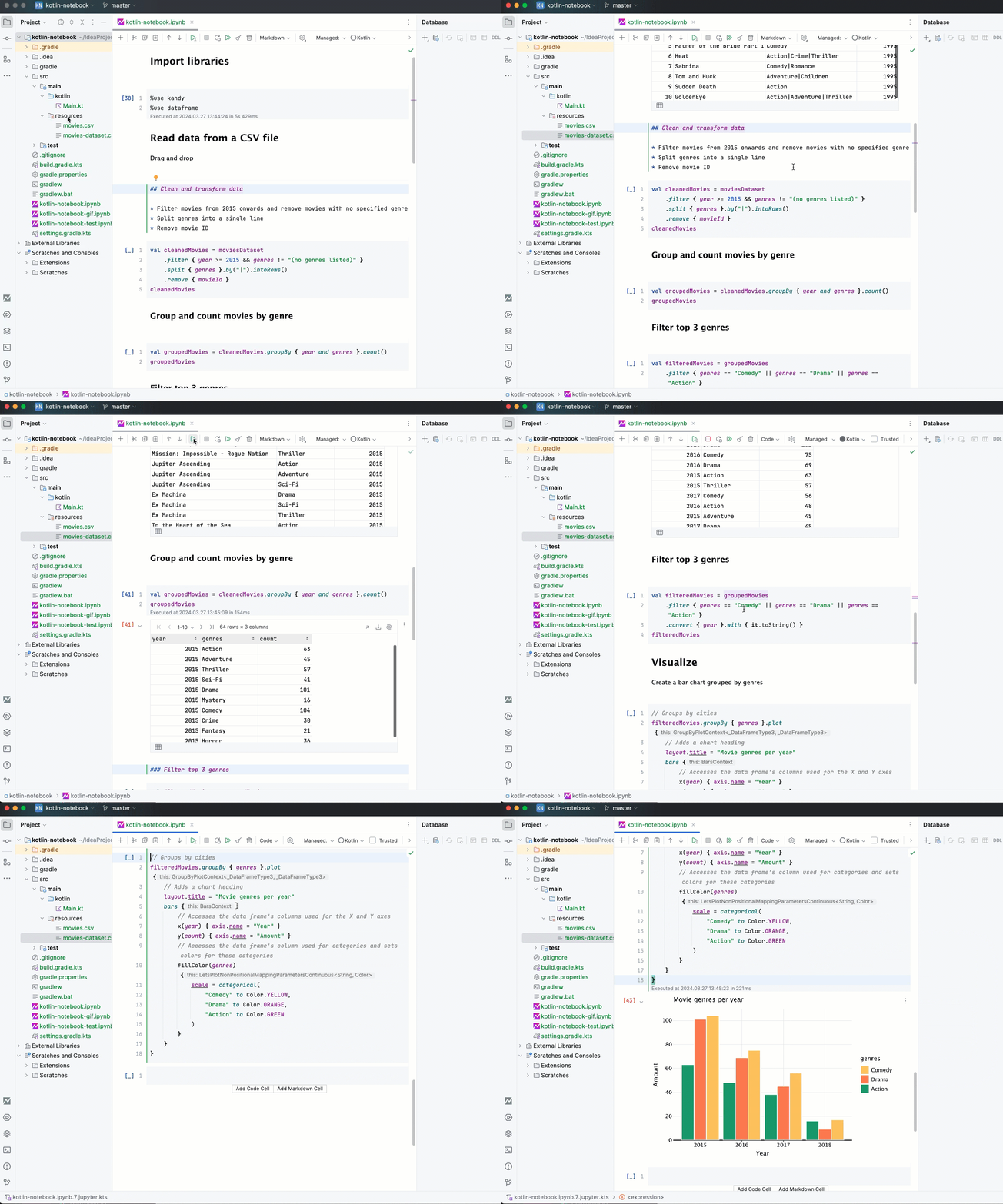
 The Kotlin Kernel for notebooks supports running code cells to immediately see outputs, basic code completion, error analysis,
and other interactive coding features, enhancing the interactive experience provided by the [Kotlin REPL](https://www.jetbrains.com/help/idea/run-kotlin-interactively.html#kotlin-repl).
With the Kotlin Kernel for notebooks, you gain access to a range of features like:
* Accessing APIs within cells and using APIs for handling outputs.
* Retrieving information from previously executed code snippets, allowing quick project exploration.
* Importing various libraries with a single line of code or even integrating new libraries into your project.
You can leverage Kotlin Kernel's benefits in [IntelliJ IDEA](https://www.jetbrains.com/idea/) through the [Kotlin Notebook plugin](https://plugins.jetbrains.com/plugin/16340-kotlin-notebook), in your [Jupyter Notebook](https://jupyter.org/), or in [Datalore](https://www.jetbrains.com/datalore/).
## Contents
* [Kotlin Kernel for Jupyter notebooks](#kotlin-kernel-for-jupyter-notebooks)
* [Contents](#contents)
* [Get started](#get-started)
* [Versions and support](#versions-and-support)
* [Kotlin version support](#kotlin-version-support)
* [Jupyter environments](#jupyter-environments)
* [Operating systems](#operating-systems)
* [Install the Kotlin Kernel in various clients](#install-the-kotlin-kernel-in-various-clients)
* [Install the Kotlin Notebook plugin](#install-the-kotlin-notebook-plugin)
* [Install with Conda](#install-with-conda)
* [Install with Pip](#install-with-pip)
* [Install from sources](#install-from-sources)
* [Troubleshoot your installation](#troubleshoot-your-installation)
* [Update the Kotlin Kernel for notebooks](#update-the-kotlin-kernel-for-notebooks)
* [Update the Kotlin Notebook plugin](#update-the-kotlin-notebook-plugin)
* [Update with Conda](#update-with-conda)
* [Update with Pip](#update-with-pip)
* [Update in Datalore](#update-in-datalore)
* [Use the Kotlin Kernel for notebooks](#use-the-kotlin-kernel-for-notebooks)
* [Use the Kotlin Notebook](#use-the-kotlin-notebook)
* [Use other Jupyter clients](#use-other-jupyter-clients)
* [Use Datalore](#use-datalore)
* [Create custom kernels](#create-custom-kernels)
* [Features](#features)
* [REPL commands](#repl-commands)
* [Dependencies resolving](#dependencies-resolving)
* [Annotations](#annotations)
* [Gradle-like syntax](#gradle-like-syntax)
* [Handling dependencies](#handling-dependencies)
* [Default repositories](#default-repositories)
* [Line magics](#line-magics)
* [Supported libraries](#supported-libraries)
* [List of supported libraries](#list-of-supported-libraries)
* [Rich output](#rich-output)
* [Rendering](#rendering)
* [Common rendering semantics](#common-rendering-semantics)
* [Autocompletion](#autocompletion)
* [Error analysis](#error-analysis)
* [Debug your Kotlin notebook client](#debug-your-kotlin-notebook-client)
* [Integrate new libraries](#integrate-new-libraries)
* [Documentation](#documentation)
* [Contribute](#contribute)
## Get started
Start using the Kotlin Kernel for Jupyter notebooks:
* See the [introductory notebook guide](https://github.com/cheptsov/kotlin-jupyter-demo/blob/master/index.ipynb).
* Check [notebook samples](https://github.com/Kotlin/kotlin-jupyter/tree/master/samples).
* Try the sample notebooks online: [](https://mybinder.org/v2/gh/kotlin/kotlin-jupyter/master?filepath=samples)
* Explore the Kotlin Notebook docs to learn about [features](https://www.jetbrains.com/help/idea/kotlin-notebook.html), [use cases](https://kotlinlang.org/docs/kotlin-notebook-overview.html), and [tutorials](https://kotlinlang.org/docs/get-started-with-kotlin-notebooks.html).
## Versions and support
> **Note:** The Kotlin Kernel for Jupyter notebooks is in [Beta](https://kotlinlang.org/docs/components-stability.html#stability-levels-explained).
### Kotlin version support
The latest version of the Kotlin Kernel for notebooks uses the Kotlin compiler of version 2.4.0-dev-6891.
### Jupyter environments
We tested the Kotlin Kernel for notebooks with the following clients:
| Client | Minimal supported version |
|:-----------------|:--------------------------|
| JupyterLab | 1.2.6 |
| Jupyter Notebook | 6.0.3 |
| Jupyter Console | 6.1.0 |
### Operating systems
We tested the Kotlin Kernel for notebooks with all the mentioned clients on the following operating systems:
* Windows
* Ubuntu Linux
* macOS
## Install the Kotlin Kernel in various clients
You can create, open, and work with Kotlin notebooks on various clients:
* [Kotlin Notebook in IntelliJ IDEA](https://www.jetbrains.com/idea/)
* [Datalore](https://www.jetbrains.com/datalore/)
* [Jupyter Notebook and JupyterLab](https://jupyter.org/)
Our Kotlin Kernel is fully integrated into Kotlin Notebook, which you can use directly within IntelliJ IDEA by [installing the Kotlin Notebook plugin](#install-the-kotlin-notebook-plugin).
In Datalore, Kotlin is supported natively, with the Kotlin Kernel already bundled for an out-of-the-box experience.
For other Jupyter clients, you'll need to install the Kotlin Kernel separately using [conda](#install-with-conda), [pip](#install-with-pip),
or [sources](#install-from-sources).
### Install the Kotlin Notebook plugin
If you use IntelliJ IDEA, you need to install the Kotlin Notebook plugin that contains the Kotlin Kernel for Jupyter notebooks.
Install the Kotlin Notebook plugin by downloading its latest version from the [JetBrains Marketplace](https://plugins.jetbrains.com/plugin/16340-kotlin-notebook).
Alternatively, access the Kotlin Notebook plugin from **Settings** | **Plugins** | **Marketplace** within IntelliJ IDEA.
> **Note:** For a quick introduction to Kotlin Notebook, see this [blog post](https://blog.jetbrains.com/kotlin/2023/07/introducing-kotlin-notebook/).
### Install with Conda
If you use Jupyter Notebook and Conda, run this Conda command to install the stable version [package](https://anaconda.org/jetbrains/kotlin-jupyter-kernel) of the Kotlin Kernel for Jupyter notebooks:
`conda install -c jetbrains kotlin-jupyter-kernel`
Alternatively, run this Conda command to install the [package](https://anaconda.org/jetbrains-dev/kotlin-jupyter-kernel) from the developers channel:
`conda install -c jetbrains-dev kotlin-jupyter-kernel`
To uninstall the Kotlin Kernel for Jupyter notebooks, run this Conda command:
`conda remove kotlin-jupyter-kernel`
### Install with Pip
If you use Jupyter Notebook and Pip, run this Pip command to install the stable version [package](https://pypi.org/project/kotlin-jupyter-kernel) of the Kotlin Kernel for Jupyter notebooks:
`pip install kotlin-jupyter-kernel`
Alternatively, run this Pip command to install the [package](https://test.pypi.org/project/kotlin-jupyter-kernel) from the developers channel:
`pip install -i https://test.pypi.org/simple/ kotlin-jupyter-kernel`
To uninstall the Kotlin Kernel for Jupyter notebooks, run this Pip command:
`pip uninstall kotlin-jupyter-kernel`
### Install from sources
If you use either IntelliJ IDEA or Jupyter Notebook, you can install the Kotlin Kernel for Jupyter notebooks from sources.
Clone this repository and run the following Gradle command in the root folder:
`./gradlew install`
The default installation path is `~/.ipython/kernels/kotlin/`. You can also install the package in another location using the `-PinstallPath=` option.
However, Jupyter only looks for the kernel specification files in predefined places. For more details, see [Jupyter docs](https://jupyter-client.readthedocs.io/en/stable/kernels.html#kernel-specs).
To uninstall the Kotlin Kernel for Jupyter notebooks from sources, run this Gradle command:
`./gradlew uninstall`
### Troubleshoot your installation
When installing the Kotlin Kernel for Jupyter notebooks, issues can occur while detecting the kernel specification file.
These issues occur due to different Python environments and installation modes.
If you are using Pip or Conda to install the package, run this post-install fixup script:
```bash
python -m kotlin_kernel fix-kernelspec-location
```
This script replaces the kernel specification files with the detected user path.
> **Note:** Don't forget to re-run this script when updating the Kotlin Kernel for notebooks.
## Update the Kotlin Kernel for notebooks
See how to update the Kotlin Kernel for Jupyter notebooks using the Kotlin Notebook plugin, Conda, Pip, and Datalore.
### Update the Kotlin Notebook plugin
If you use the Kotlin Notebook plugin, update it to the latest version
in **Settings** | **Plugins** | **Installed** within IntelliJ IDEA.
Alternatively, you can download and install the latest plugin version
from the [JetBrains Marketplace](https://plugins.jetbrains.com/plugin/16340-kotlin-notebook).
### Update with Conda
If you use Jupyter Notebook and Conda, run this Conda command to update the stable version package:
`conda update -c jetbrains kotlin-jupyter-kernel`
Alternatively, run this Conda command to update the package from the developers channel:
`conda update -c jetbrains-dev kotlin-jupyter-kernel`
To change to a specific Kotlin Kernel version, add the `={VERSION}` parameter to the `kotlin-jupyter-kernel` command. In this command,
replace the `{VERSION}` parameter with the desired PyPi version of the Kotlin Jupyter Kernel (for example, `0.15.0.584`).
You can specify the version in both commands the one from the stable package and the one from the developers channel package. For example, for the
stable package:
`conda install -c jetbrains kotlin-jupyter-kernel={0.15.0.584}`
### Update with Pip
If you use Jupyter Notebook and Pip, run this Pip command to update the stable version package:
`pip install kotlin-jupyter-kernel --upgrade`
Alternatively, run this Conda command to update the package from the developers channel:
`pip install -i https://test.pypi.org/simple/ kotlin-jupyter-kernel --upgrade`
To change to a specific Kotlin Kernel version, add the `={VERSION}` parameter to the `kotlin-jupyter-kernel` command. In this command,
replace the `{VERSION}` parameter with the desired PyPi version of the Kotlin Jupyter Kernel (for example, `0.15.0.584`).
You can specify the version in both commands the one from the stable package and the one from the developers channel package. For example, for the
stable package:
`pip install kotlin-jupyter-kernel=={0.15.0.584} --ignore-installed`
### Update in Datalore
To update the Kotlin Kernel for notebooks in Datalore:
1. Add an `environment.yml` file to the Notebook files containing the following
snippet:
```yaml
datalore-env-format-version: "0.2"
datalore-package-manager: "pip"
datalore-base-env: "default"
dependencies:
- pip:
- kotlin-jupyter-kernel=={VERSION}
```
2. Replace the `{VERSION}` parameter for the latest PyPi version of the Kotlin Jupyter Kernel (for example, `0.15.0.584`).
3. Stop and restart the machine in Datalore.
## Use the Kotlin Kernel for notebooks
See how to use the Kotlin Kernel for Jupyter notebooks with the Kotlin Notebook plugin, Jupyter clients, and Datalore.
### Use the Kotlin Notebook
After [installing](#install-the-kotlin-notebook-plugin) the Kotlin Notebook plugin in IntelliJ IDEA, create a new notebook by selecting **File** | **New** | **Kotlin Notebook**, or right-click
on a folder and select **New** | **Kotlin Notebook**.
Now you're good to go!
### Use other Jupyter clients
You can use our Kotlin Kernel through JupyterLab, Jupyter Notebook, and Jupyter Console clients:
1. Run one of the following commands in the console:
* **In JupyterLab:**
`jupyter lab`
* **In Jupyter Notebook:**
`jupyter notebook`
* **In Jupyter Console:**
`jupyter console --kernel=kotlin`
2. Create a new notebook and set `kotlin` as kernel. This step applies to Jupyter Notebook or JupyterLab, and it's not required for
Jupyter Console.
The default kernel uses the JDK that the environment points in the `KOTLIN_JUPYTER_JAVA_HOME` variable. In case the `KOTLIN_JUPYTER_JAVA_HOME` variable is not set,
the kernel also uses the JDK from the `JAVA_HOME` variable.
The kernel uses the arguments that the environment points in the `KOTLIN_JUPYTER_JAVA_OPTS` variable.
In case the `KOTLIN_JUPYTER_JAVA_OPTS` variable is not set, the kernel also uses the JVM arguments from the `JAVA_OPTS` variable.
Additionally, the kernel uses arguments that the environment points in the `KOTLIN_JUPYTER_JAVA_OPTS_EXTRA` variable.
The arguments are parsed using the Python [`shlex.split()`](https://docs.python.org/3/library/shlex.html) function.
### Use Datalore
To create a Kotlin notebook in Datalore, click on **New notebook** and select **Kotlin** as kernel.
### Create custom kernels
You can create a custom Kotlin Kernel for Jupyter Notebook.
This allows you to tailor the kernel's environment to your specific requirements, such as using a particular JDK, setting JVM arguments, or defining environment variables.
To create a custom Kotlin Kernel for Jupyter Notebook, use the `add-kernel` command from the installed `kotlin_kernel` python package:
```bash
python -m kotlin_kernel add-kernel [--name name] [--jdk jdk_home_dir] [--set-jvm-args] [--jvm-arg arg]* [--env KEY VALUE]* [--force]
```
In the `add-kernel` script, the `name` argument is required if the `jdk` argument is not specified. Alternatively, if the `jdk` argument is specified,
but the `name` argument is not, then the name is taken from the `JDK $vendor $version` argument, which is detected from the JDK.
Regardless of how the name is determined, the format of the kernel name is `Kotlin ($name)`,
and the format of the directory name is `kotlin_$name`. The directory name includes spaces in `name`, replaced by underscores. Ensure
this format is compatible with your file system.
JVM arguments are joined with a space (`' '`), supporting multiple arguments within the same entry.
The new arguments are added to existing ones, unless the `--set-jvm-args` flag is used. In this case, JVM
arguments are set to the `KOTLIN_JUPYTER_JAVA_OPTS` variable. Both adding and setting arguments work alongside the `KOTLIN_JUPYTER_JAVA_OPTS_EXTRA` variable.
While Jupyter Kernel environment variable substitutions are supported in the `env` argument, no replacement occurs
if the used environment variable doesn't exist.
The `add-kernel` script utilizes the `argparse` Python library, supporting the `--help`, `@argfile` (you don't need the `@` symbol in PowerShell), and `--opt=value` arguments.
The `--jvm-arg=arg` argument is required when passing JVM arguments that start with the `-` symbol.
Here's an example of an `add-kernel` script to create a custom Kotlin Kernel for Jupyter Notebook:
```bash
python -m kotlin_kernel add-kernel --name "JDK 15 Big 2 GPU" --jdk ~/.jdks/openjdk-15.0.2 --jvm-arg=-Xmx8G --env CUDA_VISIBLE_DEVICES 0,1
```
## Features
Explore the sections below to learn about the features of the Kotlin Kernel for Jupyter notebooks. You can leverage these
features using Kotlin Notebook in IntelliJ IDEA, Datalore, or other [Jupyter Notebook clients](#jupyter-environments).
The features of the Kotlin Kernel for Jupyter notebooks include:
* [REPL commands](#repl-commands)
* [Dependencies resolving](#dependencies-resolving)
* [Default repositories](#default-repositories)
* [Line magics](#line-magics)
* [Supported libraries](#supported-libraries)
* [Rich output](#rich-output)
* [Rendering](#rendering)
* [Autocompletion](#autocompletion)
* [Error analysis](#error-analysis)
### REPL commands
Our Kotlin Kernel for notebooks comes with a set of REPL commands that let you explore your notebook environment. The following REPL commands are supported:
| Command | Description |
|:--------|:------------|
| `:help` | Displays help information with details of the notebook version, line magics, and supported libraries. |
| `:classpath` | Displays the current classpath of your notebook environment, showing a list of locations where the notebook searches for libraries and resources. |
| `:vars` | Displays information about the declared variables and their values. |
### Dependencies resolving
You can easily add dynamic dependencies to your notebook from a remote Maven repository or local ones (local JARs).
You can add dependencies through annotations or Gradle-like syntax.
#### Annotations
You can add dynamic dependencies to the notebook using the following annotations:
* **`@file:DependsOn(
The Kotlin Kernel for notebooks supports running code cells to immediately see outputs, basic code completion, error analysis,
and other interactive coding features, enhancing the interactive experience provided by the [Kotlin REPL](https://www.jetbrains.com/help/idea/run-kotlin-interactively.html#kotlin-repl).
With the Kotlin Kernel for notebooks, you gain access to a range of features like:
* Accessing APIs within cells and using APIs for handling outputs.
* Retrieving information from previously executed code snippets, allowing quick project exploration.
* Importing various libraries with a single line of code or even integrating new libraries into your project.
You can leverage Kotlin Kernel's benefits in [IntelliJ IDEA](https://www.jetbrains.com/idea/) through the [Kotlin Notebook plugin](https://plugins.jetbrains.com/plugin/16340-kotlin-notebook), in your [Jupyter Notebook](https://jupyter.org/), or in [Datalore](https://www.jetbrains.com/datalore/).
## Contents
* [Kotlin Kernel for Jupyter notebooks](#kotlin-kernel-for-jupyter-notebooks)
* [Contents](#contents)
* [Get started](#get-started)
* [Versions and support](#versions-and-support)
* [Kotlin version support](#kotlin-version-support)
* [Jupyter environments](#jupyter-environments)
* [Operating systems](#operating-systems)
* [Install the Kotlin Kernel in various clients](#install-the-kotlin-kernel-in-various-clients)
* [Install the Kotlin Notebook plugin](#install-the-kotlin-notebook-plugin)
* [Install with Conda](#install-with-conda)
* [Install with Pip](#install-with-pip)
* [Install from sources](#install-from-sources)
* [Troubleshoot your installation](#troubleshoot-your-installation)
* [Update the Kotlin Kernel for notebooks](#update-the-kotlin-kernel-for-notebooks)
* [Update the Kotlin Notebook plugin](#update-the-kotlin-notebook-plugin)
* [Update with Conda](#update-with-conda)
* [Update with Pip](#update-with-pip)
* [Update in Datalore](#update-in-datalore)
* [Use the Kotlin Kernel for notebooks](#use-the-kotlin-kernel-for-notebooks)
* [Use the Kotlin Notebook](#use-the-kotlin-notebook)
* [Use other Jupyter clients](#use-other-jupyter-clients)
* [Use Datalore](#use-datalore)
* [Create custom kernels](#create-custom-kernels)
* [Features](#features)
* [REPL commands](#repl-commands)
* [Dependencies resolving](#dependencies-resolving)
* [Annotations](#annotations)
* [Gradle-like syntax](#gradle-like-syntax)
* [Handling dependencies](#handling-dependencies)
* [Default repositories](#default-repositories)
* [Line magics](#line-magics)
* [Supported libraries](#supported-libraries)
* [List of supported libraries](#list-of-supported-libraries)
* [Rich output](#rich-output)
* [Rendering](#rendering)
* [Common rendering semantics](#common-rendering-semantics)
* [Autocompletion](#autocompletion)
* [Error analysis](#error-analysis)
* [Debug your Kotlin notebook client](#debug-your-kotlin-notebook-client)
* [Integrate new libraries](#integrate-new-libraries)
* [Documentation](#documentation)
* [Contribute](#contribute)
## Get started
Start using the Kotlin Kernel for Jupyter notebooks:
* See the [introductory notebook guide](https://github.com/cheptsov/kotlin-jupyter-demo/blob/master/index.ipynb).
* Check [notebook samples](https://github.com/Kotlin/kotlin-jupyter/tree/master/samples).
* Try the sample notebooks online: [](https://mybinder.org/v2/gh/kotlin/kotlin-jupyter/master?filepath=samples)
* Explore the Kotlin Notebook docs to learn about [features](https://www.jetbrains.com/help/idea/kotlin-notebook.html), [use cases](https://kotlinlang.org/docs/kotlin-notebook-overview.html), and [tutorials](https://kotlinlang.org/docs/get-started-with-kotlin-notebooks.html).
## Versions and support
> **Note:** The Kotlin Kernel for Jupyter notebooks is in [Beta](https://kotlinlang.org/docs/components-stability.html#stability-levels-explained).
### Kotlin version support
The latest version of the Kotlin Kernel for notebooks uses the Kotlin compiler of version 2.4.0-dev-6891.
### Jupyter environments
We tested the Kotlin Kernel for notebooks with the following clients:
| Client | Minimal supported version |
|:-----------------|:--------------------------|
| JupyterLab | 1.2.6 |
| Jupyter Notebook | 6.0.3 |
| Jupyter Console | 6.1.0 |
### Operating systems
We tested the Kotlin Kernel for notebooks with all the mentioned clients on the following operating systems:
* Windows
* Ubuntu Linux
* macOS
## Install the Kotlin Kernel in various clients
You can create, open, and work with Kotlin notebooks on various clients:
* [Kotlin Notebook in IntelliJ IDEA](https://www.jetbrains.com/idea/)
* [Datalore](https://www.jetbrains.com/datalore/)
* [Jupyter Notebook and JupyterLab](https://jupyter.org/)
Our Kotlin Kernel is fully integrated into Kotlin Notebook, which you can use directly within IntelliJ IDEA by [installing the Kotlin Notebook plugin](#install-the-kotlin-notebook-plugin).
In Datalore, Kotlin is supported natively, with the Kotlin Kernel already bundled for an out-of-the-box experience.
For other Jupyter clients, you'll need to install the Kotlin Kernel separately using [conda](#install-with-conda), [pip](#install-with-pip),
or [sources](#install-from-sources).
### Install the Kotlin Notebook plugin
If you use IntelliJ IDEA, you need to install the Kotlin Notebook plugin that contains the Kotlin Kernel for Jupyter notebooks.
Install the Kotlin Notebook plugin by downloading its latest version from the [JetBrains Marketplace](https://plugins.jetbrains.com/plugin/16340-kotlin-notebook).
Alternatively, access the Kotlin Notebook plugin from **Settings** | **Plugins** | **Marketplace** within IntelliJ IDEA.
> **Note:** For a quick introduction to Kotlin Notebook, see this [blog post](https://blog.jetbrains.com/kotlin/2023/07/introducing-kotlin-notebook/).
### Install with Conda
If you use Jupyter Notebook and Conda, run this Conda command to install the stable version [package](https://anaconda.org/jetbrains/kotlin-jupyter-kernel) of the Kotlin Kernel for Jupyter notebooks:
`conda install -c jetbrains kotlin-jupyter-kernel`
Alternatively, run this Conda command to install the [package](https://anaconda.org/jetbrains-dev/kotlin-jupyter-kernel) from the developers channel:
`conda install -c jetbrains-dev kotlin-jupyter-kernel`
To uninstall the Kotlin Kernel for Jupyter notebooks, run this Conda command:
`conda remove kotlin-jupyter-kernel`
### Install with Pip
If you use Jupyter Notebook and Pip, run this Pip command to install the stable version [package](https://pypi.org/project/kotlin-jupyter-kernel) of the Kotlin Kernel for Jupyter notebooks:
`pip install kotlin-jupyter-kernel`
Alternatively, run this Pip command to install the [package](https://test.pypi.org/project/kotlin-jupyter-kernel) from the developers channel:
`pip install -i https://test.pypi.org/simple/ kotlin-jupyter-kernel`
To uninstall the Kotlin Kernel for Jupyter notebooks, run this Pip command:
`pip uninstall kotlin-jupyter-kernel`
### Install from sources
If you use either IntelliJ IDEA or Jupyter Notebook, you can install the Kotlin Kernel for Jupyter notebooks from sources.
Clone this repository and run the following Gradle command in the root folder:
`./gradlew install`
The default installation path is `~/.ipython/kernels/kotlin/`. You can also install the package in another location using the `-PinstallPath=` option.
However, Jupyter only looks for the kernel specification files in predefined places. For more details, see [Jupyter docs](https://jupyter-client.readthedocs.io/en/stable/kernels.html#kernel-specs).
To uninstall the Kotlin Kernel for Jupyter notebooks from sources, run this Gradle command:
`./gradlew uninstall`
### Troubleshoot your installation
When installing the Kotlin Kernel for Jupyter notebooks, issues can occur while detecting the kernel specification file.
These issues occur due to different Python environments and installation modes.
If you are using Pip or Conda to install the package, run this post-install fixup script:
```bash
python -m kotlin_kernel fix-kernelspec-location
```
This script replaces the kernel specification files with the detected user path.
> **Note:** Don't forget to re-run this script when updating the Kotlin Kernel for notebooks.
## Update the Kotlin Kernel for notebooks
See how to update the Kotlin Kernel for Jupyter notebooks using the Kotlin Notebook plugin, Conda, Pip, and Datalore.
### Update the Kotlin Notebook plugin
If you use the Kotlin Notebook plugin, update it to the latest version
in **Settings** | **Plugins** | **Installed** within IntelliJ IDEA.
Alternatively, you can download and install the latest plugin version
from the [JetBrains Marketplace](https://plugins.jetbrains.com/plugin/16340-kotlin-notebook).
### Update with Conda
If you use Jupyter Notebook and Conda, run this Conda command to update the stable version package:
`conda update -c jetbrains kotlin-jupyter-kernel`
Alternatively, run this Conda command to update the package from the developers channel:
`conda update -c jetbrains-dev kotlin-jupyter-kernel`
To change to a specific Kotlin Kernel version, add the `={VERSION}` parameter to the `kotlin-jupyter-kernel` command. In this command,
replace the `{VERSION}` parameter with the desired PyPi version of the Kotlin Jupyter Kernel (for example, `0.15.0.584`).
You can specify the version in both commands the one from the stable package and the one from the developers channel package. For example, for the
stable package:
`conda install -c jetbrains kotlin-jupyter-kernel={0.15.0.584}`
### Update with Pip
If you use Jupyter Notebook and Pip, run this Pip command to update the stable version package:
`pip install kotlin-jupyter-kernel --upgrade`
Alternatively, run this Conda command to update the package from the developers channel:
`pip install -i https://test.pypi.org/simple/ kotlin-jupyter-kernel --upgrade`
To change to a specific Kotlin Kernel version, add the `={VERSION}` parameter to the `kotlin-jupyter-kernel` command. In this command,
replace the `{VERSION}` parameter with the desired PyPi version of the Kotlin Jupyter Kernel (for example, `0.15.0.584`).
You can specify the version in both commands the one from the stable package and the one from the developers channel package. For example, for the
stable package:
`pip install kotlin-jupyter-kernel=={0.15.0.584} --ignore-installed`
### Update in Datalore
To update the Kotlin Kernel for notebooks in Datalore:
1. Add an `environment.yml` file to the Notebook files containing the following
snippet:
```yaml
datalore-env-format-version: "0.2"
datalore-package-manager: "pip"
datalore-base-env: "default"
dependencies:
- pip:
- kotlin-jupyter-kernel=={VERSION}
```
2. Replace the `{VERSION}` parameter for the latest PyPi version of the Kotlin Jupyter Kernel (for example, `0.15.0.584`).
3. Stop and restart the machine in Datalore.
## Use the Kotlin Kernel for notebooks
See how to use the Kotlin Kernel for Jupyter notebooks with the Kotlin Notebook plugin, Jupyter clients, and Datalore.
### Use the Kotlin Notebook
After [installing](#install-the-kotlin-notebook-plugin) the Kotlin Notebook plugin in IntelliJ IDEA, create a new notebook by selecting **File** | **New** | **Kotlin Notebook**, or right-click
on a folder and select **New** | **Kotlin Notebook**.
Now you're good to go!
### Use other Jupyter clients
You can use our Kotlin Kernel through JupyterLab, Jupyter Notebook, and Jupyter Console clients:
1. Run one of the following commands in the console:
* **In JupyterLab:**
`jupyter lab`
* **In Jupyter Notebook:**
`jupyter notebook`
* **In Jupyter Console:**
`jupyter console --kernel=kotlin`
2. Create a new notebook and set `kotlin` as kernel. This step applies to Jupyter Notebook or JupyterLab, and it's not required for
Jupyter Console.
The default kernel uses the JDK that the environment points in the `KOTLIN_JUPYTER_JAVA_HOME` variable. In case the `KOTLIN_JUPYTER_JAVA_HOME` variable is not set,
the kernel also uses the JDK from the `JAVA_HOME` variable.
The kernel uses the arguments that the environment points in the `KOTLIN_JUPYTER_JAVA_OPTS` variable.
In case the `KOTLIN_JUPYTER_JAVA_OPTS` variable is not set, the kernel also uses the JVM arguments from the `JAVA_OPTS` variable.
Additionally, the kernel uses arguments that the environment points in the `KOTLIN_JUPYTER_JAVA_OPTS_EXTRA` variable.
The arguments are parsed using the Python [`shlex.split()`](https://docs.python.org/3/library/shlex.html) function.
### Use Datalore
To create a Kotlin notebook in Datalore, click on **New notebook** and select **Kotlin** as kernel.
### Create custom kernels
You can create a custom Kotlin Kernel for Jupyter Notebook.
This allows you to tailor the kernel's environment to your specific requirements, such as using a particular JDK, setting JVM arguments, or defining environment variables.
To create a custom Kotlin Kernel for Jupyter Notebook, use the `add-kernel` command from the installed `kotlin_kernel` python package:
```bash
python -m kotlin_kernel add-kernel [--name name] [--jdk jdk_home_dir] [--set-jvm-args] [--jvm-arg arg]* [--env KEY VALUE]* [--force]
```
In the `add-kernel` script, the `name` argument is required if the `jdk` argument is not specified. Alternatively, if the `jdk` argument is specified,
but the `name` argument is not, then the name is taken from the `JDK $vendor $version` argument, which is detected from the JDK.
Regardless of how the name is determined, the format of the kernel name is `Kotlin ($name)`,
and the format of the directory name is `kotlin_$name`. The directory name includes spaces in `name`, replaced by underscores. Ensure
this format is compatible with your file system.
JVM arguments are joined with a space (`' '`), supporting multiple arguments within the same entry.
The new arguments are added to existing ones, unless the `--set-jvm-args` flag is used. In this case, JVM
arguments are set to the `KOTLIN_JUPYTER_JAVA_OPTS` variable. Both adding and setting arguments work alongside the `KOTLIN_JUPYTER_JAVA_OPTS_EXTRA` variable.
While Jupyter Kernel environment variable substitutions are supported in the `env` argument, no replacement occurs
if the used environment variable doesn't exist.
The `add-kernel` script utilizes the `argparse` Python library, supporting the `--help`, `@argfile` (you don't need the `@` symbol in PowerShell), and `--opt=value` arguments.
The `--jvm-arg=arg` argument is required when passing JVM arguments that start with the `-` symbol.
Here's an example of an `add-kernel` script to create a custom Kotlin Kernel for Jupyter Notebook:
```bash
python -m kotlin_kernel add-kernel --name "JDK 15 Big 2 GPU" --jdk ~/.jdks/openjdk-15.0.2 --jvm-arg=-Xmx8G --env CUDA_VISIBLE_DEVICES 0,1
```
## Features
Explore the sections below to learn about the features of the Kotlin Kernel for Jupyter notebooks. You can leverage these
features using Kotlin Notebook in IntelliJ IDEA, Datalore, or other [Jupyter Notebook clients](#jupyter-environments).
The features of the Kotlin Kernel for Jupyter notebooks include:
* [REPL commands](#repl-commands)
* [Dependencies resolving](#dependencies-resolving)
* [Default repositories](#default-repositories)
* [Line magics](#line-magics)
* [Supported libraries](#supported-libraries)
* [Rich output](#rich-output)
* [Rendering](#rendering)
* [Autocompletion](#autocompletion)
* [Error analysis](#error-analysis)
### REPL commands
Our Kotlin Kernel for notebooks comes with a set of REPL commands that let you explore your notebook environment. The following REPL commands are supported:
| Command | Description |
|:--------|:------------|
| `:help` | Displays help information with details of the notebook version, line magics, and supported libraries. |
| `:classpath` | Displays the current classpath of your notebook environment, showing a list of locations where the notebook searches for libraries and resources. |
| `:vars` | Displays information about the declared variables and their values. |
### Dependencies resolving
You can easily add dynamic dependencies to your notebook from a remote Maven repository or local ones (local JARs).
You can add dependencies through annotations or Gradle-like syntax.
#### Annotations
You can add dynamic dependencies to the notebook using the following annotations:
* **`@file:DependsOn(Some HTML
", "text/plain" to "No HTML for text clients") ``` Another approach is to use the `HTML` helper function, which provides a simpler way to display HTML content directly: ```kotlin fun HTML(text: String): MimeTypedResult ``` For example: ```kotlin HTML("This is an example of HTML content rendered using the HTML helper function.
") ``` ### Rendering Rendering is the procedure of transforming a value to a form that is appropriate for displaying it in the Jupyter client. The Kotlin Kernel for Jupyter notebook supports various features and mechanisms for rendering values: * **Renderers:** Transform values into other representations. Renderers are controlled via the `RenderersProcessor` method, and you can access it with the [notebook API entry point](https://github.com/Kotlin/kotlin-jupyter/blob/master/docs/libraries.md#supported-integration-features). The Kotlin kernel iterates through a list of available renderers, trying to find one that can handle the given data. A library can define one or more renderers. * **`DisplayResult` and `Renderable`:** Objects implementing `DisplayResult` and `Renderable` interfaces are rendered to output JSON. * **Text rendering:** Render objects to strings using text renderers. Text renderers are controlled via the `TextRenderersProcessor` method, and you can access the method with the [notebook API entry point](https://github.com/Kotlin/kotlin-jupyter/blob/master/docs/libraries.md#supported-integration-features). A library can define one or more renderers. The Kotlin Kernel iterates until at least one renderer returns a non-null string for a passed argument. This kind of renderer can be easily composed with each other. For example, a text renderer for iterables can render its elements with a text renderer processor recursively. * **Throwables rendering:** Throwable renderers behave as regular renderers but handle exceptions and errors generated during cell execution. #### Common rendering semantics Successful value evaluation triggers a rendering process. Initially, the `RenderersProcessor` attempts to convert the value into a `Renderable` or `DisplayResult` object. If successful, the result is transformed into JSON output using the `toJson()` method. For `Unit` values, no output is generated. If the value cannot be rendered as `Renderable` or `DisplayResult`, the `TextRenderersProcessor` takes over. It iterates to render the value to a string using the defined text renderers, seeking a non-null string representation. If no suitable renderer is found, the value is transformed into a string using the `toString()` method. The resulting string is wrapped in a `text/plain` MIME JSON. Upon execution failure, an exception is generated. The first applicable throwable renderer is chosen for this exception, and the exception is passed to this renderer's `render()` method so the returned value is displayed. If no applicable throwable renderer is found, the exception's message and stack trace are printed to standard error. ### Autocompletion When working with the Kotlin notebooks, press `TAB` to get the list of suggested items for completion. In Jupyter Notebook, you don't need to press `TAB`. Completion is requested automatically. Completion works for both globally defined symbols and local symbols, which were loaded into the notebook during cell evaluation. ### Error analysis If you use Jupyter Notebook, you'll notice that compilation errors and warnings are underlined in red and yellow, correspondingly. If you hover the cursor over underlined text, you'll get an error message that can help you to fix the error. This error analysis is achieved by the kernel-level extension of Jupyter Notebook. The extension sends error-analysis requests to the kernel and renders their results. ## Debug your Kotlin notebook client 1. Run the `./gradlew installDebug` Gradle command. The debugger port is selected automatically. The default port is 1044, and if it's unavailable, the consequent ports are used. If you want an exact port, specify the `-PdebugPort=