[![BuyMeACoffee](https://raw.githubusercontent.com/pachadotdev/buymeacoffee-badges/main/bmc-yellow.svg)](https://buymeacoffee.com/mathijs.bakker)
[![BuyMeACoffee](https://raw.githubusercontent.com/pachadotdev/buymeacoffee-badges/main/bmc-donate-yellow.svg)](https://buymeacoffee.com/mathijs.bakker) ![Godot](https://img.shields.io/badge/Godot-4.0%2B-blue?logo=godot-engine) ![Neovim](https://img.shields.io/badge/Neovim-0.11%2B-green?logo=neovim) ![License](https://img.shields.io/github/license/Mathijs-Bakker/godotdev.nvim) ![Release](https://img.shields.io/github/v/release/Mathijs-Bakker/godotdev.nvim) [![CI](https://github.com/Mathijs-Bakker/godotdev.nvim/actions/workflows/ci.yml/badge.svg)](https://github.com/Mathijs-Bakker/godotdev.nvim/actions/workflows/ci.yml)

# godotdev.nvim A Neovim plugin for Godot 4 that brings GDScript/GDShader LSP, DAP debugging, and formatting to your external‑editor workflow.
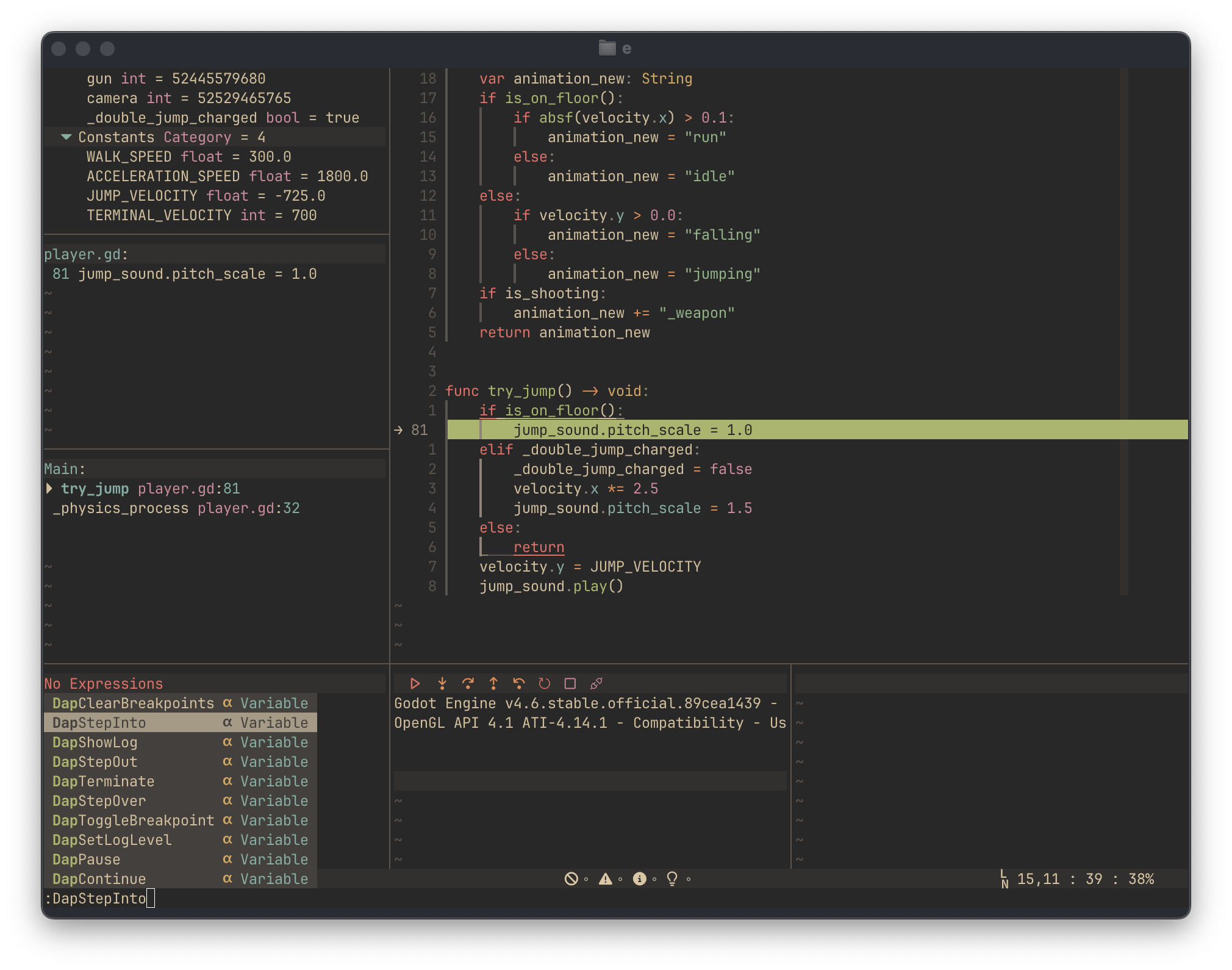
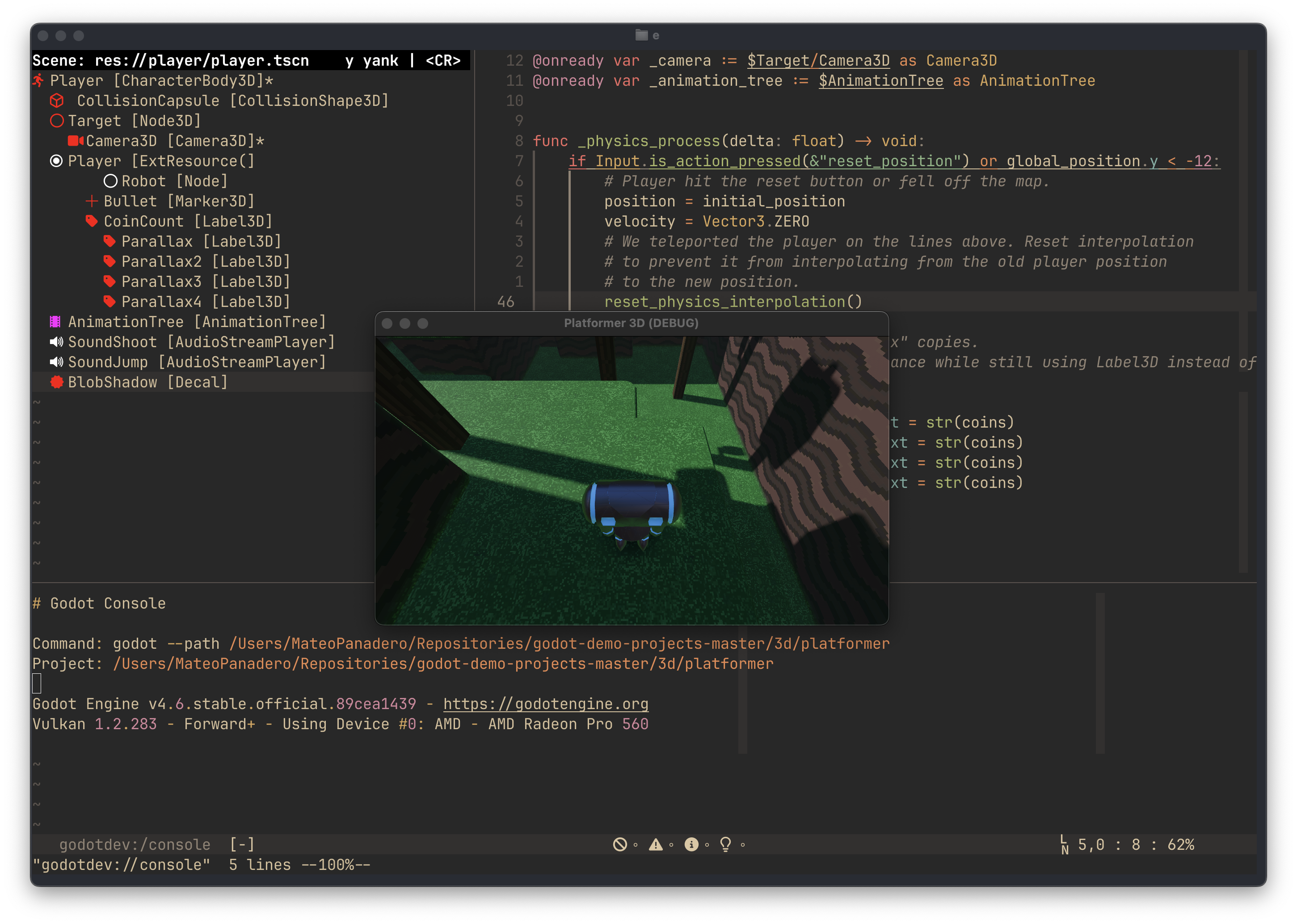
Screenshot of Neovim connected to Godot's LSP server, Godot's console output and scene-tree inspector.
**This plugin helps you to set up:** - **LSP support** for GDScript and Godot shaders (`.gdshader` files) - **Godot class docs** in Neovim, rendered from the official docs source as Markdown - **Debugging** via `nvim-dap` for GDScript - **Optional live run output** for `:GodotRun*` commands in a Neovim buffer or float - **Treesitter syntax highlighting** for Godot shader files - **Automatic formatting** of `.gd` files using `gdscript-formatter` - **Optional C# support** (user-managed LSP, plus debugging and tooling checks) - **Built-in health checks** to verify environment, dependencies, and editor integration While it is possible to configure Neovim manually for Godot development, this plugin **simplifies setup** and ensures a consistent, cross-platform workflow. It automatically configures LSP, debugging, formatting, and environment checks, so you can focus on writing game code rather than troubleshooting editor setup.
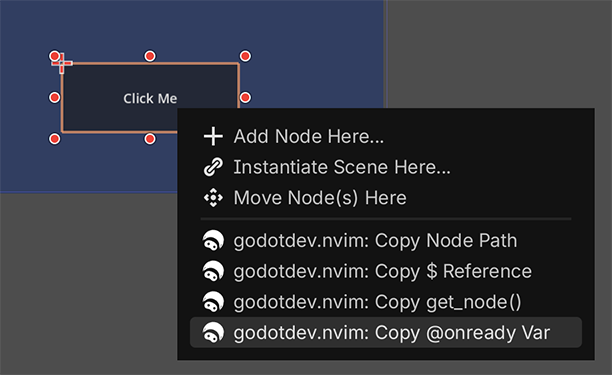
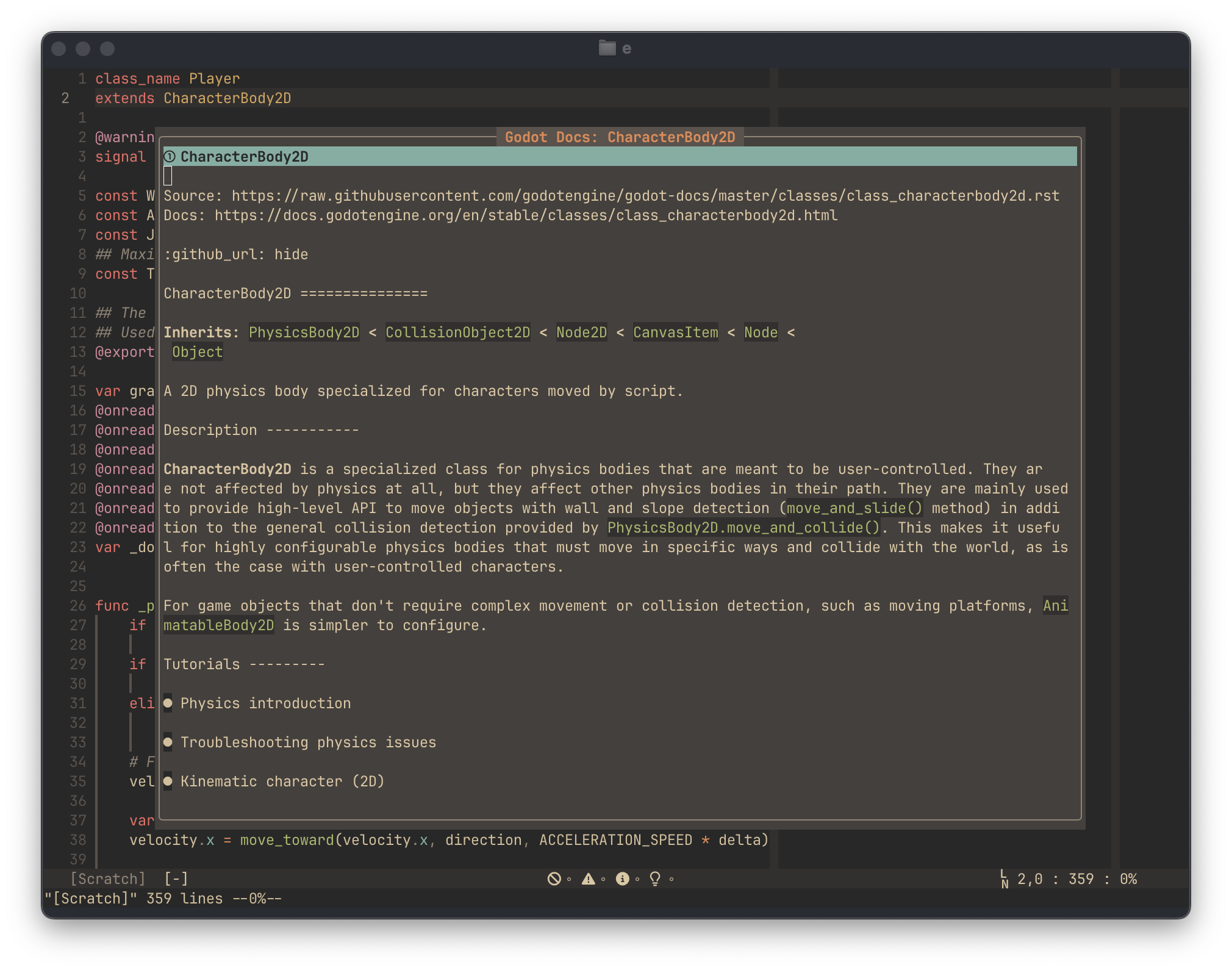
DAP debugging within Nvim Insert a node path directly from Godot in Nvim Access Godot's documentation in/from Nvim
Screenshot: Neovim with Godot's debugger godotdev.nvim node copy. Copy a node path from Godot into nvim Example/screenshot of Neovim showing Godot documentation in a floating window.
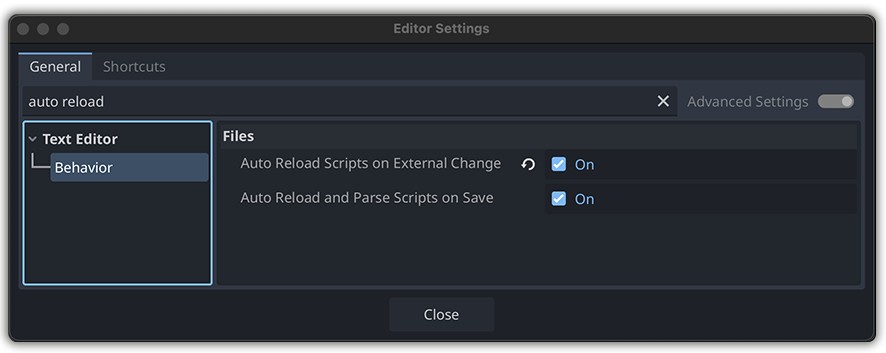
## Table of Contents - [Why godotdev.nvim?](#why-godotdevnvim) - [Features](#features) - [Requirements](#requirements) - [Installation (Lazy.nvim)](#installation-lazynvim) - [Installation (`vim.pack`, Neovim 0.12+)](#installation-vimpack-neovim-012) - [Quickstart](#quickstart) - [Configuration](#configuration) - [Testing](#testing) - [Optimize Godot editor for Neovim](#optimize-godot-editor-for-neovim) - [Open scripts from Godot Editor in Neovim (running in a terminal)](#open-scripts-from-godot-editor-in-neovim-running-in-a-terminal) - [Godot editor server](#godot-editor-server) - [Reconnect to Godot's LSP server](#reconnect-to-godots-lsp-server) - [Run Godot](#run-godot) - [Scene Tree](#scene-tree) - [Godot class docs](#godot-class-docs) - [C# Installation Support](#c-installation-support) - [Autoformatting / Indentation](#autoformatting--indentation) - [Recommended Godot addon (Node Copy)](#recommended-godot-addon-node-copy) - [Hiding Godot Project Files in oil.nvim and mini.files](#hiding-godot-project-files-in-oilnvim-and-minifiles) ## Why godotdev.nvim? - Turn Neovim into a first‑class external editor for Godot 4 projects. - Get LSP features for GDScript/GDShader without manual wiring. - Debug GDScript via DAP and validate setup with built‑in health checks. ## Features Below is a quick overview of what you get out of the box: ### LSP Support - Full GDScript language support (Go to definition, references, hover, rename, code actions, etc.) - Optional inline hints via Neovim's built-in inlay hint API when the attached Godot LSP supports `textDocument/inlayHint` - `.gdshader` syntax highlighting and language features via Treesitter - Optional C# LSP support (user-managed `csharp-ls` or OmniSharp) for Godot projects with C# scripts ### Debugging (DAP) - Debug GDScript directly from Neovim using `nvim-dap` - Optional C# debugging via `netcoredbg` ### Formatting - Automatic `.gd` file formatting using `gdscript-formatter` - Reloads buffer after formatting for immediate feedback - Recommended `.editorconfig` included for consistent indentation (4 spaces per indent) - Supported formatters: - [`gdscript-formatter`](https://github.com/GDQuest/GDScript-formatter) (default) - [`gdformat`](https://github.com/Scony/godot-gdscript-toolkit) (alternative) ### Health Checks - `:checkhealth godotdev` validates: - Built-in Neovim LSP support plus plugin dependencies: `nvim-dap`, `nvim-dap-ui`, `nvim-treesitter` - Godot editor LSP and debug servers - Floating Godot docs support (`curl` and active docs source configuration) - Optional C# tooling: `dotnet`, `csharp-ls`/OmniSharp, `netcoredbg` - Formatter: `gdscript-formatter` by default, with `gdformat` as an alternative ### Editor Integration - Commands to start or reconnect to Godot’s editor LSP: - `:GodotStartEditorServer` - `:GodotReconnectLSP` - `:GodotToggleInlineHints` - Commands to run Godot from Neovim without DAP: - `:GodotRunProject` - `:GodotRunCurrentScene` - `:GodotRunScene {path}` - `:GodotRunScenePicker` (optional Telescope integration) - Commands to inspect a static scene tree in Neovim: - `:GodotSceneTree [path]` - `:GodotSceneTreeRefresh` - Commands to open Godot class reference docs: - `:GodotDocs [ClassName]` - `:GodotDocsFloat [ClassName]` - `:GodotDocsBuffer [ClassName]` - `:GodotDocsBrowser [ClassName]` - `:GodotDocsCursor` - Automatic LSP attachment for Godot filetypes (`.gd`, `.gdshader`, `.gdresource`, optional `.cs`) - Works cross-platform (macOS, Linux, Windows) with TCP or named pipes ### Optional C# Support - Enable by setting `csharp = true` in `require("godotdev").setup()` - C# LSP is configured by you (the plugin only checks that `csharp-ls` or OmniSharp is installed) - Health checks and DAP integration included ## Requirements - Neovim 0.11+ - Godot 4.x+ with TCP LSP enabled - `nvim-dap` and `nvim-dap-ui` for debugging - `nvim-treesitter` - Windows users must have [`ncat`](https://nmap.org/ncat/) in PATH - Optional C# support requires (you manage the LSP configuration): - .NET SDK (dotnet) - C# LSP server (csharp-ls recommended or omnisharp) - netcoredbg debugger ## Installation (Lazy.nvim) ```lua { 'Mathijs-Bakker/godotdev.nvim', dependencies = { 'nvim-dap', 'nvim-dap-ui', 'nvim-treesitter' }, } ``` ## Installation (`vim.pack`, Neovim 0.12+) ```lua vim.pack.add({ "https://github.com/Mathijs-Bakker/godotdev.nvim", "https://github.com/mfussenegger/nvim-dap", "https://github.com/rcarriga/nvim-dap-ui", "https://github.com/nvim-treesitter/nvim-treesitter", }) ``` ## Quickstart 1. Open your Godot project in Neovim 1. Start Godot editor with TCP LSP enabled (Editor Settings → Network → Enable TCP LSP server) 1. Open a `.gd` or `.gdshader` file 1. LSP will automatically attach 1. Use Neovim's built-in LSP mappings such as `K`, `grr`, `grn`, and `gri`, or your own custom mappings 1. Start debugging with DAP (Launch scene configuration) 1. Optional: Enable C# support by setting `csharp = true` in the plugin setup 1. Run `:checkhealth godotdev` at any time to verify plugin, LSP, debug server, and C# dependencies ## Configuration ### Optional settings ```lua require("godotdev").setup({ editor_host = "127.0.0.1", -- Godot editor host editor_port = 6005, -- Godot LSP port debug_port = 6006, -- Godot debugger port godot_path = "godot", -- executable used by :GodotRun* and health checks csharp = true, -- Enable C# Installation Support autostart_editor_server = false, -- opt-in: start a Neovim server automatically on setup formatter = "gdscript-formatter", -- "gdscript-formatter" | "gdformat" | false formatter_cmd = nil, -- string or argv list; default gdscript-formatter adds "--reorder-code" inline_hints = { enabled = false, -- enable Neovim inlay hints when the attached server supports them }, run = { console = { enabled = false, -- capture :GodotRun* output in Neovim; these runs are no longer detached renderer = "buffer", -- "buffer" | "float" buffer = { position = "bottom", -- "right" | "bottom" | "current" size = 0.3, }, float = { width = 0.8, height = 0.25, border = "rounded", }, }, }, scene_tree = { buffer = { position = "left", -- "left" | "right" size = 0.35, }, icons = "nerdfont", -- "nerdfont" | "ascii" | false | { generic = "...", script_suffix = "...", types = { Node2D = "..." } } icon_colors = { generic = { fg = "white" }, groups = { White = { fg = "white" }, Grey = { fg = "grey" }, Blue = { fg = "blue" }, Red = { fg = "red" }, Green = { fg = "green" }, Purple = { fg = "magenta" }, Yellow = { fg = "gold" }, }, }, }, editor_server = { address = nil, -- nil uses the current server or the platform default remove_stale_socket = true, }, treesitter = { auto_setup = true, -- convenience default; disable if you manage nvim-treesitter yourself ensure_installed = { "gdscript" }, }, docs = { renderer = "float", -- default: open docs in a floating window fallback_renderer = "browser", -- nil | "browser" | "buffer"; browser is the only fetch-recovery fallback missing_symbol_feedback = "message", -- "message" | "notify" version = "stable", -- e.g. "stable", "latest", "4.5" language = "en", source_ref = "master", -- godot-docs git ref used for floating docs source_base_url = nil, -- optional override for raw docs source timeout_ms = 10000, cache = { enabled = true, max_entries = 64, }, float = { width = 0.8, height = 0.8, border = "rounded", }, buffer = { position = "right", -- "right" | "bottom" | "current" size = 0.4, }, }, }) ``` For formatter commands with flags, prefer an argv list: ```lua formatter_cmd = { "gdscript-formatter", "--check" } ``` By default, `gdscript-formatter` runs with: ```lua formatter_cmd = { "gdscript-formatter", "--reorder-code" } ``` To disable autoformat-on-save entirely: ```lua formatter = false ``` If you already manage `nvim-treesitter` yourself, you can disable plugin-managed setup: ```lua treesitter = { auto_setup = false, } ``` Default notes: - `autostart_editor_server = false` is the safer default because starting a Neovim server is an external-editor concern and should be opt-in. - `inline_hints.enabled = false` is the safer default because Godot's LSP support for inlay hints may vary by version and filetype. - `run.console.enabled = false` is the safer default because live console capture changes `:GodotRun*` from detached launches to attached subprocesses managed by Neovim. - `treesitter.auto_setup = true` stays enabled by default for convenience, but it is safe to turn off if you already configure `nvim-treesitter` yourself. - `docs.fallback_renderer = "browser"` remains the default because browser fallback is the only option that can recover when rendered `.rst` docs cannot be fetched. - The plugin uses Neovim's built-in LSP APIs; `nvim-lspconfig` is not required unless you want it for other servers in your own config. If you enable inline hints, the plugin only turns them on automatically for buffers attached through this plugin's Godot GDScript LSP setup, and only when that client reports support for `textDocument/inlayHint`. If the current Godot GDScript LSP build does not advertise that method, no hints will appear even when `inline_hints.enabled = true`. C# LSP is user-managed in this plugin, so inline hints are not auto-enabled for C# buffers here. You can toggle the current buffer manually with `:GodotToggleInlineHints`. **Note:** This plugin does not define any keymaps by default, so it will not interfere with the standard DAP mappings. If you want custom keybindings, you can configure them yourself. For example, you could map `:GDebug` to `DapNew` to start one or more new debug sessions. See `:help dap-mappings` and `:help dap-user-commands` for more details. Additional references: - [DAP documentation](https://github.com/mfussenegger/nvim-dap/blob/master/doc/dap.txt) - [DAP README / usage](https://github.com/mfussenegger/nvim-dap/tree/master?tab=readme-ov-file#usage) ## Testing Run the headless test suite: ```bash nvim --headless -u NONE -i NONE -c "lua dofile('tests/run.lua')" -c qa ``` The same command runs in GitHub Actions on pushes to `master` and on pull requests. For integration testing, also run the plugin inside Neovim against a real Godot project and verify editor server, docs, formatting, and debugging flows on your target platform. ## Optimize Godot editor for Neovim Below are the recommended settings for configuring the Godot editor for optimal integration with Neovim as your external editor. To access these settings, make sure that the **Advanced Settings switch is enabled** at the top of the **Editor Settings dialog**. - `Editor Settings > Text Editor > Behavior > Auto Reload Scripts on External Change`
Show Screenshot -> Godot Editor Settings
- `Editor Settings > Interface > Editor > Save on Focus Loss`
Show Screenshot -> Godot Editor Settings
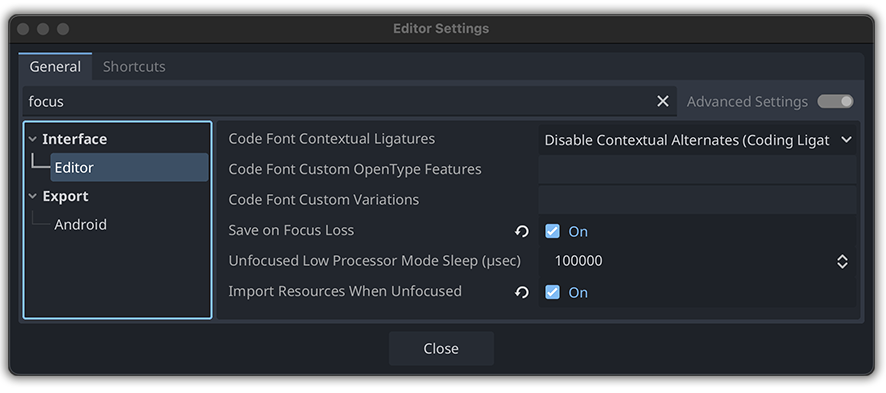
- `Editor Settings > Interface > Editor > Import Resources When Unfocused`
Show Screenshot -> Godot Editor Settings

## Open scripts from Godot Editor in Neovim (running in a terminal) When you click on a gdscript in Godot's FileSystem dock it doesn't open automatically in Neovim. A [workaround](doc/neovim-external-editor-setup.md) is to to create a small script which launches the file in Neovim. #### >> macOS/Linux Complete instructions [here](doc/neovim-external-editor-setup.md) If you start Neovim with `--listen` on macOS/Linux, use the documented `godotdev` wrapper instead of raw `nvim --listen ...` so stale socket files are cleaned up automatically after crashes. If your wrapper still reports `Neovim server already running at /tmp/godot.nvim` after you already quit, update its probe to use `nvr --nostart --servername ... --remote-expr '1'`. #### >> Windows 1. Set Neovim to listen on a TCP port ```bash nvim --listen 127.0.0.1:6666 ``` --listen works with host:port on Windows. 1. Tell Godot to connect to that port In Godot, configure your external editor or plugin to connect to `127.0.0.1:6666`. Make sure the TCP port you choose is free and consistent between Neovim and Godot. If you run Neovim in WSL2 and Godot on Windows, use the dedicated bridge workflow in [Windows + WSL2 external editor](doc/windows-wsl2.md). For GDScript LSP in that setup, the recommended bridge is [`godot-wsl-lsp`](https://github.com/lucasecdb/godot-wsl-lsp). > 🤌🫶🏻🥹❤️‍🩹 REQUEST: > I am not using Windows, so I did not test any of this. It would be great if anyone could help me to validate this and report your findings [here](https://github.com/Mathijs-Bakker/godotdev.nvim/issues/21). :pray: ## Godot editor server You can manually start the Neovim editor server used by Godot: ```vim :GodotStartEditorServer ``` If Neovim is already running with `--listen`, the plugin will reuse that address instead of trying to start a second server. Or automatically on plugin setup: ```lua require("godotdev").setup({ autostart_editor_server = true, }) ``` You can also pin a specific address: ```lua require("godotdev").setup({ autostart_editor_server = true, editor_server = { address = "/tmp/godot.nvim", }, }) ``` On macOS/Linux, plugin-managed startup removes stale Unix socket files before retrying. This hardens `:GodotStartEditorServer`, but it does not affect a raw shell launch like `nvim --listen /tmp/godot.nvim`, because that failure happens before the plugin loads. ## Reconnect to Godot's LSP server If the LSP disconnects or you opened a script before Neovim, run: ```vim :GodotReconnectLSP ``` Reconnects **all Godot buffers** to the LSP. ## Run Godot You can run the current Godot project or scene from Neovim without using DAP: ```vim :GodotRunProject :GodotRunCurrentScene :GodotRunScene scenes/Main.tscn :GodotRunScenePicker ``` Notes: - `:GodotRunProject` launches Godot for the current project root. - `:GodotRunCurrentScene` works from a `.tscn`, or from a `.gd` / `.cs` buffer when that script is attached to a scene in the current project. - If the current script is attached to multiple scenes, the command uses Telescope to let you choose one when Telescope is installed. - `:GodotRunScene {path}` accepts `res://...`, a project-relative path, or an absolute path inside the current project. - `:GodotRunScenePicker` uses Telescope to browse `.tscn` files in the current project and run the selected scene. - These commands shell out to `godot_path`, which defaults to `godot` on your `PATH`. - `:GodotRunScenePicker` requires Telescope to be installed; the rest do not. ### Using multiple Godot versions `godotdev.nvim` expects a Godot executable to be available. By default it runs `godot`, so users with one engine version can usually add Godot to their `PATH`. If you work on projects that require different Godot versions, use one of these project-aware options: - Put a version manager such as `gdvm` in charge of the `godot` executable. - Configure `godot_path` to a specific Godot binary. - Configure `godot_path` to your own wrapper script that selects the right engine for the current project. Example: ```lua require("godotdev").setup({ godot_path = "/usr/local/bin/godot-wrapper", }) ``` Optional console capture: - Set `run.console.enabled = true` to capture stdout/stderr from `:GodotRun*` inside Neovim. - Choose `run.console.renderer = "buffer"` for a split buffer or `"float"` for a floating window. - Use `:GodotShowConsole` to reopen the most recent captured console window. - While console capture is enabled, the launched Godot process is managed by Neovim instead of using the plugin's detached launch path. - This first implementation captures one active Godot run at a time; starting another captured run while one is still active shows a warning. ## Scene Tree Open a static scene tree pane for the current `.tscn`, or from a `.gd` / `.cs` buffer when that script is attached to a scene: ```vim :GodotSceneTree :GodotSceneTree scenes/Main.tscn :GodotSceneTreeRefresh ``` Notes: - `:GodotSceneTree` works from a `.tscn`, or from a `.gd` / `.cs` buffer when that script is attached to a scene in the current project. - If the current script is attached to multiple scenes, the command uses Telescope to let you choose one when Telescope is installed. - Configure pane placement with `scene_tree.buffer.position = "left" | "right"` and `scene_tree.buffer.size = 0.35`. - By default the pane uses Nerd Font glyphs. Set `scene_tree.icons = "ascii"` for a plain text fallback, `false` to disable icons, or provide a custom `types` table to override per-node icons. - Icon colors are applied to the icon glyph only. By default they follow the Godot categories in this plugin: `white`, `grey`, `blue`, `red`, `green`, `purple`, and `yellow`. - Override colors with `scene_tree.icon_colors` using either highlight links like `"Function"` or direct highlight specs like `{ fg = "blue" }`. - The plugin defines stable highlight groups such as `GodotSceneTreeIconWhite`, `GodotSceneTreeIconGrey`, `GodotSceneTreeIconBlue`, `GodotSceneTreeIconRed`, `GodotSceneTreeIconGreen`, `GodotSceneTreeIconPurple`, and `GodotSceneTreeIconYellow`. - Inside the pane, `` jumps to the selected `[node ...]` block, `y` yanks the node path, `g` opens the attached script when present, `r` refreshes the pane, and `q` closes it. ## Godot class docs Open the official Godot class reference from Neovim: ```vim :GodotDocs Node ``` By default, `:GodotDocs` renders the docs in a floating window. You can also: ```vim :GodotDocsFloat Node :GodotDocsBuffer Node :GodotDocsBrowser Node :GodotDocsCursor ``` - If `:GodotDocs` is called without an argument, it uses the symbol under the cursor. Browser opening uses your configured system opener. - Float and buffer rendering fetch the class reference source from `godotengine/godot-docs` with `curl`, converts the `.rst` to markdown, and displays that inside Neovim. - `:GodotDocsBuffer` reuses a scratch markdown buffer so the docs stay open while you keep working. - Configure persistent buffer placement with `docs.buffer.position = "right" | "bottom" | "current"` and `docs.buffer.size = 0.4`. - Docs fetches and rendered markdown are cached in memory by default. Configure this with `docs.cache.enabled` and `docs.cache.max_entries`. - The float and buffer renderers use the `markdown` filetype, so Markdown rendering plugins such as [MeanderingProgrammer/render-markdown.nvim](https://github.com/MeanderingProgrammer/render-markdown.nvim) can improve its presentation. - `docs.fallback_renderer = "browser"` is the only fallback that can recover when the rendered `.rst` source cannot be fetched. A `buffer` fallback only changes presentation after rendering succeeds. - When a symbol does not resolve to a Godot class page, the plugin shows a regular Neovim message by default. Set `docs.missing_symbol_feedback = "notify"` if you prefer notifications instead. ℹ️ Recommended docs mapping: ```lua vim.keymap.set("n", "gK", "GodotDocs", { desc = "Godot docs" }) ``` If you prefer a leader mapping instead: ```lua vim.keymap.set("n", "gd", "GodotDocs", { desc = "Godot docs" }) ``` Why `gK`: - `K` is commonly LSP hover under cursor. - :white_check_mark: `gK` is close enough semantically to “keyword docs” and is usually free. - `gd`, `gD`, `gr` are already established LSP/navigation motions. - :white_check_mark: `gd` reads like `g`odot `d`ocs. - It fits well because `:GodotDocs` already defaults to the symbol under cursor. ## C# Installation Support - Enable by setting `csharp = true` in `require("godotdev").setup()` - C# LSP setup is user-managed; `:checkhealth godotdev` will only verify tooling is installed: - .NET SDK (`dotnet`) - C# LSP server (`csharp-ls` or `omnisharp`) - Debugger (`netcoredbg`) ## Autoformatting / Indentation Godot expects **spaces, 4 per indent** (for both GDScript and C#). This plugin automatically sets buffer options for `.gd` files. Additionally, `.gd` files are autoformatted on save with `gdscript-formatter` unless you set `formatter = false`: `gdscript-formatter` is the default because the companion addon [`godotdev.nvim-node-copy`](https://github.com/Mathijs-Bakker/godotdev.nvim-node-copy) relies on it, and it is also a fast formatter for the external-editor workflow. Make sure `gdscript-formatter` is installed and in your PATH. If not, you will see a warning notification. The plugin expects an executable literally named `gdscript-formatter`. Install or build it from: - https://github.com/GDQuest/GDScript-formatter After installation, verify it with: ```bash gdscript-formatter --help ``` If you prefer [`gdformat`](https://github.com/Scony/godot-gdscript-toolkit), set: ```lua formatter = "gdformat" ``` Supported formatter repositories: - `gdscript-formatter`: https://github.com/GDQuest/GDScript-formatter - `gdformat`: https://github.com/Scony/godot-gdscript-toolkit For more info on indentation: `:help godotdev-indent` ## Recommended Godot addon (Node Copy) If you use `godotdev.nvim` as your main external-editor workflow, the companion addon [`godotdev.nvim-node-copy`](https://github.com/Mathijs-Bakker/godotdev.nvim-node-copy) is recommended. Why it helps: - Godot's built-in external editor integration does not provide drag-and-drop of nodes into Neovim. - The addon adds copy actions for selected nodes in the Scene Tree and 2D editor, so you can paste useful references directly into your script. - The addon relies on `gdscript-formatter`, which is why `godotdev.nvim` uses it as the default formatter. - It keeps the workflow explicit and safe: select a node in Godot, copy the reference you want, then paste it at the cursor in Neovim.
It currently supports copying: - node paths - `$Node` references - `get_node(...)` expressions - typed `@onready var` snippets - C# property snippets ## Hiding Godot Project Files in oil.nvim and mini.files Godot generates files and folders like `.uid`, `.import`, or `.godot/` that can clutter your file explorer. You can hide them in both [oil.nvim](https://github.com/stevearc/oil.nvim) and [mini.files](https://github.com/nvim-mini/mini.nvim ) by filtering against their patterns. [Show me how](doc/hide-files-in-file-explorers.md) [![BuyMeACoffee](https://raw.githubusercontent.com/pachadotdev/buymeacoffee-badges/main/bmc-yellow.svg)](https://buymeacoffee.com/mathijs.bakker)