# Audio-motion interface (AMI)
*Sonification interface for motion and orientation*
[](https://ami.stranno.su) [](https://ami.stranno.su)
**Demo**: https://ami.stranno.su
**Video**: https://youtu.be/H1ryDYgeoOs
> **Note**: [Bug](https://bugzilla.mozilla.org/show_bug.cgi?id=1435625) in Firefox — on default settings there are problems with sound. It is recommended to put the attack value at least 0.1 to fix. Also, Firefox is not recommended because of the slower refresh rate of motion parameters.
*Эта страница есть также на русском*
The system synthesizes sound based on data from smartphone motion sensors: speed determines the volume, position determines the frequency. In other words, it is a musical instrument (synthesizer) that uses hand gestures instead of keys or strings.
There are so-called local mode, when the sound is generated by the smartphone and distributed mode, when the smartphone transmits data about the movement to the computer and the computer generates sound.
The algorithm has a minimal number of internal settings, leaving it up to you to process the sound (it can be both pedals/effects and a variety of DAWs like Ableton, Cubase, FL Studio, etc.).
## Briefly how to use
The easiest option is to open from your smartphone at https://ami.stranno.su. The smartphone will ask for access to the sensors — it must be allowed. After that it will immediately start generating sound from the built-in speaker with a slight shake. Here it is better to either connect headphones, or connect to a bluetooth speaker, or use a mini-jack to mini-jack cable (or with a jack adapter) to connect to the speakers/amplifier/combo. There are the following disadvantages with this option:
- you are constrained by a cable
- your smartphone has a noticeable delay
- you cannot see what you are playing (the note/frequency being generated)
- it is not very convenient to change the settings
All these disadvantages are solved by a *distributed mode*. To do so:
- switch the synthesis strategy on the smartphone to the distributed mode
- enter additionally from the computer to https://ami.stranno.su. The computer will automatically turn on the special data receiver mode. This will display the line "Connected (1)" (the number may be higher if someone else has visited the site with you)
- The smartphone now transmits the motion data to the computer. This is where both the smartphone and the computer start synthesizing sound. The smartphone does this with more delay, so you can hear something like an echo when the sound is on in both devices. Here you can turn down the volume on the smartphone to zero, and connect the computer to your audio system.
From the computer, therefore, the sound can be transferred to the DAW via Virtual Audio Cabel (VAC) and processed there, letting the input VAC operating system sounds (as the browser gives sound there), and the output VAC connect to the DAW. Then the sound can be taken either from the mini-jack of the computer, or from an external audio-interface, and from there process further.
Some possible schemes of work:
- smartphone → built-in speaker
- smartphone → headphones
- smartphone → bluetooth-speaker
- smartphone → padals/effects → speakers/combo
- smartphone → computer → DAW on computer → padals/effects → speakers/combo
You can also load presets into the system (you need to download as a file and use the Import button in the system):
- [electronica.json](https://store.stranno.su/ami/electronica.json)
- [ambient.json](https://store.stranno.su/ami/ambient.json)
- [noise.json](https://store.stranno.su/ami/noise.json)
> **Note**: Using https://ami.stranno.su is demo. Its main disadvantage is the synchronization between all users; your sound and your settings can be interrupted by random users. Plus, since the traffic information goes over the internet (at least to Frankfurt, where the server is located, and back), there can be a delay (about 20-100ms, depending on the quality of the connection). To solve all these disadvantages it is recommended to deploy the system locally (see section **[Recommended use (running on a local computer)](#recommended)**).
## Contents
- [Run](#run)
- [Simple usage (running the web version at ami.stranno.su)](#simple)
- [Recommended usage (running on a local computer)](#recommended)
- [Advanced usage (running on local computer + sound processing)](#pro)
- [Running the development version](#dev)
- [Theory and terms](#theory)
- ["Interface" instead of "synthesizer"](#interface)
- [Synthesis strategy](#strategy)
- [Synthesis point](#point)
- [Local mode](#local)
- [Distributed mode](#destributed)
- [Batch](#batch)
- [Motion event](#event)
- [Cutoff](#threshold-theory)
- [Gesture](#gesture)
- [Audio-graph](#graph)
- [Used semisphere](#semisphere)
- [AMI instance](#instance)
- [State](#state)
- [User guide](#user)
- [System control](#user)
- [Generated frequency](#generated)
- [Note](#note)
- [Cutoff](#threshold)
- [Speed influences the volume](#influence)
- [Release](#release)
- [Oscillator amount](#count)
- [Latency](#latency)
- [Used semisphere](#semisphere-guide)
- [Frequency range](#freqs)
- [Notes range](#notes-range)
- [Frequency generation mode](#generation)
- [Tempered mode](#tempered)
- [Motion by α/β/γ axes](#motion)
- [Smartphone position on the γ axis](#gamma)
- [Motion status](#is-motion)
- [Maximum value](#max)
- [Data receiver mode enabled](#receiver)
- [Data source mode enabled](#source)
- [Connecting to server](#websocket)
- [Connection with server is ready](#websoket-on)
- [Connection with server is failed](#websoket-off)
- [Connected (х)](#connected)
- [Waiting for connections](#waiting)
- [Performance saving mode](#lite)
- [Cutoff type](#type)
- [Sensor timeout](#timeout)
- [Attack](#attack)
- [Volume](#volume)
- [Attenuation to value](#release-value)
- [Filter](#filter)
- [LFO](#lfo)
- [Compressor](#compressor)
- [Reset oscillators](#reset)
- [Errors](#errors)
- [Fullscreen-mode](#fullscreen)
- [Audio generation](#audio-generate)
- [MIDI](#midi)
- [Storing the interface state (settings) (Import / Export)](#state-storing)
- [Tech guide](#tech)
- [Secure context](#secure)
## Run
### Simple usage (running the web version at ami.stranno.su)
In local mode:
1. Go to https://ami.stranno.su from your smartphone
> **Note**: in local mode, the delay in sound synthesis can be quite noticeable due to the fact that the computing resource of a smartphone is quite limited compared to even the most average laptop
In distributed mode:
1. Go to https://ami.stranno.su from your computer
2. Go to https://ami.stranno.su from your smartphone
(in any order)
> **Note**: in distributed mode, sound synthesis becomes shared by all who are currently logged into the site, and the settings are synchronized between all users. That is, if several people came to the site at the same time and someone changed the synthesis settings, they will be changed **at all participants**; sounds generated by one participant will be played **at all devices of all visitors**
### Recommended usage (running on a local computer)
The recommended use is to run your own instance of AMI on your computer and work in distributed mode.
> **Note**: smartphone and computer must be connected to the same wifi network. Or you can run a virtual router on your laptop (using a third-party service a la Connectify) and connect your smartphone to your laptop. The most ideally you would run the hotspot on a laptop to even out the latency of the router. **On Windows you can use the "Mobile Hotspot" function**.
> **Note**: the latency with this startup option is the shortest possible
The purpose of both installations is this: Node.js is already in the folders. You need to use it to open the index.js file. This is convenient to do with a script. In MacOS you need to additionally make the script executable with `chmod -R 755 app`.
Perhaps there are easier ways to install. I would be glad to hear your suggestions.
Windows:
1. [Download archive](https://store.stranno.su/ami/windows/audio-motion-interface.zip)
2. Unpack
3. Click on `run.bat`
MacOS:
1. [Download archive](https://store.stranno.su/ami/macos/audio-motion-interface.zip)
2. Unpack
3. Move the folder to Documents*
4. `cmd` + `Space`
5. Enter "terminal.app", start the Terminal
6. In the terminal enter `cd` and *drag the folder* "audio-motion-interface" from Finder to the terminal. The terminal will automatically insert the path to the folder. You will get something like:
`cd /User/User Name/Documents/audio-motion-interface`
Press `Enter`
7. Input `chmod -R 755 app` and press `Enter`
8. Right-click the run.command file, then "open with Terminal".
9. Give permission to execute the file. **In the future you can run AMI simply by clicking on run.command**
*In general you can move it to any folder, but then you need to edit the run.command file with any text editor and fix the paths to Node.js and to index.js
On Linux the installation will be similar to MacOS, only you will need to download Node.js binaries for Linux and put them in the /app/node folder. If Node.js is already installed globally, you just need to run the index.js file with it.
> **Node:** because a self-signed certificate is used to encrypt the traffic the API requires, the browsers will show a warning about an invalid (untrusted) certificate. This is normal for working within local network. Read more in the [Secure context](#secure) section
### Advanced usage (running on local computer + sound processing)
It must be said that the most effective use case is the distributed mode on the local computer. In fact, the smartphone here is used solely as an interface to transmit data from the sensors, and the computer is used as an interface to manage this data.
After getting to the computer, this data can be processed in any convenient way. For example, you can send the sound to a DAW (Ableton, Cubase, FL Studio) via [Virtual Audio Cabel](https://vac.muzychenko.net/en/) (VAC) and process it there, letting the operating system sounds *in* of the VAC (since the browser gives the sound there), and *out* of the VAC connect to the DAW. Then the sound can be taken either from the computer's mini-jack or from an external audiointerface, and processed further from there.
If you do not have an external audiointerface (sound card), you will see a delay in sound processing (at least on Windows). To avoid this, it is recommended to use [ASIO](https://www.asio4all.org/).
It is also possible to make your local AMI instance available from the Internet without having to deploy it to a remote server. To do this, you need to share your local AMI instance to the Internet using *tunneling*, for example with [ngrok](https://ngrok.com/) (it's free):
`ngrok http https://localhost`
On the computer, open https://localhost
On your smartphone, open the link to the tunnel that ngrok generated.
### Running the development version
If you want to refine or rework the code, you must run the required development environment.
First run:
1. `git clone https://github.com/MaxAlyokhin/audio-motion-interface.git`
2. Open folder in terminal
3. `npm i`
4. `nodemon index` (or just `node index`)
5. Open second terminal
6. `cd client`
7. `npm i`
8. `gulp`
Further launches:
1. In the first terminal: `nodemon index` (or just `node index`)
2. In the second terminal: `cd client`.
3. `gulp`.
The first terminal is the backend, the second terminal is the frontend.
It is also necessary to remove the automatic launch of the browser on server restart. To do this, you need to comment out this line in the index.js:
``` javascript
server.listen(443, '0.0.0.0', function () {
console.log(`${getDate()} Audio-motion interface is up and running`)
lookup(hostname, options, function (err, ips, fam) {
ips.forEach(ip => {
if (ip.address.indexOf('192.168') === 0) {
address = ip.address
console.log(`${getDate()} Opening https://${address} in default browser`)
// open(`https://${address}`) <-- This line
console.log(`${getDate()} Close terminal for exit from AMI`)
} else {
address = 'ami.stranno.su'
}
})
})
})
```
> **Note**: For development purposes, it is better to globally install Nodemon. That way, it will be responsible for restarting code changes in the backend, and Gulp will be responsible for frontend code changes.
The repository already contains the private and public keys to run the https server. See the [Secure context](#secure) section below for details.
## Theory and terms
### "Interface" instead of "synthesizer"
The word "synthesizer" refers to an electronic musical instrument, often with a keyboard, which generates sound by means of electrical conversions by circuitry (analog) or by means of mathematical calculations by a microprocessor (digital). An important feature here is that such instruments are not acoustic (unlike classical guitars, violins, or woodwinds), but rather provide a *control system for the electric current* supplied to the acoustic system (an acoustic system here means any sound-producing device: speakers, combos, headphones, built-in speakers). Moreover, this is also true for devices that have a sensor as part of them. The electric guitar, for example, is also not an acoustic instrument: its central element is the pickup, and the strings are just a way of forming the signal. Also, any microphone is a sensor, and voice is also simply a way of forming a signal for the microphone to be converted into electricity and to be controlled by it. All such devices are signal (data) shaping tools, and acoustic systems are sonification tools, that is, the translation of non-sound processes (like voltage changes) into sound. Any sound recording process is the reverse of sonification. The keys on a synthesizer or the strings on an electric guitar are simply a part of the control system for the electric current that has migrated into these instruments in its familiar format for musicians.
An interface is a translator from language to language (in the broad sense of the word). All modern music is a set of ways of *translating* an acoustic signal into an electrical signal and back, or creating an electrical signal from nothing and then manipulating that.
An interface is a method of access. Any musical instrument, even an acoustic one, is an interface for accessing a particular set of sounds produced by that instrument.
Any sensor is an interface. A smartphone nowadays almost always has an accelerometer and a gyroscope, a motion and orientation sensor, respectively. We can build a sound synthesis and control system based on them, *translating* data from sensors into signals, processing and *translating* into sound. That is, here the system not only and not so much synthesizes sound as it does the translation and interpretation of motion and orientation change processes, so here the word "synthesizer" would reflect only part of the system.
This repository represents a specific implementation of such a system.
### Synthesis strategy
A way of getting data from sensors and determining *where* it will be translated into sound.
### Synthesis point
A device that acquires motion data and synthesizes sound based on it.
### Local mode
The *data source* and *synthesis point* are on the smartphone (combined).
### Distributed mode
The *data source* is on the smartphone, and the *synthesis point* is on a remote machine (separated). This mode generally allows any number of complex combinations with multiple data sources (smartphones) and multiple synthesis points that are as far apart as you want (when streaming data over the internet) and connected to different audio systems.
### Batch
A set of virtual devices [oscillator](https://en.wikipedia.org/wiki/Electronic_oscillator) → [filter](https://en.wikipedia.org/wiki/Low-pass_filter) → [LFO](https://en.wikipedia.org/wiki/Low-frequency_oscillation) → [envelope](https://en.wikipedia.org/wiki/Envelope_(music)).
### Motion event
[JS-event](https://developer.mozilla.org/en-US/docs/Learn/JavaScript/Building_blocks/Events), generated approximately every 16ms (on Chrome and Chromium-based browsers, on the Firefox every 100ms) by the smartphone, containing motion parameters. Events occur even when the device is motionless, in which case the motion parameters are zero.
### Cutoff
The minimum movement speed at which the system is started.
### Gesture
A set of motion events from above the cutoff to below the cutoff. Each gesture corresponds to its own batch. It is important to note that the word "gesture" here has nothing to do with touchscreen gestures or mouse gestures, as it does in other more familiar interfaces; here "gesture" is more of a hand gesture in space, or, in a general sense, the process of moving a smartphone in space, *generating* a set of motion events from above the cutoff to below the cutoff.
### Audio-graph
A graph is an abstraction that connects *nodes* with *links*. For example, a graph for an electric guitar might be something like this:
guitar → pedal 1 → pedal 2 → pedal 3 → combo
The AMI consists of virtual devices (nodes) that are connected in a certain way. The overall graph looks something like this:
[oscillator → filter → LFO → envelope] → compressor
The devices in square brackets (batch) are generated *at each gesture* and connected to the compressor. When the batch is finished, it is removed and disconnected from the compressor.
### Used semisphere
The human hand has understandable limitations when rotating the hand: the left hand comfortably rotates from the palm up position to the palm down position clockwise, and the right hand comfortably rotates from the palm up position to the palm down position counterclockwise.
The smartphone can be rotated along its axis 360 degrees. But in this system, 360 degrees is divided in half: when the smartphone is on the table with the screen up, it is 180 degrees (palm up), and when on the screen (palm down) it is 0. From 0 to 180 you can go two ways: rotating the smartphone counterclockwise and clockwise. To make the system ergonomic, we can divide the 360 degrees into two semispheres, where the right semisphere is convenient for left-handed people and the left semisphere is convenient for right-handed people.
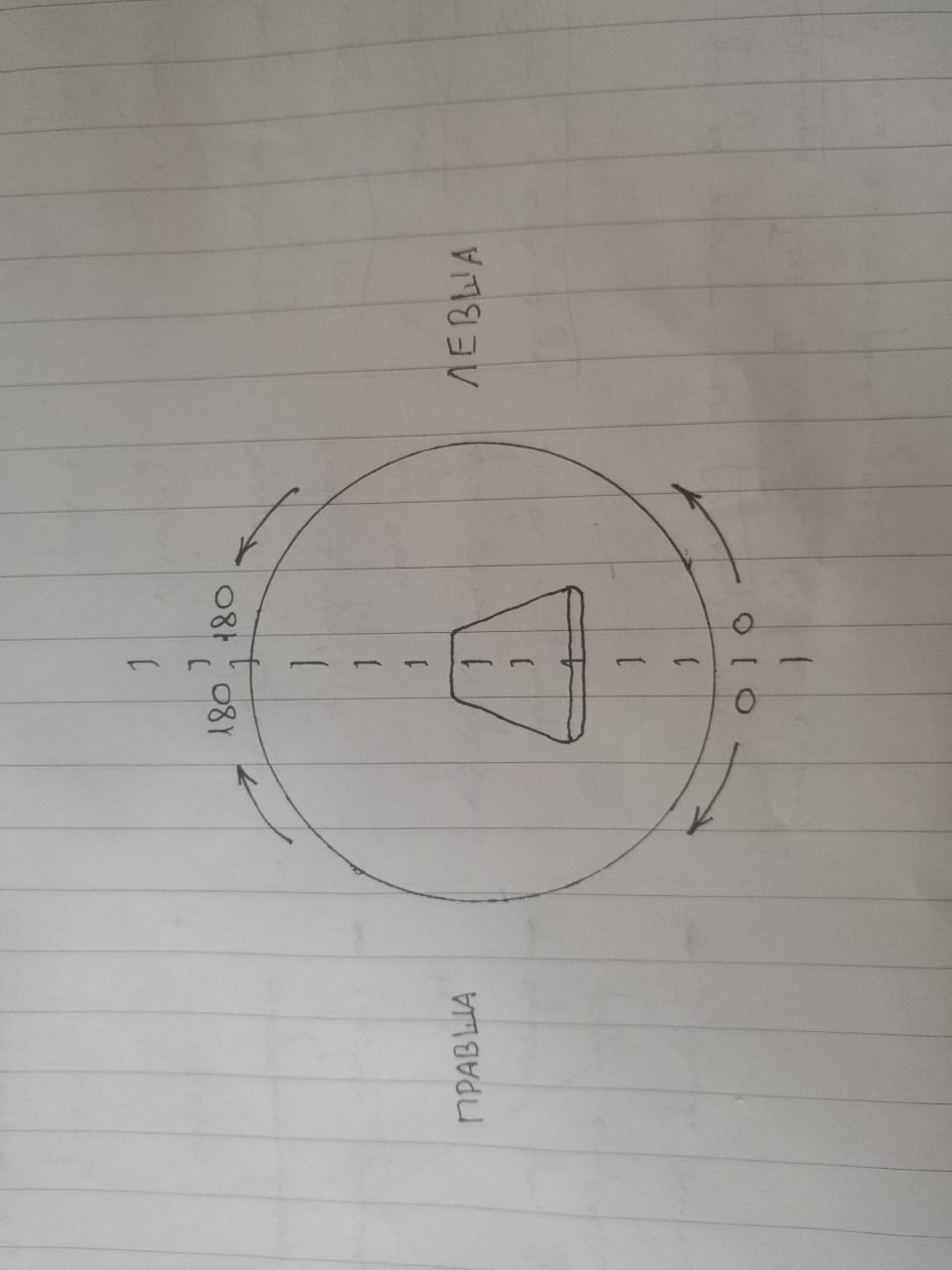
**The picture in the center conventionally shows the smartphone with the screen down. "Правша" in russian means right-handed people and "Левша" in russian means left-handed people*
### AMI instance
An AMI instance is one server and clients (computer and smartphone browsers) connected to it. For example, https://ami.stranno.su is one instance of AMI; all clients connecting to it become part of the instance.
### State
State refers to the entire set of system settings **directly affecting the character of the sound** (that is, apart from user interface settings such as language or dark/light theme).
Gestures, passing through the state, turn into sound. Therefore, the state determines the sound.
At the instance level, state is the same for all clients and is synchronized between all clients. Clients have equal access to state changes.
All instance-level gestures data is sent to all clients.
Thus an instance is a single entity. The server acts as a commutator between clients, sharing gestures and state between all of them.
Read more about state work in the [Storing state (settings) of the interface (Import / Export)](#state-storing)
## User guide
### System control
Sound synthesis is affected by two parameters — position and speed.
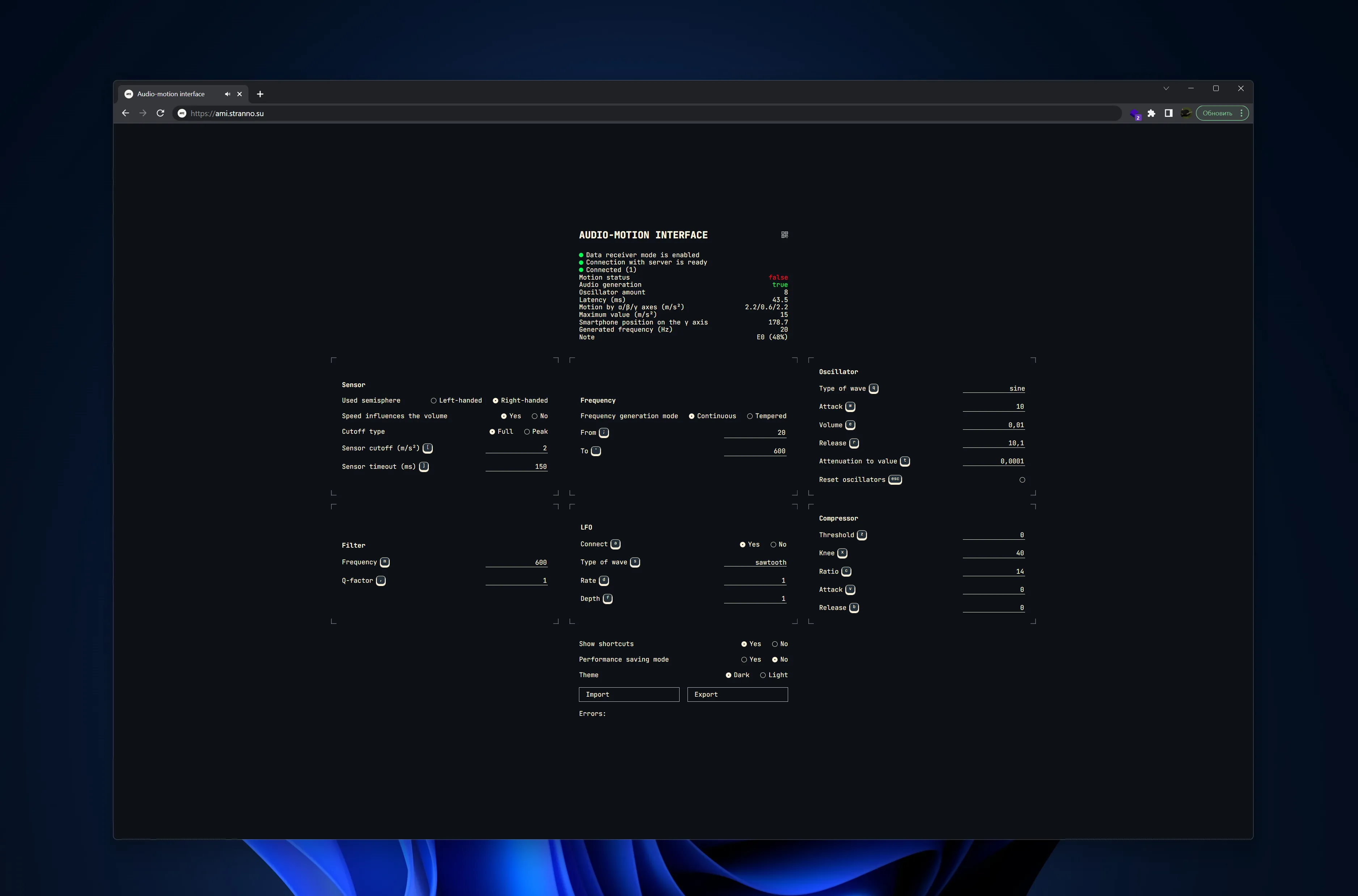
Position (angle of tilt along the semisphere) determines the frequency displayed in the **Generated frequency** field, as well as below in the **Note** field the hit of this frequency in the nearest note.
The speed of movement affects two factors:
- turns on the system when the speed exceeds the **Cutoff** defined in the corresponding field
- affects the volume when **Speed influences the volume** is enabled
If the cutoff is set to 0, one oscillator will run the whole time.
Accordingly, the system turns on when the cutoff is exceeded, creates a batch, and generates sound. When decelerating to a value below the cutoff, the system plans to decay the sound (if the **Release** field is not 0).
The **Oscillator amount** field displays all the batches sounding at the moment.
For example, if you shake your hand chaotically for some time, the cutoff will be exceeded several times at random, which means that several batches will be generated, which will fade smoothly and their sound will overlap each other. It is better not to bring the number of oscillators, according to current observations, to values higher than 120 pieces, as almost certainly the computing power of the device will end there and the sound will start to stutter, or will disappear at all.
According to subjective observations, the optimal cutoff can be between 3 and 7 (the default is 1), then random movements can be eliminated.
The **Latency** field displays the latency from the motion event to the sound synthesis. On a smartphone, it is equal to the software latency (`AudioContext.outputLatency`). On the desktop, it is equal to the software latency + the transfer time of the motion object from the smartphone to the desktop. In the interface is displayed in the format `device latency + network latency`.
According to current observations, the lowest latency is observed on Apple devices (this applies to both IPhone and desktop devices, about 8ms). For example, on the smartphone Huawei Honor 10 device latency is 80ms, on the laptop Huawei Matebook device latency is 40ms; at the same time when starting the system locally via wi-fi router the network latency comes out 4-5ms. So, specifically for these devices, total smartphone latency = 80ms, total laptop latency 40 + 5 = 45ms. That is, comes out a paradoxical situation that on the laptop sound occurs earlier than on the smartphone.
The most efficient option is to use an Apple laptop and install the system locally, then the latency will be about 5 + 8 = 13ms.
Since the frequencies are distributed over a semisphere, there is a field **Used semisphere** that allows you to switch the system for left- or right-handed people.
The semisphere contains 1800 divisions (180 degrees * tenths), on which the values specified in the field **Frequency range** are distributed. The values are distributed continuously and exponentially, i.e. there are more hertz for each degree at higher values, which allows to take into account the peculiarities of our hearing and make the frequency distribution across the semisphere even.
You can redistribute notes within a 12-step evenly tempered scale by using the **Frequency generation mode** field by selecting **Tempered mode**. Then the frequency range field will automatically change to **Range of Notes**. By selecting a small range, you can hit the notes you want quite accurately and confidently.
The **Motion by α/β/γ axes** field shows the speeds of movement by the three coordinates in space.
The **Smartphone position on the γ axis** field shows the tilt angle in the semisphere. This tilt angle determines the frequency of the synthesized sound.
The **Motion status** field shows `true` when the cutoff is exceeded and the system is generating sounds in the current batch. In the `false` position, the system is in standby mode when the cutoff is exceeded and generates no sound.
The field **Maximum value** shows the maximum speed of movement for the whole session (i.e. from the moment of opening the tab, to the current moment).
**Data receiver mode enabled** means the computer is ready to receive data from external smartphones.
**Data source mode enabled** means that the smartphone broadcasts its motion data to the remote computer.
**Connecting to server** — in this status, the system tries to establish a websocket connection with the server through which the data will be broadcast between the smartphone and the computer.
**Connection with server is ready** — it is possible to transmit data between devices.
**Connection with server is failed** — something happened on the server and it is no longer responding, or the device has disconnected from the Internet and lost communication.
**Connected (x)** — number of connected devices, *other than this computer* (this field is displayed only from the desktop).
**Waiting for connections** — no device is connected apart from this computer (this field is only displayed from the desktop).
**Performance saving mode** — motion events, as well as recalculation of the synthesized sound output values, trigger a very fast update of the data in the interface. This update is quite a costly operation. To save device resources, especially if you hear clicks or sound artifacts at some point, you can enable this mode, but it will turn off all data updates in the interface and you will only have to navigate by ear.
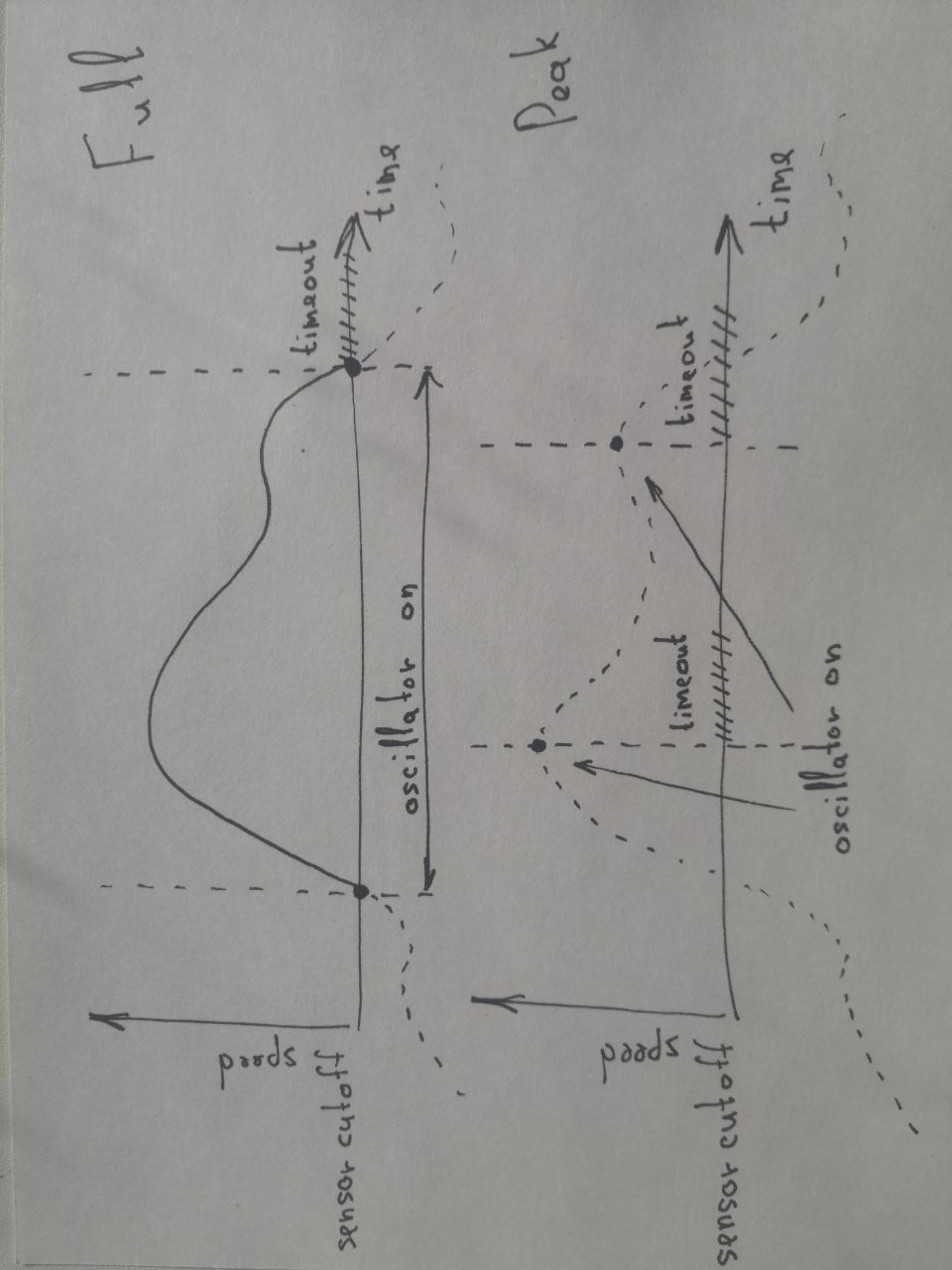
**Cutoff type** — with "full" type, sound is generated from the point above the cutoff to the point below the cutoff. In the "Peak" type, sound is generated only on the point of highest movement speed. Explanation: each gesture slows down at the end of its movement. This leads to, firstly, a difficult system to control, and secondly, in the "speed influences the volume" mode, the middle of the sound can be loud and the end very quiet. We can catch the slowdown and interpret it as the end of the gesture. The oscillator will then cut off at the speed peak. In practice, this allows for clearer individual controlled sounds.
**Sensor timeout** — like the sensor cutoff, this setting allows you to better control your movement and get rid of accidental sounds. It sets a pause after the end of the previous gesture, leveling out the accidental excesses of the cut-off when slowing down the speed of movement.
**Attack** — the time of smooth growth of the volume to the value in the volume field.
**Volume** — the target volume value to which the attack grows and from which the attenuation begins.
**Attenuation to value** — the volume value to which the sound is attenuated. The default value is `0.0001`, the minimum value (zero cannot be set for mathematical reasons, as the attenuation is exponential). If you set this value higher than the volume, the sound will grow and cut off abruptly, which will create a kind of inside-out effect.
**Filter** — lowpass filter, cuts the upper frequencies starting from the frequency specified in the corresponding field. The **Q-factor** determines the "power" of frequency suppression, the breadth of influence on frequencies (of all possible filters lowpass was chosen, because it softens ringing high frequencies, which is very appropriate for such a system. If there is a need for a more sophisticated filtering or a full-fledged equalizer in general, it is necessary to use external solutions, whether DAW or some separate devices).
**LFO** is the oscillator that controls the main oscillator volume knob. The amplitude is ahead of the depth of volume change, and the frequency is ahead of the volume change rate.
**Compressor** — by default its influence is minimized. If you want to play a lot of oscillators at once, but do not want to descend into rough noise, you can set, for example, the **Release** field to `0.25`, and the **Threshold** field to `-50`.
**Reset oscillators** — turns off and deletes all the batches that are working. It helps if the abundance of oscillators makes the sound produce artifacts, as well as if you set very high attenuation values and do not want to wait for the sound to fade out.
**Errors** — this field will be removed after the end of testing. Here will be inserted all the errors that occur during the work, which will help to debug the system.
**Fullscreen-mode** — on your smartphone, opposite the text "Audio-motion interface", there will be an icon to switch to full-screen mode (Apple devices do not support it). This mode is recommended because it disables the standard browser gestures "Back" (when swiping from the left edge to the right) and "Refresh" (when swiping from the top edge down), which will give you more confidence in holding the smartphone in your hand without fear of pressing something.
**Audio generation** — indicator showing whether sound is currently being generated.
### MIDI
AMI allows you to generate MIDI messages. To enable MIDI, the MIDI regime must be enabled. Automatically selects the first available port and its first channel. When the cutoff is exceeded, a noteOn signal is sent, then in Peak mode the noteOff signal is sent after the time specified in the Duration field; in Full mode, noteOff is sent only when the movement is over + after the time in the Duration field; during the movement, the pressure on the channel changes when speed affects the volume (that is, speed during the movement is equal to the change in the force of the key press). In Peak mode, speed increases Velocity. The MIDI Reset button sends an allSoundOff signal.
MIDI messages can be sent:
- to neighboring tabs and browser windows if they listen to MIDI (e.g., Web analog [DX7](http://mmontag.github.io/dx7-synth-js))
- to DAWs and other applications that have virtual synthesizers (that is, AMI can control, for example, a synthesizer in Ableton)
- to external MIDI-enabled devices connected to your computer
To send MIDI messages to a DAW on Windows devices, you can use [loopMIDI](https://www.tobias-erichsen.de/software/loopmidi.html).
> **Note**: After any manipulations with MIDI ports (connecting/disconnecting/ reconnecting) you must restart the browser completely, closing all browser windows if there are several
> **Note**: MIDI messages are generated only on the desktop. The smartphone in this mode only sends movement and orientation data
### Saving the state (settings) of the interface
At the first start of the application, the default settings are set.
Thereafter, any changes to the settings are immediately written to the computer, so your work is automatically restored when you restart.
But you may have a situation where you need to keep multiple copies of your settings at once. Also, when you clear the browser completely, when you change browsers, or when you start the application from a different domain (e.g. a new address `192.168.X.X`), the settings will be lost. As a solution, the application provides buttons **Import / Export** to save and load settings from an external file in `.json` format.
## Tech guide
Stack: HTML, Sass, JS, Web Audio API, Device Motion API, Device Orientation API, Socket.io, Express, Gulp.
AMI is essentially a small "fullstack" web application with https server on Express and websocket server on Socket.io, handing out a simple frontend in native JS using Web Audio API (WAAPI), Device Motion API (DMAPI) and Device Orientation API (DOAPI). We collect data from DMAPI/DOAPI, tidy it up, and send it directly to WAAPI in local mode and to websocket in distributed mode (and on the remote machine this data is received via websocket and sent there to WAAPI).
index.js is the entry point into the application. Runs Express and Socket.io, distributes the frontend from /client/dist. Frontend builds Gulp in /client folder from /client/src and puts the finished thing in /client/dist. JS is built by Webpack, Sass is compiled to CSS, HTML is built from templates, and the built JS and CSS is injected into ``. BrowserSync starts development server on a separate port, but it will not work backend (but it works live-reload), so it's better to open the address without port (`https://localhost`).
The application code is commented in many places, so you can learn the nuances directly in the code.
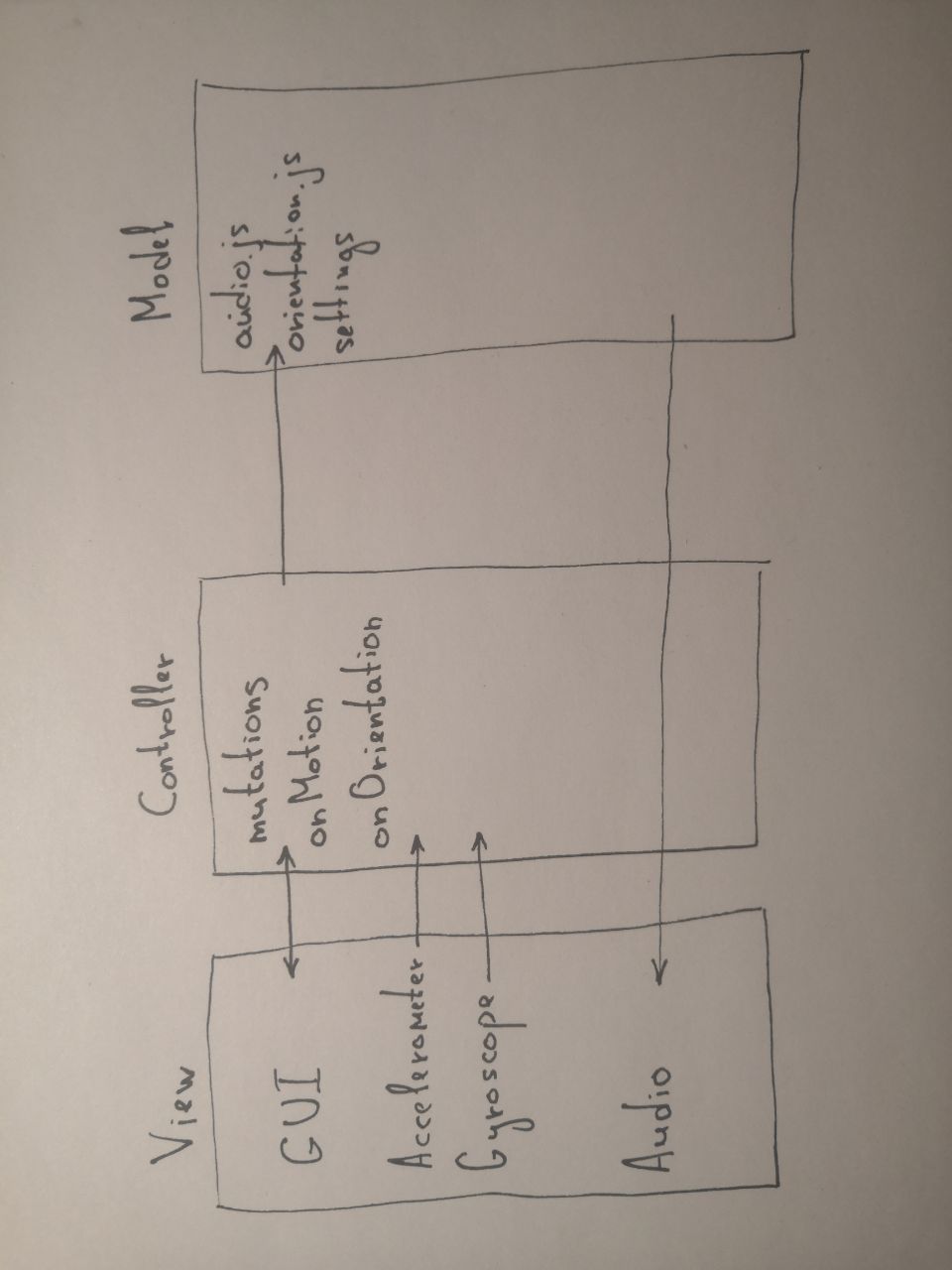
A rough scheme of data flow through the functions after initialization:
The [current-device](https://github.com/matthewhudson/current-device) library is used to define the device type - mobile or desktop, which initializes the corresponding mode. On the mobile device each motion event is checked for speed (maximum of three coordinates) and compared to the cutoff, if exceeded, then we create a batch. *If after that* are below the cutoff, then we plan to remove the batch. All elements of a batch are fluffed into arrays, and then deleted from them.
The application uses an MVC-like architecture (meaning MVC on the client), where the model uses a mutable state instead of the database, and the View will refer not only to the GUI, but also the data from the gyroscope and accelerometer, as well as the synthesized sound. The most important parts of the business logic are in `audio.js`, `motion.js`, and `orientation.js`. The state and almost all of its control is in `settings.js`. The `settings` object contains the entire state of the application. Changes to this object are made through methods of the `mutations` object. The connection between the view (its UI part) and the state is made in the `settingsInit()` function. This object is written to `localStorage`. Each mutation of it causes an update of `localStorage`. The `settings` object, with the exception of the `settings.ui` property, completely defines the sound of the system. The Import / Export buttons allow you to manipulate the state as an external JSON file.
It is quite possible to build a system with many states and control them through a kind of "master device" that mixes "tracks" from different devices, but in this case it was decided that each instance of AMI is a separate musical instrument with its own characteristic sound at the moment.
### Secure context
Due to the fact that the Motion/Orientation API requires secure context (i.e. encryption of traffic), we have to raise the http**s** server. For this purpose, with the help of [OpenSSL](https://en.wikipedia.org/wiki/OpenSSL) were generated public and private keys, with which the traffic between the computer and the smartphone is encrypted ([self-signed certificate](https://en.wikipedia.org/wiki/Self-signed_certificate)). There's not much practical benefit from such encryption, since the data moves within your local network (and if leaked to the Internet, the data about the rotation of your smartphone won't do much harm), but secure context is required by all browsers to transmit data about the movement and position to external devices.
If necessary, you can generate your own self-signed certificate (see [here](https://stackoverflow.com/questions/21397809/create-a-trusted-self-signed-ssl-cert-for-localhost-for-use-with-express-node) for details).
When you publish code on the web, you will most likely have some other infrastructure (nginx + server control panel, etc.) before the Express server, so the need for https-server will most likely disappear and you can change the index.js this way:
``` javascript
const fs = require('fs')
const os = require('os')
const http = require('http') // <-- Changed the package from https to http
const express = require('express')
const { Server } = require('socket.io')
const { lookup } = require('dns')
const open = require('open')
const hostname = os.hostname()
const app = express()
const server = http.createServer(app) // <-- Removed certificate download
```