简体中文
·
English
---
# Usage
## Interactive Mode
```sh
waveloom
```
Once in the TUI, type like a chat and press Enter to send. The agent autonomously invokes tools to read files, search code, edit, and run tests.
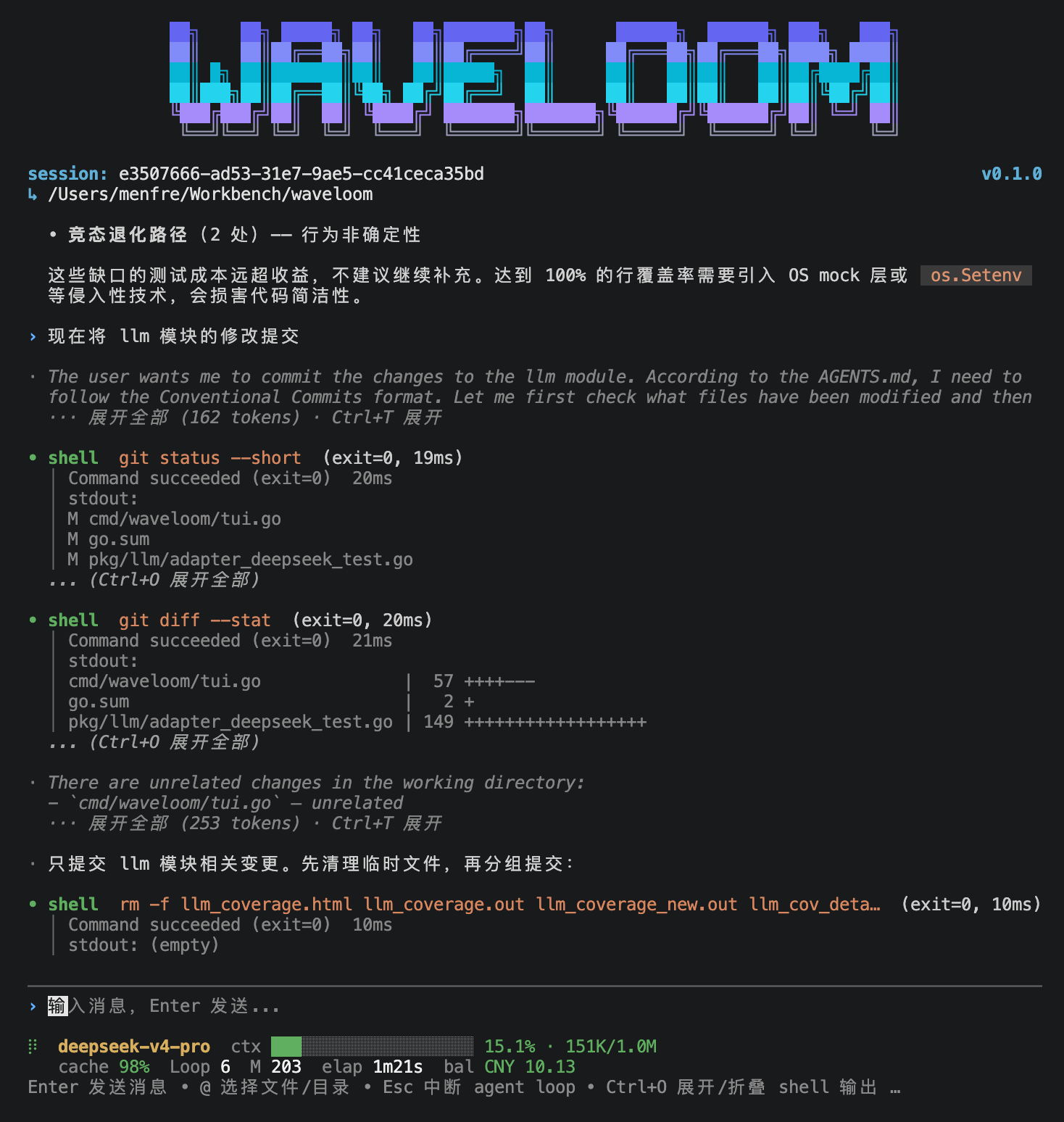
The prefix character at the beginning of each line tells you **who is speaking**:
| Prefix | Role | Meaning |
|--------|------|---------|
| `›` | You | Your message, in blue |
| `·` / spinner | Assistant | AI reply, in green, Markdown rendered |
| `·` / spinner | Thought | AI's reasoning, in gray, collapsed to one line when done (`Tab` to focus + `Enter` to expand) |
| `•` / spinner | Tool | AI's actions (read, write, run), green = success / red = failure |
**Keyboard shortcuts**:
| Key | Action |
|-----|--------|
| `Enter` | Send message; type `exit` and Enter to quit |
| `Esc` | Interrupt running agent |
| `Esc+Esc` | Clear the input |
| `↑` `↓` | Idle: navigate input history; running / end of history: scroll conversation |
| `Ctrl+E` / `End` | Jump to bottom |
| `Tab` | Focus next interactive paragraph (thought / tool output) |
| `Shift+Tab` | Focus previous interactive paragraph; when idle, enter/exit Plan Mode |
| `Enter` | Expand/collapse the currently focused paragraph |
| `Ctrl+G` | Toggle theme (auto / dark / light / darkcolorblind / lightcolorblind) |
| `Ctrl+V` | Paste from clipboard |
| `?` | Show keyboard shortcut help |
| `Ctrl+C×2` | Double-tap to quit (prevents accidental exit) |
| `Shift + mouse drag` | Select text in terminal |
| `Mouse wheel` | Scroll 3 lines per tick |
The **footer status bar** shows: current model, context usage (progress bar), cache hit rate, loop count, balance.
## One-shot
```sh
waveloom "explain the design of pkg/llm/client.go"
waveloom --model deepseek-flash "write unit tests for UserService"
echo "review the code under pkg/llm/" | waveloom
```
## Session Management
```sh
waveloom ls # List recent sessions
waveloom --continue # Resume the most recent session
waveloom --resume # Resume a specific session
waveloom --name # Name a new session
```
## Skill Installation & Management
Install community skills from any git repository, pinned to an exact commit (`skill.lock.json`):
```sh
waveloom skill add https://github.com/user/skills.git@v1.2 --path packages/skills/review
waveloom skill list # List all skills with their source (remote@commit or local)
waveloom skill update review # Pull the latest commit on the recorded ref
waveloom skill remove review # Remove (only skills installed via this command)
```
- `@ref` accepts branch / tag / full 40-char commit SHA (short SHAs are not supported); defaults to `main`
- Installs to project-level `.waveloom/skills/` by default; pass `--global` for user-level `~/.waveloom/skills/`
- Install records are written to `.waveloom/skill.lock.json` (next to the skills dir; `~/.waveloom/skill.lock.json` for global installs)
- Manually created skills are not tracked by `skill.lock.json`; `remove` refuses to delete them
### Install rules
- **Format check**: a `SKILL.md` (standard YAML frontmatter + Markdown body) must exist at the target path, otherwise the install fails and rolls back without leaving partial files
- **Naming**: the installed name is derived from `--name` > last segment of `--path` > repository name (without `.git`)
- **Name conflicts**: installing a name that already exists from a *different* source is rejected — `remove` it first or use `--name`; reinstalling the same repository with a different `@ref` is treated as an update and overwrites the old version
- **Idempotency**: reinstalling the same commit does not recopy files
- **Immediate effect**: once written into the skills directory, the skill is instantly discoverable by the TUI `/` command palette and the LLM — no restart needed
### FAQ
- **`list` output**: the first column is the skill name, the second is the source (`https://...@` for remote or `(local)` for manual). If a skill's frontmatter `name` differs from its directory name (install name), `list` and the `/` palette show the frontmatter `name`, while `update`/`remove` expect the install name (directory name)
- **`update` with no record**: the skill was not installed via `skill add` — `update` reports no install record and leaves the manual directory untouched
- **Manual dir with the same name**: if a same-named skill dir already exists without a lock record, `add` refuses to install (prevents overwrite) — remove it manually or use `--name`
## @ File References
Type `@` in the input to open a fuzzy file picker (prefix > substring matching). `Tab` enters subdirectories. Selected file contents are automatically injected into the message context.
```
help me optimize the error handling in @pkg/auth/login.go
```
### AGENTS.md Auto-loading
## / Command Palette
Type `/` in the input to open the command palette with fuzzy search.
| Command | Alias | Description |
|---------|-------|-------------|
| `/new` | `/clear` | Create a new session |
| `/model` | — | Show or switch model, type to filter; press `e` in the picker to set thinking effort |
| `/rename` | — | Rename the current session |
| `/theme` | — | Select theme (auto / dark / light / darkcolorblind / lightcolorblind) |
| `/locale` | `/lang` | Switch language (zh-CN / en-US) |
| `/provider` | — | View or switch LLM provider (DeepSeek / Kimi / GLM / OpenAI) |
| `/rewind` | — | Rewind to a previous message (restores file state) |
| `/help` | — | Show all available commands |
Skills with `user-invocable: true` in `.claude/skills/` are automatically registered as `/` commands using the skill name. Additionally, skills/commands from installed Claude Code plugins are auto-discovered (via `~/.claude/plugins/installed_plugins.json` + `enabledPlugins` config).
## Plan Mode
Plan Mode is a two-stage "design first, implement later" workflow. Ideal for tasks involving 3+ files, architectural decisions, or multiple viable approaches.
**How to enter**:
- **Shortcut**: press `Shift+Tab` when idle (no paragraph focused) to enter directly
- **Agent-invoked**: LLM assesses task complexity and calls `enter_plan_mode`, which pops up a confirmation dialog
**In Plan Mode**:
- All tools remain visible, but `write` / `edit` are restricted to the plan file only
- Shell analysis commands (`go test`, `git log`, `npm ls`, etc.) are auto-allowed; dangerous commands are blocked
- LLM communicates with you continuously via `ask_user_question` to clarify requirements
- Plan content is written to `~/.waveloom/plans/.md`
**How to exit**:
- **Shortcut**: press `Shift+Tab` in plan mode with no focus, approve or reject in the dialog
- **Agent-invoked**: LLM calls `exit_plan_mode` when ready, same approval dialog appears
- Approved → returns to normal mode, LLM starts implementing
- Rejected → stays in plan mode, LLM revises based on feedback
The `▌Plan` indicator on the left of the input line shows you're in Plan Mode.
## Sandboxed execution
Waveloom provides OS-level execution isolation (bubblewrap on Linux / Seatbelt on macOS): read-only root, workspace-only writes, credential masking (`~/.ssh`, keychains, tokens, etc.), environment variable stripping, and controllable networking.
### Classic combo: sandbox + bypass-permissions + network on (CI / non-interactive)
```sh
waveloom --bypass-permissions --sandbox-network on "go build && go test"
```
What this combination gives you:
| Layer | Behavior |
|-------|----------|
| Permissions | `--bypass-permissions` → binary decision (DENY/ALLOW only, no prompts; deny rules and high-risk hard blocks still apply) |
| Sandbox | Auto-activated → commands run isolated (read-only root + workspace writes + credential masking + env stripping) |
| Network | `--sandbox-network on` → direct network inside the sandbox (dependency pulls, git fetch, gh, etc.); `off` (default) = fully offline |
> [!TIP]
> With network `on`, configure credential masking (`credentials.files` / `filesystem.denyRead` in `settings.json`) so unmasked user files can't be exfiltrated. Without it the sandbox still runs, but a warning is printed.
### Other common usages
```sh
# Sandbox + permission bypass + offline (local build/test, default network policy)
waveloom --bypass-permissions "make build && make test"
# TUI mode with explicit sandbox (requires "sandbox": {"enabled": true} in .waveloom/settings.json)
waveloom
# Escape hatch for docker / network-privileged commands (project-level .waveloom/settings.json):
# { "sandbox": { "excludedCommands": ["docker *"] } }
```
**Sample config** (`.waveloom/settings.json`):
```json
{
"sandbox": {
"enabled": true,
"excludedCommands": ["docker *"],
"env": {
"GOPATH": "./.waveloom-gopath",
"GOMODCACHE": "./.waveloom-gomodcache",
"GOCACHE": "./.waveloom-gocache"
},
"network": { "mode": "on" },
"credentials": { "files": ["~/.ssh", "~/.aws/credentials"] }
}
}
```
> `sandbox.env` redirects build-tool caches into the writable workspace area (go's `GOPATH`/`GOMODCACHE`/`GOCACHE`, npm's `npm_config_cache`, etc.), avoiding host-cache write failures under the read-only root. Full field reference: [settings.en.md](settings.en.md#env-injection-inside-the-sandboxenv).
**Platform support**: Linux (bubblewrap, `apt install bubblewrap`) / macOS (Seatbelt, built-in) / Windows unsupported (use WSL2 for the Linux backend). When the backend is unavailable the sandbox degrades with a warning; `failIfUnavailable: true` turns that into a hard refusal to start.
### Linux first run: bubblewrap installation guide
bubblewrap is **not installed by default** on Linux — when the sandbox is first enabled and bwrap is missing, the startup log shows the install command for your distribution:
| Distro | Command |
|--------|---------|
| Ubuntu / Debian / Mint | `sudo apt install bubblewrap` |
| Fedora / RHEL / CentOS | `sudo dnf install bubblewrap` |
| Arch / Manjaro | `sudo pacman -S bubblewrap` |
| Alpine | `sudo apk add bubblewrap` |
| openSUSE | `sudo zypper install bubblewrap` |
> [!TIP]
> Systems with **Flatpak** usually already have bubblewrap (it's Flatpak's core sandbox dependency) — run `which bwrap` first; you may not need to install anything.
On Ubuntu 24.04+ if AppArmor blocks unprivileged user namespaces, follow the error output:
```sh
# Temporary
sudo sysctl -w kernel.apparmor_restrict_unprivileged_userns=0
# Permanent: install an AppArmor profile allowing bwrap userns (see error output)
```
### excludedCommands: classic escape-hatch scenarios
`excludedCommands` lets specific commands run **outside the sandbox** (bare), while permissions still pass through Guard (deny rules and high-risk hard blocks remain). Typical scenarios:
**1. docker (most common) — docker doesn't work inside the sandbox**
The sandbox masks `~/.docker/config.json` and restricts daemon socket access, so docker commands must run outside:
```json
{
"sandbox": { "excludedCommands": ["docker *"] }
}
```
```sh
waveloom --bypass-permissions --sandbox-network on "docker build -t app . && docker push app"
```
> [!NOTE]
> In a compound command containing an escaped command (`A && docker ps && B`), the **whole command escapes the sandbox** — the model should run docker commands standalone and keep other commands sandboxed.
**2. Partial networking — allow only specific commands, keep the rest offline**
Instead of enabling `network.mode: on` globally, allow just a few commands to reach the network (e.g. `git push`, `npm install`):
```json
{
"sandbox": {
"excludedCommands": ["git push *", "npm install *"],
"network": { "mode": "off" }
}
}
```
Effect: all other sandboxed commands stay offline; only the escaped commands can use the network.
**3. Escape hatch — commands that fail inside the sandbox**
When a command fails inside the sandbox (with `allowUnsandboxedCommands` on by default), the output suggests adding it to `excludedCommands` and retrying; once you confirm the command is safe, configure it as shown.
### AGENTS.md Auto-loading
On startup, Waveloom discovers and loads `AGENTS.md` (search path: `~/.waveloom/AGENTS.md` → project root where `.git` lives → CWD), concatenating them from outer to inner as the first user message. The agent automatically follows project conventions, coding standards, and workflows defined therein.
### @ Expansion Inside AGENTS.md
`AGENTS.md` files also support `@` reference syntax, useful for splitting large convention docs into multiple files:
```
# AGENTS.md
@docs/coding-style.md
@docs/release-process.md
```
Waveloom expands `@` references within loaded AGENTS.md files. Multiple refs are expanded in order, with deduplication by path.